

Our Most Suggested Products


Website Product Files Upload
Website Product Files Upload enables seamless image attachment during product purchase. Both guest and logged-in users can upload images when required, with flexible settings controlled at the product level. Upload functionality can be enabled or disabled per product, and attachments can be marked as compulsory or optional. Administrators have full control to define maximum image size, specify eligible user types, and manage visibility of uploaded files. This ensures a customizable and secure image upload experience tailored to product needs.
 Features
 Screenshots
 Support
 Service
Features
Product Image Upload Control
Provides configurable image attachment during product purchase. Uploads can be enabled or disabled per product and set as compulsory or optional
Customizable Purchase Attachments
Adds image upload functionality directly to product purchases. Guest and logged-in users can attach files when permitted, while administrators define requirements such as compulsory uploads, file size limits, and user access.
Secure Image Attachment System
Delivers structured image upload functionality for product purchases. Both guest and registered users can upload when allowed. Administrators configure product-level rules, including compulsory uploads, file size limits, and user access.
Screenshot
1.) Go to Products for Configure Website File Upload:
Navigation : Website › eCommerce › Products
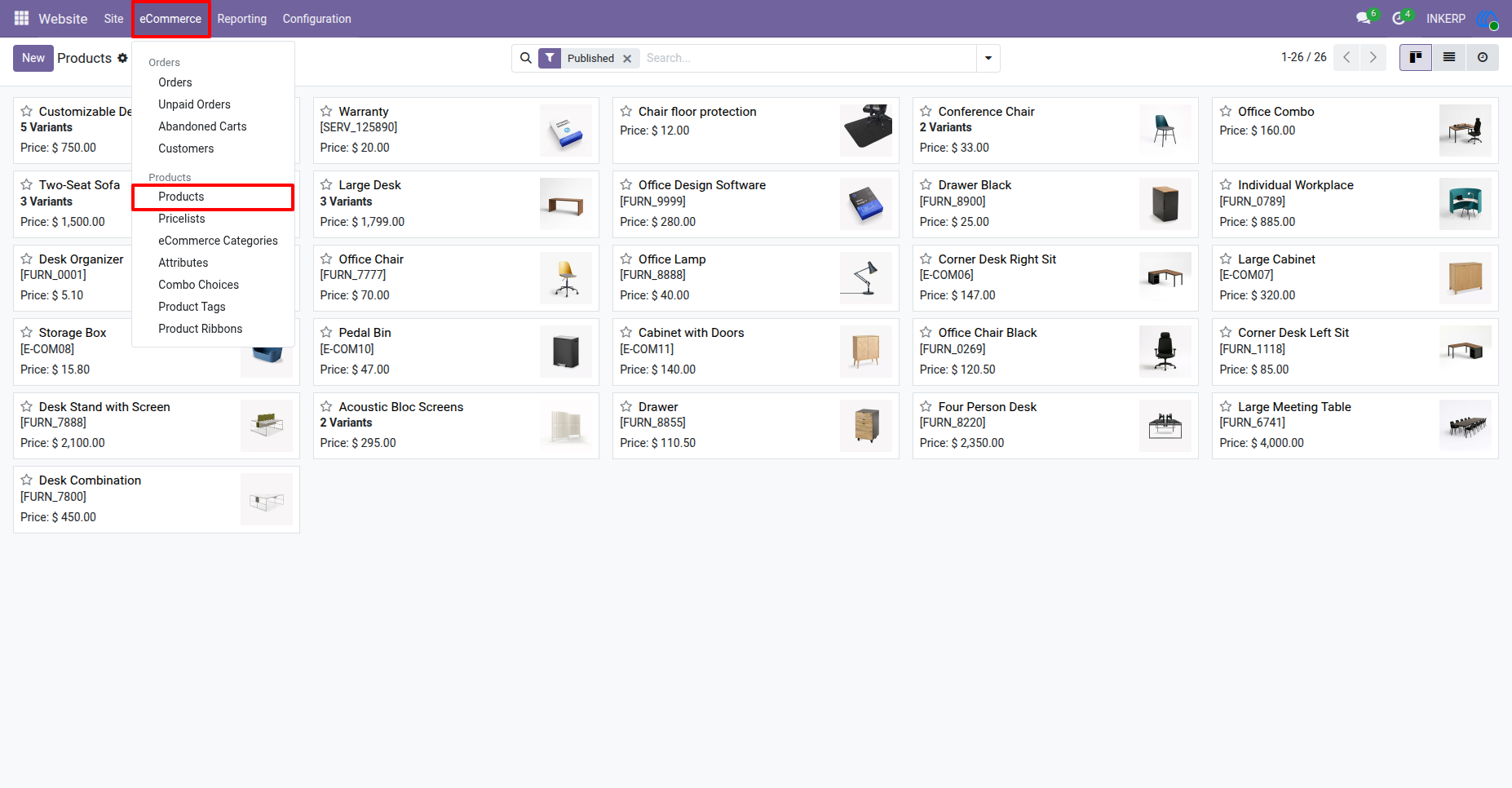
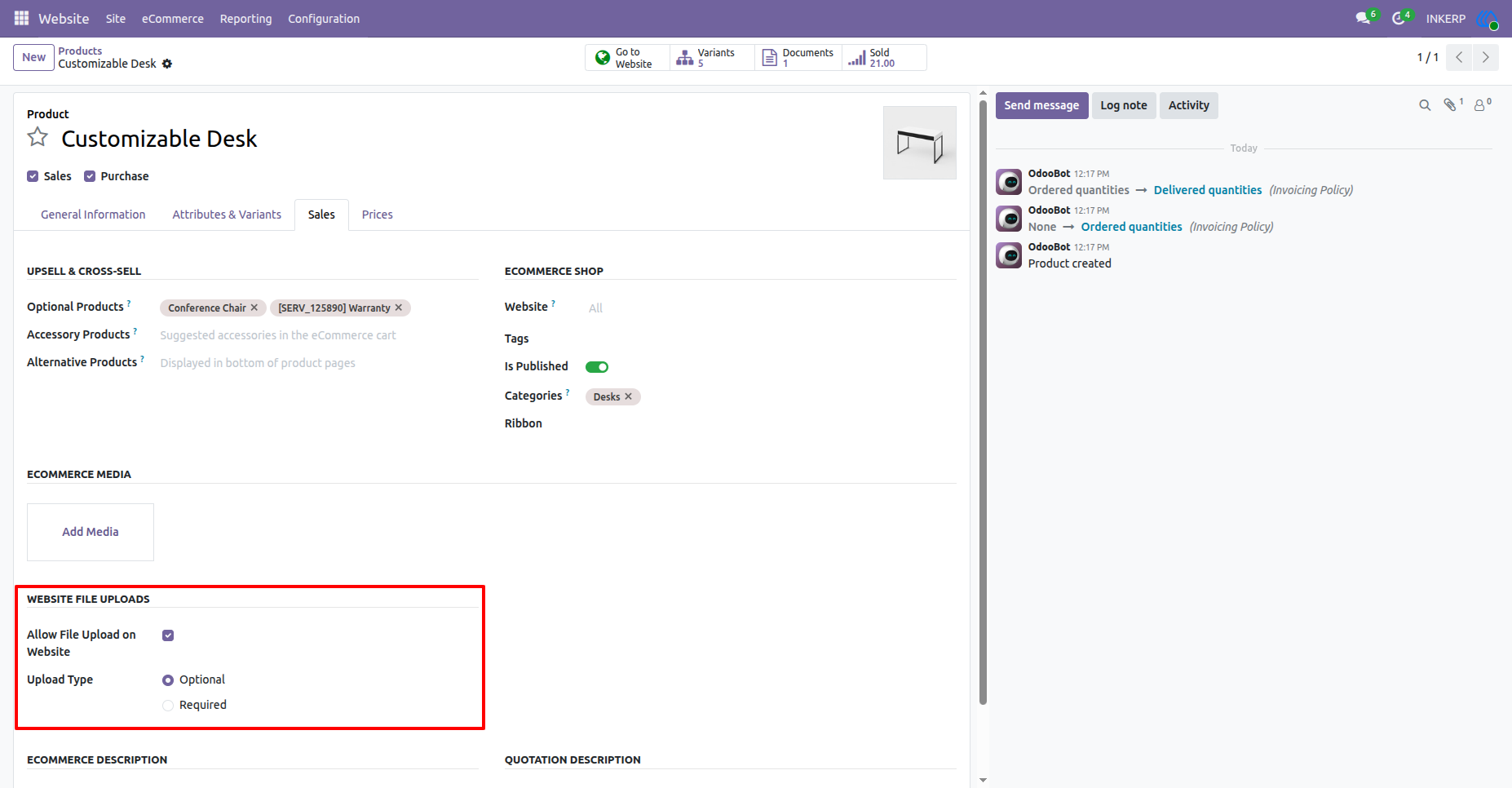
2.) Configure Website File Upload :
File upload per product and optional ot Required can be configure from here.
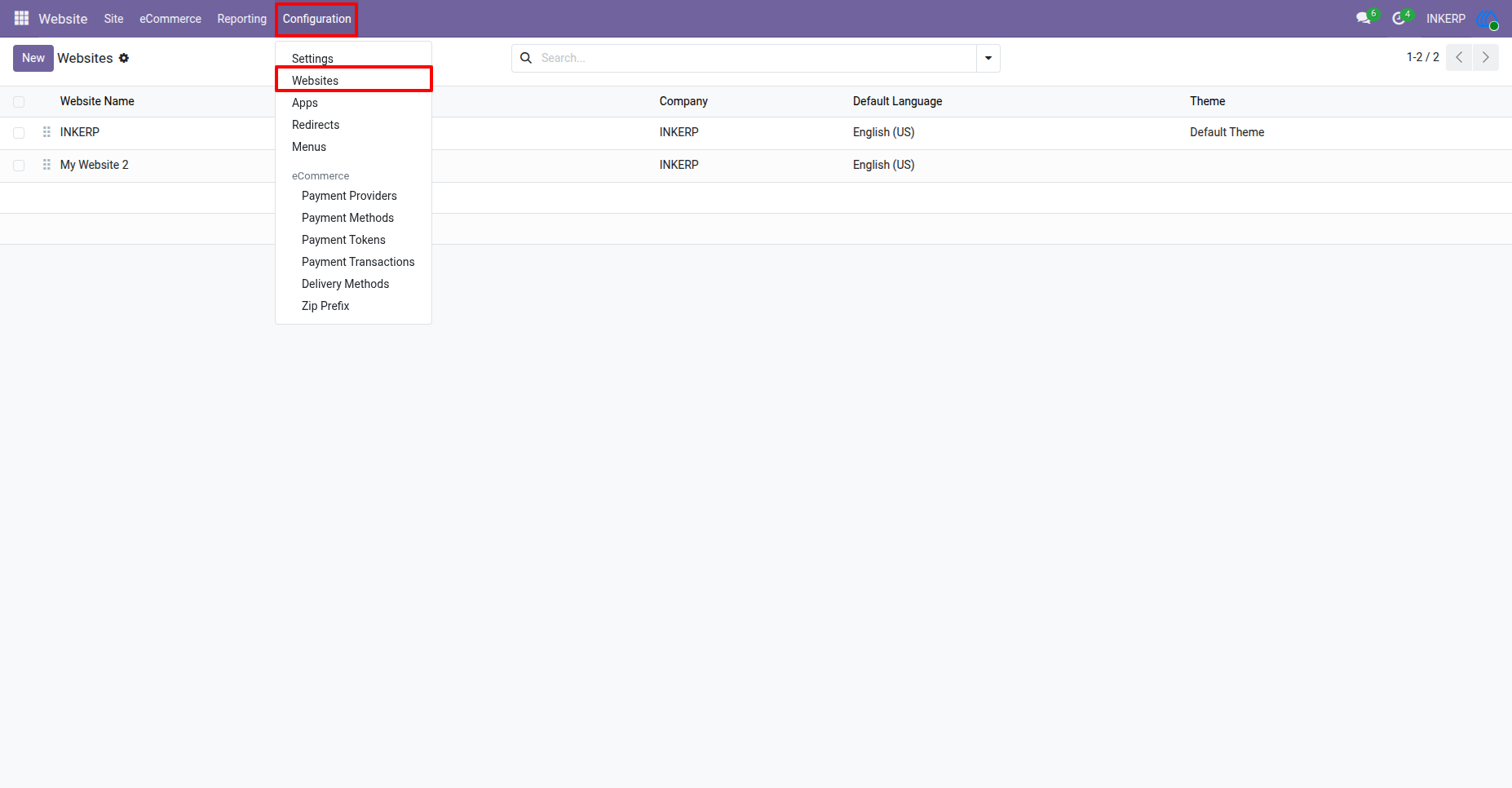
3.) Go to Website :
Navigation : Website › Configuration › Websites
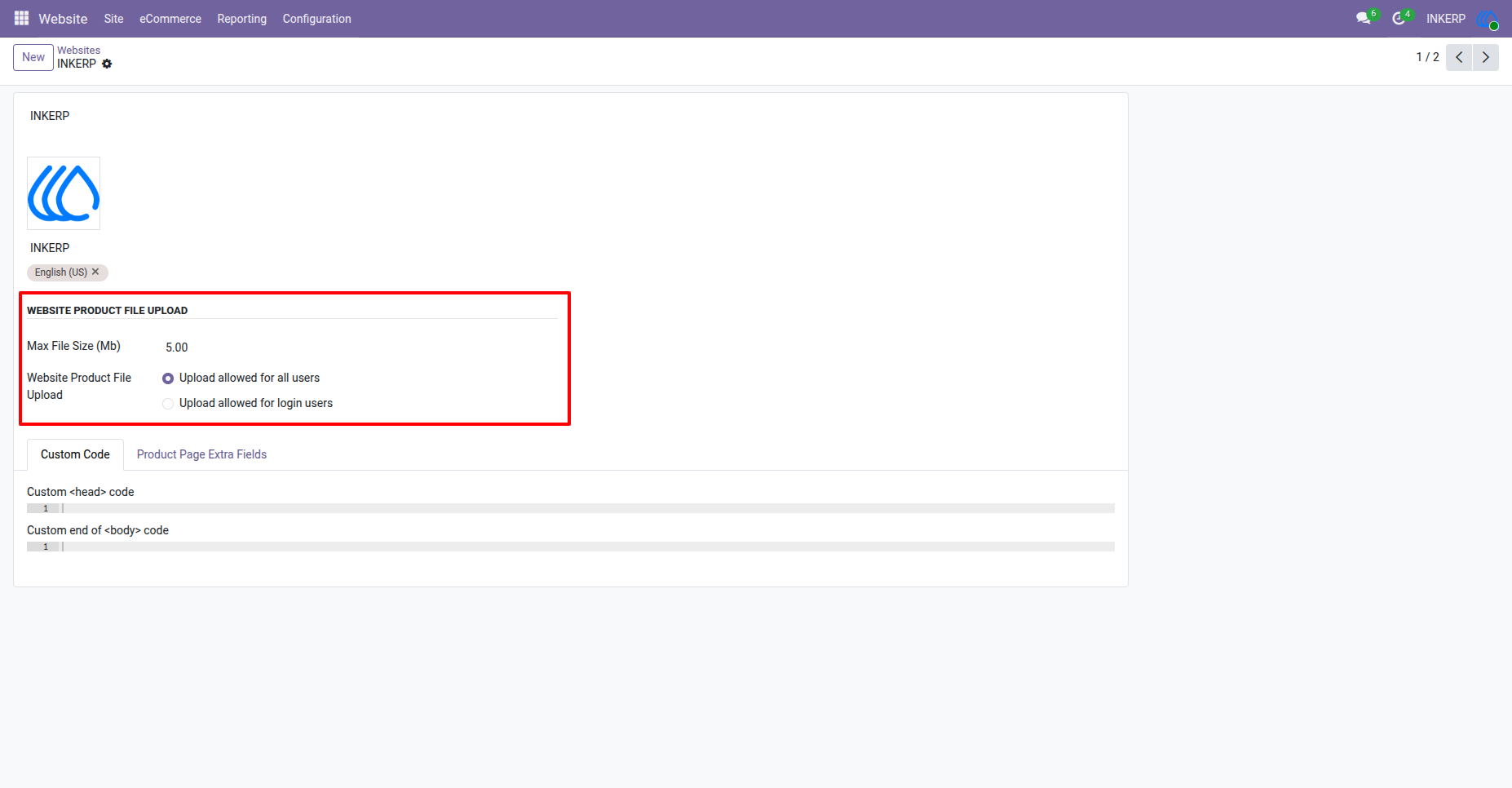
4.) Configure File Size and Who Can Upload :
Here admin can configure that which user can upload file and maximum size of it.
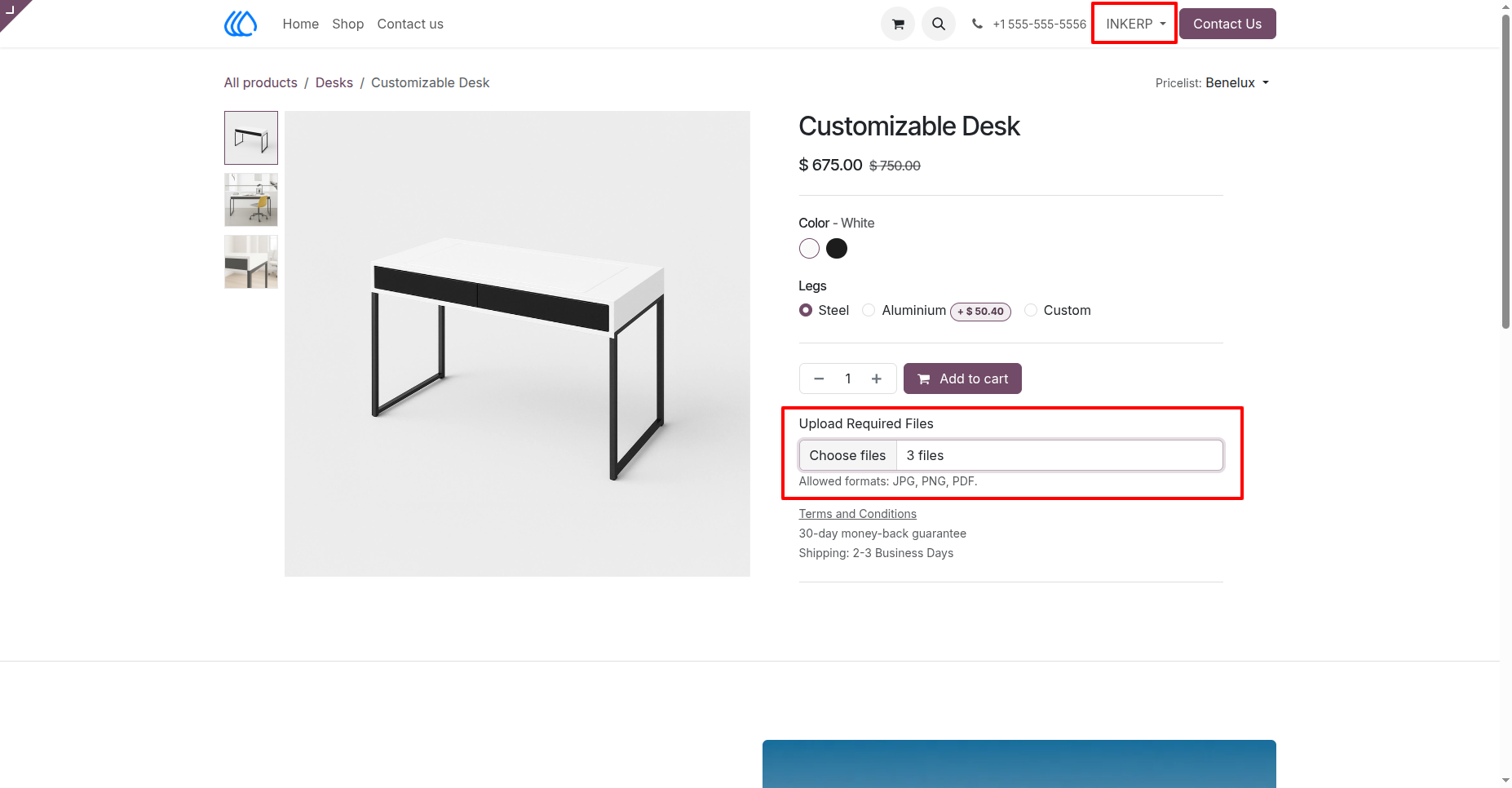
5.) User Uploads Multiple Files in Product :
As per configure all / logged in user can upload files here.
Make sure that JPG, PNG, PDF formates are allowd only.
6.) Uploaded Files in Cart Line :
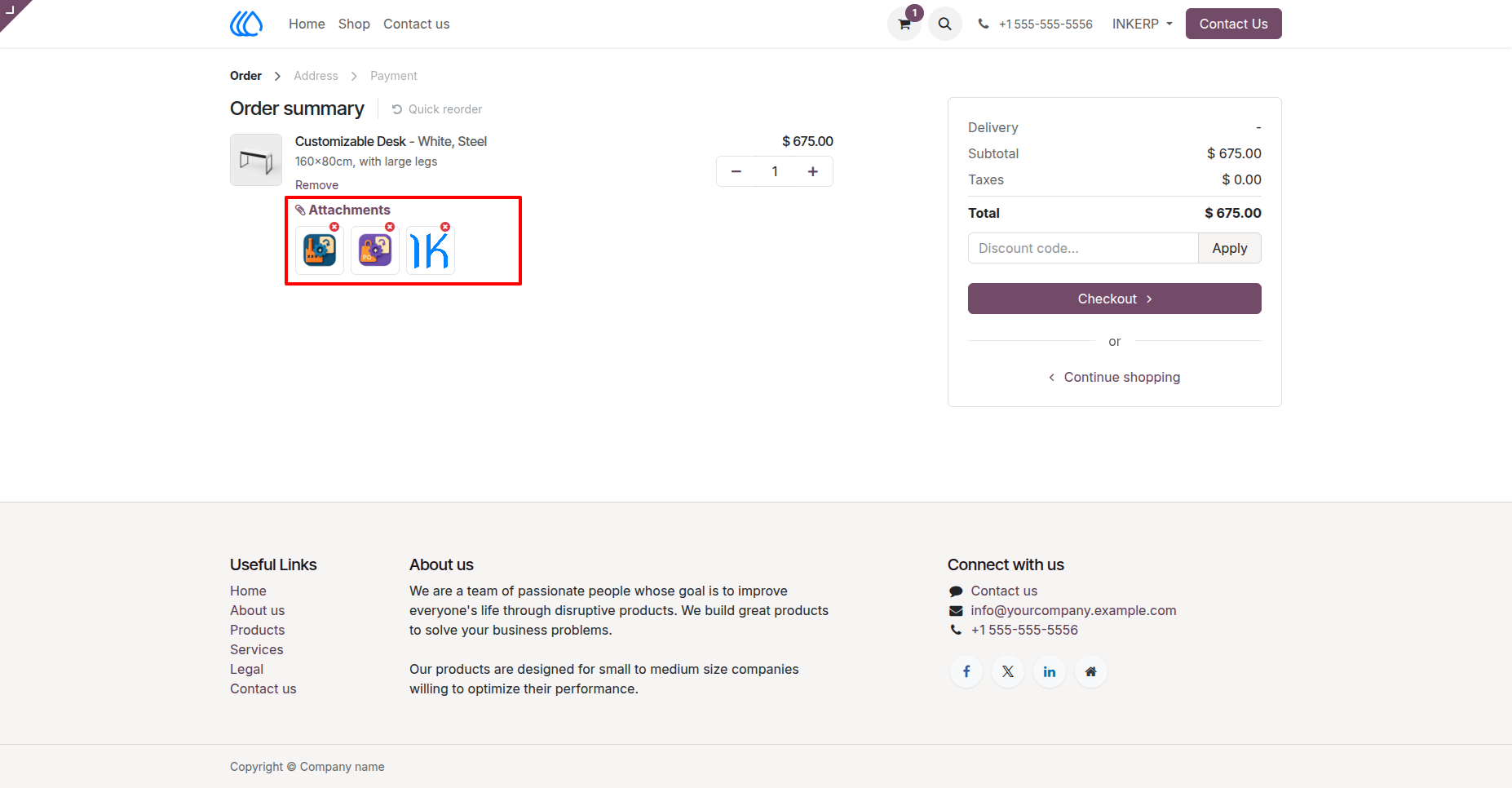
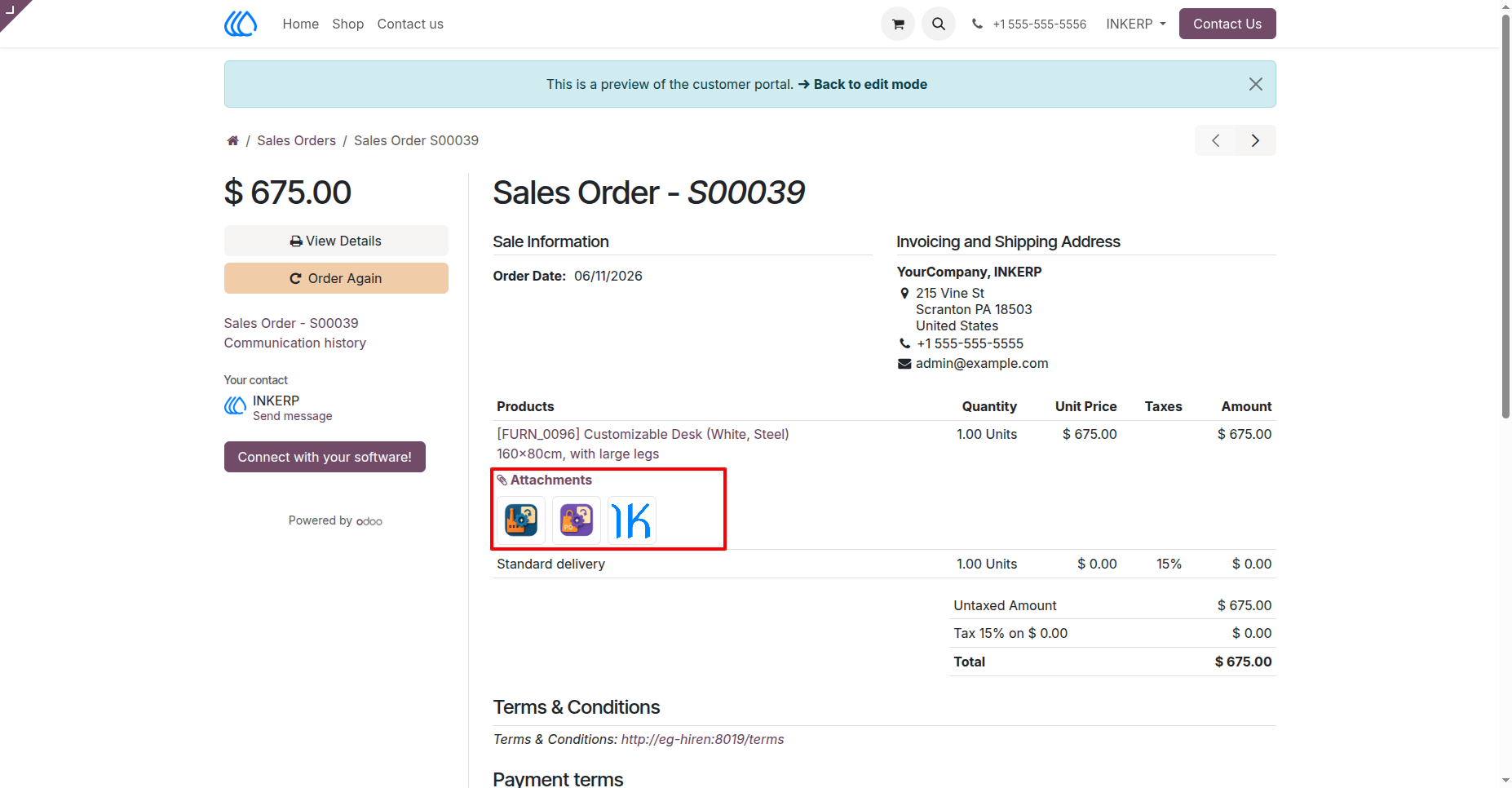
7.) Attachment / File in Order Page :
Navigation : Website › My Account › Your Orders
User Guide