

Our Most Suggested Products


Stock Custom Product Labels
Print custom barcode labels directly from Odoo using our Stock Custom Product Label module. Supports popular formats like A4 (57x35mm) and Dymo (50x38mm).
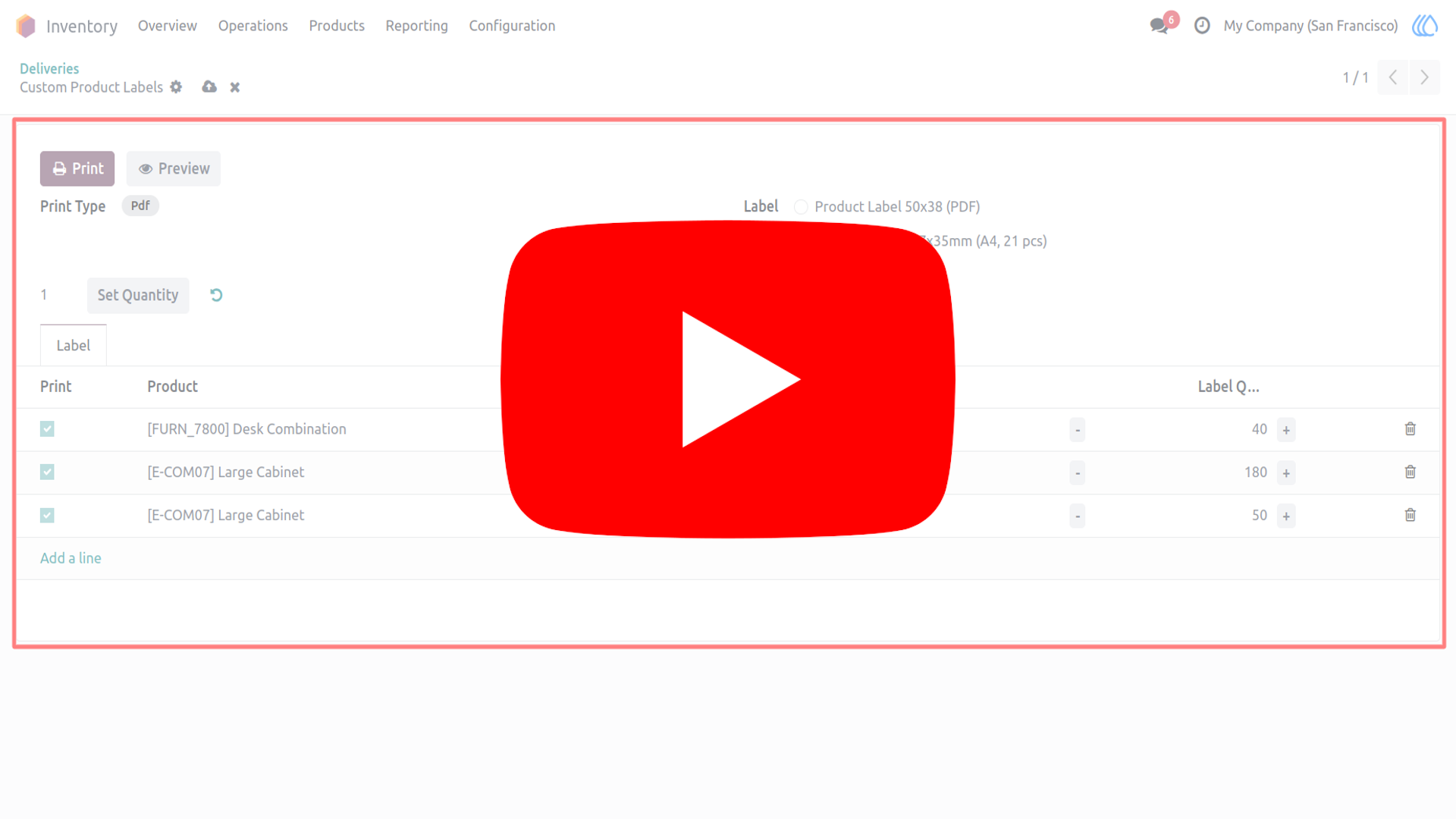
Video Tutorial
 Features
 Screenshots
 Support
 Service
Features
Ready Templates:
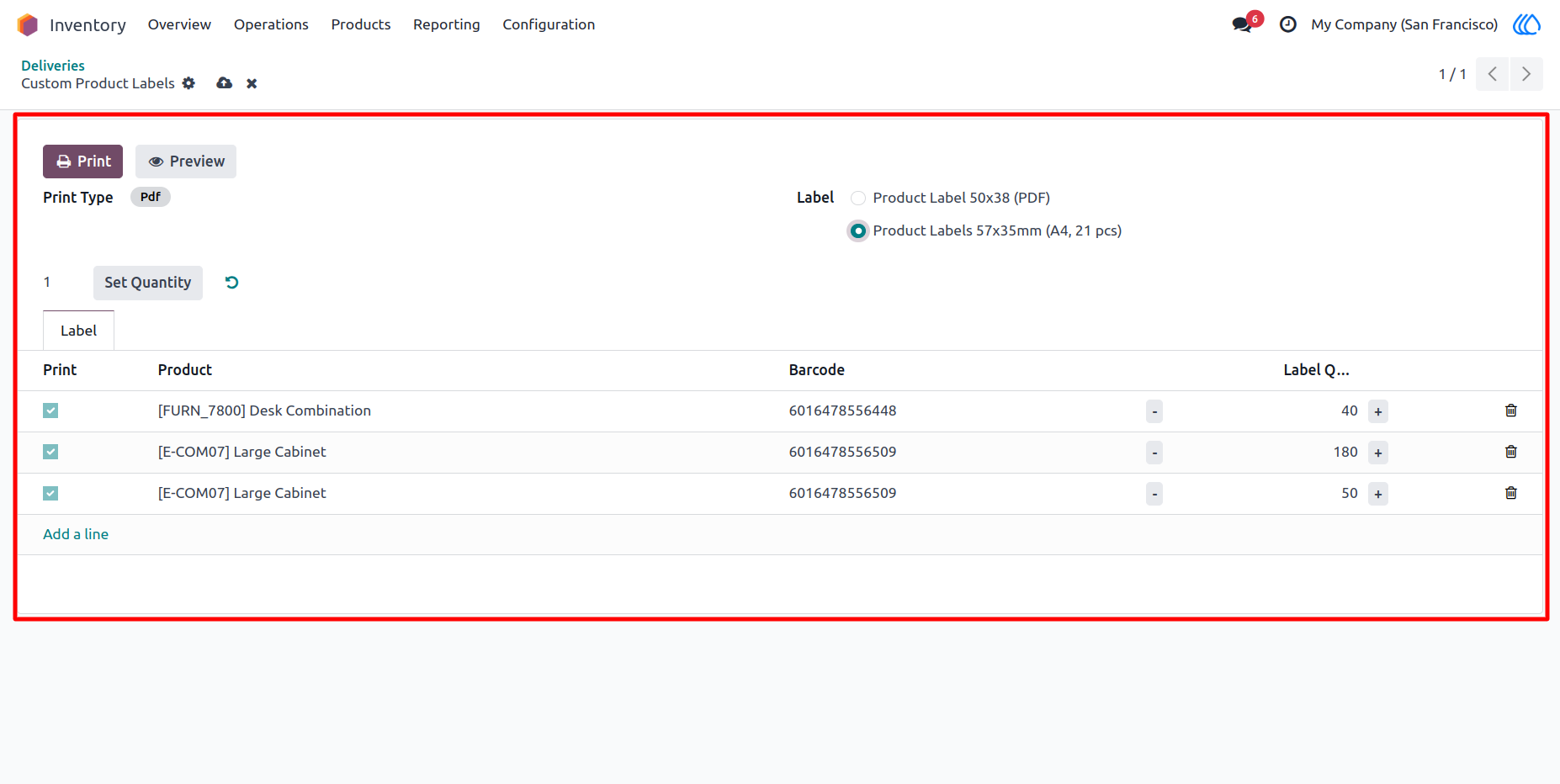
The module comes with pre-configured templates for A4 (57x35mm) and Dymo (50x38mm) labels. These templates are readily available in the custom wizard, so users can generate labels instantly without extra formatting. This saves time and ensures printing consistency across both standard and Dymo label printers.
Label Preview :
Before printing, users can preview labels for both Deliveries and Receipts. This feature helps verify product information, layout, and quantities to avoid mistakes. By reviewing labels in advance, businesses reduce misprints and ensure smooth warehouse operations.
Change Quantity :
The module not only auto-fills product quantities from stock but also allows users to manually adjust them. This flexibility is useful for scenarios like partial shipments, reprints, or special labeling needs. It gives warehouse teams full control over the number of labels they generate.
Screenshot
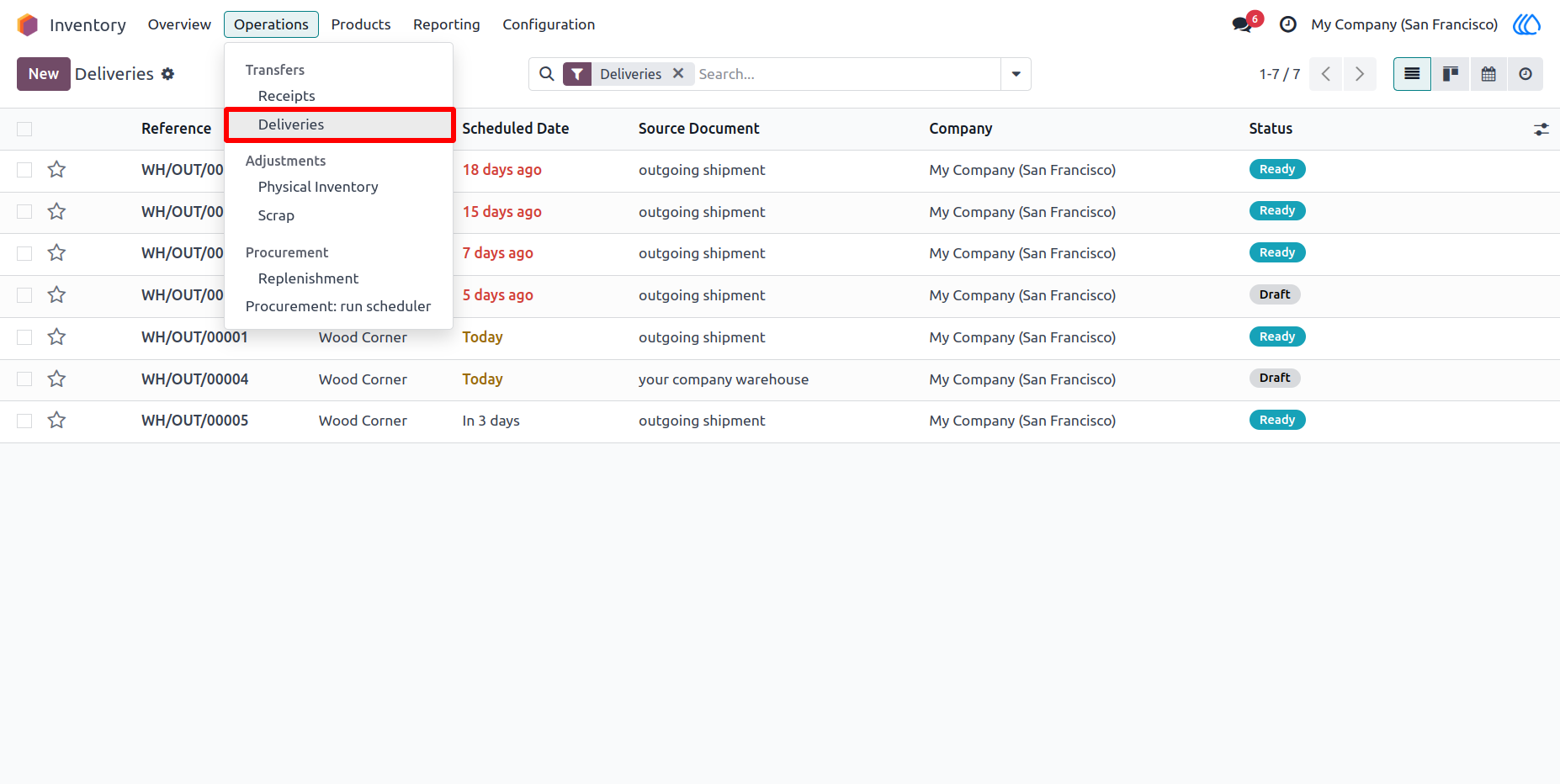
1.) Deliveriy Orders :
Go to Deliveriy Orders to Select and Print custom Labels
Navigation : Inventory › Operations › Deliveries
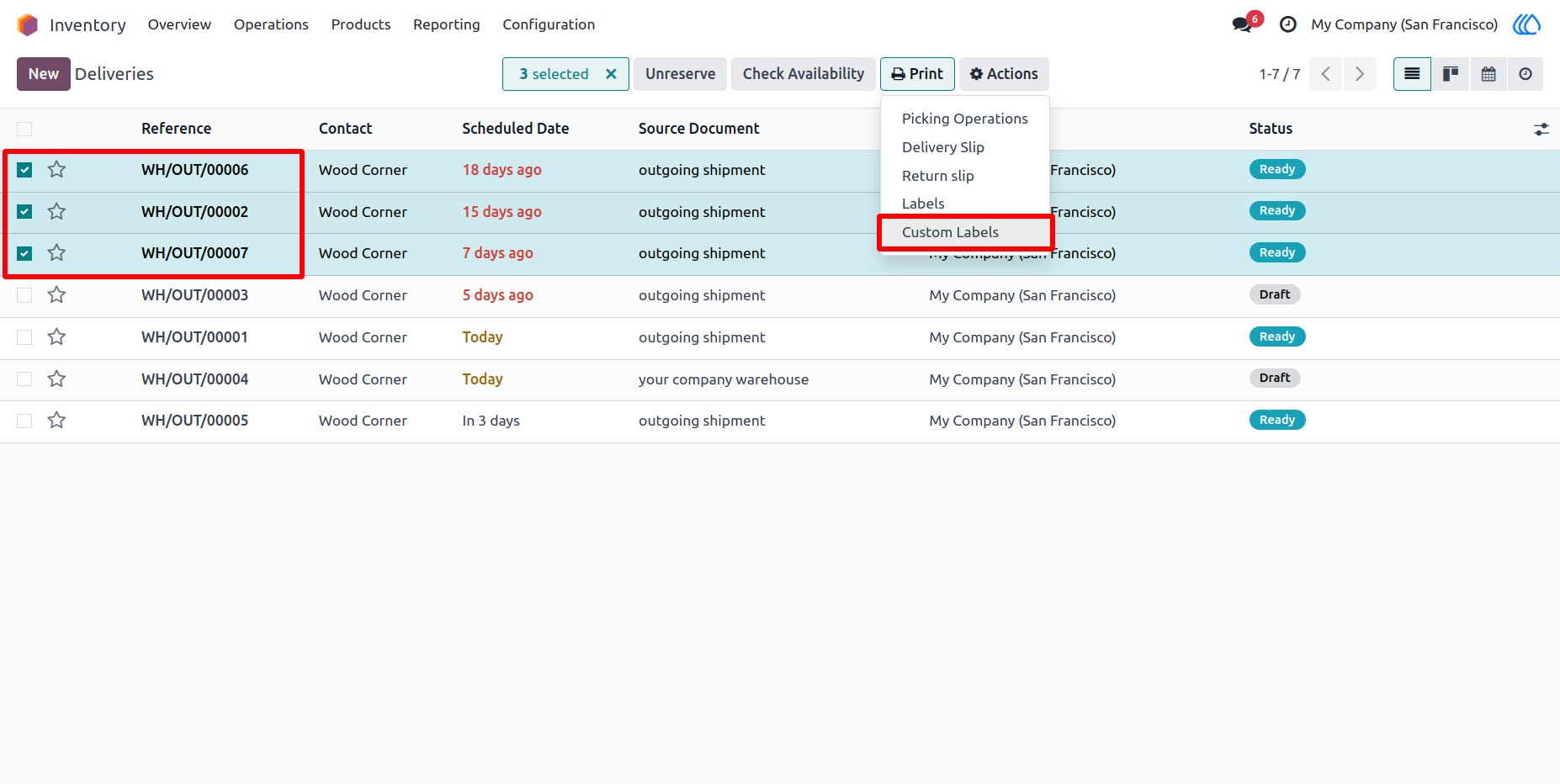
2.) Select Deliveriy Orders :
Select Deliveriy Orders want to print their product label and select Custom Labels print option
3.) Custom Wizard Open :
A Custom Wizard Is open for configure labels and printing types if it
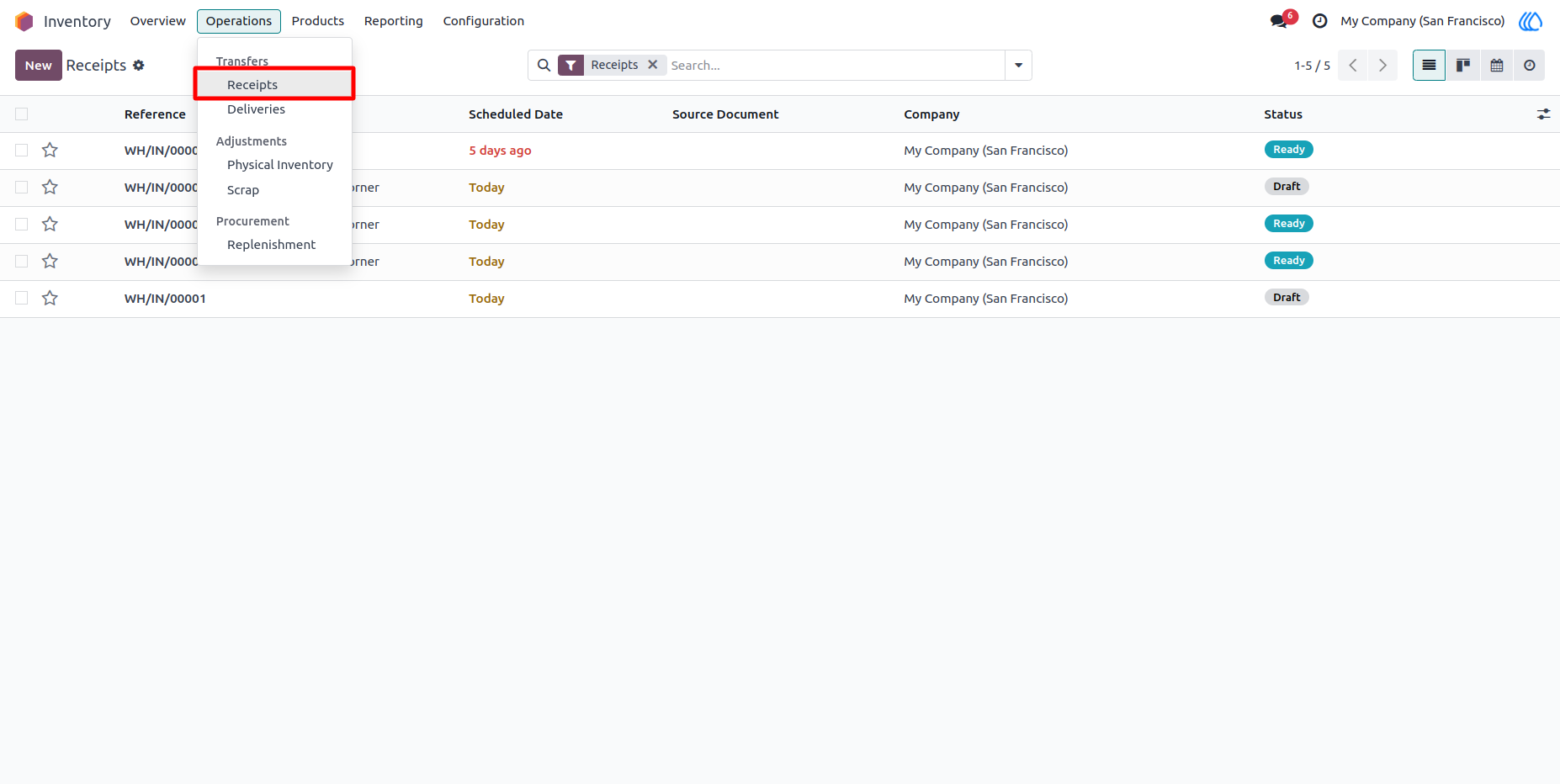
4.) Receipts Orders :
Go to Receipts Orders to Select and Print custom Labels
Navigation : Inventory › Operations › Receipts
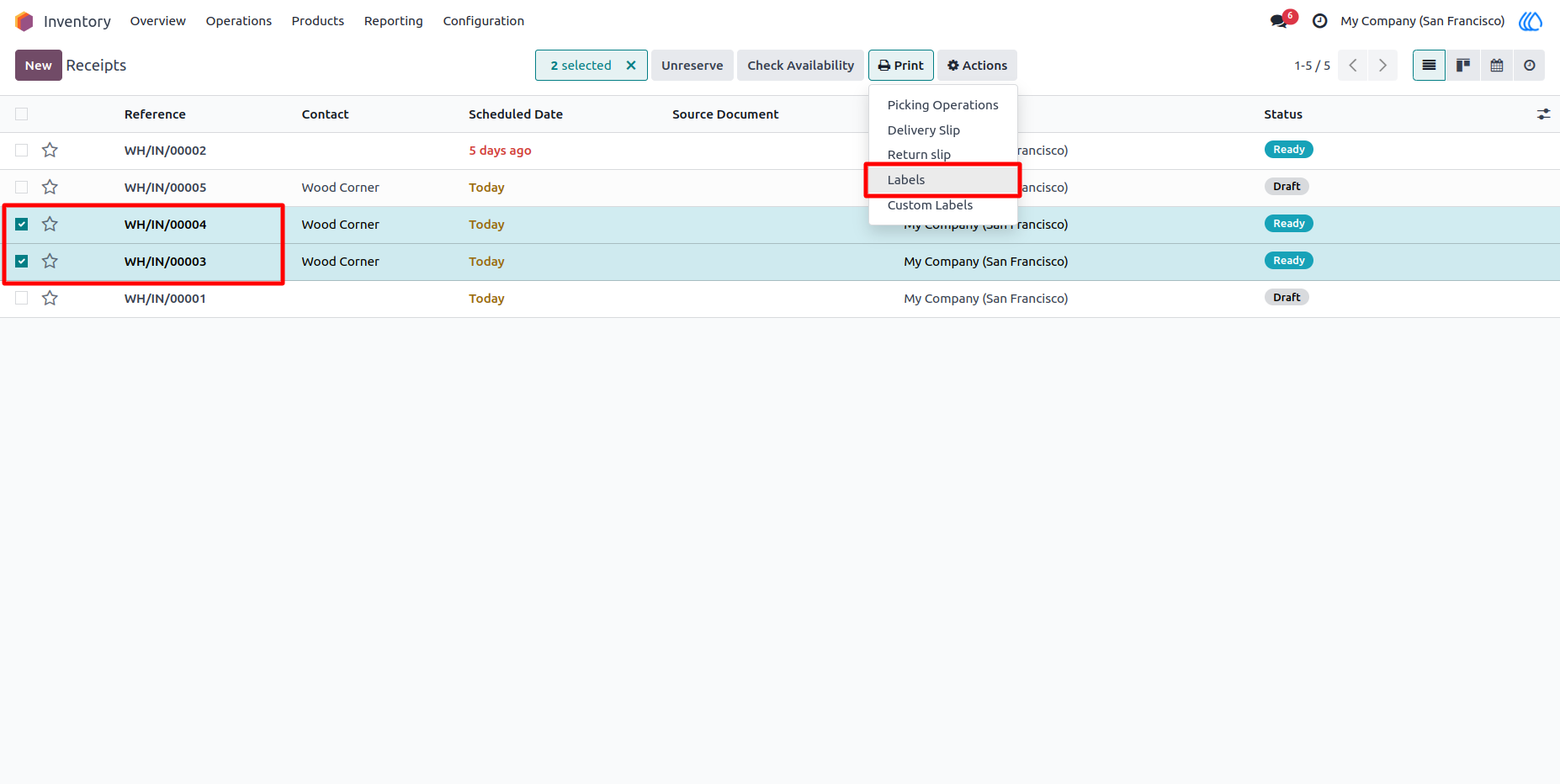
5.) Select Receipts Orders :
Select Receipts Orders want to print their product label and select Custom Labels print option
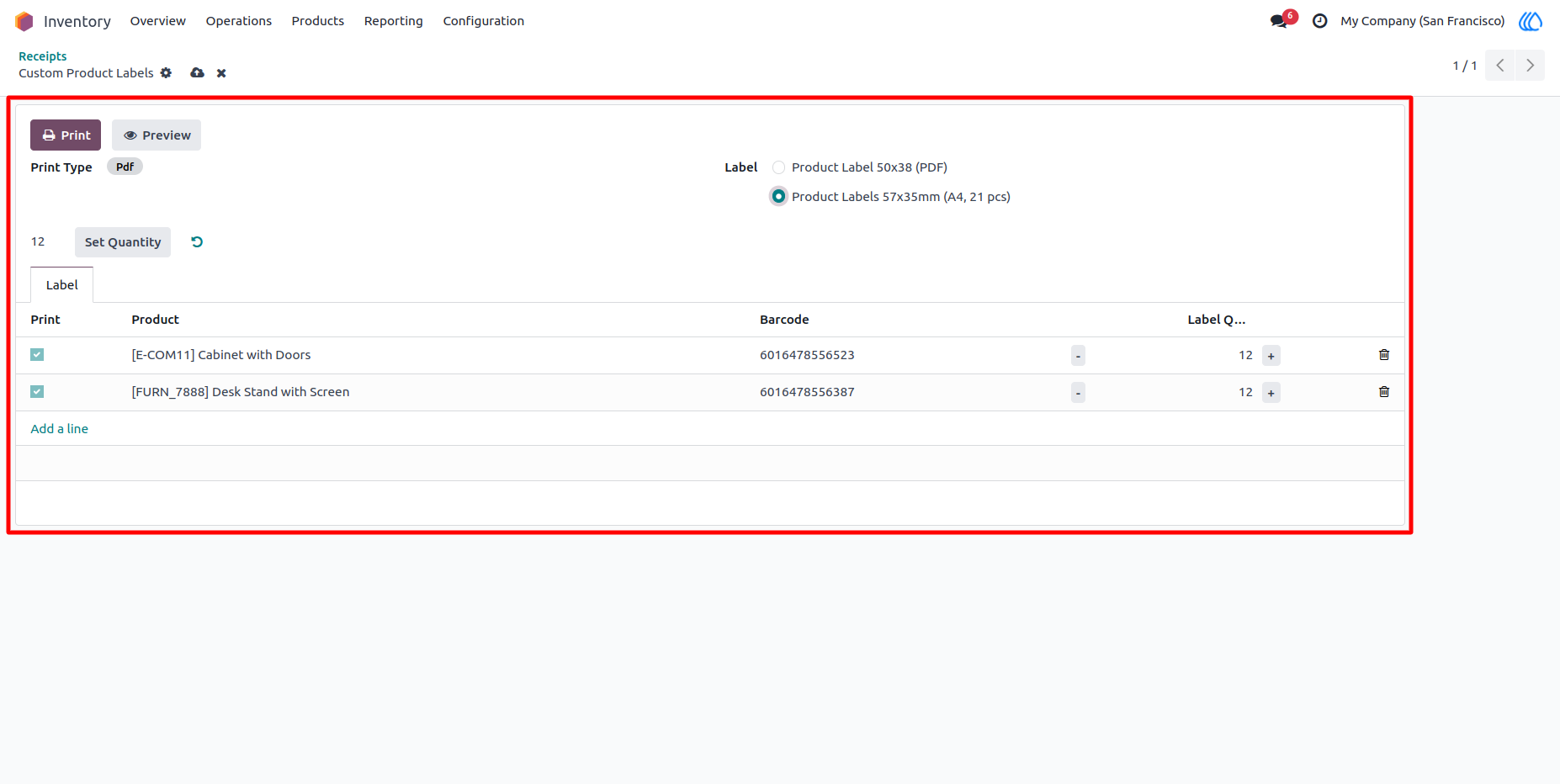
6.) Custom Wizard Open :
A Custom Wizard Is open for configure labels and printing types if it
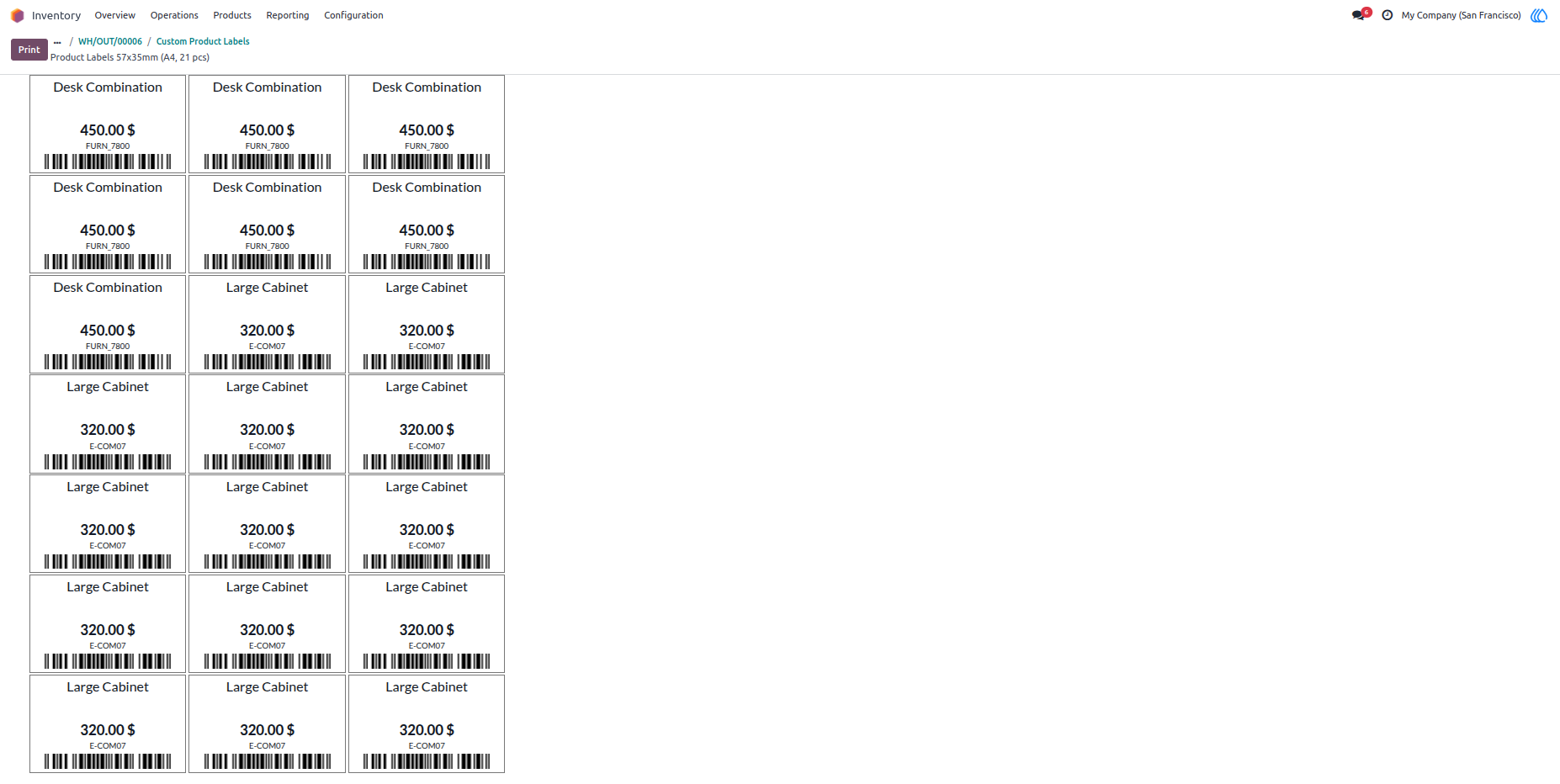
7.) Preview of Labels :
Labels look like this in pdf according to configuration setting
User Guide