

Our Most Suggested Products


Task Deadline Manager
Task Deadline Manager helps your team easily track, control, and understand project delays right inside Odoo. Whenever a task deadline needs to change, managers are required to select a standard reason and leave a clear comment to explain why. Every single date change is saved in a simple history log and instantly shared in the task chat so the whole team stays informed. This completely stops silent deadline changes and keeps your project planning organized and transparent.
 Features
 Screenshots
 Support
 Service
Features
Automated Task Scheduling
Automatically assign initial target dates based on project rules. Set up a standard number of extra days for new tasks to make planning easier and keep timelines consistent across the company.
Standardized Delay Tracking
Categorize schedule changes using standard company reasons. Require clear details for every date extension to help management identify common delays and improve future project planning.
Complete Tracking Record
Keep a complete list of all date changes in the exact order they happened. Instantly review original dates, new schedules, responsible team members, and detailed notes in one single place.
Transparent Team Updates
Automatically send schedule changes directly into the task communication chat. Keep project managers and team members on the same page with clear, instant summaries whenever a date changes.
Screenshot
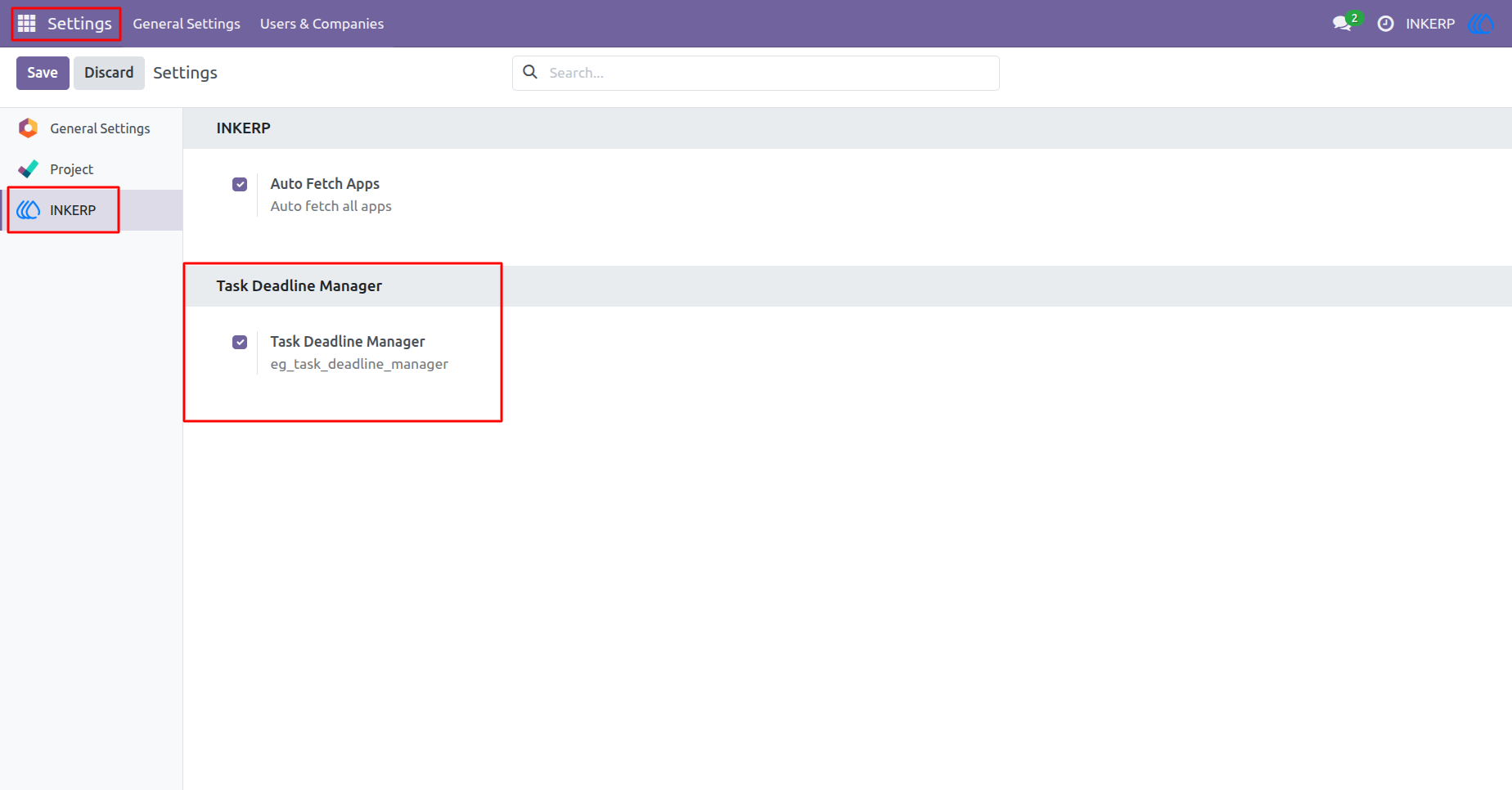
1.) Global Settings
"Task Deadline Manager" is enabled by default, but the admin can toggle it on or off via INKERP settings. Disabling it will cause all app features to stop working, while enabling it will restore their functionality.
Navigation : Settings › INKERP
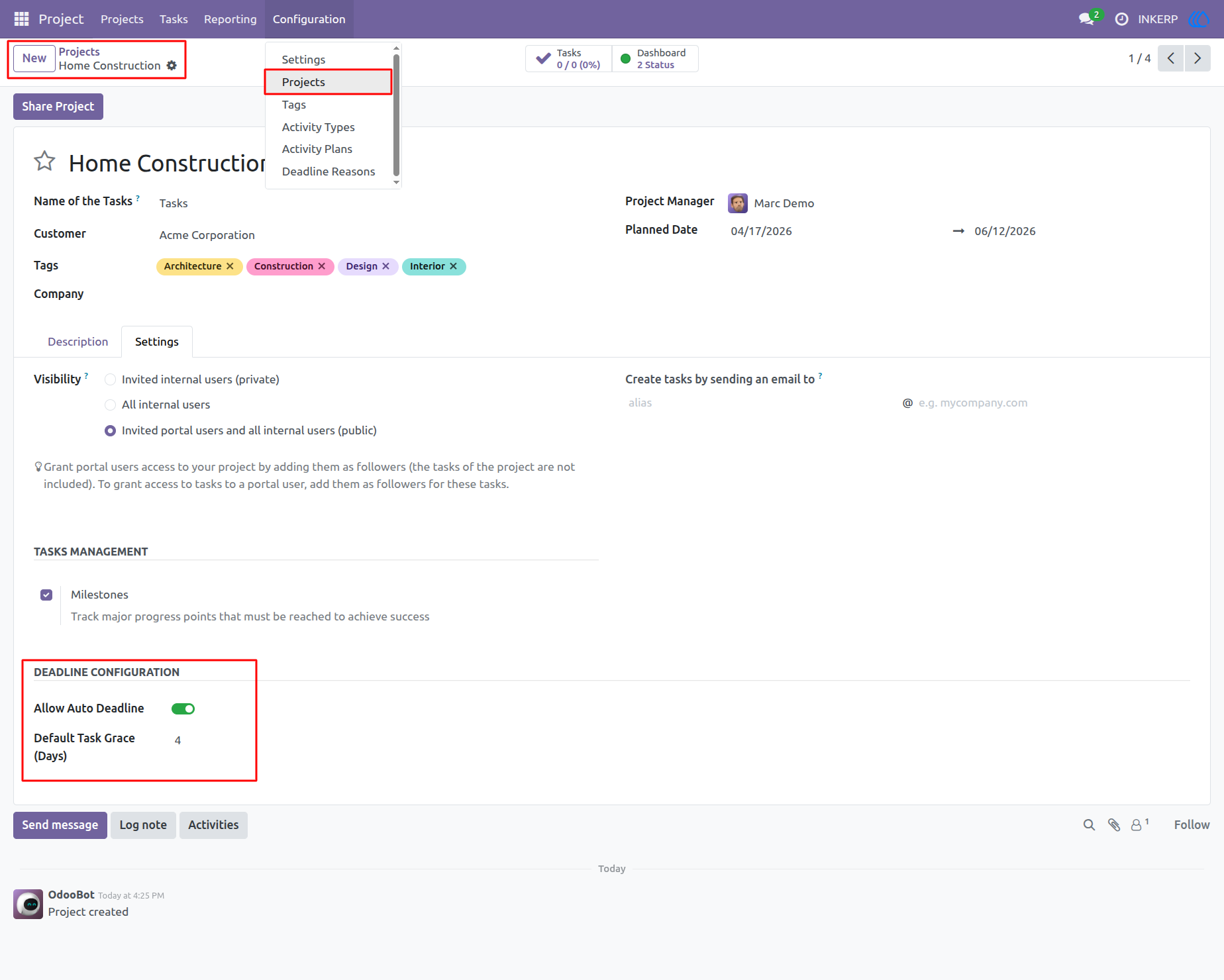
2.) Project Setup
Configure automatic grace periods for individual projects. Enable the auto-deadline feature and define the default days added to newly created tasks.
Navigation : Project › Configuration › Projects
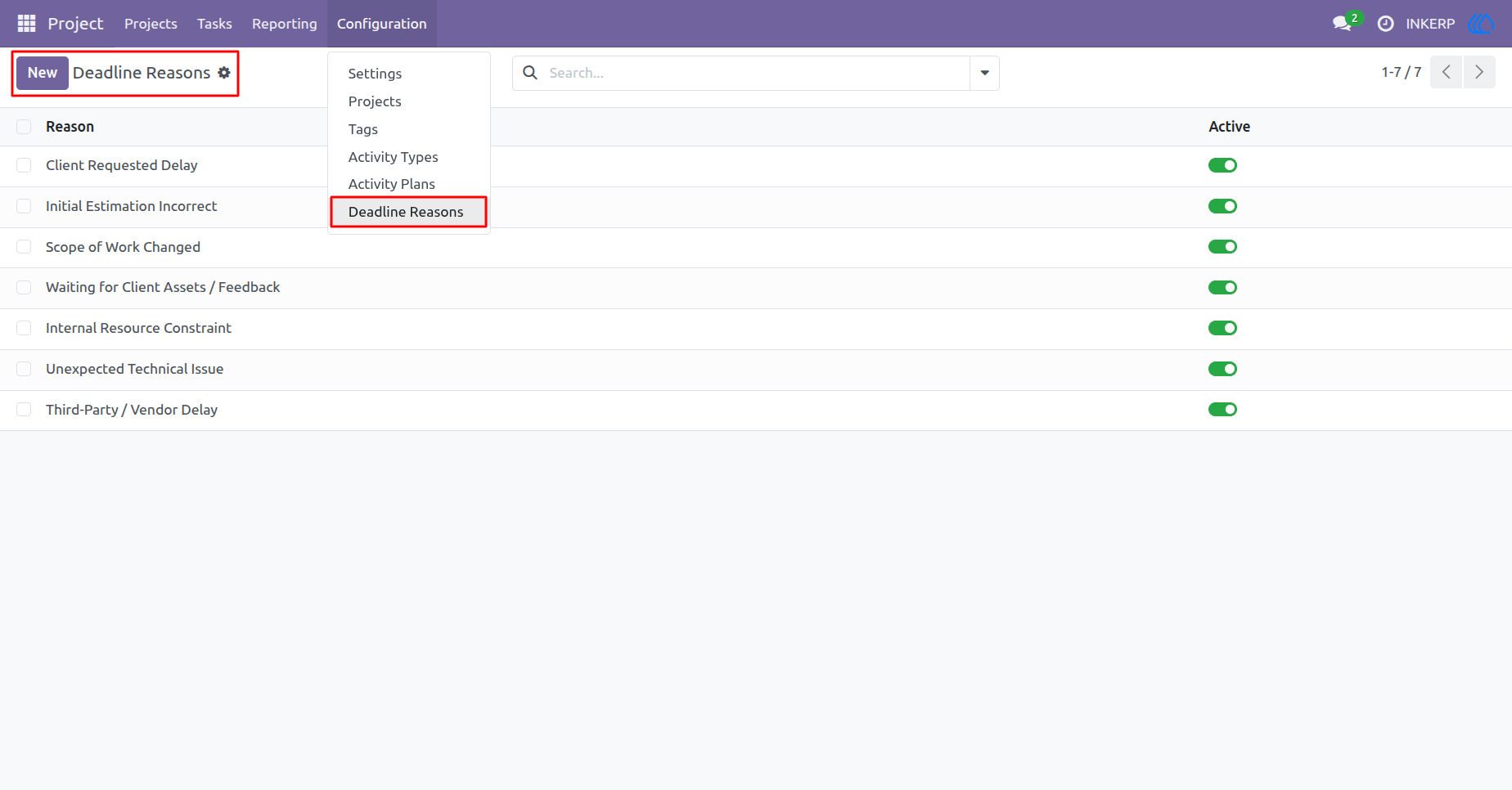
3.) Setup Reasons
Create and manage predefined justifications for date extensions. These standard options help teams categorize delays and maintain consistent tracking across the company.
Navigation : Project › Configuration › Deadline Reasons
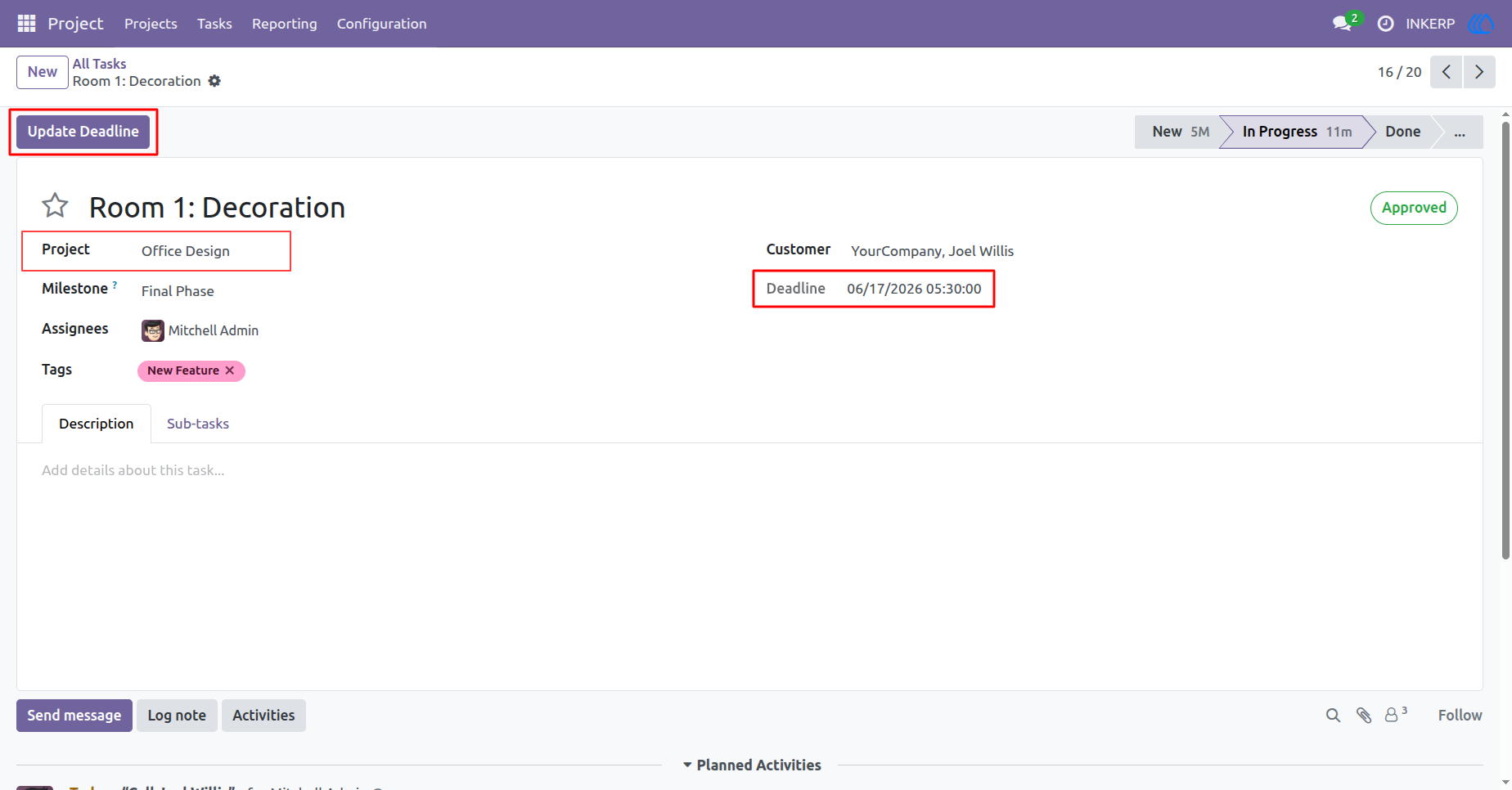
4.) Task Action
Managers can easily initiate a date change using the dedicated action button located at the top left. The current target date is clearly visible on the right side for quick reference.
Navigation : Project › Tasks
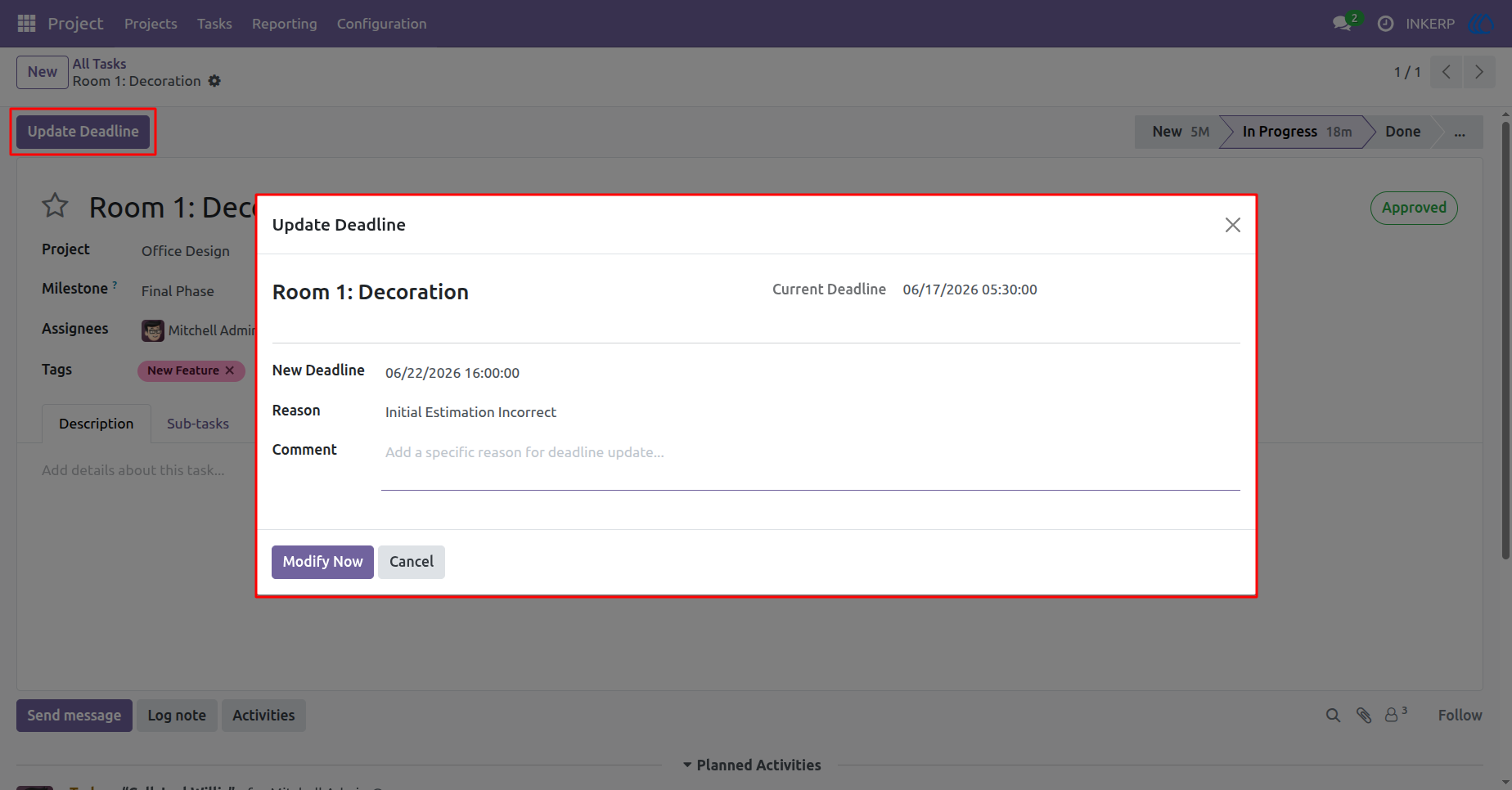
5.) Modify Deadline
Select a new target date, pick a predefined justification, and provide specific details. This ensures every adjustment is properly documented before taking effect.
Navigation : Project › Tasks
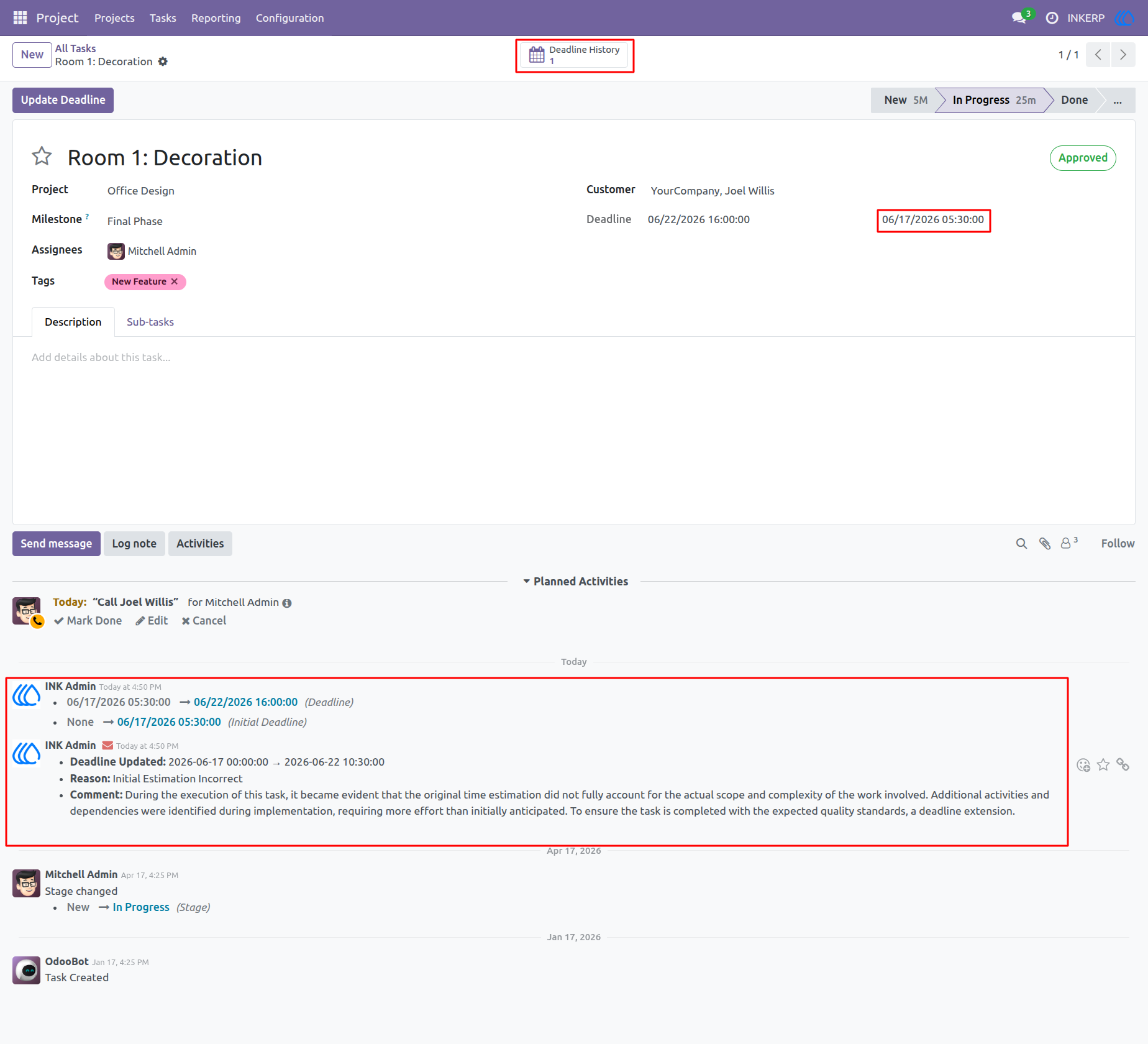
6.) Tracking Log
Every change automatically posts a detailed summary directly in the task communication thread. A smart button at the top tracks the total number of past revisions for quick access.
Navigation : Project › Tasks
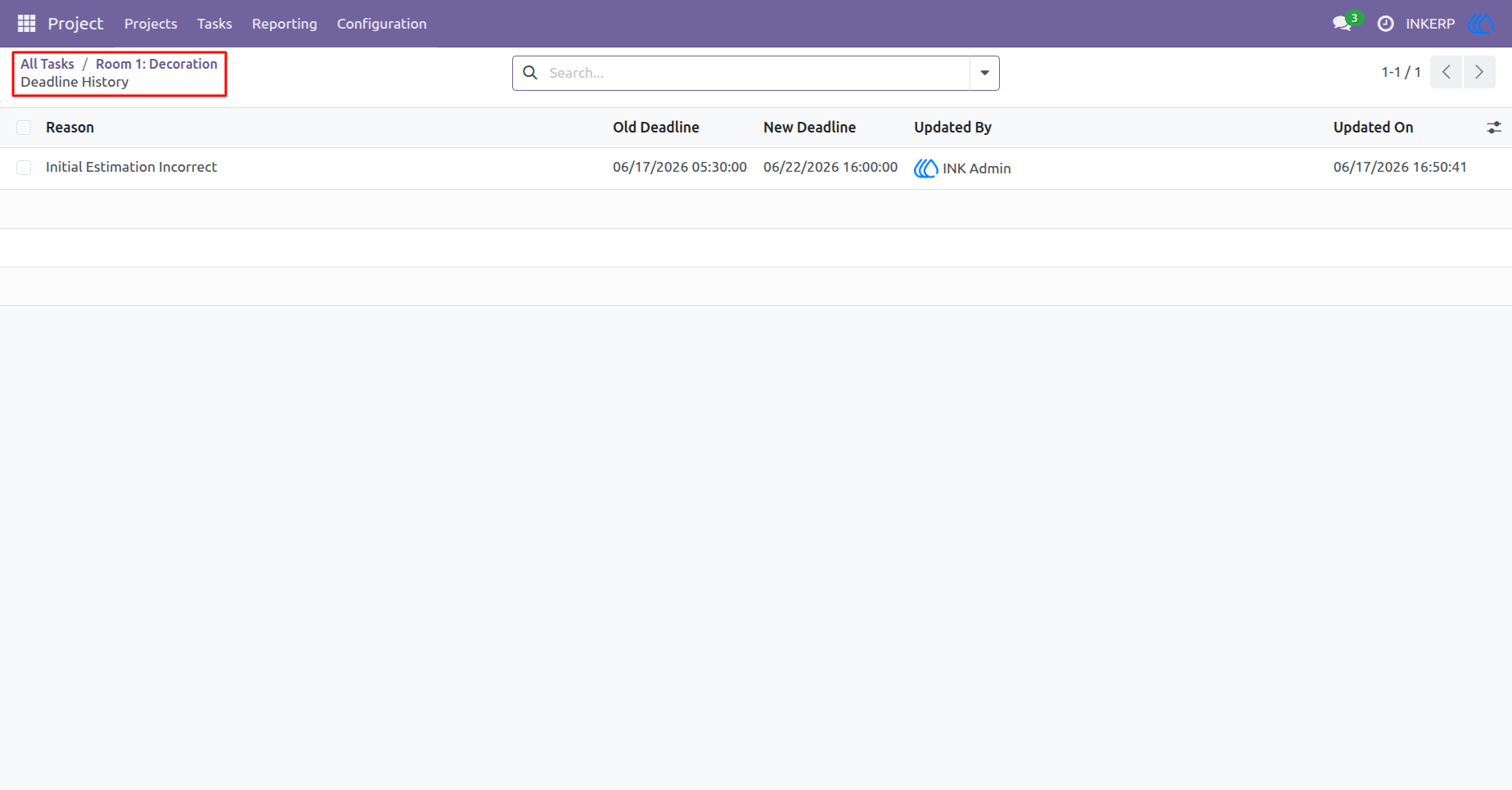
7.) History List
Review all past modifications for a specific task in a clean, organized list format. It displays the previous date, the new target, the assigned reason, and the responsible user.
Navigation : Project › Tasks › Deadline History
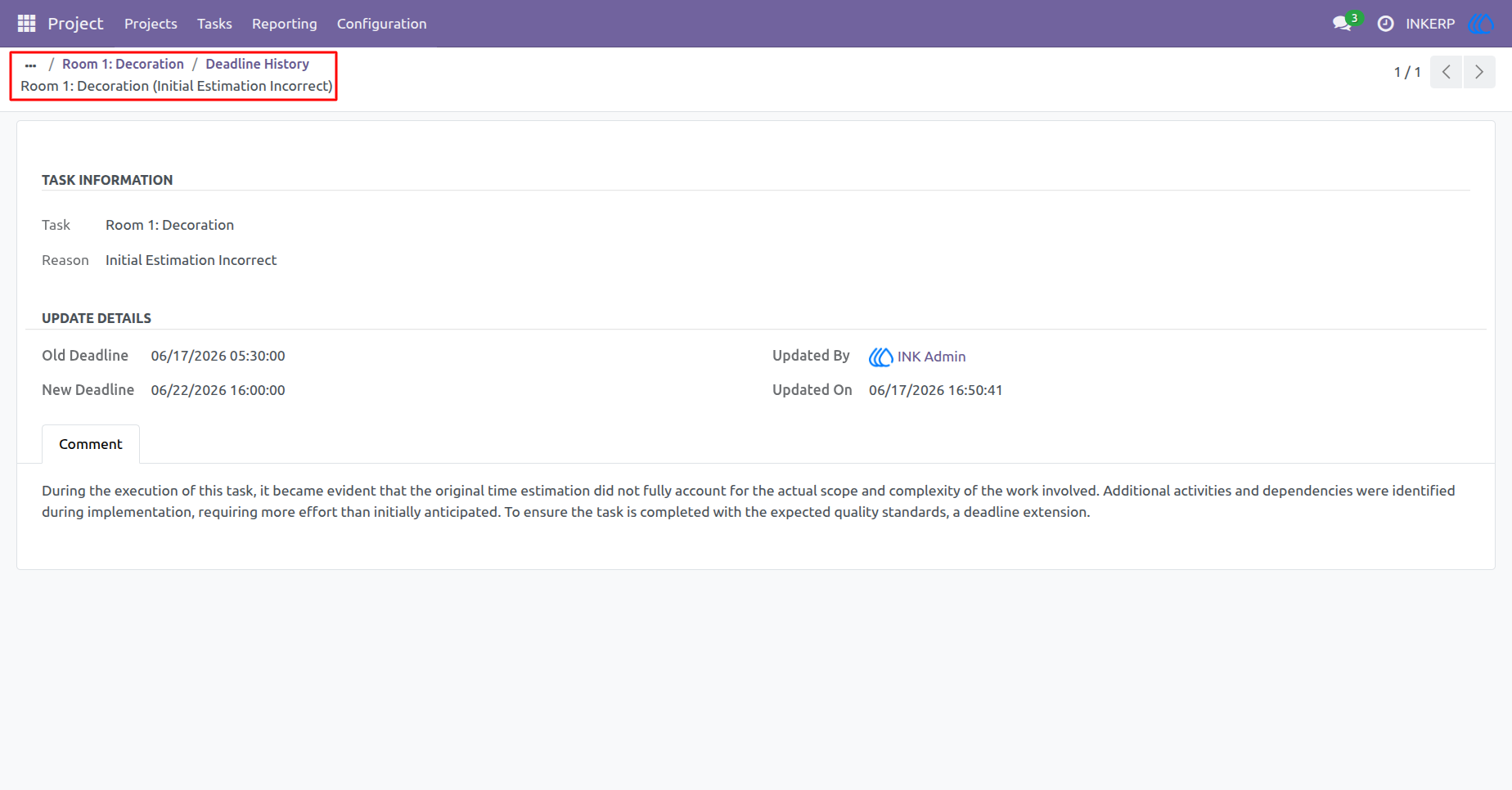
8.) Record Details
Dive deep into a specific historical change to read the full context and detailed comments. This provides complete transparency into why past decisions and extensions occurred.
Navigation : Project › Tasks › Deadline History
User Guide