Stock Barcode Responsive
This Odoo app enhances the efficiency of inventory management by enabling barcode scanning for various operations. It simplifies the process of managing transfers, receipts, delivery orders, and product quantities through seamless barcode integration. Responsive UI, so the user can use it on both mobile and pc devices.
Highlight
Stock Barcode Responsive

Efficient Barcode Scanning
User-Friendly Interface
Responsive UI
Lot and Serial Number Scanning
 Features
 Screenshots
 Support
 Service
Features
Location Barcode Scanning:
Scan location barcodes to identify quickly and manage inventory locations.
Operation Barcode Scanning:
Scan operation barcodes to open and manage transfers for specific operations.
Transfer Barcode Scanning:
Scan transfer barcodes such as receipts and delivery orders streamlining transfer processes.
Product Barcode Scanning:
Scan product barcodes to add new products or update quantities efficiently.
Lot and Serial Number Scanning:
Scan lot or serial number barcodes to track and manage individual items accurately.
Screenshot
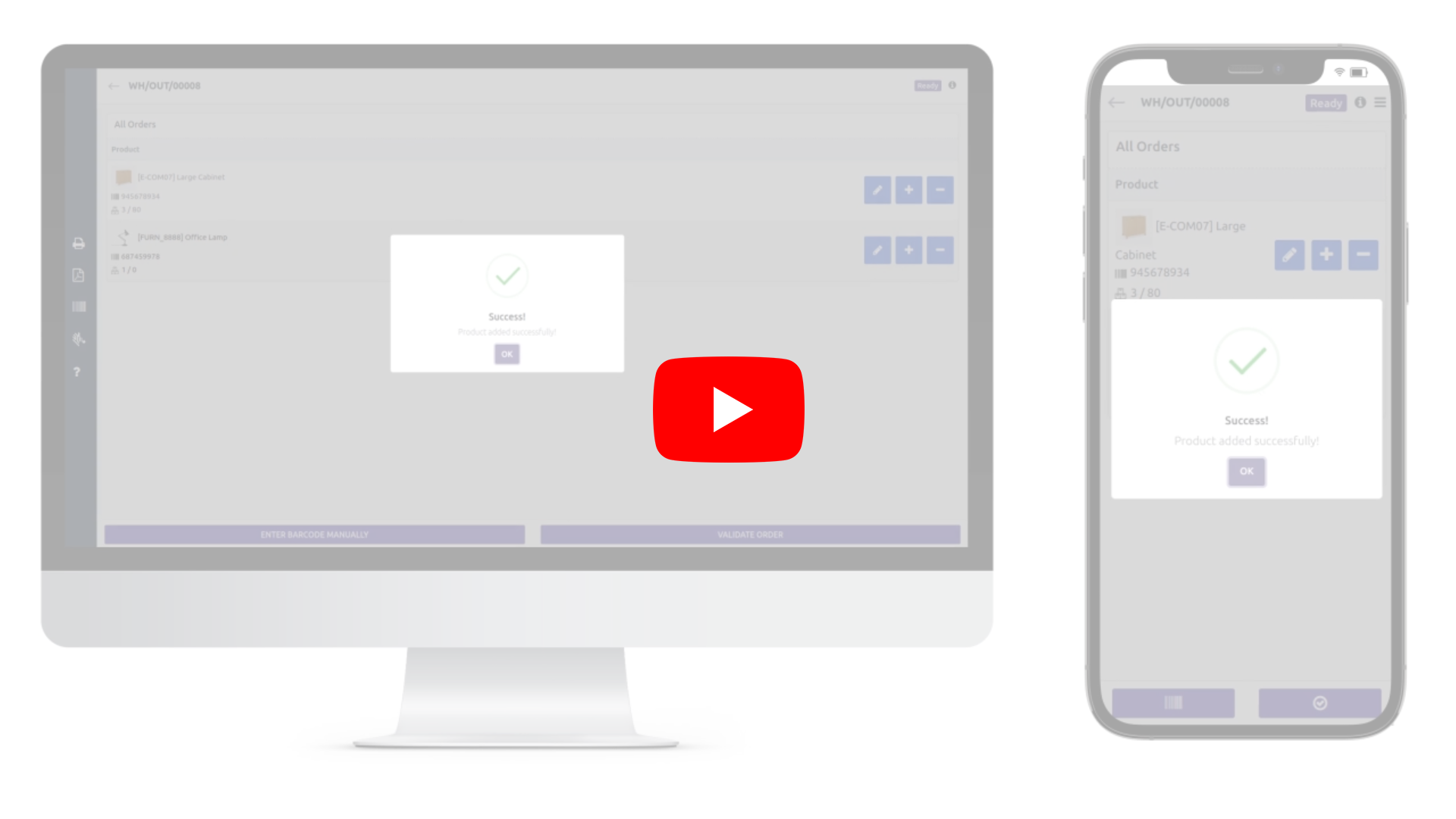
1) Scanning Product Barcode to Add Product or Quantity :
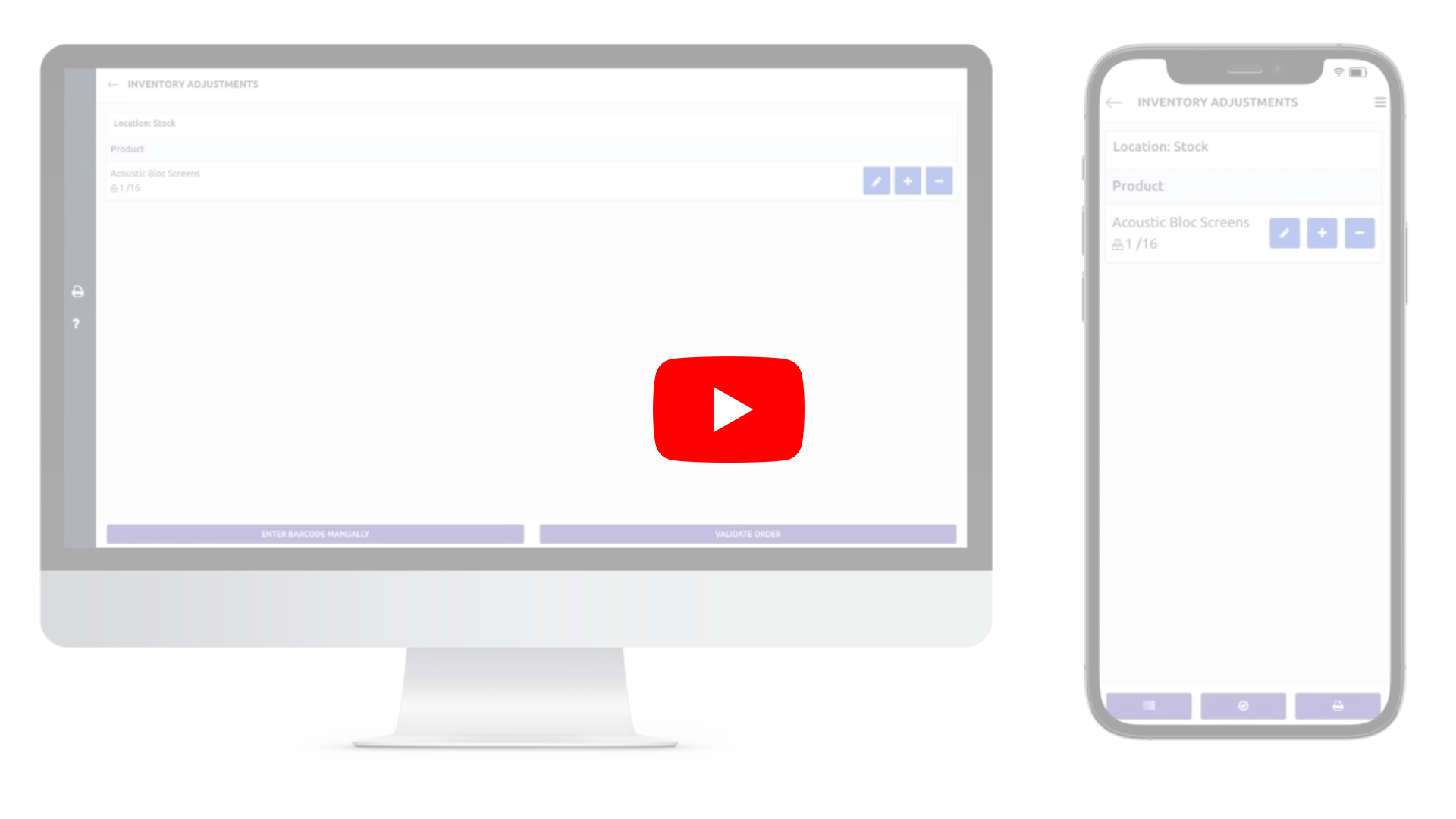
When a product is scanned, if it already exists in the system, the system will locate
the corresponding entry and increase its quantity.
If no entry for the product is
found, the system will create a new line and add it to the records.
Whenever a
quantity order for a product is added, the system will highlight that line by making it
blink.
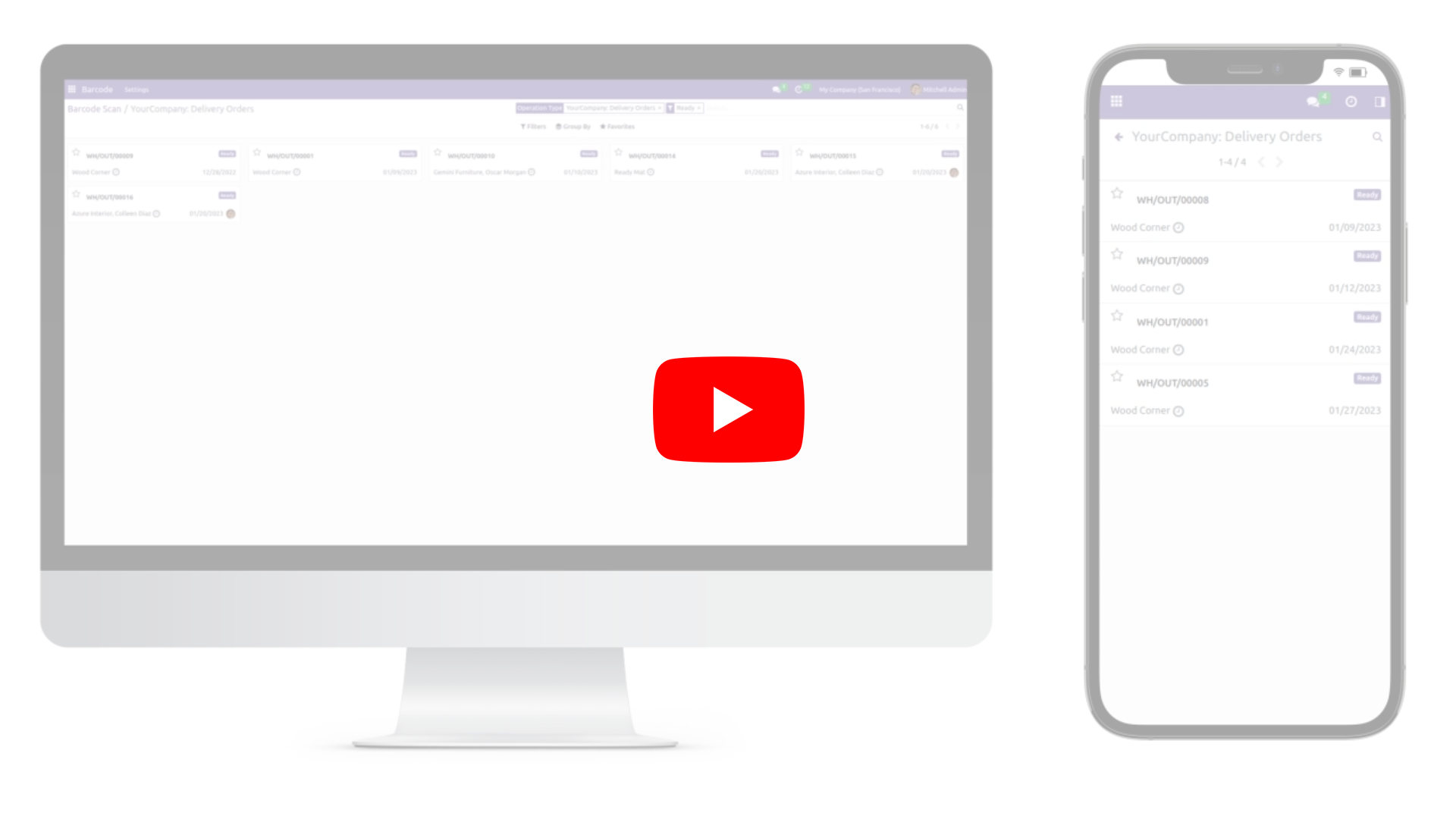
2) Scanning Delivery Operation Barcode:
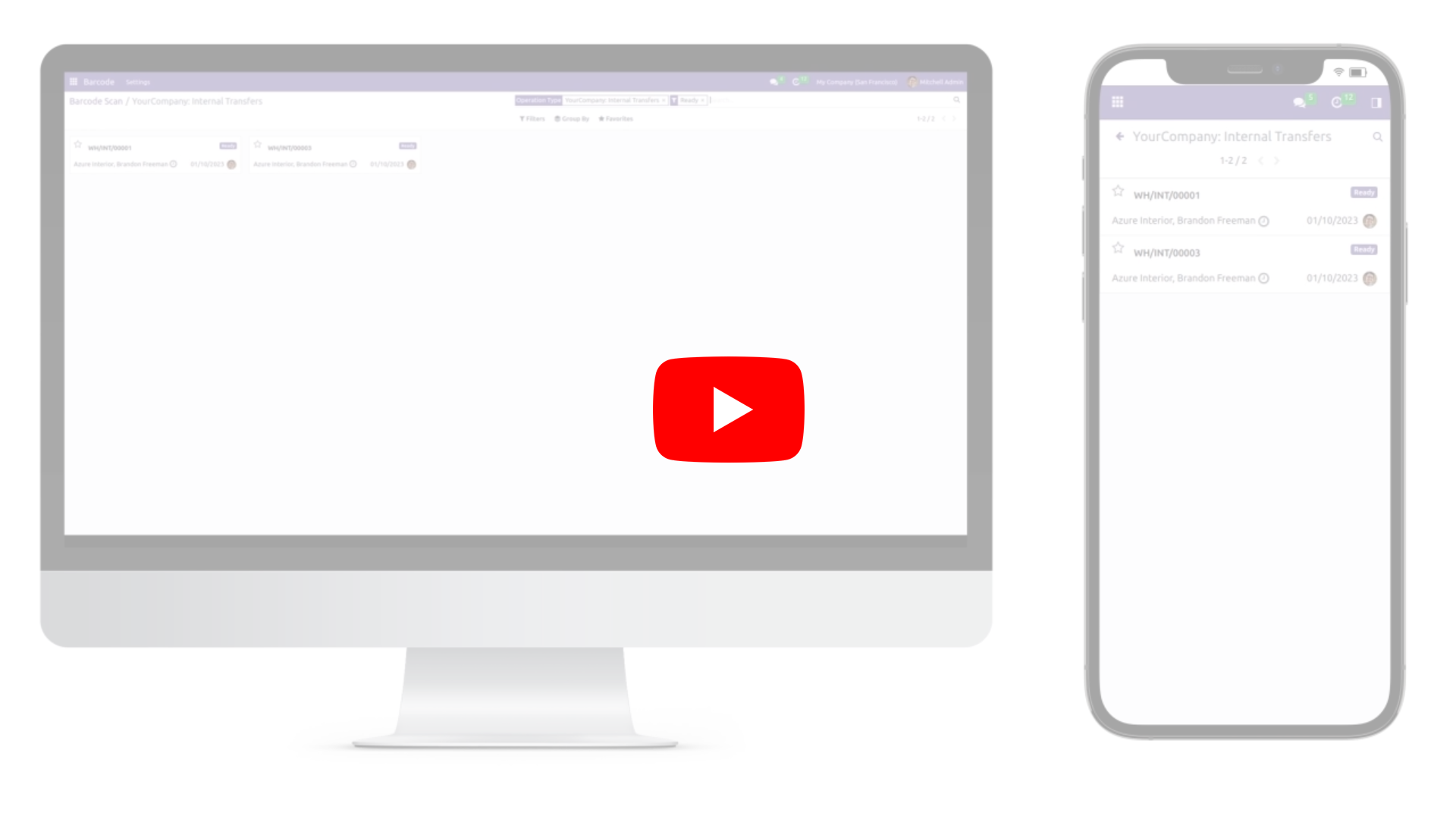
By scanning the barcode of the delivery order operation, the user will be redirected to the Kanban view of the delivery orders, where all records in the "Ready" state will be listed by default. The user can click on a record to open it.
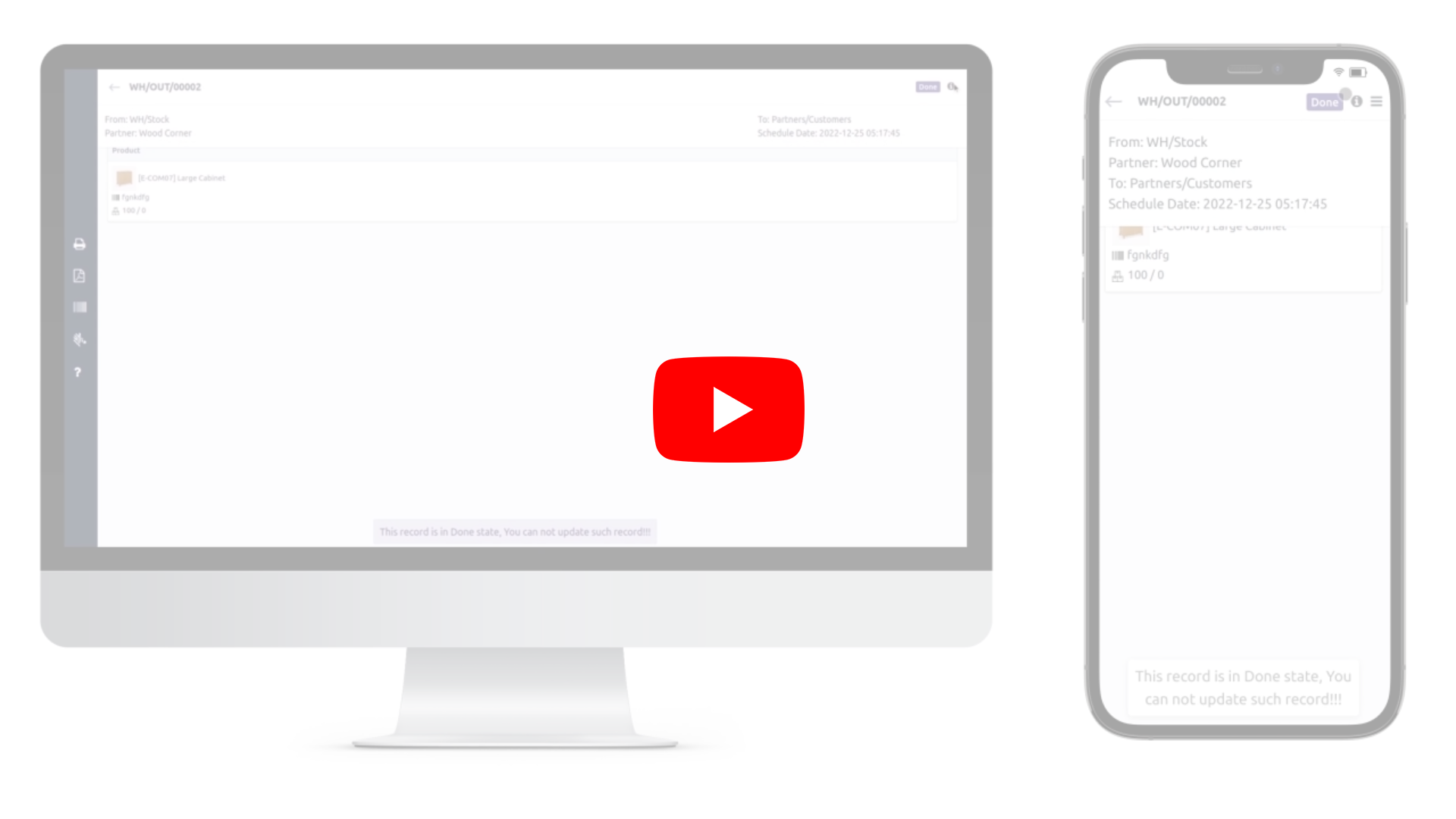
3) Scanning Done Transfer Barcode :
By scanning the barcode of a completed incoming shipment or delivery order, the user will access a detailed view of the record in read-only mode. In this view, the user can see information such as the partner name, product name, reserved quantity, and done quantity.
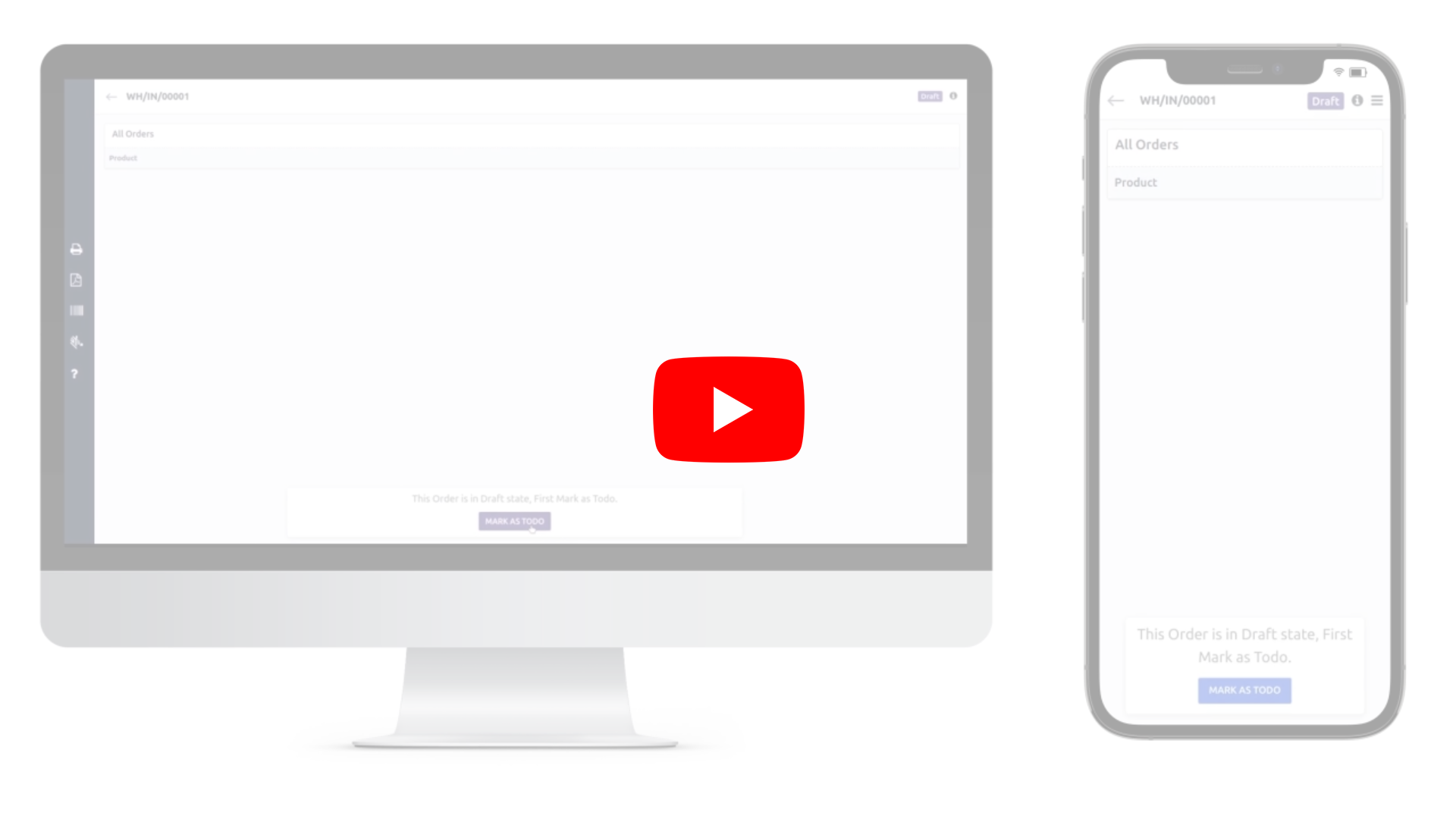
4) Scanning Draft Transfer Barcode :
By scanning the barcode of a draft incoming shipment or delivery order, the user will access a detailed view of the record in read-only mode, which will display no data until the order is marked as TODO.
5) Scanning Ready Transfer Barcode :
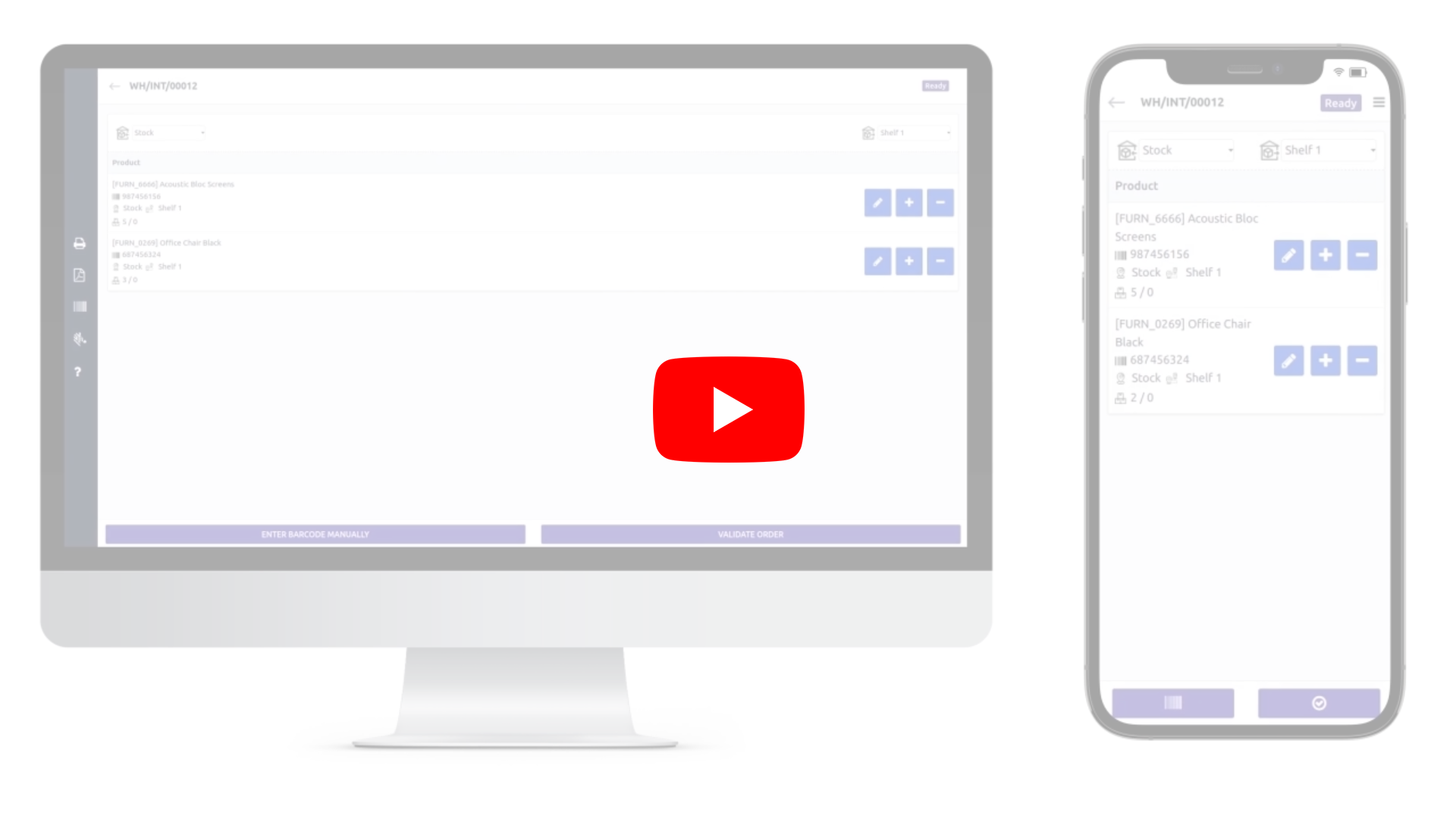
By scanning the barcode of a ready state, incoming shipment, or delivery order, the user will get a detailed view of the record. This view will display data such as the partner name, product name, reserved quantity, done quantity, a button to enter a manual barcode, and a validate button.
6) Scanning Receipt Operation Barcode :
By scanning the barcode of the receipt or incoming operation, the user will be redirected to the Kanban view of the receipt operation. All the ready state records will be listed by default, and the user can click to open any record.
7) Sidebar Icons :
1.Print Delivery Slip :
This option allows you to print the delivery slip for the order.
User Guide