

Our Most Suggested Products


Sale Order Task
The Sales Order Task Manager module enhances project management within Odoo by allowing users to seamlessly create and manage tasks directly from sales orders. This integration links tasks to specific sales orders, ensuring smooth navigation between projects and associated tasks.
 Features
 Screenshots
 Support
 Service
Features
Task Creation from Sales Orders
Effortlessly generate tasks for each product in a sales order with just one click. This feature streamlines task creation by linking them directly to the sales order, ensuring that no task is missed. You can also use the "Create All In One Task" button to combine all order lines into a single task, saving time and improving workflow efficiency.
Custom Project Naming and Task Assignment
The module offers flexibility in naming projects by either using the sales order number or allowing for a custom project name. Additionally, each task is automatically assigned to the corresponding customer, ensuring clear identification and smooth project management.
View and Organize Active Tasks
Stay organized with an easy-to-navigate list of tasks linked to active sales orders. You can filter and view tasks by sales order status, ensuring quick access to what you need and better task management.
Comprehensive Task Details
Each task comes with product details, customer information, and assigned users, providing a comprehensive view of the task's lifecycle.
Screenshot
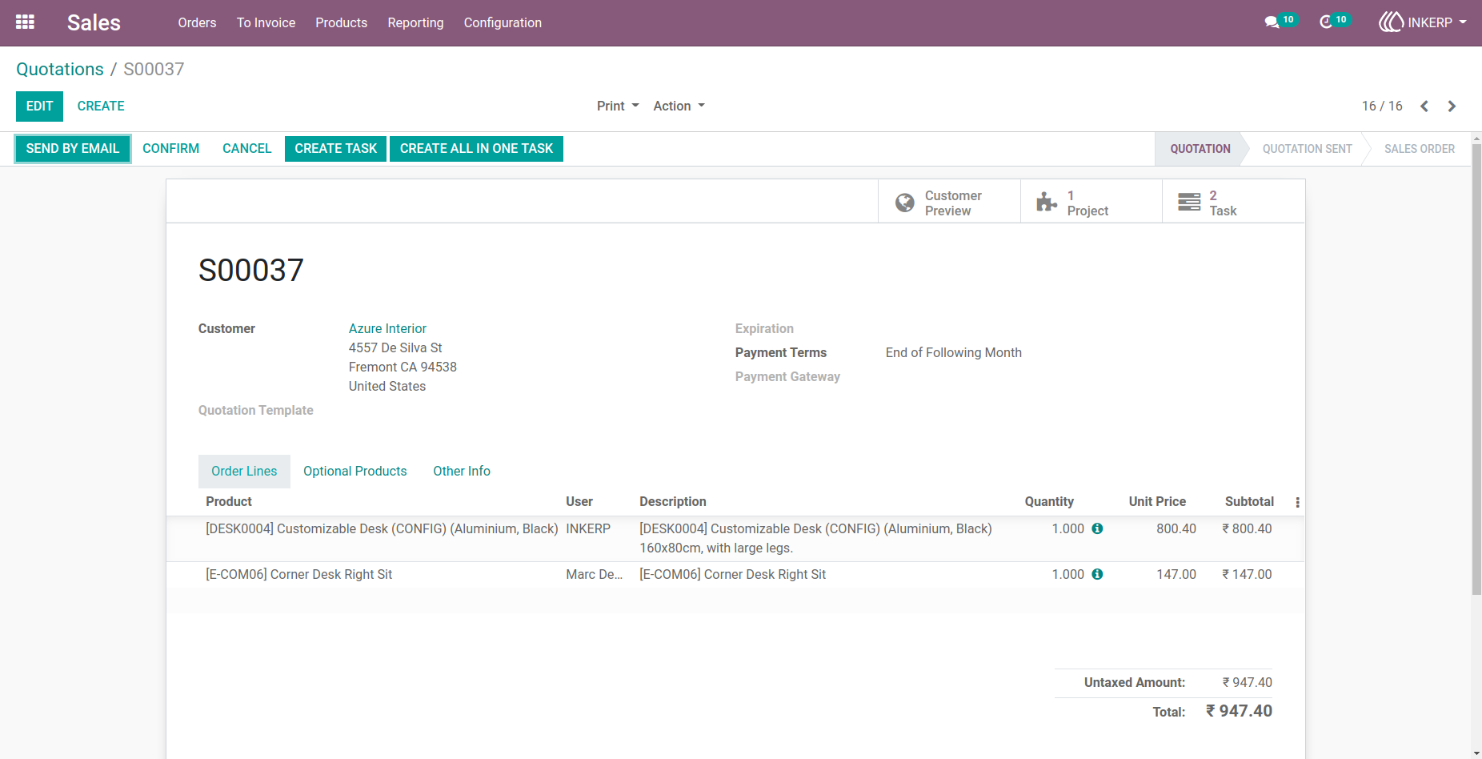
1.) Sale Order Form View
Users can create tasks for the products in the sales order line. The "Create Task" button generates tasks corresponding to order lines.
Navigation : Sales › Orders › Quotations
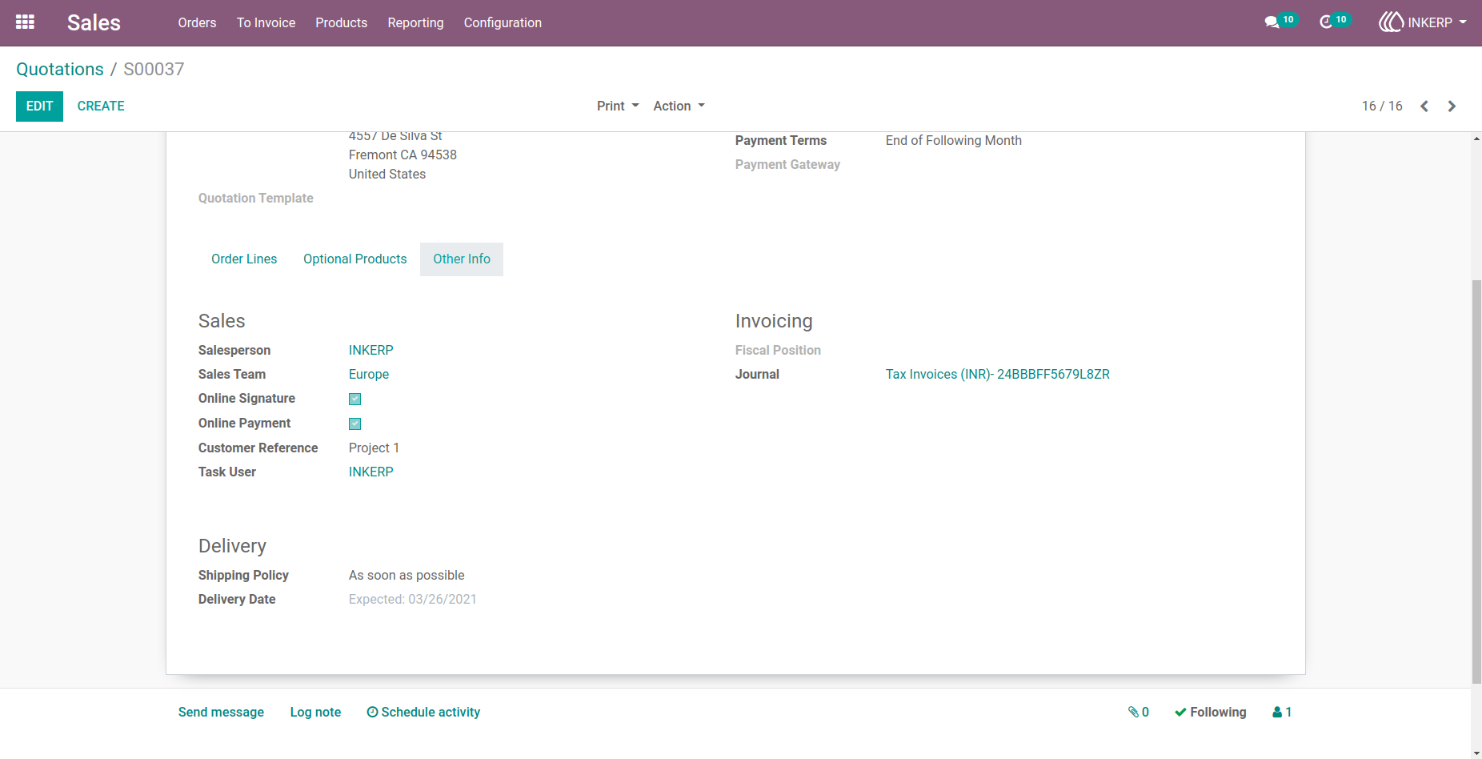
2.) Project Naming
Users can enter the project name in the Customer Reference field. If left blank, the Sales Order Number is used as the project name.
3.) Task Kanban View
Users are redirected to the tasks list, filtered by active sales orders, showing all tasks created from order lines.
Navigation : Sales › Orders › Quotations › Tasks
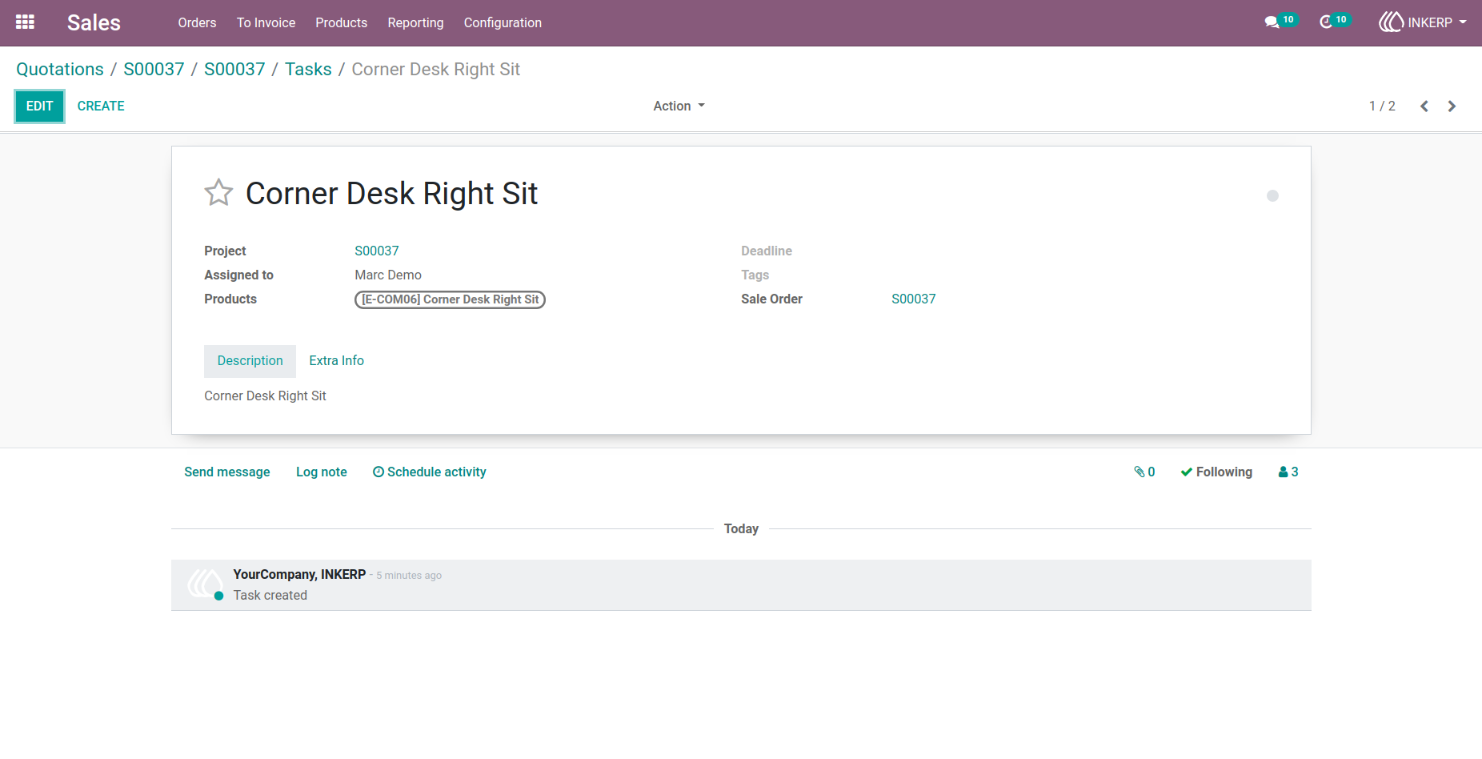
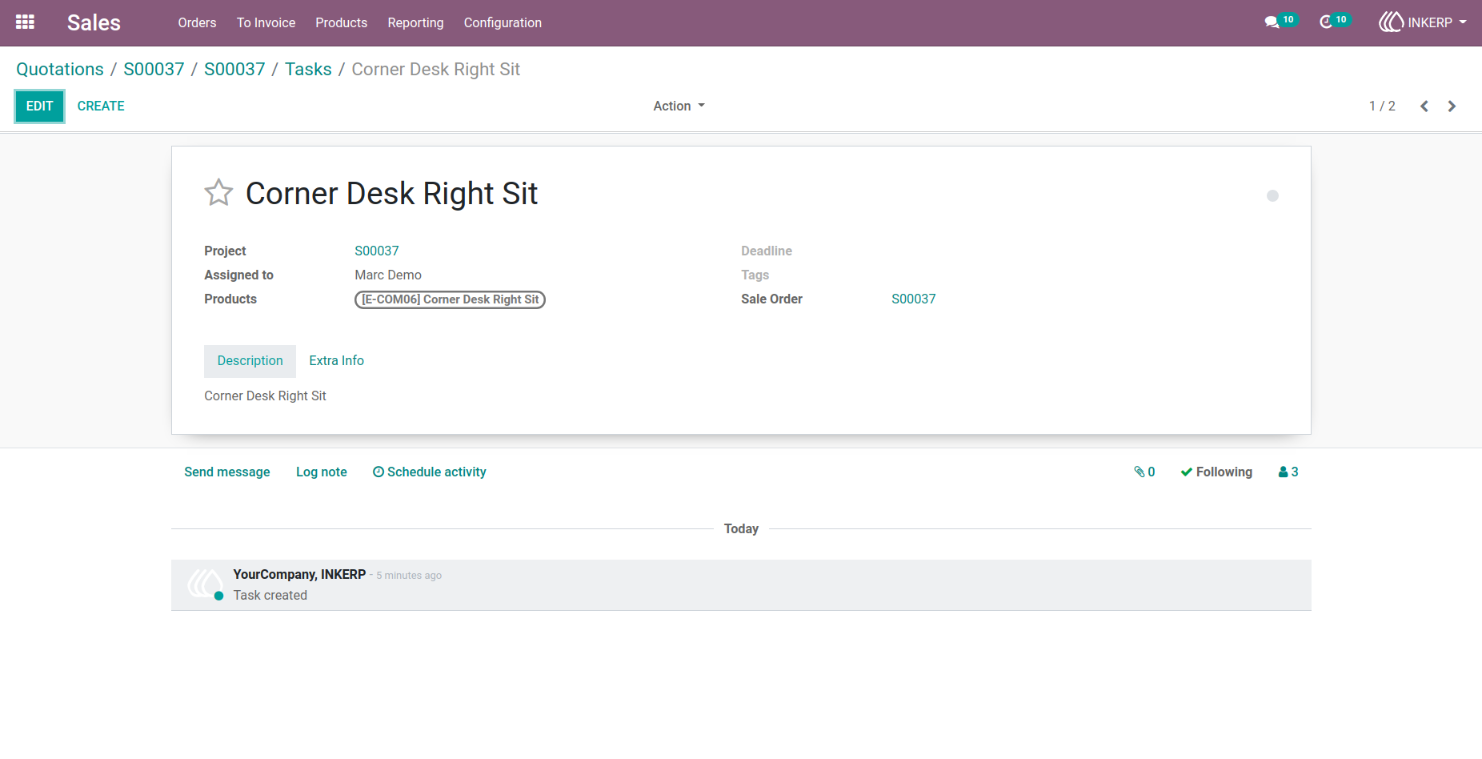
4.) Task Form View (Task Details)
Product name is set to the task name, customer reference to the project, and the user from the order line is assigned.
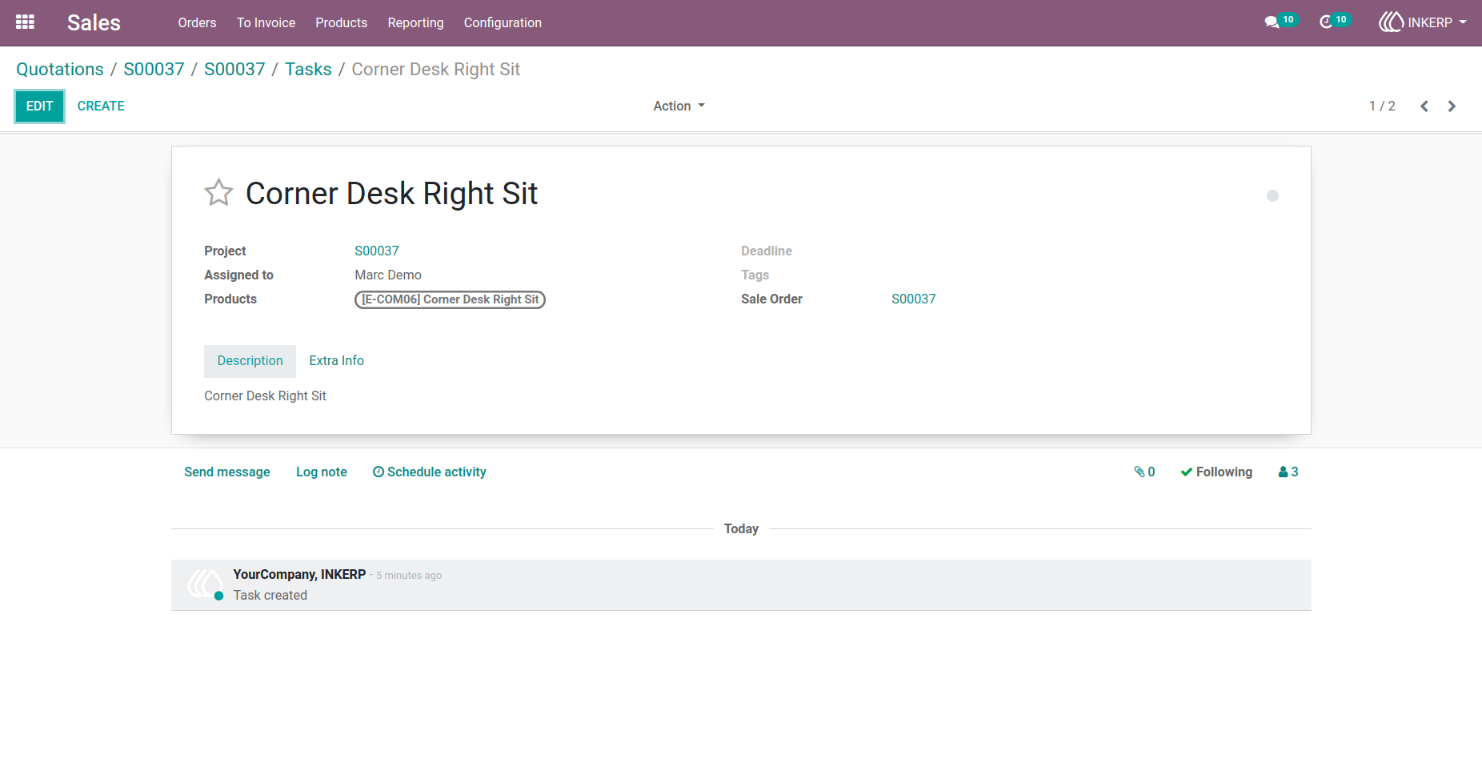
5.) Task Form View (Customer Information)
Displays the sales order customer set as the task customer.
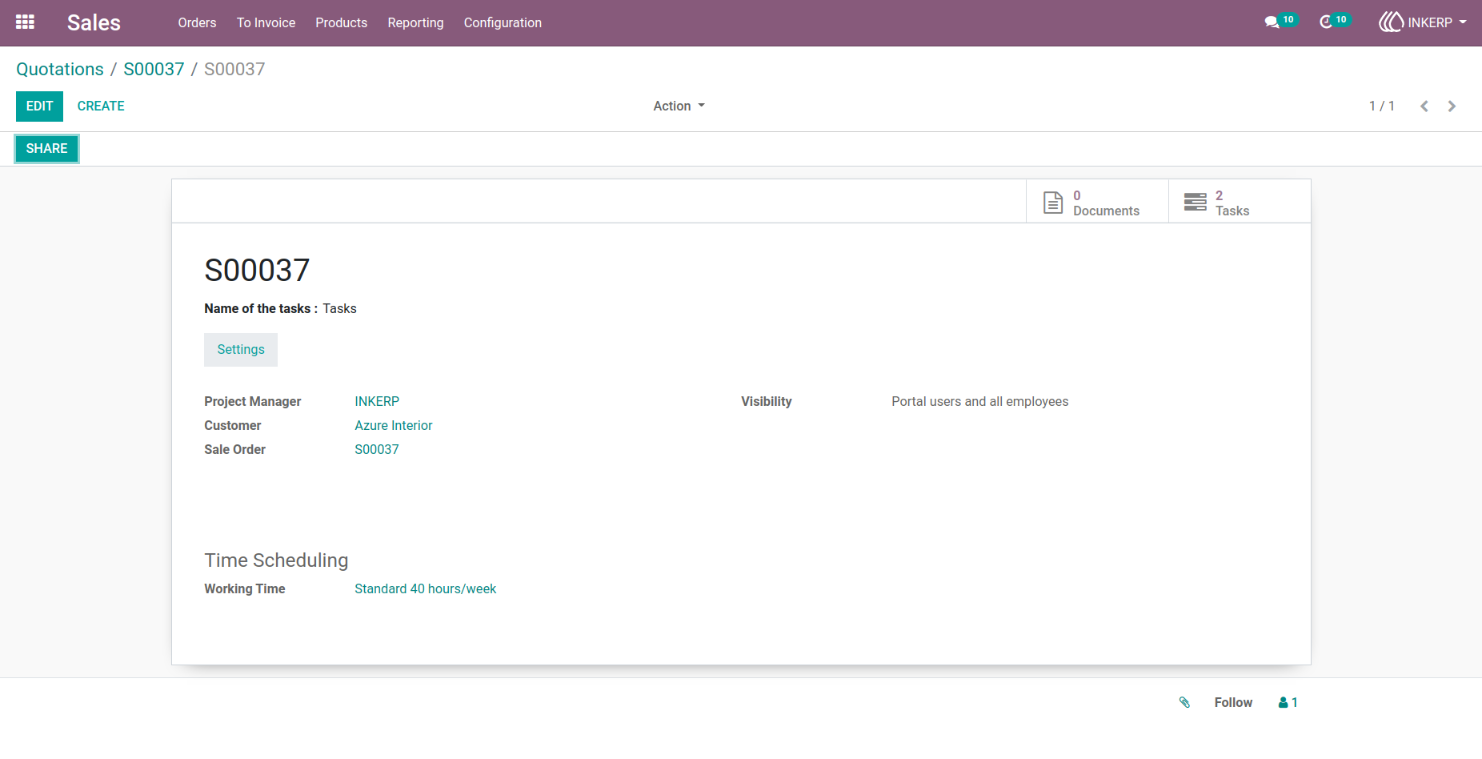
6.) Project Form View
Customer reference and sales order customer details are set for the project, along with the sales order name.
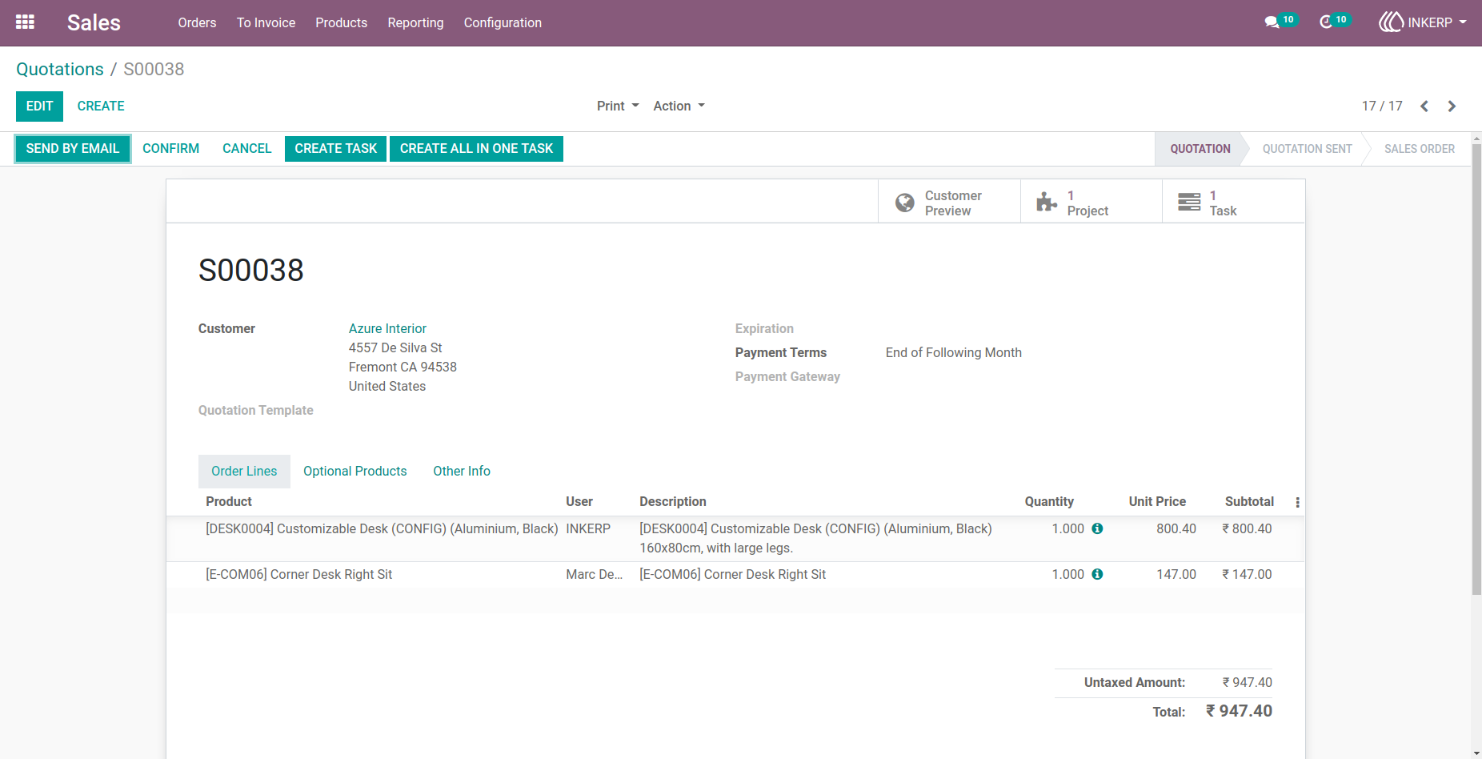
7.) Sales Order Form View (Create All In One Task)
Users can create a single task for all order lines by clicking the "Create All In One Task" button.
Navigation : Sales › Orders › Quotation
8.) Sales Order Form View (Task Details)
Users enter the task name in the Customer Reference field and assign a user before creating the task.
Navigation : Sales › Orders › Quotation
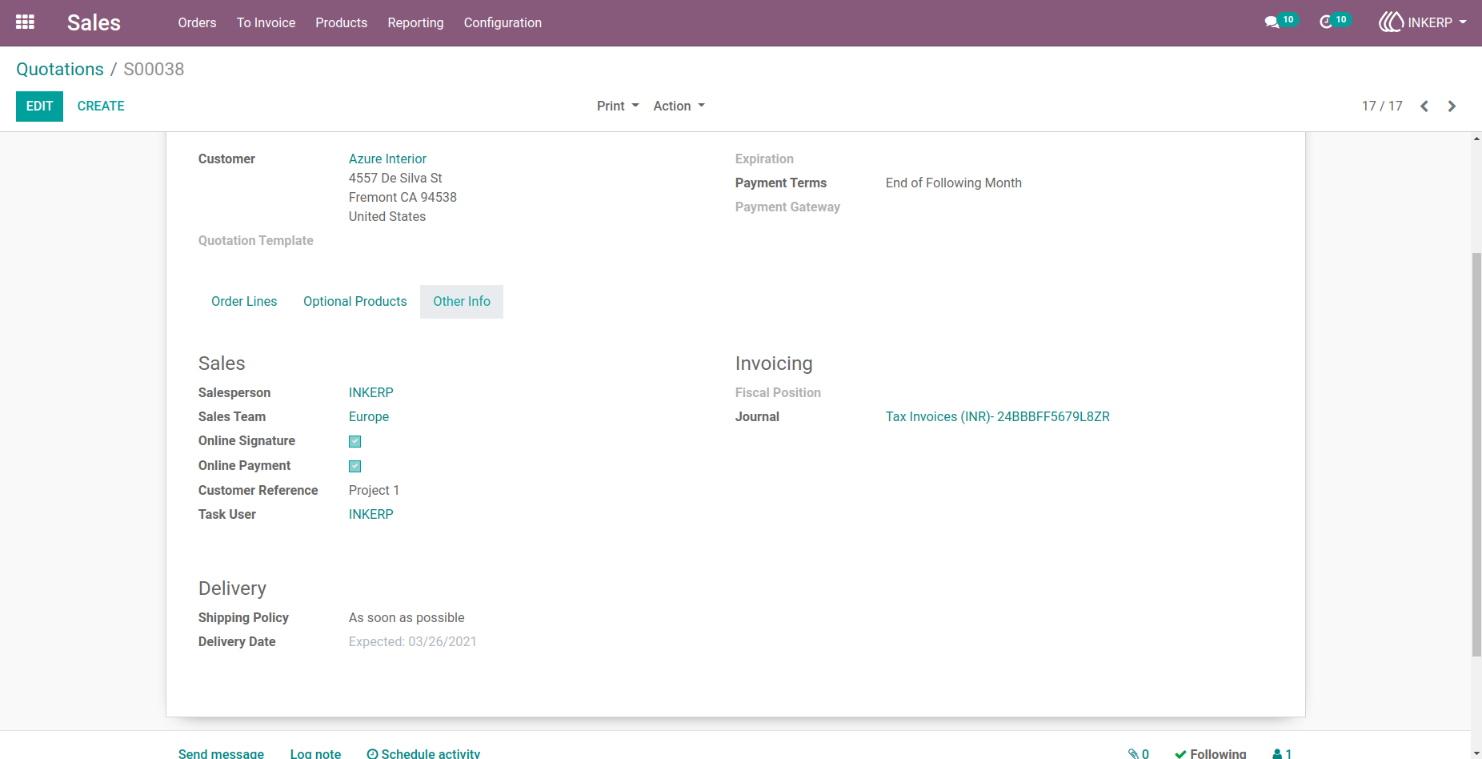
9.) Task Form View (Task Creation)
The details of a new task, with the Task Name set to the Customer Reference or the sales order name if missing. The Assigned To user and the Sales Order Name are linked, and the Sales Order Note serves as the task description. All related products from the sales order are included, and you can click the "Task" smart button to return to the filtered task list.
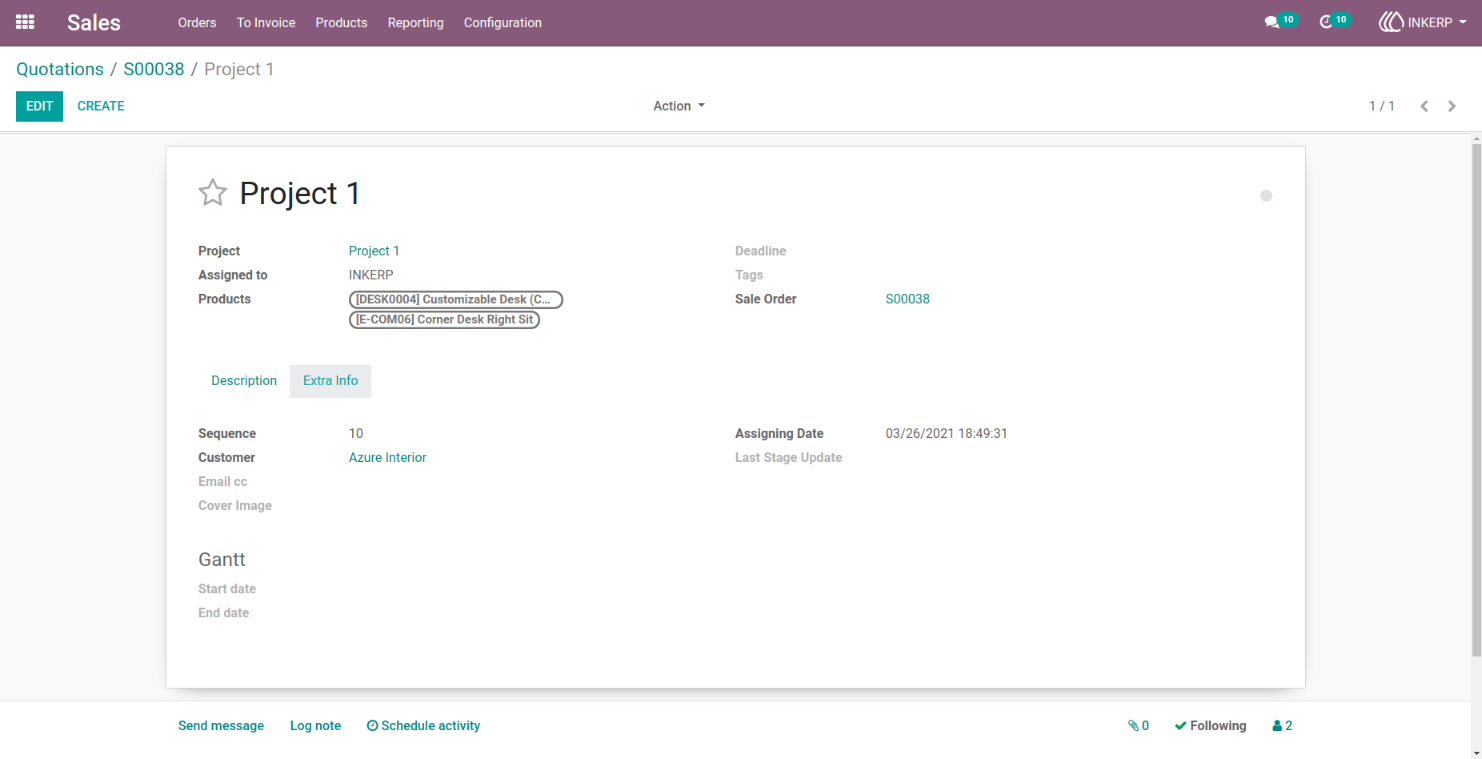
10.) Task Form View (Customer Information)
Displays the sales order customer set as the task customer.
User Guide