


Our Most Suggested Products


Repair Archive and Unarchived
Efficiently manage your repair workflows by archiving outdated or completed repair orders without permanent deletion. This module introduces secure archive and unarchive functionality directly into the Odoo Repair app, complete with granular security group access, visual status ribbons, and quick search filters to keep your workspace clean and organized.
 Features
 Screenshots
 Support
 Service
Features
Repair Order Archiving
Clean up your workspace by effortlessly archiving outdated, redundant, or canceled repair orders without having to permanently delete them. This module introduces secure archive and unarchive capabilities across both individual form views and multi-selection list views, helping your team maintain a neat, organized, and efficient repair management pipeline.
Granular Access Control & Visual Status Ribbons
Maintain strict administrative control over your records with dedicated user access rights that regulate who can archive or restore repair orders. Once archived, records are clearly marked with a prominent visual status ribbon and can be instantly accessed or restored using custom search filters whenever historical review is needed.
Screenshot
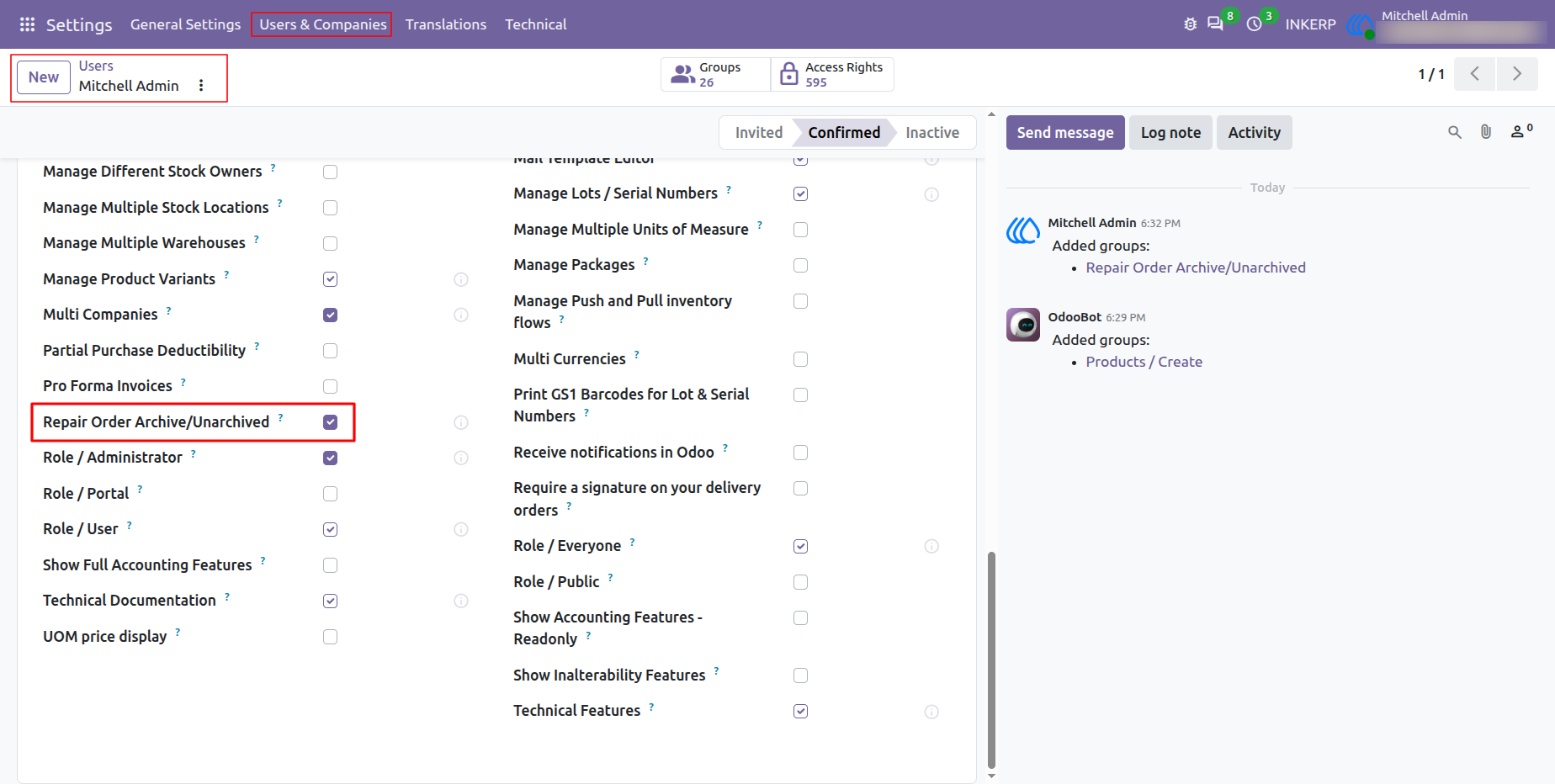
1.) User Access Rights Configuration
o enable the archiving features, administrators must first assign the appropriate access rights to users. Navigate to the user profile and check the "Repair Order Archive/Unarchived" box under the access rights tab. Only users with this specific permission will be able to archive records or view the archived status ribbons.
Navigation : Settings → Users & Companies → Users
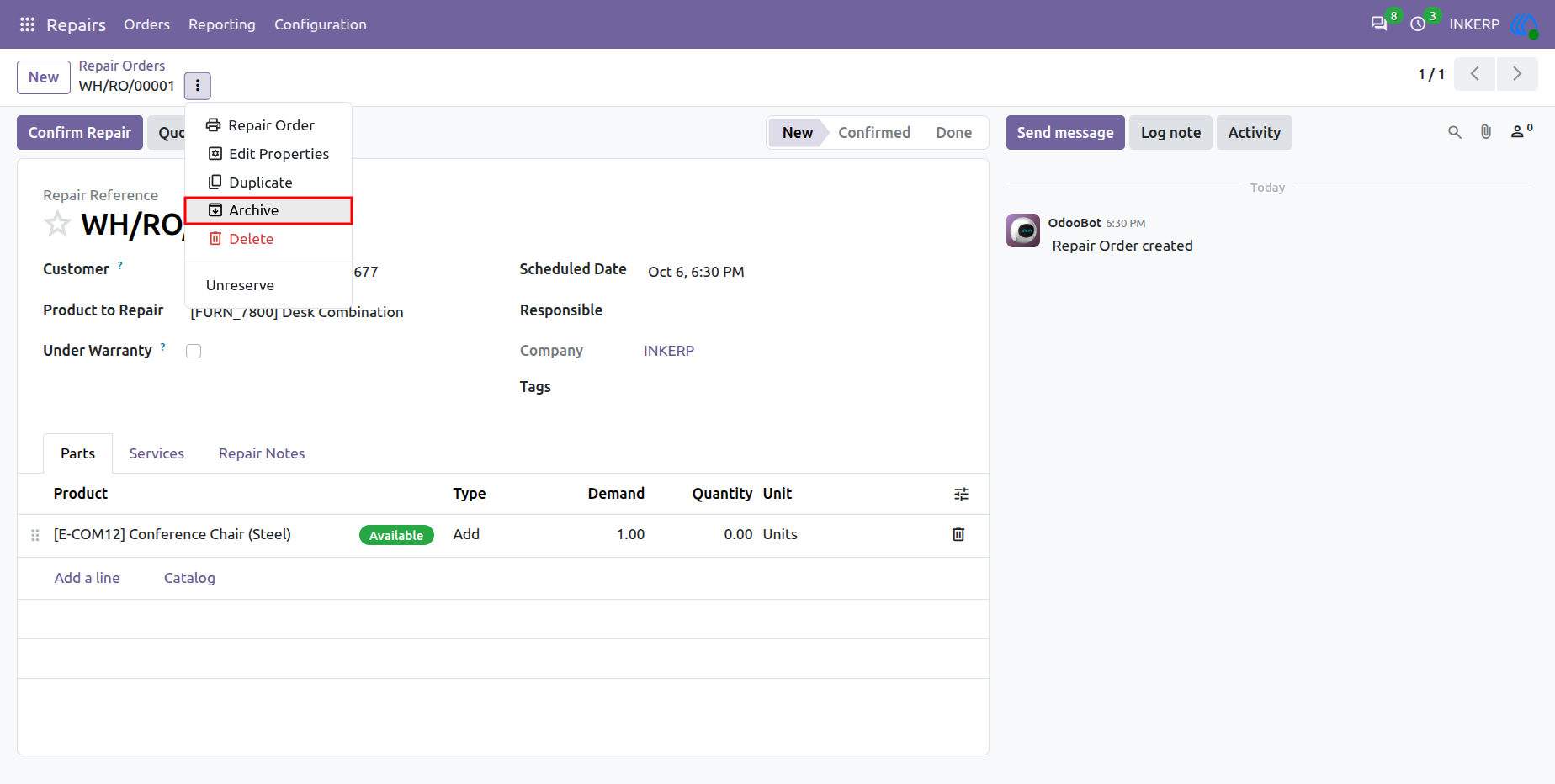
2.) Repair Order Archived Option
Once access is granted, users can easily archive individual repair orders directly from the form view. By clicking the "Action" menu (the gear/kebab icon) at the top of the repair order, an "Archive" option will now be visible in the dropdown list. Clicking this will instantly archive the current record.
Navigation : Repairs → Orders → Repair Orders
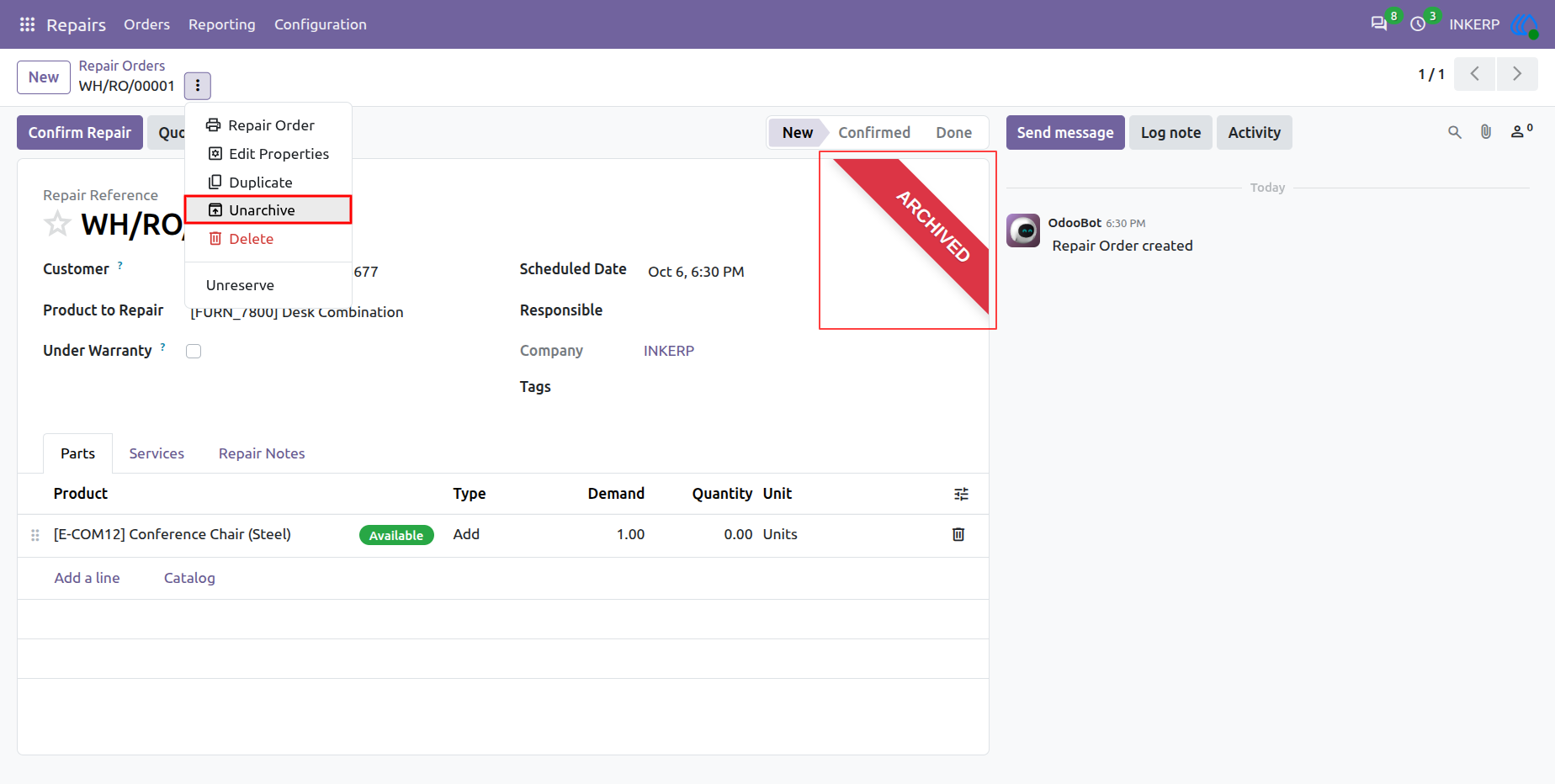
3.) Visual "Archived" Ribbon Indicator
After a repair order is archived, a prominent red "ARCHIVED" ribbon automatically appears in the top right corner of the form view. This provides immediate visual confirmation of the record's status. From this same view, users can restore the record by opening the Action menu and selecting "Unarchive".
Navigation : Repairs → Orders → Repair Orders
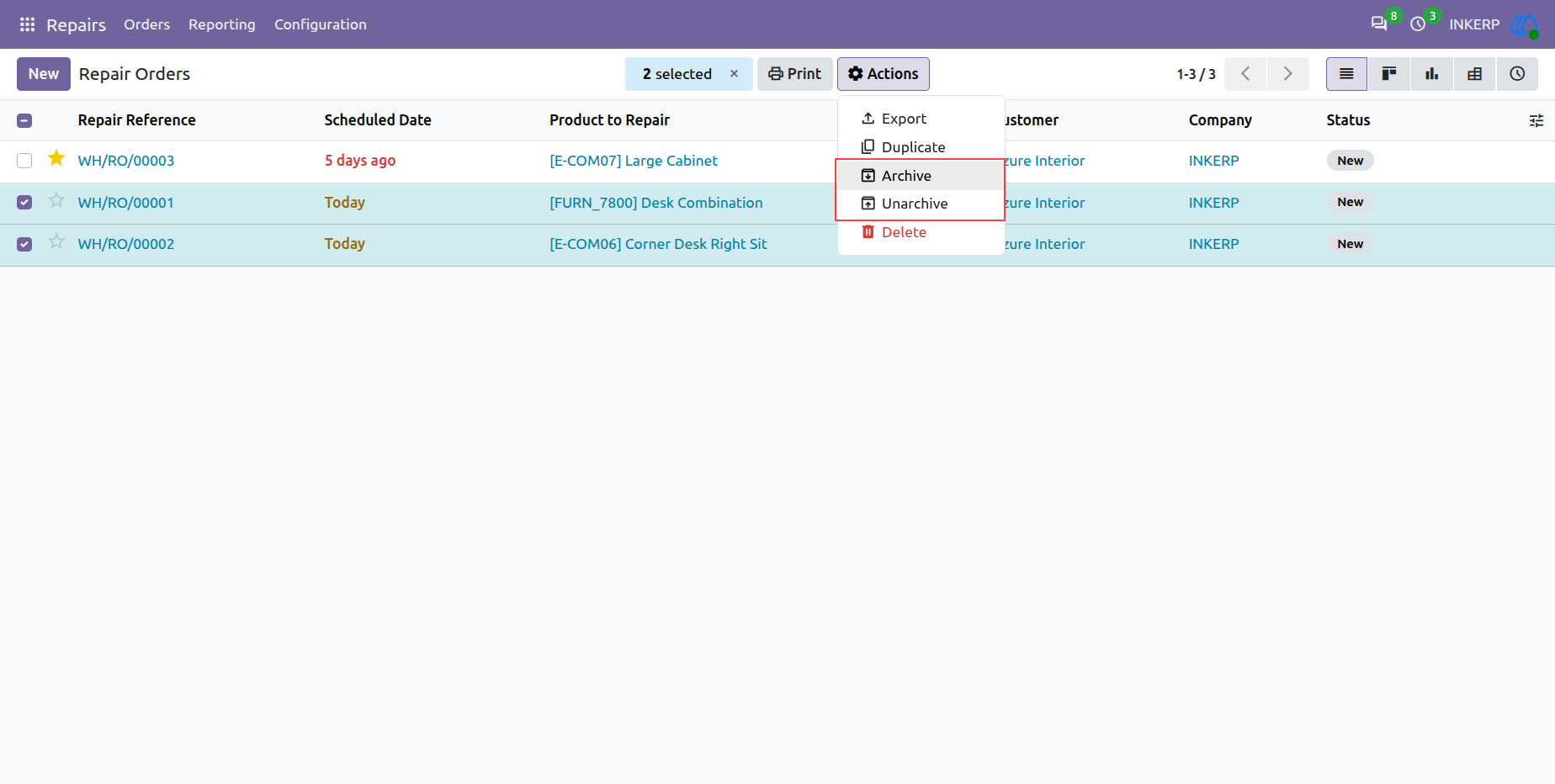
4.) Mass Archiving from the List View
Users can efficiently manage multiple repair orders at once using the list view. By selecting the checkboxes next to the desired records, the "Actions" menu appears at the top of the list. From here, users can select "Archive" or "Unarchive" to apply the status change to all selected records simultaneously.
Navigation : Repairs → Orders → Repair Orders
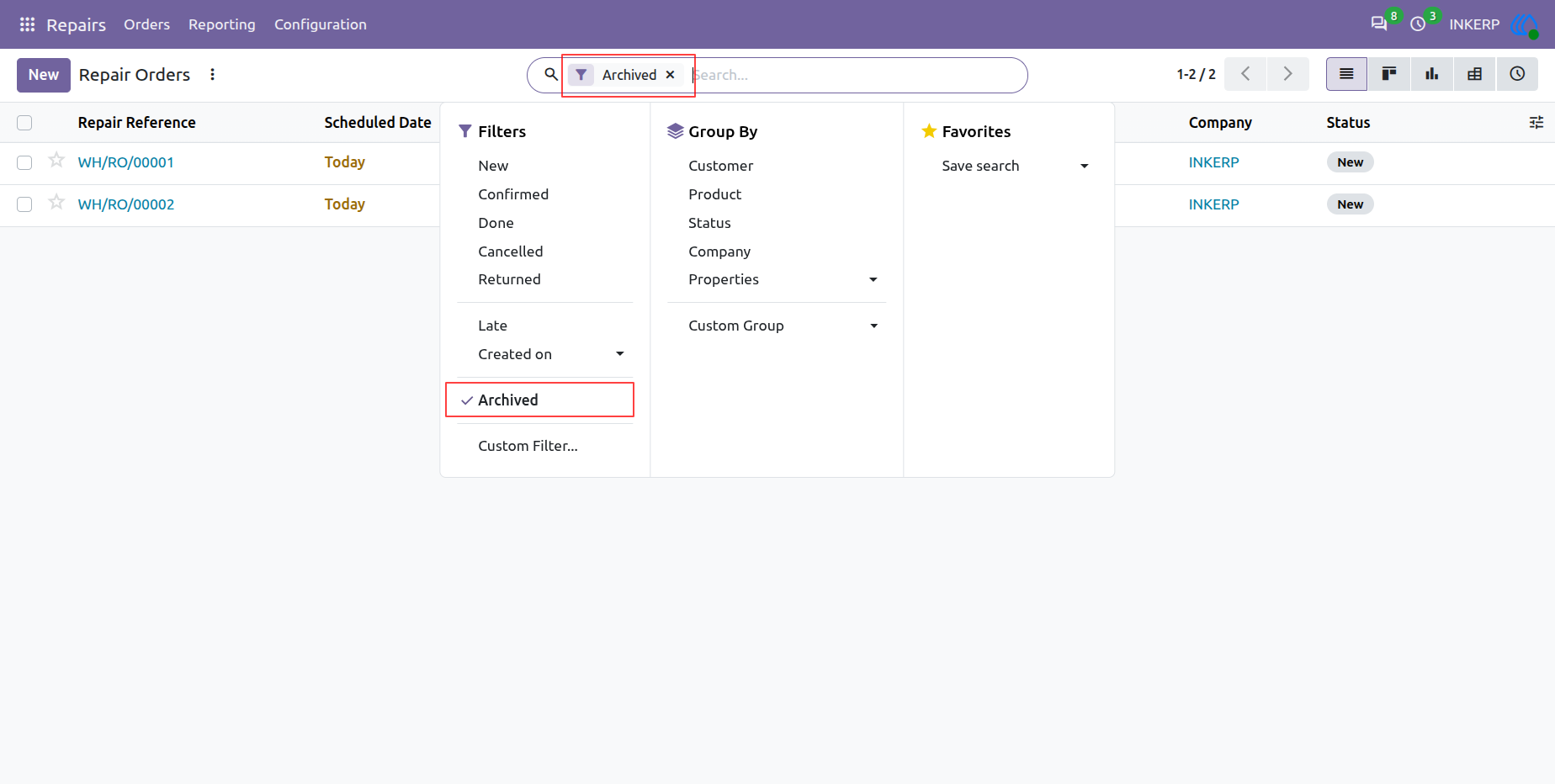
5.) Filtering Archived Repair Orders
Archived records are hidden from the default view to keep the active list clean, but they can be easily retrieved when needed. By opening the "Filters" dropdown in the search bar, users can select the new "Archived" filter to display all previously hidden repair orders.
Navigation : Repairs → Orders → Repair Orders
User Guide





