

Our Most Suggested Products


Product Image in Purchase Order Line, RFQ Line & Reports
The Product Image in Purchase Order Line and Reports app for Odoo enhances the purchase order (PO) experience by displaying product images directly within PO lines, RFQ lines, and associated reports. This visual integration helps procurement teams quickly identify products, reducing errors and streamlining the purchasing process. By enabling the "Show Product Image" configuration in purchase settings, users can see images not only in order lines but also in printed Purchase Order and Request for Quotation reports.
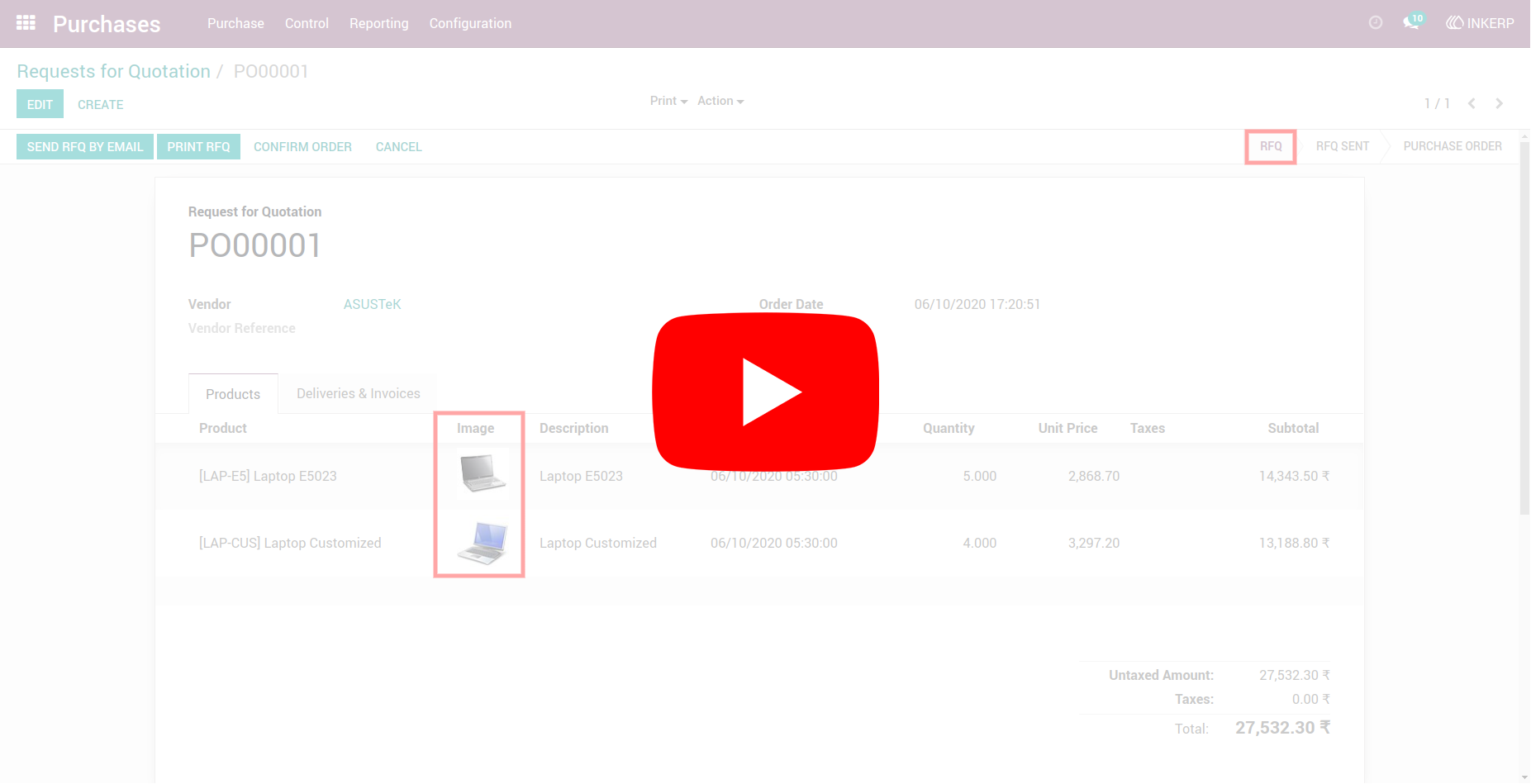
Video Tutorial
 Features
 Screenshots
 Support
 Service
Features
Product Images in Purchase Order and RFQ Lines
This feature displays product images directly within Purchase Order (PO) lines and Request for Quotation (RFQ) lines. By providing a visual reference alongside the product details, users can quickly verify and identify the correct items, reducing errors caused by misreading product names or codes.
Product Images in Reports
Once the "Show Product Image" configuration is enabled, product images are displayed in Purchase Order and Request for Quotation reports. This visual enhancement improves the clarity and professionalism of the reports, allowing both internal teams and vendors to easily recognize the ordered products.
Screenshot
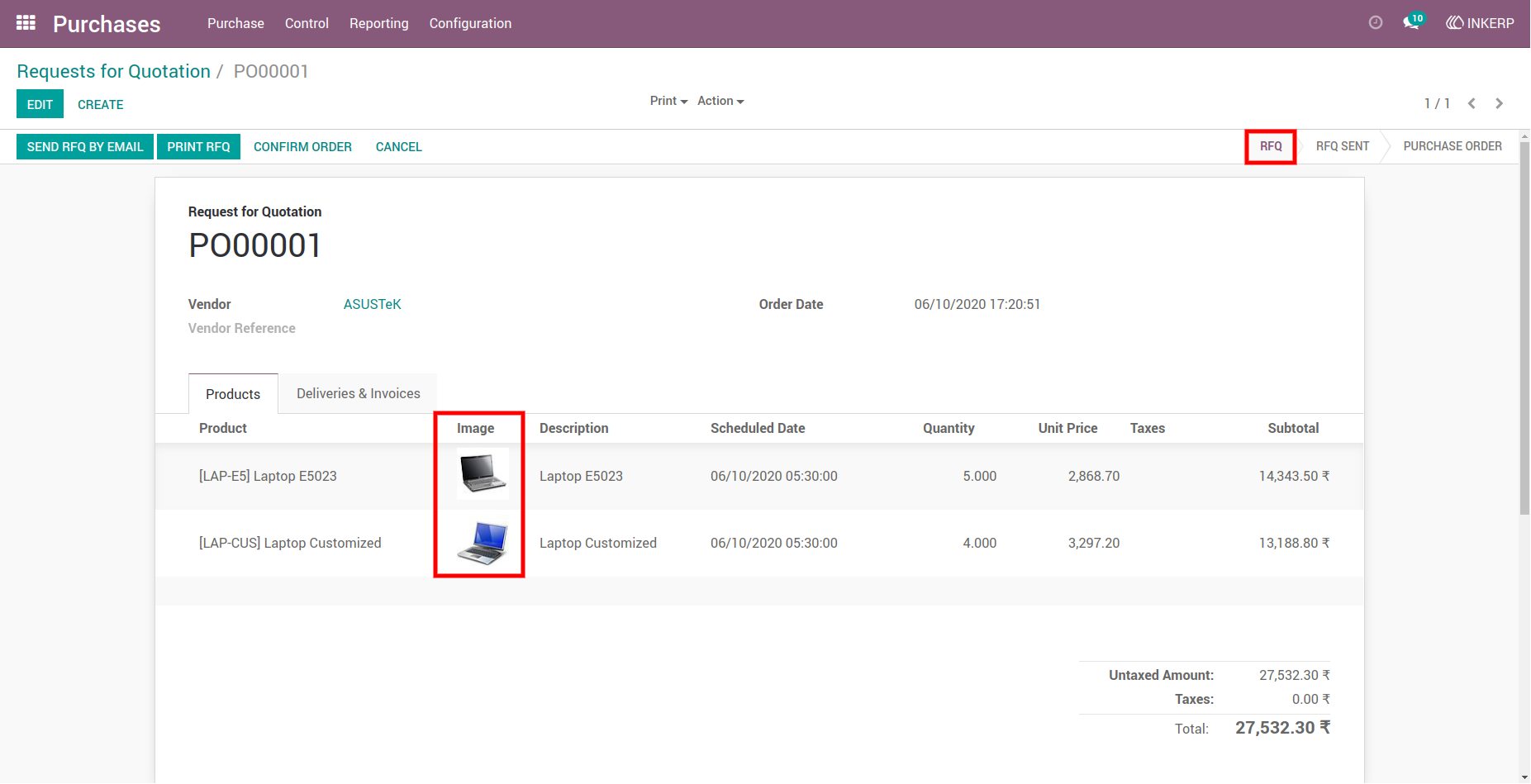
1.) Product Image in RFQ Line
Displays the product image directly in the Request for Quotation (RFQ) line, allowing users to visually identify products while creating or reviewing RFQs. This makes the procurement process more intuitive and reduces errors in selecting items.
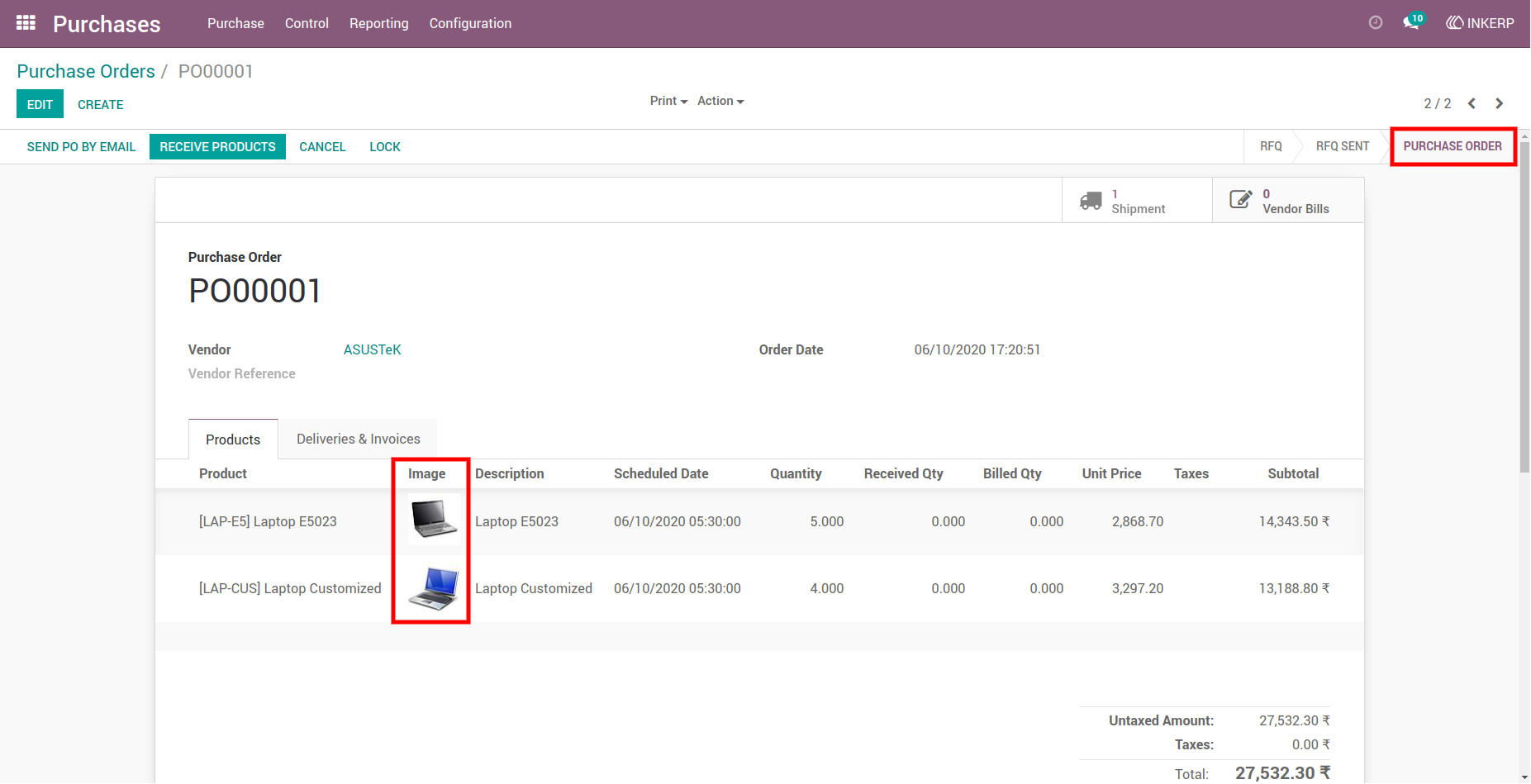
2.) Product Image in Purchase Order Line
Shows the product image in the Purchase Order (PO) line, providing quick visual confirmation of each product. It helps procurement teams verify items at a glance and speeds up the PO validation process.
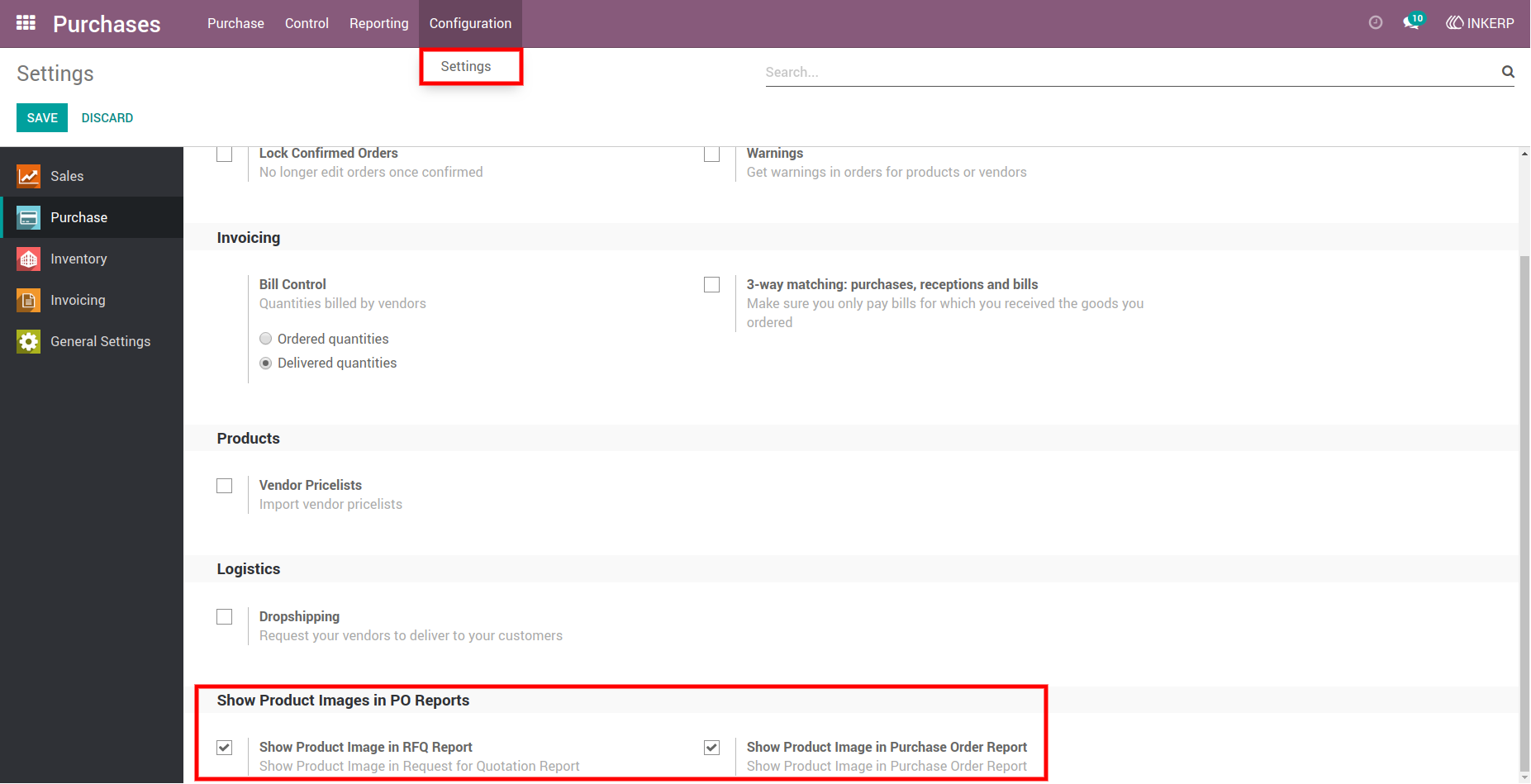
3.) Show Product Image in Reports Configuration
Enables users to configure reports to display product images by ticking the Show Product Image in RFQ Report and “Show Product Image in Purchase Order Report” options. This ensures that printed reports include visual references for easier recognition and professional presentation.
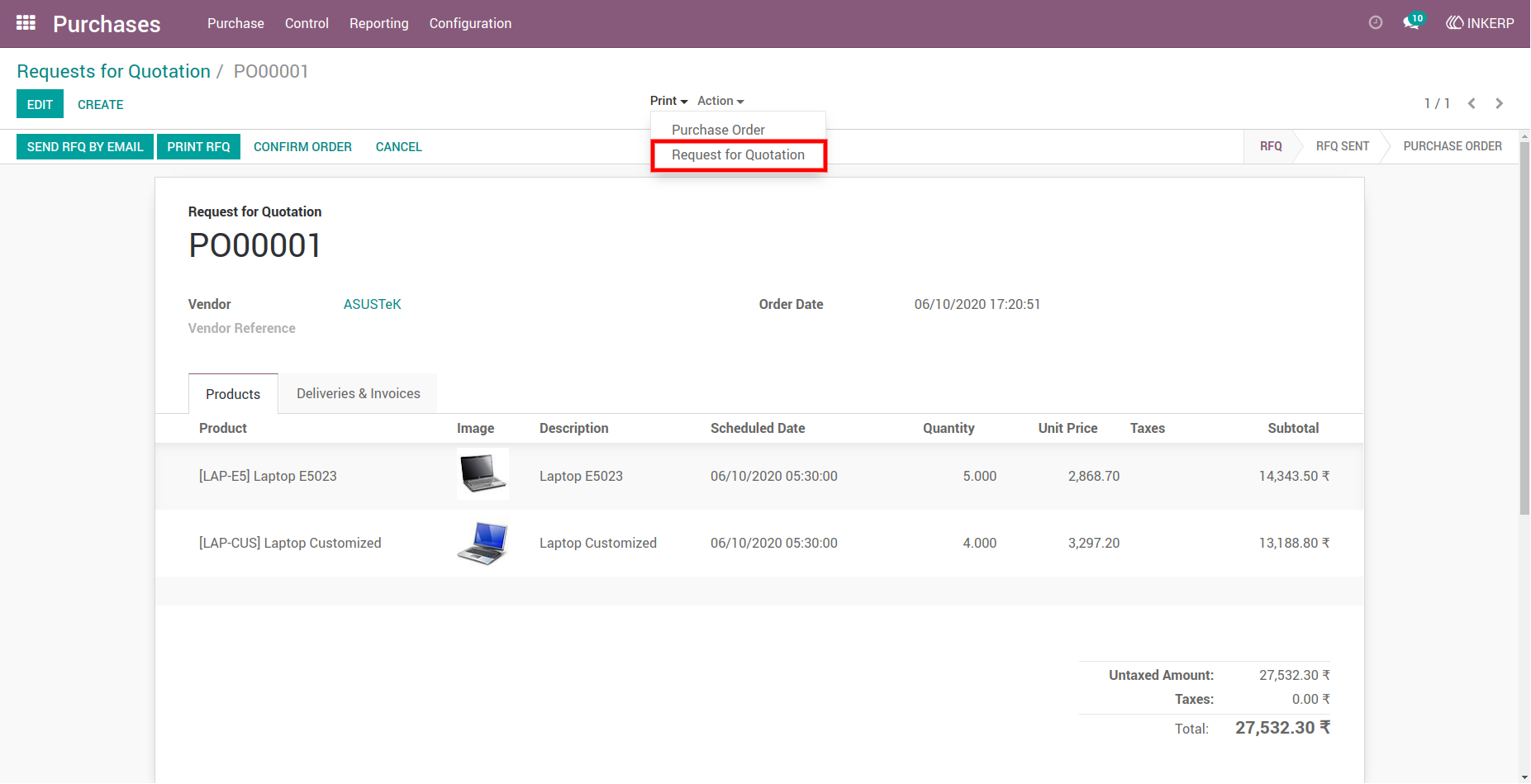
4.) RFQ Report Generate Button
Shows the button used to generate the Request for Quotation (RFQ) report. Clicking this button produces a report that includes product images, making it easy to visually verify all items before sending to vendors.
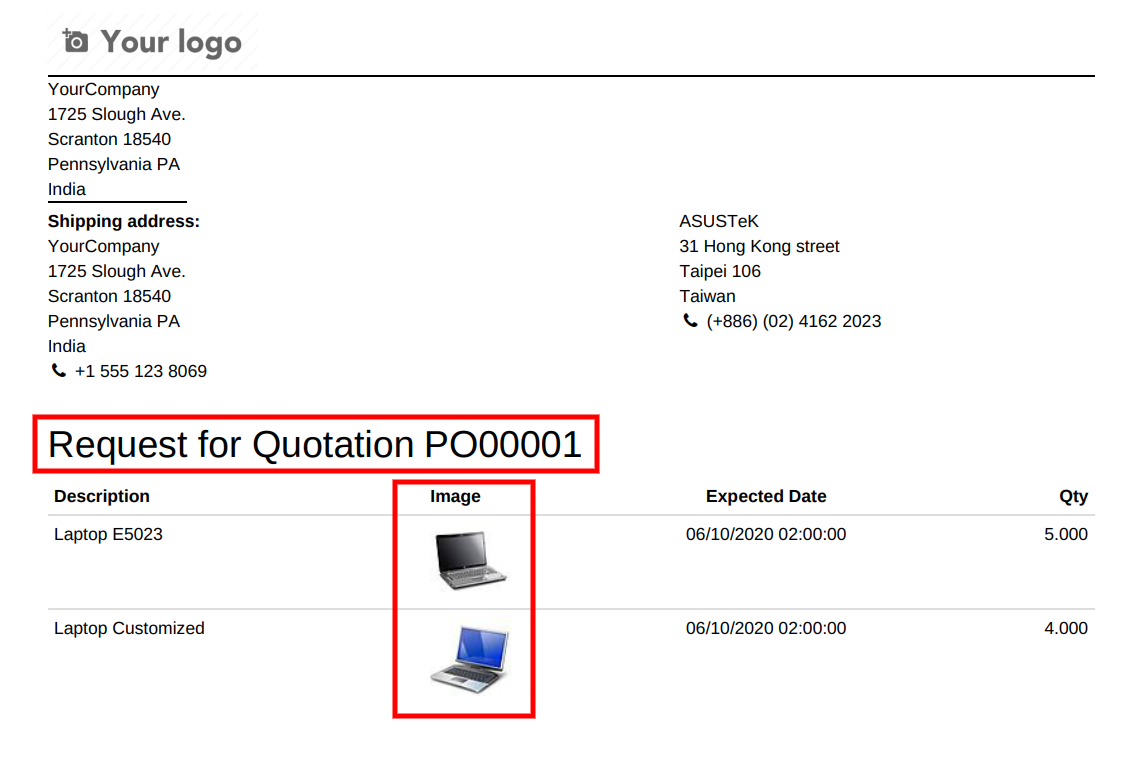
5.) Product Image in RFQ Report
Displays how product images appear in the generated RFQ report. Each item is accompanied by its image, helping procurement teams and vendors quickly identify products and minimize errors.
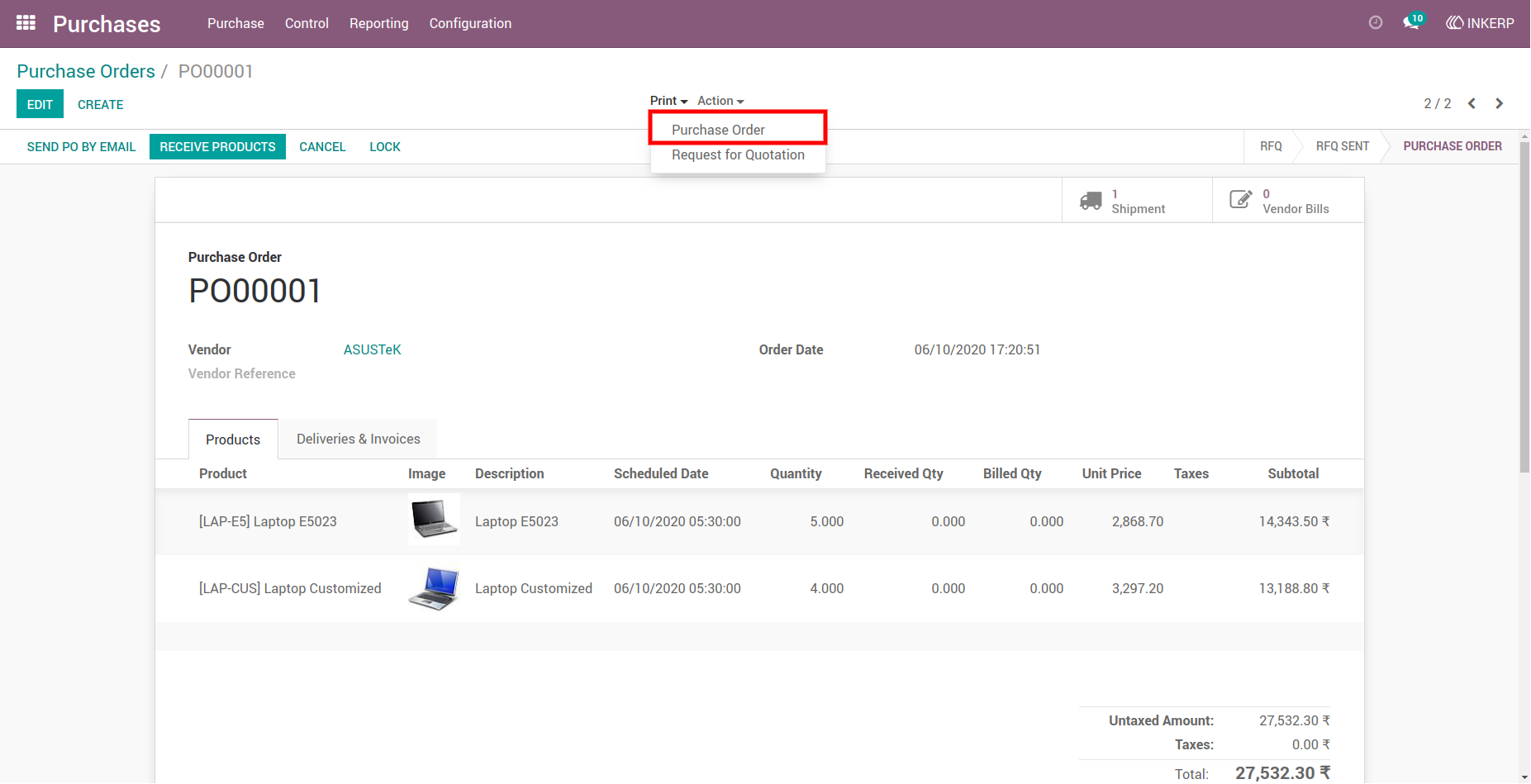
6.) Purchase Order Report Generate Button
Shows the button used to generate the Purchase Order (PO) report. By clicking this button, users can produce a report that includes product images for better clarity and verification.
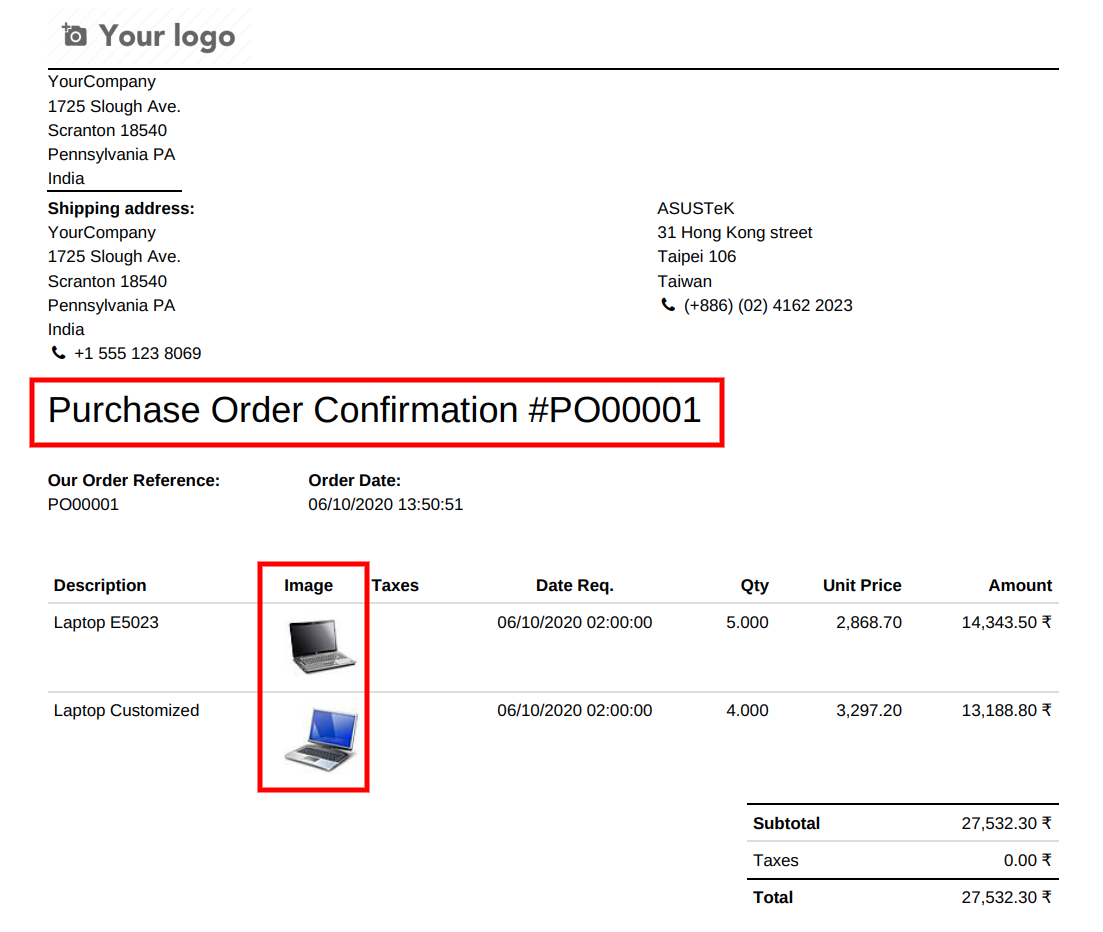
7.) Product Image in Purchase Order Report
Displays product images in the generated Purchase Order report. Visual references for each item improve accuracy, streamline communication, and provide a professional presentation of the purchase details.
User Guide