

Our Most Suggested Products


Prevent Auto Save Form View
This module disables Odoo's default auto-save behavior in form views, ensuring that records are only saved when explicitly instructed. It helps avoid accidental data changes, giving users more control over their workflow. Ideal for businesses that require strict validation before committing updates. Records are saved only when the user clicks the Save button.
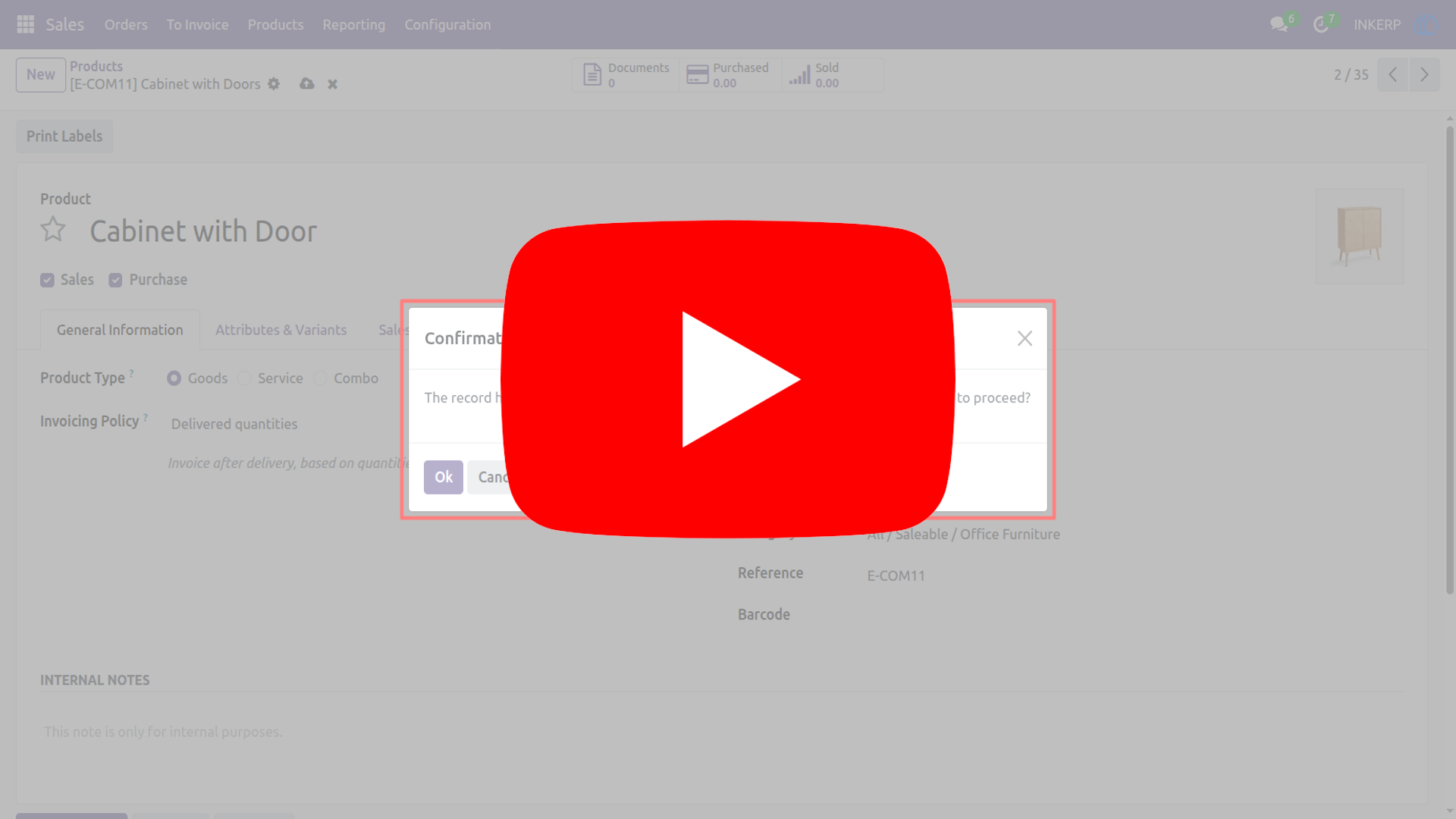
Video Tutorial
 Features
 Screenshots
 Support
 Service
Features
Prevent Auto Save with Confirmation :
By default in Odoo 15 and 16, when you edit a form and leave it (using breadcrumbs or refreshing the browser), the system automatically saves changes without asking. This module stops that auto‑save and instead shows a confirmation message when you try to leave the form. It works just like older Odoo versions, helping avoid inconsistent data or unwanted updates. Plus, you can still configure auto-save if your business prefers it.
Controlled Data Saving :
Normally, Odoo saves changes as soon as you move away from a field. With this module, nothing is saved until you press Save yourself. This means you can review your edits before committing them.
Enhanced Accuracy :
Accidental changes often happen when users click around quickly. By removing auto-save, this module ensures that only intentional updates are stored. It helps keep your records accurate and reliable.
Screenshot
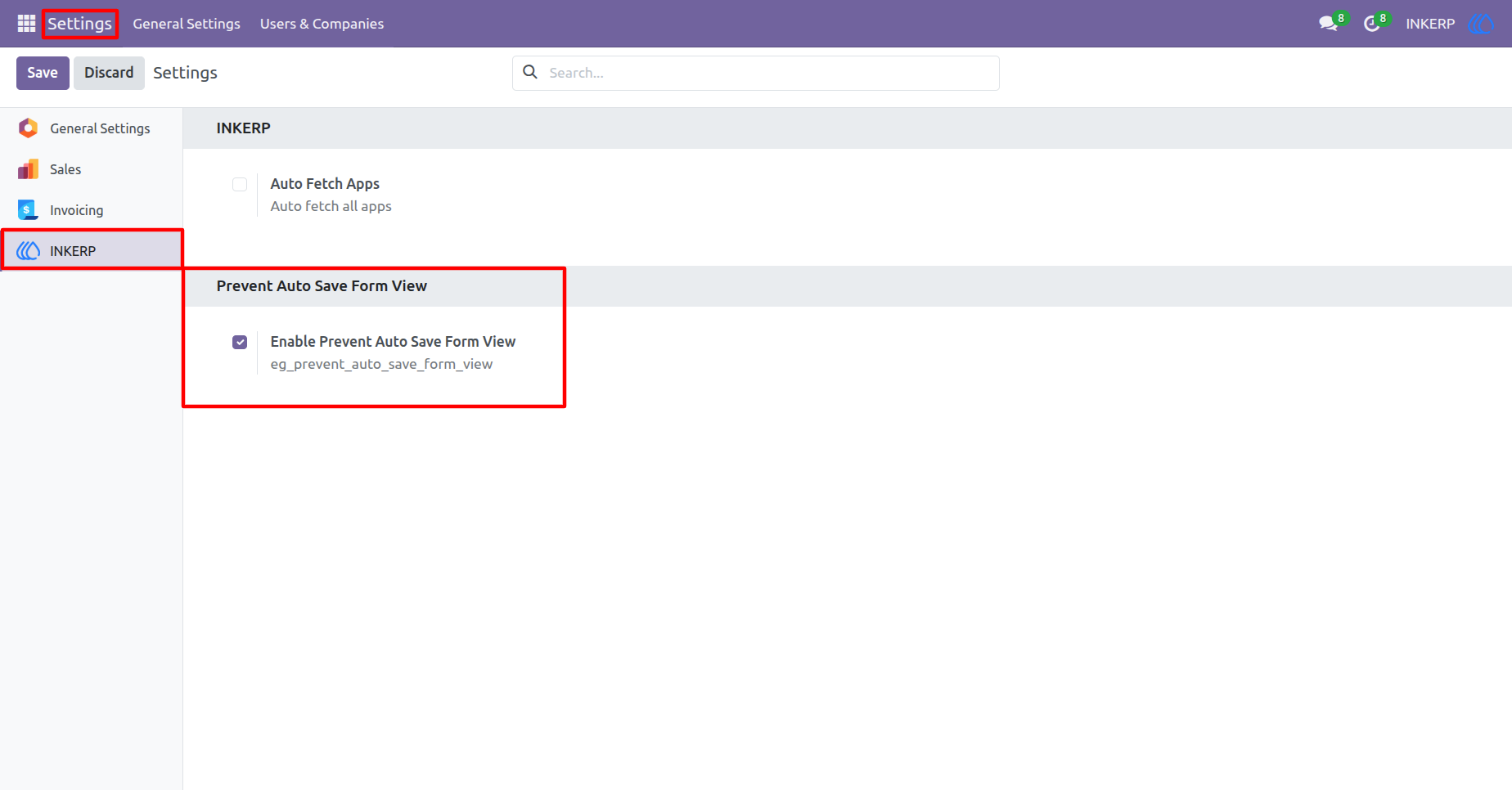
1) Settings View
Enable "eg_prevent_auto_save_form_view" from inkerp settings
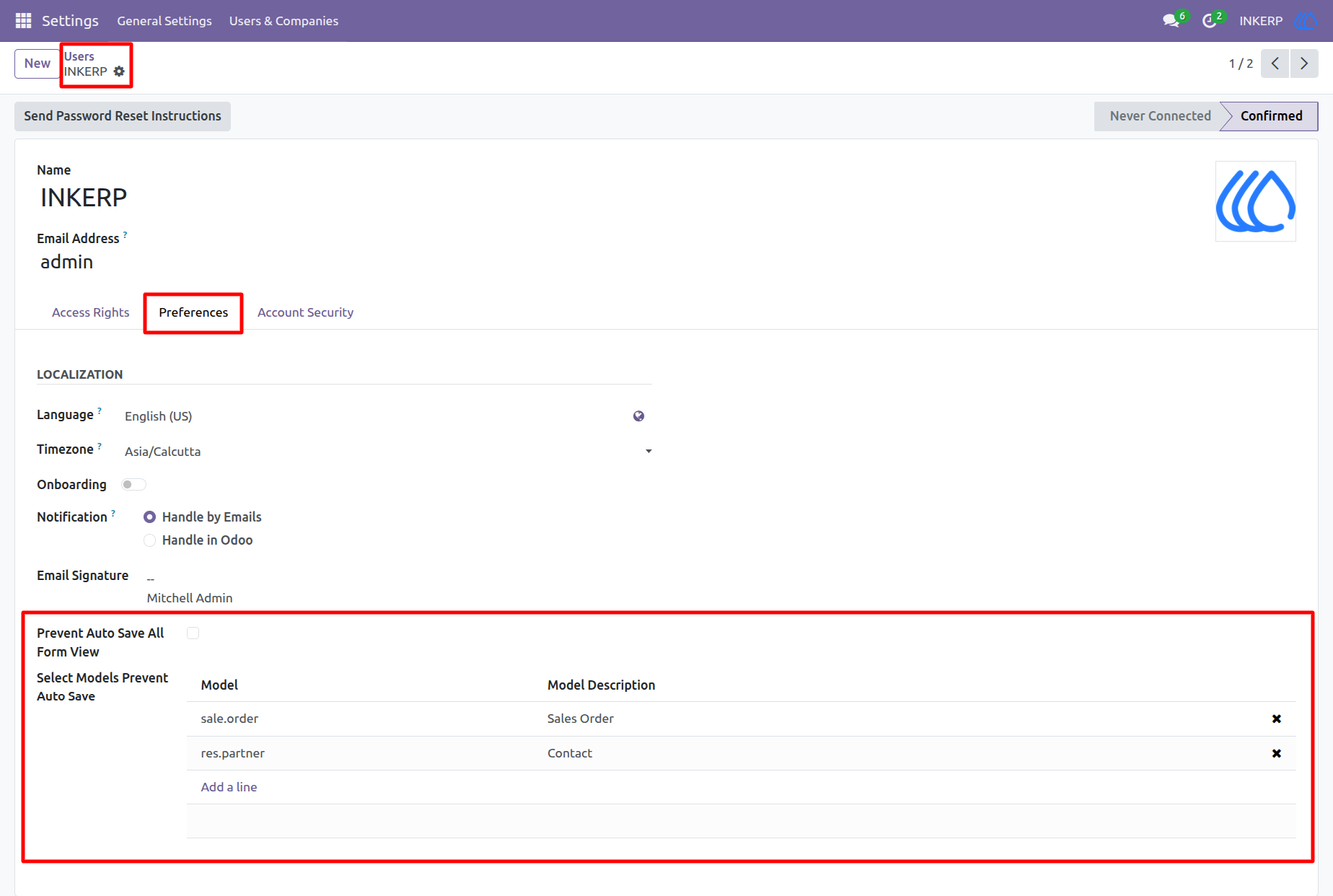
2) User Settings View
In the user view, you can either select specific models where you want to prevent auto‑save, or simply tick the "Prevent Auto Save All" option. When this option is enabled, the model selection field becomes invisible, and the rule will automatically apply to all models.
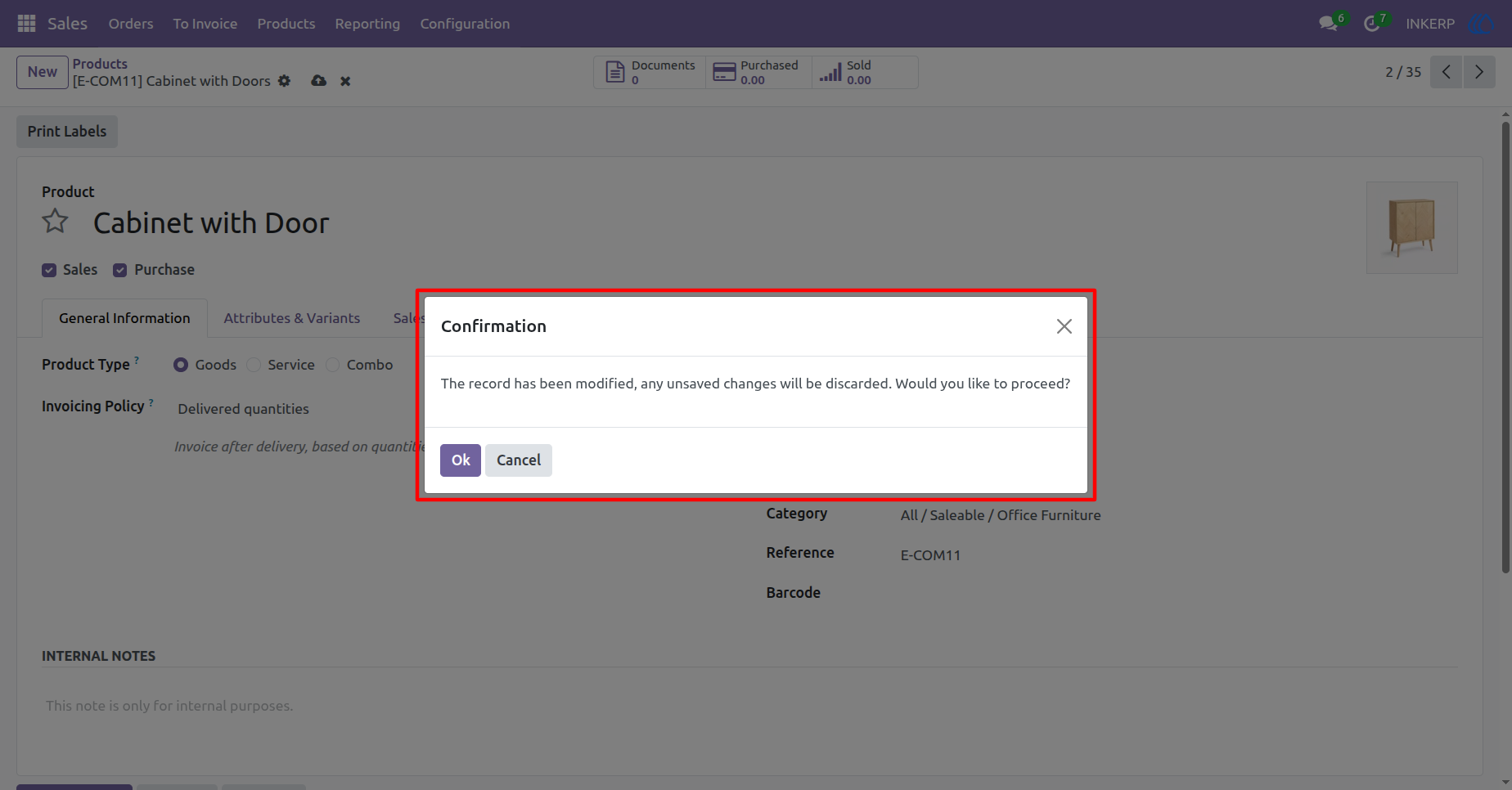
3) Confirmation Popup View
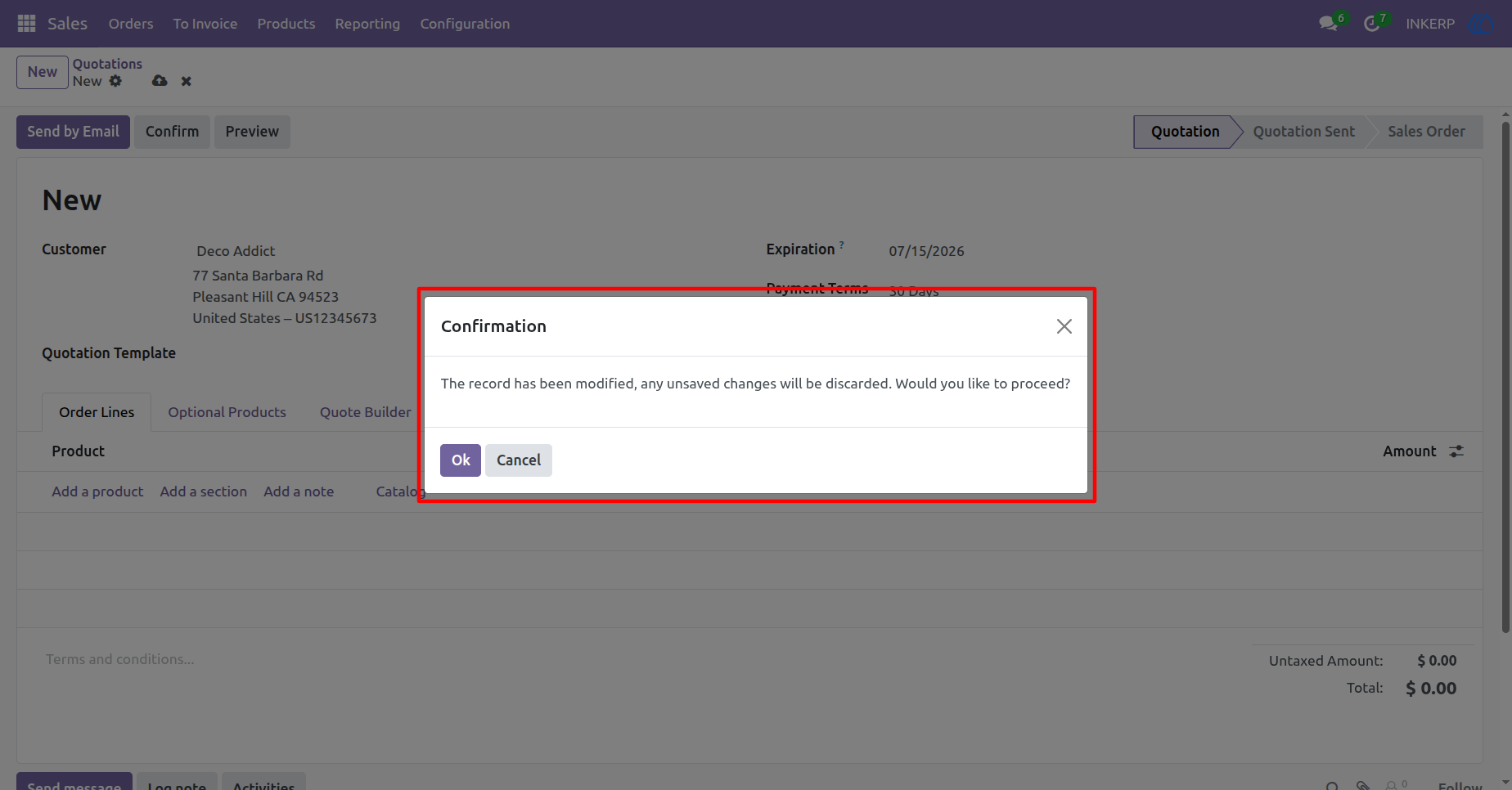
When a user makes changes to a record and tries to leave the page, a popup will appear. If the user clicks "OK", all changes will be discarded and the page will close. If the user clicks "Cancel", the popup will close and the user will remain on the page without leaving.
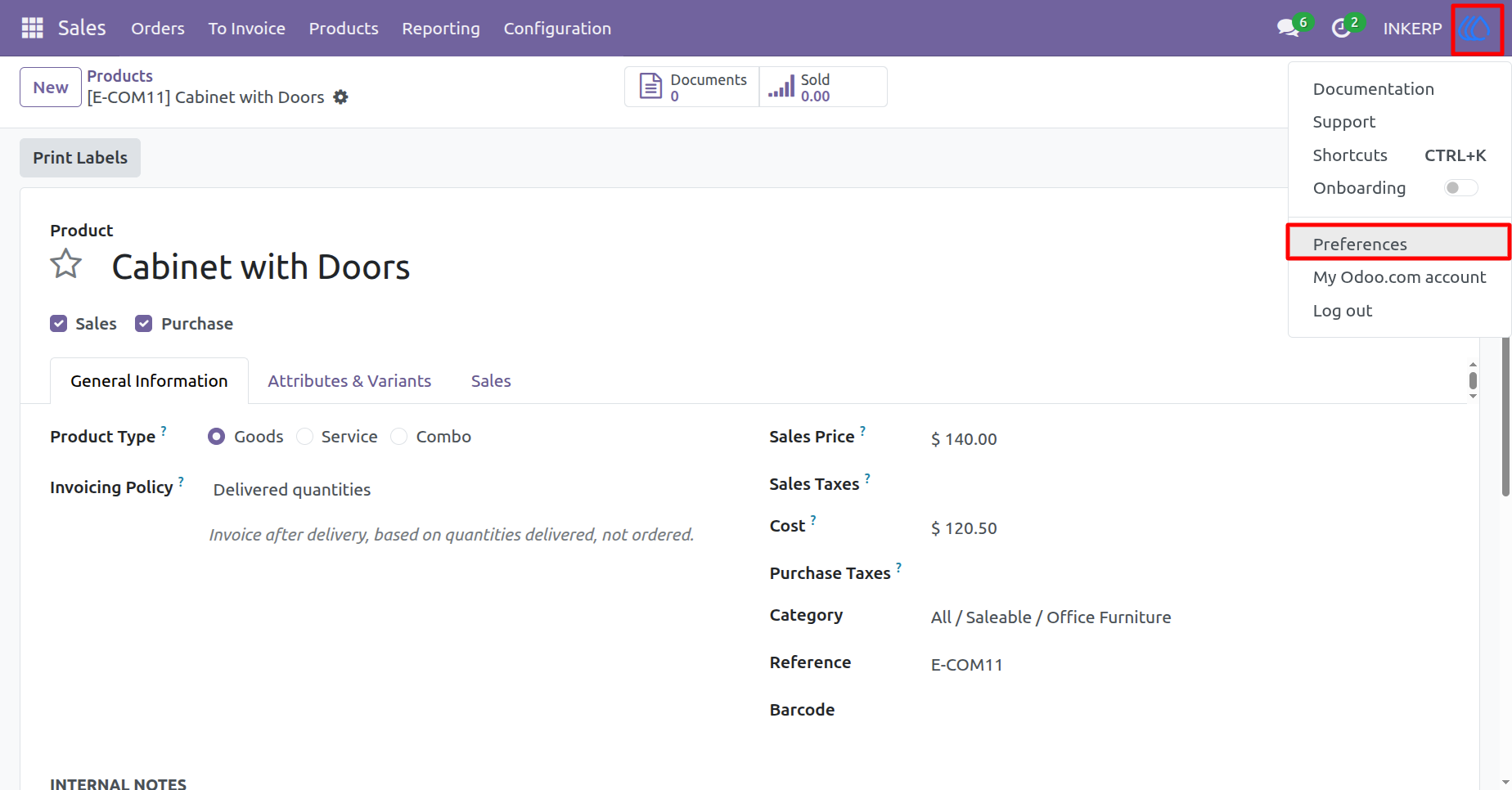
4) User Preferences Menu View
Users can configure this setting from the Preferences menu. Simply click on the user icon in the header menu, then select Preferences to adjust the options.
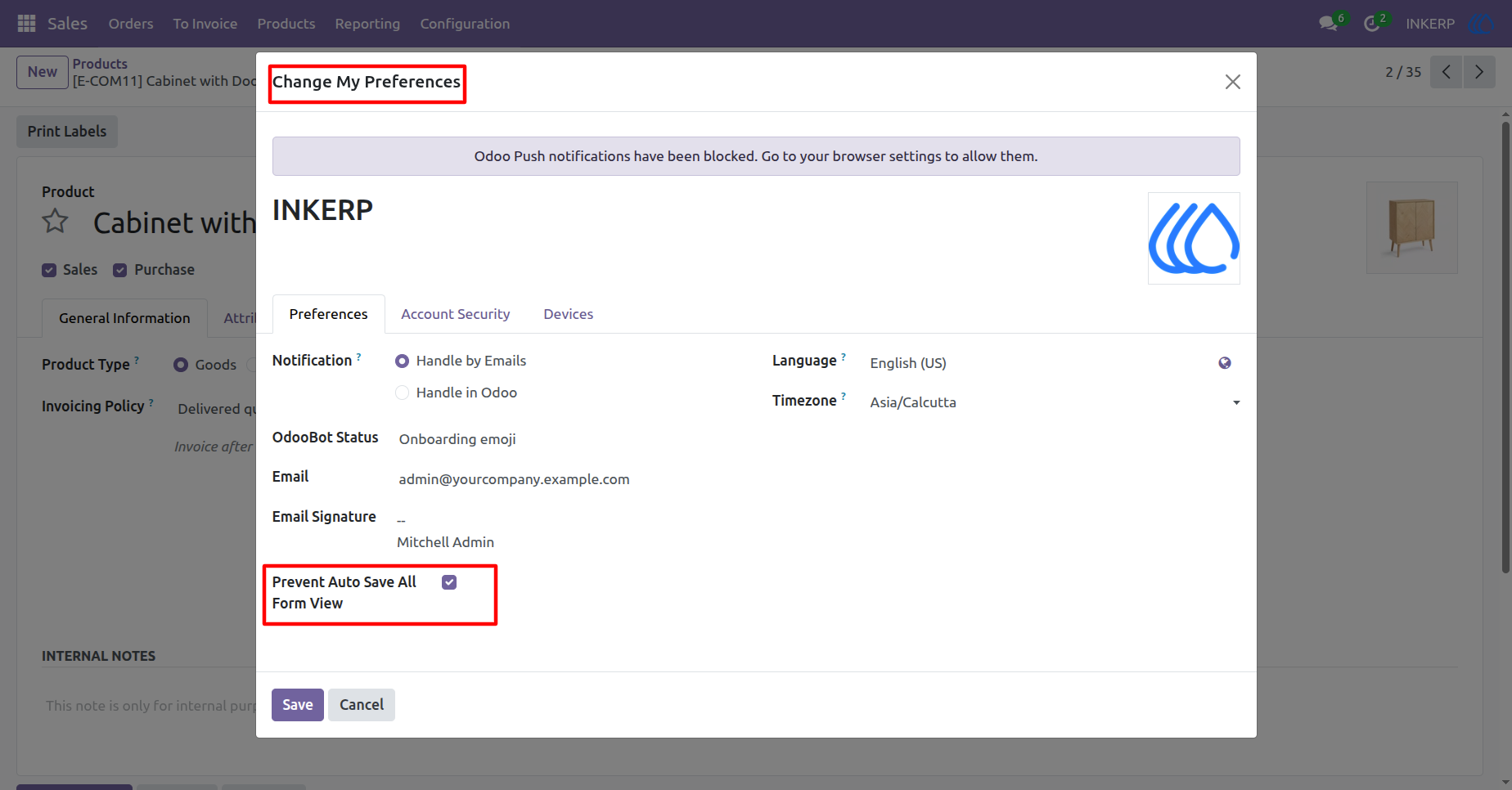
5) Change My Preferences View
Users can update the Prevent Auto Save configuration directly from their Preferences menu, in the same way they manage other settings.
6) Confirmation Popup View
User Guide