

Our Most Suggested Products


Manage Shipping and Delivery Directly from Odoo POS
Manage Shipping and Delivery Directly from Odoo POS allows you to easily add and control shipping or delivery charges directly from the Odoo Point of Sale interface. The module enables shipping charges to be added as a separate order line, automatically updating the order total and clearly displaying the delivery cost on the POS receipt. This ensures full transparency for both staff and customers during checkout.
Video Tutorial
 Features
 Screenshots
 Support
 Service
Features
Add Shipping Charges Directly from POS
All shipping and delivery charges added in POS are fully integrated with backend POS orders. The shipping line appears clearly on receipts and order records, maintaining transparency and traceability. This ensures consistency between POS transactions and backend order management without creating additional Sales Orders.
Simple and User-Friendly Workflow
The module follows Odoo’s native POS design to provide an intuitive and easy-to-use experience. With minimal clicks and clear options, users can select shipping methods quickly and avoid confusion during checkout.
Screenshot
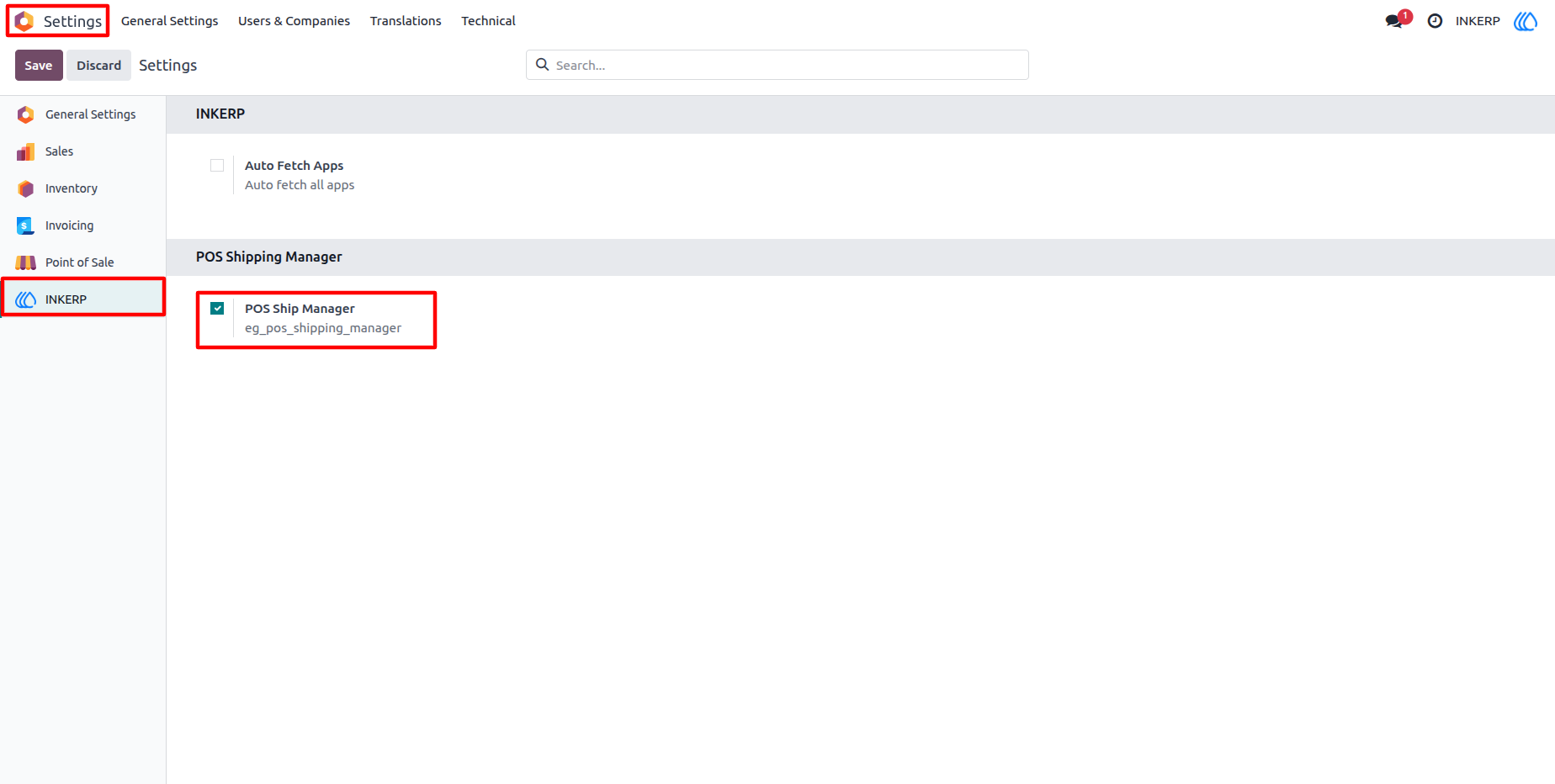
1.) Enable POS Shipping Manager
Activate the POS Shipping Manager from the system settings to allow shipping and delivery features in the Point of Sale. This configuration enables the integration of delivery charges directly into POS orders.
Navigation : Setting › INKERP › POS Shipping Manager
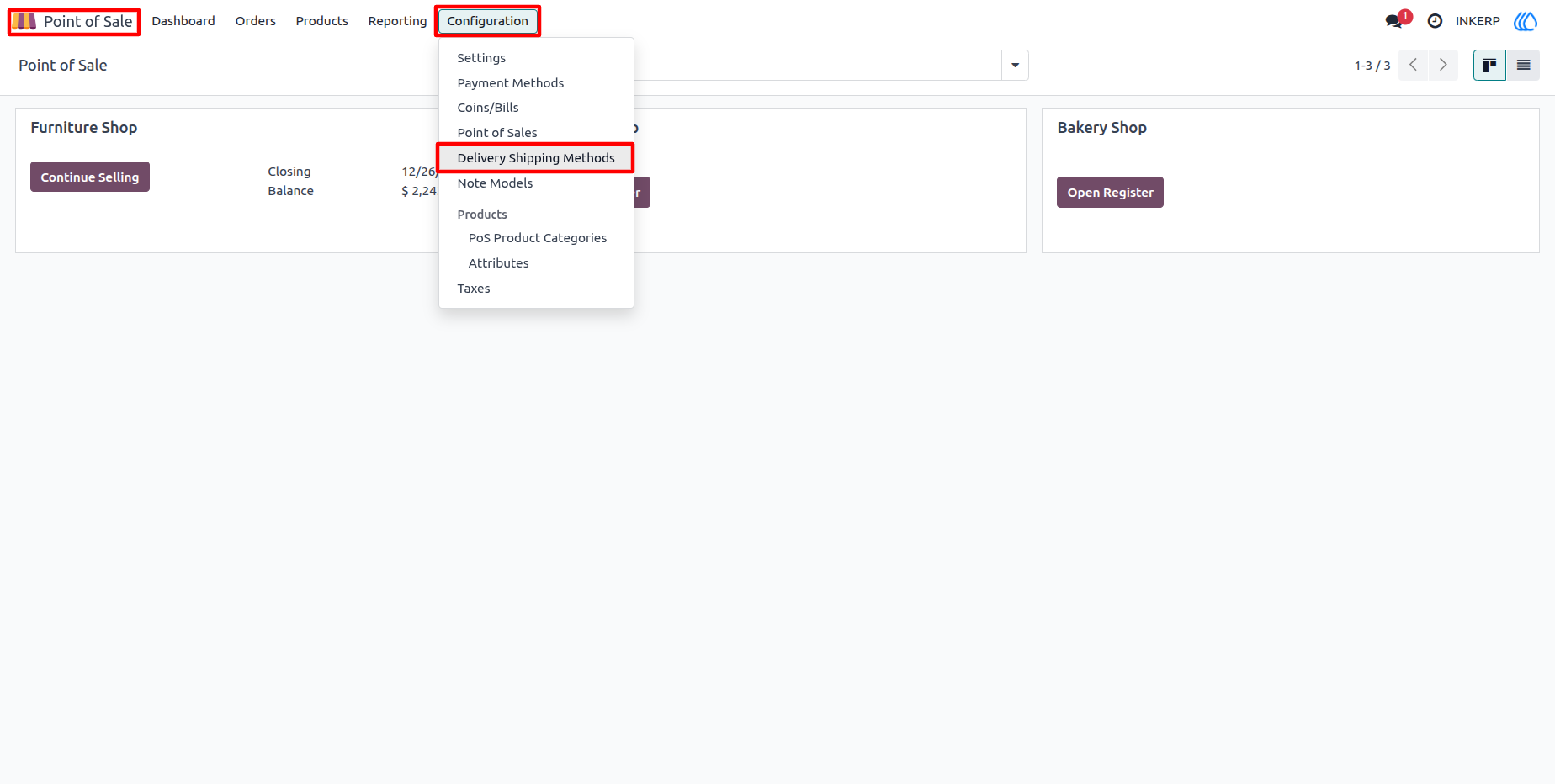
2.) Access Delivery Shipping Methods
From the Point of Sale configuration menu, access the Delivery Shipping Methods section to manage delivery options.
Navigation : Point of Sale › Configuration › Delivery Shipping Methods
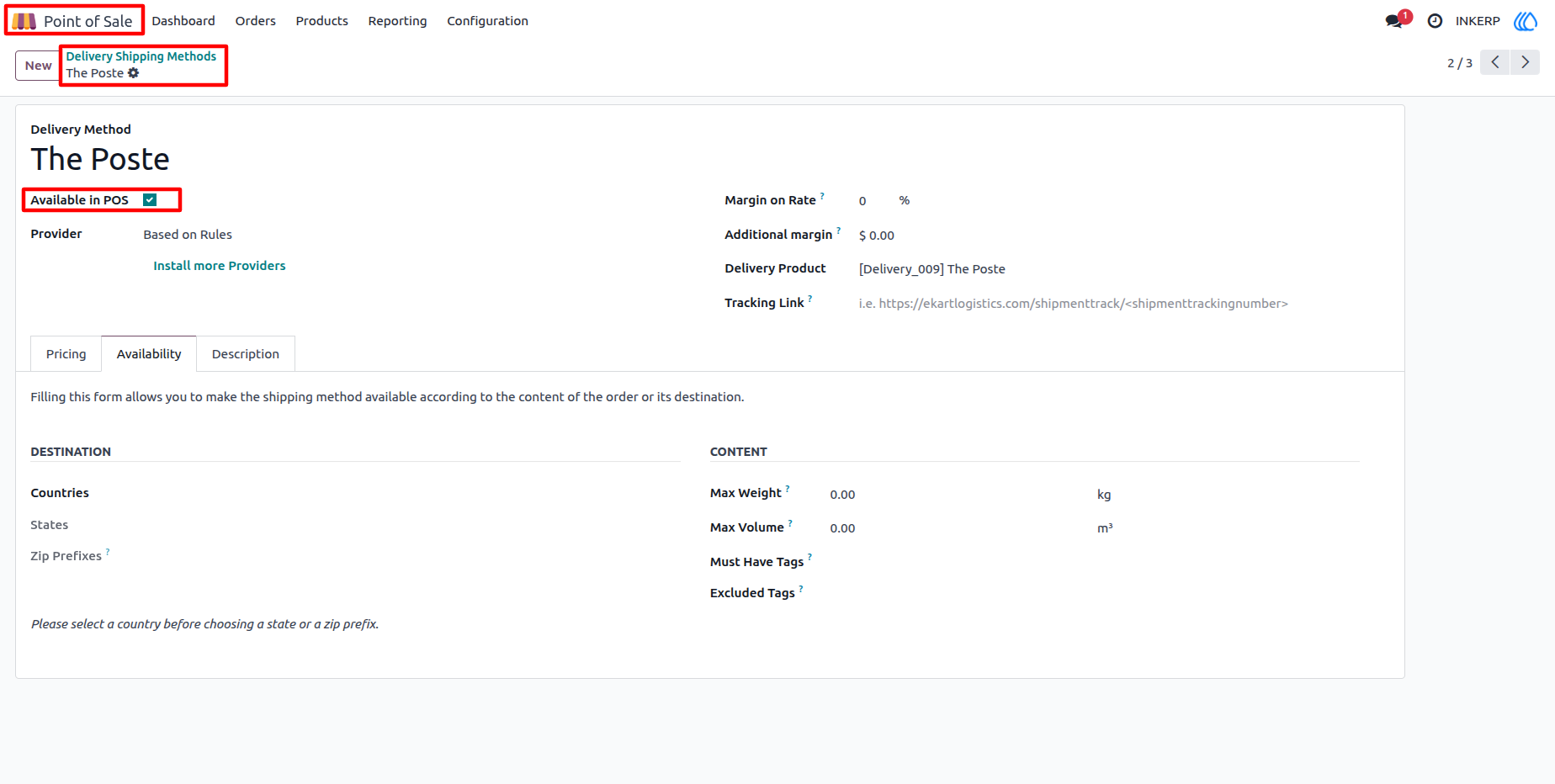
3.) Configure Delivery Shipping Method
Create or edit a delivery shipping method and enable the Available in POS option. Once enabled, the selected delivery method becomes available for selection during POS checkout.
Navigation : Point of Sale › Configuration › Delivery Shipping MethodsPoint of Sale › Configuration › Delivery Shipping Methods › Delivery Shipping Method
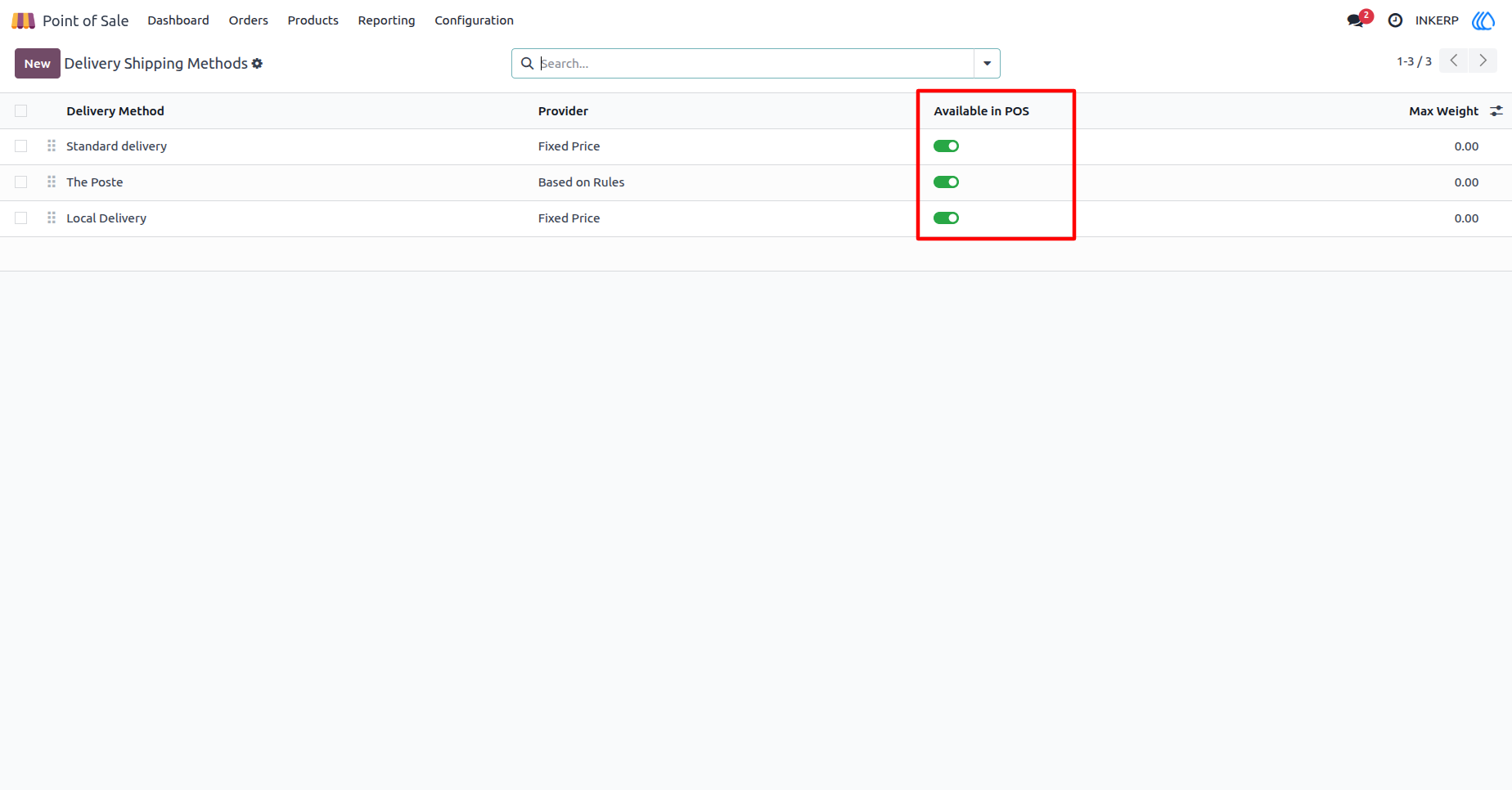
4.) Delivery Shipping Methods Overview
View all delivery shipping methods in a centralized list with key details such as provider and availability in POS. Easily enable or disable shipping methods for POS using the availability toggle.
Navigation : Point of Sale › Configuration › Delivery Shipping Methods
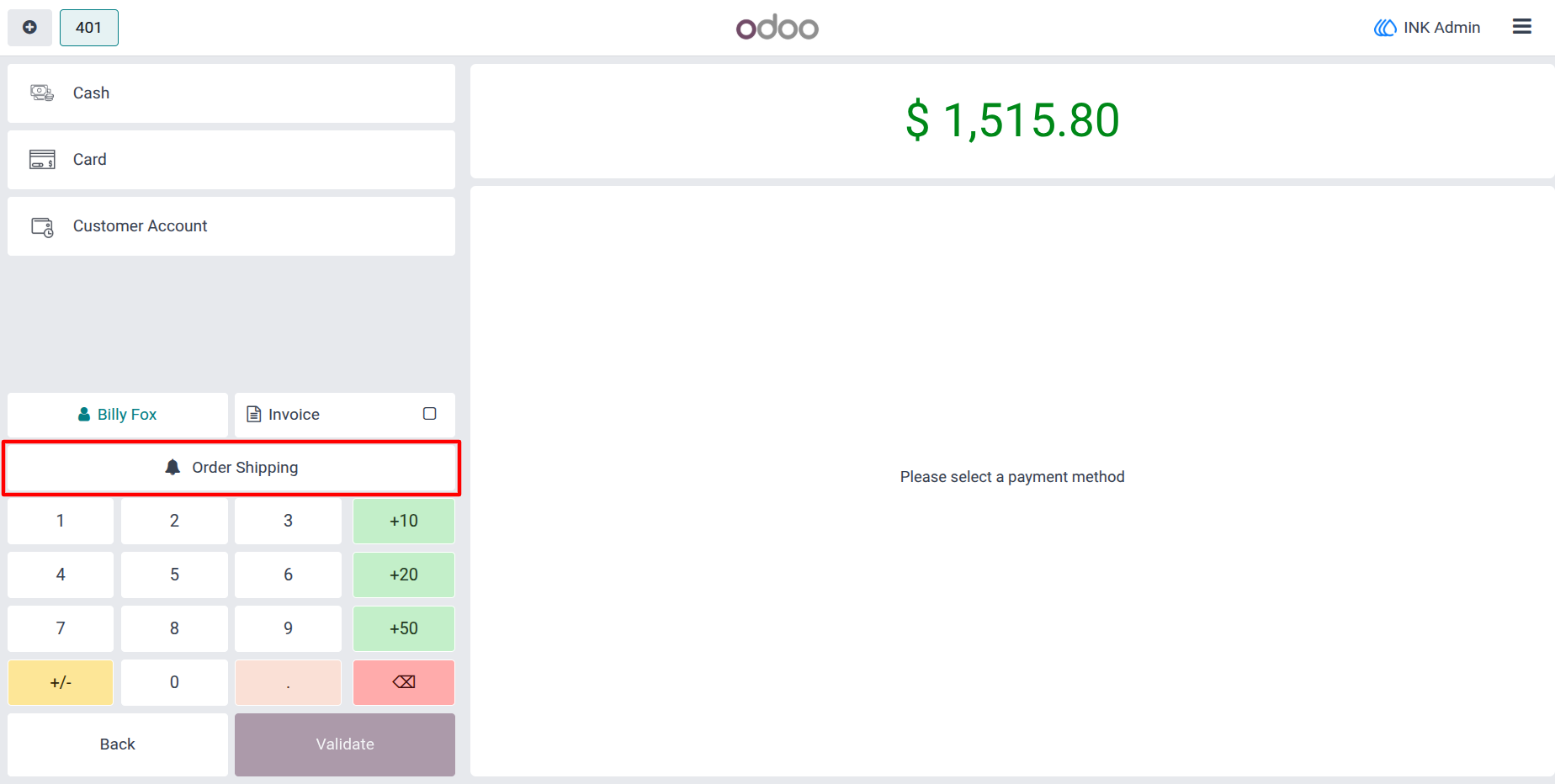
5.) Order Shipping Button in POS
A dedicated Order Shipping button is available directly on the POS payment screen. This allows users to quickly add or manage shipping charges without interrupting the checkout flow.
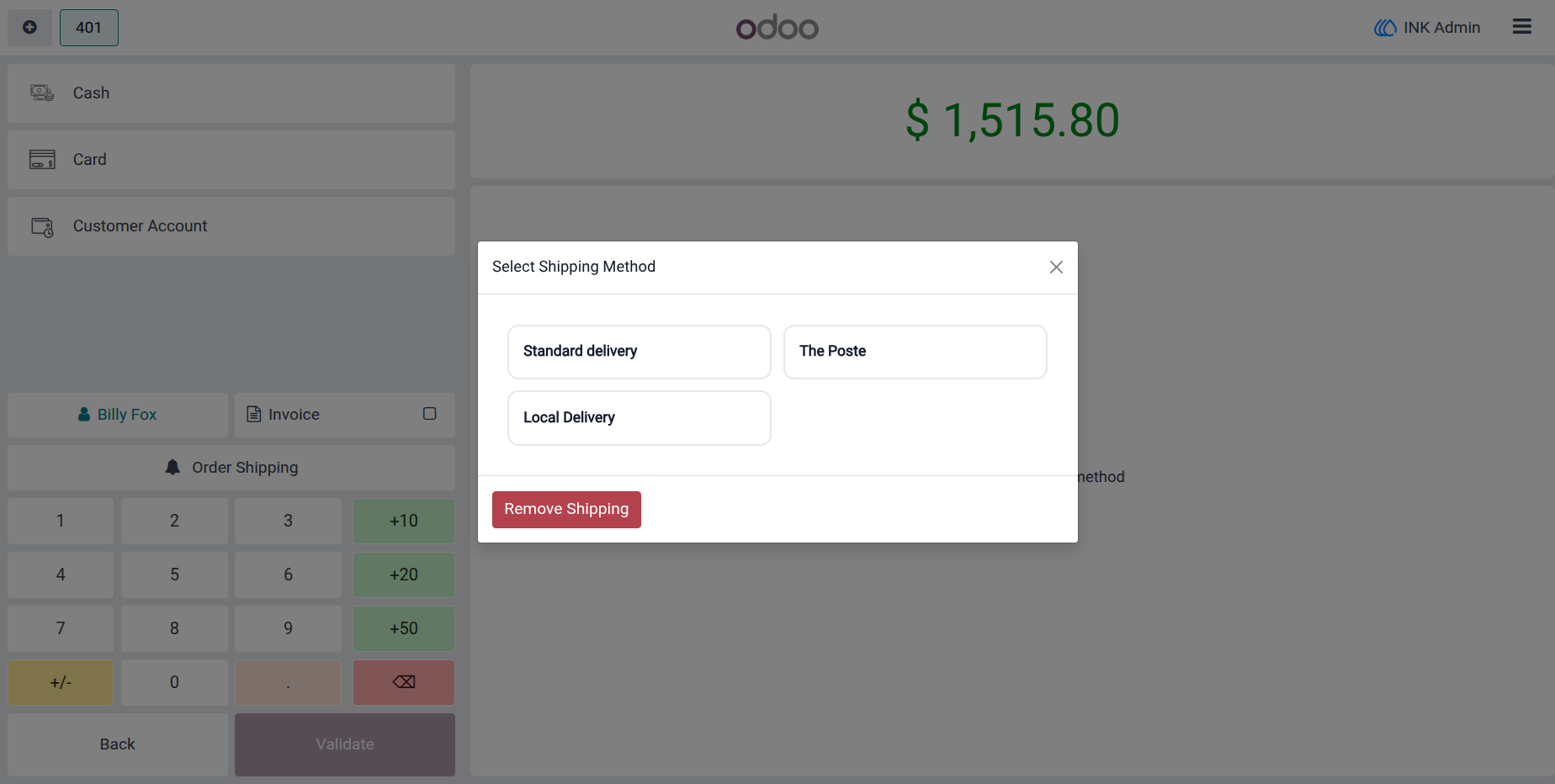
6.) Select Shipping Method Popup
A clean popup displays all available shipping and delivery methods configured for POS. Users can select a method or remove an existing shipping charge with a single click.
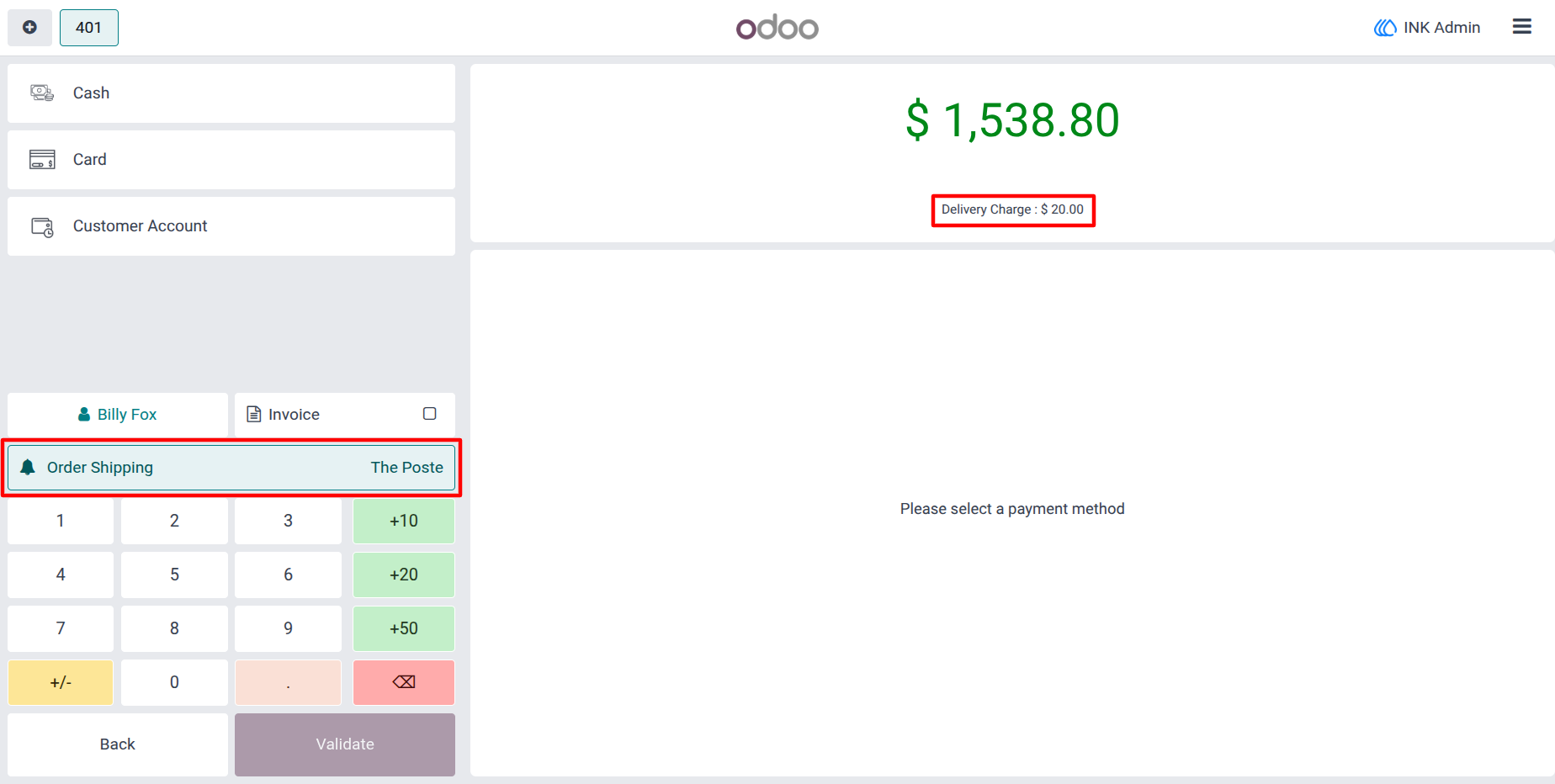
7.) Shipping Charge Applied to Order
Once a shipping method is selected, the delivery charge is applied instantly to the POS order. The total amount is automatically recalculated and clearly displays the delivery cost.
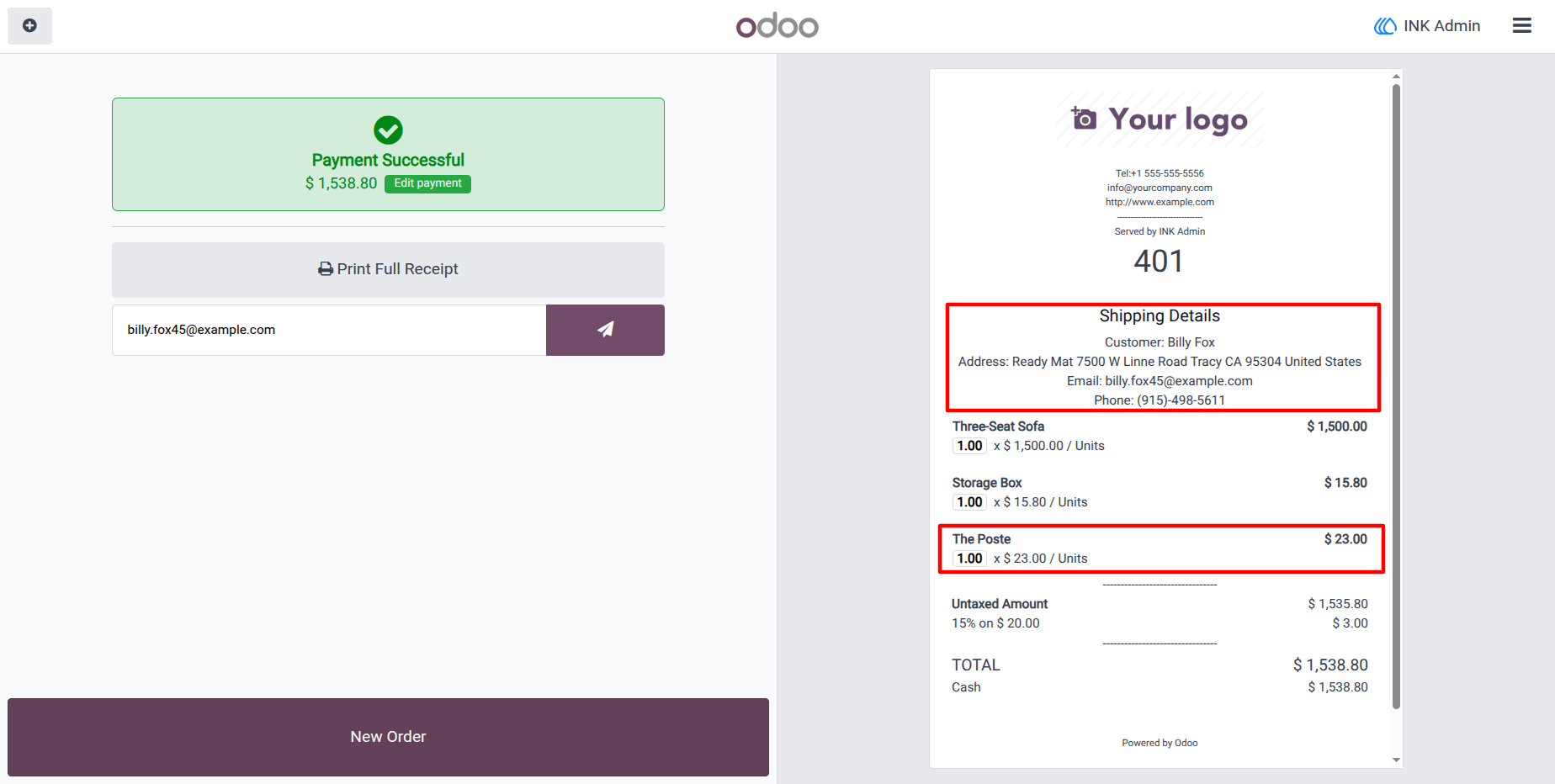
8.) Receipt with Shipping Details
Shipping details including customer name, address, and contact information are printed on the receipt. This ensures full transparency and clear delivery information for both business and customer.
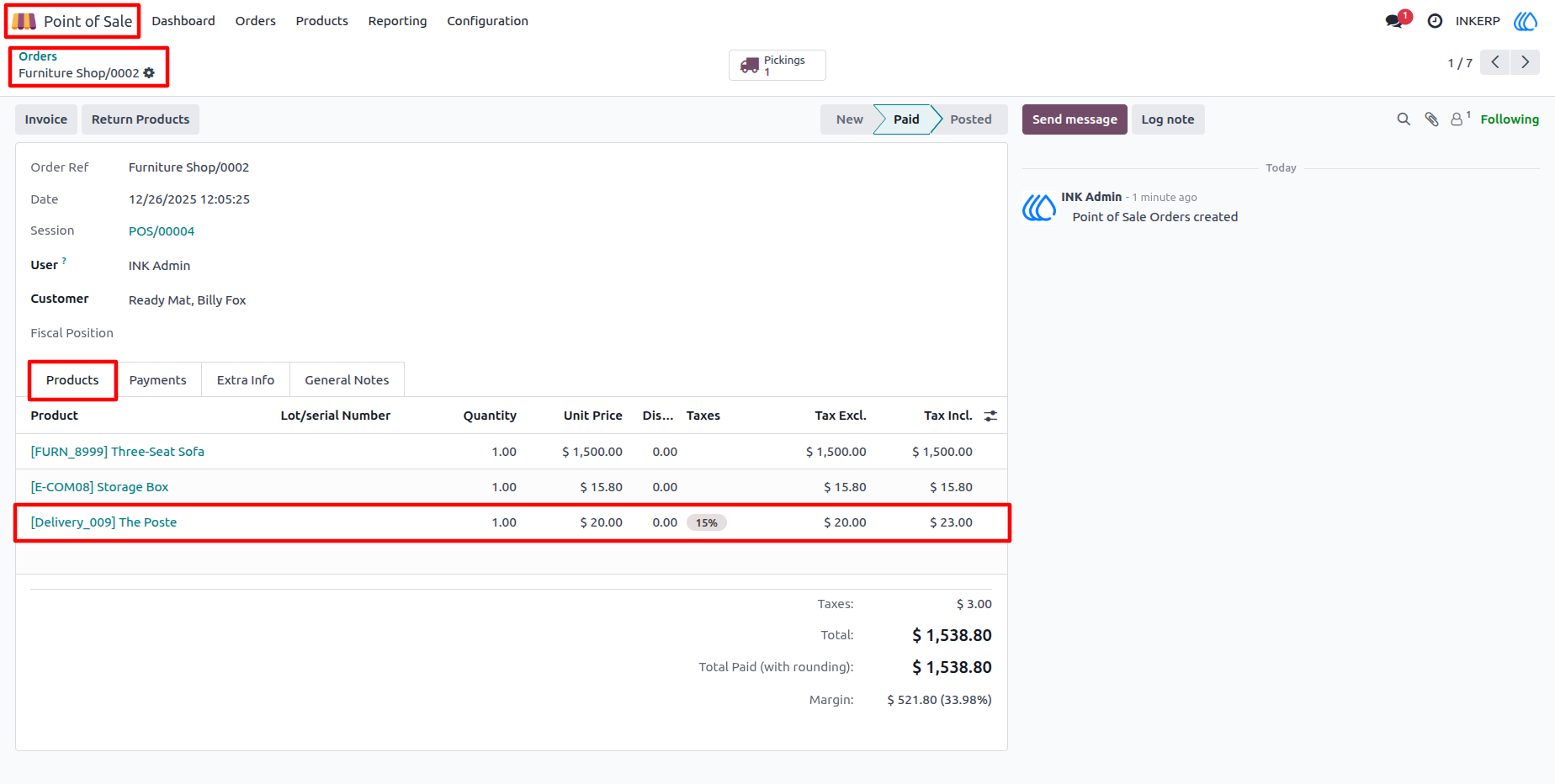
9.) POS Order Backend View
Shipping charges added in POS appear as a separate delivery product line in the backend POS order. This maintains accurate accounting, tax calculation, and order traceability.
Navigation : Point of Sale › Orders › POS Order
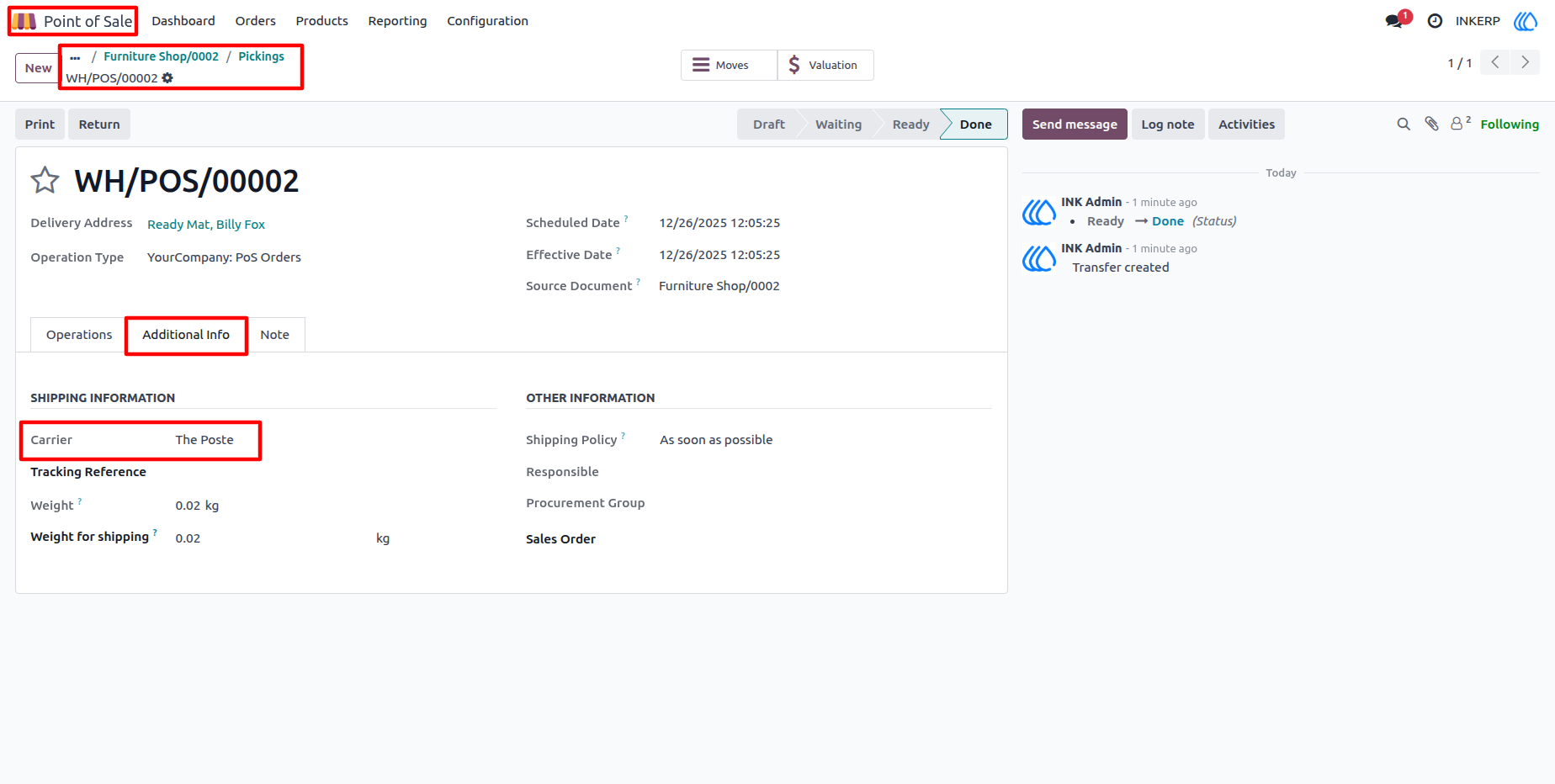
10.) Delivery Picking with Carrier Information
A delivery picking is automatically created with the selected shipping carrier. All shipping information is available in the stock operation for smooth delivery processing.
Navigation : Point of Sale › Orders › POS Order › Pickings
User Guide