

Our Most Suggested Products


POS Refund Reason
POS Refund Reason adds a simple refund reason management feature to the Odoo Point of Sale. Administrators can create predefined refund reasons and enable them from POS settings. During refunds, users can select an existing reason or create a new custom reason when allowed. The selected refund reason is saved with the POS order for better tracking and management.
 Features
 Screenshots
 Support
 Service

Features
Manage Refund Reasons
Administrators can create and manage predefined refund reasons from the backend. These reasons are available to POS users during the refund process. This helps maintain consistent and organized refund information.
Refund Reason Popup
When a user starts a product refund, the refund reason popup opens automatically. Users can select an appropriate reason from the available predefined reasons. The selected reason is recorded with the refunded POS order.
Create Custom Refund Reason
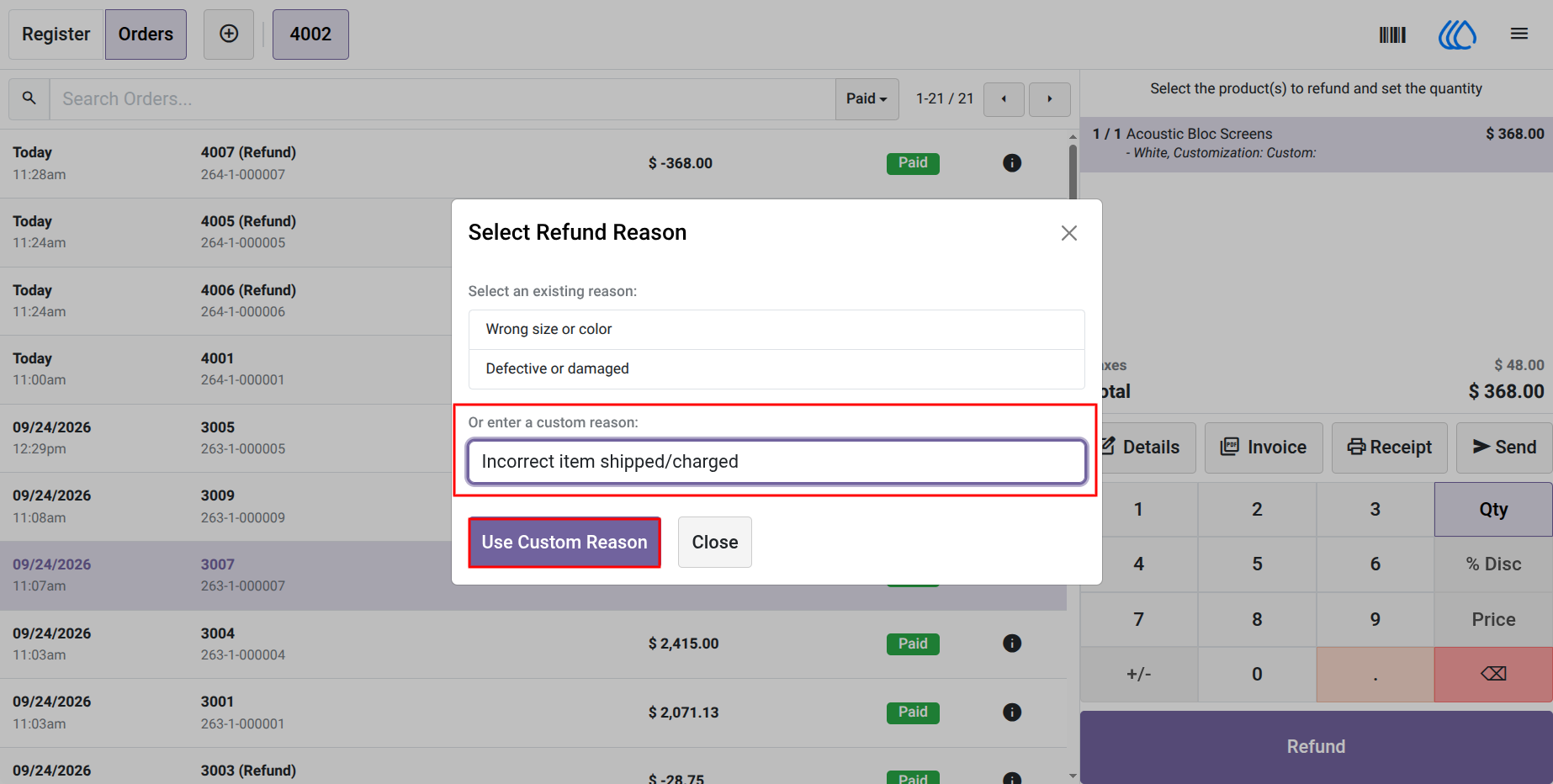
POS users can create a new refund reason directly from the refund popup. This option can be enabled or disabled from the POS configuration settings. It provides flexibility when an existing refund reason does not match the situation.
Save Refund Reason in POS Order
The selected or newly created refund reason is saved with the POS order. Users can easily identify why a product was refunded when reviewing the order. This improves refund tracking and provides better visibility into POS refund activities.
Screenshot
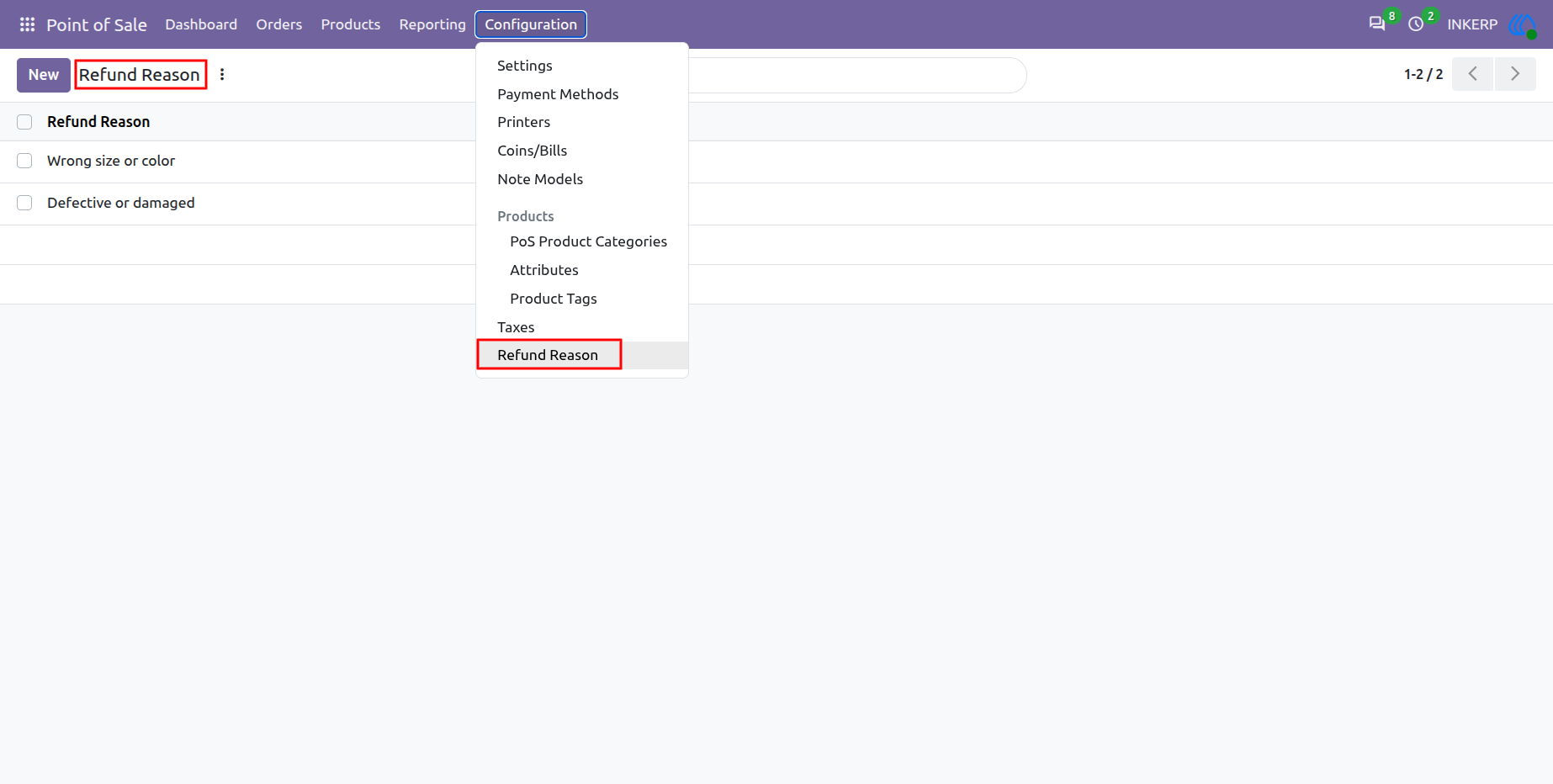
1.)Create Refund Reason
Create and manage refund reasons from the POS configuration according to your business requirements. Administrators can add specific refund reasons that POS users can select during the refund process.
Navigation : Point Of Sale › Configuration › Refund Reason
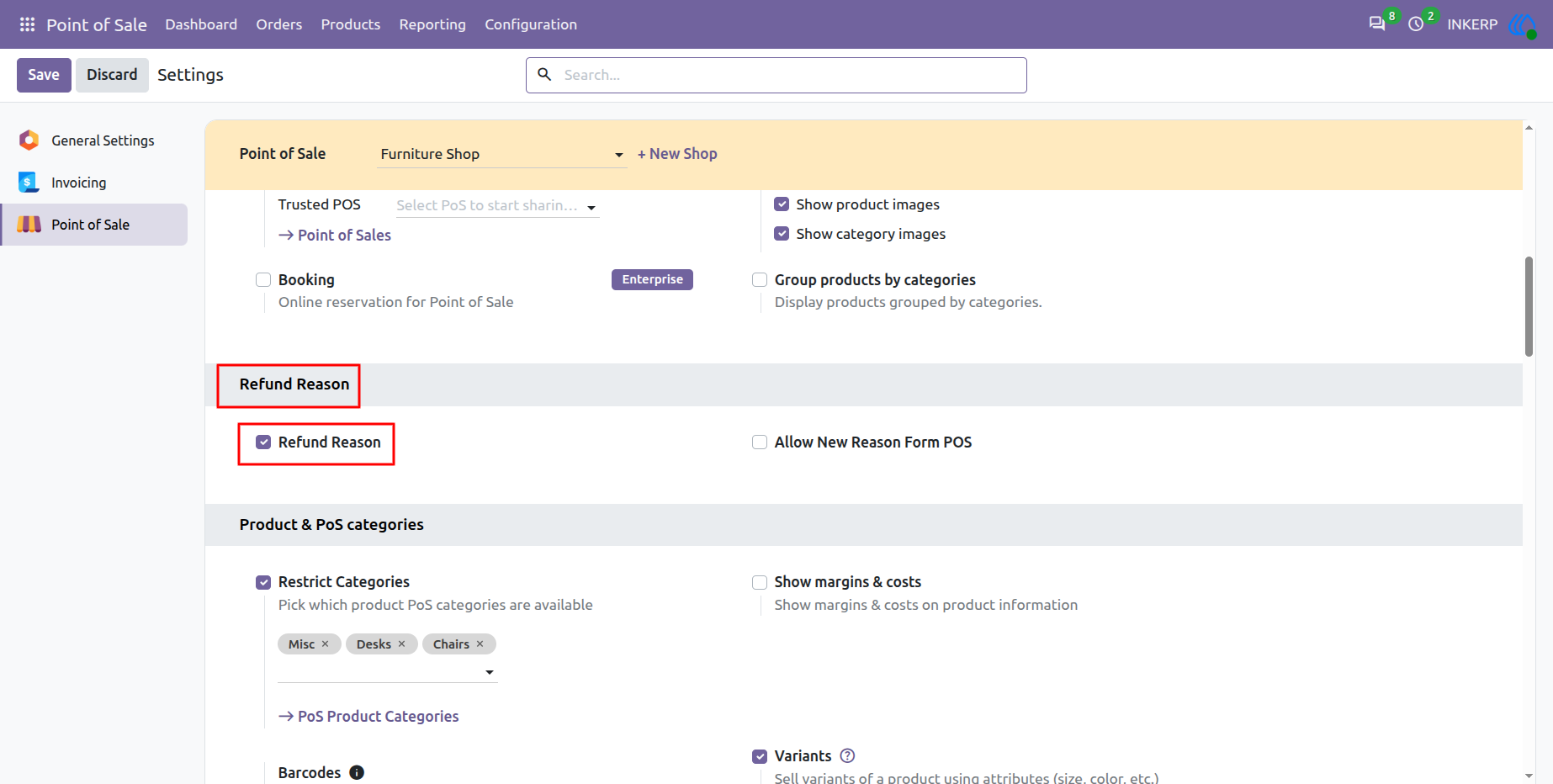
2.)Enable Refund Reason in Shop Settings
Go to the Shop settings and enable the Refund Reason option to activate the refund reason feature. When this option is enabled, the refund reason popup opens automatically when a product is refunded. Users can select an appropriate refund reason before completing the refund.
Navigation : Settings › Point Of Sale
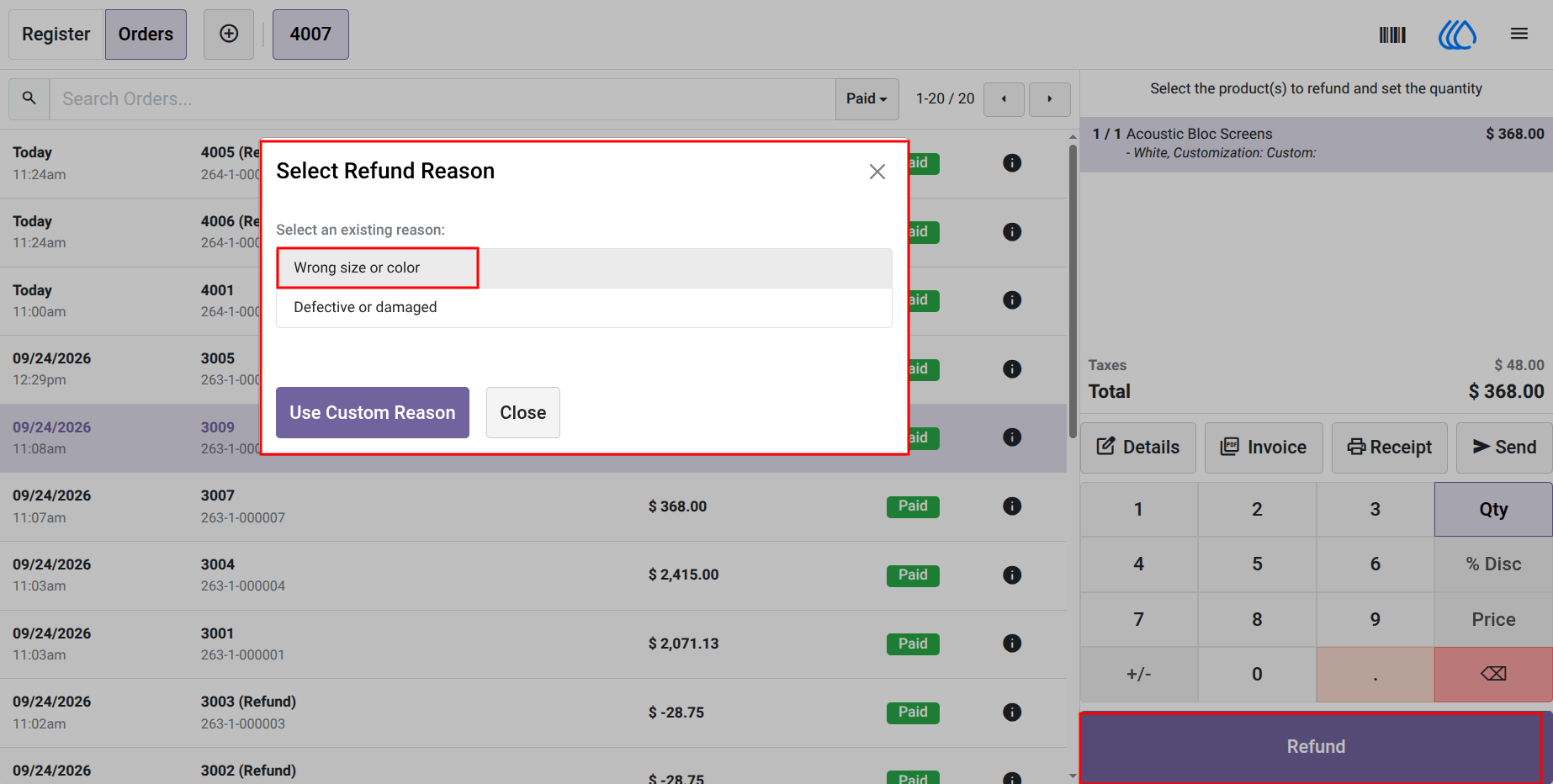
3.)Select Refund Reason During Product Refund
Select the product you want to refund and click the Refund button to start the refund process. The Refund Reason popup will open automatically when the refund reason option is enabled. Select the appropriate refund reason from the available predefined reasons. After selecting the required reason, continue with the refund process.
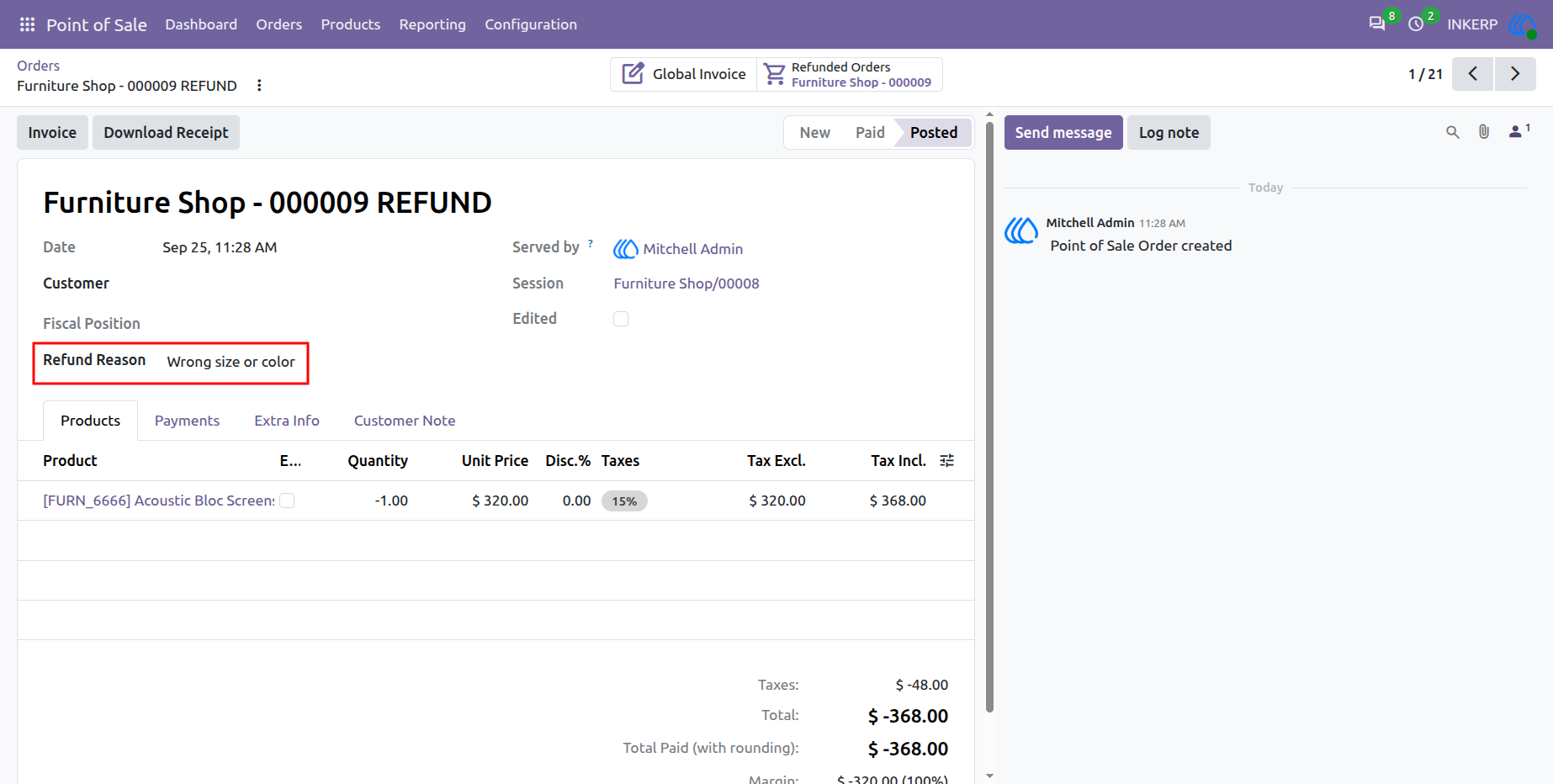
4.)View Refund Reason in POS Order
Open the refunded POS order to view the refund details and verify the selected reason. The refund reason is displayed directly in the POS order, making it easy to identify why the product was refunded. This provides clear refund information and helps users review refund details whenever the POS order is accessed.
Navigation : Point Of Sale › Orders › Orders
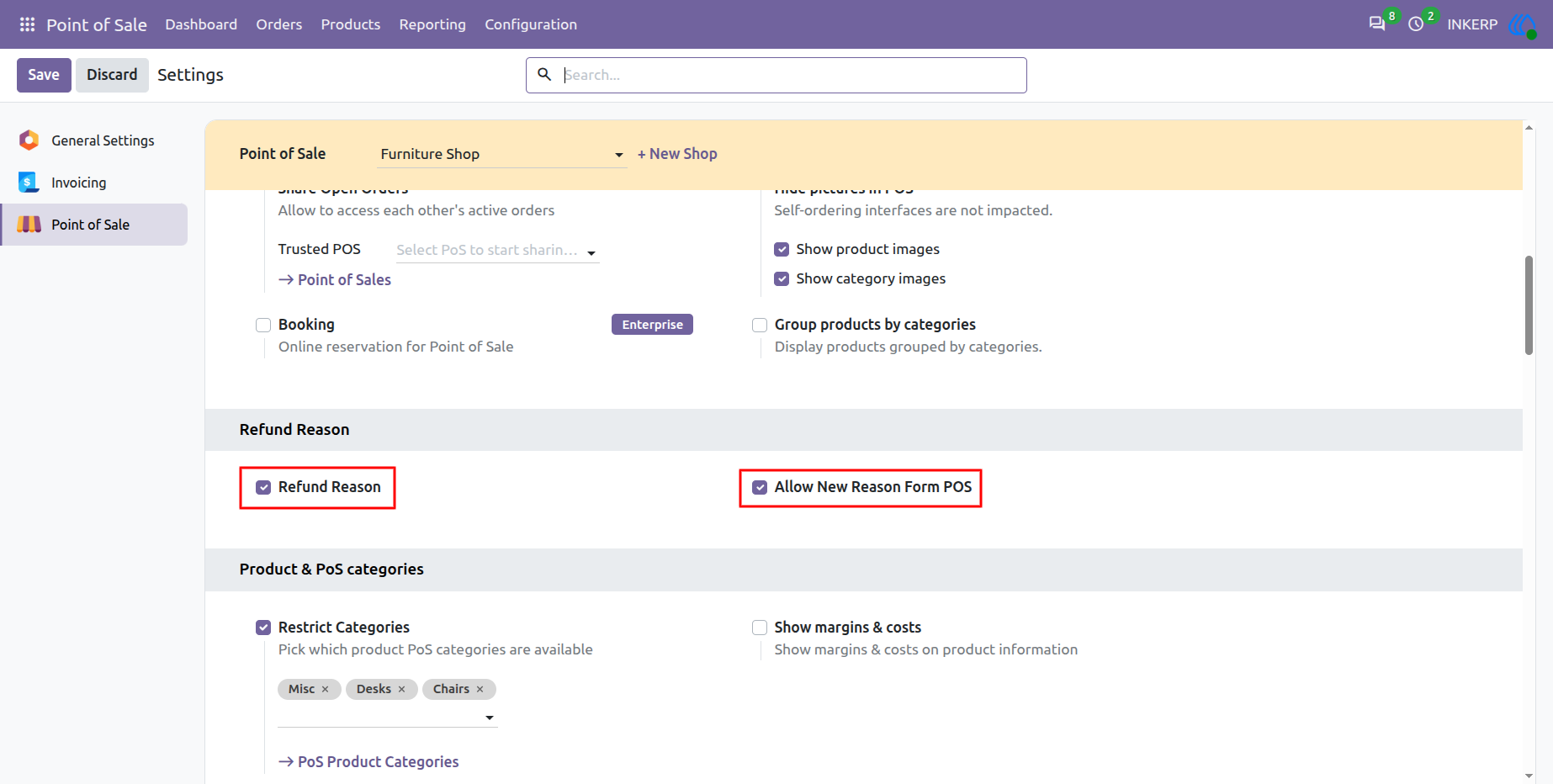
5.)Allow POS Users to Create New Refund Reasons
Open the Shop settings and enable the Allow New Reason from POS option. Once this option is enabled, POS users can create a new custom refund reason directly from the refund reason popup. This allows users to add a suitable reason when the required refund reason is not already available. The newly created reason can then be selected and saved with the refunded POS order.
Navigation : Settings › Point Of Sale
6.)Create and Use a Custom Refund Reason
Open the POS order you want to refund and click the Refund button to open the refund reason popup. Existing refund reasons will be displayed, along with the option to create a new custom reason. Enter your required custom refund reason and create it directly from the popup. After creating the reason, click Use Custom Reason to apply it to the refund.
User Guide