

Our Most Suggested Products


POS Multi-Session & Shop Sync
Streamline retail operations and eliminate checkout bottlenecks with the POS Multi-Session / Shop Sync module for Odoo. This professional solution empowers cashiers to transfer active shopping carts between different Point of Sale terminals in real-time. Whether managing a multi-floor department store, a busy restaurant network, or a unified checkout counter, this module ensures seamless data flow and a frictionless customer experience.
 Features
 Screenshots
 Support
 Service
Features
Frictionless Order Retrieval with Zero Data Loss
Receiving an incoming order is designed to be as fast and intuitive as scanning a barcode, allowing destination cashiers to pull pending carts directly into their active session with a single click. Before accepting a transfer, the cashier is presented with a highly detailed preview popup that perfectly preserves the original customer details, exact product quantities, custom negotiated prices, and applied discounts.
Real-Time Cart Broadcasting and Targeted Assignment
Empower your cashiers with the flexibility to instantly transfer active shopping carts across your entire retail network using our advanced synchronization engine. Whether you need to broadcast a pending order to all connected POS terminals for the fastest available checkout, or assign it directly to a specific department's register, the intuitive OWL-based frontend handles it effortlessly.
Comprehensive Backend Audit Trail and Status Tracking
Maintain total visibility over your multi-branch operations with a dedicated, real-time synchronization queue built directly into the Odoo backend. Administrators and store managers can track the complete lifecycle of every transferred order as it automatically shifts from a pending draft state to a validated, finalized transaction.
Screenshot
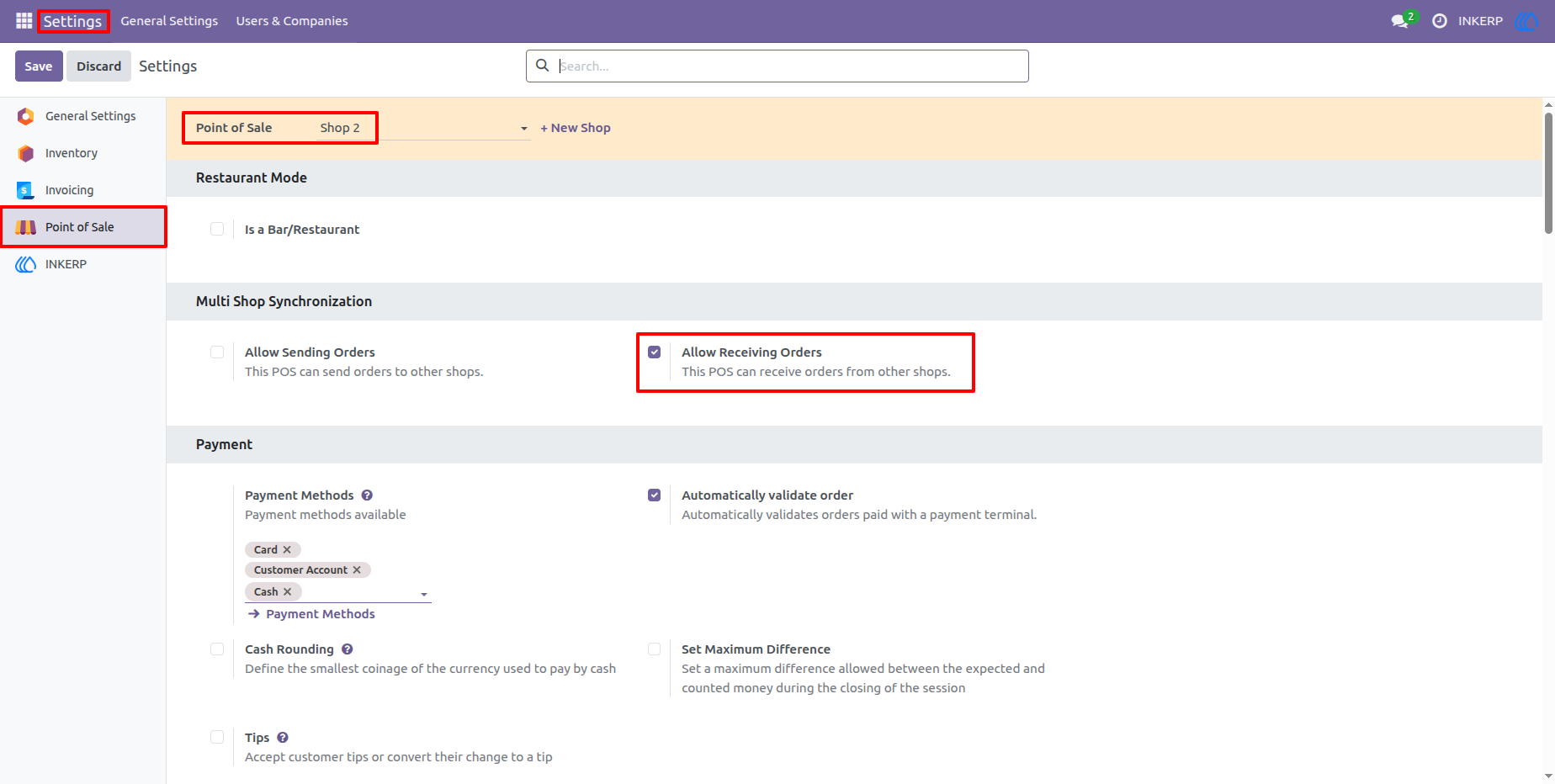
3.) Receiver Shop Configuration
Easily configure destination terminals within the standard Odoo POS settings. By checking "Allow Receiving Orders," this specific shop is now listening for incoming synced carts.
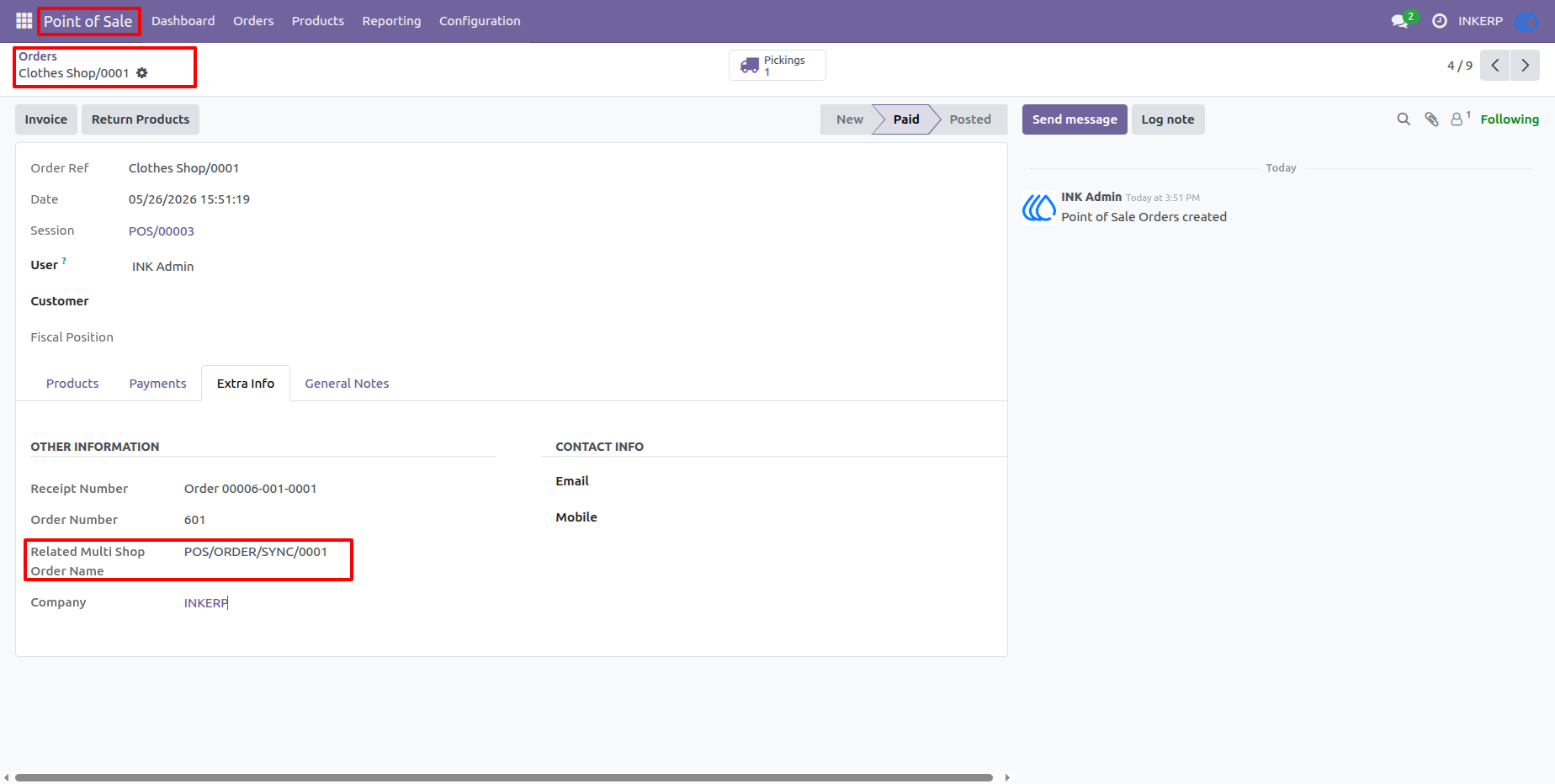
15.) Permanent Audit Trail Linking
The module maintains a flawless audit trail for your accounting and inventory teams. The final validated POS receipt includes a permanent, hardcoded reference back to the original synchronization record in the "Extra Info" tab.
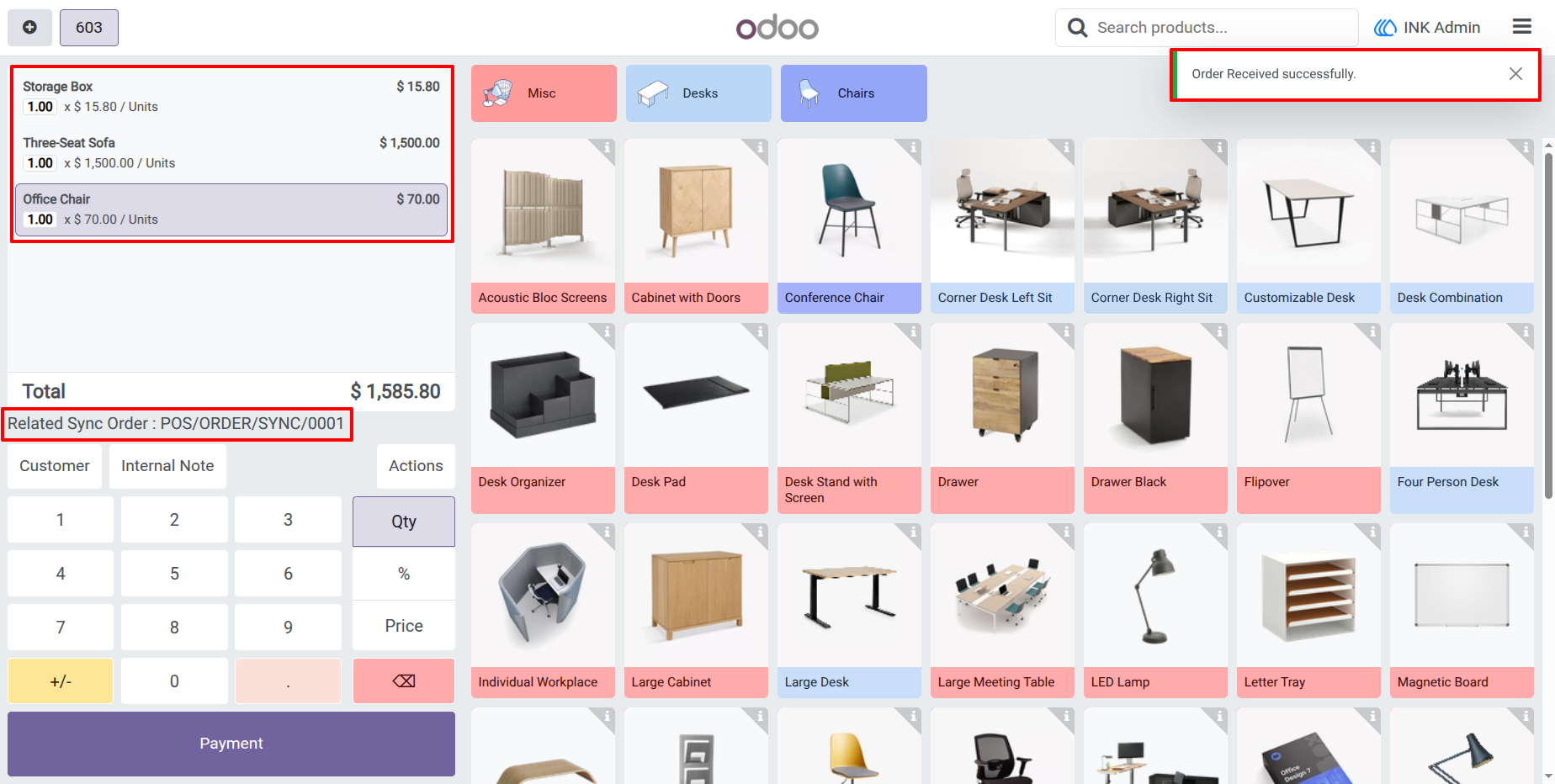
13.) Instant Cart Population
With a single click, the destination cart is instantly rebuilt. A success notification appears, and a distinct "Related Sync Order" reference tag is added to the UI so the cashier knows exactly which transfer they are processing.
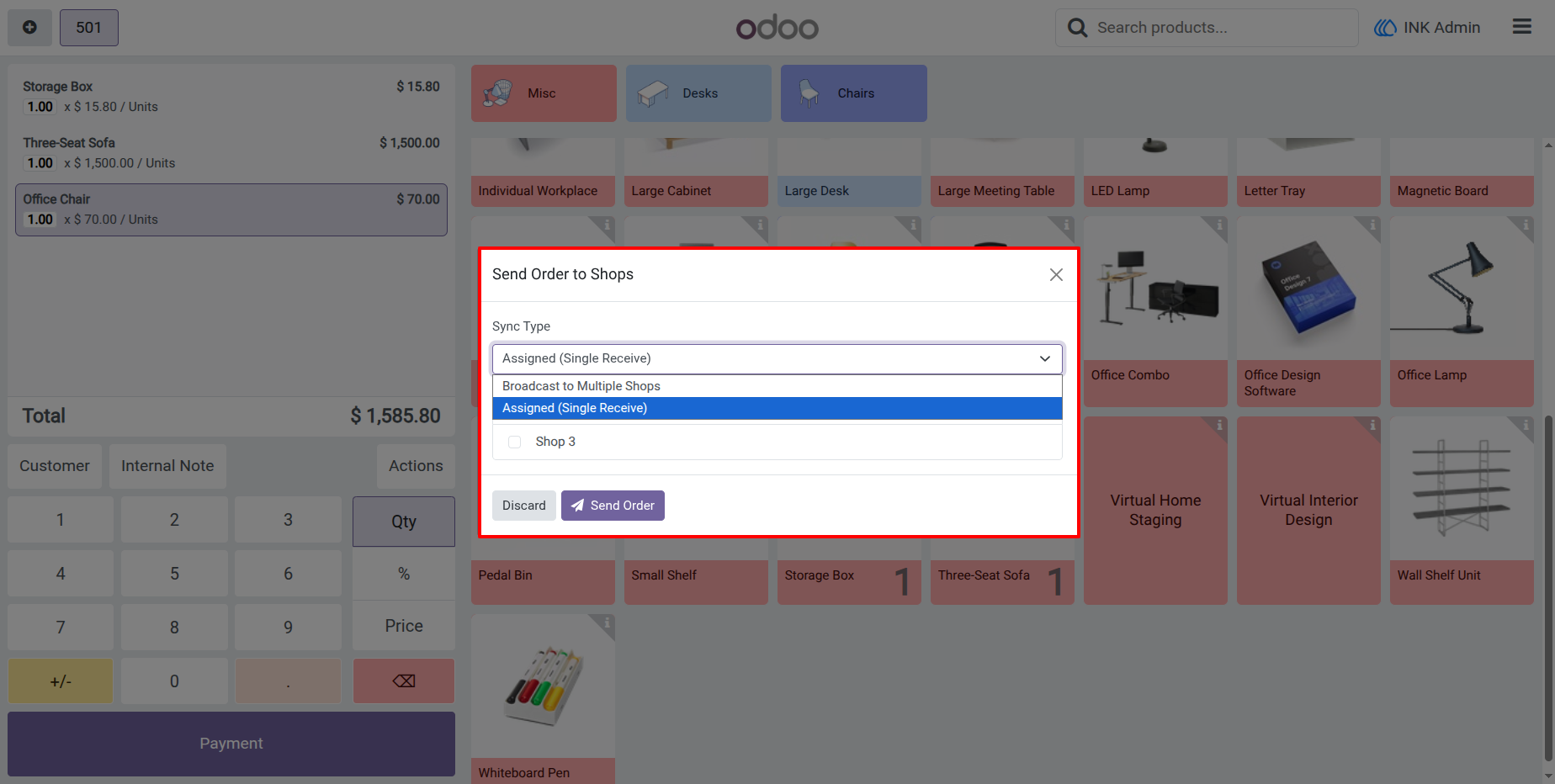
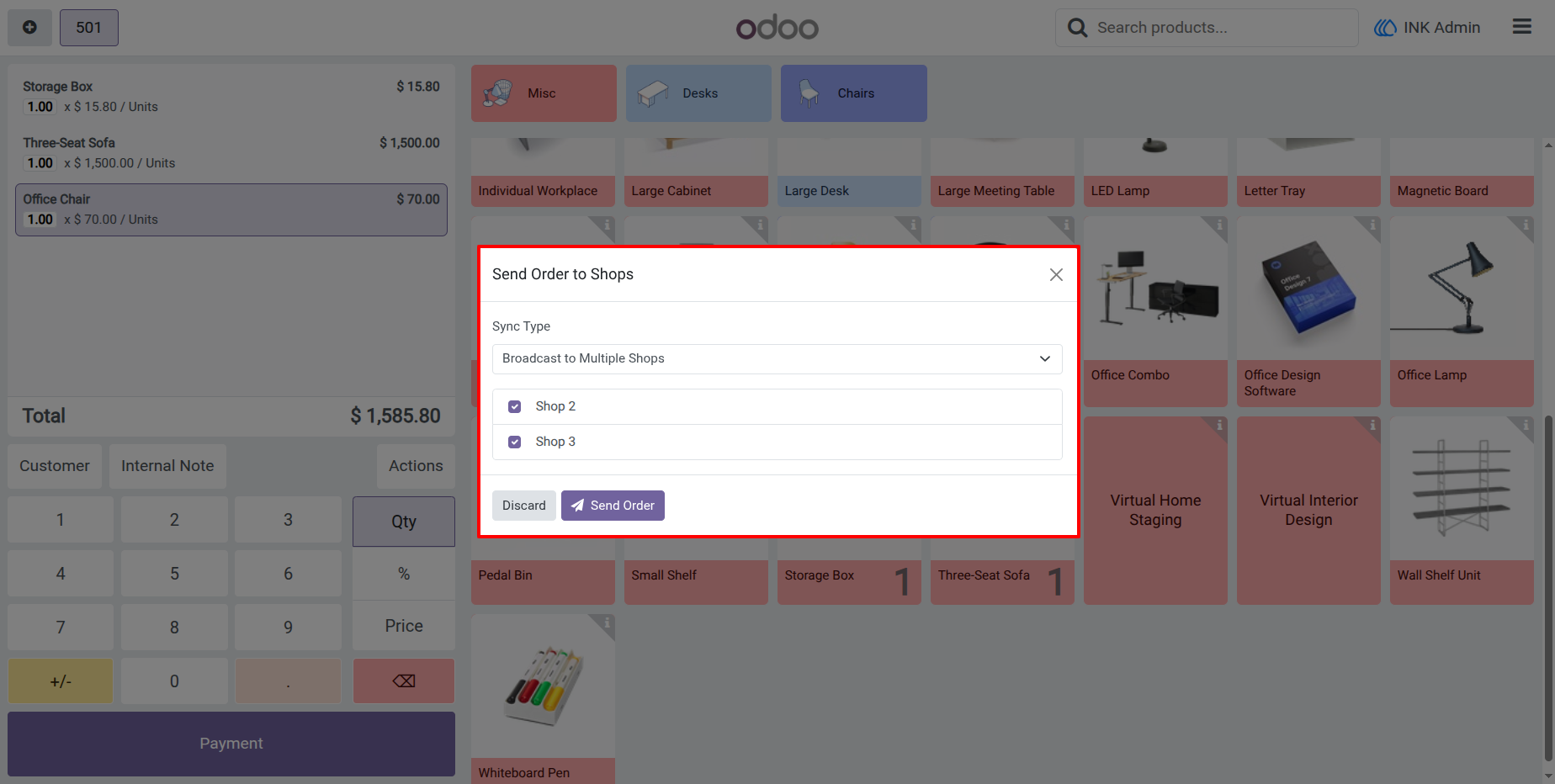
7.) Broadcast to Multiple Shops
When speed is the priority, cashiers can broadcast an active cart to multiple receivers simultaneously. The order is sent to all selected shops, and the first available terminal can claim and process it.
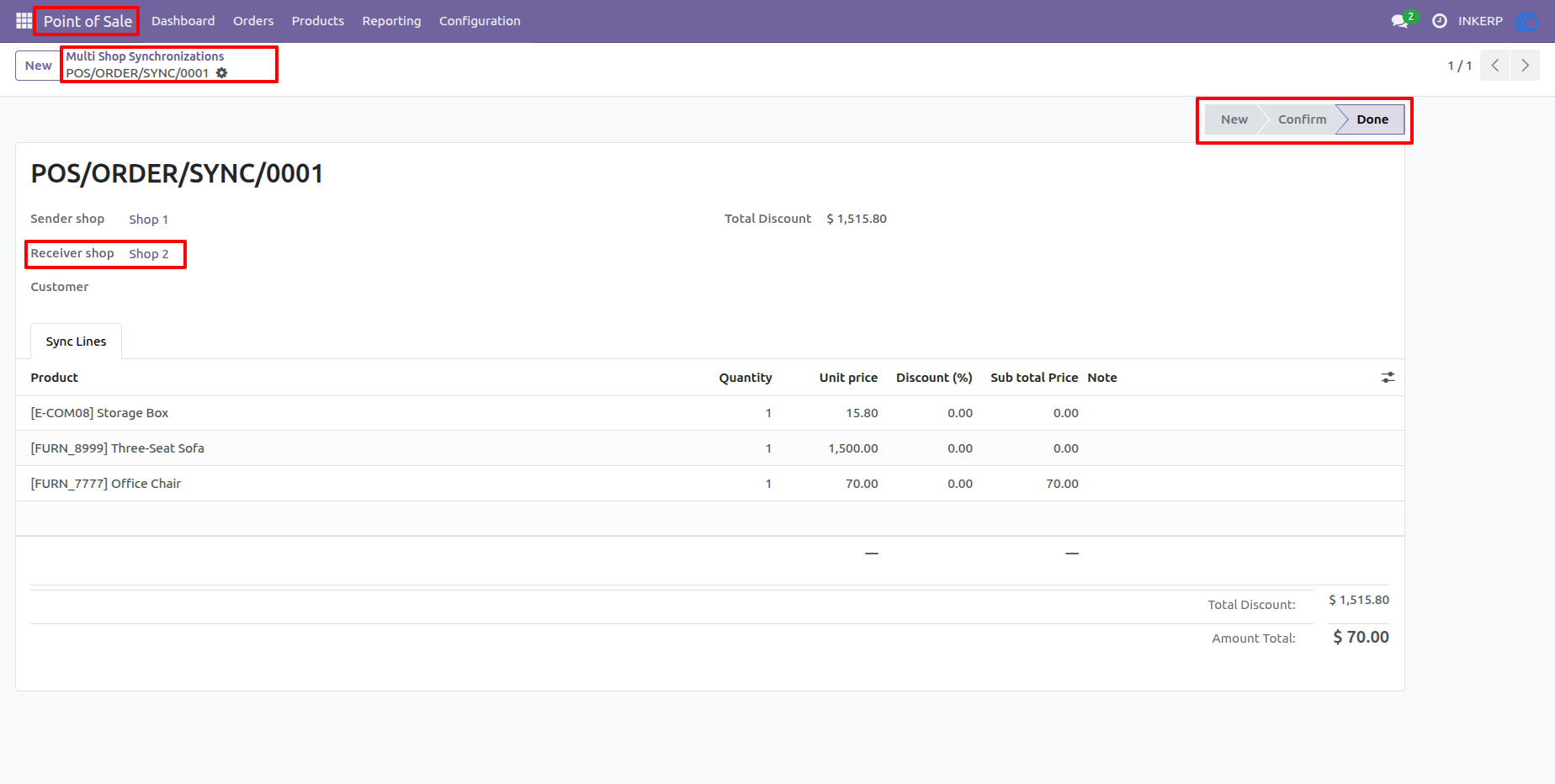
14.) Automated Backend Status Updates
Once the receiving cashier completes the payment, the backend synchronization record automatically updates its status to "Done." It also logs exactly which terminal (e.g., Shop 2) finalized the transaction.
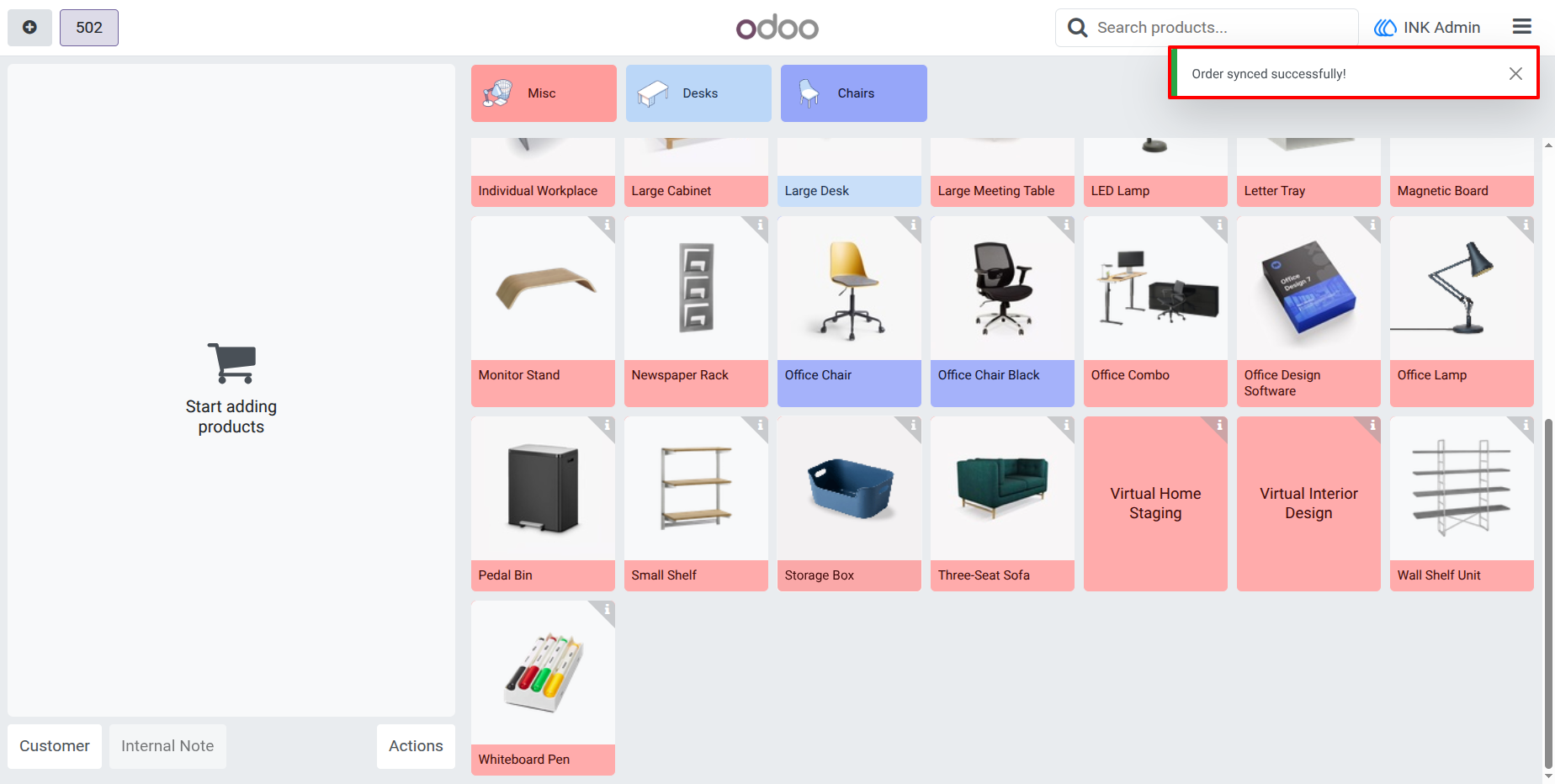
8.) Instant Visual Feedback
Upon sending an order, the cashier immediately receives a green success notification confirming the sync was successful. The local cart is then instantly cleared and ready for the next walk-in customer.
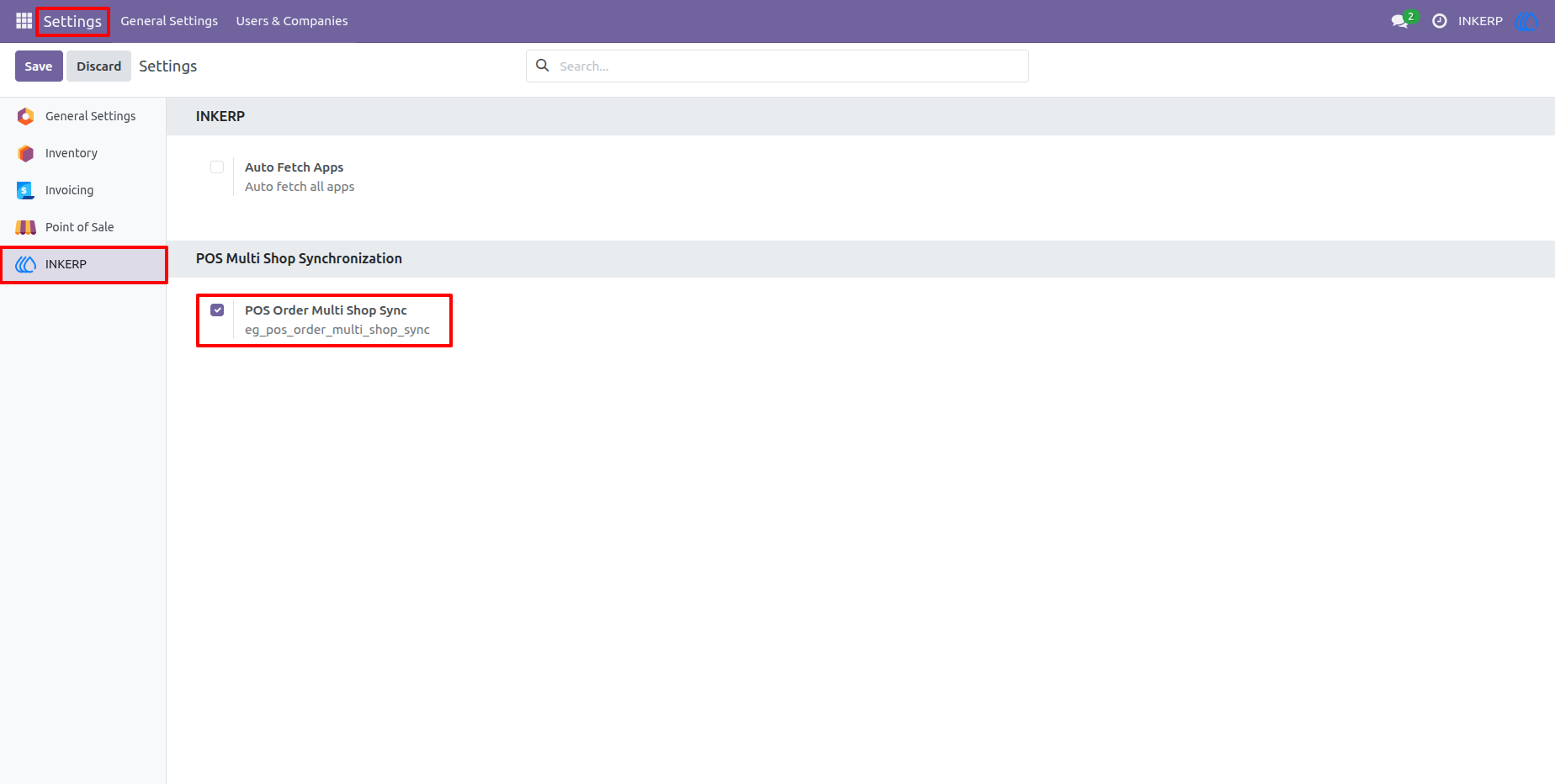
1.) Global App Configuration
Easily enable the POS Multi-Session / Shop Sync module across your entire Odoo environment. A simple checkbox in the central INKERP settings activates the synchronization engine for your retail network.
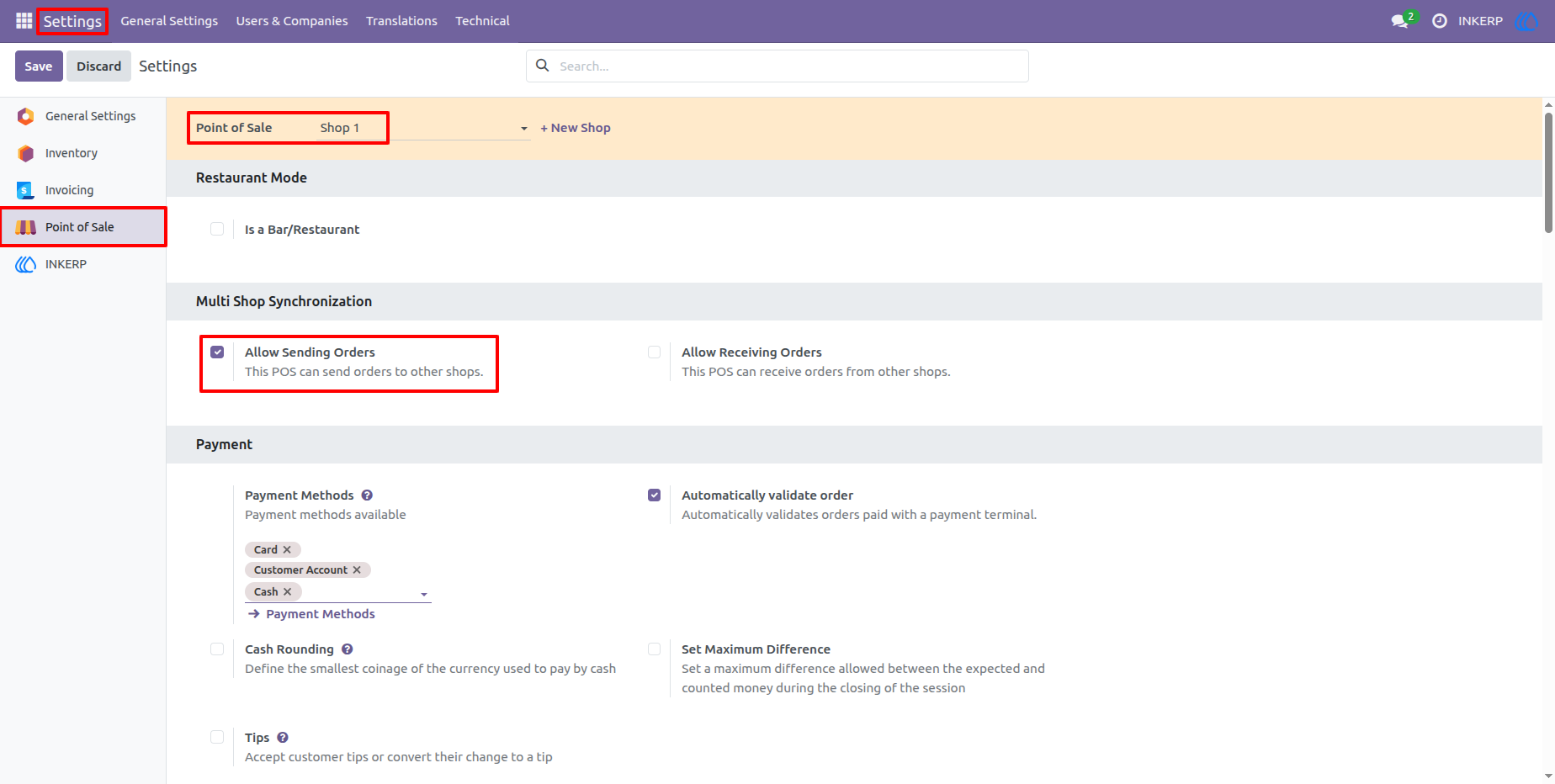
2.) Sender Shop Configuration
Granular control at the terminal level allows administrators to define exact roles for each register. Here, "Shop 1" is configured as a Sender, granting cashiers the ability to push active carts to other terminals.
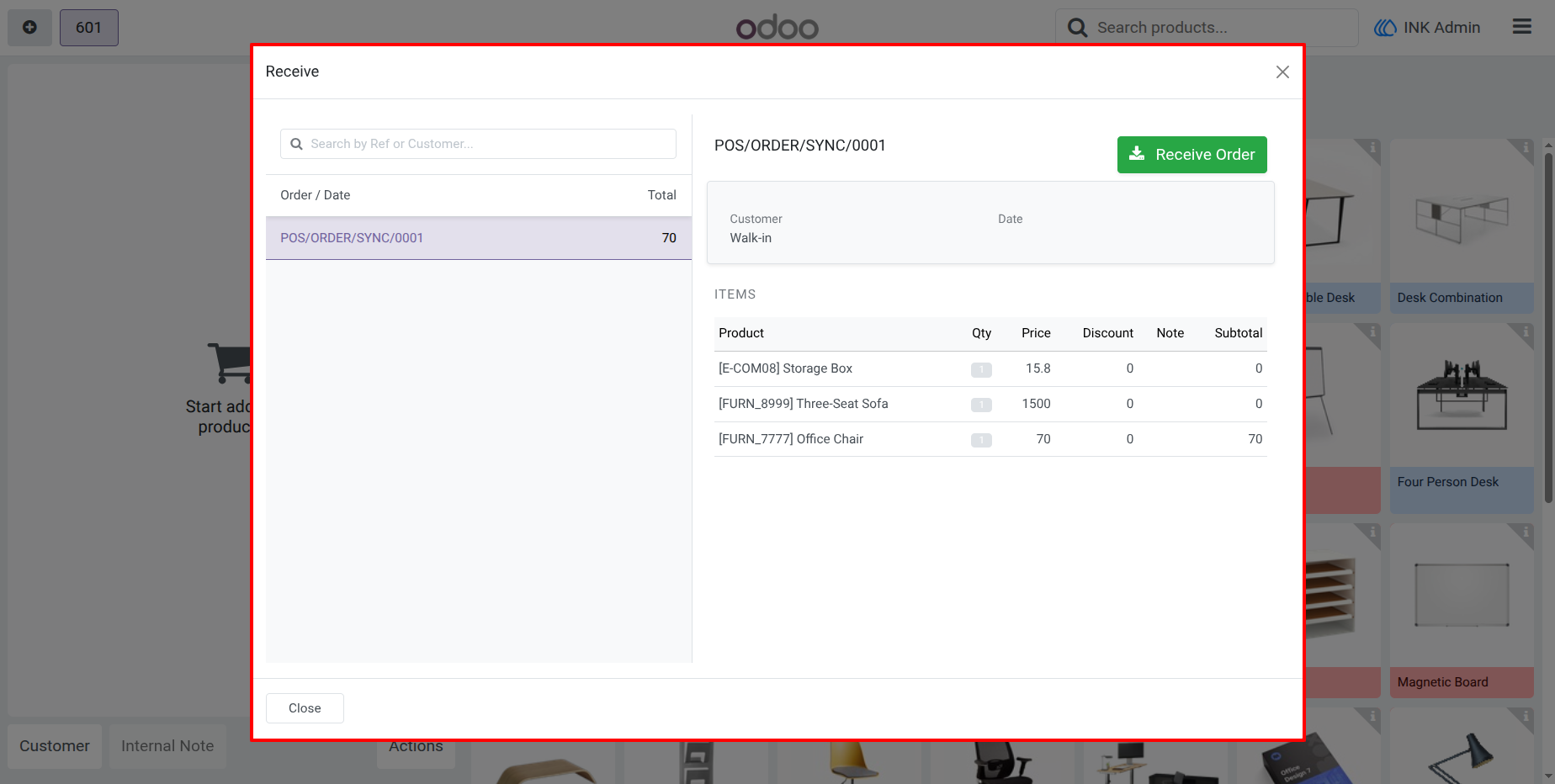
12.) Detailed Order Preview Popup
Before accepting a transfer, receiving cashiers are presented with a clean, comprehensive preview of the incoming cart. This ensures they are pulling the correct customer order, complete with exact subtotals and itemized lines.
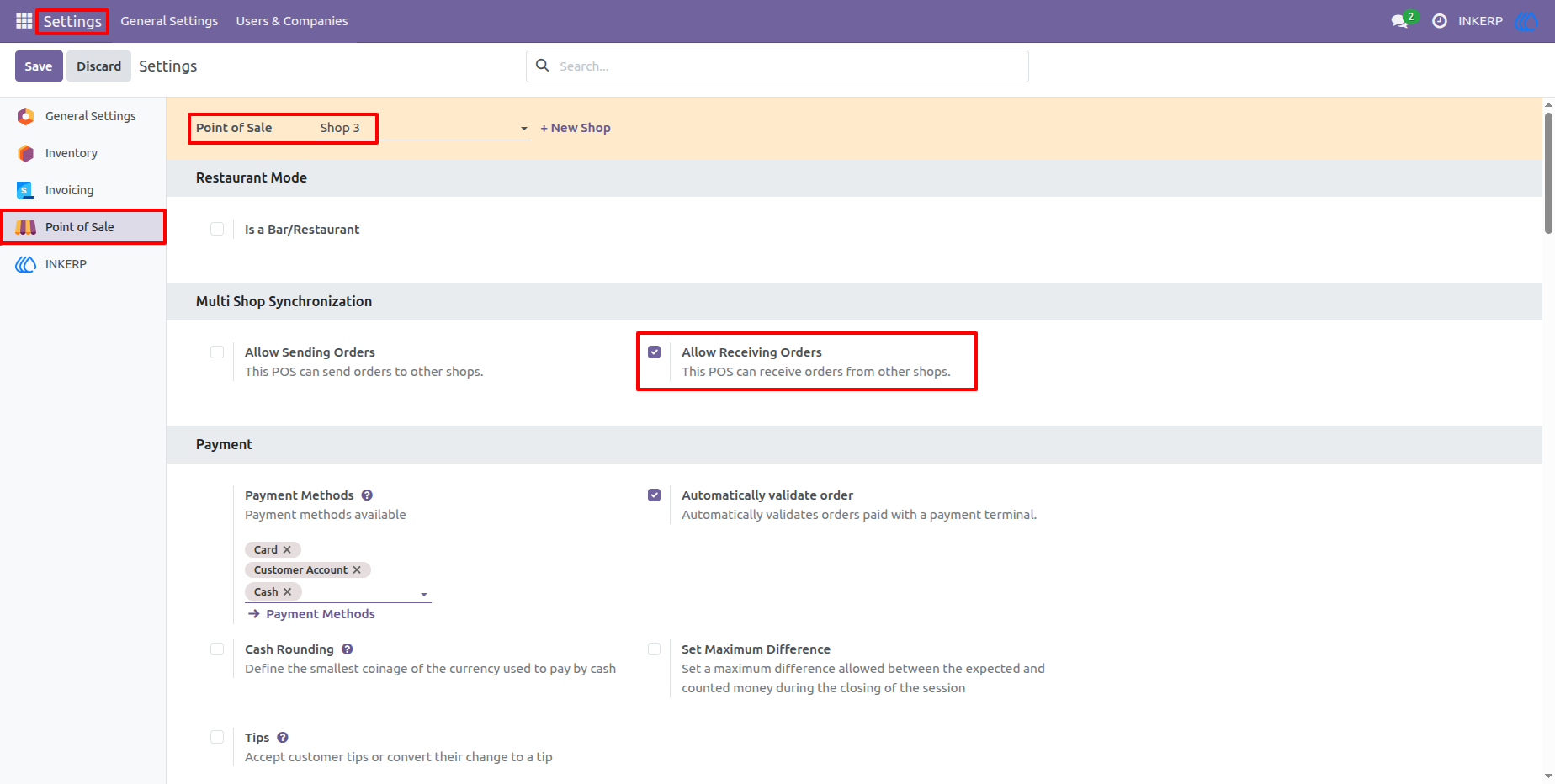
4.) Multi-Branch Setup
Scale your operations infinitely by adding multiple receiving terminals. In this setup, "Shop 3" is also configured to accept incoming orders, creating a flexible, multi-location network.
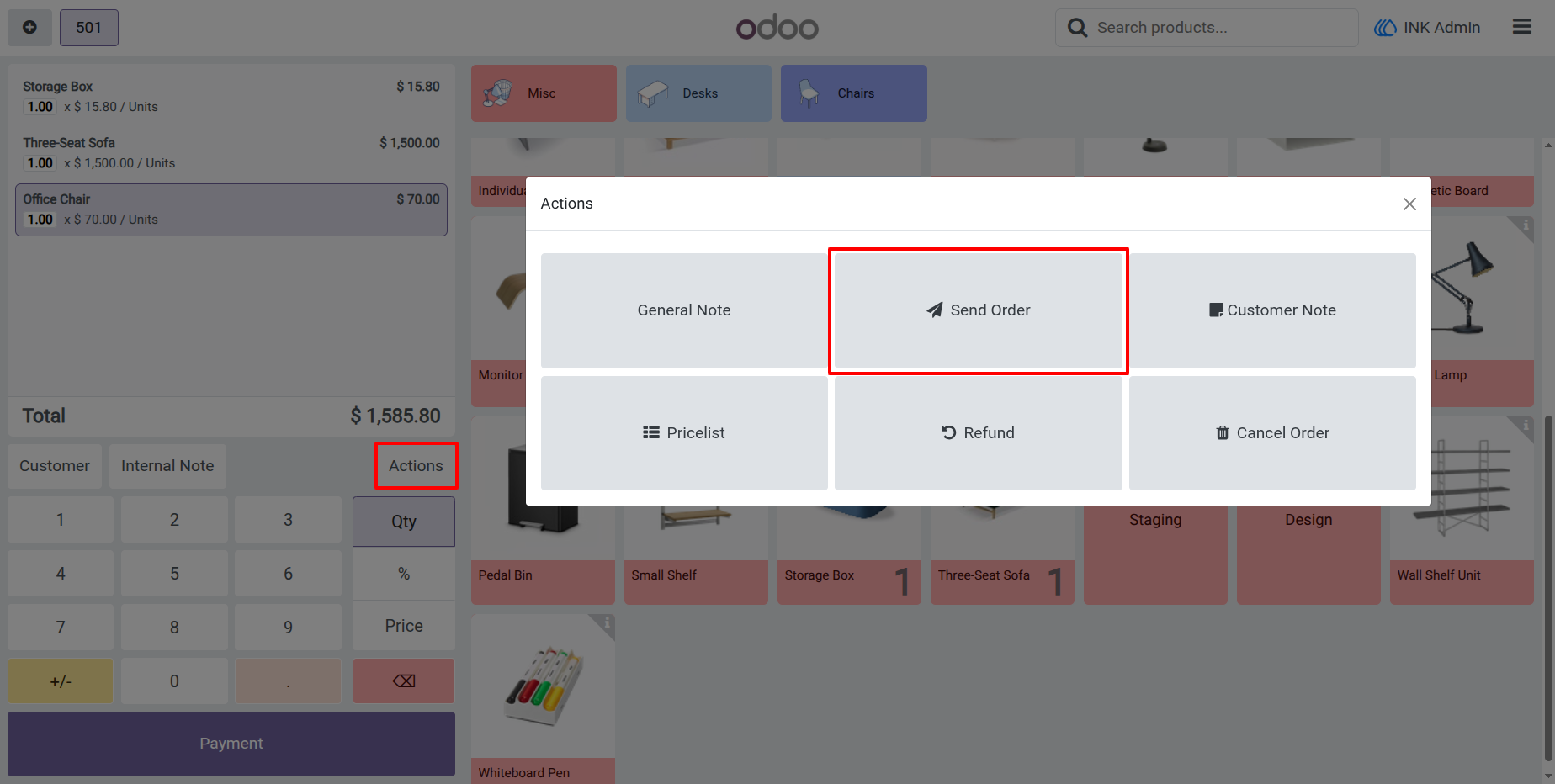
5.) Natively Integrated Send Action
The application seamlessly integrates into the Odoo 18 POS UI. Cashiers simply open the standard Actions menu and click the "Send Order" button to initiate a transfer without leaving the main checkout screen.
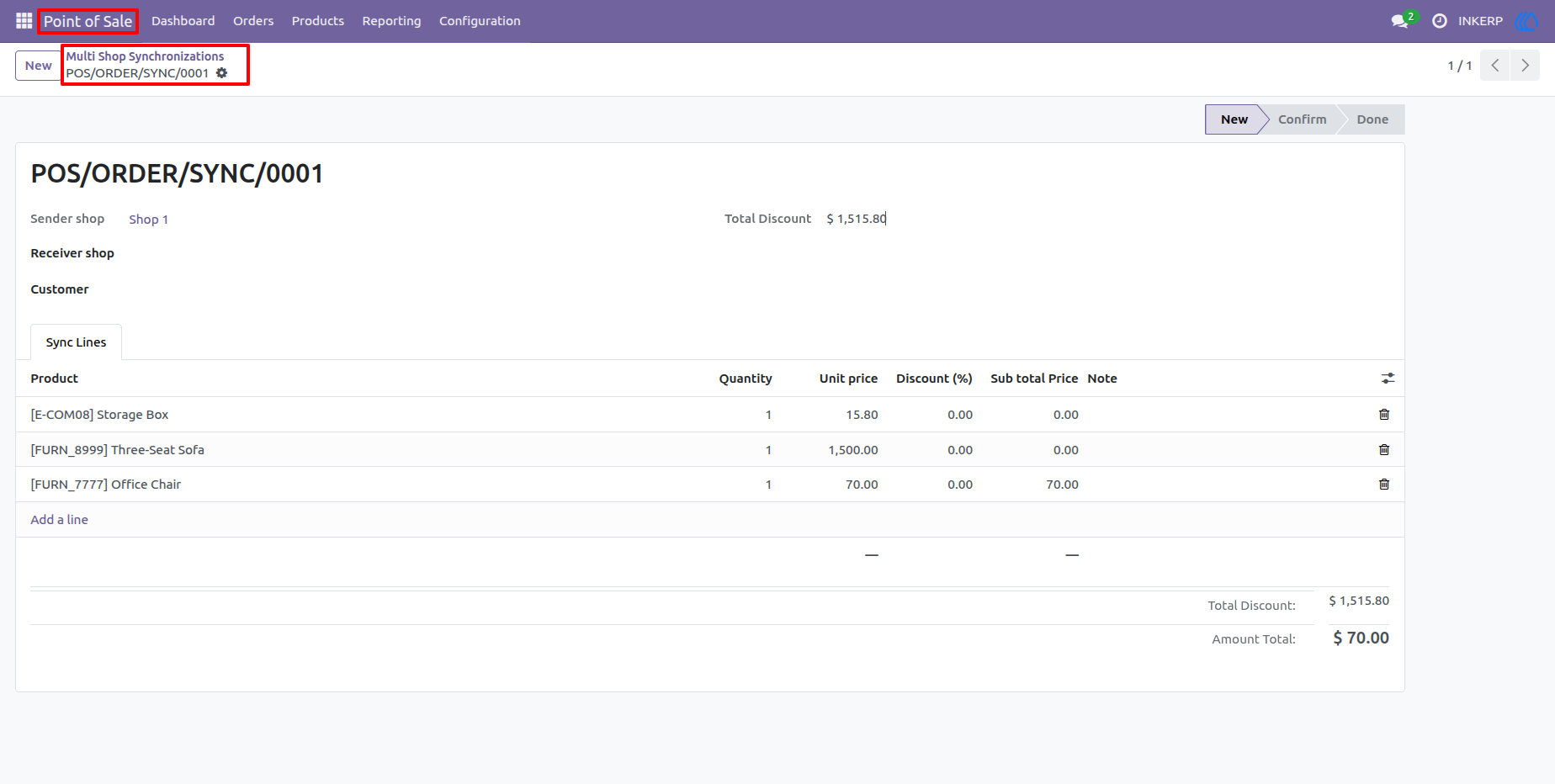
10.) Detailed Pending Sync Records
Clicking into a new sync record reveals the complete order payload. Management can view the exact items, locked-in unit prices, and custom discounts waiting to be claimed by a receiving shop.
6.) Assigned (Single Receive) Mode
For highly targeted workflows, cashiers can select the "Assigned" sync type. This allows them to push the cart to one specific destination shop, ensuring the order goes exactly where it needs to be finalized.
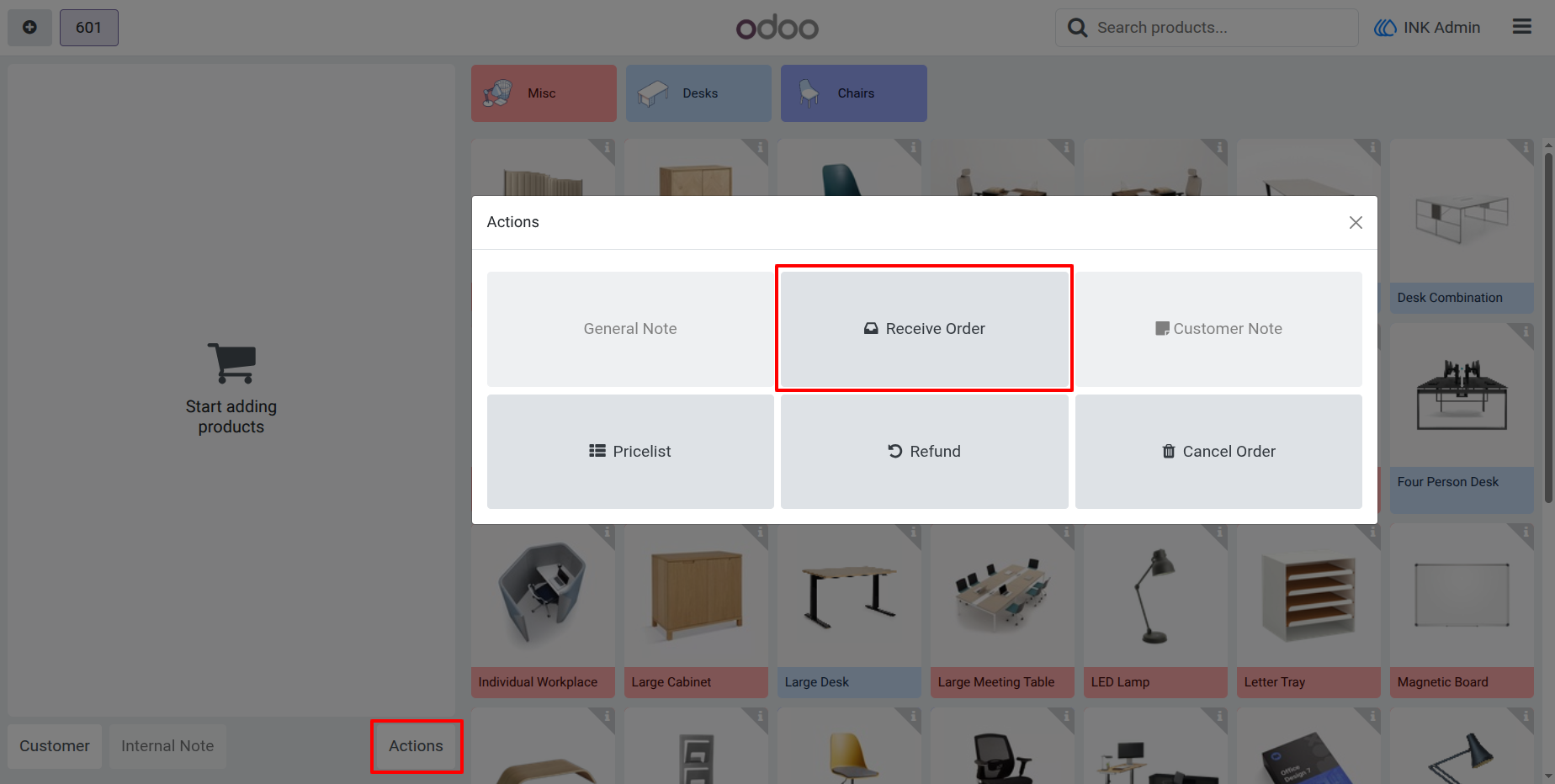
11.) Receiving an Incoming Order
Destination cashiers can instantly access the cloud queue right from their terminal. By clicking the "Receive Order" button in the Actions menu, they open the live list of available transfers.
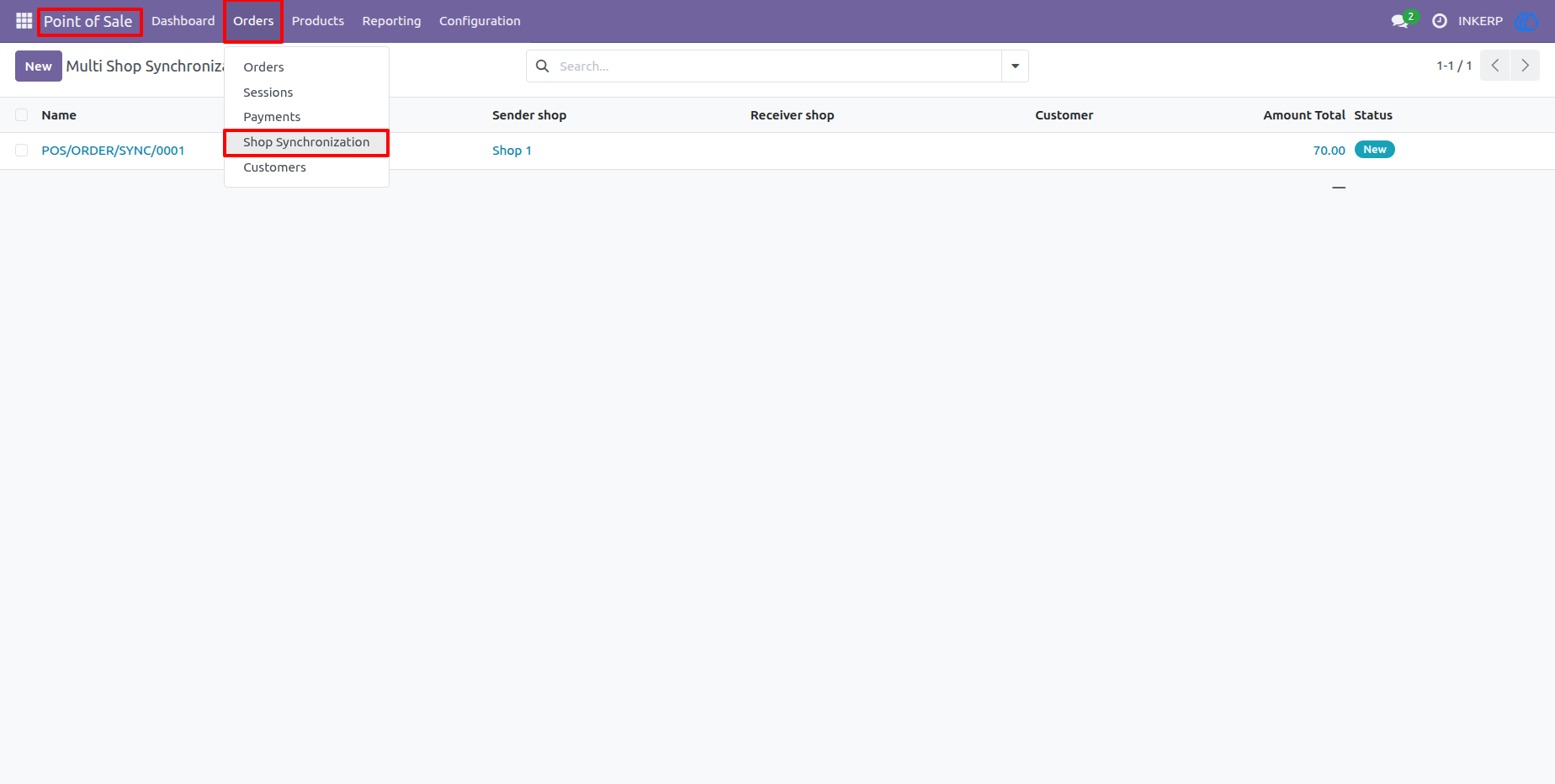
9.) Dedicated Synchronization Queue
Administrators gain complete visibility over the transfer process through a dedicated backend menu. The "Shop Synchronization" list view tracks all pending and completed transfers across the entire system.
User Guide