

Our Most Suggested Products


POS Customer Filter - Show Only Allowed Customers in POS
The POS Customer Filter module allows you to control which customers are visible in the Point of Sale (POS). Instead of loading all customers, the POS will display only those marked as POS Customer. This keeps the POS clean, faster, and ensures only authorized customers can be selected by staff.
 Features
 Screenshots
 Support
 Service
Features
POS Customer Visibility Control
This feature ensures that only customers explicitly marked for POS use are loaded into the POS interface. By preventing unnecessary contacts from appearing, it minimizes confusion for staff during sales operations. It also improves accuracy by allowing only approved customers to be selected when creating orders.
Enhanced POS Performance Optimization
Instead of loading thousands of customer records, the POS now retrieves only filtered customer data. This significantly reduces loading time, especially in large databases with complex customer information. As a result, your POS becomes faster, smoother, and more efficient for daily use.
Easy Configuration with User-Friendly Settings
Administrators can enable or disable the customer filter directly from POS Settings with a simple checkbox. No technical knowledge is required, making it easy for managers to control customer visibility.
Screenshot
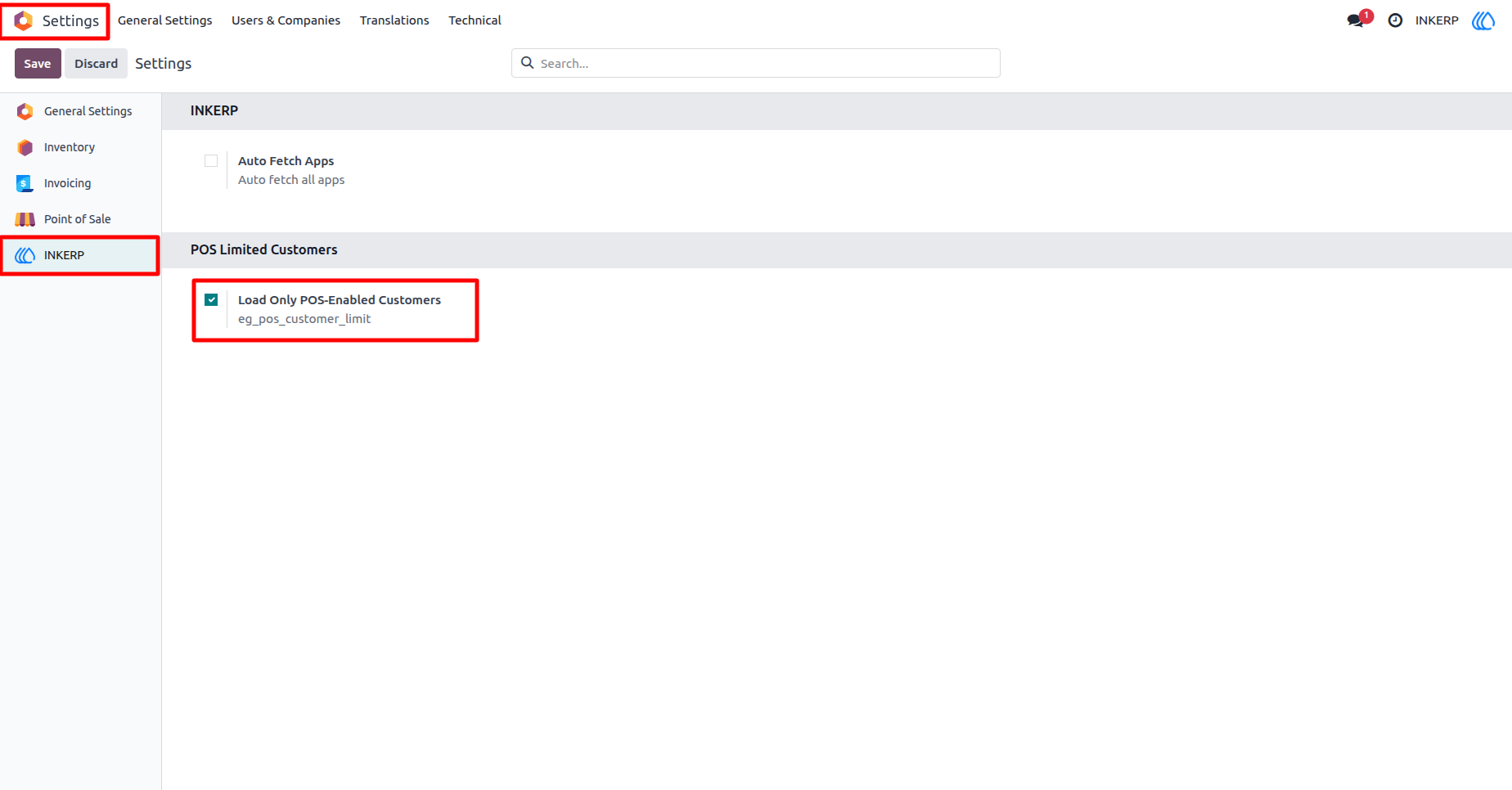
1.) Enable POS Customer Filter in Settings
This screen shows the configuration panel where administrators can enable the Load Only POS-Enabled Customers option. Once activated, the POS will display only those customers that are marked as allowed in their contact form.
Navigation : Setting › INKERP › Load only POS-Enable Customer
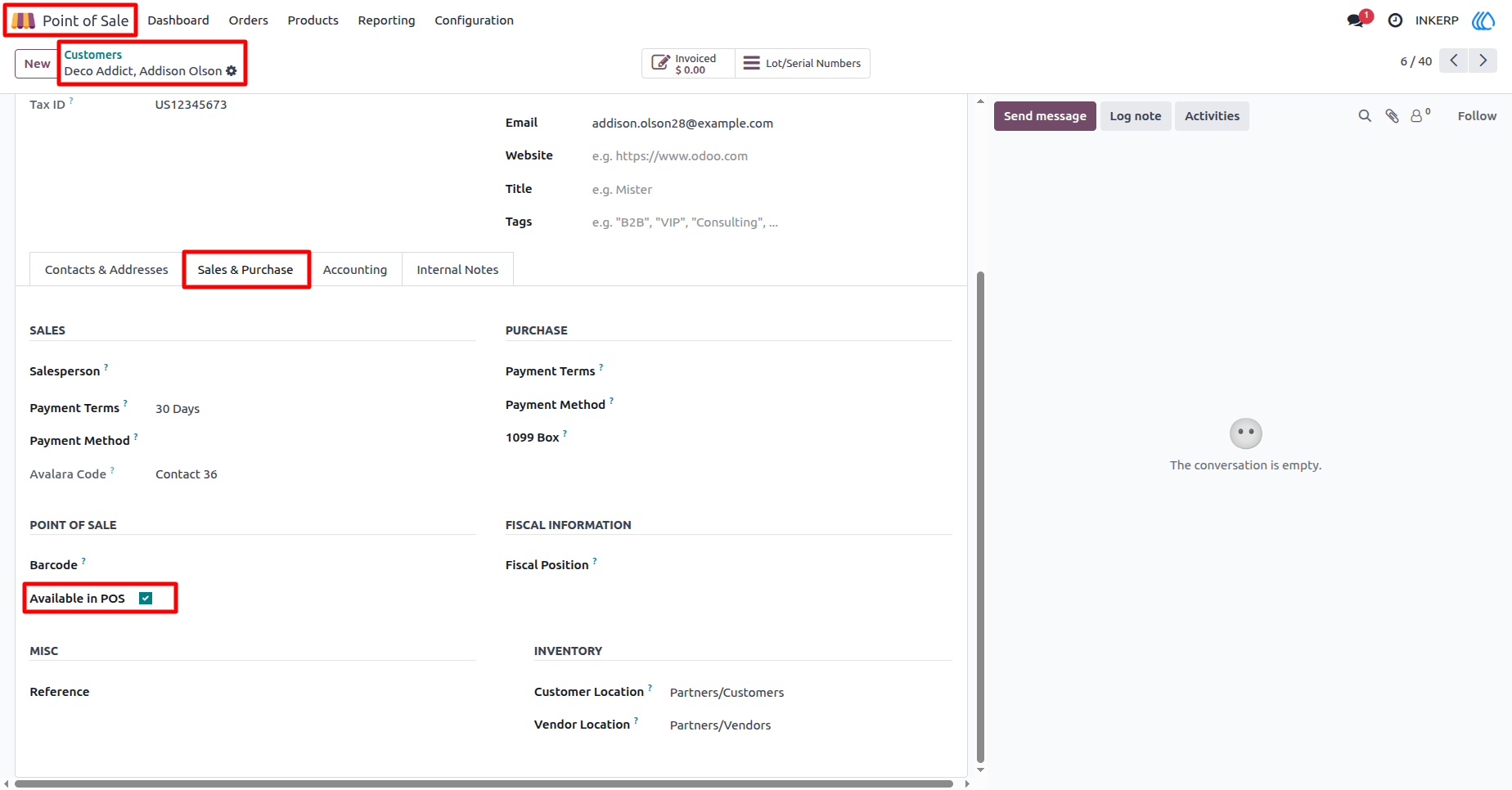
2.) Customer Configuration - Enable Available in POS
The customer form includes a new checkbox labeled Available in POS under the Sales & Purchase section. Enabling this option designates the customer as POS-qualified and allows them to appear in the POS customer list.
Navigation : Point of Sale › Customers › Customer
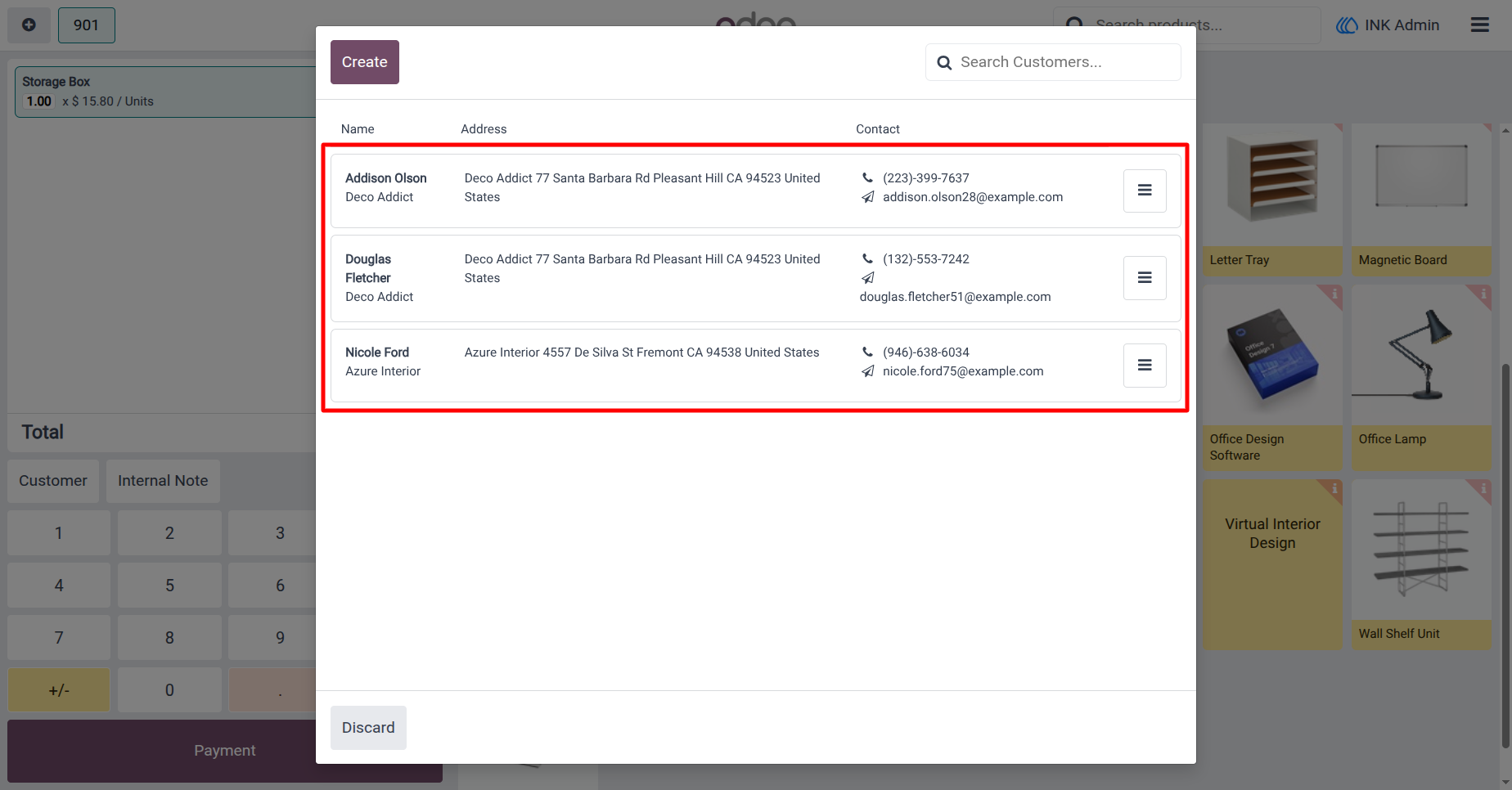
3.) Filtered POS Customer List Display
After applying the filter, the POS loads only customers marked as available for POS use. This greatly improves navigation inside the POS by removing unnecessary records. The clean and focused customer list helps cashiers quickly locate the correct customer during transactions.
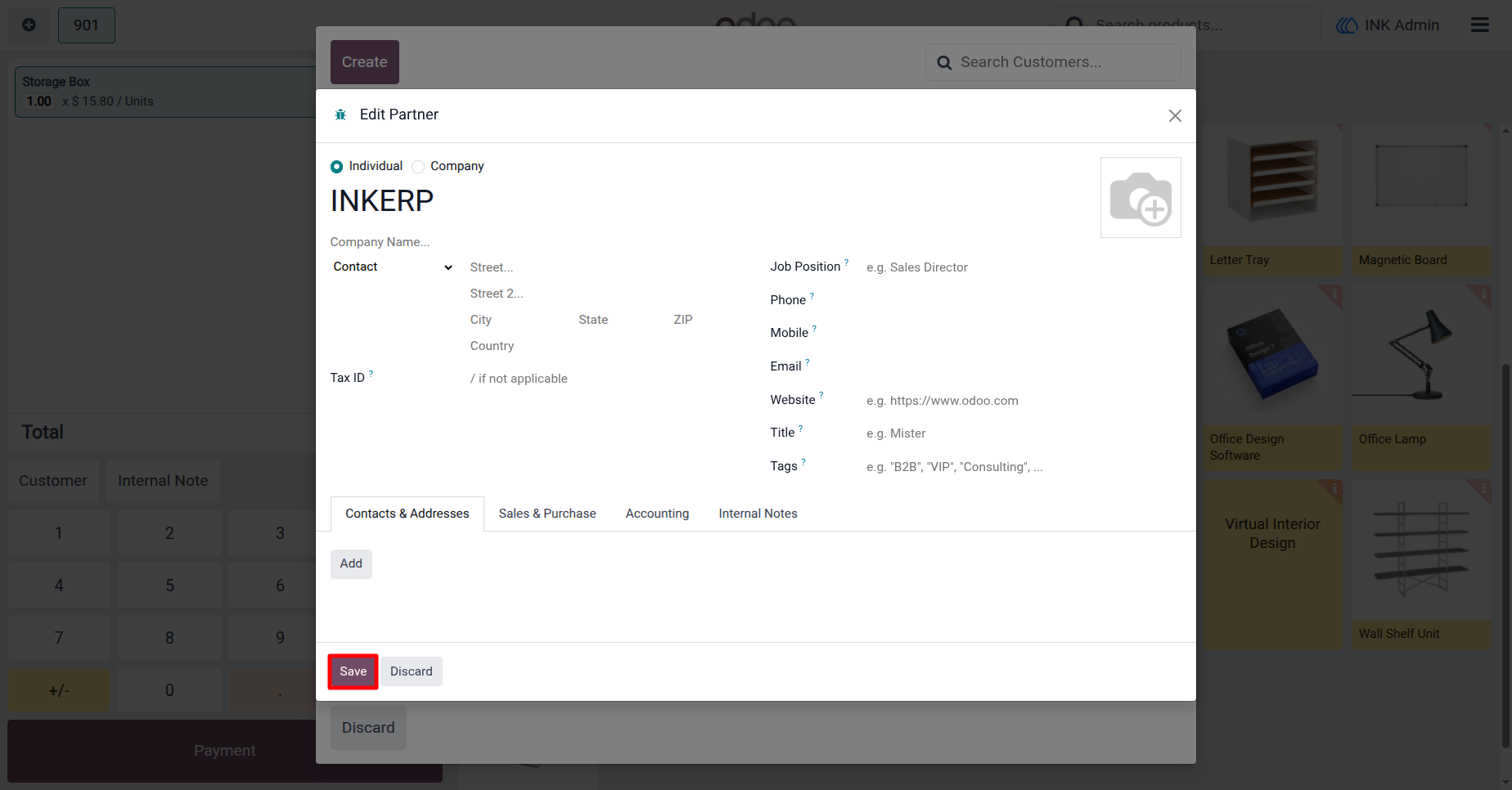
4.) Create New Customer from POS
This screenshot shows the new customer creation popup inside the POS interface. When a cashier adds a customer here, the system prepares all essential fields for quick input to speed up the checkout process. Once the customer is saved, your module automatically marks them as Available in POS, ensuring they instantly appear in the POS customer list without needing backend updates.
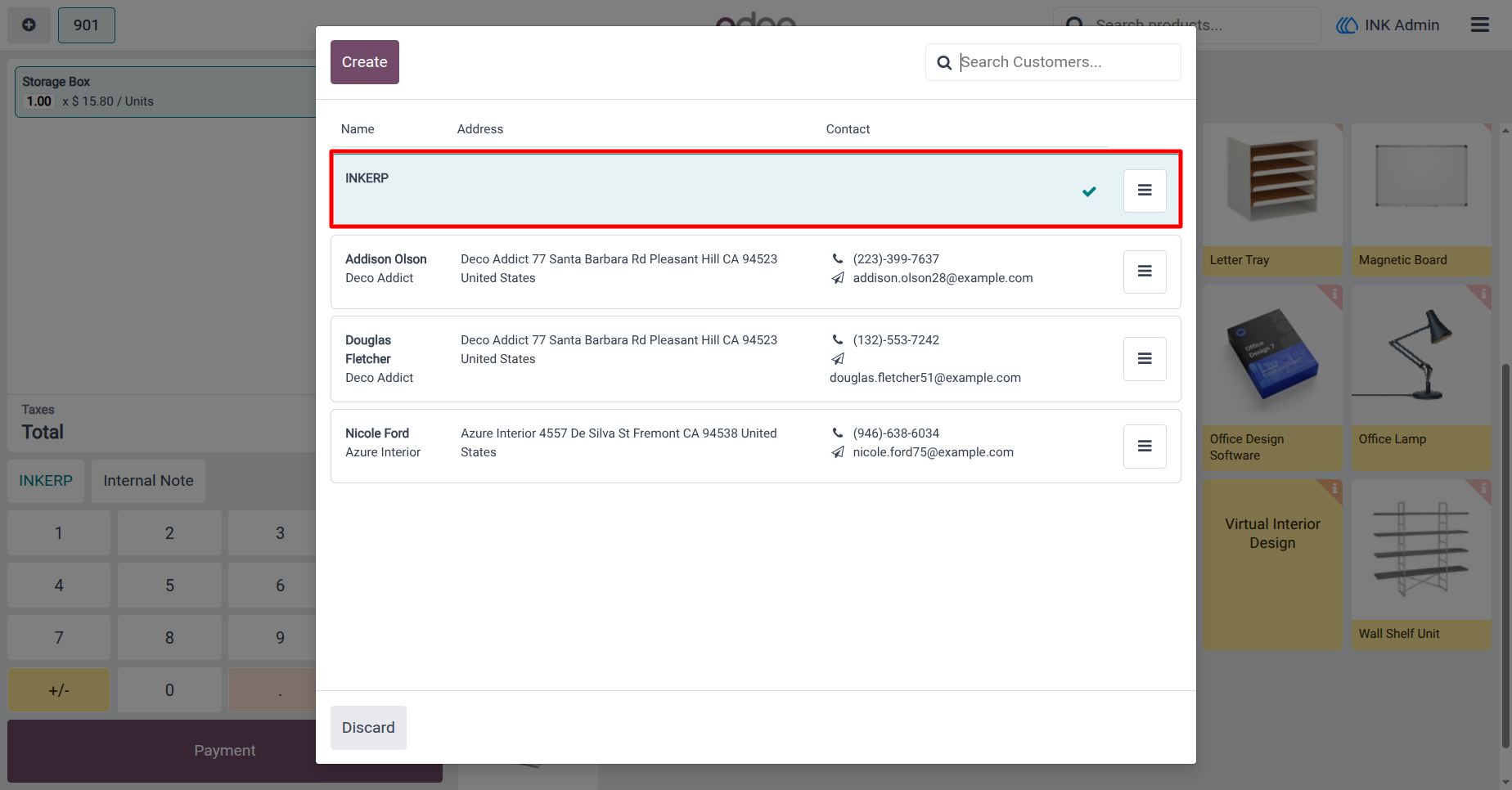
5.) Newly Created Customer Instantly Available in POS
After saving the new customer, they immediately appear in the POS customer list with no extra steps required. Since the Available in POS option is auto-enabled, the system registers the customer as POS-eligible by default
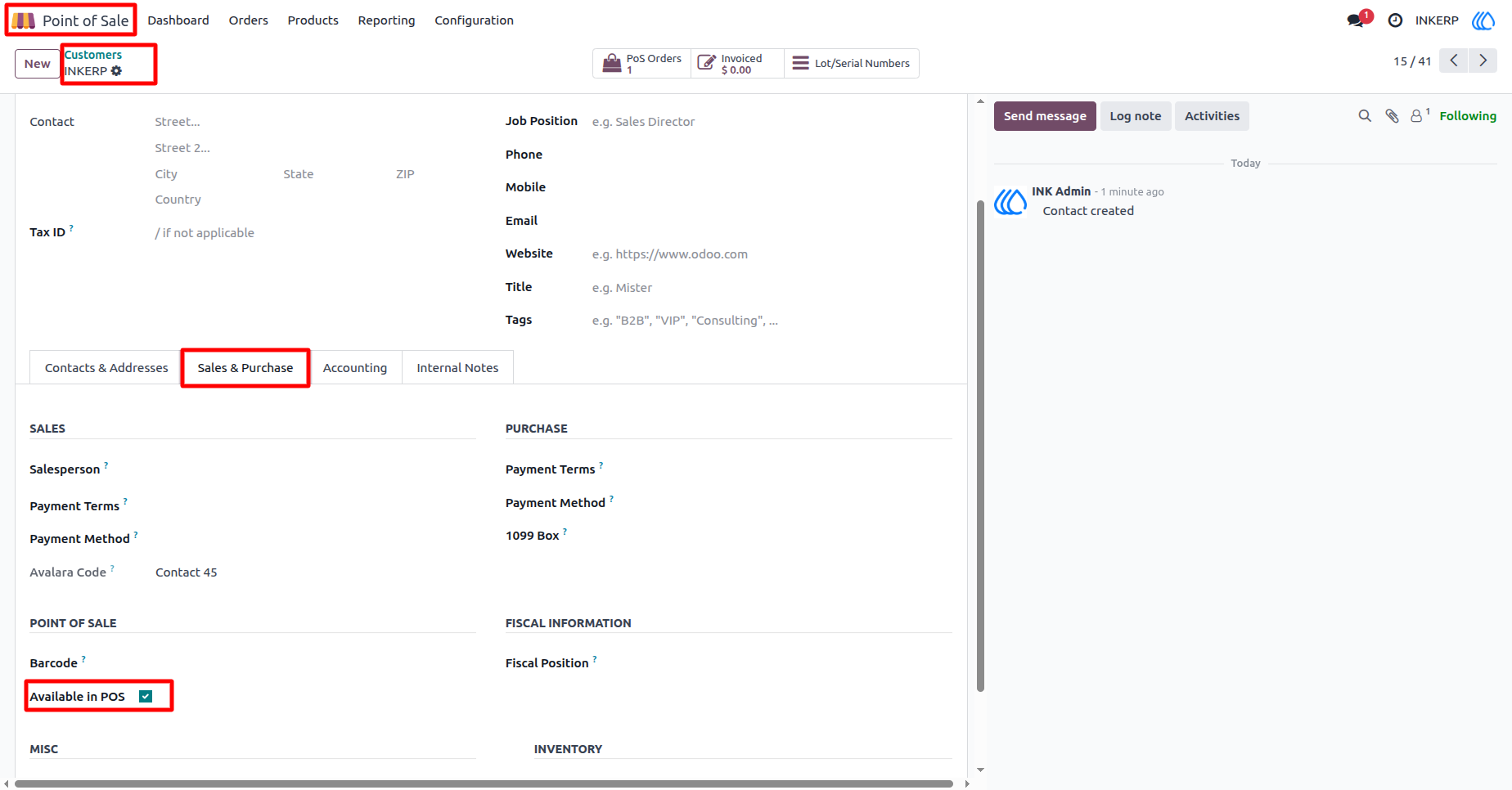
6.) Backend Confirmation of Auto-Enabled POS Availability
This backend customer form view confirms that the newly created customer from POS is automatically marked as Available in POS. The option is already checked under the Sales & Purchase tab without manual intervention. This automation ensures accuracy and removes the need for staff to adjust POS settings for newly created customers.
Navigation : Point of Sale › Customers › Customer
User Guide