

Our Most Suggested Products


POS Bus Booking Management
POS Bus Booking Management provides a dedicated bus ticket booking workflow directly inside the Point of Sale. It allows counter staff to search journeys by departure station, destination, and travel date, select available seats from a live bus layout, enter passenger information, place temporary seat holds, and complete payment using the standard POS payment process. The module connects bus bookings with POS orders and tickets, helping transport businesses manage counter sales accurately while reducing manual booking work and improving seat availability control.
 Features
 Screenshots
 Support
 Service
Features
Bus Journey Search
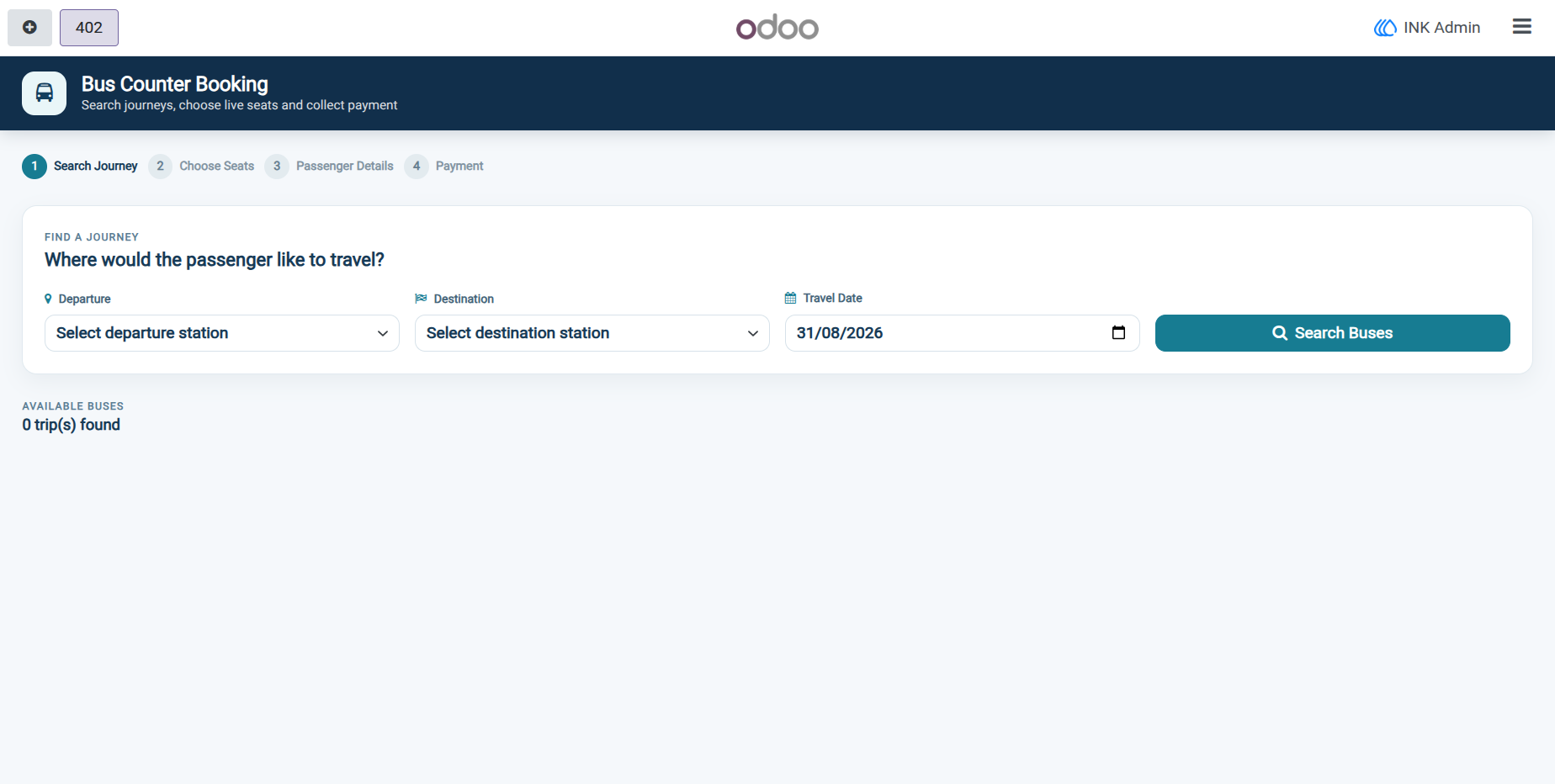
Counter staff can search available bus trips by selecting a departure station, destination station, and travel date. The system validates the journey direction and displays scheduled trips with route information, departure time, available seats, bus details, and fare, making it easier to find the correct service quickly.
Live Seat Selection
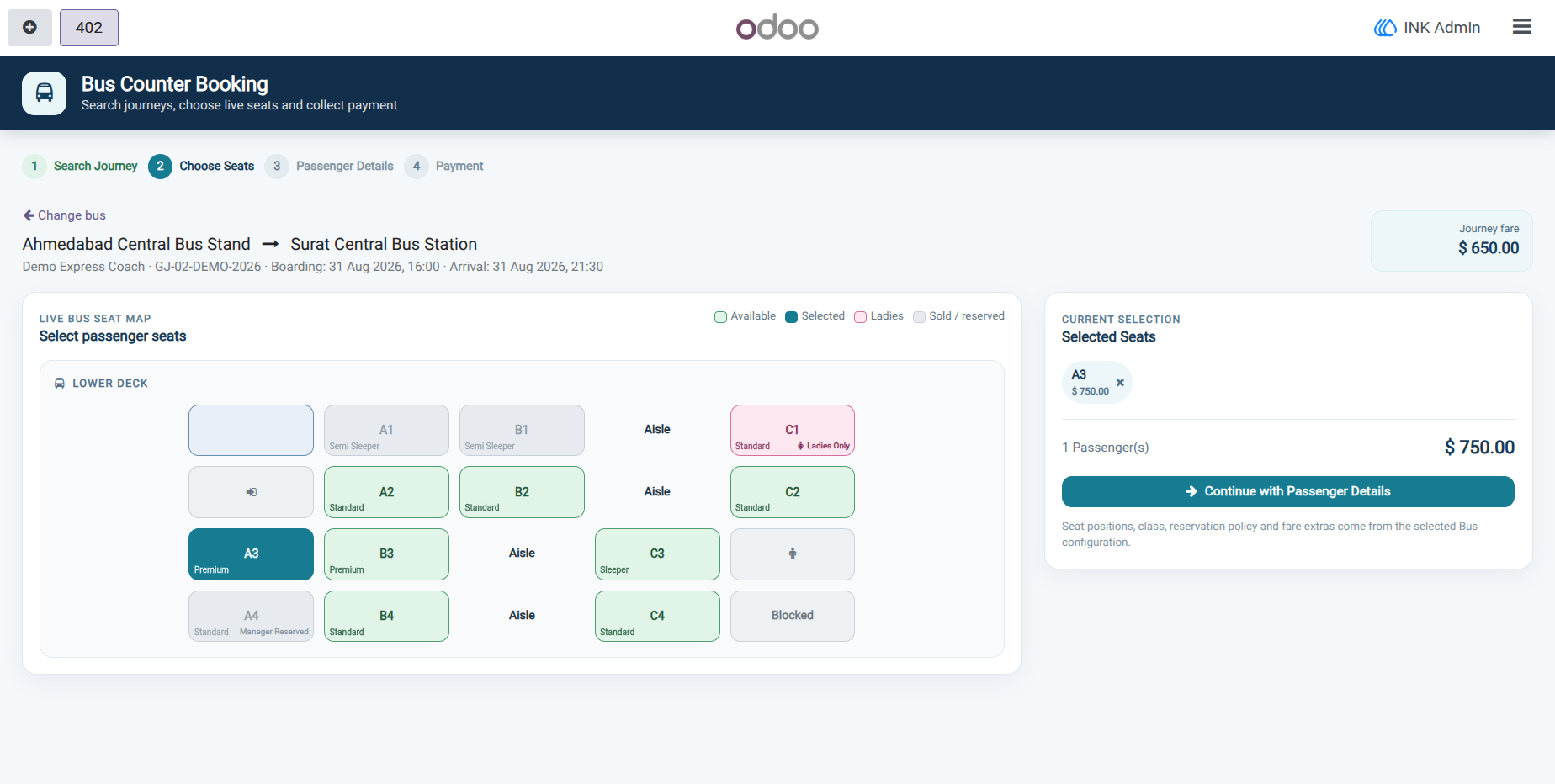
The dedicated seat map provides a visual representation of the bus arrangement, including seats, aisles, driver area, doors, stairs, and other configured spaces. Available, selected, ladies-only, sold, reserved, and blocked seats are visually distinguished so staff can choose the correct passenger seats before continuing with the booking.
Passenger Details Management
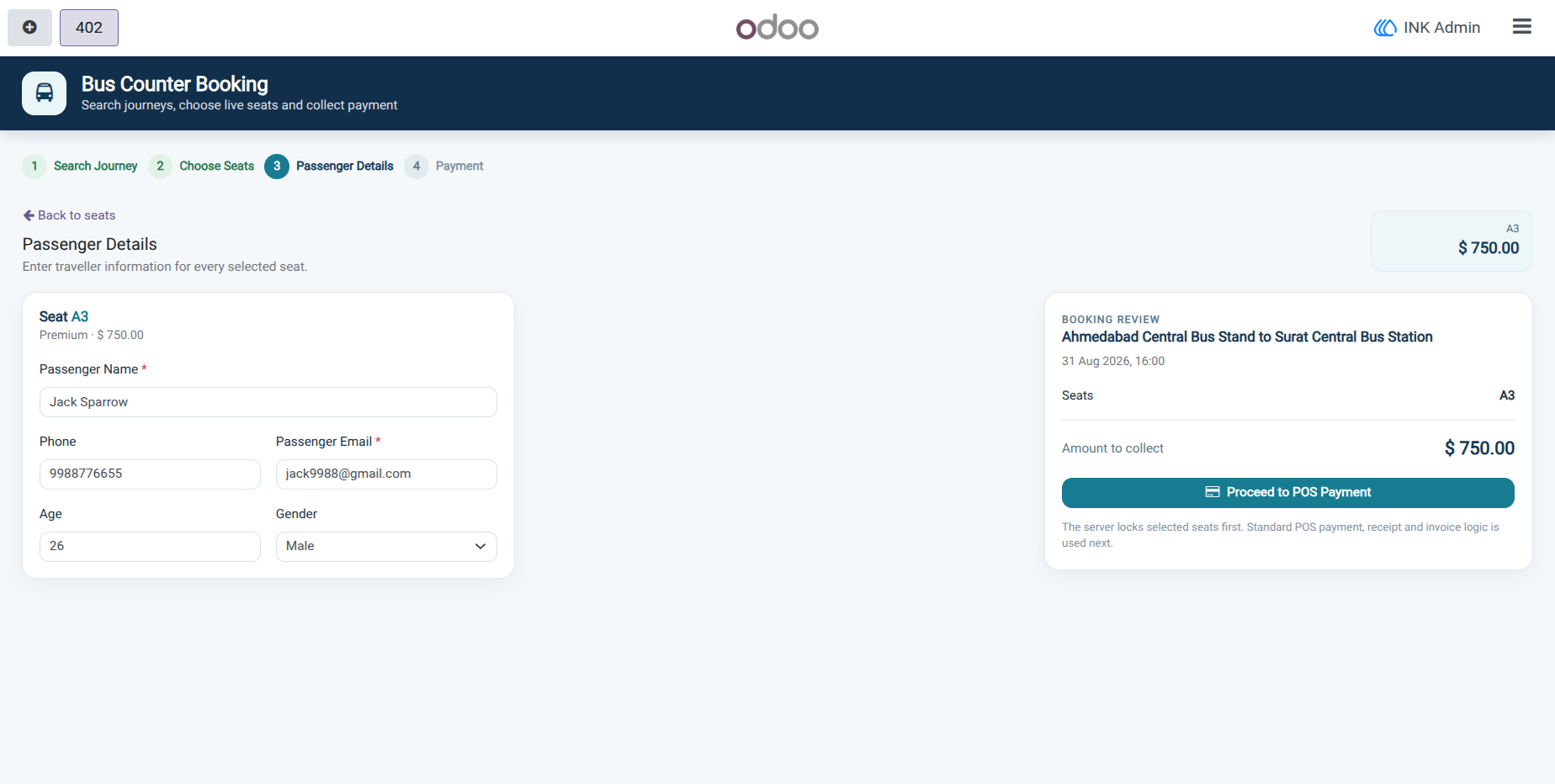
Passenger information can be entered separately for each selected seat, including passenger name, phone number, email, age, and gender. Passenger details are linked with the selected seats and booking so that the final ticket contains the information needed for travel and customer service.
Temporary Seat Hold and Payment Validation
Selected seats are placed on a temporary hold before payment, reducing the risk of two counter users booking the same seat at the same time. The configured hold period is checked by the server, and payment validation ensures that the booking, ticket quantity, amount, currency, and POS ticket product remain consistent before the booking is confirmed.
Pending Payment and Booking Recovery
When a bus booking has been created but payment has not yet been completed, the POS can return to the pending booking and resume the payment process. Staff can either continue the payment or cancel the pending booking so that the held seats are released for future customers.
Screenshot
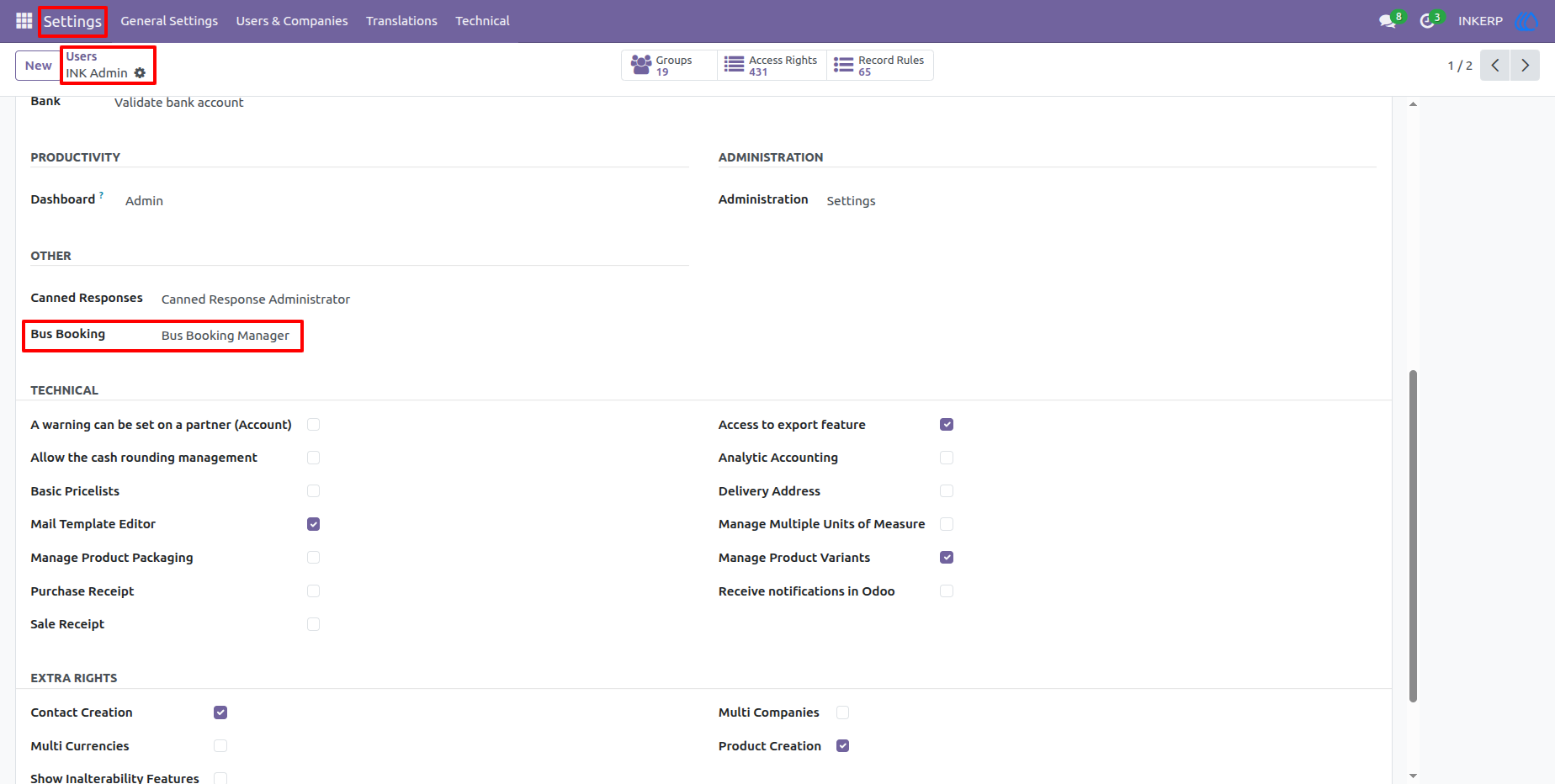
1.) Bus Booking Manager Access
The user access configuration includes a Bus Booking Manager permission under the application settings. This allows administrators to control access to bus booking management functions and define which users should work with bus transportation records.
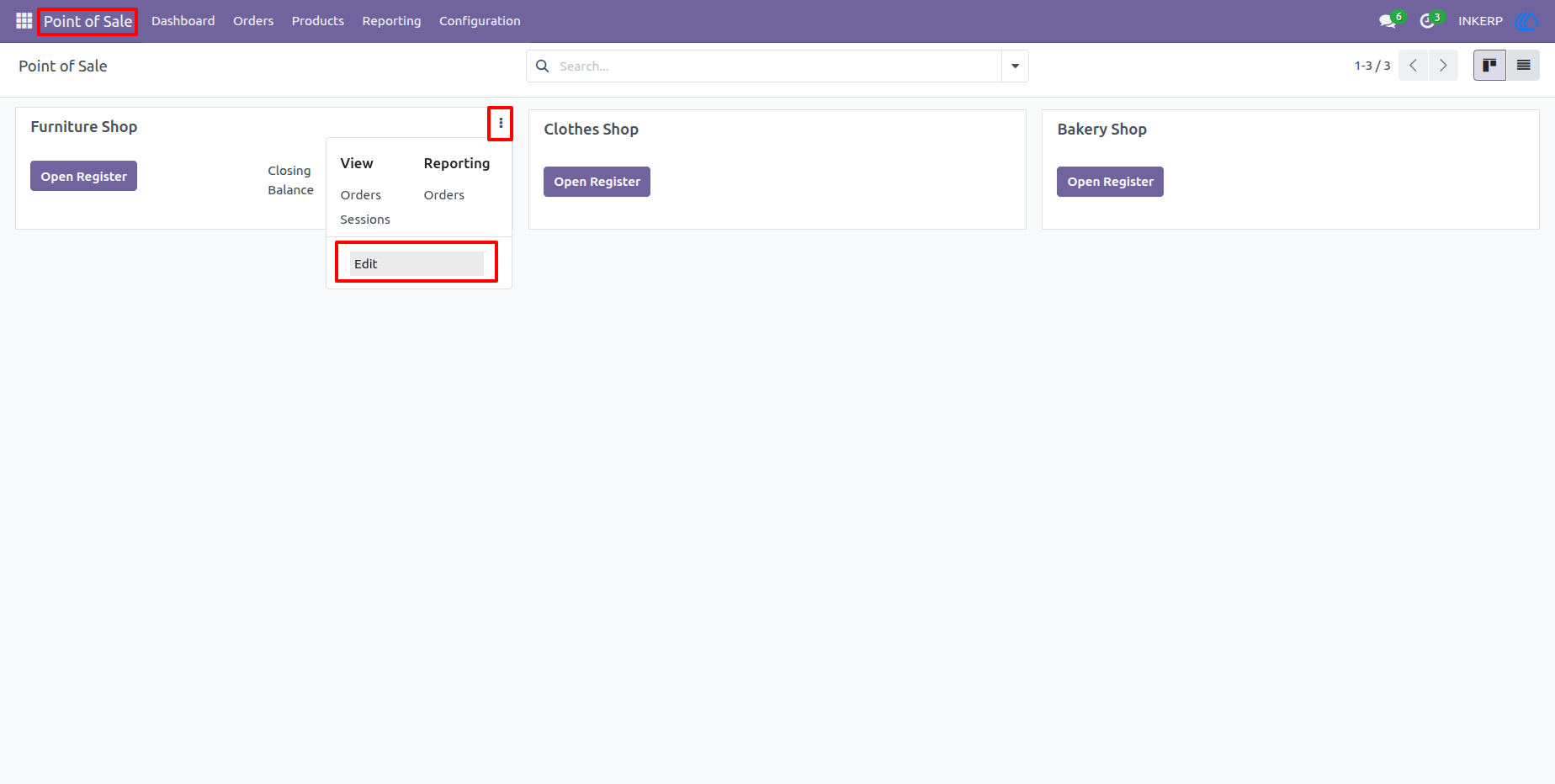
2.) Open the Point of Sale Configuration
From the Point of Sale dashboard, open the required POS configuration using the configuration menu. This is the starting point for enabling the dedicated bus counter workflow for a particular POS.
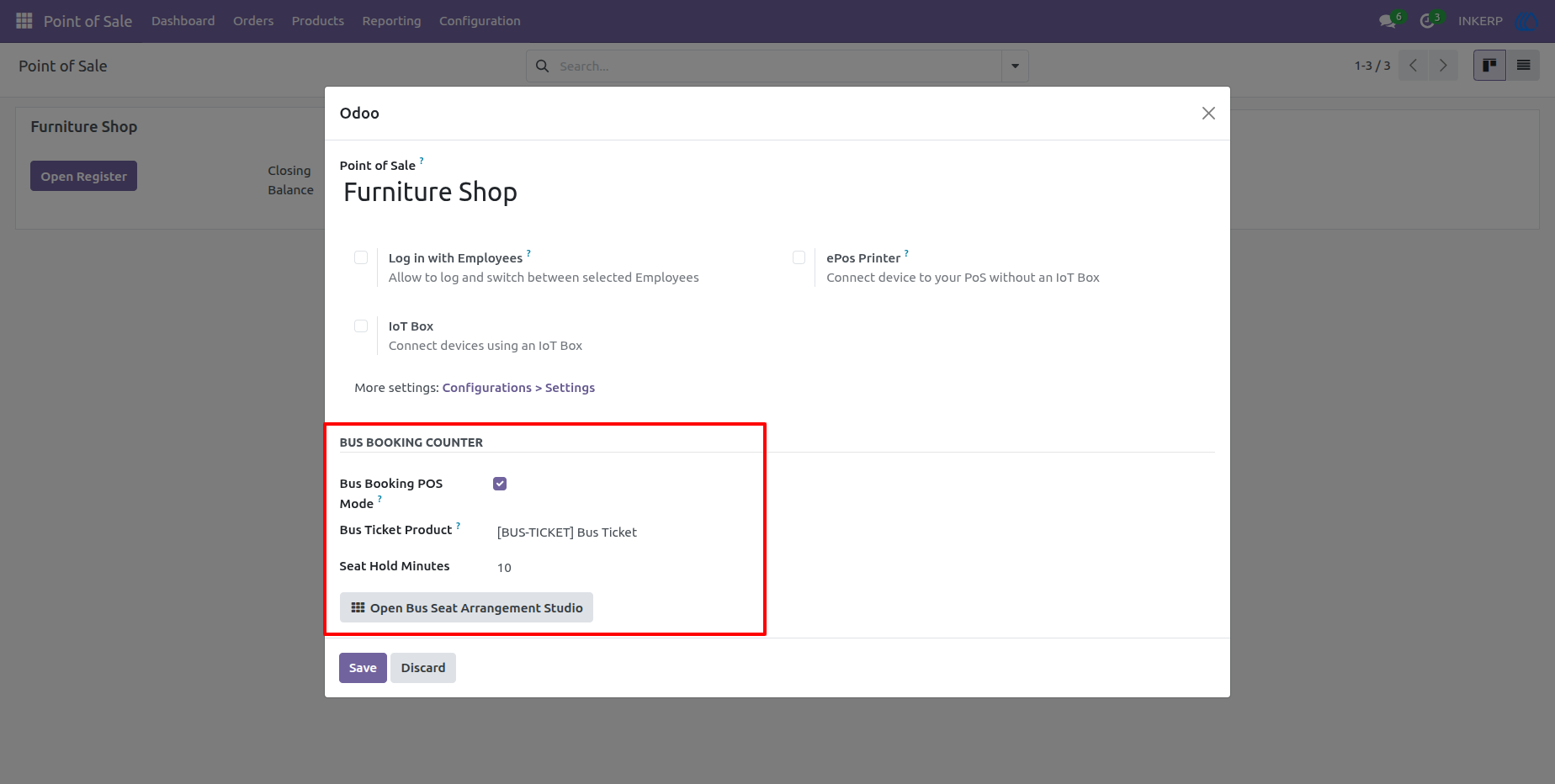
3.) Configure Bus Booking POS
The POS configuration contains a Bus Booking Counter section with options for Bus Booking POS Mode, Bus Ticket Product, and Seat Hold Minutes. Administrators can enable the bus booking workflow, select the service product used for ticket sales, define how long seats remain held during payment, and open the seat arrangement studio.
4.) Search Journey
The Bus Counter Booking screen starts with the journey search step. Staff can choose the departure station, destination station, and travel date, then use Search Buses to retrieve matching scheduled trips.
5.) Review Available Bus Trips
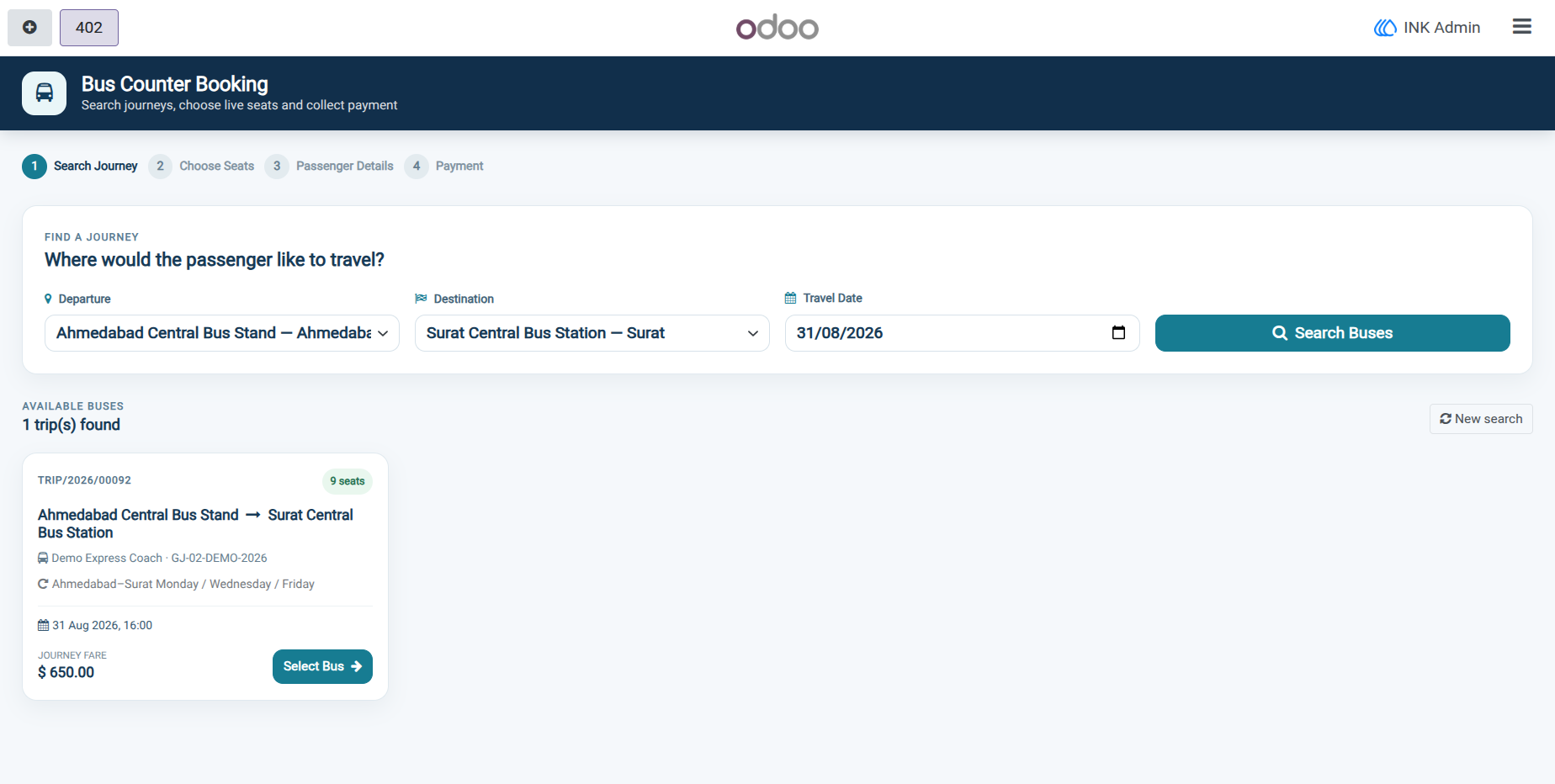
Matching trips are displayed with route information, coach details, schedule information, available seat count, and journey fare. Staff can review the available service and select the trip that best matches the passenger requested travel.
6.) Choose Seats from the Live Bus Map
The seat selection screen provides a visual bus layout with different seat states and seat classes. Staff can identify available or restricted seats, select one or more seats, review the fare for the selection, and continue to passenger details after making the required choices.
7.) Enter Passenger Details
The passenger details screen provides a separate form for each selected seat. Required passenger information can be entered together with contact details, age, and gender, while the booking review panel keeps the selected route, seats, travel time, and total amount visible during data entry.
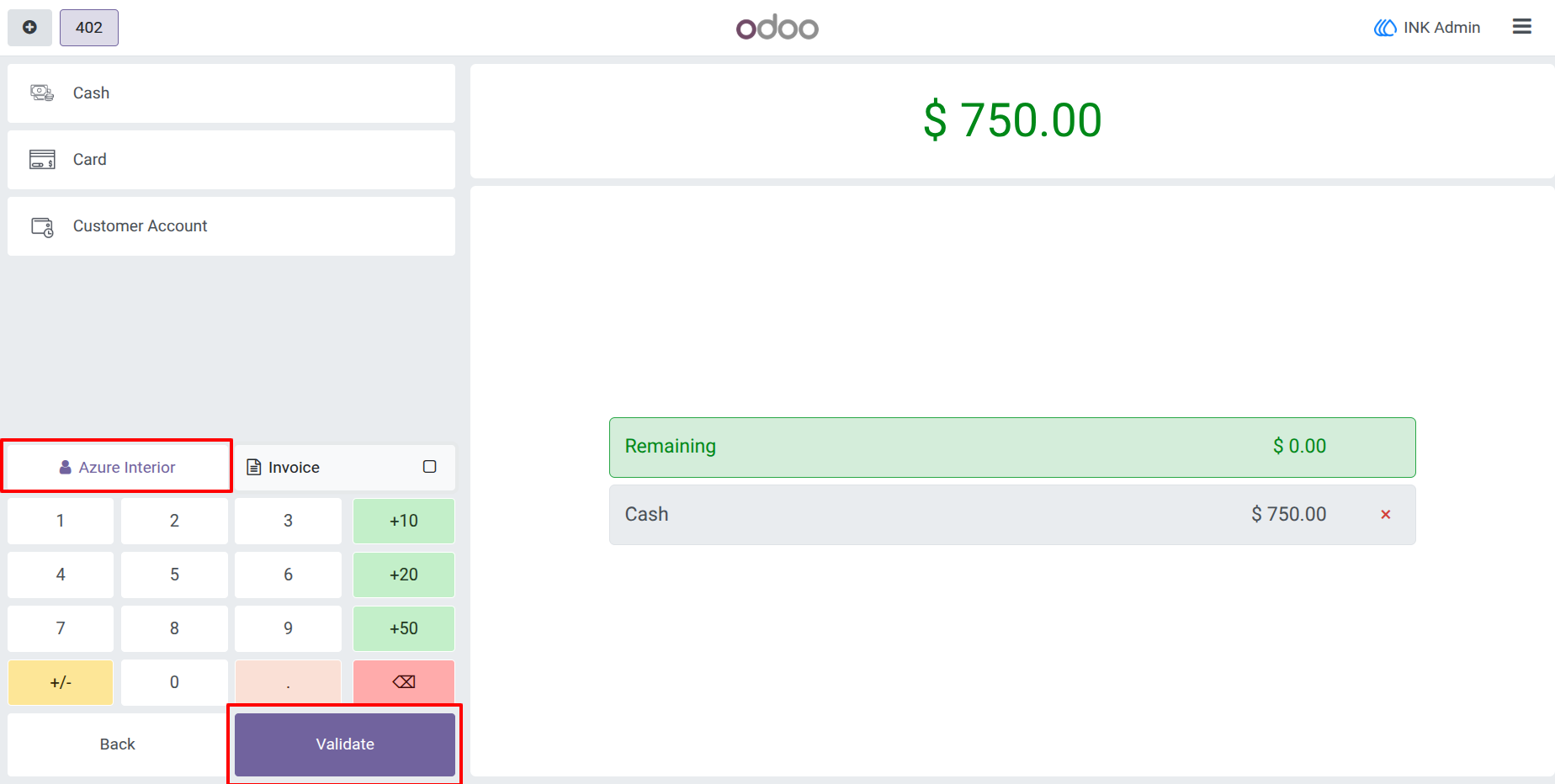
8.) Complete POS Payment
The selected bus ticket amount is transferred into the normal POS payment interface. Staff can choose the available payment method, enter or confirm the payment amount, and validate the transaction to complete the sale.
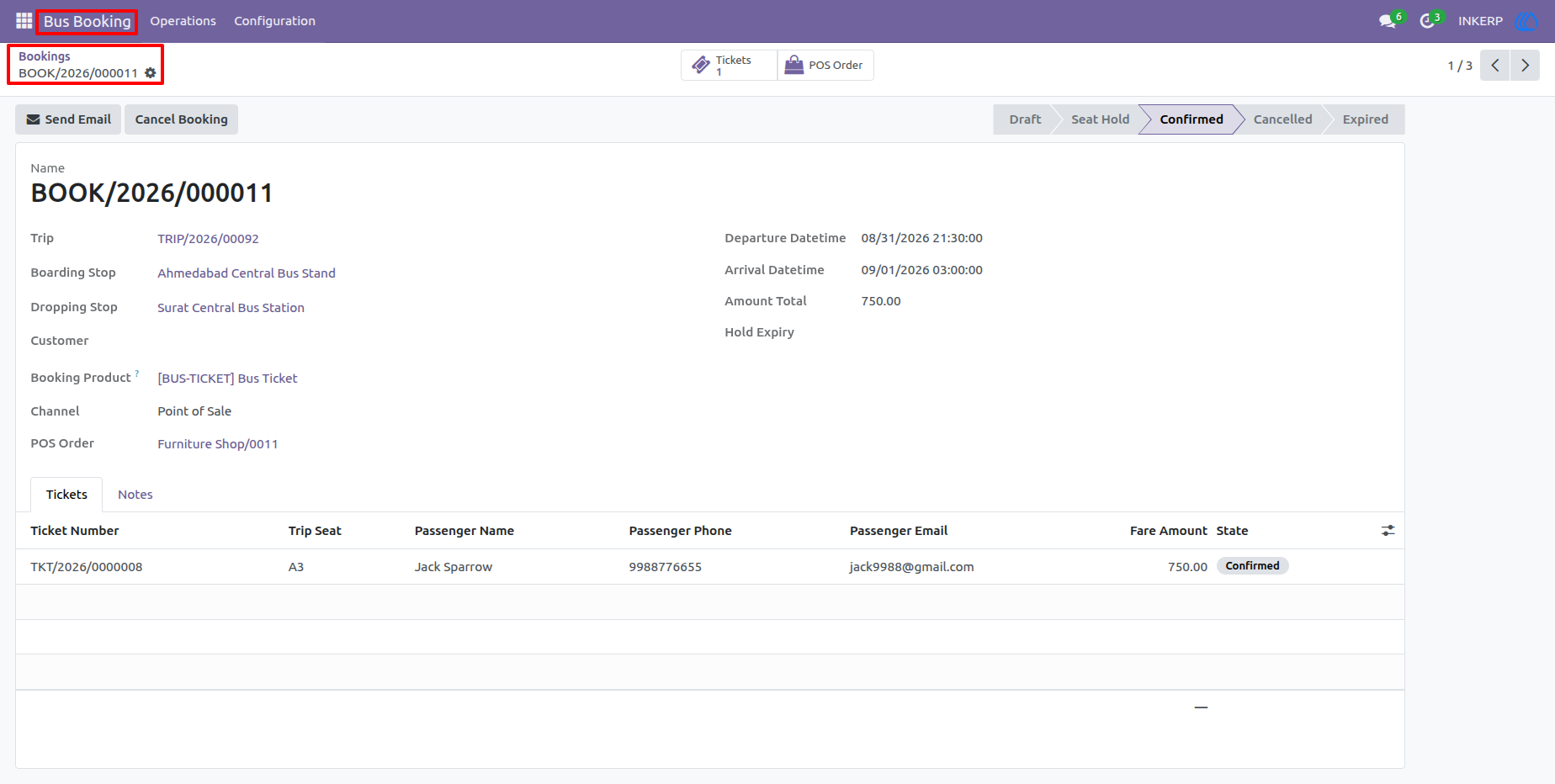
9.) Review the Confirmed Bus Booking
After payment, the bus booking record contains the trip, boarding and dropping stops, booking product, POS channel, linked POS order, ticket information, passenger details, fare, and booking status. This provides a central record for checking the completed counter booking.
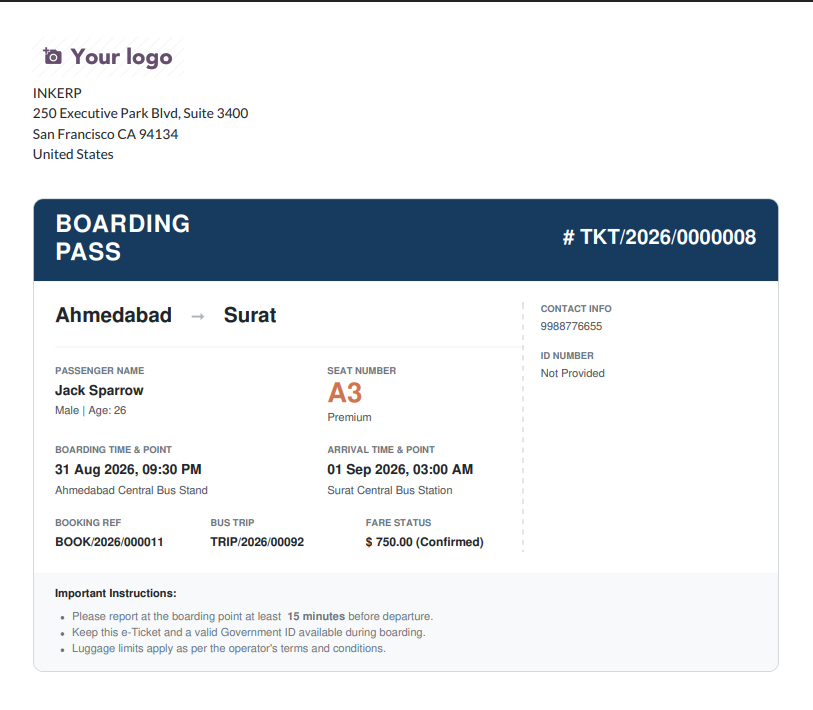
10.) Passenger Boarding Pass
The boarding pass provides the customer's essential travel information in a printable format, including the route, passenger name, seat number, boarding and arrival details, booking reference, trip reference, fare status, and contact information. Important travel instructions are also included for use at the time of boarding.
User Guide