

Our Most Suggested Products


POS Analytic Account Management
POS Analytic Account Management helps businesses assign and track analytic accounts throughout Point of Sale operations. Users can configure a default analytic account for each POS, assign specific analytic accounts to customers and products, and allow cashiers to manually select an analytic account while processing an order. The selected analytic information is carried through POS sessions, orders, order lines, payments, receipts, and accounting journal items, helping businesses analyze POS revenue and transactions by department, project, cost center, branch, or other analytic dimensions.
 Features
 Screenshots
 Support
 Service
Features
Global POS Analytic Account Control
Enable or disable POS analytic account functionality from a centralized application setting. This provides administrators with a simple master control for activating analytic tracking across Point of Sale operations without changing individual transaction workflows.
POS-Specific Default Analytic Account
Analytic tags selected in the POS are automatically transferred to accounting entries without any manual effort. This seamless synchronization ensures consistency between POS and Accounting modules. It helps accountants and managers generate precise analytic reports with confidence and accuracy.
Customer and Product Analytic Accounts
Assign dedicated analytic accounts to customers and products for more detailed transaction classification. Customer analytics can automatically apply to an order, while a product-specific analytic account can be used on individual order lines for accurate departmental, project, or cost-center reporting.
Manual Analytic Account Selection in POS
Allow cashiers to select or change an analytic account directly from the POS Actions menu. A searchable account selection popup makes it easy to choose an account for the current order or return to automatic assignment based on customer, product, and POS configuration.
POS Order, Payment, and Session Tracking
Analytic account information is stored and displayed on POS sessions, orders, order lines, and payments. Backend users can quickly identify which analytic account was used for each transaction and review the source of the analytic assignment when investigating POS activity.
Screenshot
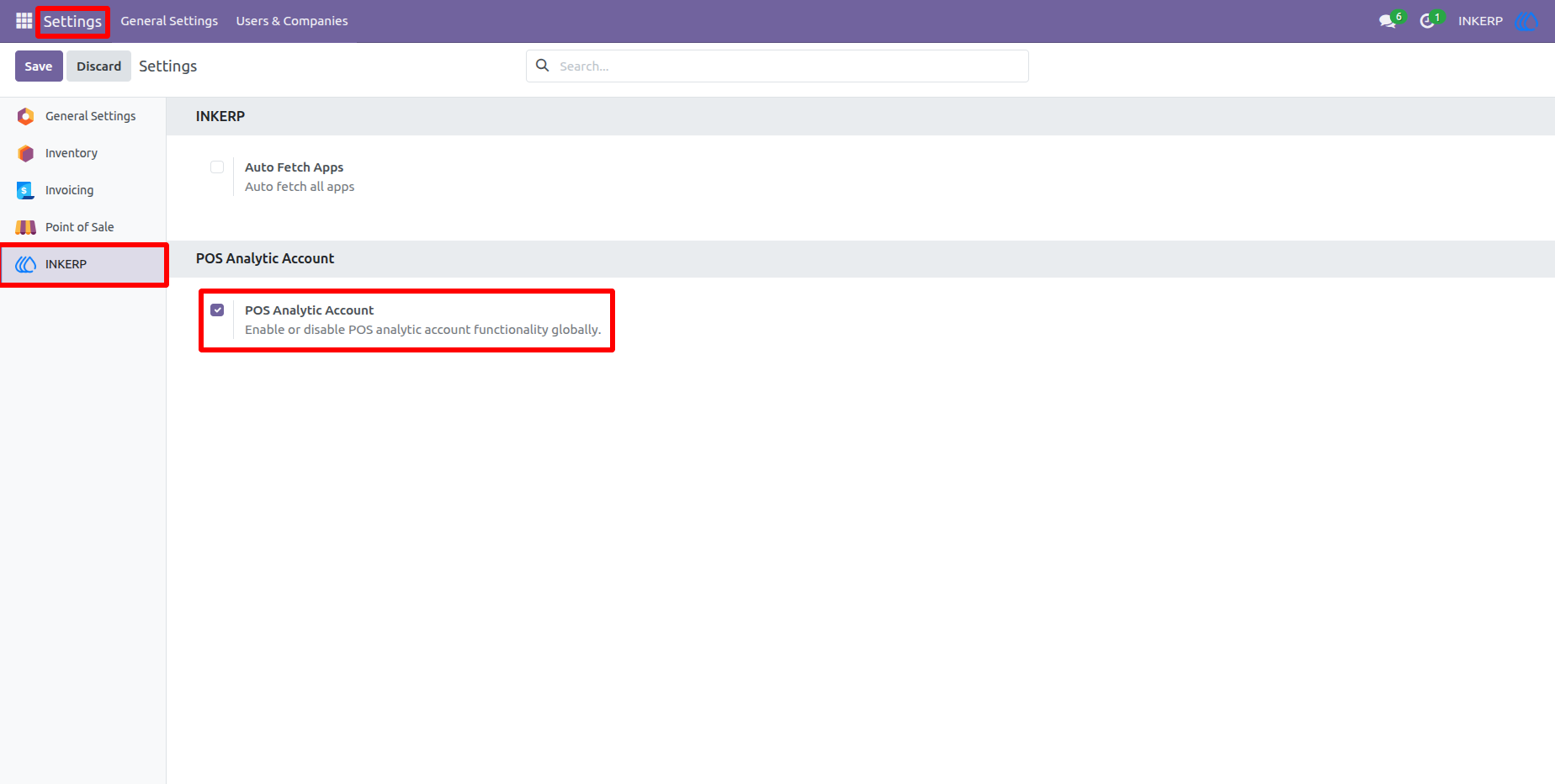
1.) Enable POS Analytic Account
Activate the POS Analytic Account feature from the INKERP settings section. This master option controls whether analytic account functionality is available throughout the module and provides administrators with one central place to enable or disable the feature.
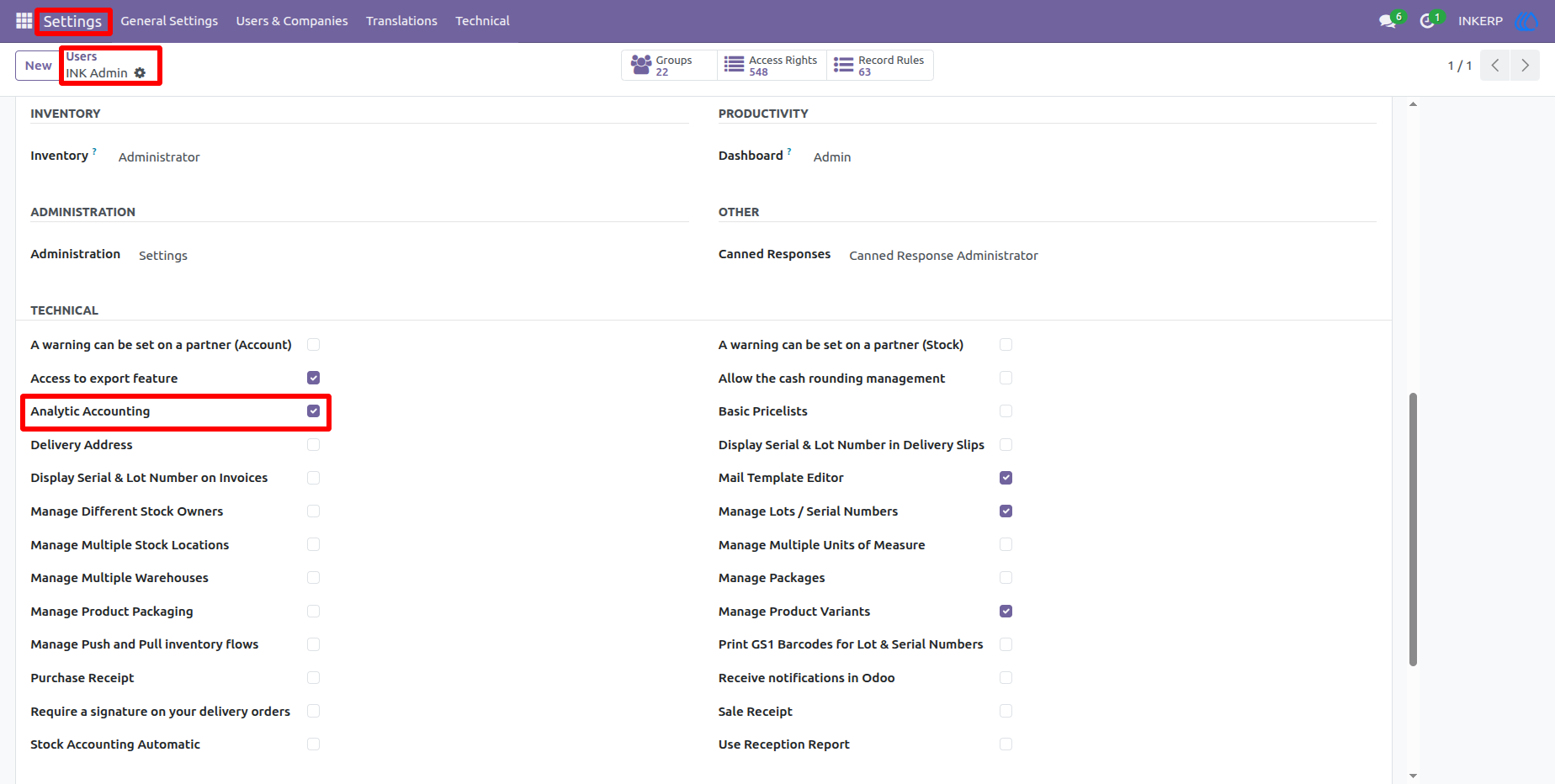
2.) Enable Analytic Accounting Access
Grant the required Analytic Accounting permission to users who need to configure or review analytic information. This ensures authorized employees can access analytic accounts and related accounting features used by POS transactions.
3.) Configure POS Analytic Account
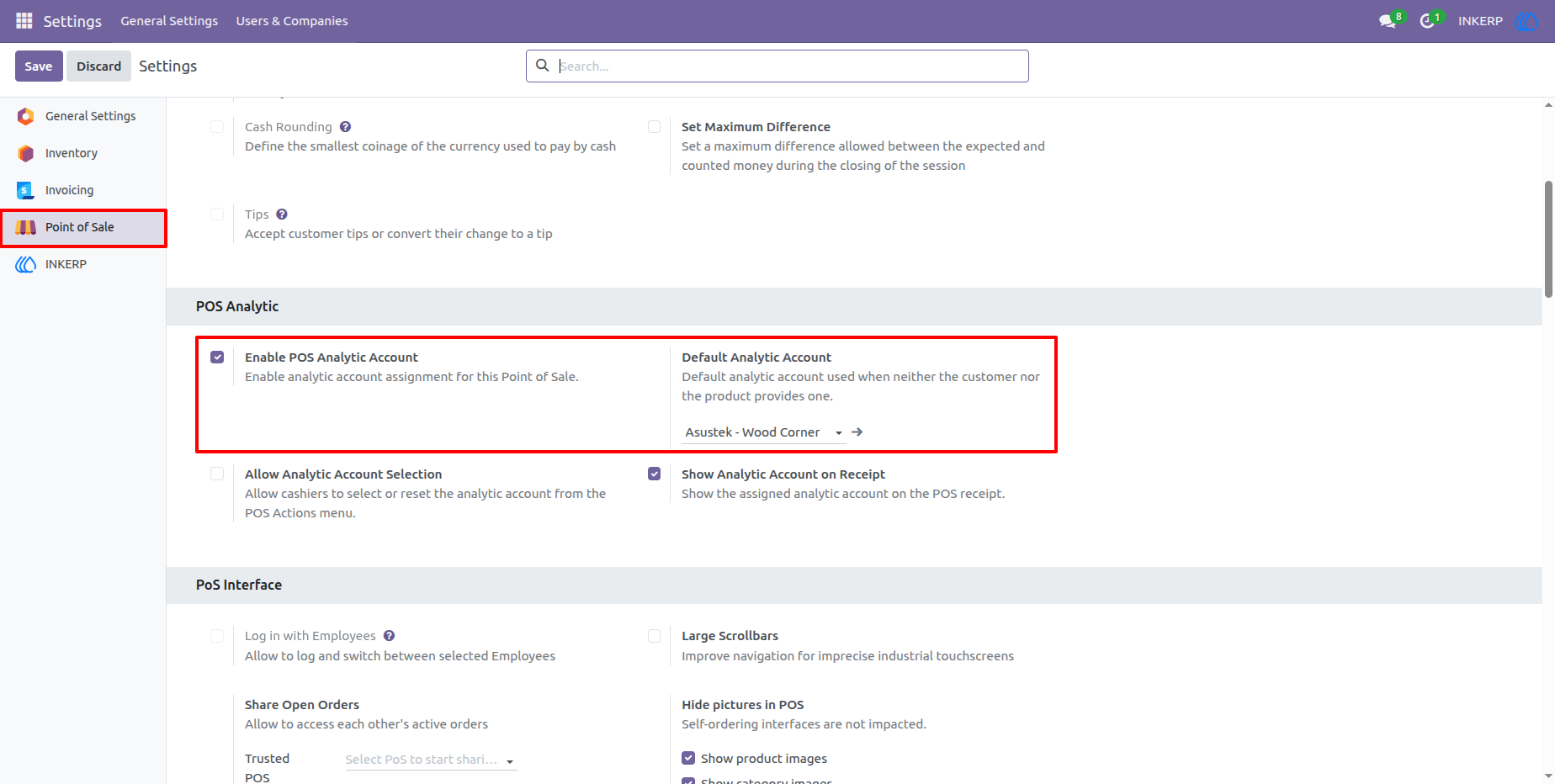
Enable analytic accounting for a specific Point of Sale and select its default analytic account. The default account is automatically used when an order does not receive an analytic account from its customer, product, or manual cashier selection.
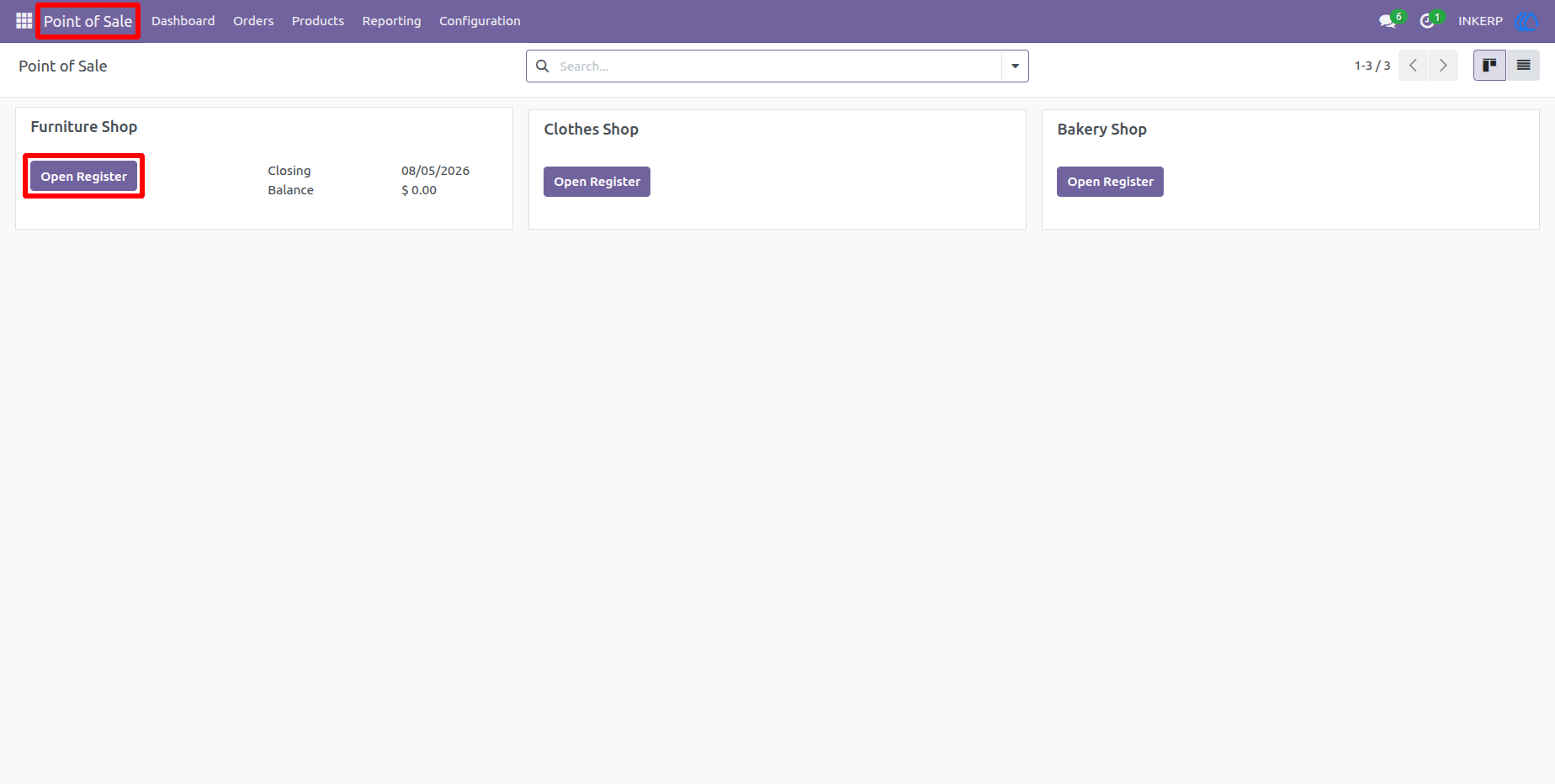
4.) Open the POS Register
Open the required Point of Sale register from the POS dashboard after completing the analytic configuration. Each POS can maintain its own analytic setup, allowing different shops, counters, or business units to use separate analytic accounts.
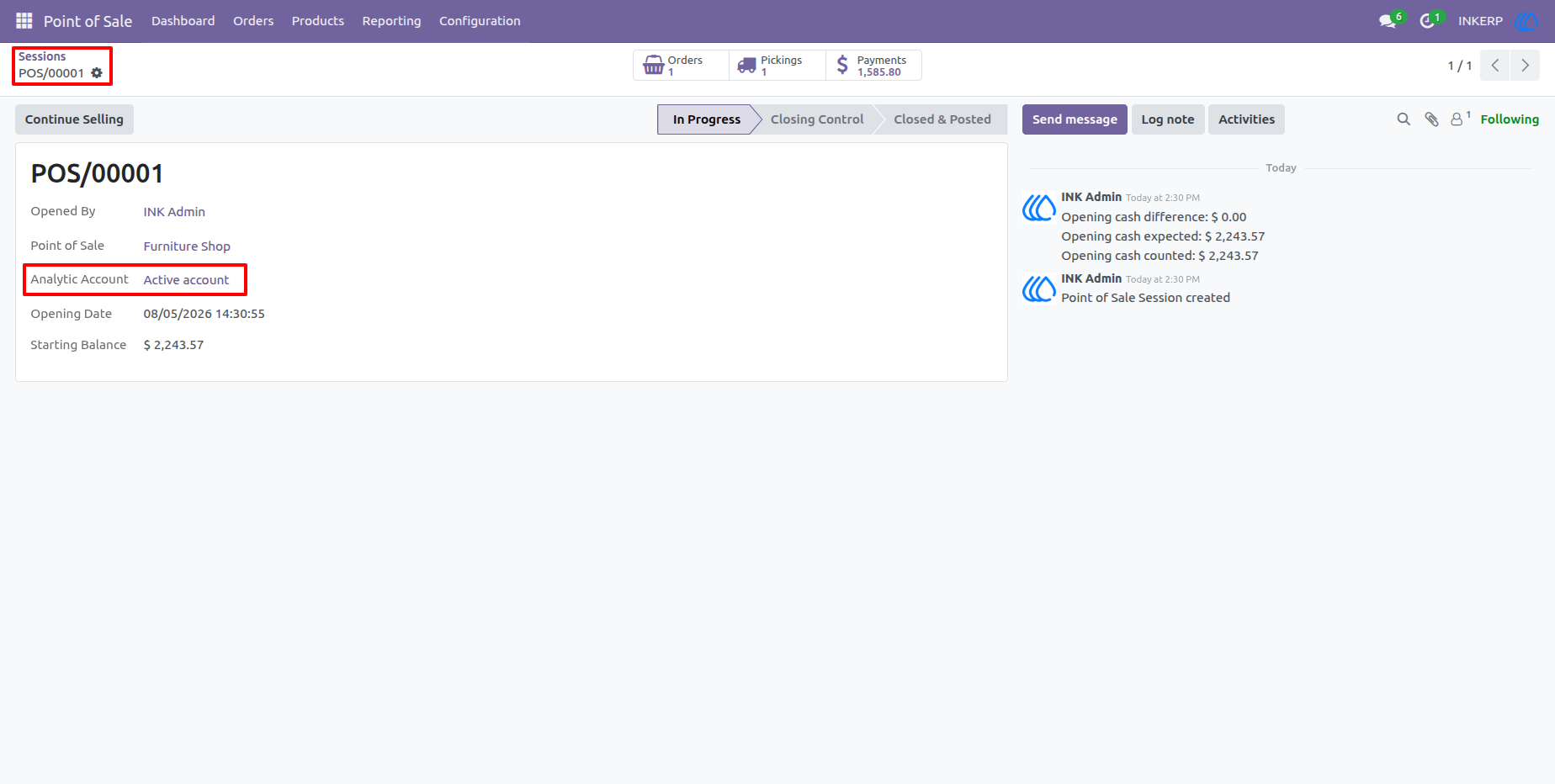
5.) Analytic Account on POS Session
The POS session automatically displays the analytic account inherited from its Point of Sale configuration. Backend users can immediately identify which analytic account is associated with an active session while reviewing operational information.
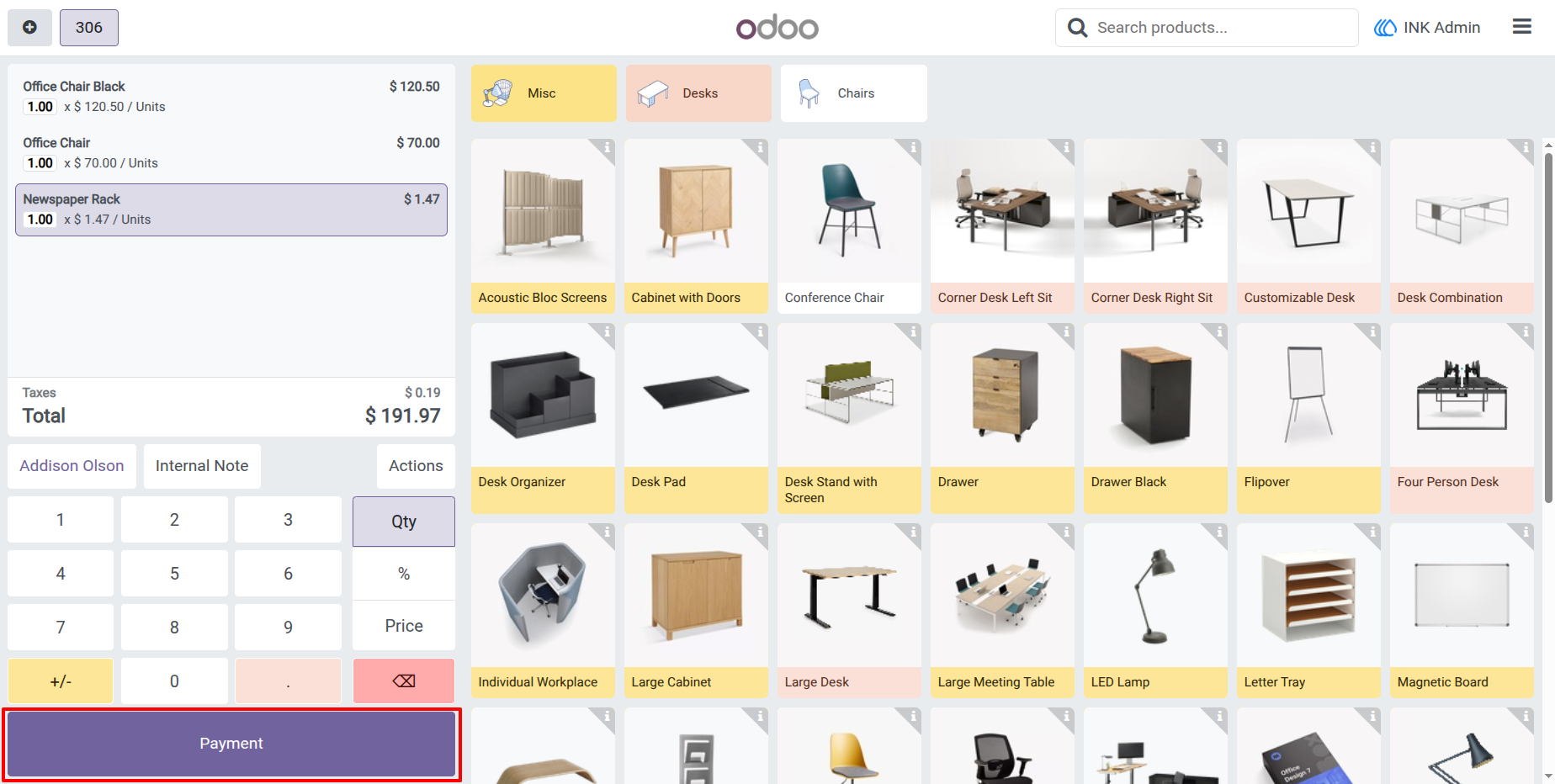
6.) Create POS Order and Proceed to Payment
Add products to the POS cart, review quantities and totals, then click Payment to complete the transaction with the configured analytic account.
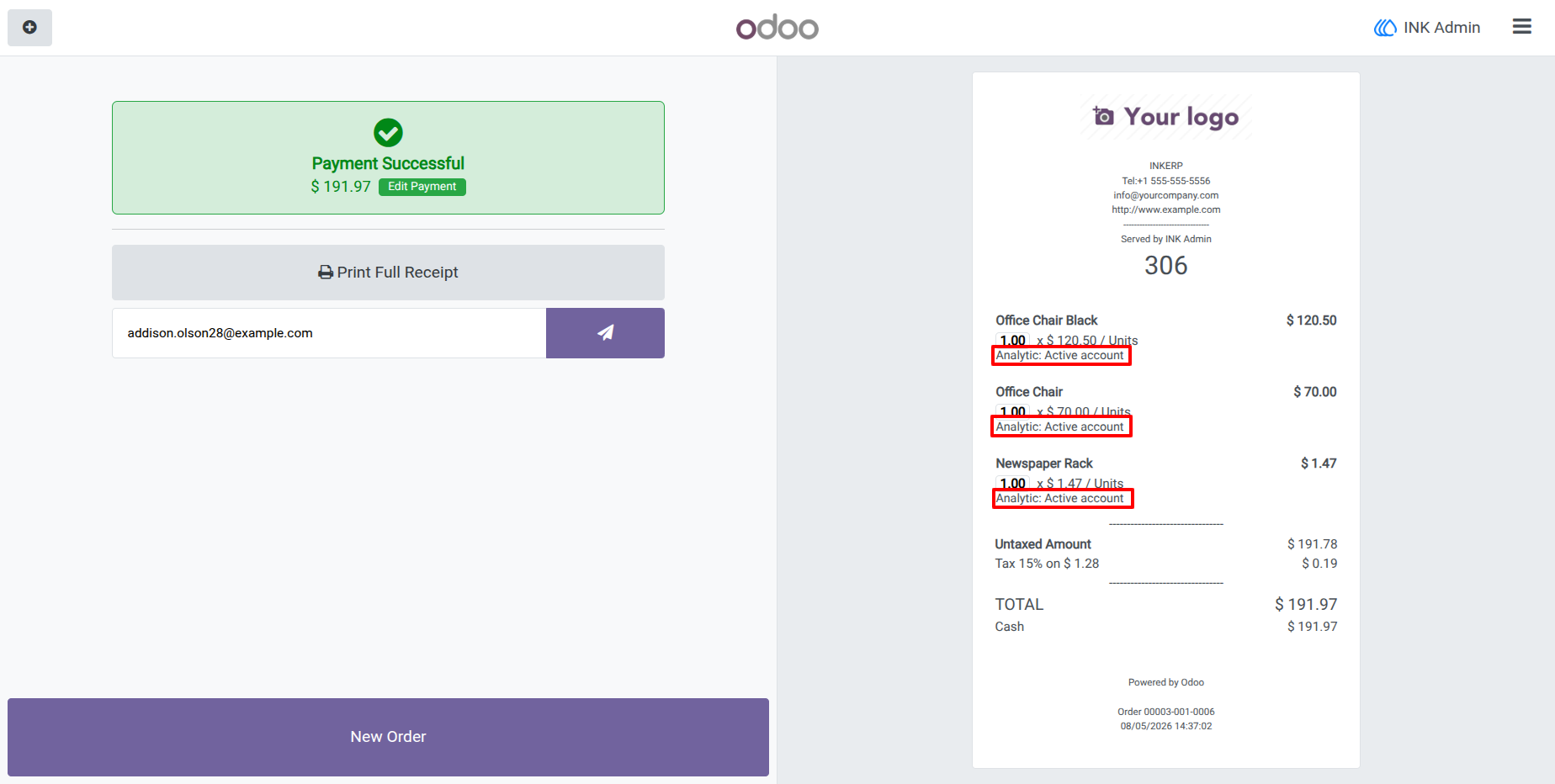
7.) Analytic Account on POS Receipt
Analytic information is displayed below the corresponding product lines on the POS receipt. This helps users verify how each sold item was classified and provides additional information directly on the customer transaction receipt.
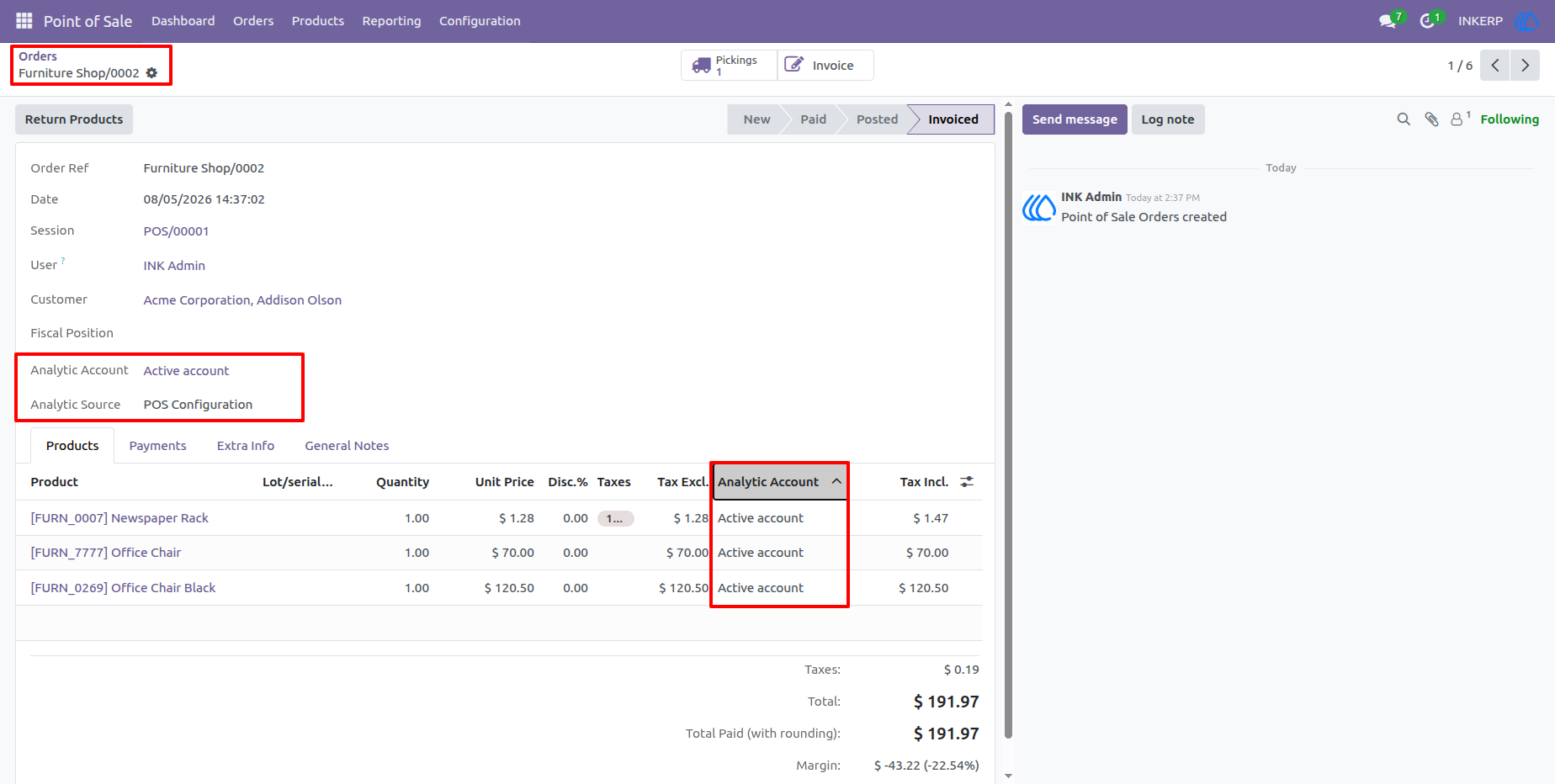
8.) Analytic Account on POS Order and Order Lines
Review the order-level analytic account, its assignment source, and the analytic account used for individual product lines. This gives accounting and POS users a clear breakdown of how analytics were applied to each completed transaction.
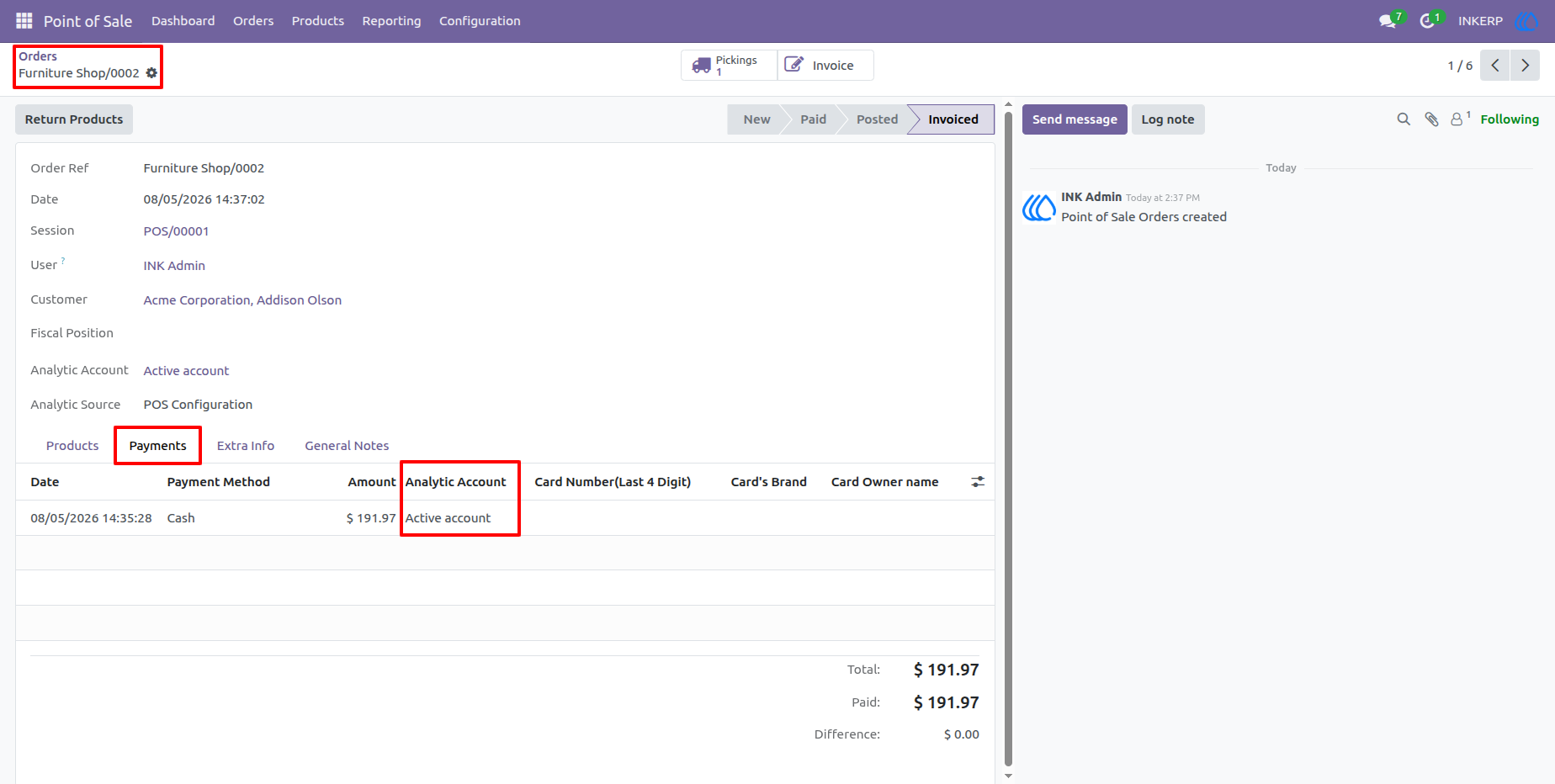
9.) Analytic Account on POS Payments
The Payments tab of a POS order includes the analytic account associated with the payment. Users can review payment amounts and analytic information together without opening separate accounting screens.
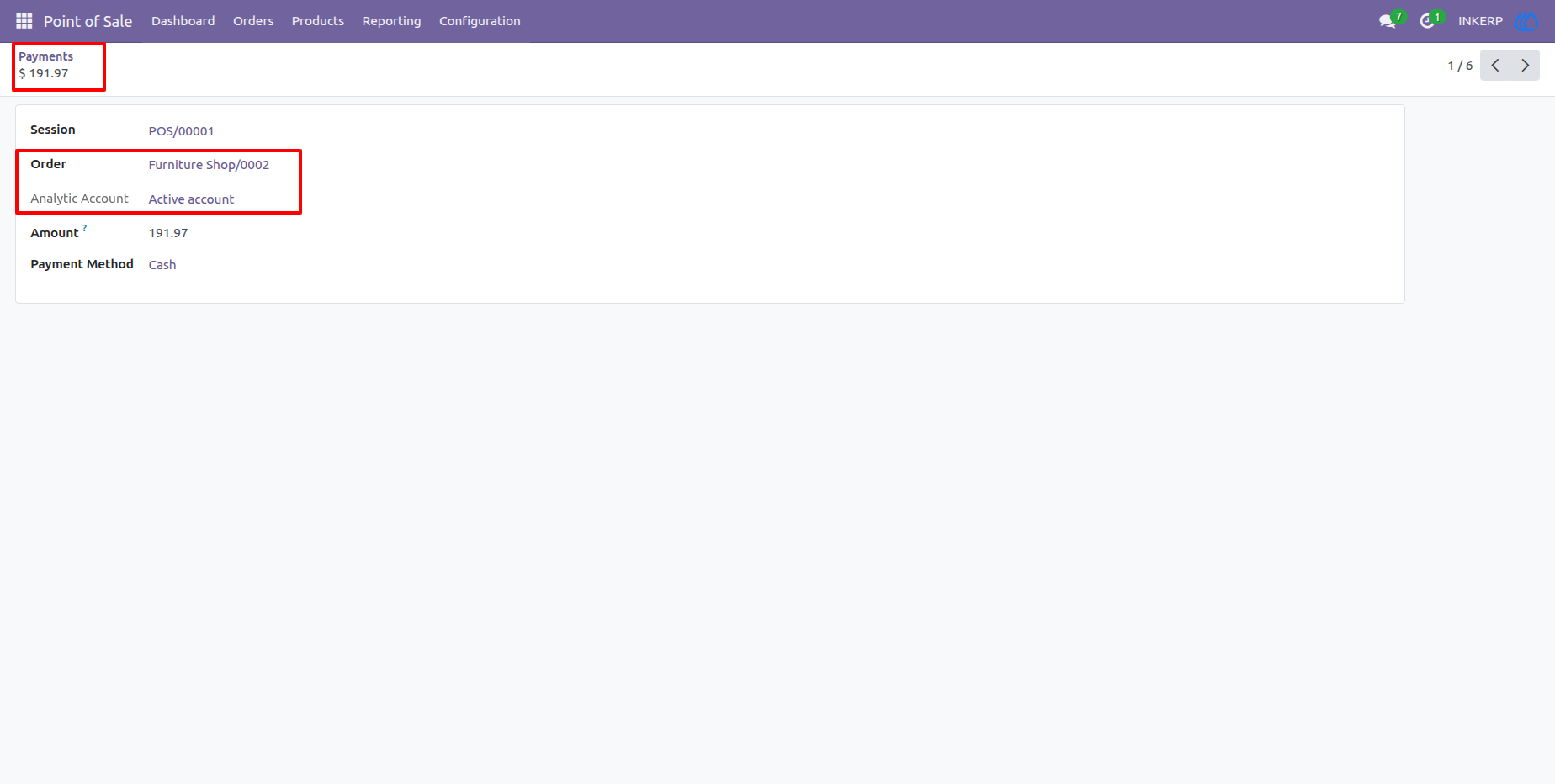
10.) Analytic Account on Payment Record
Individual POS payment records retain the analytic account connected to their originating order. This makes it easier to trace payment activity back to the relevant analytic dimension when reviewing POS financial transactions.
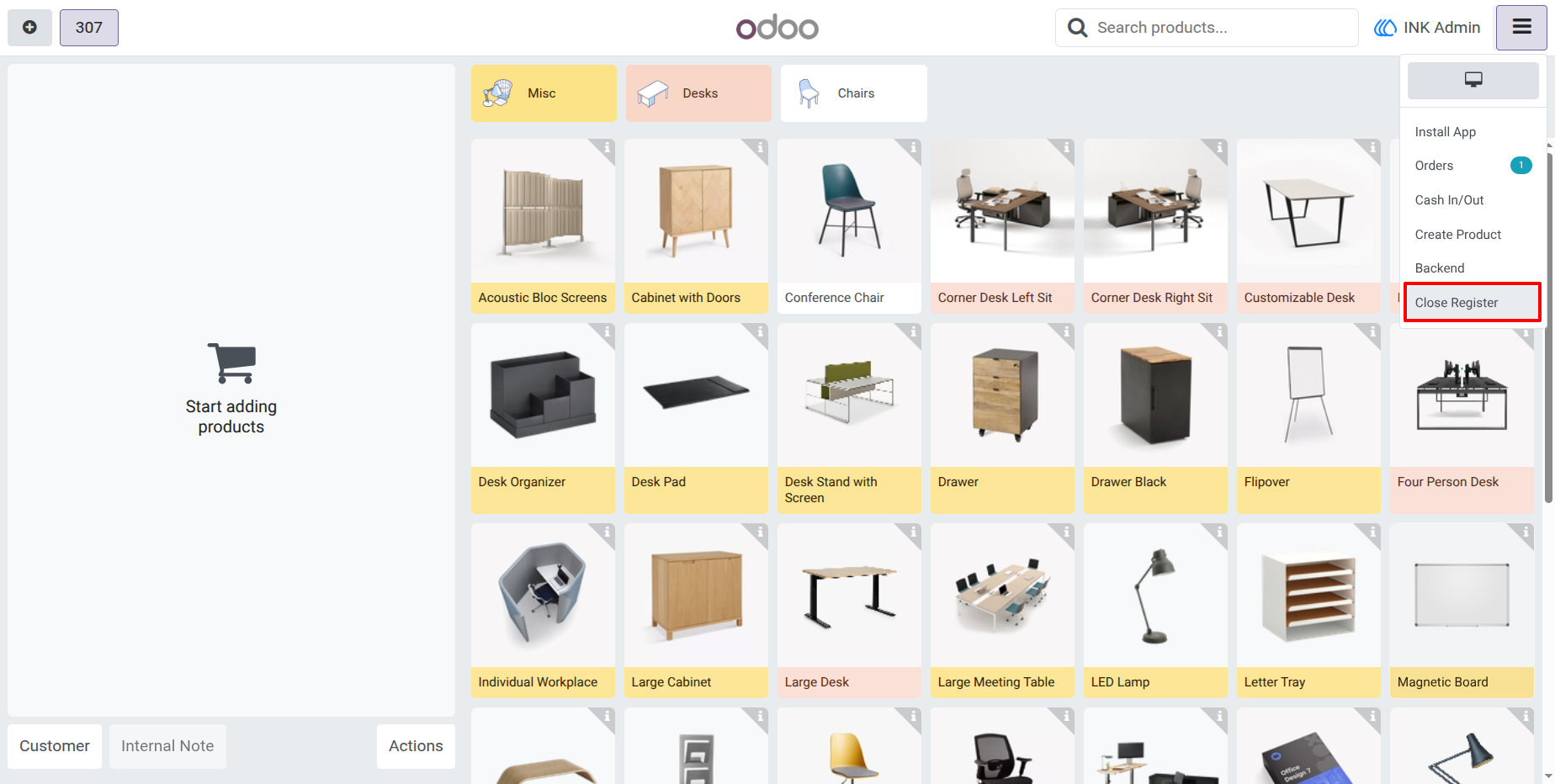
11.) Close the POS Register
Close the POS register normally after completing sales transactions. The analytic functionality works within the standard POS workflow, allowing users to continue regular session closing and accounting operations without additional manual processing.
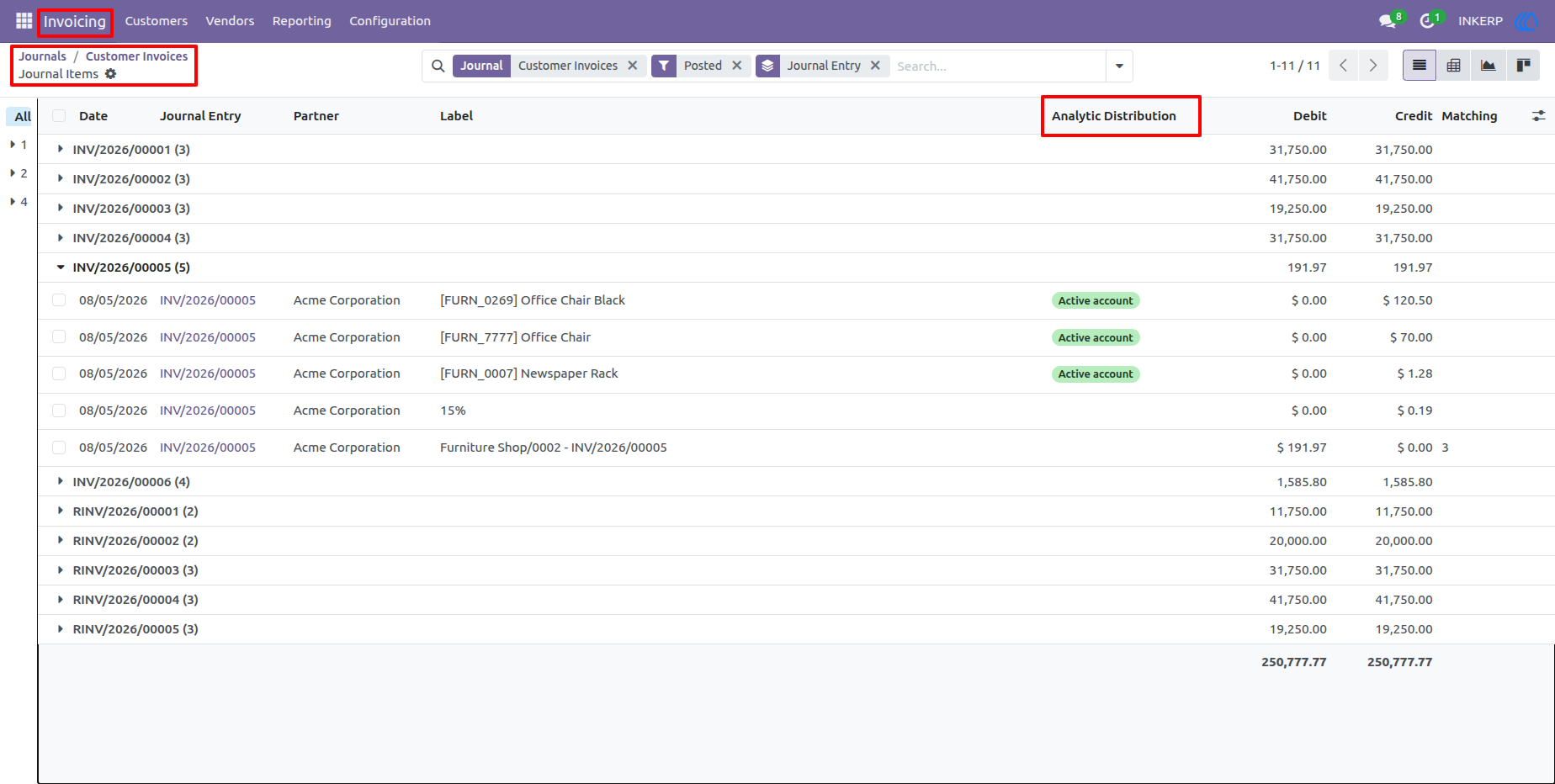
12.) Analytic Distribution in Journal Items
journal items receive native analytic distribution when the session accounting entries are created. Accounting users can review analytic values directly from journal items and use them in standard analytic reporting and financial analysis.
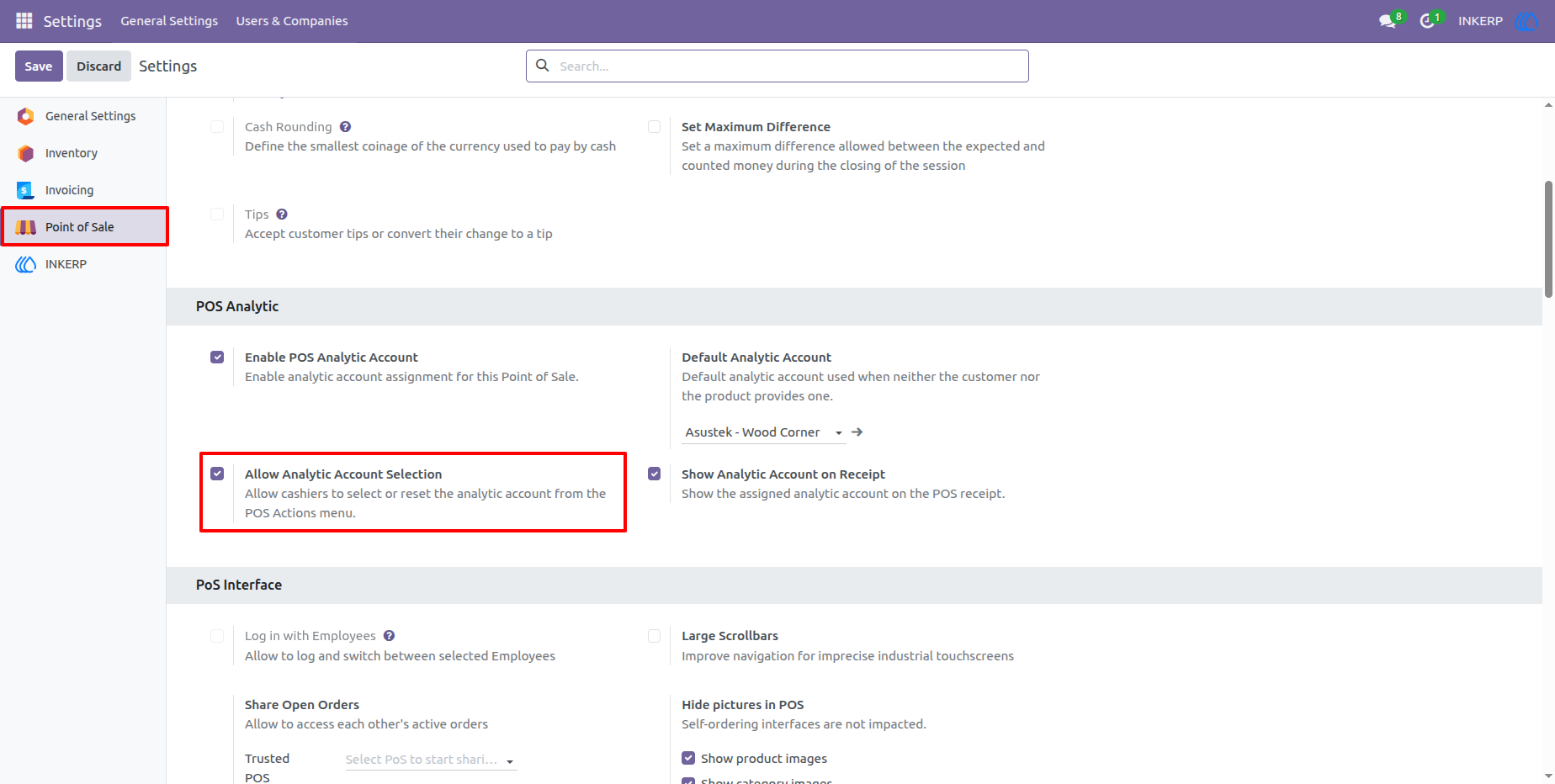
13.) Allow Analytic Account Selection
Enable the Analytic Account Selection option for a Point of Sale when cashiers should be able to change the account manually. Once enabled, an analytic account option becomes available from the POS Actions menu.
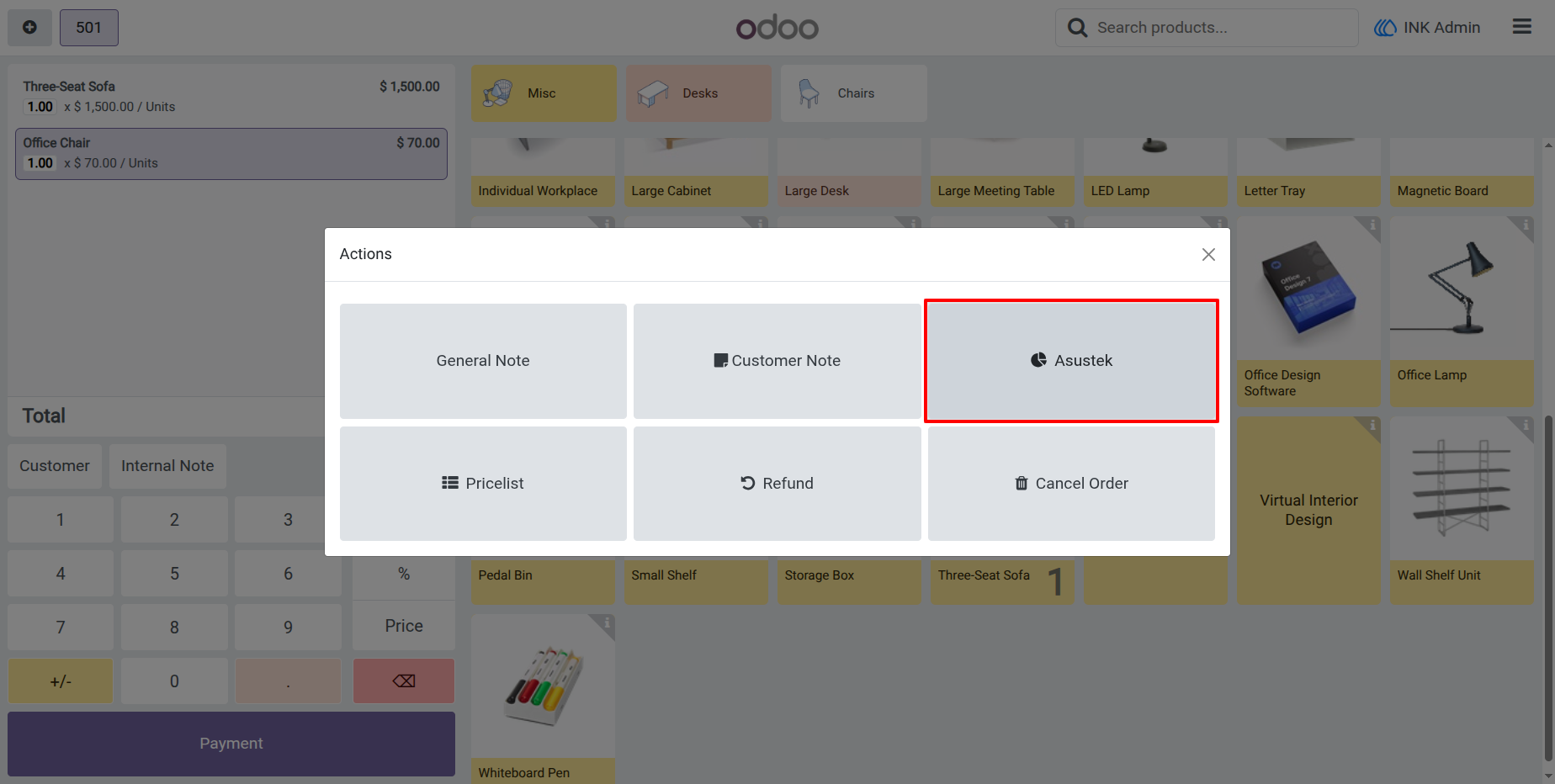
14.) Analytic Account in POS Actions
The currently selected analytic account is displayed as an option inside the POS Actions popup. Cashiers can quickly review the active account and open the selection window when a different analytic account is required for the order.
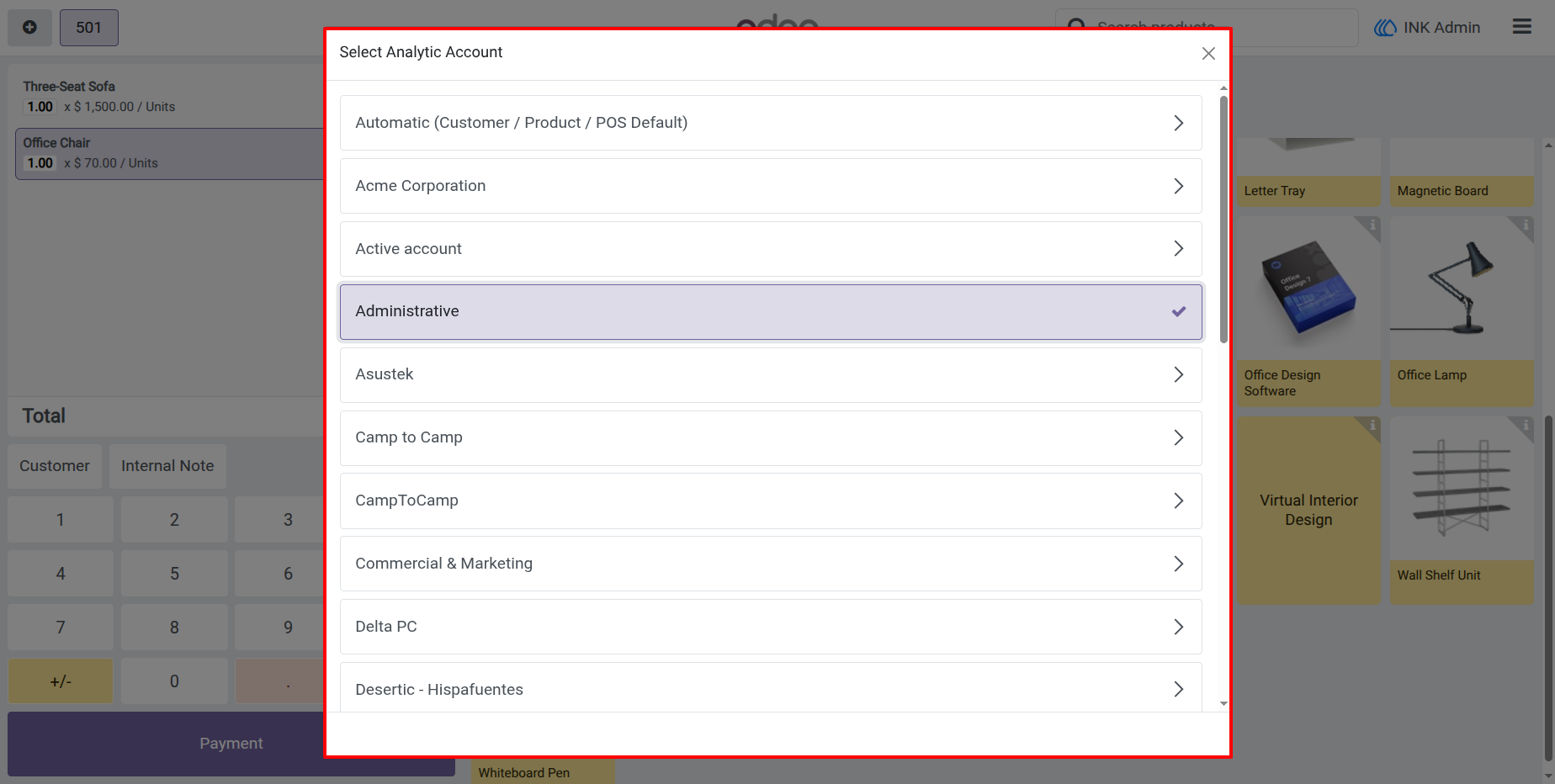
15.) Select an Analytic Account
Choose an analytic account from a clear and scrollable selection window directly inside the POS interface. Users can select a specific account or choose Automatic to restore account assignment based on the customer, product, and POS default configuration.
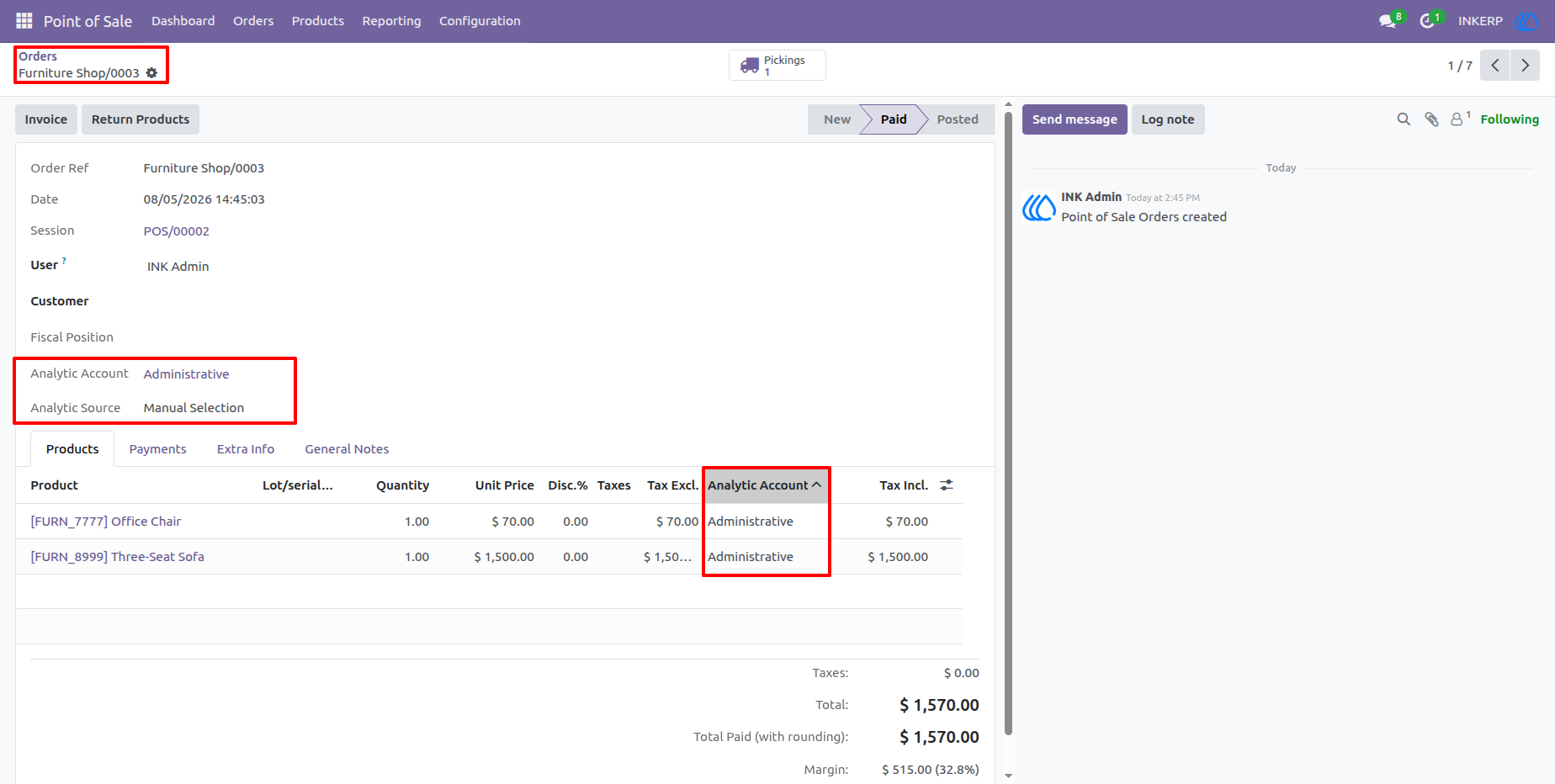
16.) Manually Selected Analytic Account on Order
Orders created after a manual analytic selection store the chosen account together with the source value “Manual Selection.” The selected account is also propagated to applicable order lines, making manual overrides easy to identify from the backend.
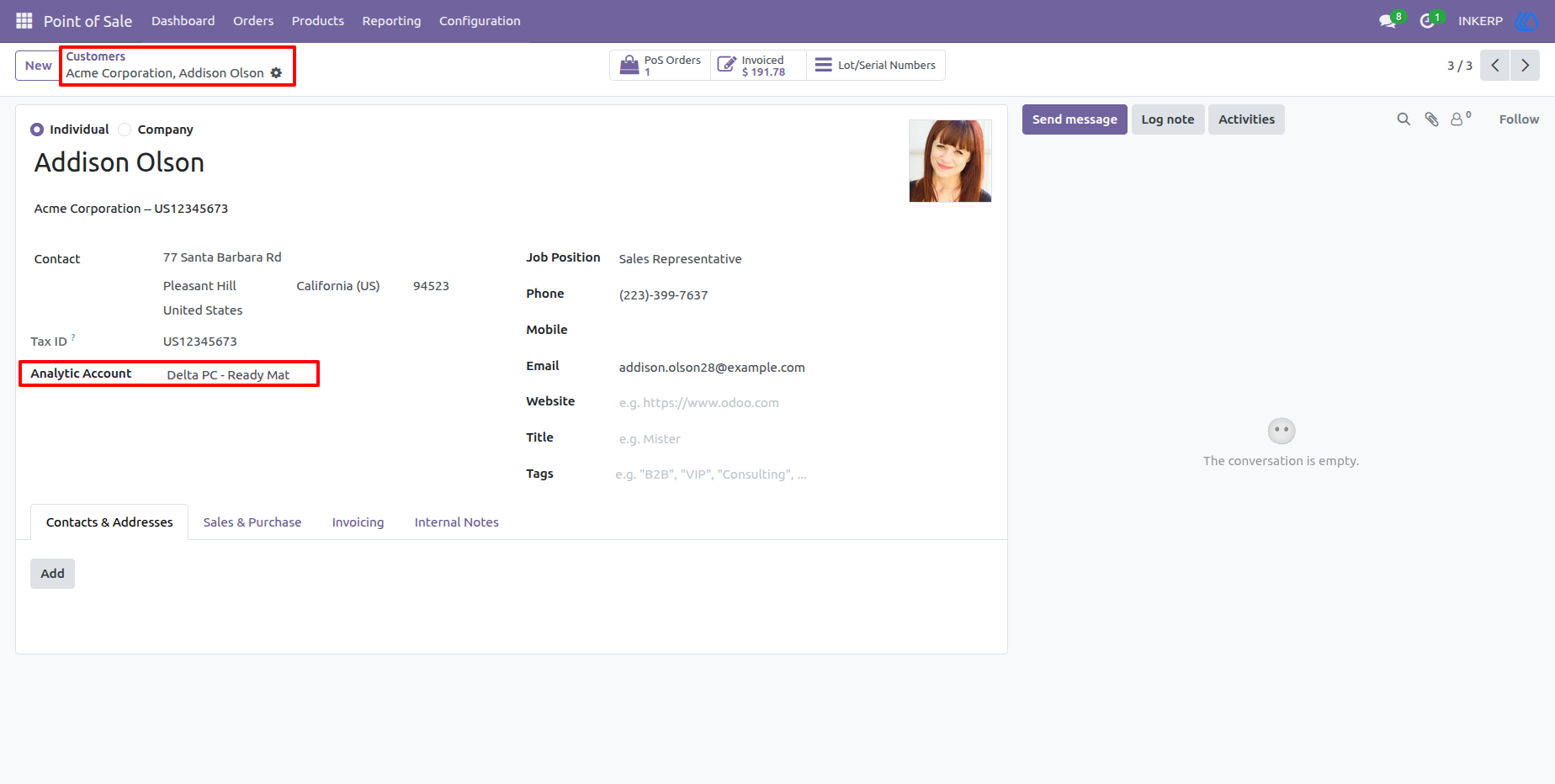
17.) Configure Customer Analytic Account
Assign a POS Analytic Account directly to a customer record. When that customer is selected during a POS transaction, the configured customer analytic account can automatically become the order-level analytic account.
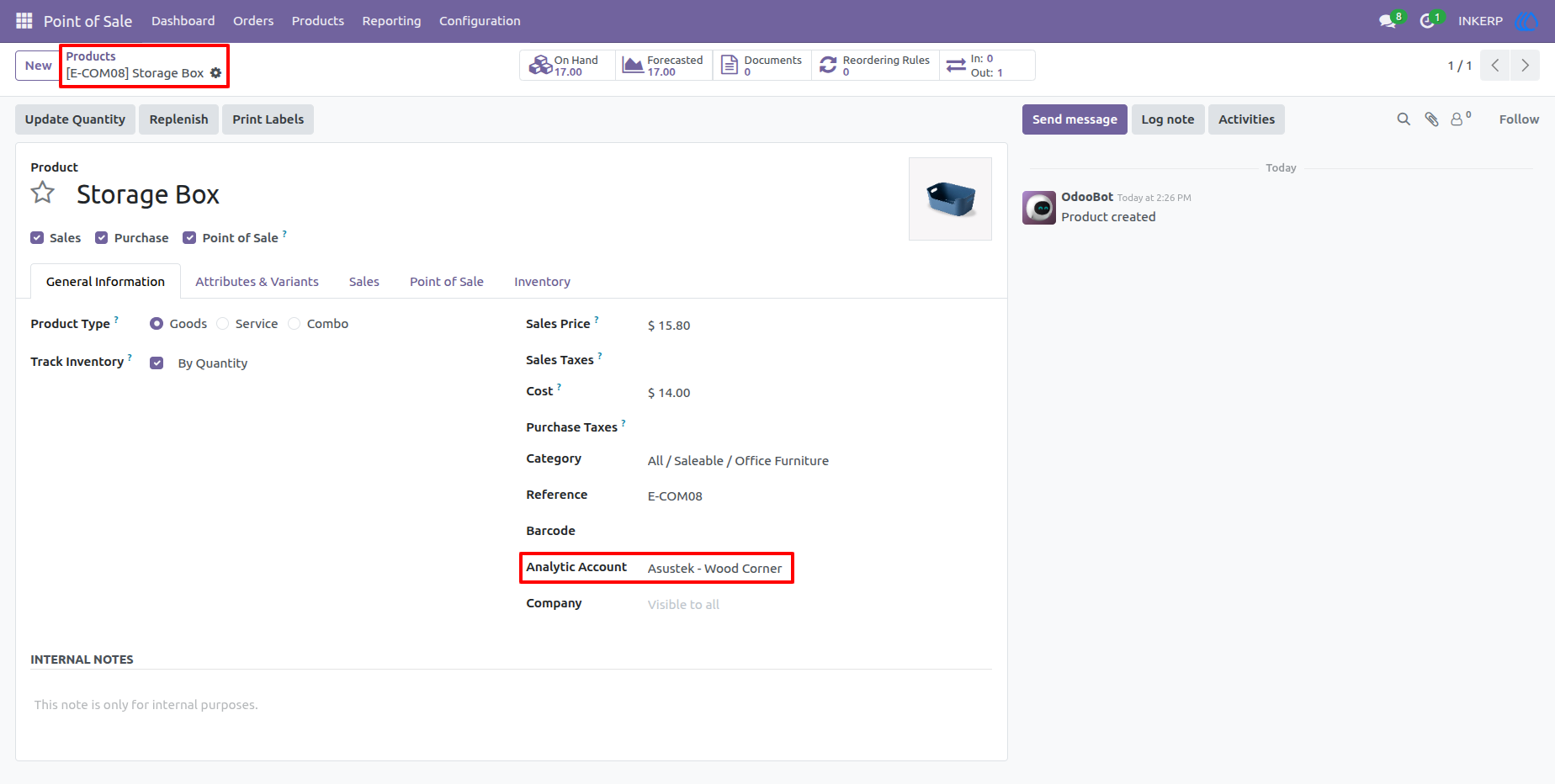
18.) Configure Product Analytic Account
Assign a dedicated POS Analytic Account to an individual product. Product-specific analytic accounts provide more precise classification because the related POS order line can use its own analytic value instead of the customer or POS default.
19.) Use Customer and Product Analytics in POS
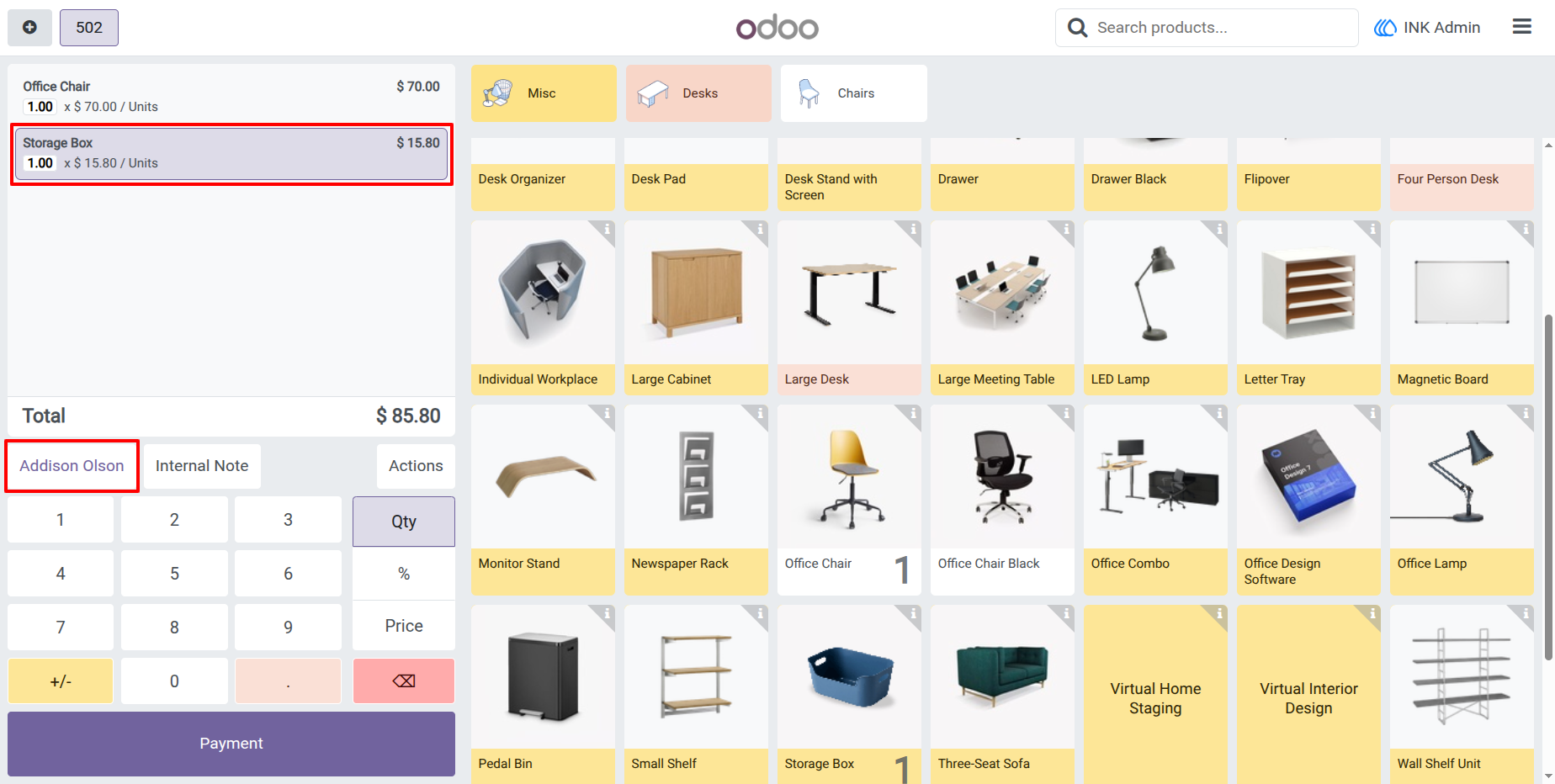
Select a customer and add products normally in the POS interface after their analytic accounts have been configured. The app automatically evaluates the available customer, product, and POS information without adding extra steps to the cashier's regular sales workflow.
20.) Customer and Product Analytic Accounts on Order Lines
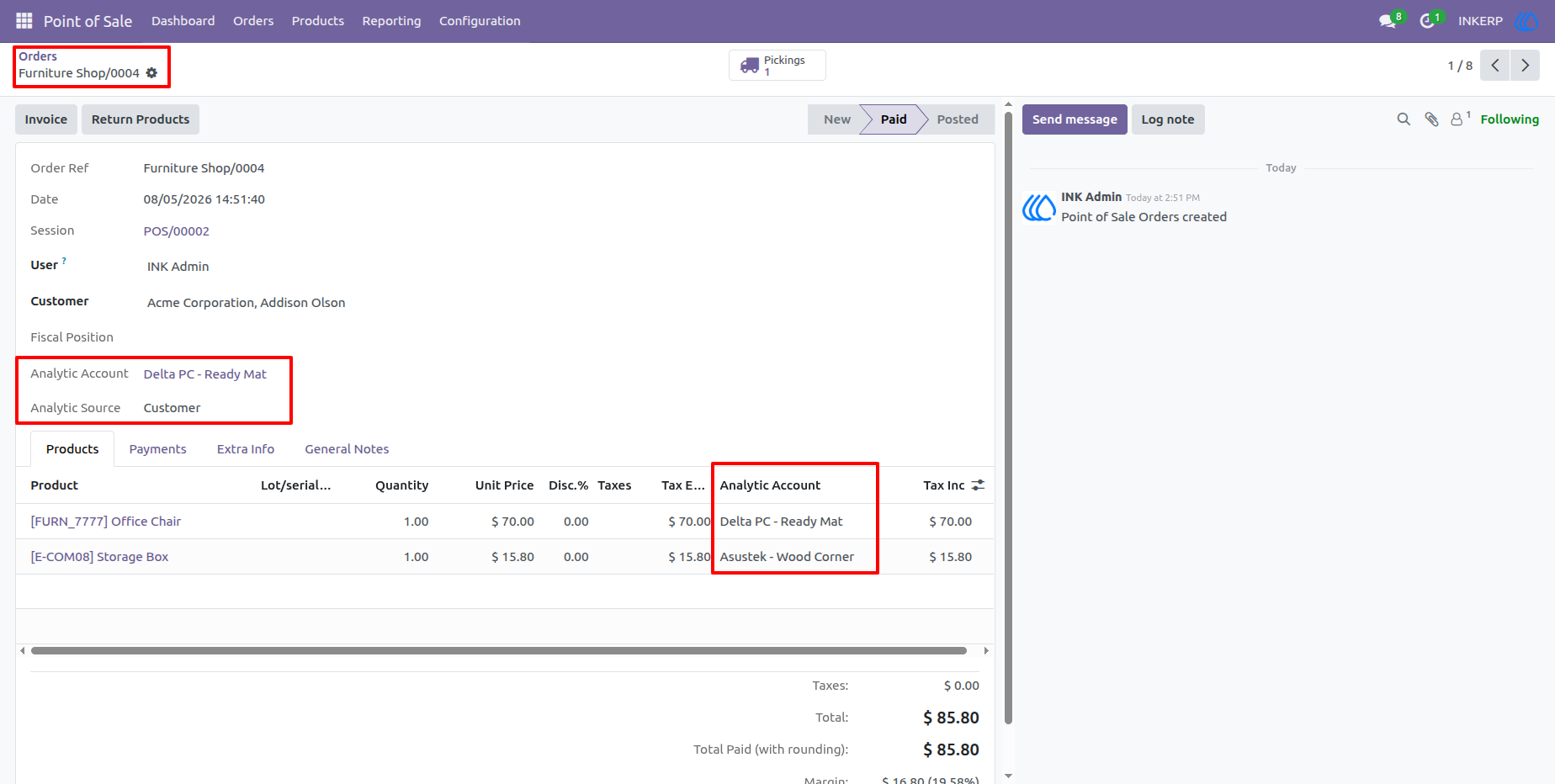
The completed POS order clearly shows the analytic account applied at the order level using the priority Manual Selection > Customer Analytic Account > POS Default Analytic Account. If a product has its own analytic account, that product-specific account is retained on the corresponding order line, allowing a single POS transaction to contain multiple analytic classifications for more accurate financial tracking and reporting.
21.) Enable or Disable Analytic Account on POS Receipt
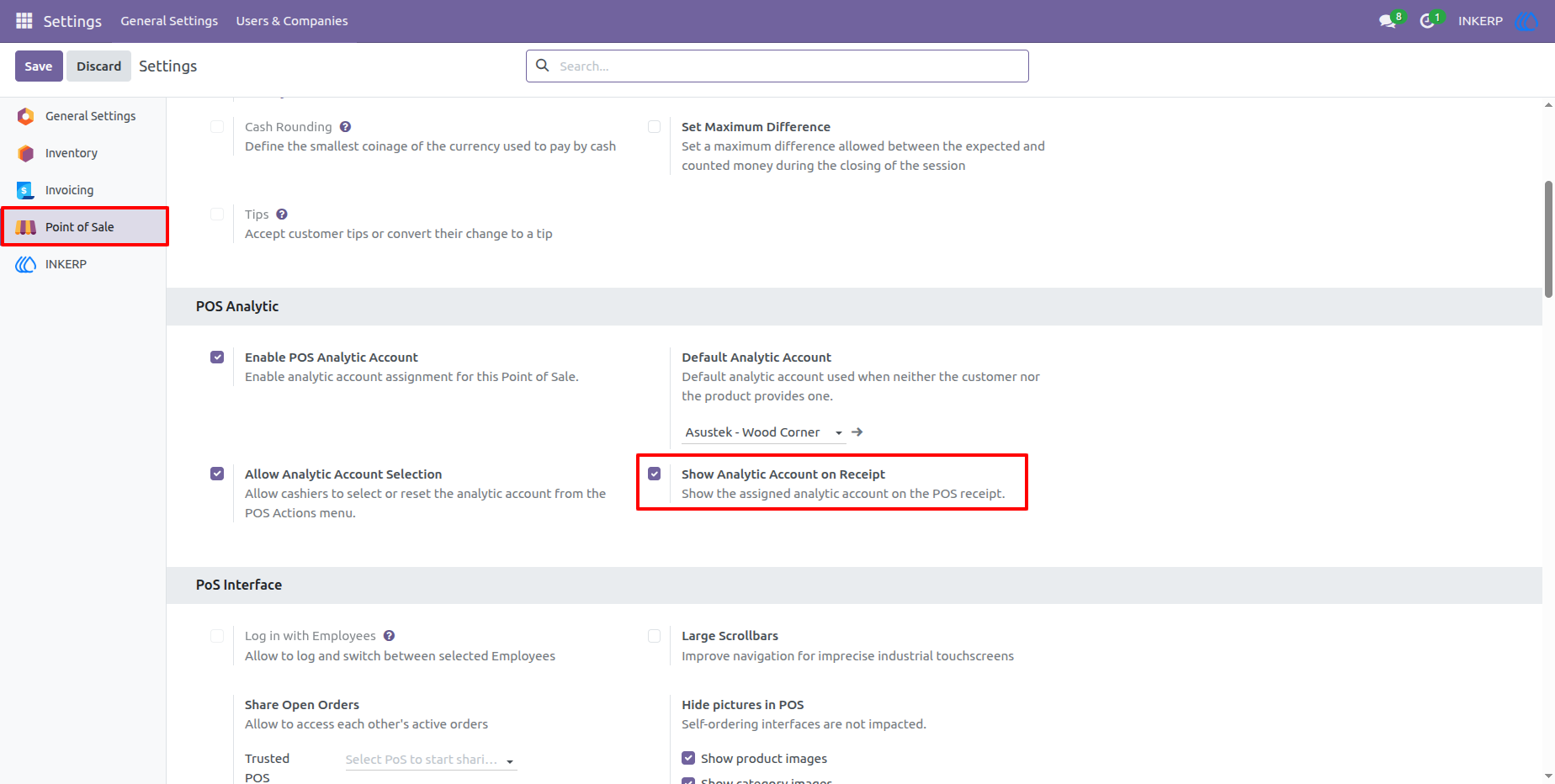
Use this setting to control whether analytic account details are displayed on POS receipts. Enable the option to show the assigned analytic account on the receipt, or disable it to hide analytic information while keeping all other POS analytic features active.
User Guide