

Our Most Suggested Products


Order Template in Website
Create and manage reusable product templates directly from the website portal for faster and easier ordering. Portal users can create, update, and remove templates according to their requirements. Each template can be customized with selected products and quantities for repeated purchases. Users with Manage Website Order Template access can view, modify, and delete templates created by all portal customers. Simplifies recurring orders while keeping product templates organized and easy to manage.
Video Tutorial
 Features
 Screenshots
 Support
 Service
Features
Create Product Order Templates
Create reusable product templates directly from the website portal with selected products and quantities. Frequently ordered products can be saved together for faster and more convenient repeat ordering.
Edit and Customize Templates
Modify existing product templates whenever product selections or quantities need to be changed. Templates can be updated easily to match changing ordering requirements.
Delete Unused Templates
Remove product templates that are no longer required from the website portal. This keeps saved templates organized and helps maintain a clean ordering experience.
Manage Customer Templates
Users with Manage Website Order Template access can view and manage product templates created by all portal customers. Templates can be edited or deleted when administrative management is required.
Screenshot
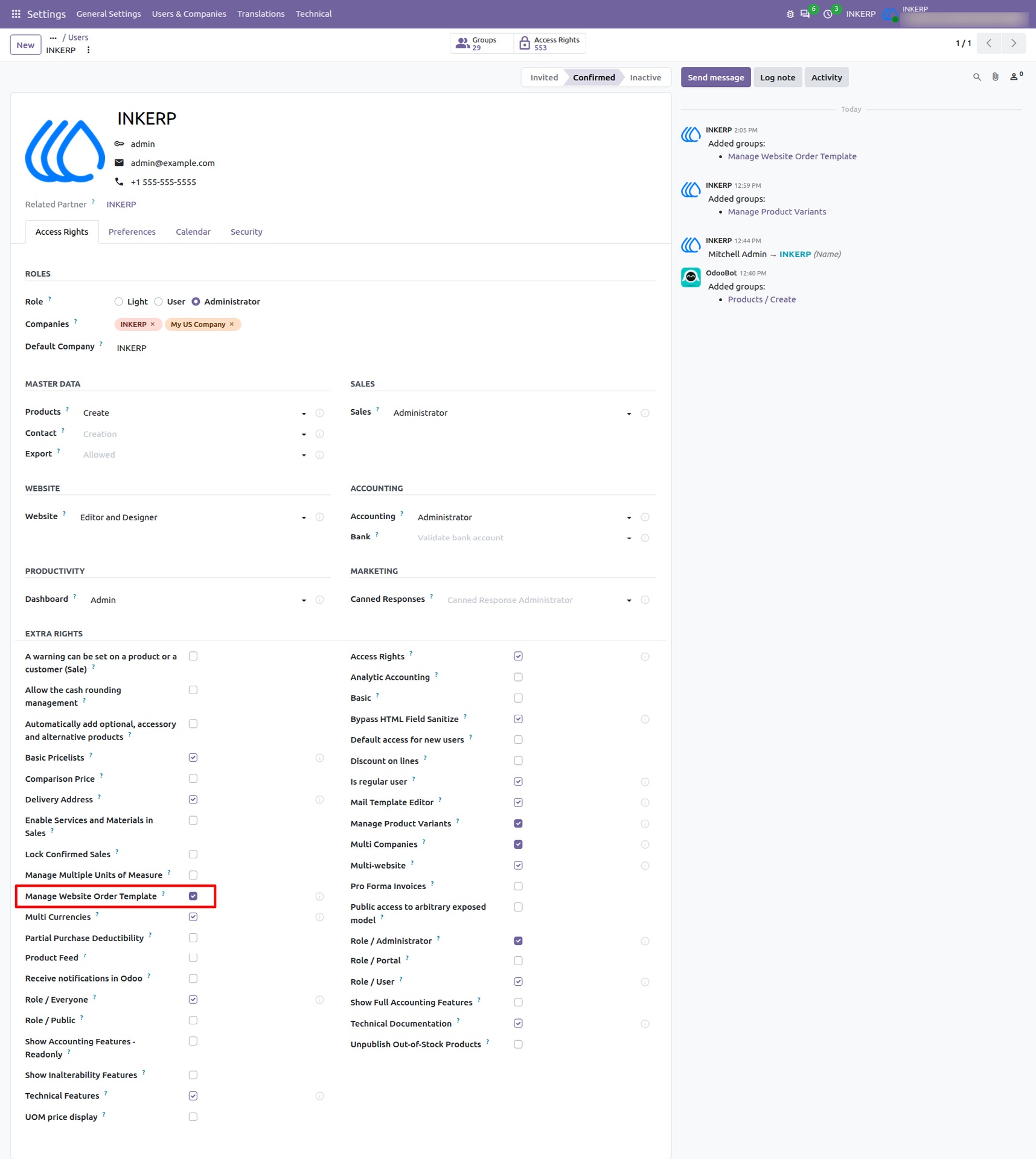
1.) Manage Website Order Template Access :
Enable the Manage Website Order Template access right to allow specific internal users to view, modify, and delete product templates created by all portal customers. Providing this administrative permission ensures that saved templates remain organized and can be easily managed or cleaned up from the backend when required.
Navigation : Settings → Users & Companies → Users
2.) Manage Customer Order Templates :
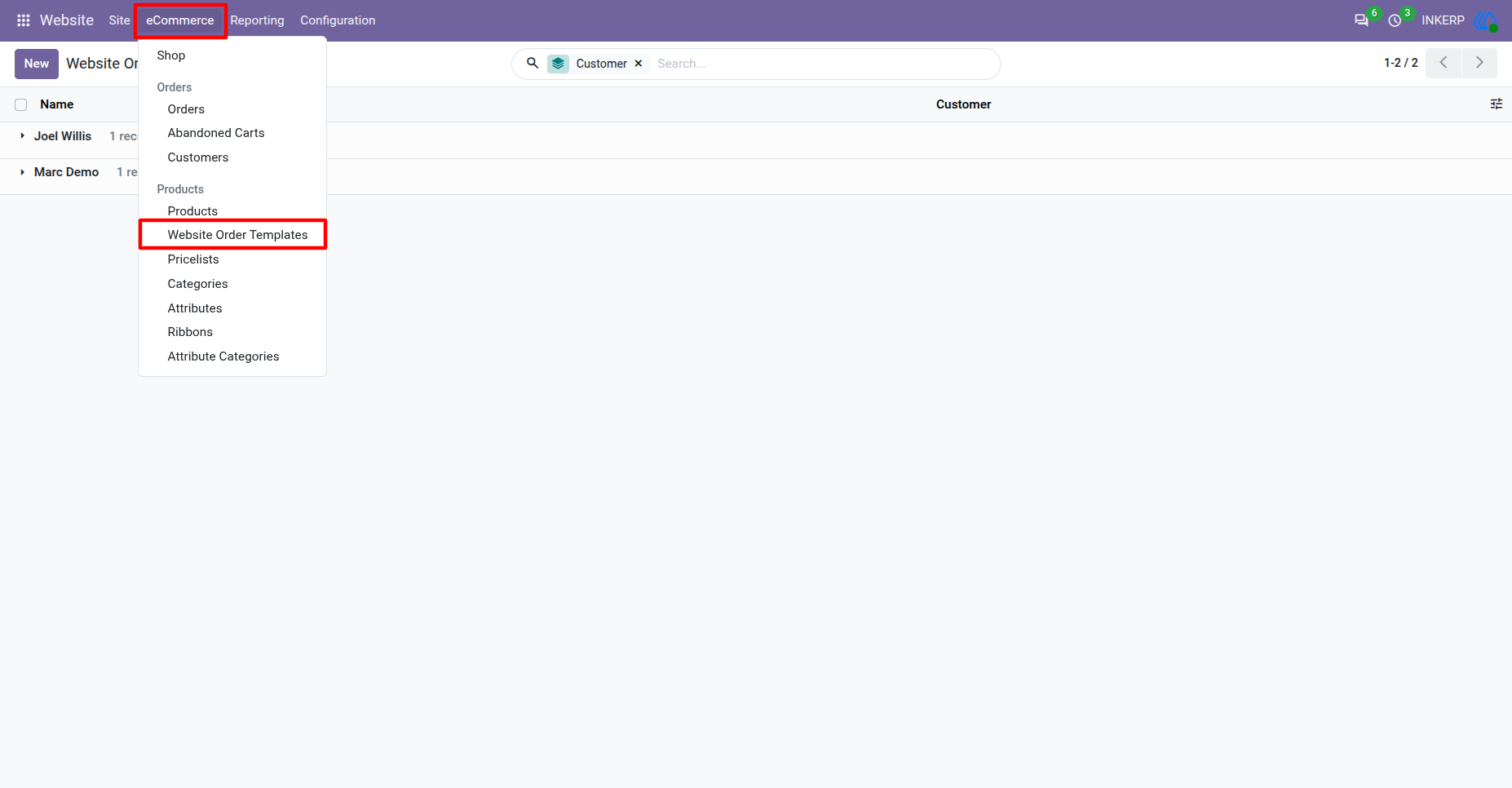
Authorized administrators can access a centralized backend view to oversee all product order templates created by portal customers. From this interface, you can easily view, manage, edit, or delete these customer templates to ensure the ordering system remains clean and organized.
Navigation : Website → eCommerce → Website Order Templates
3.) Configure Product Order Templates :
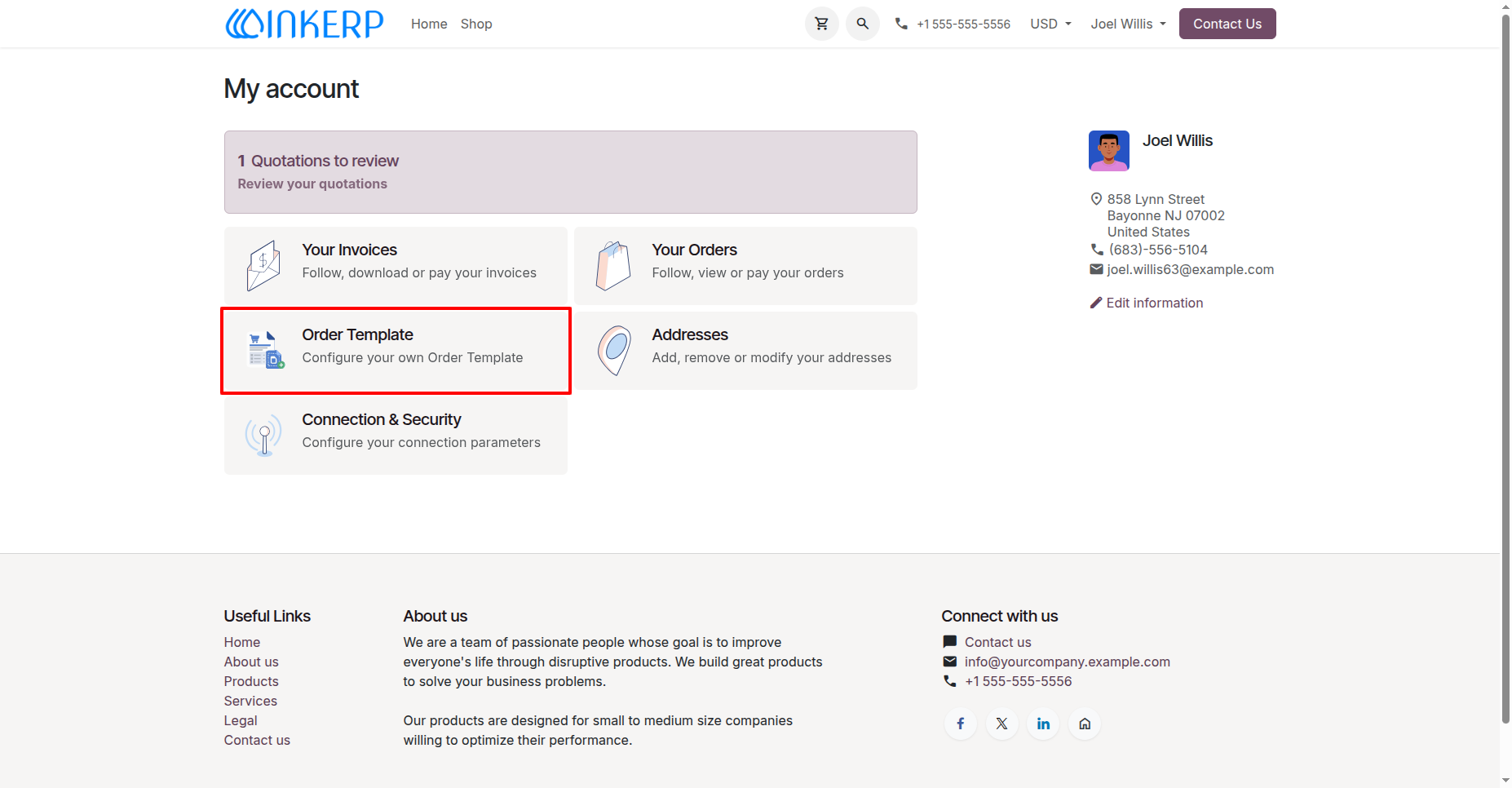
All portal users can view and access the Order Template menu directly from their website account dashboard. This dedicated section allows any customer to easily create, manage, and configure their own reusable product templates for faster and more convenient repeat ordering.
4.) Manage Saved Order Templates :
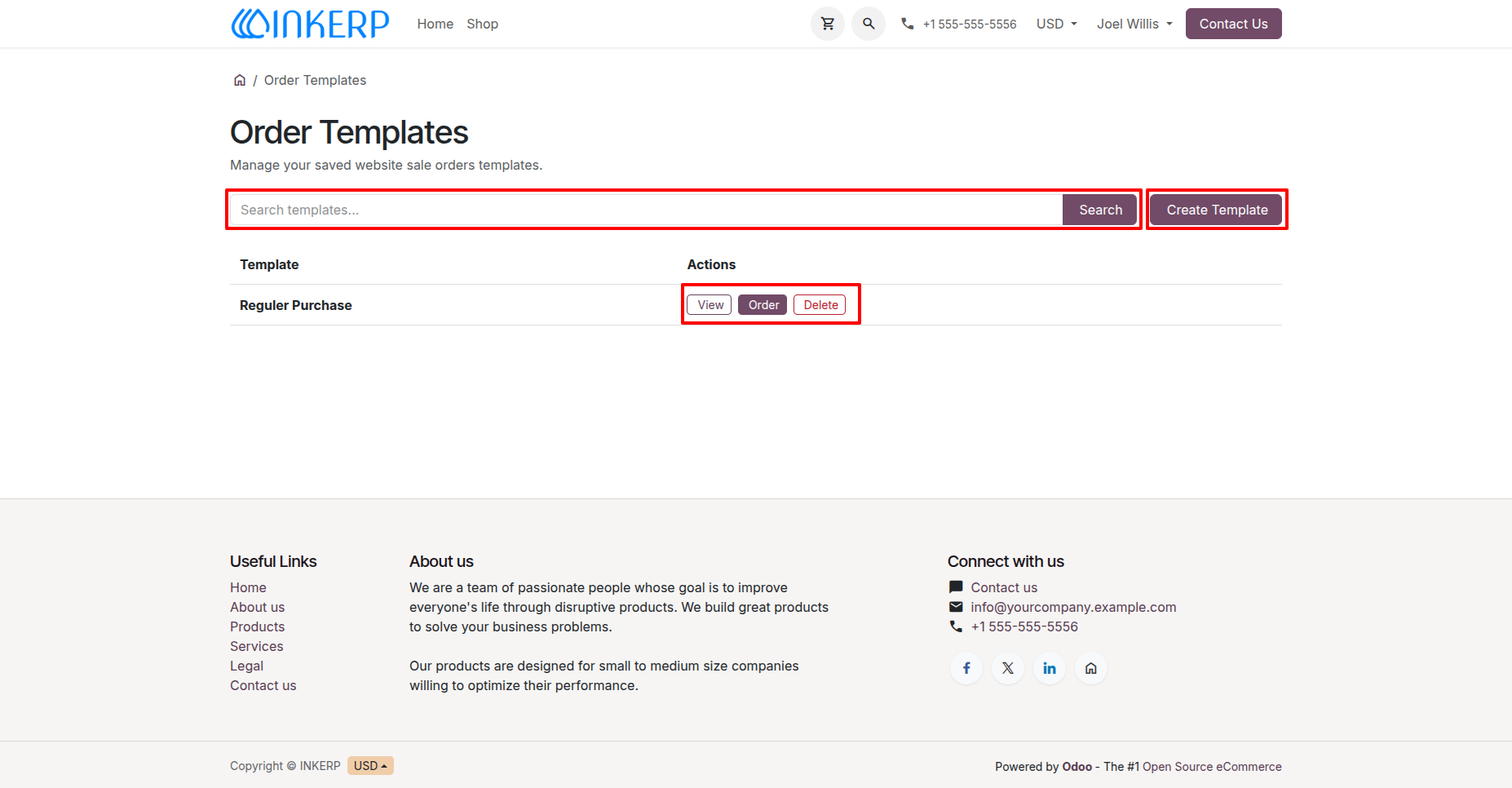
From the Order Templates dashboard, portal users have full control over their saved website sale order templates. They can easily search for specific lists, use the "Create Template" button to build new ones, or utilize the quick action buttons to view, immediately place an order, or delete existing templates.
5.) Create Order Templates :
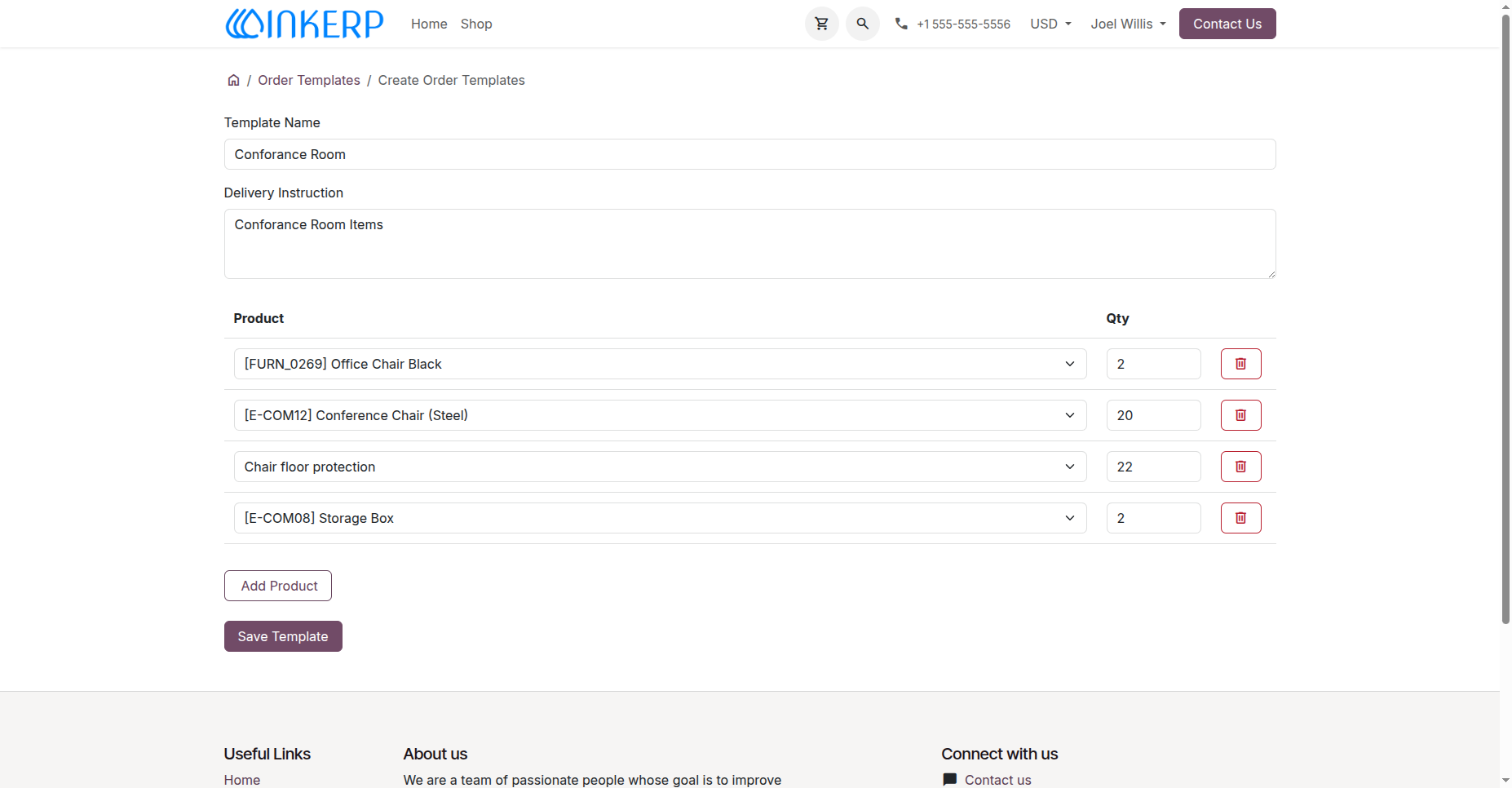
When building a new order template, portal users can specify a Template Name and include specific Delivery Instructions to keep their orders organized. The intuitive interface allows customers to seamlessly add desired products via a dropdown menu, set exact quantities for each item, and save the finalized list for quick repeat purchasing.
6.) view, Edit, and Orders or Delete :
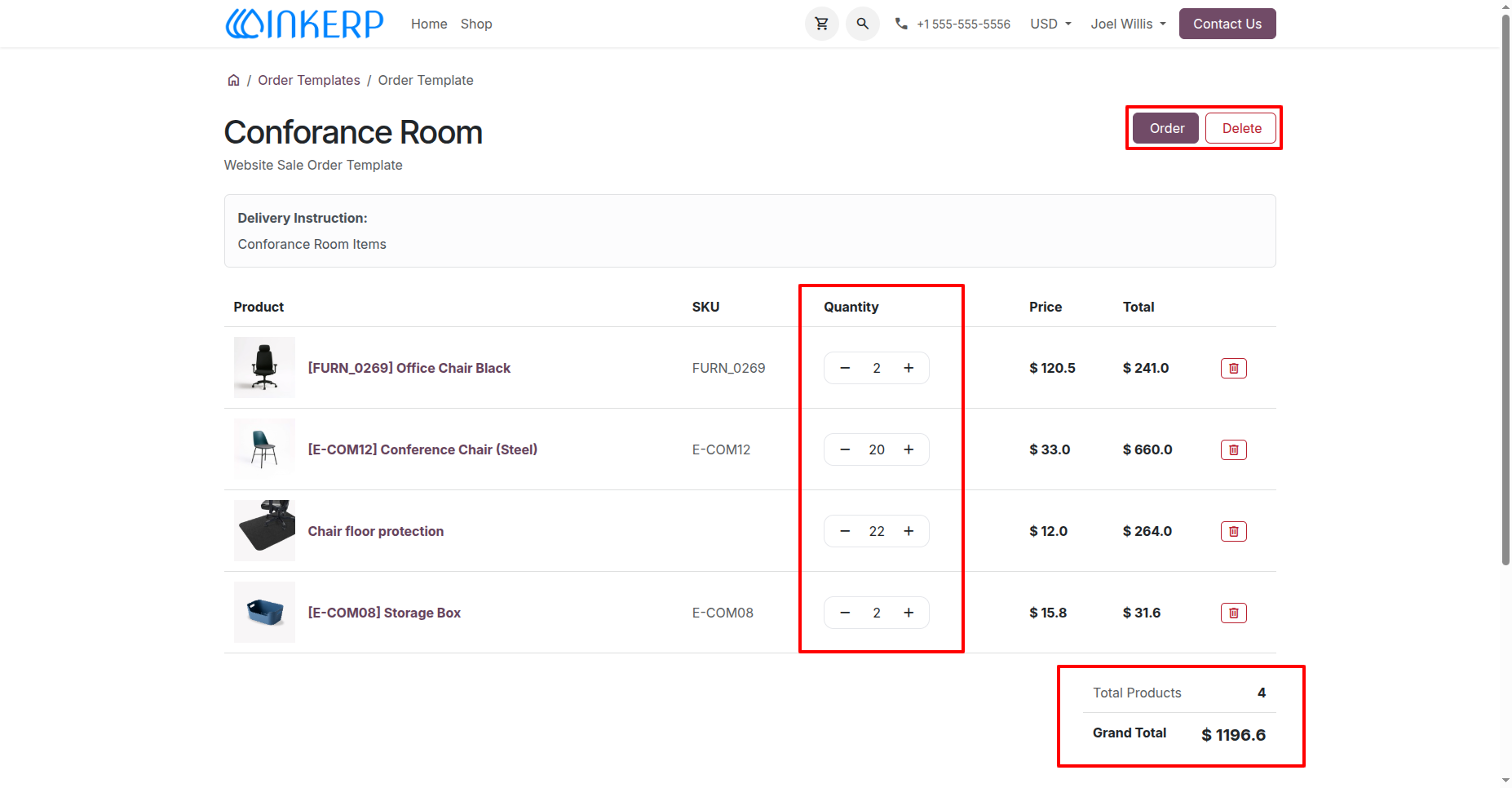
Within a saved template, portal users can review a detailed breakdown of their list, including individual product prices and the calculated grand total. Customers can quickly fine-tune their upcoming purchase by adjusting item quantities using the plus or minus buttons, instantly add the items to their cart using the Order button, or completely remove the list using the Delete button.
User Guide





