


Our Most Suggested Products


Vehicle Repair Management
Vehicle Service & Repair Management System is a complete solution for auto workshops, garages, and service centers. It allows you to manage vehicle repairs, create and track work orders, organize service teams, and control spare parts with ease. With smart features like vehicle identification by plate number, customizable service templates, mechanic assignment, and automated customer notifications, it saves time and improves efficiency. The system also provides detailed reporting on services, revenue, and team performance, helping workshop owners streamline operations, grow their business, and deliver exceptional customer service.
Video Tutorial

 Features
 Screenshots
 Support
 Service
Features
Smart Vehicle & Customer Management
Save and track vehicle details by plate number with type, brand, fuel/engine, and history. Manage customer details alongside each vehicle for quick access and better service tracking.
Work Order & Service Management
Easily create, assign, and track service/repair work orders in real time using Kanban view. Use predefined service categories & templates to speed up job creation, ensure standardized repair processes, and monitor progress from draft to completion.
Team & Mechanic Assignment
Organize service teams and mechanics based on expertise. Assign jobs efficiently, manage repair teams, and keep clear visibility of roles, skills, and responsibilities for higher productivity.
Spare Parts, Inventory & Billing
Manage spare parts inventory with stock monitoring, usage tracking, and detailed cost breakdowns. Automatically generate professional quotations, sales orders, and invoices from completed work orders for seamless billing.
Reports, Analytics & Communication
Get detailed reports on services, parts usage, costs, revenue, and team performance. Share updates, confirmations, receipts, and before/after images with customers via automated notifications to boost trust and satisfaction.
Screenshot
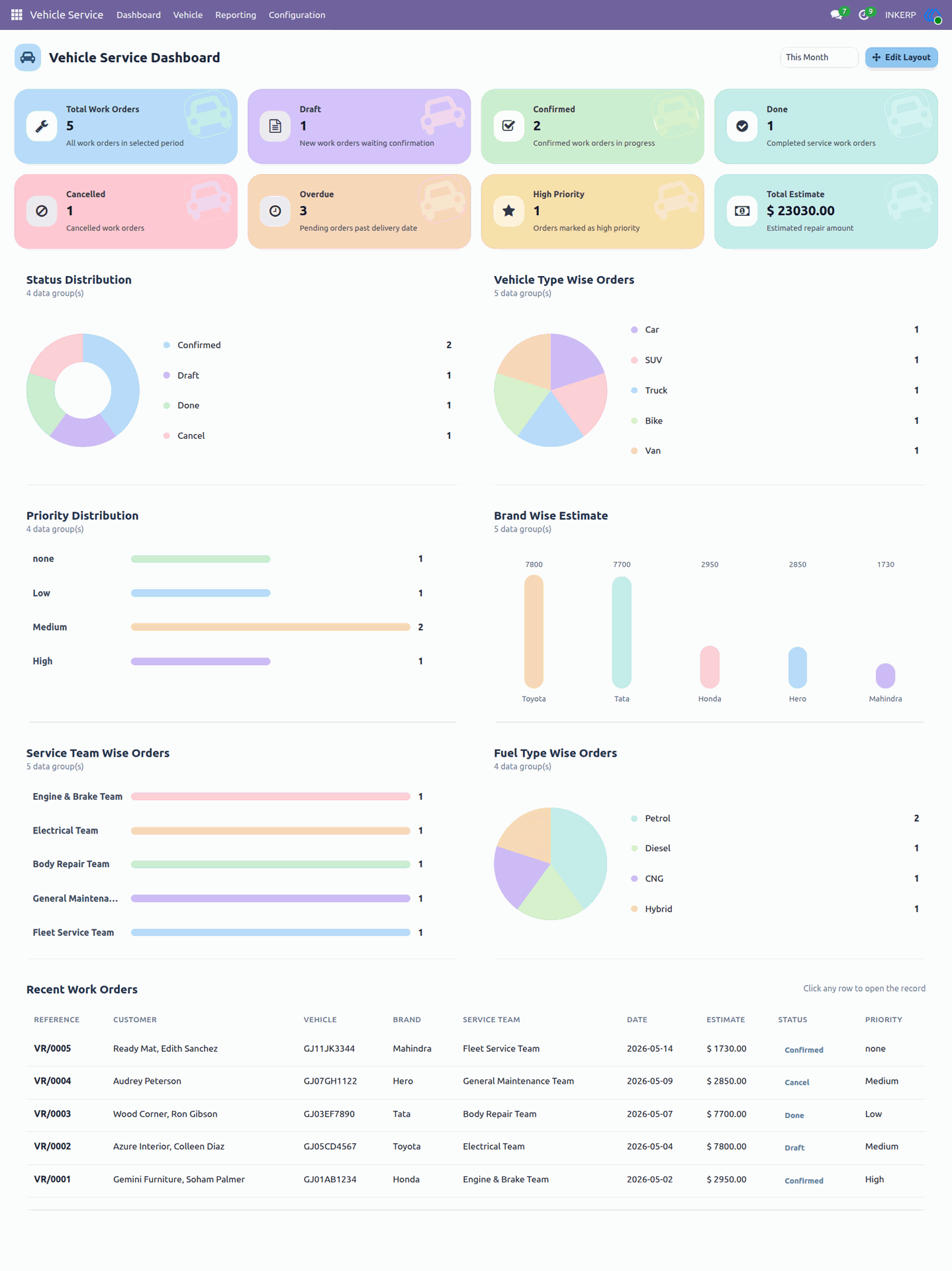
Dashboard
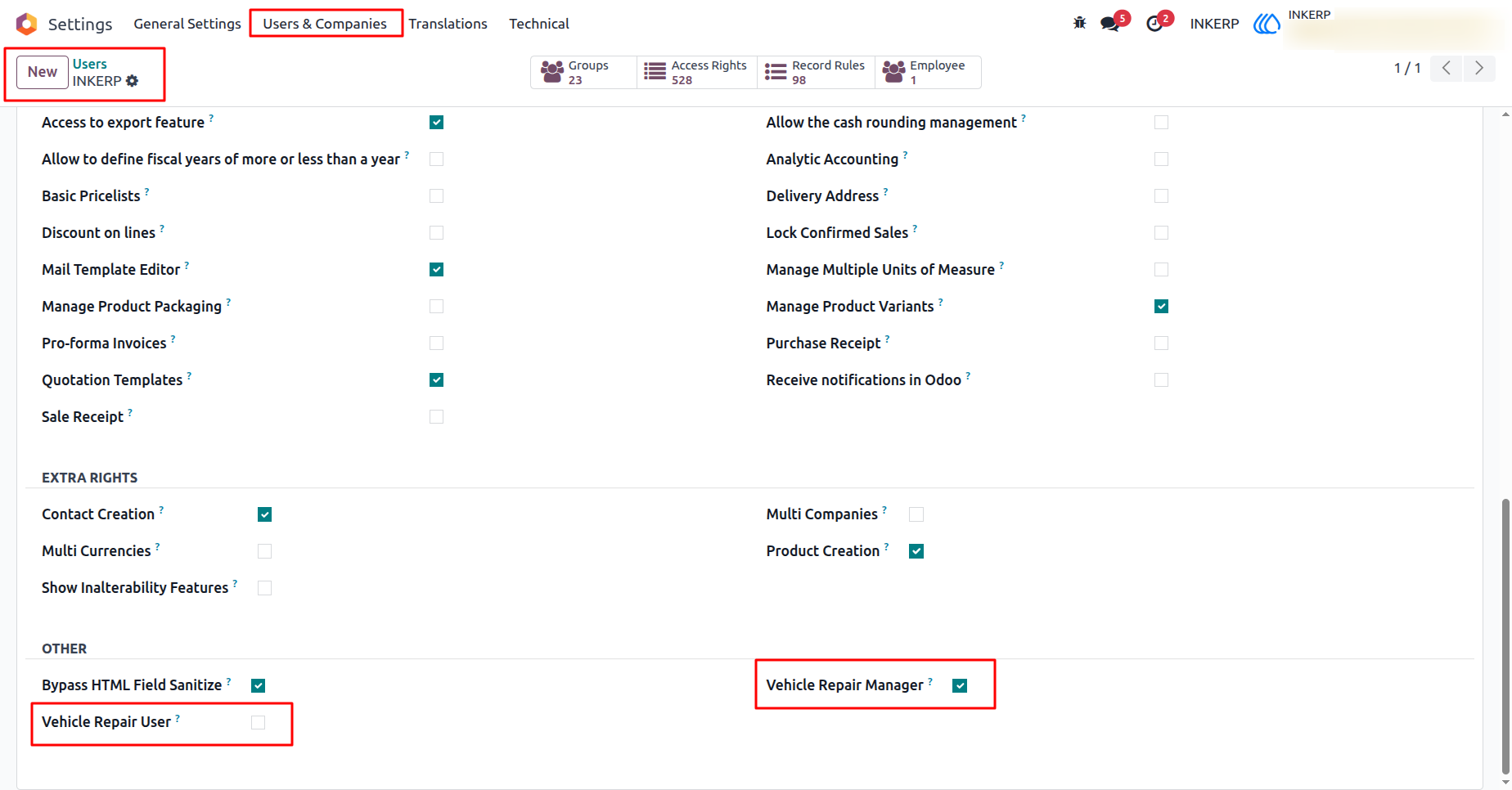
1.) User Roles & Access Rights
Easily manage permissions with role-based access. Assign Vehicle Repair Manager or User rights to control who can create, edit, or manage work orders.
Navigation : Settings › Users & Companies › Users
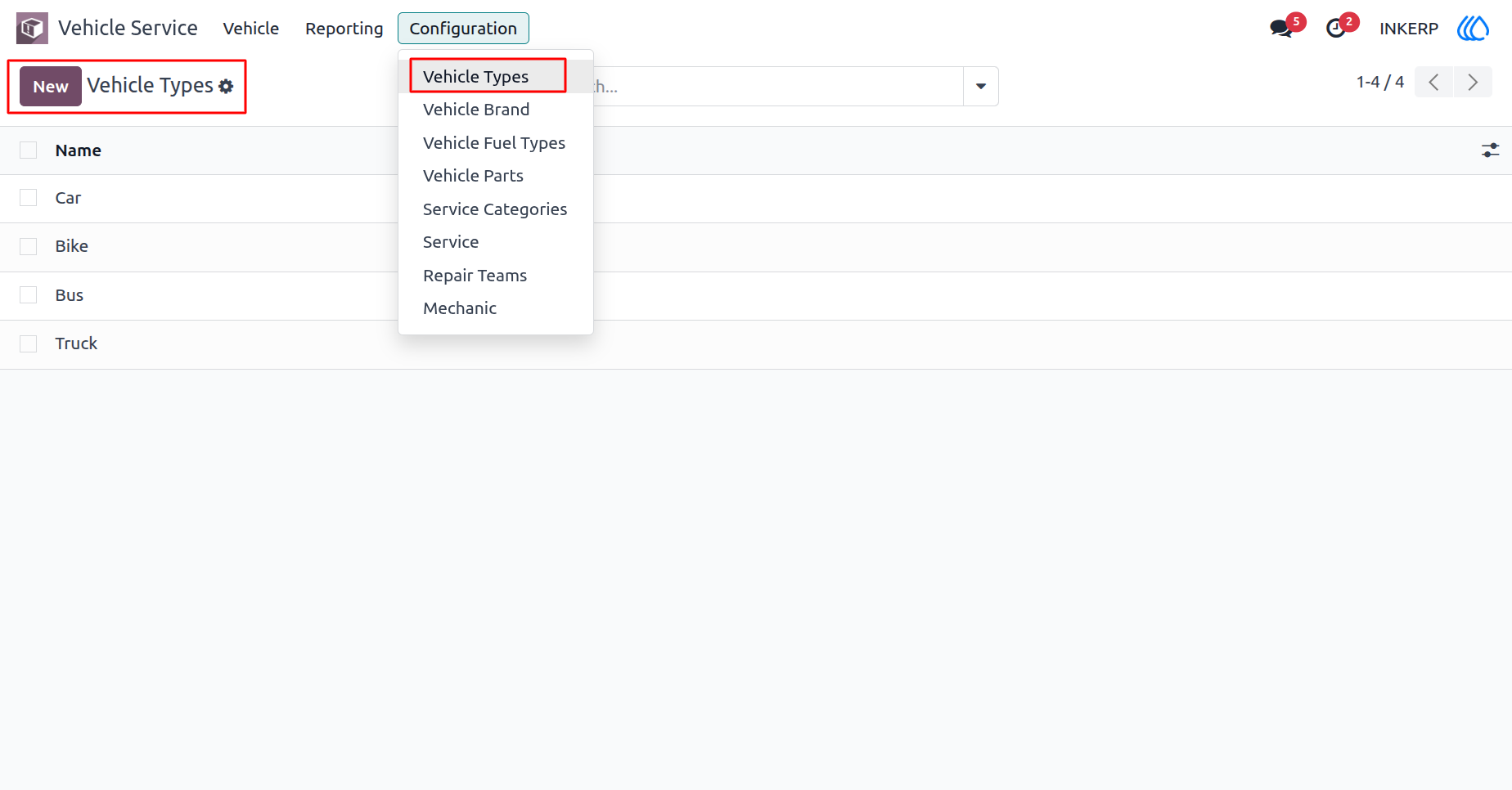
2.) Manage Vehicle Types
Easily configure and categorize vehicle types such as cars, bikes, buses, and trucks to streamline repair and service management.
Navigation : Vechicle Service › Configation › Vehicle Types
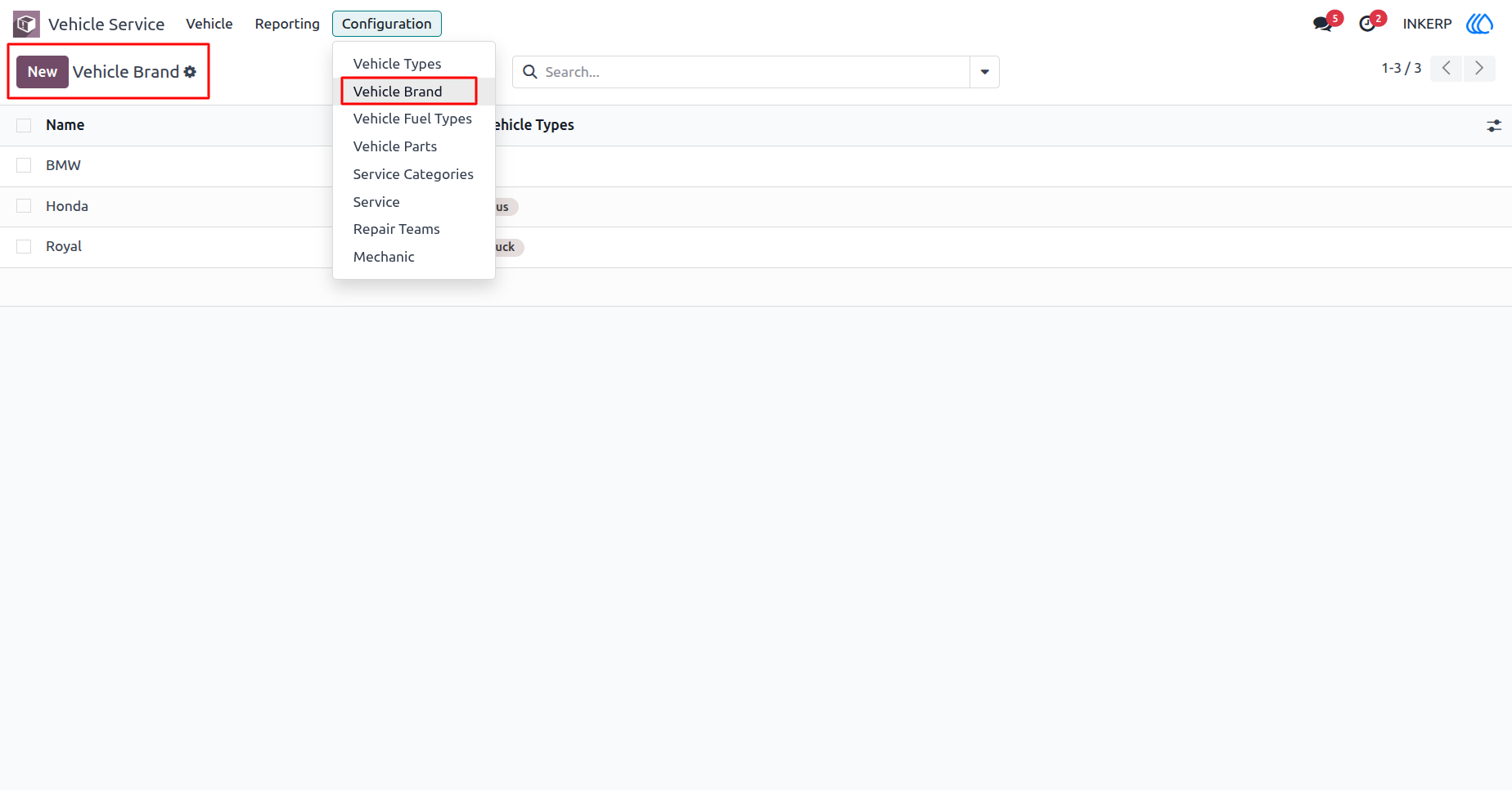
3.) Manage Vehicle Brands
Define and organize different vehicle brands (e.g., BMW, Honda, Royal) and link them to vehicle types for better service management.
Navigation : Vechicle Service › Configation › Vehicle Brand
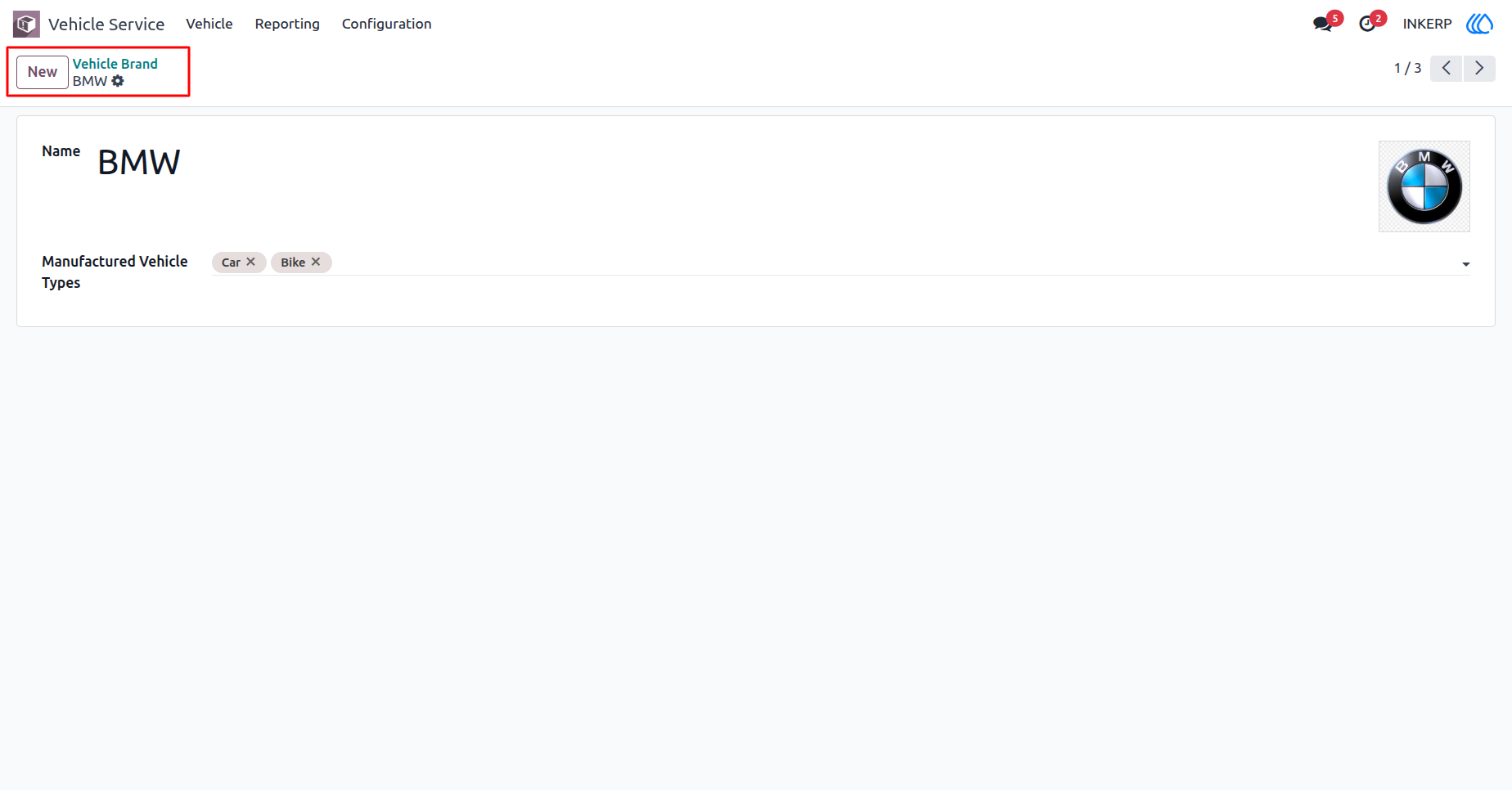
4.) Vehicle Brand Details
View and manage details of a specific vehicle brand (e.g., BMW). Easily link manufactured vehicle types (Car, Bike, etc.) with the brand and maintain brand-specific data including logos.
5.) Vehicle Fuel Types
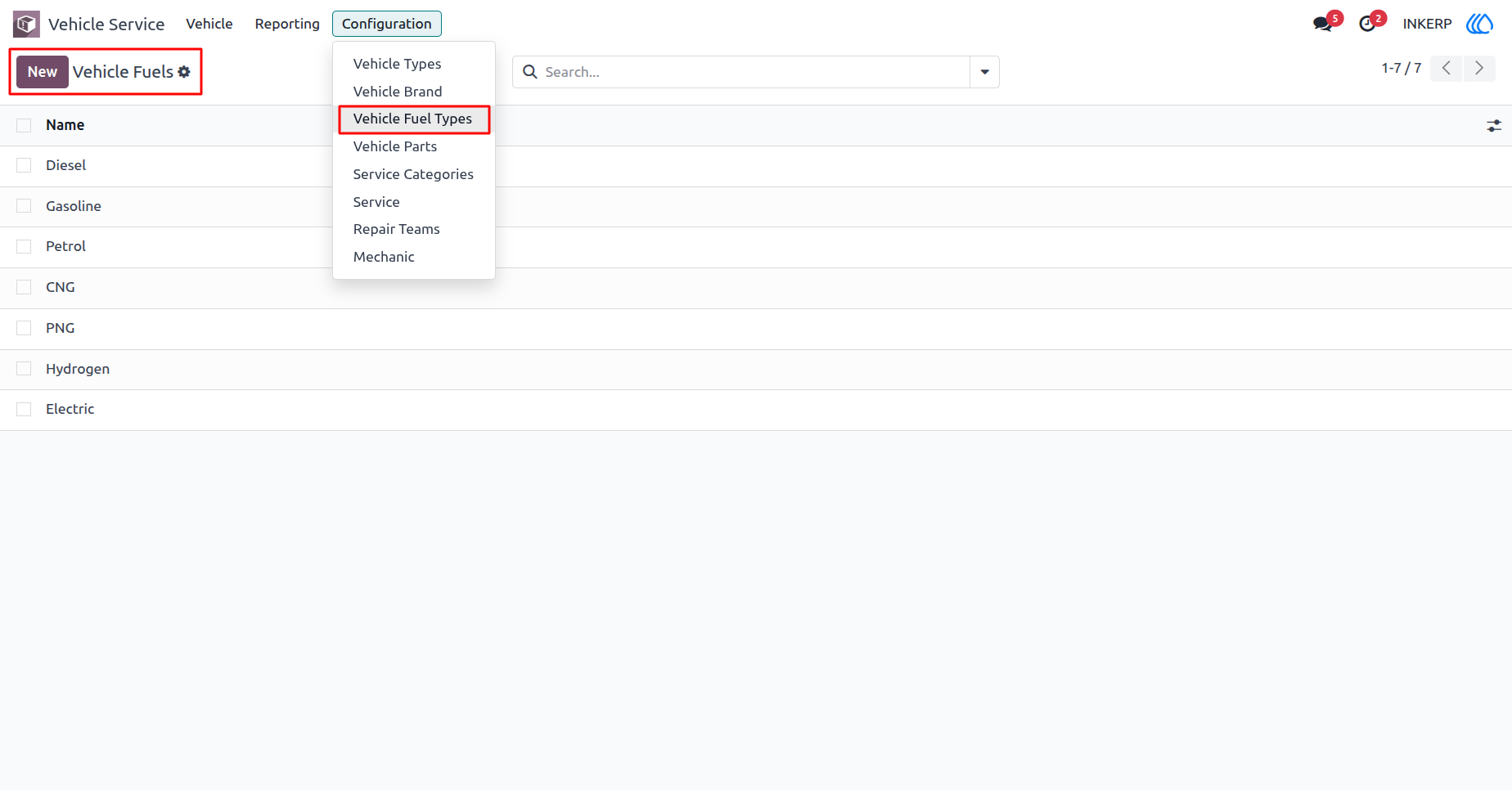
Define and manage different fuel types (Diesel, Petrol, CNG, Electric, etc.) used across vehicles. Helps in categorizing and tracking vehicle operations based on their fuel type.
Navigation : Vechicle Service › Configation › Vehicle Fuel Types
6.) Vehicle Parts
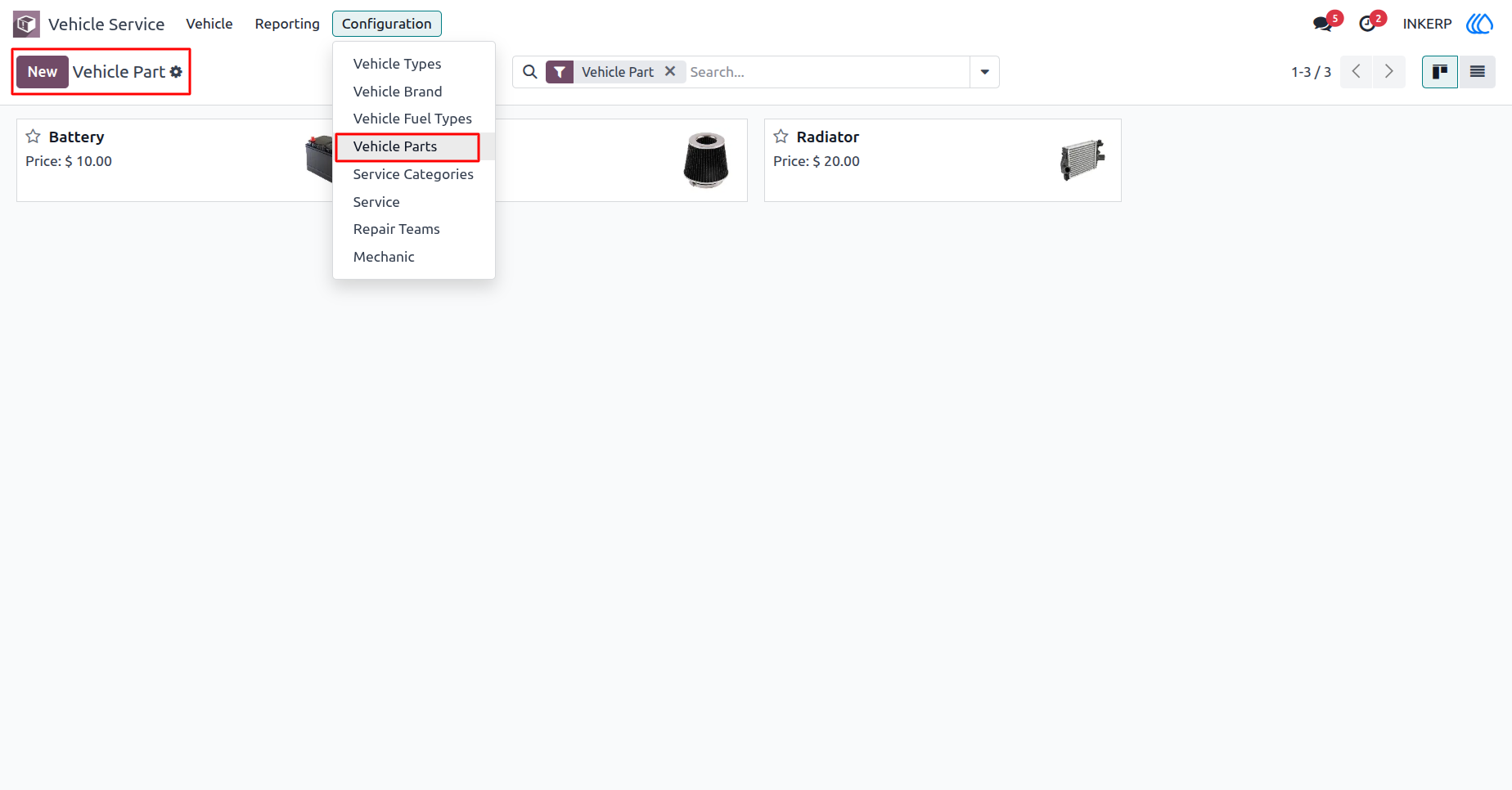
Manage all vehicle spare parts and components such as batteries, radiators, and filters. Each part can include details like price, images, and specifications to support service and repair operations.
Navigation : Vechicle Service › Configation › Vehicle Parts
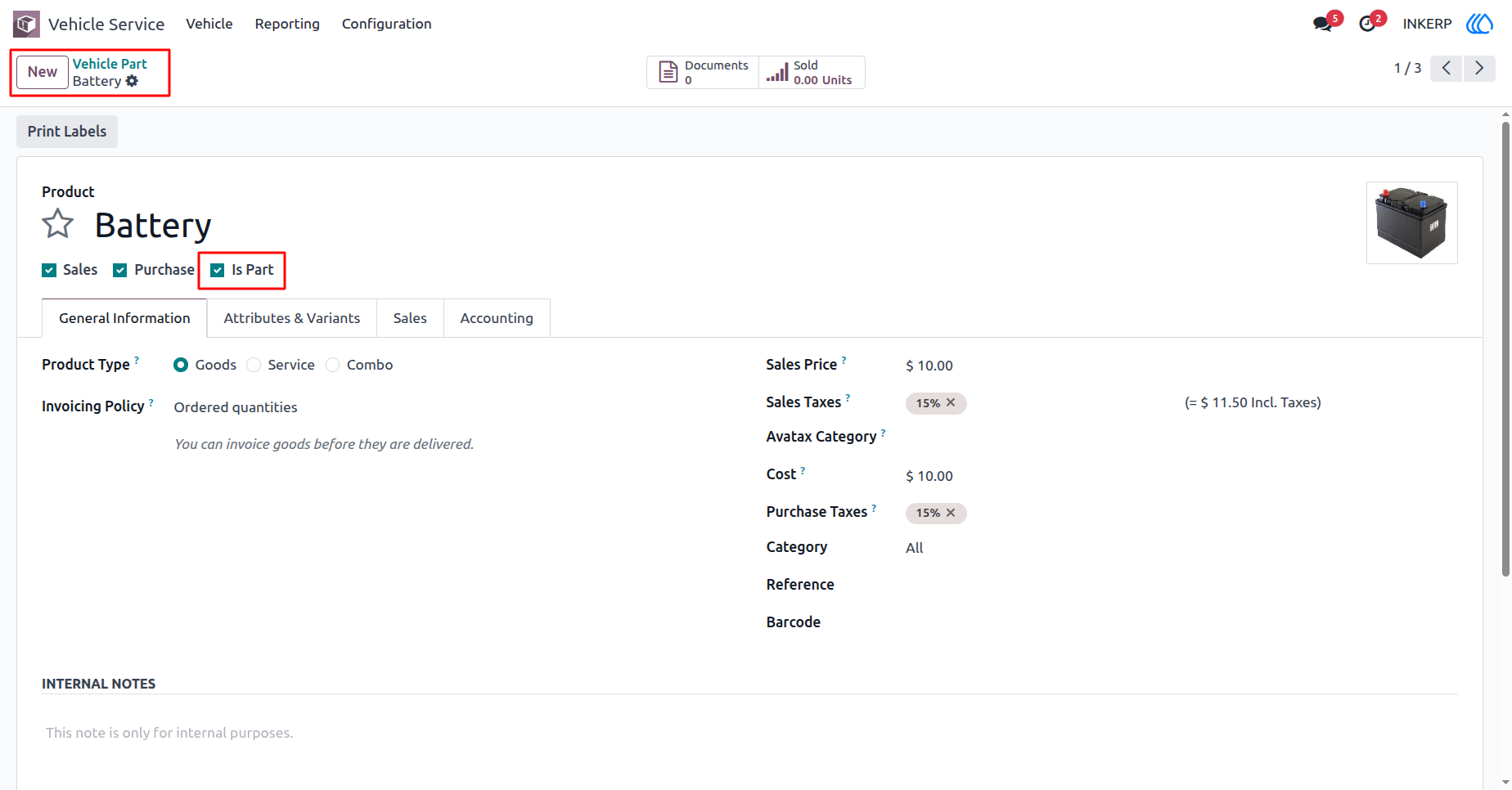
7.) Vehicle Part Details - Battery
This view provides a comprehensive overview of an individual vehicle part. Users can define whether the item is a sales product, purchase product, or categorized as a vehicle part using the "Is Part" option.
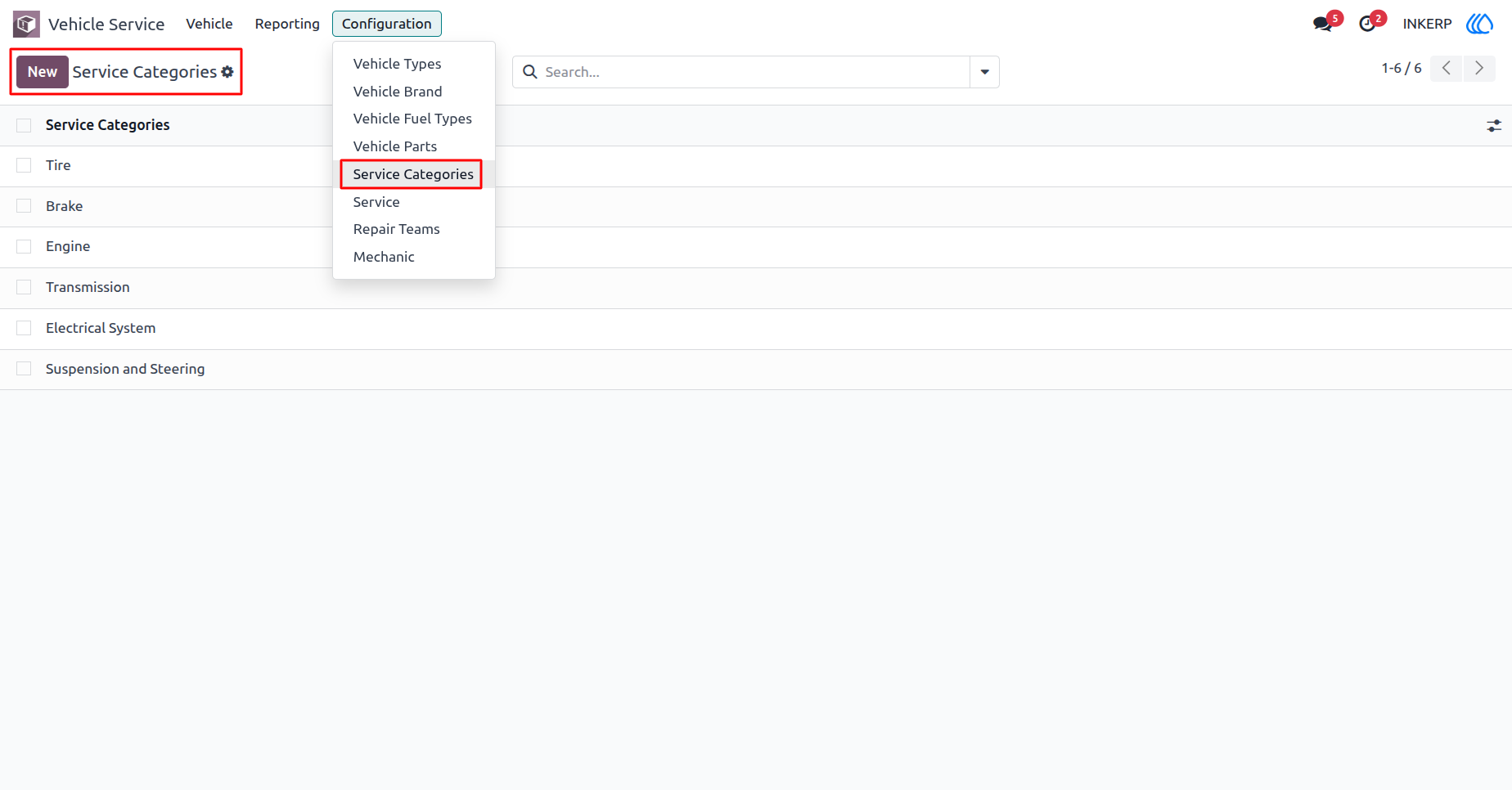
8.) Service Categories
This view enables users to create and manage service categories (e.g., Tire, Brake, Engine, Transmission), helping organize and streamline vehicle service operations.
Navigation : Vechicle Service › Configation › Service Categories
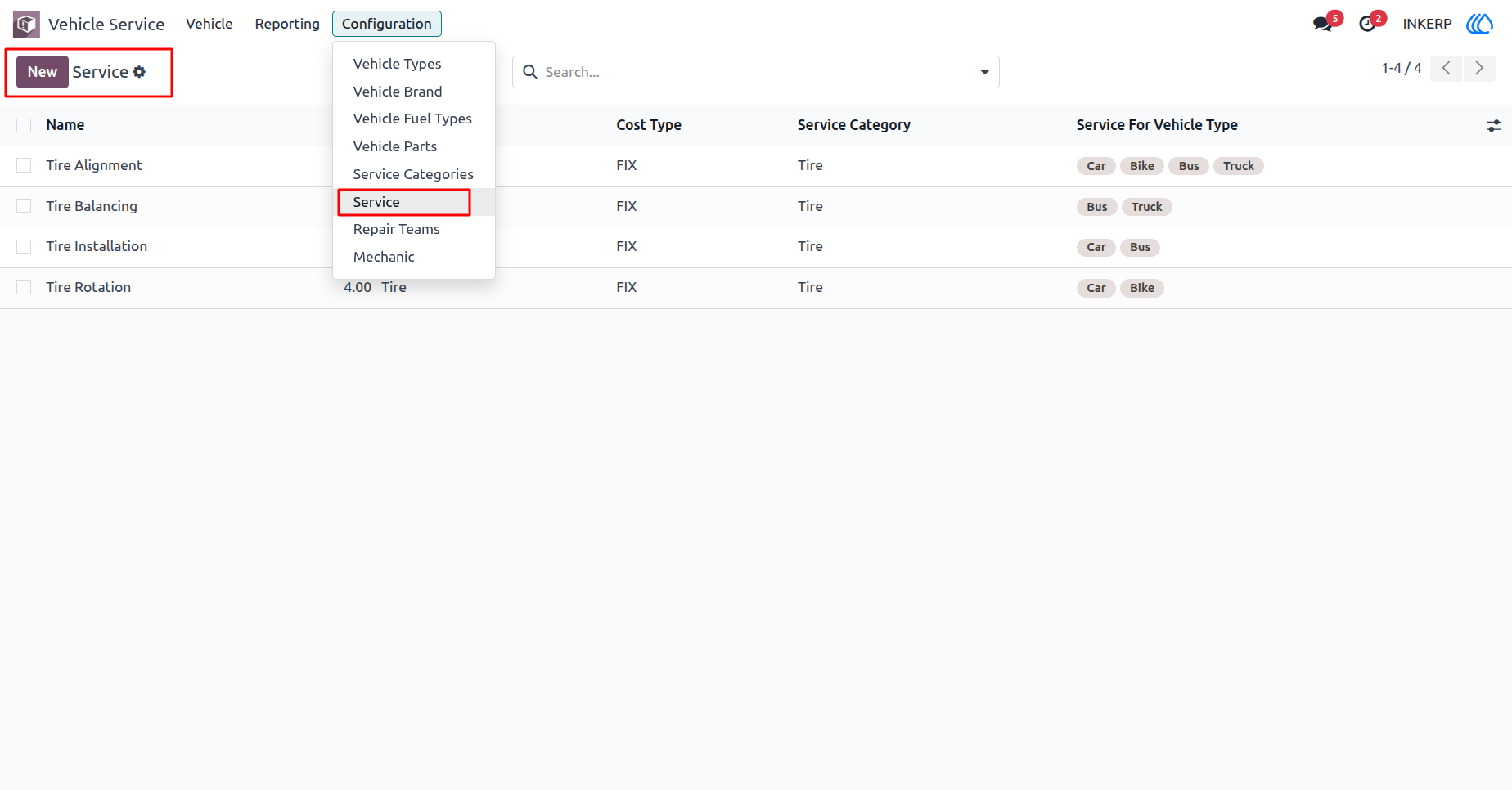
9.) Service Management
This view allows users to define and manage specific services such as Tire Alignment, Balancing, Installation, and Rotation. Each service can be linked to a service category, assigned a cost type, and configured for applicable vehicle types.
Navigation : Vechicle Service › Configation › Service
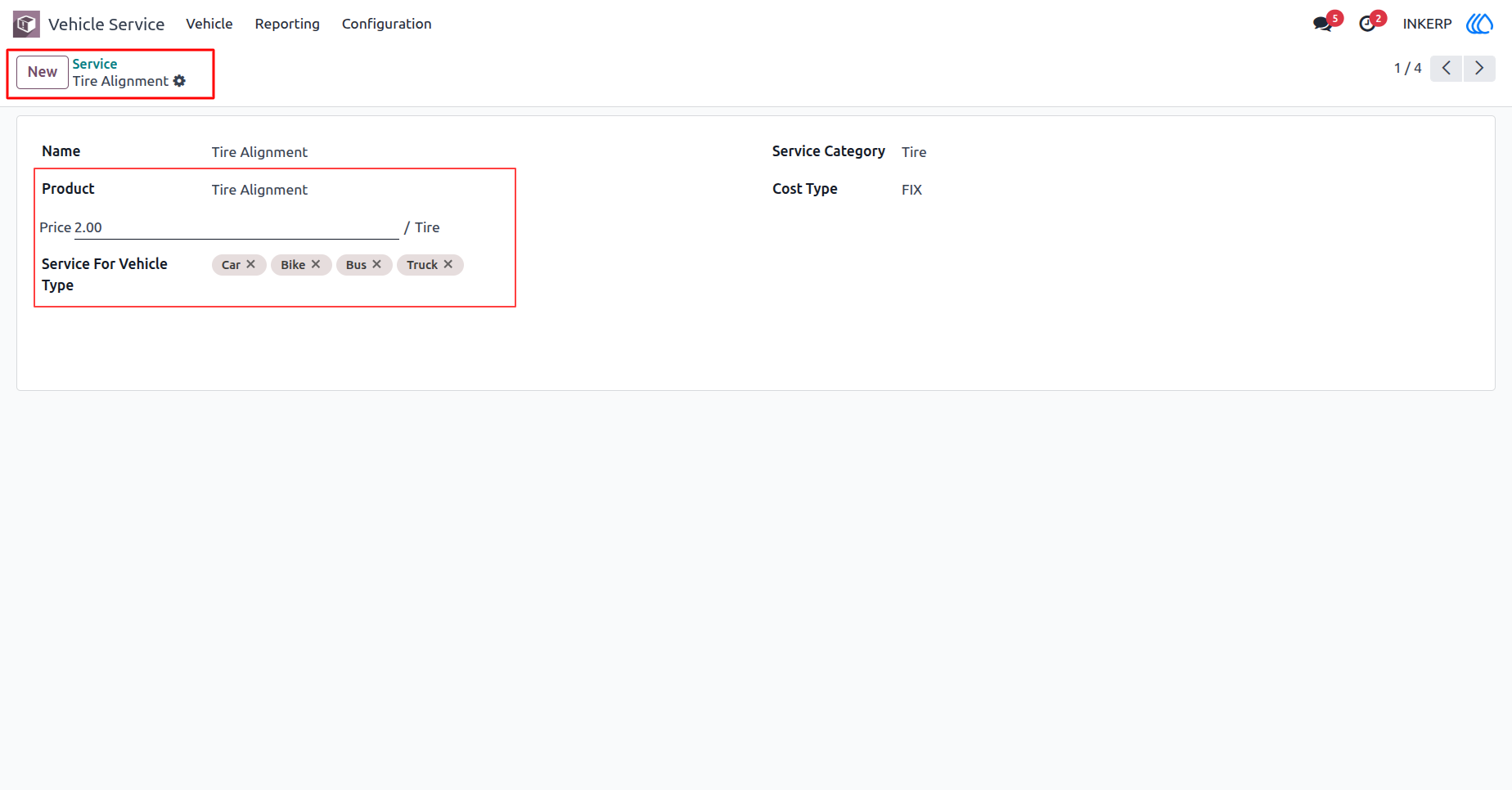
10.) Service Details - Tire Alignment
This view displays detailed information for a specific service. Users can configure the product, set the service category, define cost type (e.g., FIX), assign pricing, and link the service to multiple vehicle types such as Car, Bike, Bus, or Truck.
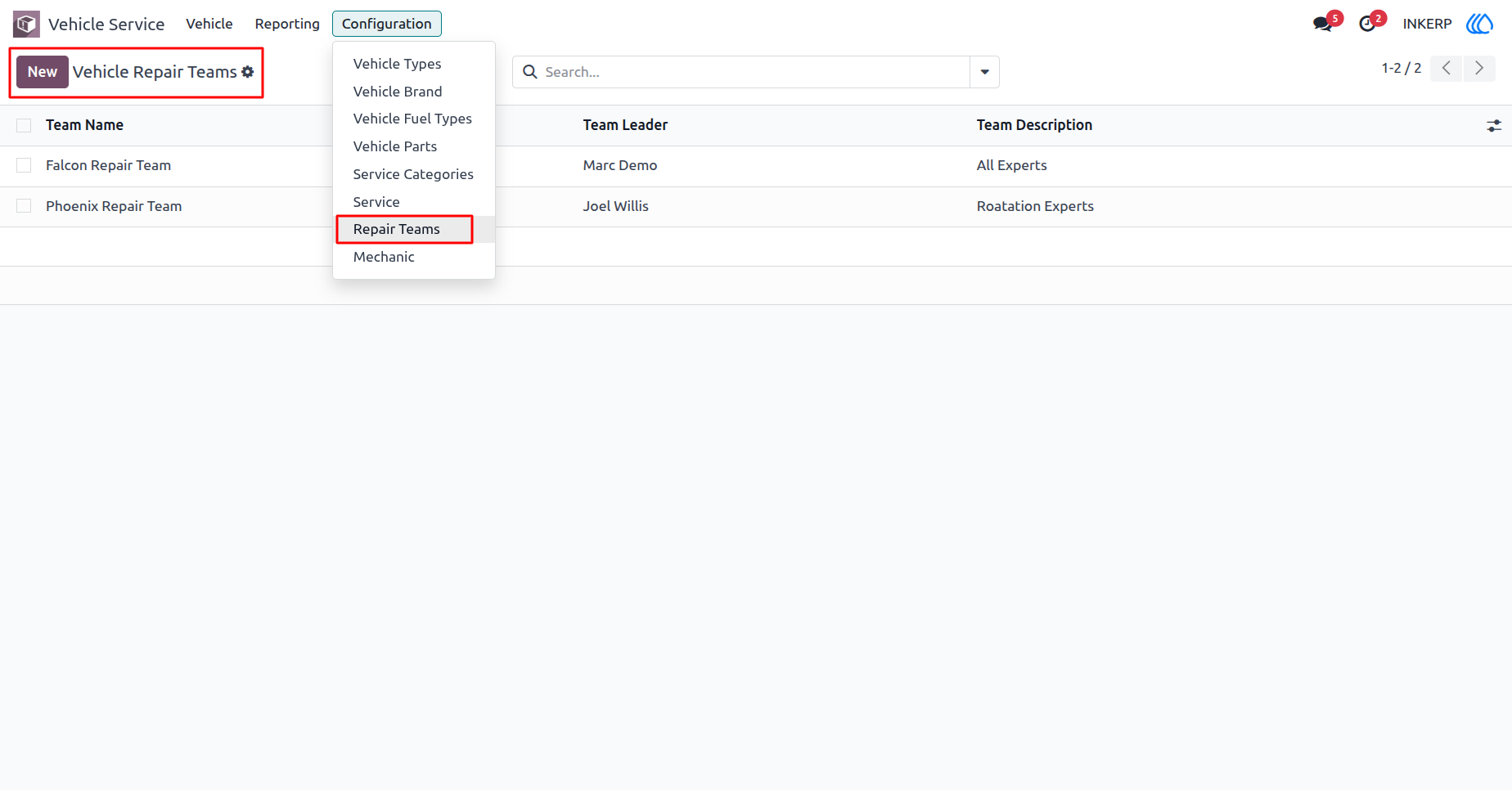
11.) Vehicle Repair Teams
Manages repair teams within the vehicle service system. Each team record includes the team name, team leader, and a description of the teams expertise. Users can create new teams to organize repair operations efficiently and assign responsibilities to leaders.
Navigation : Vechicle Service › Configation › Repair Teams
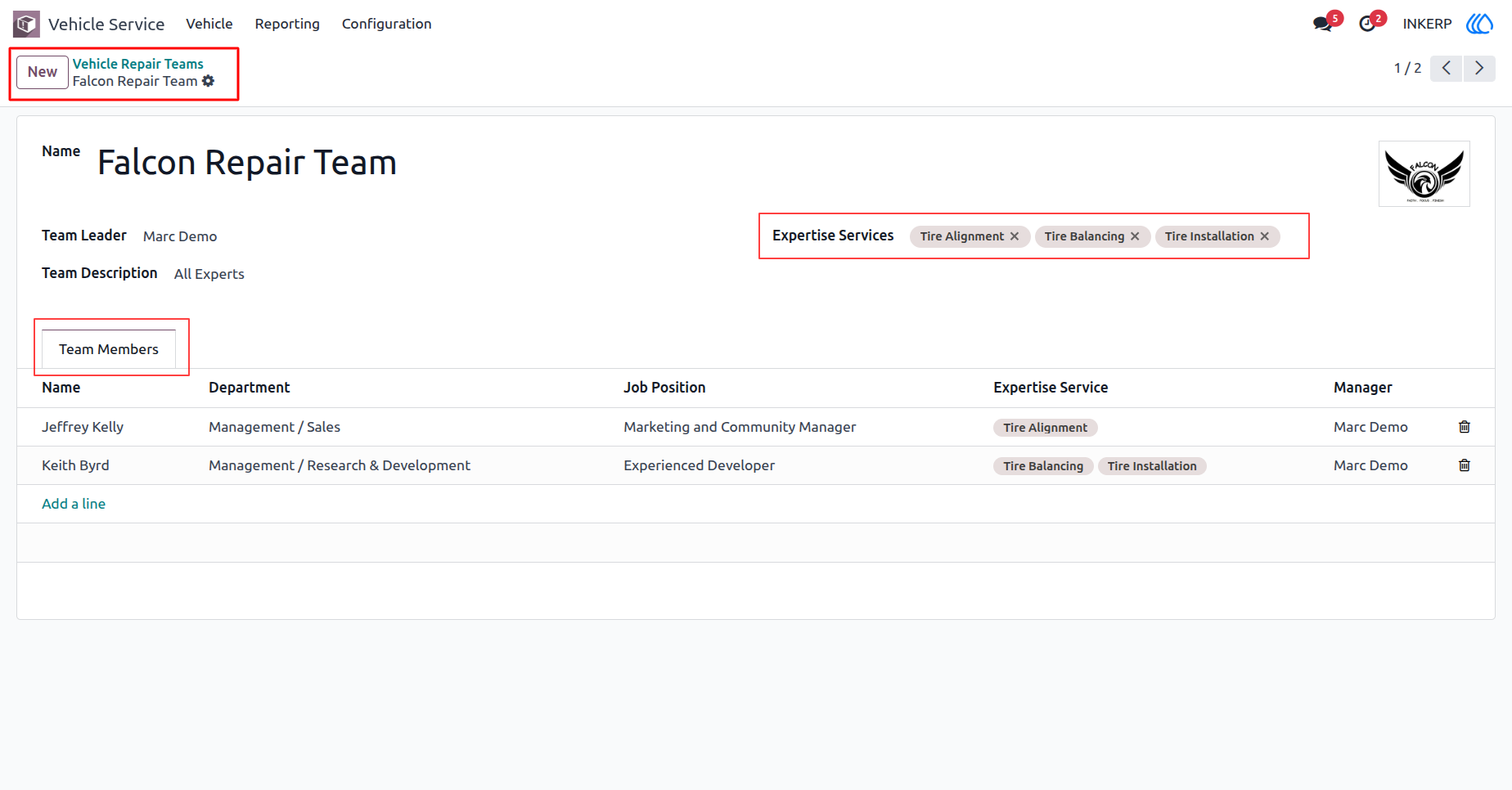
12.) Vehicle Repair Team Details
This view provides a detailed view of a specific repair team. It highlights the team leader, team description, and expertise services offered by the team. Additionally, it lists team members along with their department, job position, assigned expertise services, and manager, ensuring clear visibility of roles and responsibilities within the team.
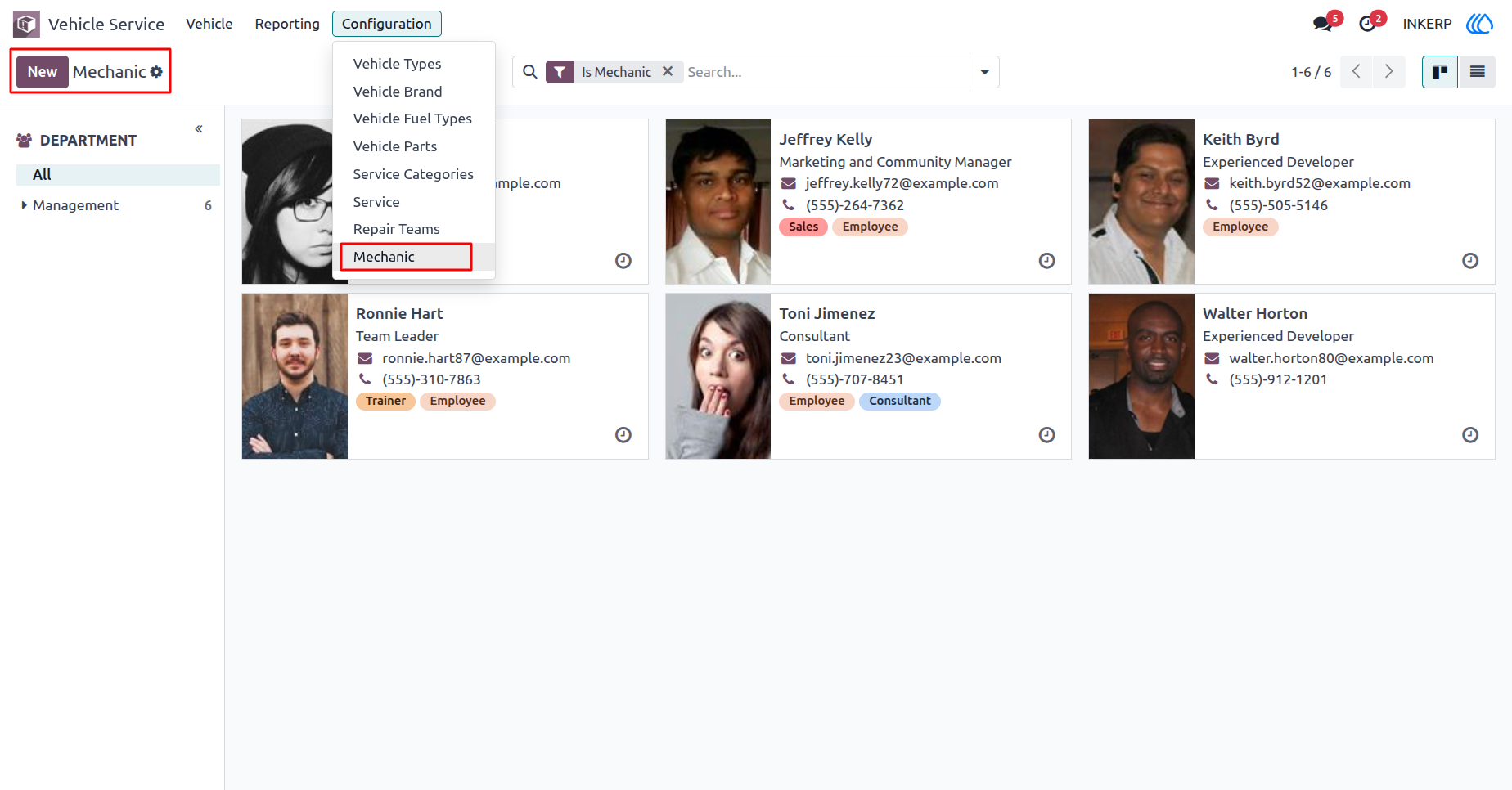
13.) Mechanic Directory
comprehensive directory of all mechanics within the system. Each mechanics profile card highlights their name, job position, contact details, and role tags such as Employee, Consultant, Trainer, or Sales. This view helps identify and manage the workforce efficiently, ensuring that the right expertise is always accessible.
Navigation : Vechicle Service › Configation › Mechanic
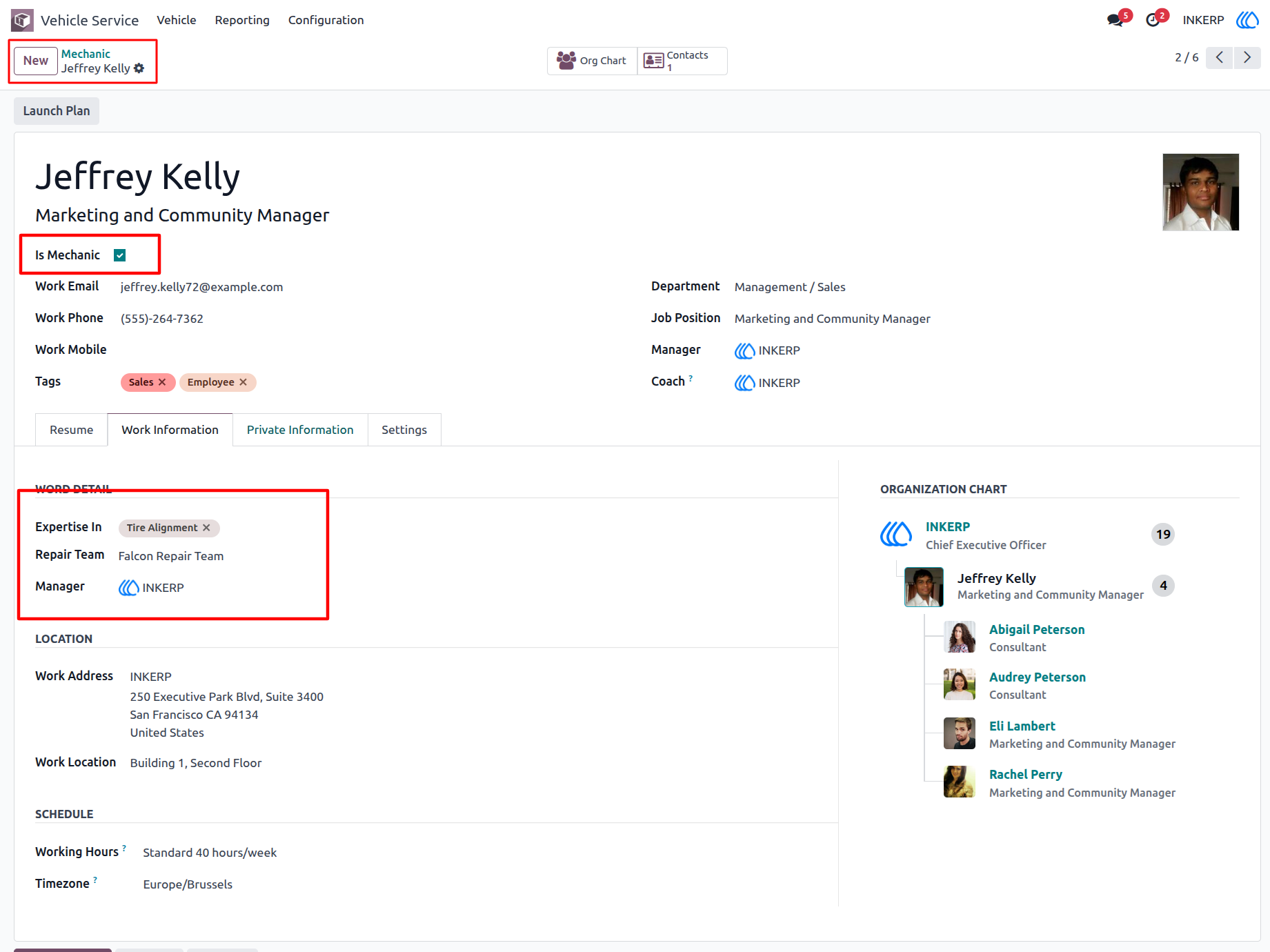
14.) Mechanic Profile
This view provides a complete profile of a mechanic, highlighting expertise, assigned repair team, manager, contact details, work schedule, and organizational placement for clear role visibility.
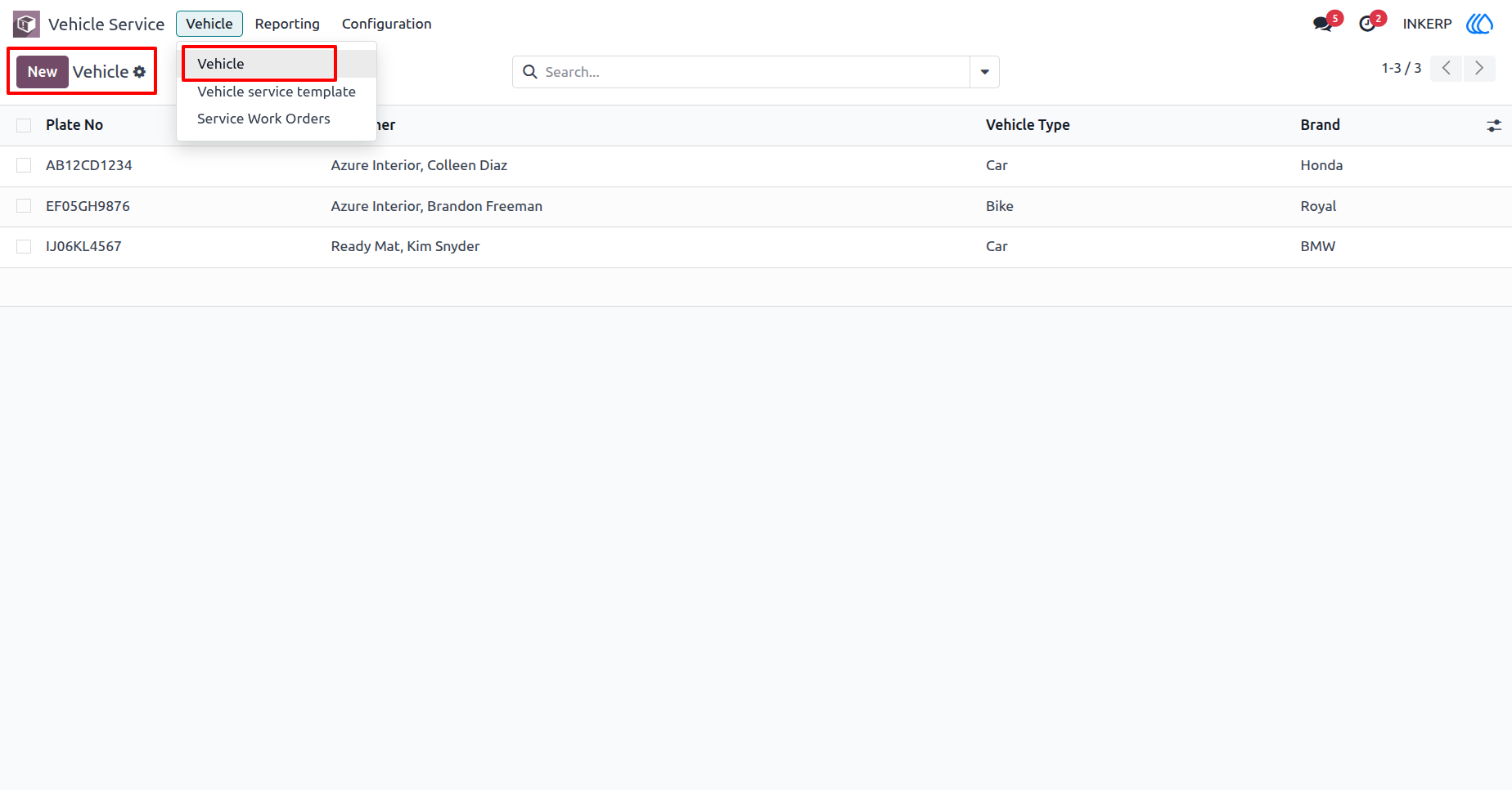
15.) Vehicle List
This view displays all registered vehicles with key details such as plate number, customer, vehicle type, and brand. It provides a clear overview for tracking and managing the organizations vehicle fleet.
Navigation : Vechicle Service › Vehicle › Vehicle
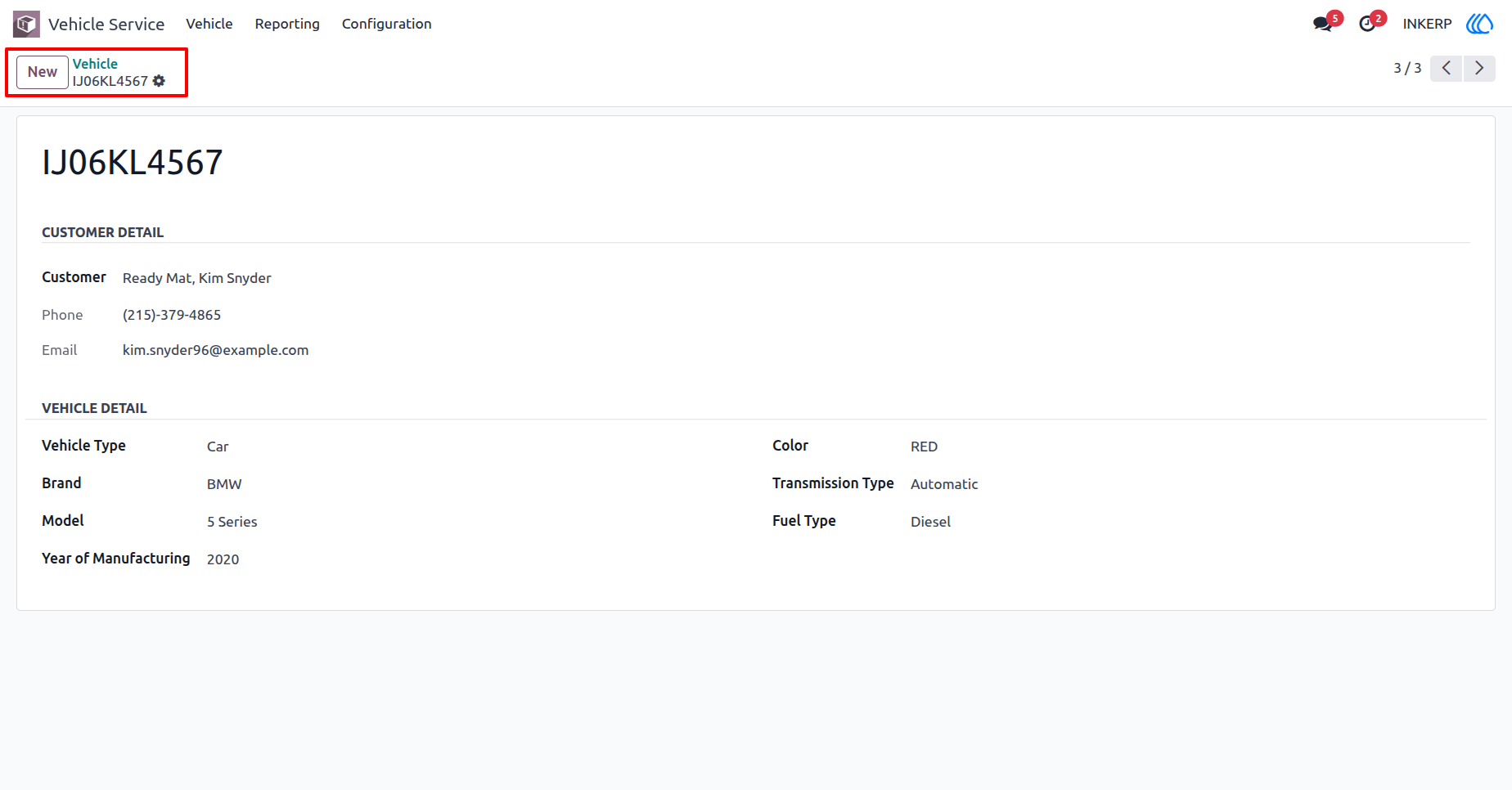
16.) Vehicle Detail
This view shows the complete profile of an individual vehicle. It includes customer details (name, phone, email) and vehicle specifications such as type, brand, model, year of manufacturing, color, transmission type, and fuel type. This ensures accurate tracking of each vehicle in the system.
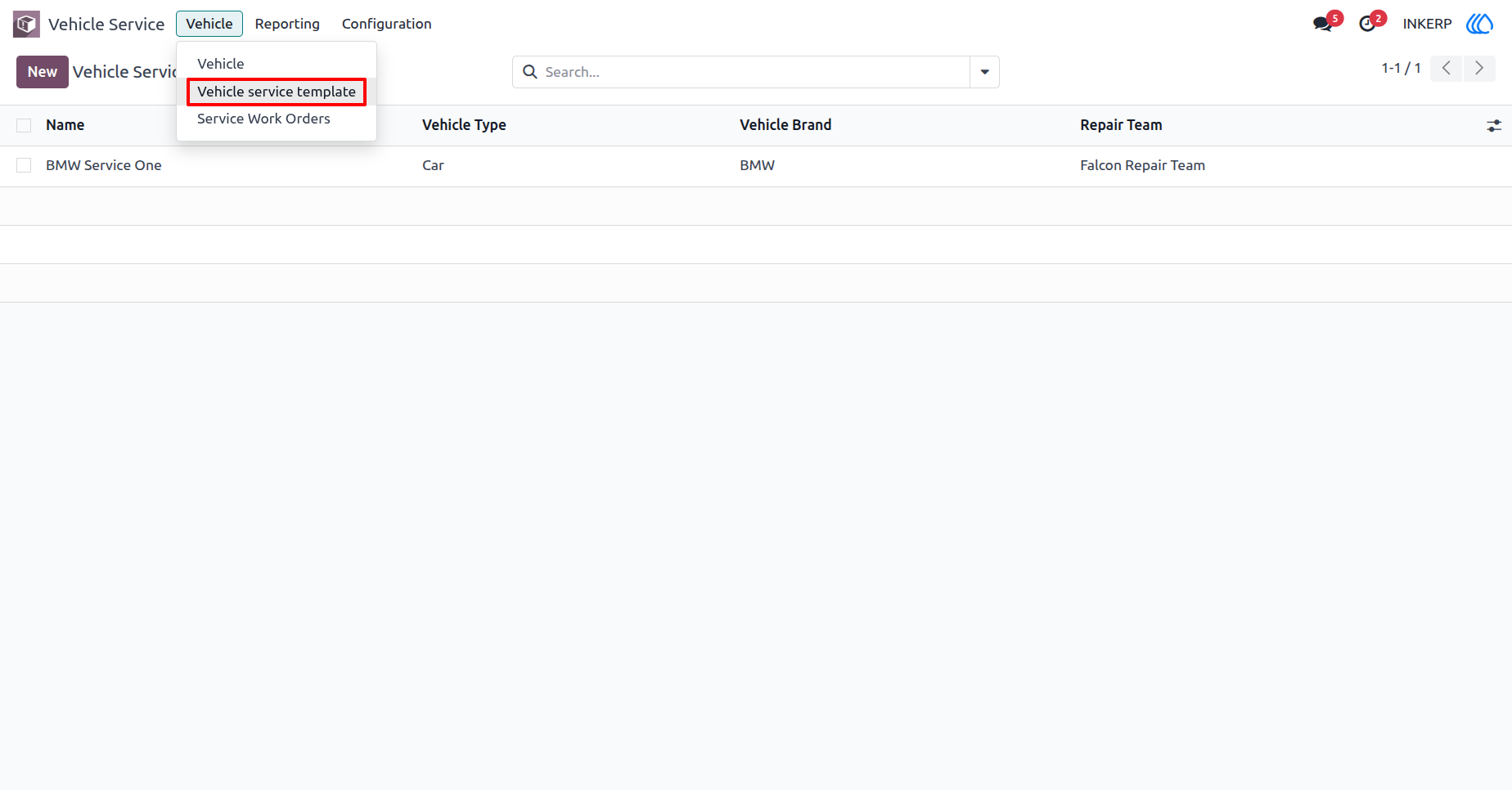
17.) Vehicle Service Templates
This view lists predefined service templates for different vehicles. Each template includes the service name, associated vehicle type, vehicle brand, and the assigned repair team. It enables quick creation and standardization of service work orders using predefined configurations.
Navigation : Vechicle Service › Vehicle › Vehicle Service Template
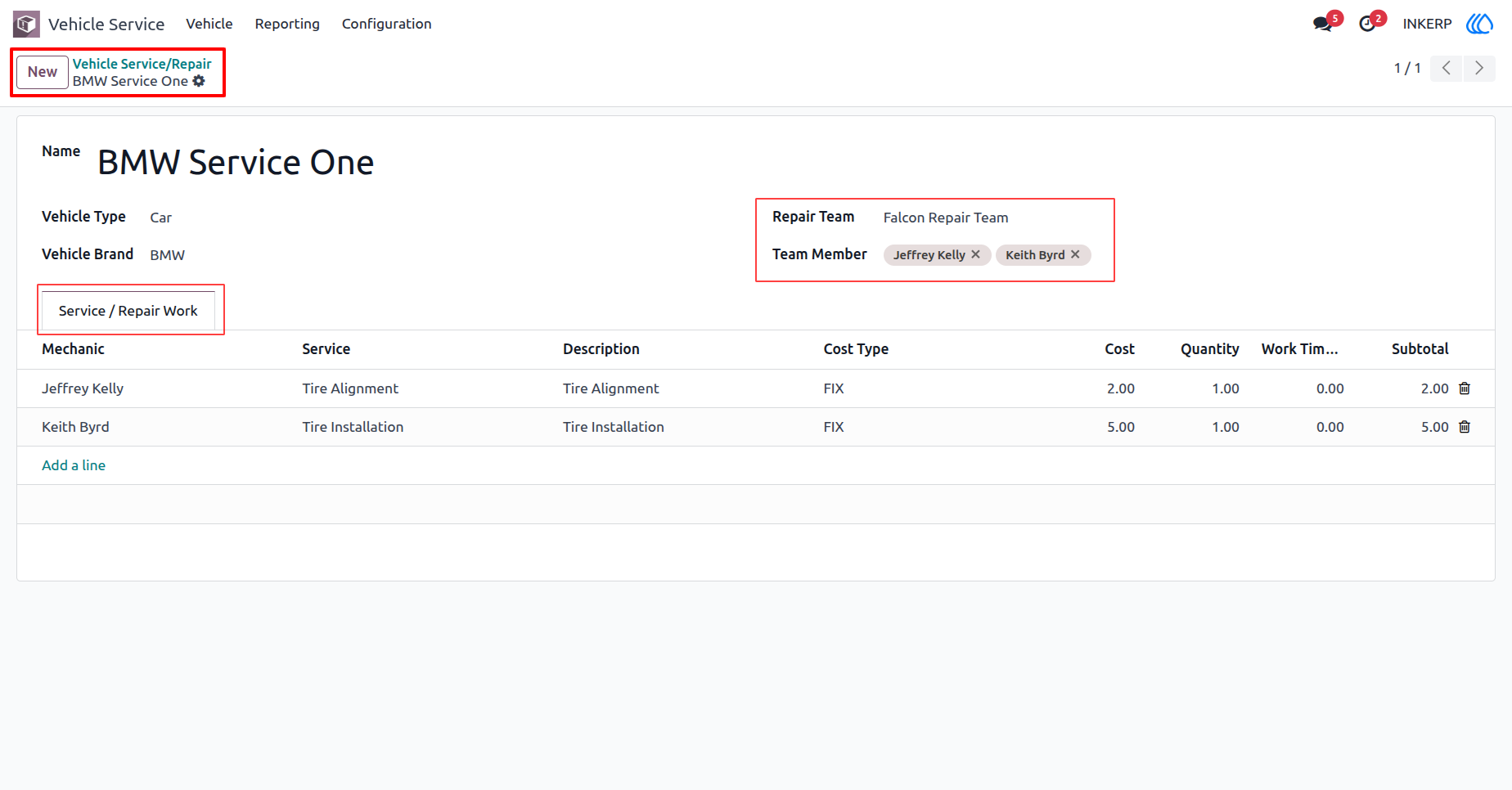
18.) Vehicle Service/Repair Template
This view defines a specific service or repair template for vehicles. It includes vehicle type, brand, assigned repair team, and mechanics. The Service/Repair Work section lists tasks with details such as service name, description, cost type, quantity, and subtotal, ensuring standardized repair processes.
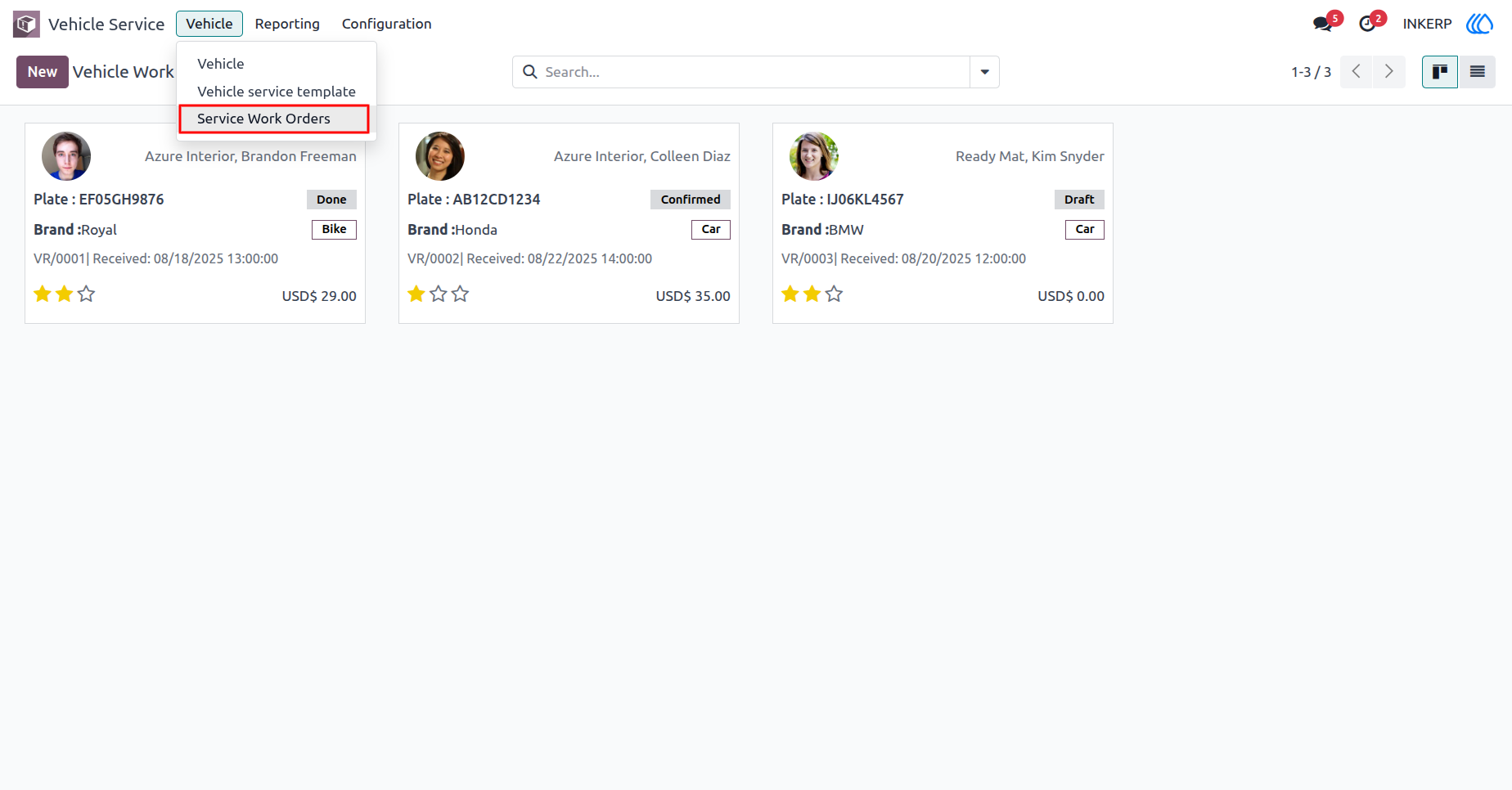
19.) Service Work Orders
This view provides a consolidated view of all service work orders. Each card displays details such as customer, vehicle plate, brand, type, service status (Draft, Confirmed, Done), received date, service reference, cost, and rating. It enables easy tracking and management of ongoing and completed repair jobs.
Navigation : Vechicle Service › Vehicle › Vehicle Service Work Orders
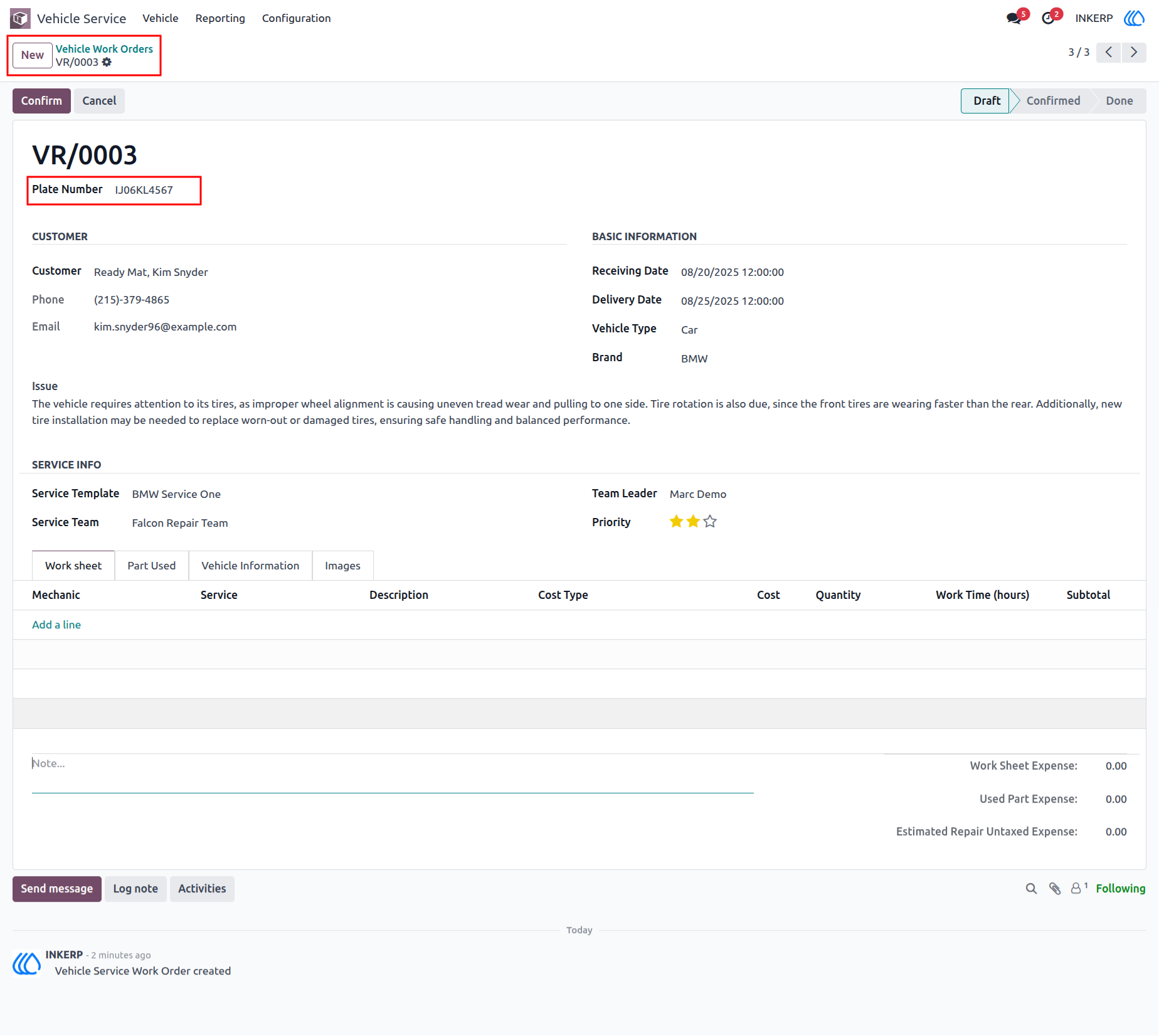
20.) Auto-Fetch Vehicle Details by Plate Number
Enter the plate number to auto-fetch existing vehicle and customer details. Review assigned service info, team, and repair issues for accuracy. A clear cost breakdown with time estimates ensures transparency and efficient tracking.
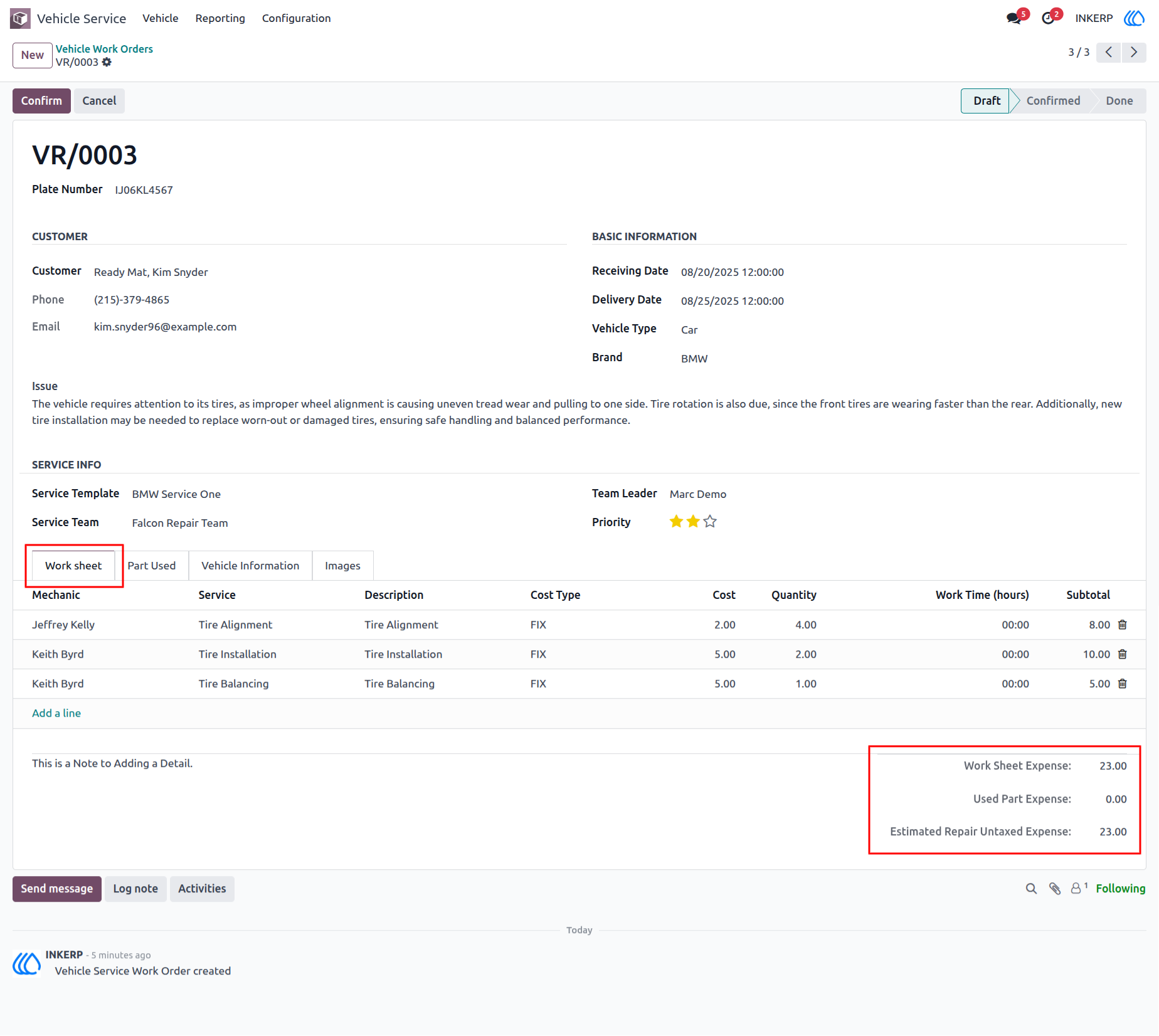
21.) Work Sheet and Cost Summary
The worksheet tab lists mechanics, assigned services, descriptions, costs, and quantities for each repair task. A detailed breakdown ensures all services are tracked properly. The cost summary provides clarity on work sheet expenses, part usage, and total estimated repair costs.
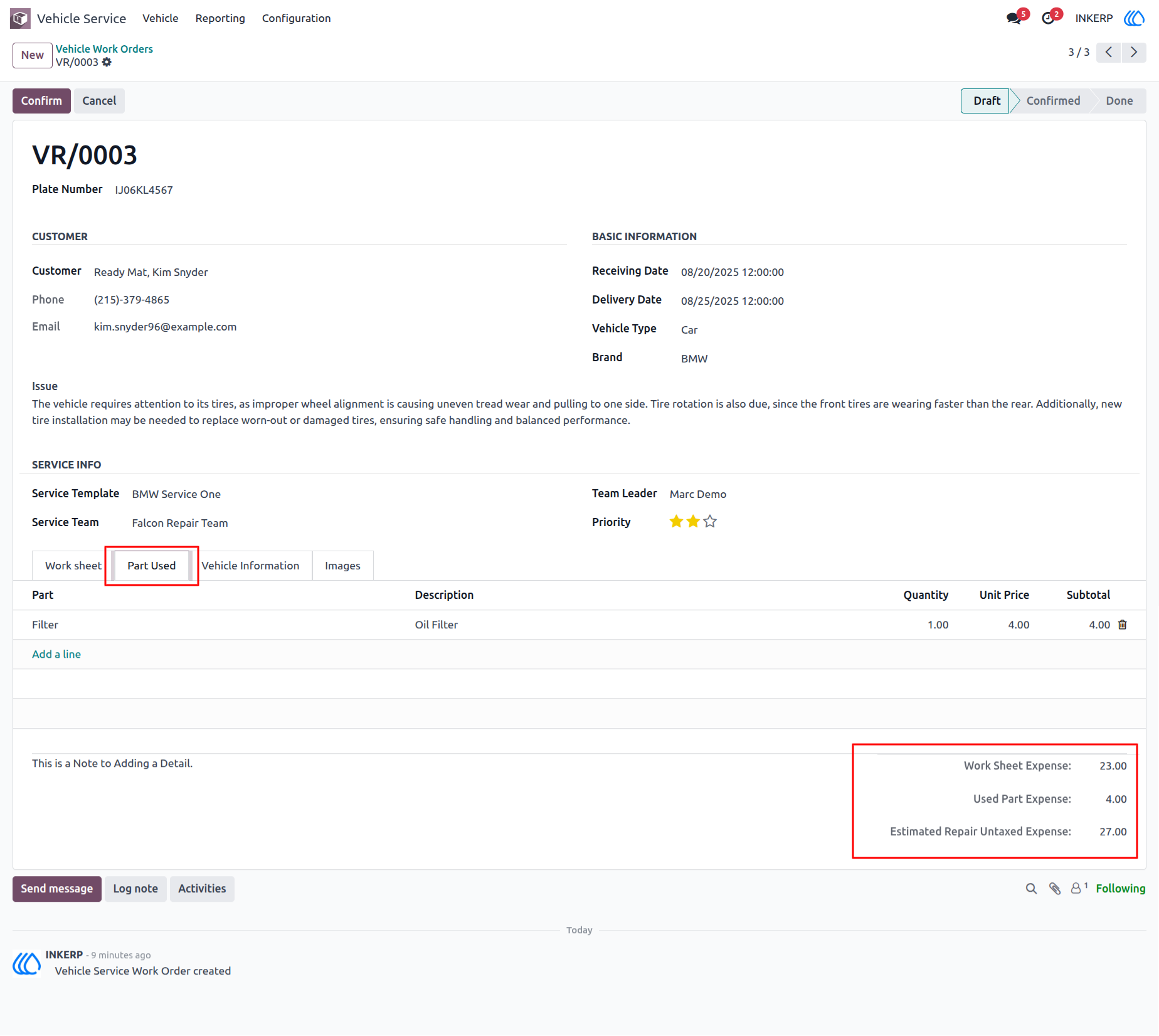
22.) Parts Used in Repair
The "Part Used" tab lists components consumed during the repair, including their description, quantity, unit price, and subtotal. This ensures accurate tracking of spare parts and seamless integration with the overall repair cost calculation. The cost summary reflects both worksheet services and parts usage.
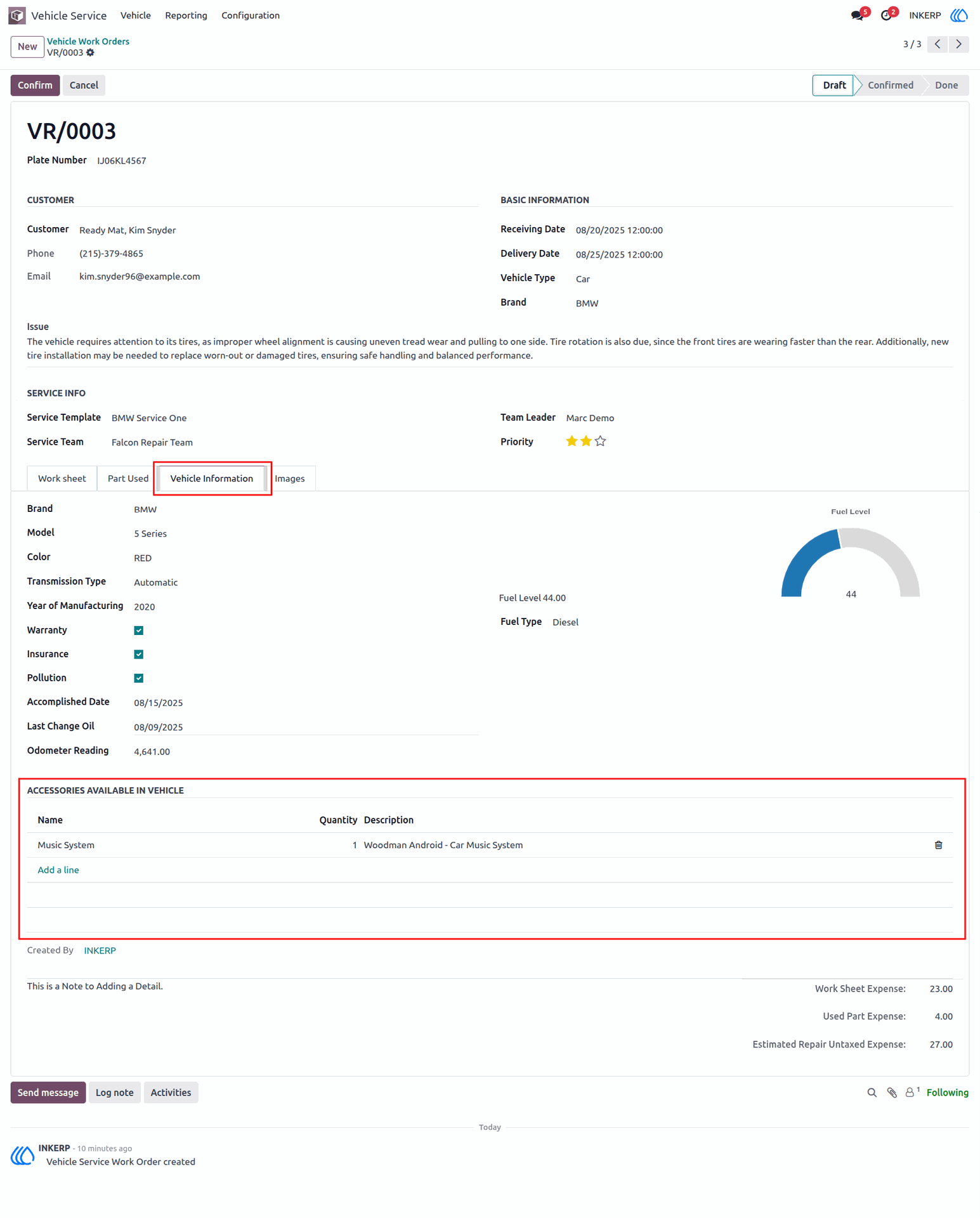
23.) Vehicle Information & Accessories
The "Vehicle Information" tab displays detailed specifications, including brand, model, year of manufacturing, odometer reading, fuel level, and compliance details like warranty, insurance, and pollution check. Additionally, accessories available in the vehicle, such as audio systems or custom fittings, are listed for accurate service and tracking.
24.) Service Images - Before & After
The "Images" tab captures visual records of the vehicle before and after service. This ensures transparency, helps track repair progress, and builds trust with customers by visually confirming completed work.
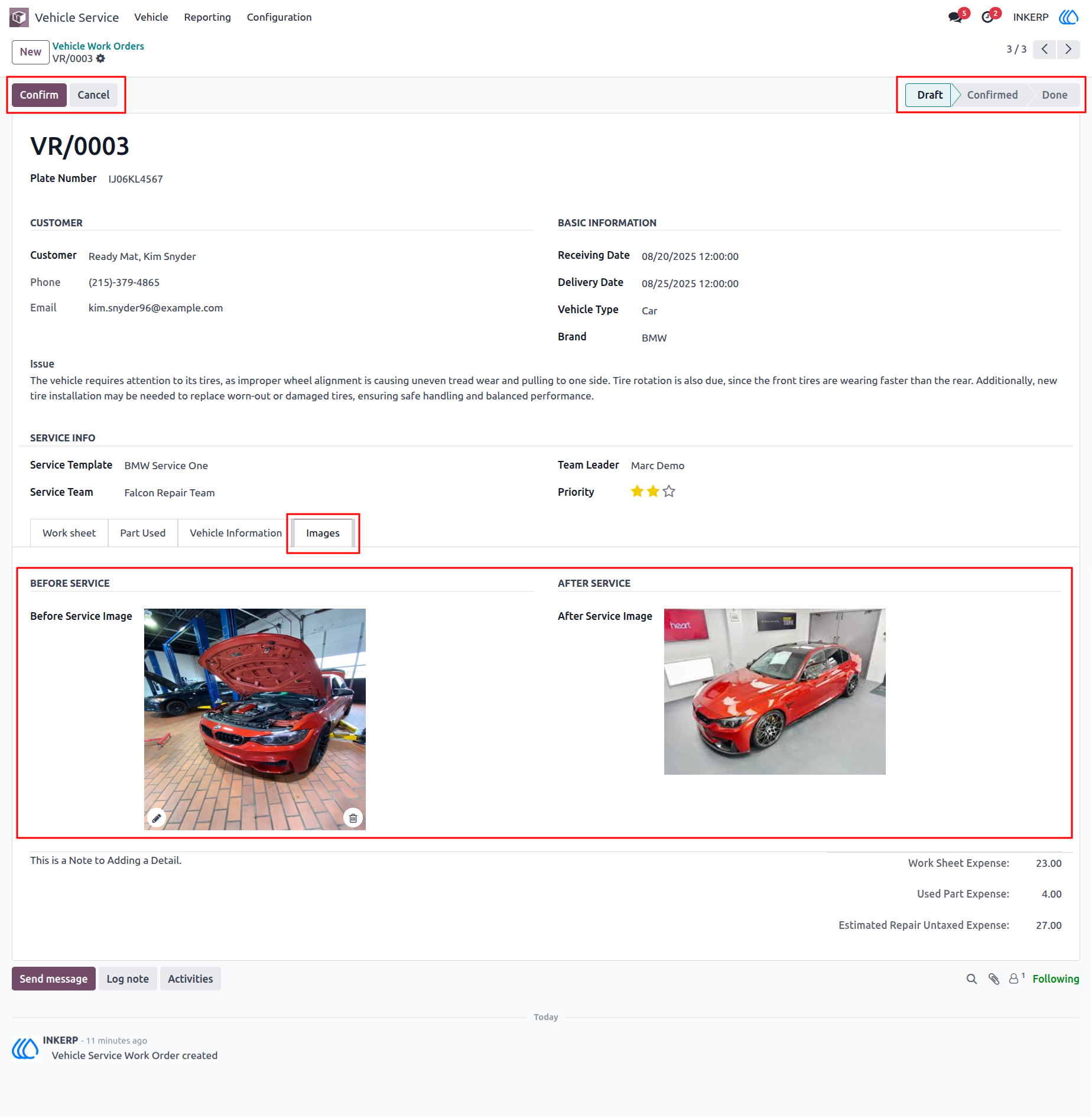
25.) Confirming a Vehicle Work Order
Clicking the Confirm button updates the work order status from Draft to Confirmed. Once confirmed, additional actions like Send by Email, Done, and Reset to Draft become available. The system also logs this state change in the chatter for full traceability.
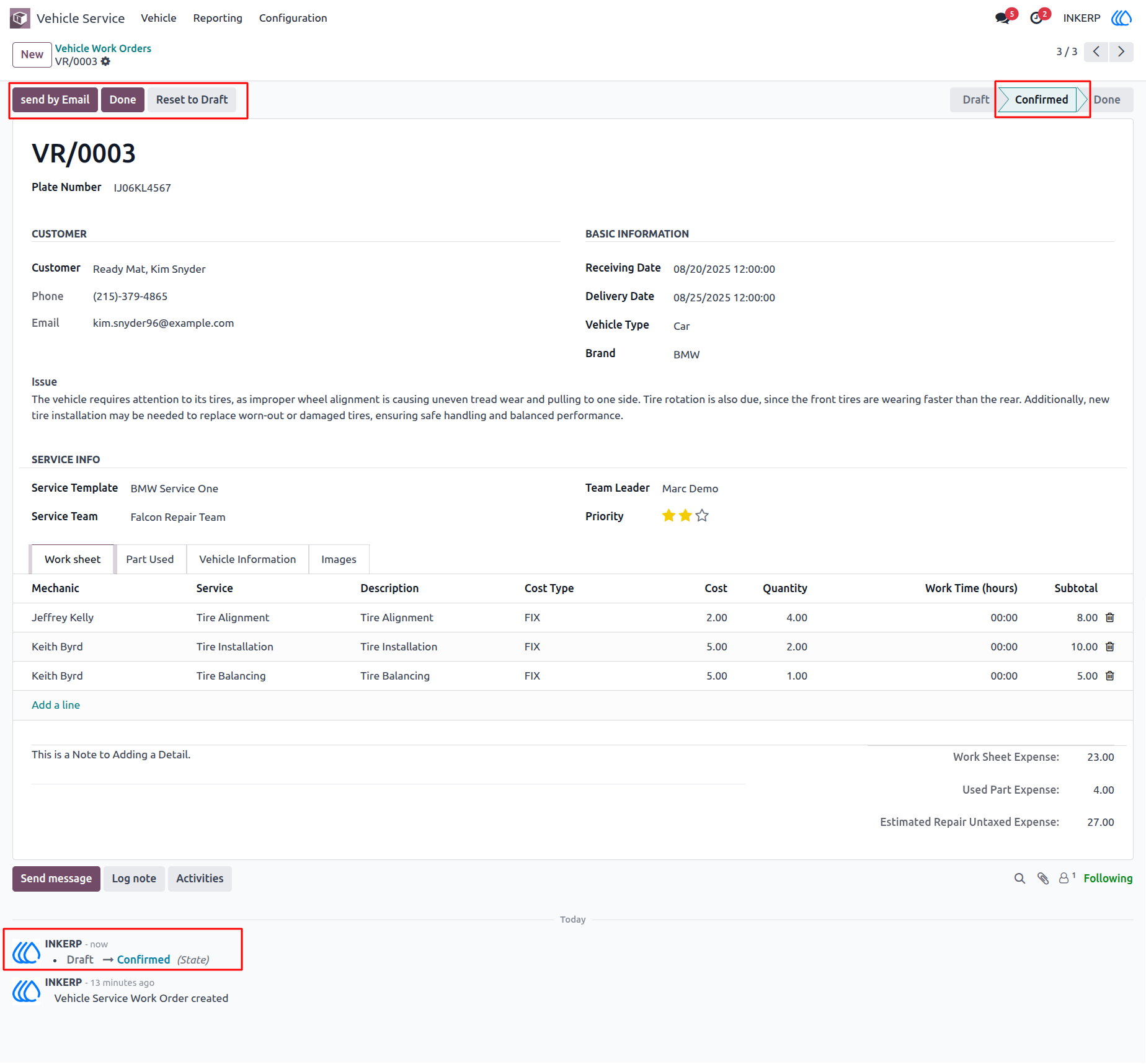
26.) Send Work Order by Email
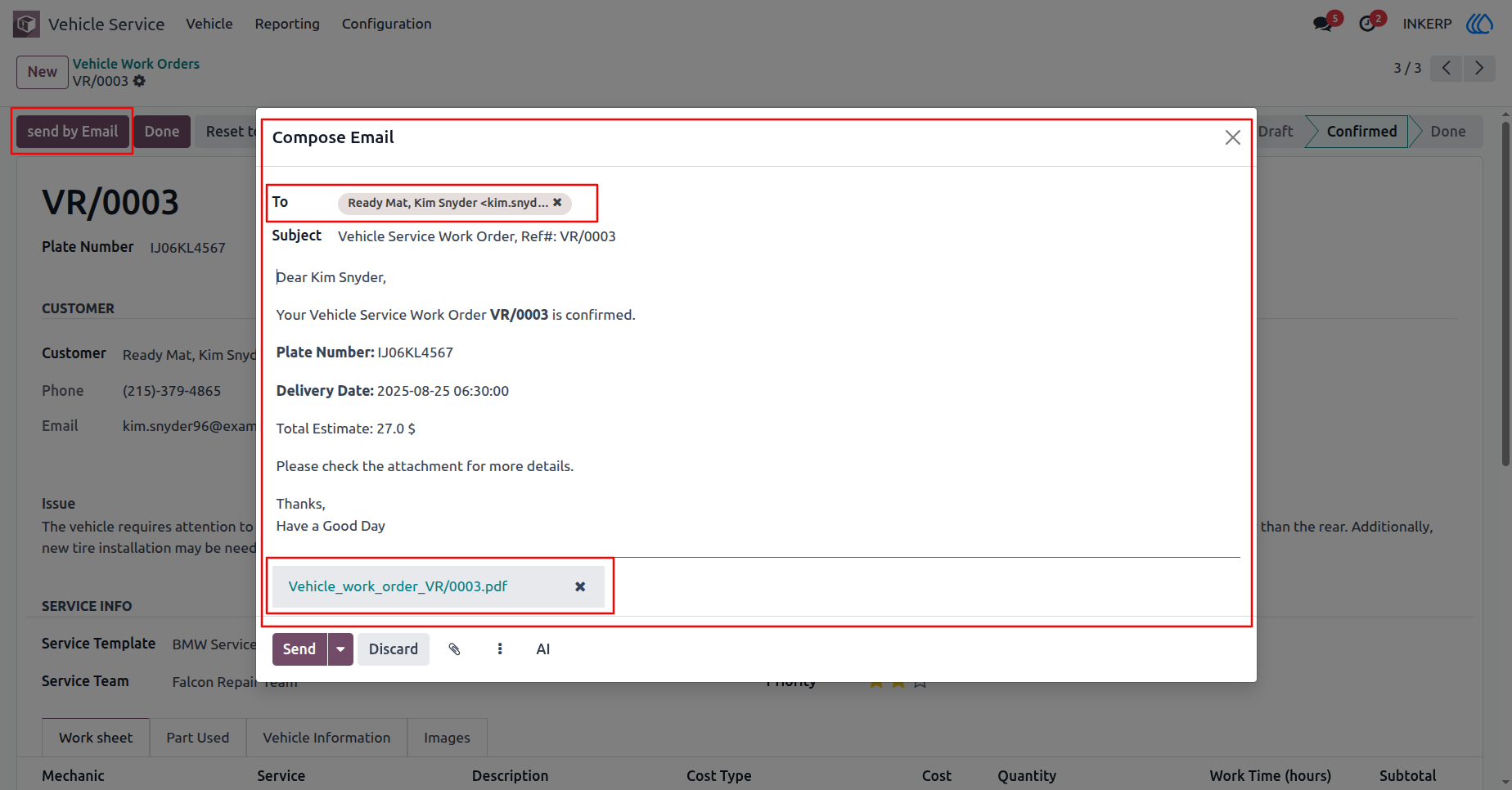
Clicking the Send by Email button opens the Compose Email wizard. The system automatically fills in the customers email, subject, and message body, along with attaching the Work Order PDF. This allows you to quickly notify the customer of the confirmed order details, delivery date, and estimated costs.
Navigation : Vechicle Service › Vehicle › Vehicle Service Work Orders ›VR/0003 › Send by Email
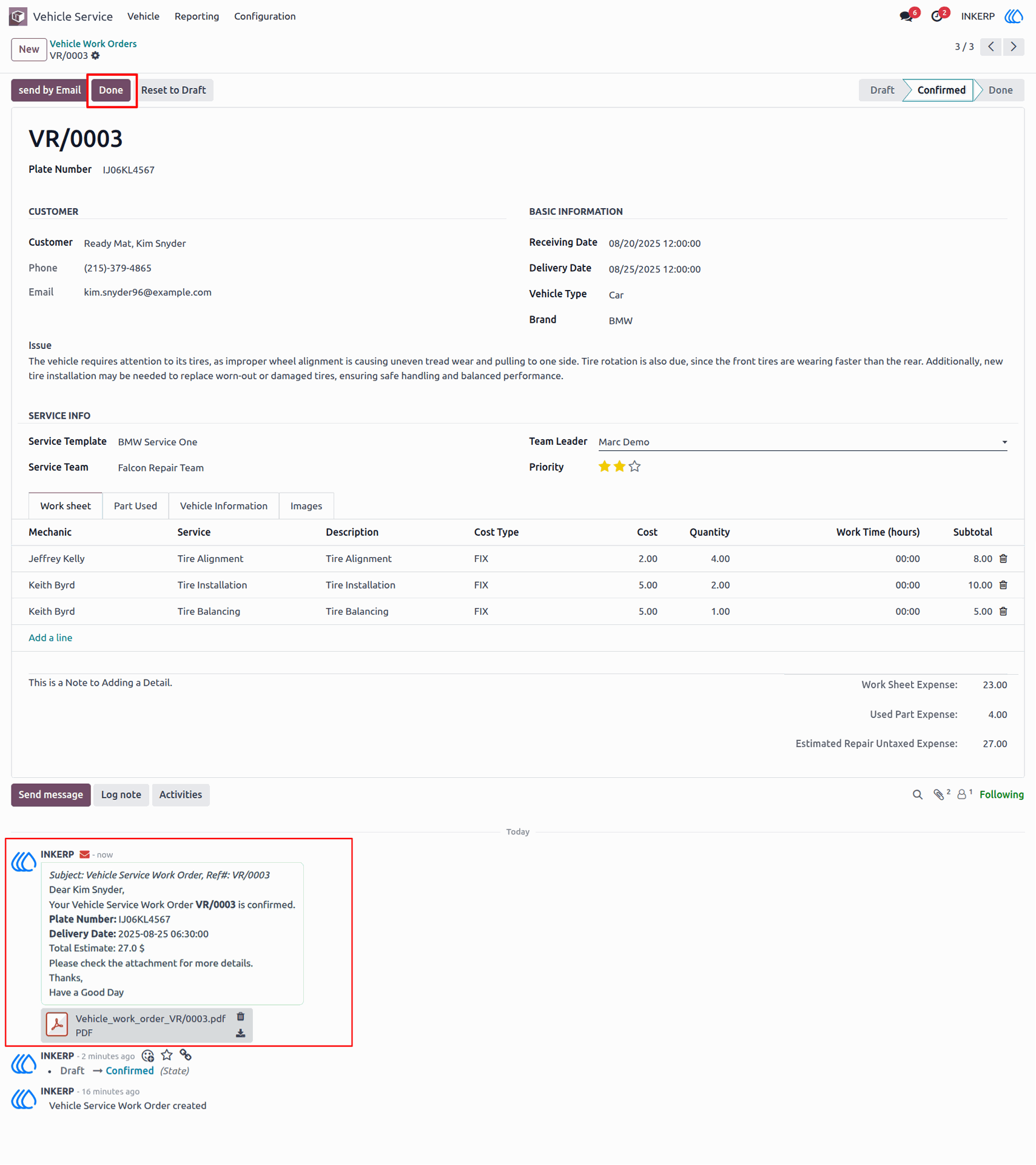
27.) Work Order Email Sent
The system has successfully sent the work order details to the customer via email with an attached PDF. This ensures the customer is notified about service confirmation, delivery date, and estimated cost. The sent email is also logged in the chatter for future reference.
Navigation : Vechicle Service › Vehicle › Vehicle Service Work Orders
28.) Work Order Marked as Done
When a vehicle service work order is marked as Done, the repair process is completed, and all worksheet expenses, used parts, and total estimated costs are finalized. At this stage, the system automatically generates a Sale Order, transferring the worksheet and part details into sale order lines. This ensures accurate billing, streamlined invoicing, and proper payment tracking for the completed service.
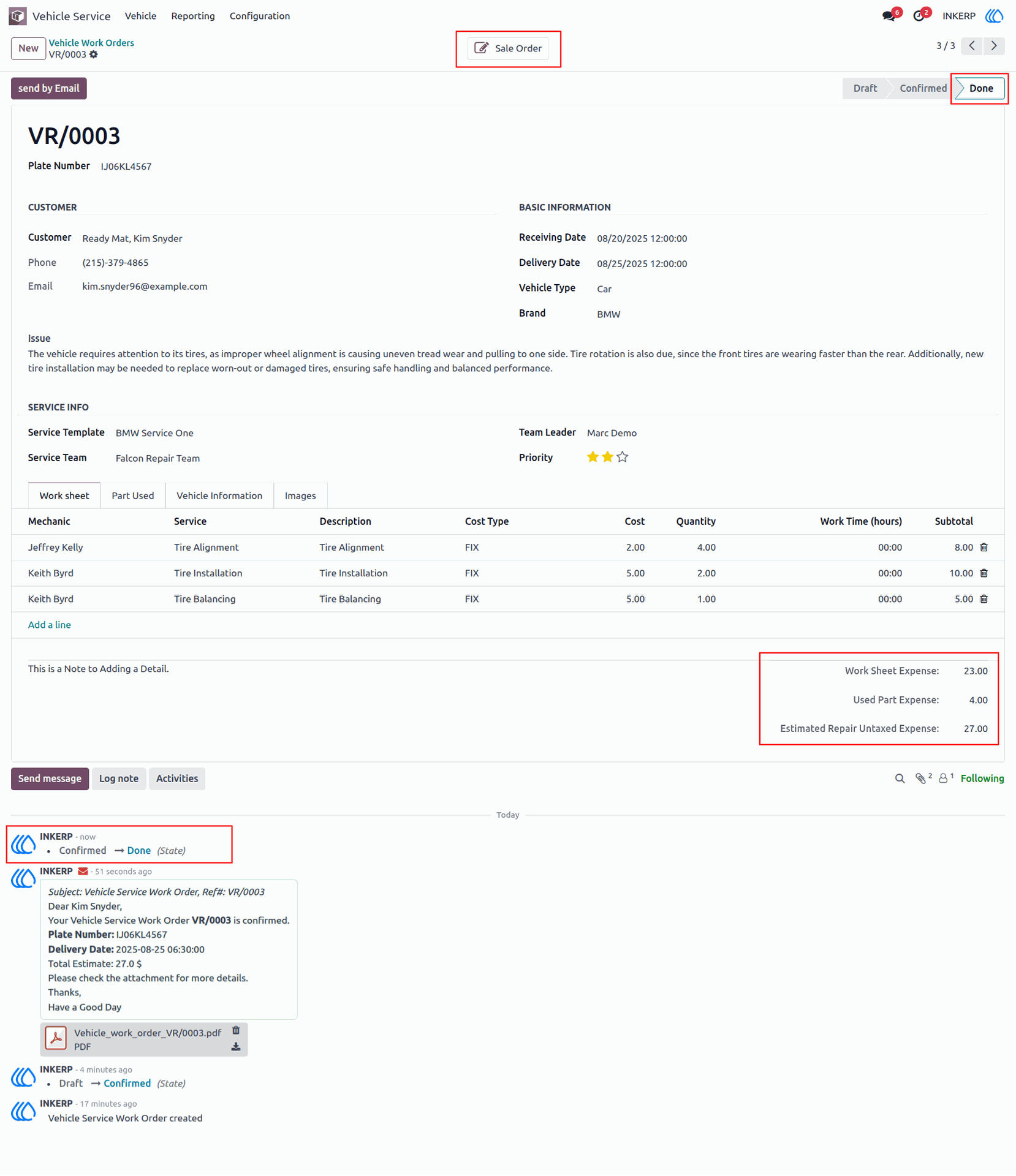
29.) View Sale Order via Smart Button
After marking the work order as Done, a Sale Order is automatically generated. By clicking the Sales Quotations smart button, users can directly view all linked sale orders for the completed work order. This ensures that repair costs, worksheet expenses, and used parts are accurately reflected and ready for invoicing.
Navigation : Vechicle Service › Vehicle › Vehicle Service Work Orders ›VR/0003 › Sale Order
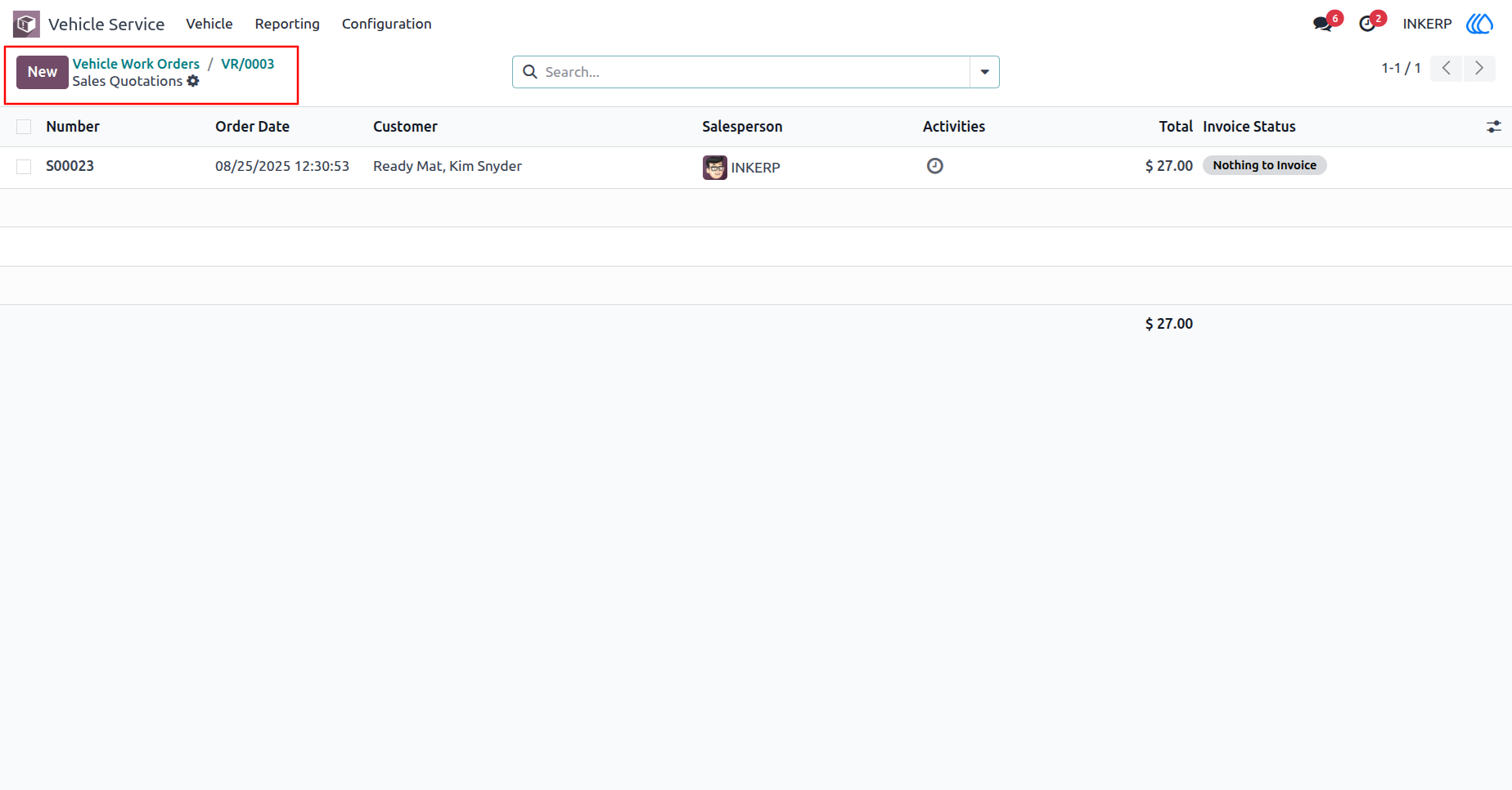
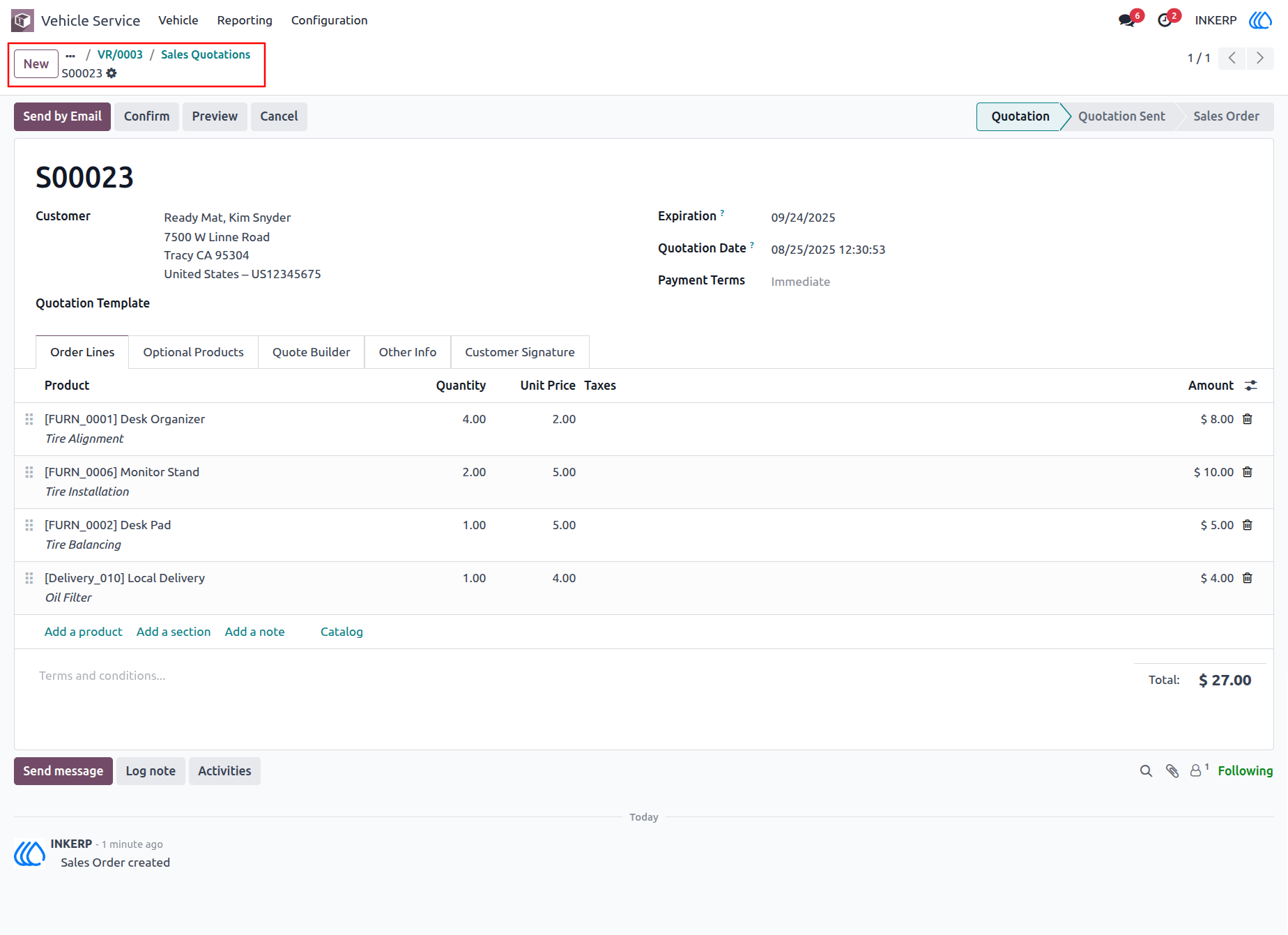
30.) Sales Quotation Generated from Work Order
Once the work order is completed and the Sale Order is generated, the system creates a Sales Quotation. This quotation includes all transferred worksheet expenses, used parts, and services, ensuring accurate customer billing. From here, the quotation can be confirmed into a final Sale Order for invoicing and payment collection.
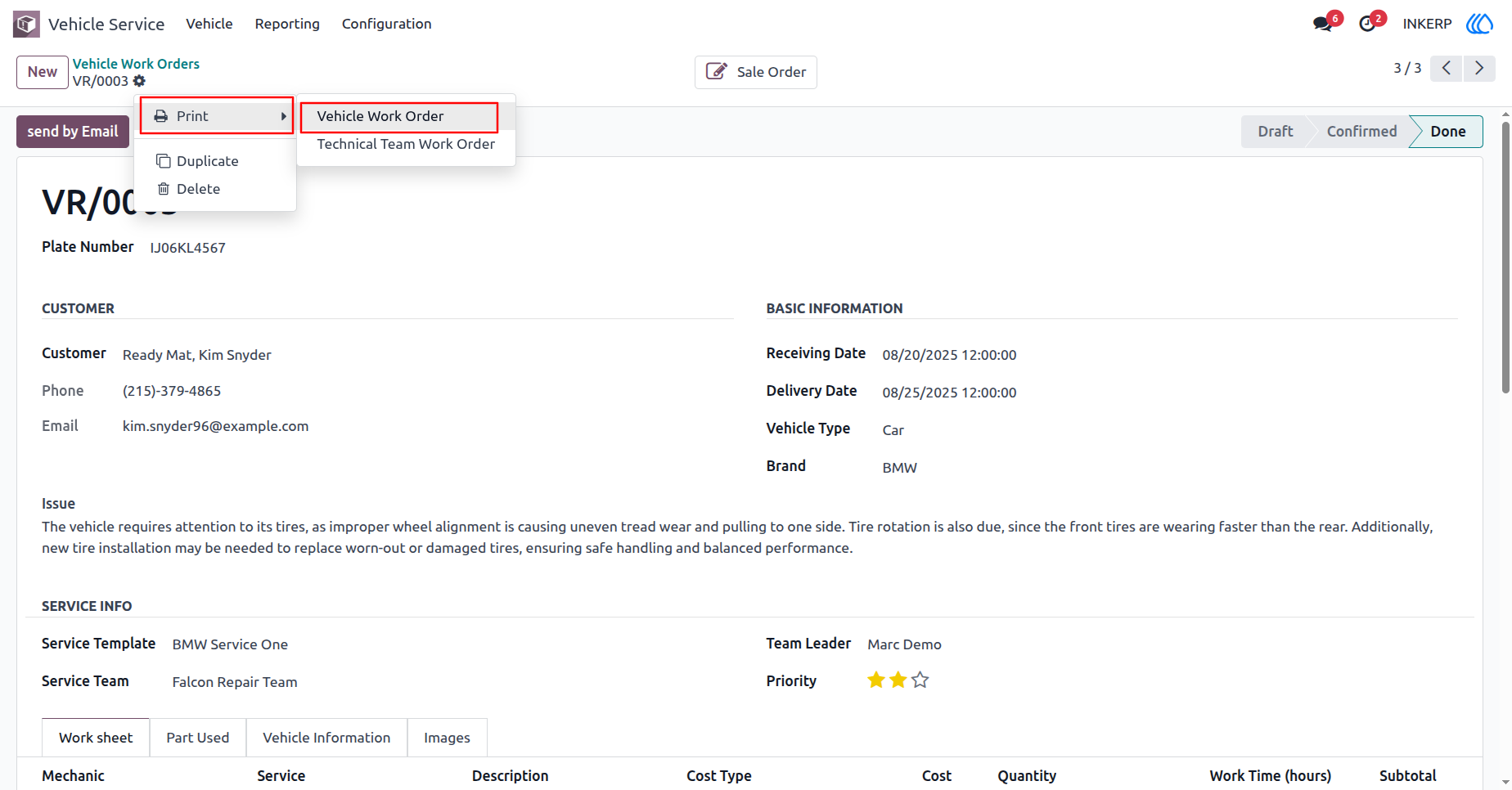
31.) Print Vehicle Work Order
After the work order is confirmed and marked as Done, users can generate a printable copy of the Vehicle Work Order. This document includes customer details, vehicle information, service tasks, used parts, and associated costs.
Navigation : Vechicle Service › Vehicle › Vehicle Service Work Orders ›VR/0003 › print
32.) Vehicle Service Work Order Report
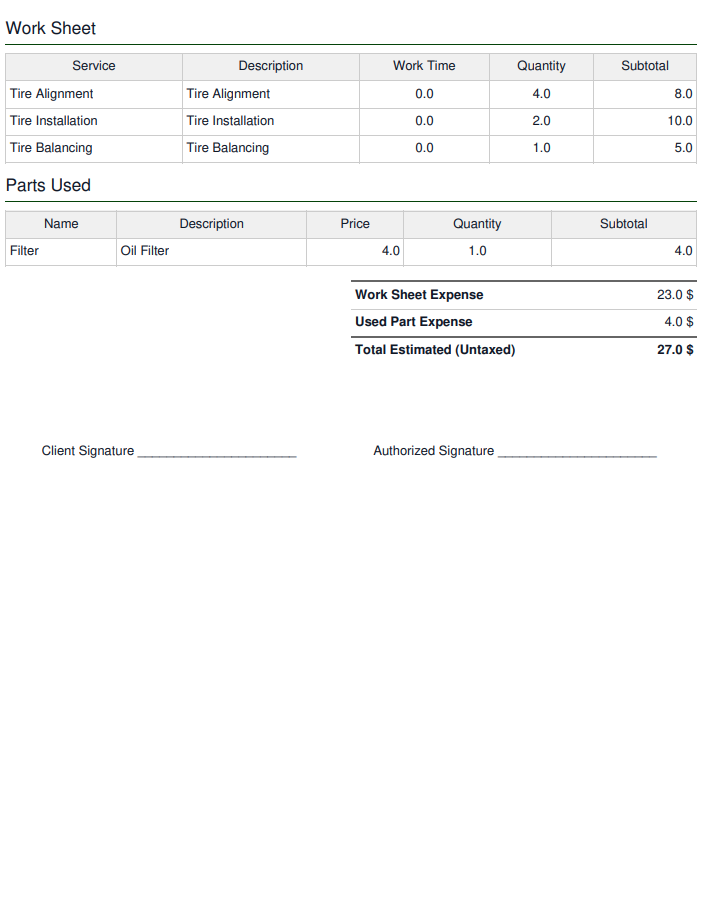
The Vehicle Service Work Order Report provides a detailed summary of the customers service request. It includes client details, vehicle information, reported issues, service tasks (worksheet), and parts used. The report also outlines total worksheet expenses, parts costs, and the overall estimated charges for the repair.
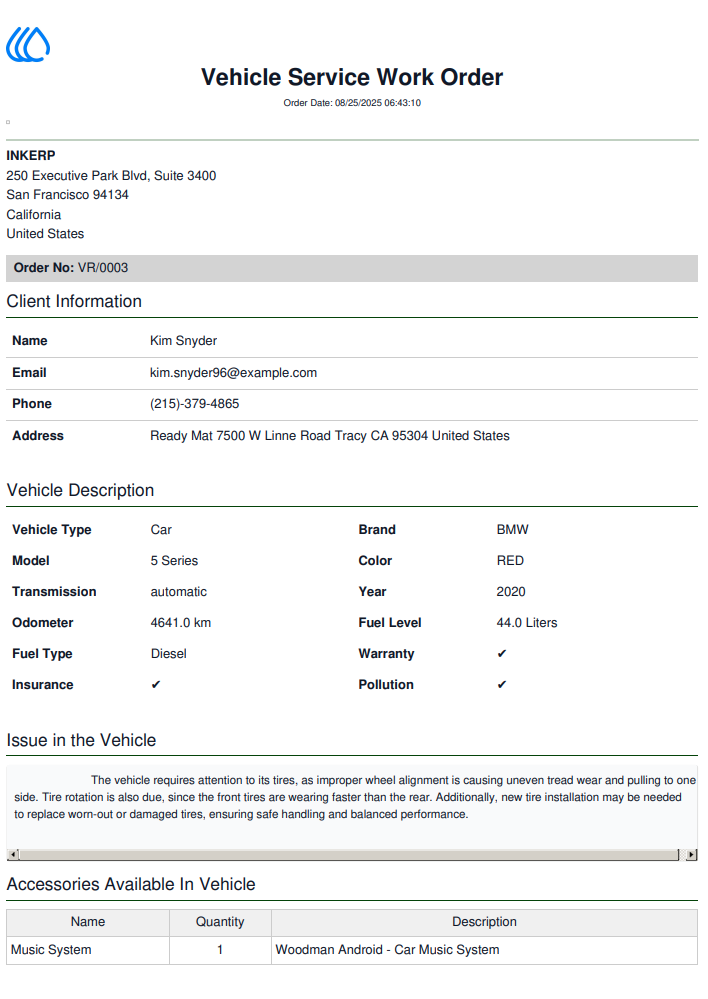
33.) second page of the Vehicle Service Work Order Report
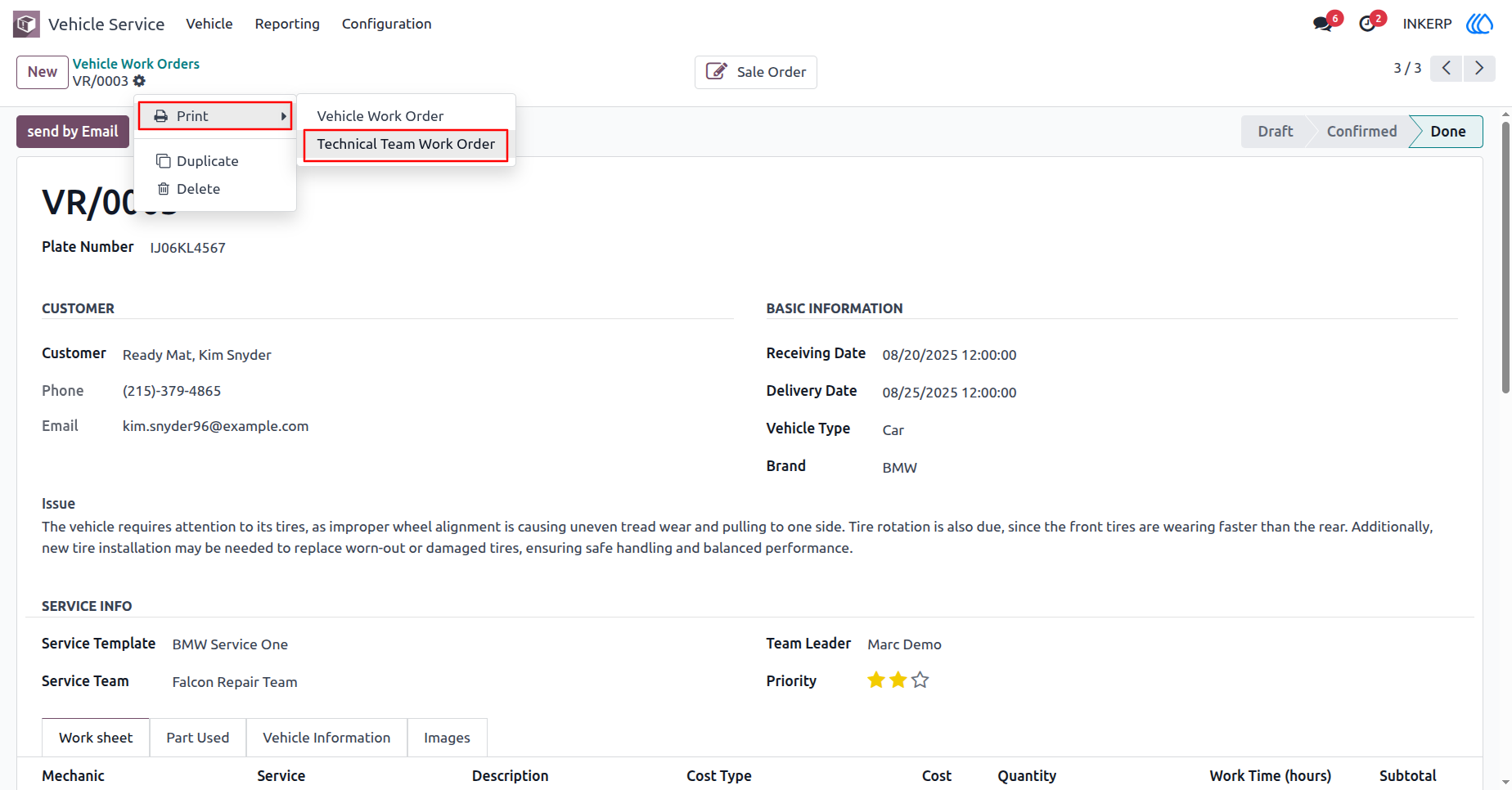
34.) Technical Team Work Order
The Technical Team Work Order is a printable report designed for internal workshop use. It provides the service team and mechanics with detailed task assignments, customer and vehicle information, and repair instructions. This report helps technicians follow the required steps, record progress, and track work completion efficiently.
Navigation : Vechicle Service › Vehicle › Vehicle Service Work Orders ›VR/0003 › print
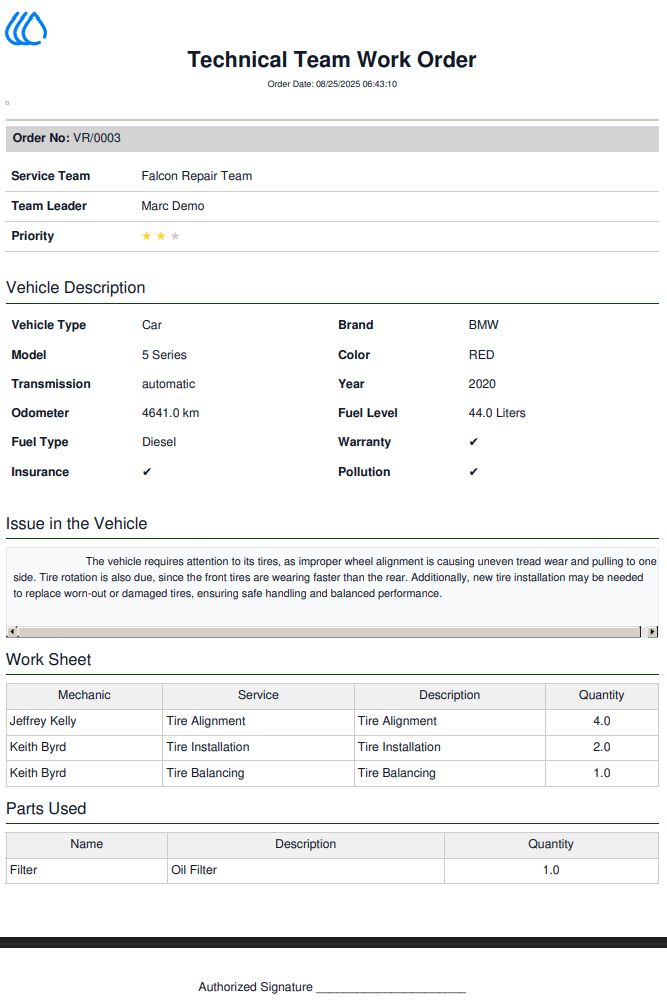
35.) Technical Team Work Order
Internal document for the service team, showing vehicle details, reported issues, assigned tasks, and parts used. Helps mechanics carry out and track repair work.
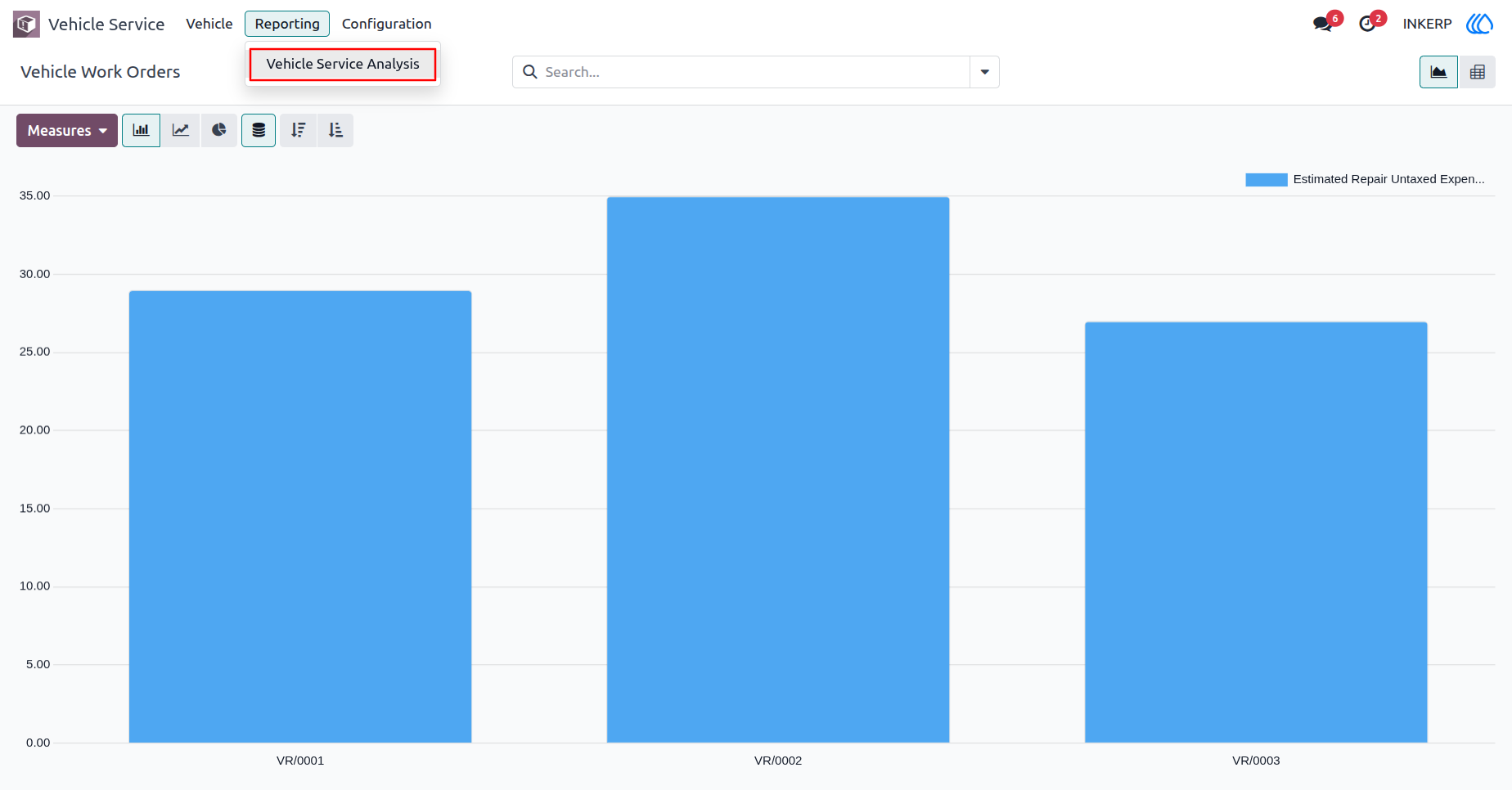
36.) Vehicle Service Analysis - Graph
This graph displays the Estimated Repair Untaxed Expenses for each vehicle work order. It helps compare service costs across different orders and quickly identify high or low expense cases.
Navigation : Vechicle Service › Reporting › Vehicle Service Analysis › Graph
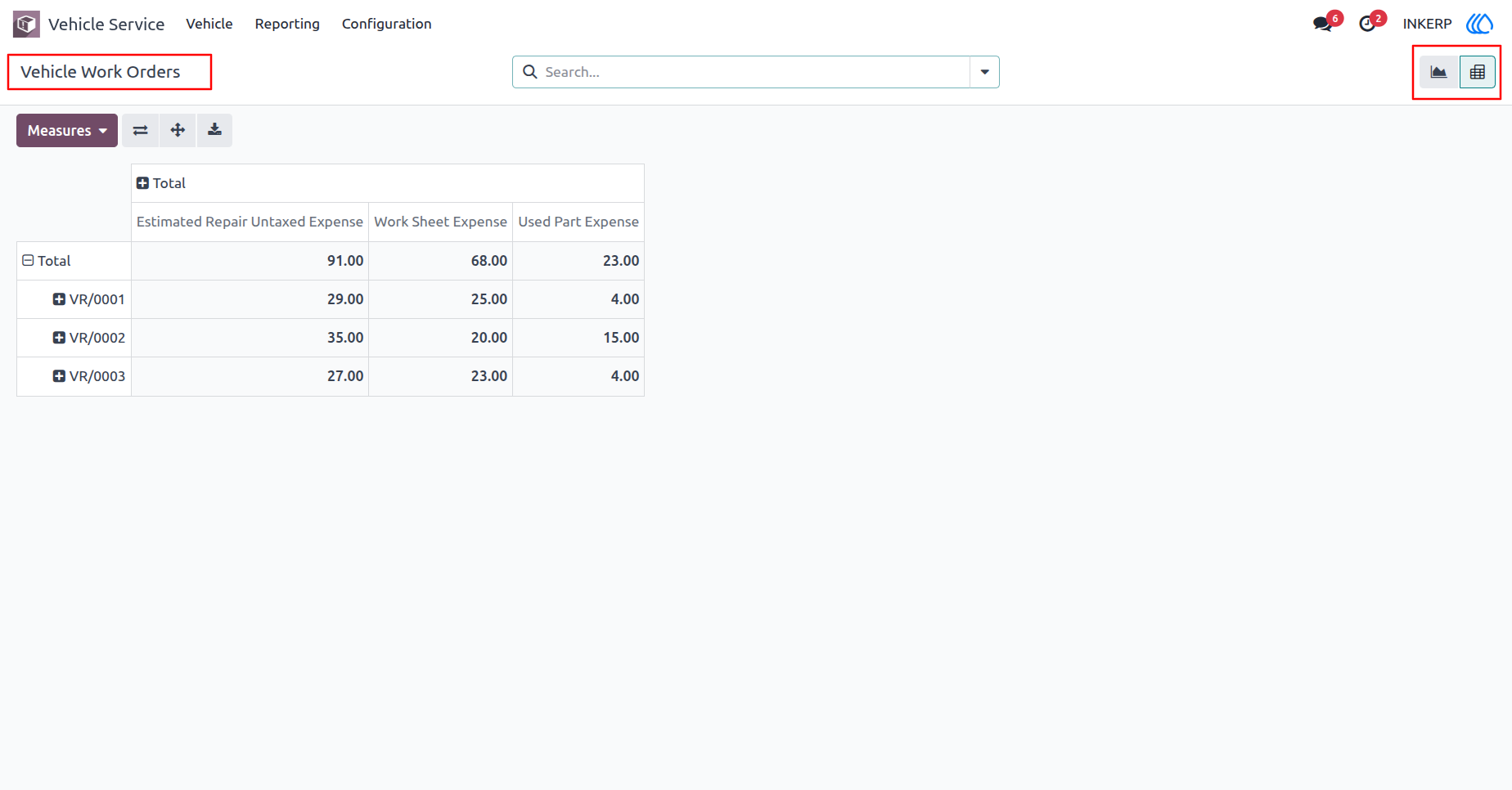
37.) Vehicle Work Orders - Pivot/Table Analysis
The Pivot View summarizes vehicle service expenses, allowing users to analyze estimated repairs, worksheet costs, and part usage across multiple work orders in a structured format.
Navigation : Vechicle Service › Reporting › Vehicle Service Analysis › pivot
User Guide