

Our Most Suggested Products


Hide Any Menu | Change Menu Sequence | Favorite Menu | Recent Menu | Advanced Menu Management
Menu Management provides a complete and flexible solution for personalizing the Odoo menu experience for individual users. Administrators can control menu visibility, customize the order of main menus, and provide quick access to favorite and recently used menus.
All configurations can be managed directly from Settings → Users, allowing each user to have a personalized menu interface without modifying Odoo's standard menu configuration.
 Features
 Screenshots
 Support
 Service
Features
Hide Menu Per User :
Control which menus are visible for each individual user. Hide unnecessary menus and keep the interface clean and focused on the user's responsibilities. Menu visibility can be configured directly from the User form
Customize Main Menu Sequence Per User :
Set a personalized sequence for the main menus for each user. Move frequently used menus to the preferred position for faster and easier navigation. Each user can have a different menu order based on their workflow.
Favorite Menu Per User :
Allow users to access their most frequently used menus through a dedicated favorites section. Users can keep important menus easily accessible without searching through the complete menu structure. Favorite menu configuration is maintained independently for each user.
Recent Menu Per User :
Display recently accessed menus so users can quickly return to areas they have worked with before. This reduces navigation time and makes it easier to continue frequently repeated tasks. Recent menu information is maintained separately for each user.
User-Based Menu Configuration :
Manage all menu personalization options from a single location in the Odoo User form. Administrators can configure menu visibility, sequence, favorites, and recent menus for individual users. The configuration is user-specific, providing every user with a customized Odoo navigation experience.
Screenshot
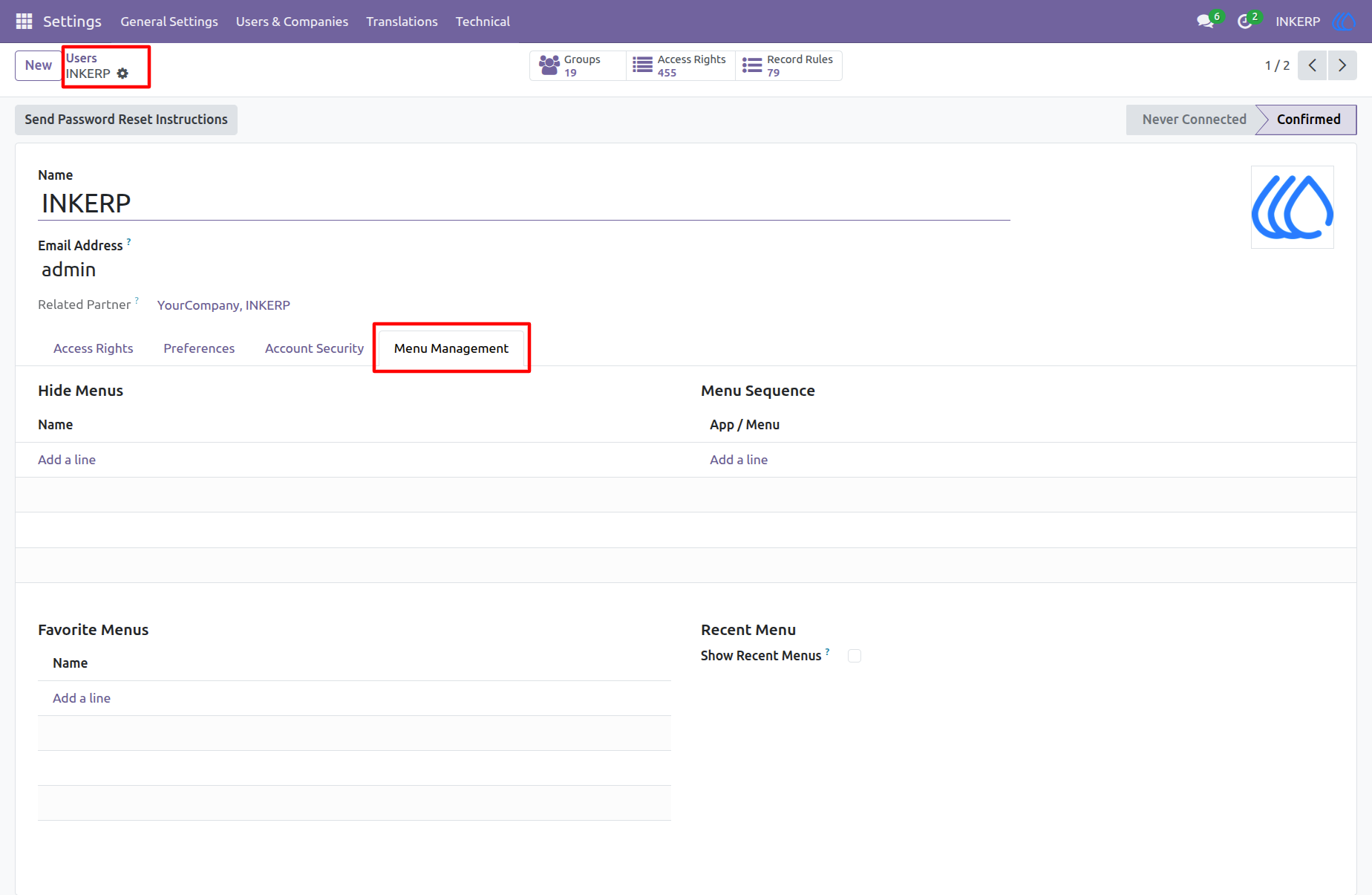
1) Users Settings View
Manage all menu options directly from the "Menu Management" tab on the Odoo User form.
Navigation : Settings → Users & Companies → Users
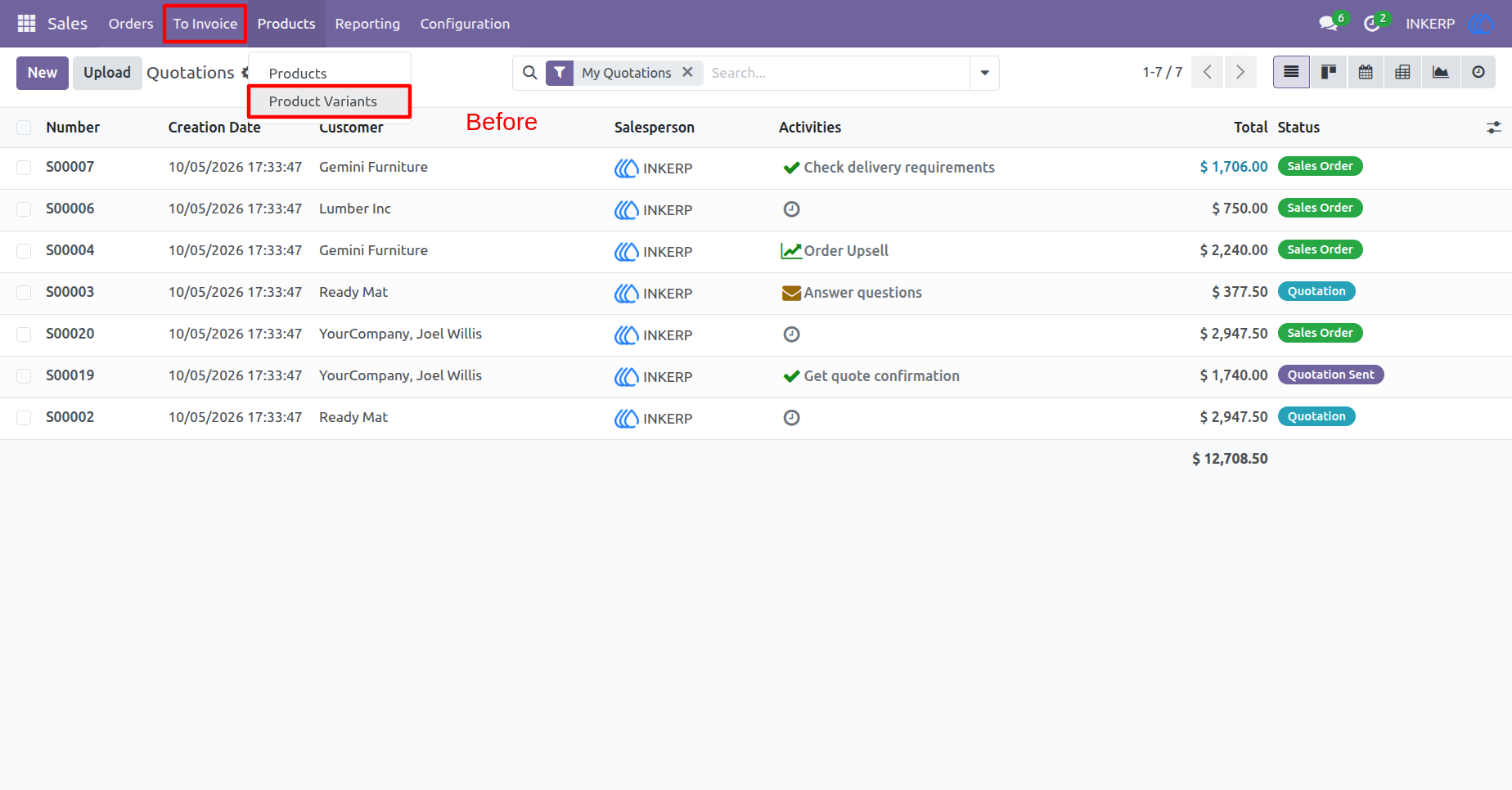
2) Menu View
Before hiding the menu from the user's view
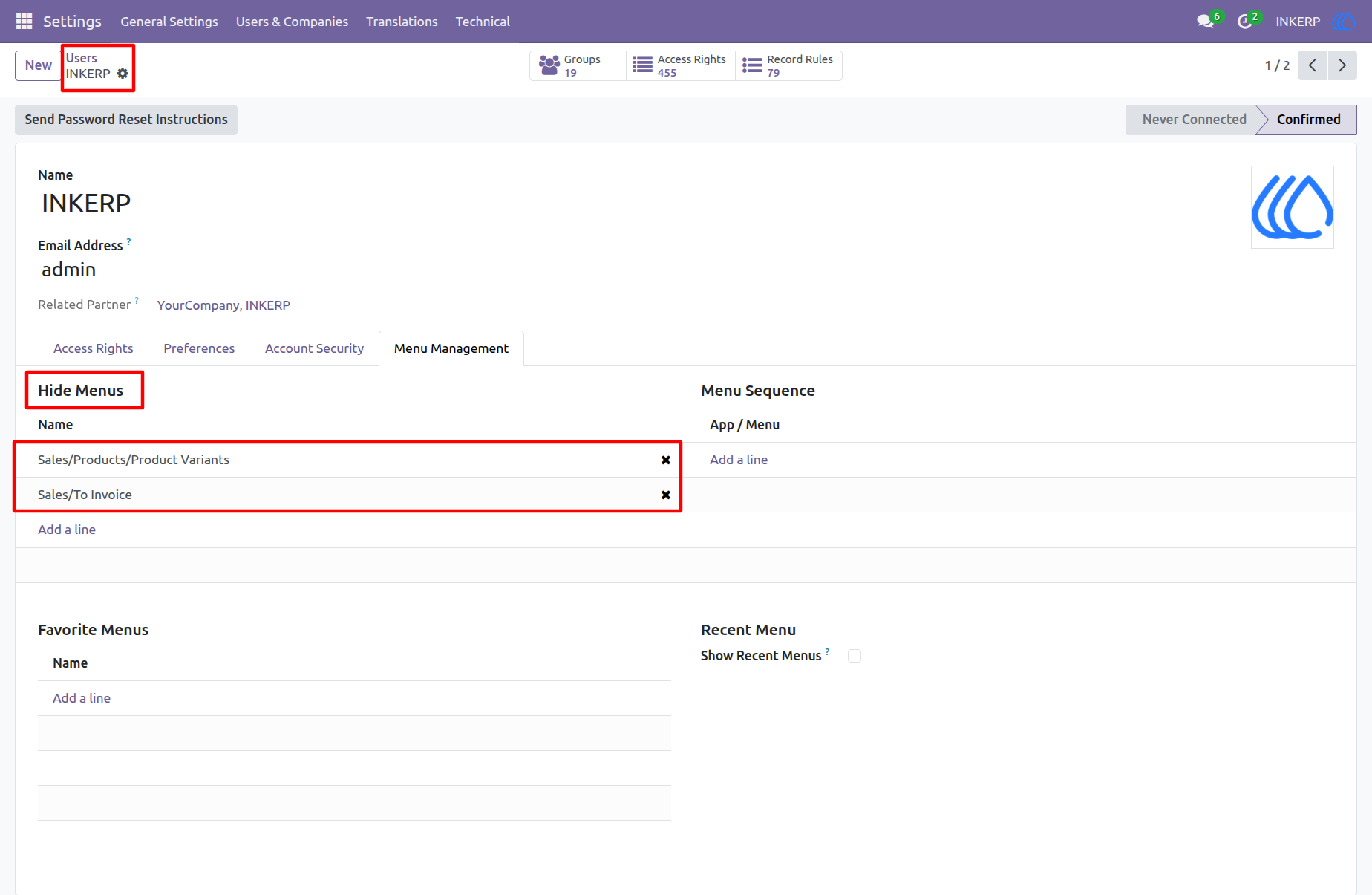
3) User Form View
Select the menus under "Hide Menus" that you want to hide from the user.
4) Menu View
After hiding the menu from the user
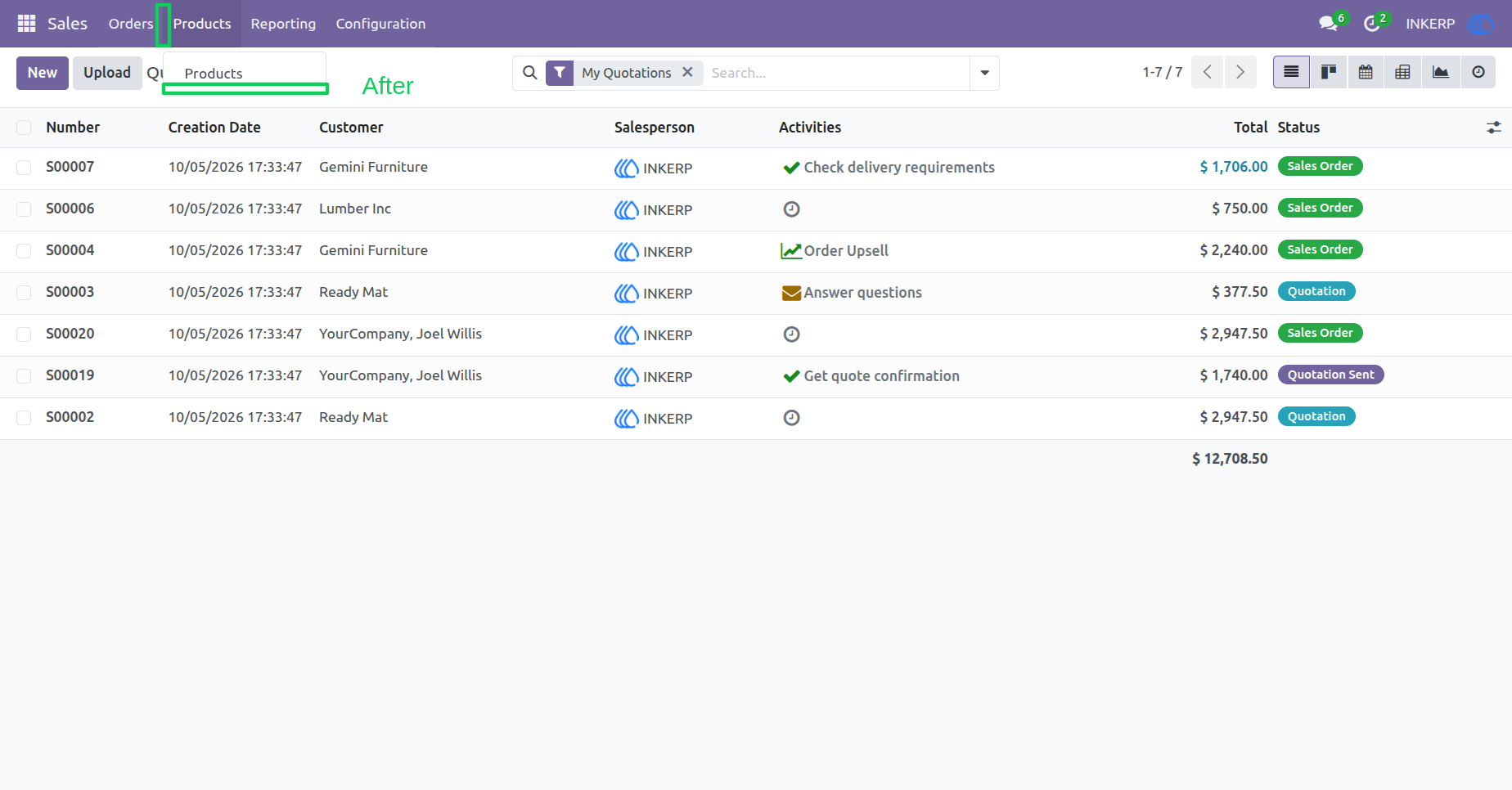
5) Menu Order (Sequence) View
Before changing the main menu order for the user.
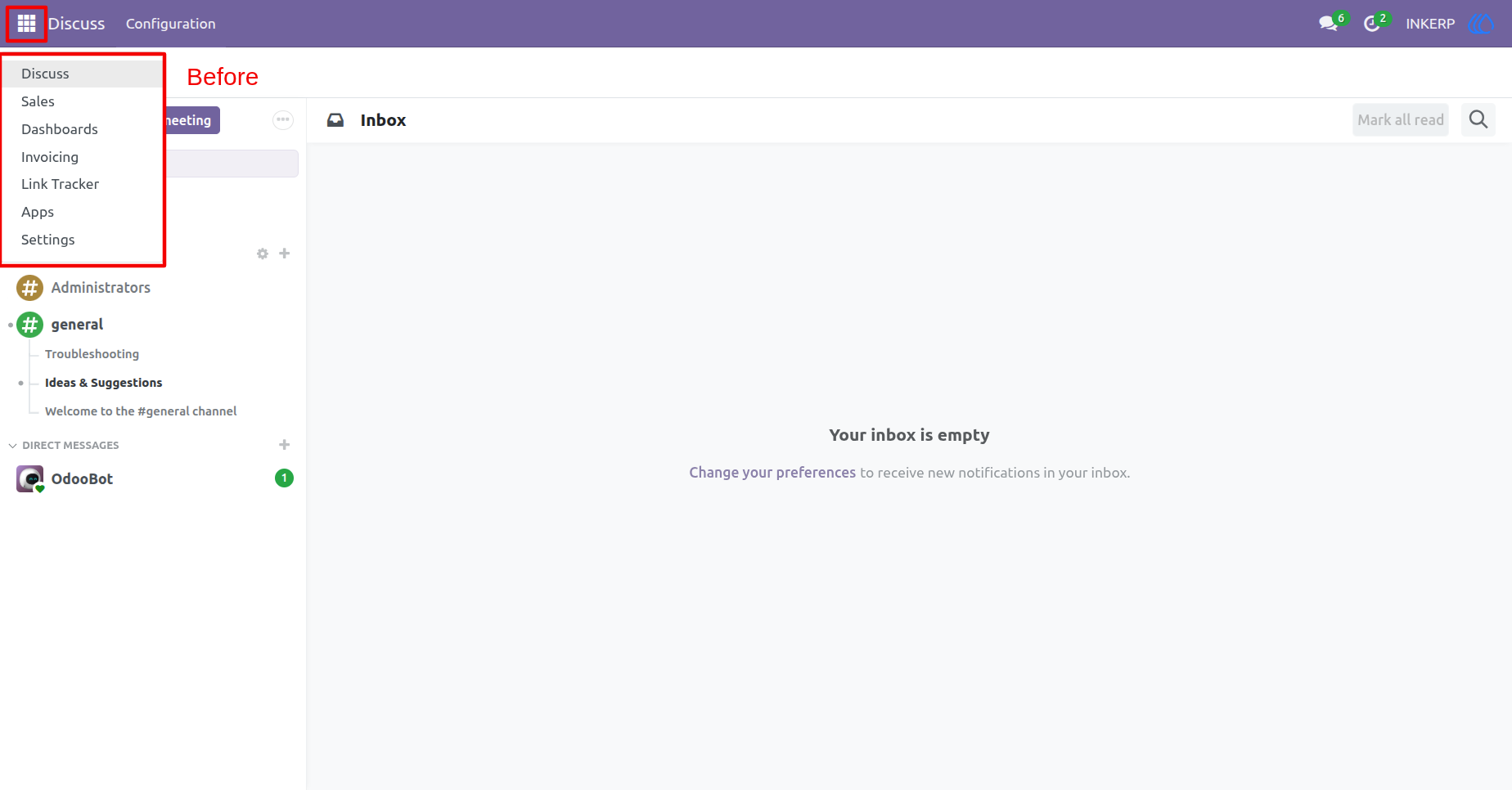
6) User Form View
Select the menus under "Menu Sequence" and set the order you want for the user.
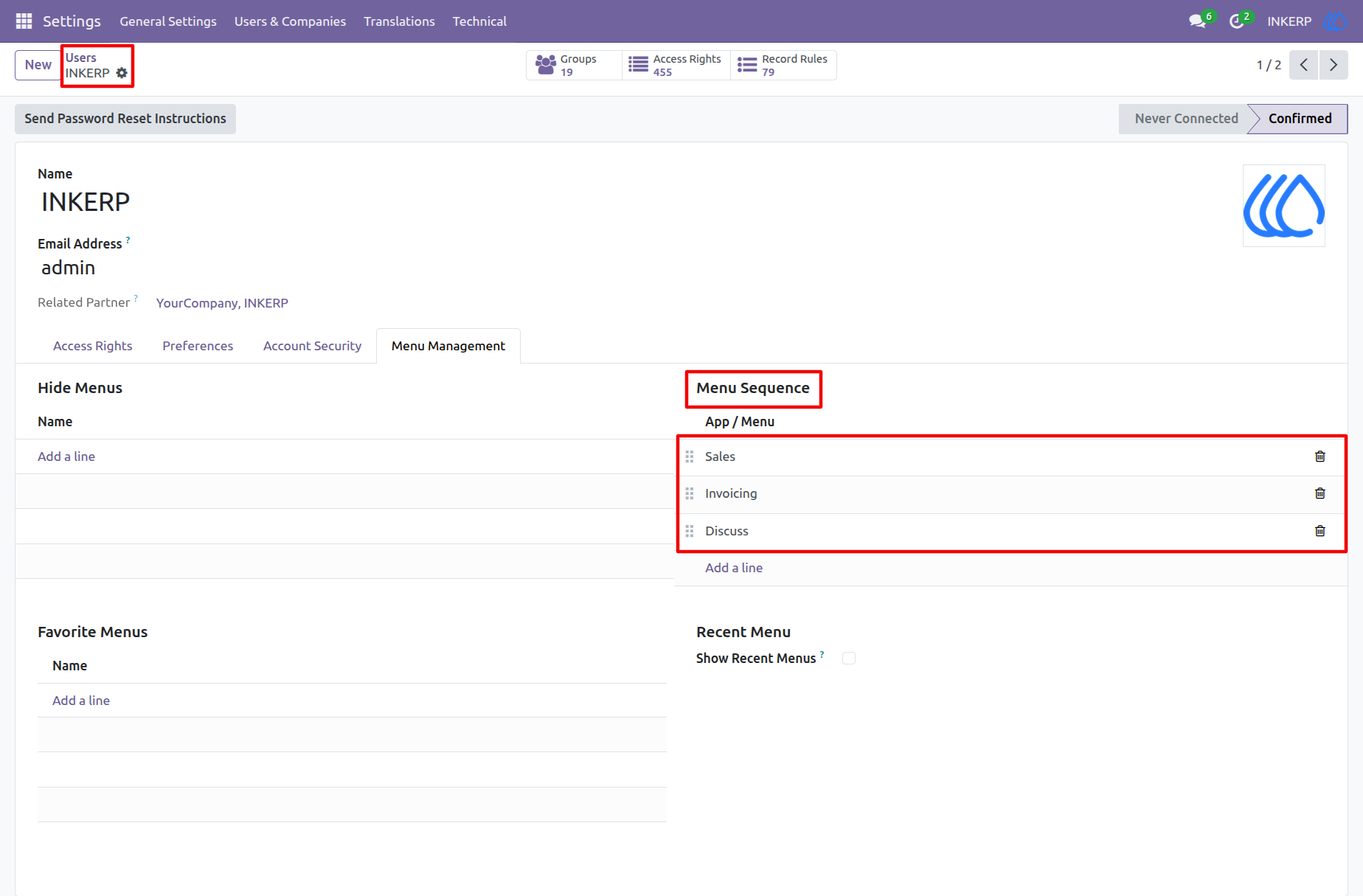
7) Menu View
After changing the main menu order for the user.
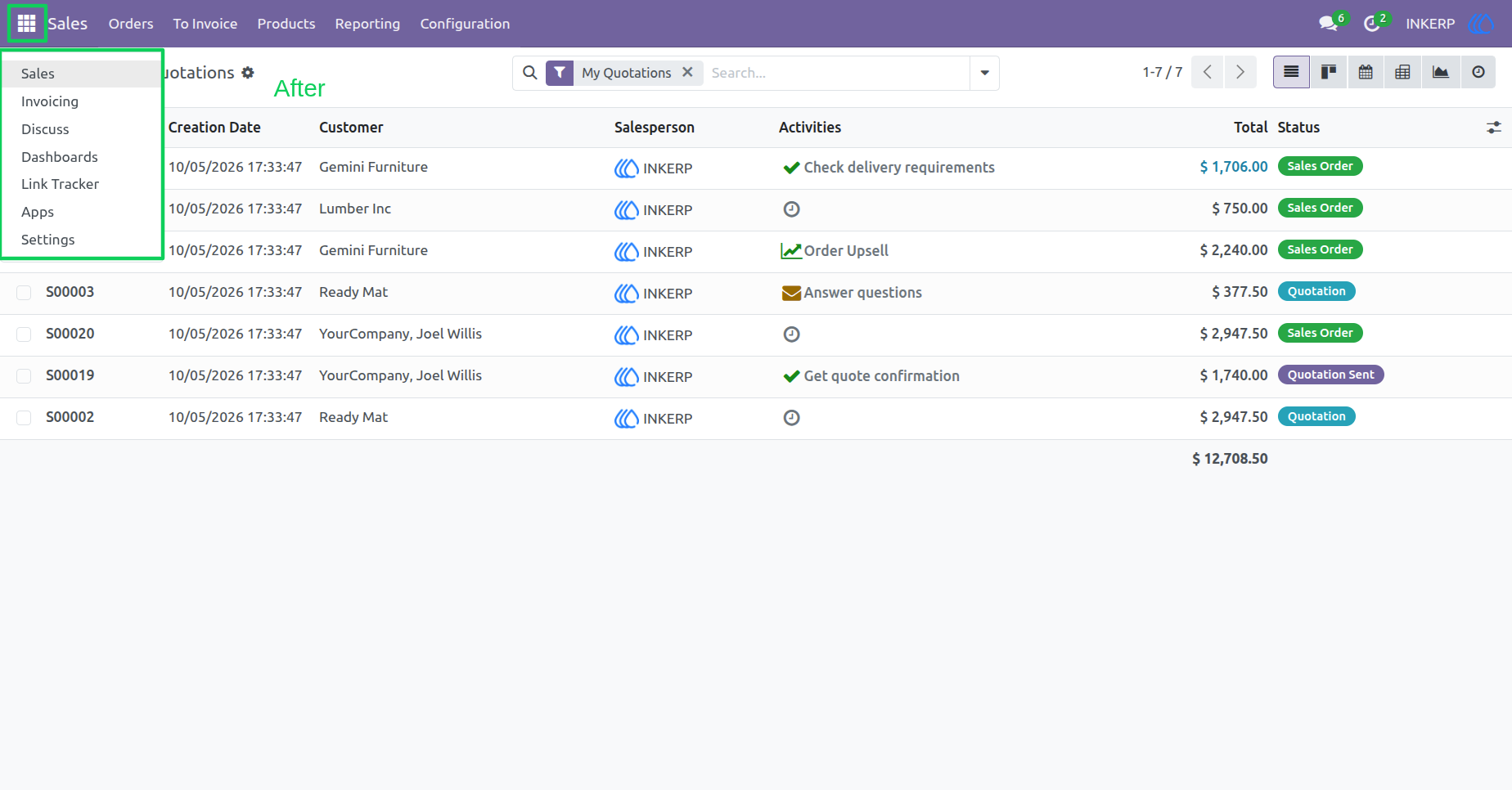
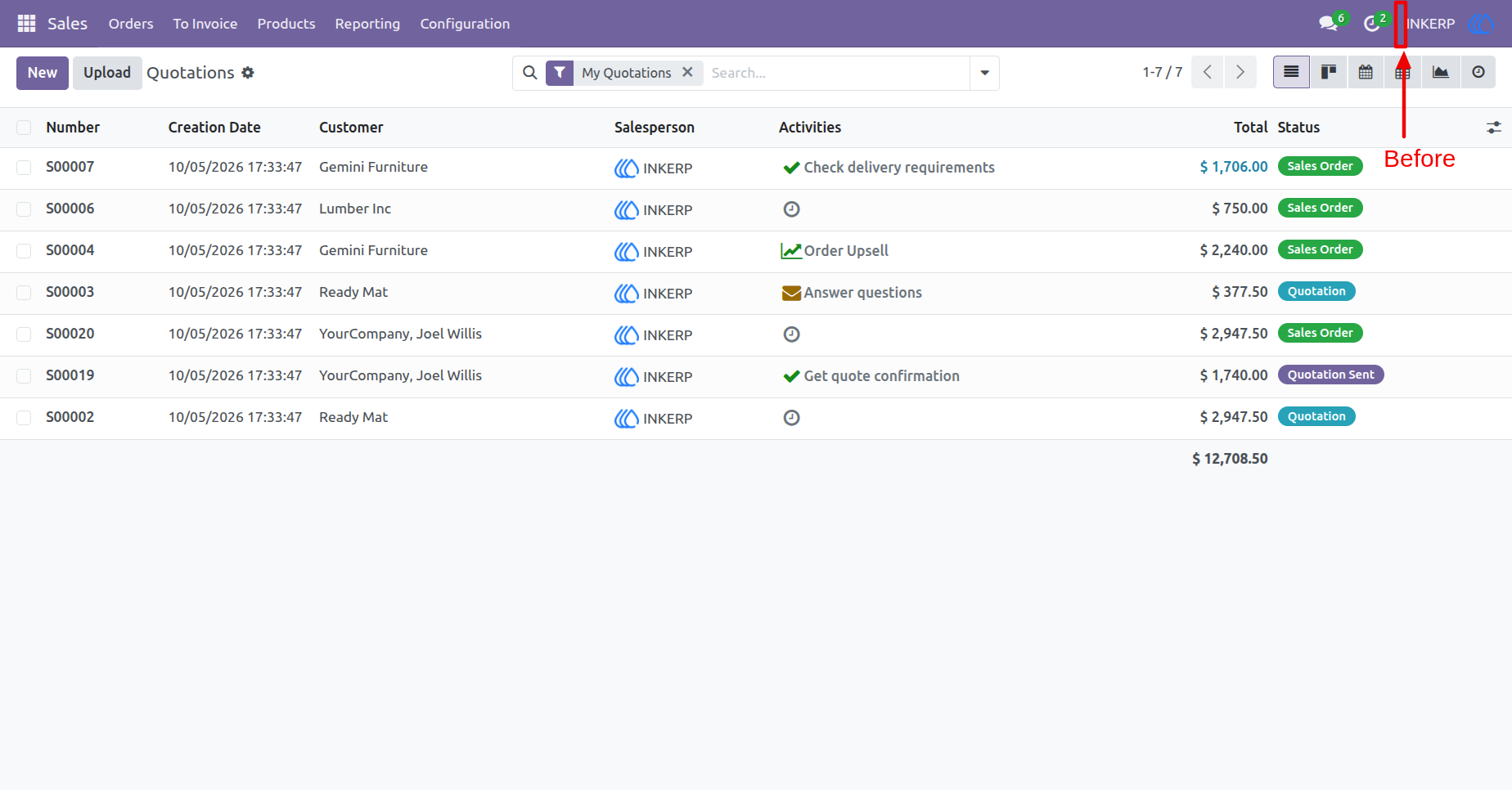
8) Before Adding Favorite Menu
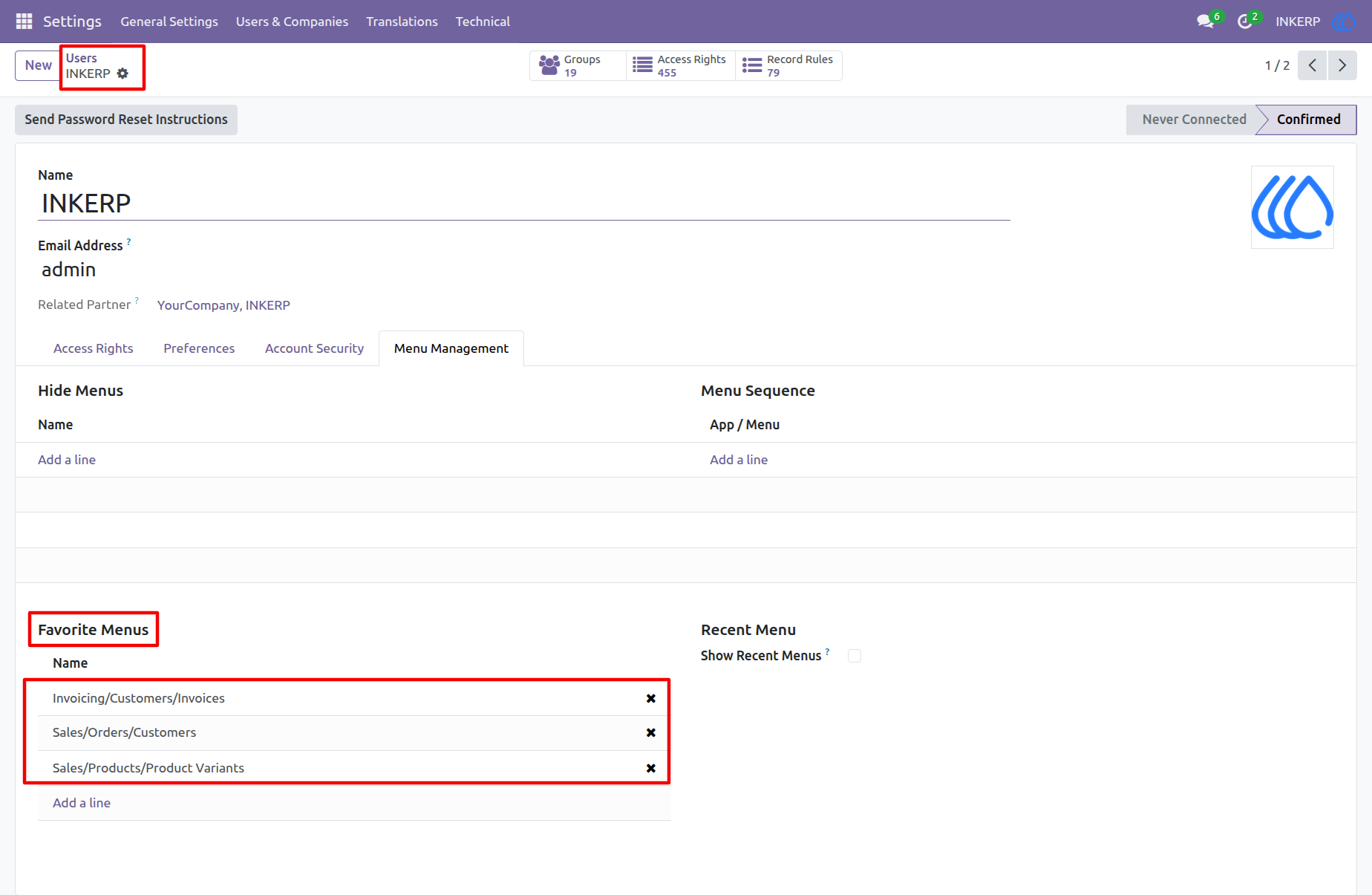
9) User Form View
Select the menus under "Favorite Menus" that you want to set as favorites for the user.
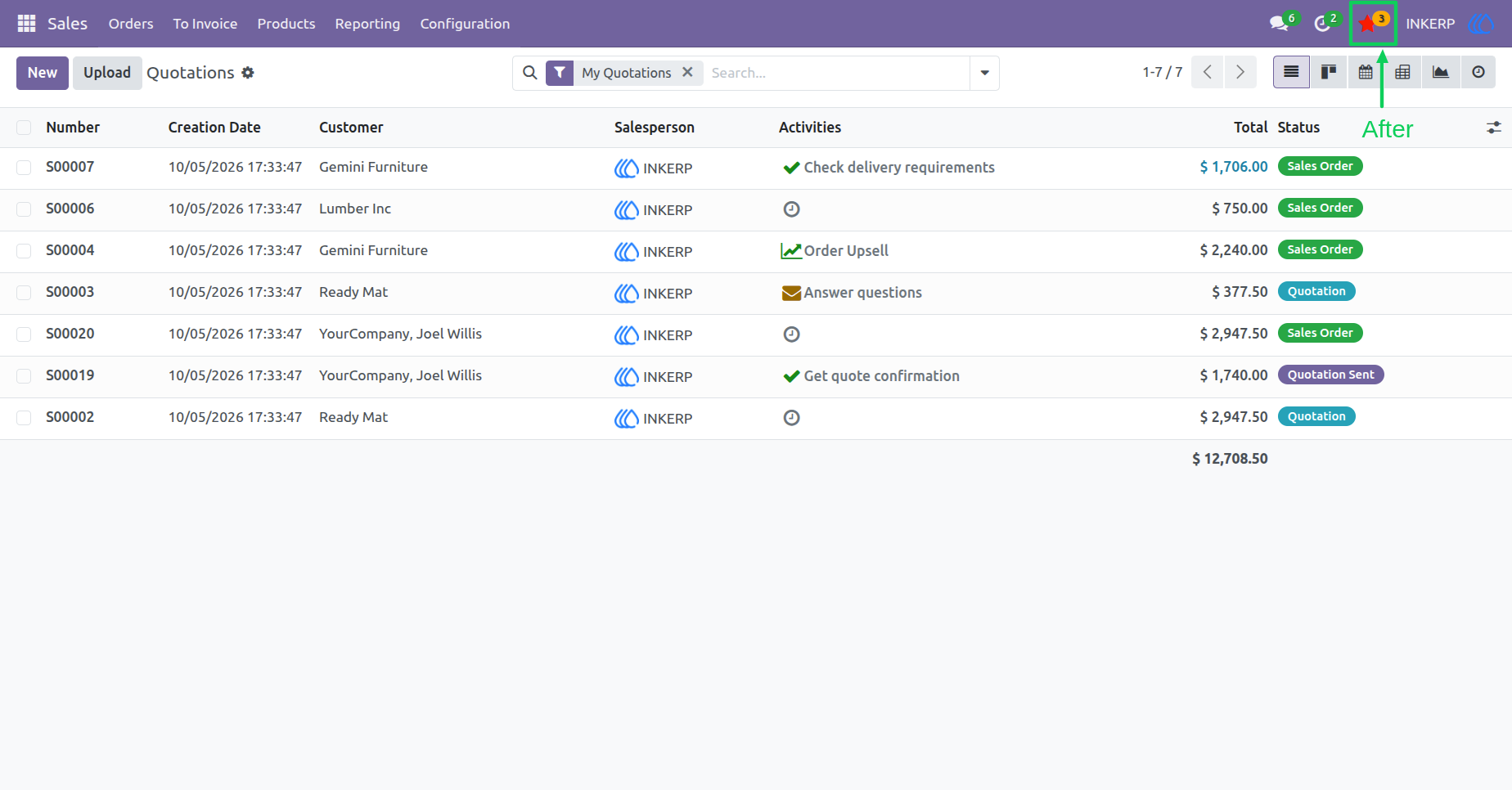
10) After Adding Favorite Menu For User
When the user clicks the "Star" icon, a dropdown menu opens showing all their favorite menus.
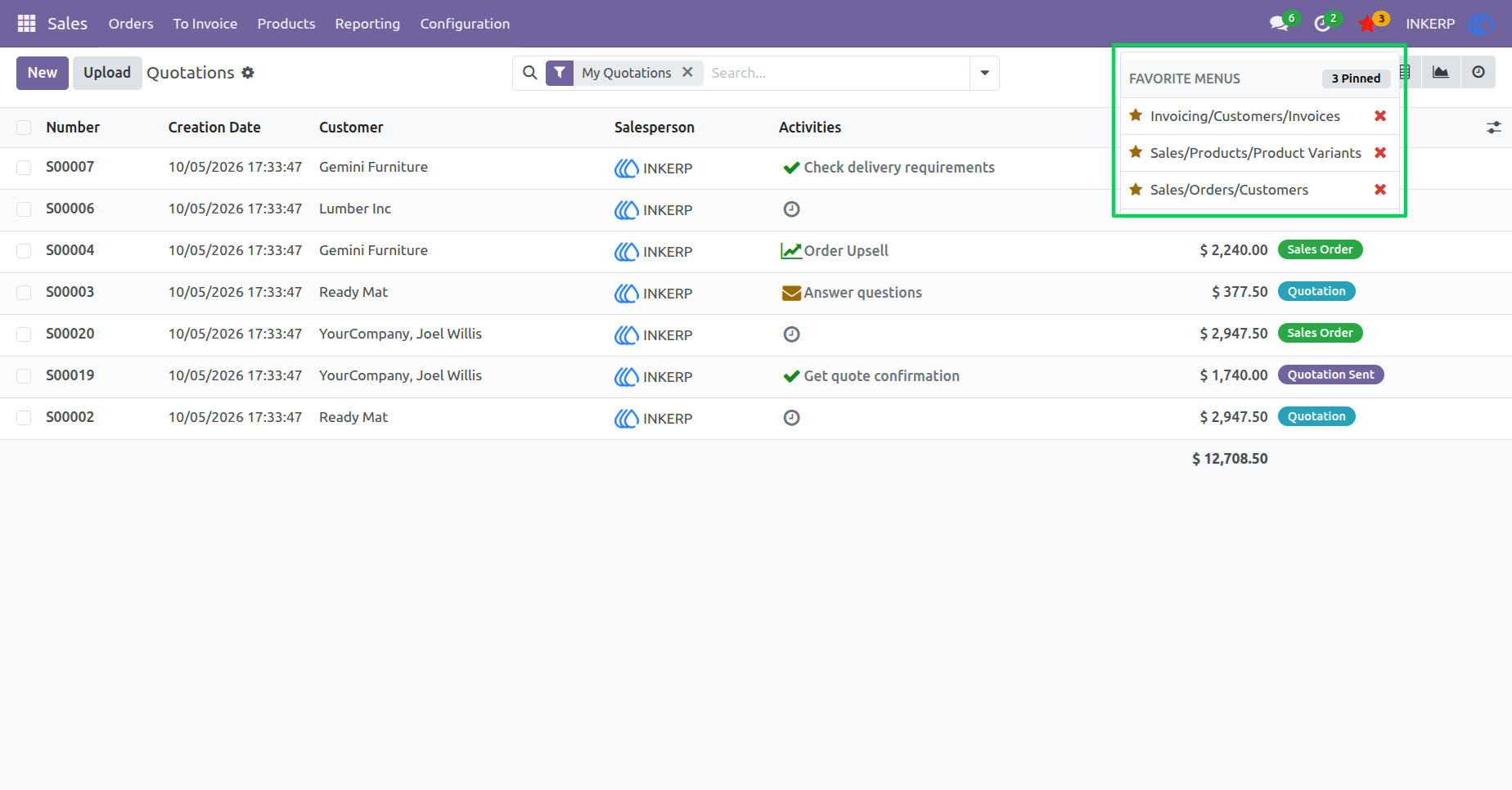
11) Favorite Menu Dropdown View
The user can navigate directly to the selected menu by clicking on it. Users can remove any favorite menu by clicking the "Cross" icon. The selected menu will then be removed from their favorites.
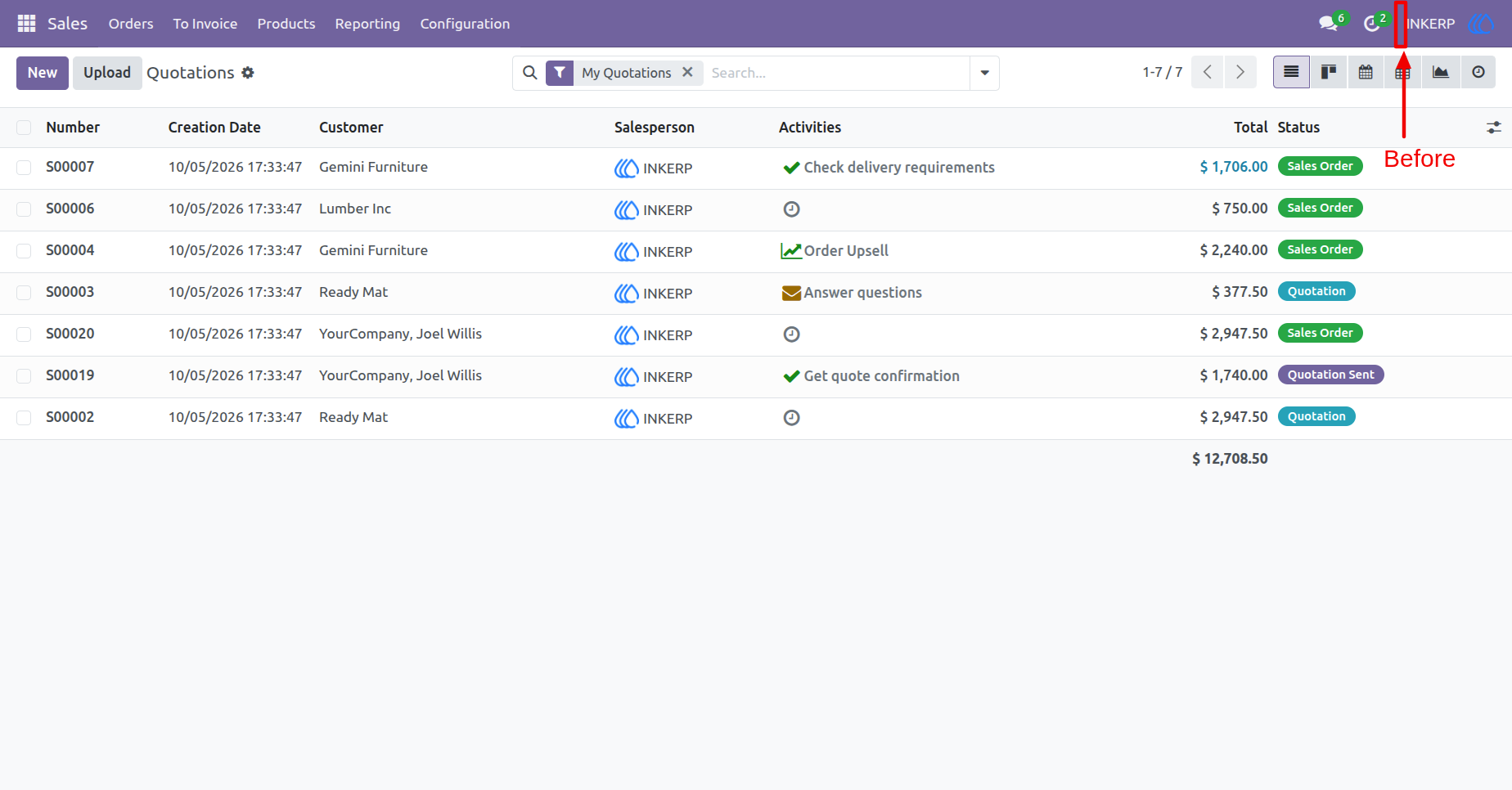
12) Before Show Recent Menu
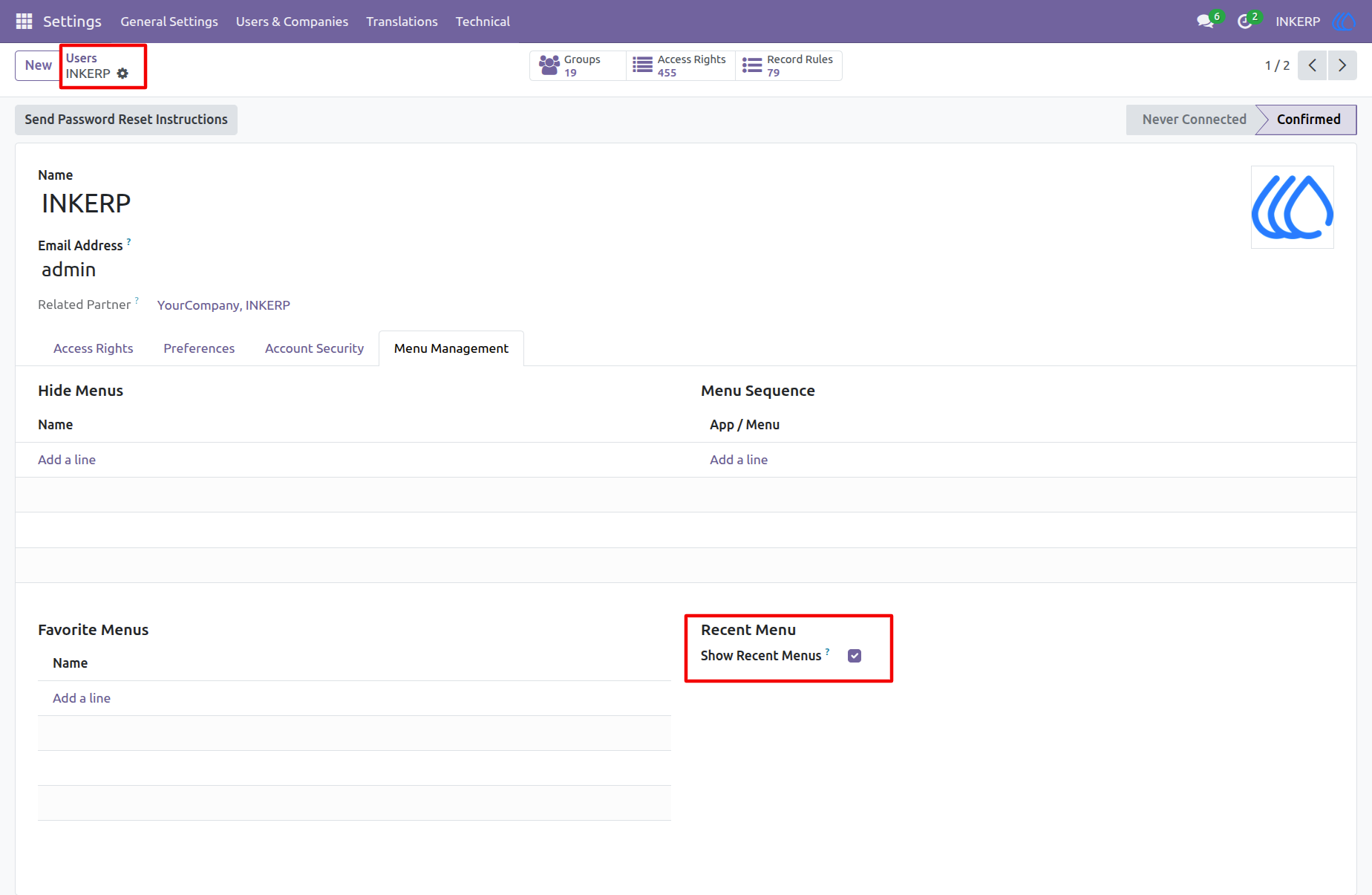
13) User Form View
Tick the "Show Recent Menu" checkbox to allow the user to view all recently accessed menus.
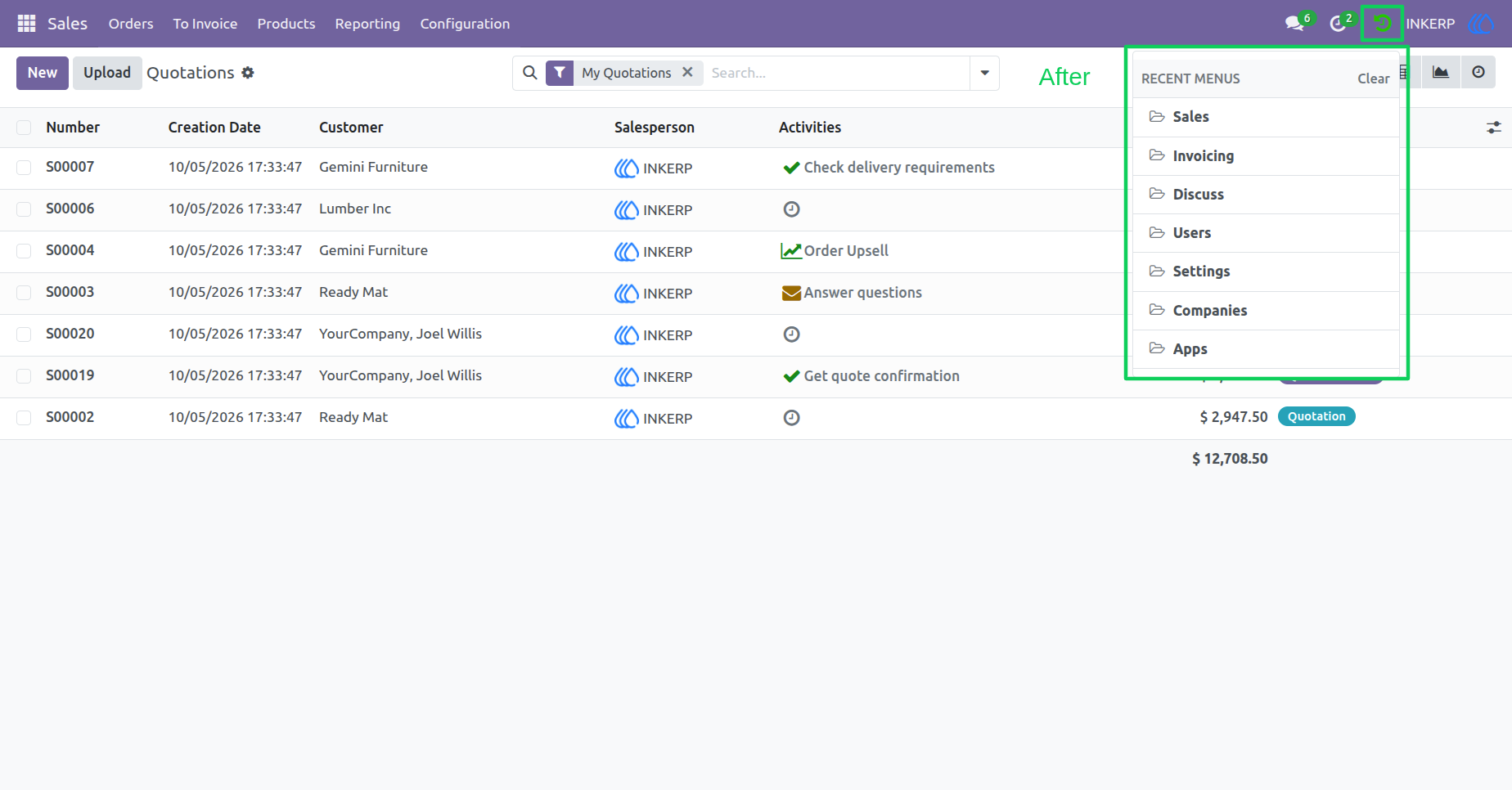
14) Recent Menu View
The user can navigate directly to the selected menu by clicking on it.
User Guide





