

Our Most Suggested Products


Wholesaler | Wholesaler Portal
This module provides a complete website-based wholesaler management solution with a dedicated portal dashboard integrated into the My Account section. Wholesalers can access essential features such as Quick Buy, Quick Order, Express Order, payment proof upload, portal notifications, and customer statements from a centralized interface. A product matrix with standard attribute selection simplifies product configuration and ordering for wholesale customers. Website-specific flows support controlled access to wholesale products, including price visibility restrictions for guest users with a direct login option. Private product catalogues can be created and managed with PDF download and Flipbook viewing options, along with website-specific catalogue settings. Minimum Order Quantity (MOQ) rules help maintain defined wholesale purchasing requirements. Order templates support creation, editing, deletion, and direct Add to Cart functionality for frequently purchased products. The module also provides flexible wholesale ordering workflows designed to streamline catalogue management, product selection, and order processing through the website portal.
 Features
 Screenshots
 Support
 Service

Features
Wholesaler Portal Dashboard
Dedicated wholesale dashboard available within the website My Account section for centralized access to wholesale products, orders, templates and account information.
Quick Buy & Quick Order
Fast product ordering options allow wholesale customers to add products and quantities efficiently without navigating through lengthy purchasing flows.
Express Order
Dedicated express ordering functionality simplifies bulk product selection and accelerates the wholesale ordering process.
Product Matrix & Attribute Selection
Dynamic product matrix with standard attribute selection provides a convenient interface for selecting product variants, attributes, and required quantities.
Wholesale Catalogue Management
Private product catalogues support controlled wholesale product presentation with PDF download and Flipbook viewing options for an enhanced catalogue experience.
MOQ Management
Minimum Order Quantity (MOQ) functionality helps define and enforce minimum purchasing quantities for wholesale products directly through the website.
Wholesale Price Visibility Control
Product prices can remain hidden for guest visitors, with a login option provided for authorized wholesale customers to access applicable pricing.
Order Template Management
Order templates support creation, editing, deletion, and reuse of frequently ordered product lists with direct Add to Cart functionality.
Payment Proof Upload
Payment proof upload functionality allows wholesale customers to submit transaction documents directly through the website portal for convenient payment verification.
Customer Statement
Customer statement functionality provides convenient access to account transaction details and outstanding information through the wholesale portal.
Website-Specific Configuration
Flexible website settings support customized wholesale flows, catalogue configurations, product visibility, pricing controls, and other website-specific requirements.
Screenshot
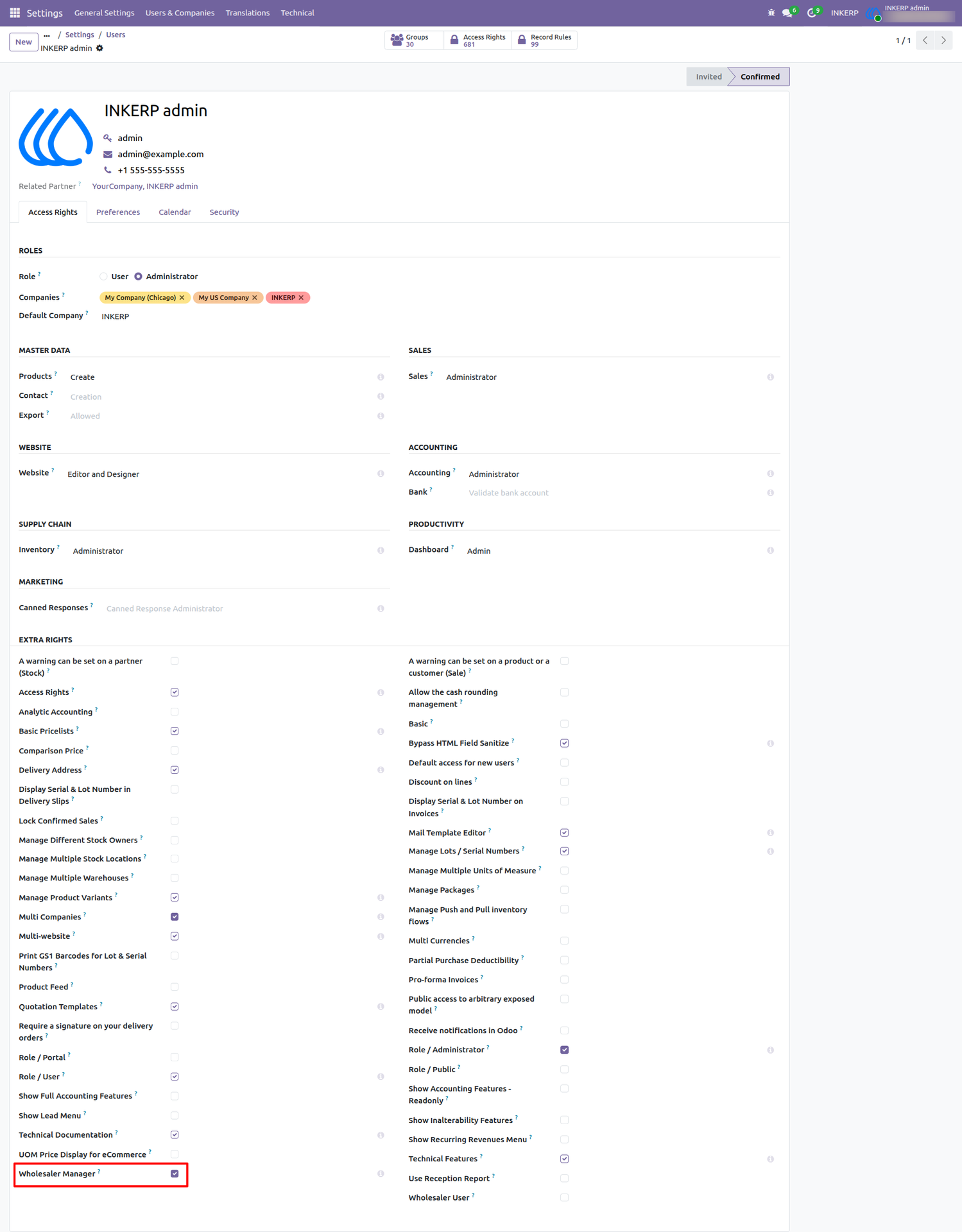
1.) User Access Rights Configuration for Wholesaler Manager :
Configure administrative permissions by assigning the Wholesaler Manager access right to authorize designated internal users to manage wholesale settings, product catalogues, customer portals, see wholesaler root menu and order workflows.
Navigation : Settings › Users & Companies › Users
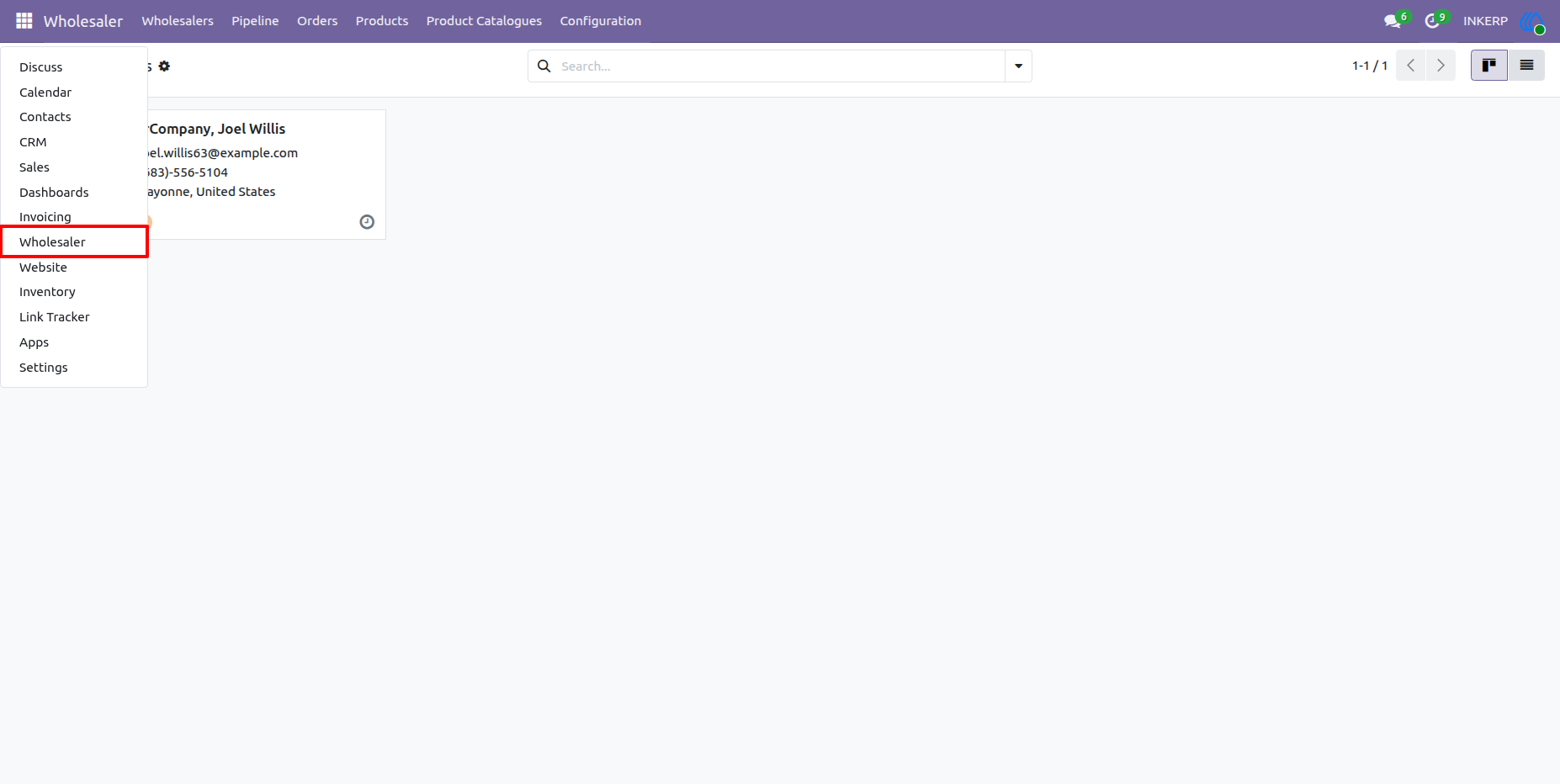
2.) Wholesaler Menu Access :
Access the dedicated Wholesaler management application directly from the main menu to manage wholesale customers, sales pipelines, orders, product catalogues, and module configurations.
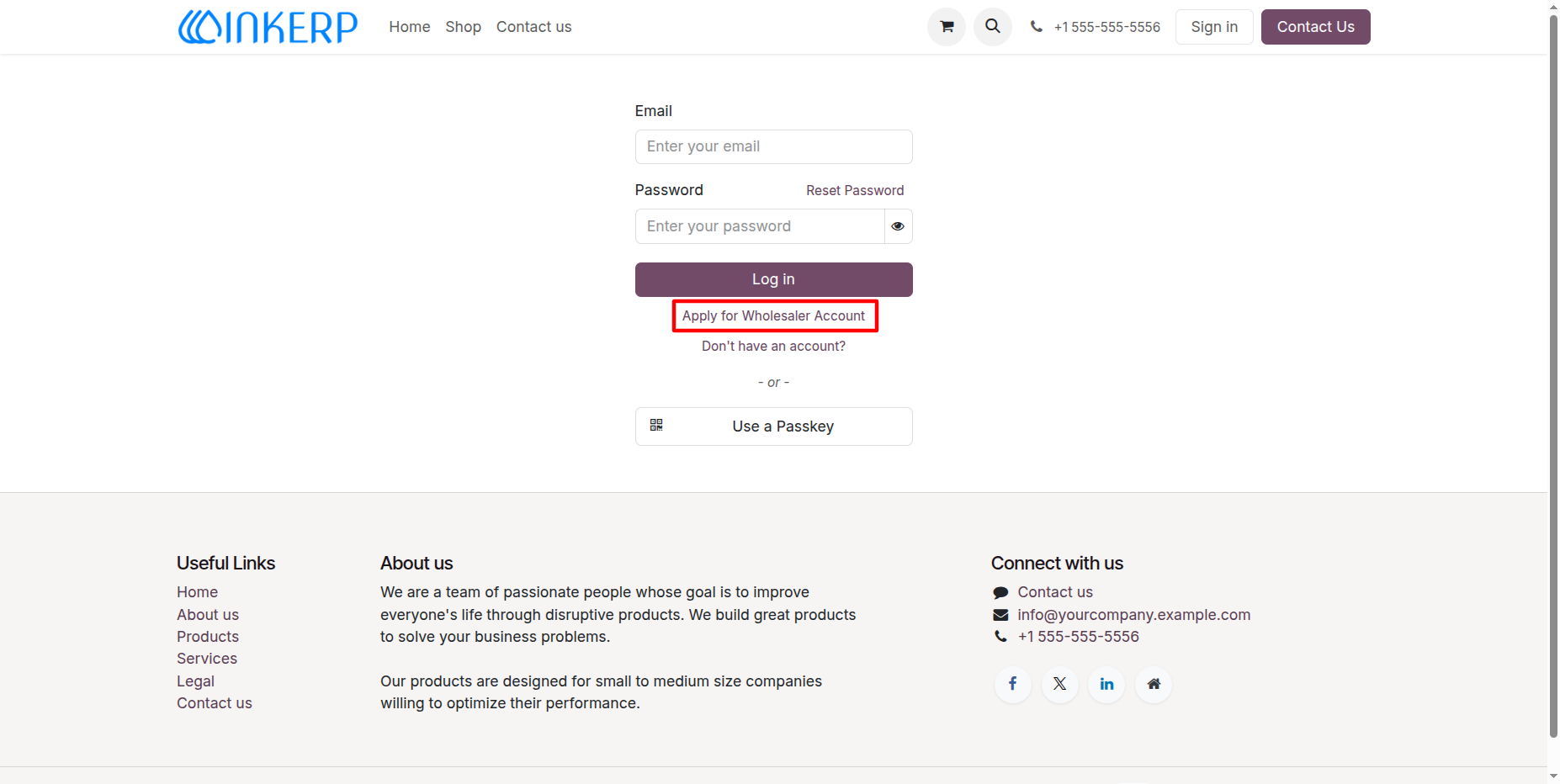
3.) Apply for Wholesaler Account Option :
Prospective wholesale customers can initiate their wholesale registration process directly from the website login page using the dedicated application link.
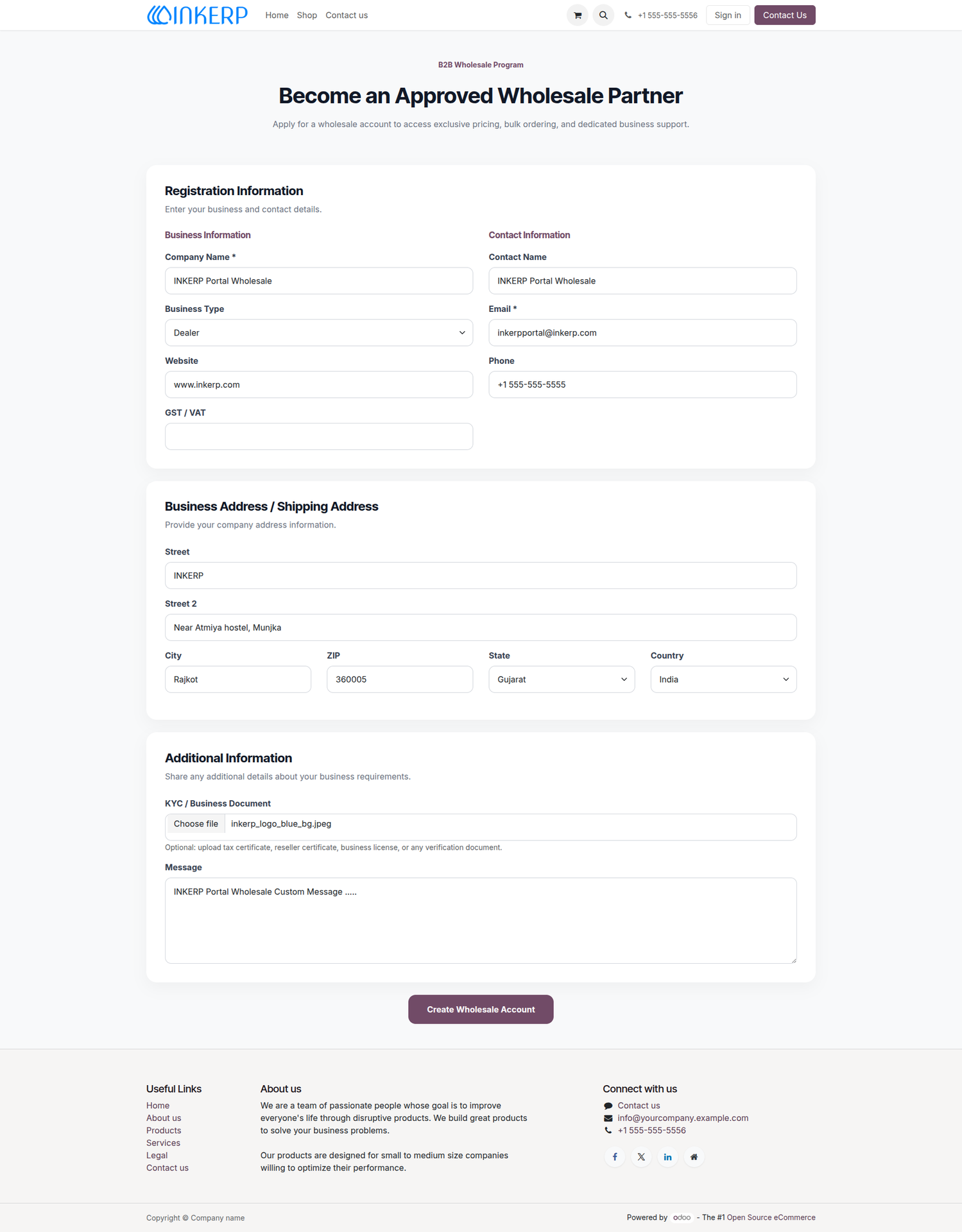
4.) Wholesale Partner Registration Form :
Prospective wholesale clients can submit their registration details, including company information, contact details, business/shipping address, and verification files (KYC/Business documents), to request an approved wholesale account.
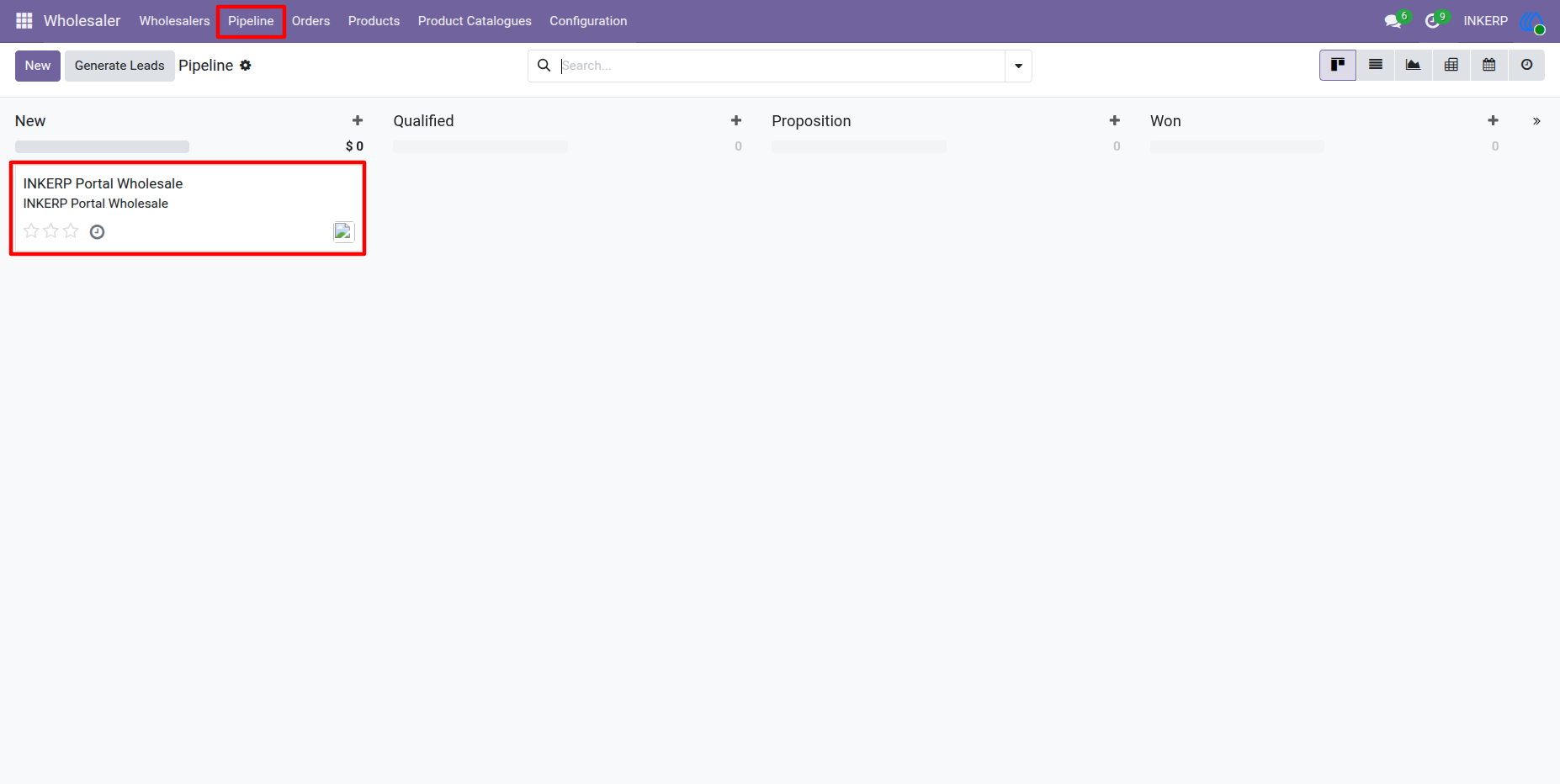
5.) Wholesaler Application Pipeline :
Wholesale registrations submitted from the website portal are automatically converted into leads within the CRM pipeline, enabling internal managers to track, qualify, and manage approval stages for wholesale accounts.
Navigation : Wholesaler › Pipeline
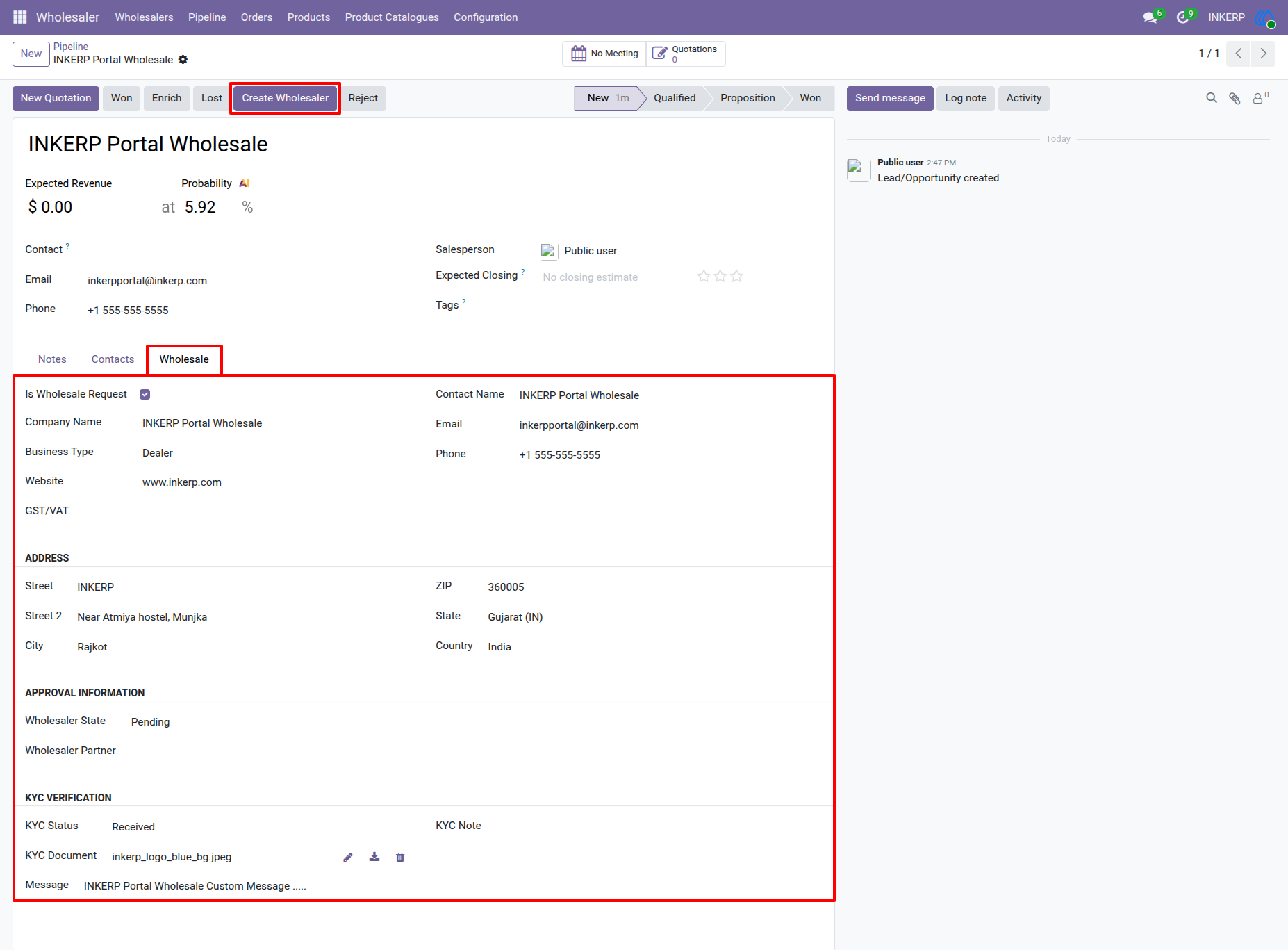
6.) Wholesale Request Verification and Approval :
Review submitted wholesale lead information, including company details, address, approval status, and KYC verification documents under the Wholesale tab, with the ability to convert the approved lead into an official wholesale partner using the "Create Wholesaler" button.
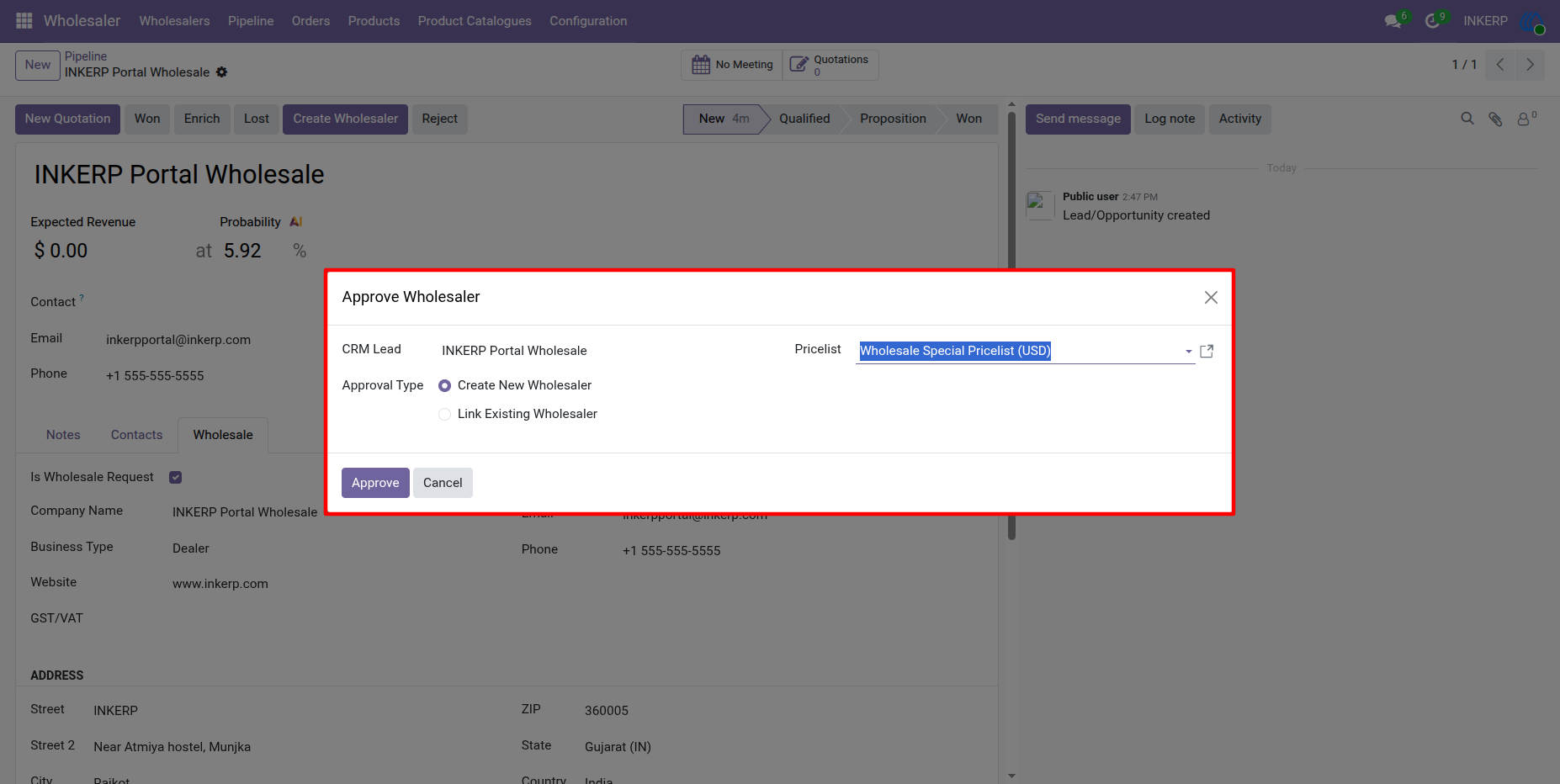
7.) Approve Wholesaler Wizard :
Approve wholesale requests by selecting an approval type (create a new wholesaler or link an existing one) and assigning a dedicated wholesale pricelist before completing partner approval.
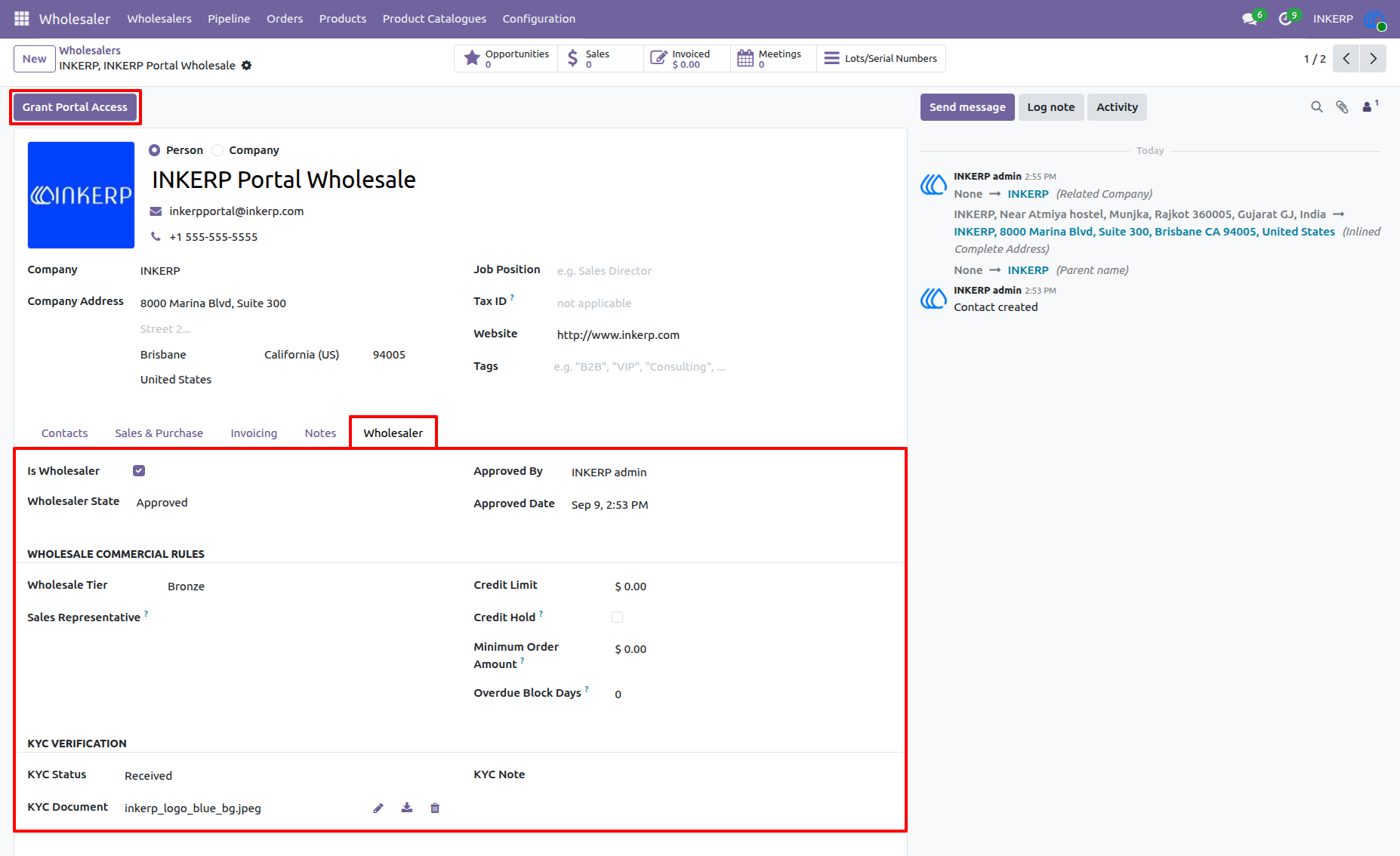
8.) Wholesaler Partner Profile and Portal Access :
Manage wholesaler commercial rules, approval details, credit limits, minimum order amounts, and KYC verification under the dedicated Wholesaler tab, and provide website portal entry using the "Grant Portal Access" button.
Navigation : Wholesaler › Wholesalers
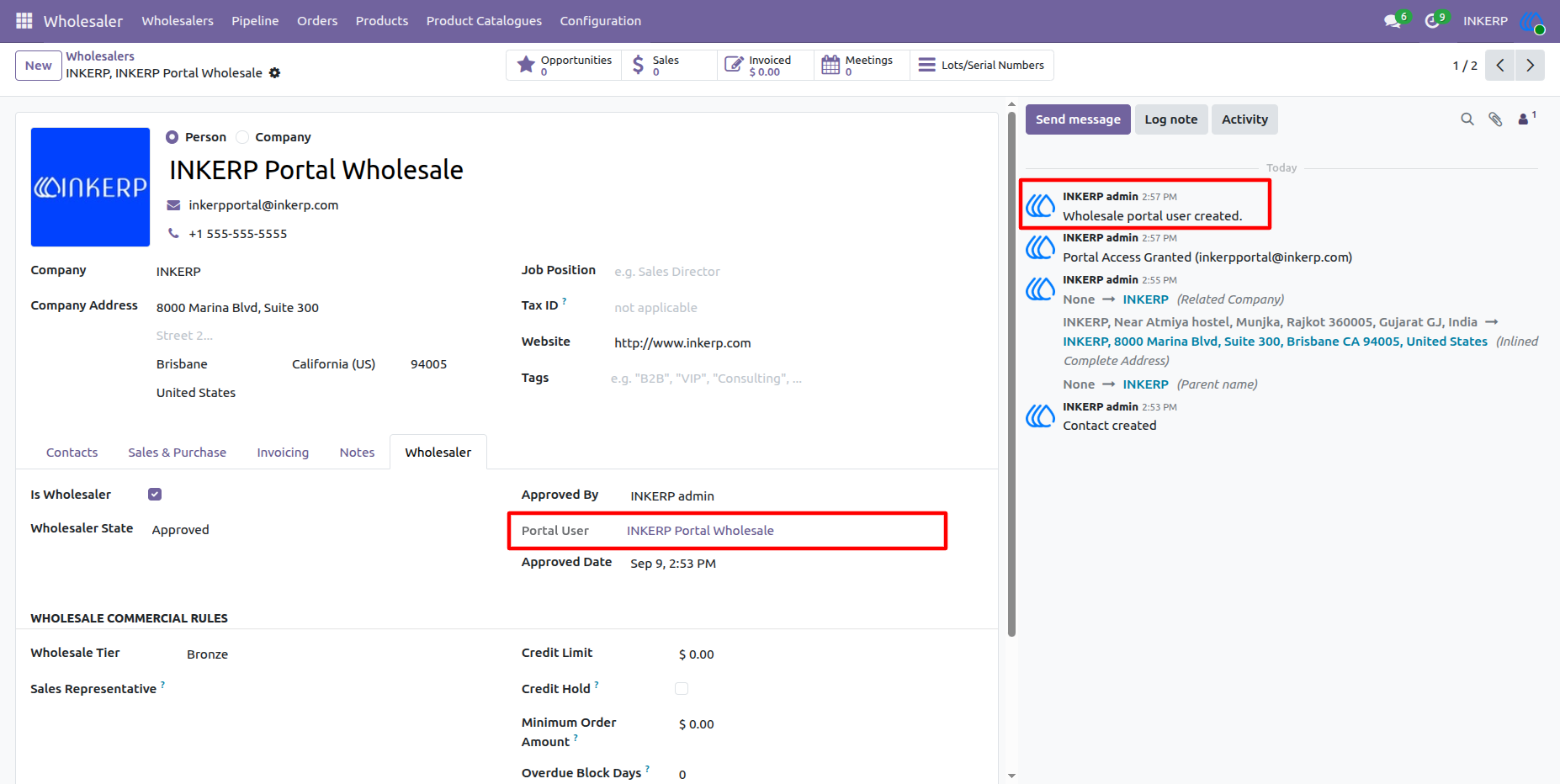
9.) Wholesaler Portal User Creation Confirmation :
Once portal access is granted, the wholesale partner record updates to display the linked Portal User, confirmed by system chatter logs showing successful wholesale portal user creation and access rights assignment.
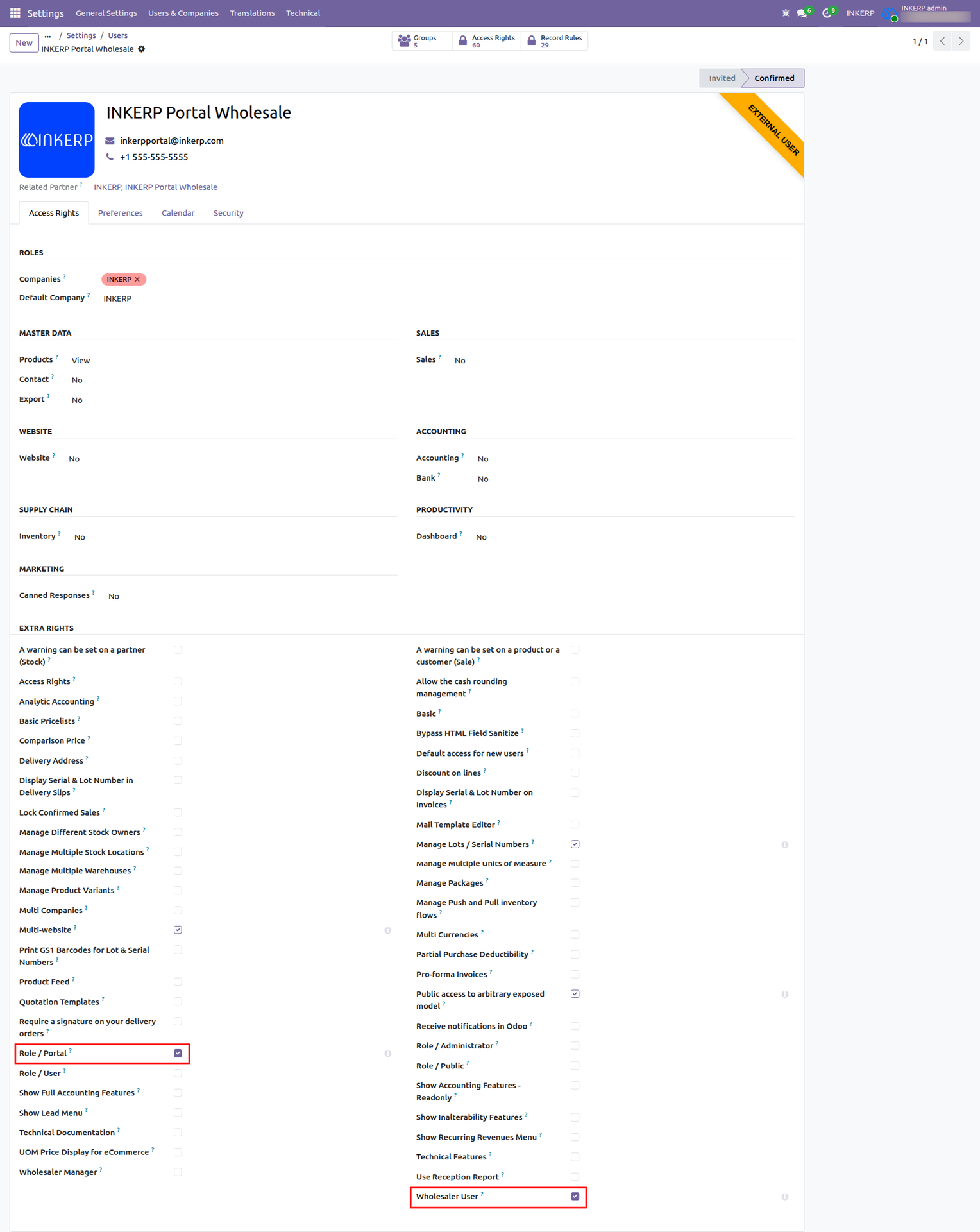
10.) Wholesaler User Access Rights Configuration :
Verify auto assigned access rights to the Wholesaler User access rights under Extra Rights, enabling external wholesale partners to access dedicated wholesale portal features.
Navigation : Settings › Users & Companies › Users
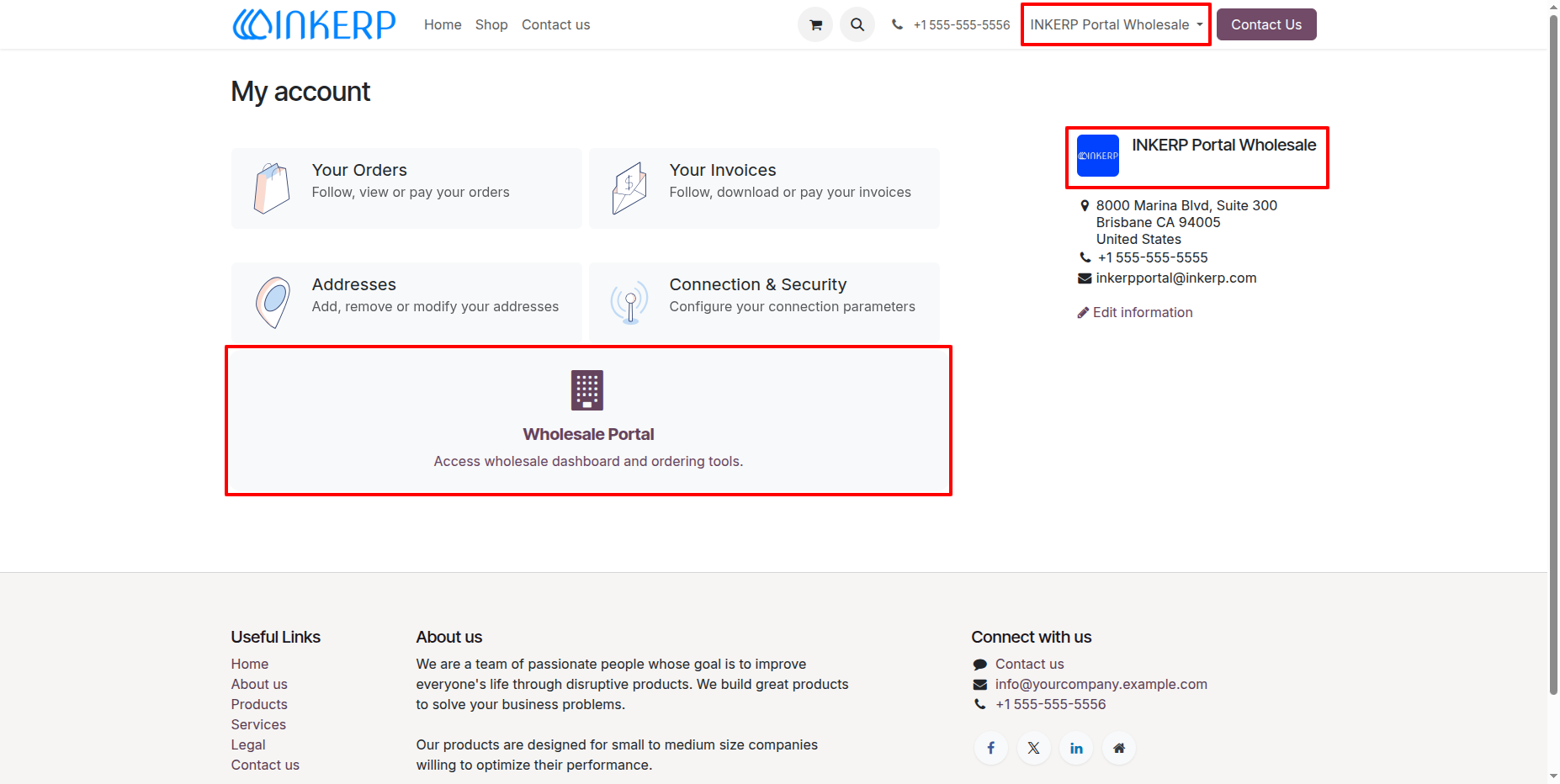
11.) Wholesale Portal Access from My Account :
Access the dedicated Wholesale Portal directly from My Account area of the customer, providing authorized wholesale users with a centralized gateway to their wholesale dashboard and bulk ordering tools.
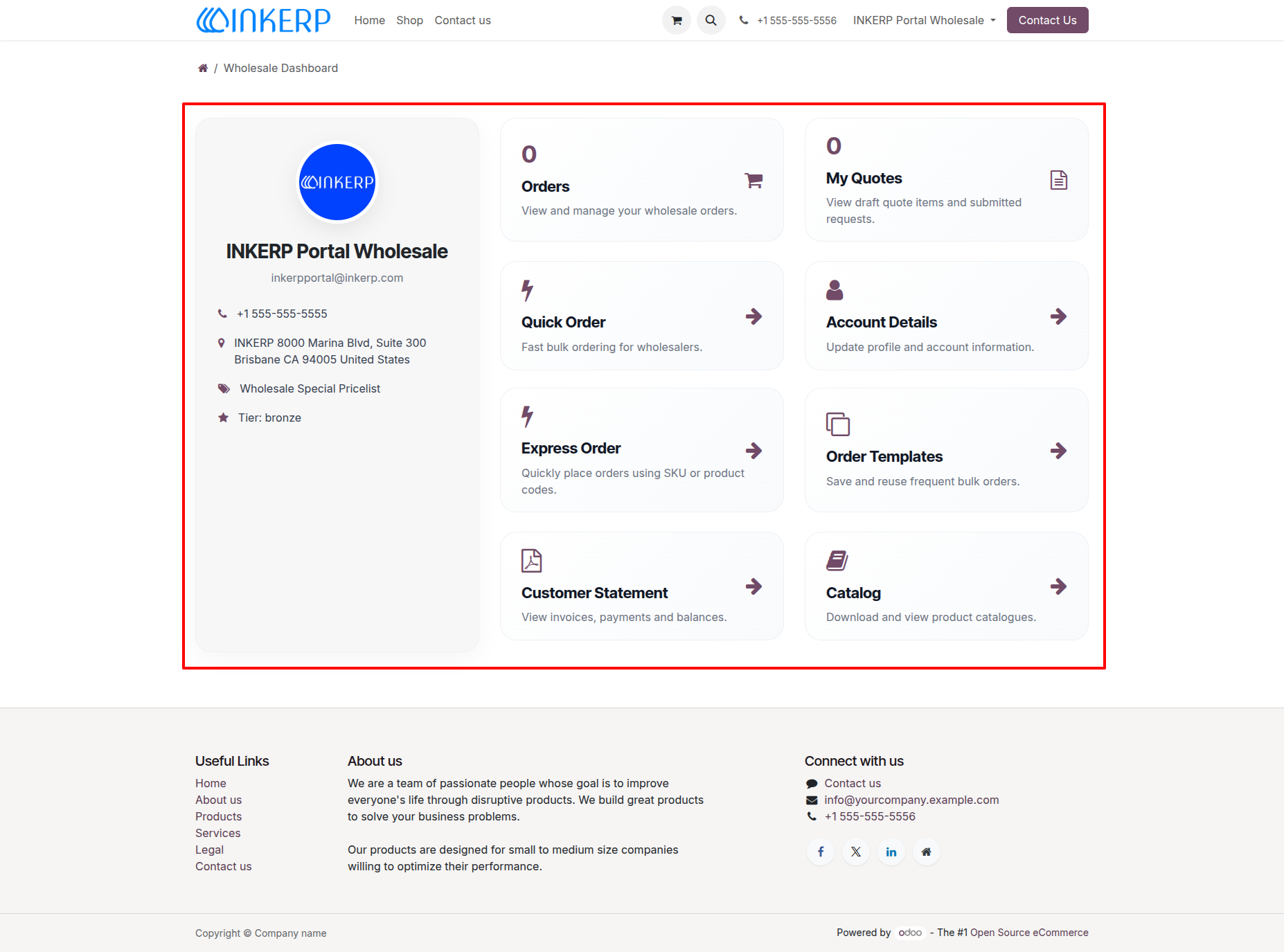
12.) Wholesaler Portal Dashboard Overview :
A dedicated wholesale dashboard within the website portal providing quick access to wholesale profile details, pricelist tiers, orders, quotes, Quick Order, Express Order, order templates, customer statements, and product catalogues.
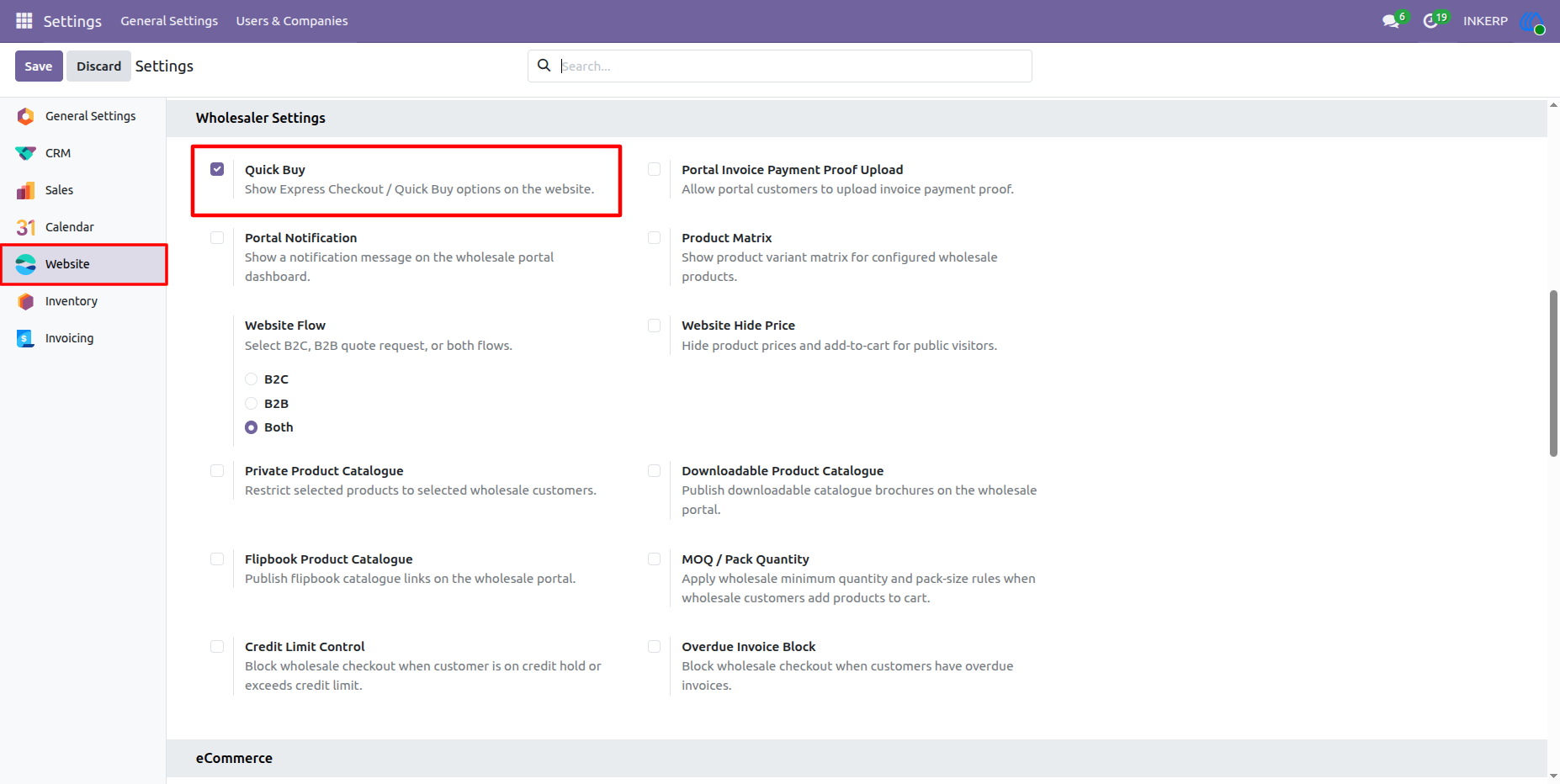
13.) Quick Buy Configuration :
Enable the Quick Buy setting to display Express Checkout and Quick Buy purchasing options directly on the website for accelerated wholesale transactions.
Navigation : Settings › Website › Wholesaler Settings
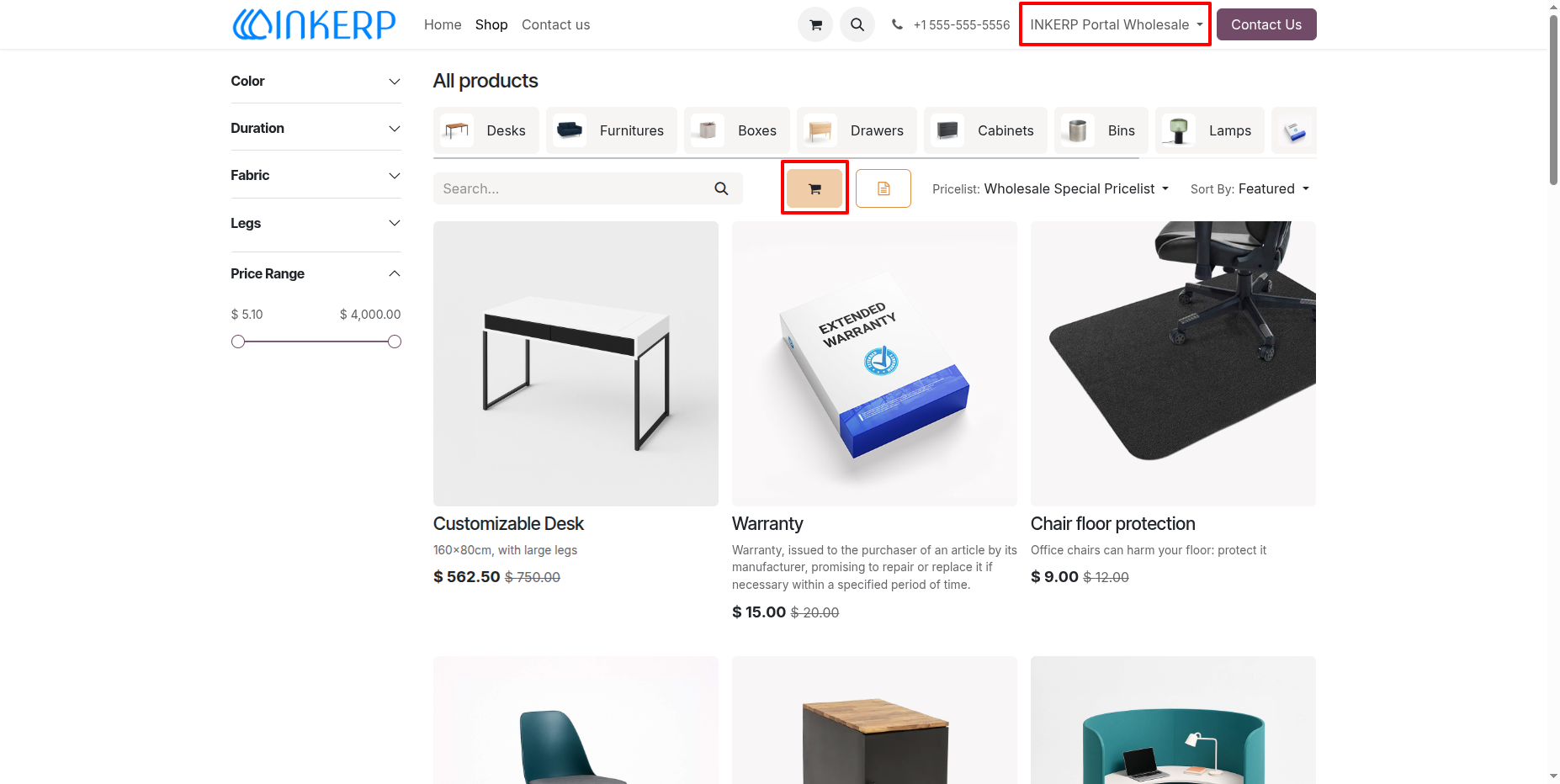
14.) Quick Buy Button on Shop Page :
Authorized wholesale customers can access the Quick Buy option directly on the website shop page using the dedicated cart icon, enabling fast purchasing workflows without navigating through full product details.
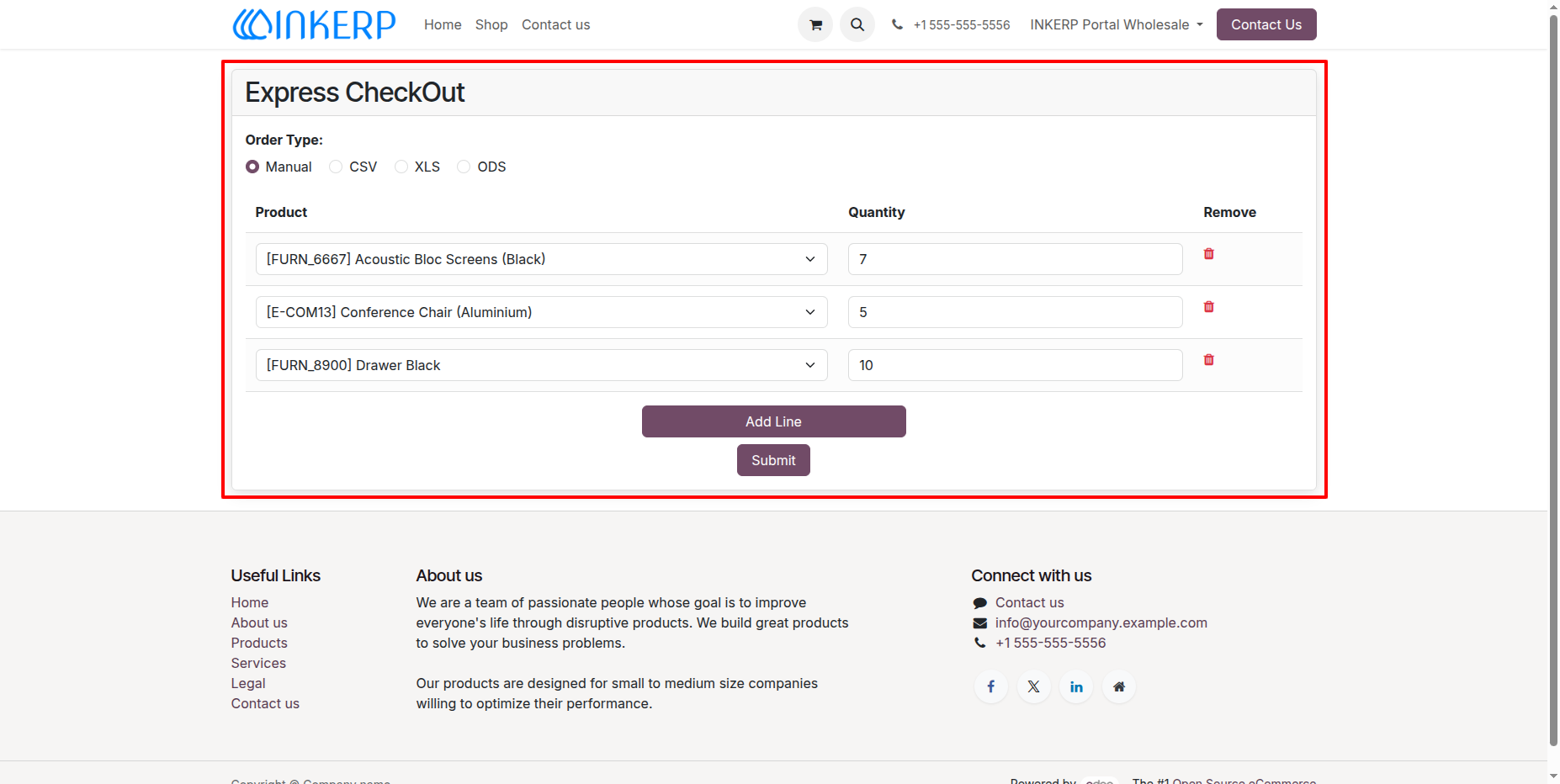
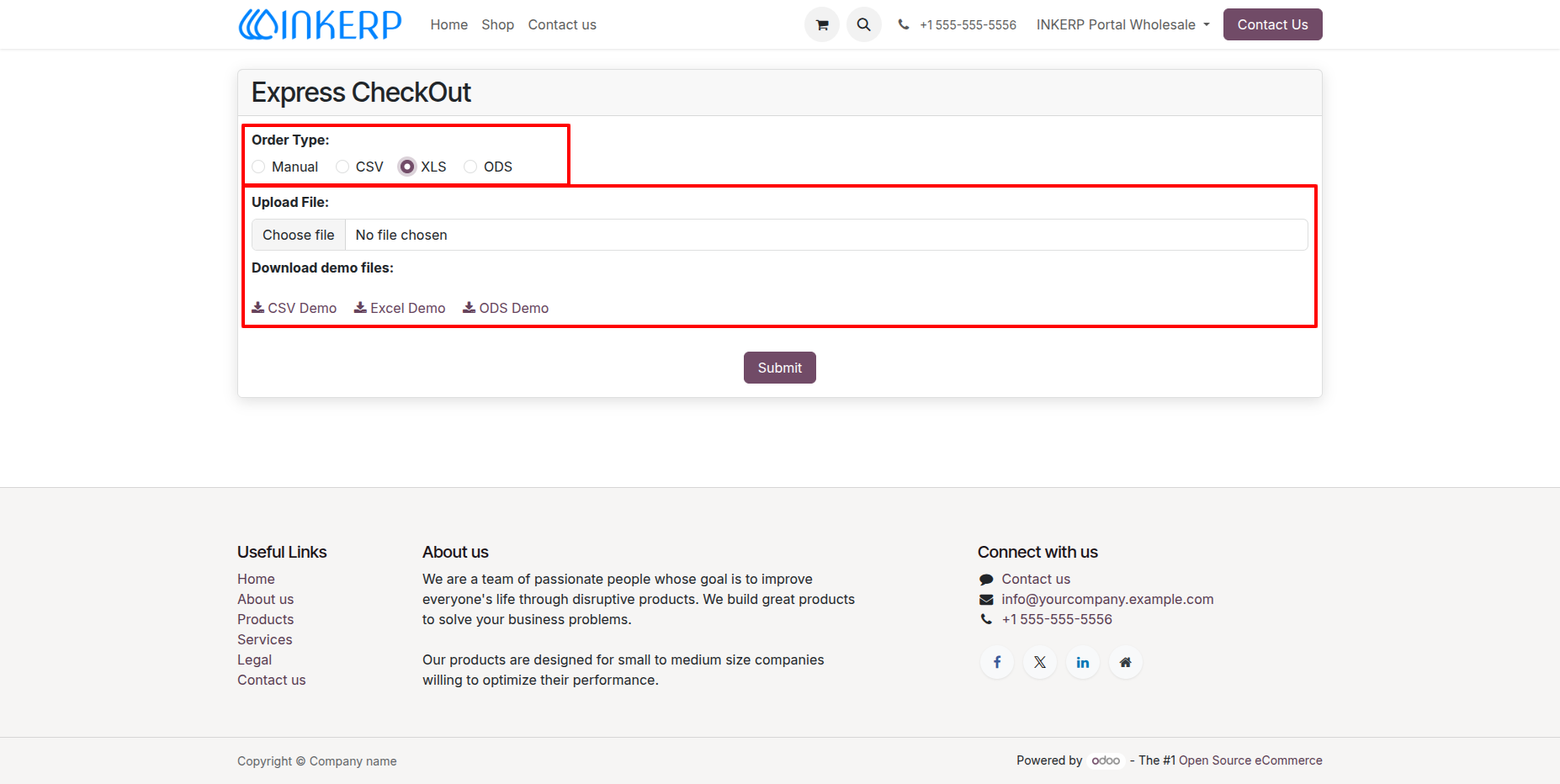
15.) Express CheckOut Interface :
Streamline bulk ordering using the Express CheckOut tool, allowing wholesale customers to quickly select items and define quantities manually line-by-line, or import bulk product requirements via CSV, XLS, or ODS file uploads.
16.) Express CheckOut File Upload Ordering :
Wholesale buyers can quickly place high-volume orders by uploading bulk item files in CSV, XLS, or ODS formats, with sample demo files available for direct download to ensure proper formatting.
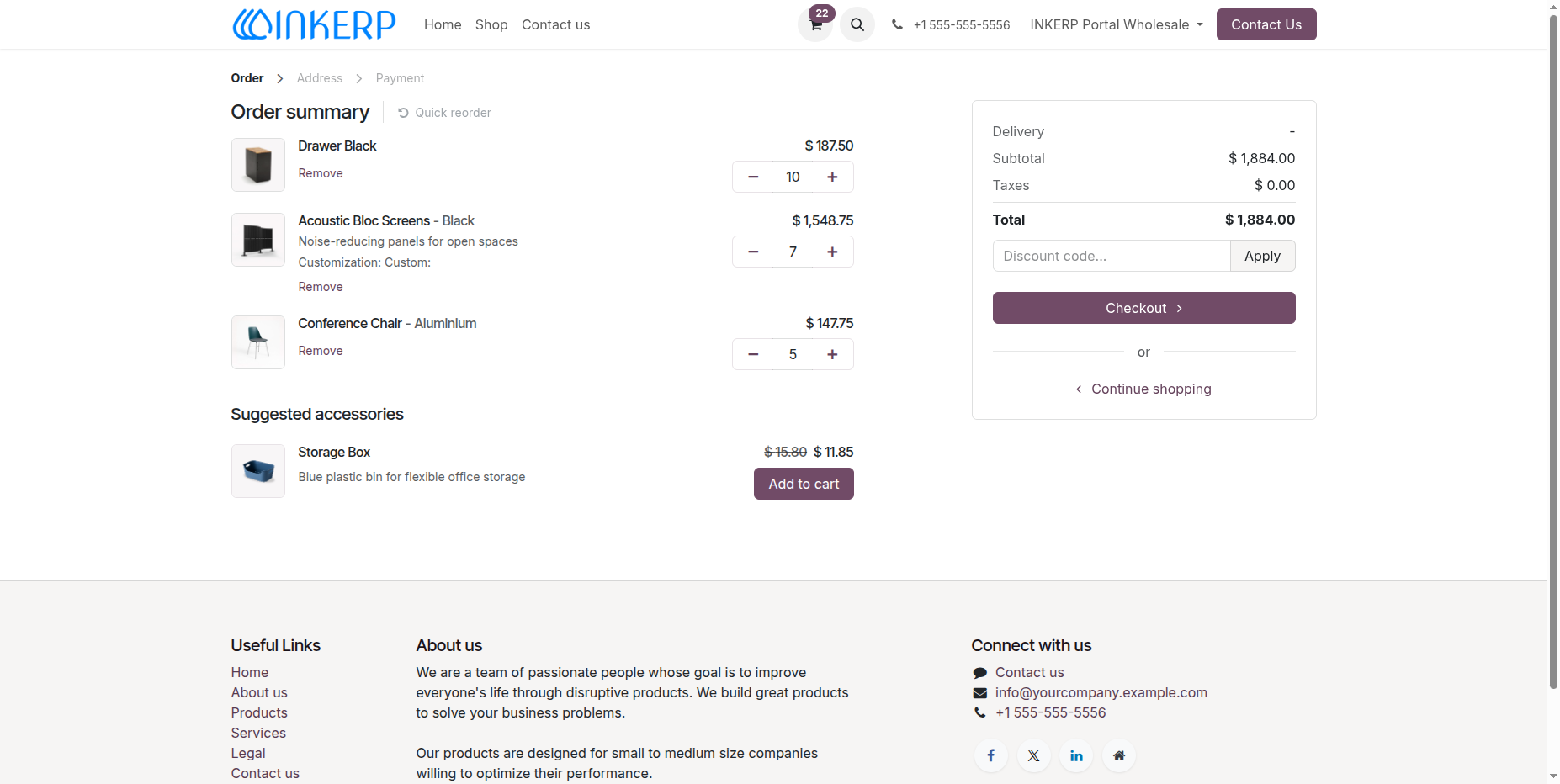
17.) Express CheckOut Cart Order Summary :
Review automatically populated bulk items, adjust line quantities, view applied wholesale subtotal and total calculations, and proceed directly to checkout from the order summary interface.
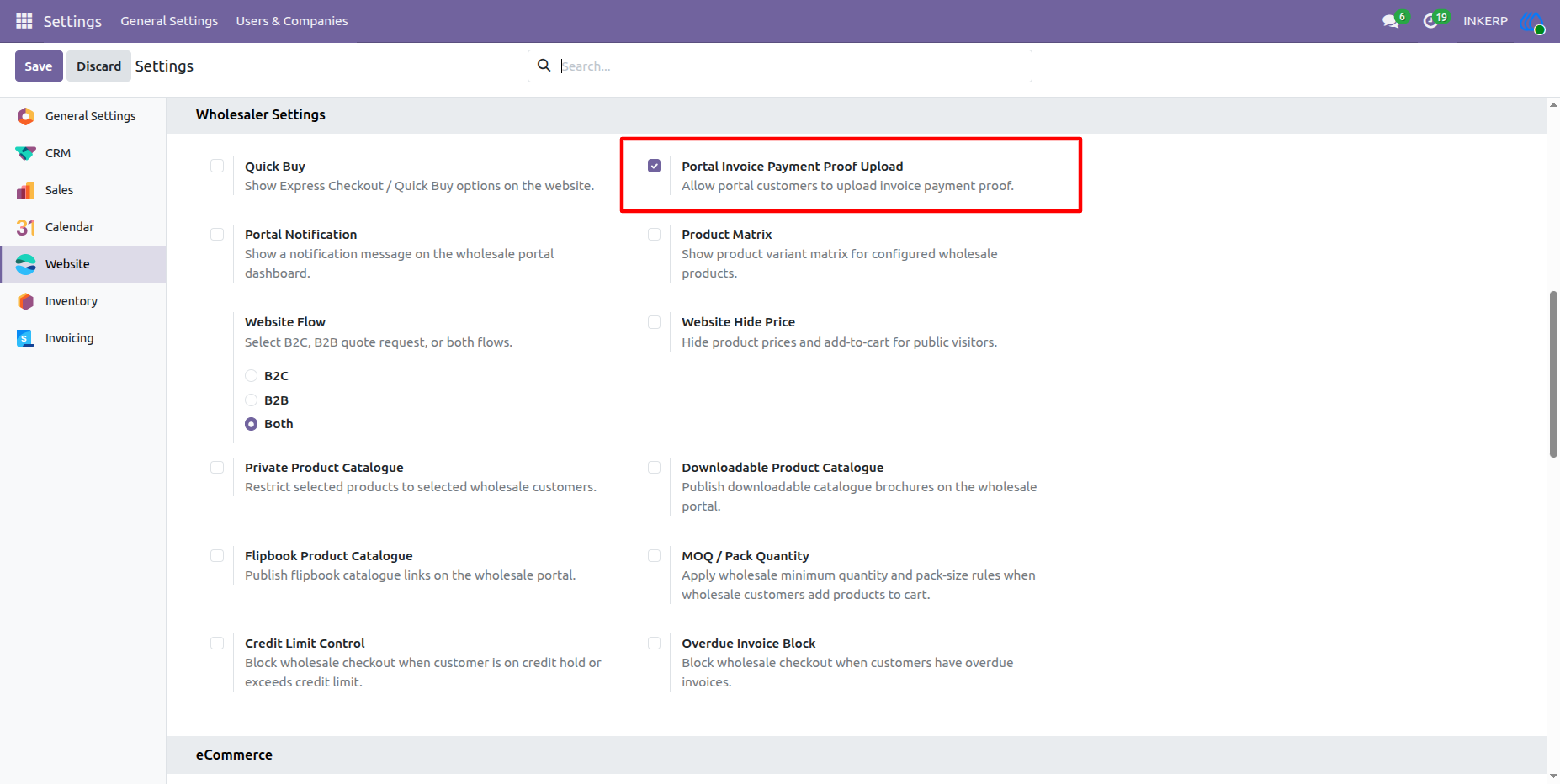
18.) Portal Invoice Payment Proof Upload Configuration :
Enable the Portal Invoice Payment Proof Upload setting to permit wholesale customers to upload transaction and payment verification documents directly for their portal invoices.
Navigation : Settings › Website › Wholesaler Settings
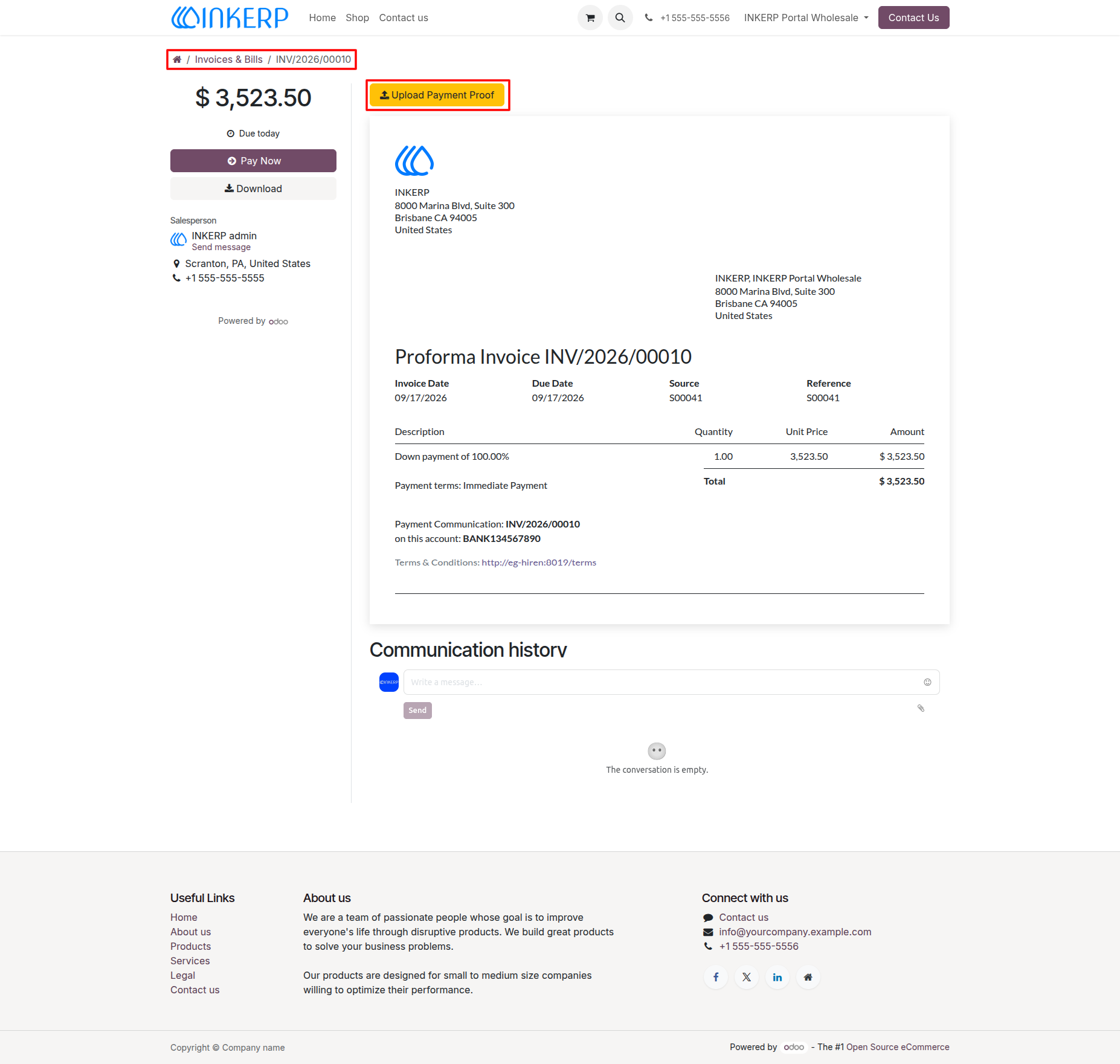
19.) Upload Payment Proof on Portal Invoice :
Wholesale portal customers can initiate verification for unpaid or proforma invoices by clicking the dedicated "Upload Payment Proof" button directly from the invoice view.
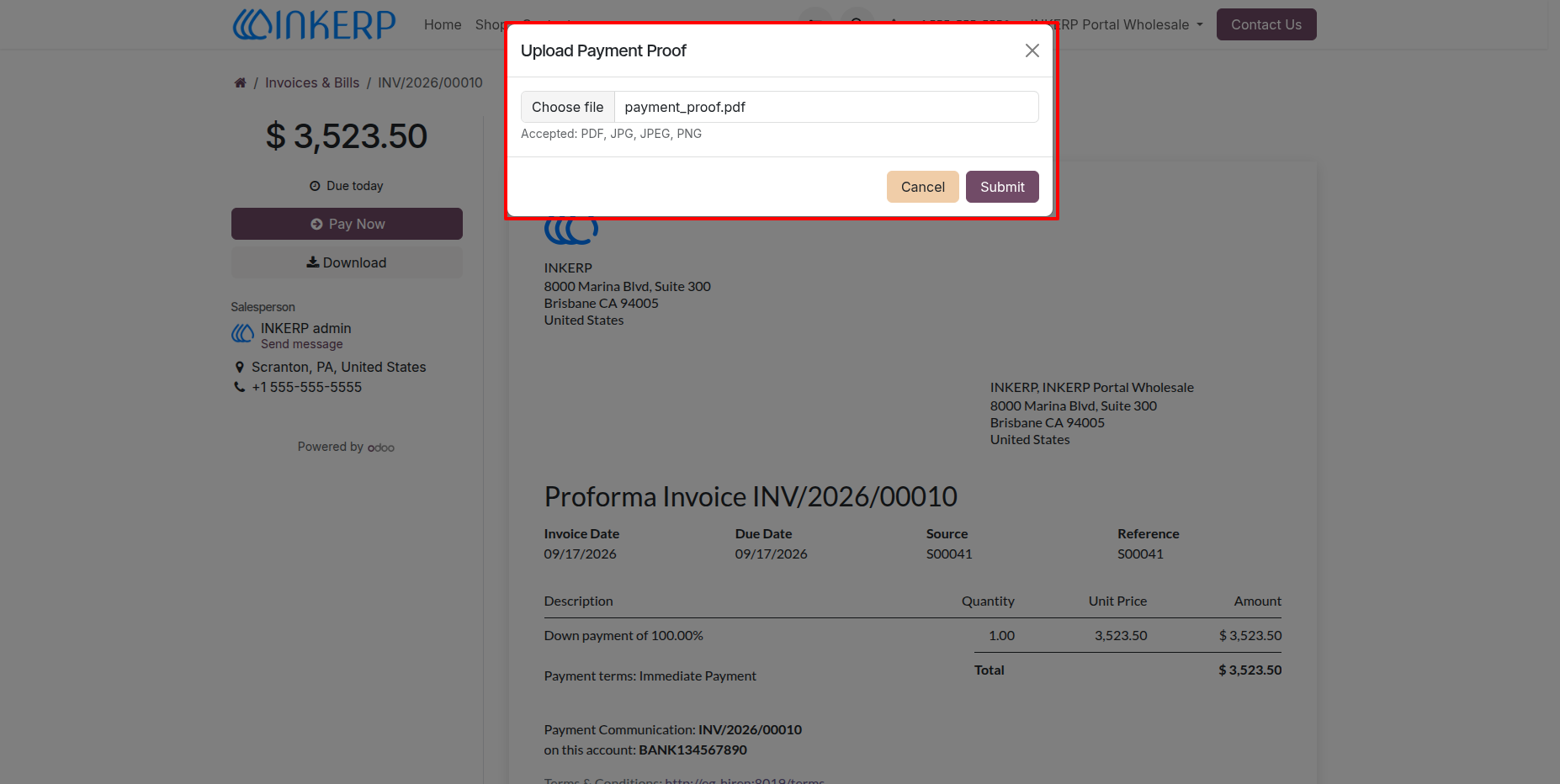
20.) Upload Payment Proof Dialog :
Wholesale portal users can attach and submit their invoice payment receipts or transaction documents in supported file formats (PDF, JPG, JPEG, PNG) directly through the upload popup modal for fast verification.
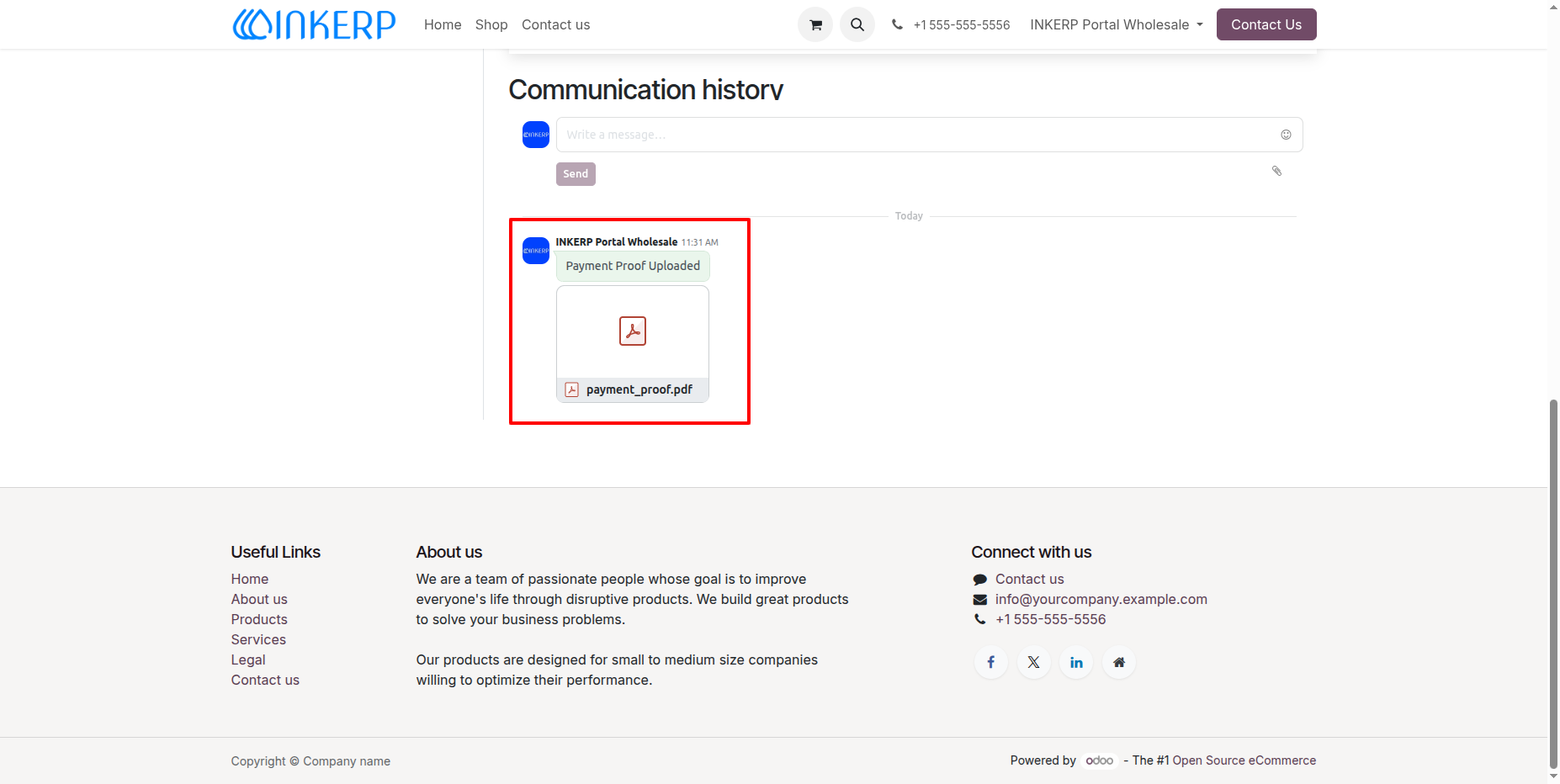
21.) Payment Proof Submission in Communication History :
Submitted payment proof documents are instantly logged within the invoice's communication history, providing clear tracking and verification for both wholesale customers and administrative teams.
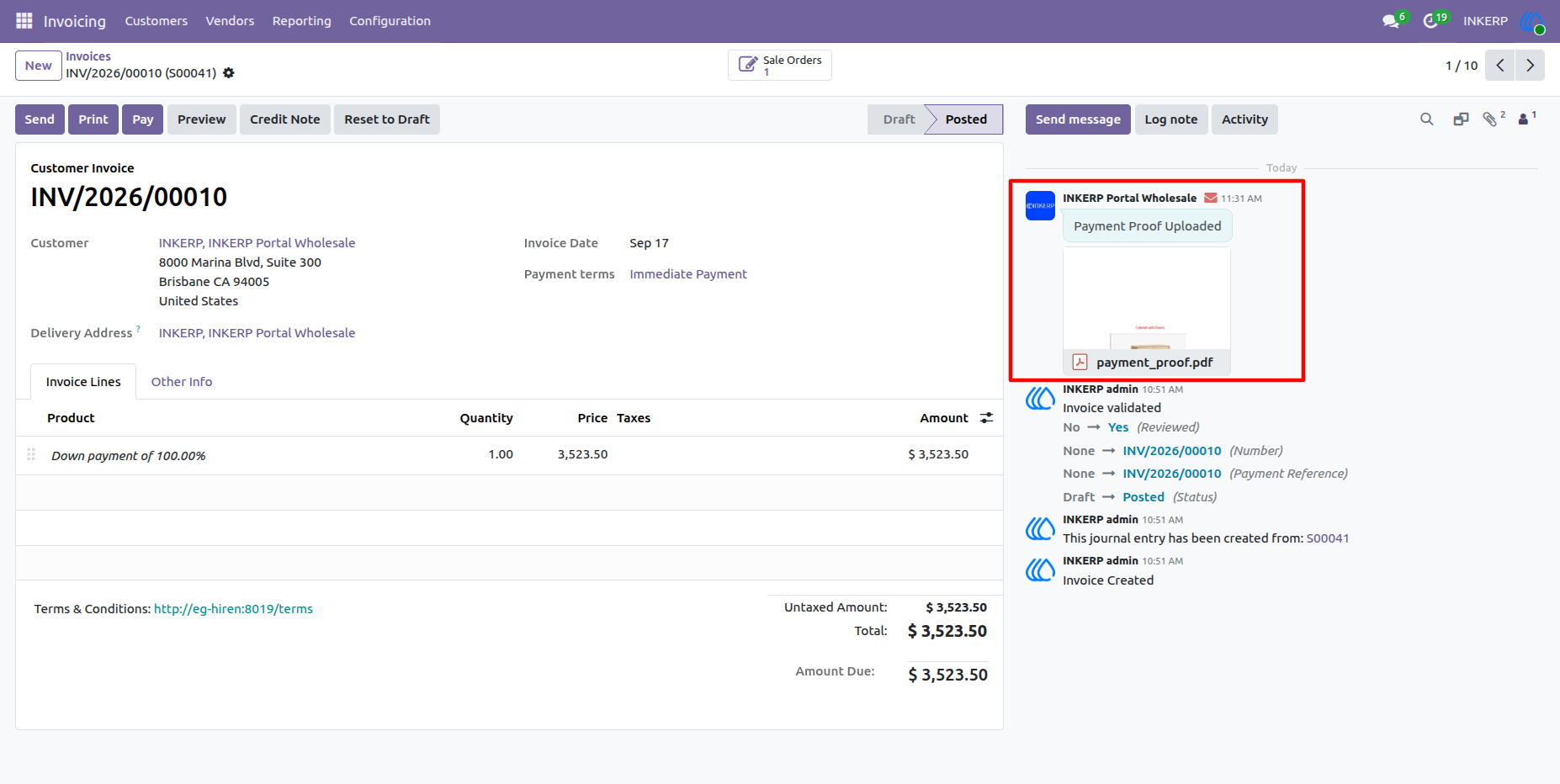
22.) Payment Proof Verification in Backend Invoice Chatter :
The uploaded payment proof document submitted by the wholesale customer from the portal automatically reflects in the backend customer invoice chatter, allowing internal accounting and sales teams to review and verify payment details seamlessly.
Navigation : Invoicing › Customers › Invoices
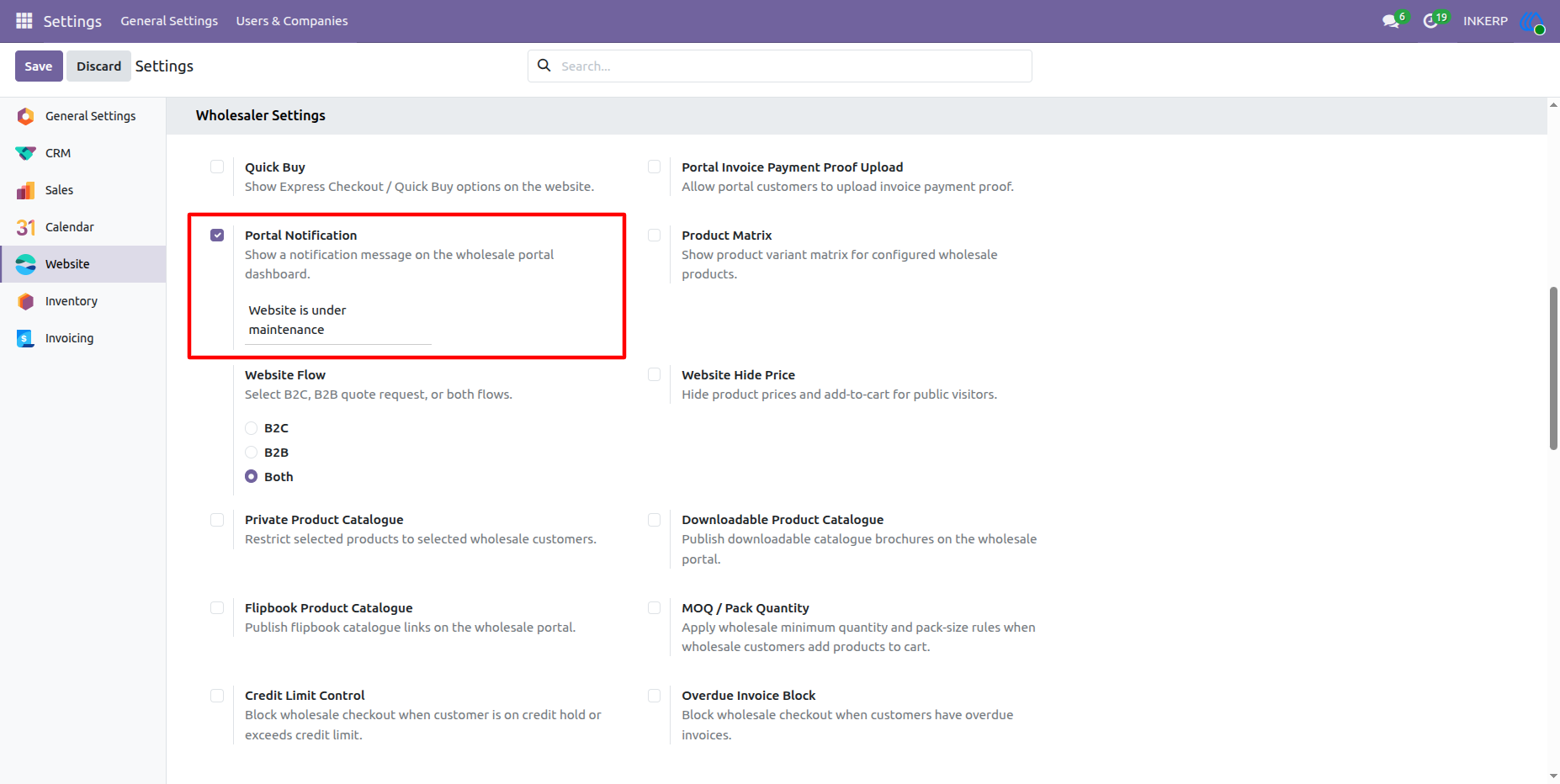
23.) Portal Notification Configuration :
Enable the Portal Notification setting and define a custom alert or announcement message to be broadcasted directly on the wholesale customer portal dashboard.
Navigation : Settings › Website › Wholesaler Settings
24.) Portal Notification Banner on My Account :
Configured portal alert messages appear as a prominent notification banner across My Account page of the wholesale user, keeping customers promptly informed about site updates, maintenance notices, or important wholesale policies.
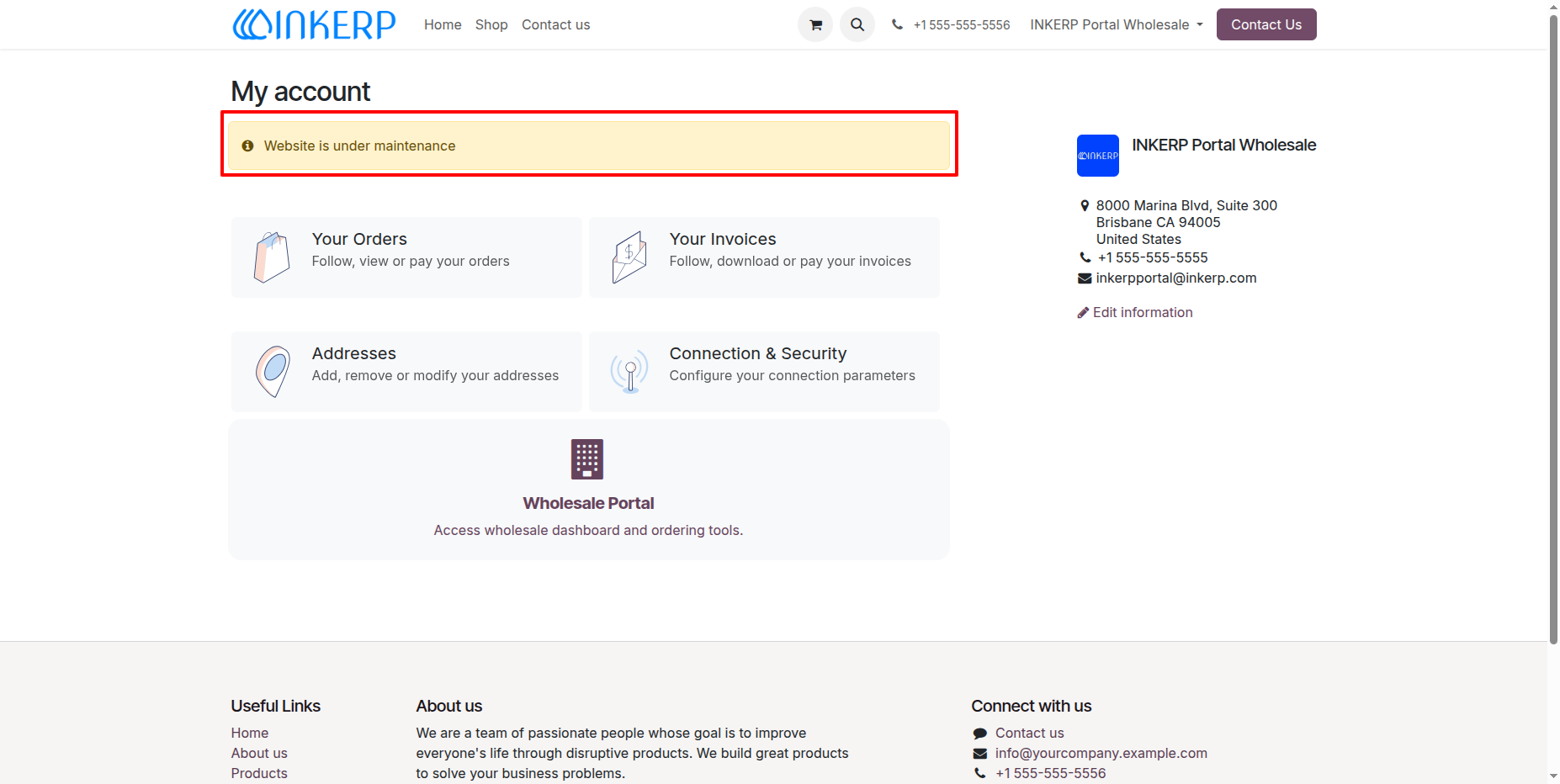
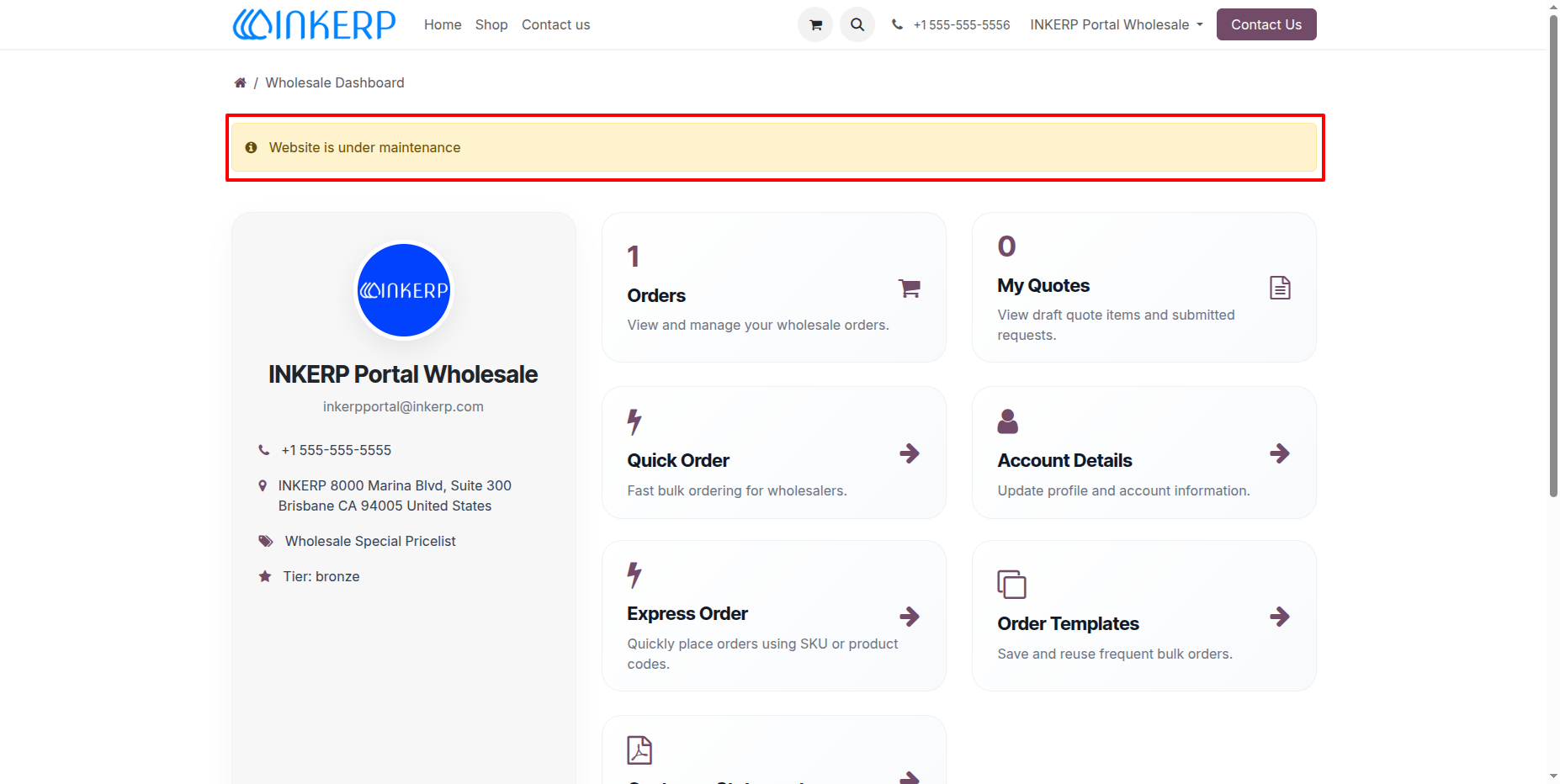
25.) Portal Notification Display on Wholesale Dashboard :
The configured alert message appears prominently as a notification banner directly at the top of the Wholesale Dashboard, ensuring wholesale users see critical announcements, status updates, or maintenance alerts immediately upon viewing their account overview.
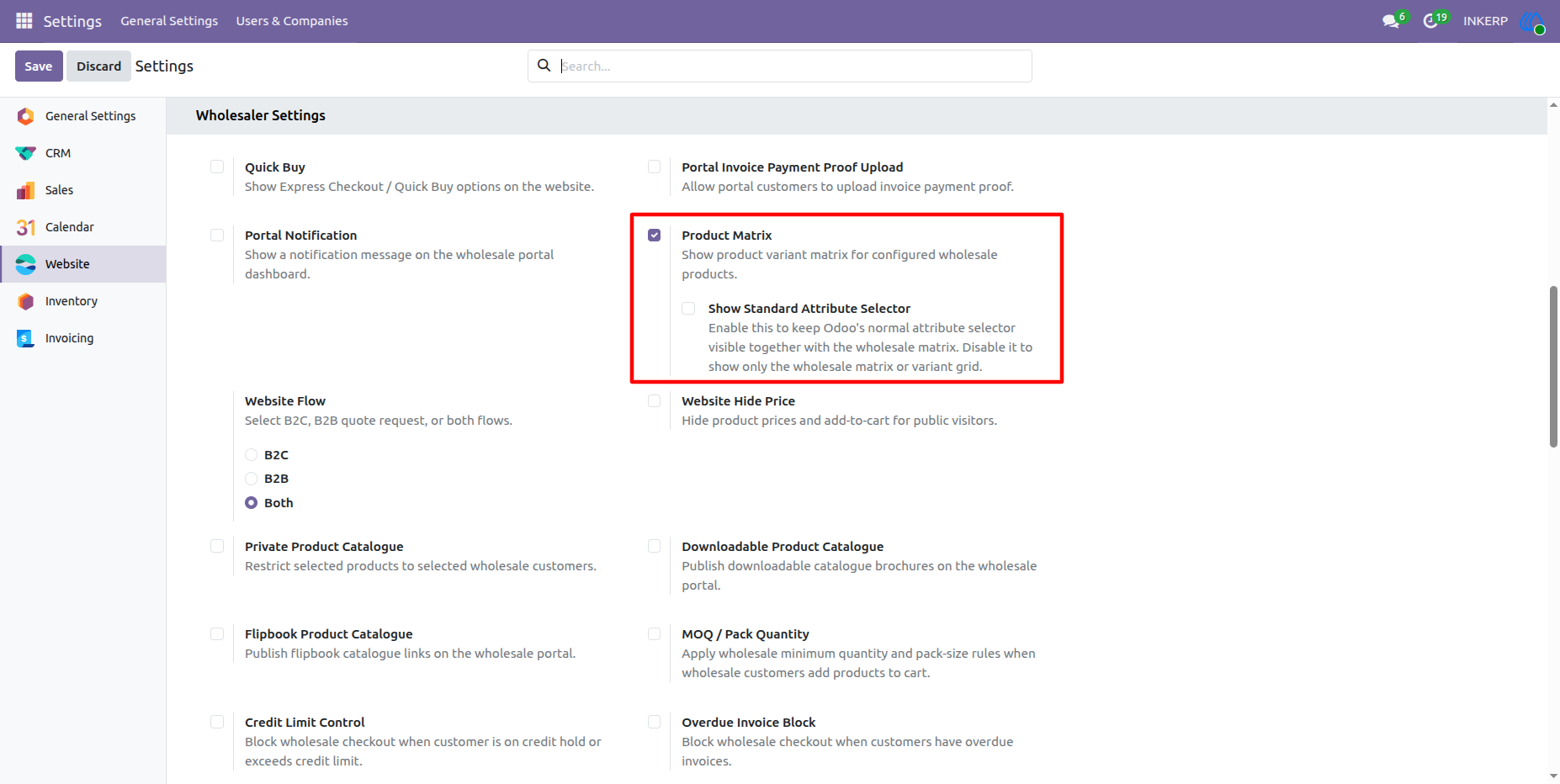
26.) Product Matrix Configuration :
Enable the Product Matrix setting to display a dynamic product variant matrix for configured wholesale products, with an optional setting to keep standard attribute selector of Odoo visible alongside the grid.
Navigation : Settings › Website › Wholesaler Settings
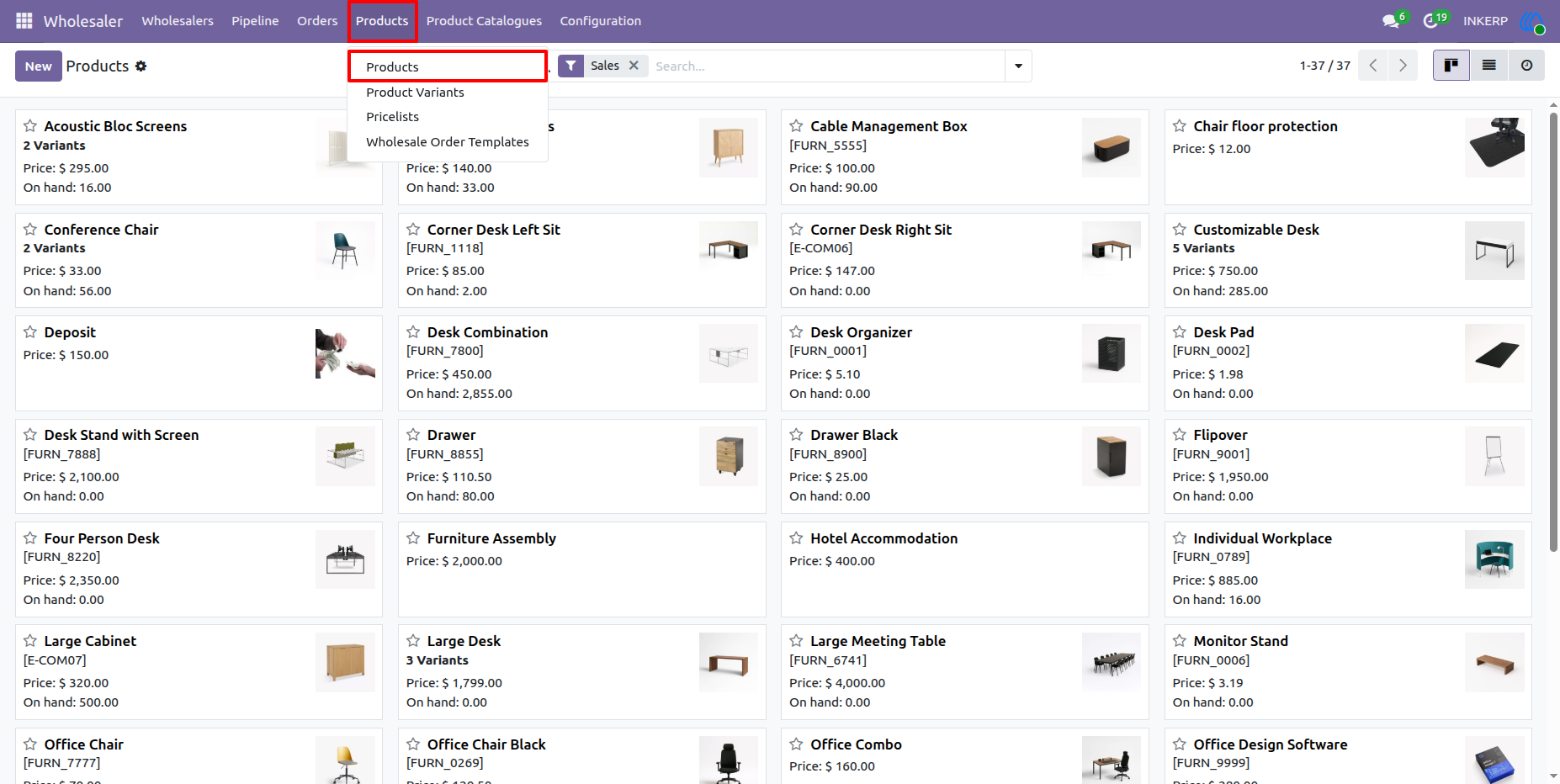
27.) Products Menu :
products and product templates to configure wholesale items, variants, pricing, and availability.
Navigation : Wholesaler › Products › Products
28.) Wholesale Product Detail Page View Configuration :
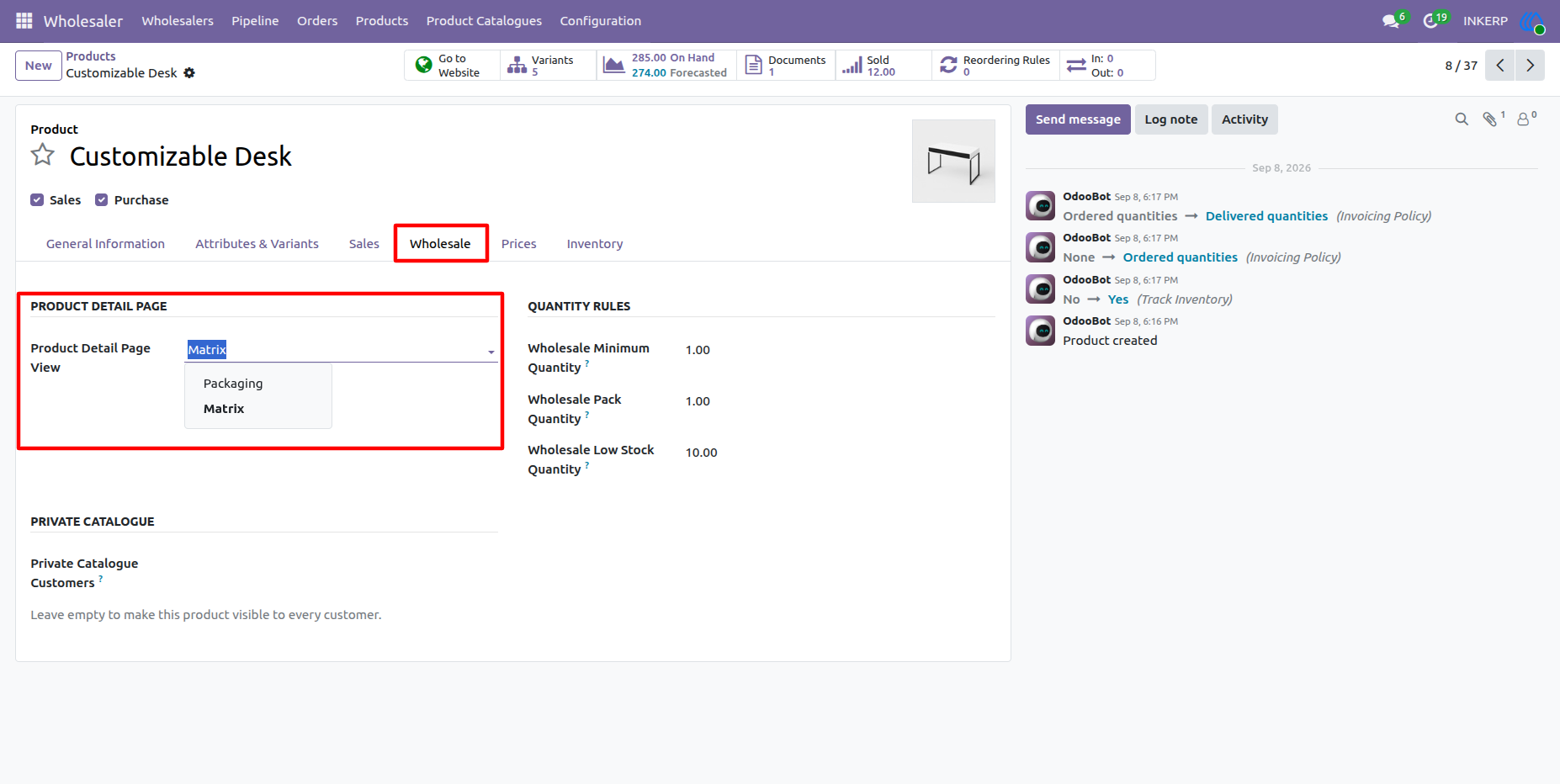
Configure the product detail page view mode as Matrix (or Packaging) under the Wholesale tab for wholesale transactions.
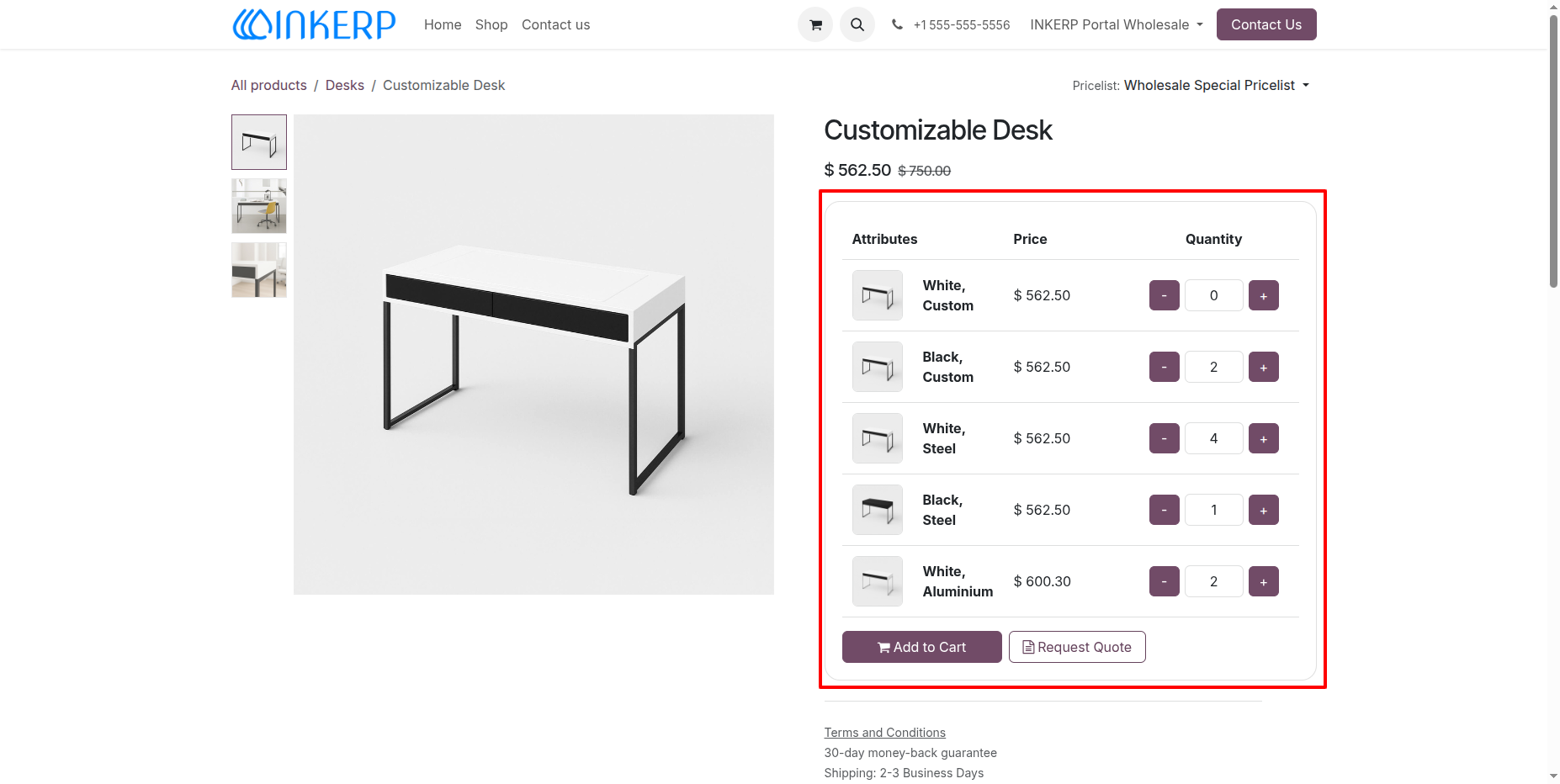
29.) Product Variant Matrix View on Product Detail Page :
Wholesale buyers can view all product variants, their attributes, and dynamic wholesale pricing in a single grid layout, enabling them to specify quantities for multiple variants simultaneously and add them to the cart or submit a quote request in bulk.
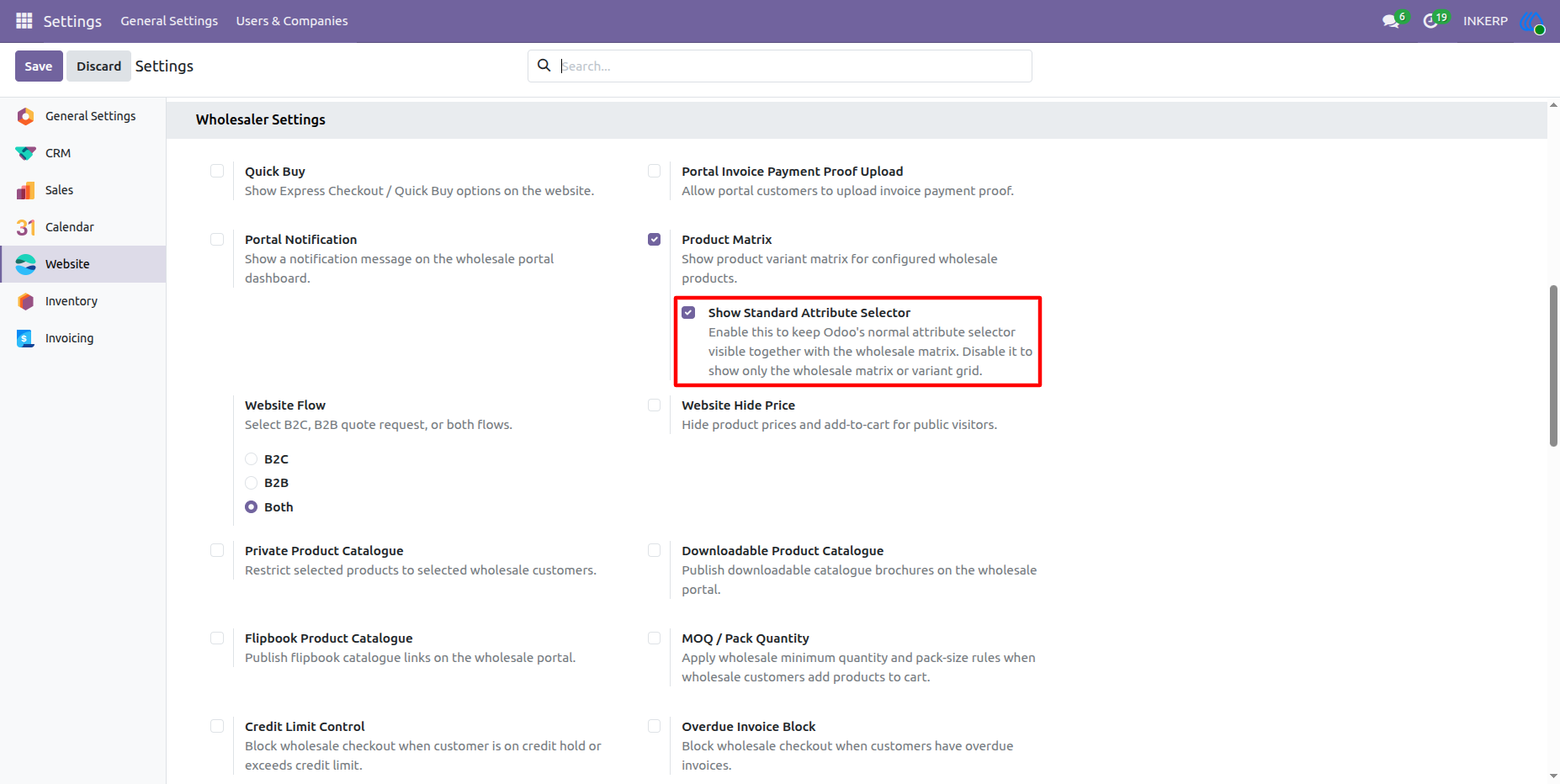
30.) Show Standard Attribute Selector Configuration :
Enable the "Show Standard Attribute Selector" option under Product Matrix settings to display Odoo's default variant attribute selectors alongside the wholesale product matrix on website product pages.
Navigation : Settings › Website › Wholesaler Settings
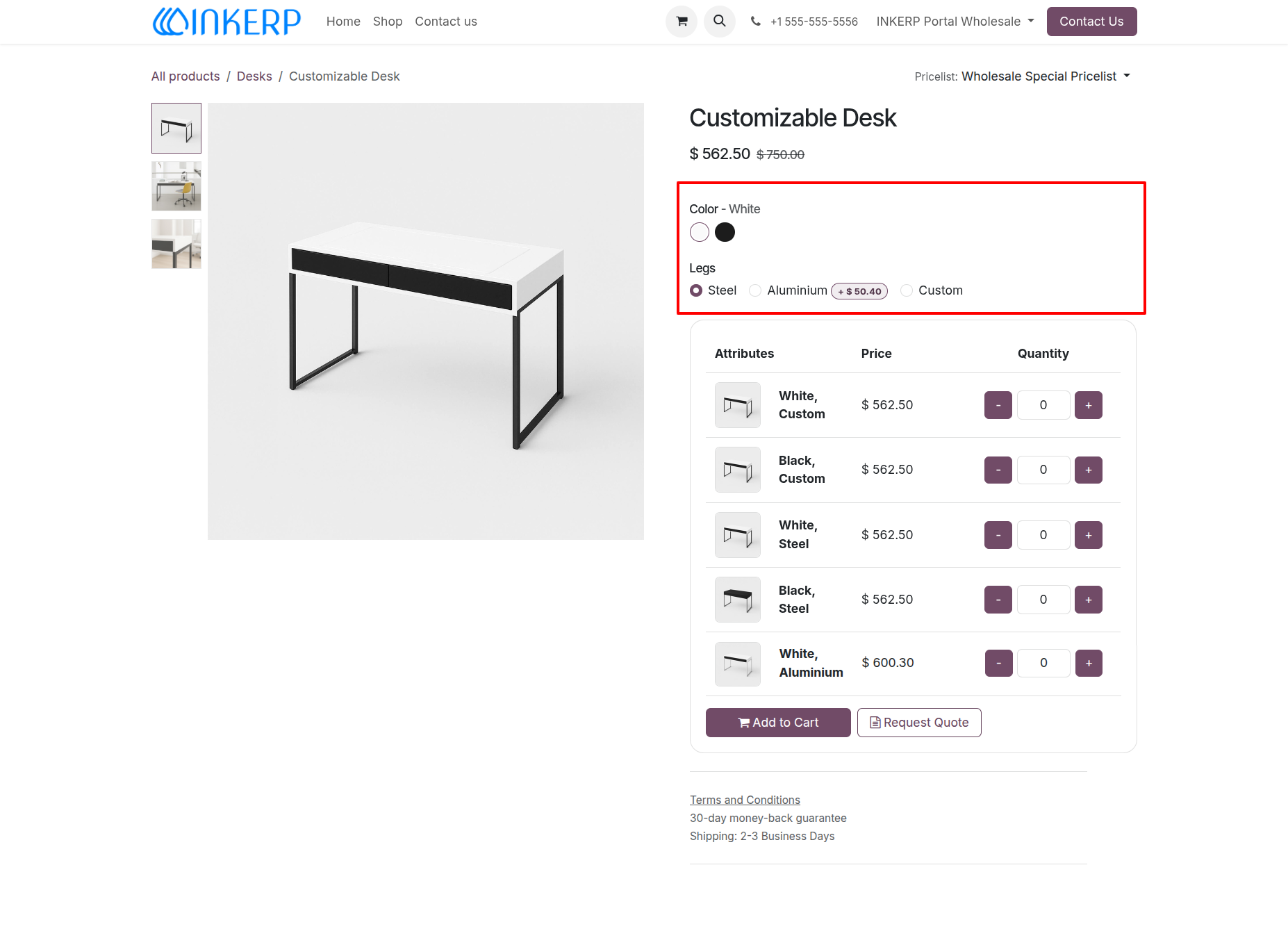
31.) Standard Attribute Selector Display with Product Matrix :
Wholesale product pages simultaneously display standard variant attribute options (such as Color and Legs) along with the full wholesale variant matrix, offering flexible ordering options for wholesale buyers.
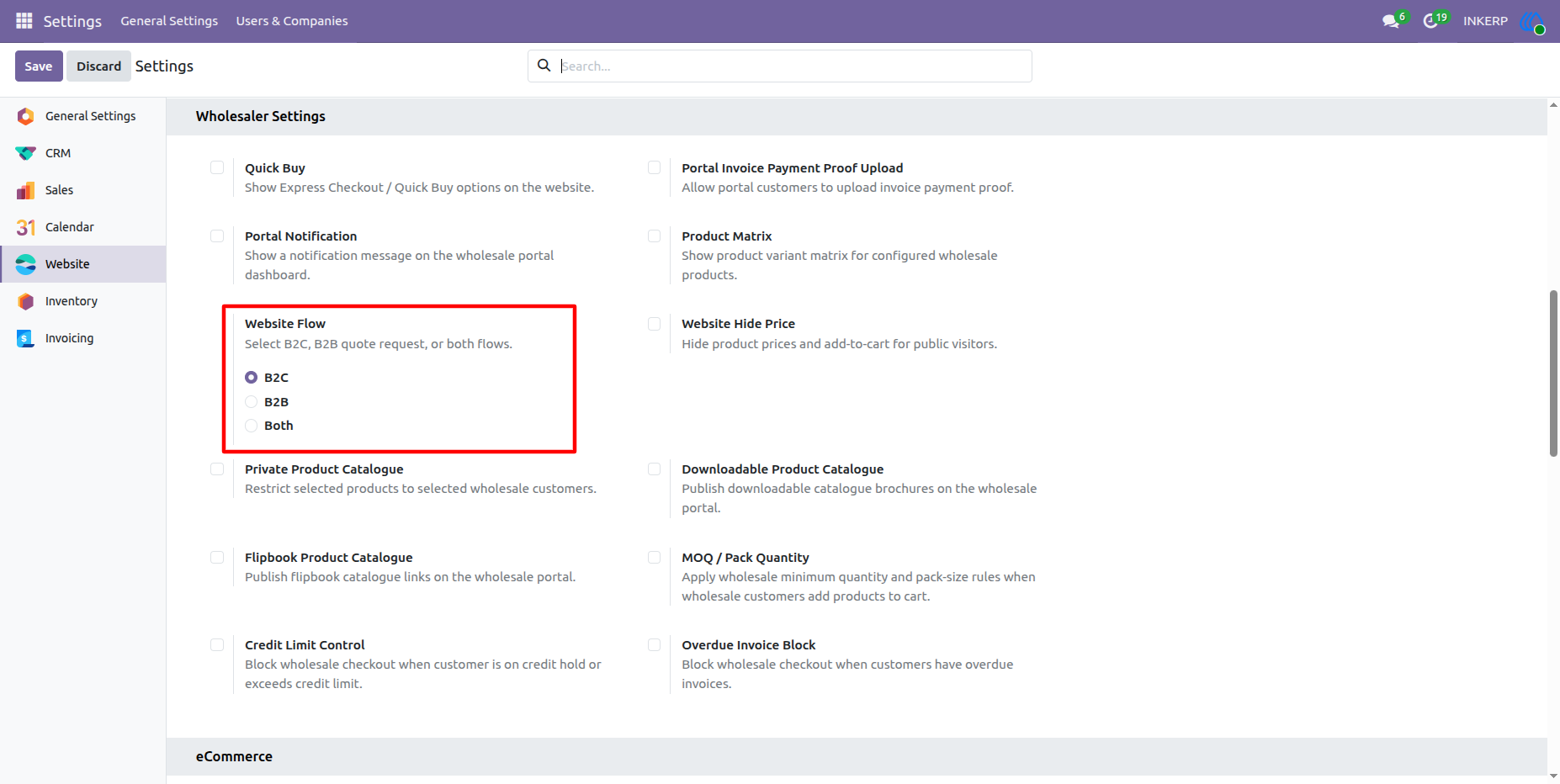
32.) Website Flow Configuration (B2C) :
Configure the website purchasing flow to B2C, enabling direct standard checkout while tailoring the shopping workflow to retail customers.
Navigation : Settings › Website › Wholesaler Settings
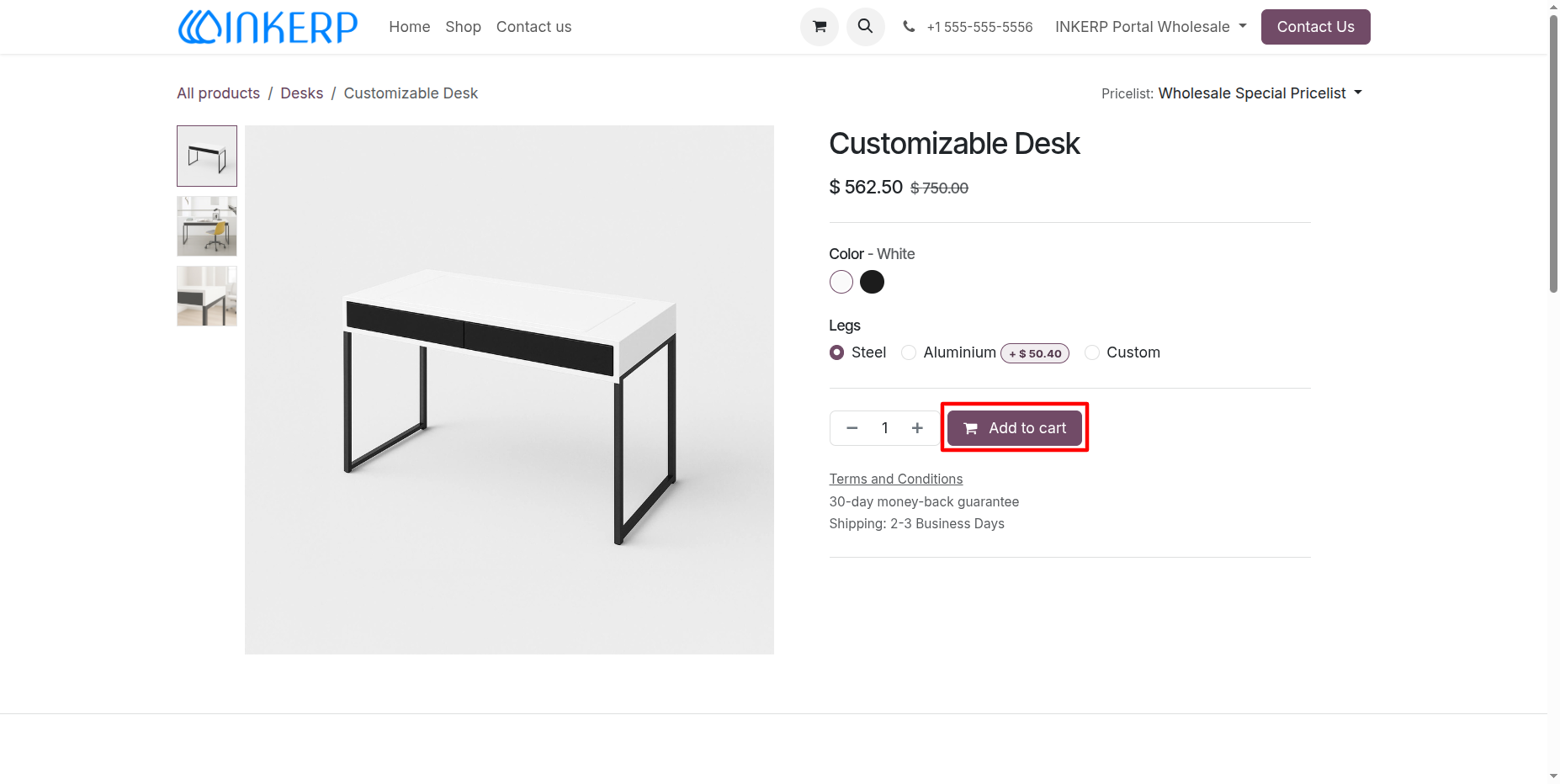
33.) Product Detail Page with Add to Cart (B2C Flow) :
Under the B2C flow, the product page presents a standard retail layout featuring variant options alongside the primary "Add to cart" action button for straightforward e-commerce purchasing.
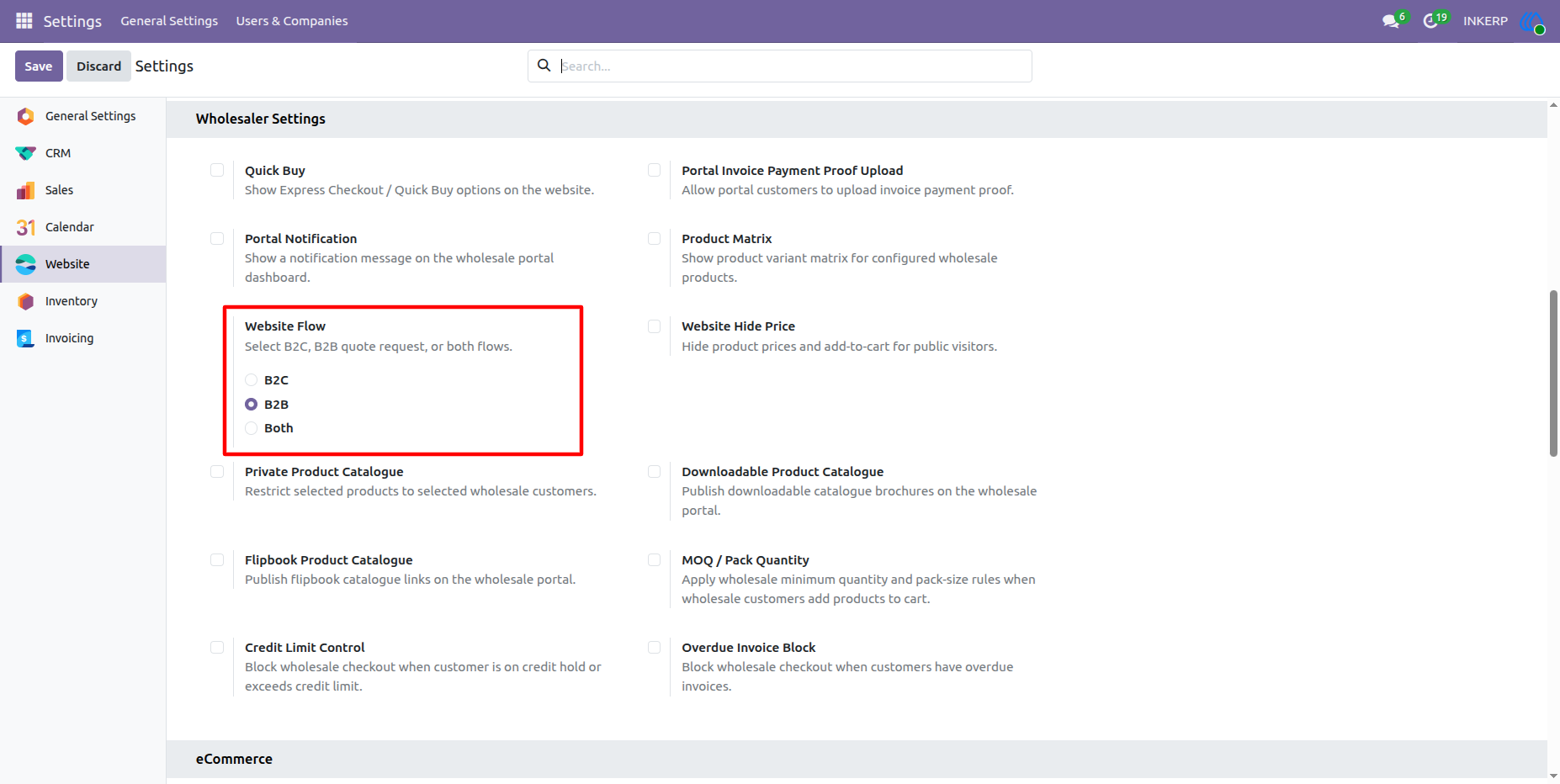
34.) Website Flow Configuration (B2B) :
Configure the website purchasing flow to B2B, tailoring the storefront workflow specifically for wholesale quote requests rather than direct retail checkout.
Navigation : Settings › Website › Wholesaler Settings
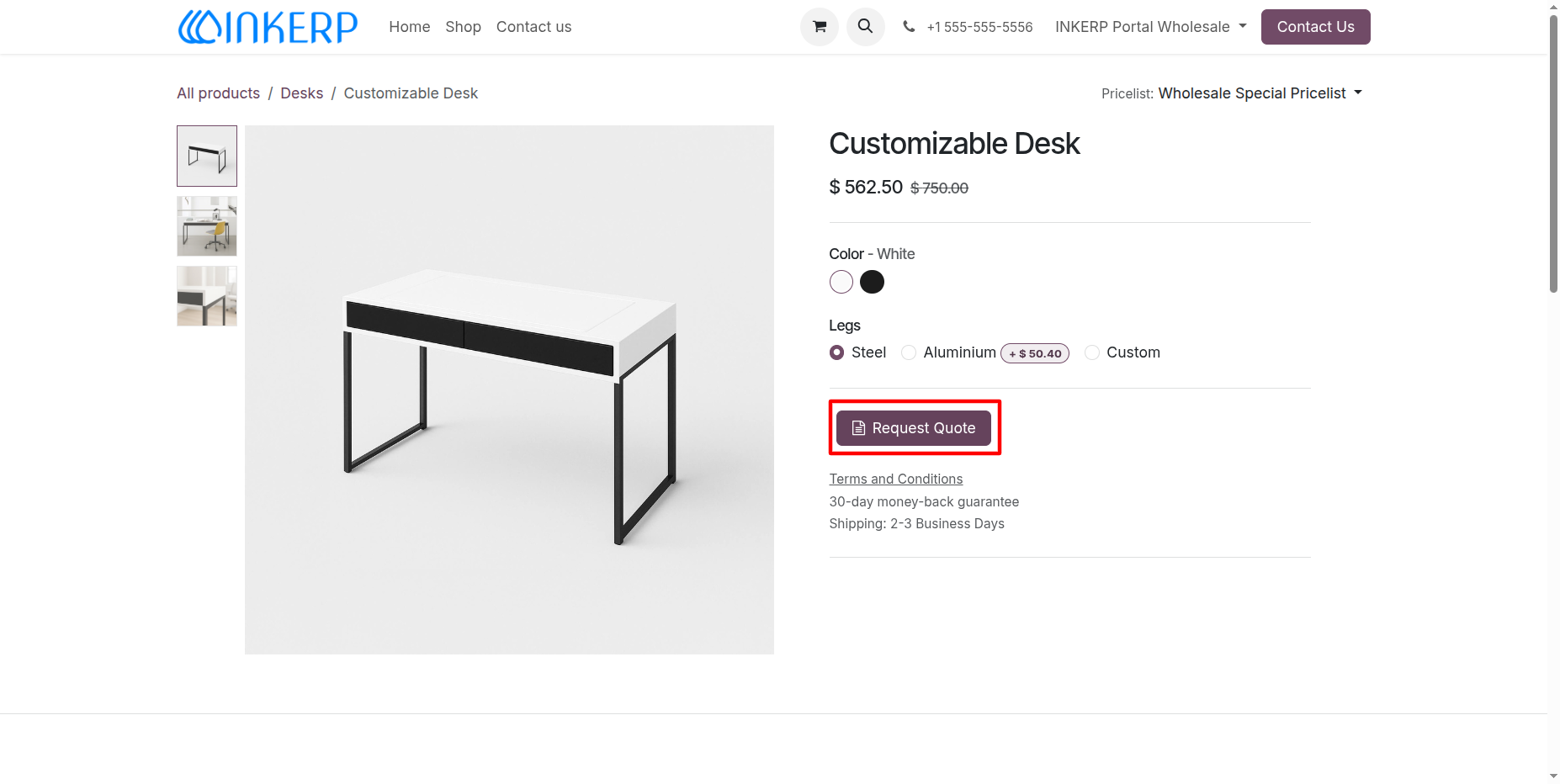
35.) Product Detail Page with Request Quote (B2B Flow) :
Under the B2B flow, the product page replaces direct purchasing with a dedicated "Request Quote" button, enabling wholesale customers to submit inquiries and draft quotation requests directly to the sales team.
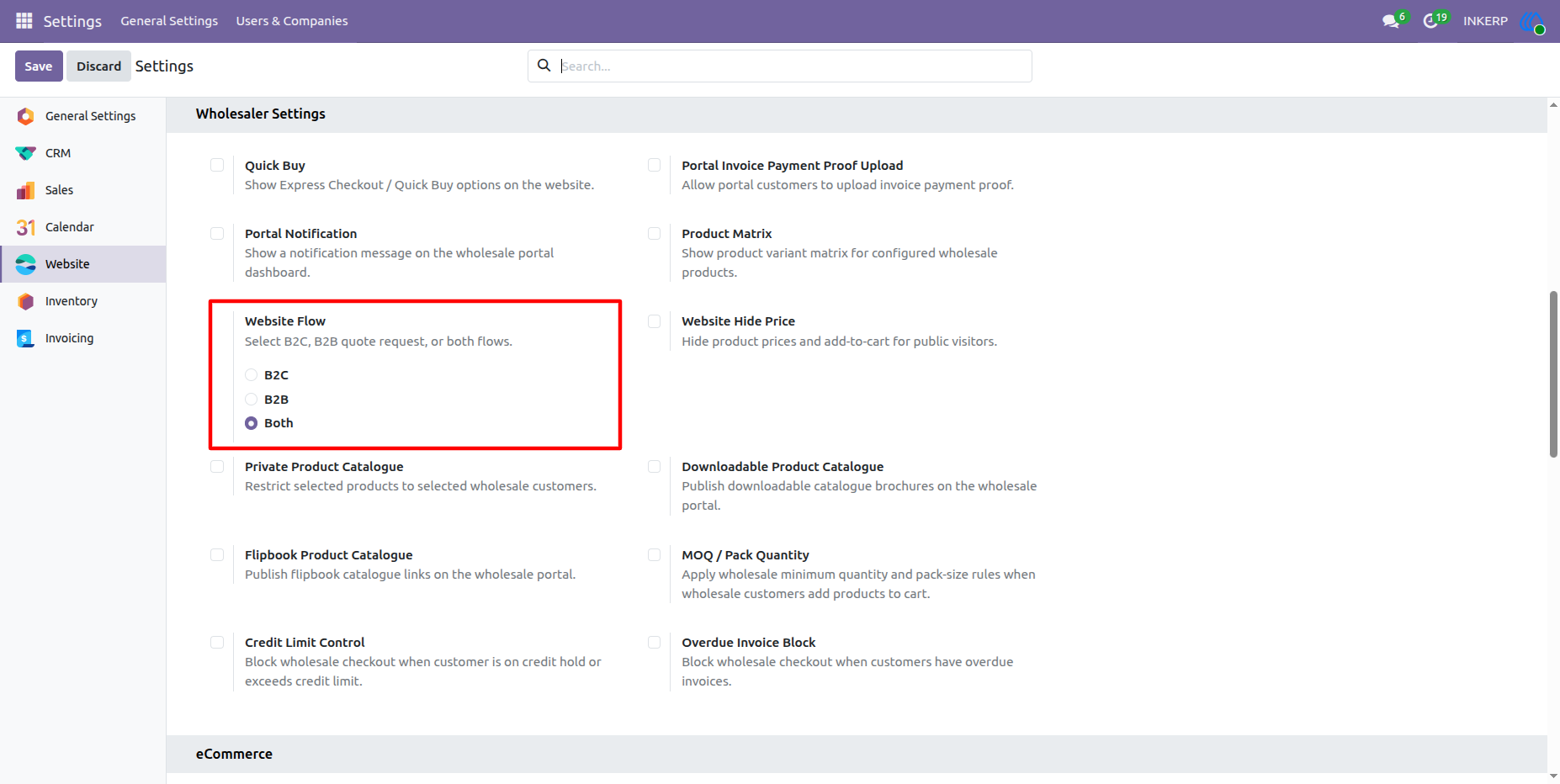
36.) Website Flow Configuration (Both B2C & B2B) :
Set the Website Flow configuration to "Both", providing a hybrid shopping experience that accommodates standard online cart purchases alongside wholesale quotation requests.
Navigation : Settings › Website › Wholesaler Settings
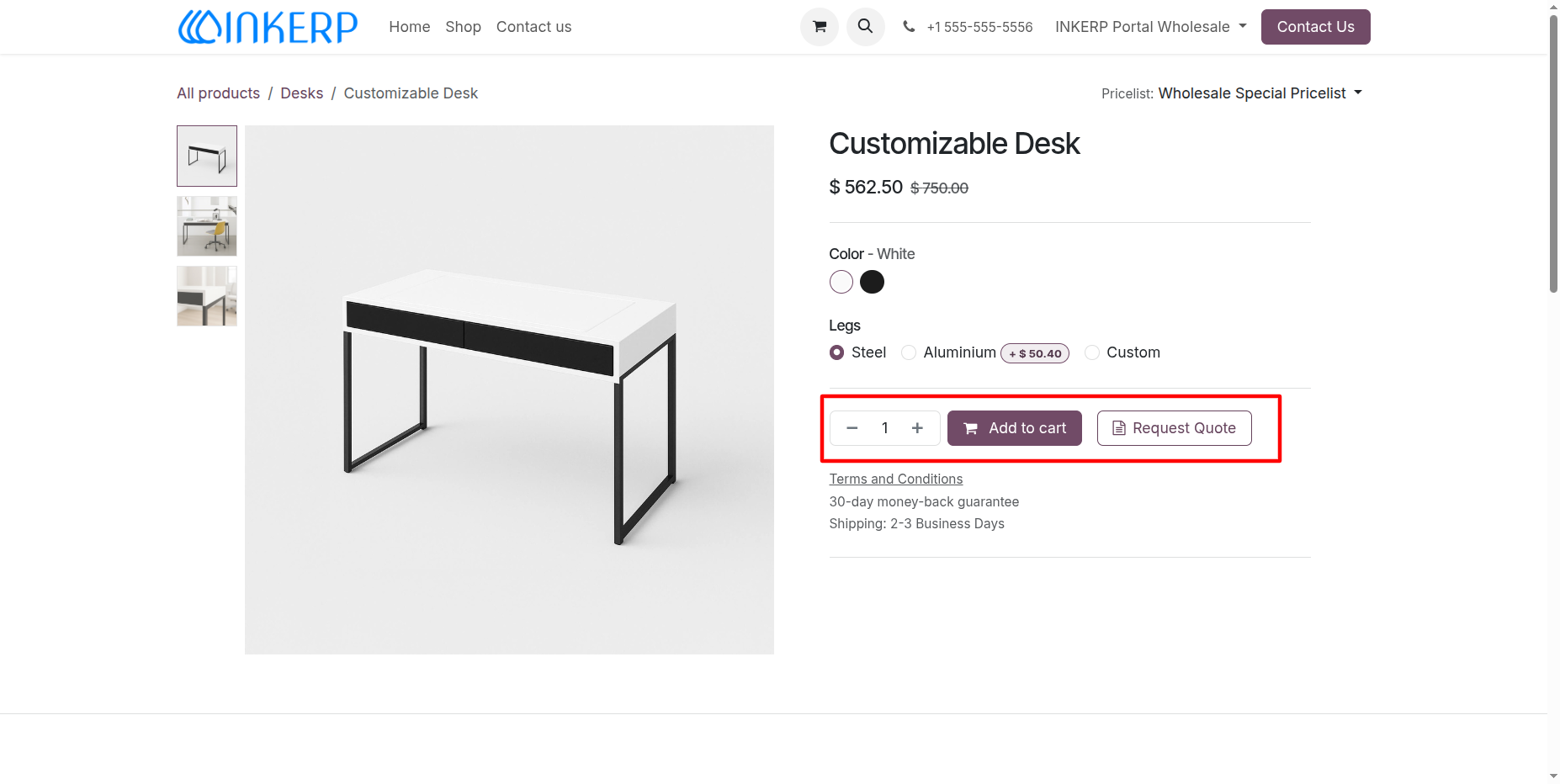
37.) Product Detail Page with Add to Cart and Request Quote (Hybrid Flow) :
When configured for both flows, the product detail page displays dual action buttons, giving wholesale and retail customers the option to either purchase immediately via "Add to cart" or submit inquiries through "Request Quote".
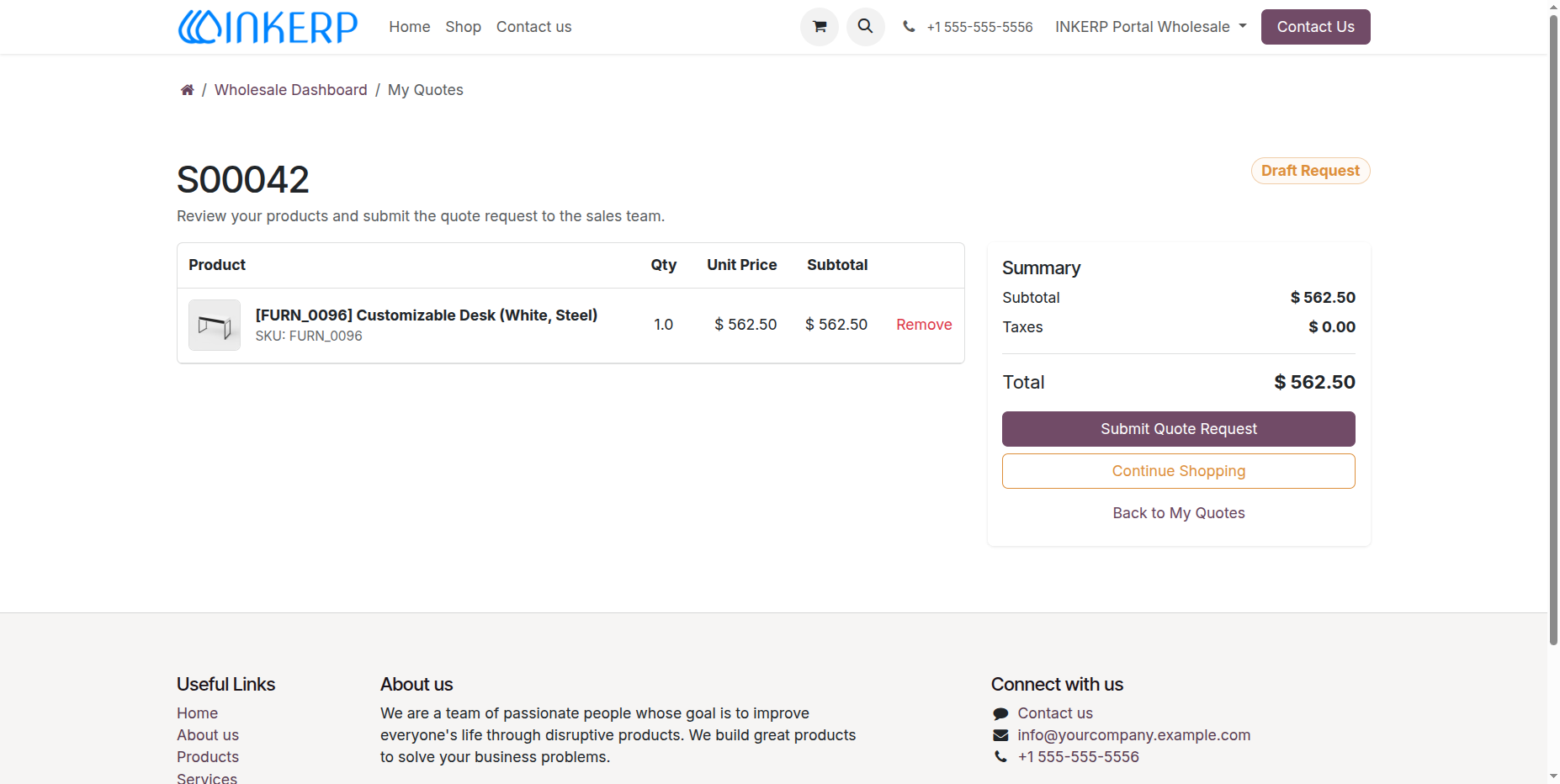
38.) Review and Submit Draft Quote Request :
Wholesale portal users can review selected items, quantities, pricing, and order totals in their draft quotation before officially submitting the request to the sales team for validation.
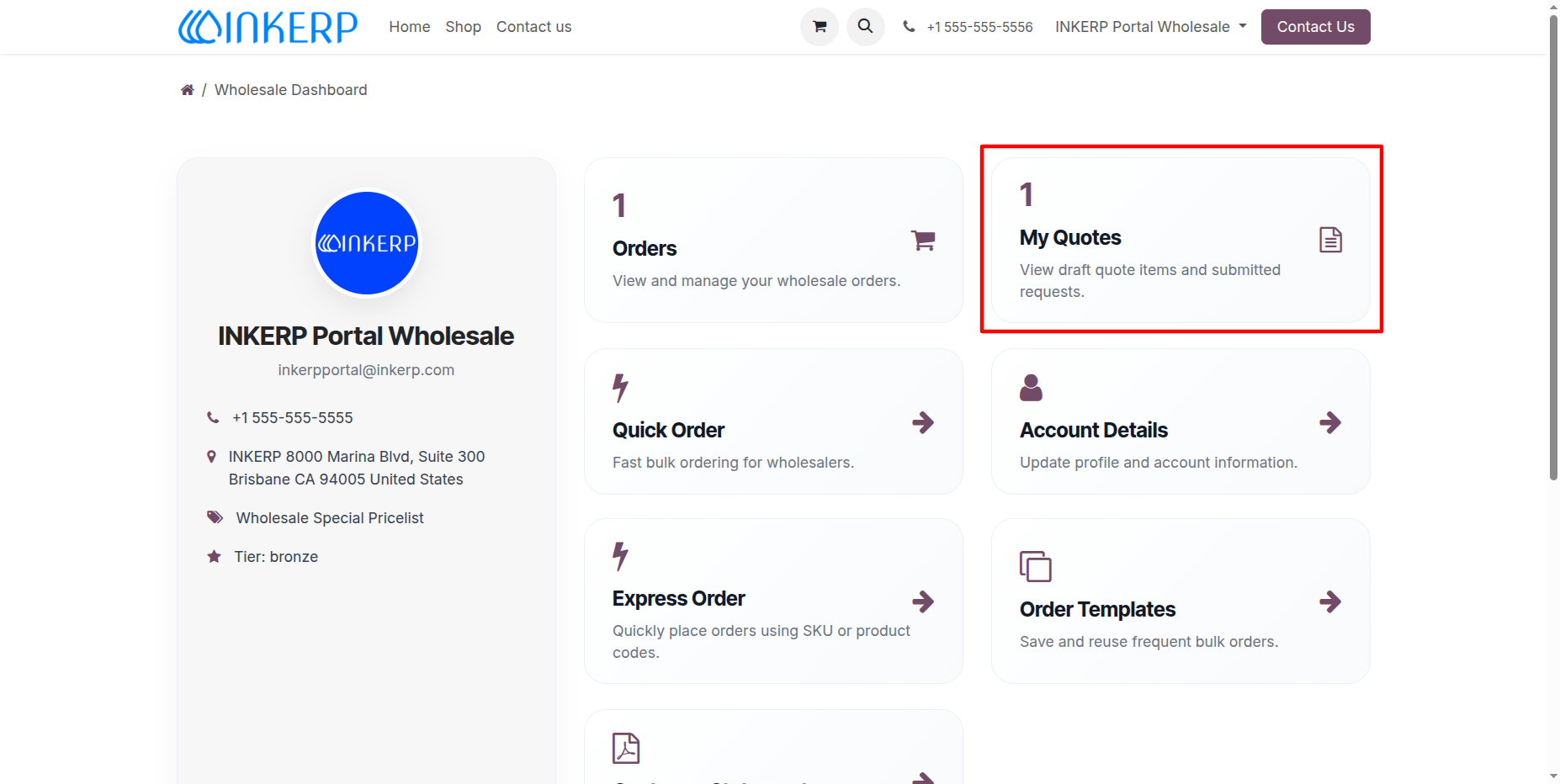
39.) My Quotes Tile on Wholesale Dashboard :
Wholesale portal users can monitor their quotation requests via the "My Quotes" metric card, which displays the count of pending quotes and provides direct access to manage draft quote items and submitted requests.
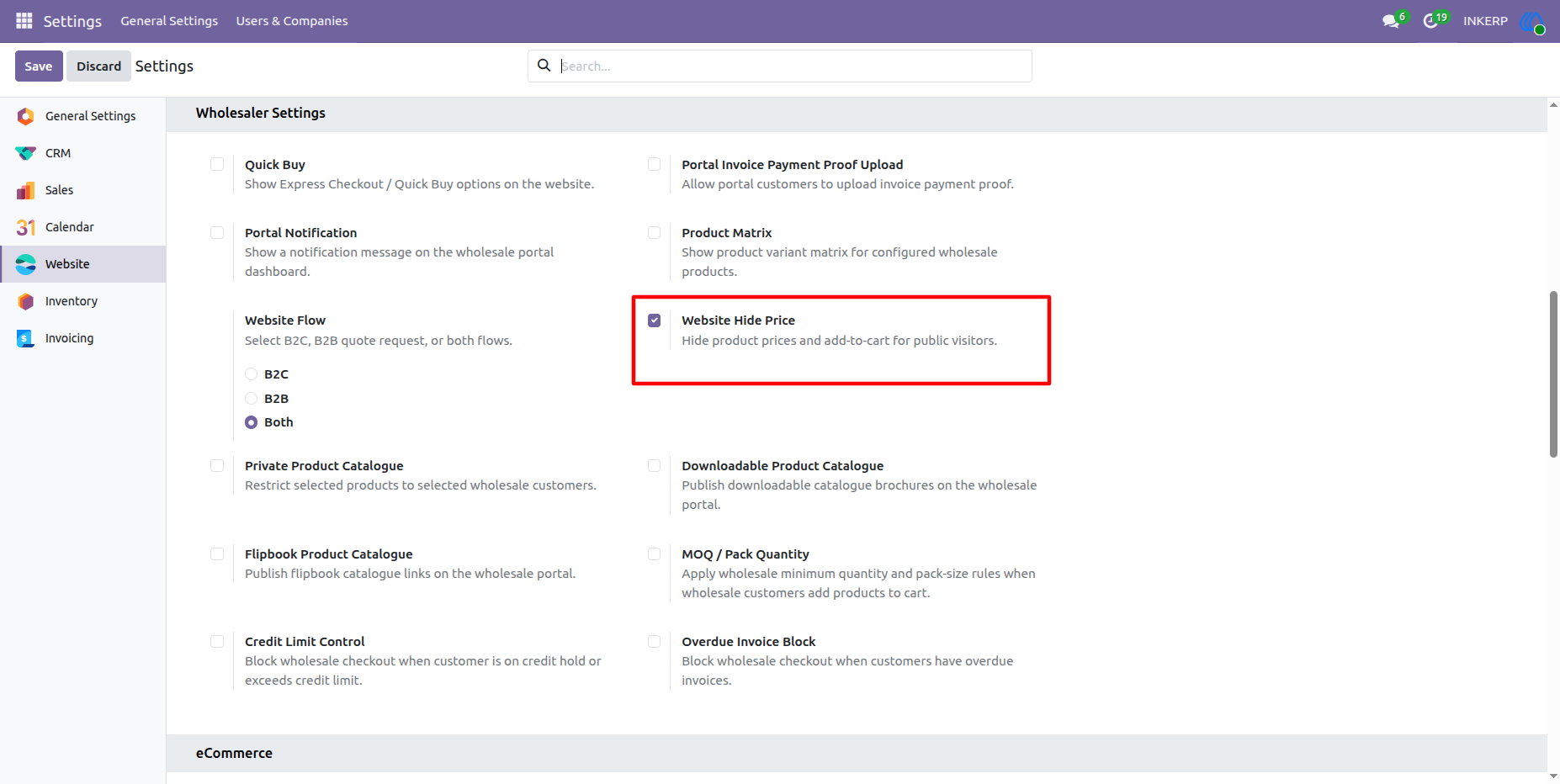
40.) Website Hide Price Configuration :
Enable the "Website Hide Price" setting to restrict product pricing and the add-to-cart functionality from public visitors, ensuring wholesale pricing and purchasing capabilities are exclusively accessible to authenticated users.
Navigation : Settings › Website › Wholesaler Settings
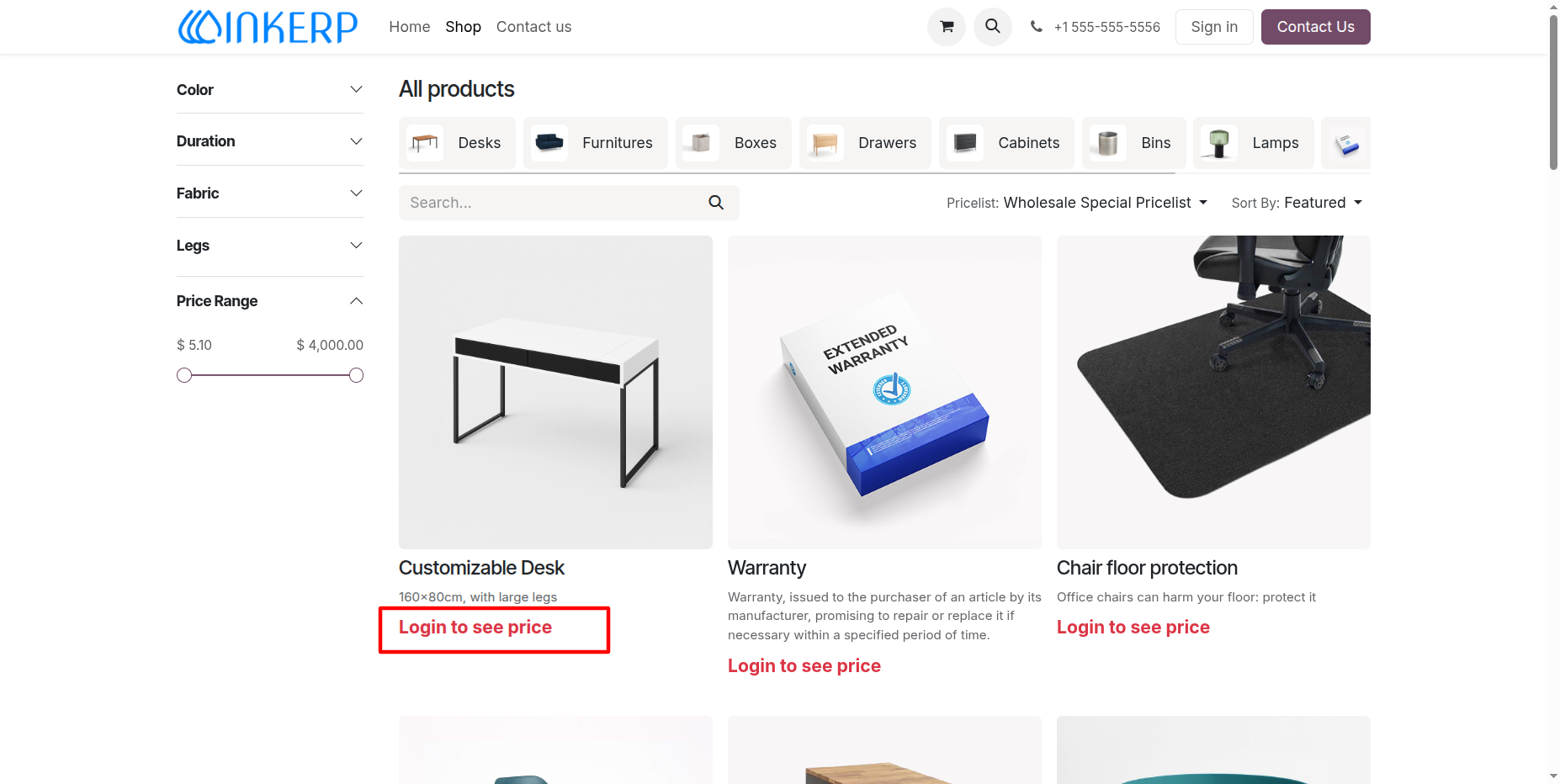
41.) Hidden Price Display on Shop Page for Public Visitors :
When the "Website Hide Price" feature is enabled, public and non-logged-in visitors see a "Login to see price" prompt on product cards instead of prices and purchasing buttons, safeguarding wholesale rates.
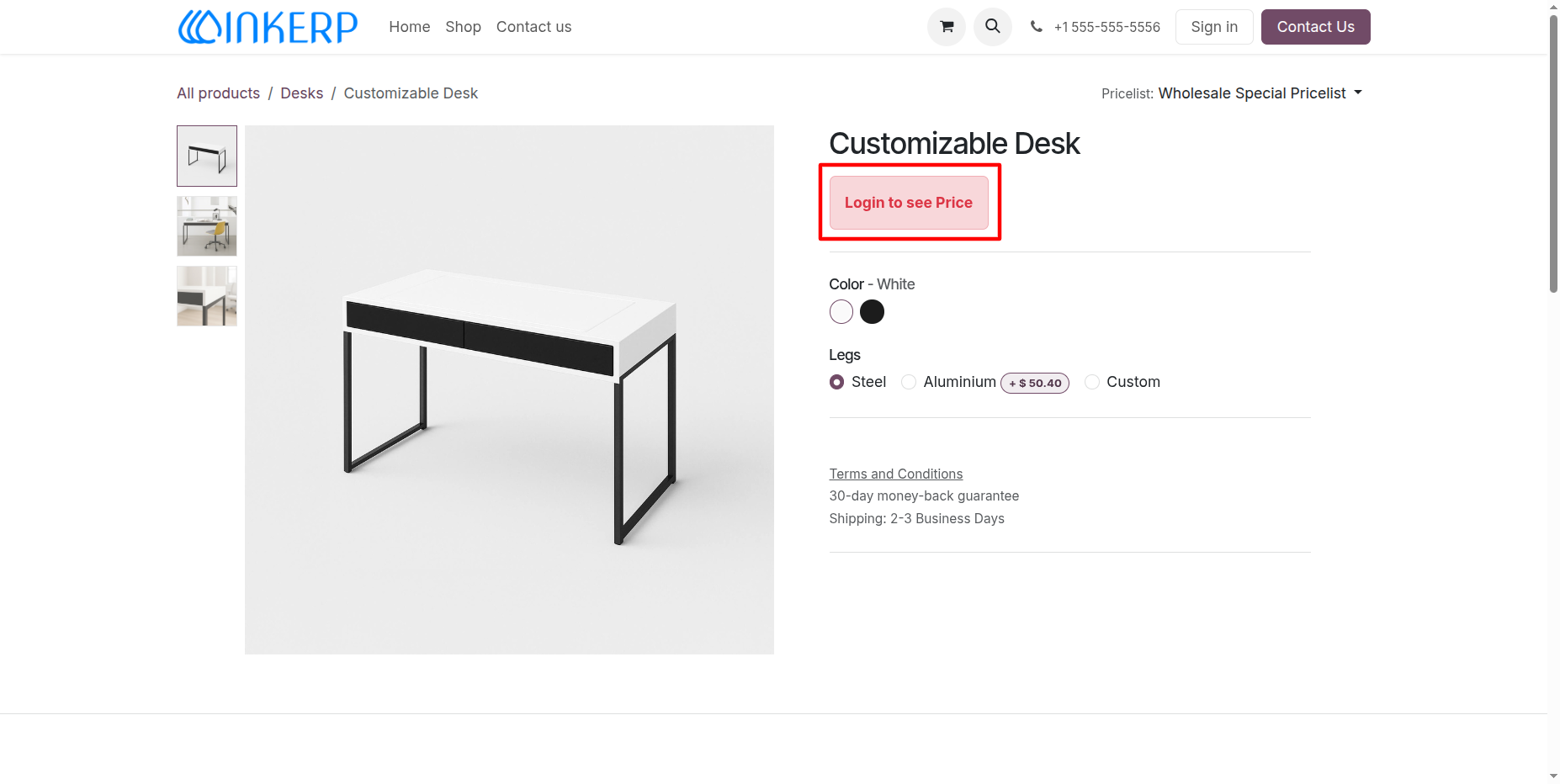
42.) Hidden Price Prompt on Product Detail Page :
On individual product detail pages, the standard price display and add-to-cart controls are replaced with a "Login to see Price" button for unauthenticated visitors, restricting pricing details to logged-in wholesale users.
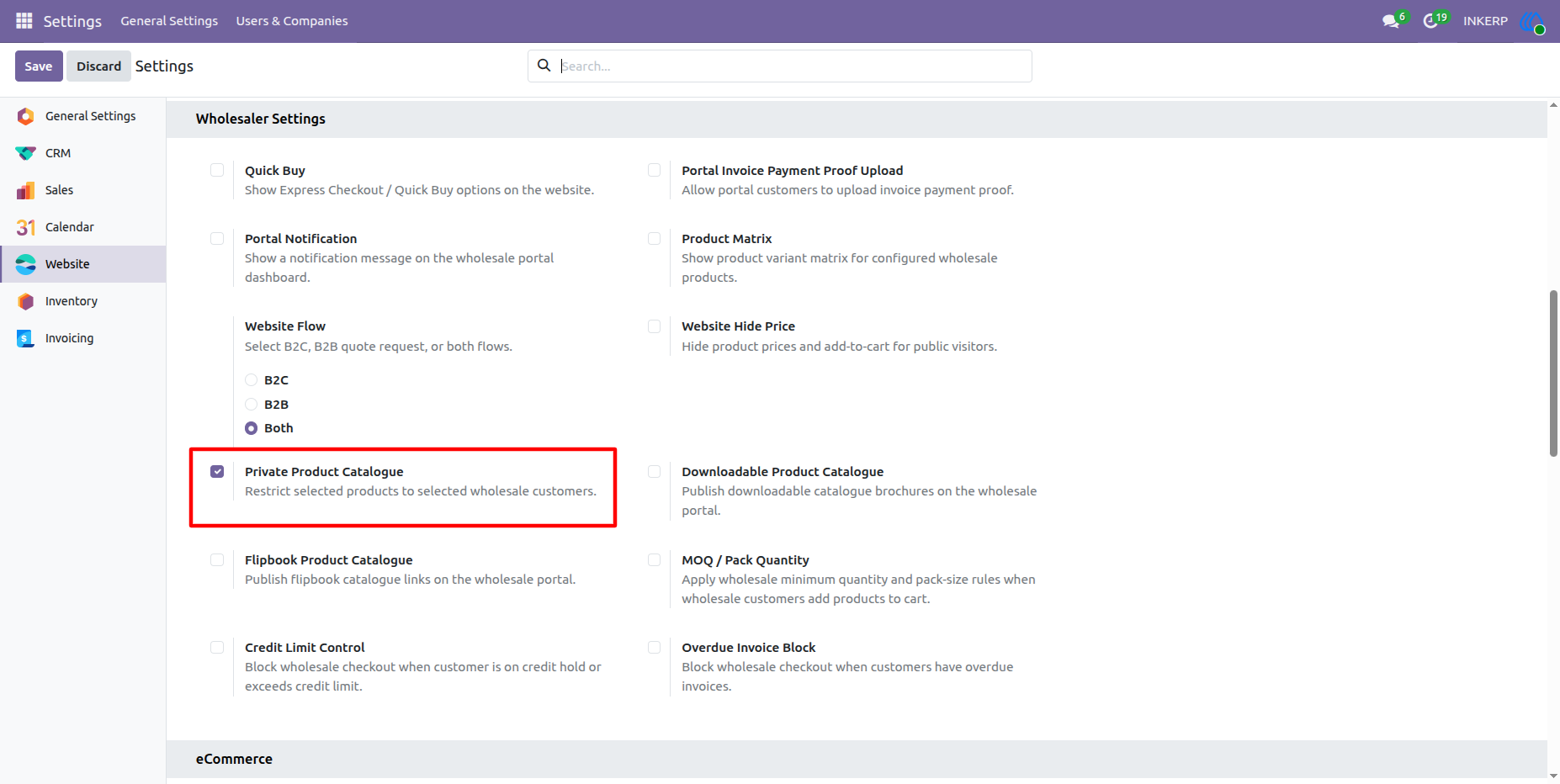
43.) Private Product Catalogue Configuration :
Enable the "Private Product Catalogue" setting to restrict access to selected items, ensuring specific products are exclusively visible and purchasable by assigned wholesale customers.
Navigation : Settings › Website › Wholesaler Settings
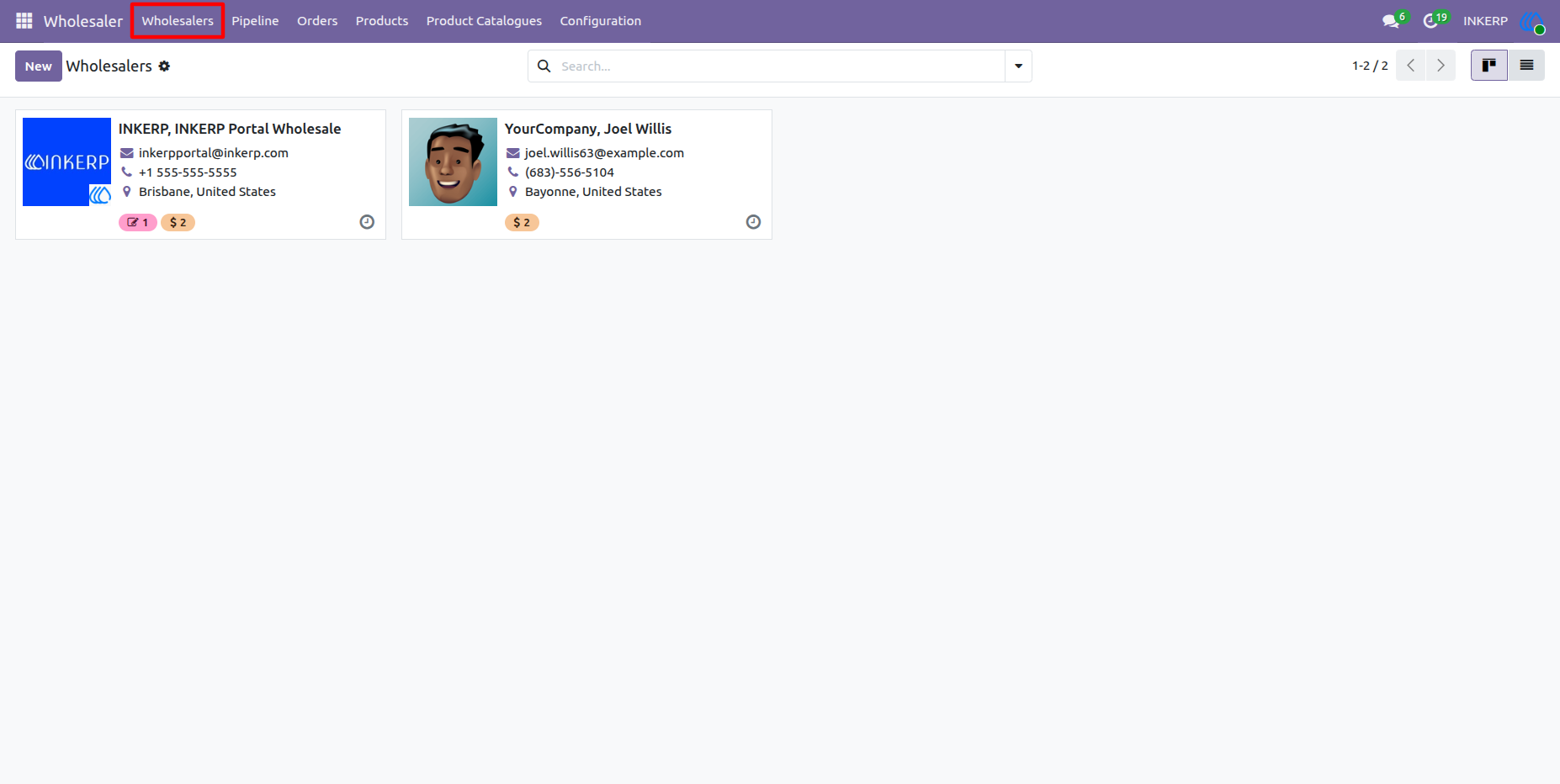
44.) Wholesalers Partner Directory Access :
Access registered wholesale customer profiles to manage company information, contact details, assigned pricelists, and specific product catalog permissions.
Here we can see available all wholesalers, which make easy to configure private catalogue in product.
Navigation : Wholesaler › Wholesalers
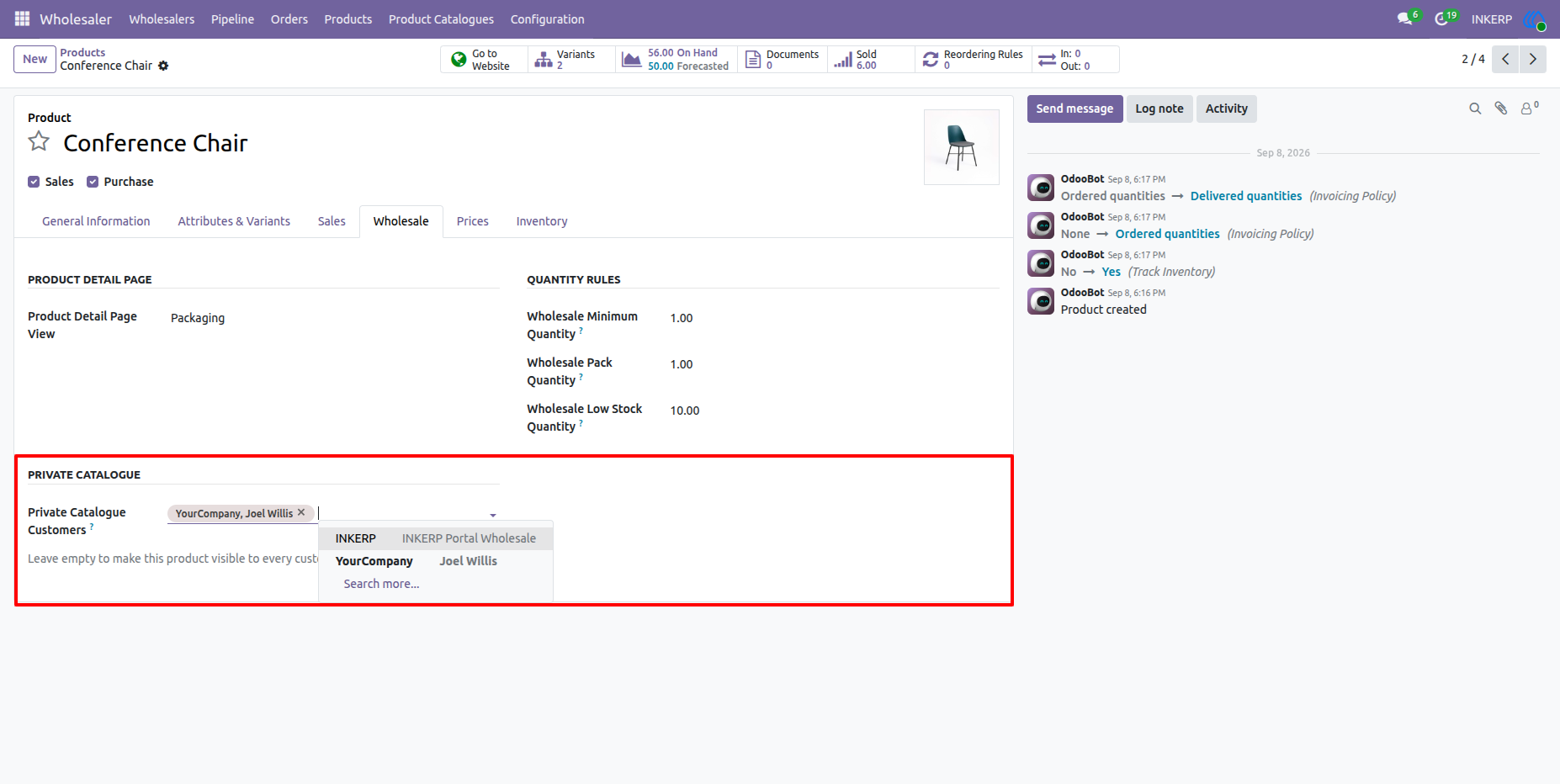
45.) Private Catalogue Wholesaler Assignment on Product :
Restrict product visibility by assigning specific wholesale customers under the Private Catalogue section on the product template, ensuring that only selected partners can view and order the product while hiding it from others (or leaving it empty to make it visible to all).
Navigation : Wholesaler > Products > Products
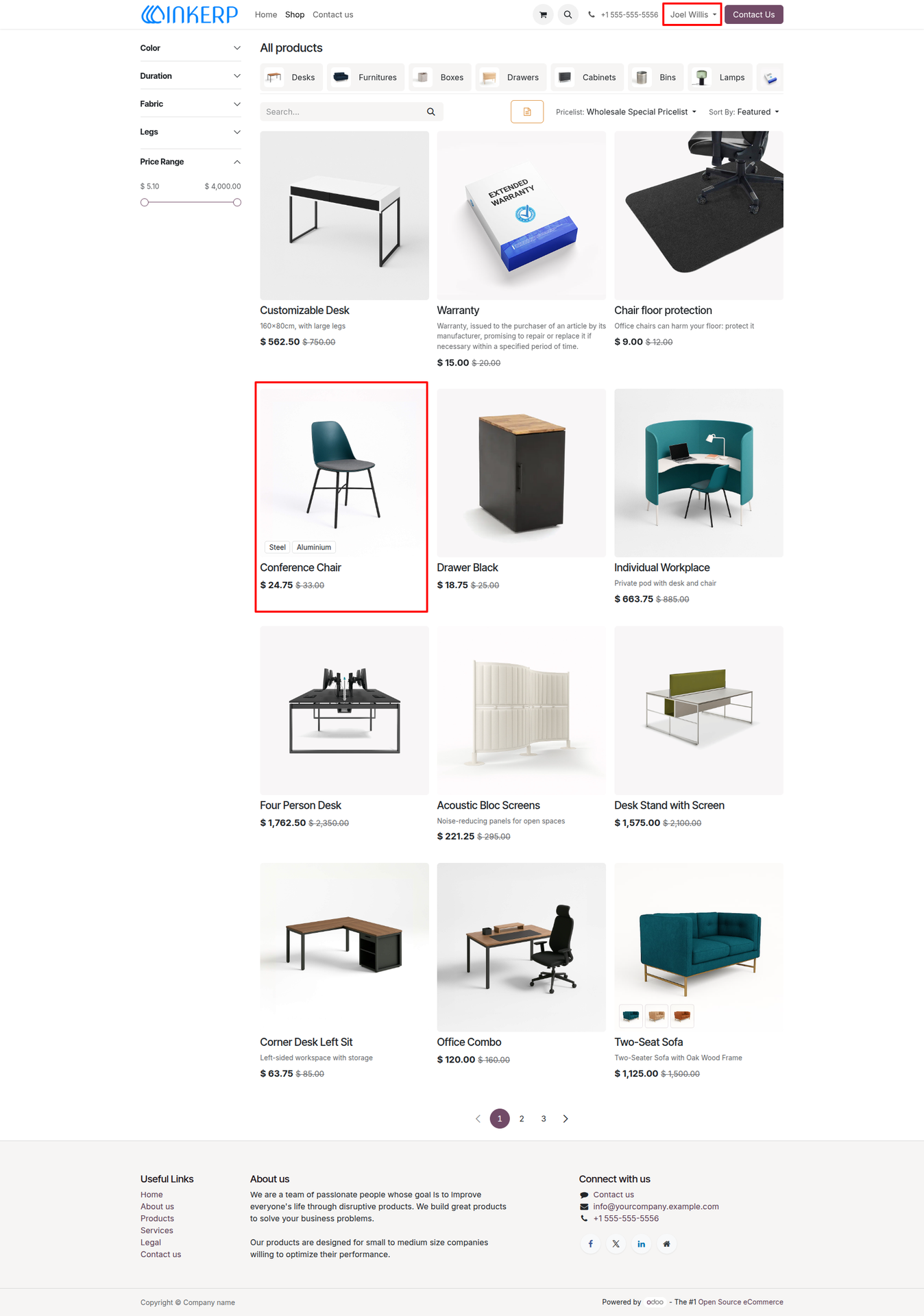
46.) Private Product Catalog Display for Authorized Wholesaler :
When logged in as an assigned wholesale customer (e.g., Joel Willis), restricted items configured under the Private Catalogue (such as the Conference Chair) appear visible and available in the shop catalog alongside standard products.
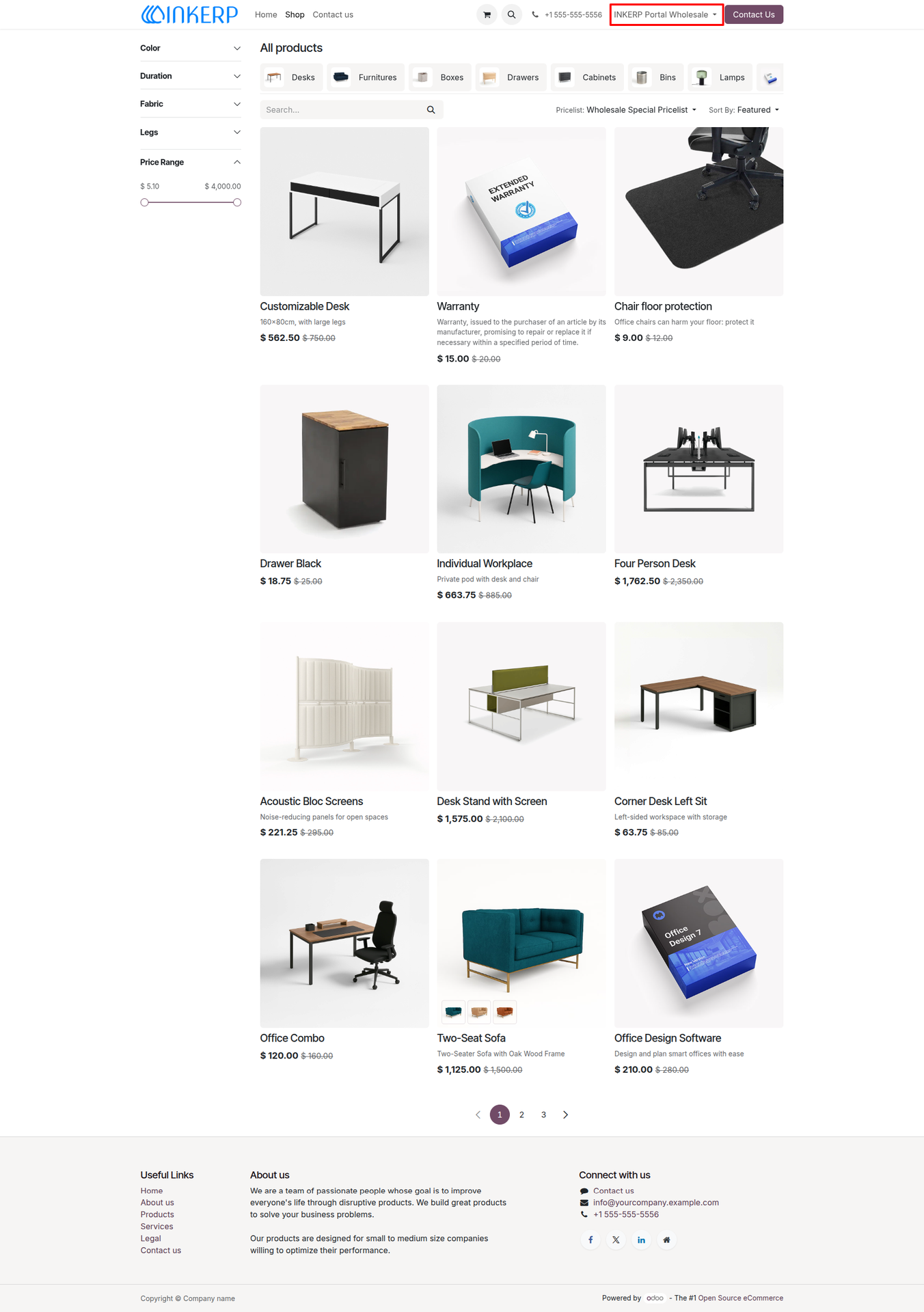
47.) Private Catalogue Product Availability for Assigned User :
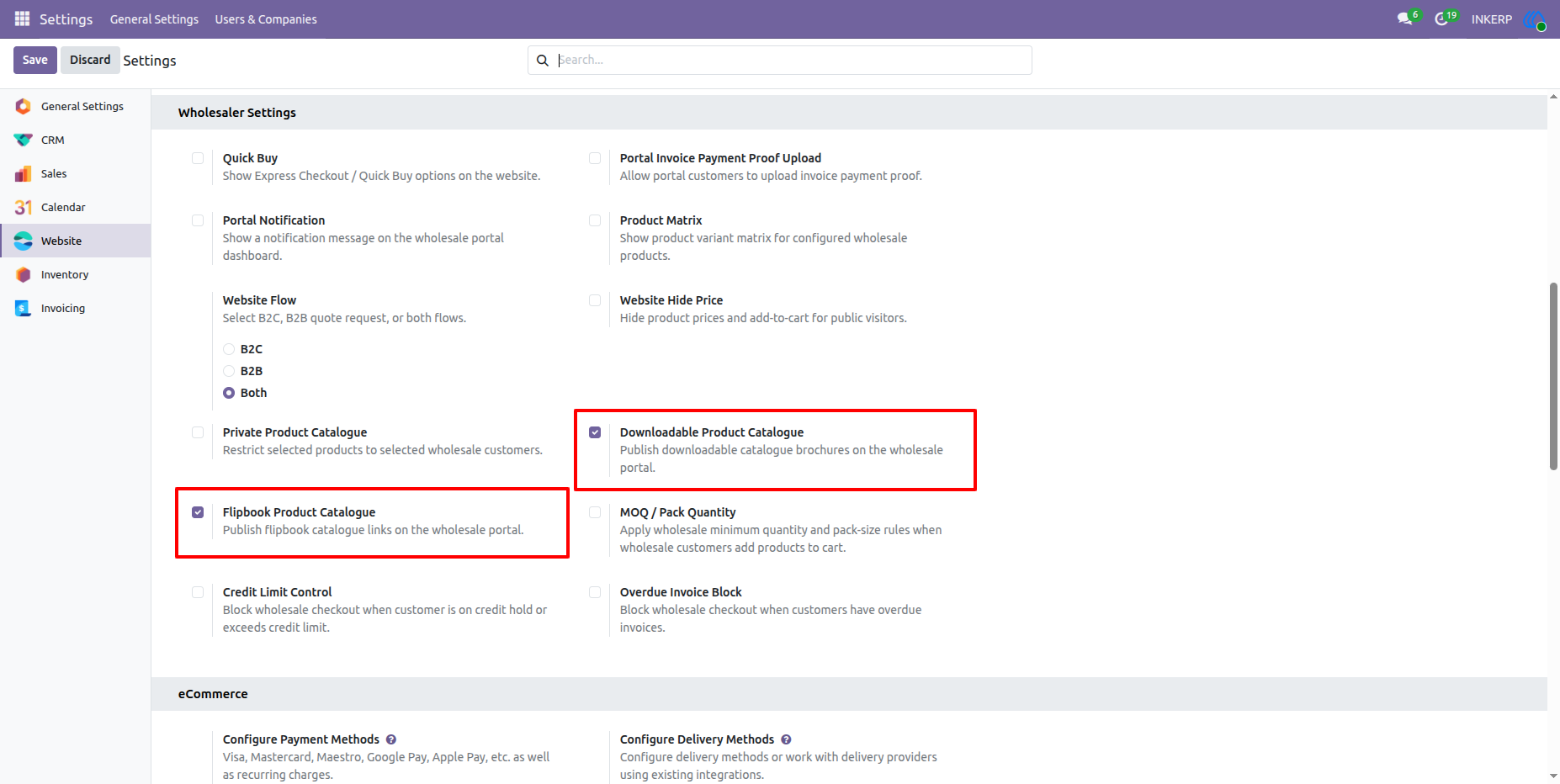
48.) Downloadable & Flipbook Product Catalogue Configuration :
Enable the "Downloadable Product Catalogue" and "Flipbook Product Catalogue" settings to publish downloadable PDF brochures and interactive flipbook links directly on the wholesale portal for buyers to access.
Navigation : Settings > Website > Wholesaler Settings
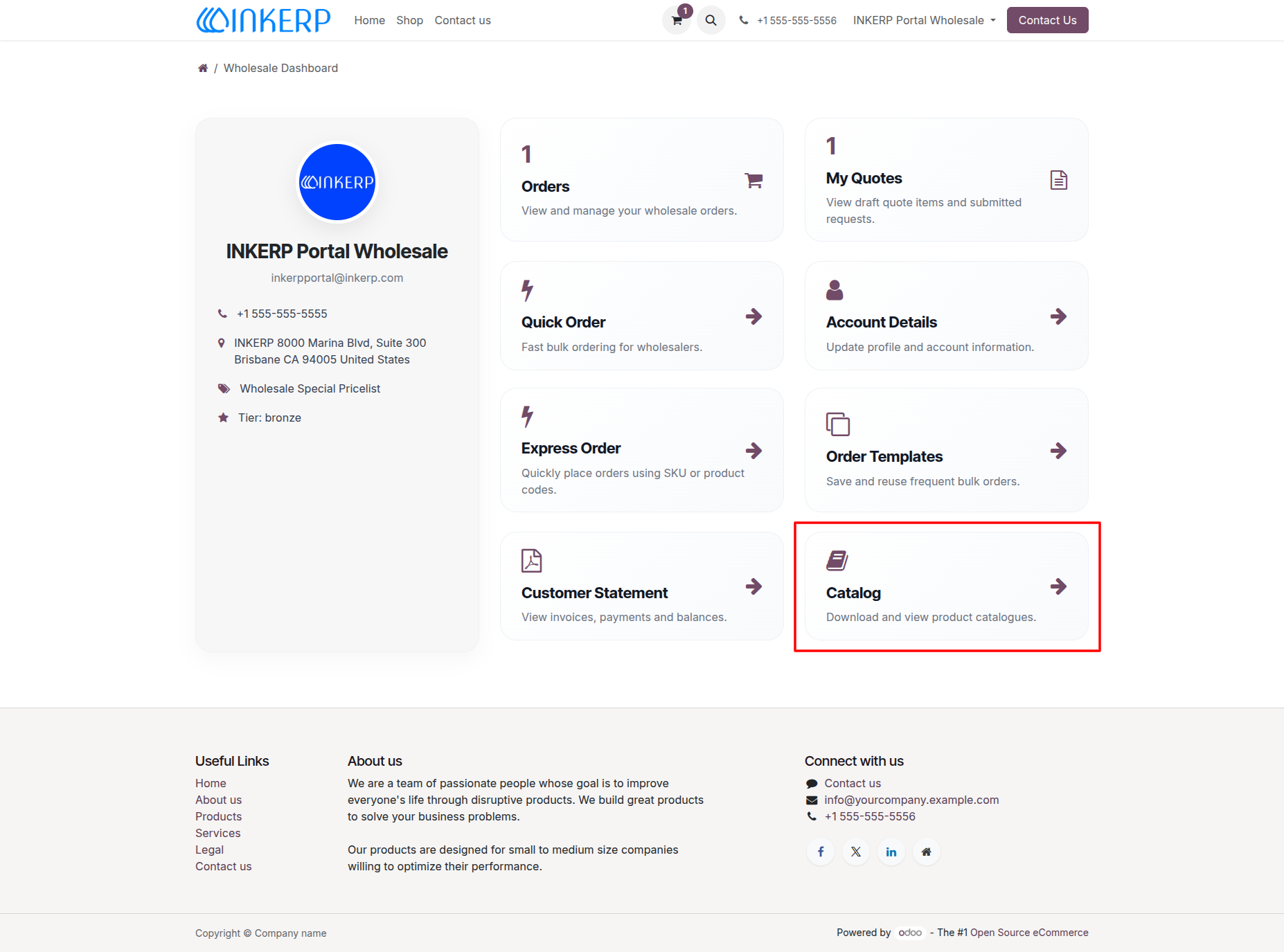
49.) Catalog Tile on Wholesale Dashboard :
Wholesale portal users can access available brochures and digital flipbooks via the dedicated "Catalog" action card on the Wholesale Dashboard to view or download product marketing materials.
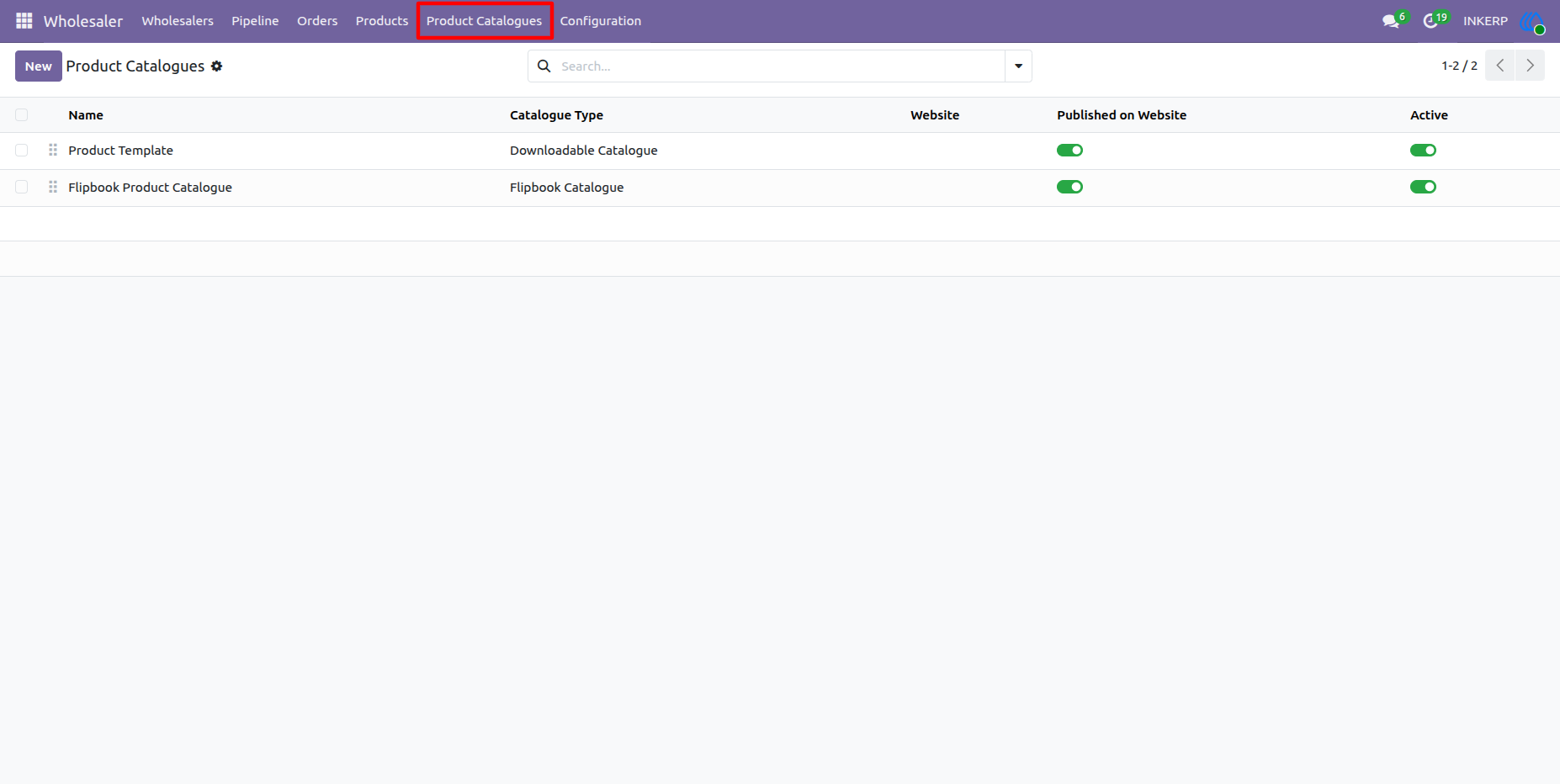
50.) Product Catalogues List View :
Manage and monitor all wholesale digital brochures and flipbook catalogs from the central list view, where administrators can toggle website publication status and active availability.
Navigation : Wholesaler > Product Catalogues
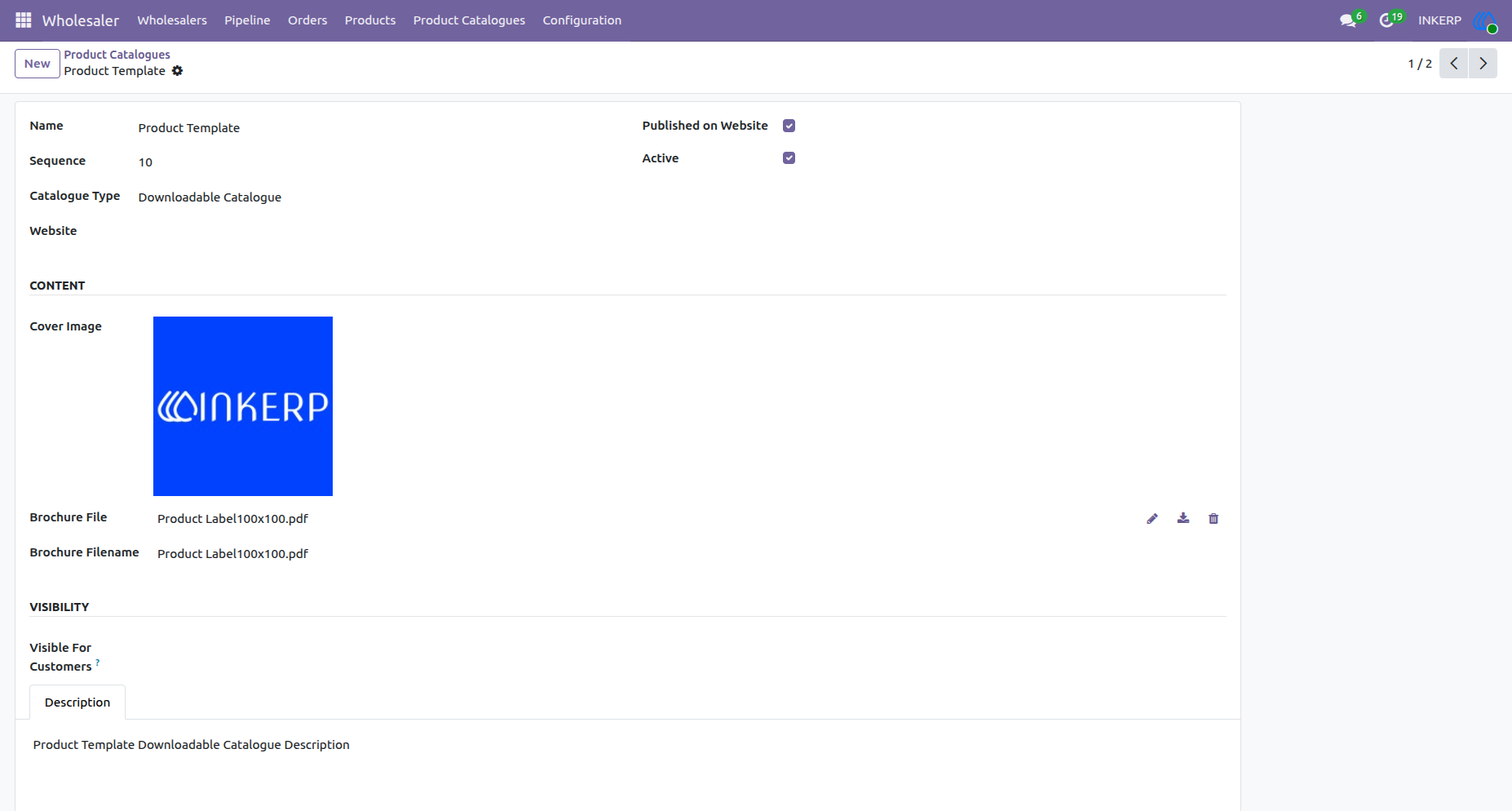
51.) Downloadable Catalogue Form Configuration :
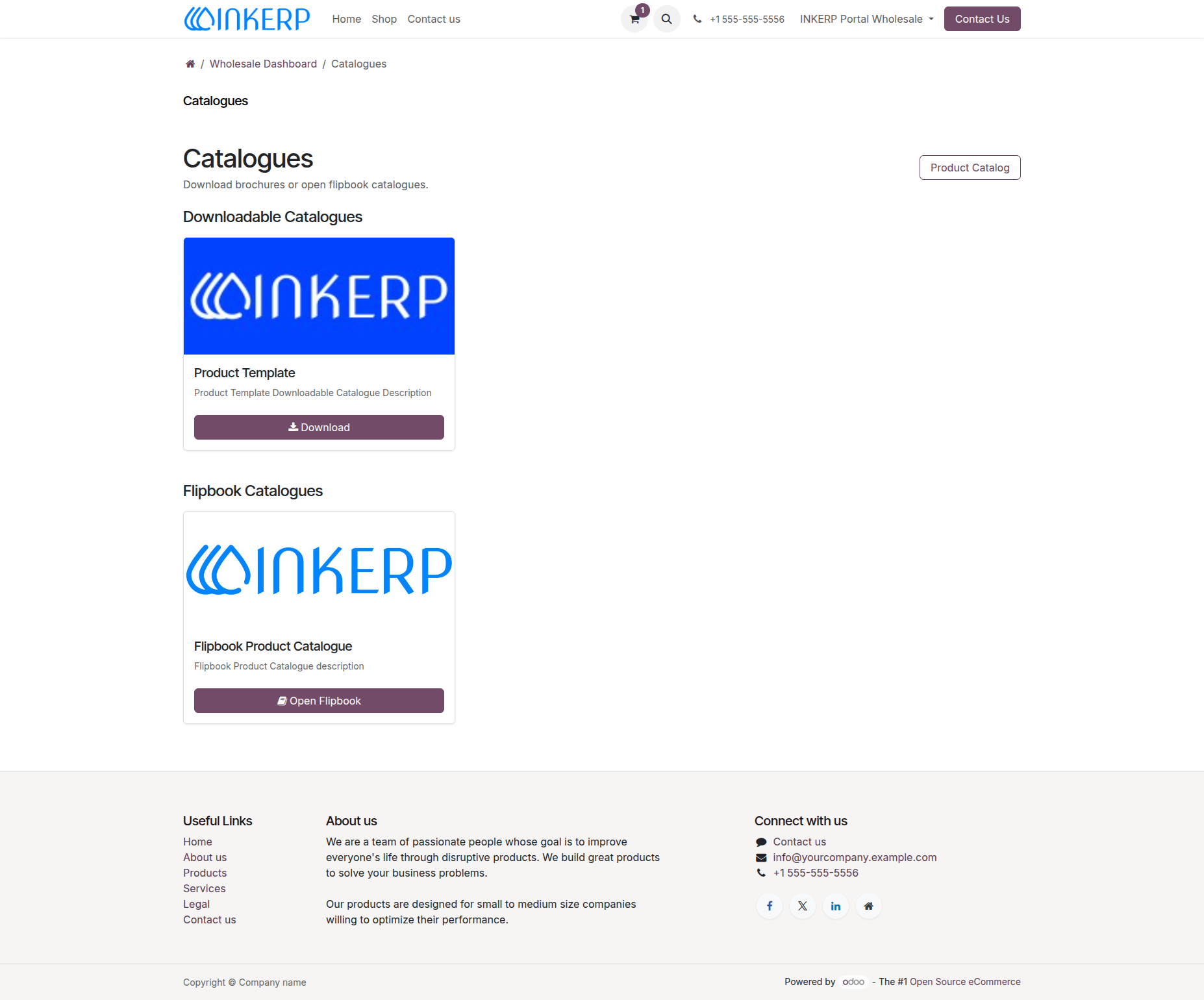
Configure a downloadable product catalogue by setting the name, sequence, brochure file (PDF), cover image, descriptive text, and publication status, while optionally restricting visibility to designated wholesale customers.
52.) Product Catalogues Portal View :
On the wholesale portal Catalogues page, customers can browse published marketing materials separated into sections, allowing them to directly download PDF brochures or launch interactive flipbooks.
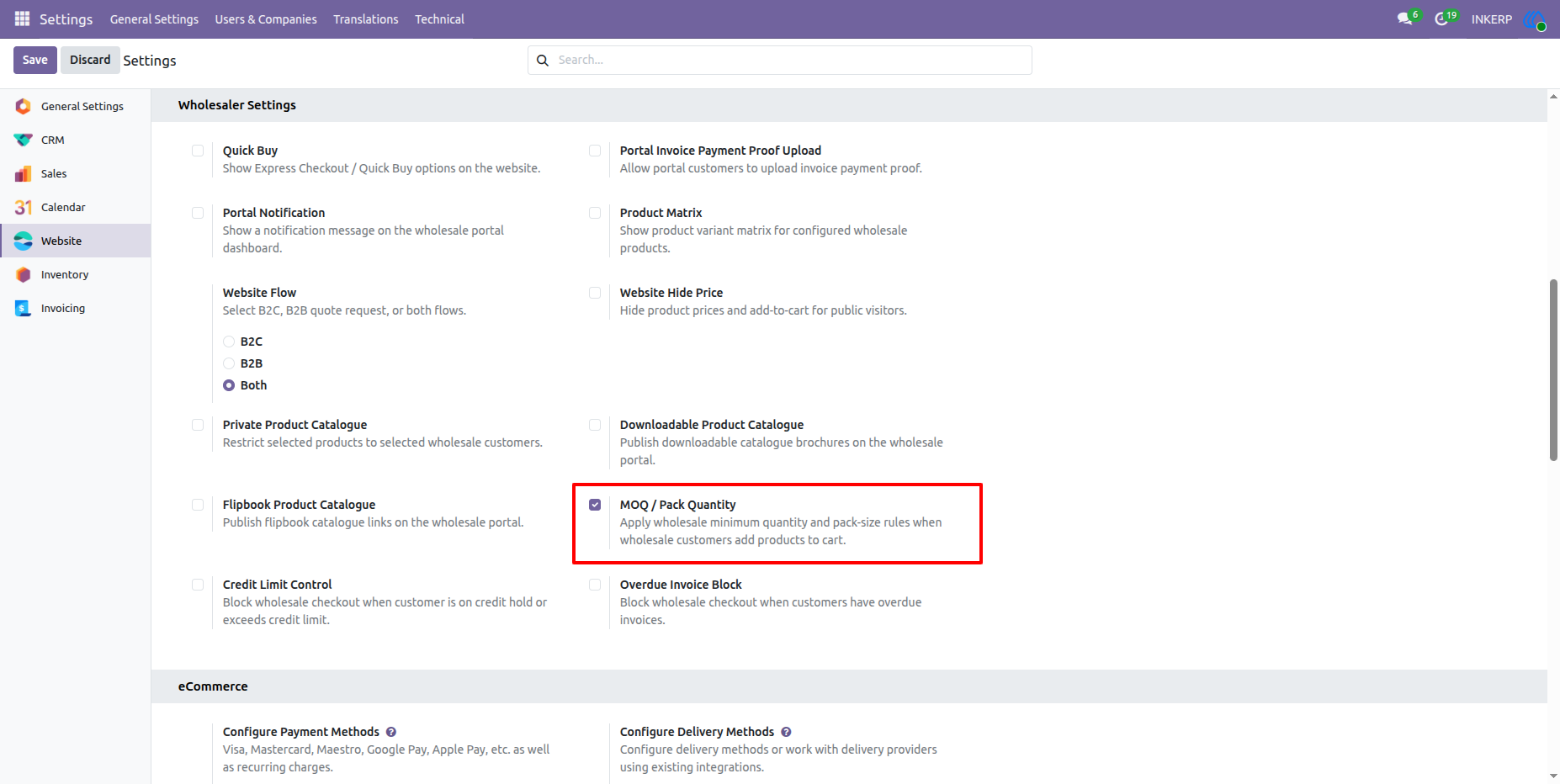
53.) MOQ / Pack Quantity Configuration :
Enable the "MOQ / Pack Quantity" setting to enforce minimum order quantities and pack-size increments whenever wholesale customers add products to their shopping cart.
Navigation : Settings > Website > Wholesaler Settings
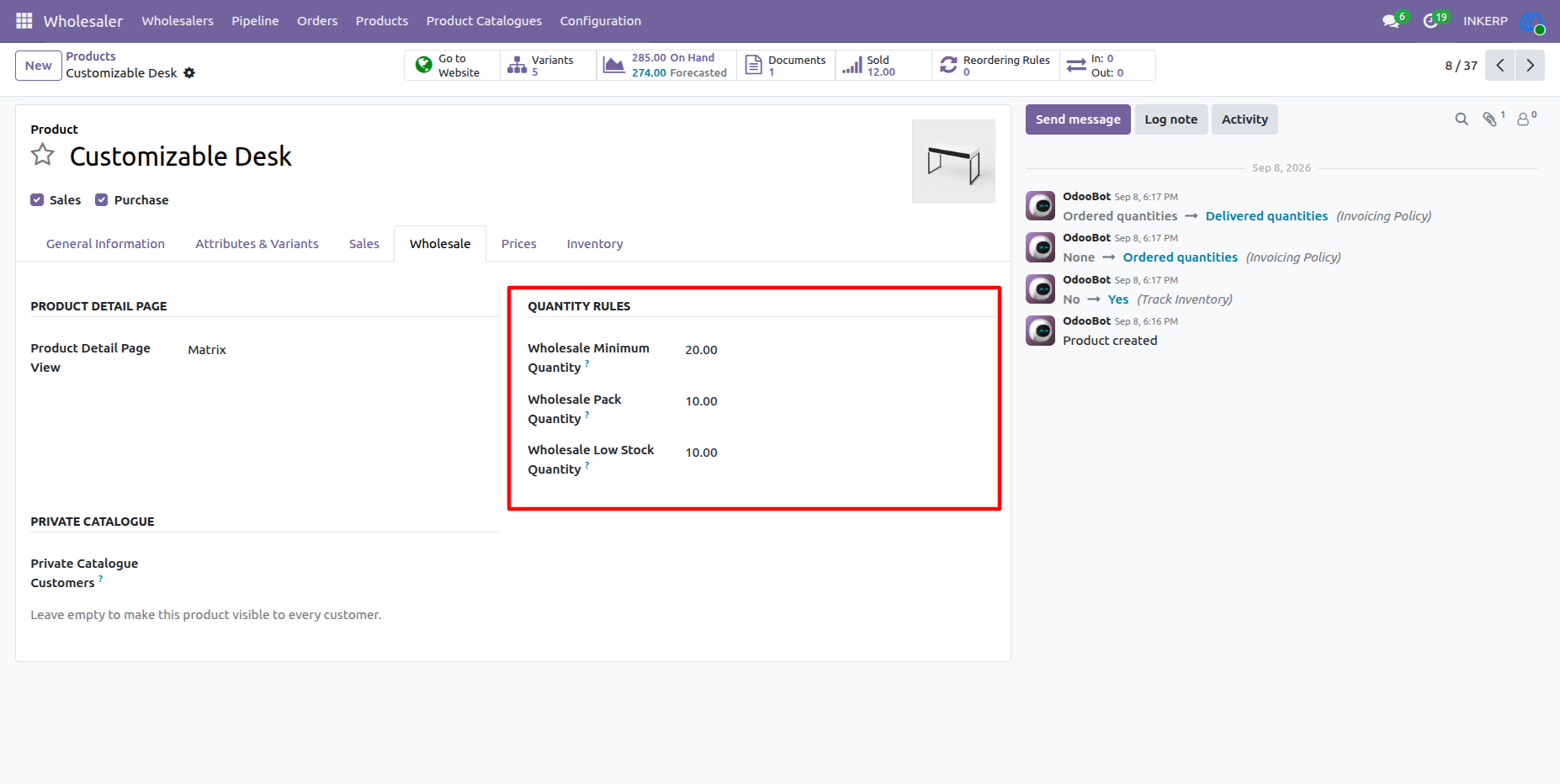
54.) Wholesale Quantity Rules Configuration on Product :
Define wholesale ordering constraints under Quantity Rules on the product template, including Wholesale Minimum Quantity (MOQ), Wholesale Pack Quantity increments, and Wholesale Low Stock Quantity thresholds.
Navigation : Wholesaler > Products > Products
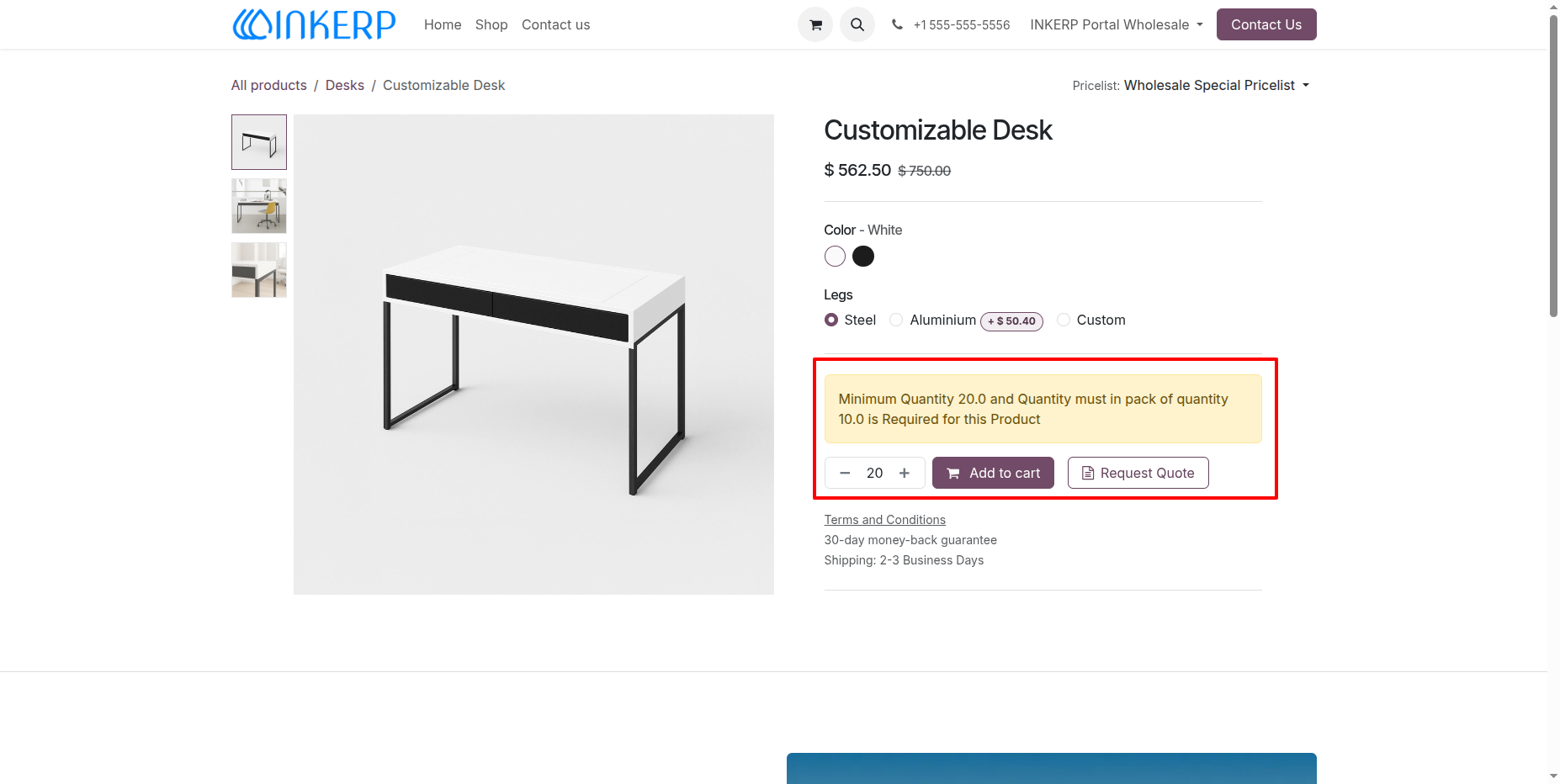
55.) MOQ and Pack Quantity Validation on Product Detail Page :
When wholesale quantity constraints are configured, the product detail page displays an informative warning banner specifying the required minimum order quantity and mandatory pack increments (e.g., Minimum Quantity 20.0 and pack quantity of 10.0), automatically setting the quantity selector to match these rules.
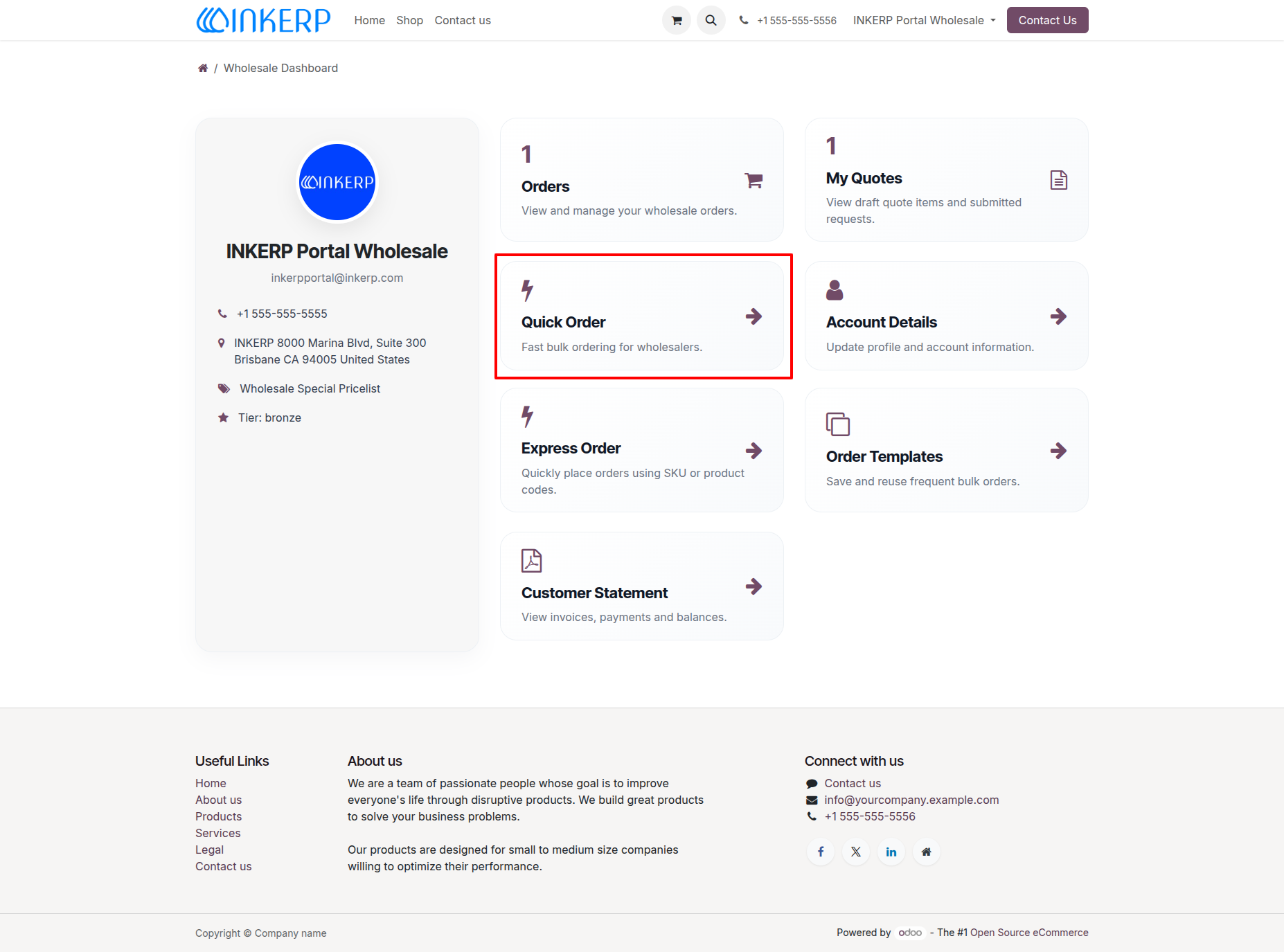
56.) Quick Order Tile on Wholesale Dashboard :
Wholesale portal users can access the fast bulk-ordering interface via the dedicated "Quick Order" card on the Wholesale Dashboard to streamline large-volume purchases.
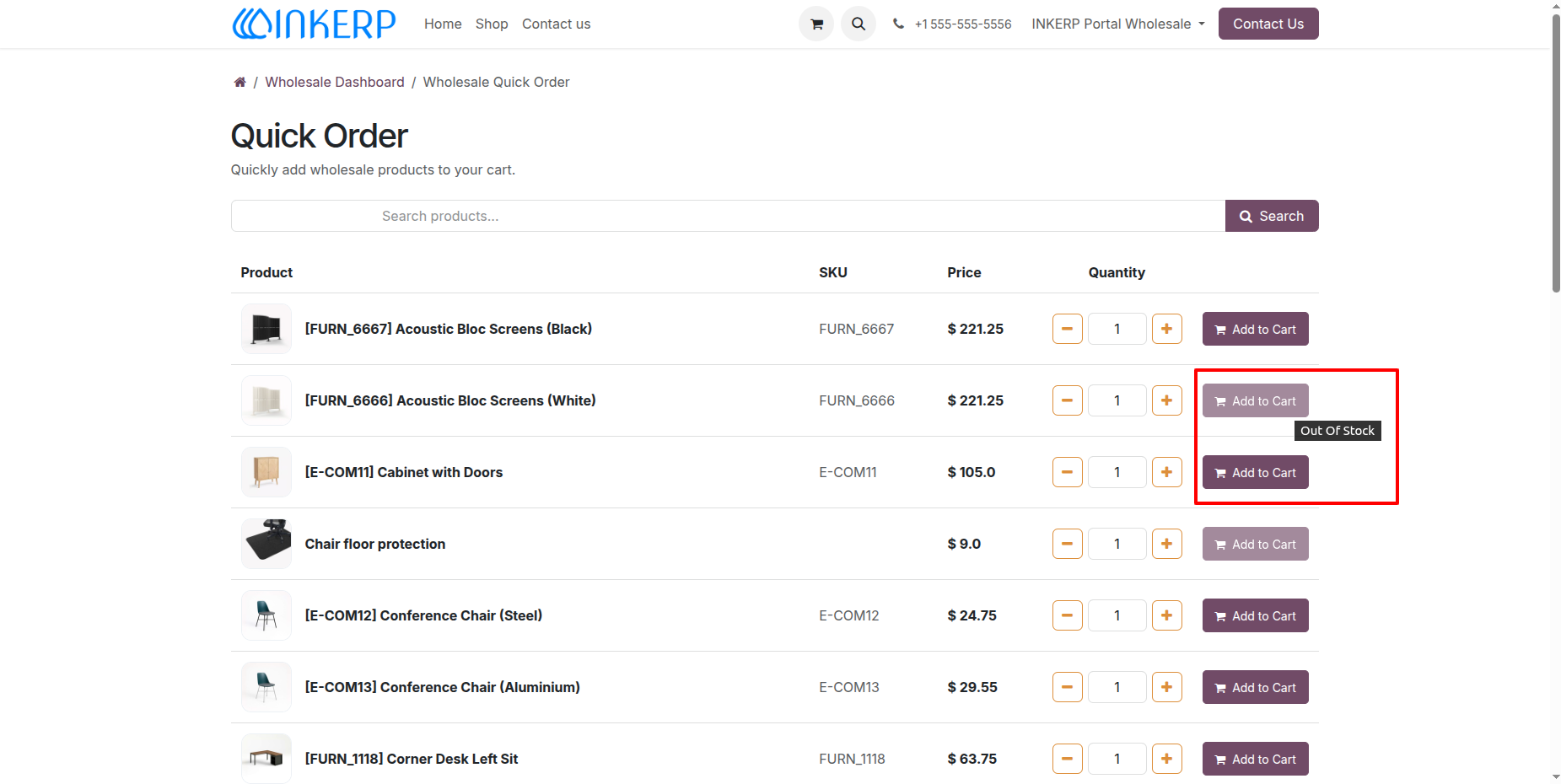
57.) Wholesale Quick Order List & Stock Availability :
The Quick Order interface displays a tabular catalog with search capabilities, SKU references, wholesale prices, and inline quantity pickers, while dynamically disabling the "Add to Cart" button with an "Out Of Stock" badge for unavailable inventory.
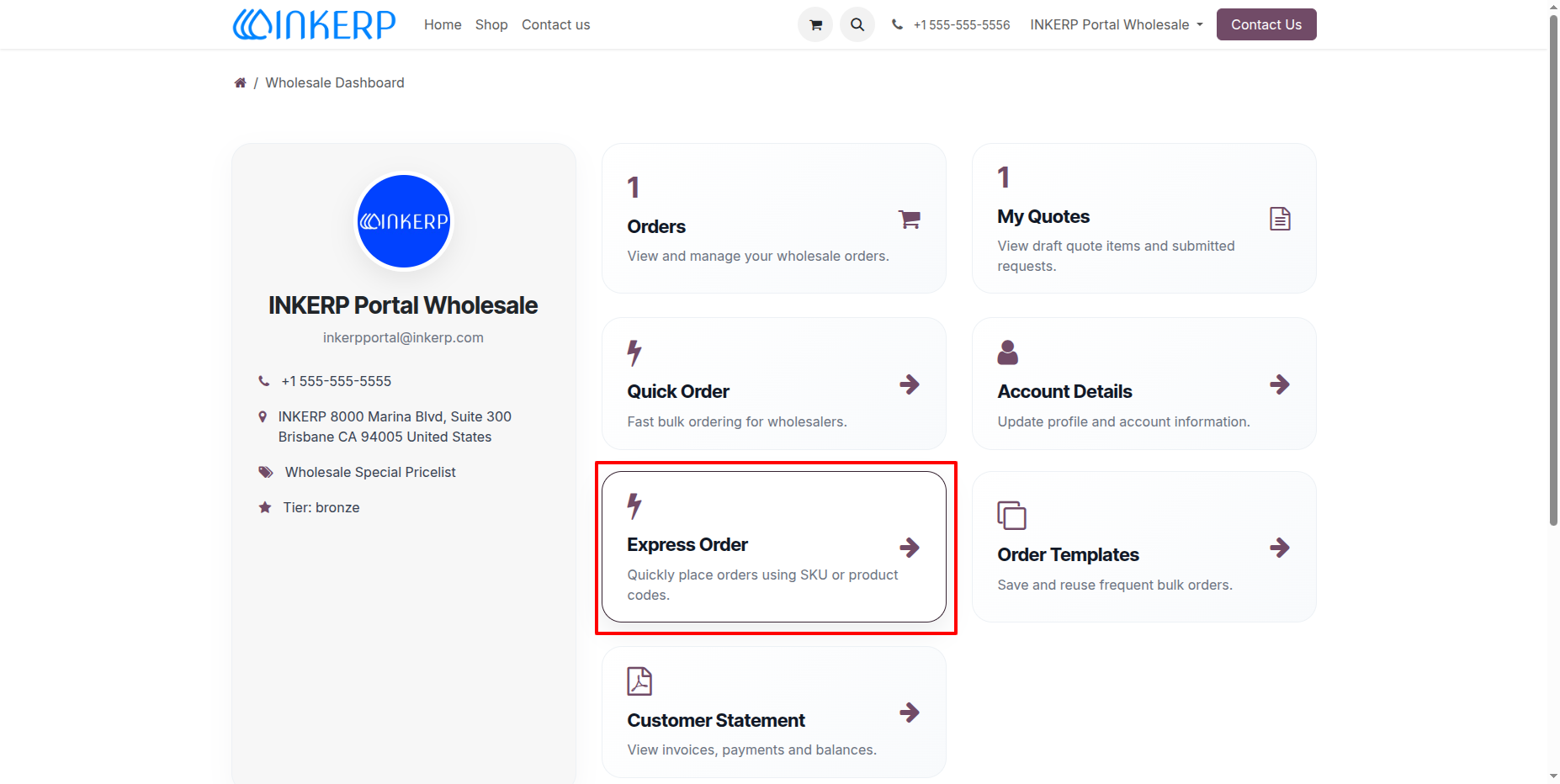
58.) Express Order Tile on Wholesale Dashboard :
Wholesale portal users can navigate directly to the SKU-based entry screen via the "Express Order" card on the Wholesale Dashboard to rapidly input product codes and quantities for direct ordering.
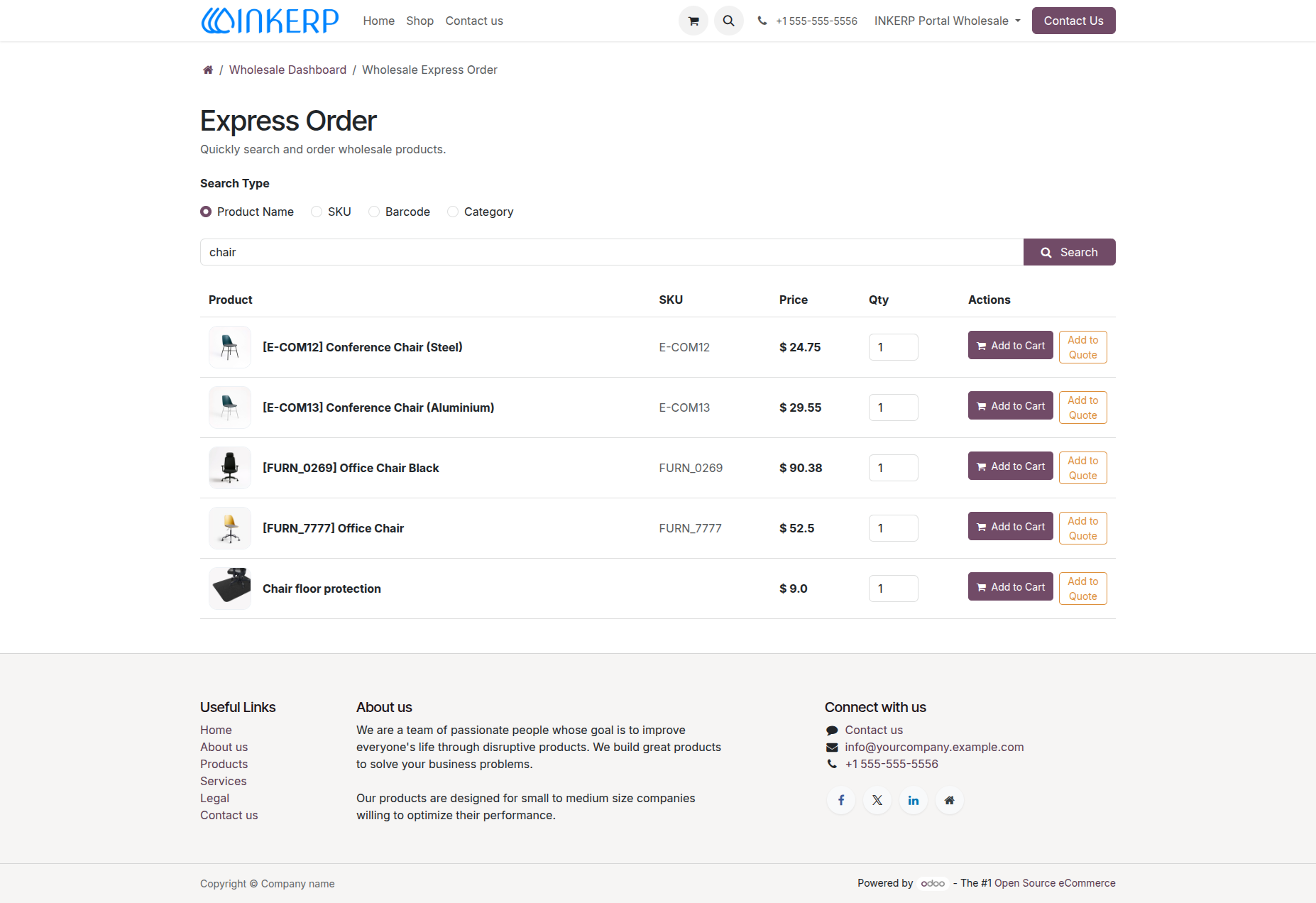
59.) Wholesale Express Order Search & Actions :
Wholesale buyers can quickly find items using multiple search criteria (Product Name, SKU, Barcode, or Category) and immediately perform actions directly from the results list, including adjusting quantities, adding items directly to the shopping cart, or adding them to a draft quote request.
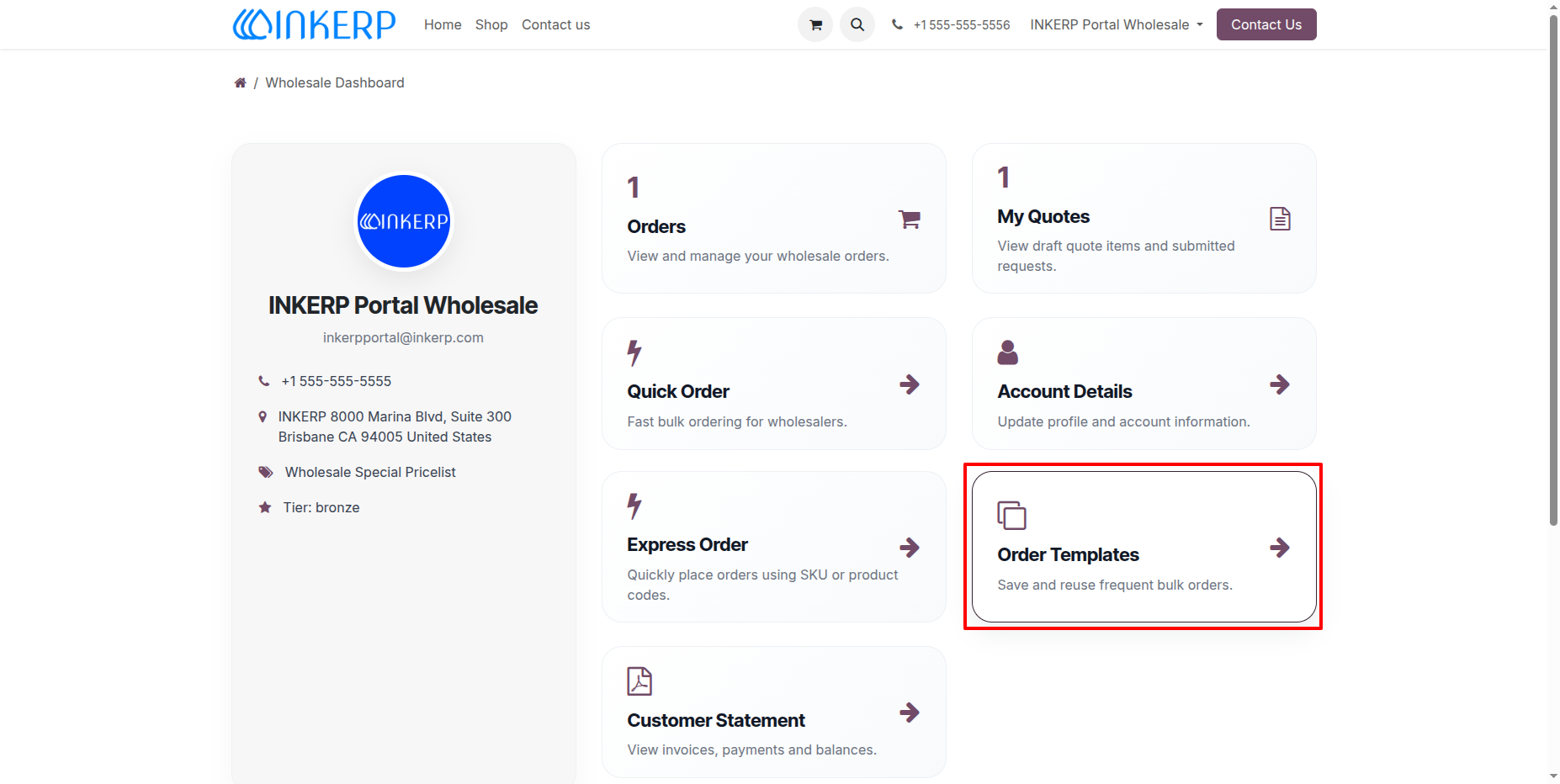
60.) Order Templates Tile on Wholesale Dashboard :
Wholesale portal users can access the "Order Templates" action card directly from the Wholesale Dashboard to save, manage, and reuse predefined product lists for faster recurring bulk orders.
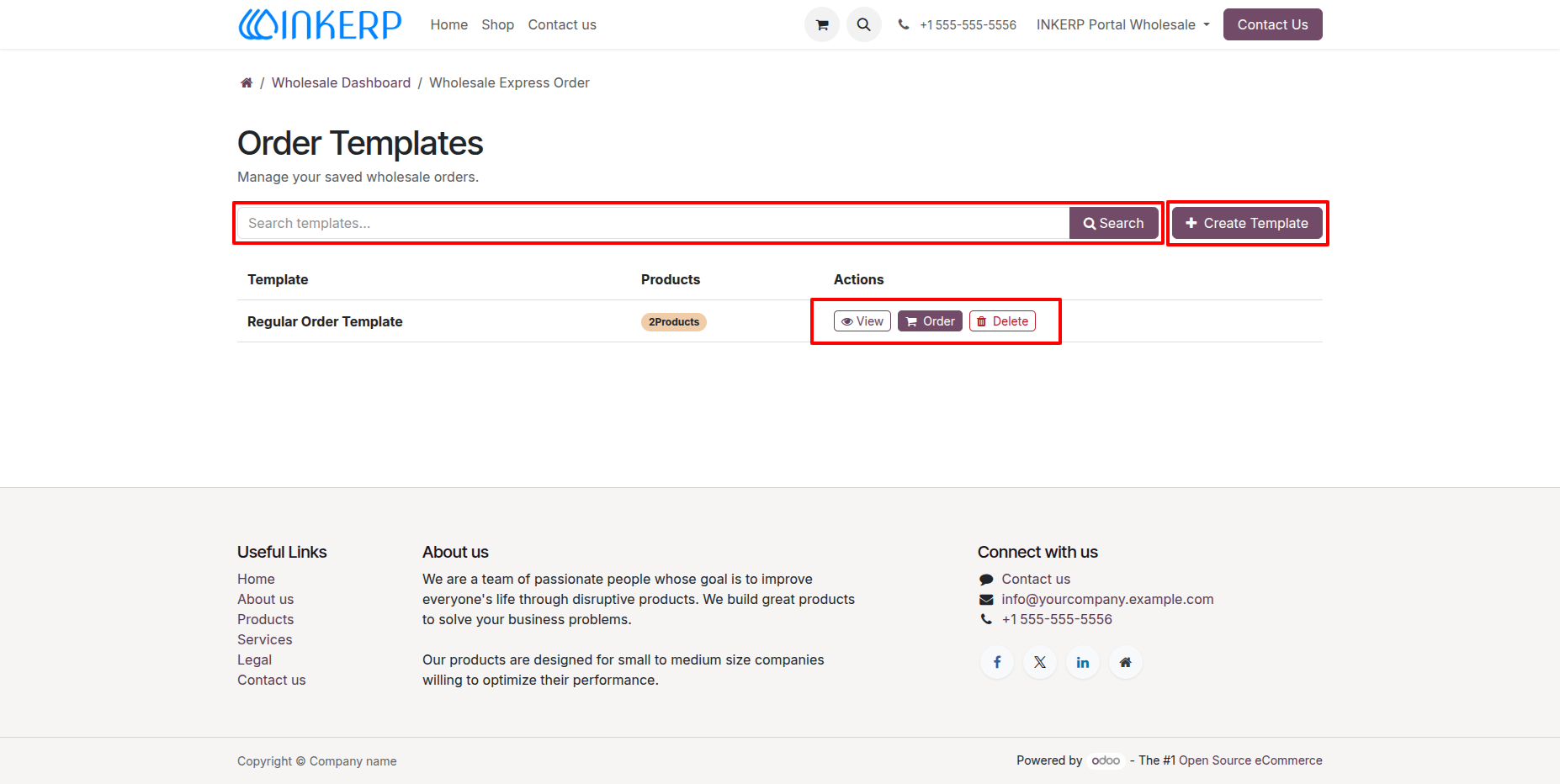
61.) Order Templates Management & Actions :
Wholesale portal users can manage their saved wholesale orders from the Order Templates view, which provides a dedicated template search bar, a "Create Template" button, product count indicators, and direct actions to view details, place an order instantly, or delete existing templates.
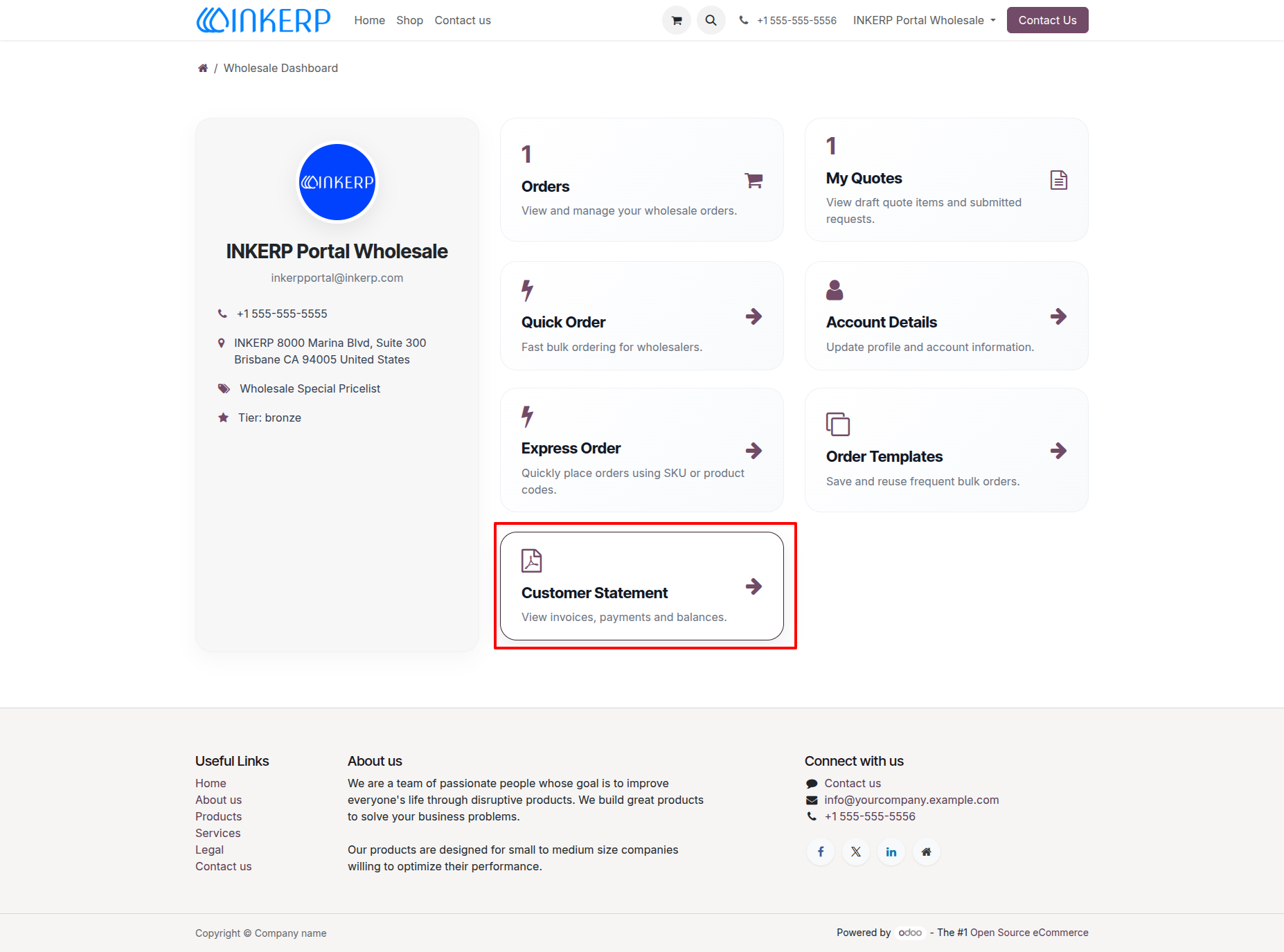
62.) Customer Statement Tile on Wholesale Dashboard :
Wholesale customers can access their financial records via the dedicated "Customer Statement" card on the Wholesale Dashboard to view invoices, payments, and outstanding balances.
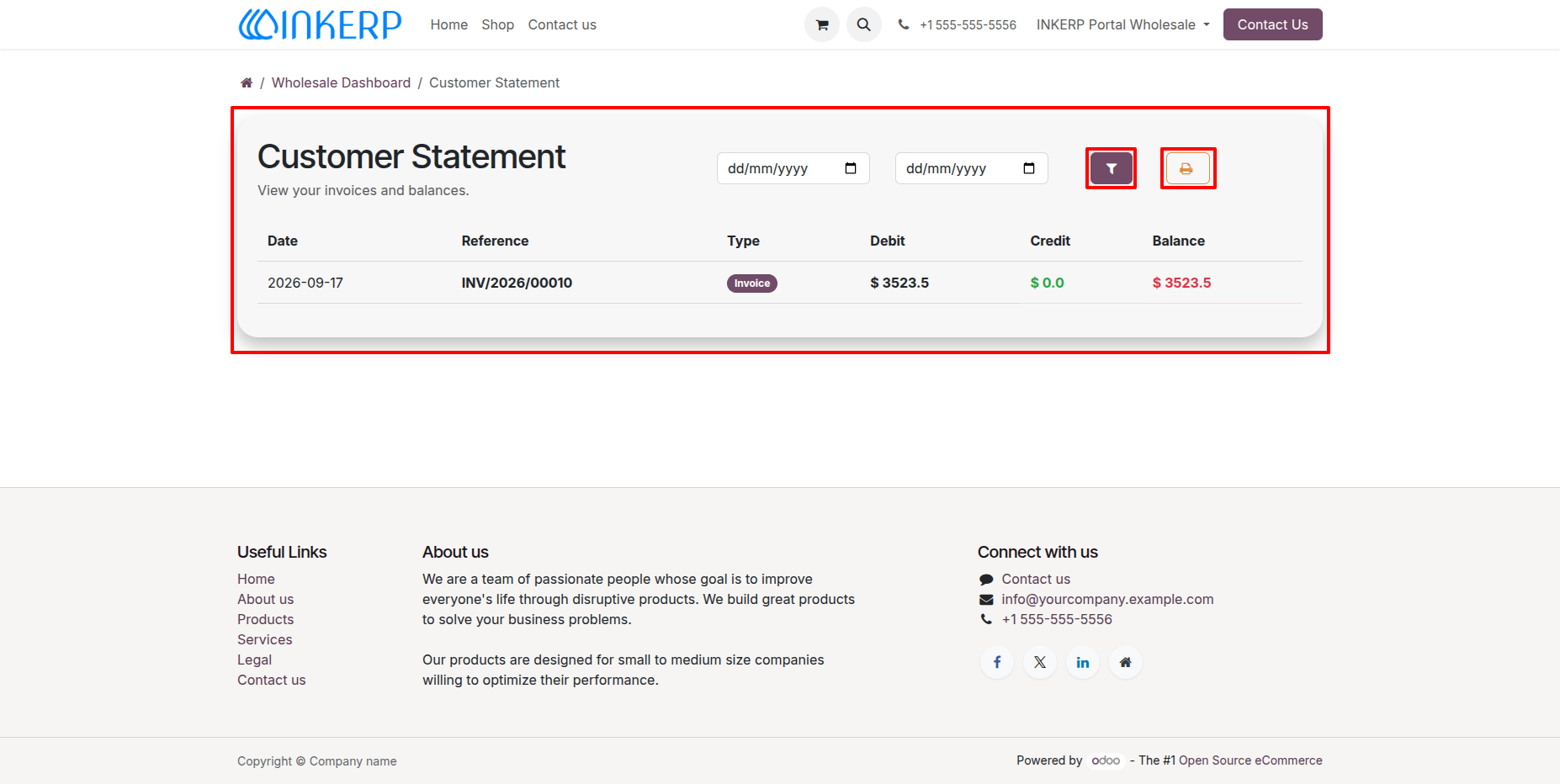
63.) Customer Statement Overview & Controls :
The Customer Statement page enables wholesale users to view their transaction ledger including invoice references, debit amounts, credit entries, and running balances with options to filter transactions across specific date ranges or print/export the statement.
User Guide