

Our Most Suggested Products


Whatsapp Template
This app allows users to send custom WhatsApp messages to customers directly from Odoo. Users can create predefined message templates and send messages in just one step, making communication faster and more efficient.
 Features
 Screenshots
 Support
 Service
Features
Predefined WhatsApp Message Templates
Users can create and manage custom WhatsApp message templates directly within Odoo, making it easy to standardize communication across the organization. These templates can be reused for various purposes such as customer updates, reminders, or promotional messages.
Send Whatsapp message to customer
Users can quickly send WhatsApp messages by selecting a customer and choosing a predefined template in a single step. The message is automatically prepared, reducing manual effort and speeding up communication.
Screenshot
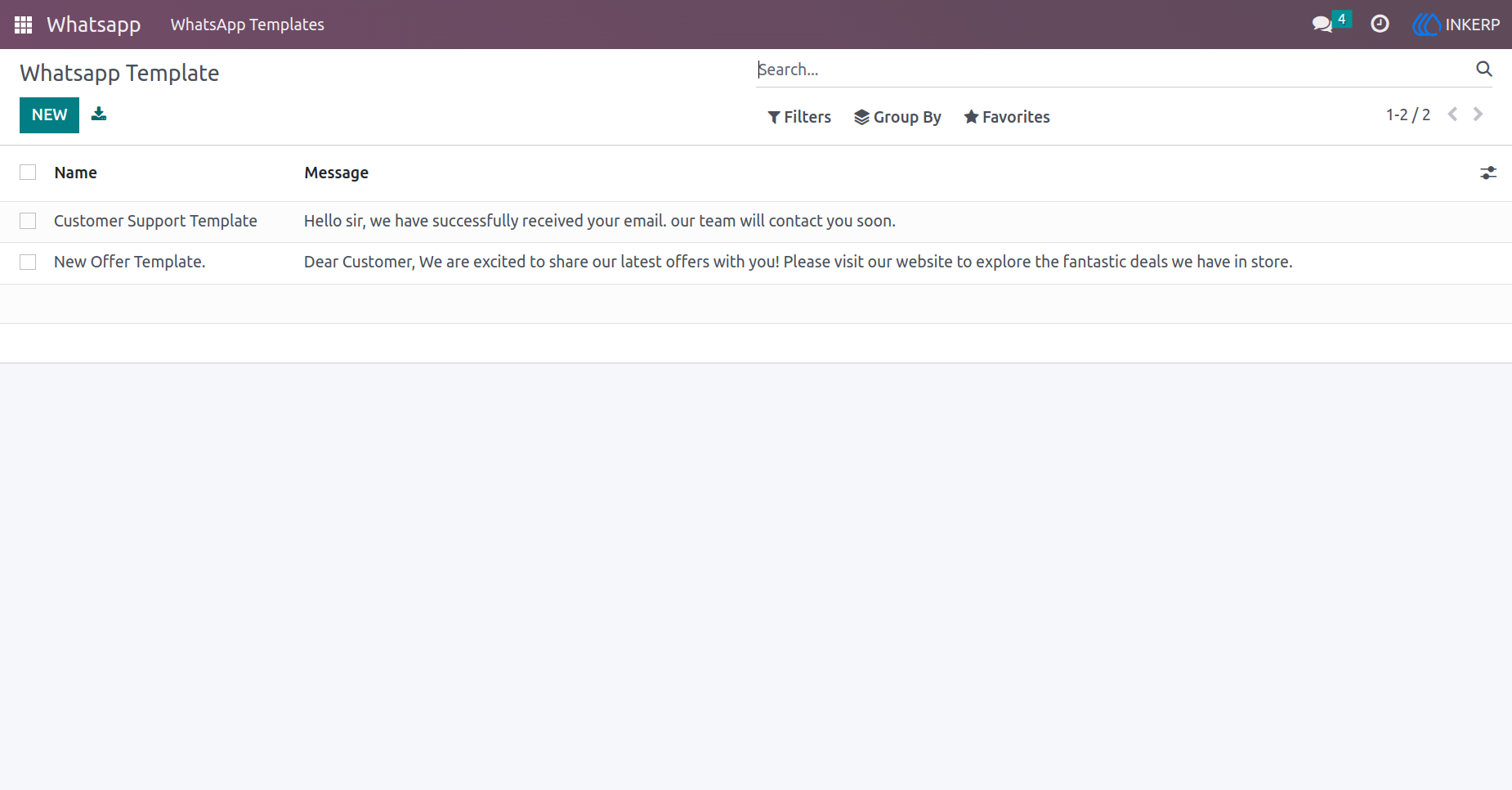
1.) Custom WhatsApp Message Template
User has to create a custom whatsapp template from here.
Navigation : WhatsApp › WhatsApp Template
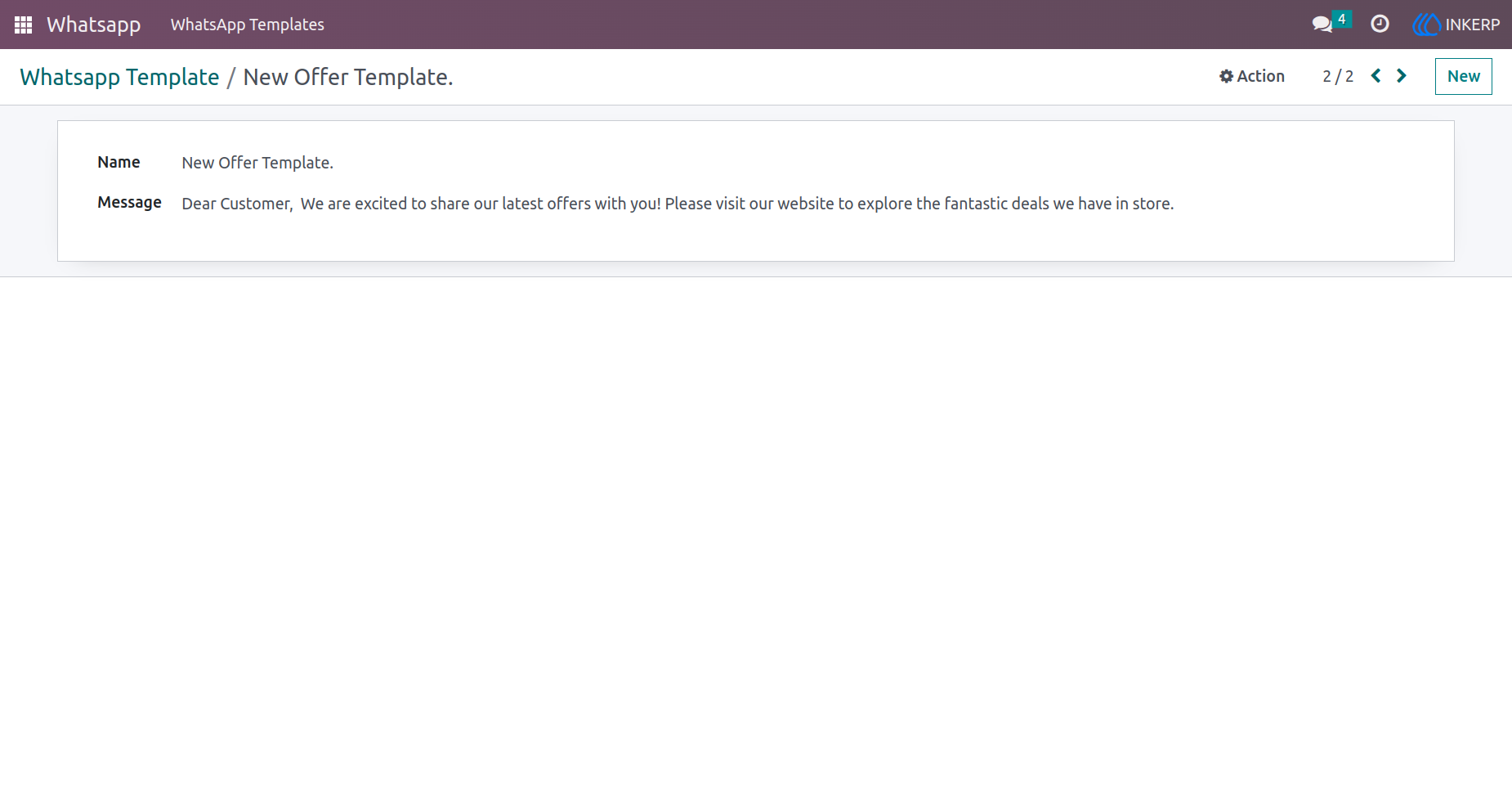
2.) WhatsApp Template Form view
Here, the user can create a custom message.
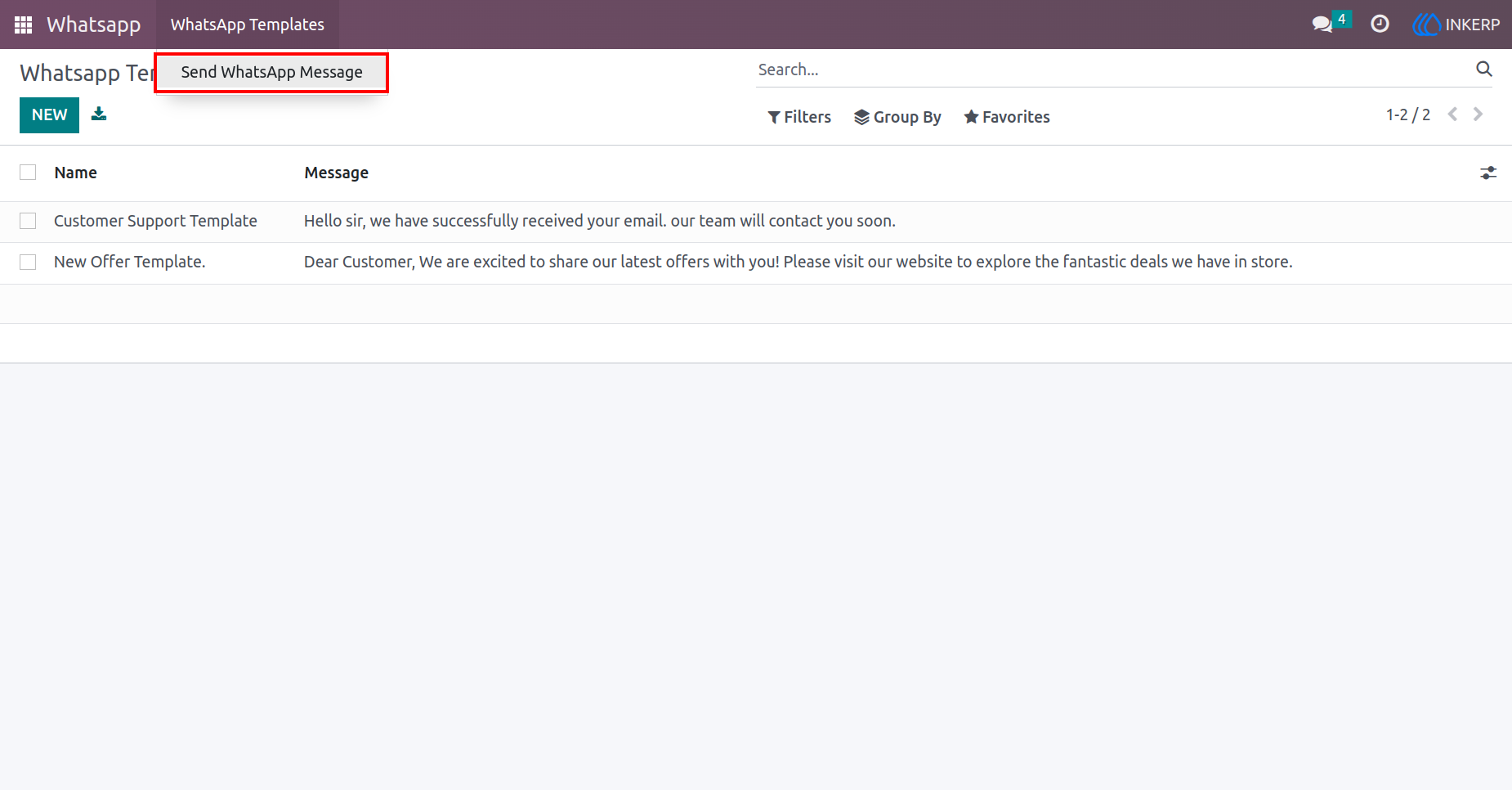
3.) Send WhatsApp Message
From Here, the user can send a WhatsApp message to the customer.
Navigation : WhatsApp › WhatsApp Template › Send WhatsApp Message
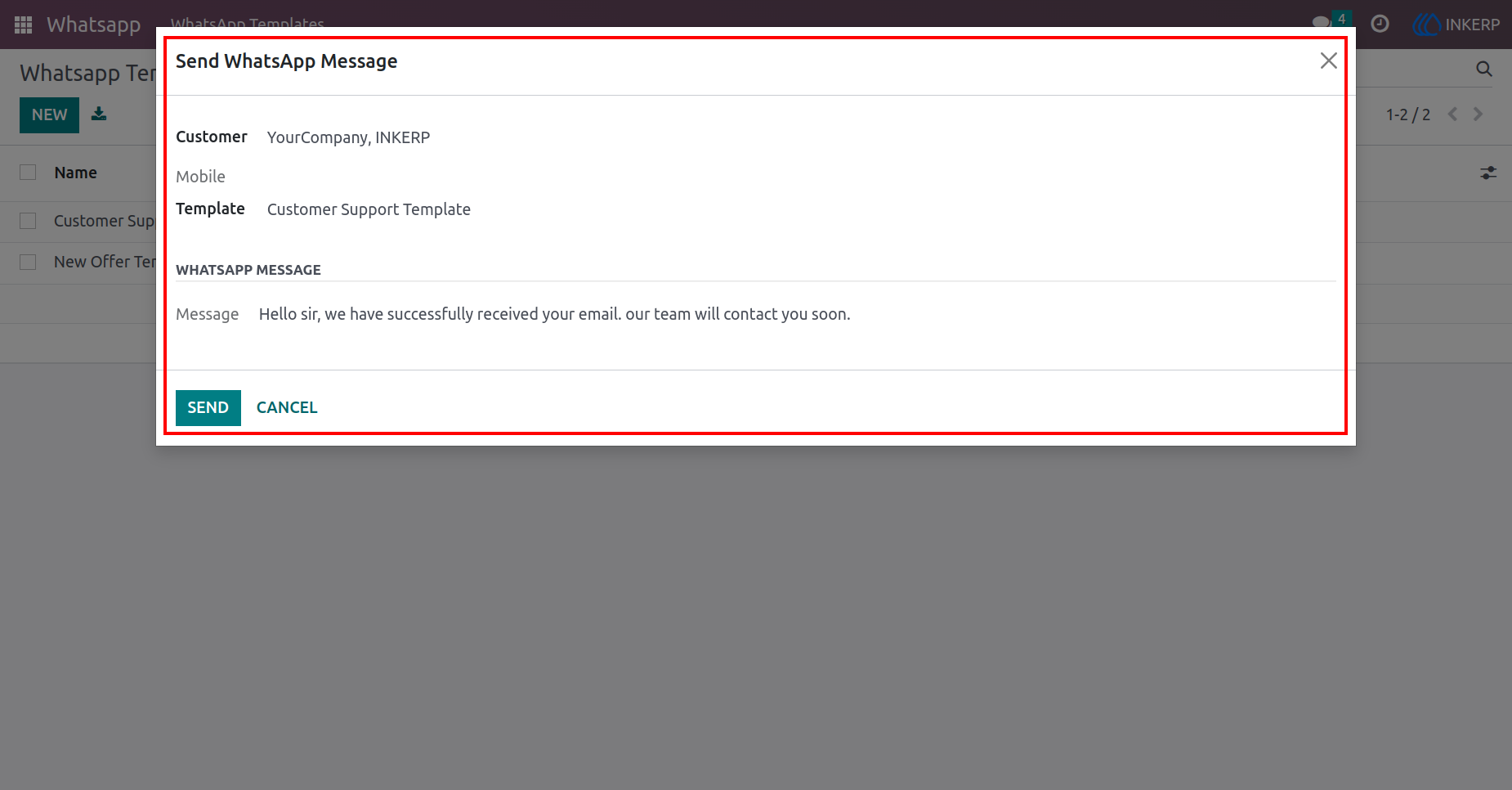
4.) Send WhatsApp Message Popup:
Here, the user can select WhatsApp template and customer whom the user wants to send a message.When the user selects the WhatsApp Template, the Template message will be automatically displayed there.
Navigation : WhatsApp › WhatsApp Template › Send WhatsApp Message
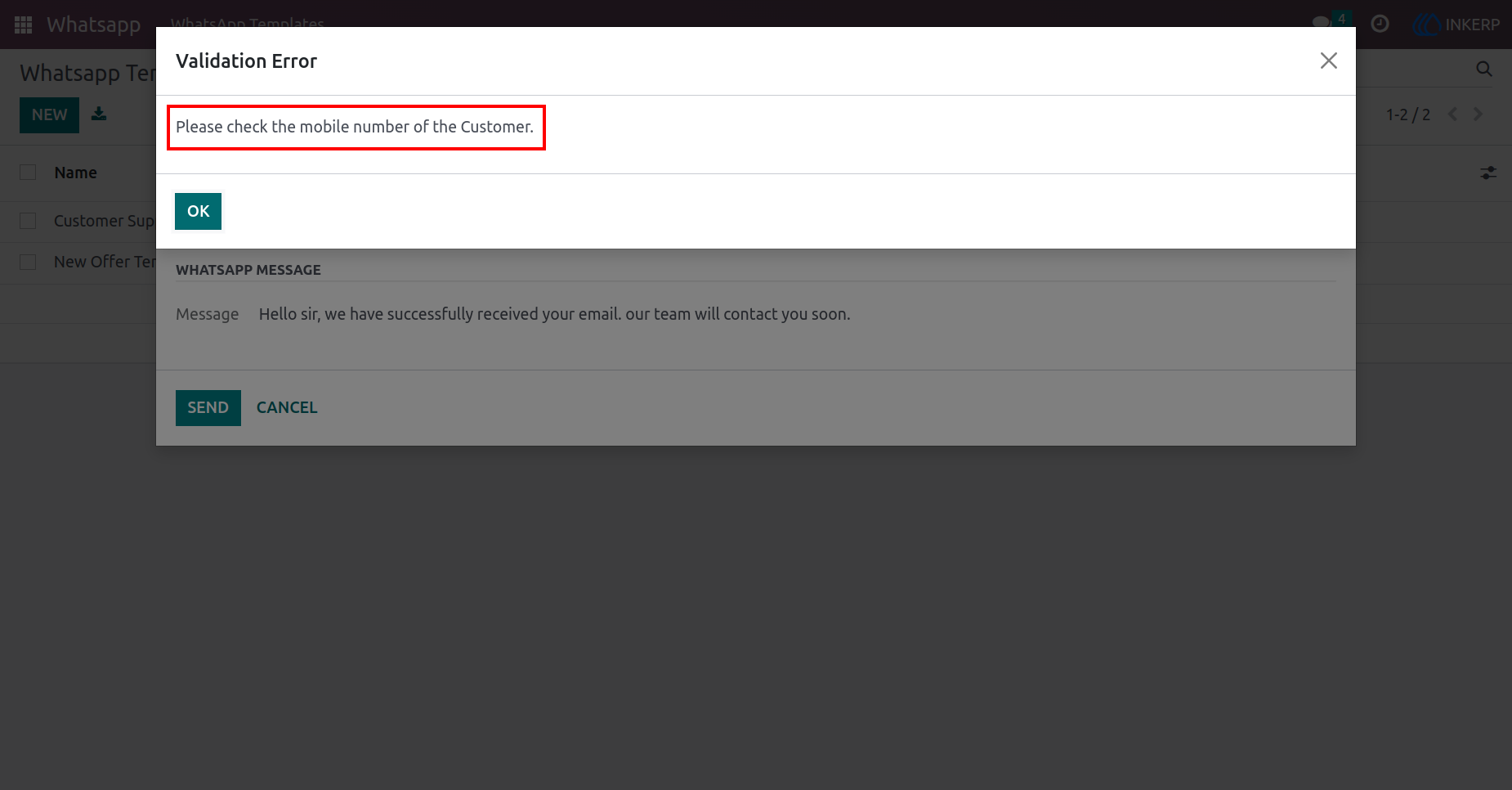
5.) Validation Error
User faces the error if the selected customer doesn't have a mobile number.
Navigation : WhatsApp › WhatsApp Template › Send WhatsApp Message
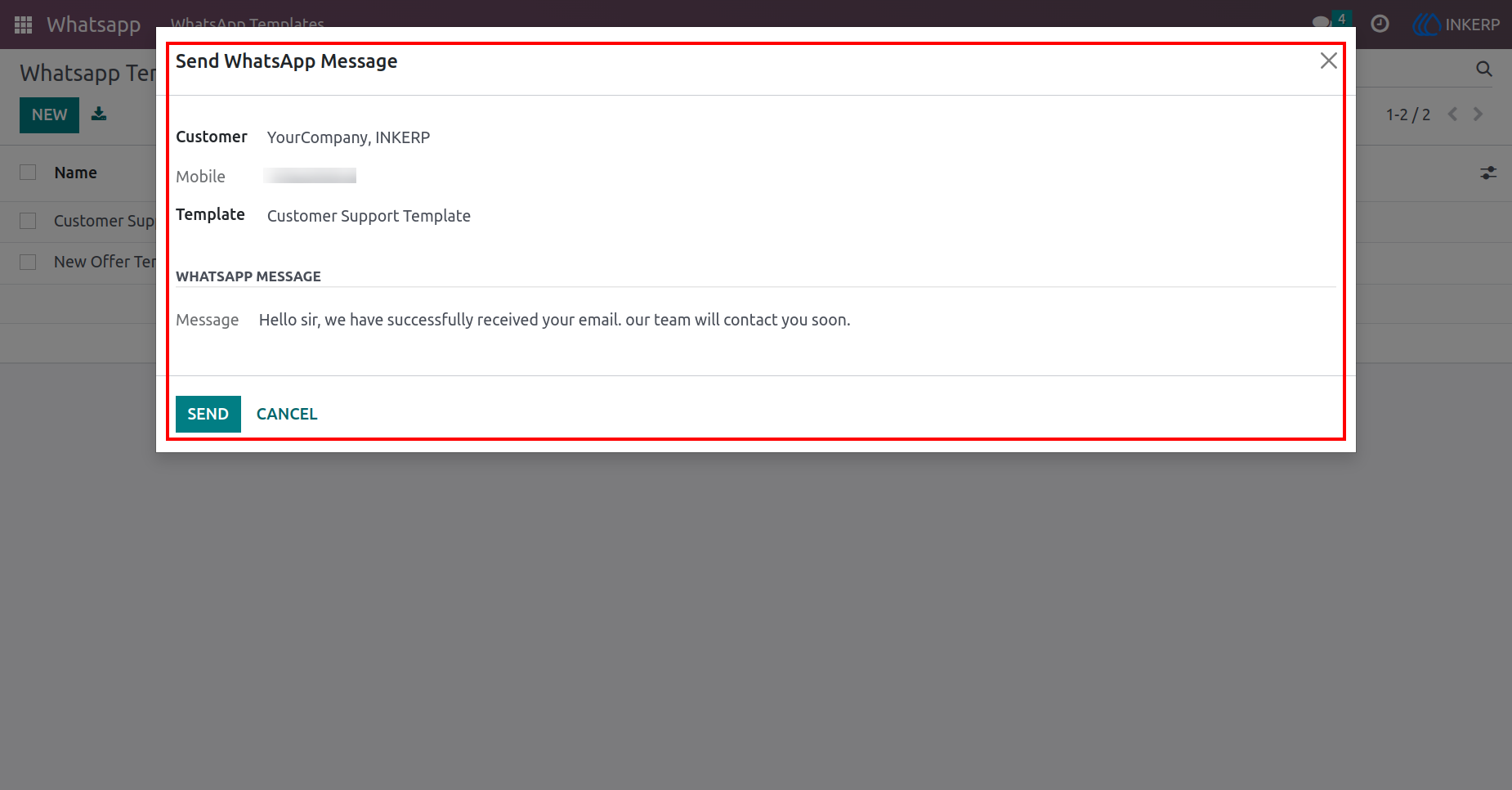
6.) Send WhatsApp Message
When the user selects a customer, his mobile number will be automatically displayed there.User has to click on the Send button to send a message to the customer.
Navigation : WhatsApp › WhatsApp Template › Send WhatsApp Message
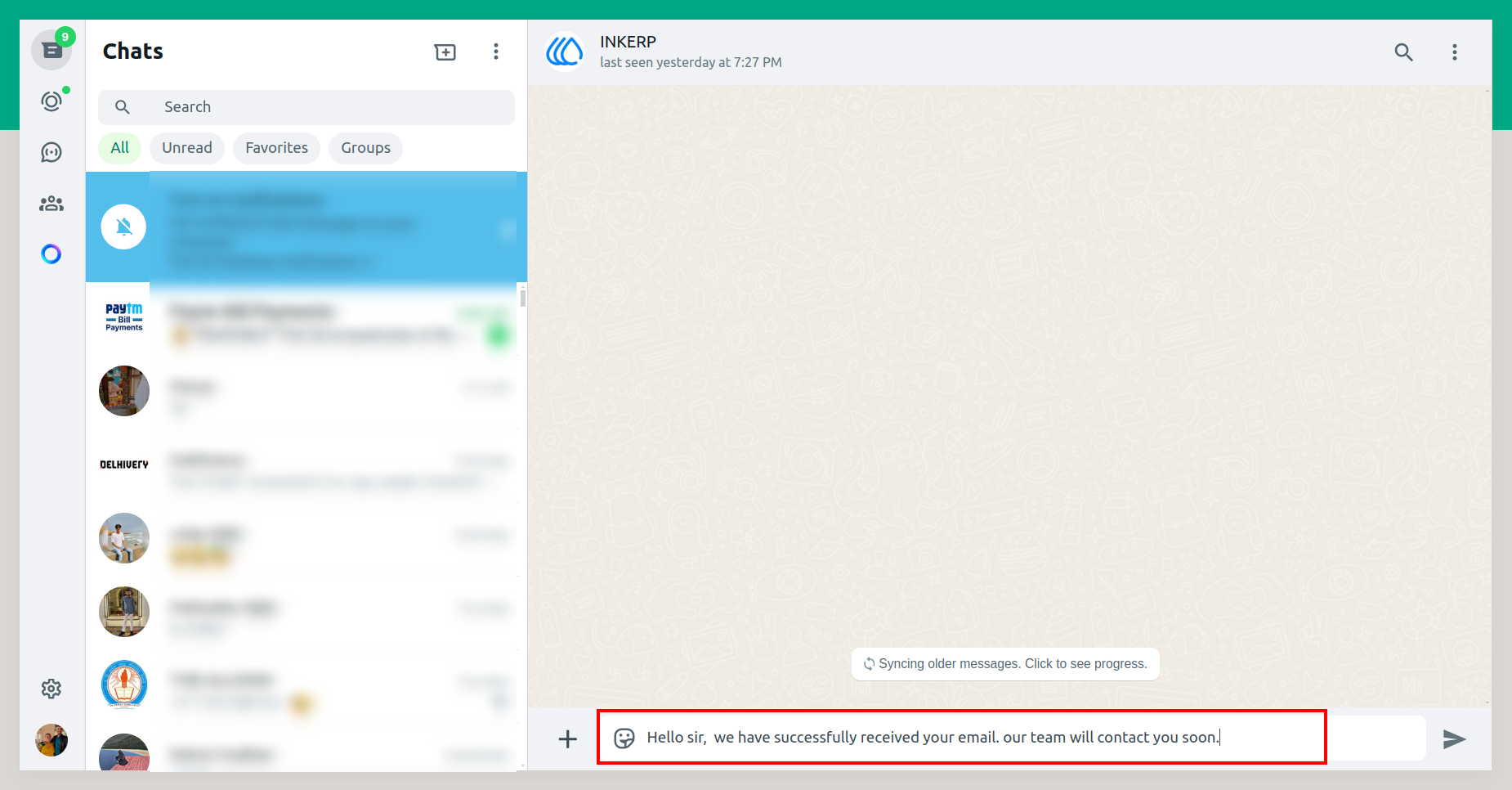
7.) WhatsApp Web
User will redirect to whatsapp web, and that customer's chat will open, and the selected template's Message will be automatically pasted here.
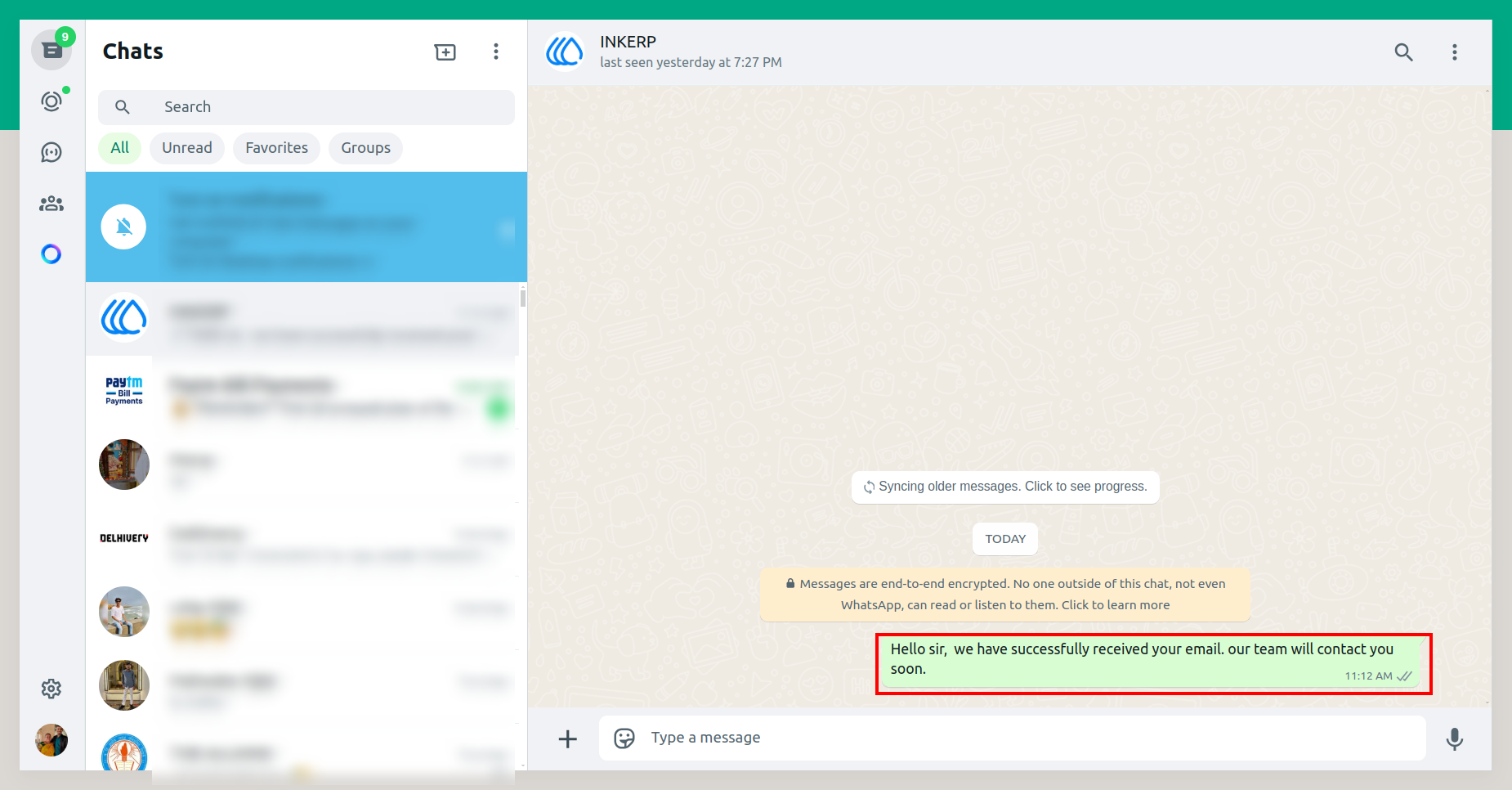
8.) WhatsApp Message Sent
The message is successfully sent to the customer.
User Guide