

Our Most Suggested Products


Sale Multiple Pricelist
The Sale Multiple Pricelist app provides a flexible pricing solution within Odoo, allowing businesses to apply different pricelists to individual products within a sale order. This feature offers great control over pricing, enabling users to cater to specific customer needs, seasonal promotions, or unique product pricing strategies.
 Features
 Screenshots
 Support
 Service
Features
Product-Specific Pricelist Application
The Sale Multiple Pricelist app enables users to assign specific pricelists to individual products in a sale order. This feature is perfect for businesses that need to provide different pricing for various products based on criteria like customer type, region, or product category.
Wizard Selection for Pricelist Application
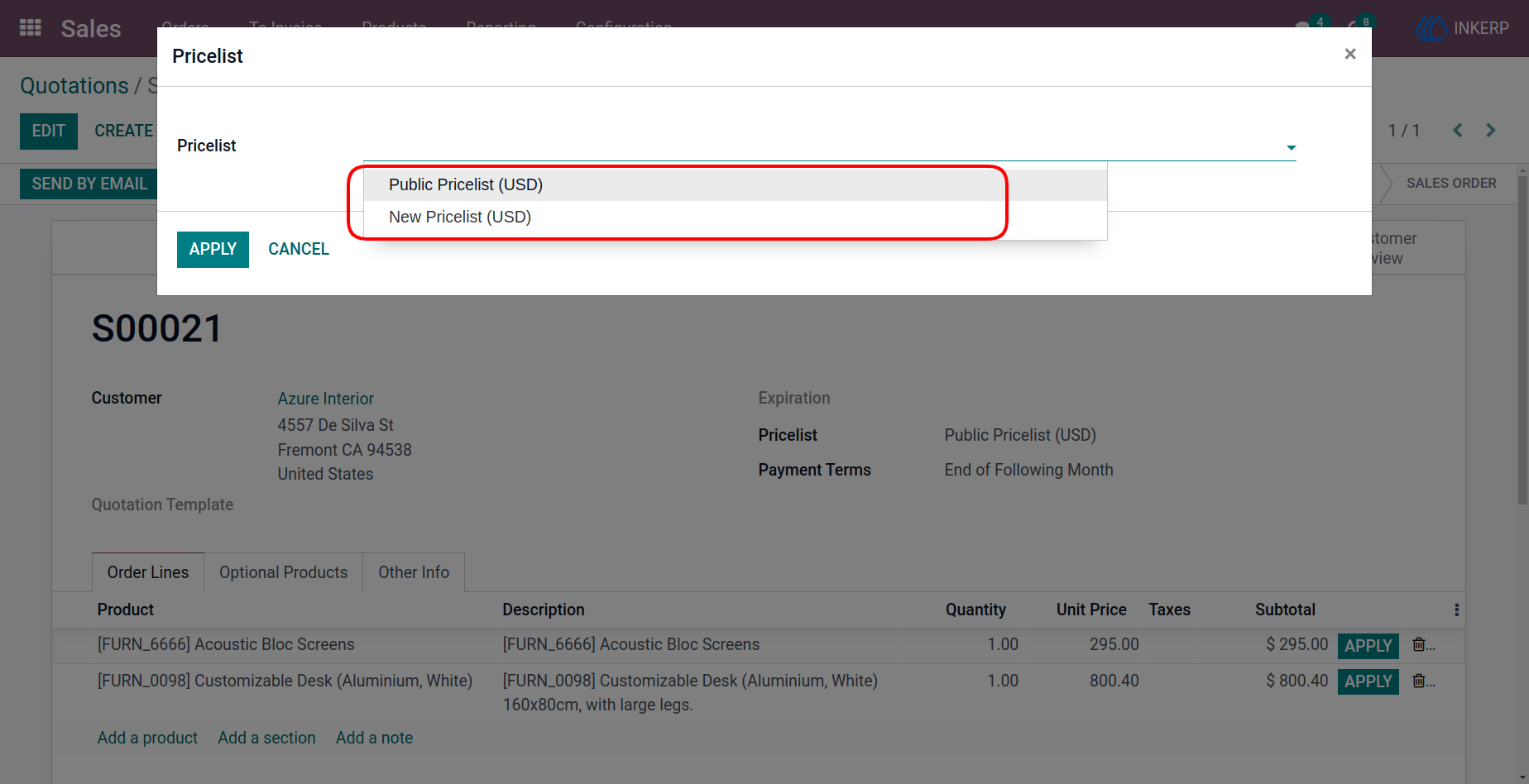
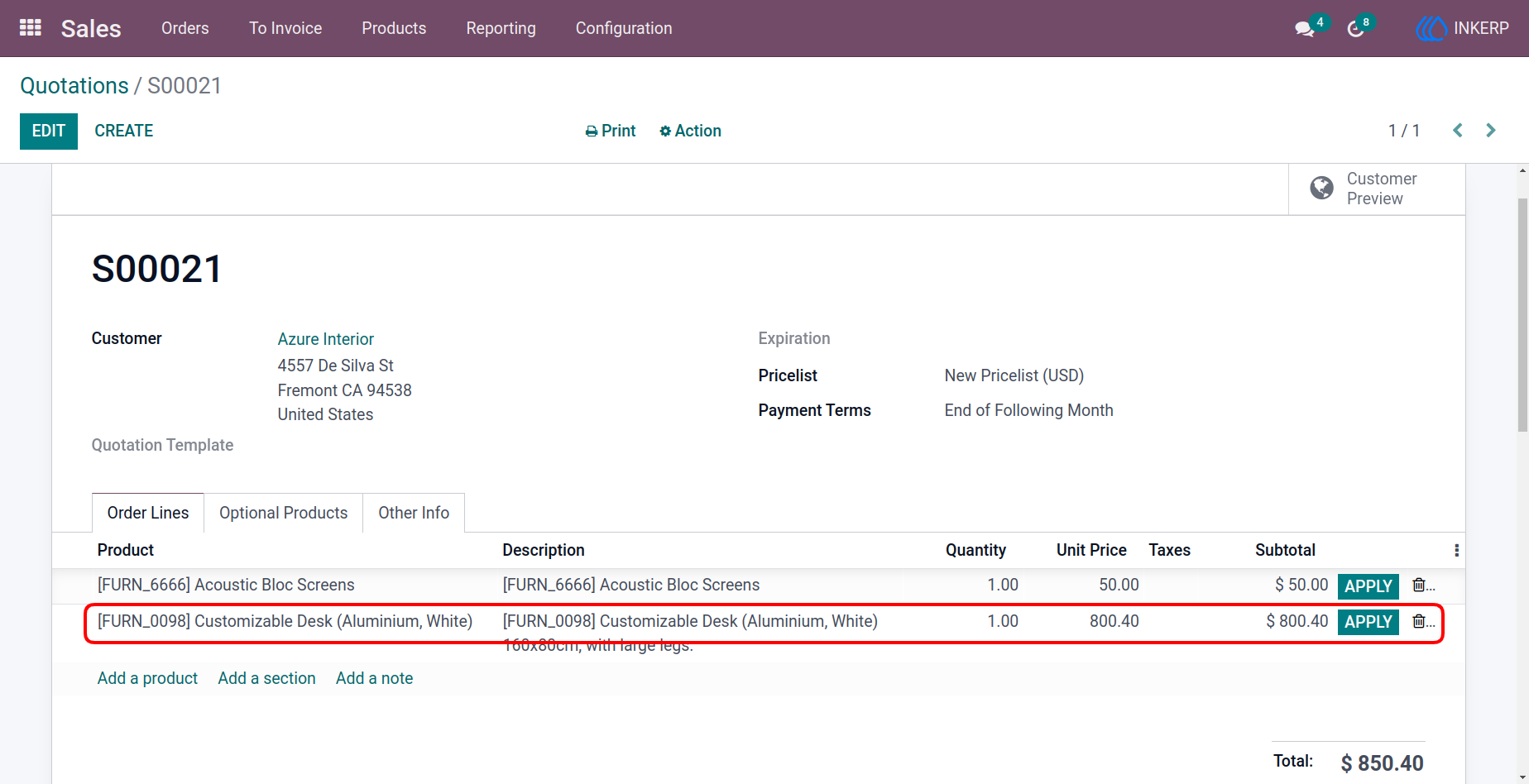
A key feature of this app is the "Apply" button that appears when selecting a product in a sale order. By clicking this button, users can access a wizard that displays all available pricelists for the selected product. This simplifies the process of updating prices and ensures that the most relevant pricelist is applied quickly.
Screenshot
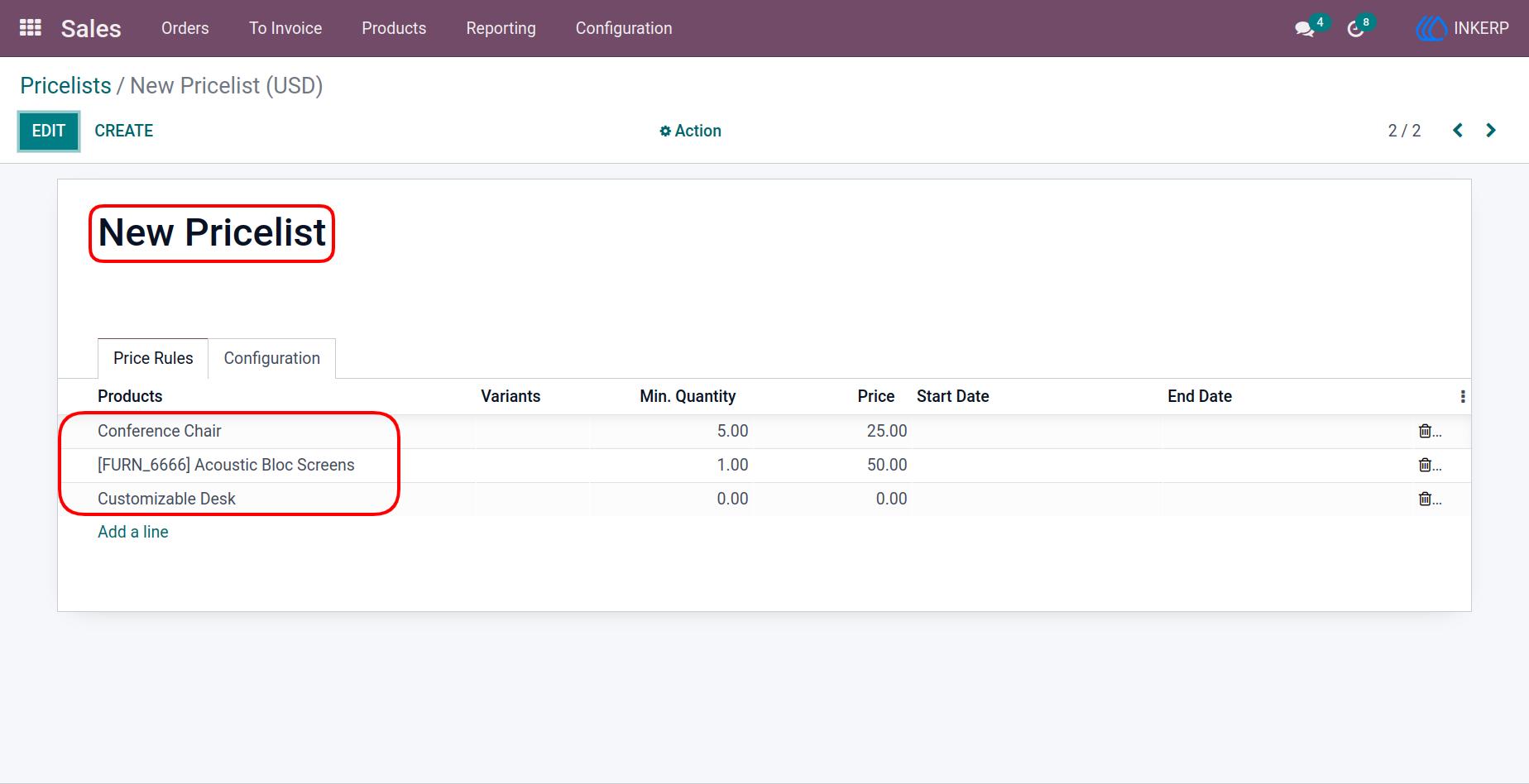
1.) Create and Assign Pricelist
Create a new pricelist and select the desired products to include under it.
Navigation : Sales › Configuration › Pricelists
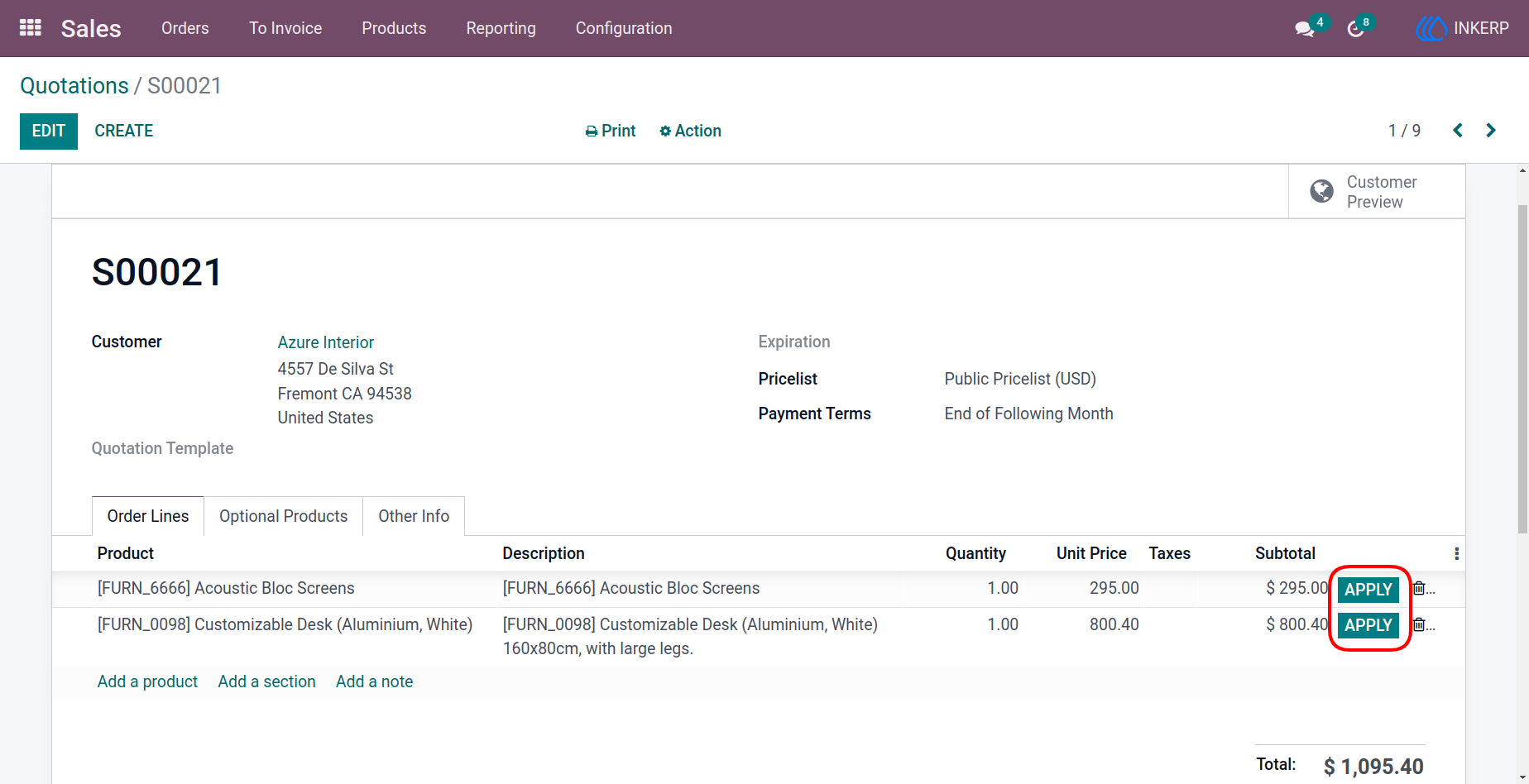
2.) Add Product to Sale Order
Add a product (included in the specific pricelist) to the sale order. The "Apply" button appears next to the item
Navigation : Sales › Orders › Sale Orders
3.) Select Pricelist Wizard
Click "Apply" to open a wizard displaying available pricelists for the selected product. Choose the desired pricelist from the list.
4.) Updated Price Displayed
After selecting the pricelist, the product price on the sale order line updates according to the chosen pricelist.
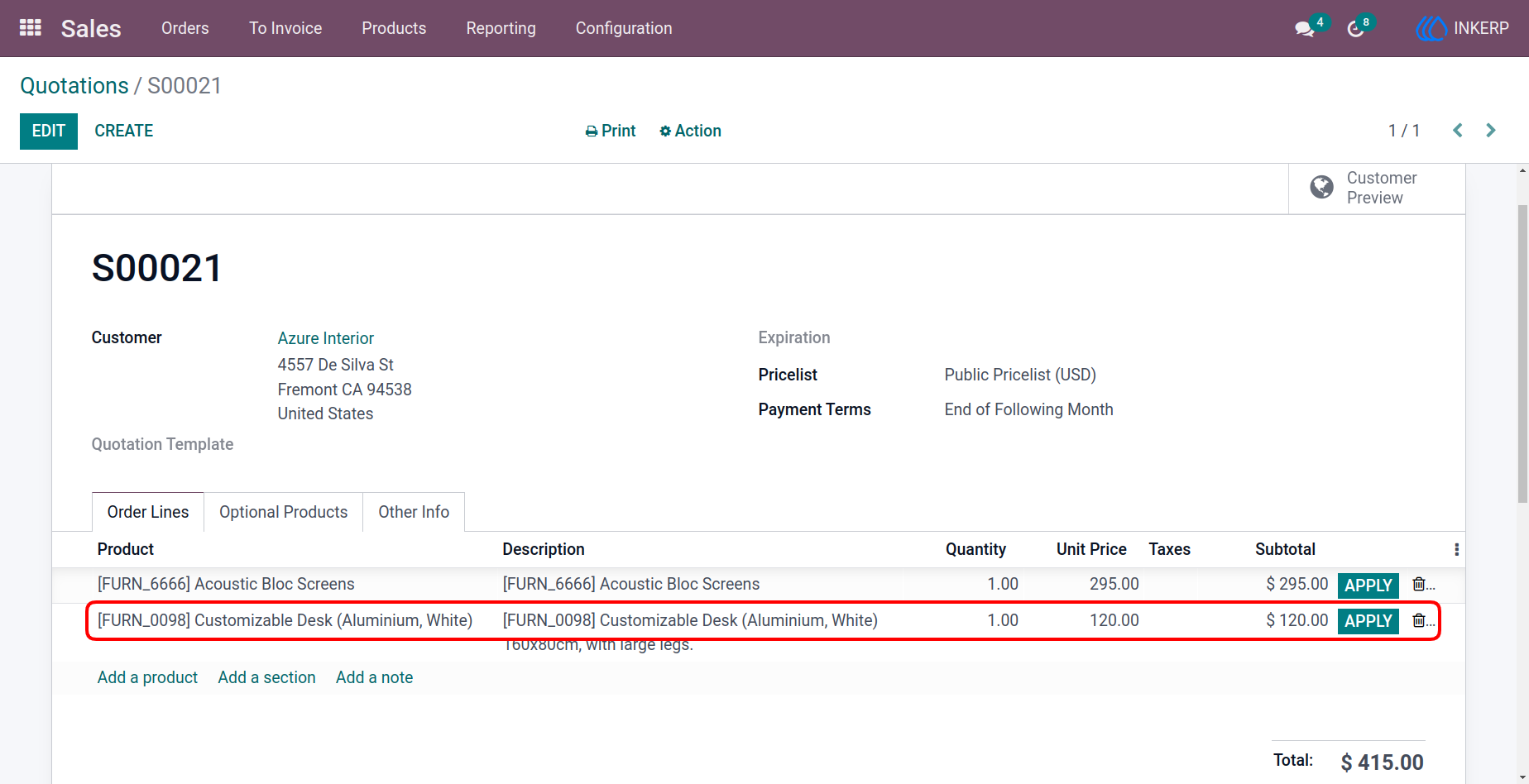
5.) Change and Updated Price Displayed
User Guide