

Our Most Suggested Products


Advanced Product Multiple Website
This module allows users to assign multiple websites to a single product, overcoming the default limitation of selecting only one. With this feature, products will only be displayed on the selected websites, providing better control over visibility. Additionally, a mass update option is available to efficiently assign websites to multiple products at once, improving productivity and saving time.
Video Tutorial
 Features
 Screenshots
 Support
 Service
Features
Assign Multiple Websites to One Product
Assign multiple websites to a single product directly from the product form. A single product record can be made available across multiple websites without creating duplicate products or maintaining separate configurations.
Mass Update Website Assignments
Quickly assign or update multiple website selections for several products at once using the mass update feature. This reduces manual work and makes managing large product catalogs much faster and more efficient.
Website Based Product Visibility
Control where each product is displayed by selecting its assigned websites. Products are only visible on the chosen websites, while products with no website assigned remain available by default.
Centralized Website Assignment
Manage all website assignments for a product from one centralized location. Administrators can easily add or remove website access without switching between different website configurations or duplicating product data.
Screenshot
Note :
To use the multi-website assignment feature, use the custom Websites field provided by this module instead of default Website field. The default field supports only a single website assignment.
Navigation : Website › eCommerce › Products
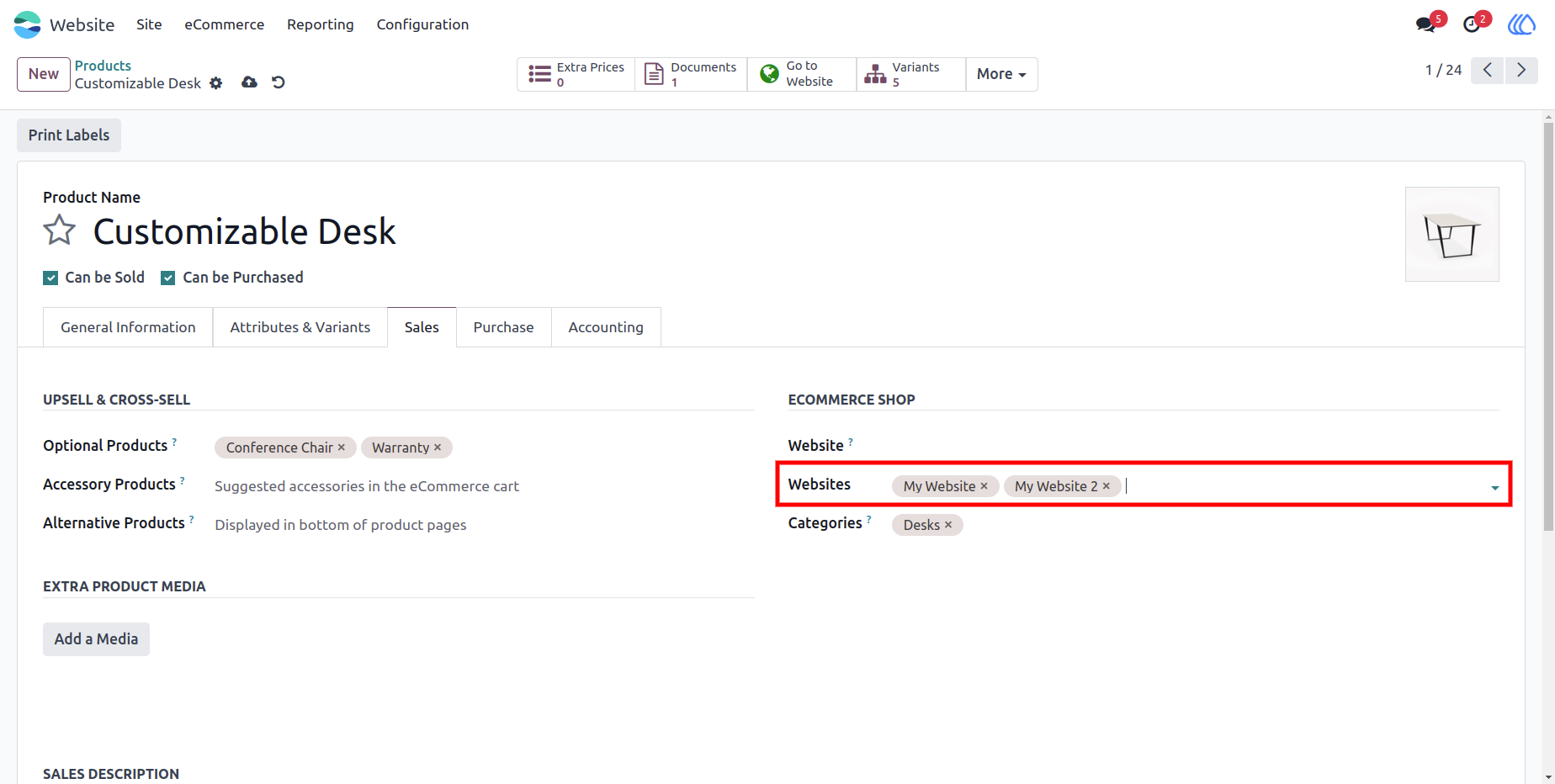
1.) Display the Product on an Assigned Website :
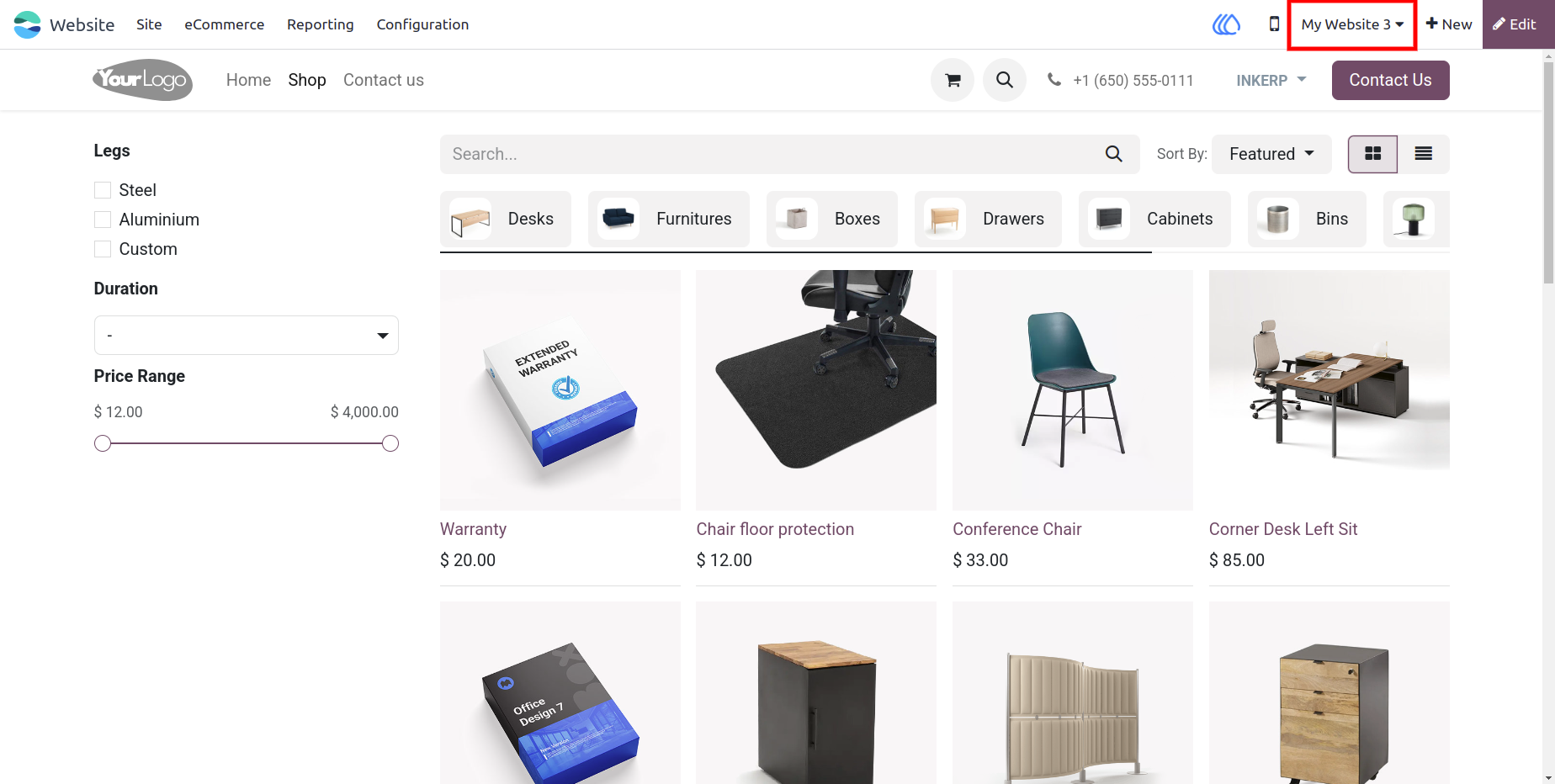
Switch to one of the websites assigned to the product and open the Shop page. The configured product appears normally in the product catalogue together with the other products available for that storefront.
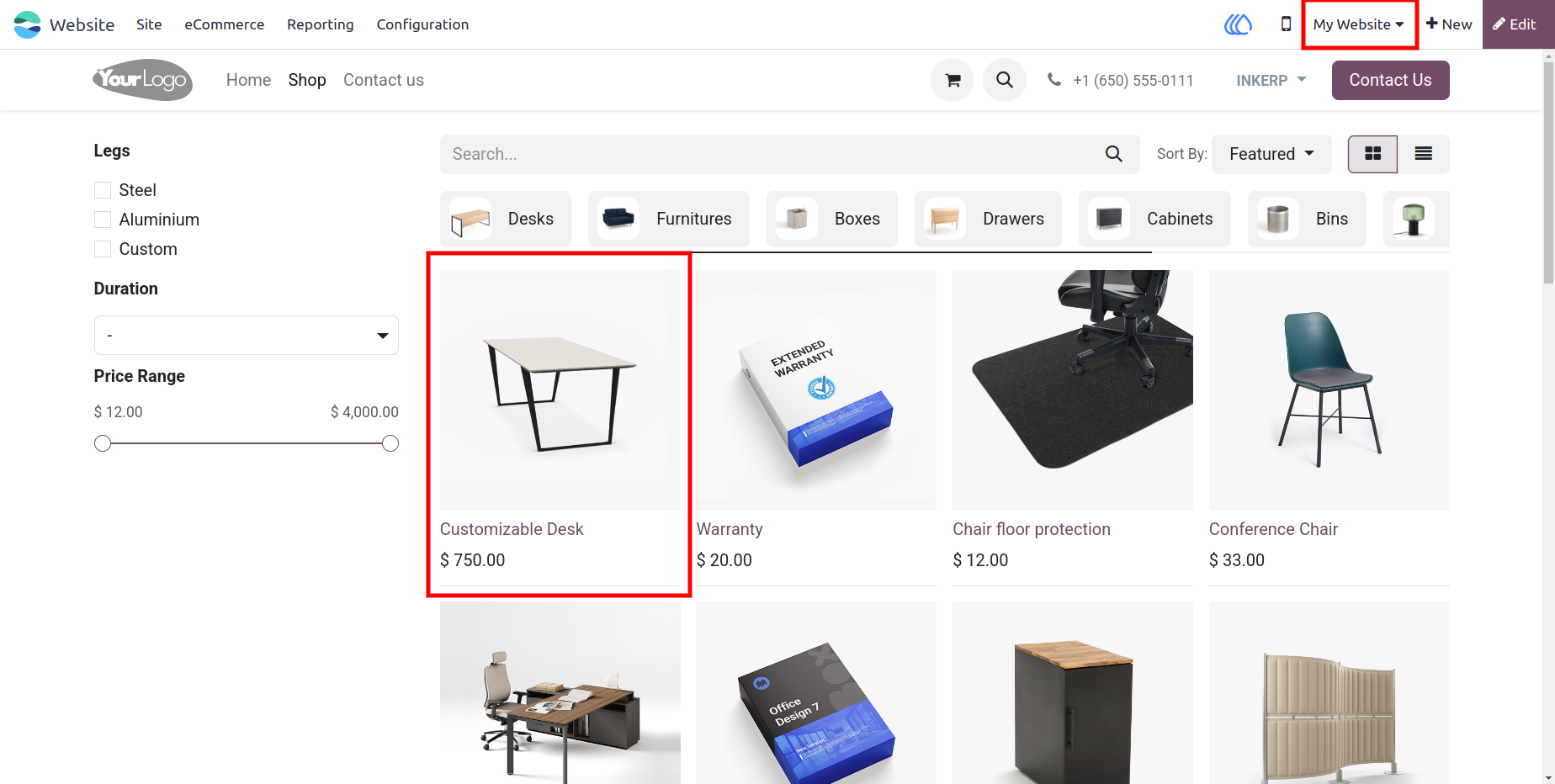
2.) Hide the Product from an Unassigned Website :
Switch to a website that was not selected on the product record and review the Shop page. The restricted product is automatically removed from the product listing while other eligible products remain available. This prevents customers from accessing products that are not intended for the selected storefront.
3.) Select Multiple Products for Bulk Website Assignment :
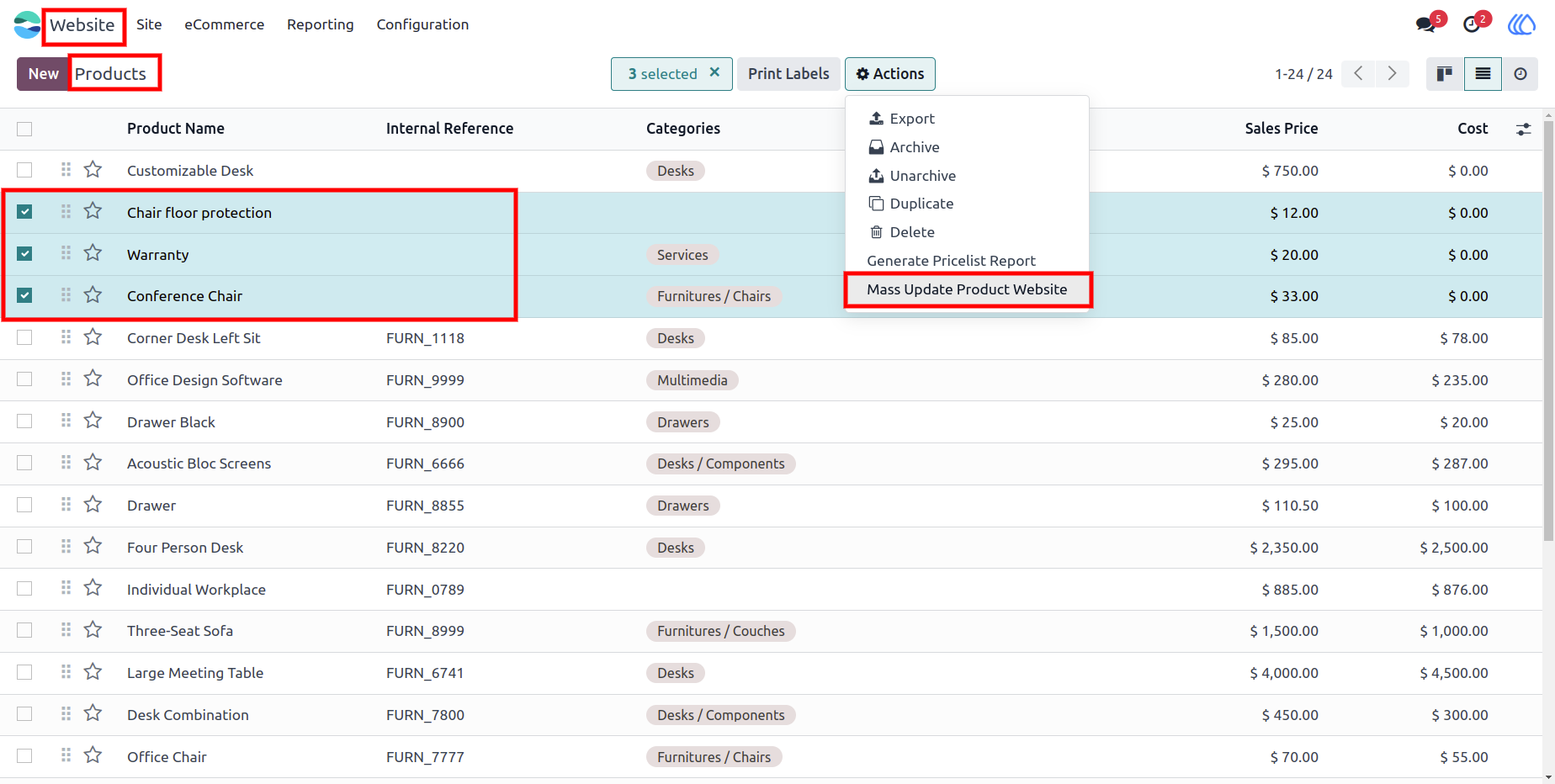
Open the product list and select all products that require the same website configuration. After selecting the records, open the Actions menu and choose Mass Update Product Website. This enables user to update several products together instead of editing each product individually.
Navigation : Website › eCommerce › Products
4.) Apply Websites Through the Mass Update Wizard :
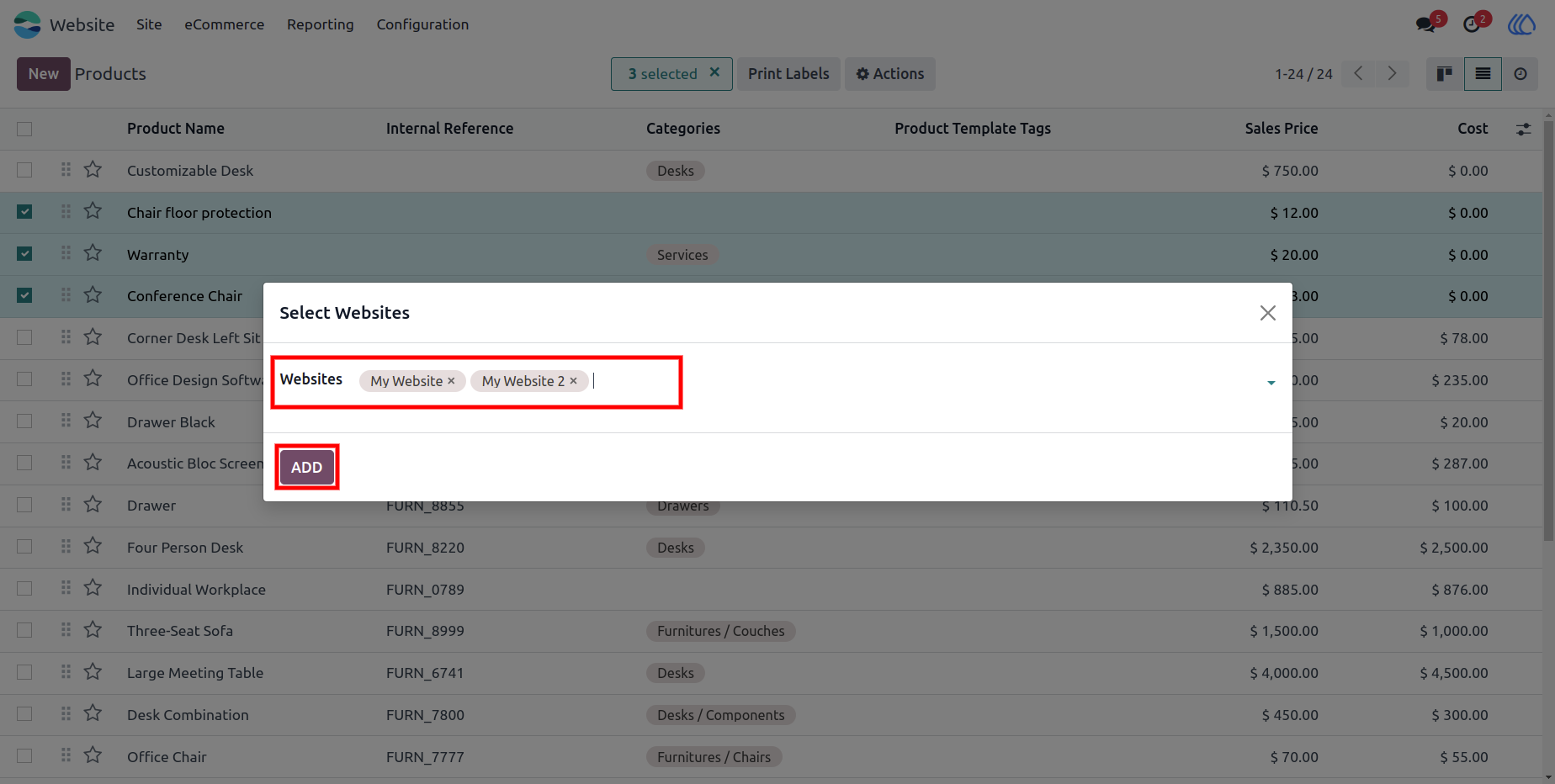
The Select Websites wizard allows administrators to choose the required storefronts for all selected products. After selecting the websites, click the Add button to apply the assignment to every chosen product. This provides a faster and more reliable process for managing large product catalogues.
5.) Verify Bulk Website Assignments on the Product :
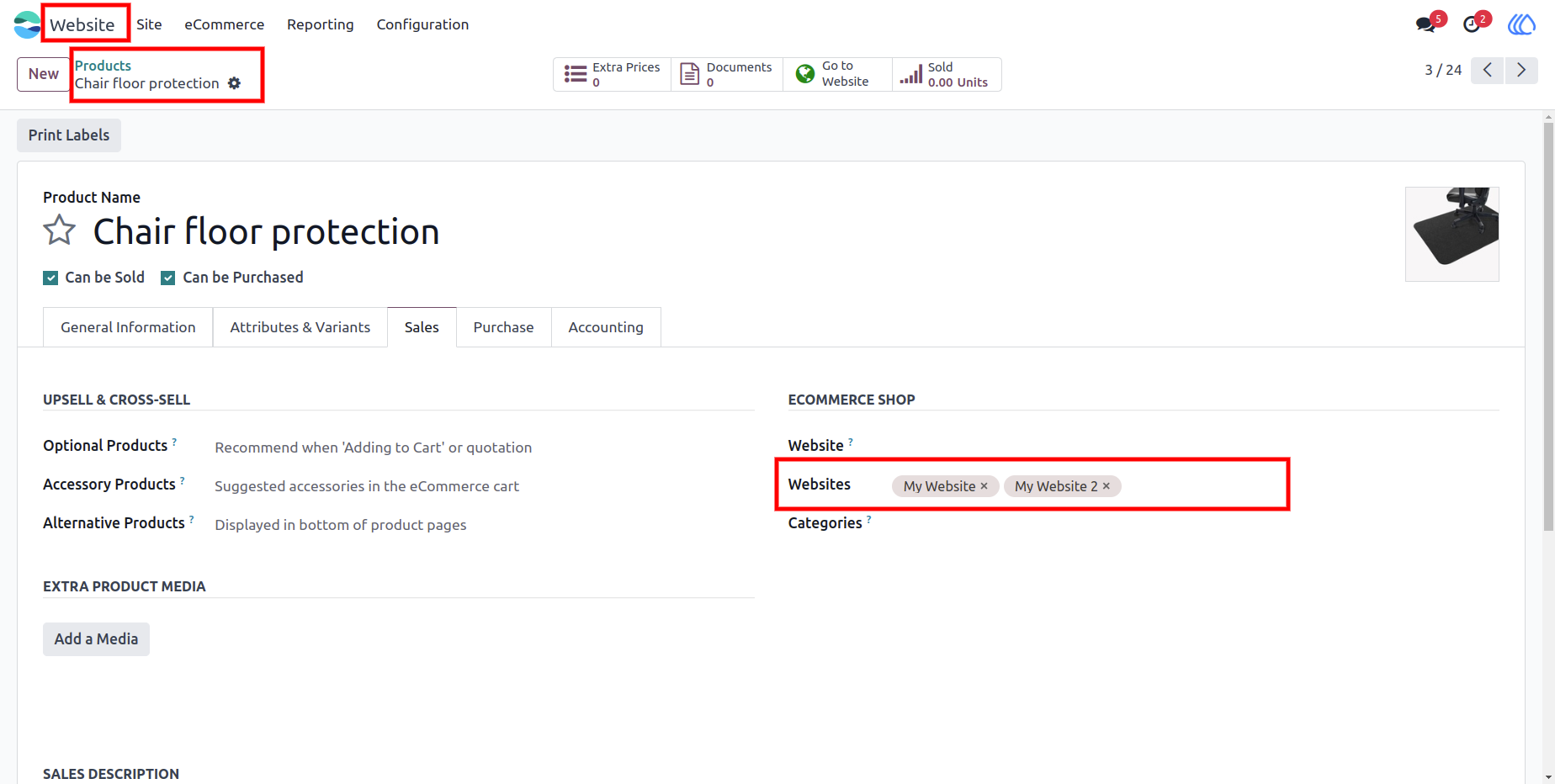
Open one of the products updated through the mass assignment wizard and review the Websites field. The selected websites are displayed directly on the product form, confirming that the bulk update was completed successfully.
User Guide