

Our Most Suggested Products


Scan Lot / Serial Number Barcode in POS
POS Product by Lot / Serial Number Barcode enables Odoo Point of Sale users to sell lot- or serial-tracked products by scanning the lot or serial number barcode directly in the POS screen. When a lot/serial number is scanned, the system automatically identifies the linked product, validates available stock for that specific lot, assigns the lot to the POS order line, and adds the product to the order without any manual selection.
Video Tutorial

 Features
 Screenshots
 Support
 Service
Features
Scan Lot / Serial Number Directly in POS
cashiers to scan a lot or serial number barcode directly from the POS screen without searching for the product manually. The system automatically detects the related product and assigns the scanned lot/serial number to the order line.
Real-Time Stock Validation by Lot/Serial
validates available quantity at the lot or serial level before adding the product to the POS order. If the scanned lot or serial number has no available stock, the system immediately shows an out-of-stock warning and blocks the sale
Screenshot
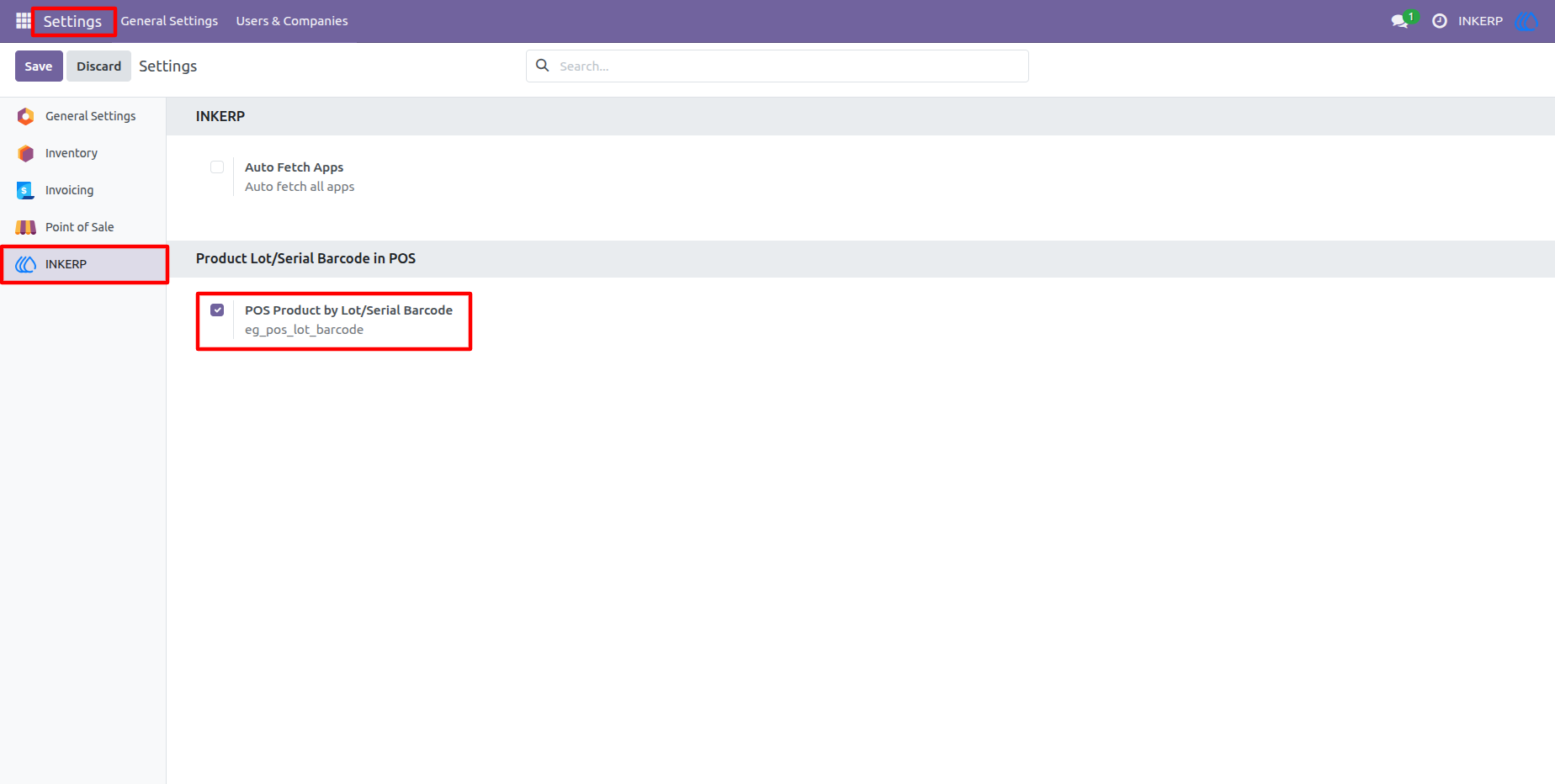
1.) Enable Lot/Serial Barcode Feature in POS Settings
Product Lot/Serial Barcode in POS activating this setting, the POS becomes capable of recognizing and processing lot or serial number barcodes during sales.
Navigation : Setting › INKERP › Product Lot/Serial Barcode in POS
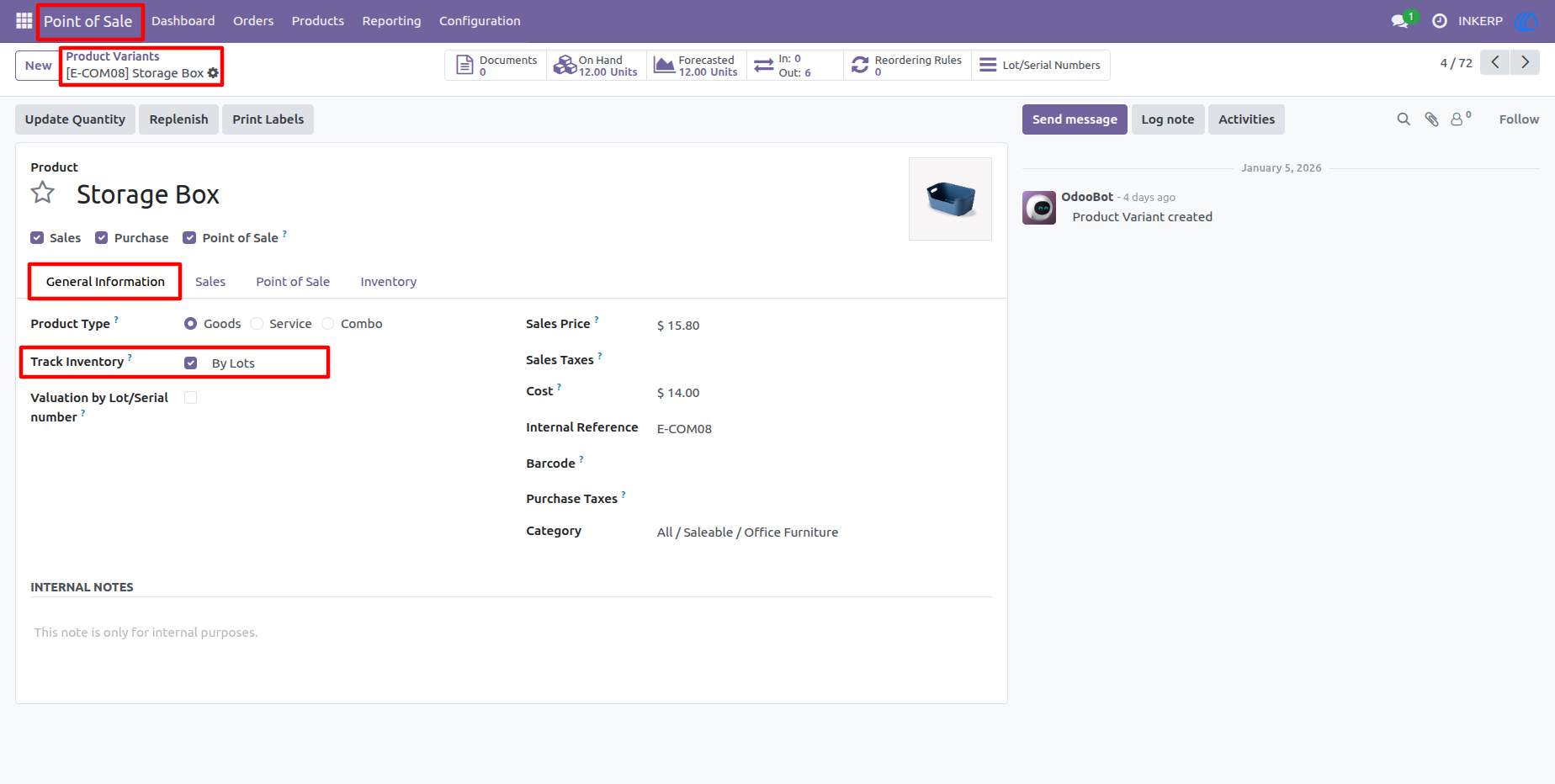
2.) Configure Product with Lot/Serial Tracking
the product configuration where inventory tracking is set to “By Lots”. The product is enabled for Point of Sale and properly configured to support lot or serial number tracking. This ensures that each sold unit can be traced using its unique lot or serial number.
Navigation : Point of Sale › Products › Product Variants
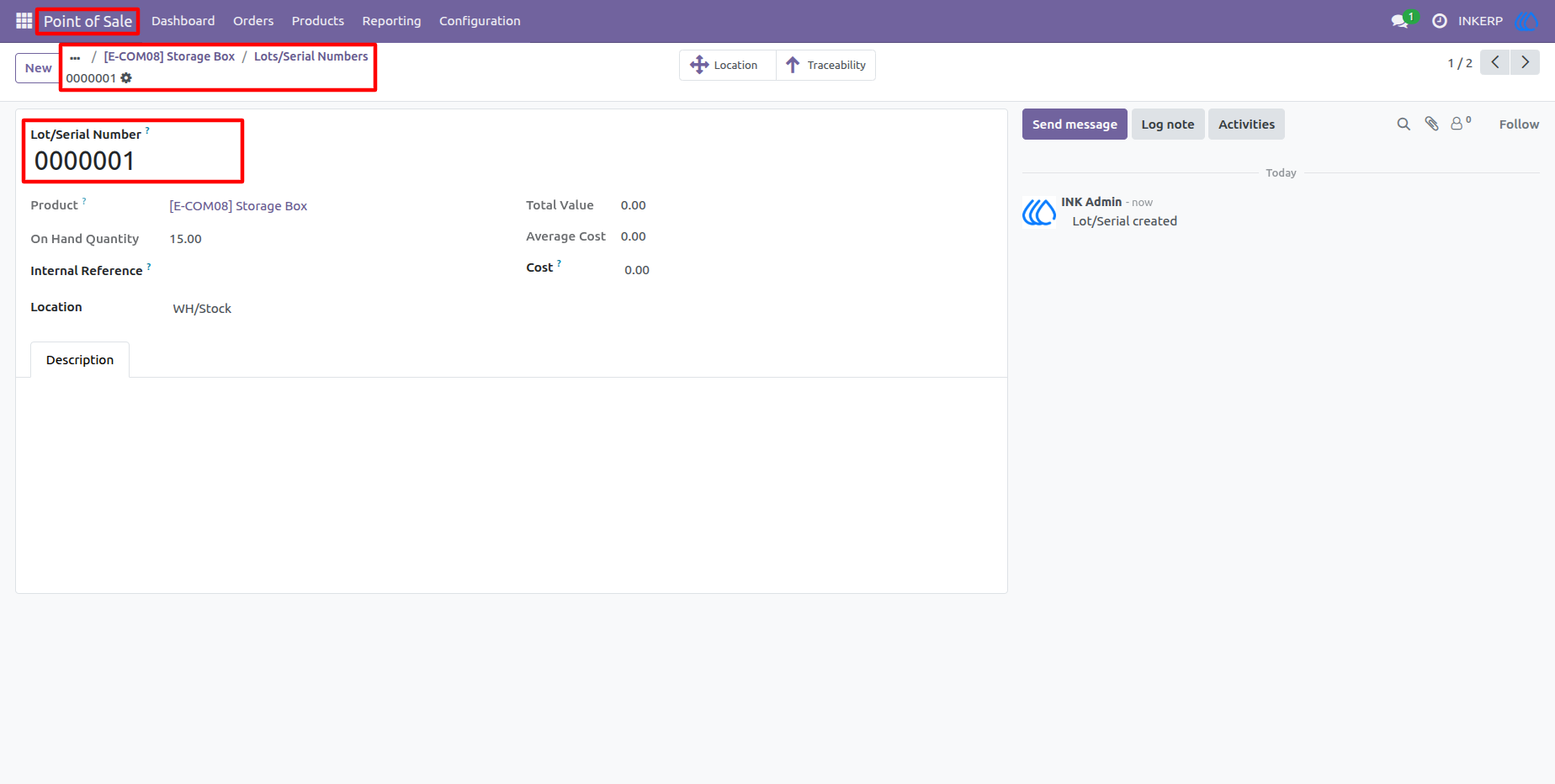
3.) Create and Manage Lot/Serial Numbers
the creation of a Lot/Serial Number for the selected product. Each lot or serial number is uniquely identified and linked to the product with an available on-hand quantity. These lot numbers are later used directly in POS through barcode scanning.
Navigation : Point of Sale › Products › Product Variants › Lots/Serial Numbers
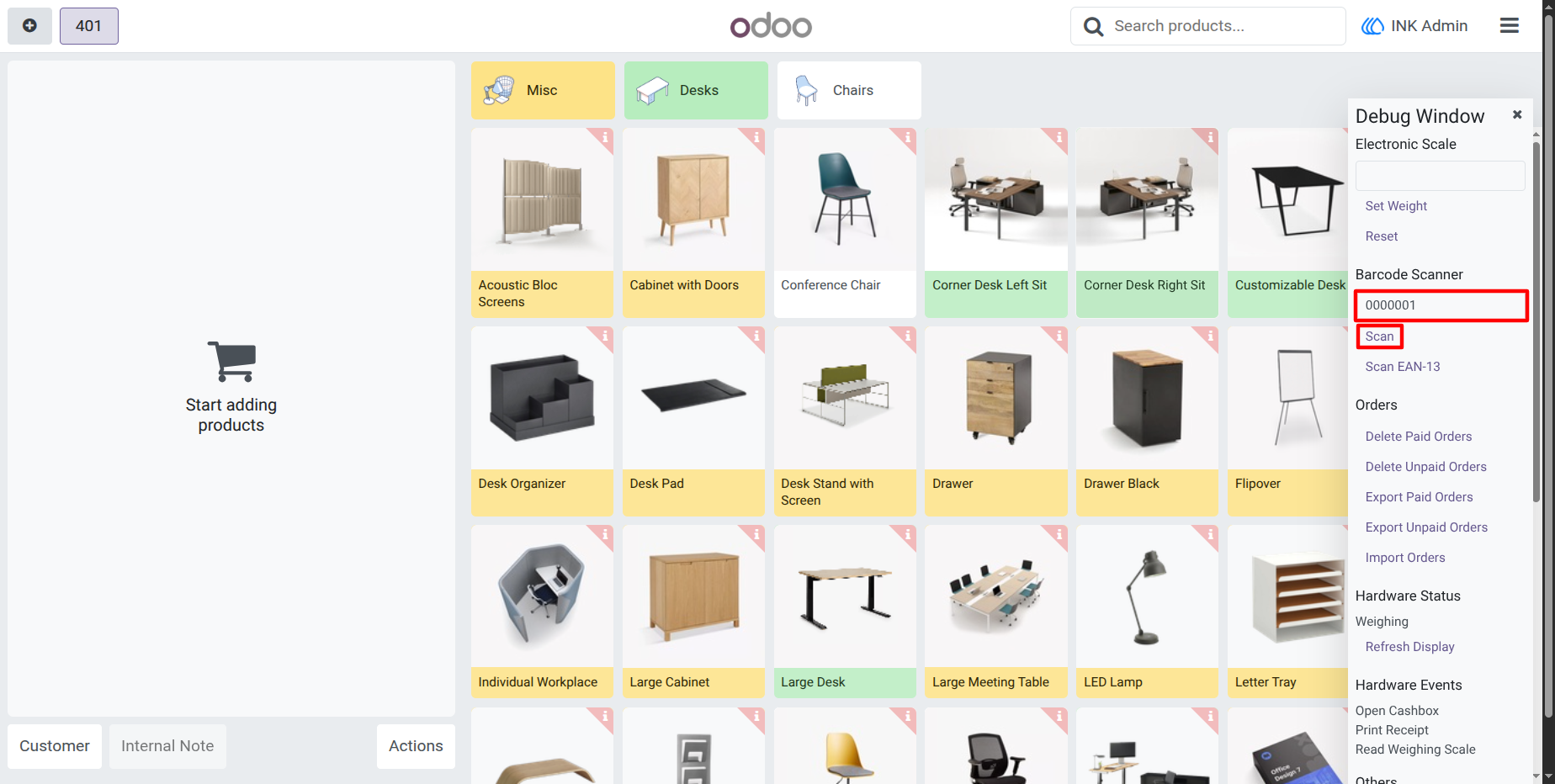
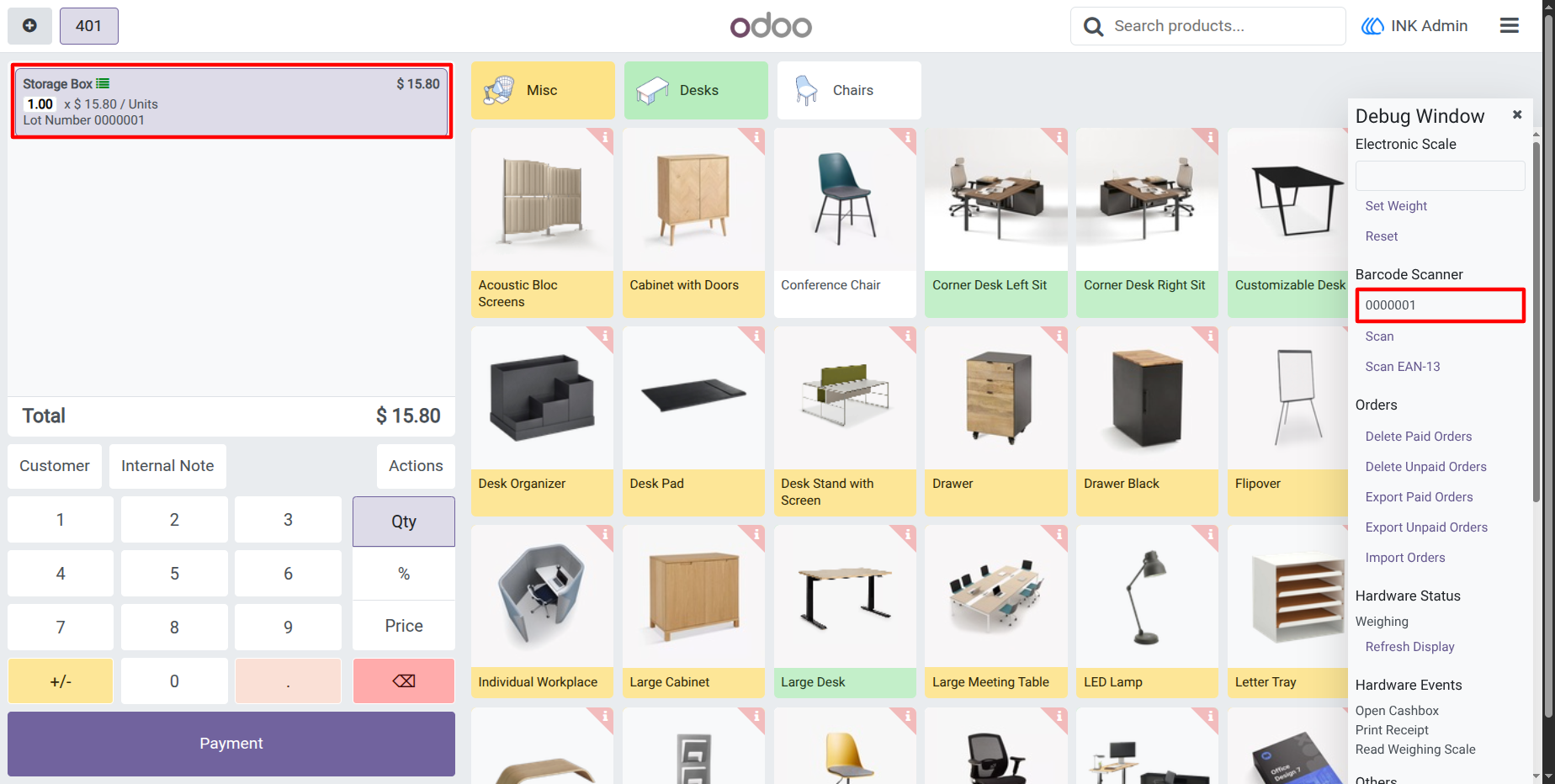
4.) Scan Lot/Serial Number in POS
The cashier scans the barcode using a barcode scanner, and the system automatically detects the related product without manual selection.
5.) Product Automatically Added with Lot Details
After scanning, the product is automatically added to the POS order with the lot/serial number clearly displayed on the order line.
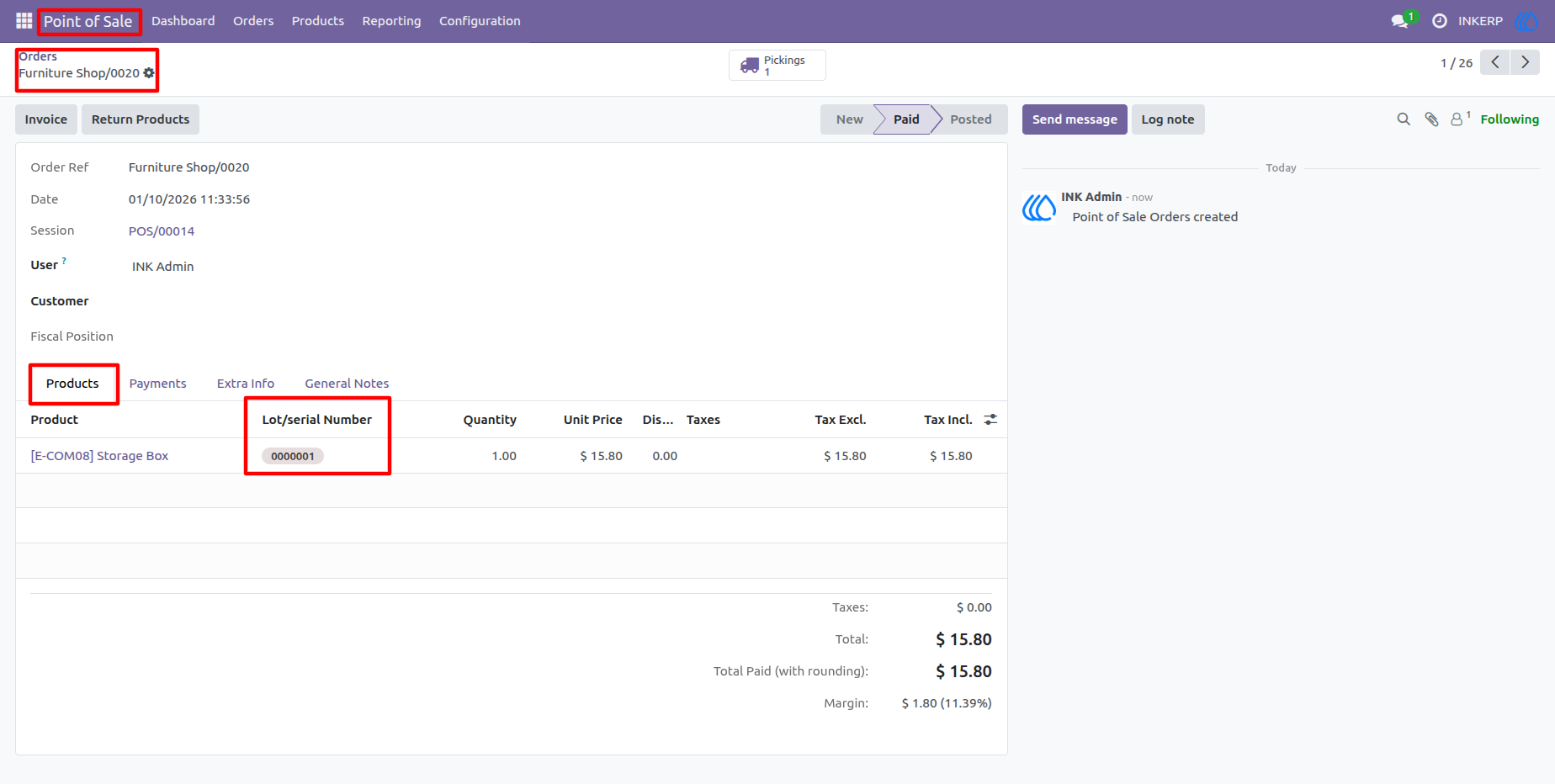
6.) POS Order with Lot/Serial Traceability
POS order in the backend with the lot/serial number recorded on the order line. It ensures full traceability between POS orders and inventory movements. This is especially useful for audits, warranties, and regulatory compliance.
Navigation : Point of Sale › Orders › POS Order
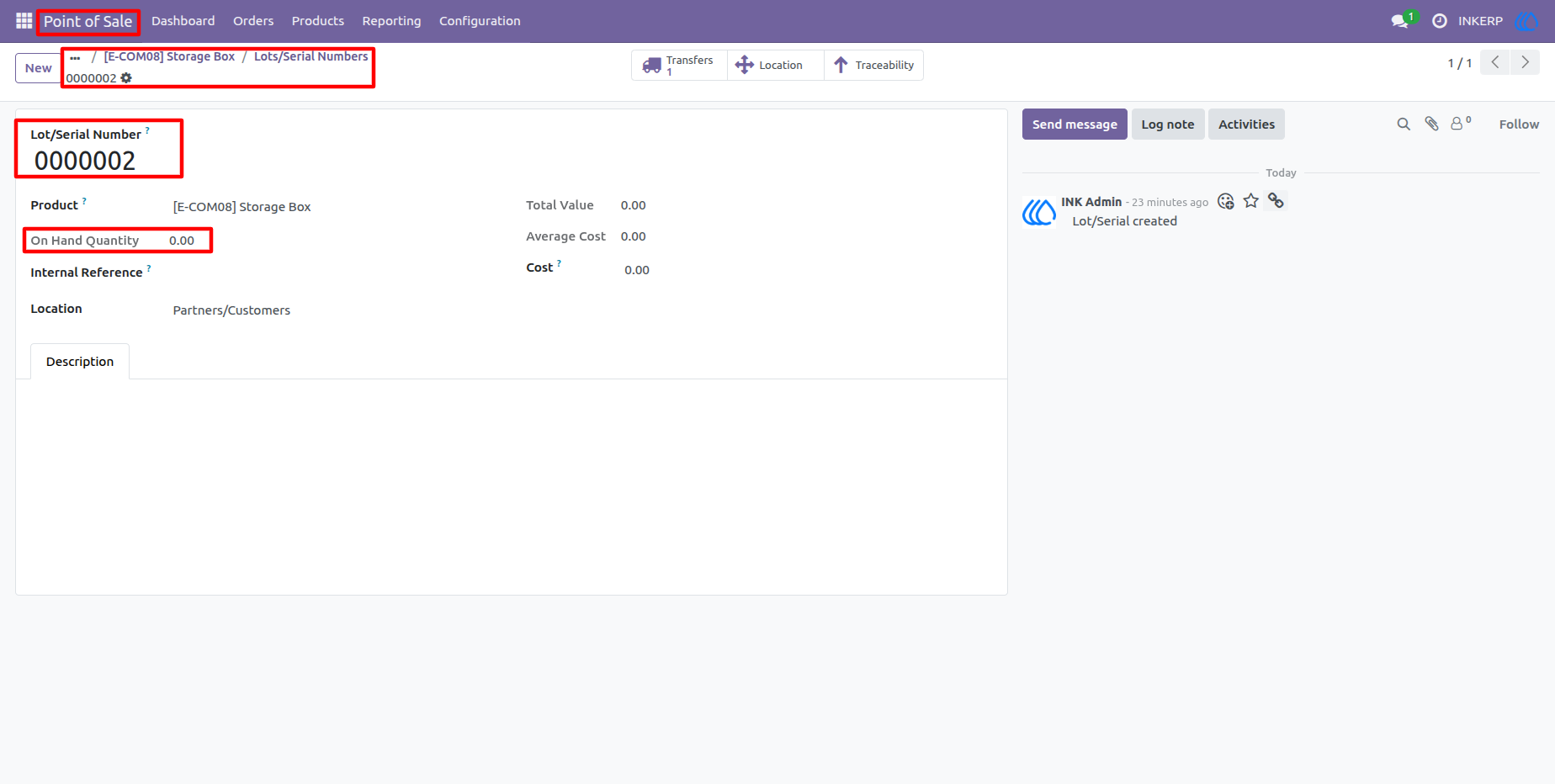
7.) Lot/Serial Number with Zero On-Hand Quantity
the lot/serial number record in the backend where the on-hand quantity is zero. Although the lot/serial number is created and linked to a product, it has no available stock.
Navigation : Point of Sale › Products › Product Variants › Lots/Serial Numbers
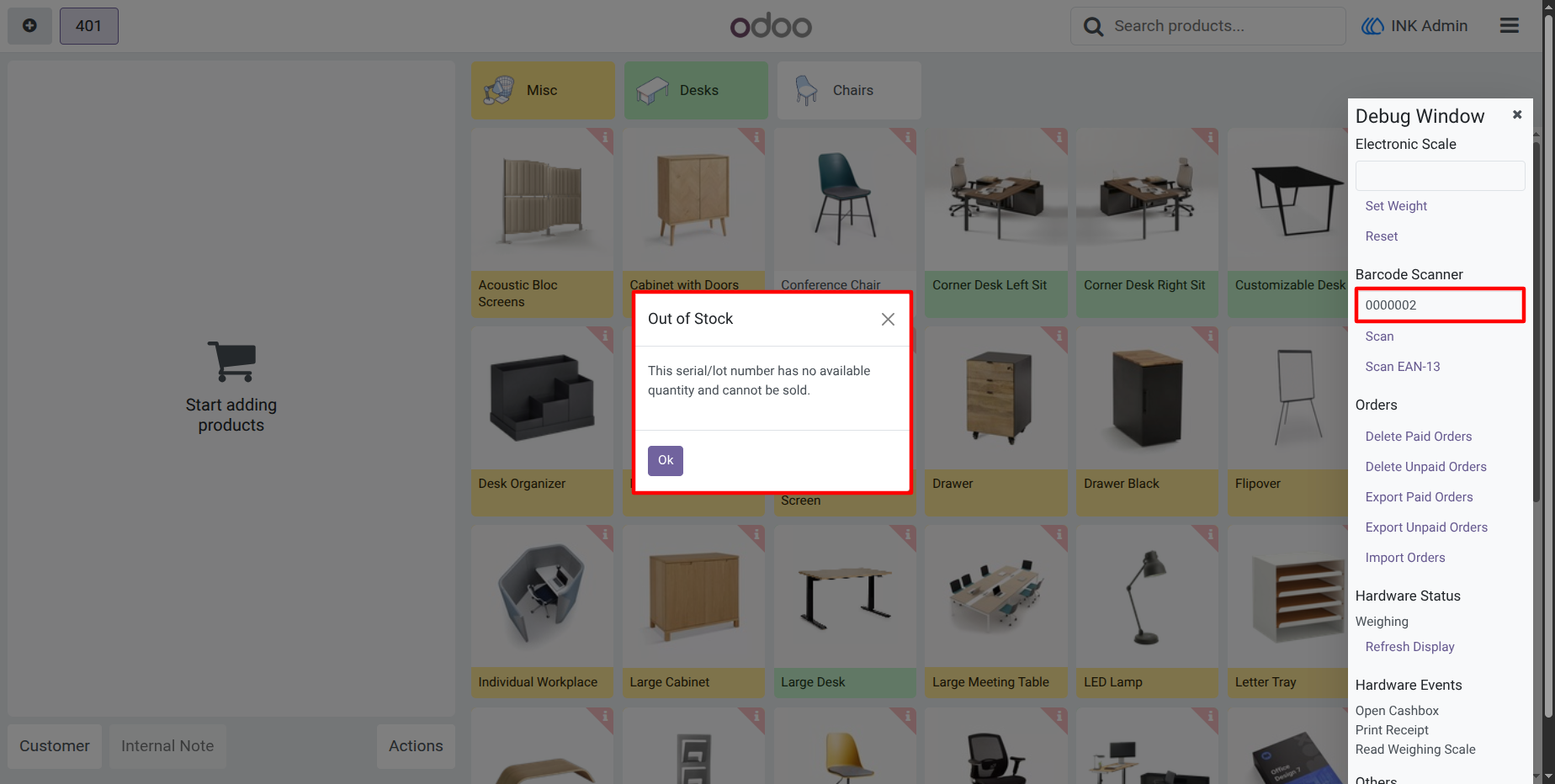
8.) POS Alert on Scanning Out-of-Stock Lot/Serial Number
the real-time POS alert that appears when a cashier scans a lot or serial number with no available quantity. The system instantly blocks the sale and shows a clear “Out of Stock” warning message.
User Guide