

Our Most Suggested Products


POS Dynamic Tip - Fixed Amount & Percentage Tips
POS Dynamic Tip - Fixed Amount & Percentage Tips enhances the Odoo Point of Sale experience by allowing cashiers to add tips dynamically during checkout. Users can choose between percentage-based tips or fixed amount tips, providing flexibility for different business needs and customer preferences.
 Features
 Screenshots
 Support
 Service

Features
Dynamic Tip Options (Percentage & Fixed Amount)
This feature allows cashiers to add tips dynamically during the POS checkout process. Users can choose between a percentage-based tip, calculated automatically from the order total, or a fixed amount tip, entered manually.
Transparent Billing & Receipt Display
All added tips are displayed clearly as a separate line item in the POS order summary and printed on the customer receipt. This transparency helps customers understand the breakdown of their total amount while maintaining proper accounting records.
Screenshot
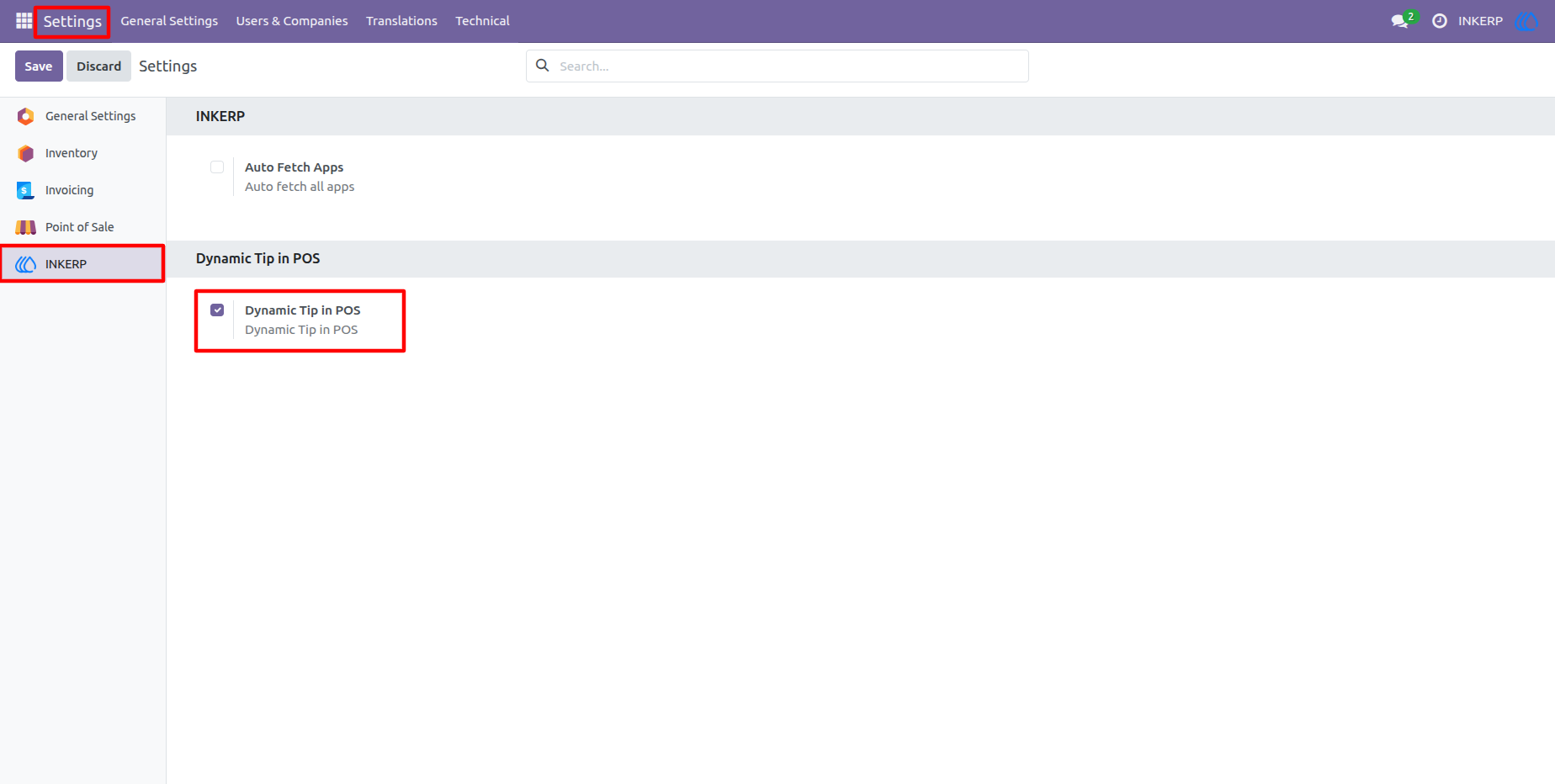
1.) Enable Dynamic Tip in POS Settings
Enable the Dynamic Tip feature from the Point of Sale settings. Once activated, the tip functionality becomes available in the POS interface, allowing cashiers to add tips during checkout.
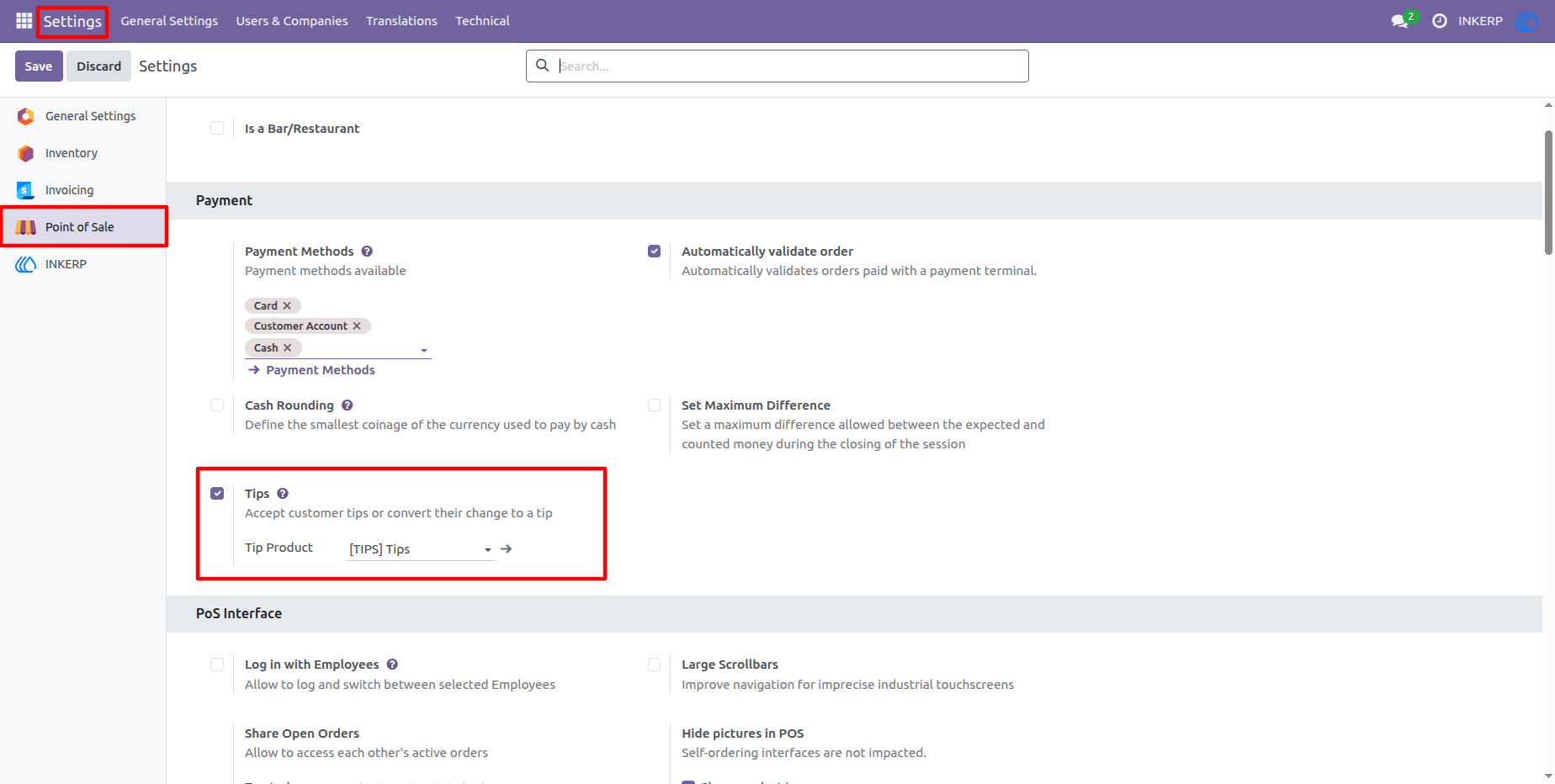
2.) Tip Configuration in POS Settings
Here, users can configure tip-related settings such as selecting the tip product and enabling tip calculation in POS. This setup ensures that all added tips are recorded properly and linked to the correct product for accounting purposes.
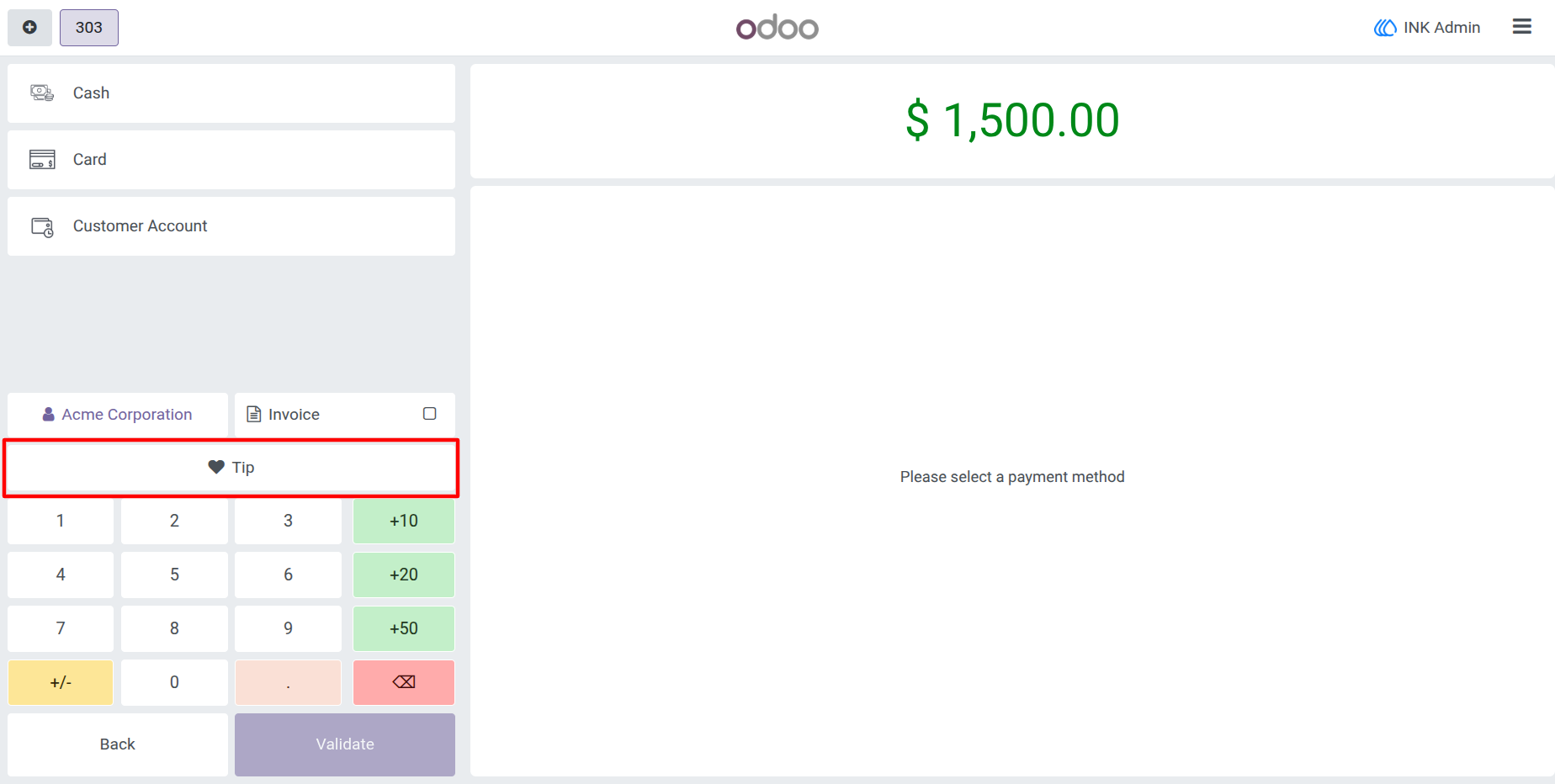
3.) Tip Button on POS Payment Screen
A dedicated “Tip” button appears on the POS payment screen, allowing cashiers to add a tip before validating the order.
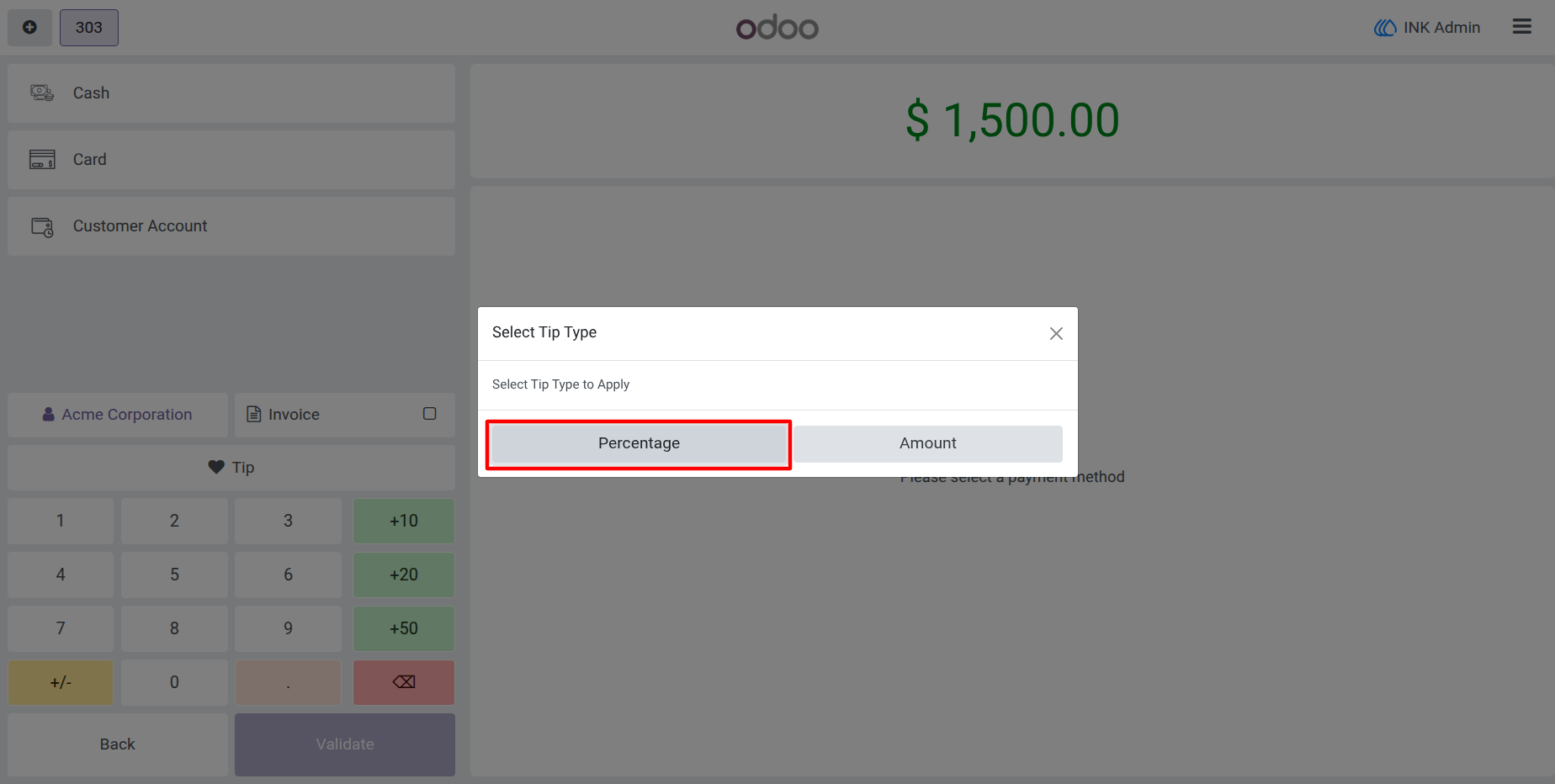
4.) Select Tip Type (Percentage or Amount)
This popup allows users to choose the type of tip they want to apply. Cashiers can select either a percentage-based tip or a fixed amount tip based on customer preference.
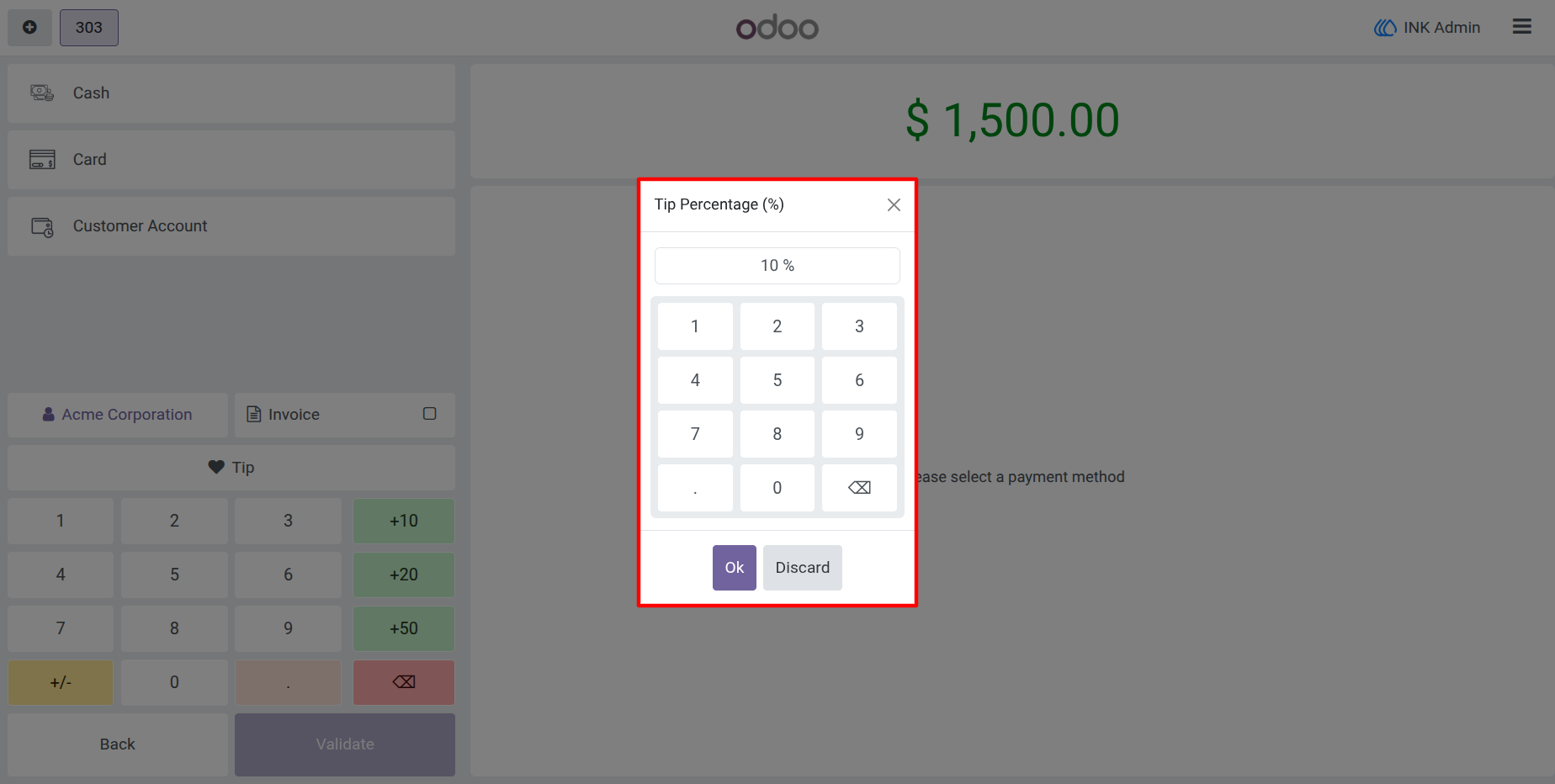
5.) Enter Percentage Tip
After selecting the percentage option, a numeric keypad opens to enter the desired tip percentage. The system automatically calculates the tip based on the order total.
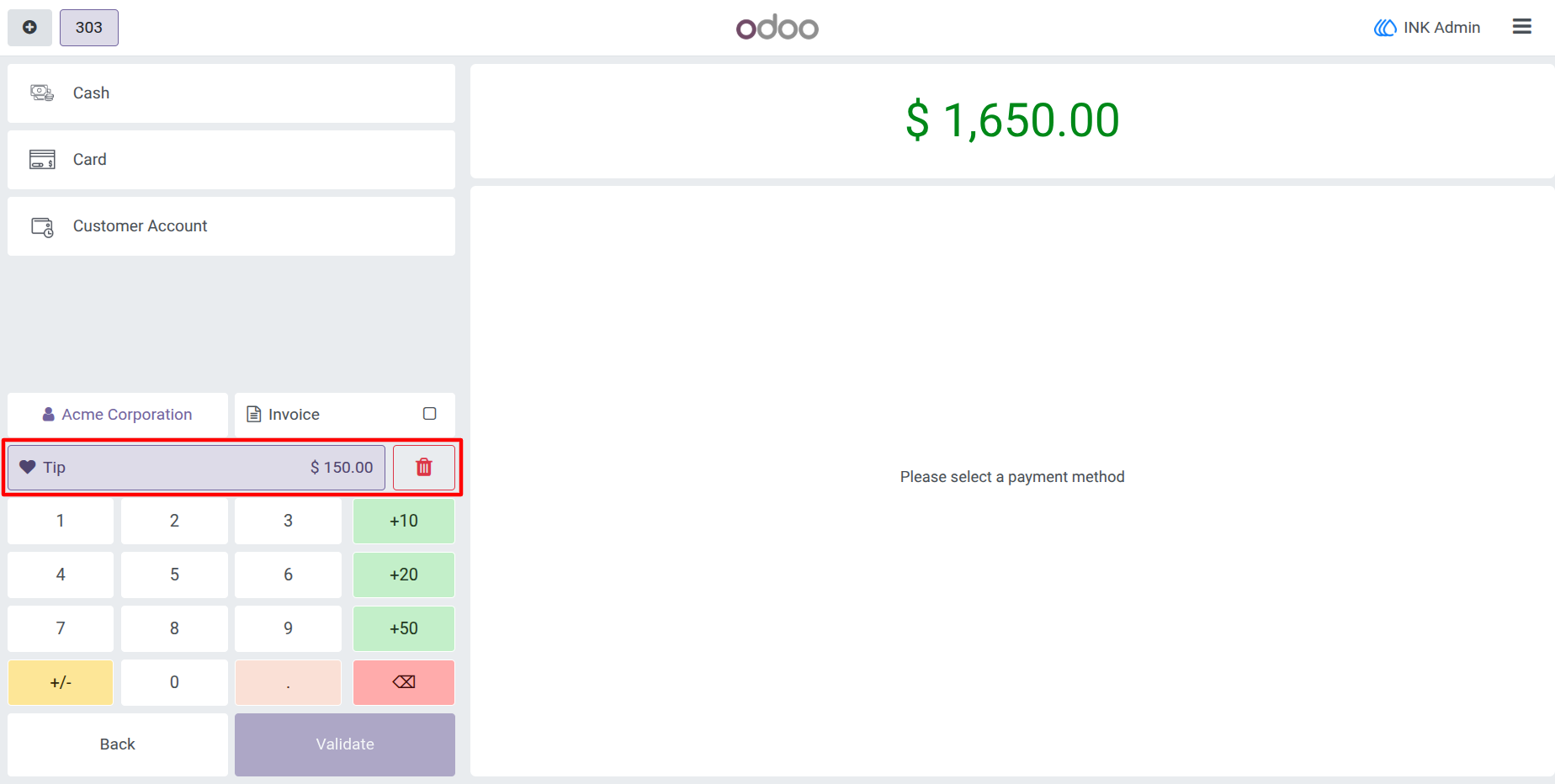
6.) Percentage Tip Applied to Order
The entered percentage tip is instantly applied, and the order total is updated automatically. The tip amount is displayed clearly in the order summary for full transparency.
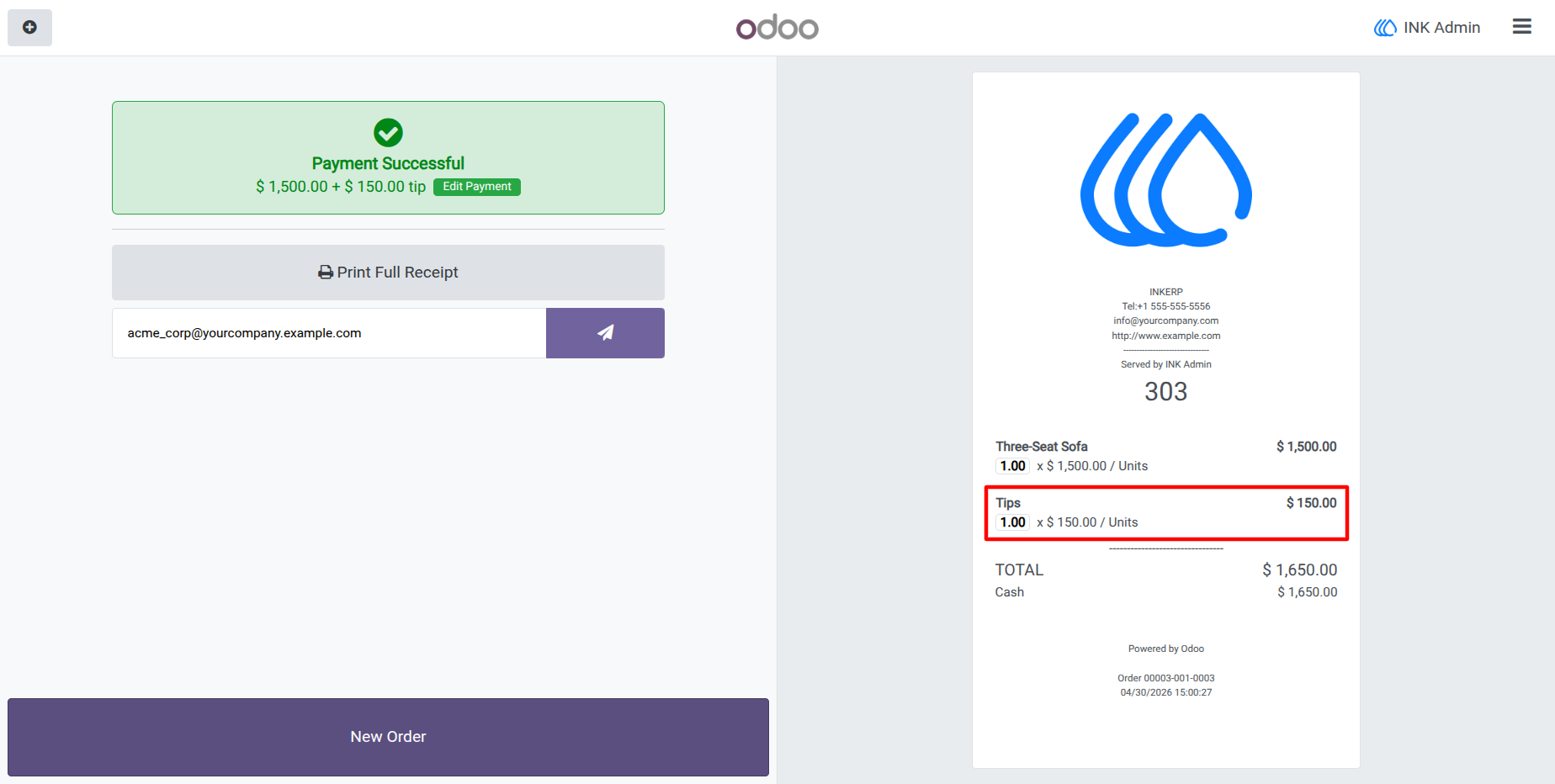
7.) Tip Displayed on POS Receipt
This screen shows the final receipt where the tip is displayed as a separate line item. Customers can clearly see the tip amount included in the total payment.
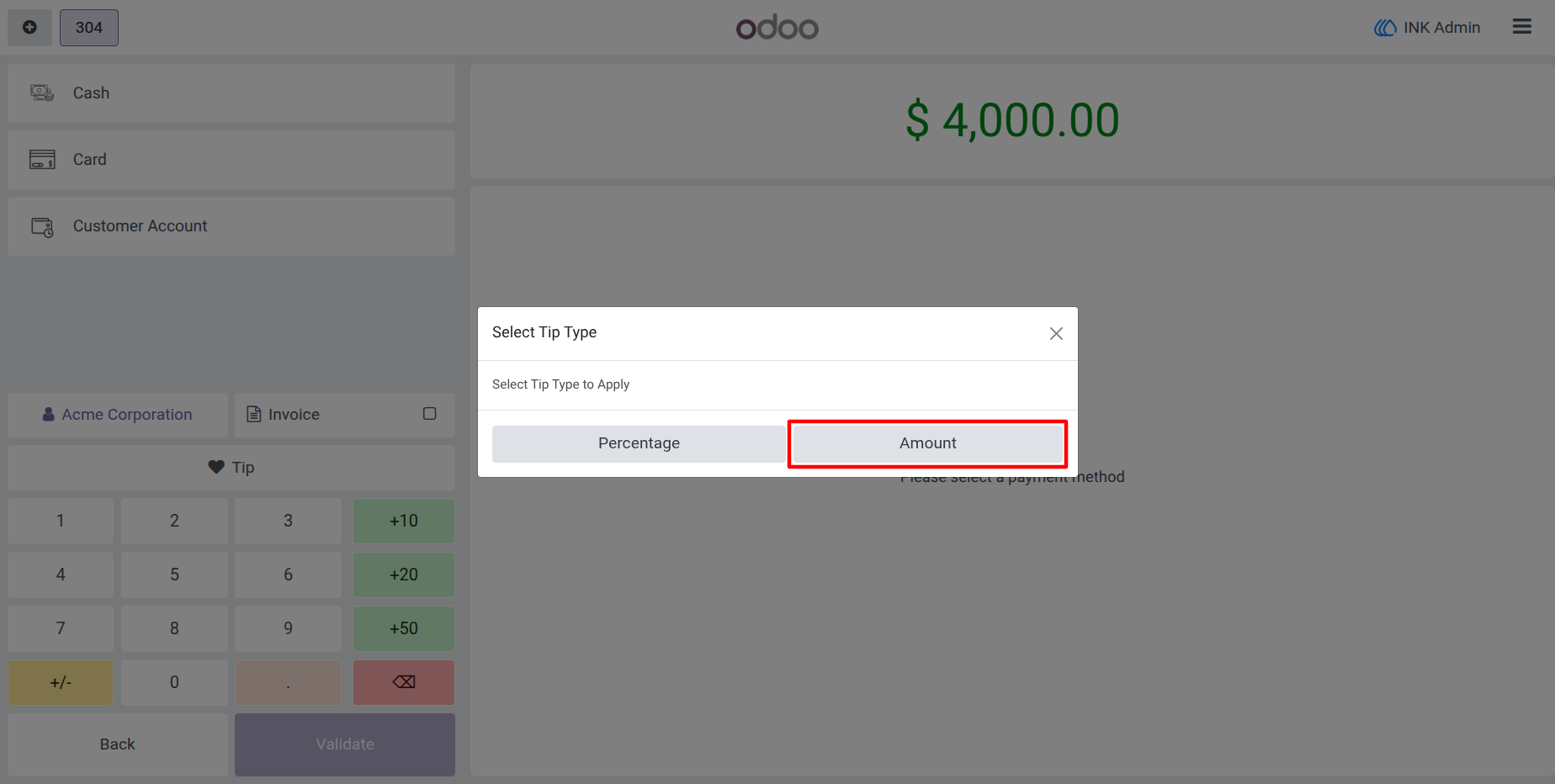
8.) Select Fixed Amount Tip Option
Users can choose the fixed amount option when adding a tip. This option is ideal when customers want to leave a specific tip value instead of a percentage.
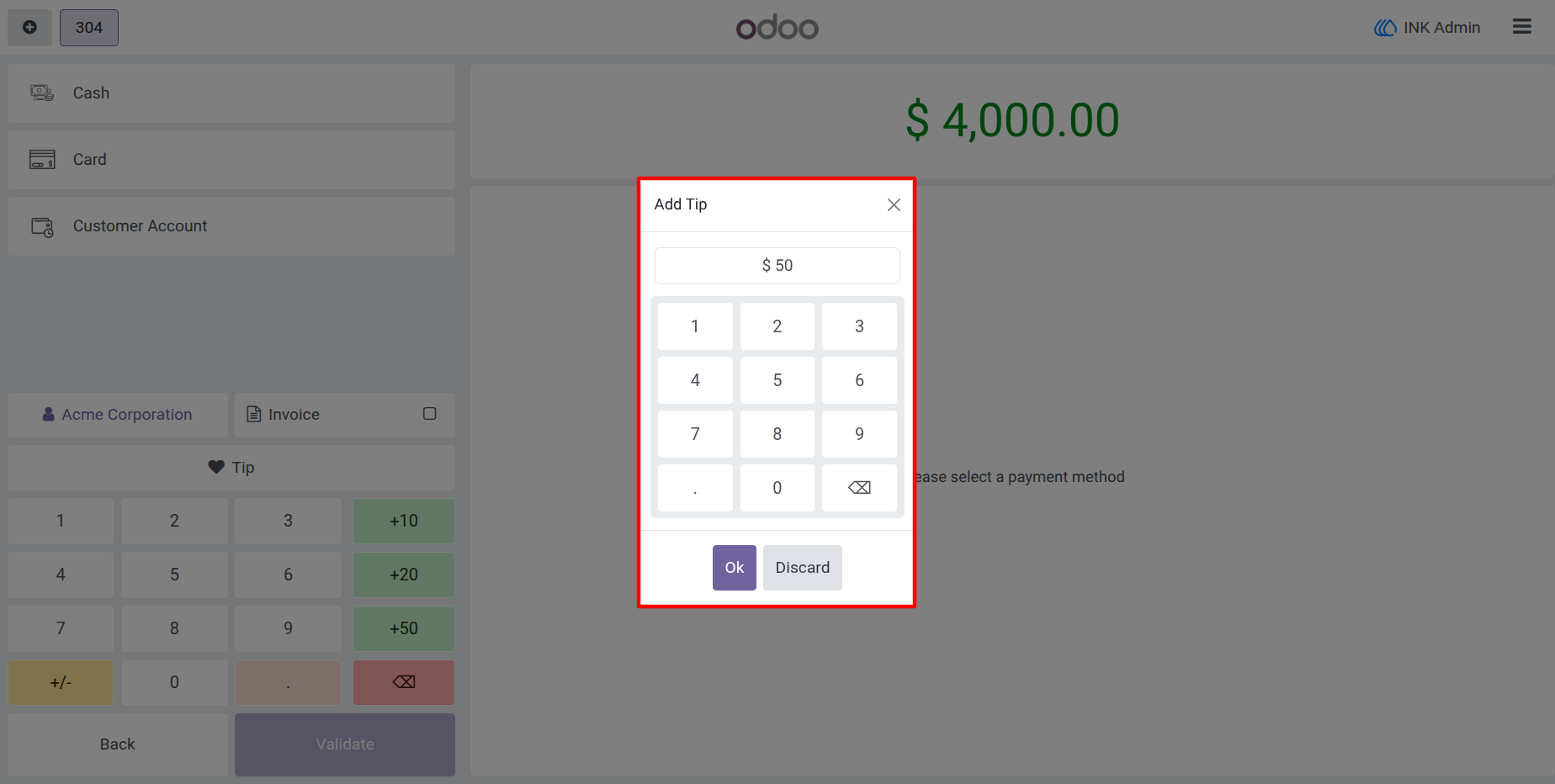
9.) Enter Fixed Tip Amount
A numeric keypad allows the cashier to enter a fixed tip amount manually. This ensures precise and flexible tip entry during checkout.
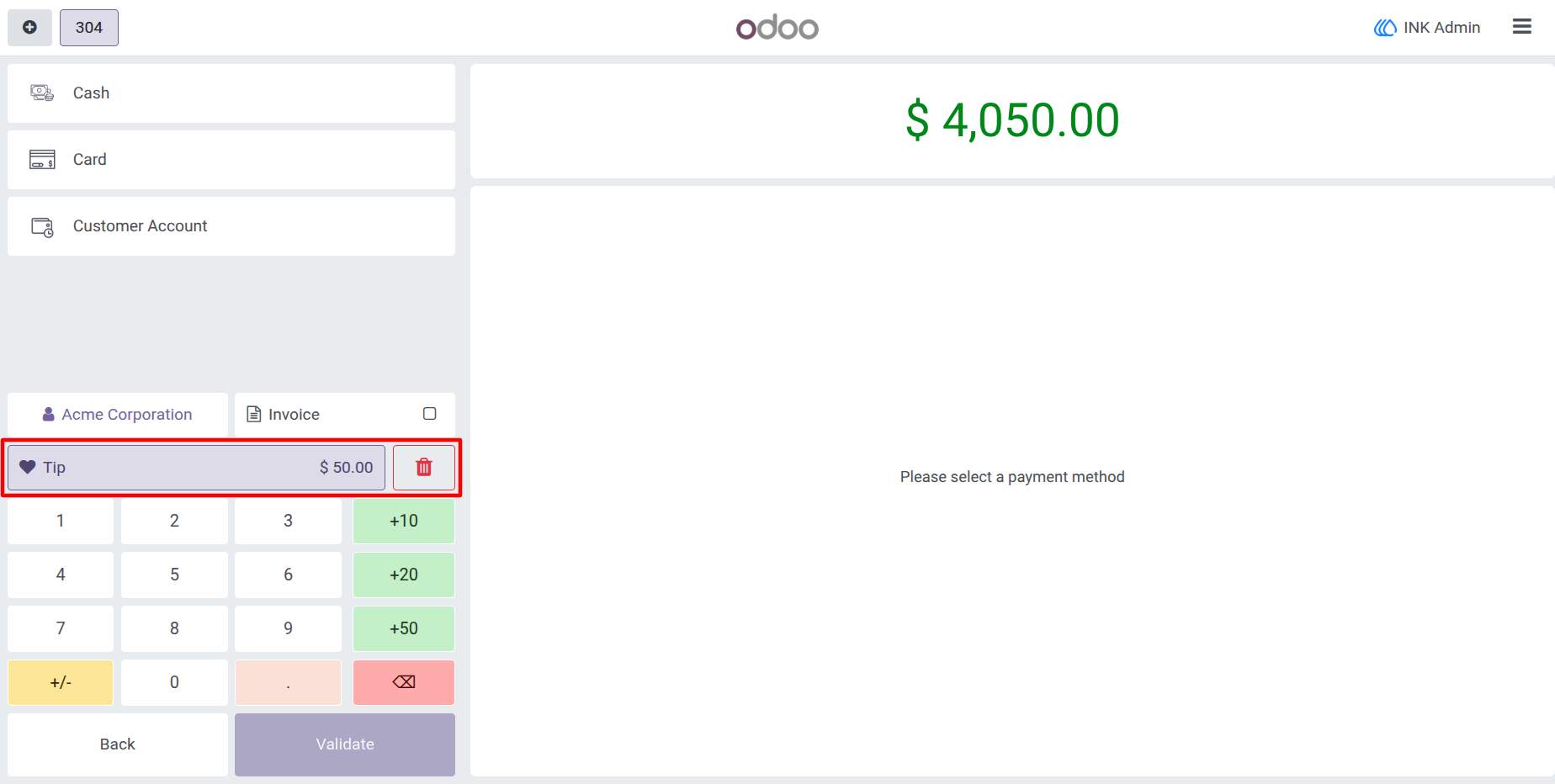
10.) Fixed Amount Tip Applied
The fixed tip amount is added to the order total and displayed in the POS order summary. The final payable amount updates automatically, ensuring accurate billing.
User Guide