
Our Most Suggested Products


Professional Label Designer for Odoo
Label Designer helps businesses create professional product labels, barcode labels, QR labels, price tags, and custom printable labels directly from Odoo. Users can design labels with a visual drag-and-drop editor, map Odoo fields, add barcodes, QR codes, images, shapes, backgrounds, and watermarks, then print labels in a clean PDF format. The app is useful for inventory teams, retail stores, warehouses, product management, and any business that needs flexible label printing without depending on external design tools. It saves time, improves label accuracy, and gives users full control over label layout and paper formatting.
 Features
 Screenshots
 Support
 Service

Features
Visual Drag-and-Drop Label Designer
Design labels using an easy visual editor with draggable text, fields, barcode, QR code, image, box, line, and watermark elements. Users can resize, move, align, lock, duplicate, and style each element directly on the label canvas.
Dynamic Odoo Field Mapping
Add live Odoo field values such as product name, price, barcode, internal reference, or other model fields inside the label design. This helps users create reusable templates that automatically print correct data for selected records.
Barcode and QR Code Label Printing
The app supports barcode and QR code elements for product identification, stock management, and scanning workflows. Barcode and QR values can be generated from Odoo fields or static values, making labels suitable for retail and warehouse operations.
Paper Format and Multi-Label PDF Printing
Configure reusable paper formats such as single label, A4 sheet, A5 sheet, letter sheet, or thermal label size. The print wizard automatically arranges labels based on selected paper format, margins, gaps, and label size.
Background, Watermark, and Style Customization
Users can set page background color, page border color, background image, image opacity, text watermark, image watermark, and element-level colors. These styling options help create professional labels for product tags, premium labels, branding, and packaging.
User Access Rights and Configuration Control
Separate access rights allow users, designers, and managers to work with the app securely. Users can print labels, designers can create and edit templates, and managers can control paper formats and configuration.
Screenshot
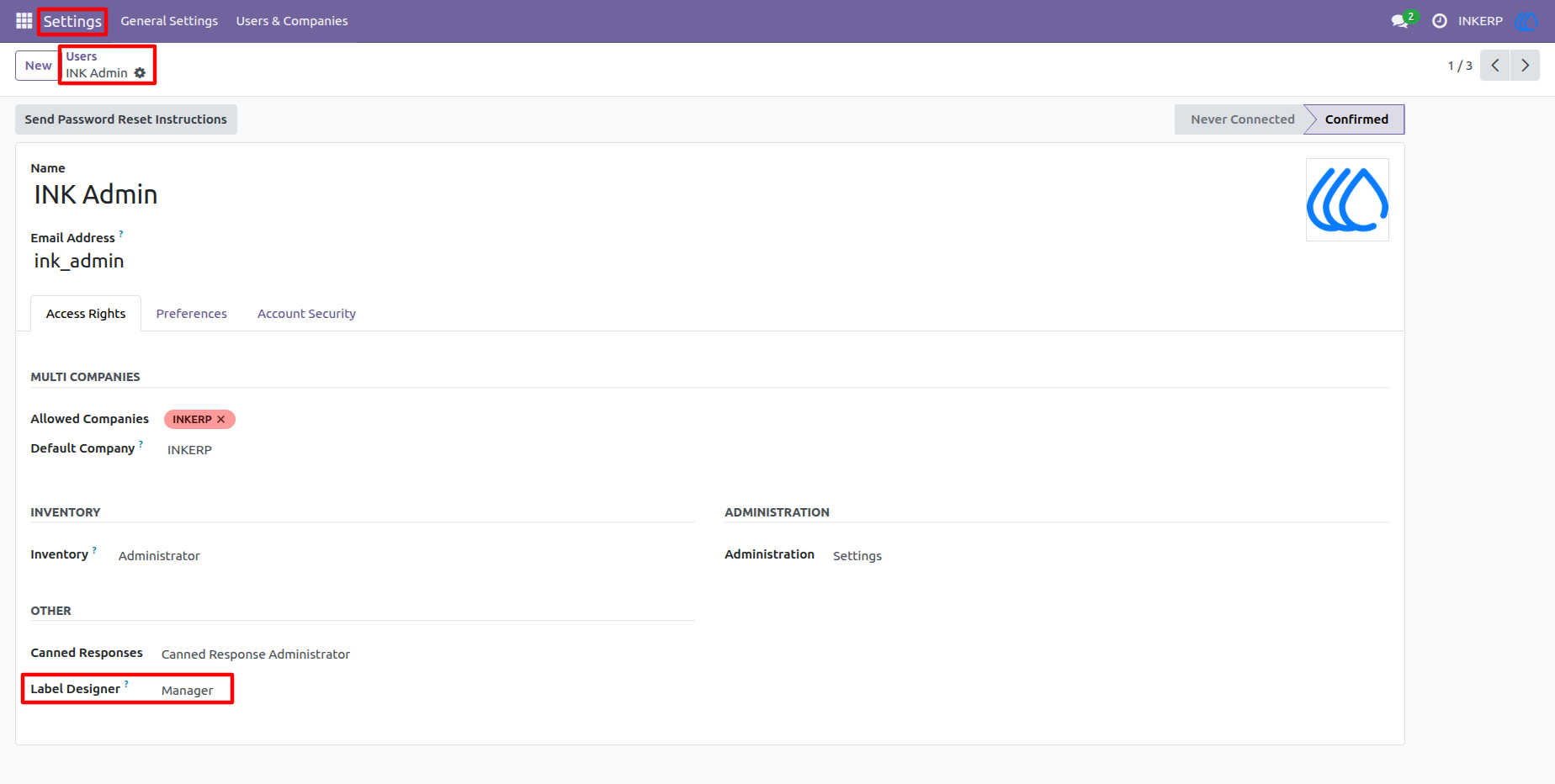
1.) Label Designer Access Rights
Administrators can assign Label Designer roles from the user access rights screen. This helps control who can print labels, design templates, or manage paper format configuration.
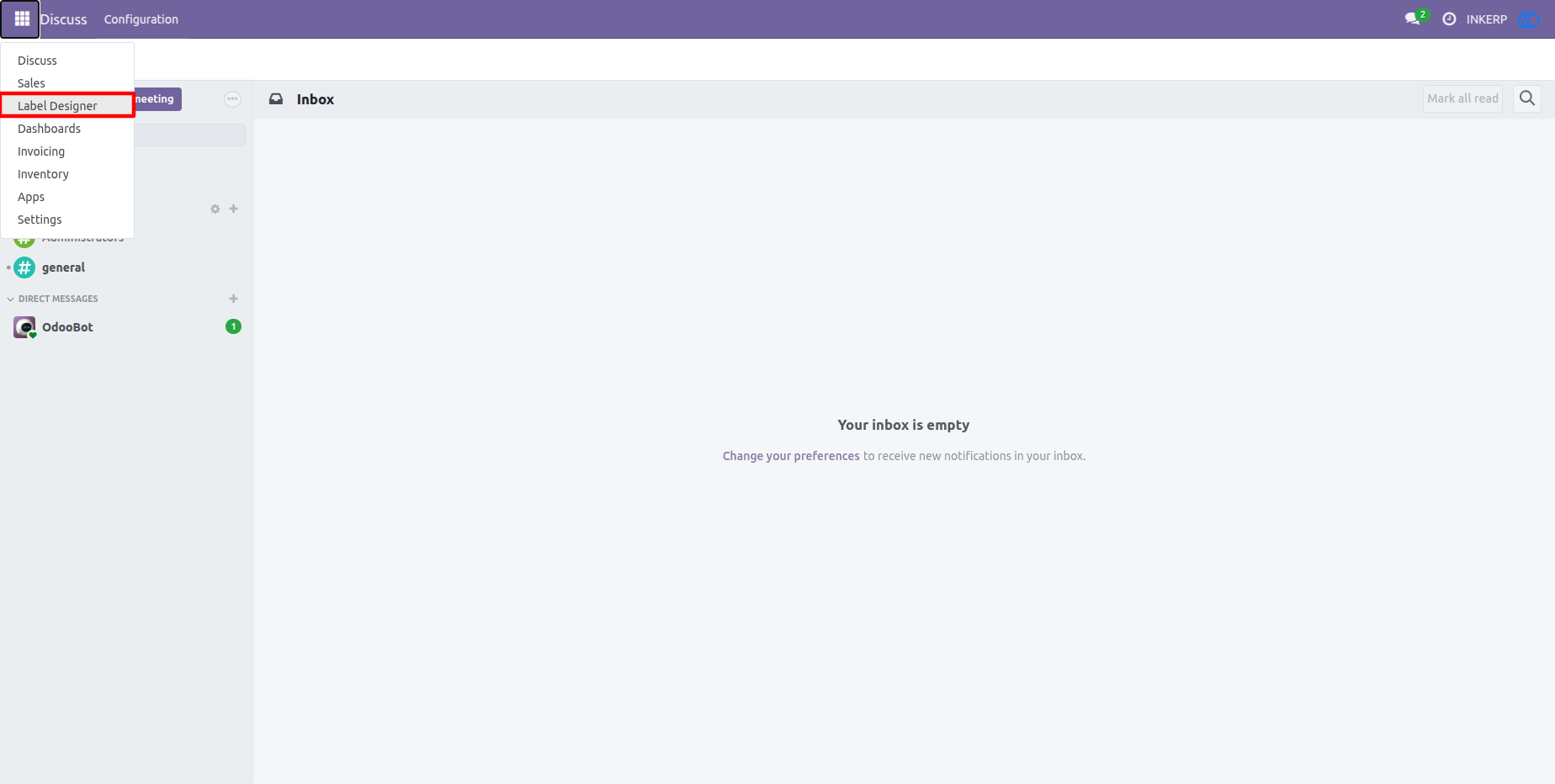
2.) Label Designer App Menu
The app is available from the main Odoo app menu, allowing users to quickly open the Label Designer workspace. This makes the label design and printing process easy to access from everyday operations.
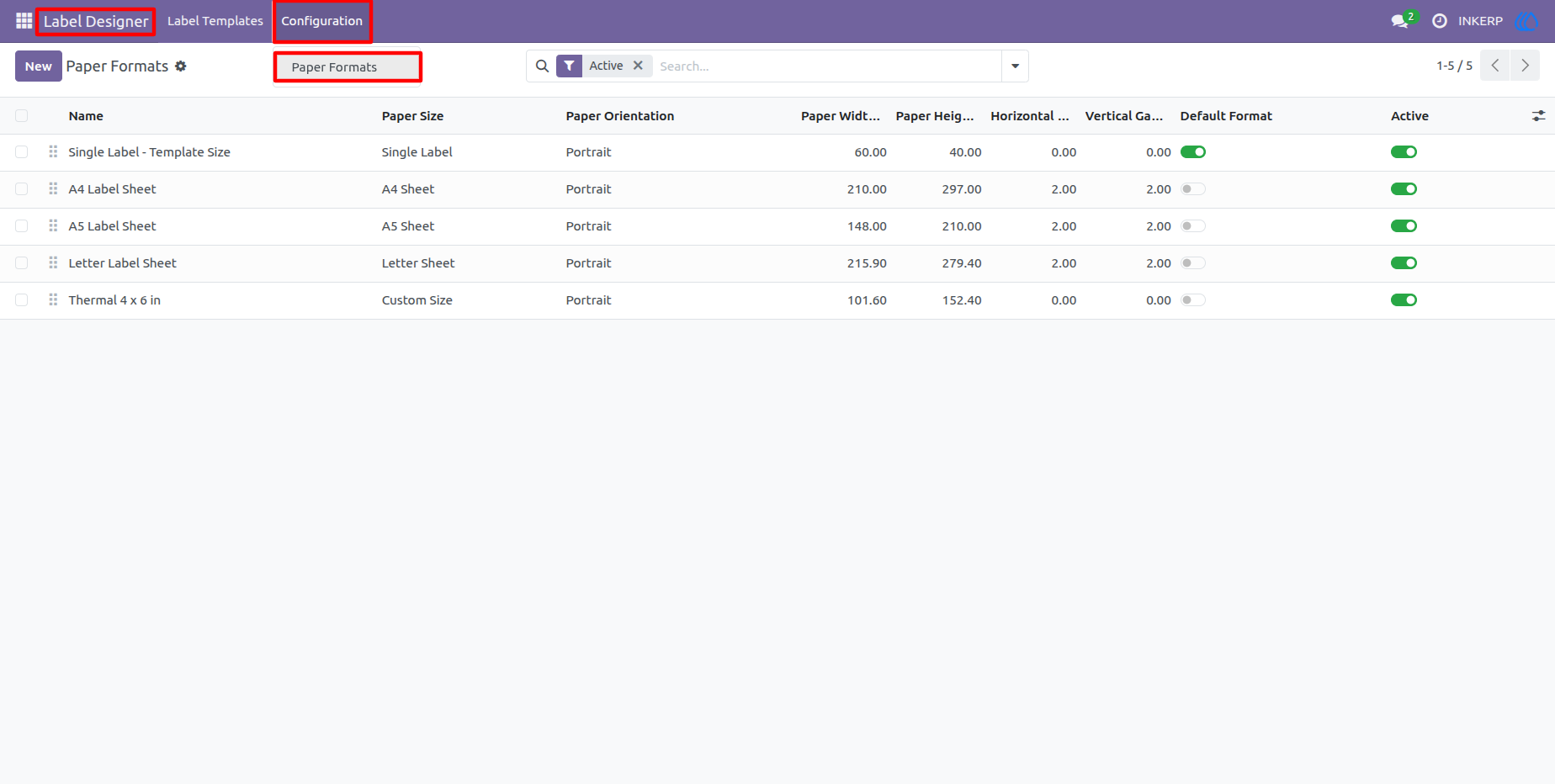
3.) Paper Formats List
All available paper formats are listed with paper size, orientation, width, height, gaps, default status, and active status. Users can manage different printing layouts for single labels, sheets, and thermal label formats.
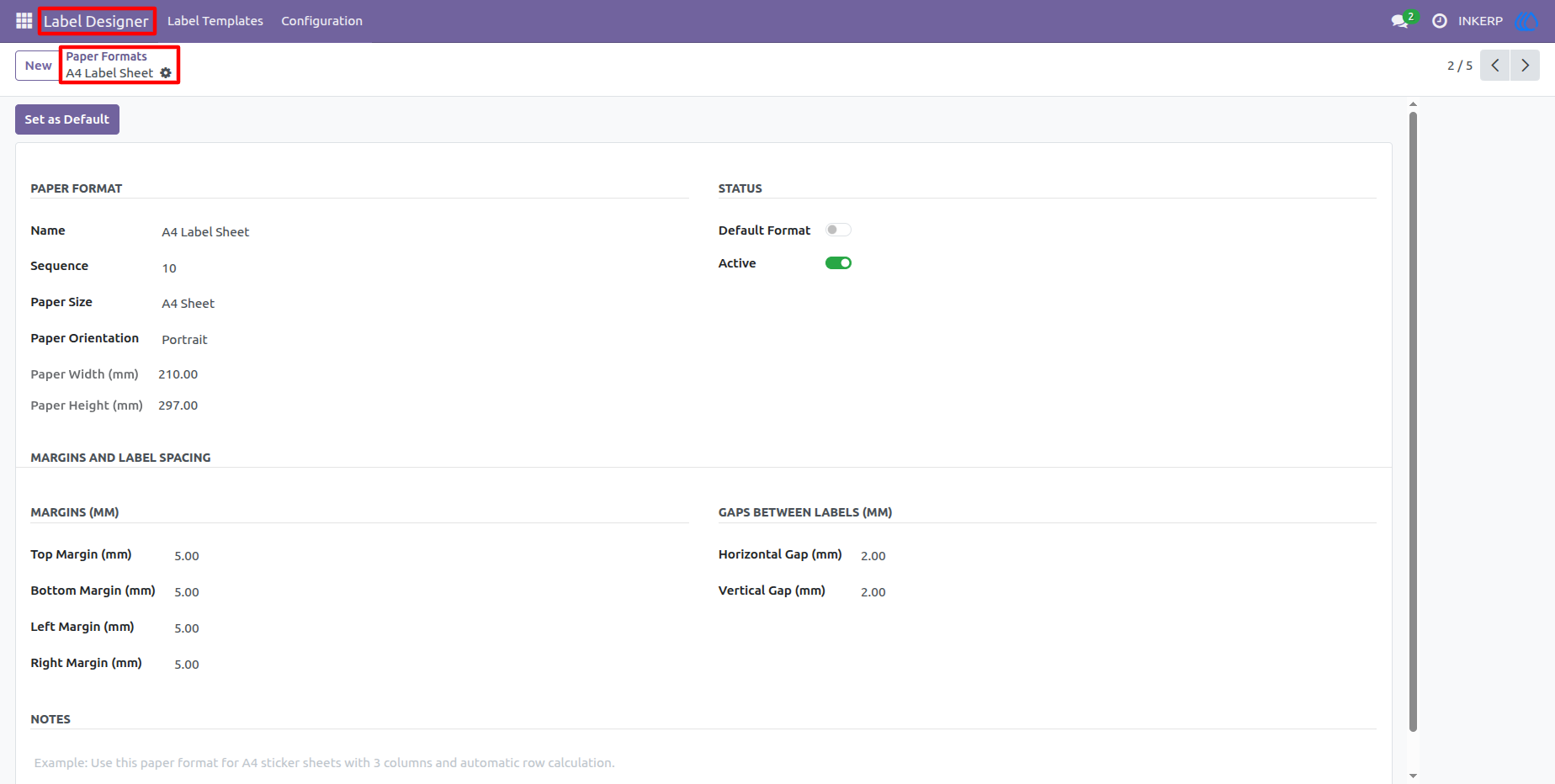
4.) Paper Format Configuration
Paper format details can be configured with paper size, orientation, margins, label gaps, and default format settings. This gives users better control over how labels are arranged in the final PDF output.
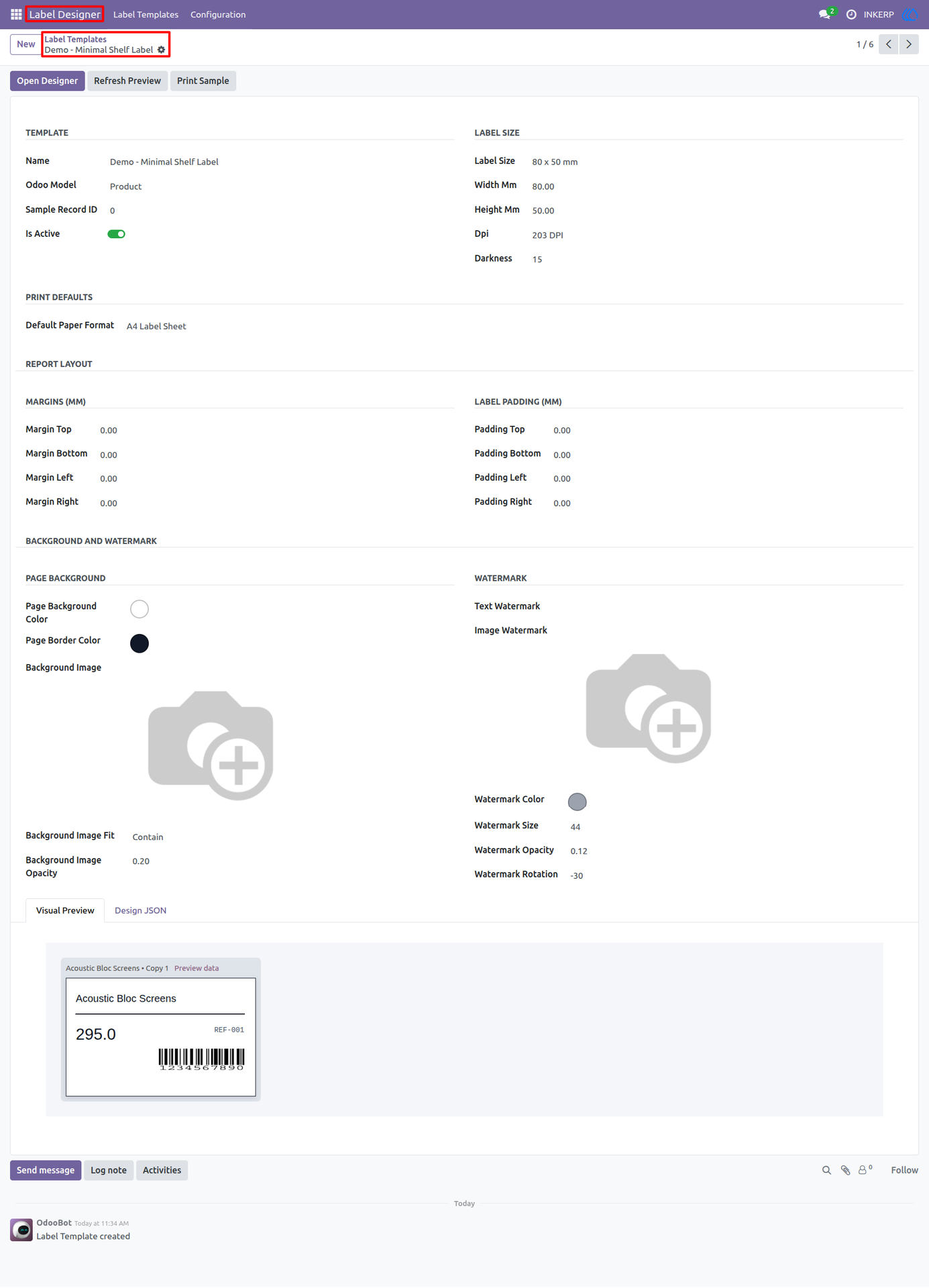
5.) Label Template Form
The label template form stores the selected model, label size, default paper format, report layout, and visual preview. Users can review the label setup before opening the designer or printing labels.
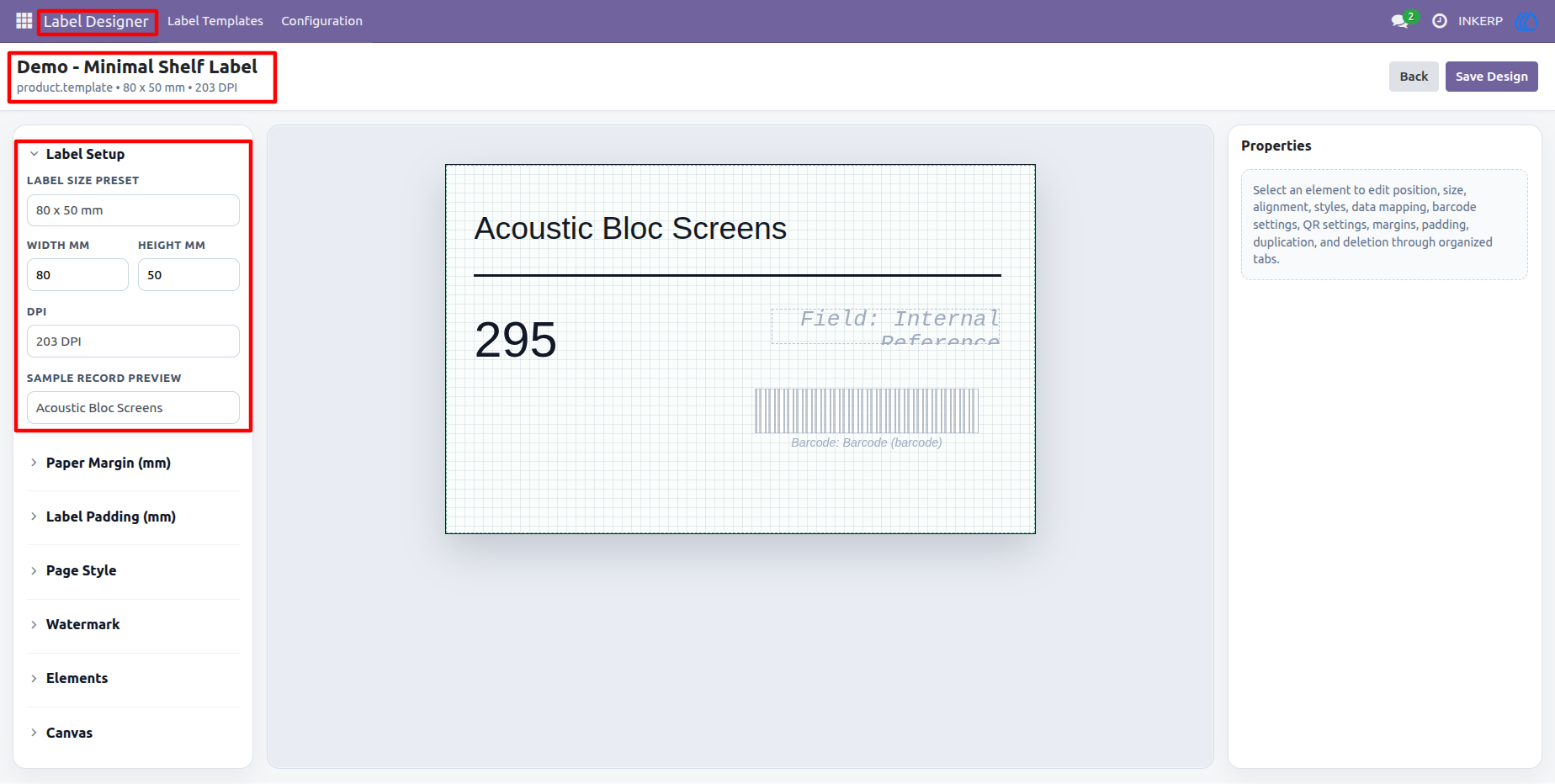
6.) Label Setup in Designer
The designer sidebar includes label size preset, width, height, DPI, and sample record preview options. Users can prepare the label canvas according to the required label size before designing.
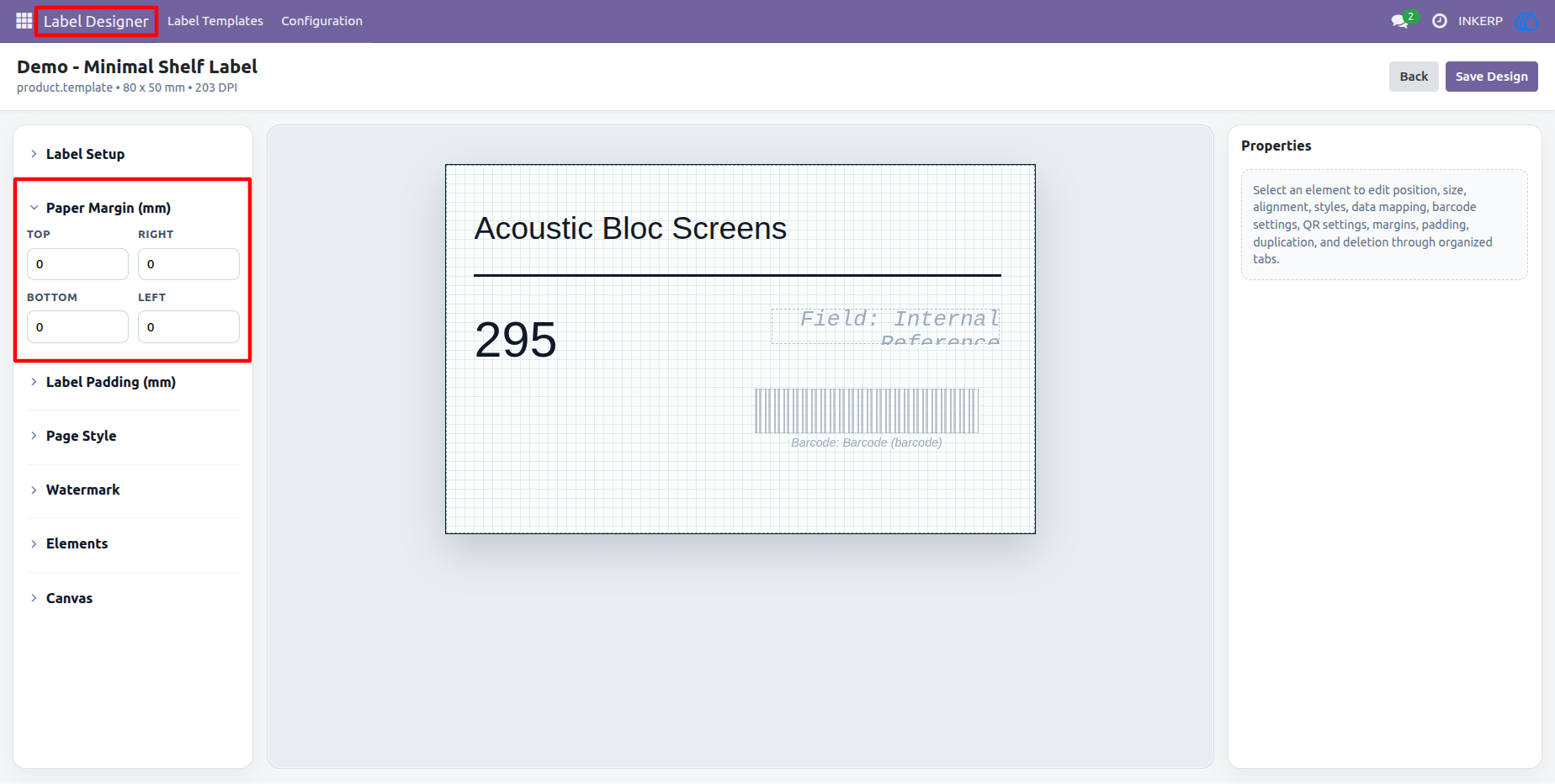
7.) Paper Margin Settings
Paper margin settings allow users to define top, right, bottom, and left spacing for the label layout. These options help keep printed labels aligned properly on different paper formats.
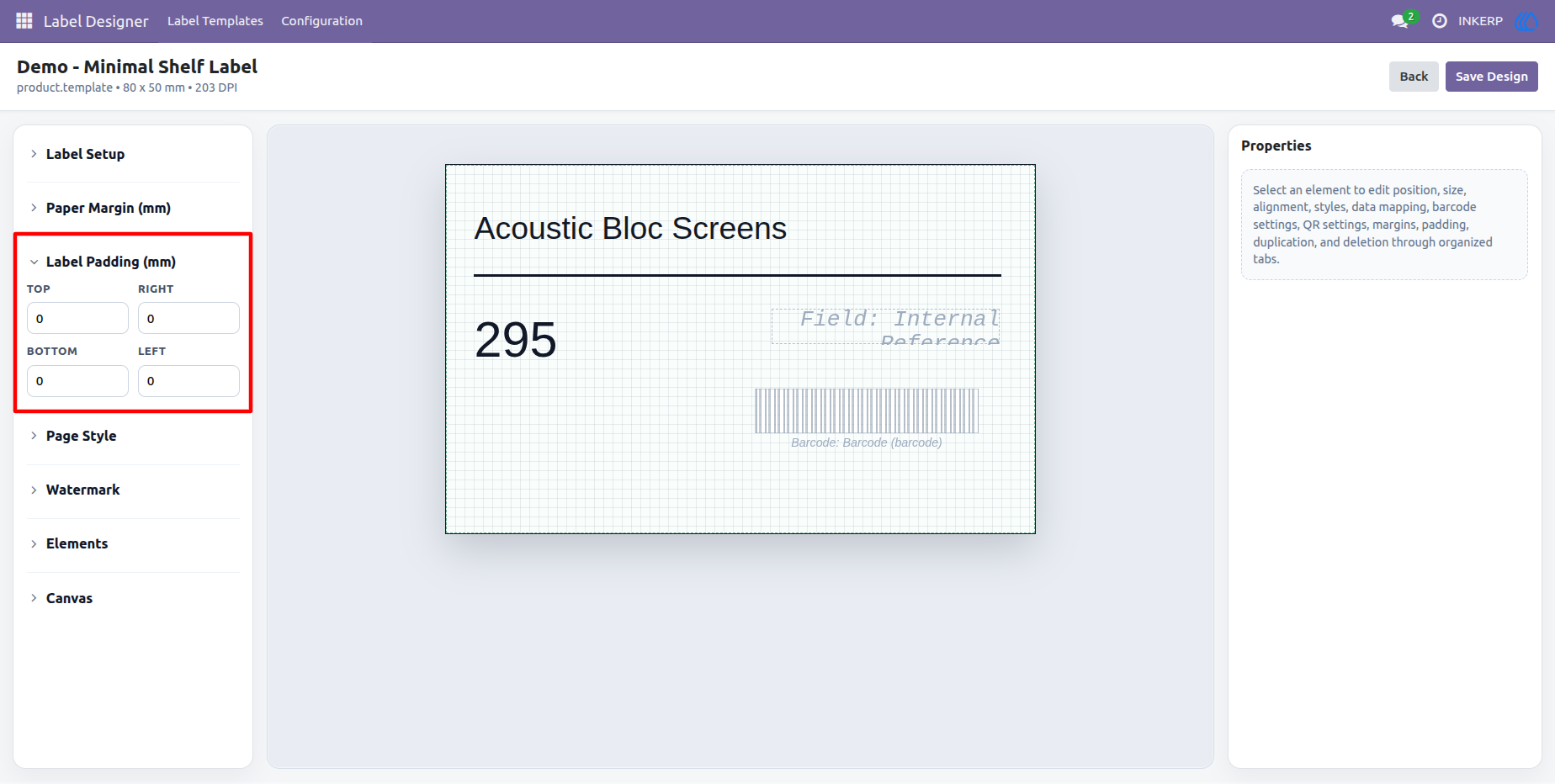
8.) Label Padding Settings
Label padding controls the internal spacing inside the label area. This is useful when users want label content to stay away from edges or printed borders.
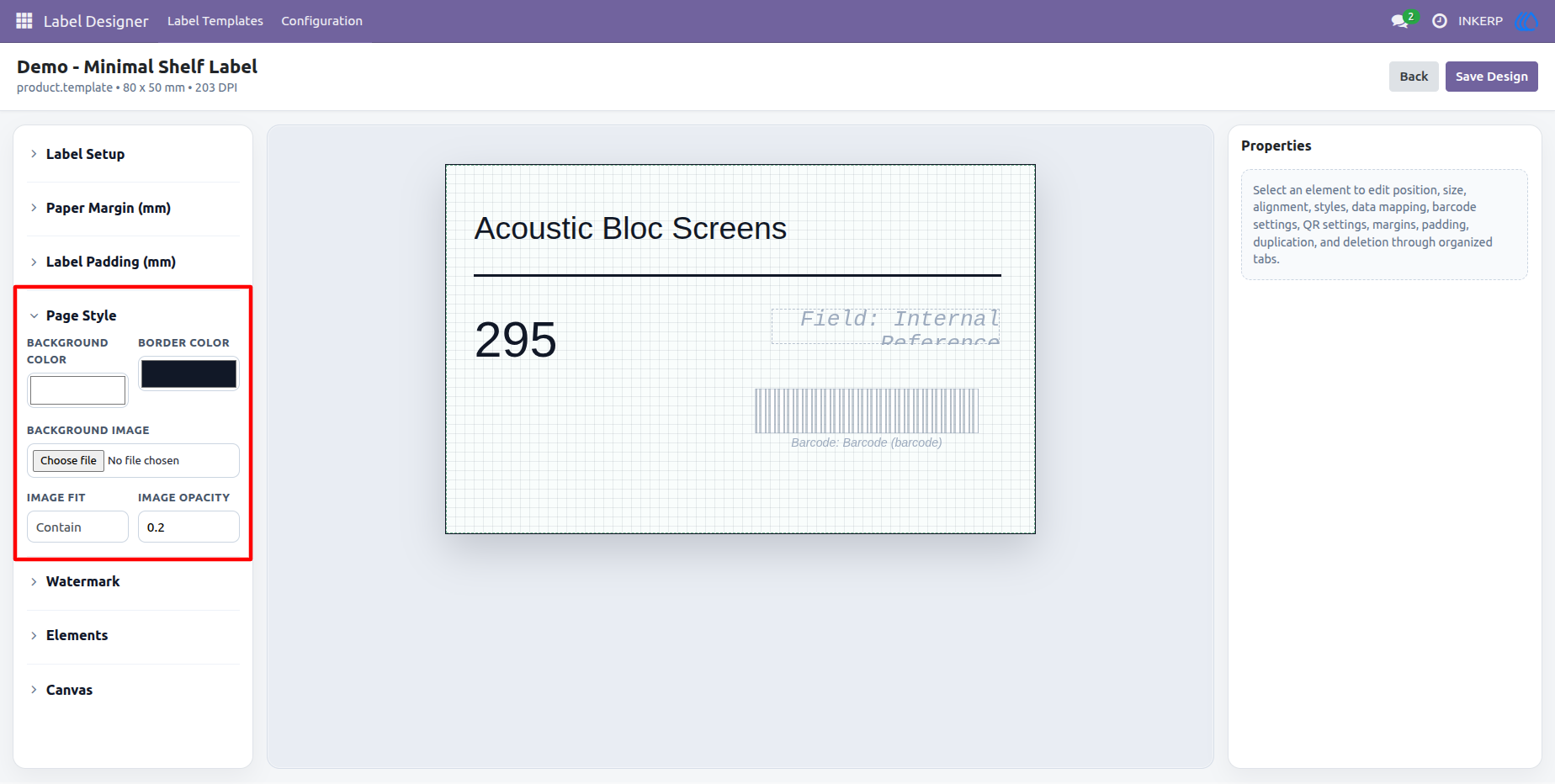
9.) Page Style Options
Users can set background color, page border color, background image, background image fit, and opacity from the Page Style section. These options make label designs more attractive and suitable for branded printing.
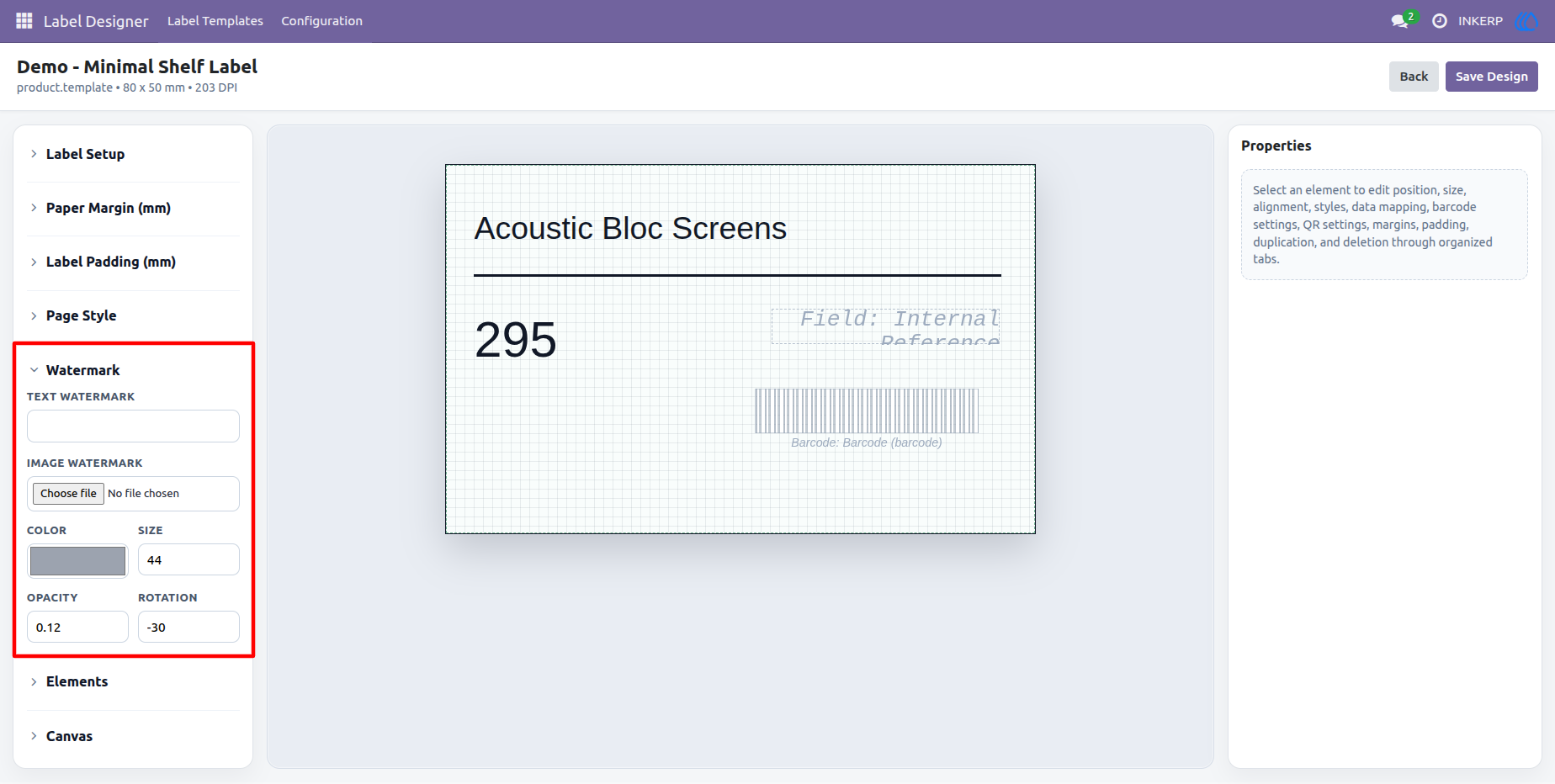
10.) Watermark Configuration
Text and image watermark options allow users to add branded or security-style watermark effects to labels. Watermark size, color, opacity, and rotation can be adjusted based on the label design.
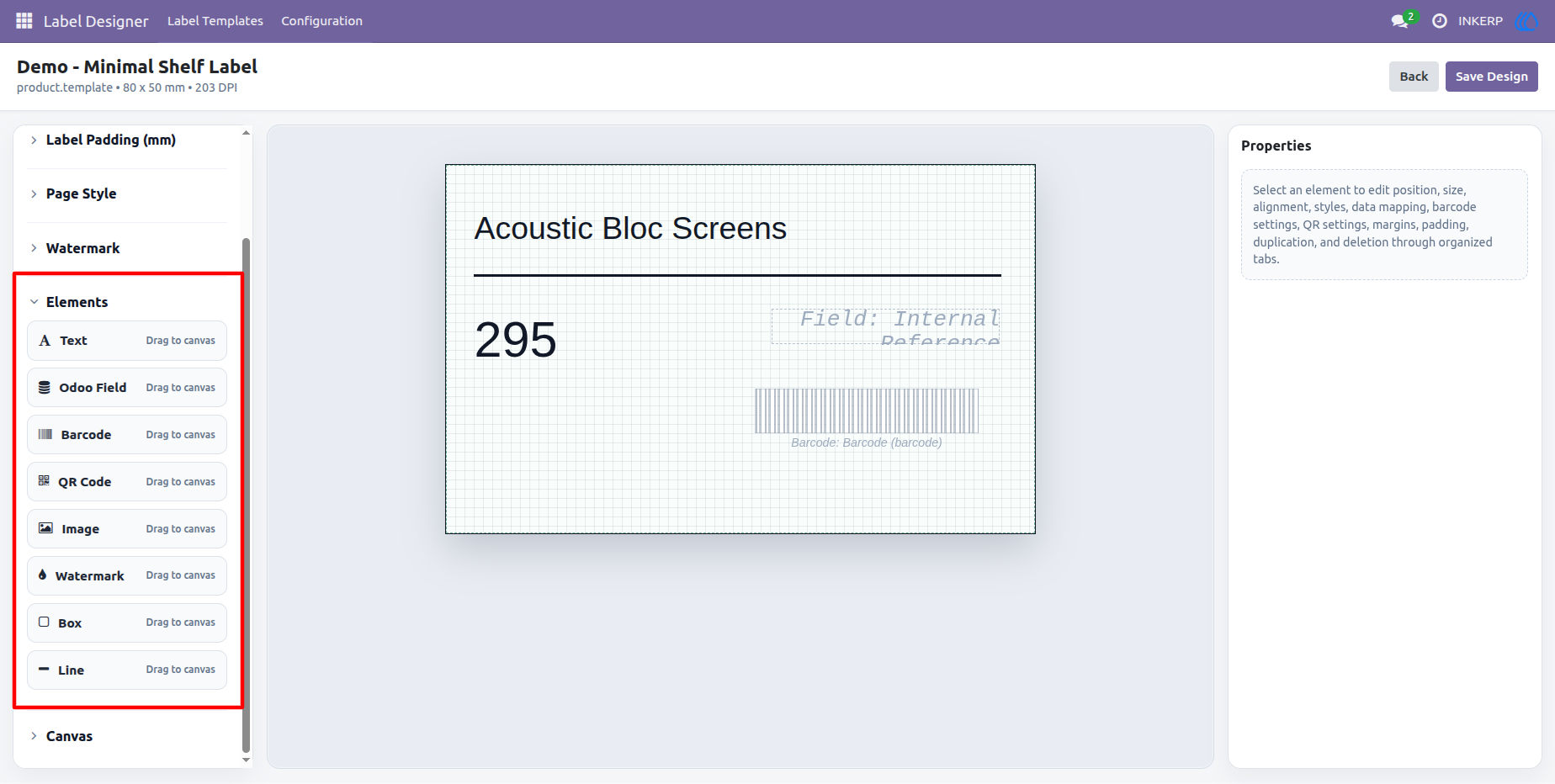
11.) Element Toolbox
The Elements section includes Text, Odoo Field, Barcode, QR Code, Image, Watermark, Box, and Line elements. Users can drag these elements onto the canvas and build custom label layouts easily.
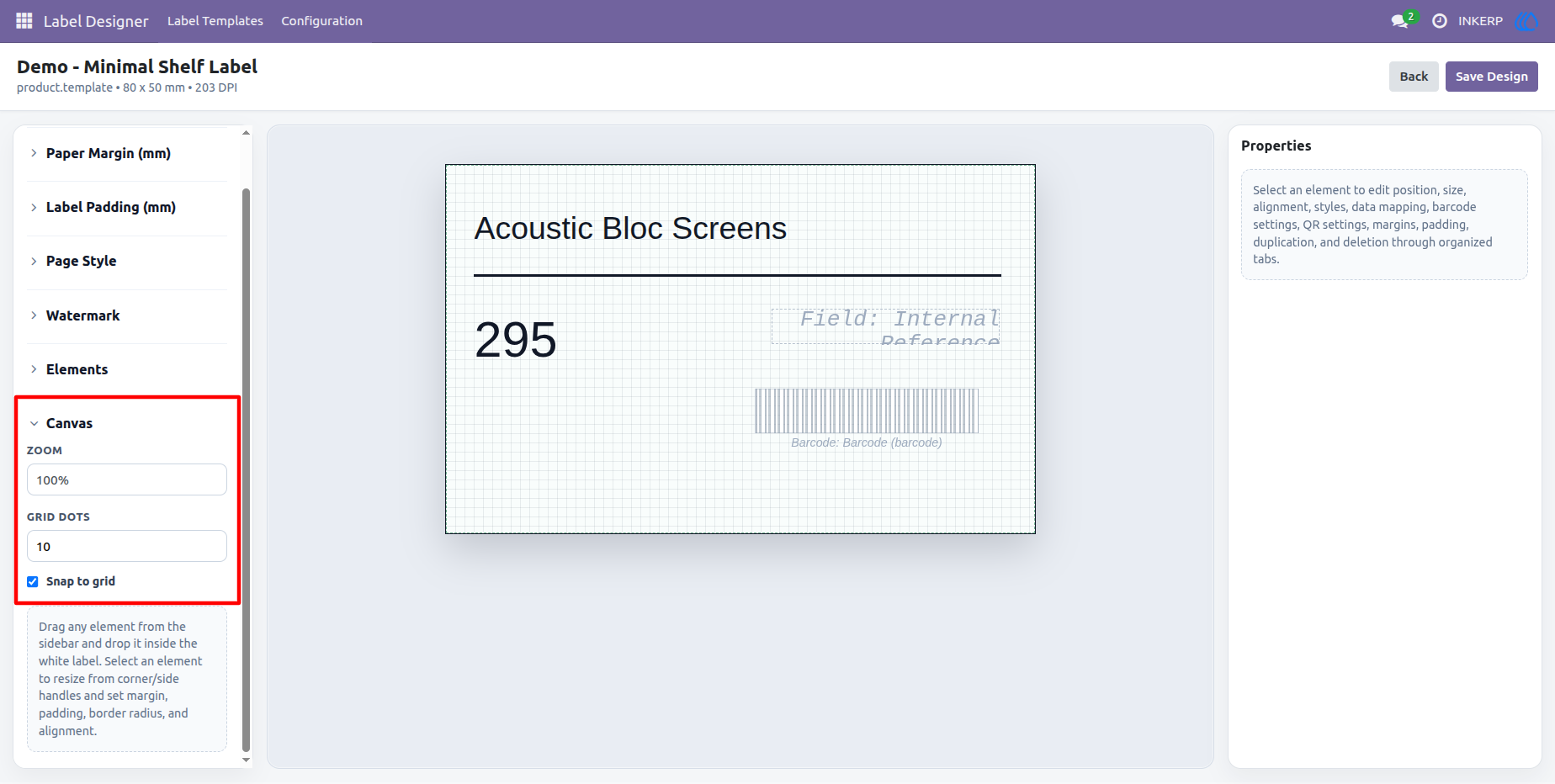
12.) Canvas Controls
Canvas controls include zoom, grid size, and snap-to-grid options. These tools help users place elements accurately and design labels with better alignment.
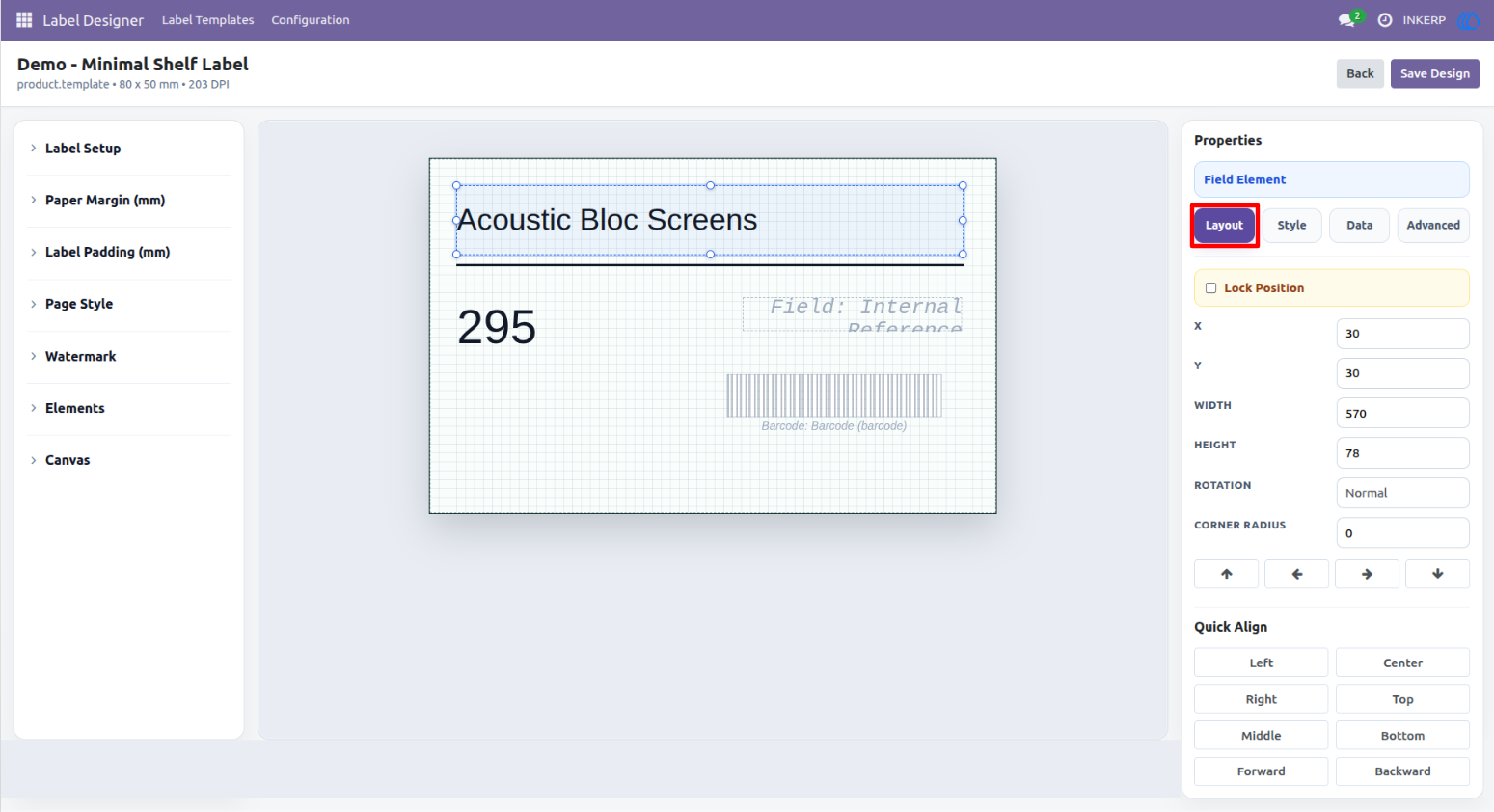
13.) Layout Properties Tab
The Layout tab lets users edit X position, Y position, width, height, rotation, corner radius, lock position, alignment, and layer order. This keeps all positioning tools in one clean section.
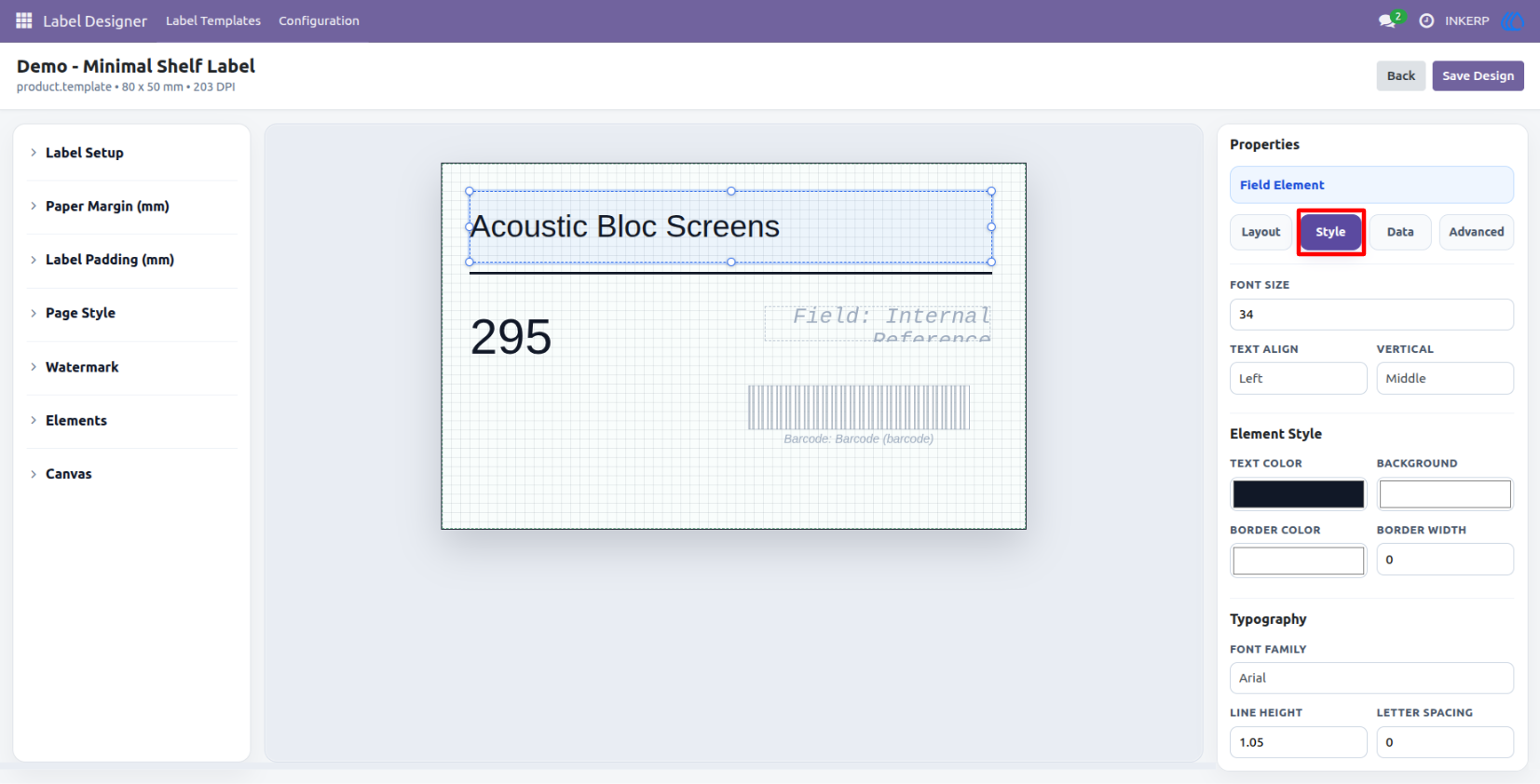
14.) Style Properties Tab
The Style tab includes text color, background color, border color, border width, font family, font size, line height, and letter spacing. Users can create polished labels with consistent typography and colors.
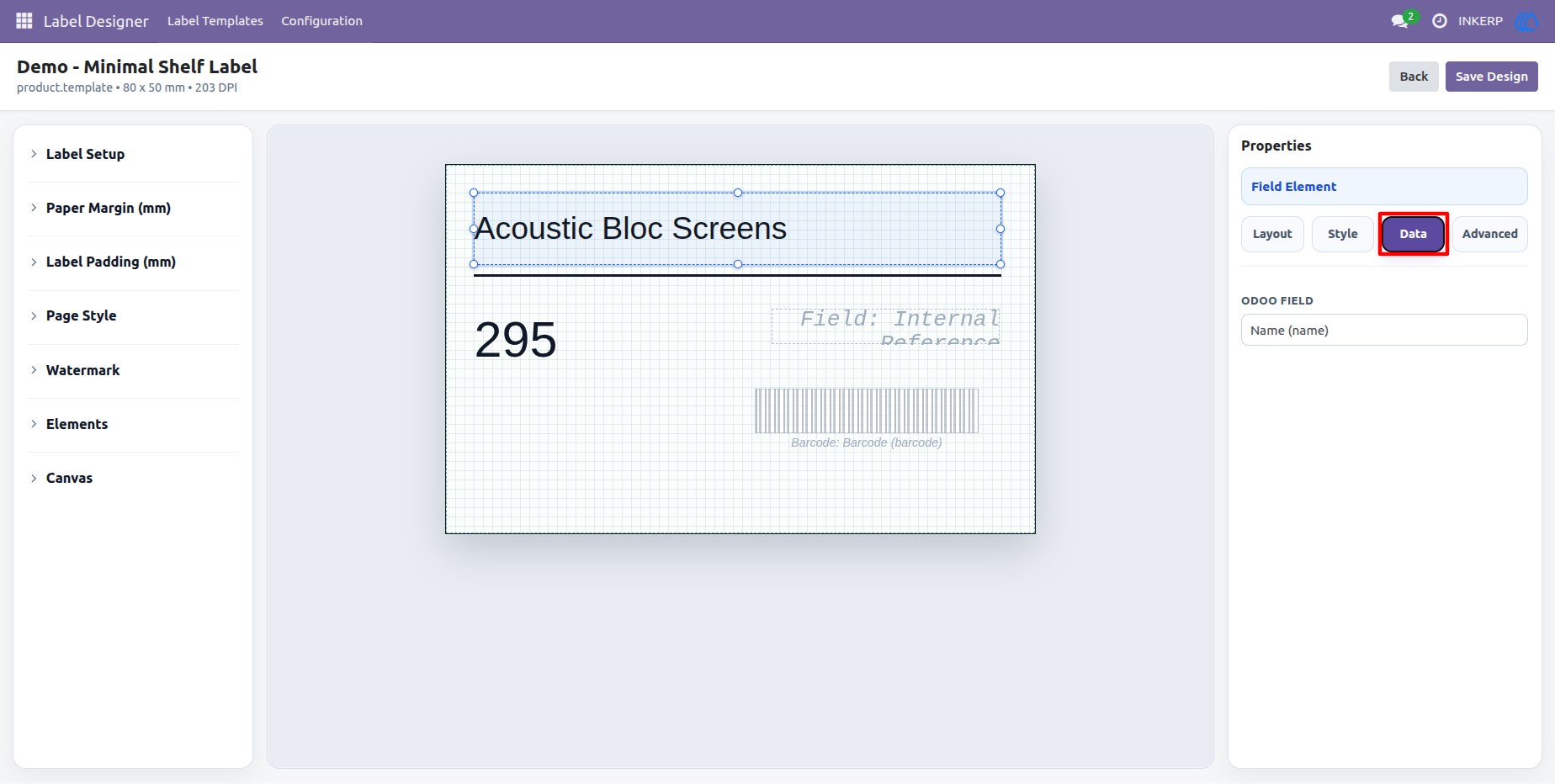
15.) Data Properties Tab
The Data tab is used to map Odoo fields, enter static values, upload images, and configure barcode or QR code values. This makes dynamic labels easy to manage without editing the full design layout.
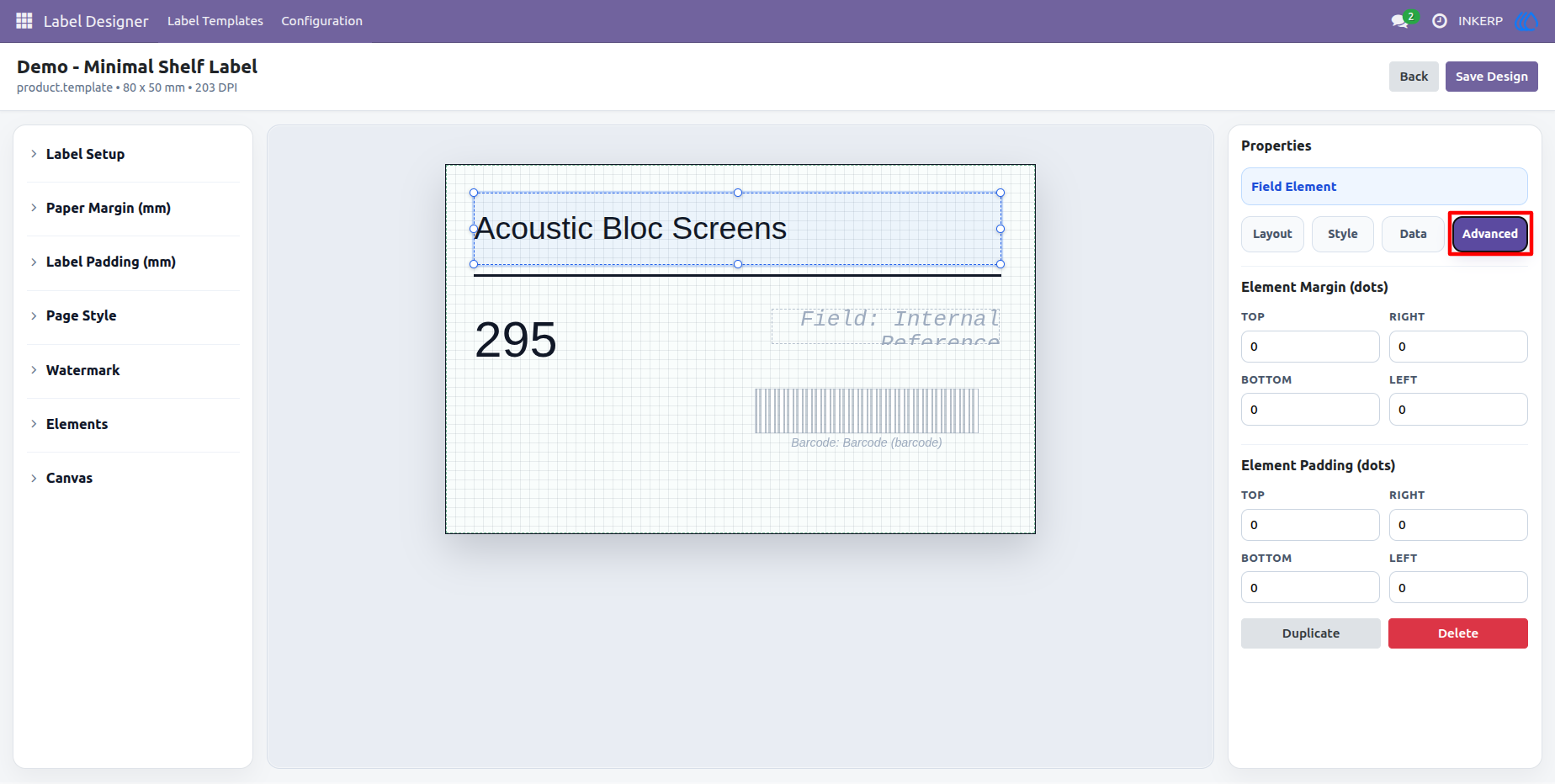
16.) Advanced Element Spacing
Fine-tune the selected label element using the Advanced properties tab. Users can define individual margin and padding values for the top, right, bottom, and left sides while previewing the changes directly on the design canvas. The selected element can also be duplicated for faster layout creation or deleted when it is no longer required.
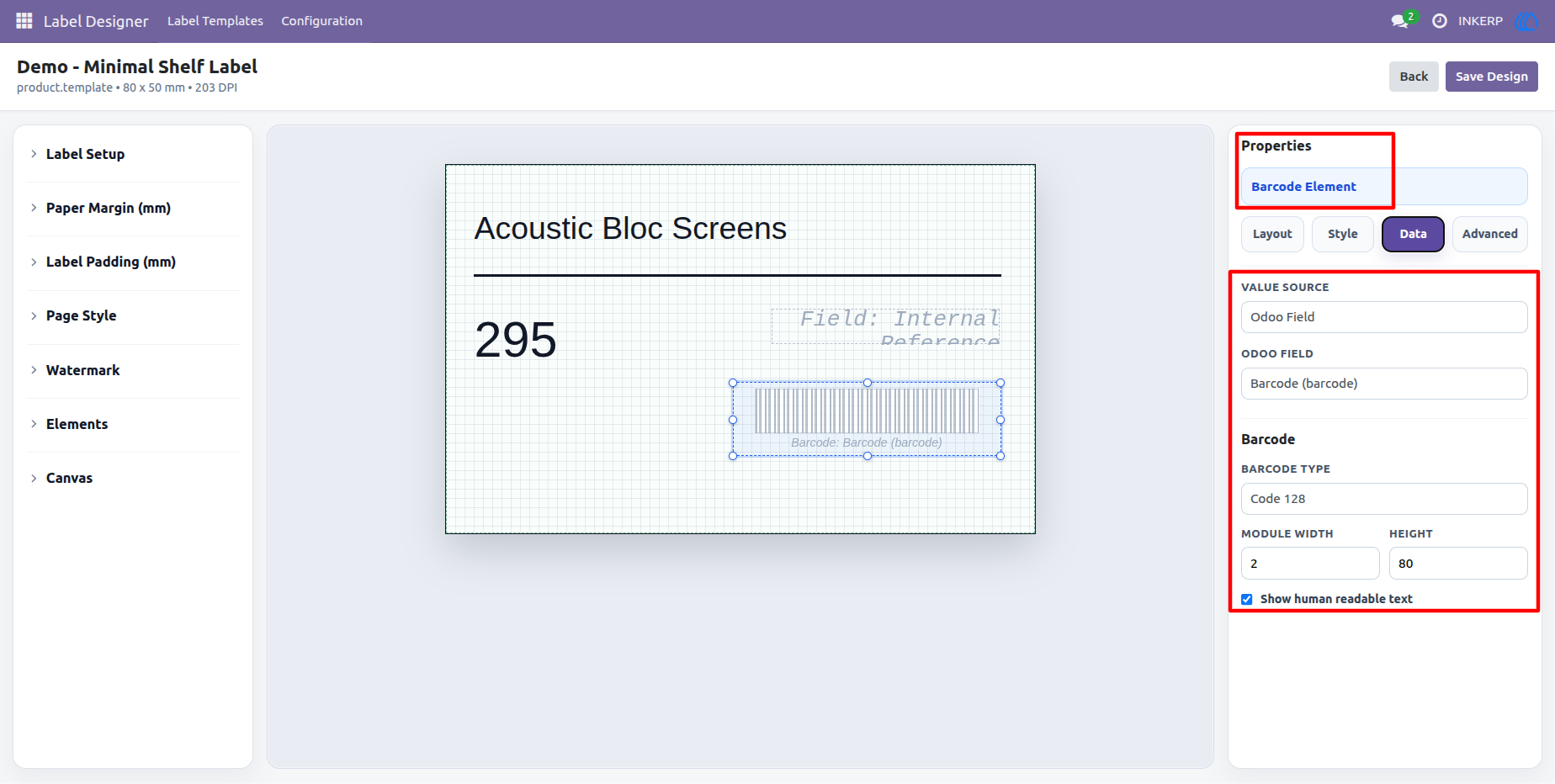
17.) Barcode Element Configuration
Barcode elements can be selected and configured from the right-side properties panel. Users can set barcode type, mapped field, size, and display options for practical scanning use.
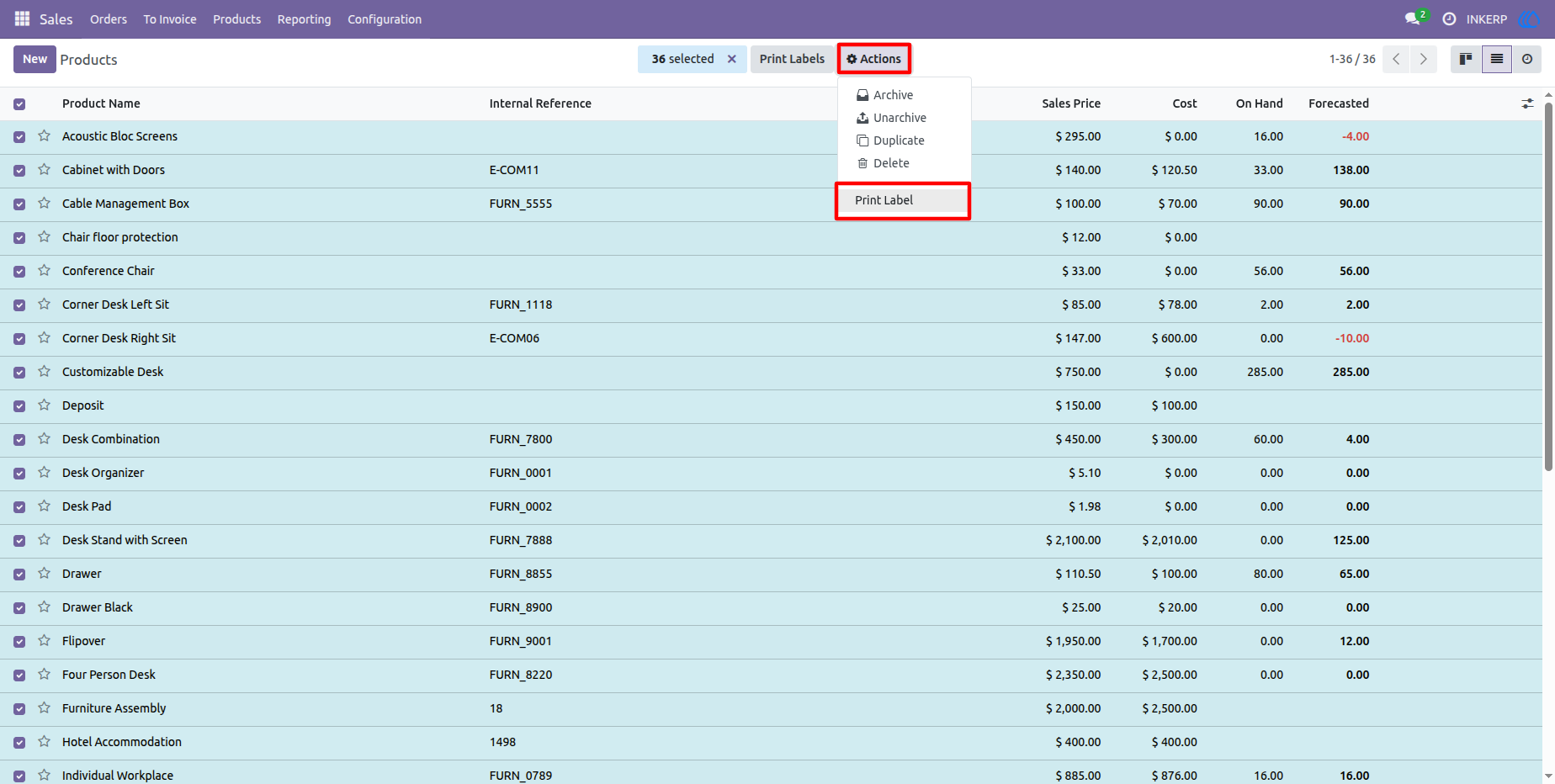
18.) Print Label Action from Products
Users can select multiple product records and open the Print Labels wizard directly from the product list. This speeds up bulk label generation for inventory, retail, and product catalog workflows.
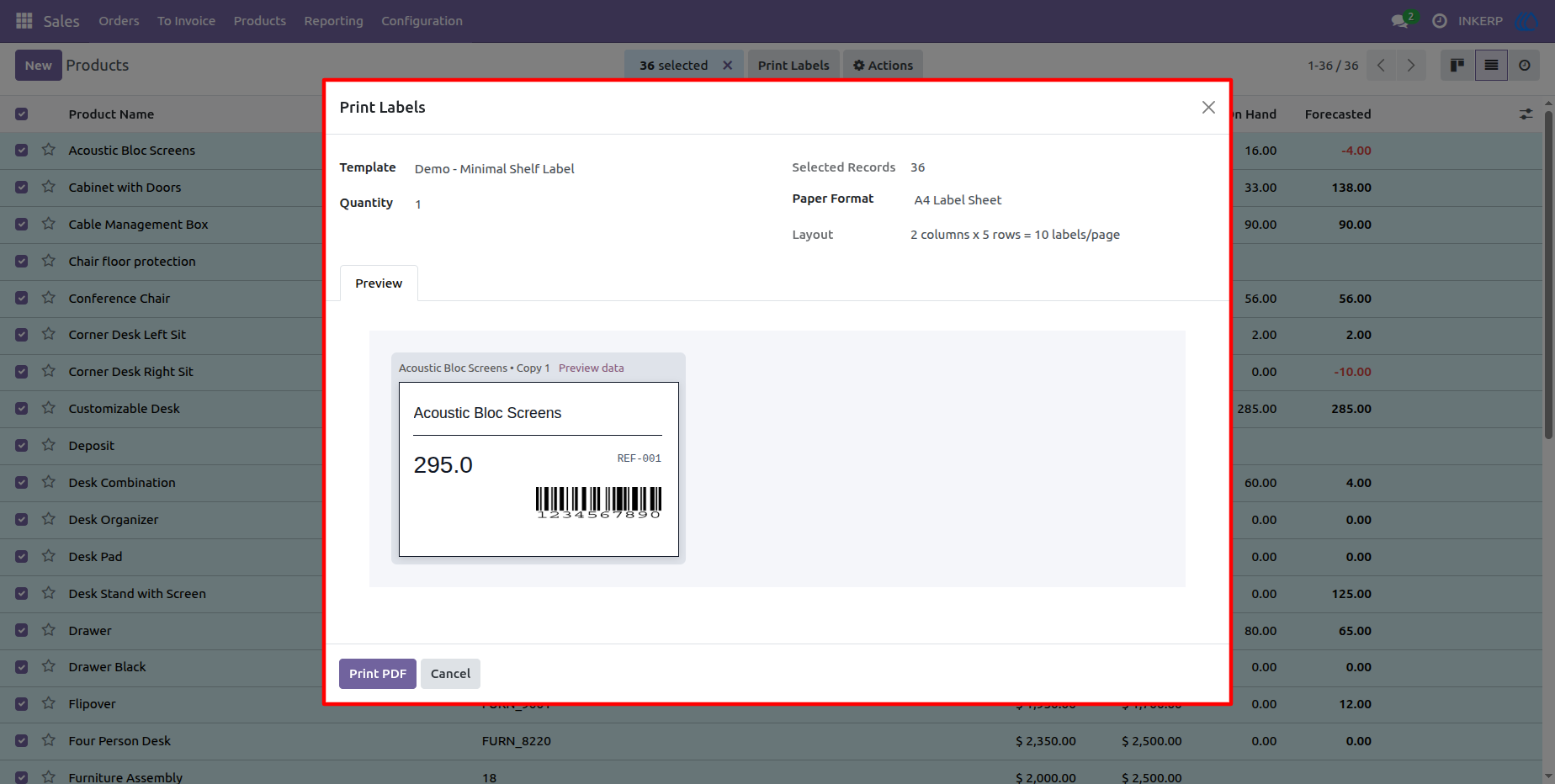
19.) Print Labels Wizard
The print wizard lets users choose a label template, quantity, paper format, and preview the selected design before printing. It helps users confirm the correct template and layout before generating the final PDF.
20.) Generated Label PDF
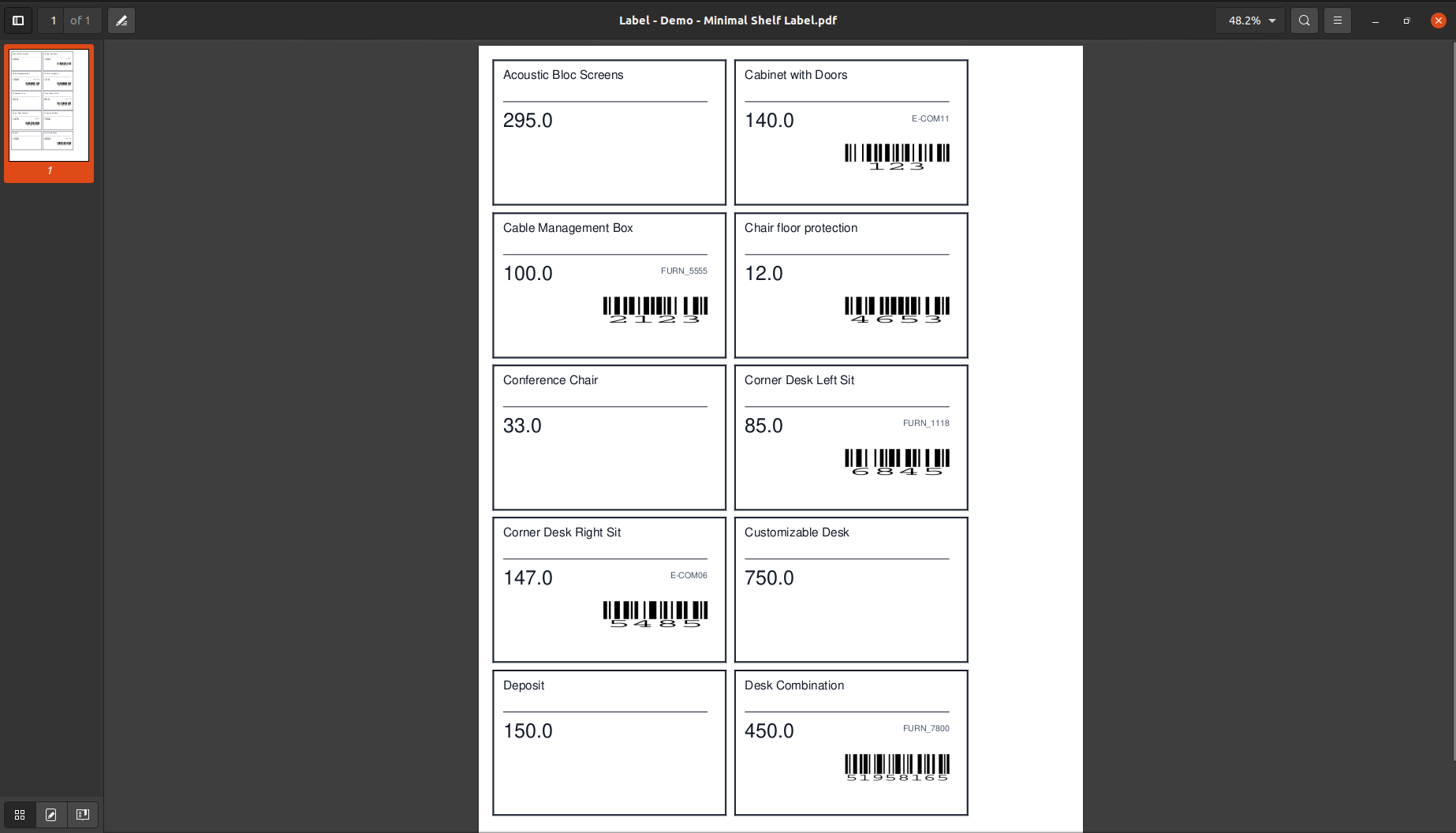
The final PDF arranges labels according to the selected paper format, including multiple labels per page when needed. Users can print product labels, barcode labels, and custom label sheets in a clean printable format.
User Guide