

Our Most Suggested Products


Section In Delivery Slip For Enterprise
This module enhances Odoo's delivery slip by allowing users to add structured sections. It helps businesses organize product lines, group items logically, and present delivery documents in a more professional and readable format. Perfect for companies that want clarity and customization in their logistics paperwork.
 Features
 Screenshots
 Support
 Service
Features
Add Sections in Delivery Slip :
This feature lets you divide your delivery slip into neat sections. You can group products by category, project, or department. It makes the slip easier to read for both staff and customers. Clear sections reduce confusion and improve professional presentation.
Organize Product Lines Clearly :
Instead of showing all items in one long list, you can separate them into groups. For example, raw materials, finished goods, or accessories can be placed in different sections. This helps warehouse teams pick items faster and more accurately. Customers also understand what they are receiving without effort.
Improve Delivery Slip Presentation :
Sections make the slip look clean and well-structured. It avoids clutter and makes large orders easier to follow. Professional formatting builds trust with your customers. Your delivery slips become more than just paperwork they reflect your brand
Screenshot
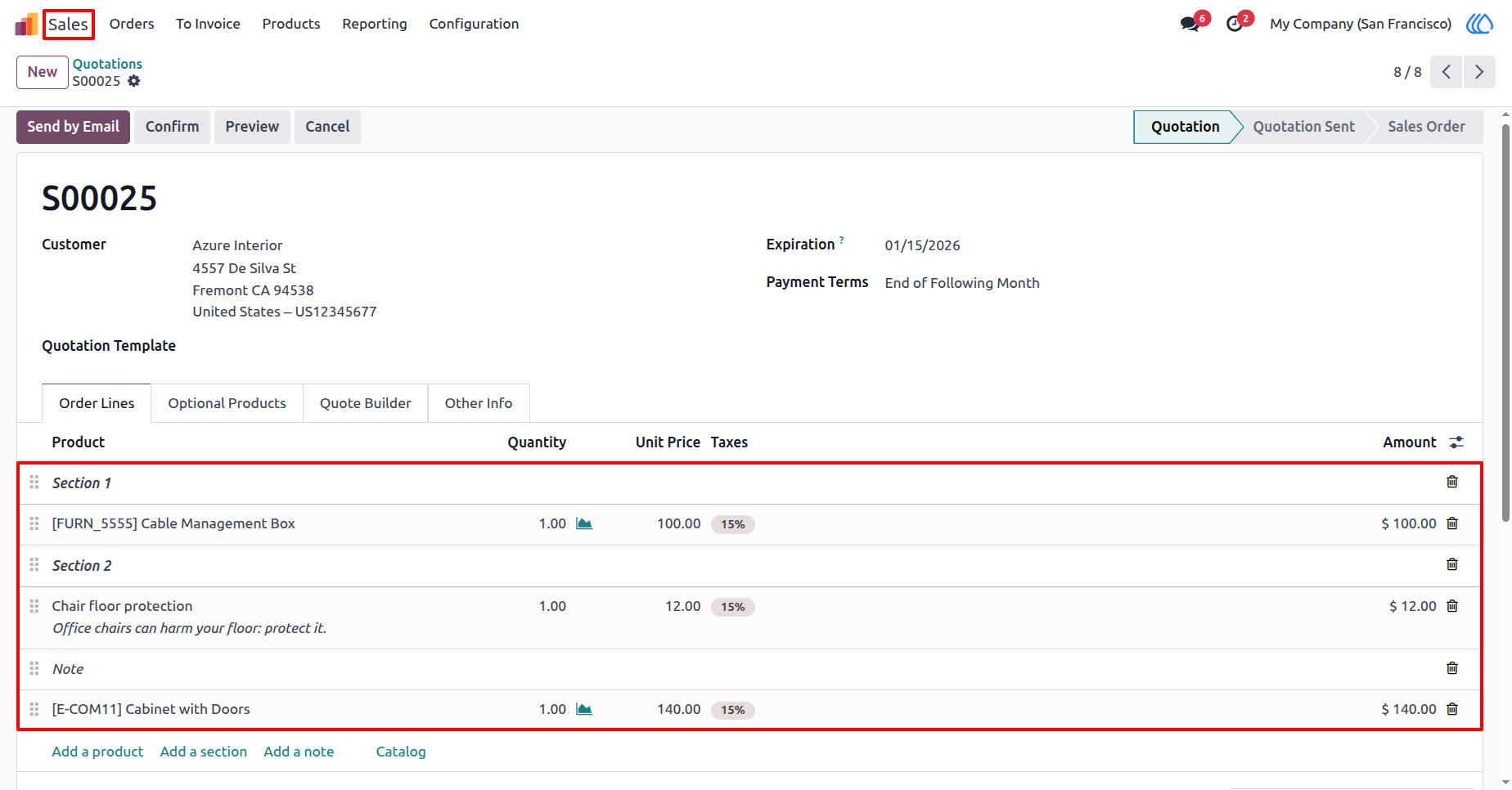
1) Sale Order Form View
Here, user can see sale order line with products, sections and notes.
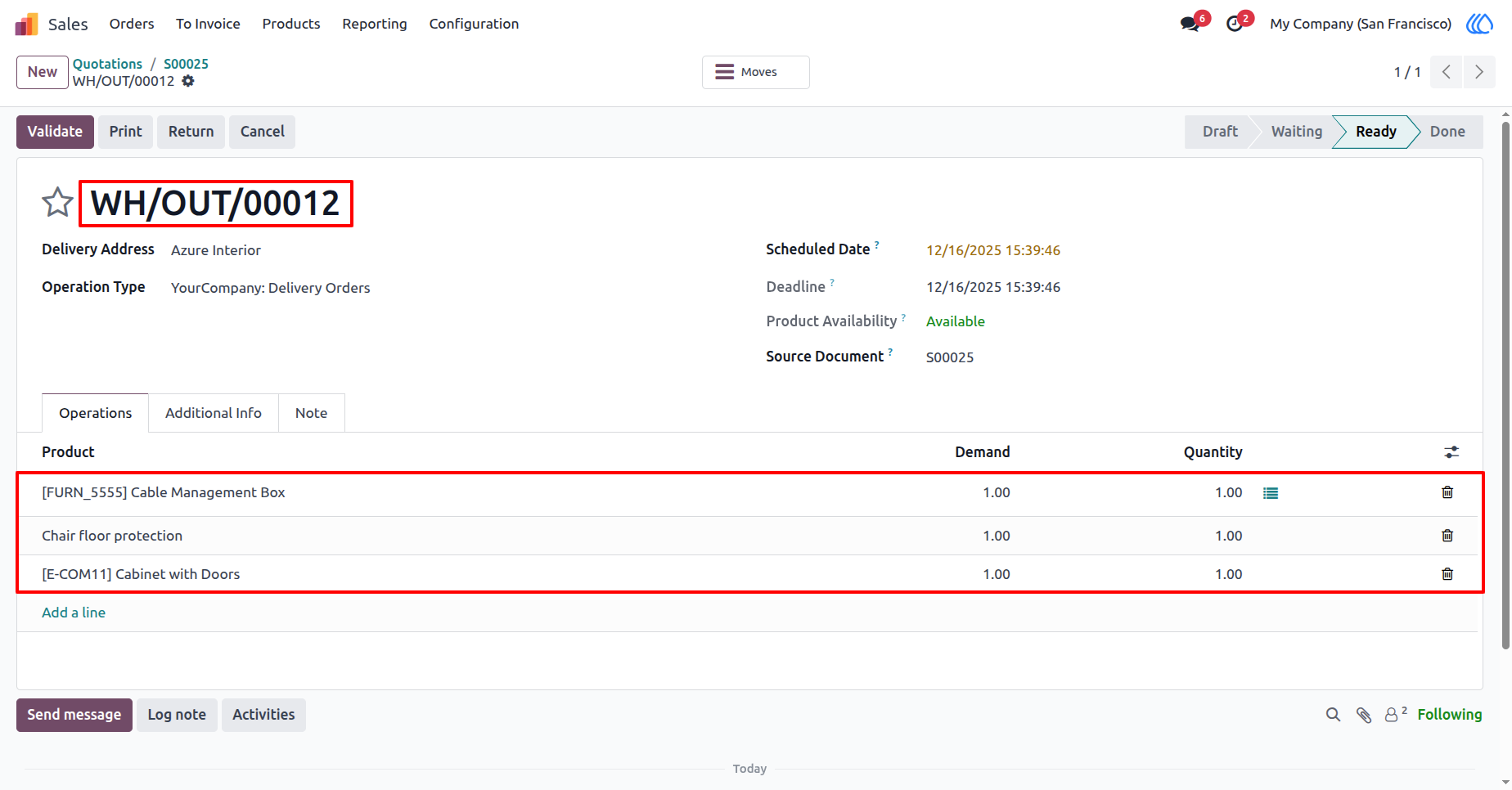
2) Stock Picking Form View
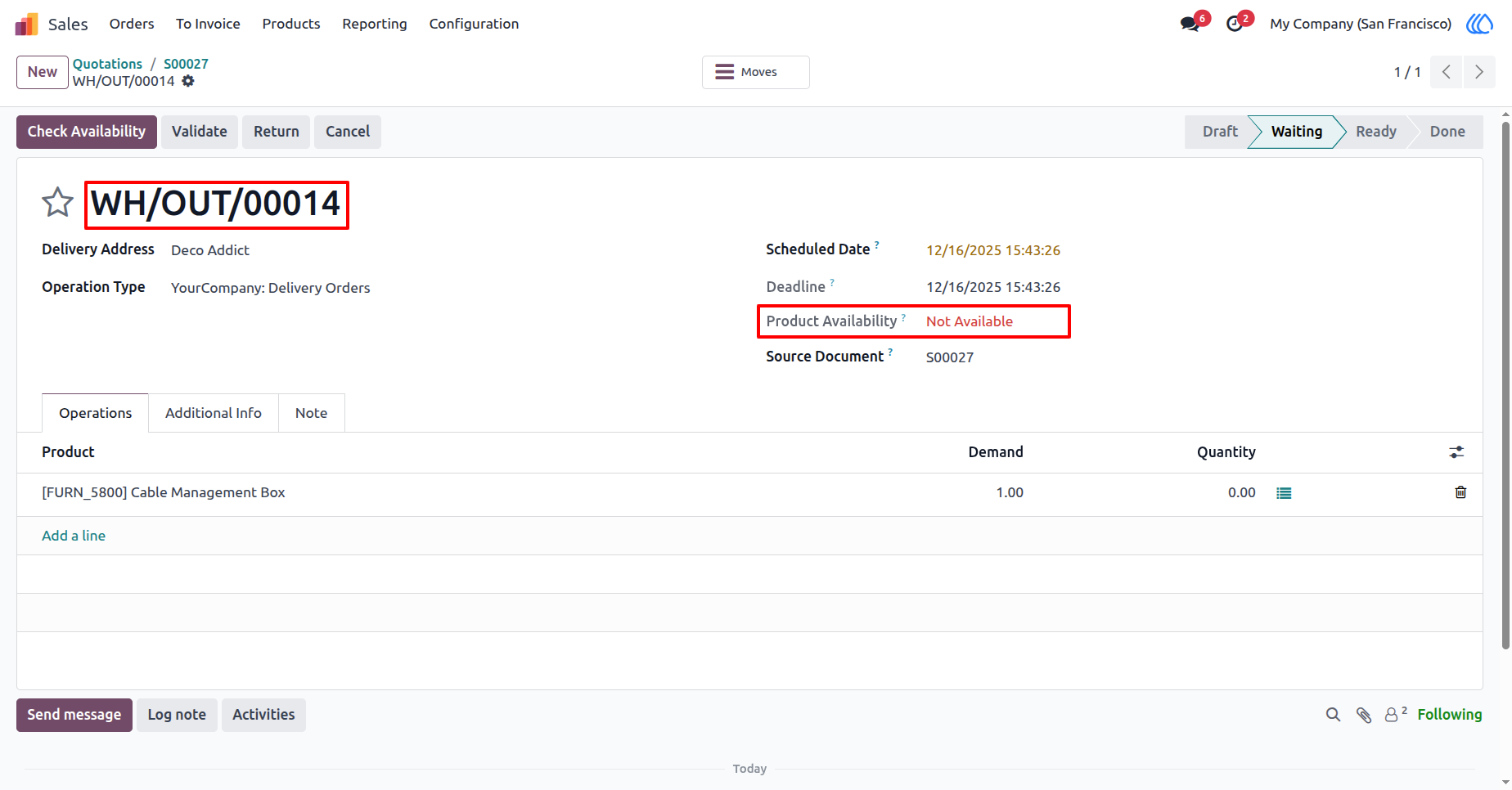
When the user clicks the Confirm button in the Sales Order, a corresponding picking will be generated as shown below.
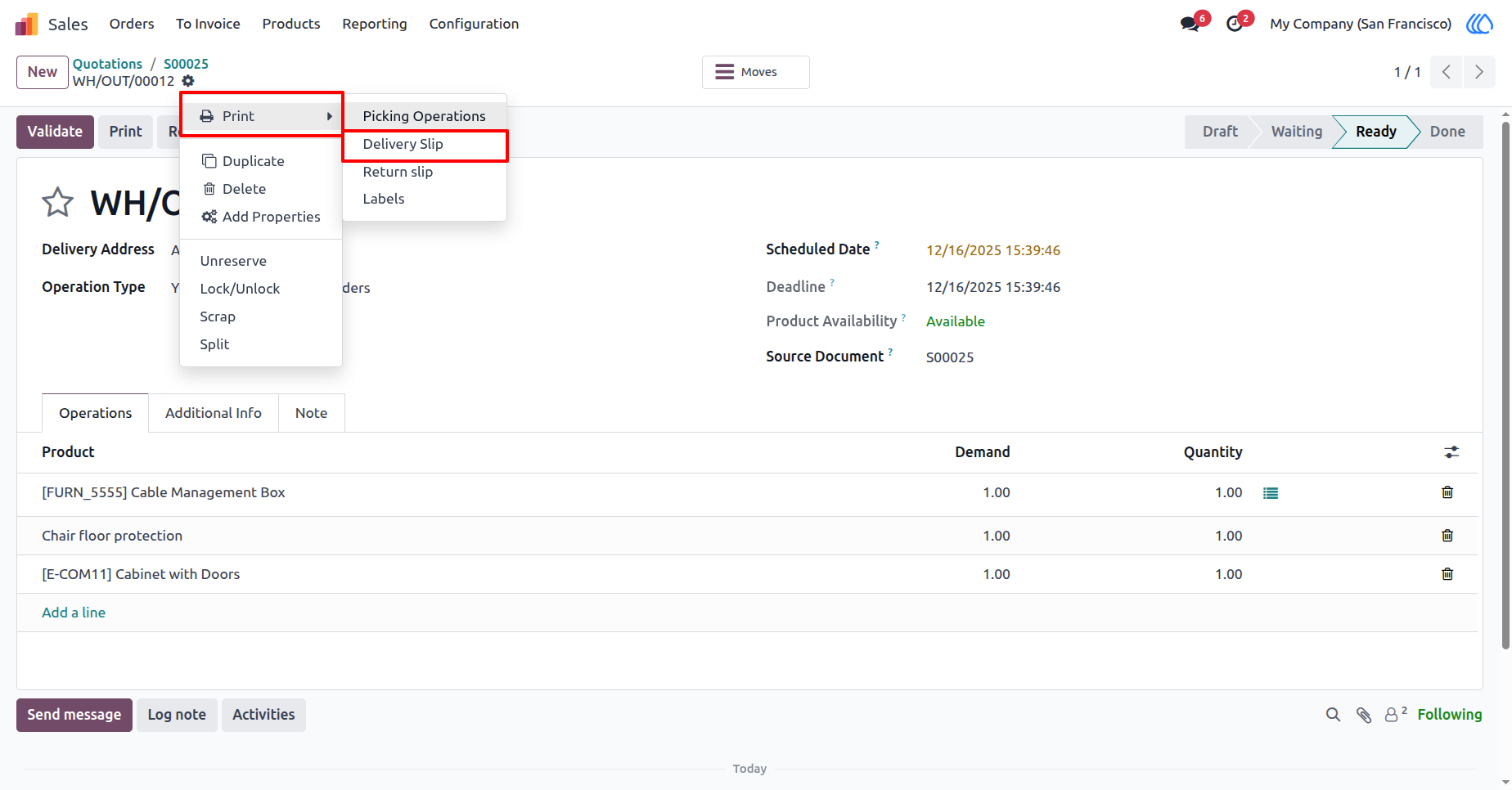
3) Stock Picking Form View
To print the delivery slip, click on Print and then select Delivery Slip.
Navigation : Actions › Print › Delivery Slip
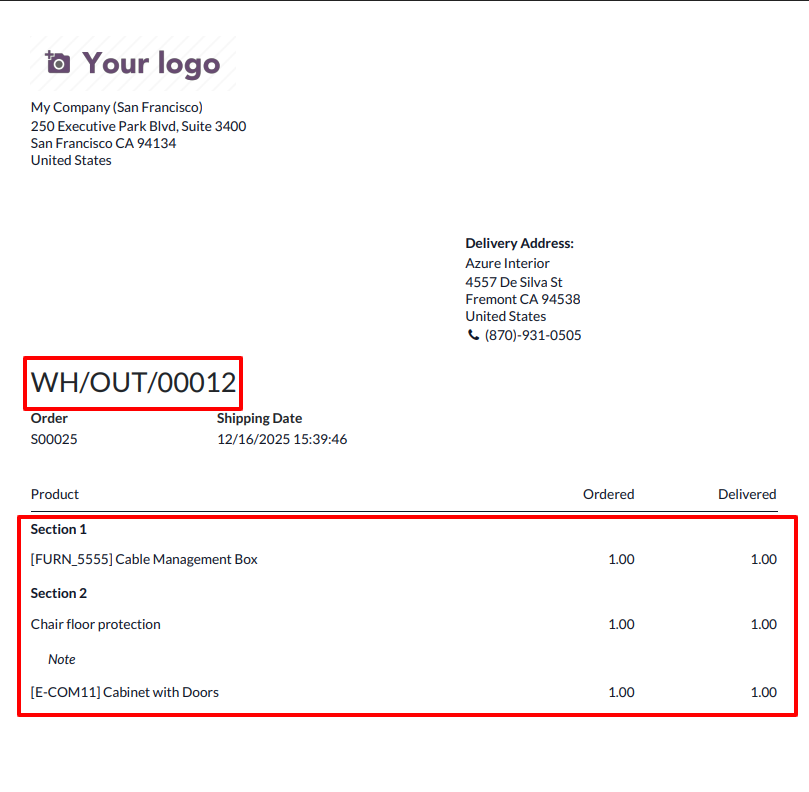
4) Delivry Slip Report View
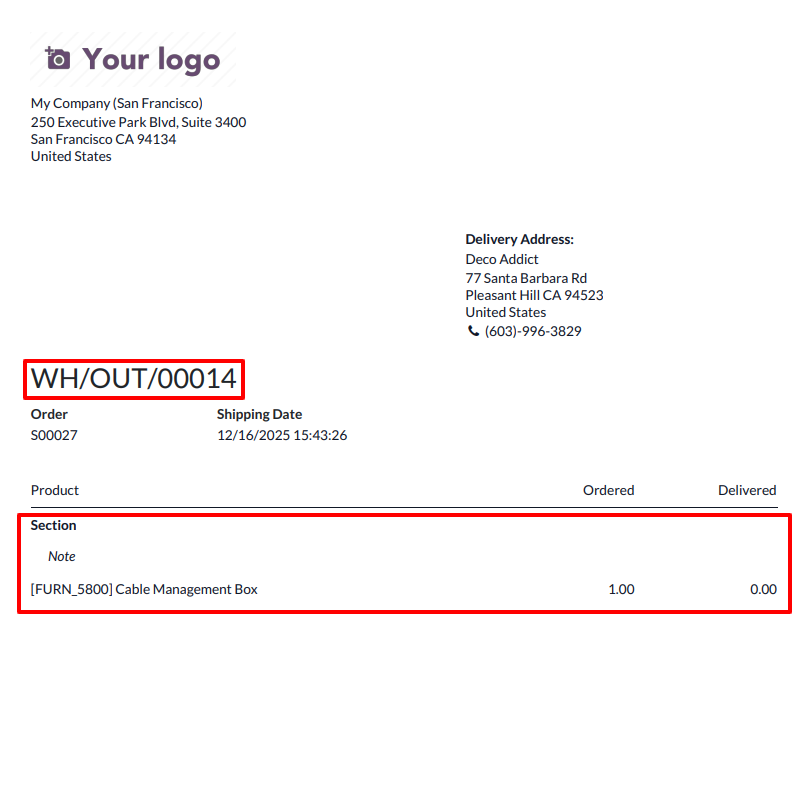
After clicking on Delivery Slip, the picking will be generated with sections and noted lines exactly as defined in the corresponding Sales Order.
5) Stock Picking Form View
6) Delivry Slip Report View
User Guide