

Our Most Suggested Products


Easyship Shipping Connector
Easyship Shipping Connector brings Easyship shipping services directly into your Odoo delivery workflow. It lets users configure Easyship API credentials, check the connection, retrieve available courier rates, choose a shipping service, and create shipments without leaving the normal sales and delivery process. The connector also manages tracking references, shipping labels, package-based split shipments, supported return labels, and shipment cancellation, helping businesses reduce manual shipping work and keep delivery information organized in one place.
 Features
 Screenshots
 Support
 Service

Features
Easyship API Configuration & Connection Test
Configure the Easyship API key and shipping environment from the delivery method settings. The built-in connection test helps administrators confirm that the credentials and endpoint are working before shipping operations begin.
Live Courier Rates & Service Selection
Retrieve available Easyship courier services directly from the sales order shipping flow, including estimated delivery time and cost. Users can compare the returned options and select the service that best fits the order.
Tracking & Package-Based Split Shipments
Track Easyship shipments from the delivery order and keep package-level tracking references for split deliveries. Each Odoo package can be handled as an individual Easyship shipment with its own tracking information and label.
Automatic Shipment Creation & Shipping Labels
Once a delivery is validated, the connector can create the Easyship shipment using the order and parcel information. Generated shipping labels can be retrieved and stored with the delivery, making them easy to access when preparing the package.
Screenshot
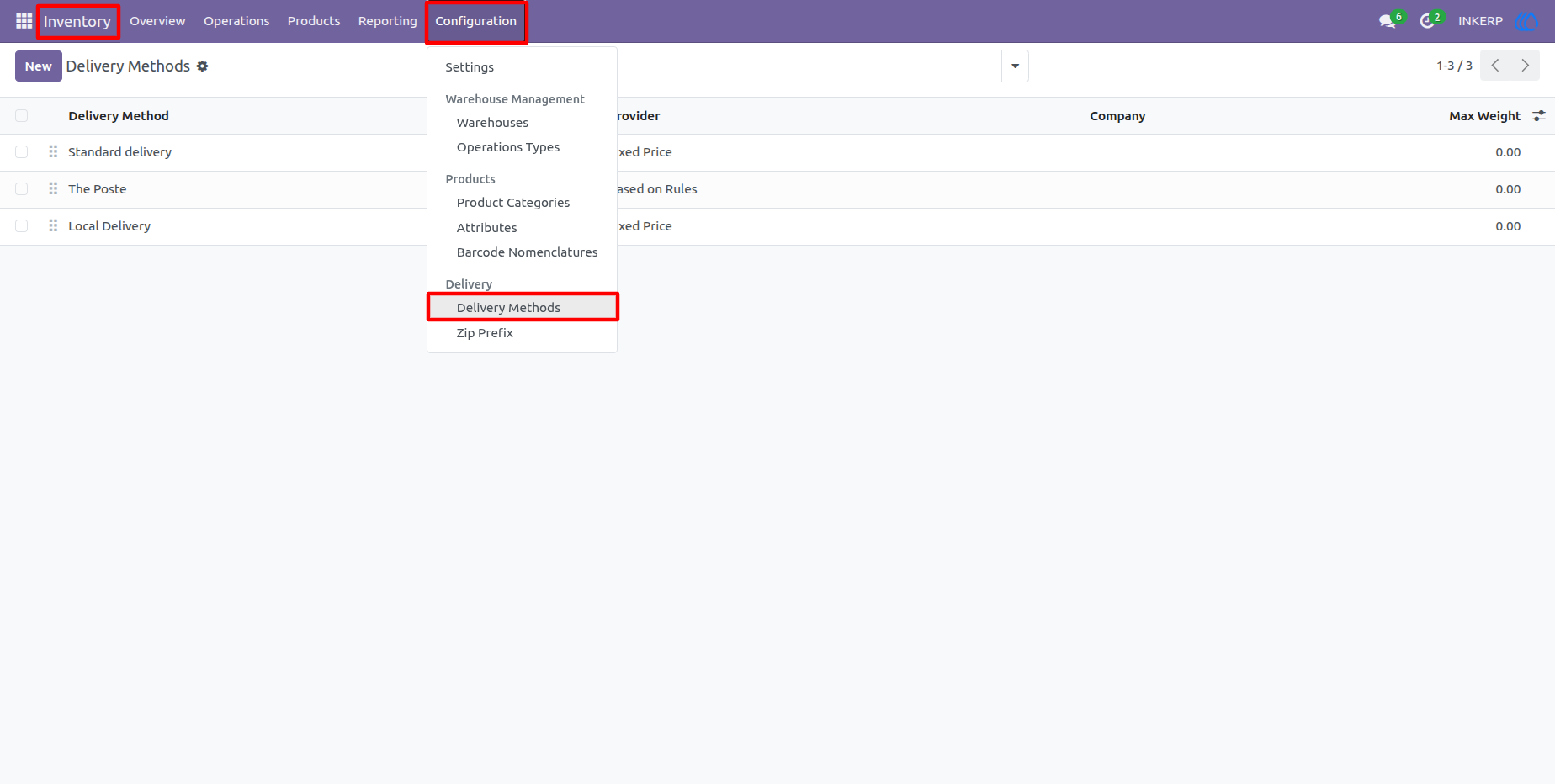
1.) Delivery Methods
Open the Delivery Methods configuration to create or manage the shipping method used for Easyship. This is the starting point for connecting Easyship with the company's delivery workflow.
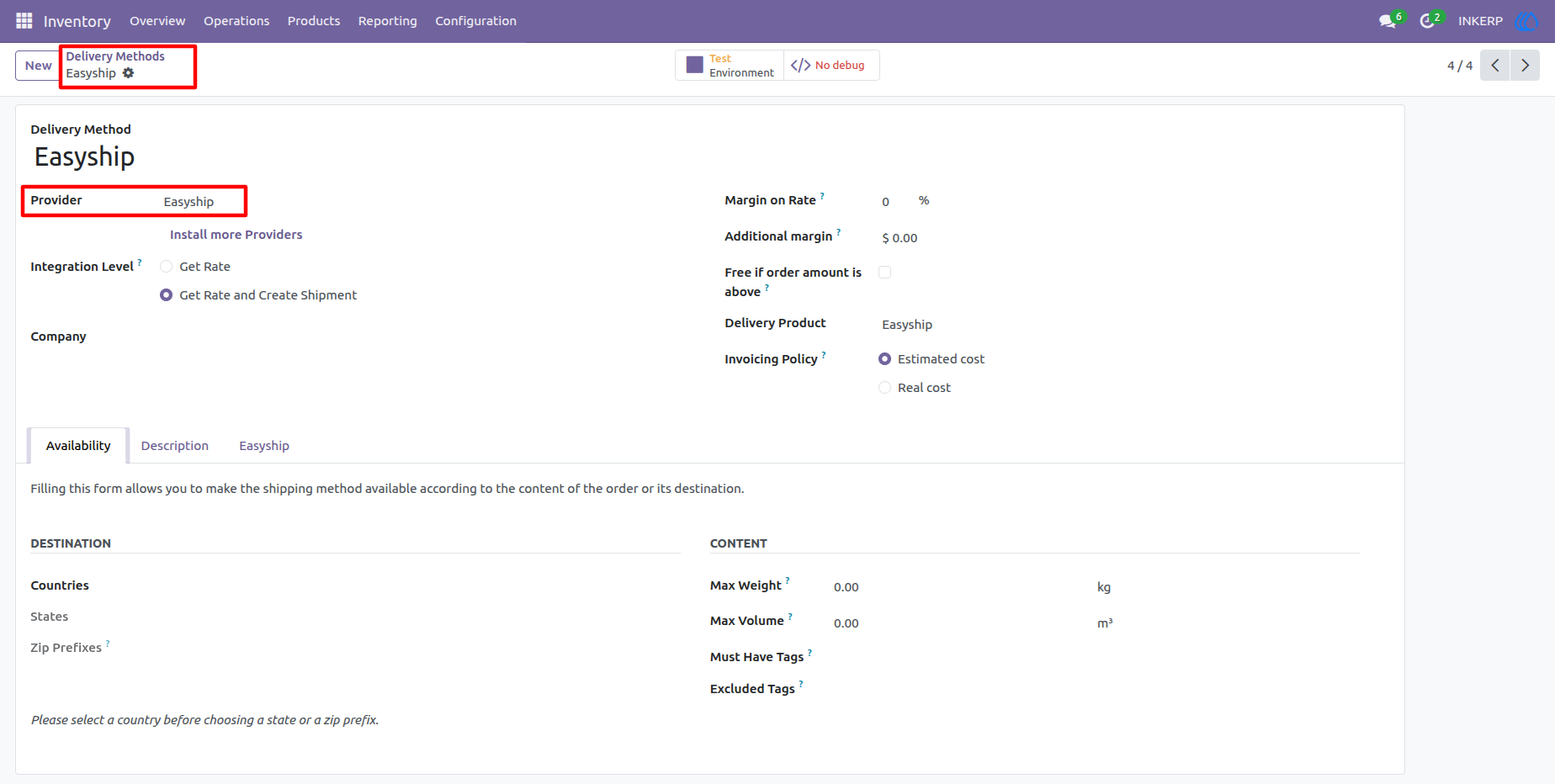
2.) Easyship Provider Configuration
Select Easyship as the delivery provider and review the available carrier settings. From here, administrators can prepare the shipping method for API-based rate and shipment operations.
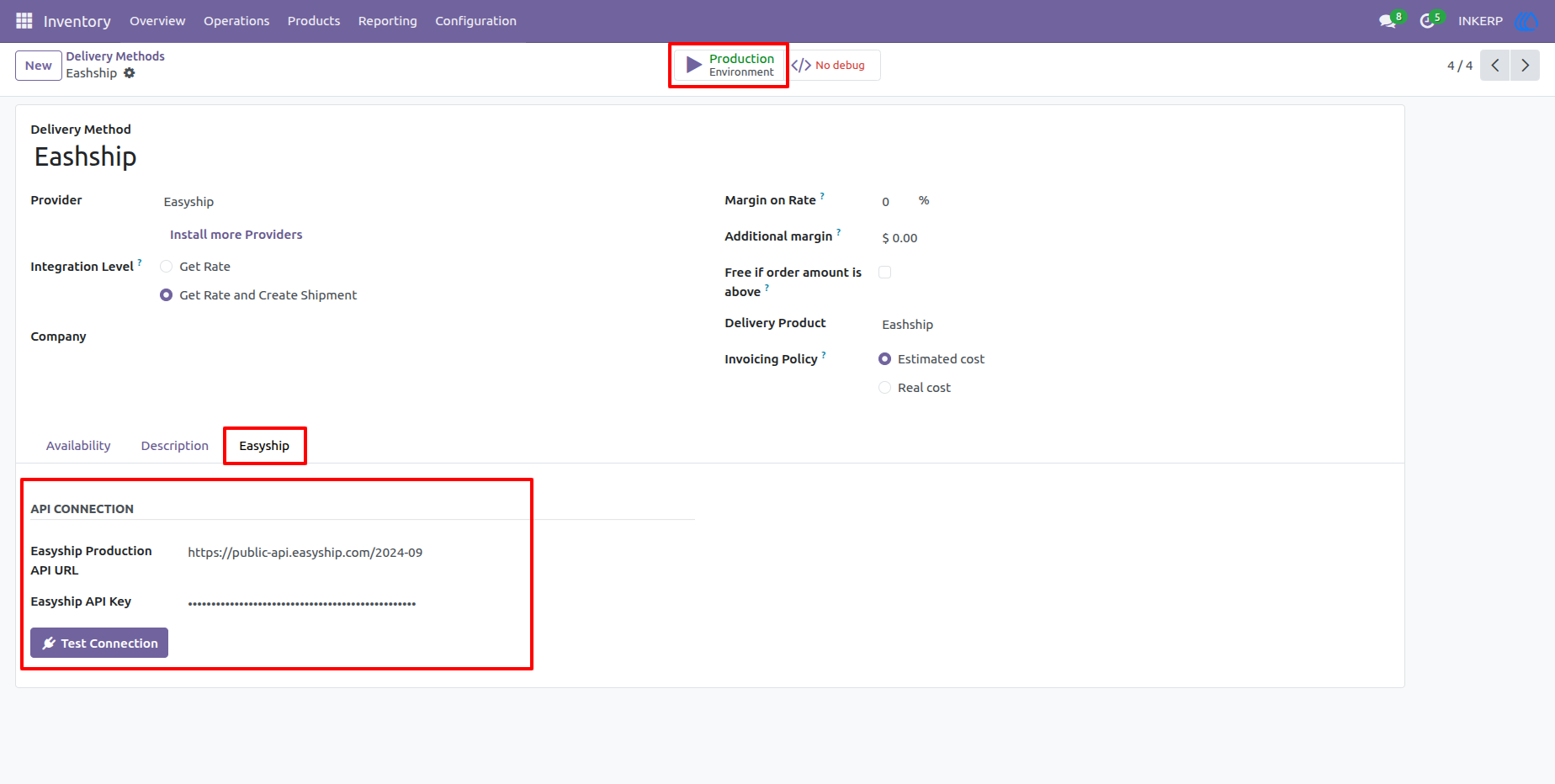
3.) Production API Configuration
Enter the Easyship production API details when the carrier is ready for live shipping. The API key and production endpoint provide the connection required for live courier rates and shipment processing.
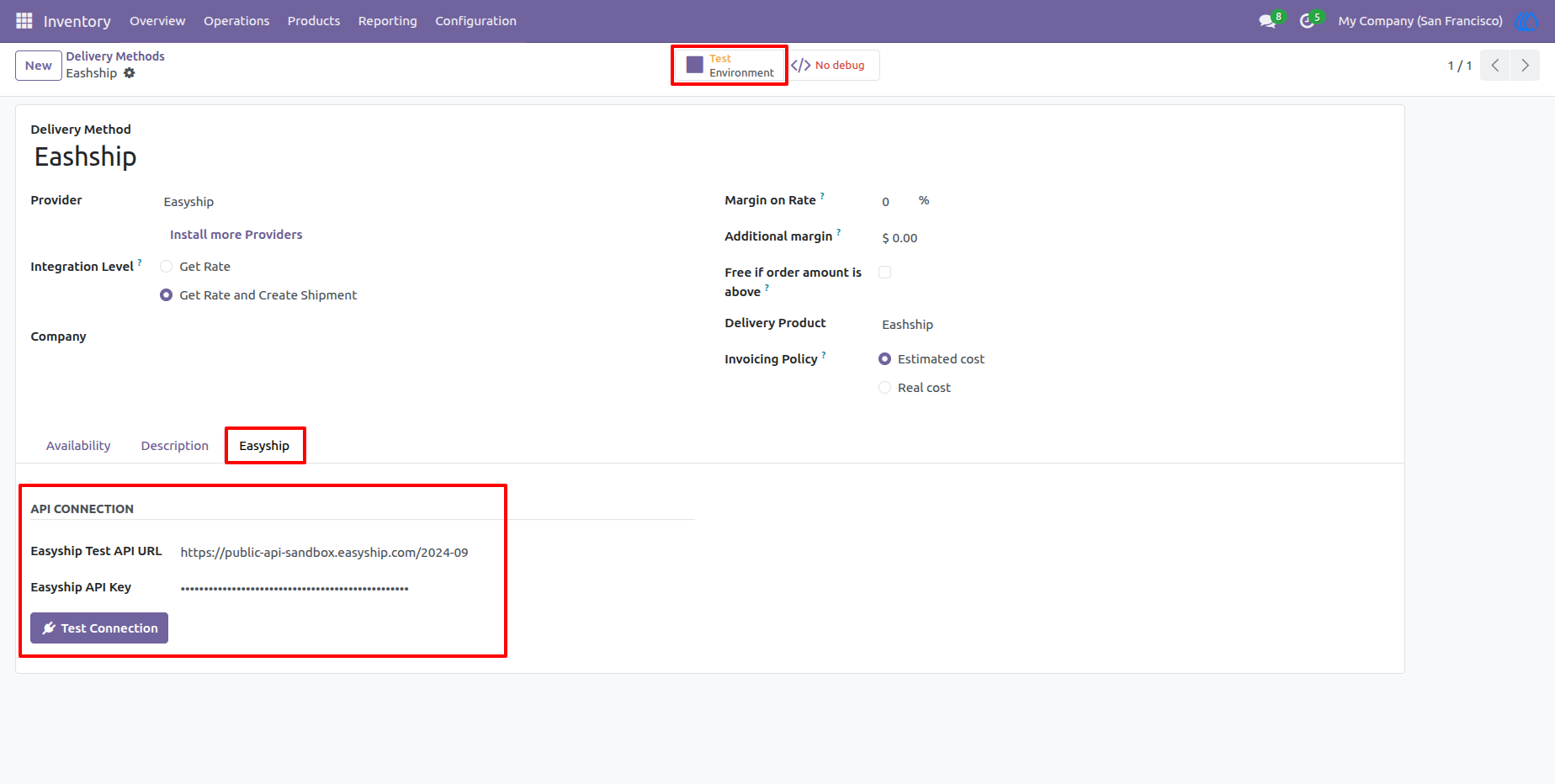
4.) Test Environment Configuration
Use the test environment to validate the integration before moving to live shipping. Entering the sandbox credentials allows users to verify the connector with test API responses.
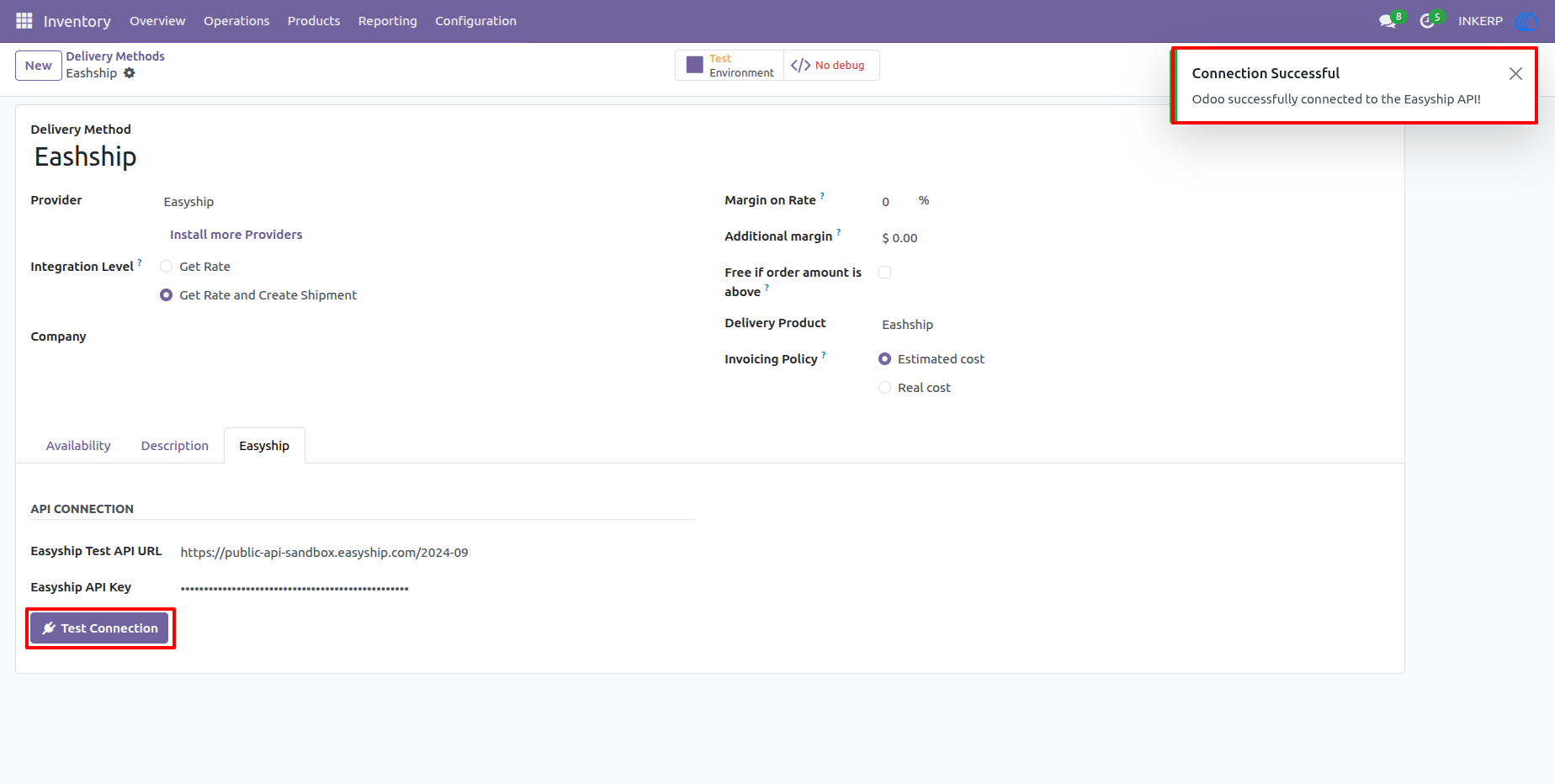
5.) API Connection Test Successful
The connection test confirms that the configured Easyship credentials can communicate with the service. Checking this before processing orders helps prevent avoidable API and authentication issues.
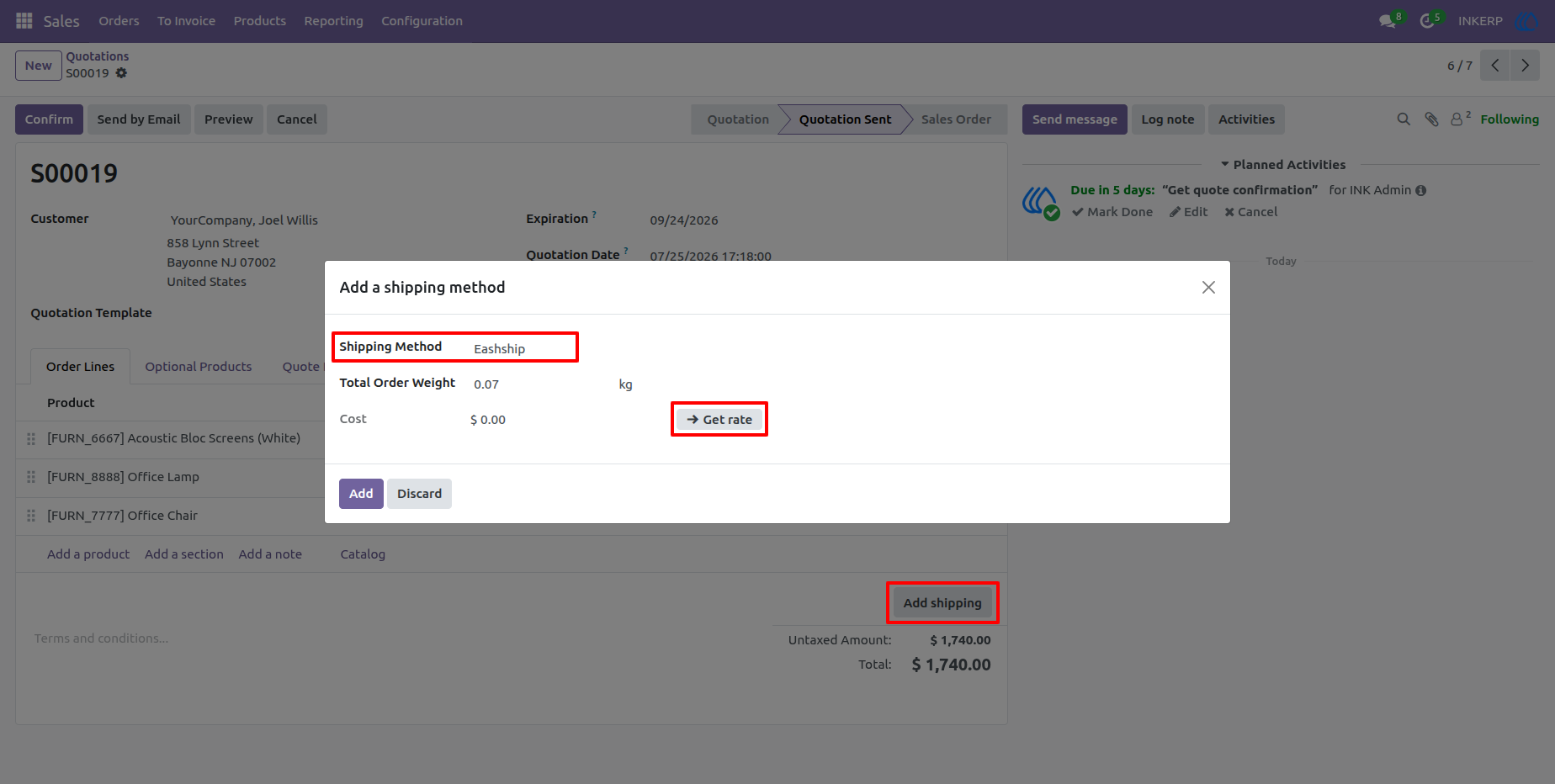
6.) Get Easyship Shipping Rates
From the sales order shipping wizard, request Easyship rates for the current order. The connector uses the shipping addresses, package weight, and product information to request suitable courier options.
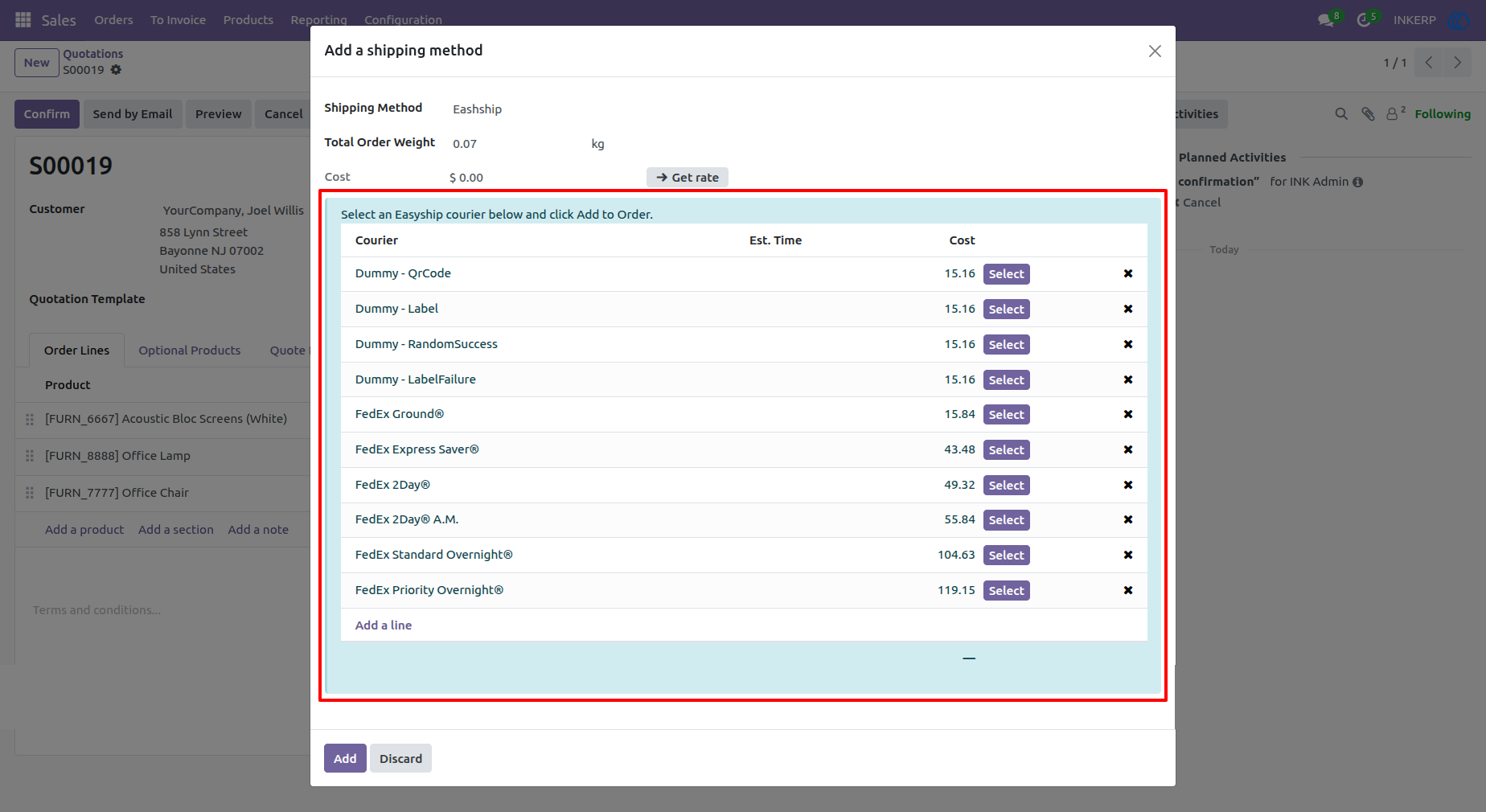
7.) Available Courier Services
Review the courier options returned by Easyship, including service name, estimated delivery time, and cost. The Select action lets the user choose the service that should be used for the order.
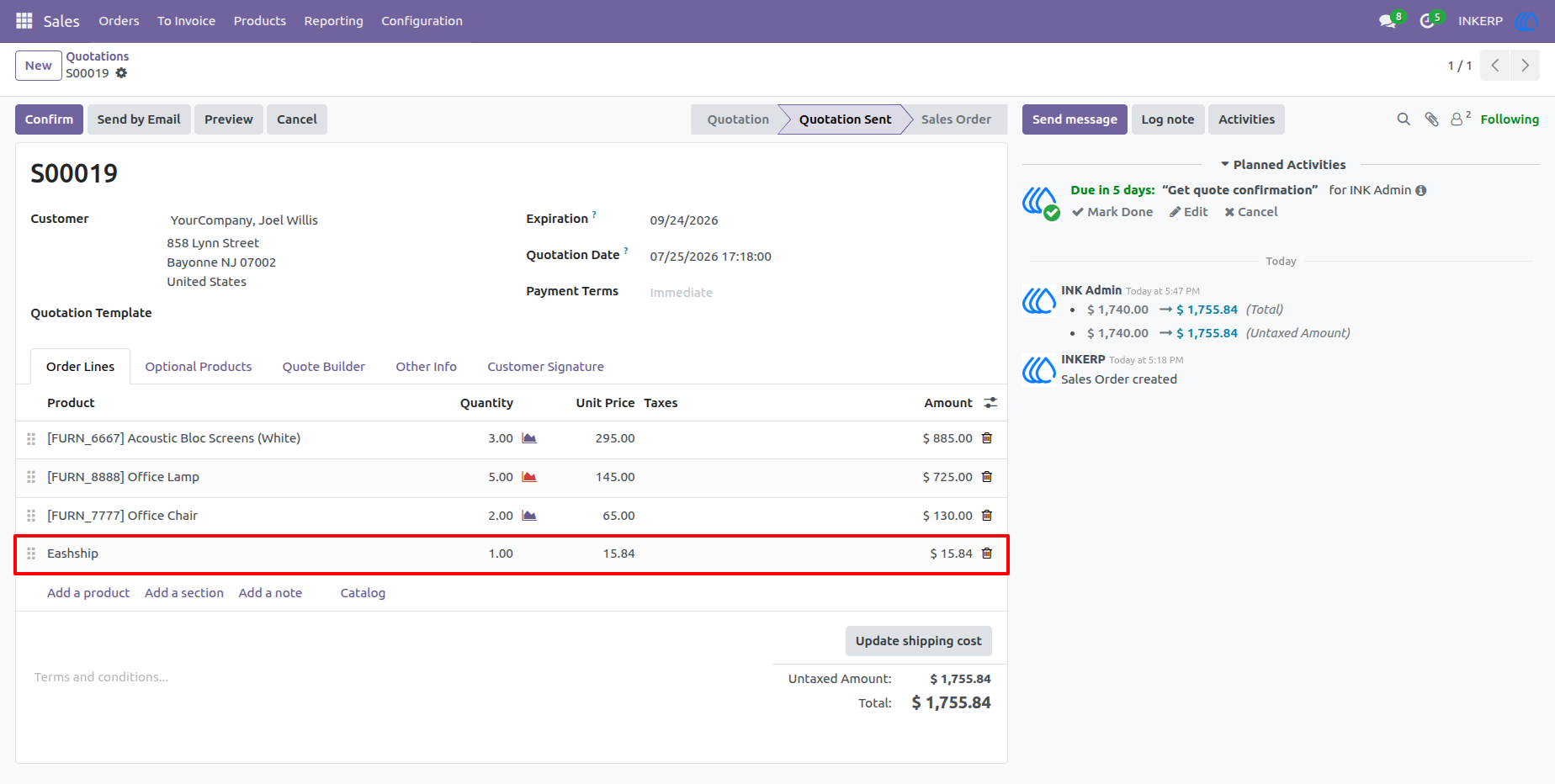
8.) Selected Shipping Service on Sales Order
The chosen Easyship service is added to the sales order as the shipping method. This keeps the selected courier and shipping charge connected to the order before fulfillment begins.
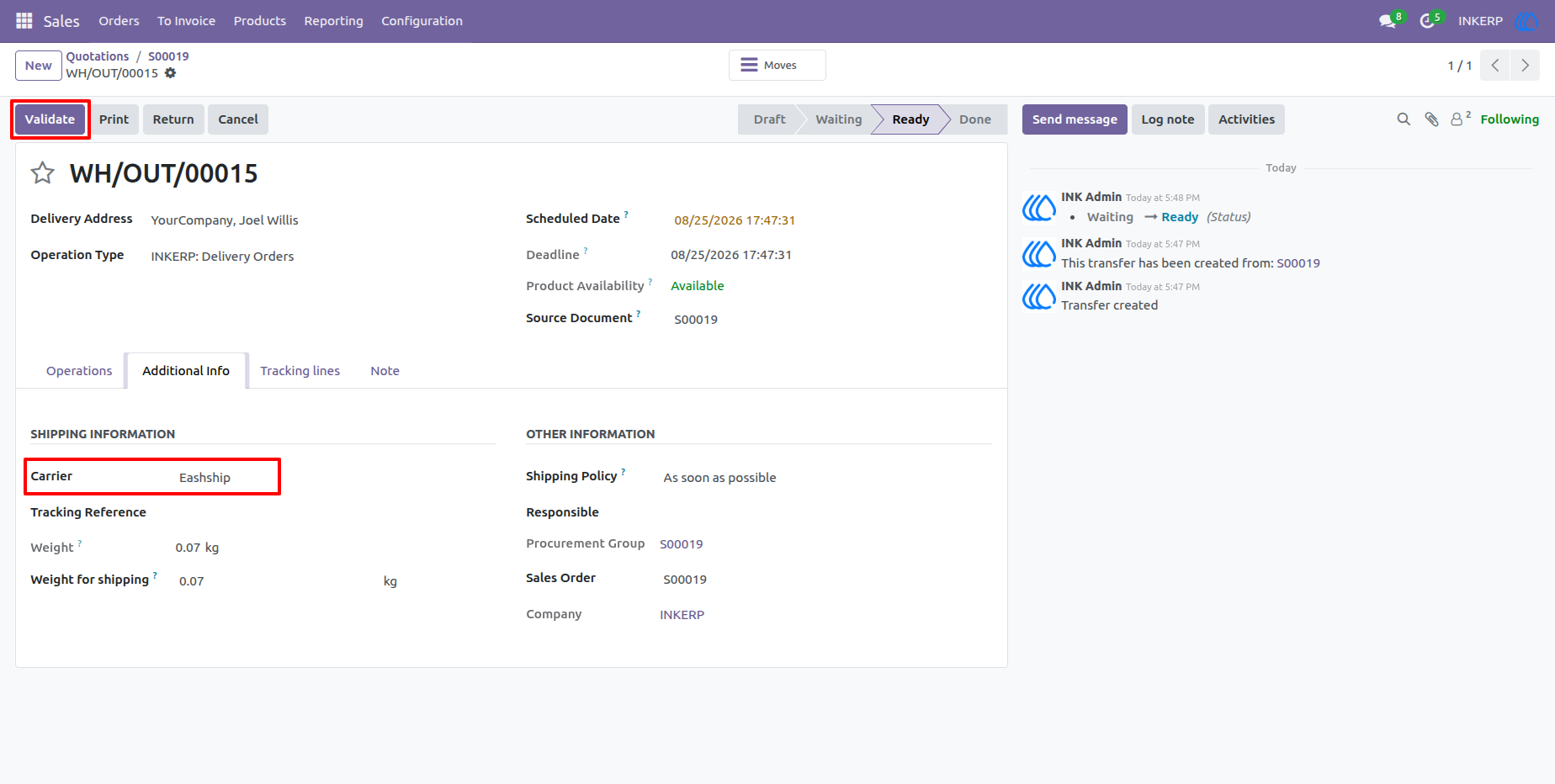
9.) Delivery Order Before Shipment
The delivery order identifies Easyship as the carrier before the shipment is completed. Users can review the delivery details and prepare the order for validation.
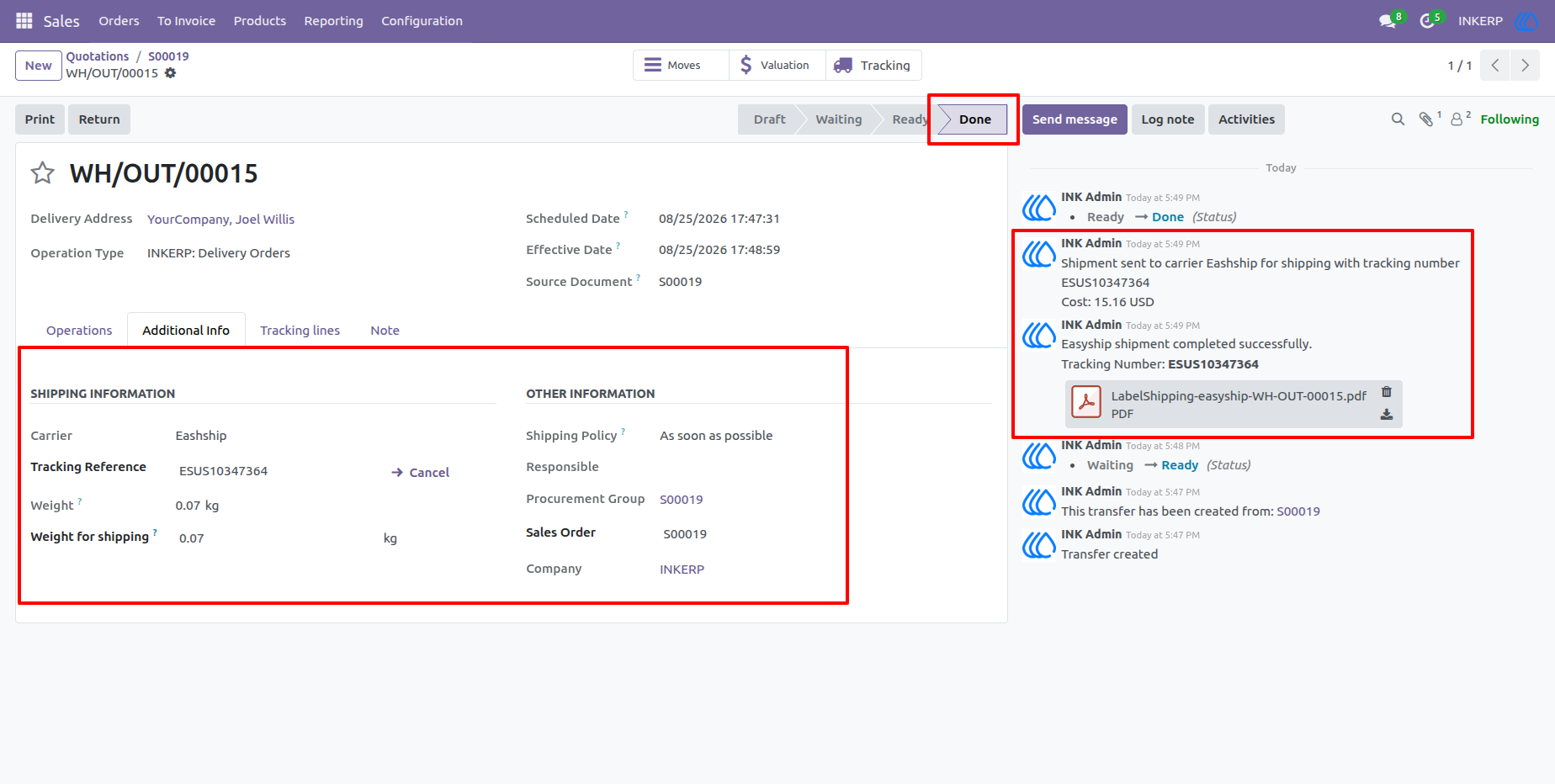
10.) Completed Delivery with Tracking
After validation, the delivery contains the Easyship shipment and tracking information. The chatter also provides a useful history of shipment completion and tracking-related updates.
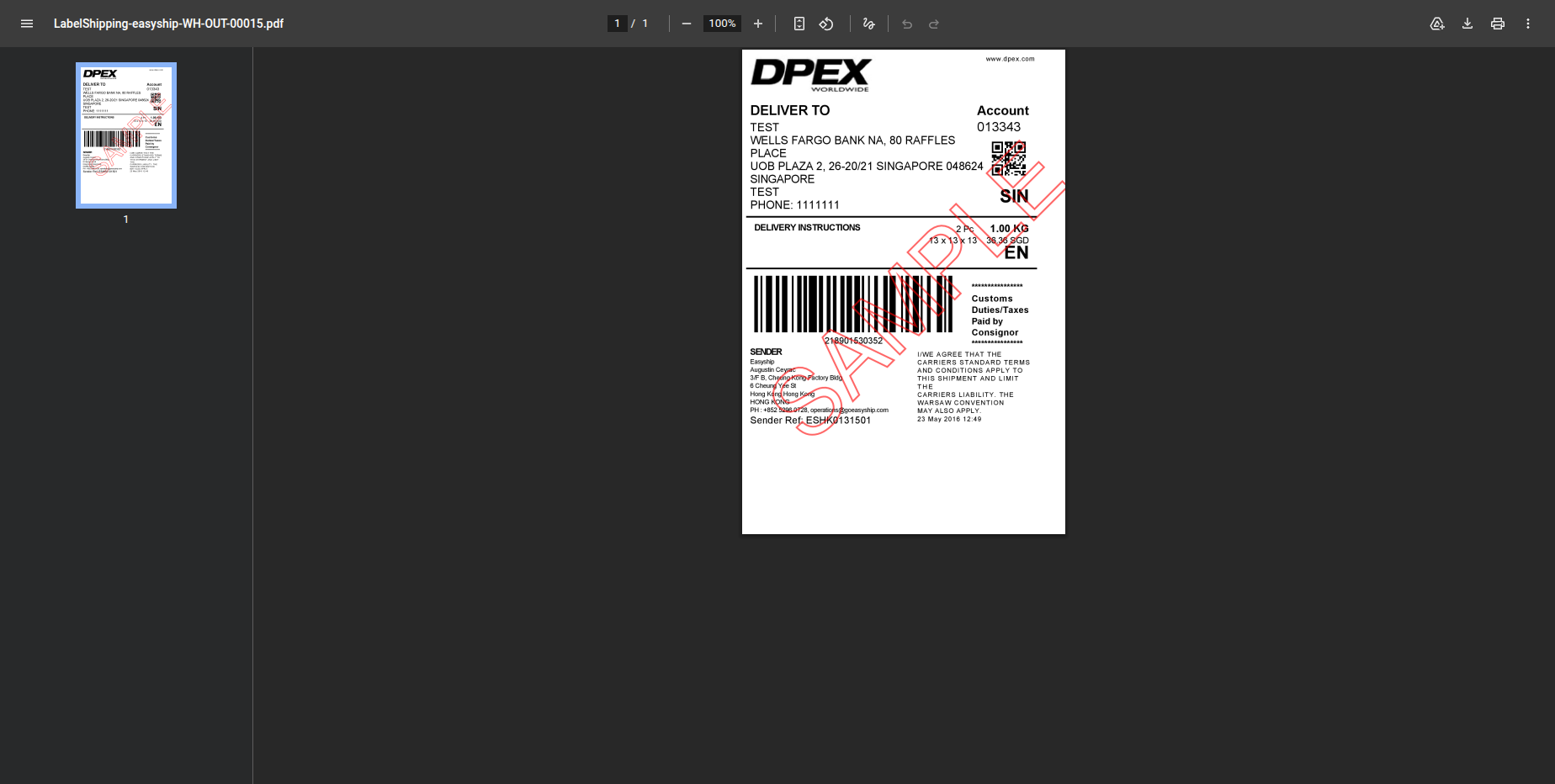
11.) Easyship Shipping Label
The generated shipping label is available with the delivery record for fulfillment use. Keeping the label attached to the delivery makes it easier for warehouse users to retrieve and print it when needed.
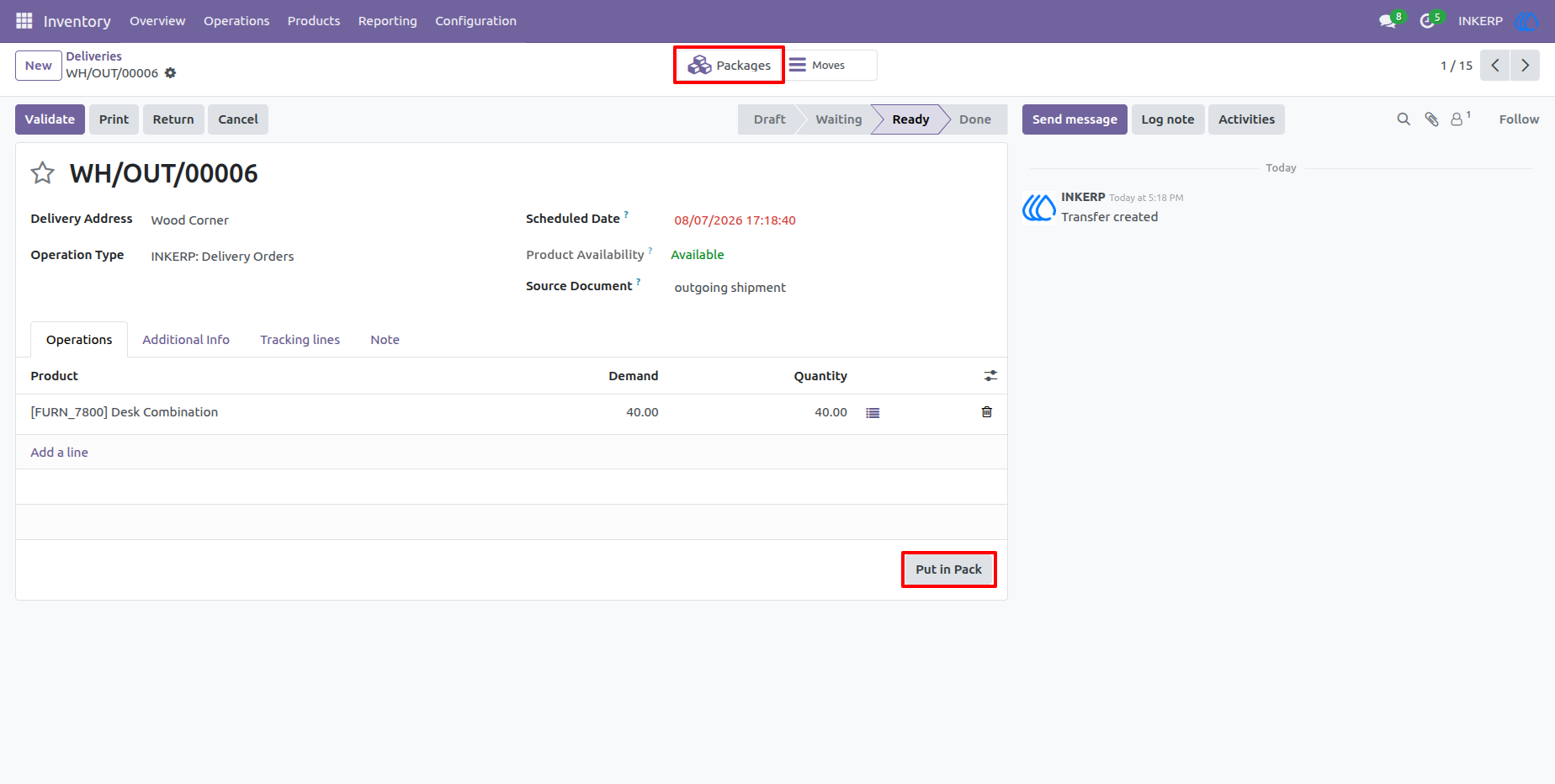
12.) Package-Based Delivery Preparation
Use package handling to place delivery items into packages before completion. This setup is useful when one customer order needs to be shipped as multiple Easyship parcels.
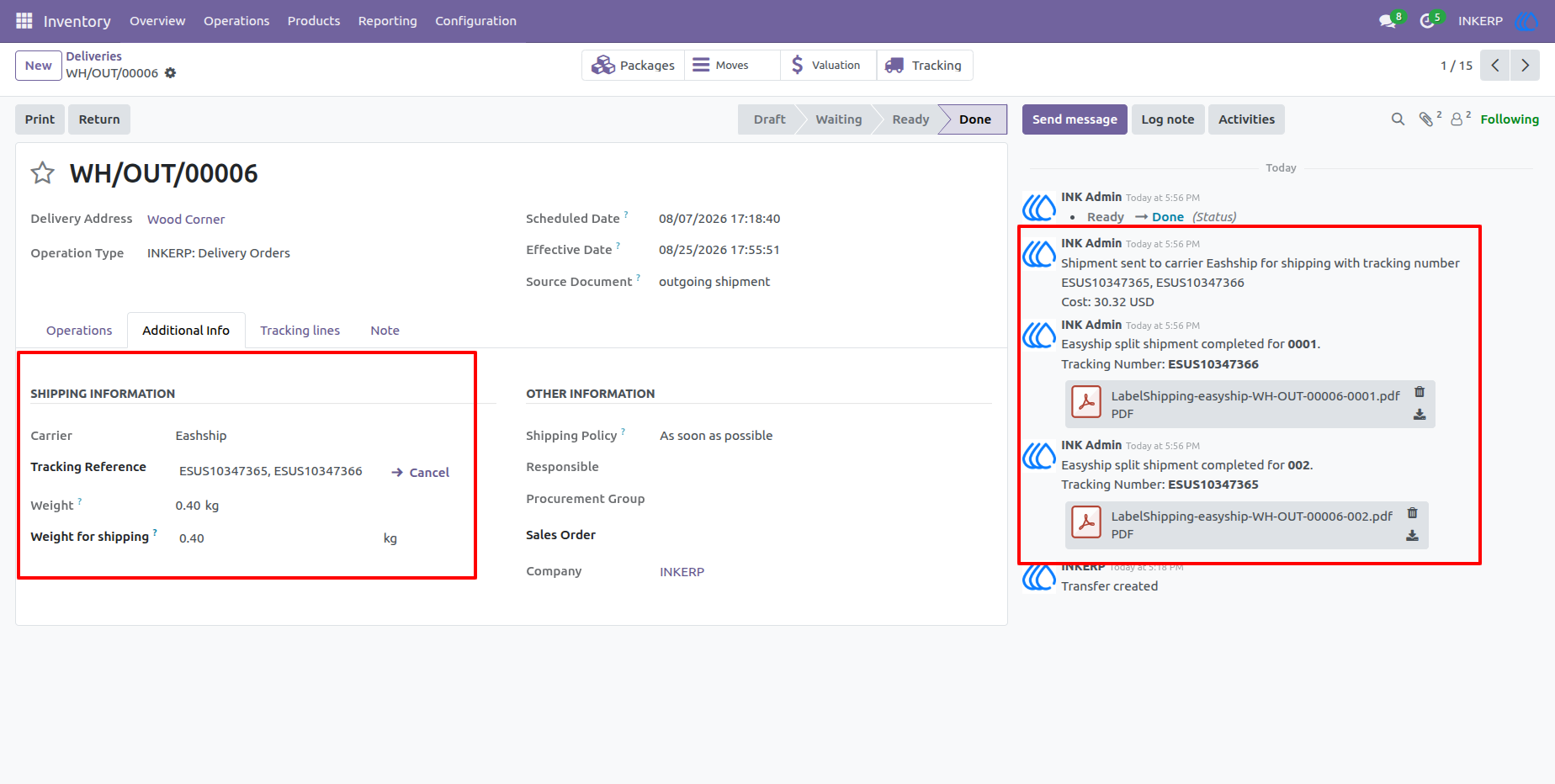
13.) Completed Split Shipments
Each package can be processed as a separate Easyship shipment with its own tracking reference, shipping cost, and label. This gives users clear visibility when an order is fulfilled through multiple parcels.
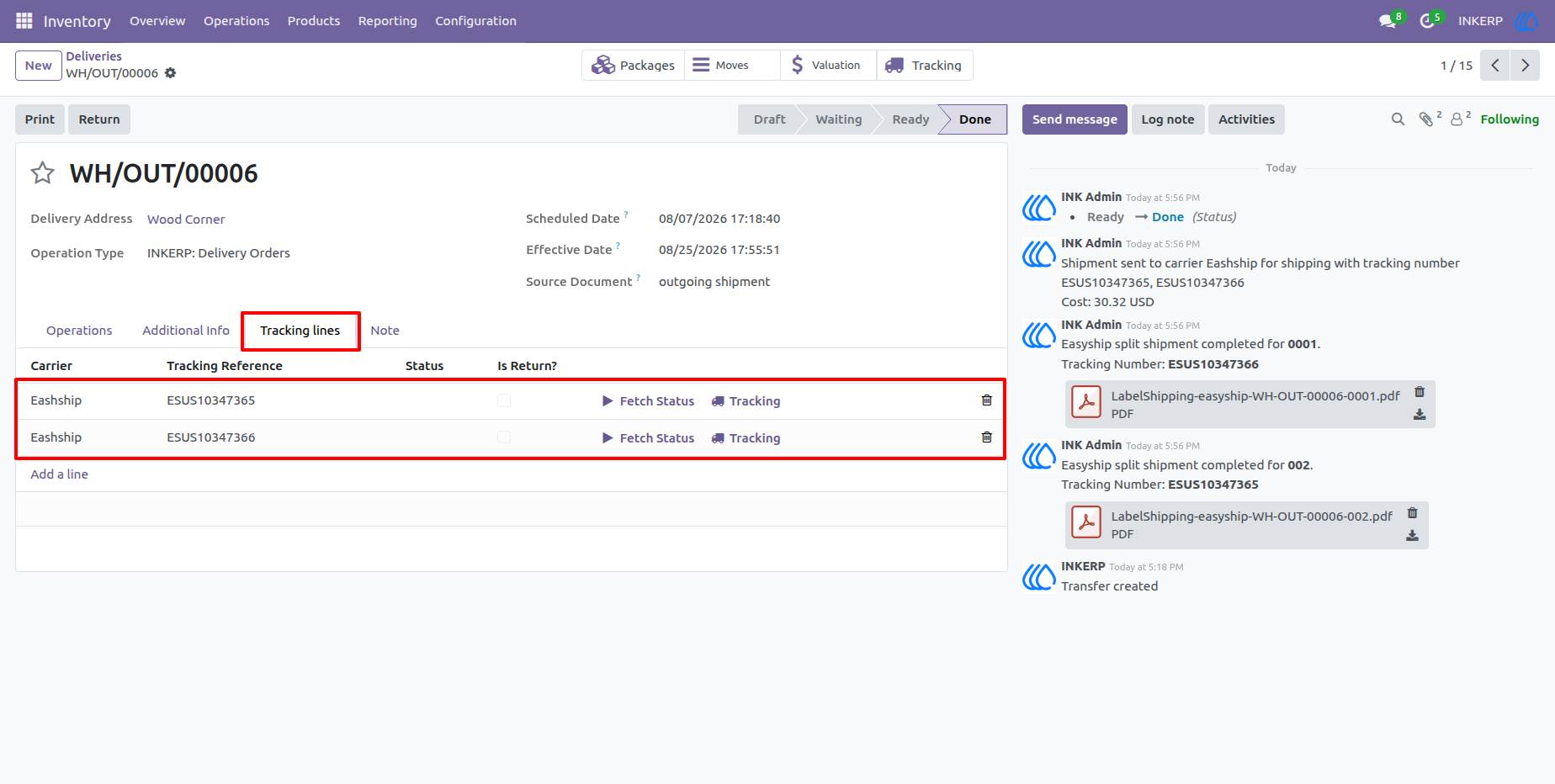
14.) Package Tracking Lines
Review the individual tracking lines created for the package shipments. The separate references make it easier to follow each parcel and provide accurate tracking information to customers or internal teams.
User Guide