

Our Most Suggested Products


Cancel HR Expense
Easily cancel reset or delete employee expenses directly in Odoo with flexible configurable options supporting bulk expense management Improve accuracy and control in your HR expense workflows by refusing submitted expenses resetting them to draft for correction or deleting outdated records Safely reverse posted accounting entries to maintain clean financial data Streamline approval processes and save time with quick actions available from the list and form views
Video Tutorial

 Features
 Screenshots
 Support
 Service
Features
Flexible Expense Cancellation
Cancel individual or bulk expenses with ease. Choose from three options: Cancel Only, Cancel & Reset to Draft, or Cancel & Delete. Keep full control over how expenses are handled in your workflow.
Bulk Expense Actions
Save time by canceling multiple expenses directly from the list view. Apply Cancel, Reset to Draft, or Delete in one action. Ensure quick and consistent processing for large volumes of expenses.
Cancel Expense Reports
Cancel entire expense reports, even those awaiting approval. Prevent unnecessary approvals for incorrect or duplicate submissions. Maintain clean and accurate expense records with minimal effort.
Reset to Draft for Re-Submission
Bring canceled expenses back to draft for correction or resubmission. Allow employees to quickly fix mistakes instead of recreating expenses. Streamline the approval cycle with minimal disruption.
Screenshot
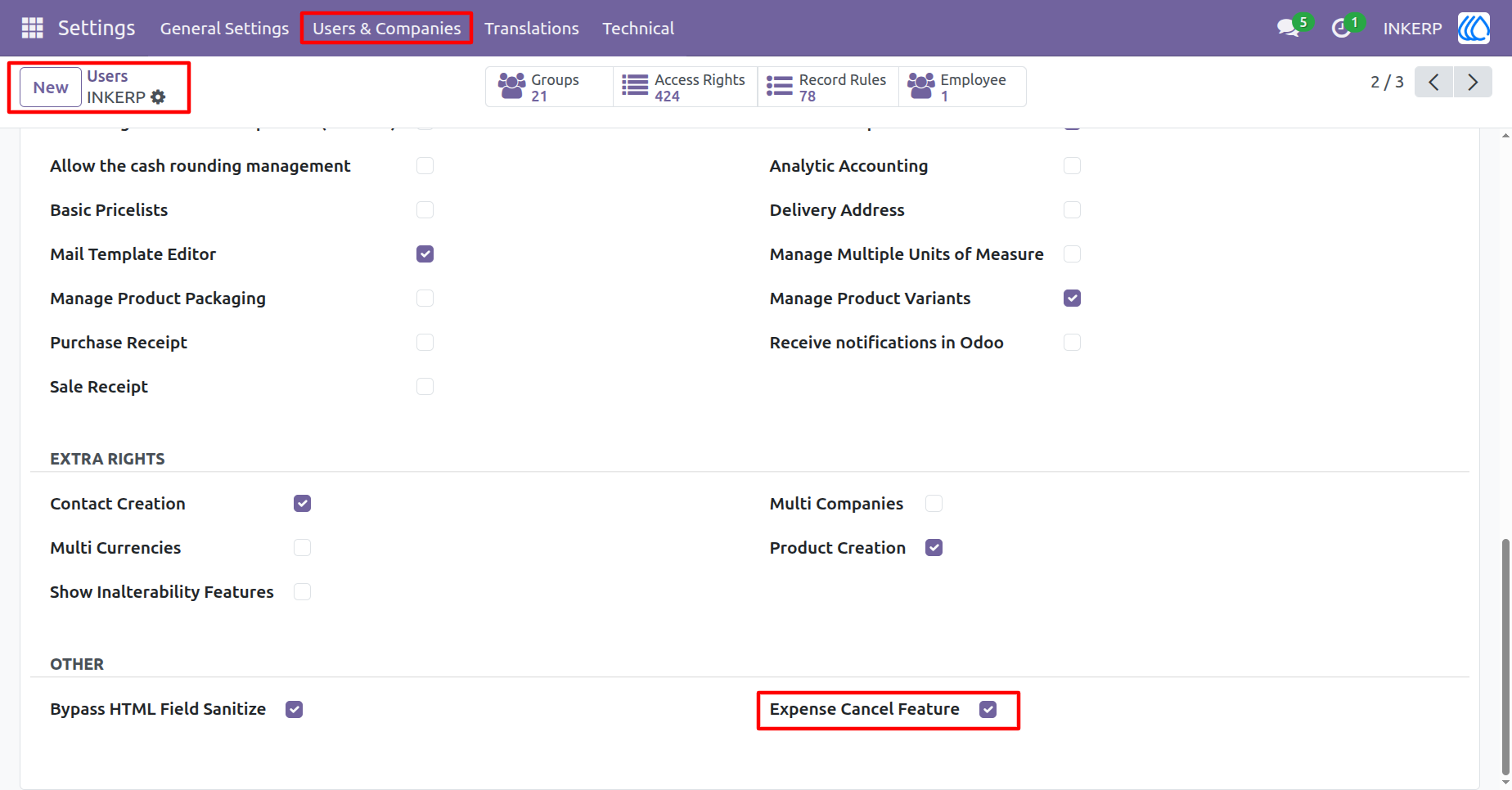
1.) Enable Expense Cancel Feature
Tick the "Expense Cancel Feature" checkbox in Settings to allow canceling submitted expenses.
Navigation : Setting › Users
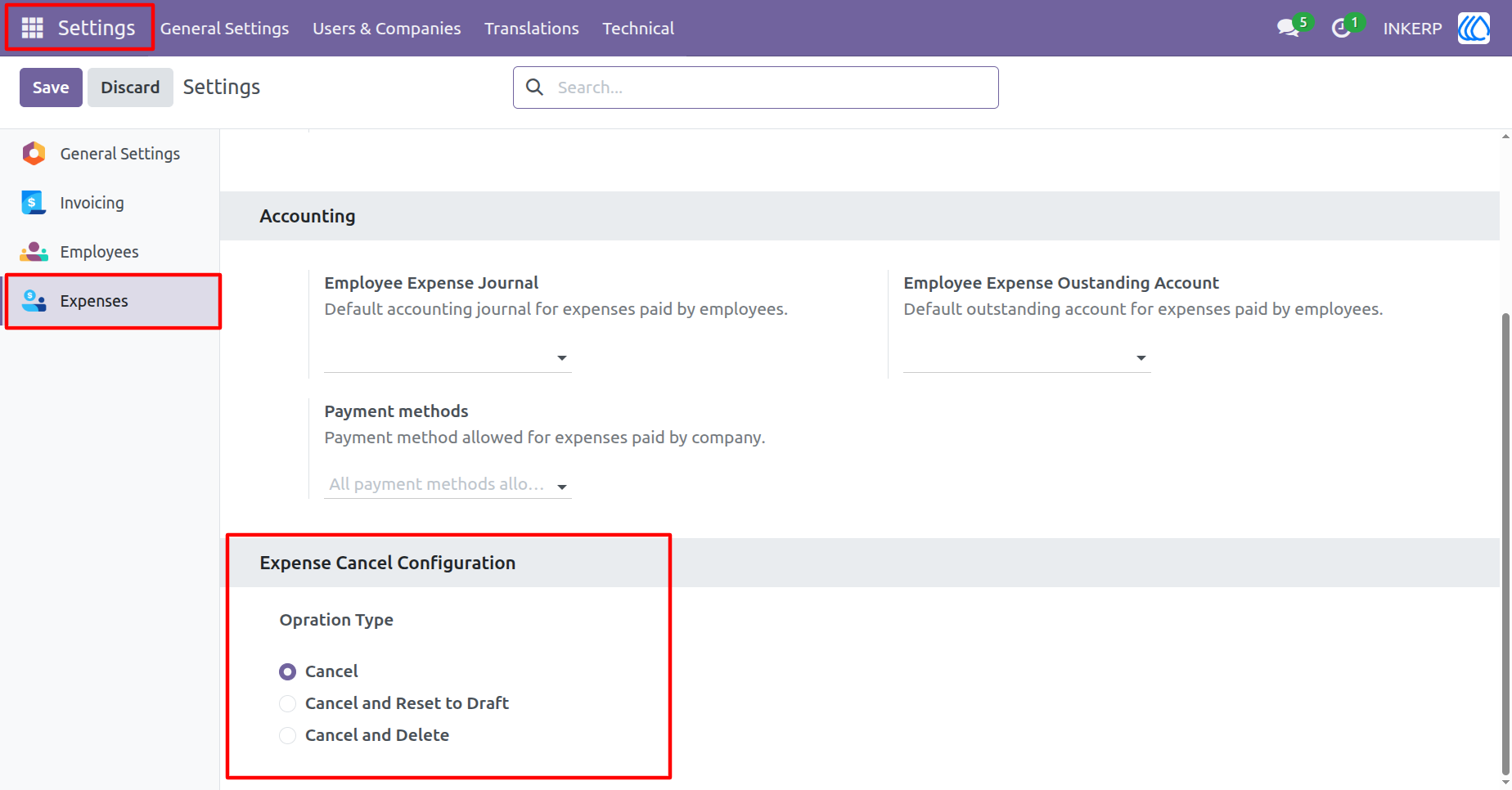
2.) Expense Cancel Configuration
Configure how expense cancellations are handled - choose from "Cancel Only", "Cancel and Reset to Draft", or "Cancel and Delete". Default is "Cancel Only".
Navigation : Setting › Expense
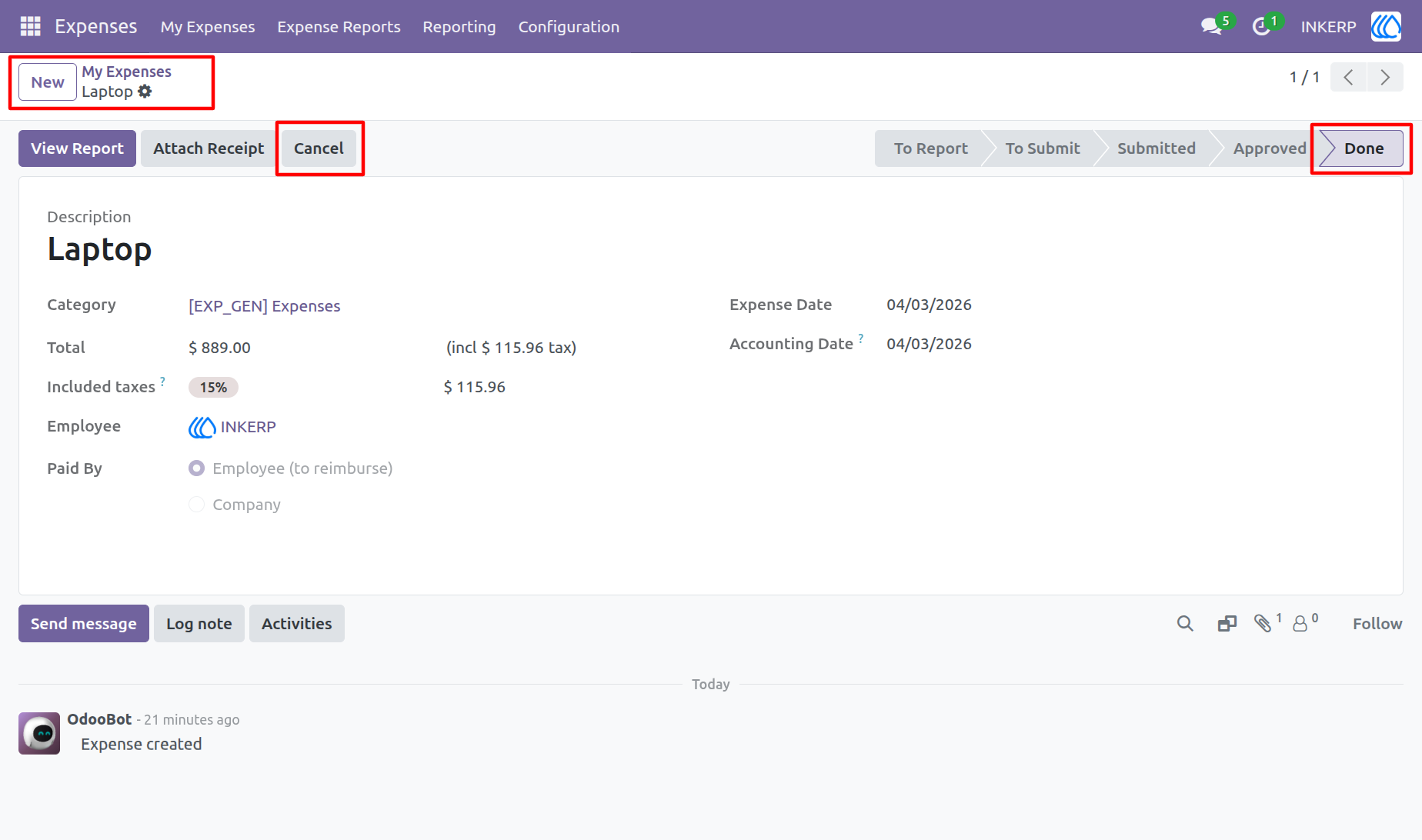
3.) My Expense Form View
Navigation : Expense › My Expense Form View
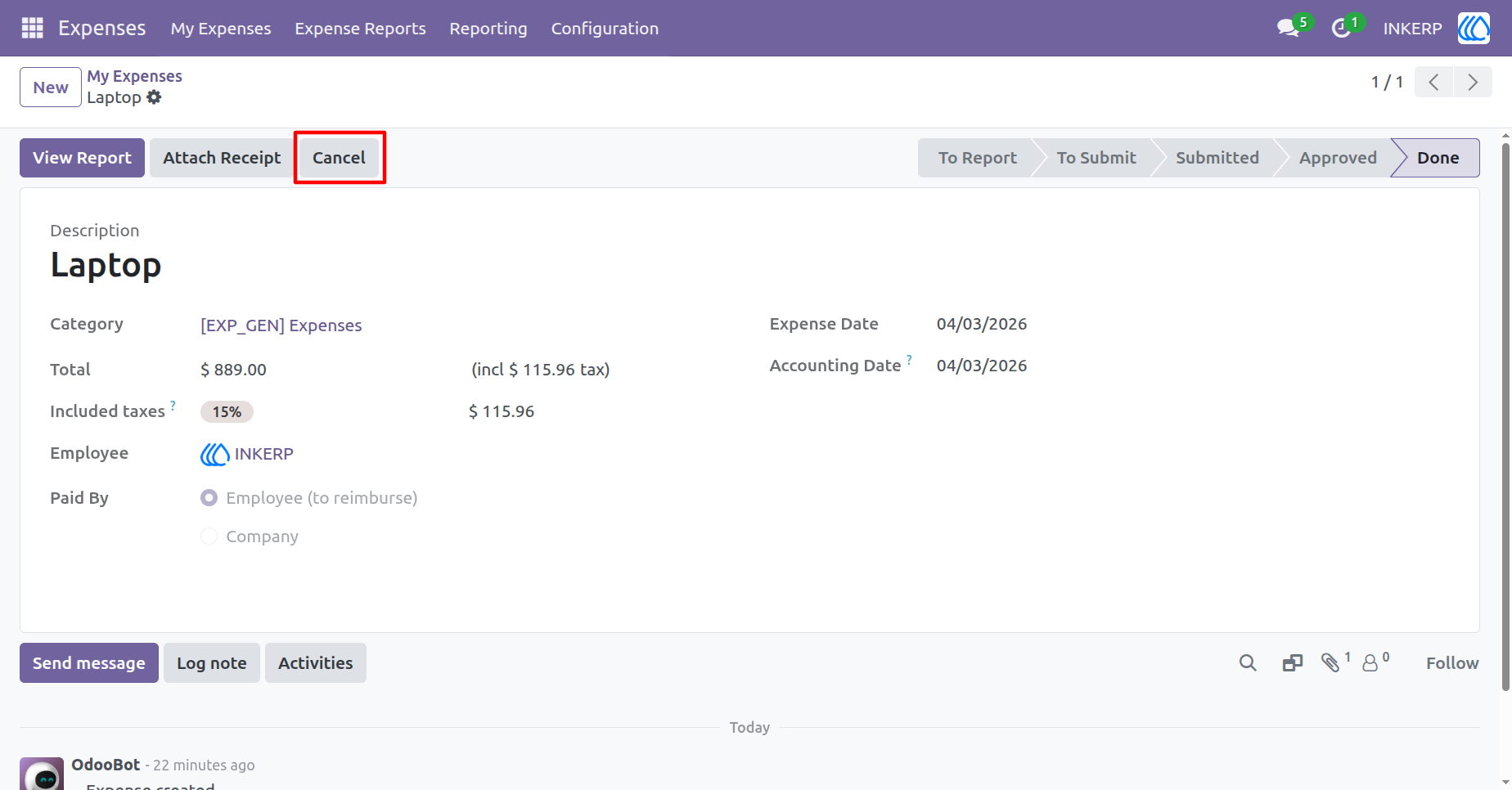
4.) Cancel Button in Expense Form
Enables the cancel button in the Expense form view to allow canceling expenses.
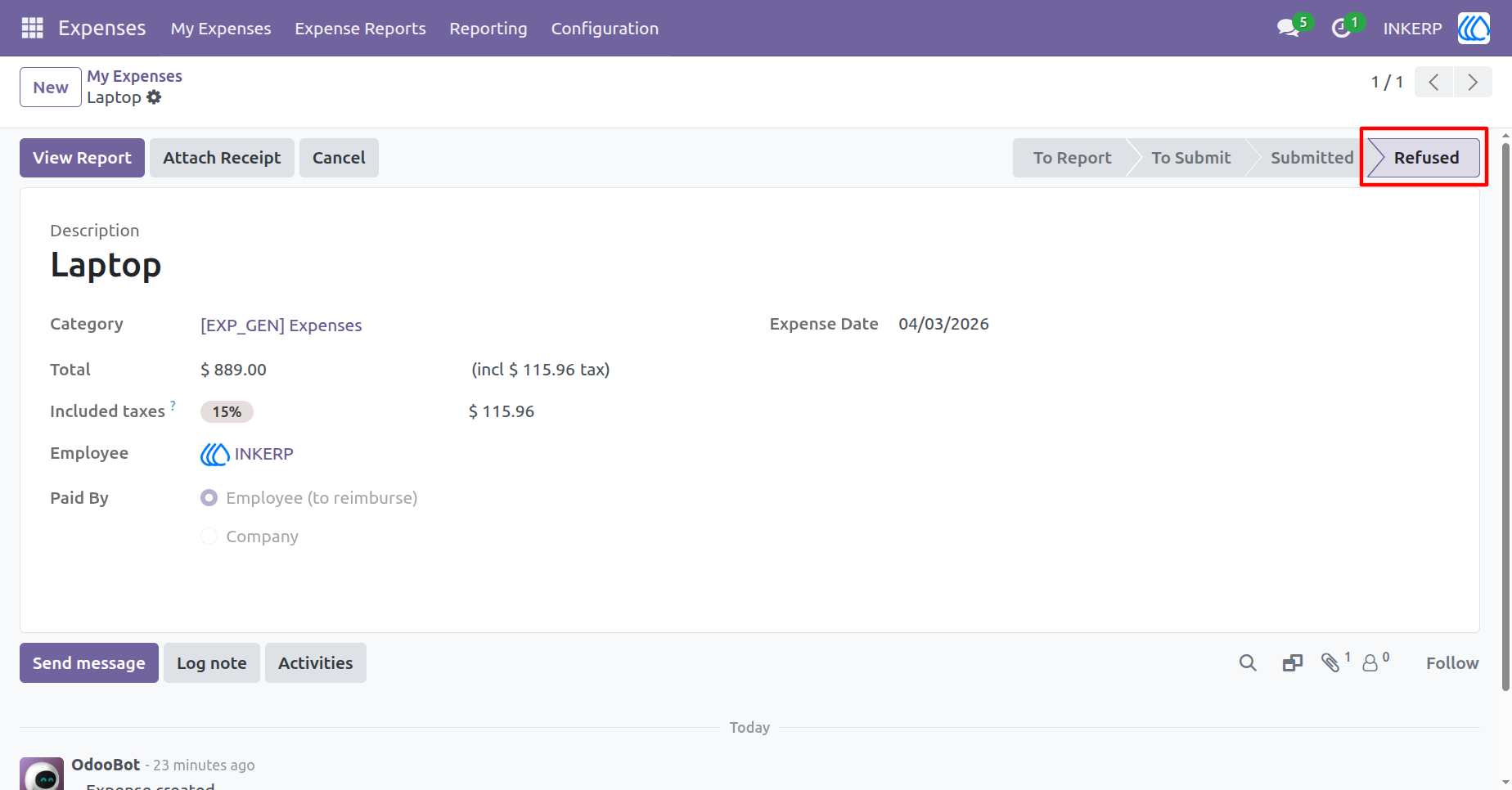
5.) Expense Record Refused
Indicates that the expense has been canceled and its state is now set to "Refused".
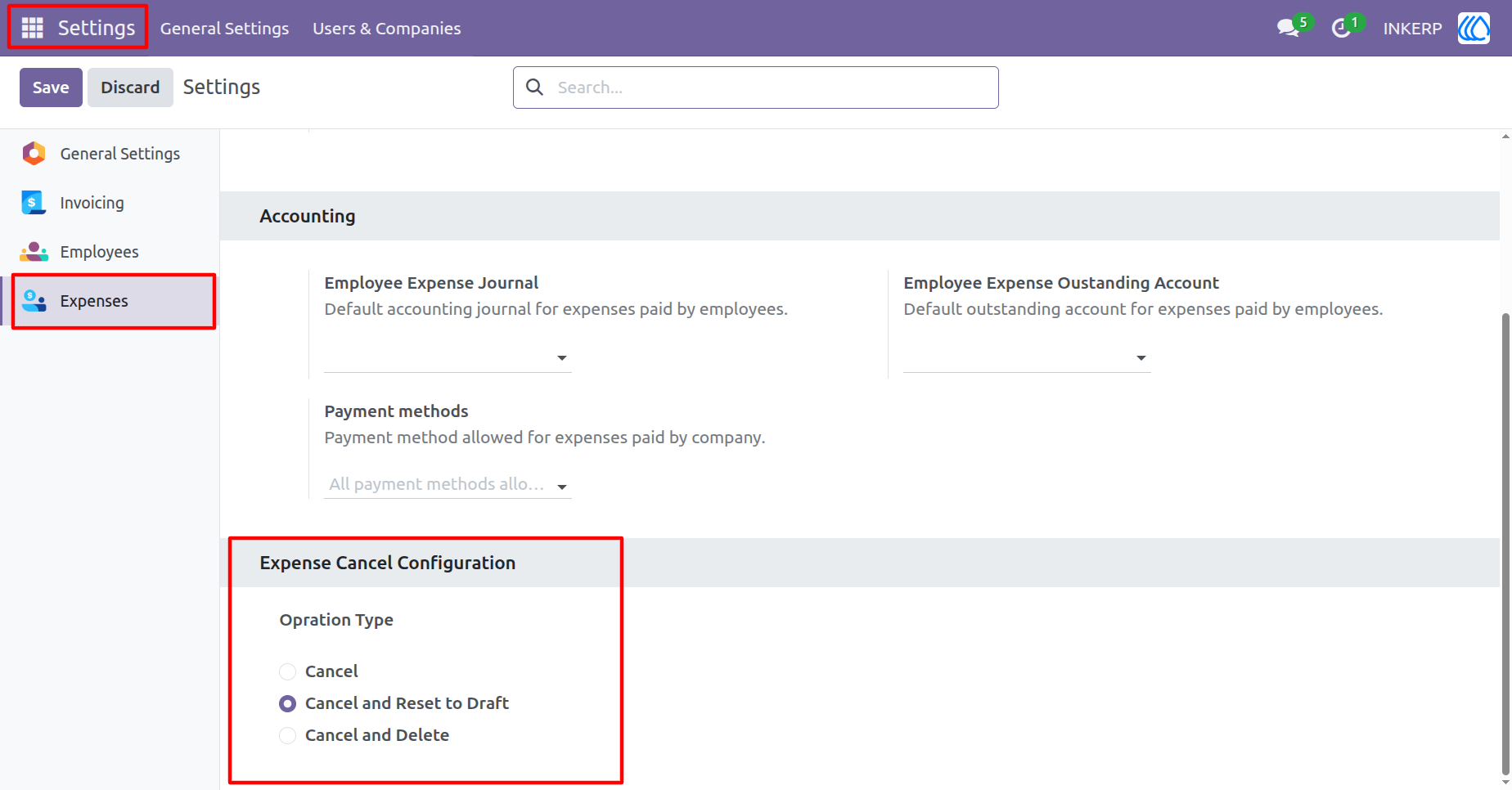
6.) Cancel and Reset to Draft
Tick "Cancel and Reset to Draft" to cancel the expense and move it back to the draft state.
Navigation : Setting › Expense
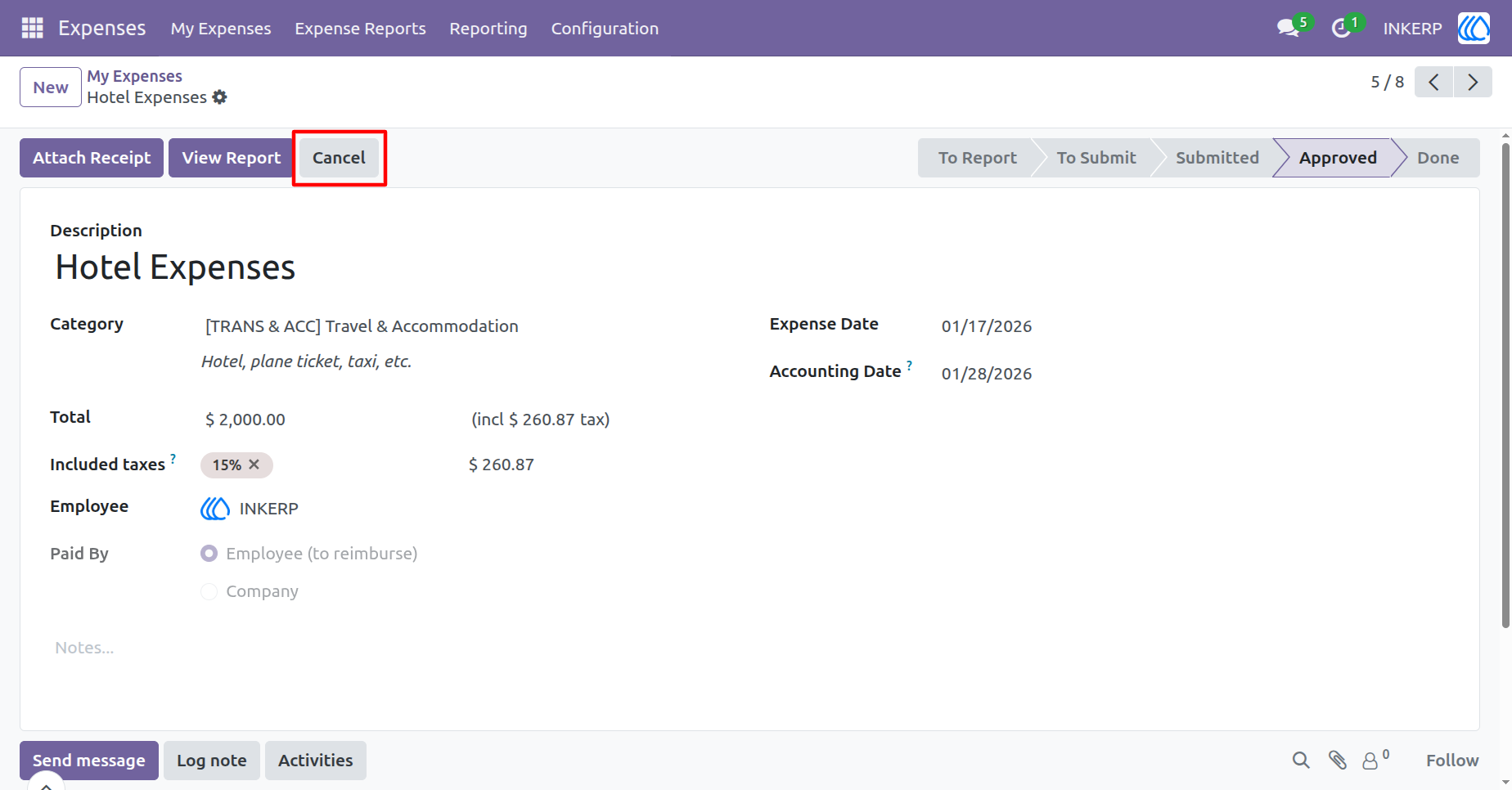
7.) Cancel Button Action
Pressing the Cancel button resets the expense to the "To Submit" state.
Navigation : Expense › My Expense Form View
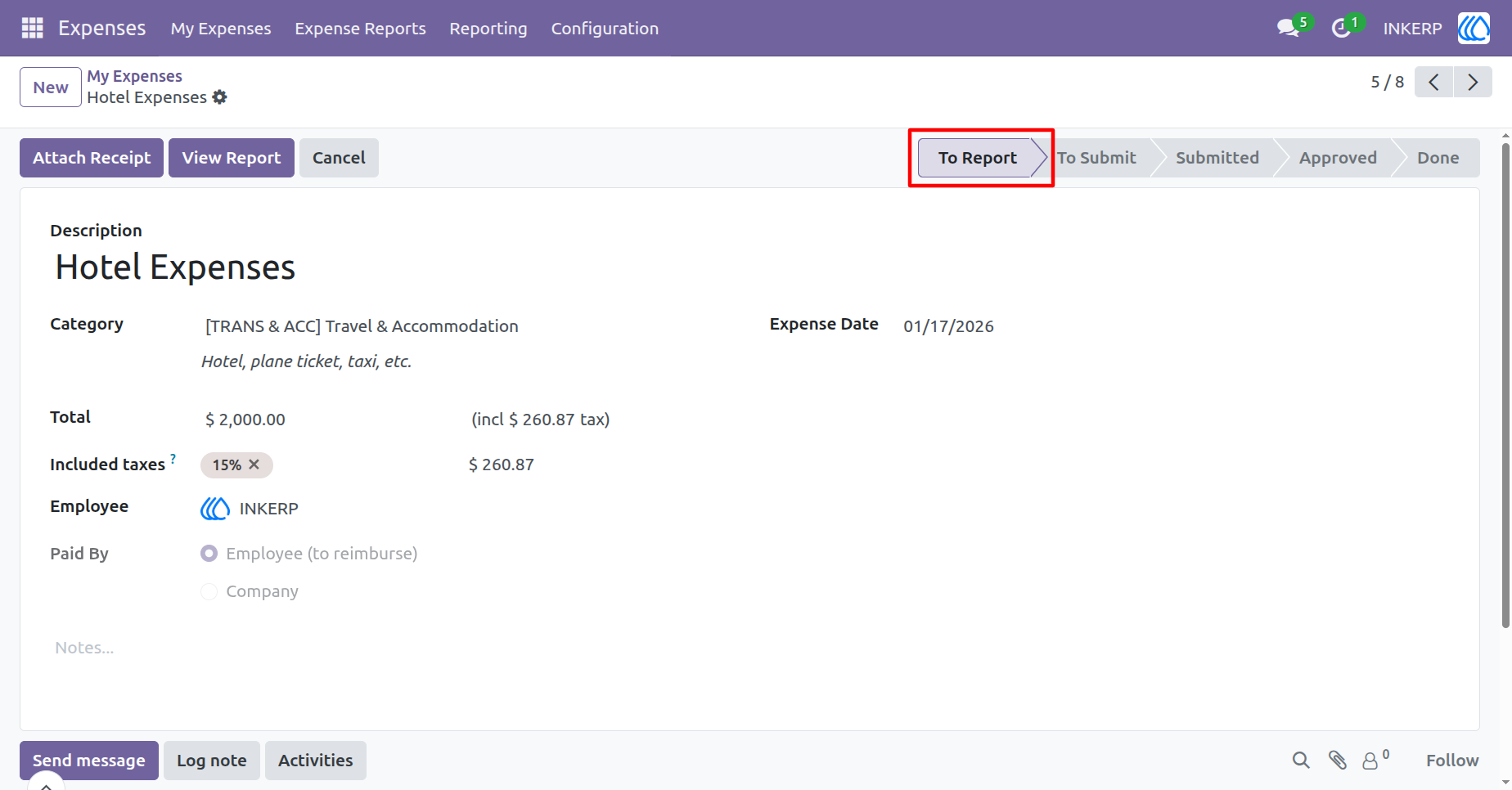
8.) Cancel and Reset Action
Enables the Cancel button to reset the expense record to the "To Submit" state.
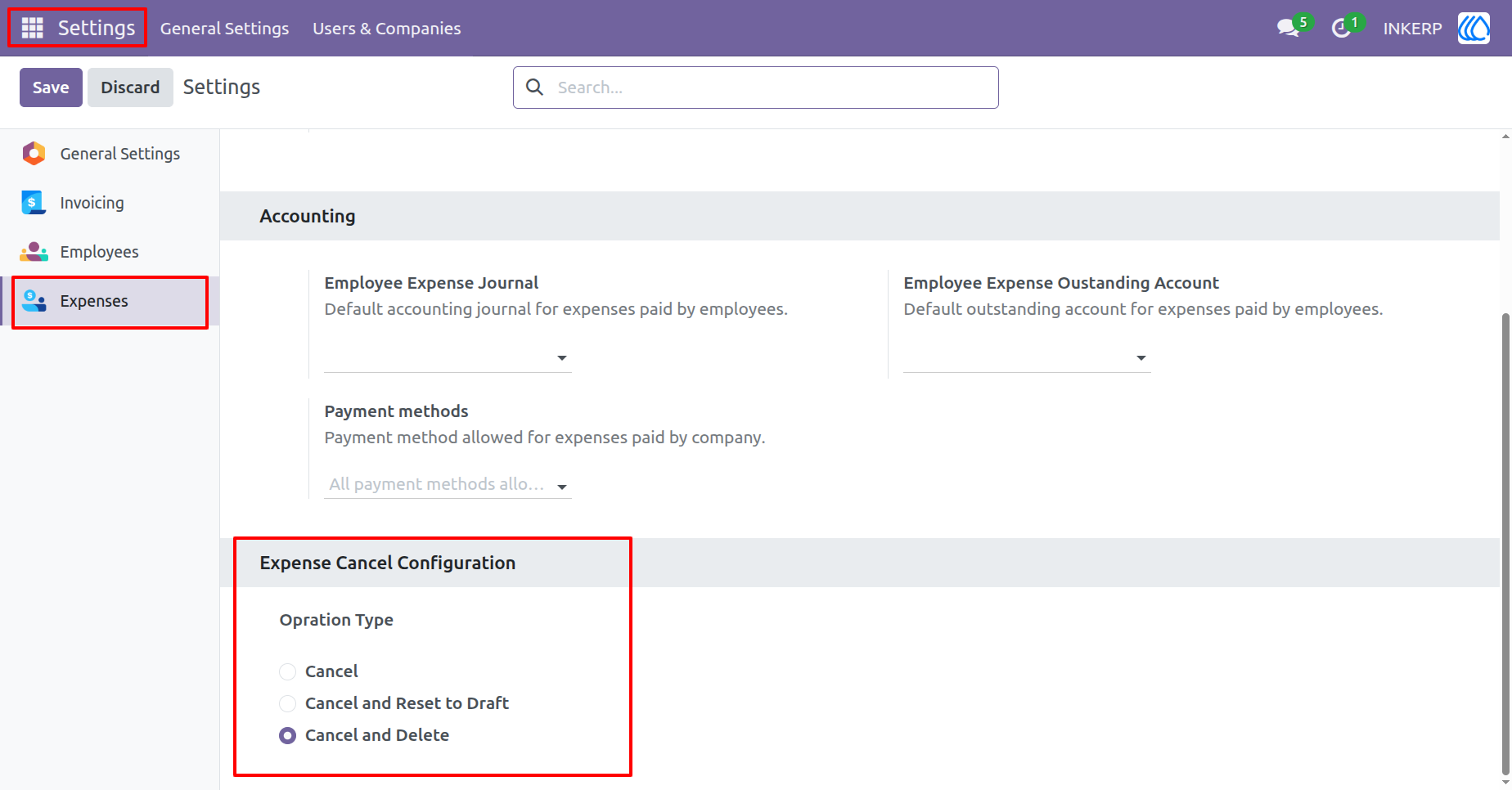
9.) Cancel and Delete Option
Choose the "Cancel and Delete" option to cancel the expense and permanently delete the record.
Navigation : Setting › Expense
10.) Cancel and Delete Action
Pressing the Cancel button will cancel the expense and permanently delete the record.
Navigation : Expense › My Expense Form View
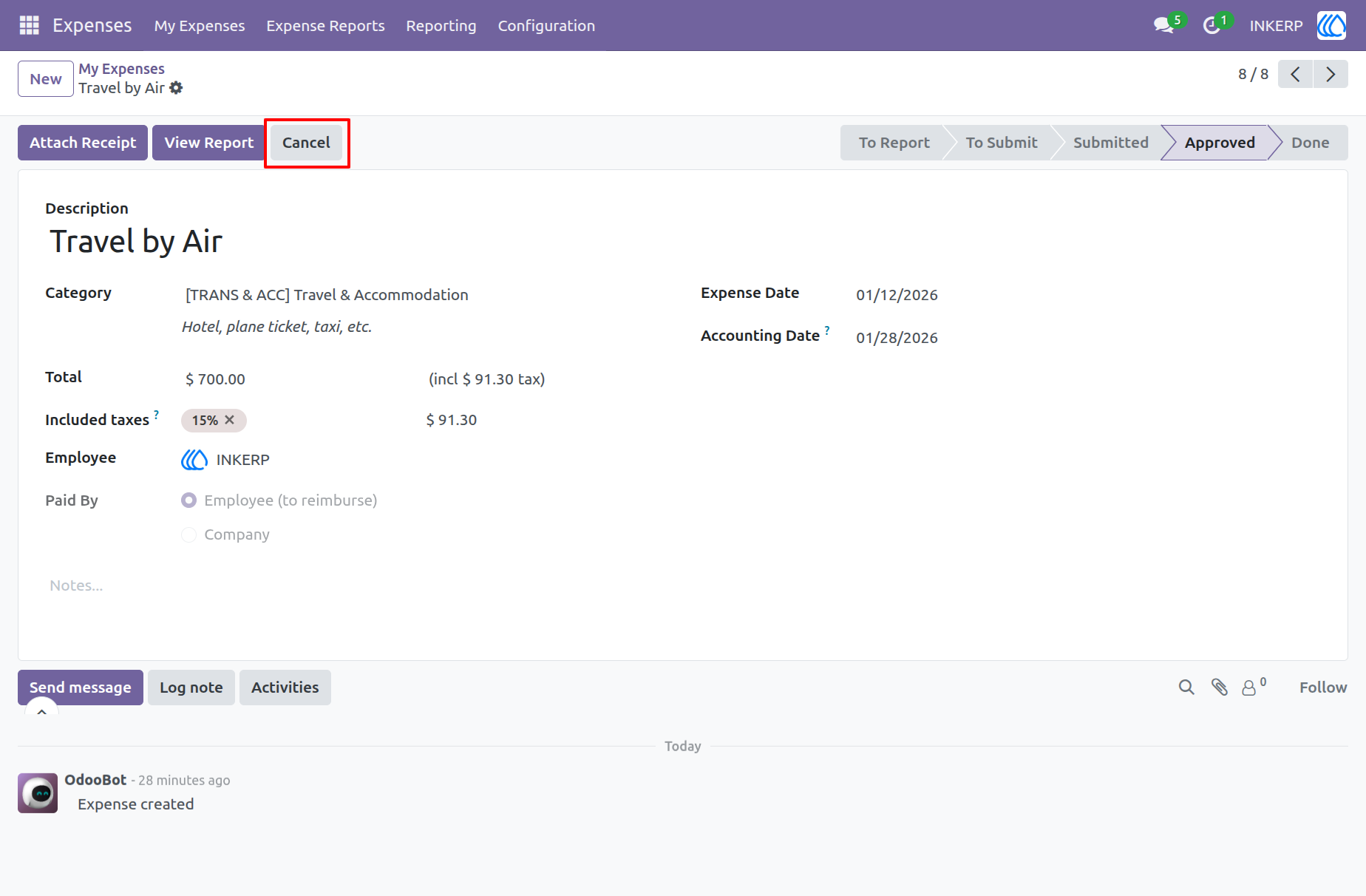
11.) Cancel Deletes Expense
After clicking "Cancel," the expense will be deleted automatically.
Navigation : Expense › My Expense List View
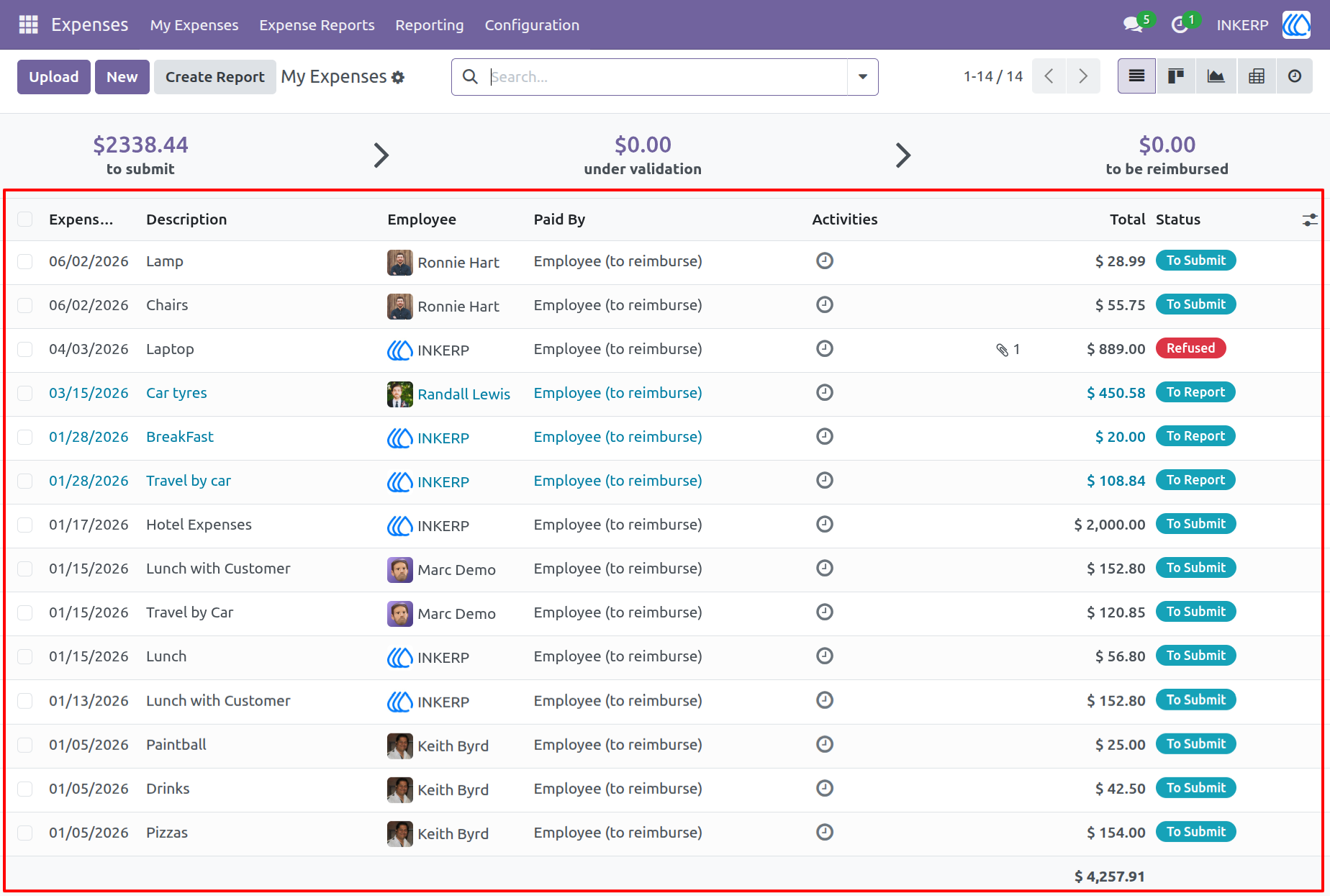
12.) Bulk Cancel from List View
You can now cancel multiple expenses at once using the "Cancel Expense" action from the list view.
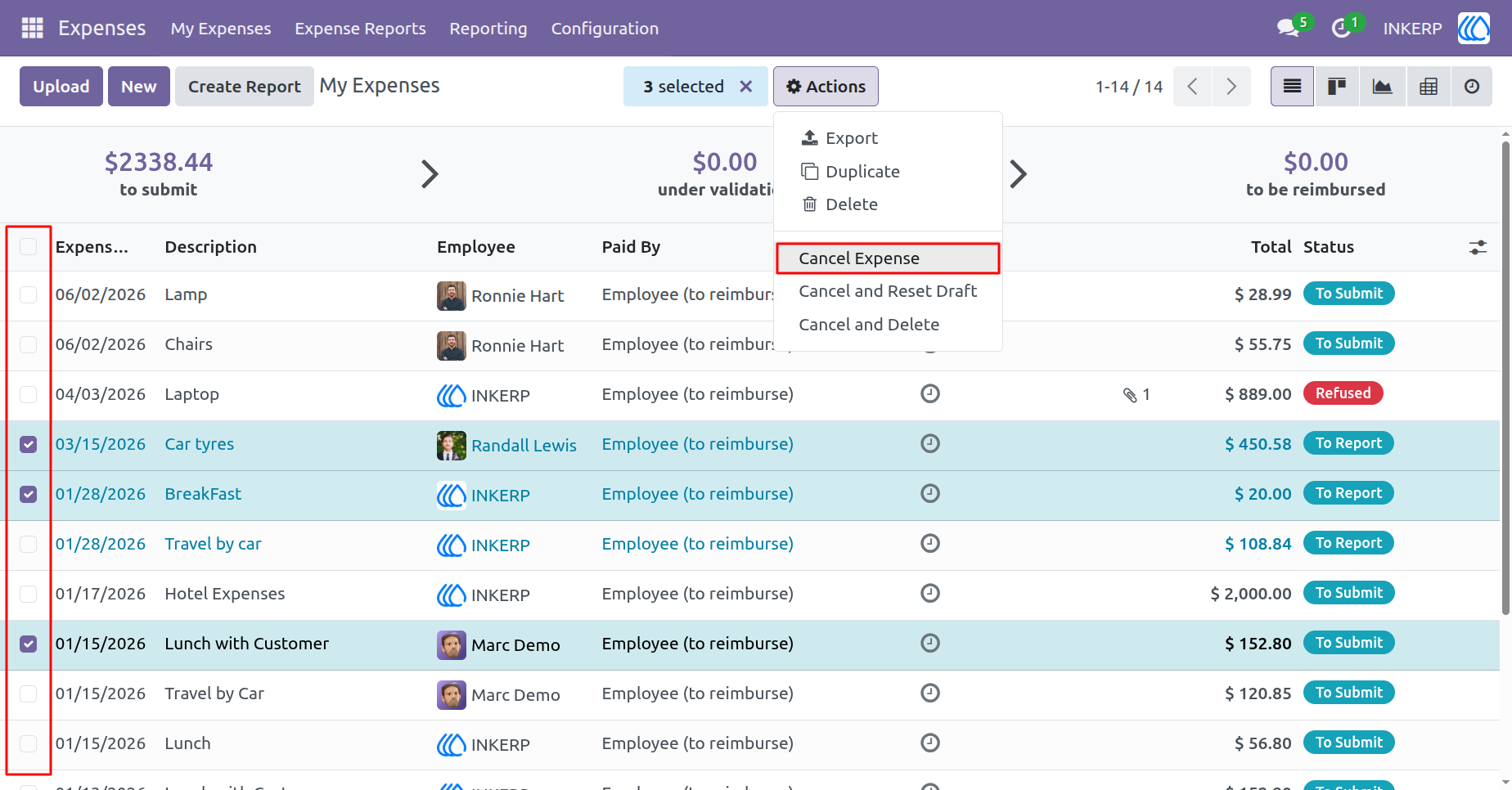
13.) Expenses Cancelled
All selected expenses have been successfully cancelled.
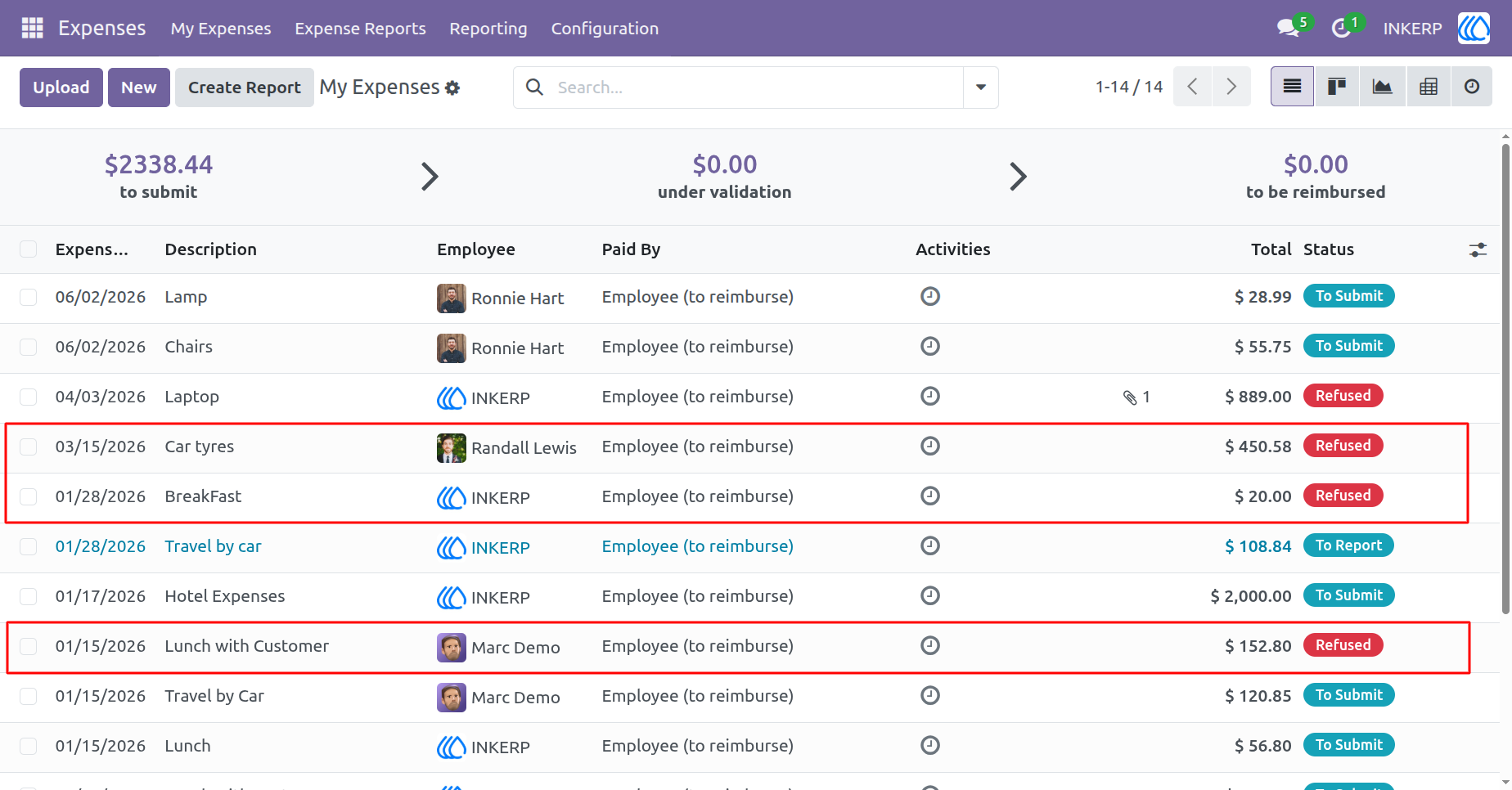
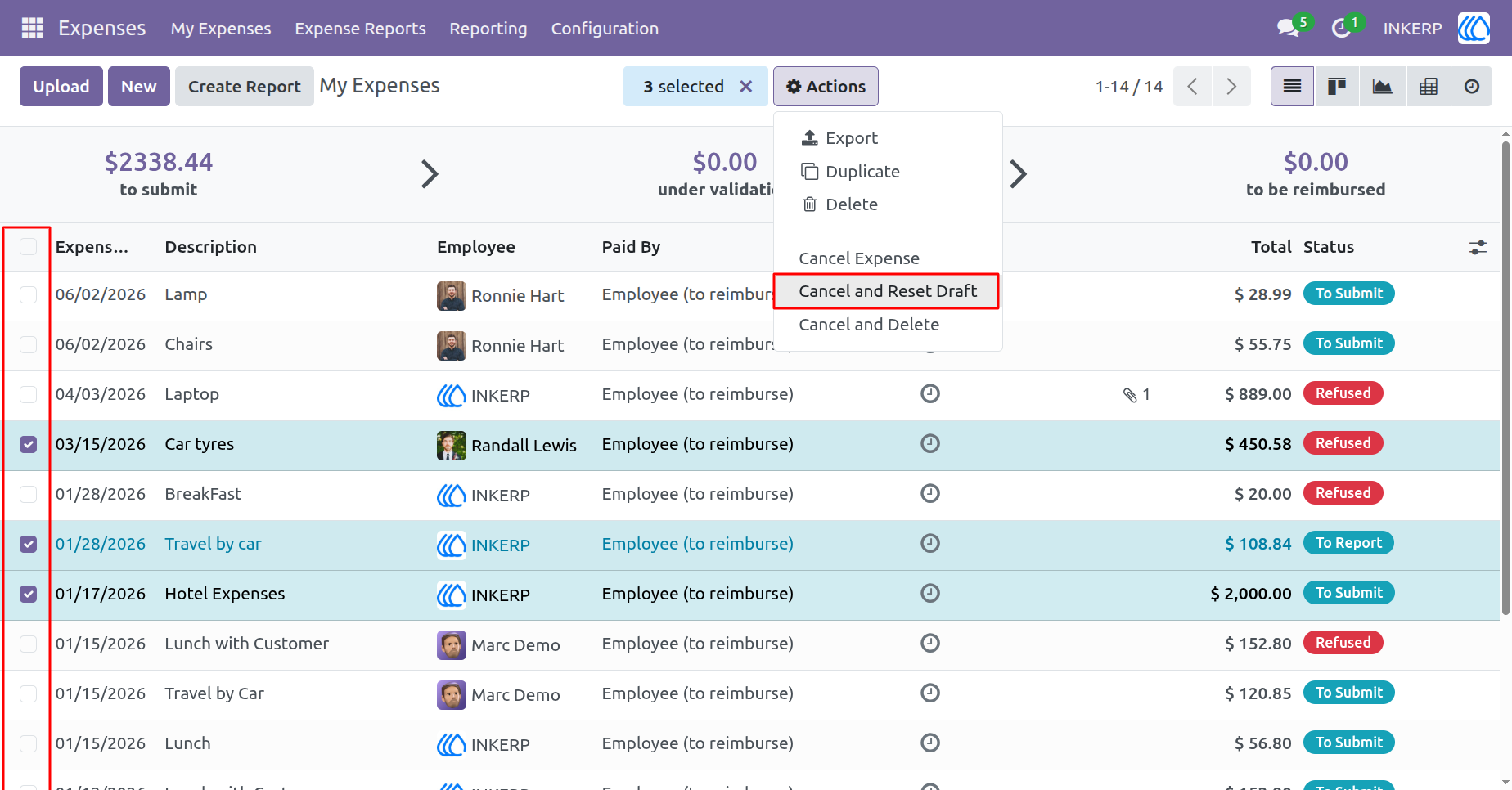
14.) Cancel and Reset Draft in Bulk
You can now cancel and reset multiple expenses to draft state from the list view using the "Cancel & Reset Draft" action.
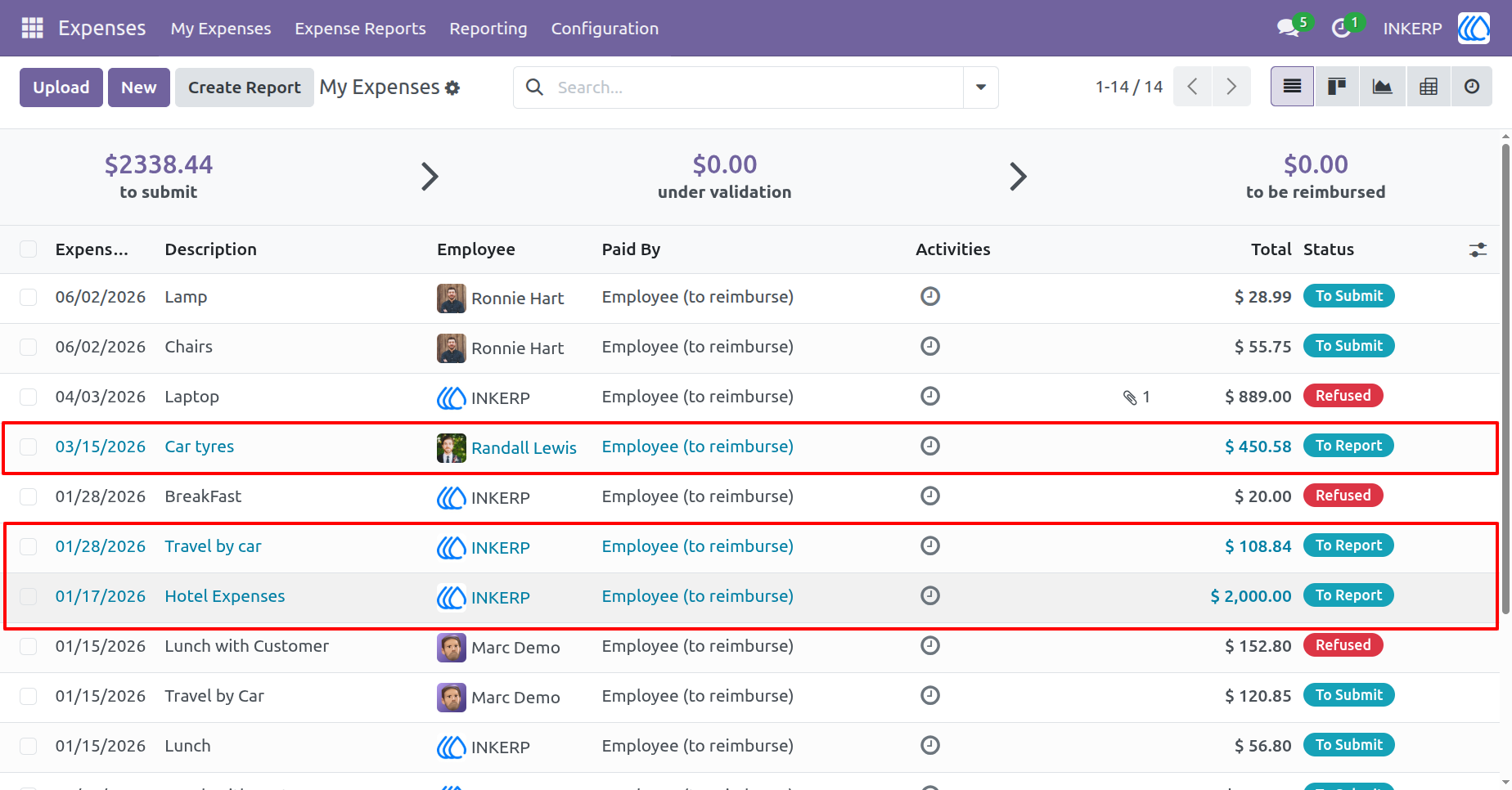
15.) Expenses Cancelled and Reset
All selected expenses have been cancelled and reset to the draft state.
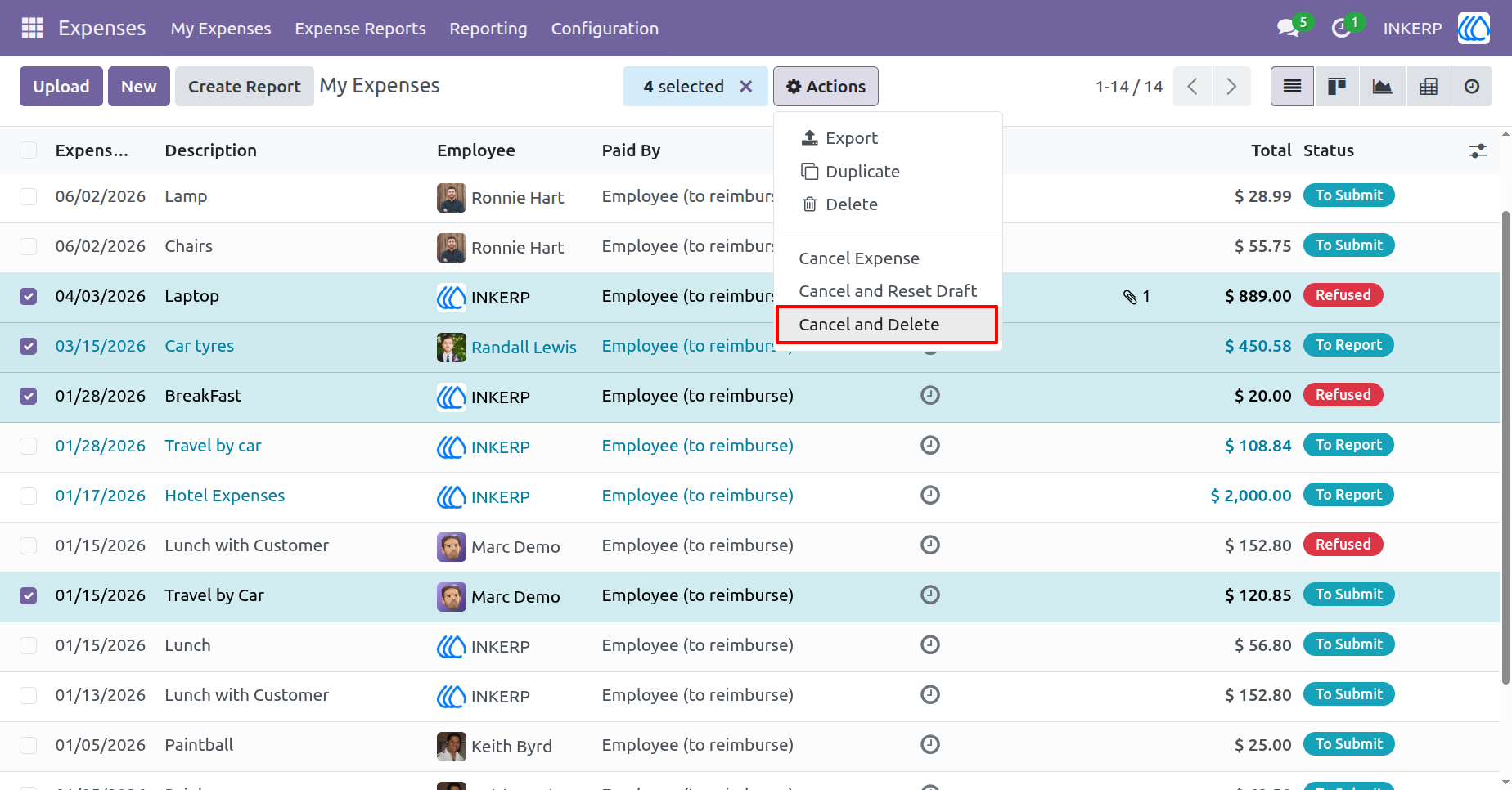
16.) Cancel and Delete in Bulk
You can now cancel and delete multiple expenses at once from the list view using the "Cancel & Delete" action.
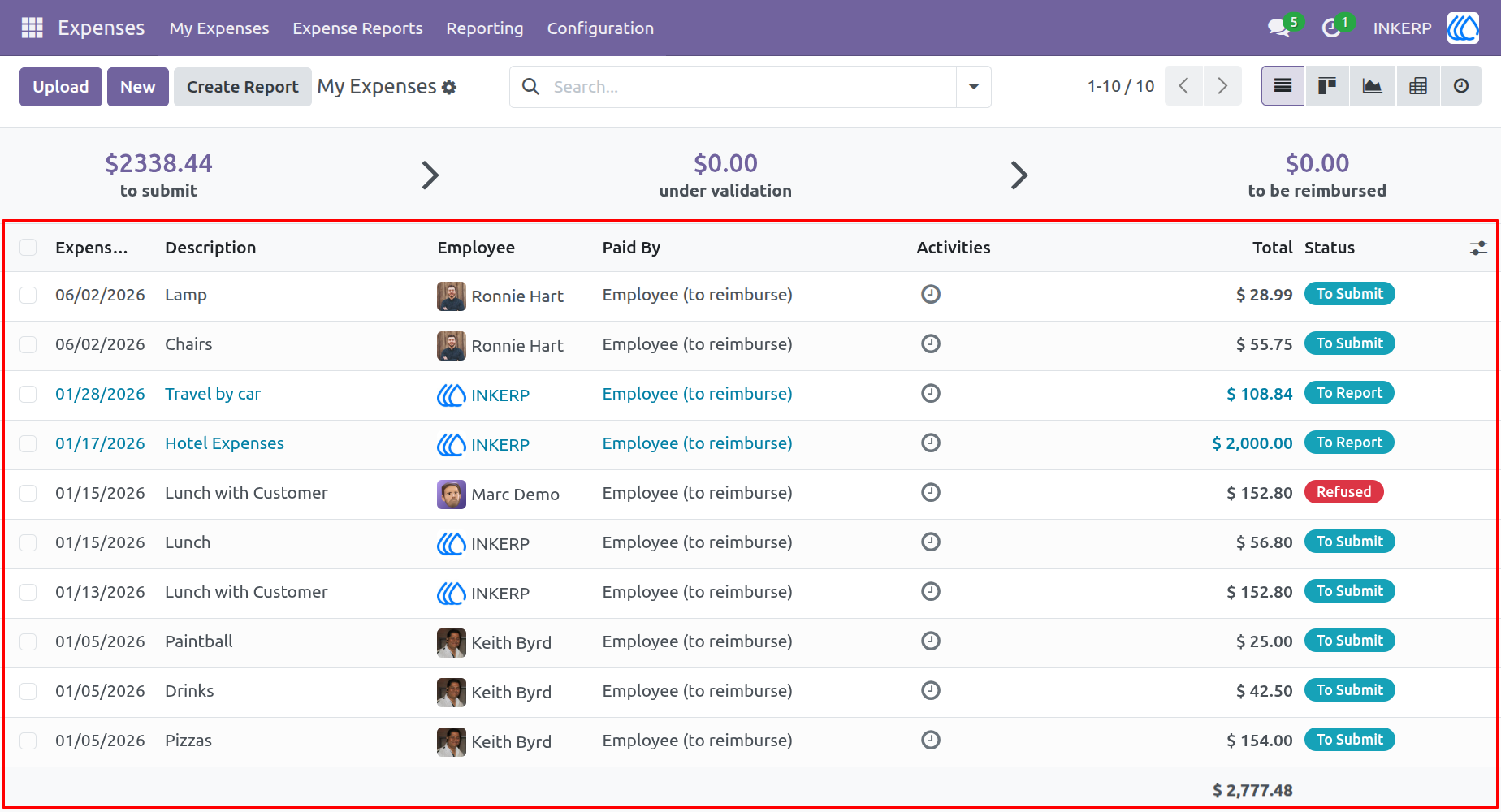
17.) Cancel and Delete Expenses
All selected expenses will be deleted automatically after being cancelled.
User Guide