

Our Most Suggested Products


Advanced Inventory Product Selection
Stock Multi Product Adv simplifies product selection in Odoo Inventory Receipts and Deliveries. Search products using Category, Sale Price, Cost Price, Quantity On Hand, and Attributes. Filter products by Product Type, Internal Reference, and Product Name as required. Apply filters to quickly find matching products and add them to the inventory operation. Reset filters, specific products, or searched products whenever needed.
 Features
 Screenshots
 Support
 Service
Features
Advanced Product Search
Search products using Category, Sale Price, Cost Price, Quantity On Hand, Attributes, Product Type, Internal Reference, and Name. This helps users quickly find the required products in Inventory Receipts and Deliveries.
Product Filtering
Enter the required filtering details and apply the filter to display matching products. Users can easily identify and add the required products from the filtered product list.
Reset Filter Options
Reset the entered filter details whenever required. This allows users to clear the applied search criteria and perform a new product search.
Reset Product Selection
Reset specific products or searched products separately from the product selection window. This provides flexibility when managing products during inventory operations.
Screenshot
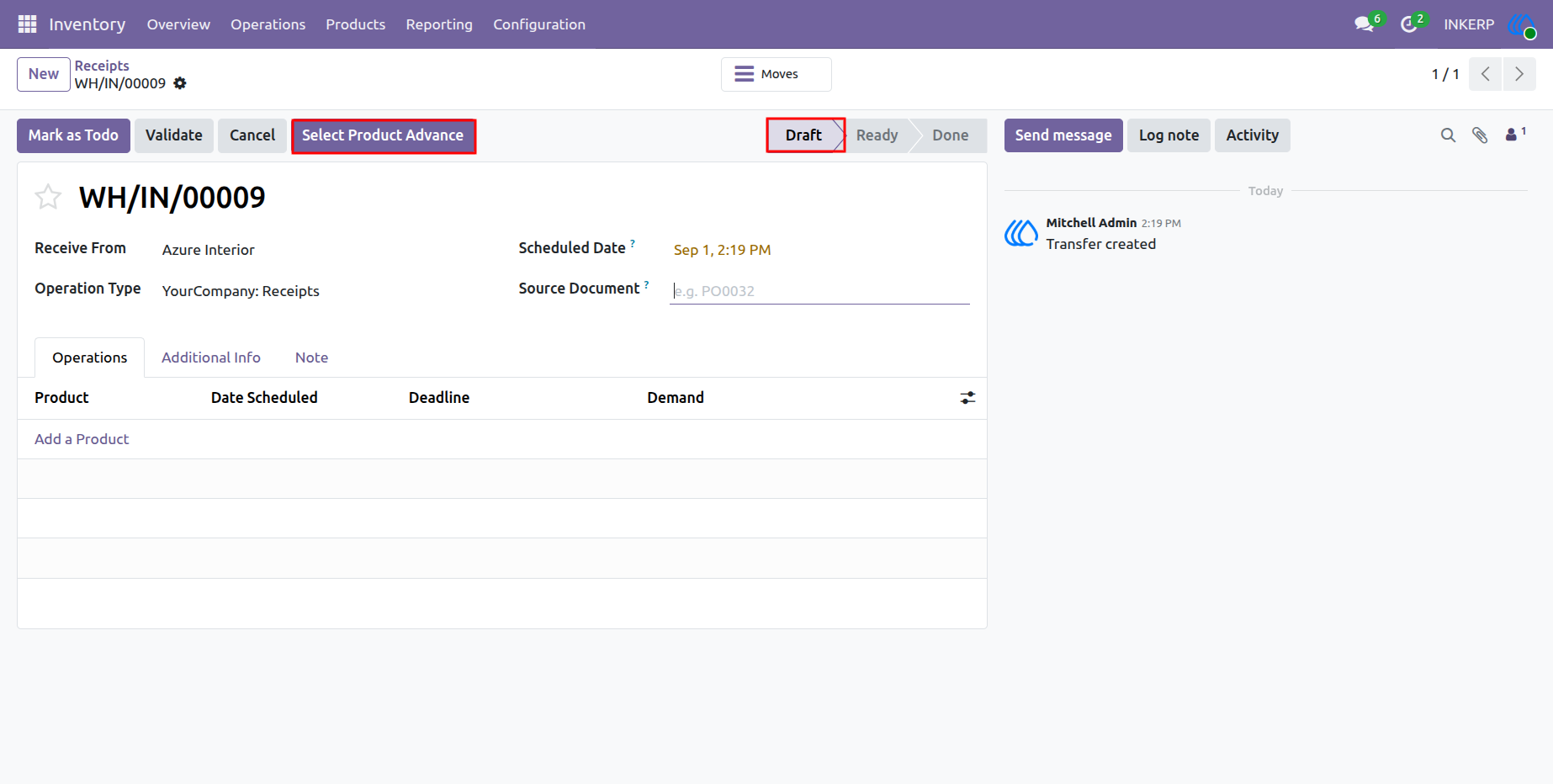
1.)Advanced Product Selection
Create a new inventory order and click the Select Product Advance button to open the advanced product search pop-up. The pop-up allows users to search and filter products using the available filtering options. Enter the required filtering details to quickly find the products needed for the order.
Navigation : Inventory › Operations › Receipts
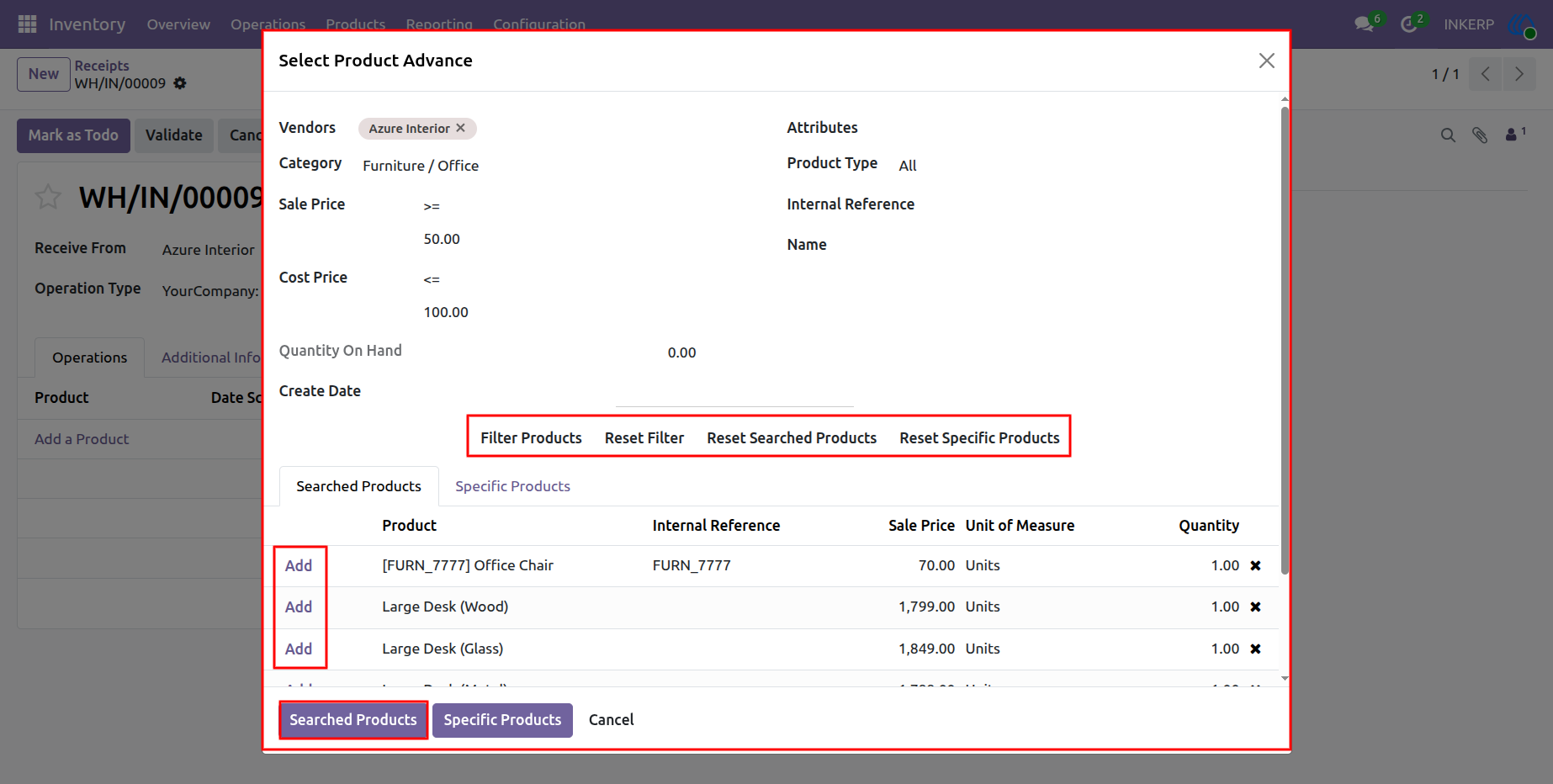
2.)Filter and Add Products
Enter the required product details such as Sale Price, Cost Price, and other available filtering criteria in the wizard. Set the price filter to find products with a lower or higher price than the entered value, or use the Filter Product button to apply the selected criteria. If you want to add a specific filtered product, click the Add button for that product. To add all filtered products to the Receipt lines, click the Searched Product button.
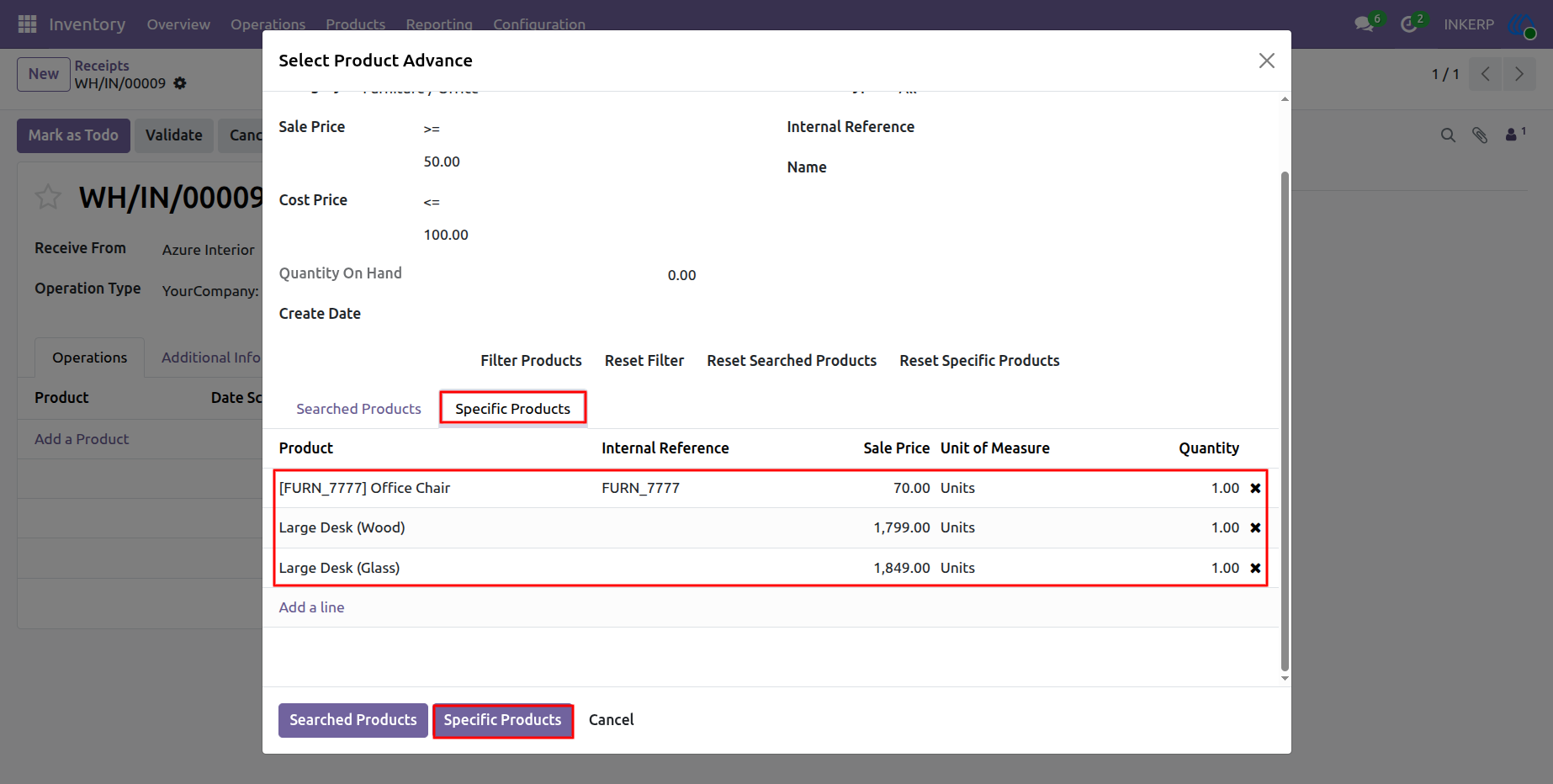
3.)Add Searched Product
The searched products are displayed in the Specific Product section, where users can review and select the required product. If needed, users can reset the selected product or search for more products using the available filters in the popup. If you want to add the selected product, click the Specific Product button to add it to the specific product page.
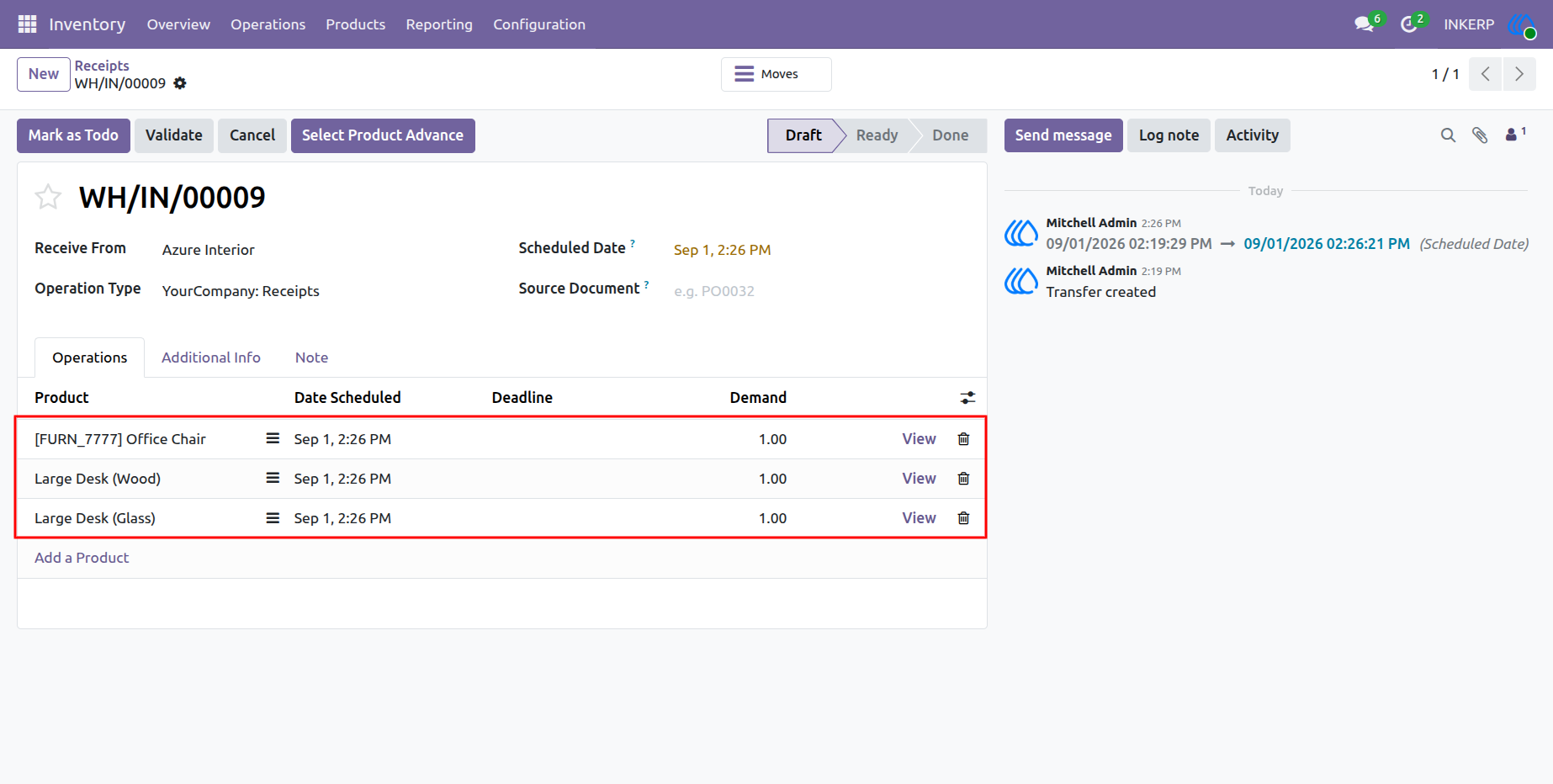
4.)Product Added to Order Line
The searched or selected specific product is added directly to the order line. Users can review the selected product and its details within the order line. This makes it easy to add the required product to the inventory operation quickly and efficiently.
User Guide