

Our Most Suggested Products


Simplify Access Management
Simplify Access Management helps you control what users can see and do in Odoo. With this module, you can set access rights for any model and user. You can hide menus, reports, fields, buttons, tabs in any model. Hide filters and group by options in search. You can also hide chatter, or disable debug mode. Everything can be made readonly for selected users, and you can set required, readonly, or invisible fields.
It gives full control over permissions like create, edit, delete, duplicate, archive, unarchive, import, and export for each model. You can also manage global access rights for chatter, including send message, log notes, and schedule activity. In addition, you can globally hide import, export, spreadsheet, and add properties actions.
Video Tutorial
 Features
 Screenshots
 Support
 Service
Features
Access for users or Groups :
Users can create access templates for individual users or groups.
Access Role Management :
Create a time-bound access role by choosing a template and setting start/end dates. Access is automatically enabled or blocked during that period for temporary audit control.
Hide Menus/Submenus :
Restrict navigation menus and submenus for specific users.
Model Access Rights :
Control Create, Edit, Delete, View, Actions, Archive/Unarchive, Duplicate, Export permissions.
Field Access Rights :
Make fields invisible, required, read-only of any model.
Domain (Conditional) Access Rights :
Apply restrictions based on field values (e.g., salesperson sees only their own leads).
Button/Tab Access Rights :
Hide buttons, actions, smart buttons, links, and tabs in views.
Hide Filters & Groups :
Restrict visibility of filters and group options.
Chatter Access Rights :
Hide or restrict chatter components (Send Message, Log Notes, Activities).
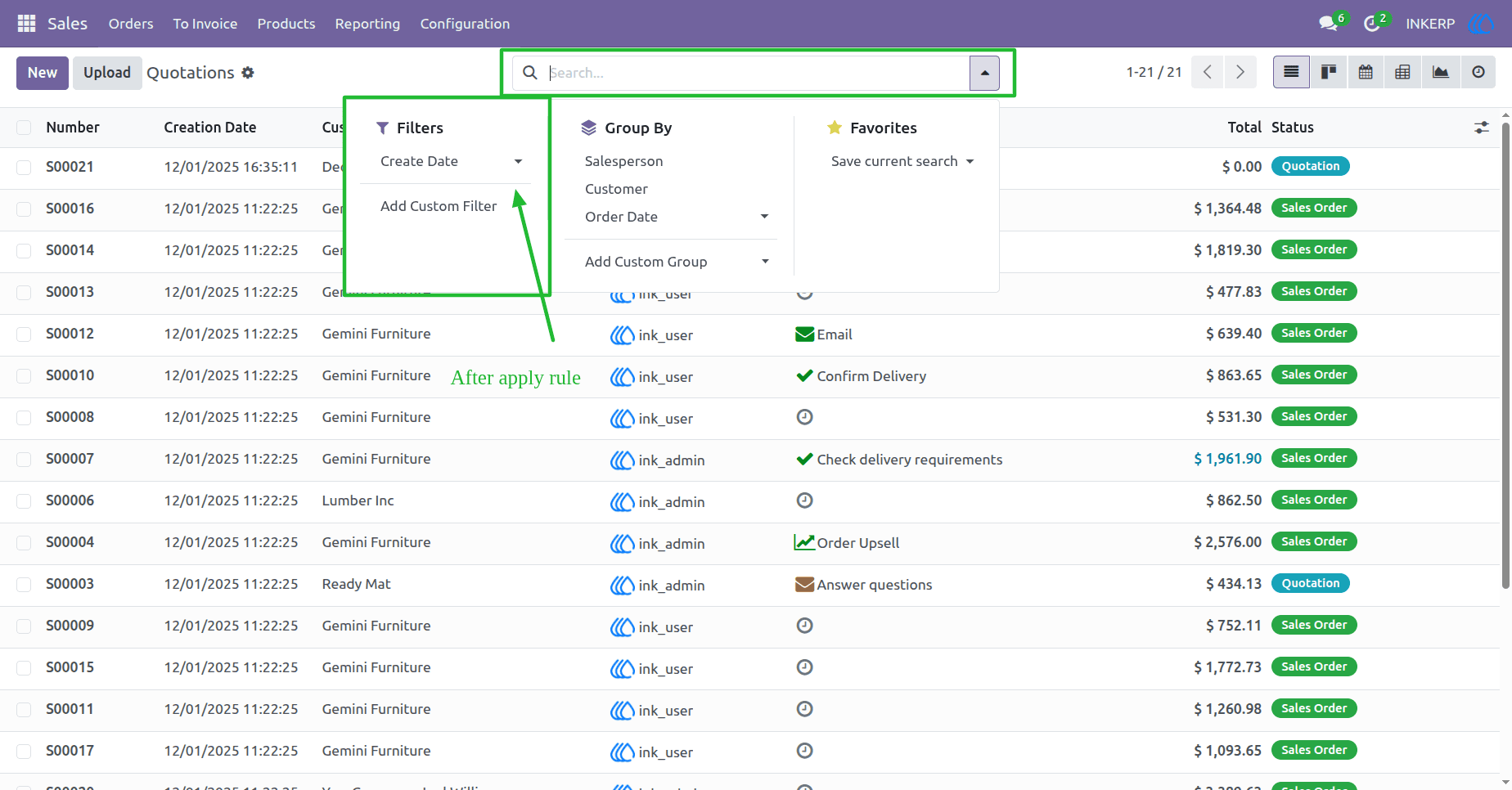
Hide search panel :
Hide the search panel for a specific model or hide it globally.
Global Access Rights :
Apply system wide restrictions (hide chatter, import/export, hide spreadsheet, hide add property).
Read-Only User :
Convert any user into a readonly user with one click.
Disable Developer Mode :
Prevent specific users from enabling developer mode.
Restrict Reports & Actions :
Block access to reports or specific actions.
Hide Duplicate/Archive Buttons :
Remove duplication or archiving options.
Make Any Field Required :
Enforce mandatory fields for selected users.
Screenshot
1) Settings View
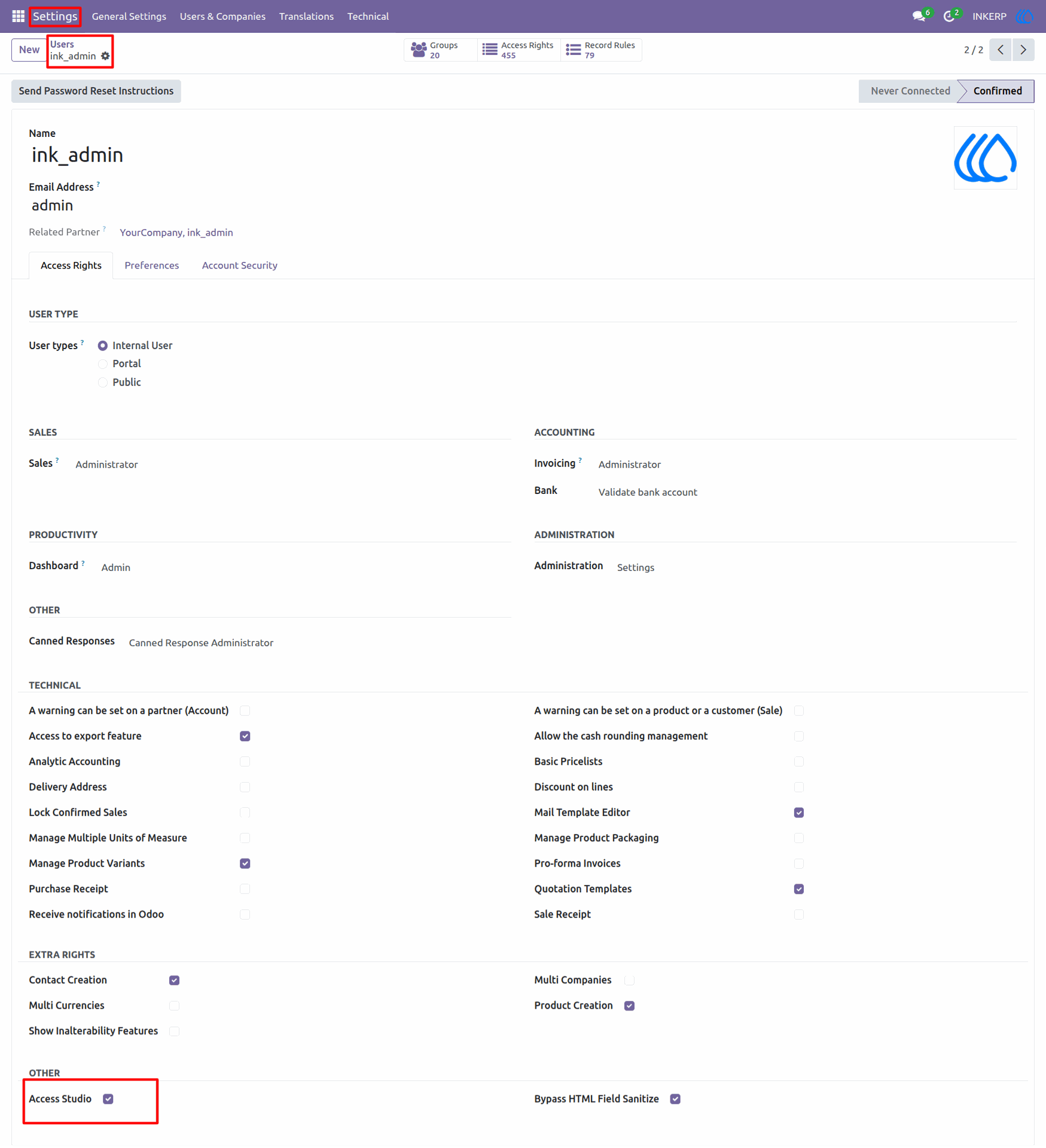
Unlock the developer mode to get access to technical details. In the users menu, give the Access Studio group access to the user.
Navigation : Settings › Users & Companies › Users
2) Access Studio View
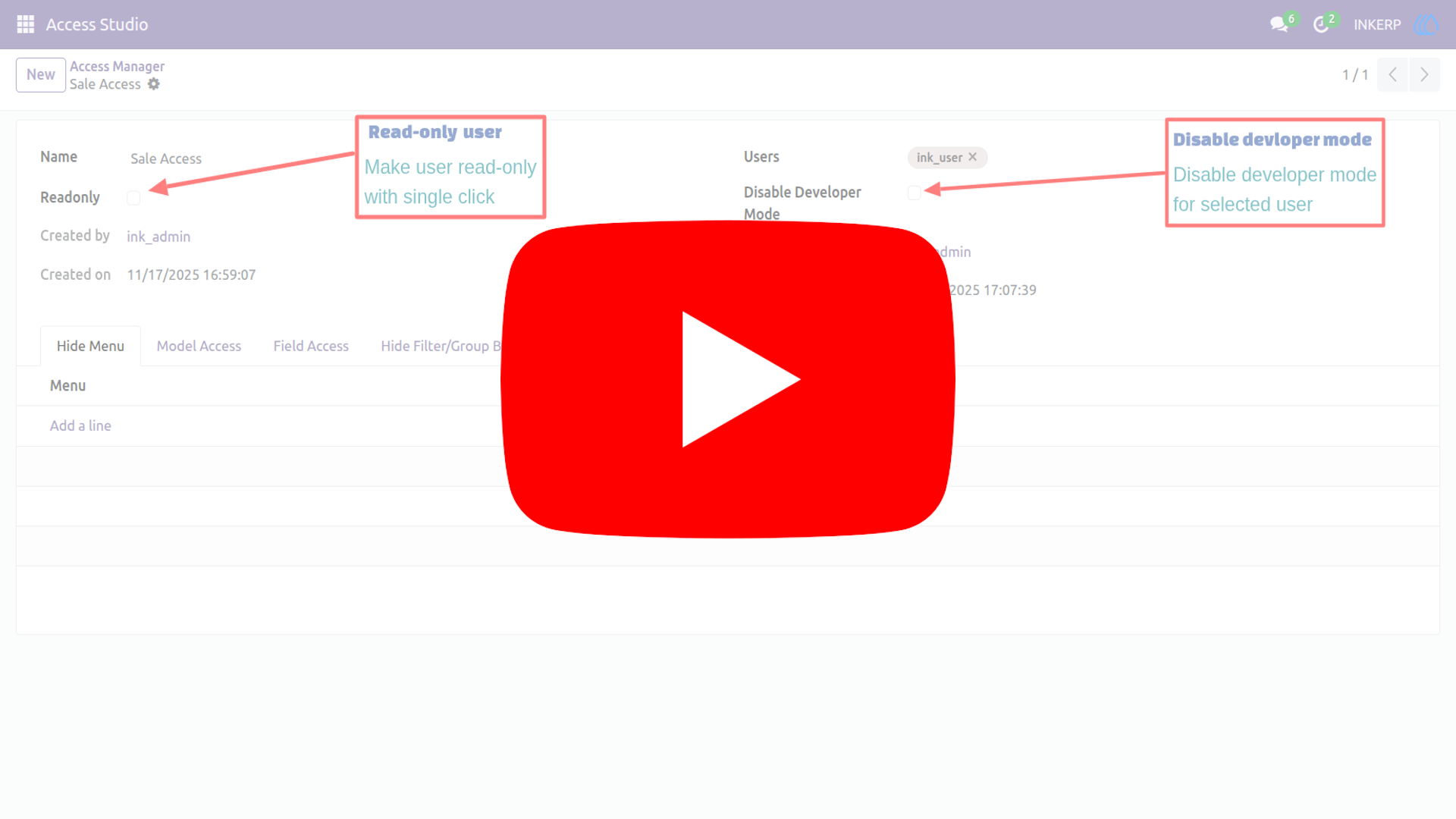
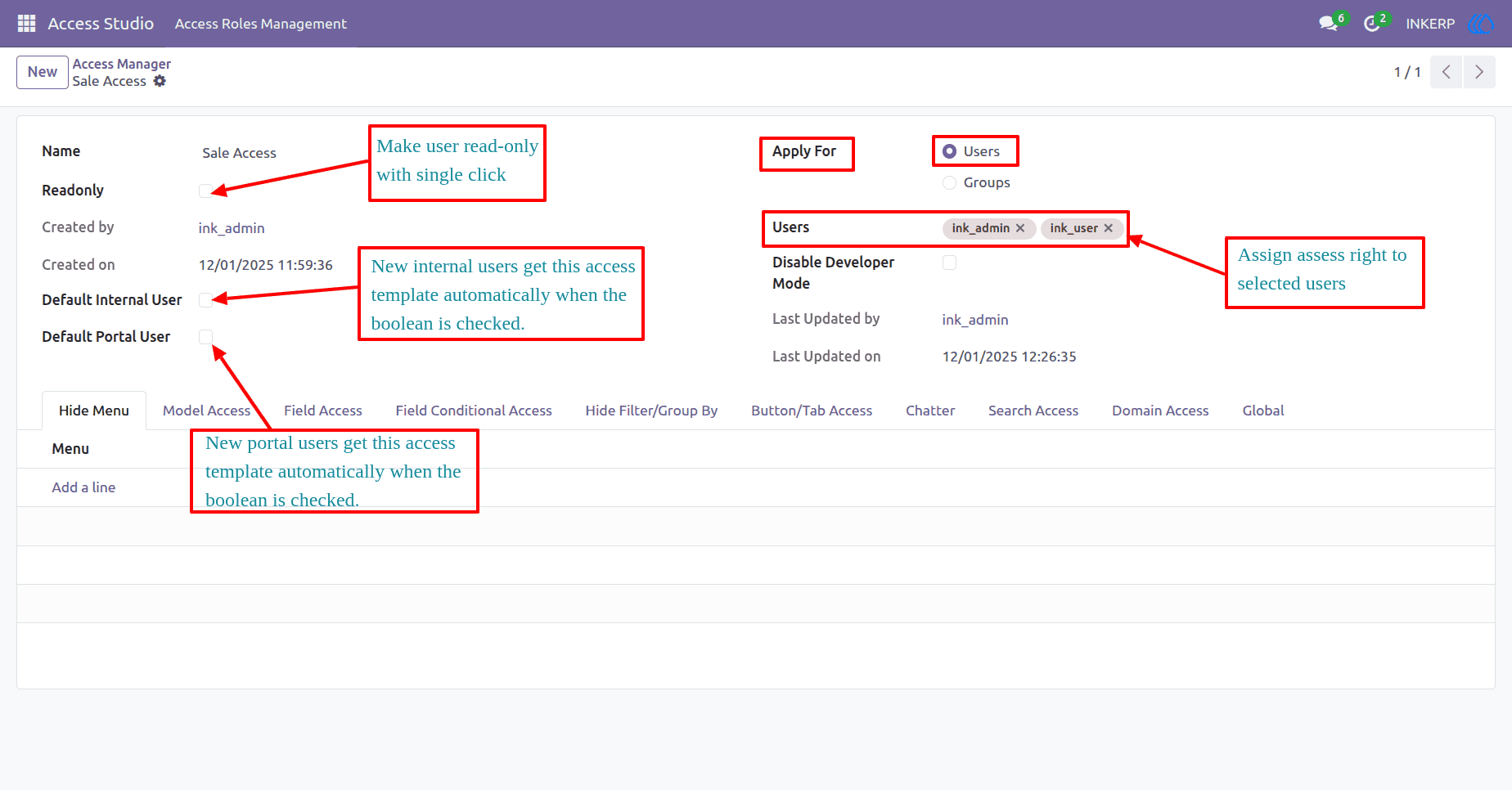
Read-Only Mode Toggle : Instantly make a user read-only by checking this box, the selected user can only view things but cannot make any changes. It is perfect for users who just need to look at data without editing anything like a viewer mode.
Apply For Users or Groups : Choose whether this access applies to specific users or entire groups. Offers flexibility in assigning permissions based on organizational structure.
Default Internal User : When enabled, this access template is automatically applied to newly created internal users.
Default Portal User : Automatically assigns this access role to new portal users.
Disable Developer Mode : When this box is checked, the selected users or groups will not have access to developer tools or advanced settings.It helps keep things safe by preventing users from making technical changes that could affect the system.
3) Group Based Access
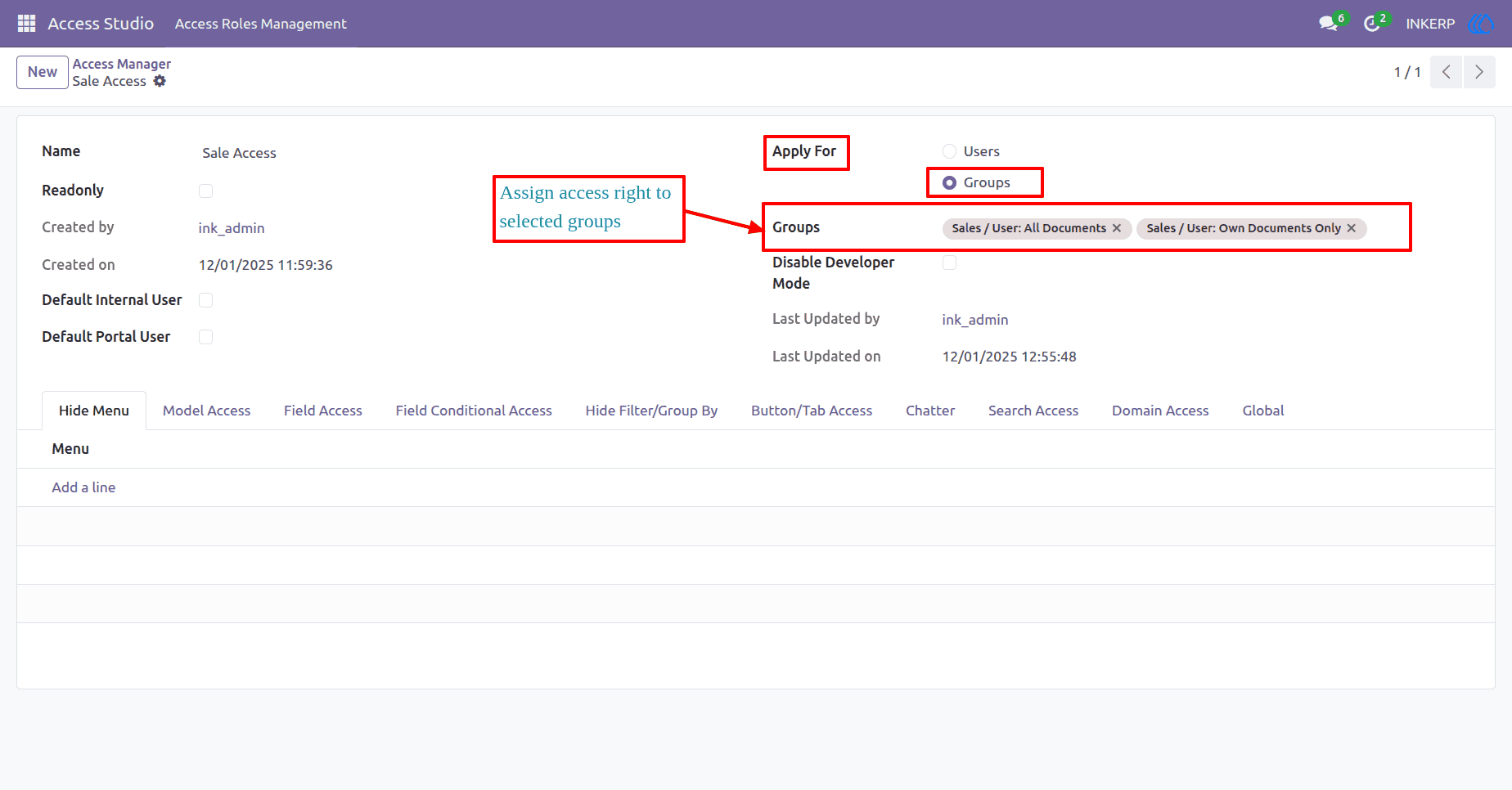
Assign access rights directly to selected groups. This enables scalable permission management by applying consistent rules across multiple users within a group.
Selected Groups Overview Displays the groups that will inherit this access role. In this case, "Sales / User: All Documents" and "Sales / User: Own Documents Only" are selected, allowing tailored access based on document visibility.
4) Scheduled Access Activation
Define a time-bound access role by selecting a template and specifying a start and end date. The system will automatically activate or block the access rights during the selected period, enabling temporary access control for audits.
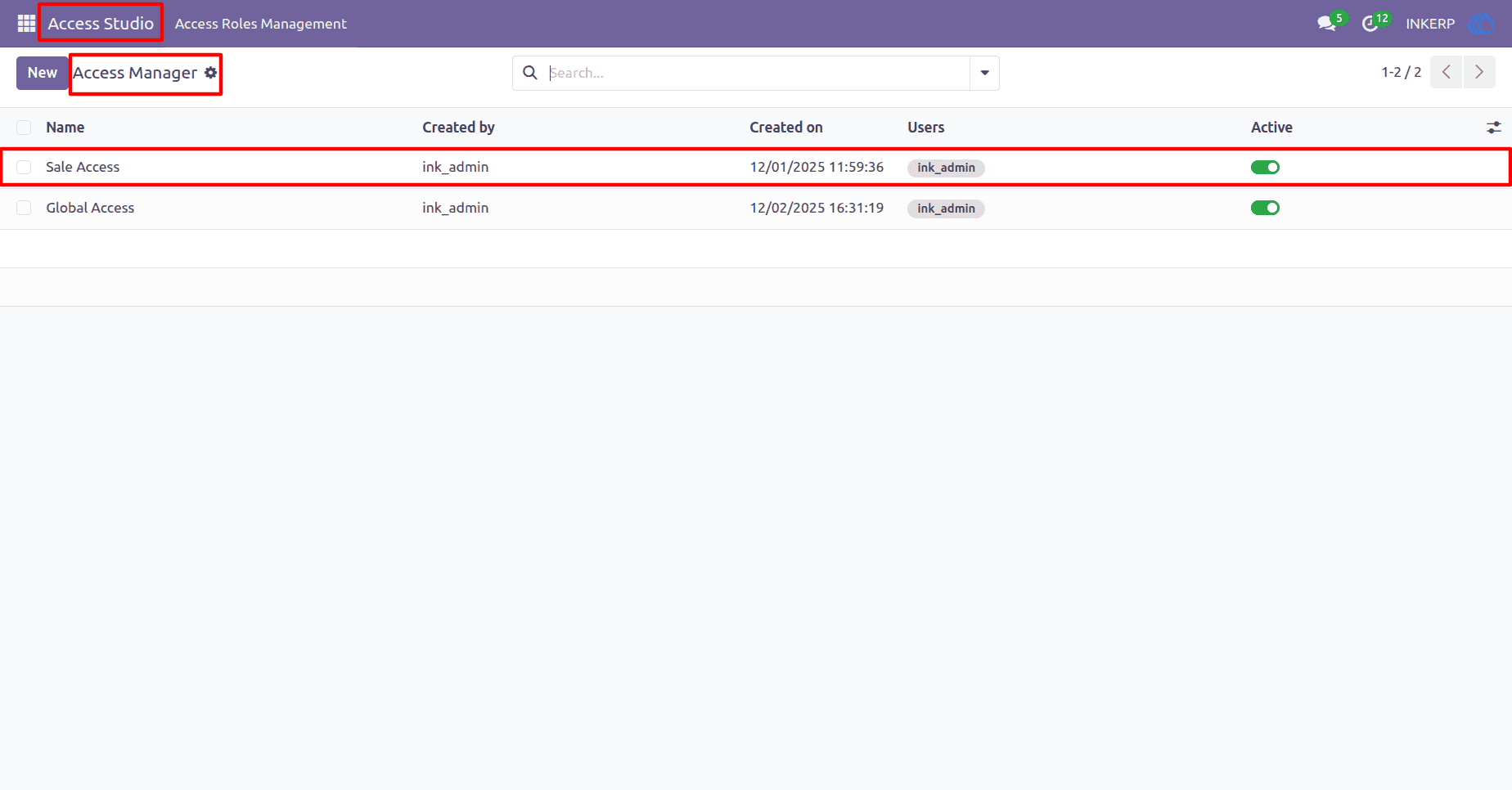
5) Access Manager List View
Displays all configured access roles in a centralized list. Each entry shows metadata such as creator, creation date, assigned users, and activation status.
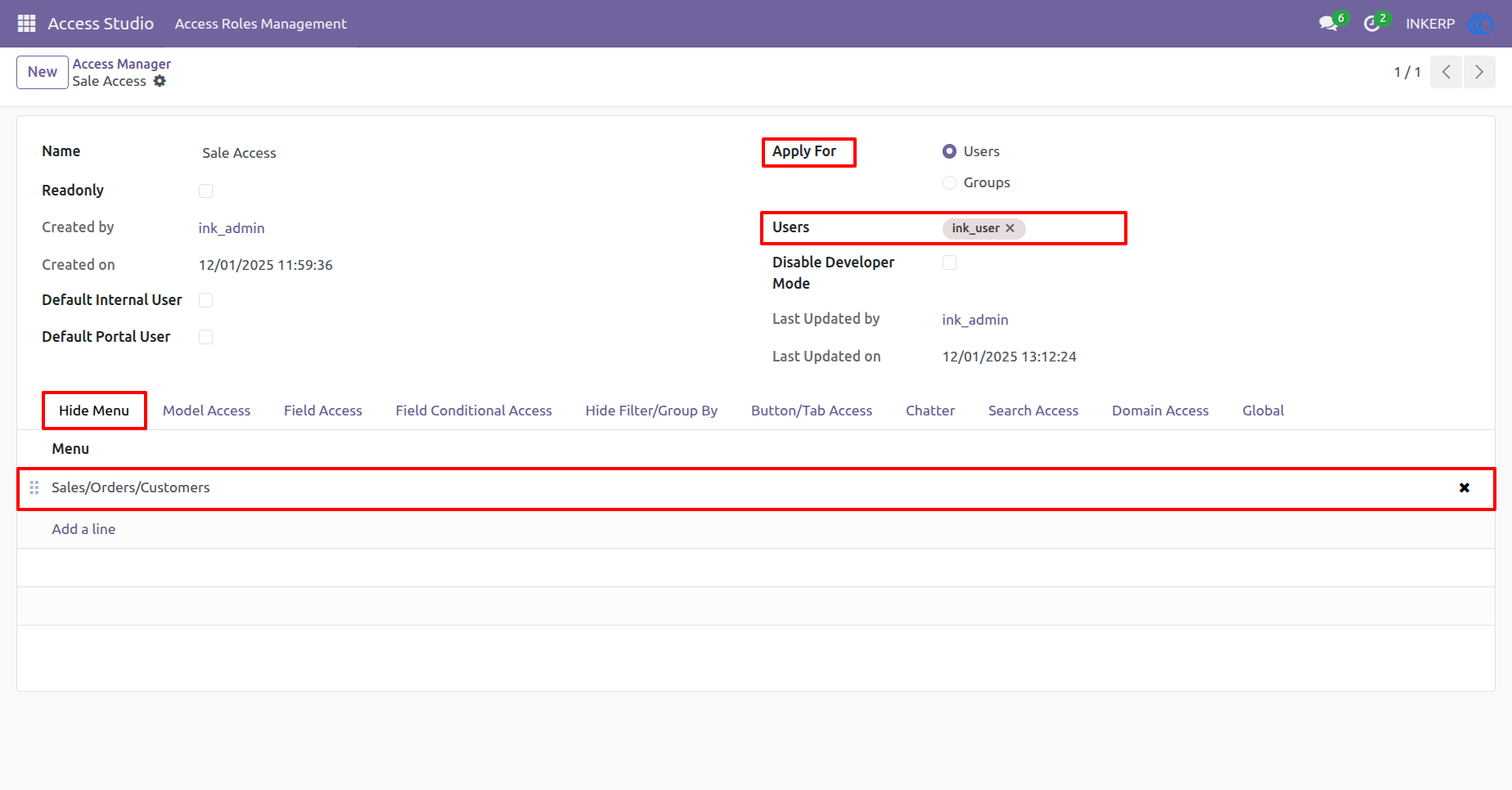
6) Hide Menu / Sub-menu
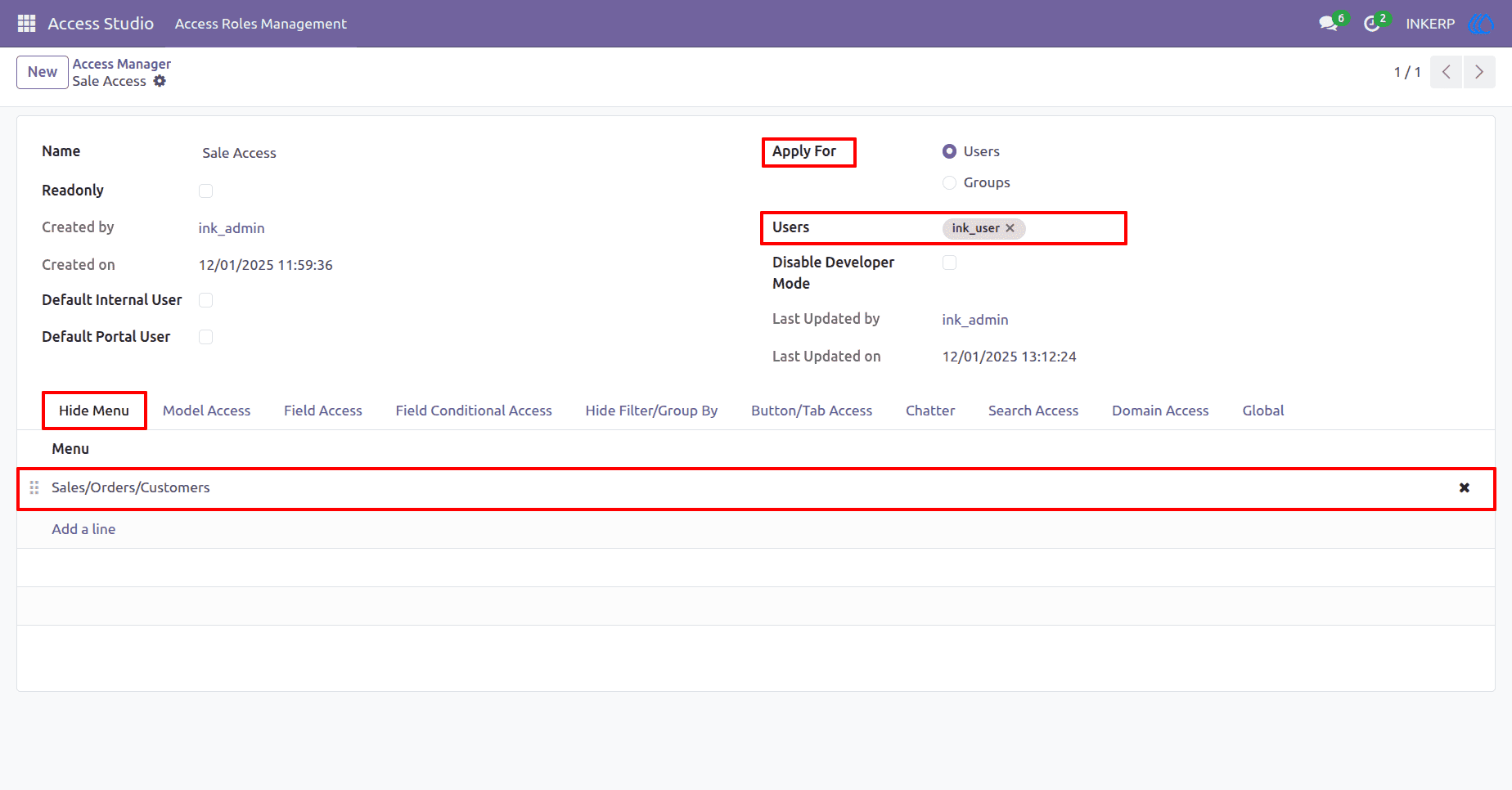
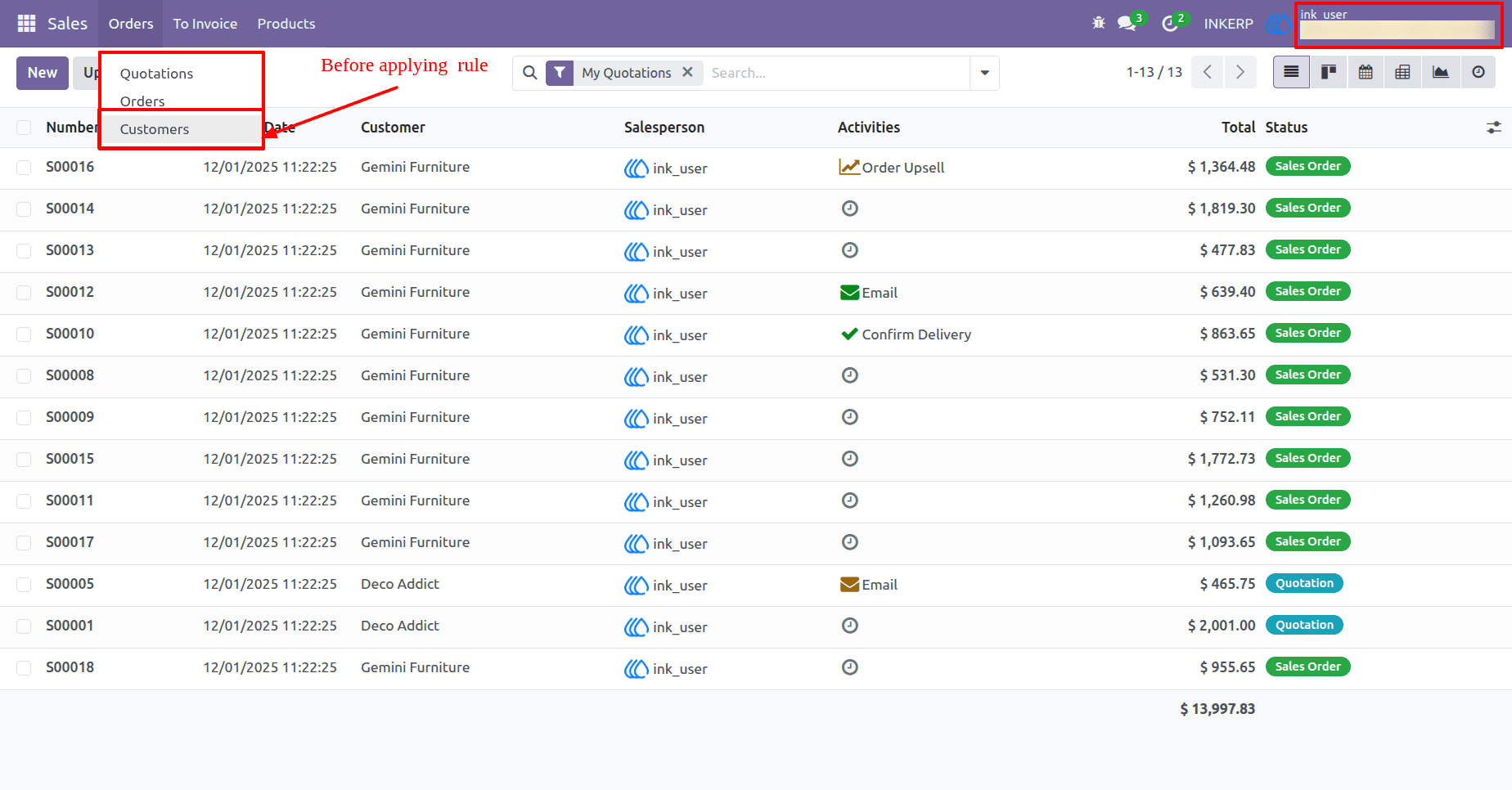
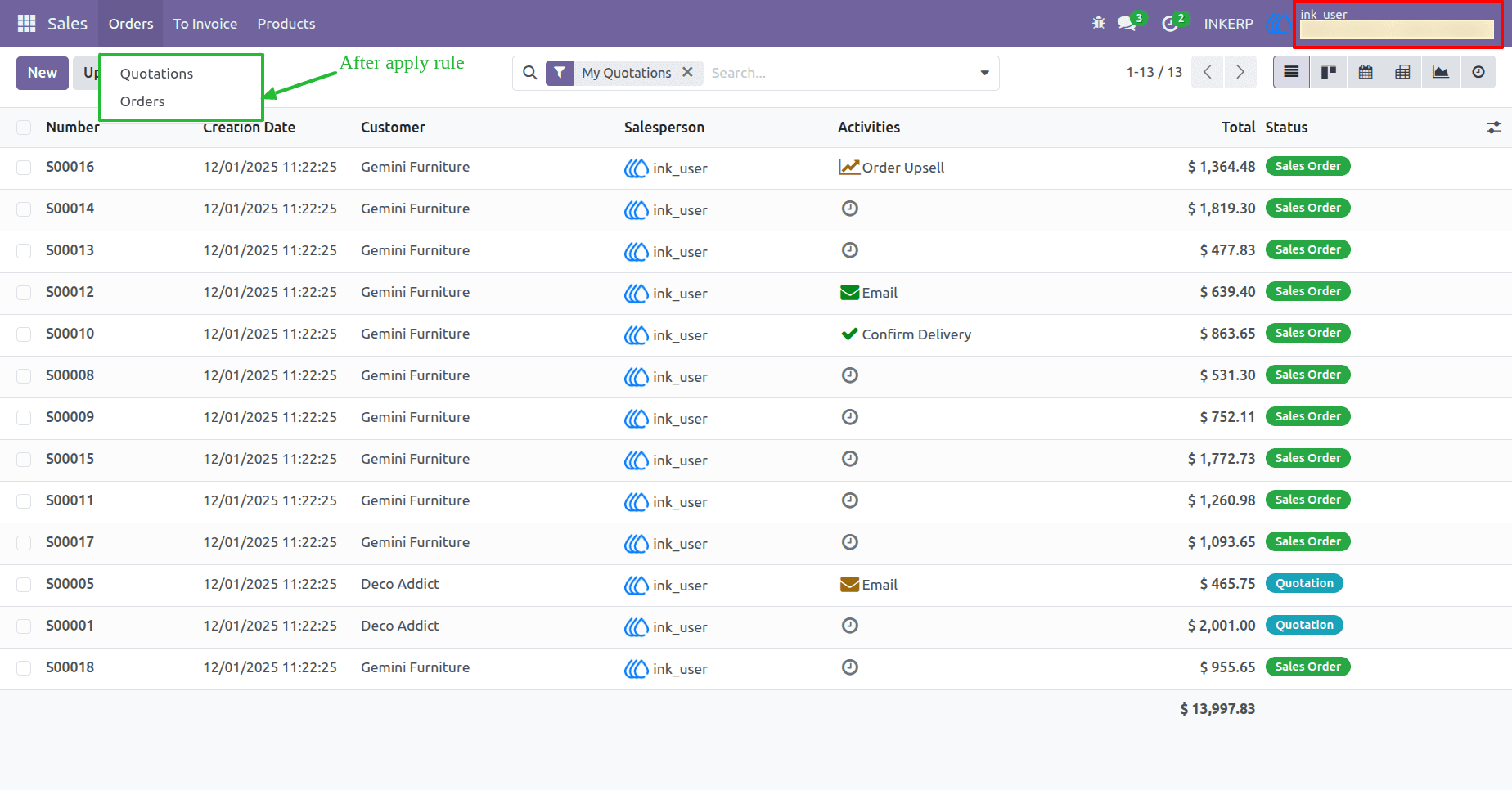
This feature lets you hide specific menus or sub-menus from users in the application.
User-Specific Menu Control : You can apply these menu restrictions to specific users.
Before Applying Hide Menu Rule
After Applying Hide Menu Rule
7) Action Visibility Settings
Prevents users from seeing or using action buttons related to this model. Hide specific actions like "Send an email" or "Mark Quotation as sent " from the user interface. This helps streamline workflows and prevent unauthorized operations.
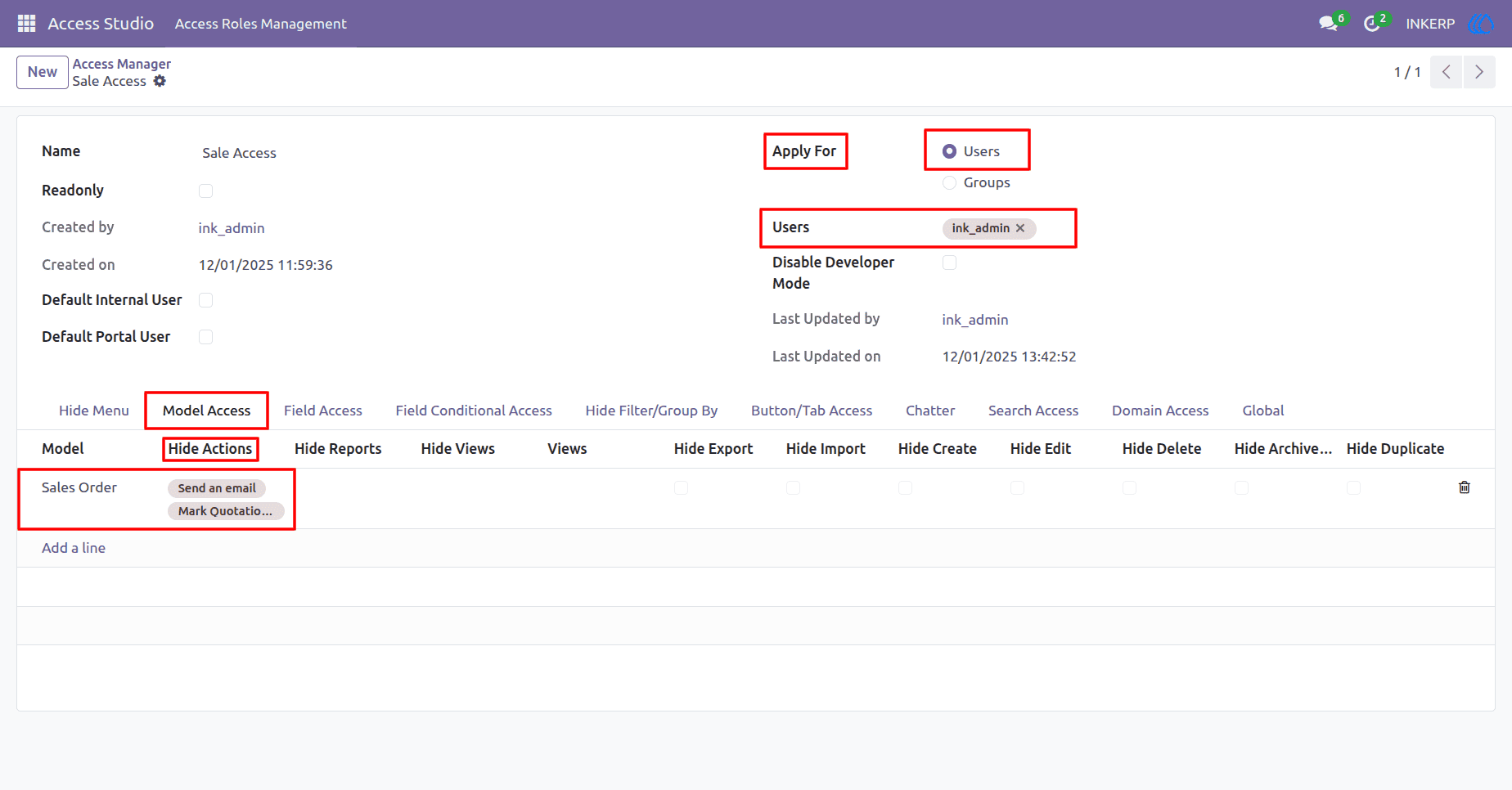
Before Applying Hide Action Rule
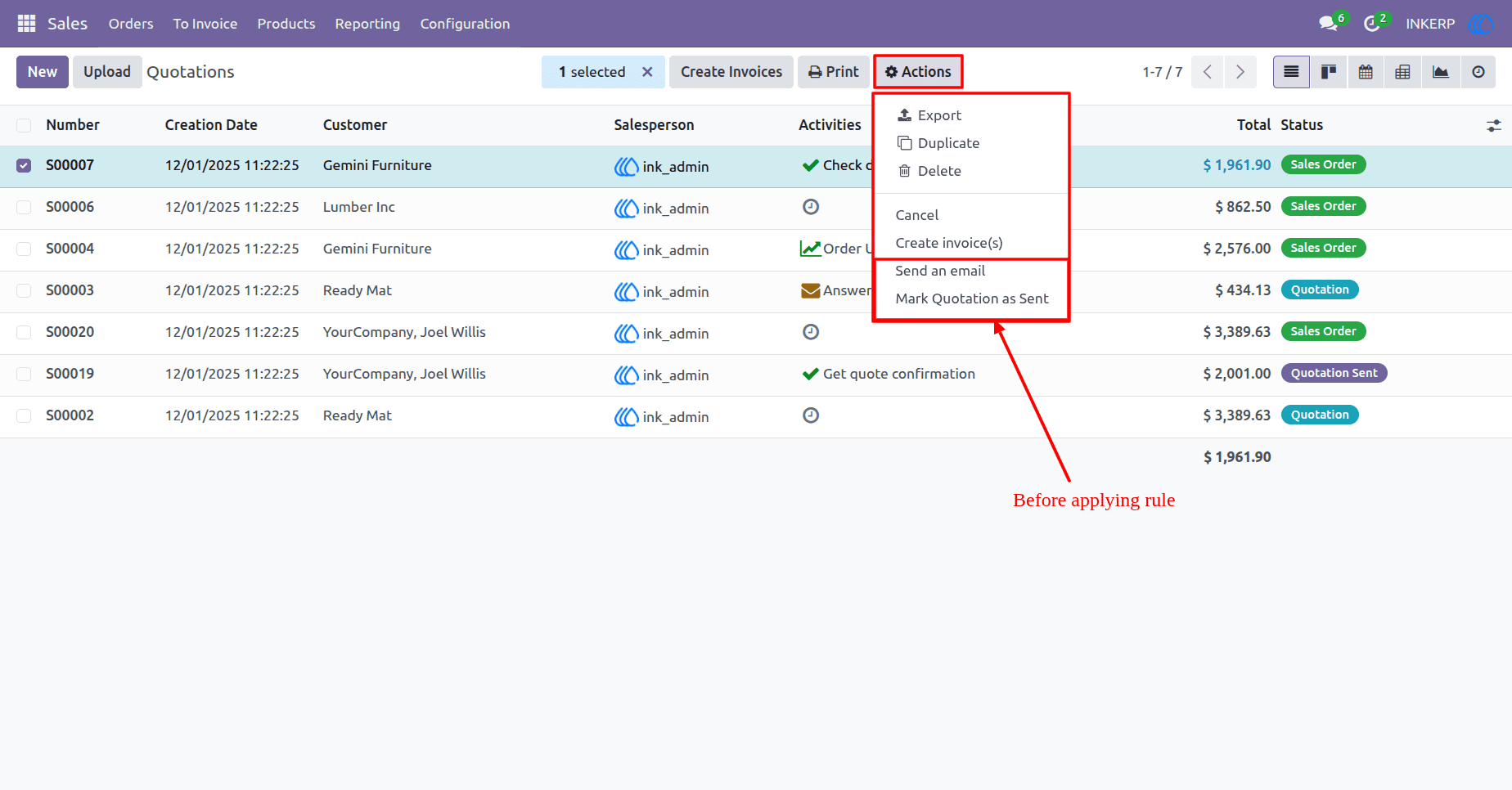
After Applying Hide Action Rule
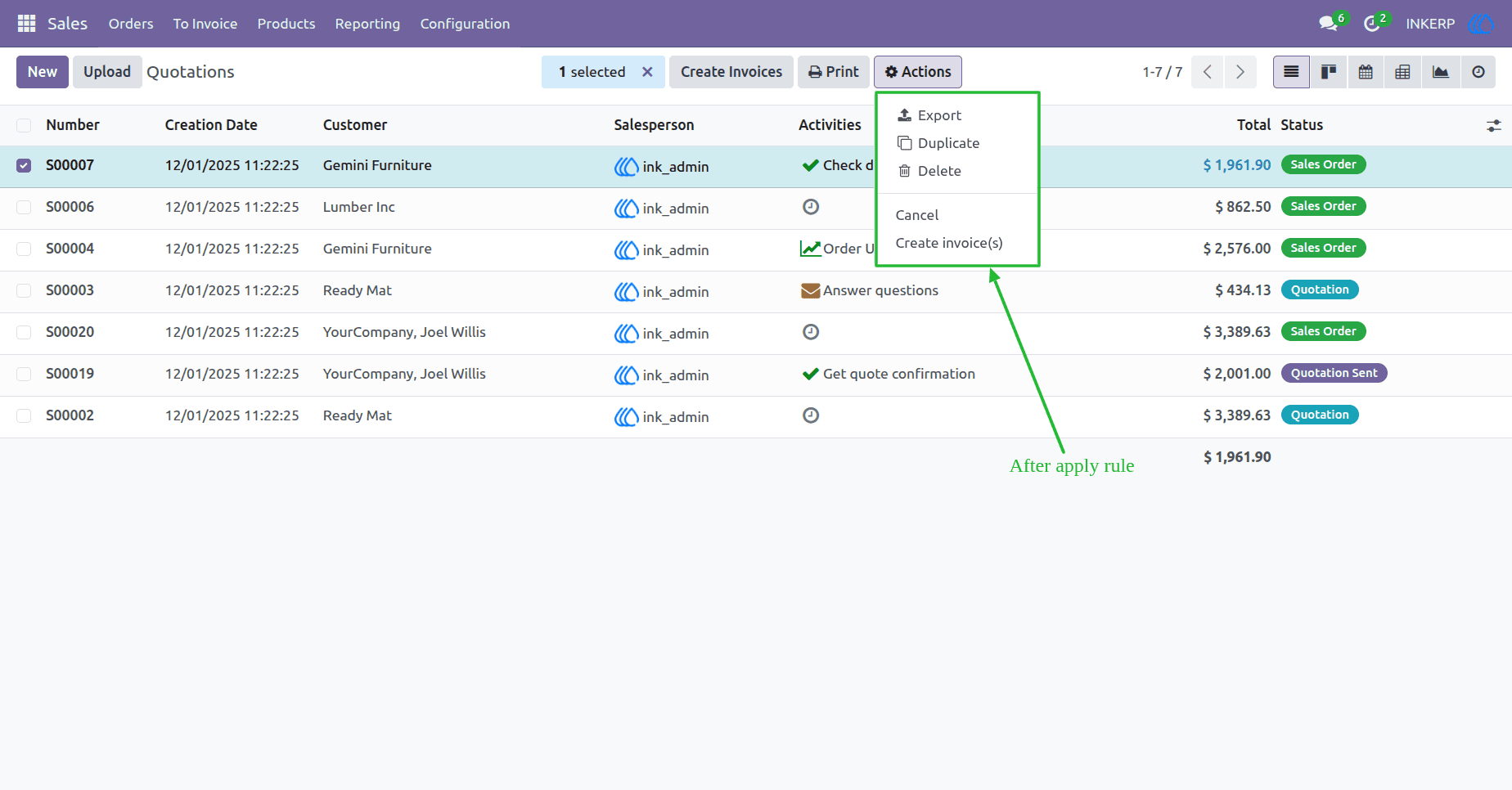
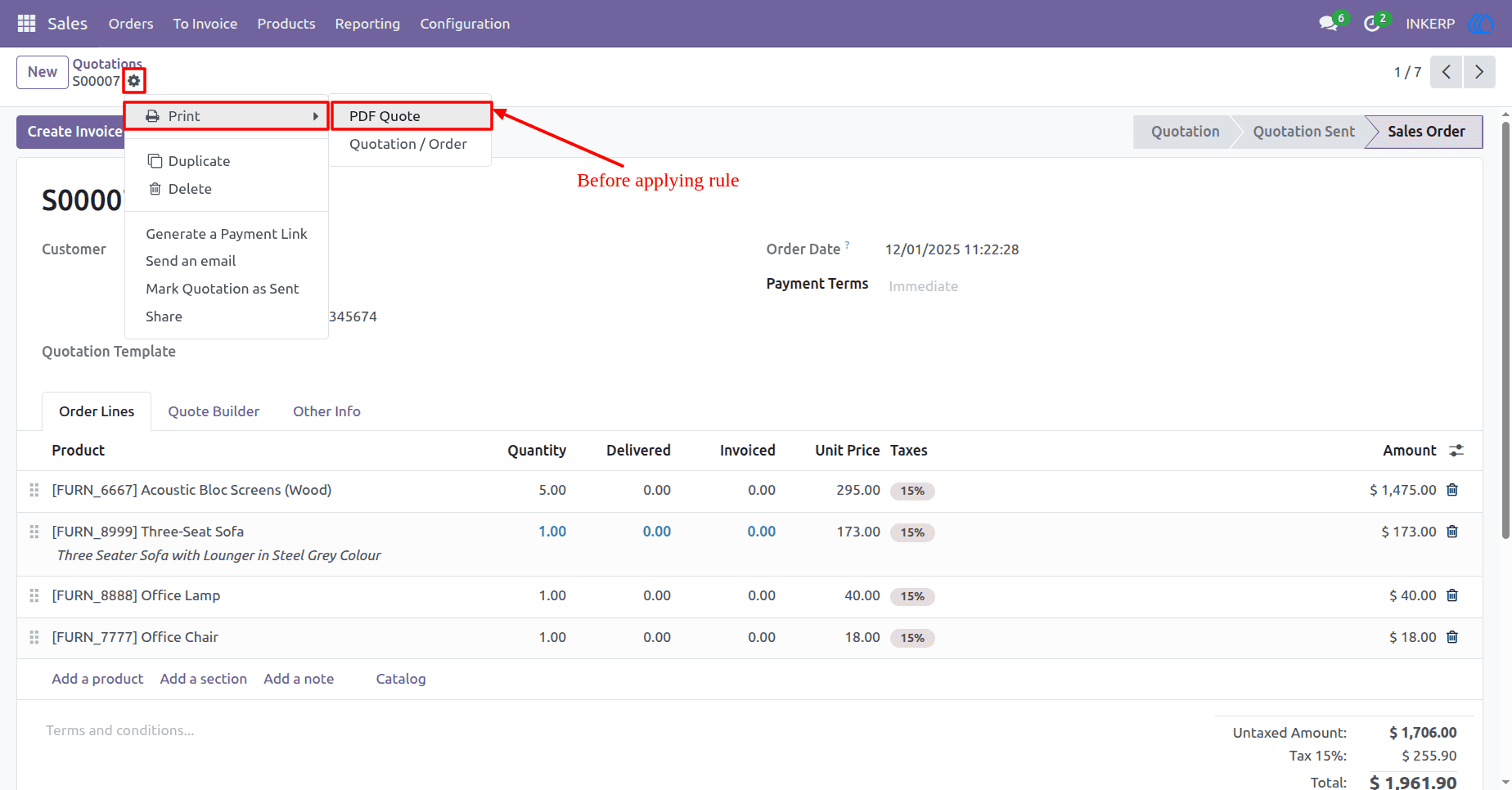
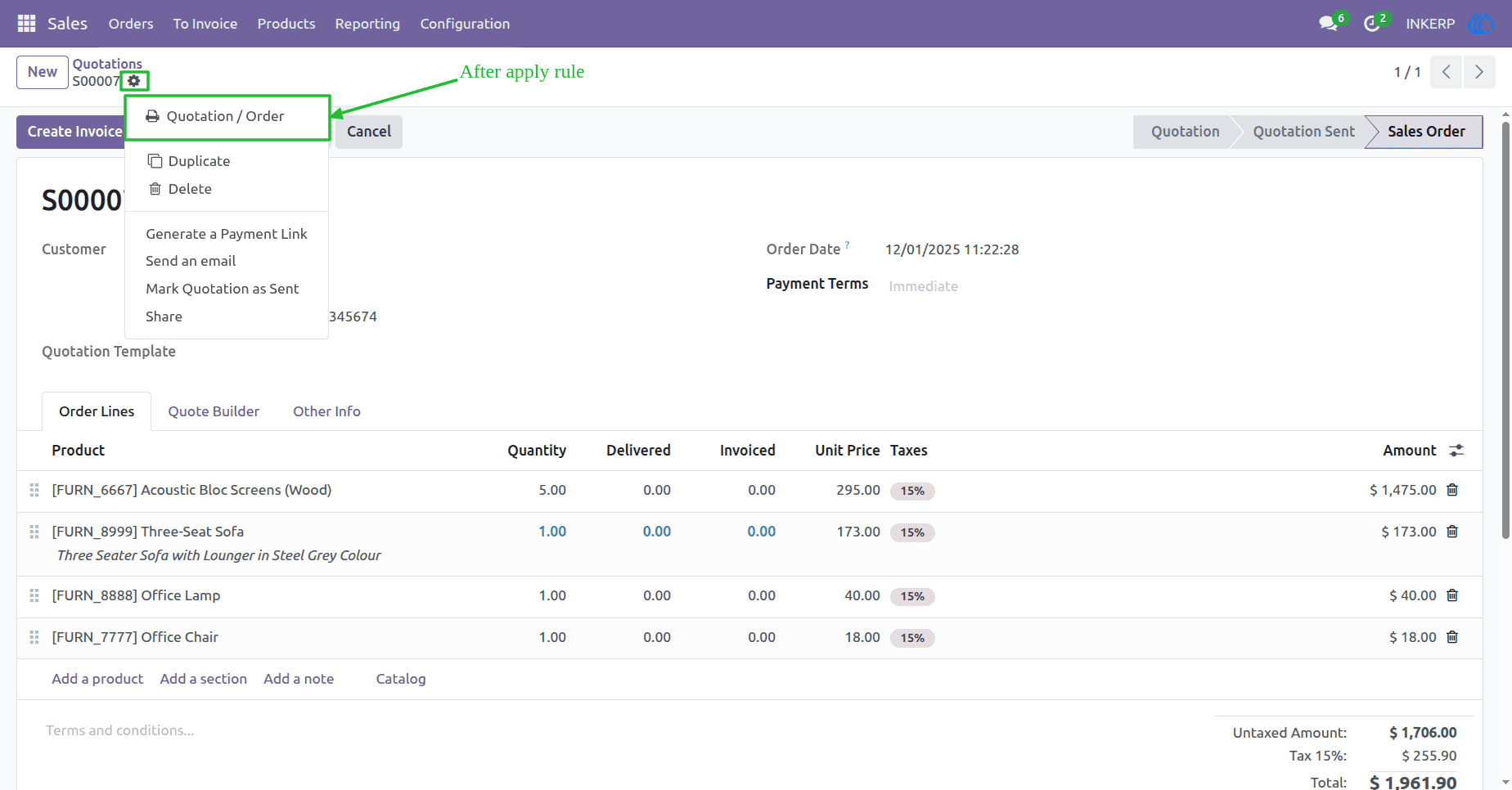
8) Report Visibility Control
Here user can select model and reports that needs to be hidden. Blocks access to reports linked to this model. Useful when reports contain sensitive or unnecessary data for certain users.
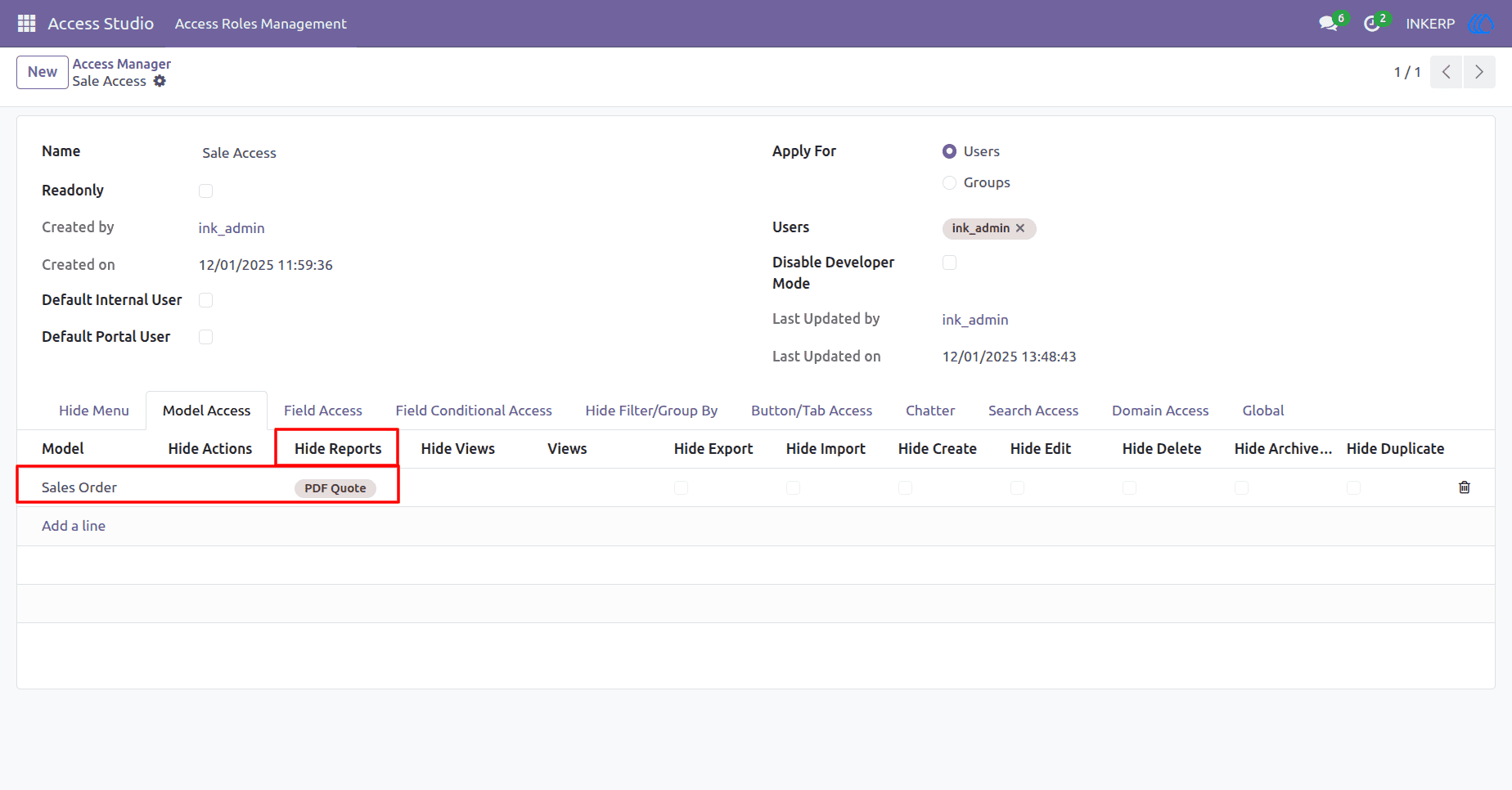
Before Applying Hide Report Action Rule
After Applying Hide Report Action Rule
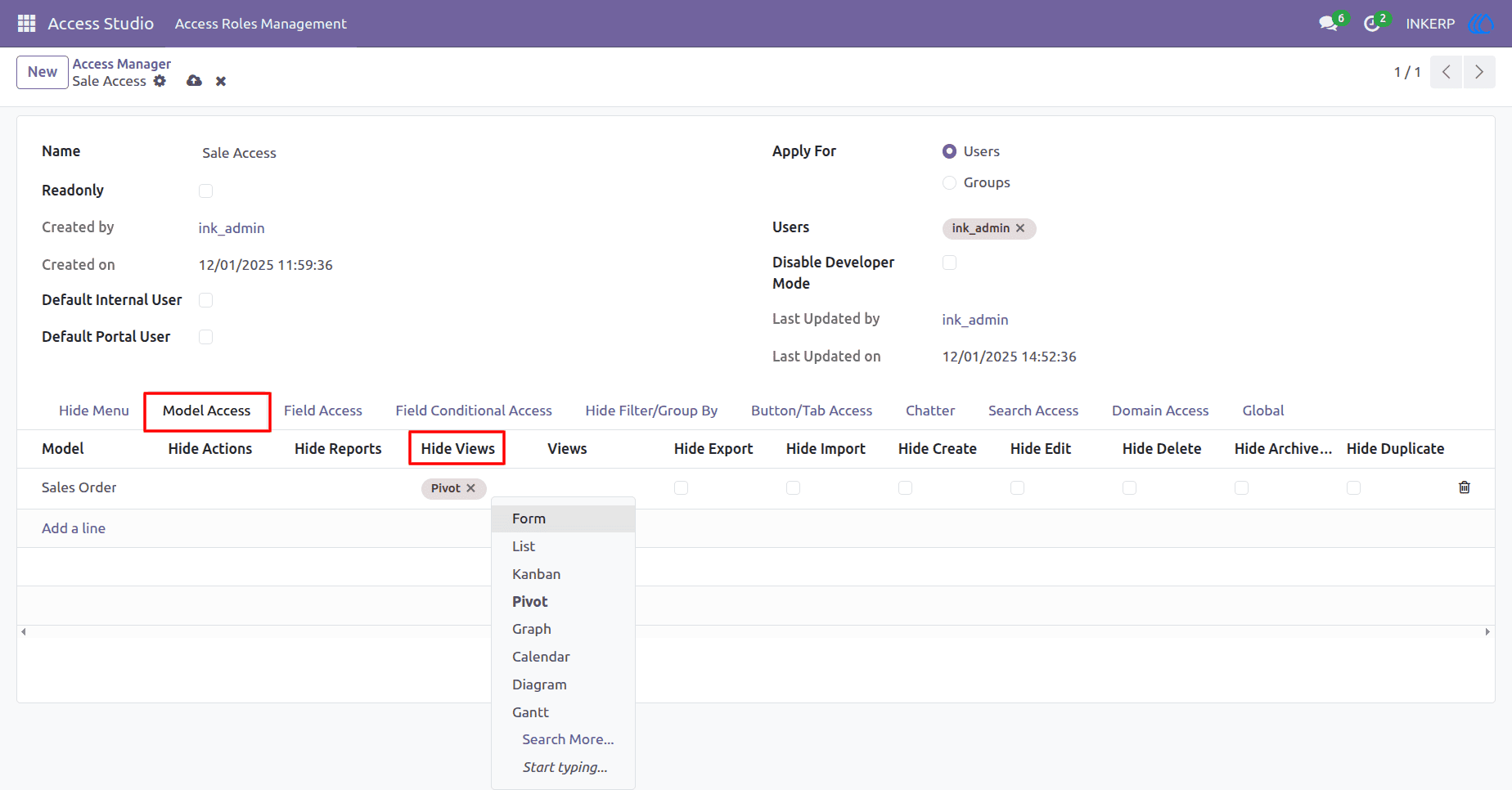
9) View-Level Access Control
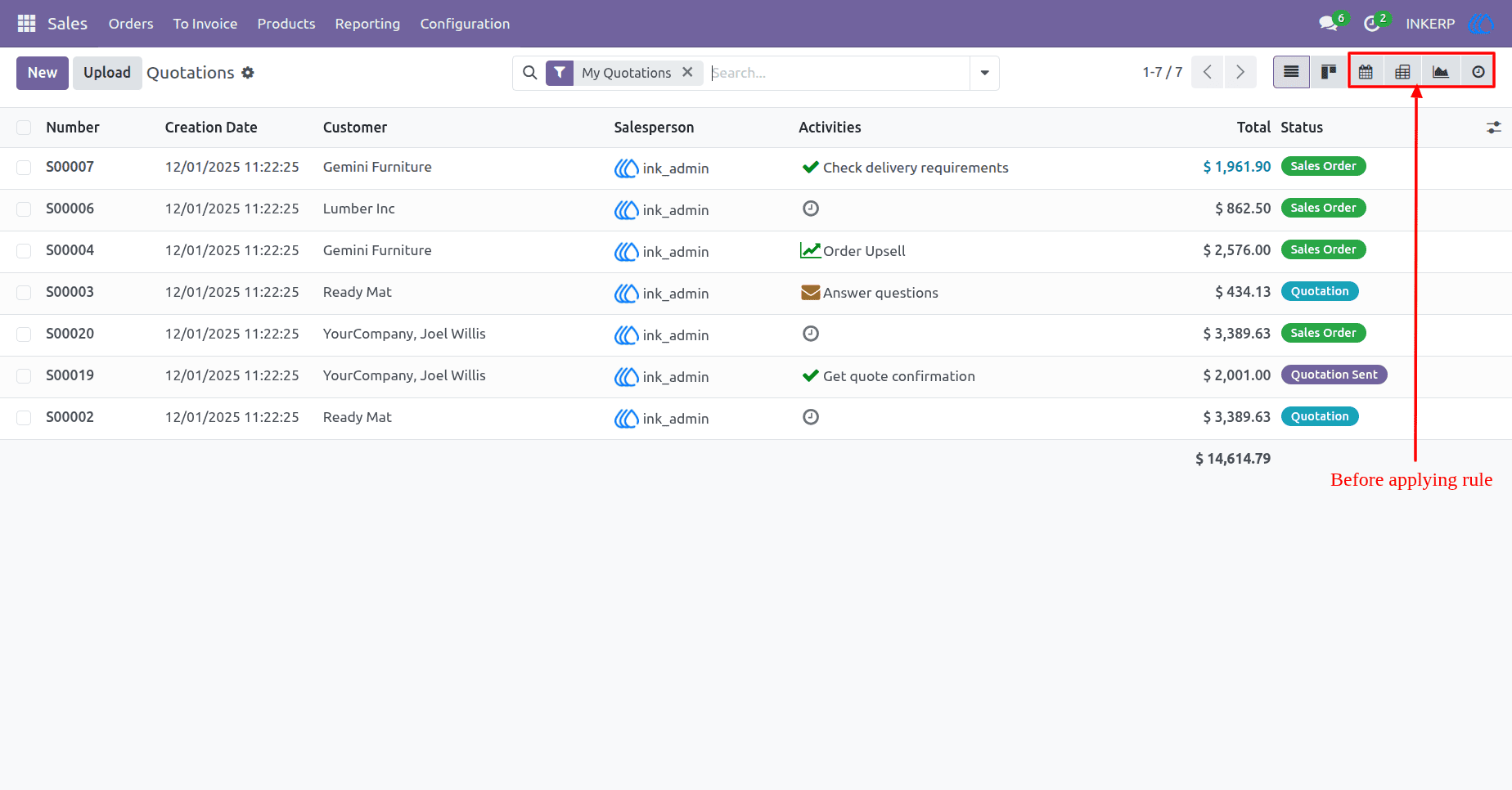
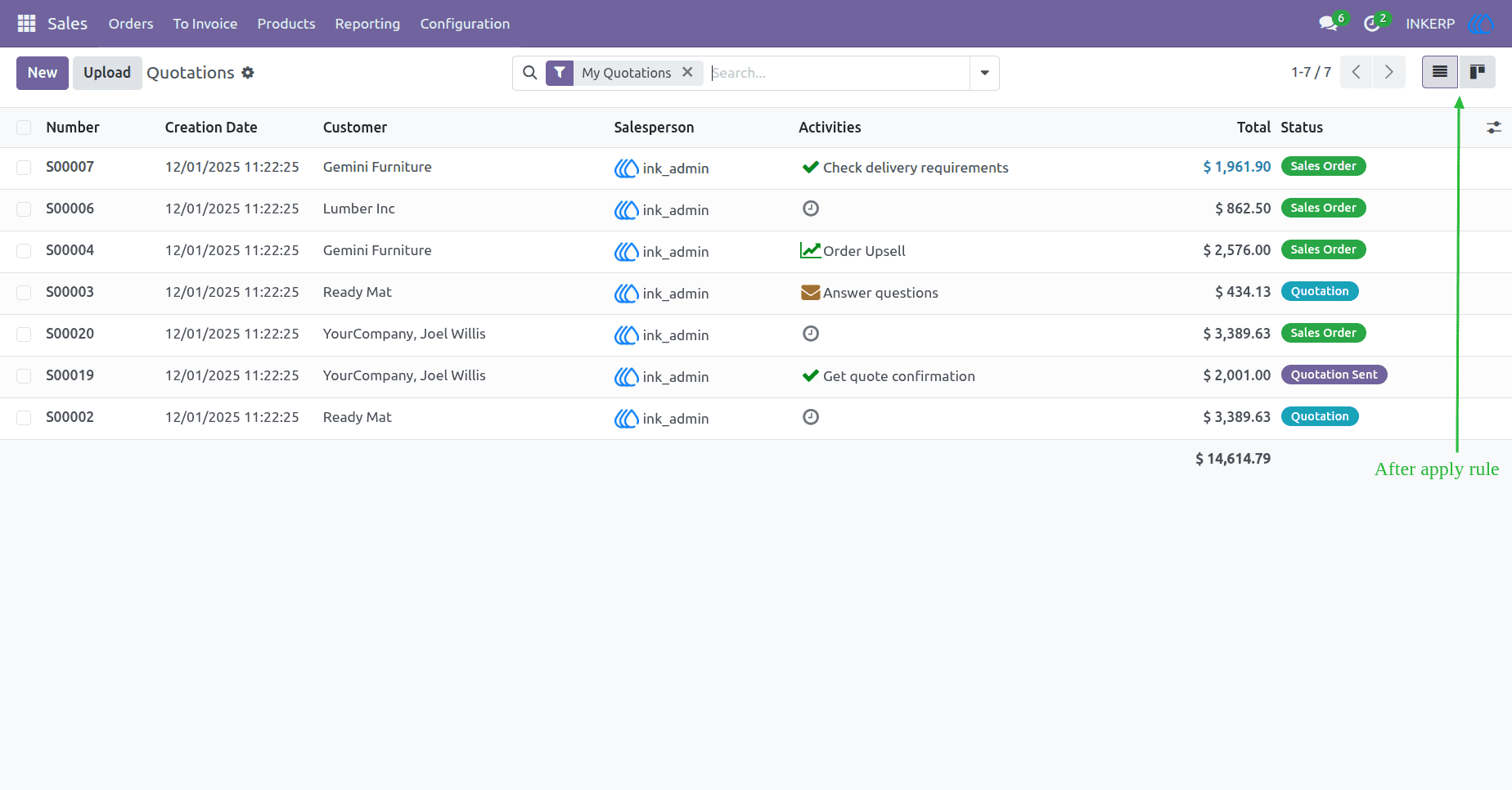
Select which views (e.g., Pivot, Form, Kanban) should be hidden for the assigned role. This allows administrators to tailor the user interface based on role specific needs, ensuring users only interact with relevant data representations.
Before Applying Hide View Rule
After Applying Hide View Rule
10) View Assignment
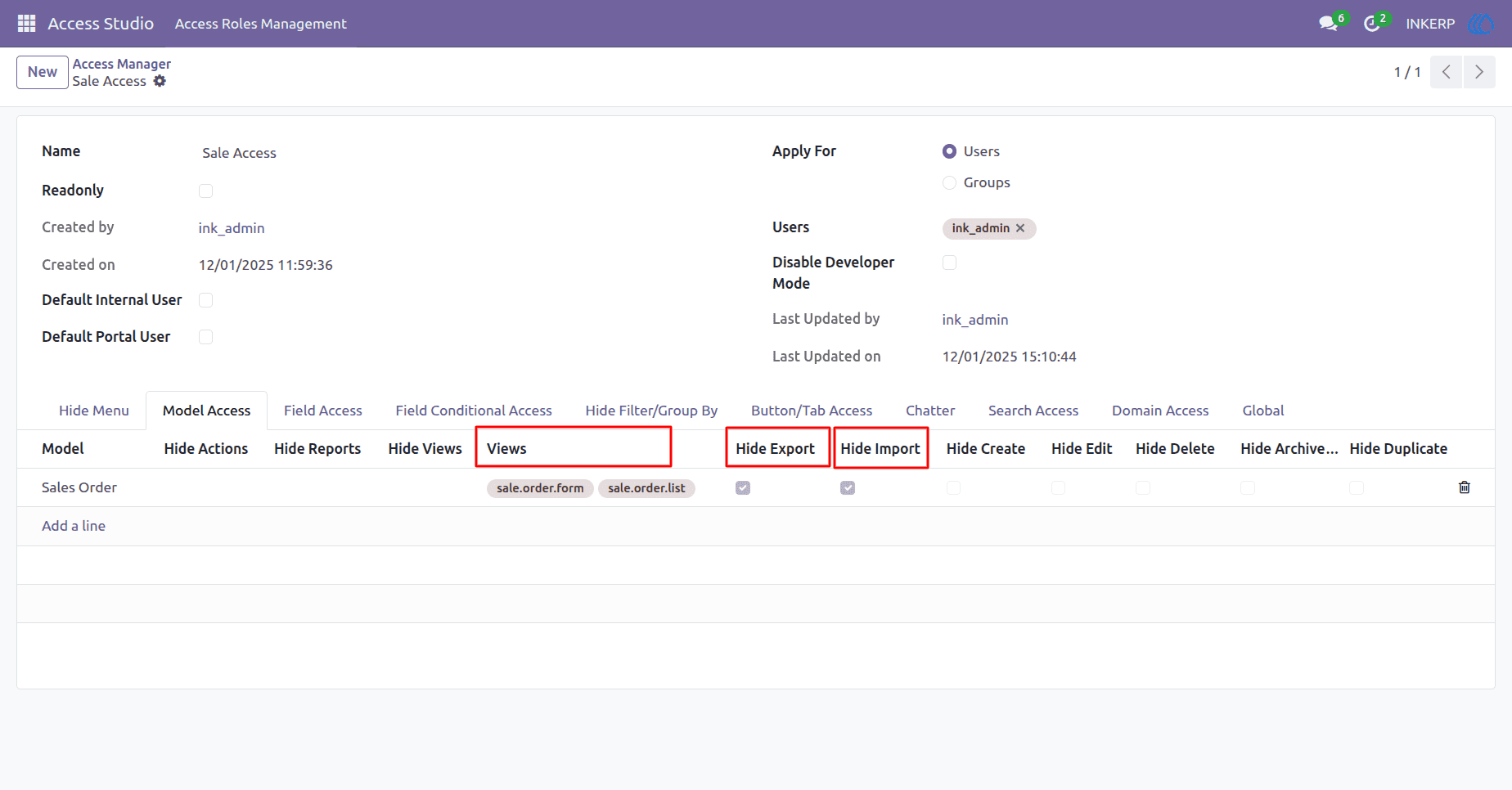
Assign specific views (e.g., sale.order.form, sale.order.list) to apply hidden access to those views. If no views are selected, hidden access will be applied to all views of the selected model.
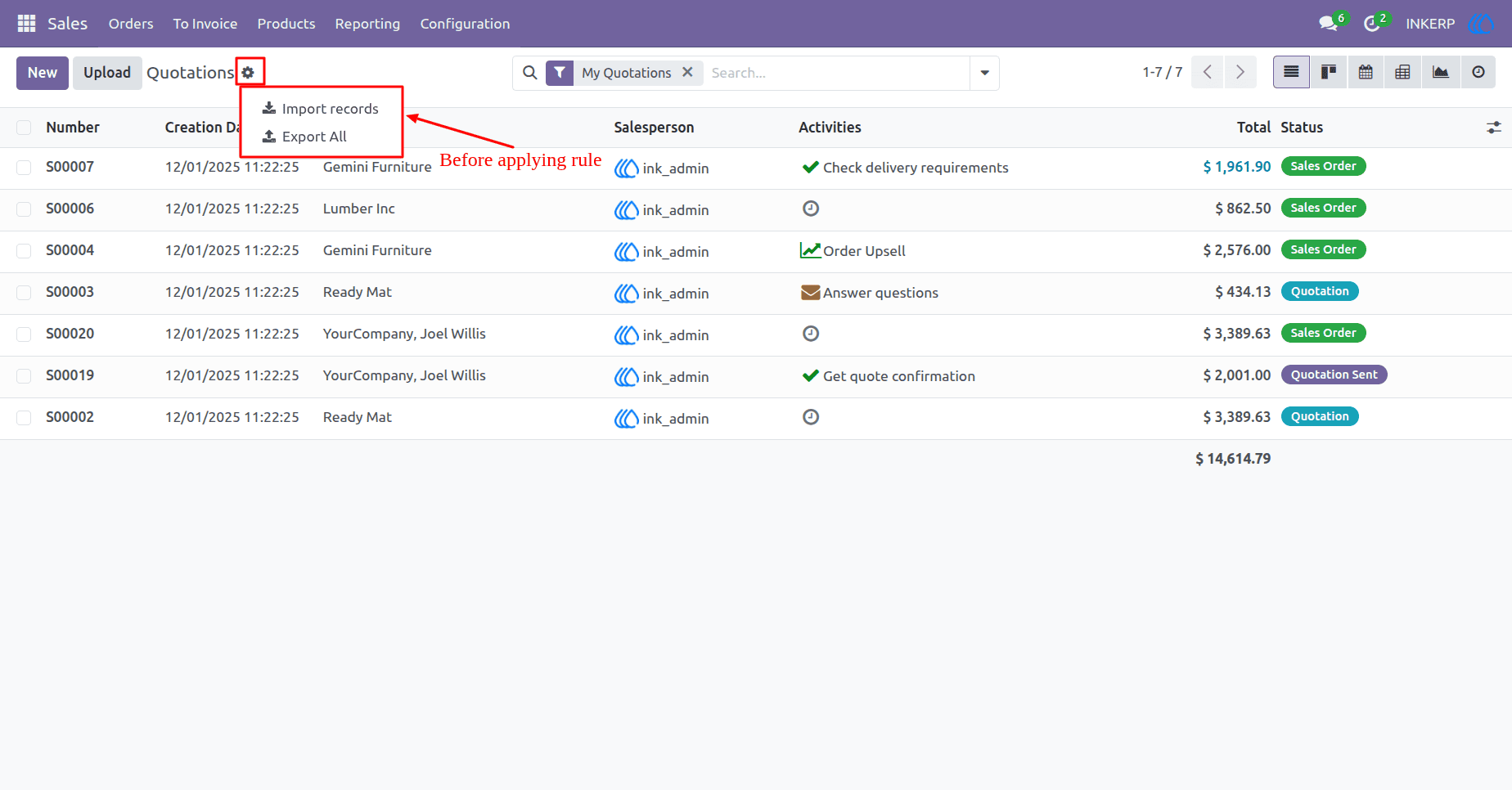
Export/Import Restriction : Prevent users from exporting or importing data within the selected model by enabling these checkboxes. This is useful for protecting sensitive information and maintaining data consistency.
Before Applying Hide Import / Export Rule
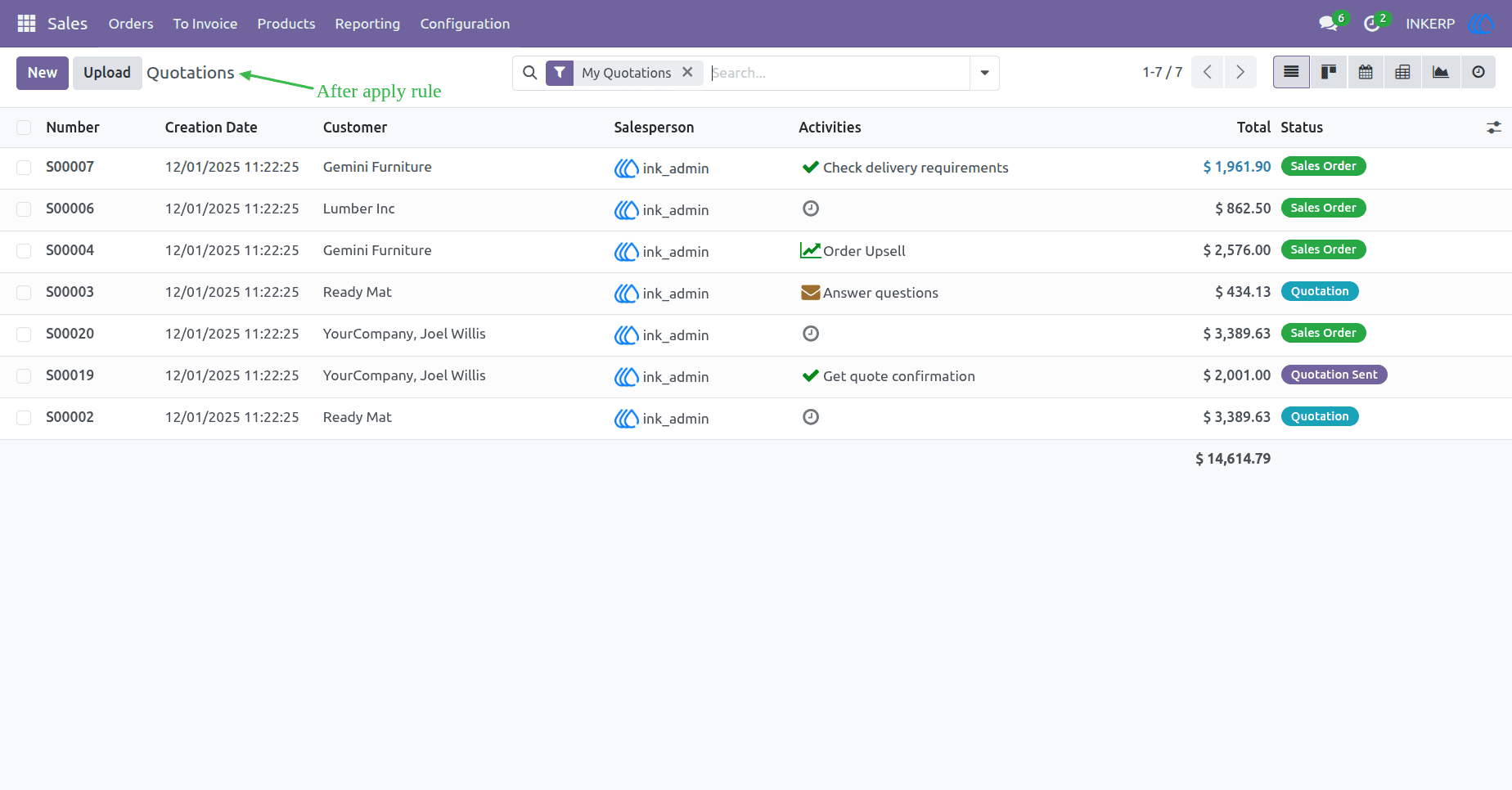
After Applying Hide Import / Export Rule
11) CRUD Operation Restrictions
Restrict users from creating, editing, or deleting records in the selected model by enabling these checkboxes. This ensures that users can only view data without modifying it, which is ideal for audit or readonly roles.
Hide Create : Users will not be able to create new records in this model. Ensures only authorized users can add new entries.
Hide Edit : Blocks users from editing existing records. Keeps data safe from unwanted changes.
Hide Delete : Prevents users from deleting records. Protects important data from being removed.
Hide Duplicate : Disables the option to duplicate records.
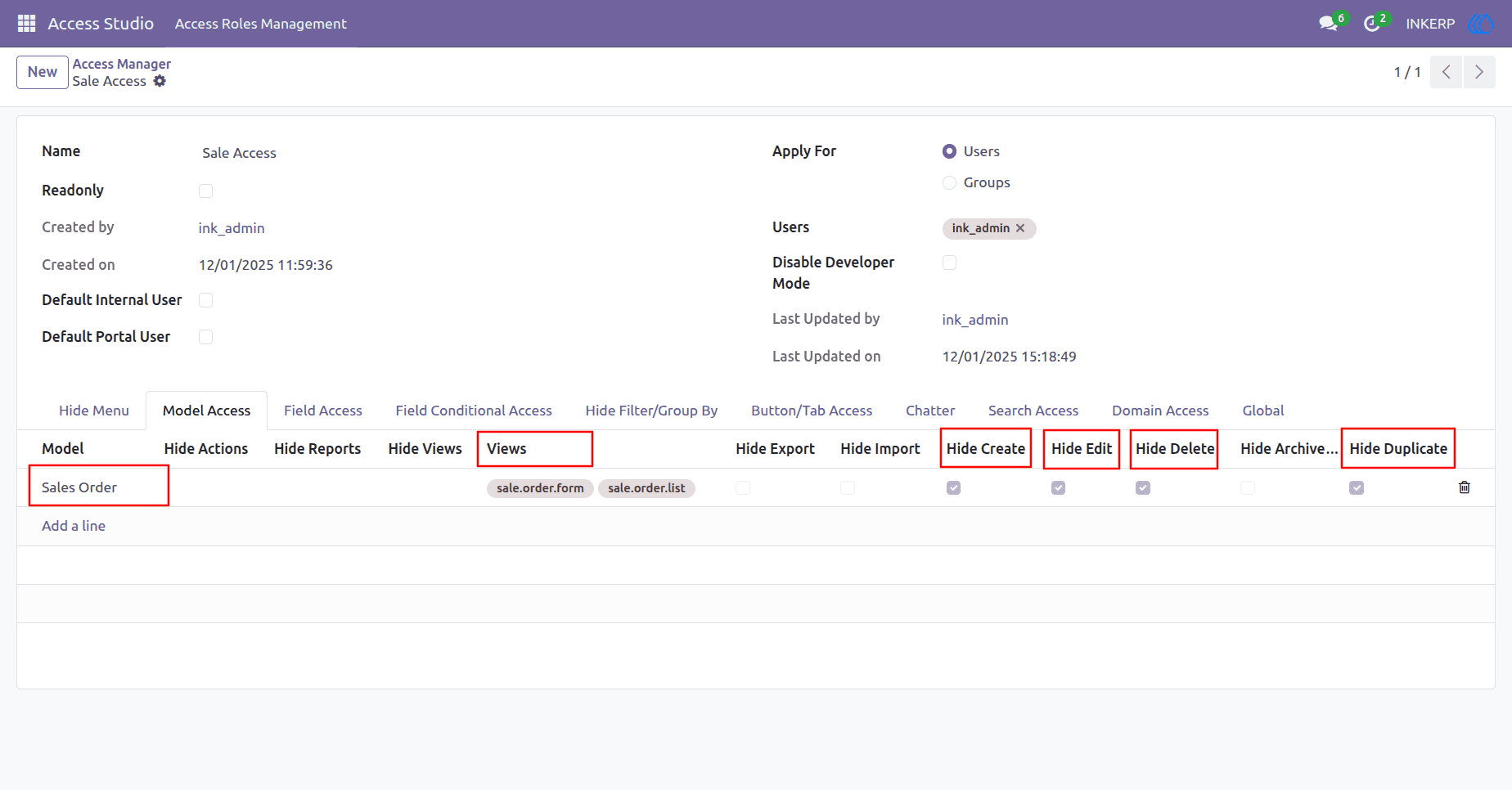
Before Applying Hide Create, Edit, Delete Rule
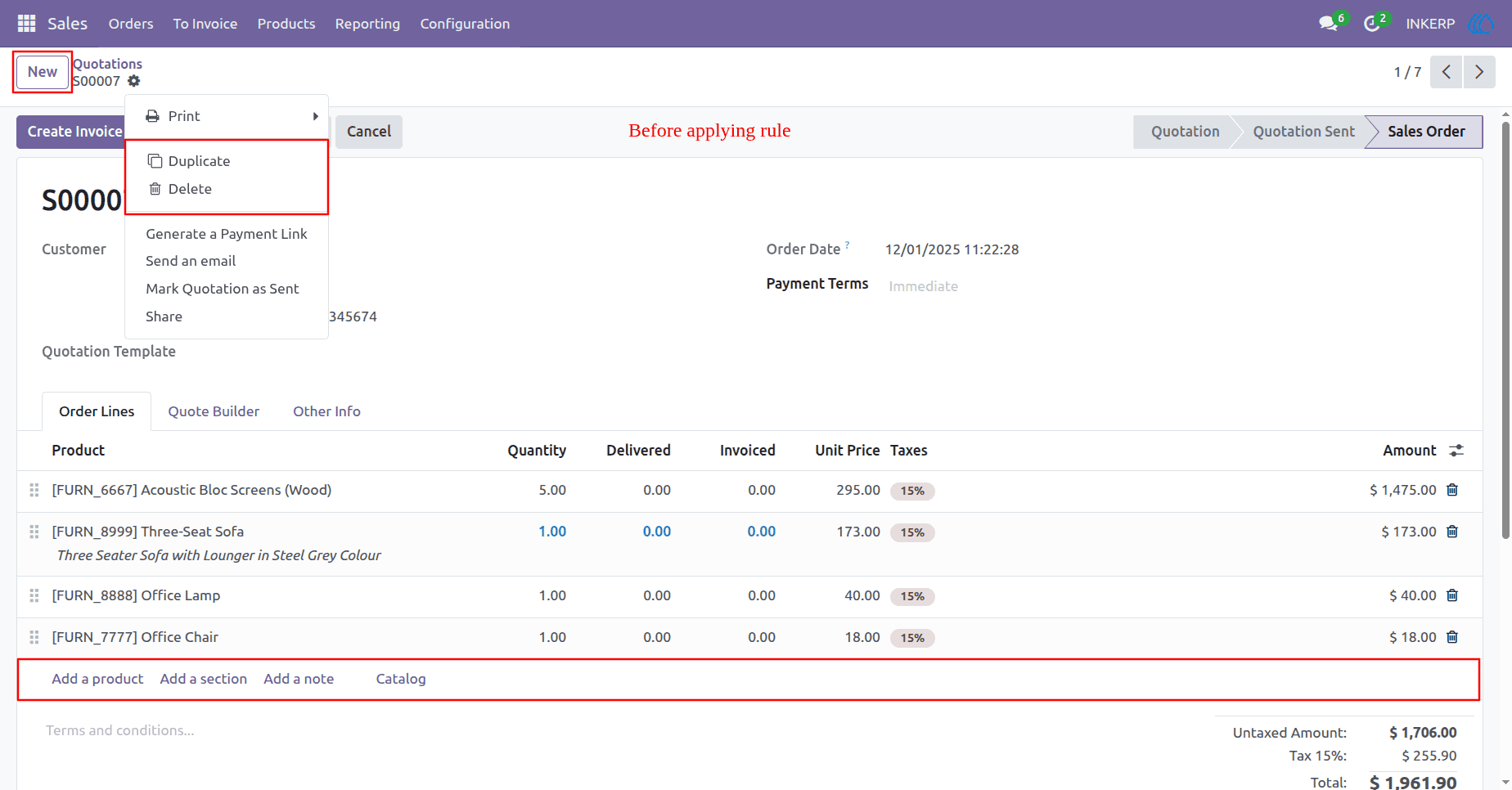
After Applying Hide Create, Edit, Delete Rule
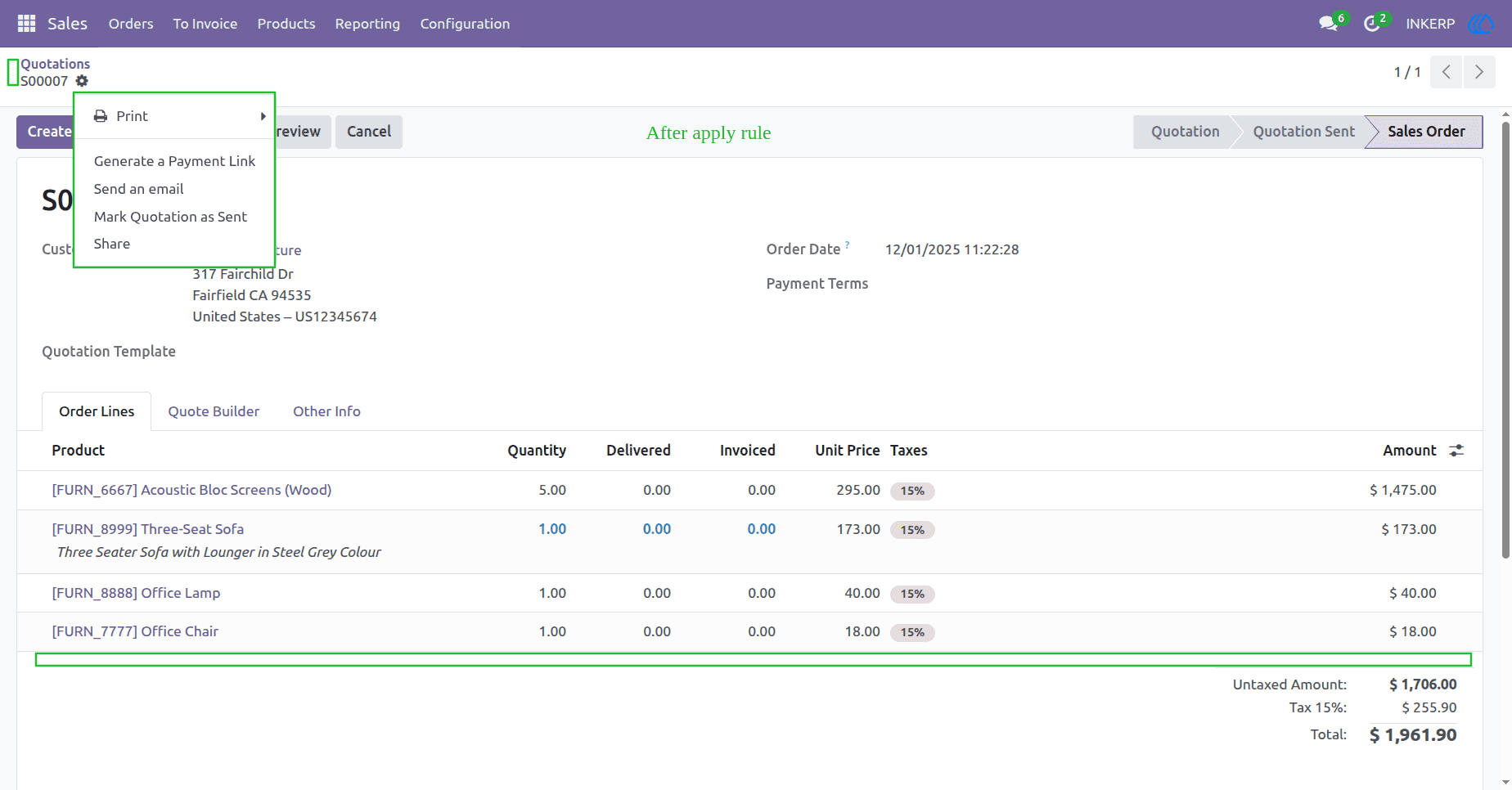
12) Archive and Unarchive Restrictions
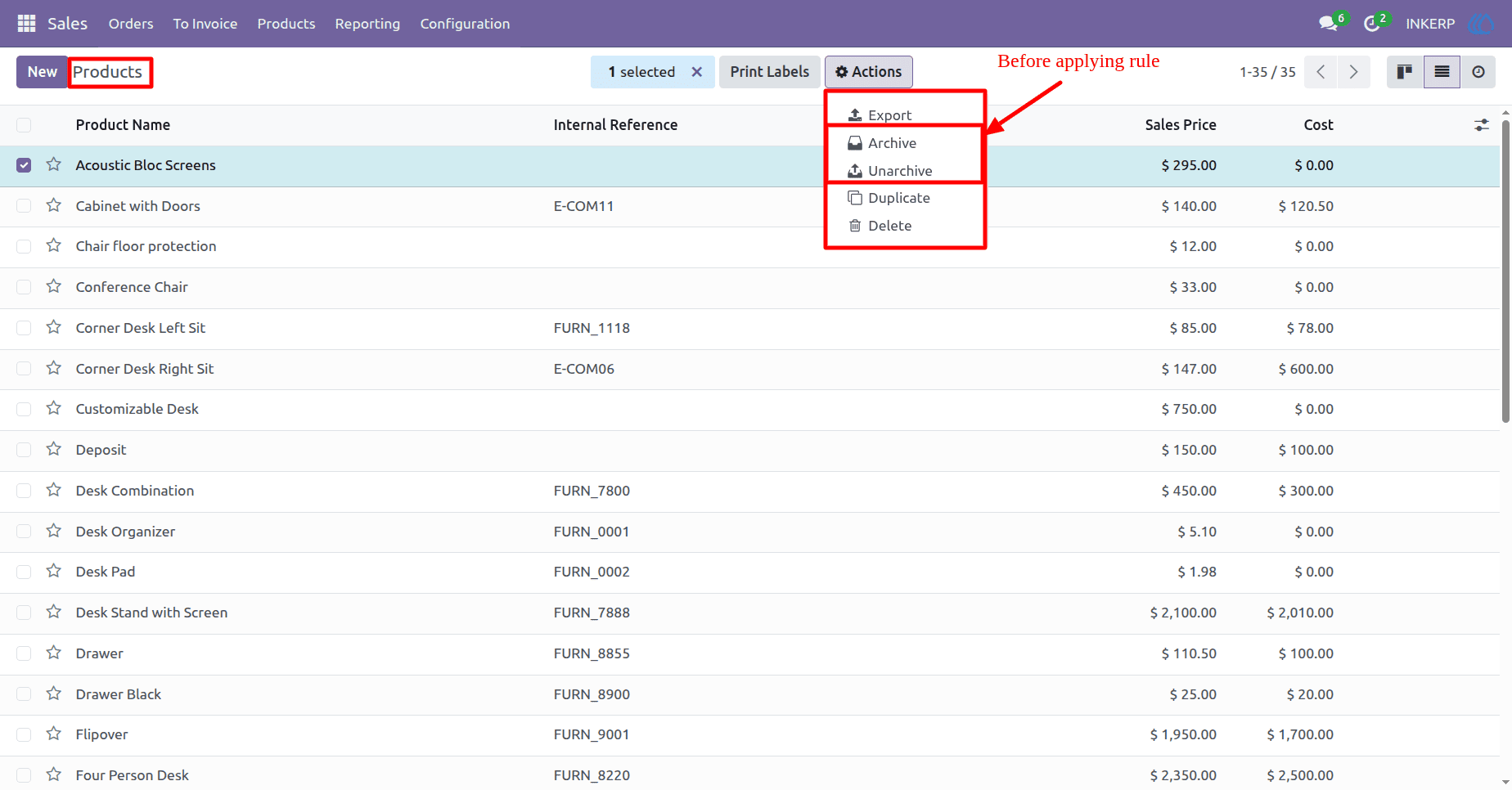
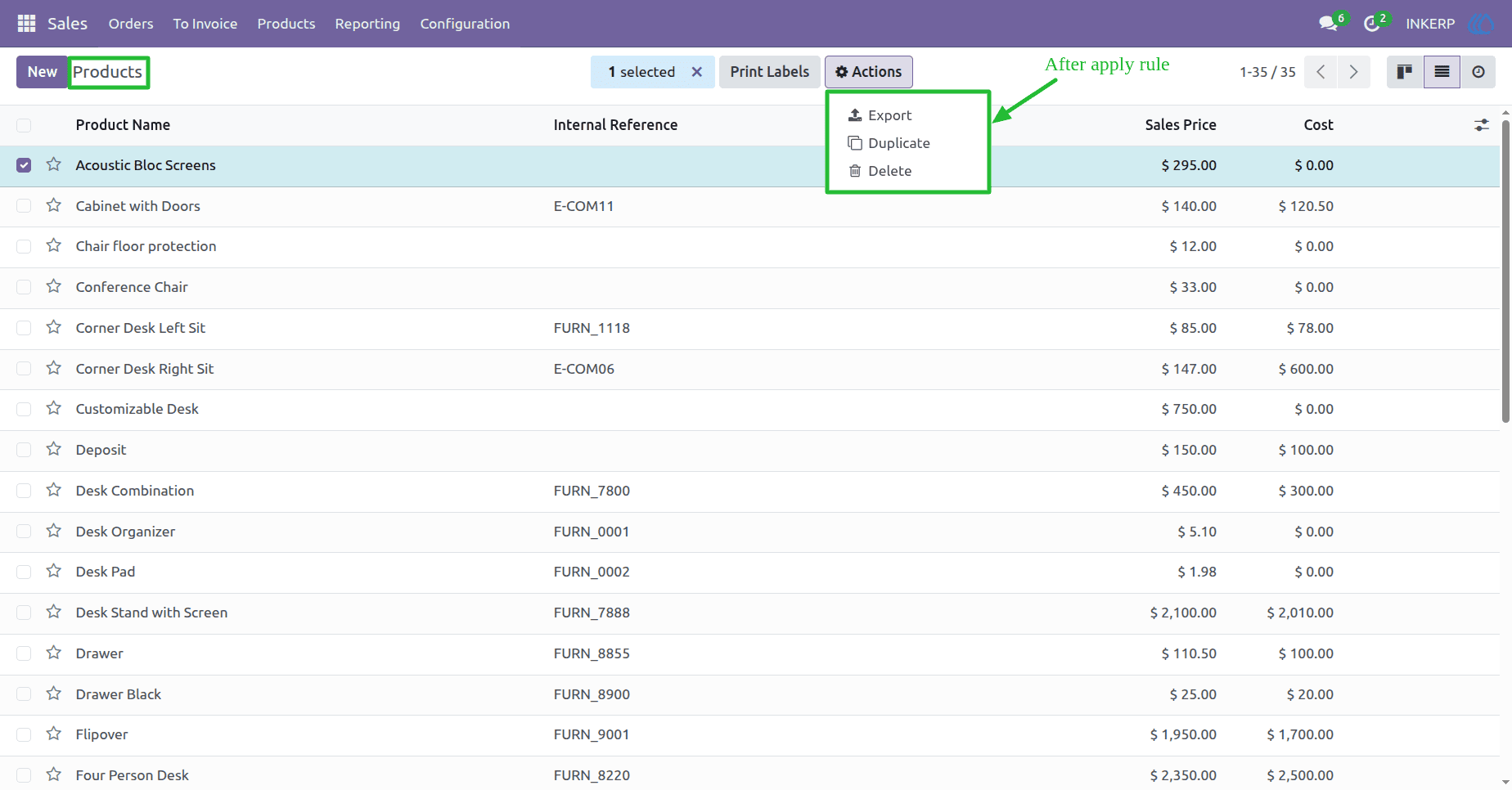
Prevent users from archiving and unarchive records in the selected model.
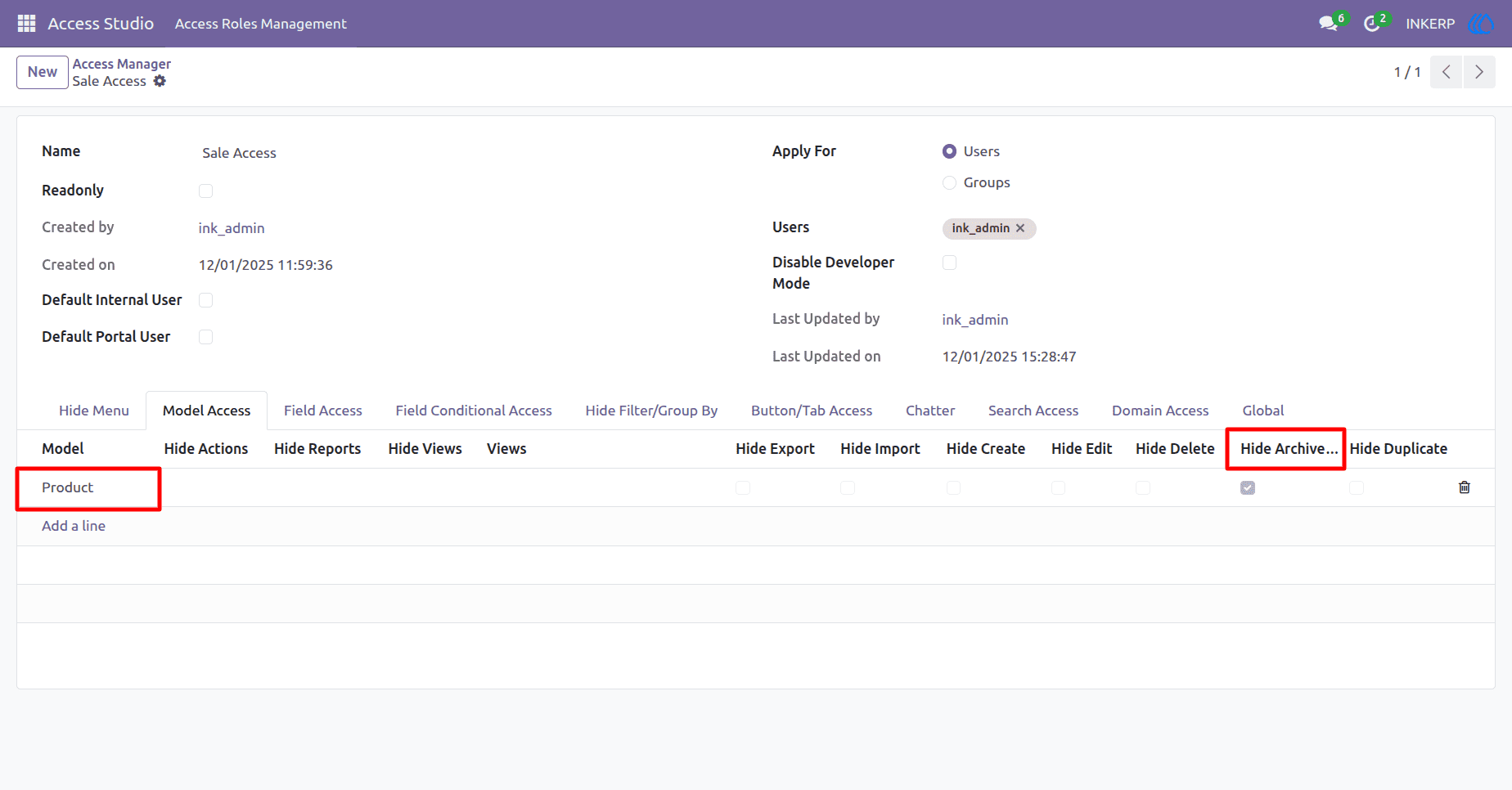
Before Applying Hide Archive and Unarchive Rule
After Applying Hide Archive and Unarchive Rule
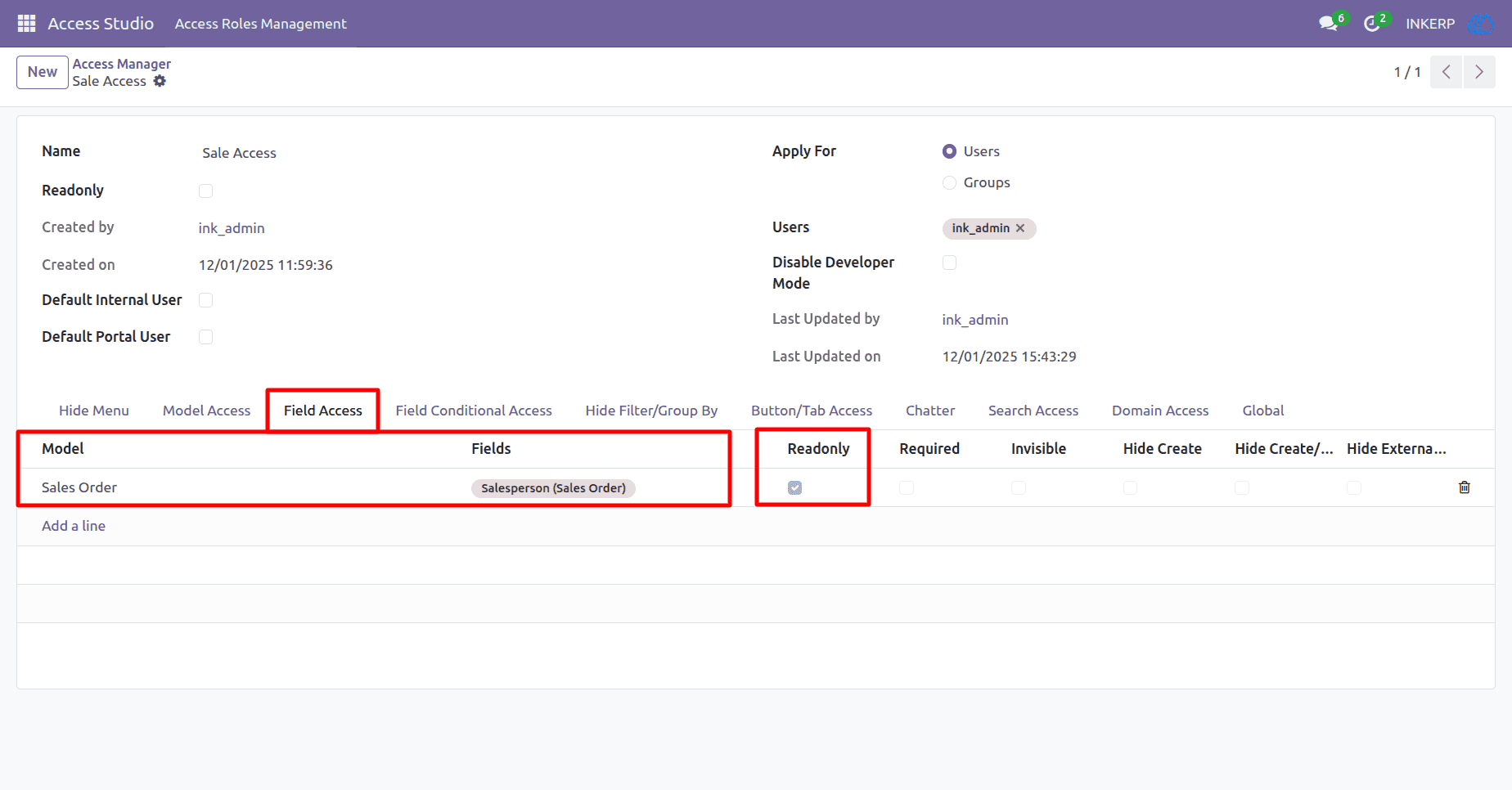
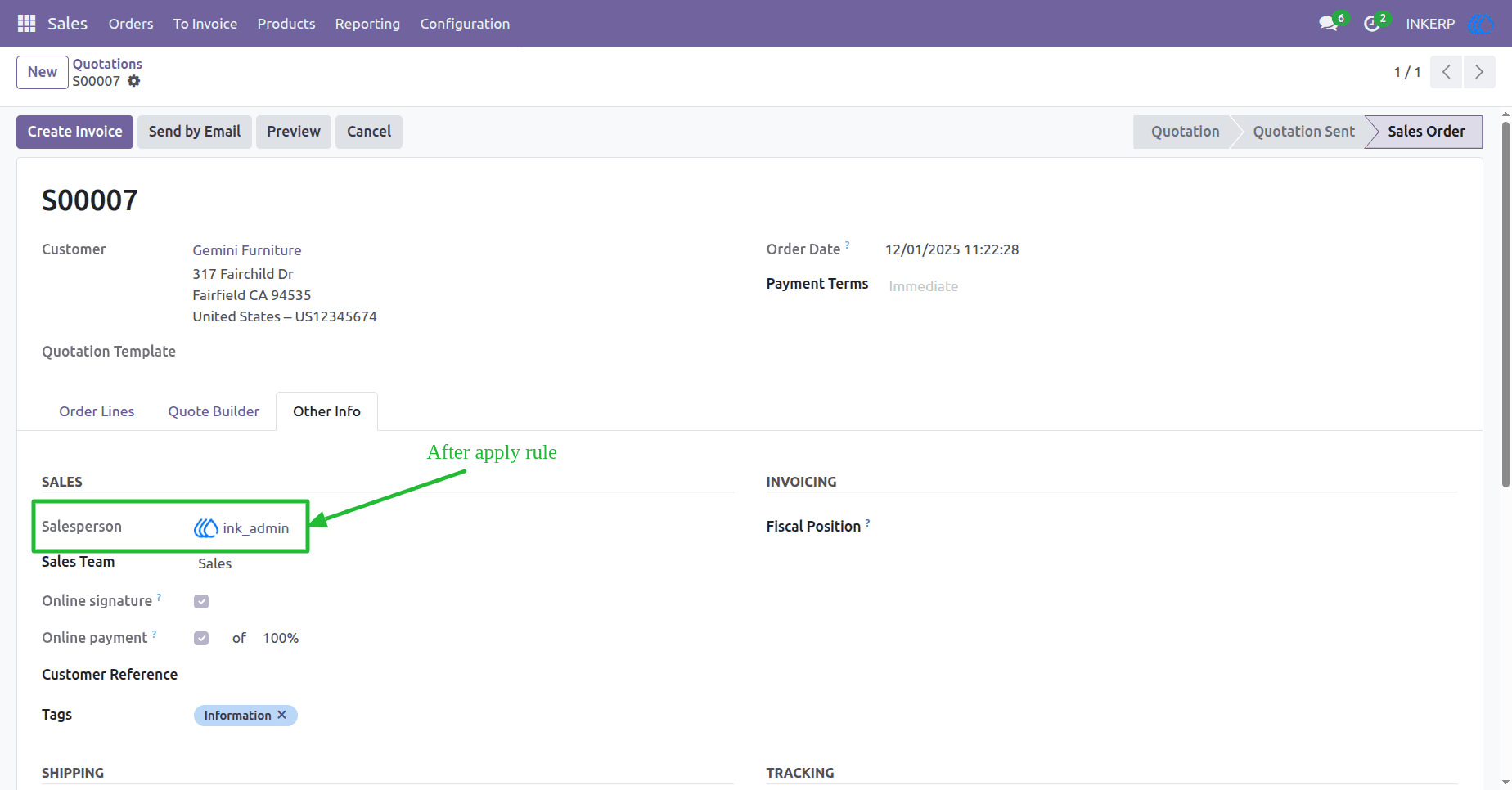
13) Field-Level Read-Only Control
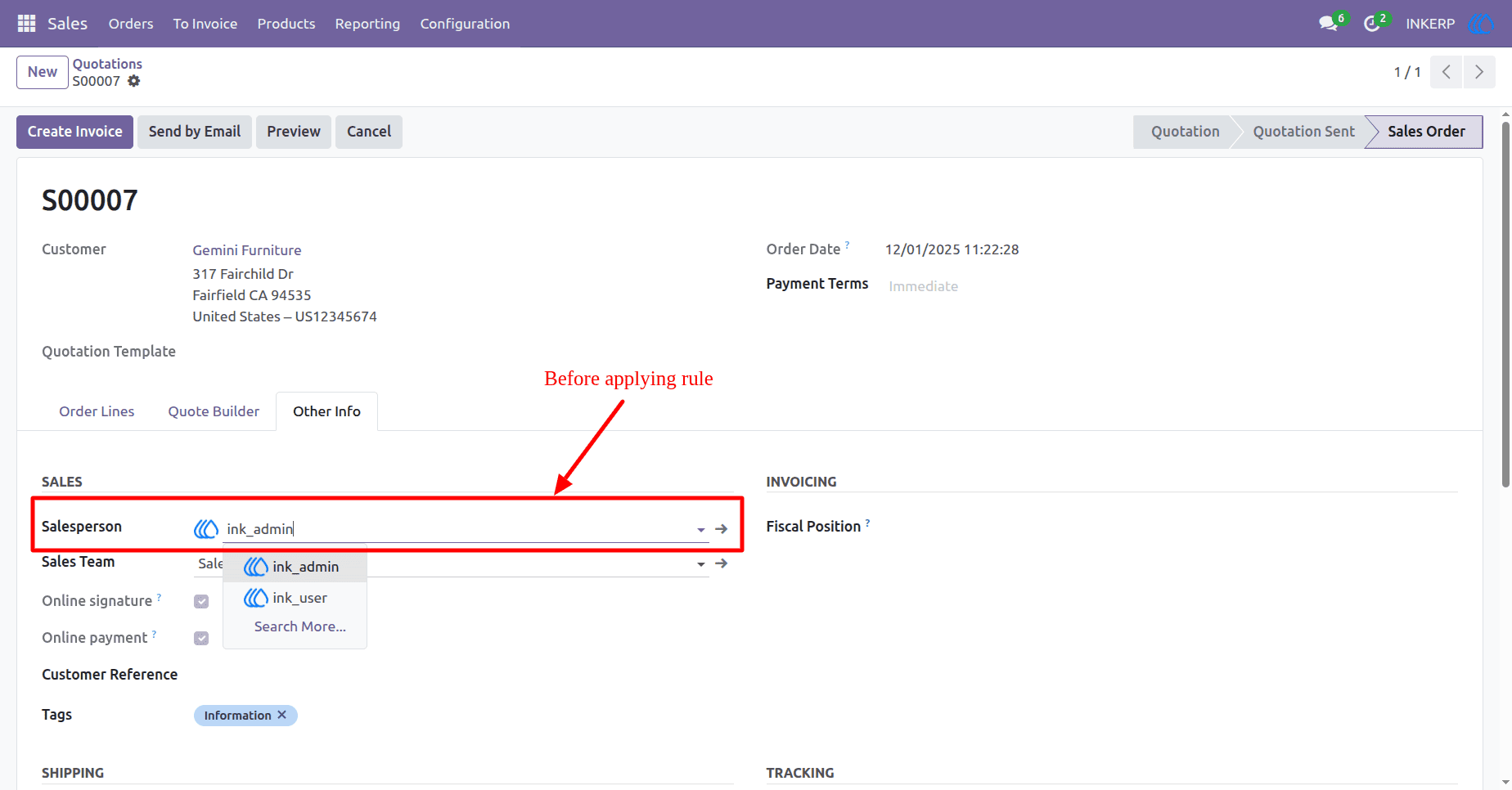
Make specific fields readonly for selected roles. In this case, the "Salesperson" field in the Sales Order model is viewable but not editable, ensuring that critical assignments remain unchanged by restricted users. Prevents users from changing important or sensitive data.
Before Applying Readonly Field Rule
After Applying Readonly Field Rule
14) Required Field implementation
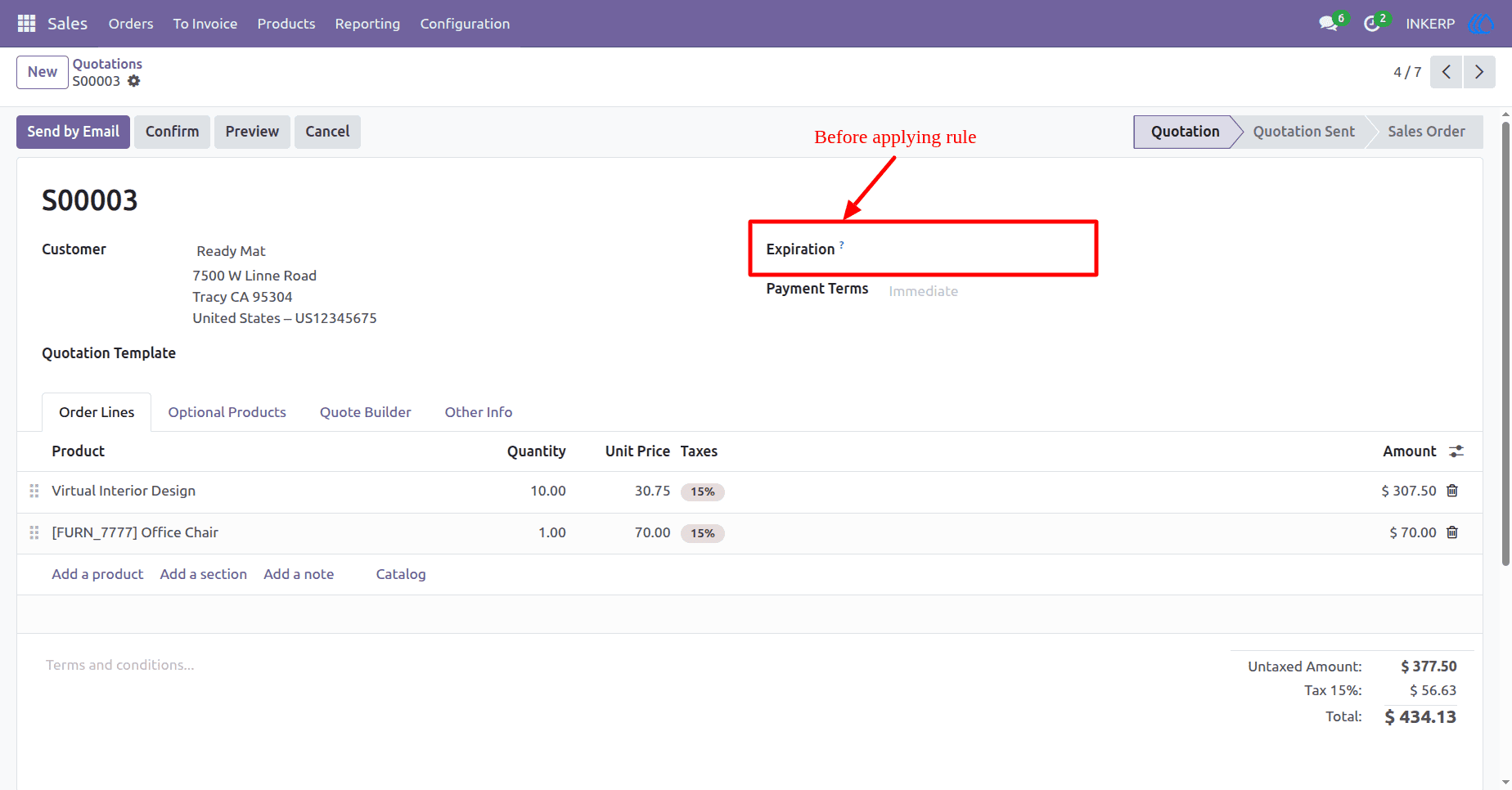
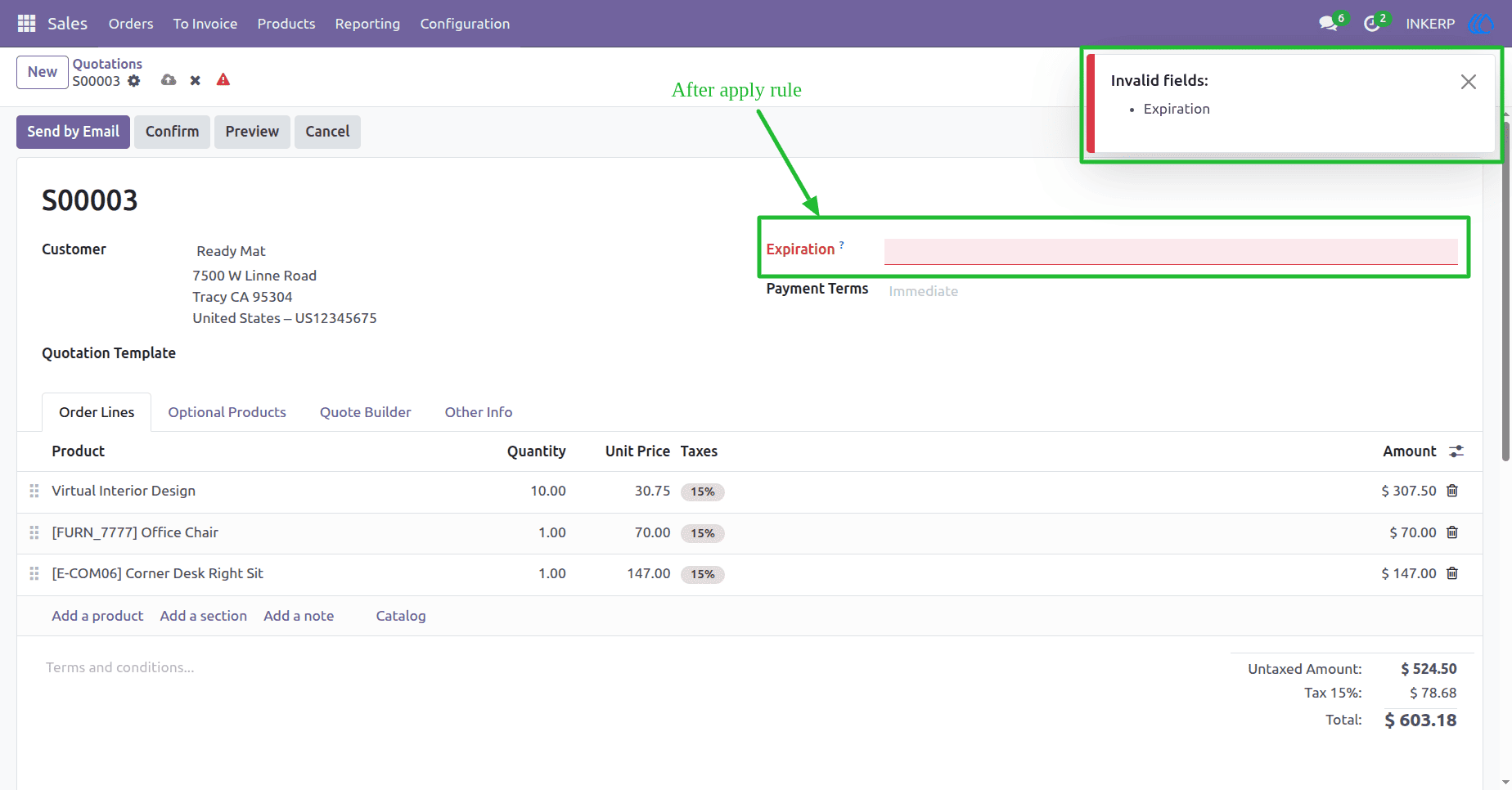
Mark specific fields as required for users with this role. Forces users to fill in this field when creating or editing a record. Ensures critical information is always provided. In this case, the "Expiration" field in the Sales Order model must be filled out, ensuring critical data is always captured during record creation or update.
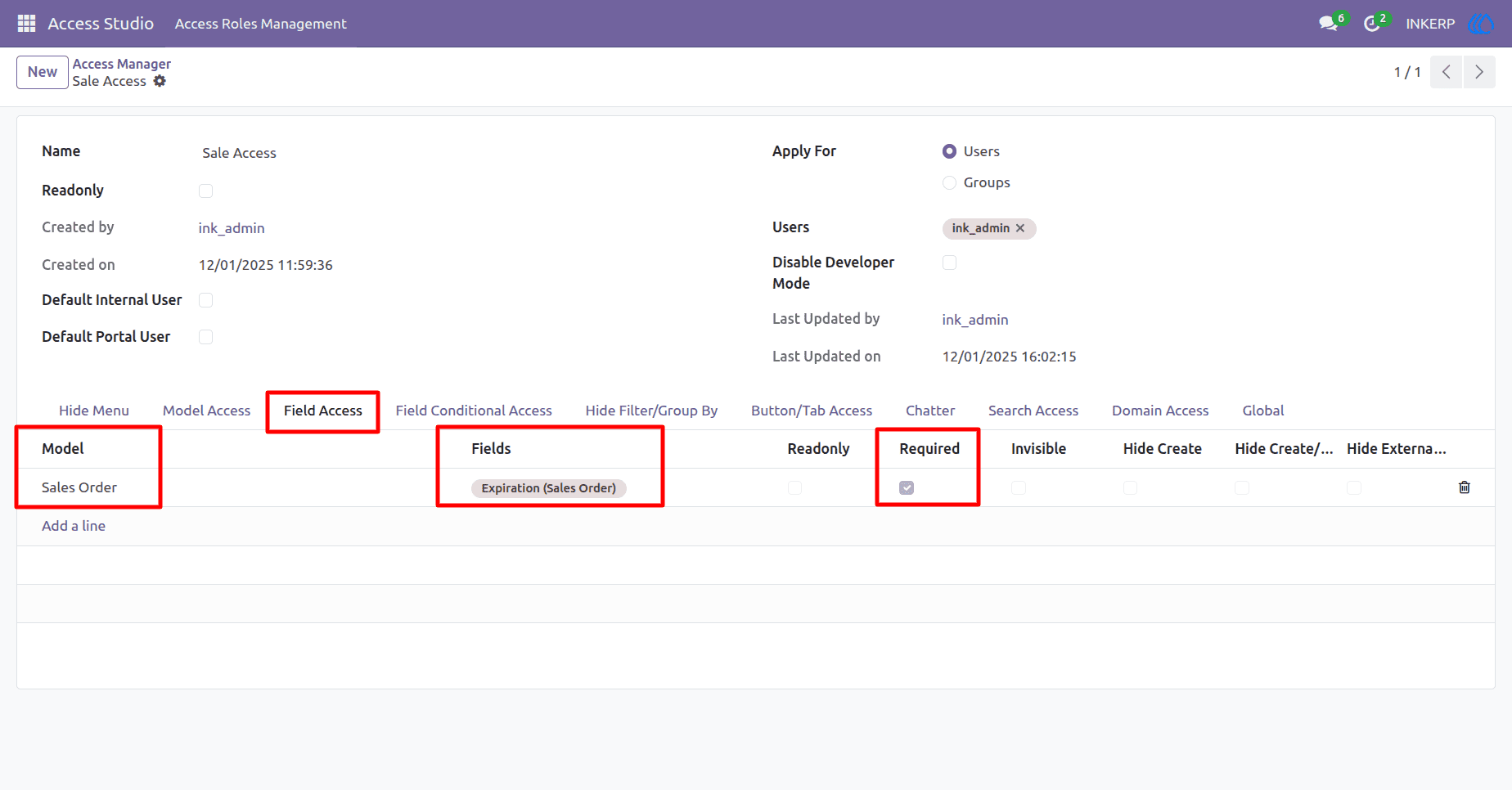
Before Applying Required Field Rule
After Applying Required Field Rule
15) Invisible Field Control
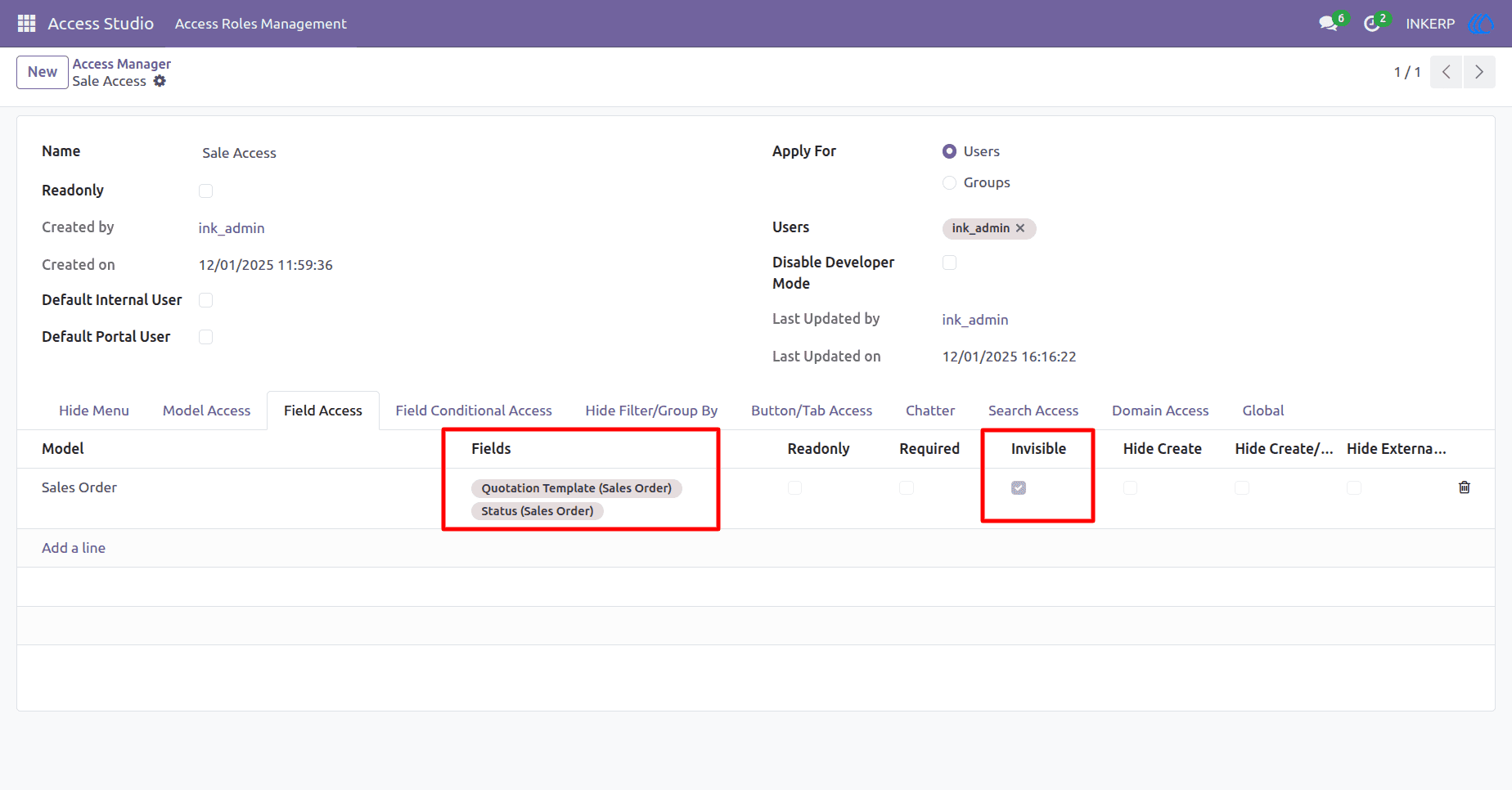
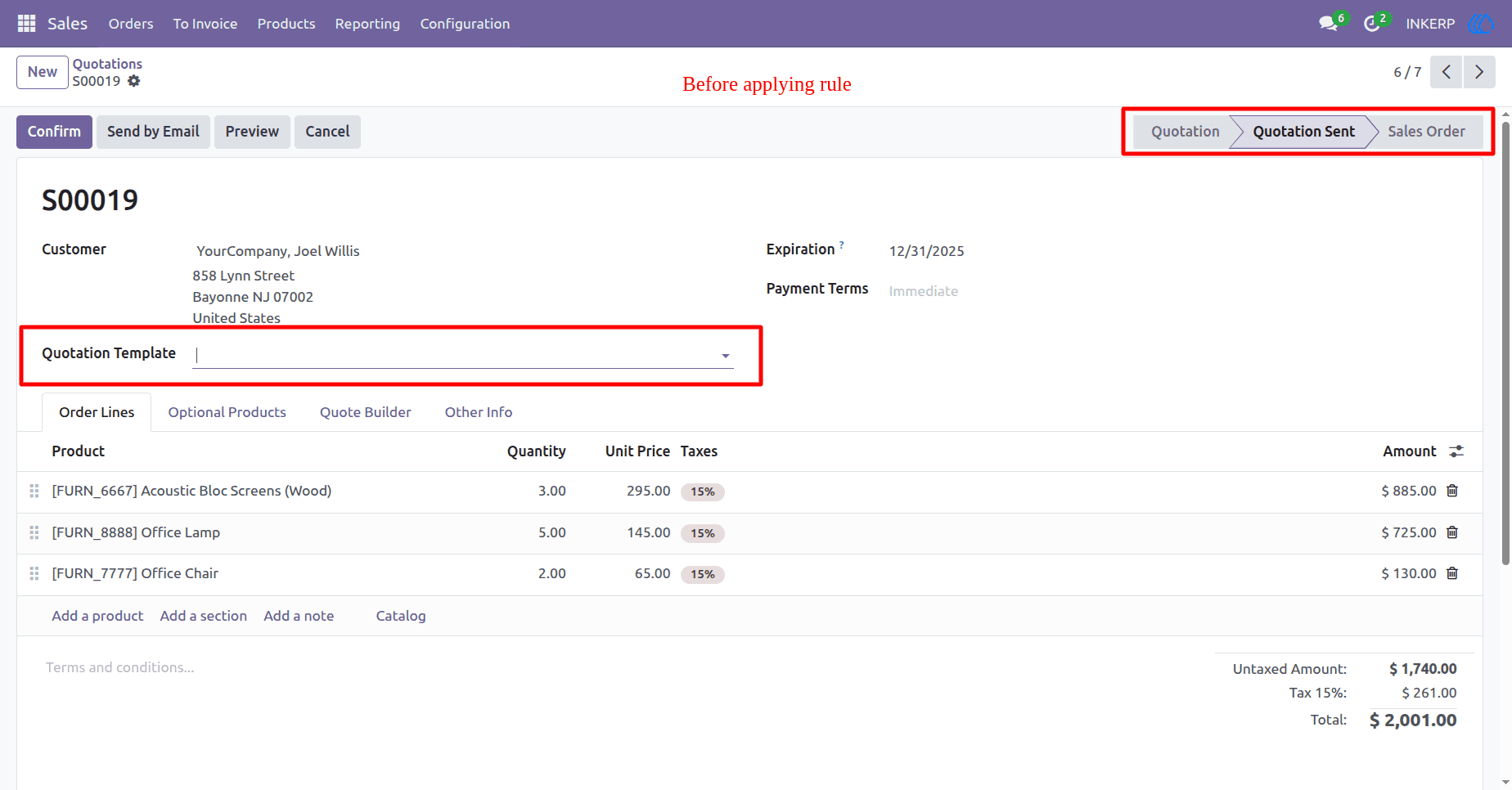
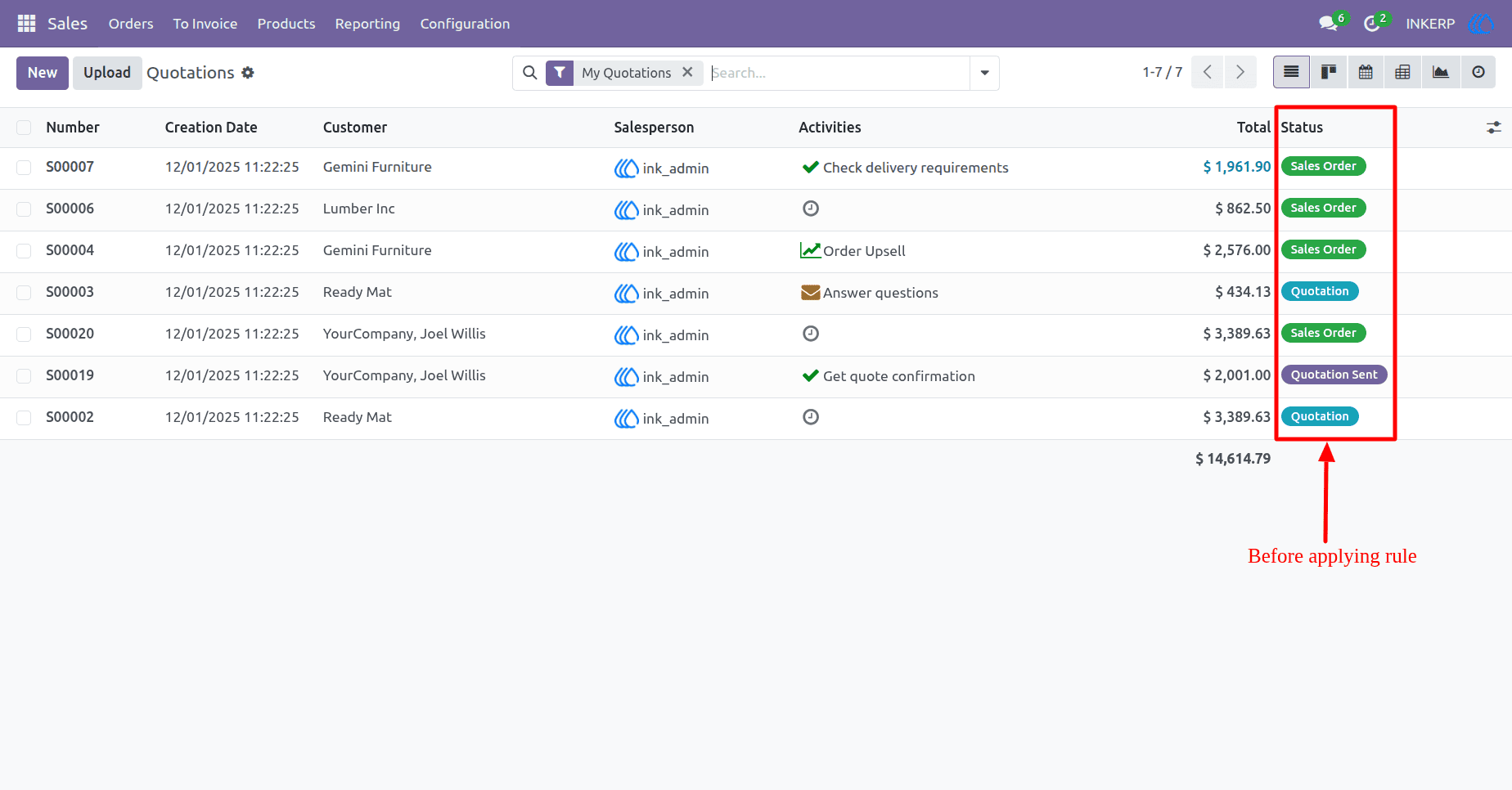
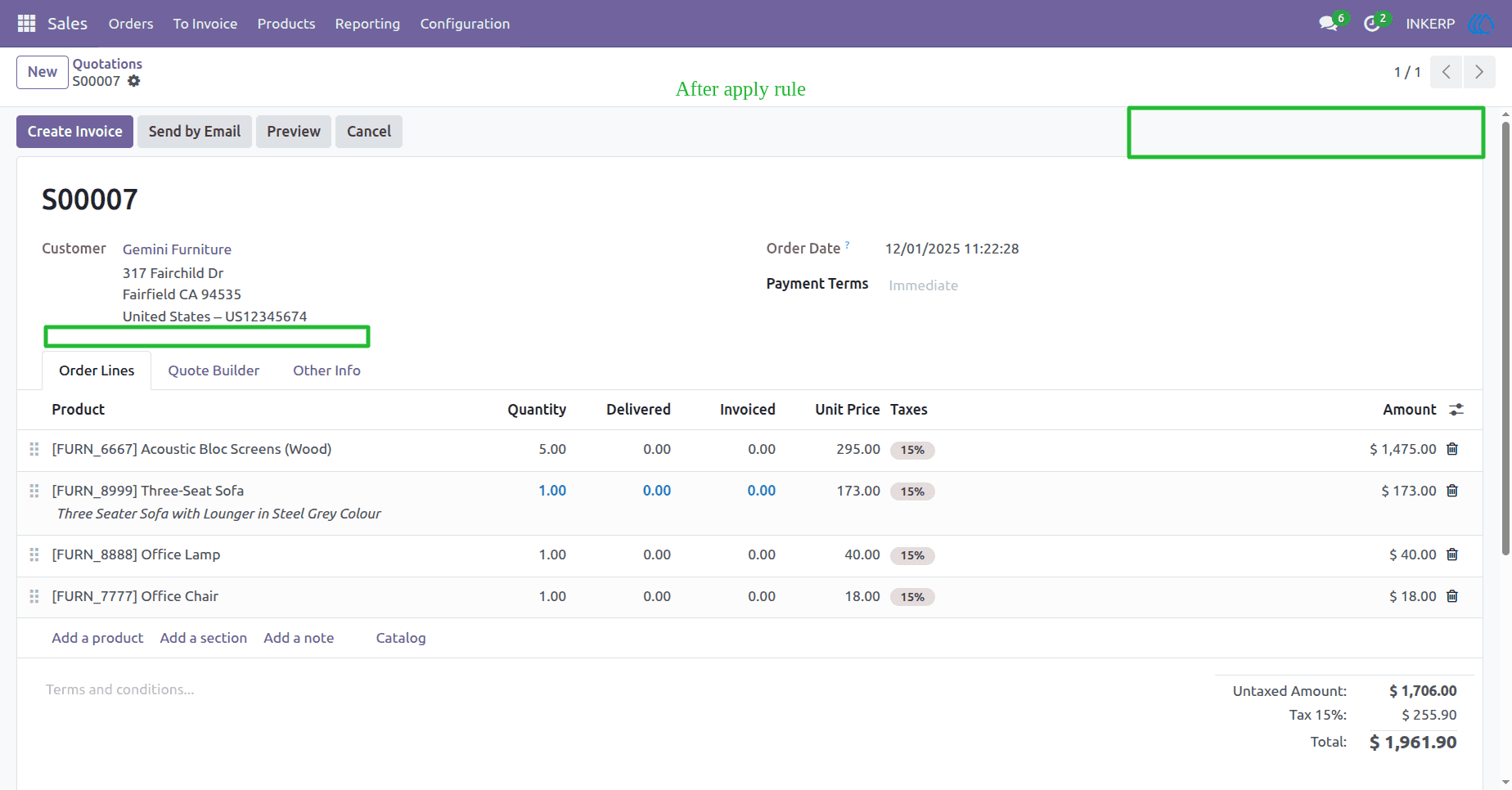
Hide specific fields from the user interface for selected roles. In this case, the "Quotation Template" and "Status" fields in the Sales Order model are invisible, ensuring users with this role do not see or interact with them.
Before Applying Invisible Field Rule ( Form View )
Before Applying Invisible Field Rule ( List View )
After Applying Invisible Field Rule ( Form View )
After Applying Invisible Field Rule ( List View )
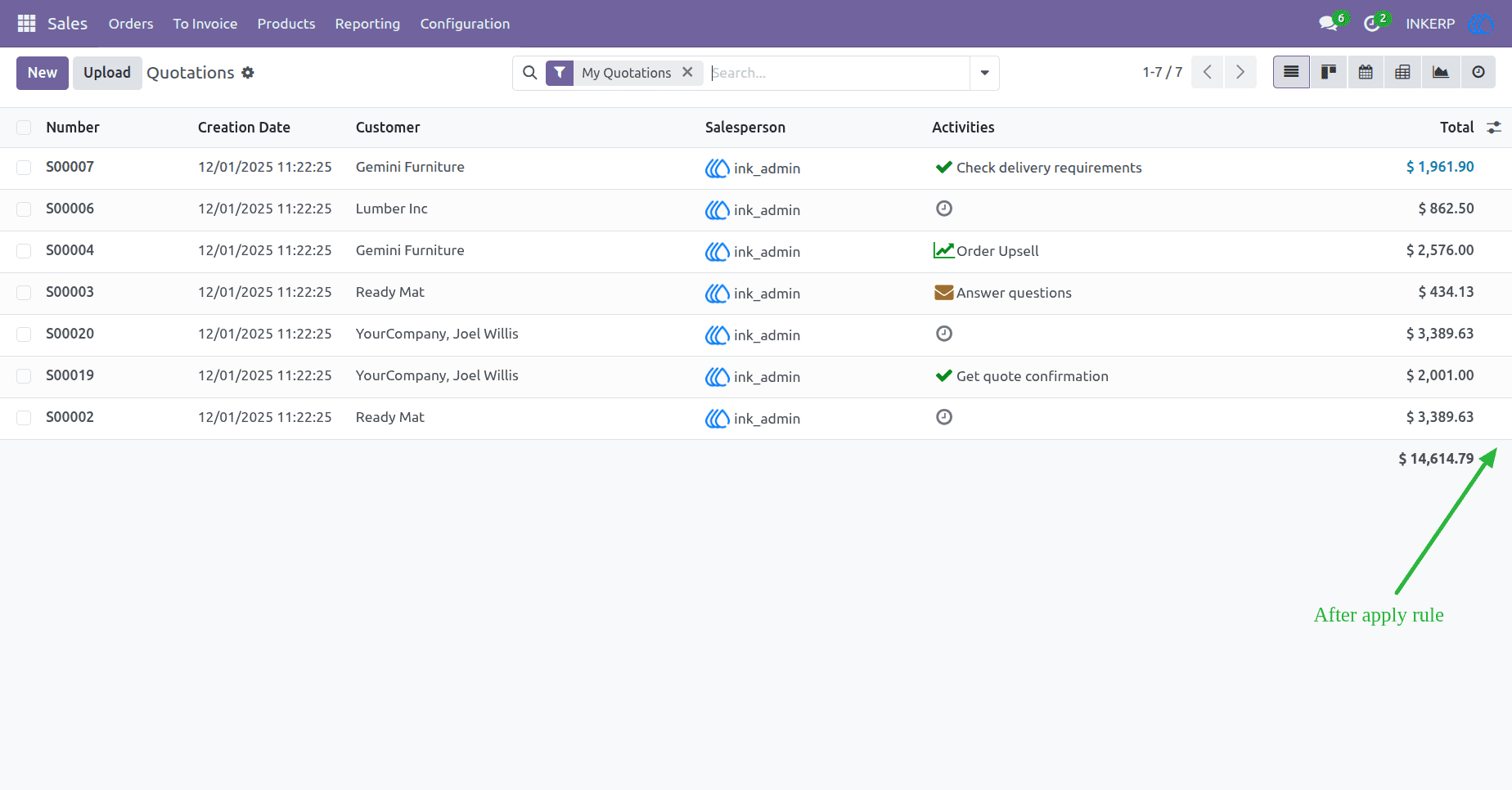
16) Restrict Field Creation
Prevent users from creating new entries for specific fields. In this case, the "Customer" field in the Sales Order model is restricted from creation, ensuring that only predefined customer records are used during order processing.
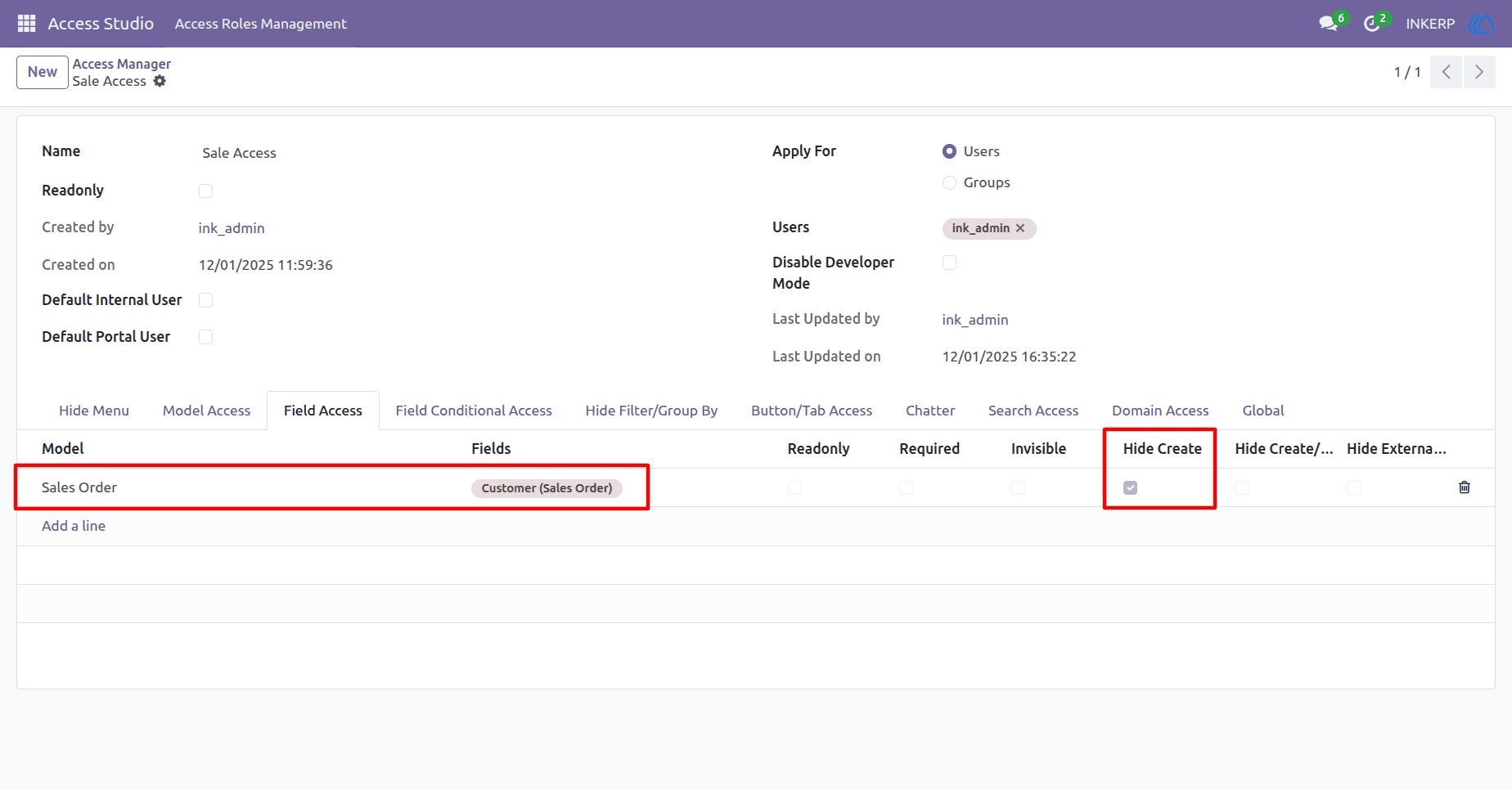
Before Applying Hide Create Button In Field Rule
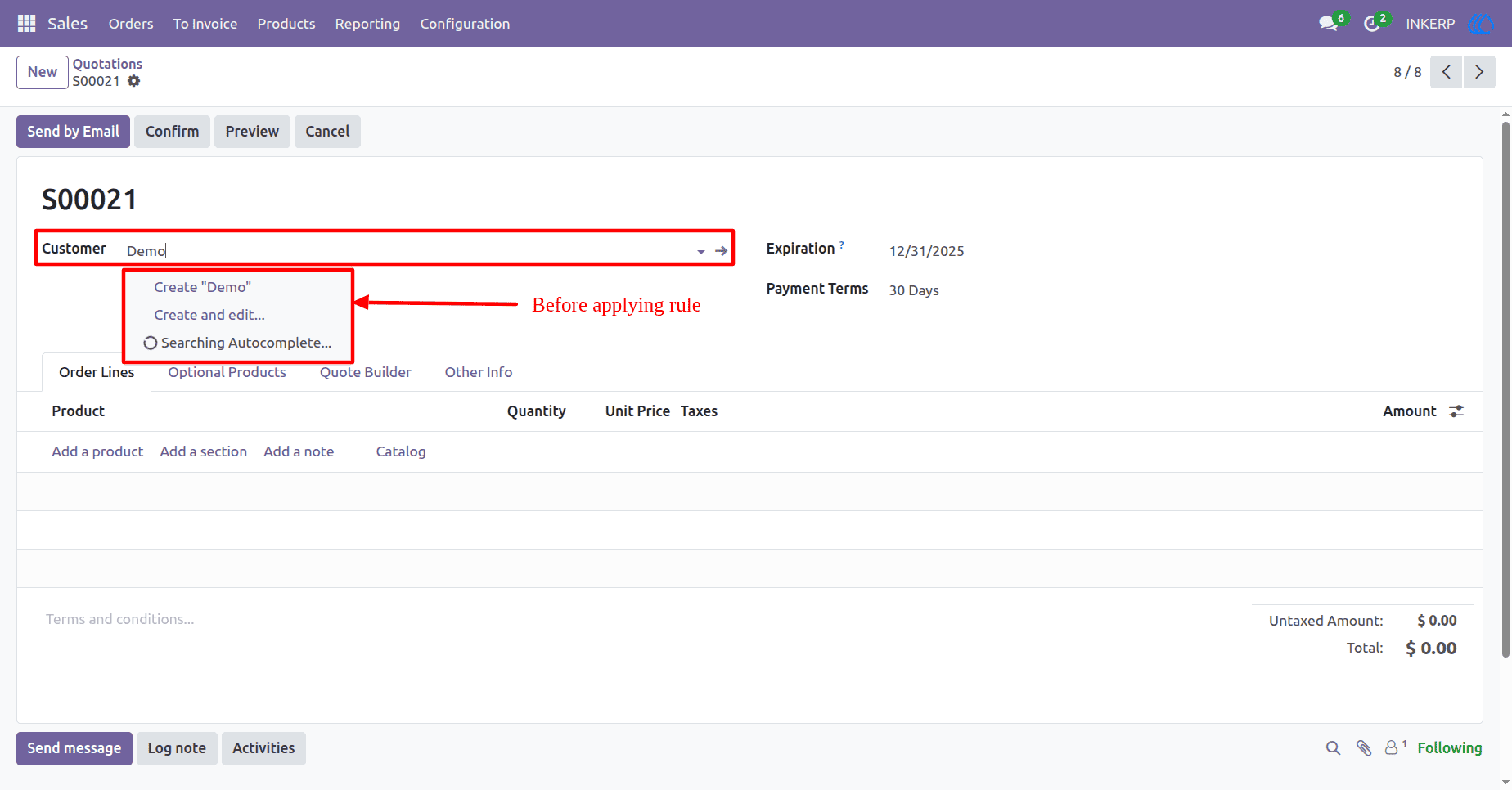
After Applying Hide Create Button In Field Rule
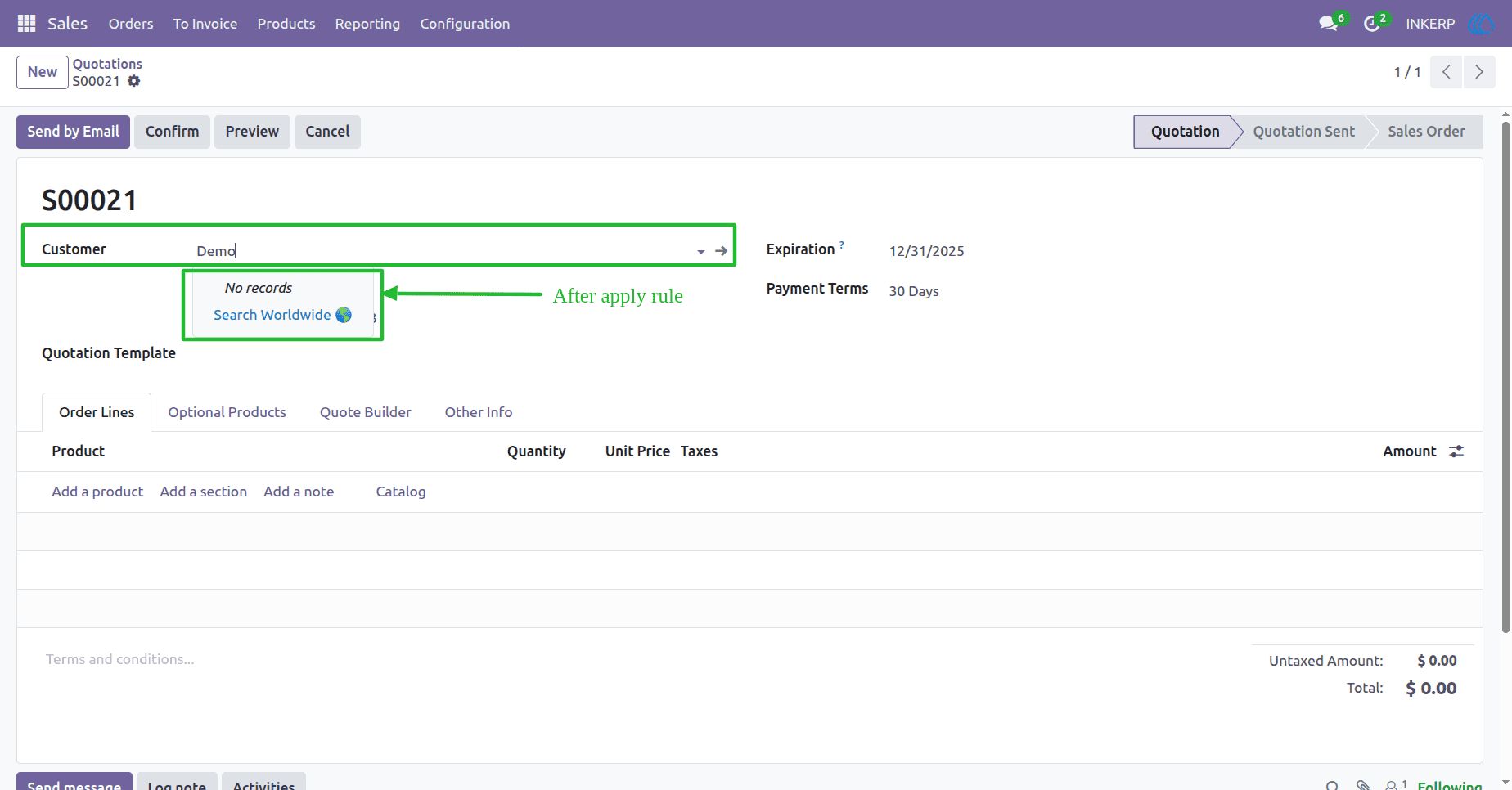
17) Restrict Field Creation and Editing
Block both creation and editing of specific fields for selected roles. In this case, the "Customer" field in the Sales Order model is locked from modification, ensuring users can create or select from existing records without altering them.
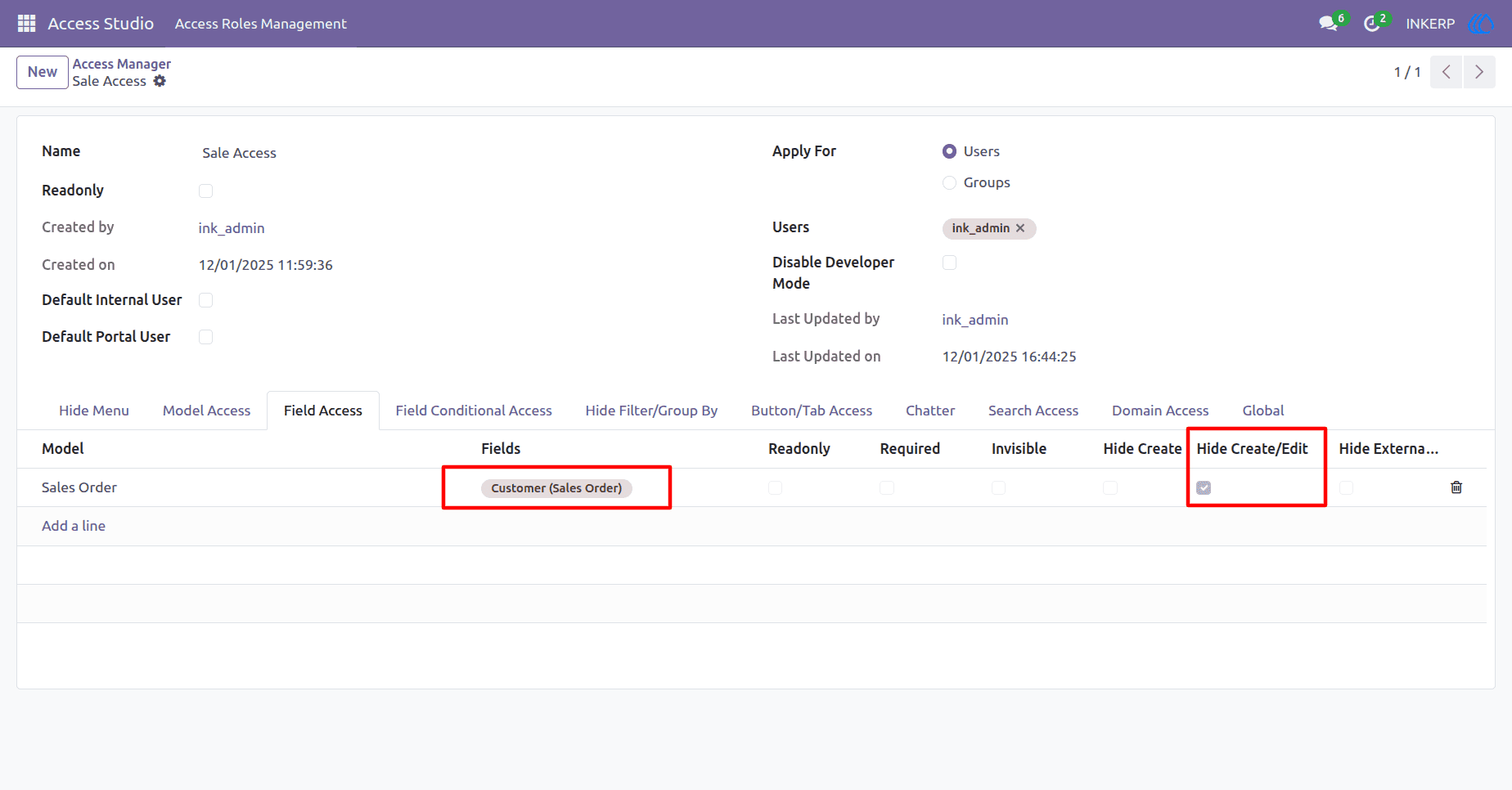
Before Applying Hide Create and edit Button In Field Rule
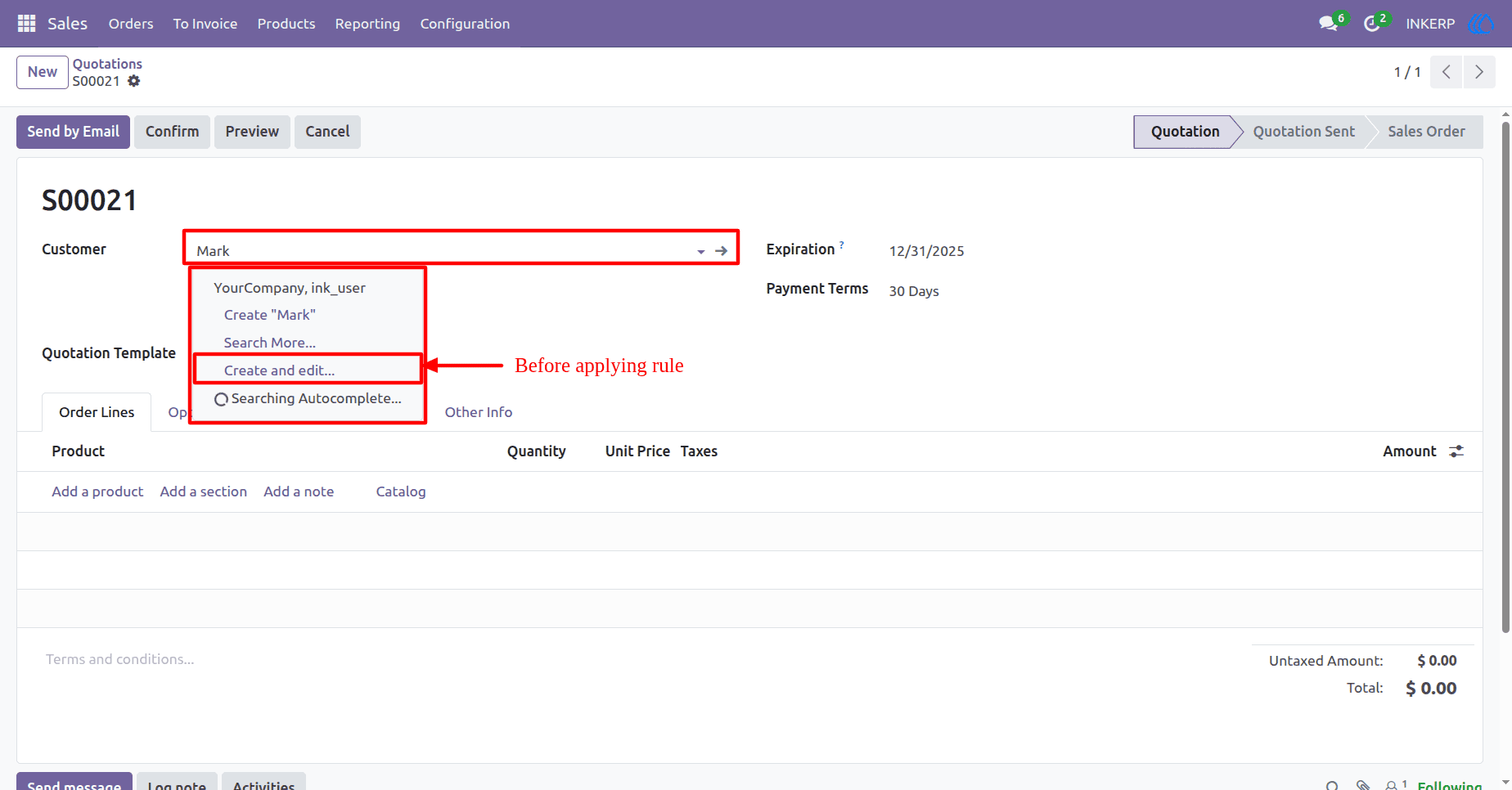
After Applying Hide Create and edit Button In Field Rule
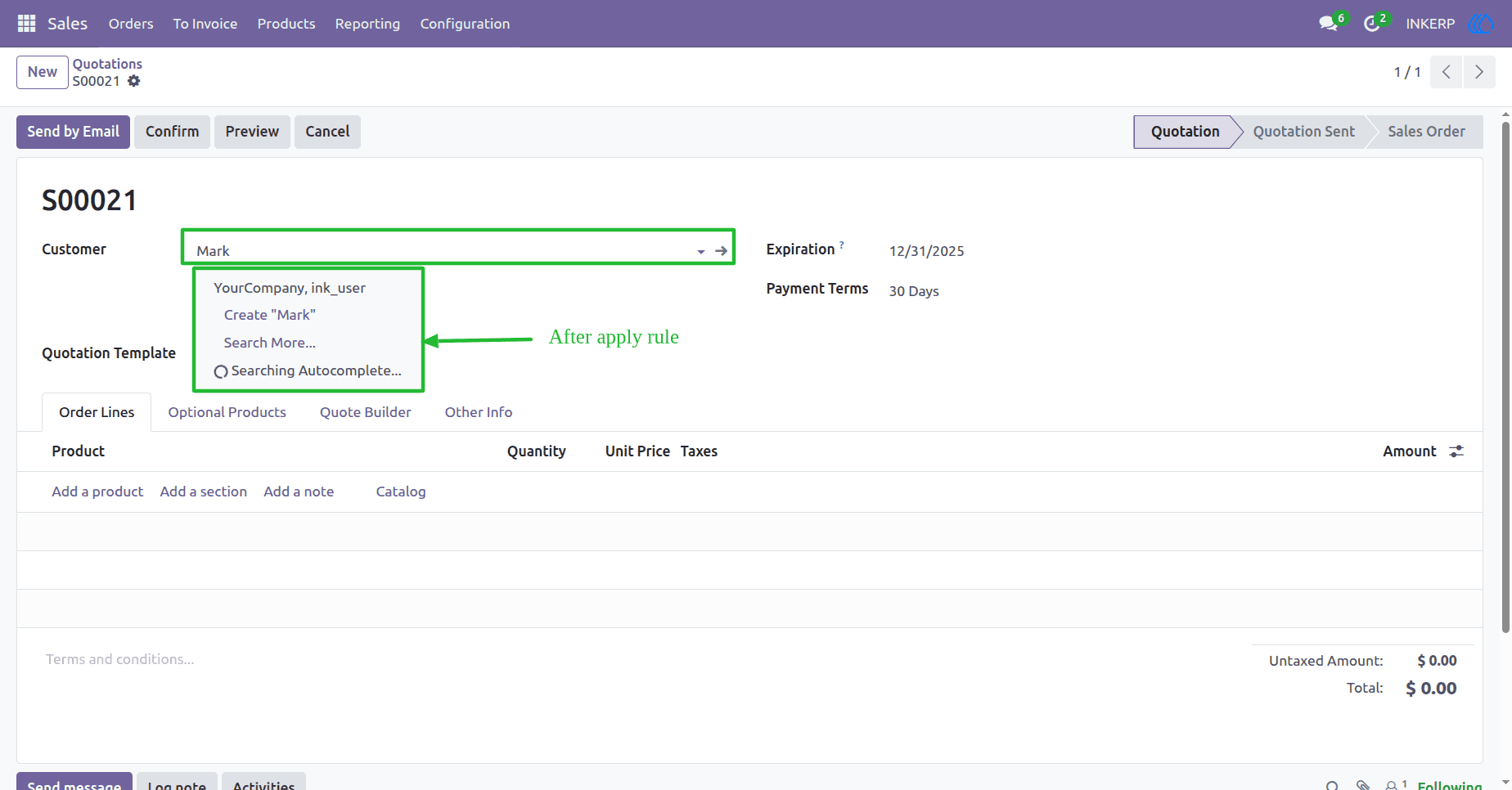
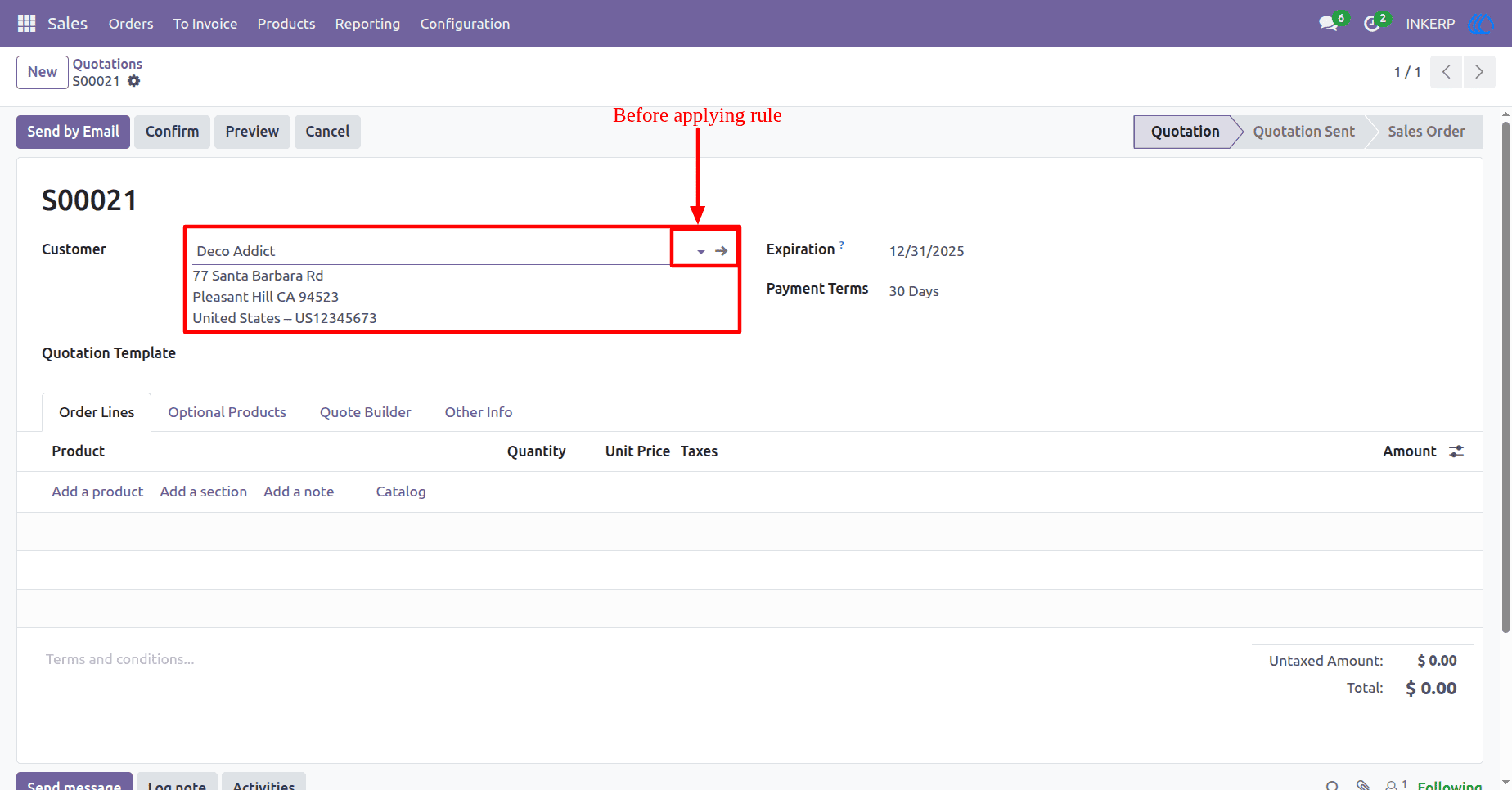
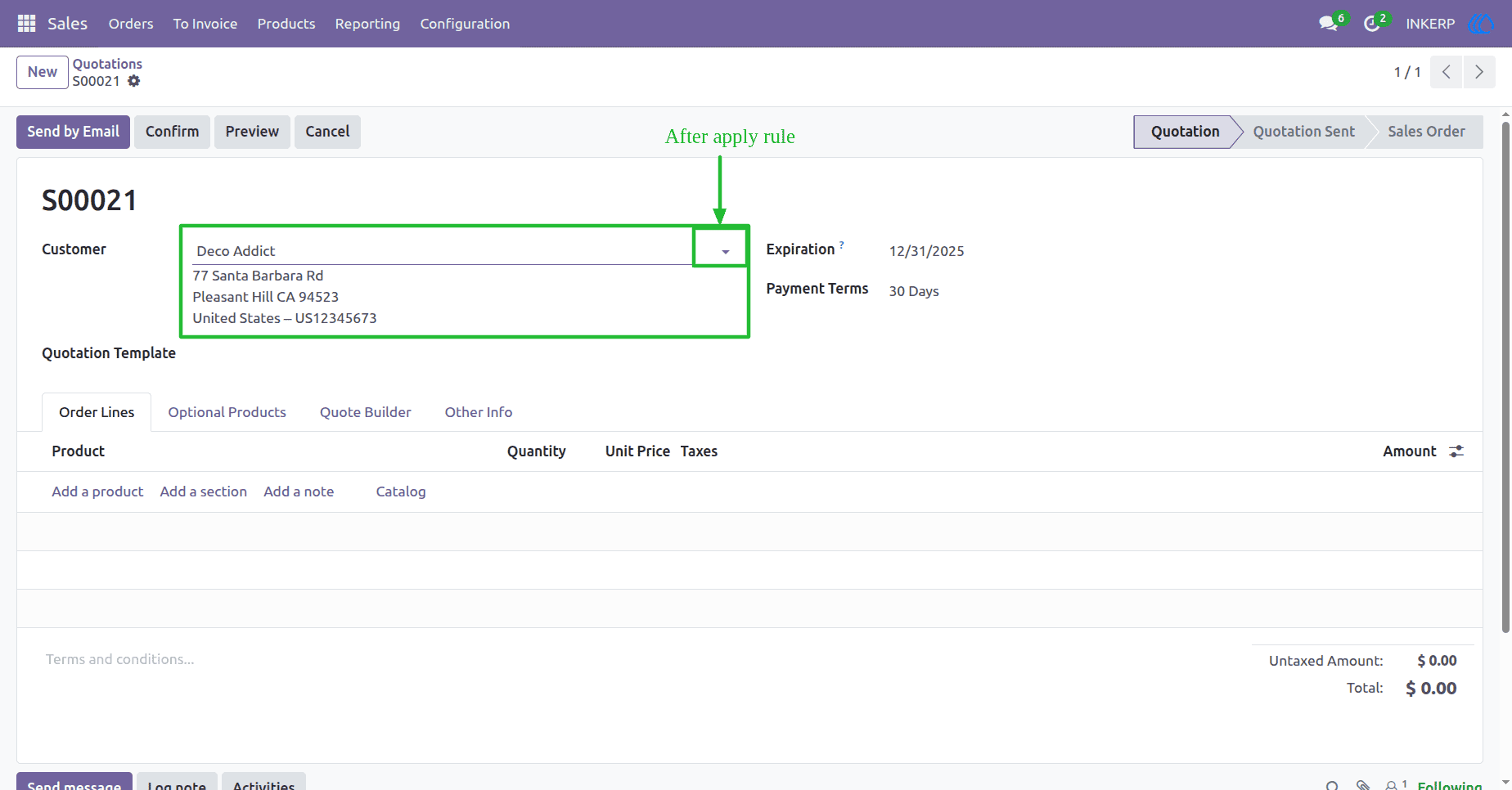
18) Hide External Link
Disable the external link icon for specific fields, preventing users from navigating to related records. In this case, the "Customer" field in the Sales Order model has its external link hidden, ensuring users stay within the current form context.
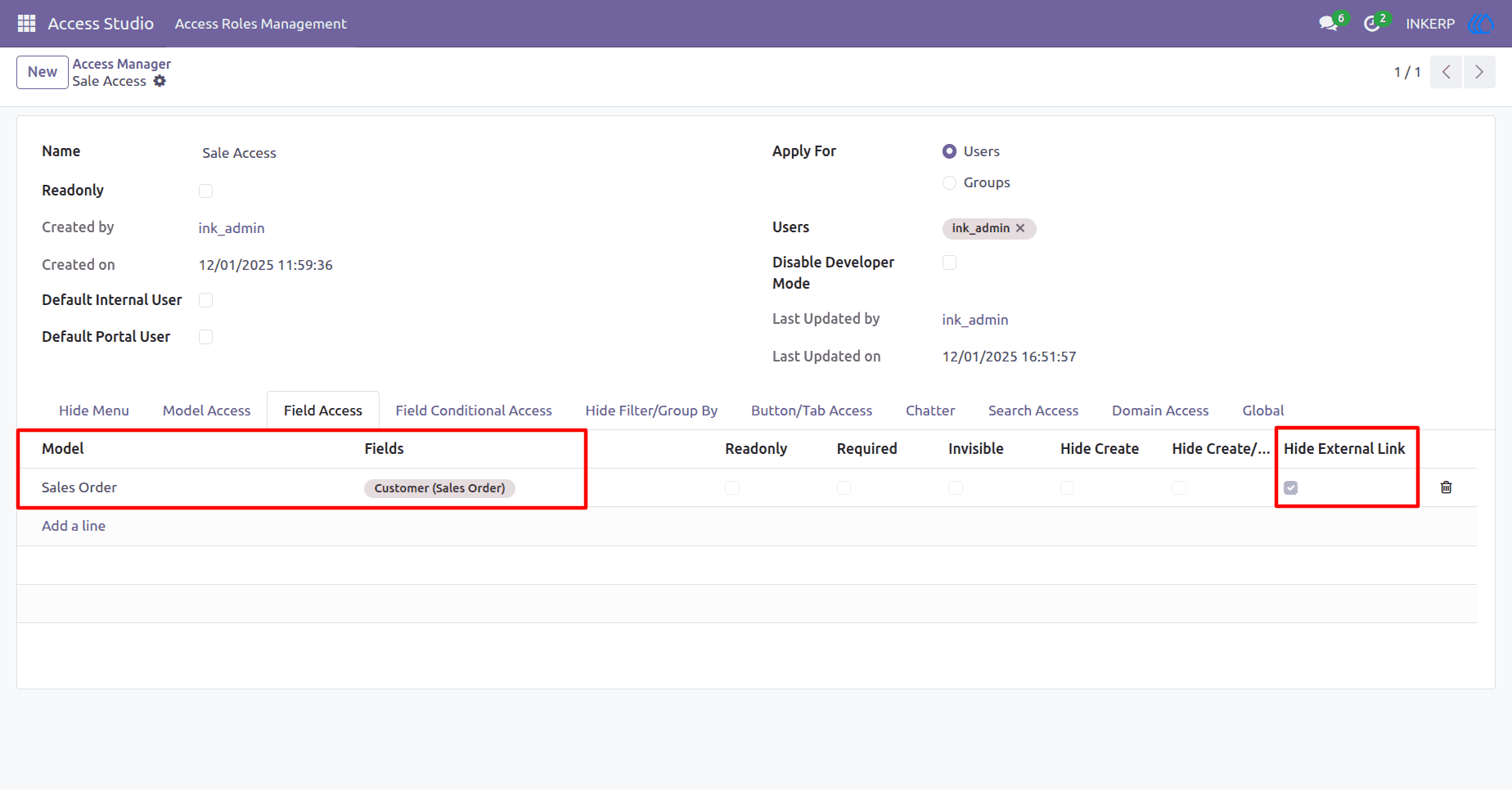
Before Applying Hide External Link In Field Rule
After Applying Hide External Link In Field Rule
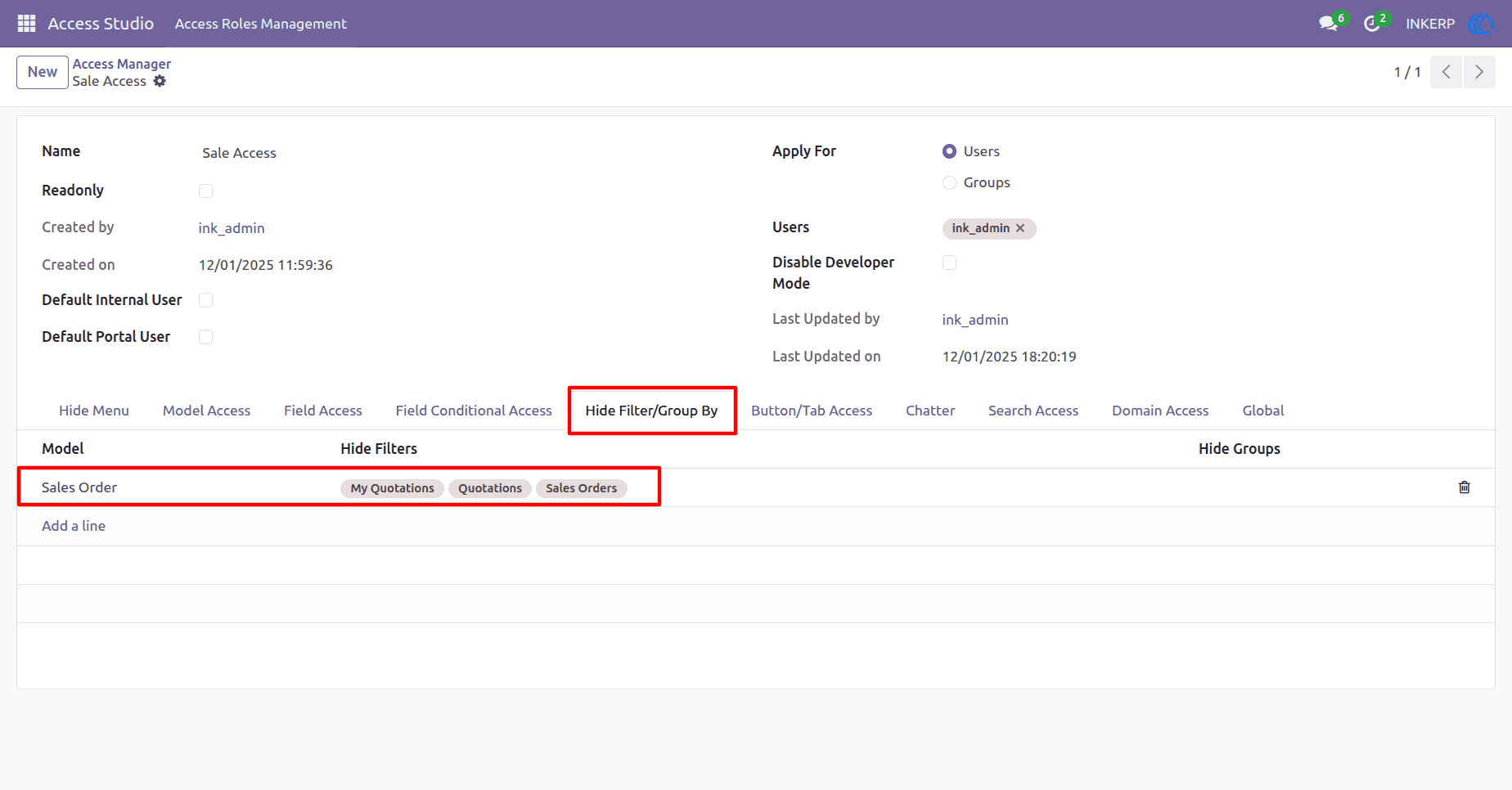
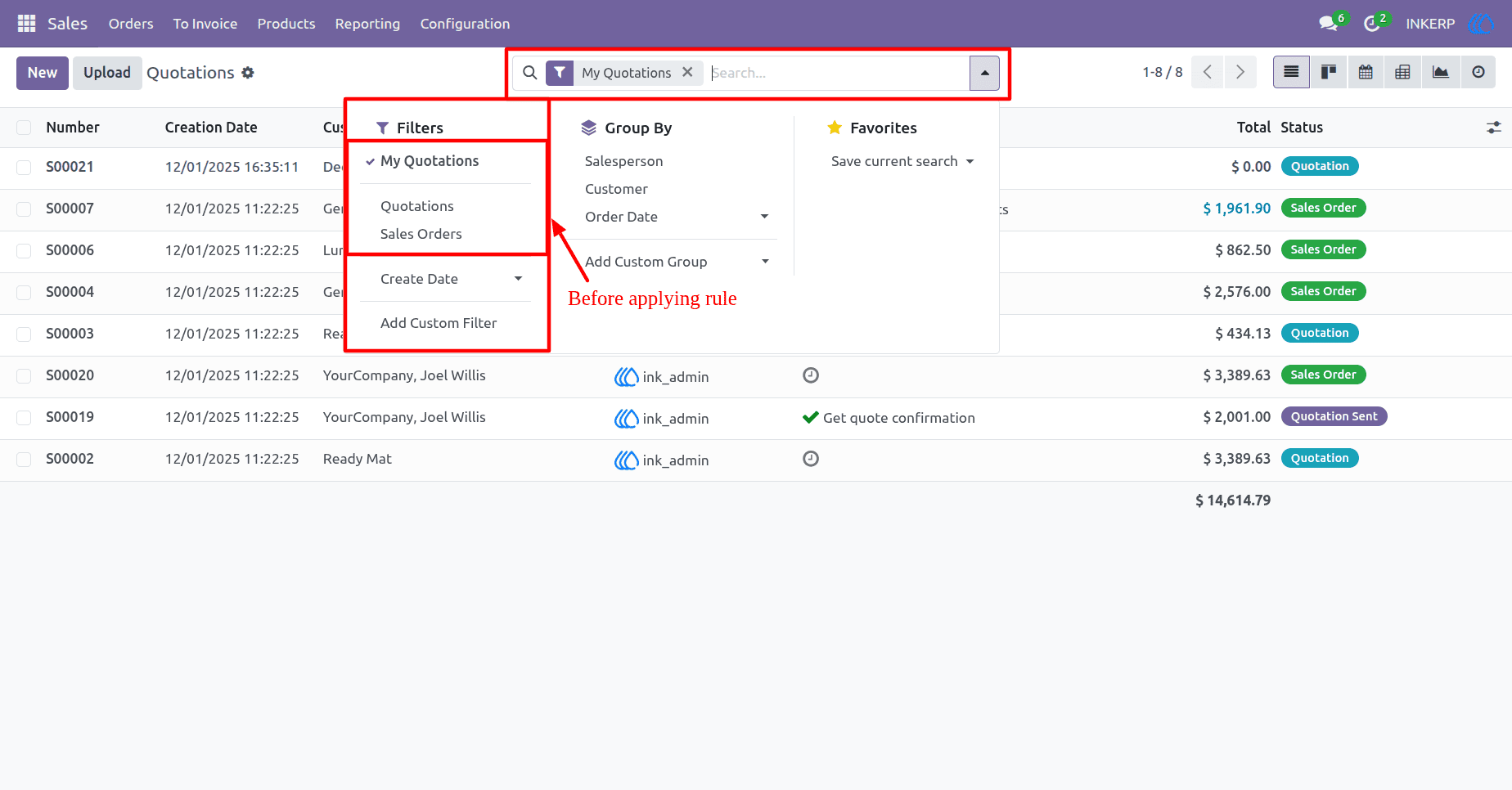
19) Filter Visibility Control
Hides the filter options from the user interface in the search view for the selected model.In this case, filters like "My Quotations," "Quotations," and "Sales Orders" are hidden for the Sales Order model, simplifying the view and reducing access to pre-defined data segments.
Before Applying Hide Filter Rule
After Applying Hide Filter Rule
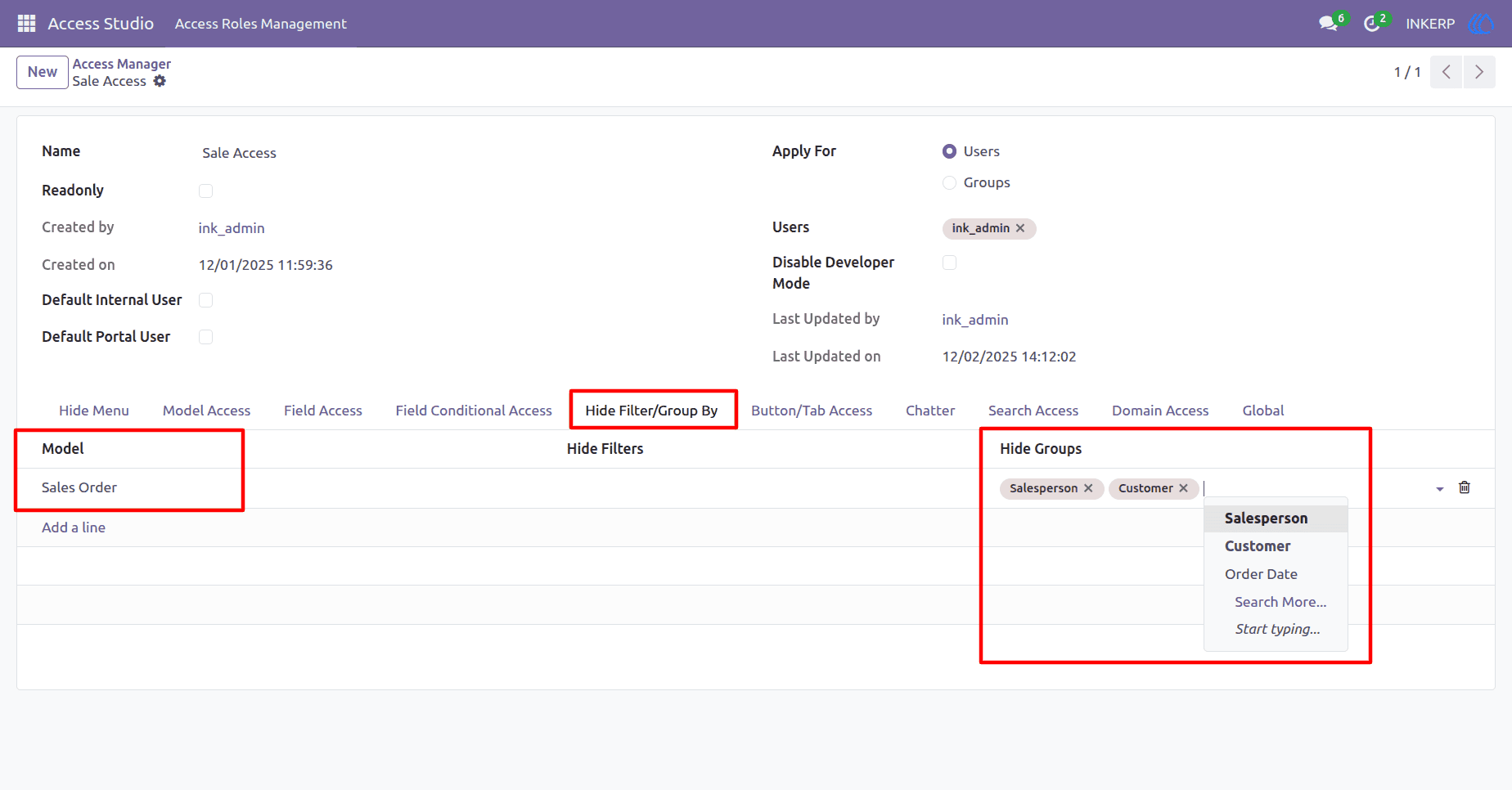
20 ) Group By Visibility Control
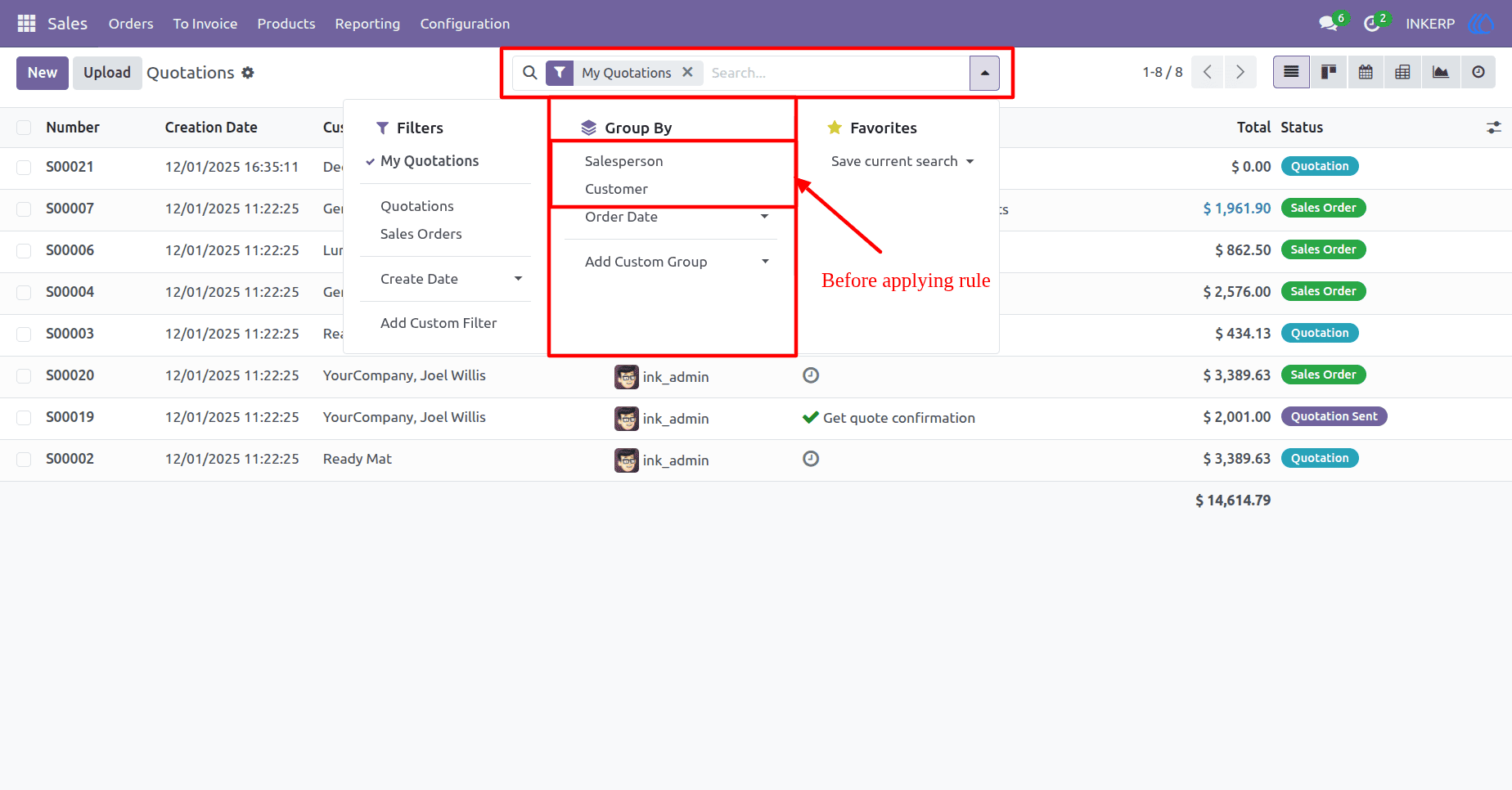
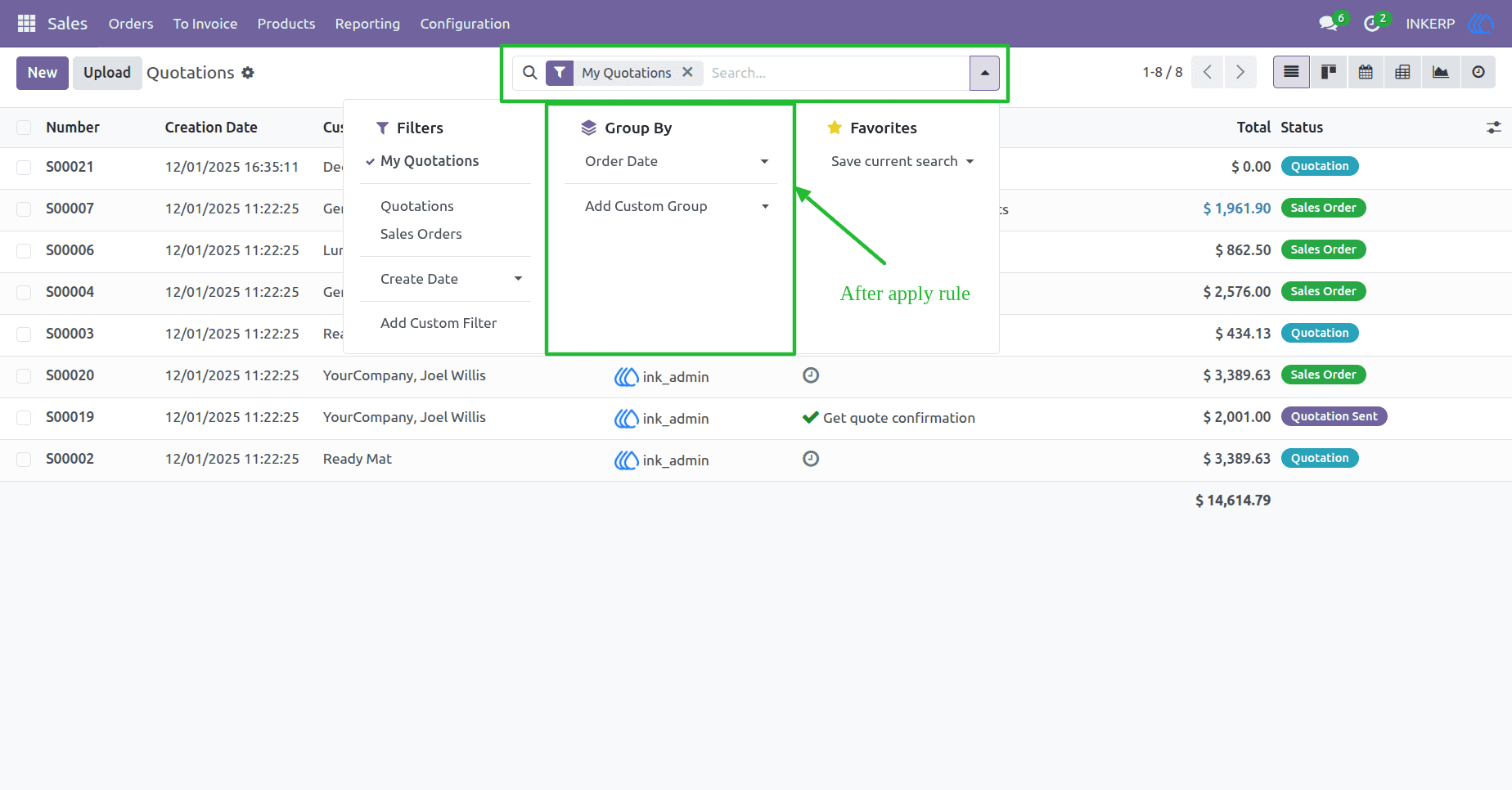
Hide specific group-by options from the user interface in the search view for the selected model. In this case, "Salesperson" and "Customer" groupings are hidden for the Sales Order model, limiting how users can segment and analyze data in list views.
Before Applying Hide Group By Rule
After Applying Hide Group By Rule
21) Button-Level Access Control
Hide specific buttons from the user interface for selected models. In this case, the "Confirm" and "Preview" buttons are hidden for the Sales Order model, preventing users from triggering key actions like confirming or previewing quotations.
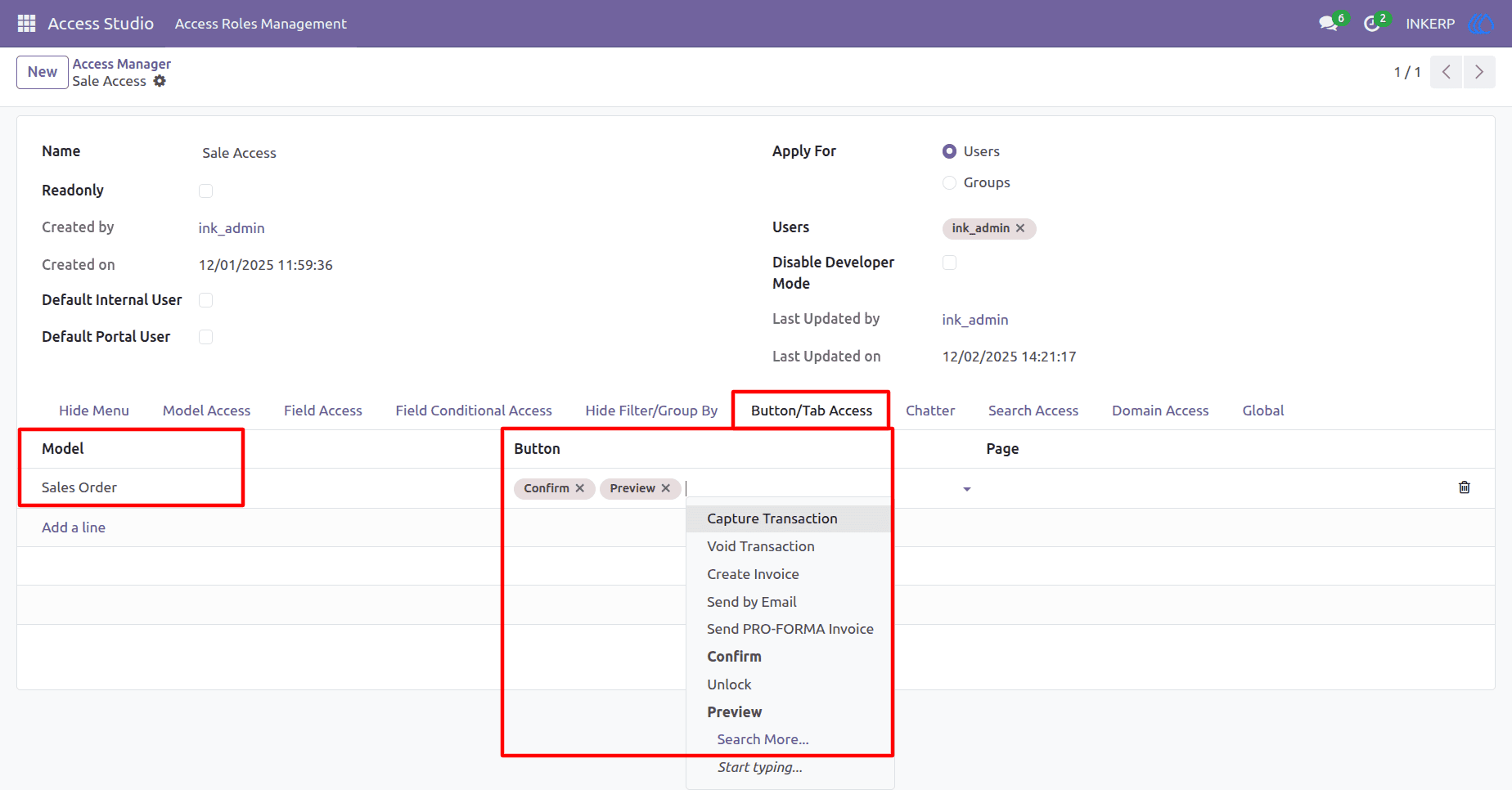
Before Applying Hide Button Rule
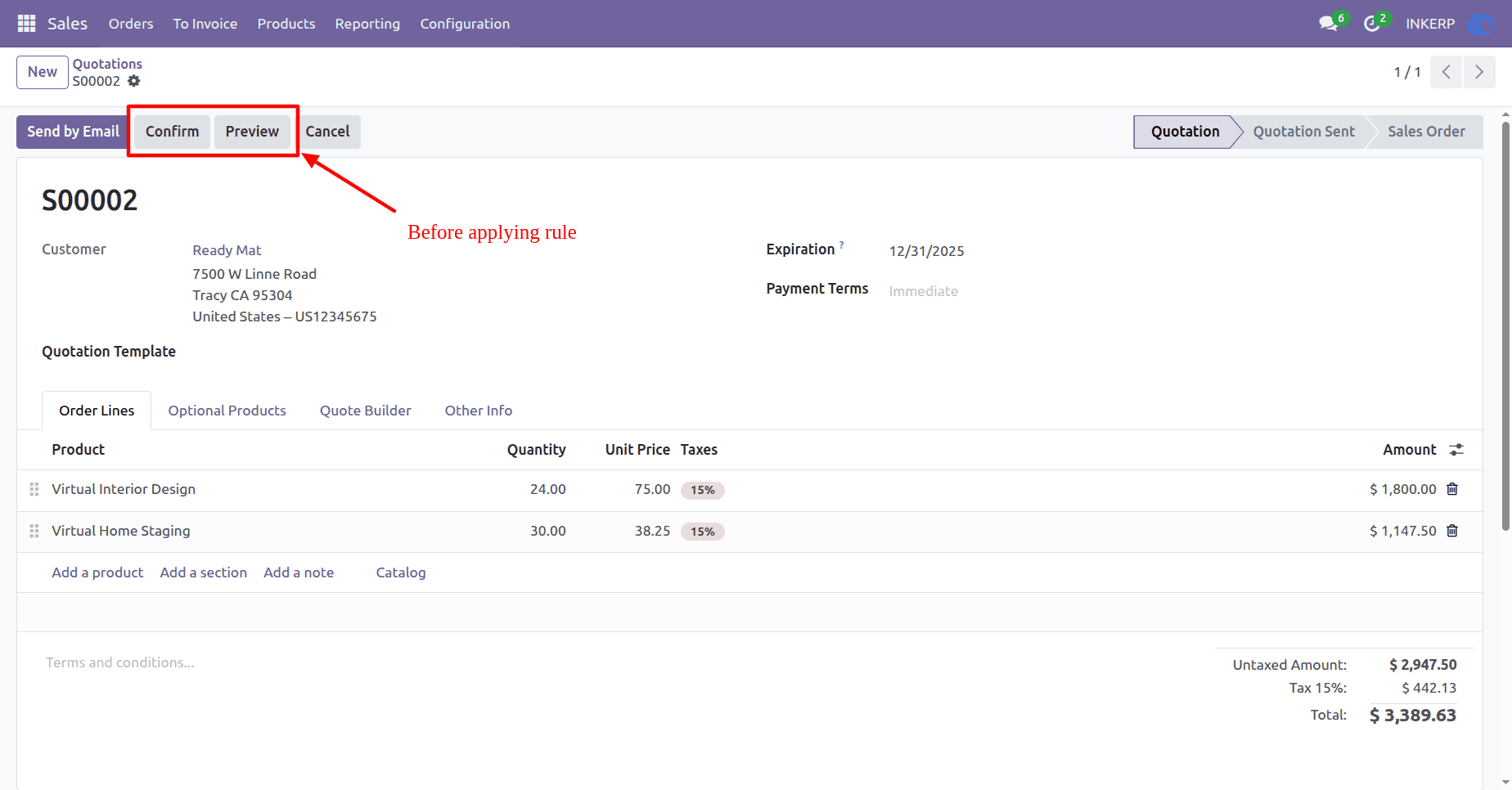
After Applying Hide Button Rule
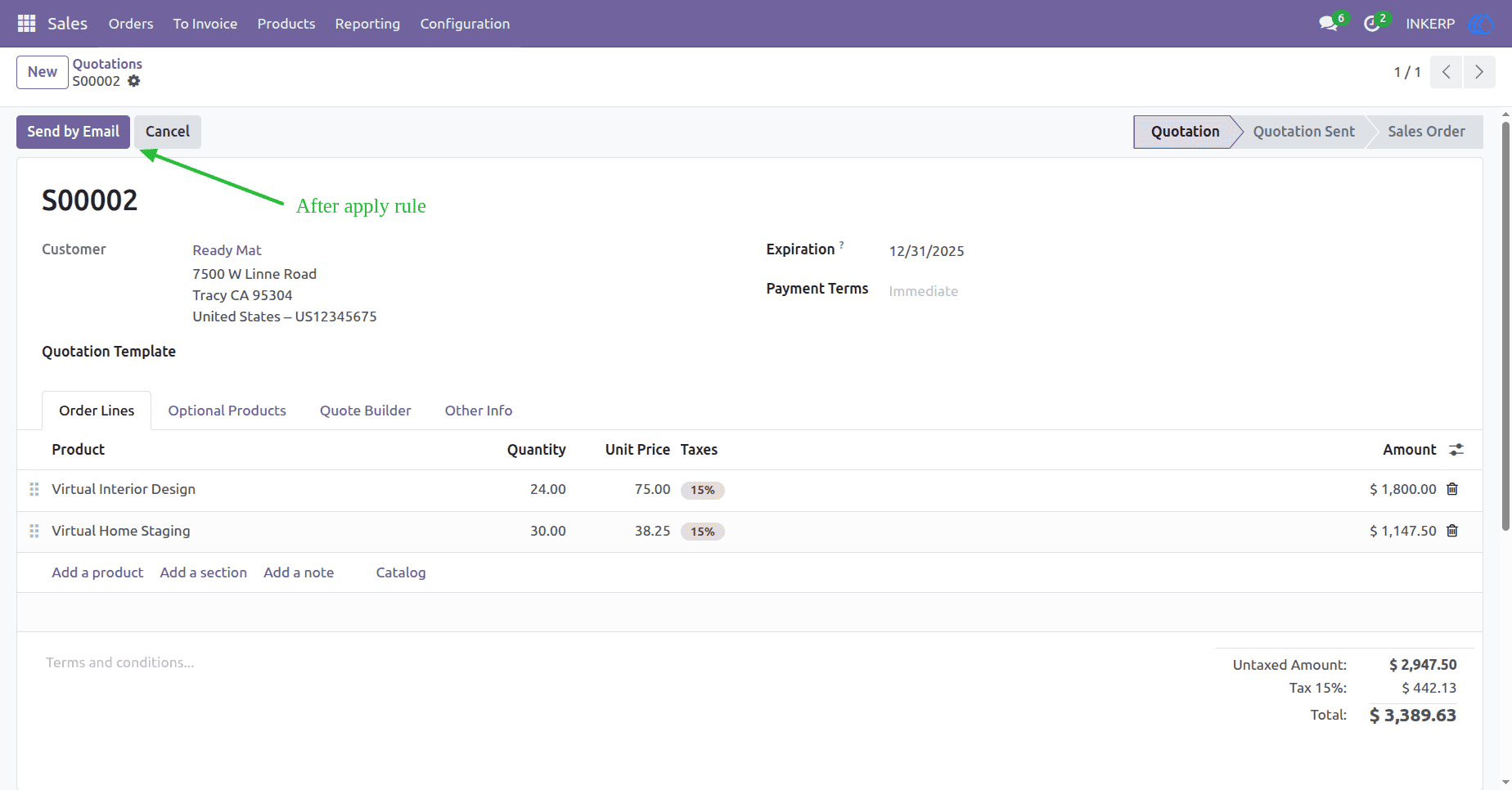
22) Tab/Page Visibility Control
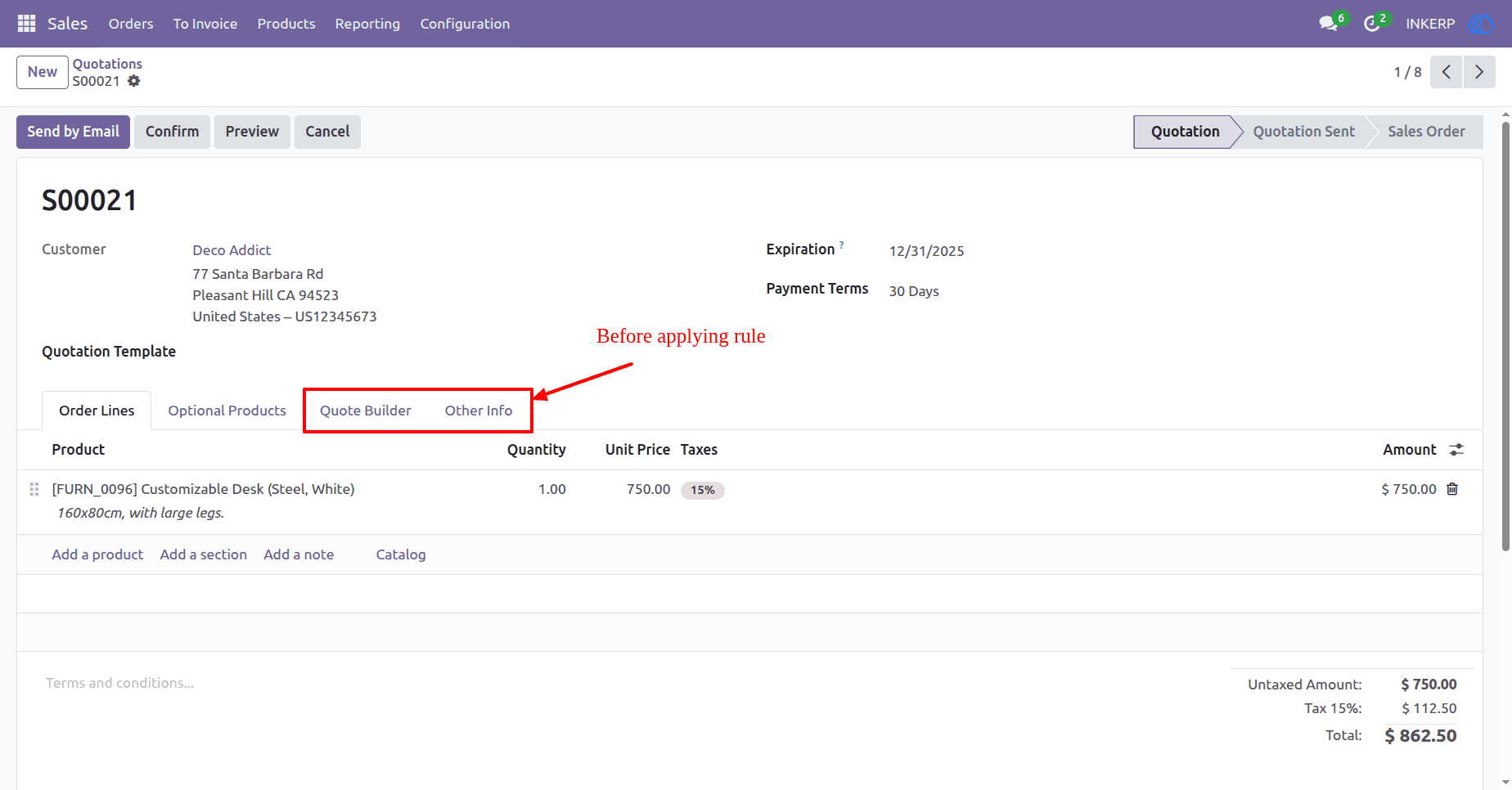
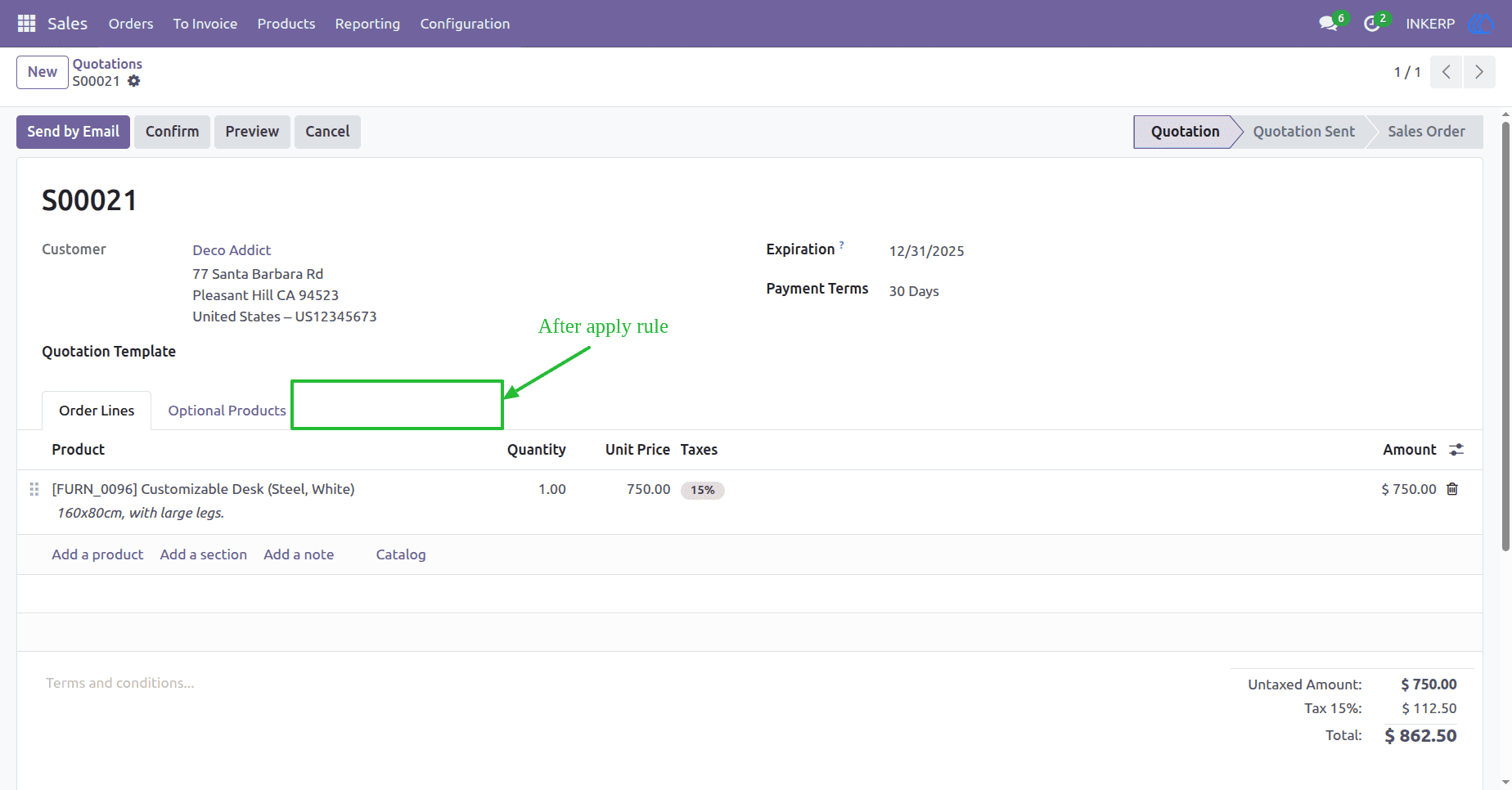
Hide specific tabs or pages within a form view of model. In this case, the "Other Info" and "Quote Builder" tabs in the Sales Order model are hidden, streamlining the interface and limiting access to auxiliary information.
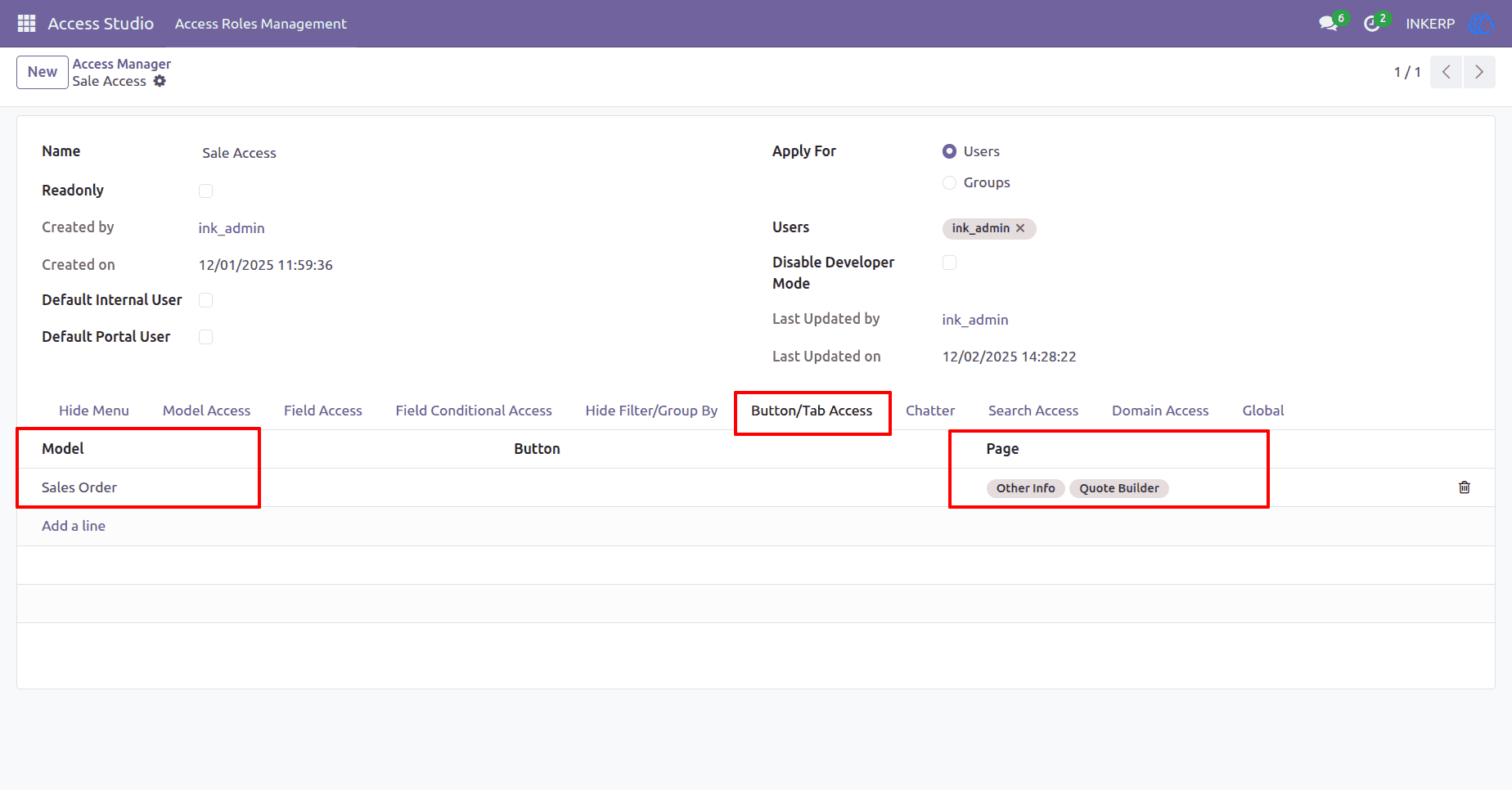
Before Applying Hide Page Rule
After Applying Hide Page Rule
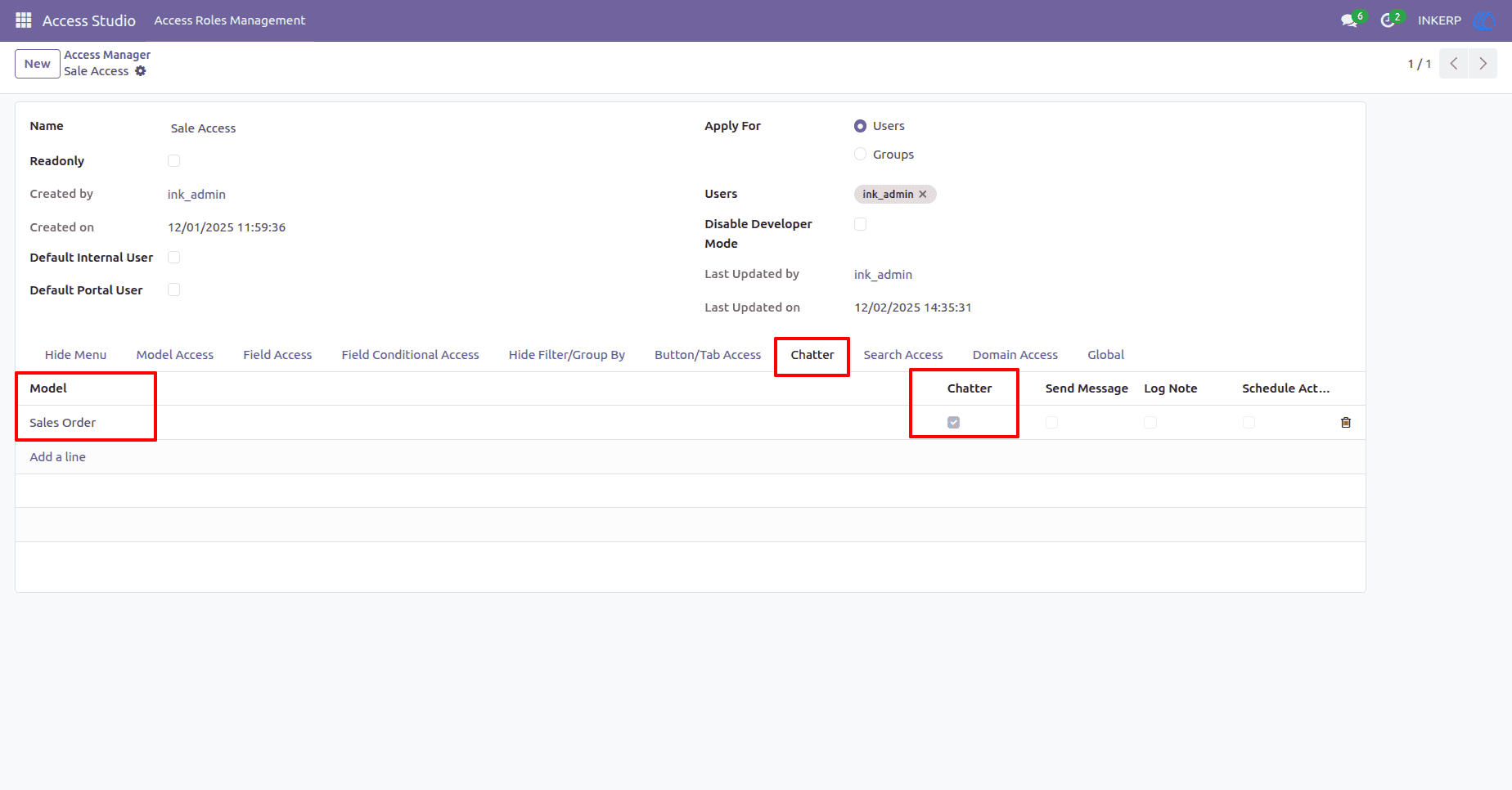
23) Chatter Access Control
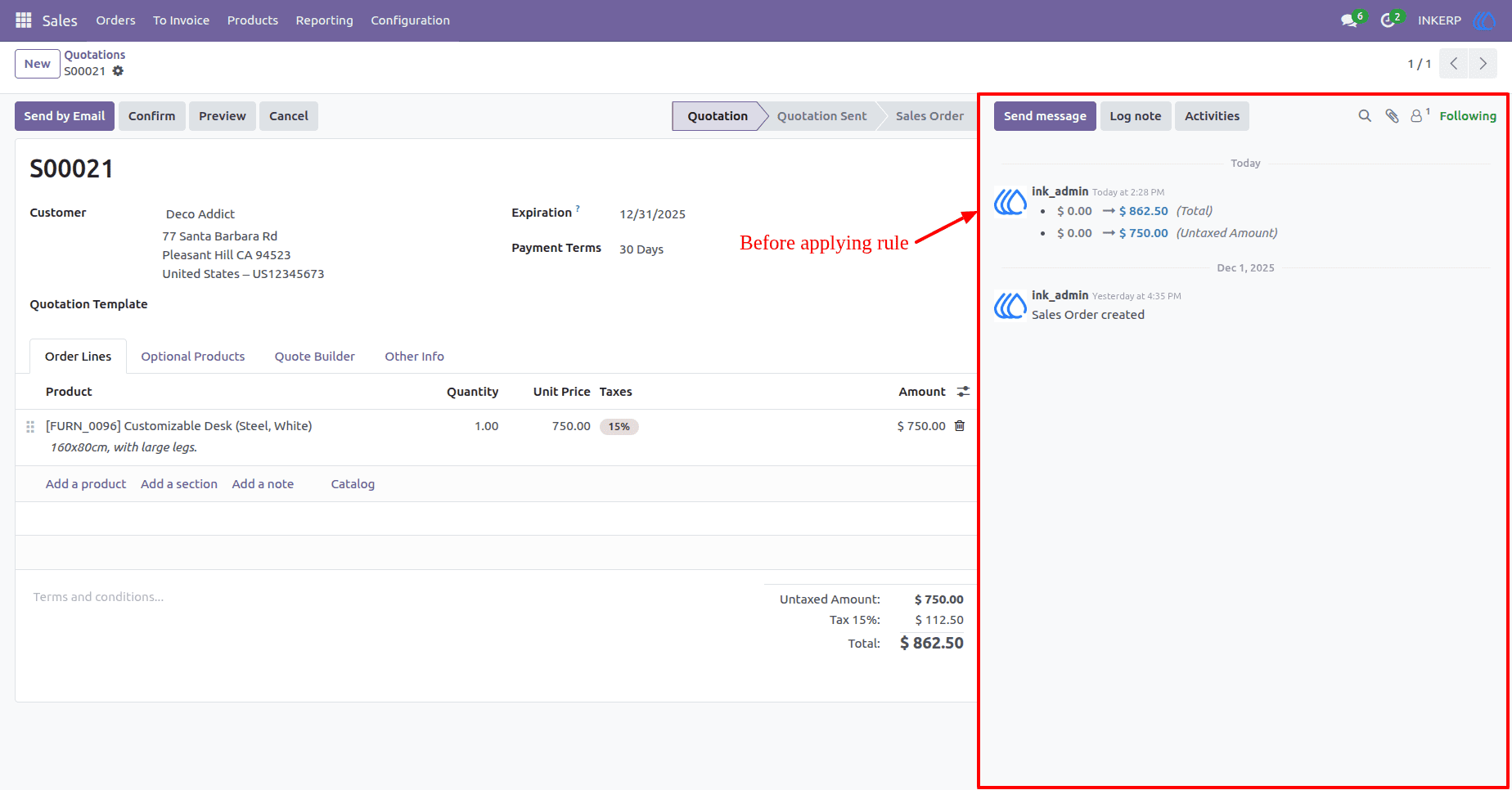
Enable or disable access to the Chatter feature for specific roles. In this case, Chatter is disabled for the Sales Order model, restrict users to view and interact with communication threads, log notes, and track activities.
Before Applying Hide Chatter Rule
After Applying Hide Chatter Rule
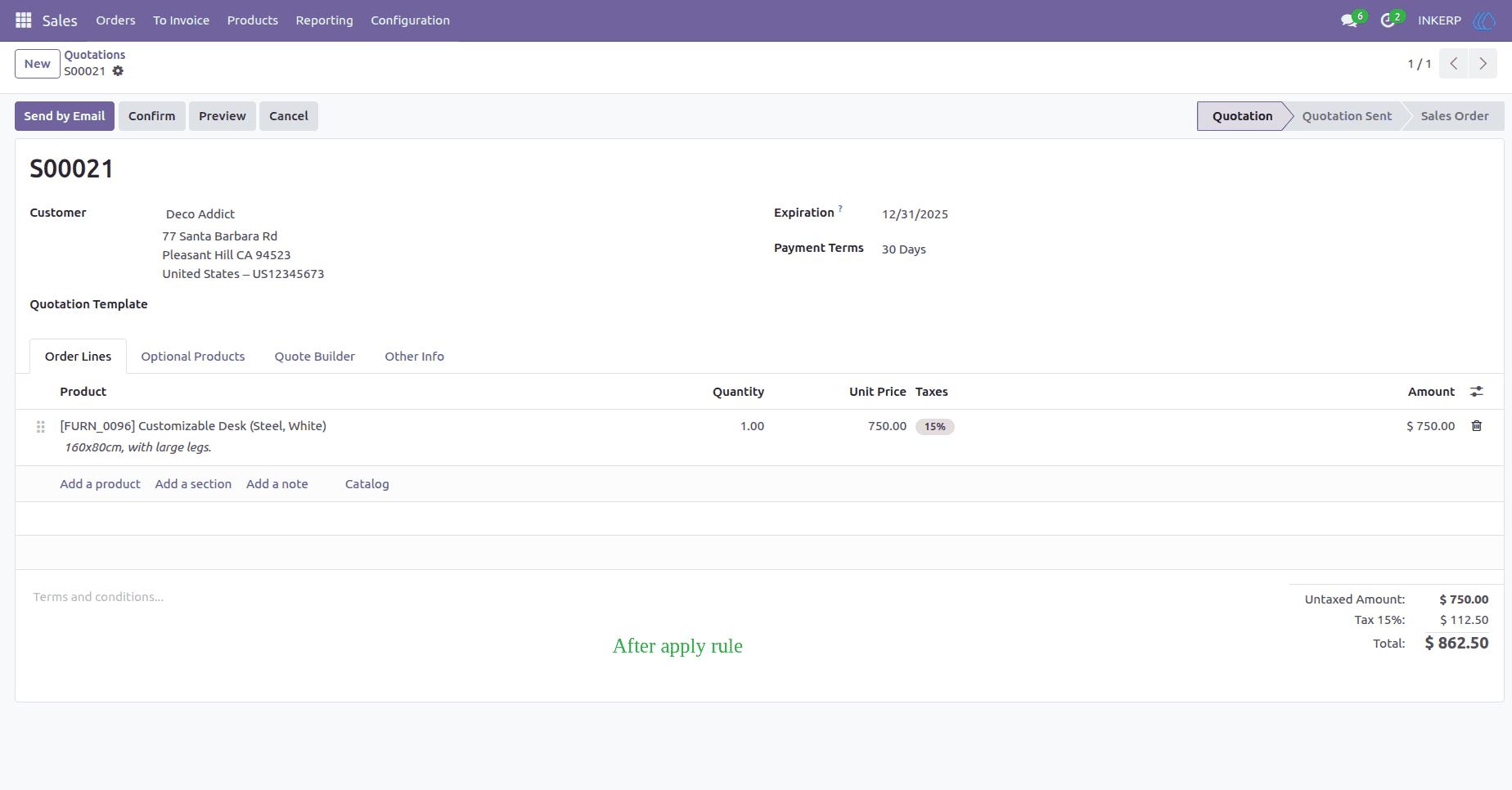
24) Hide Send Message Button In Chatter
Hide send message button in chatter within a form view of model. In this case, Send Message button in the Sales Order model chatter is hidden.
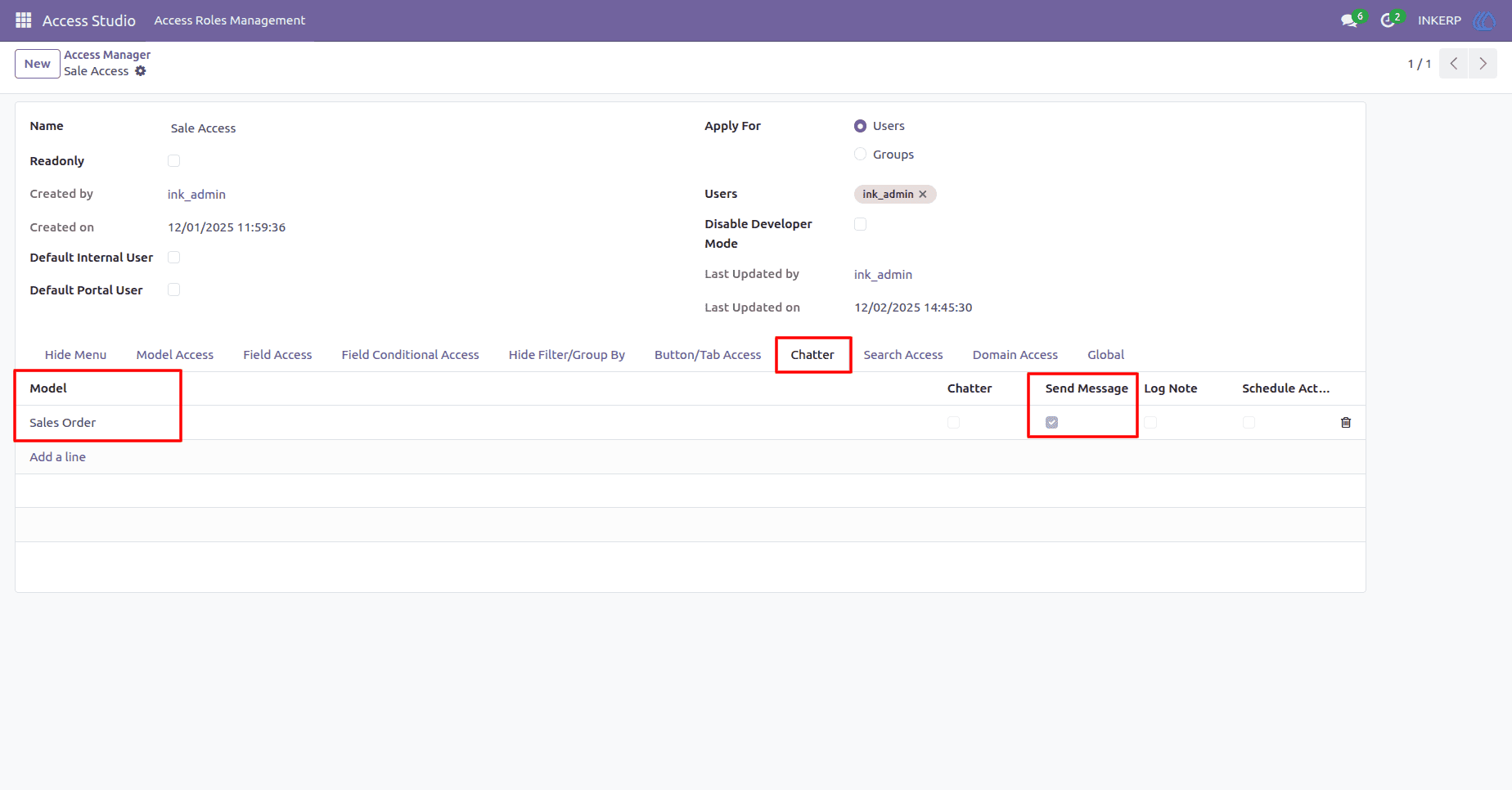
Before Applying Hide Send Message Button Rule
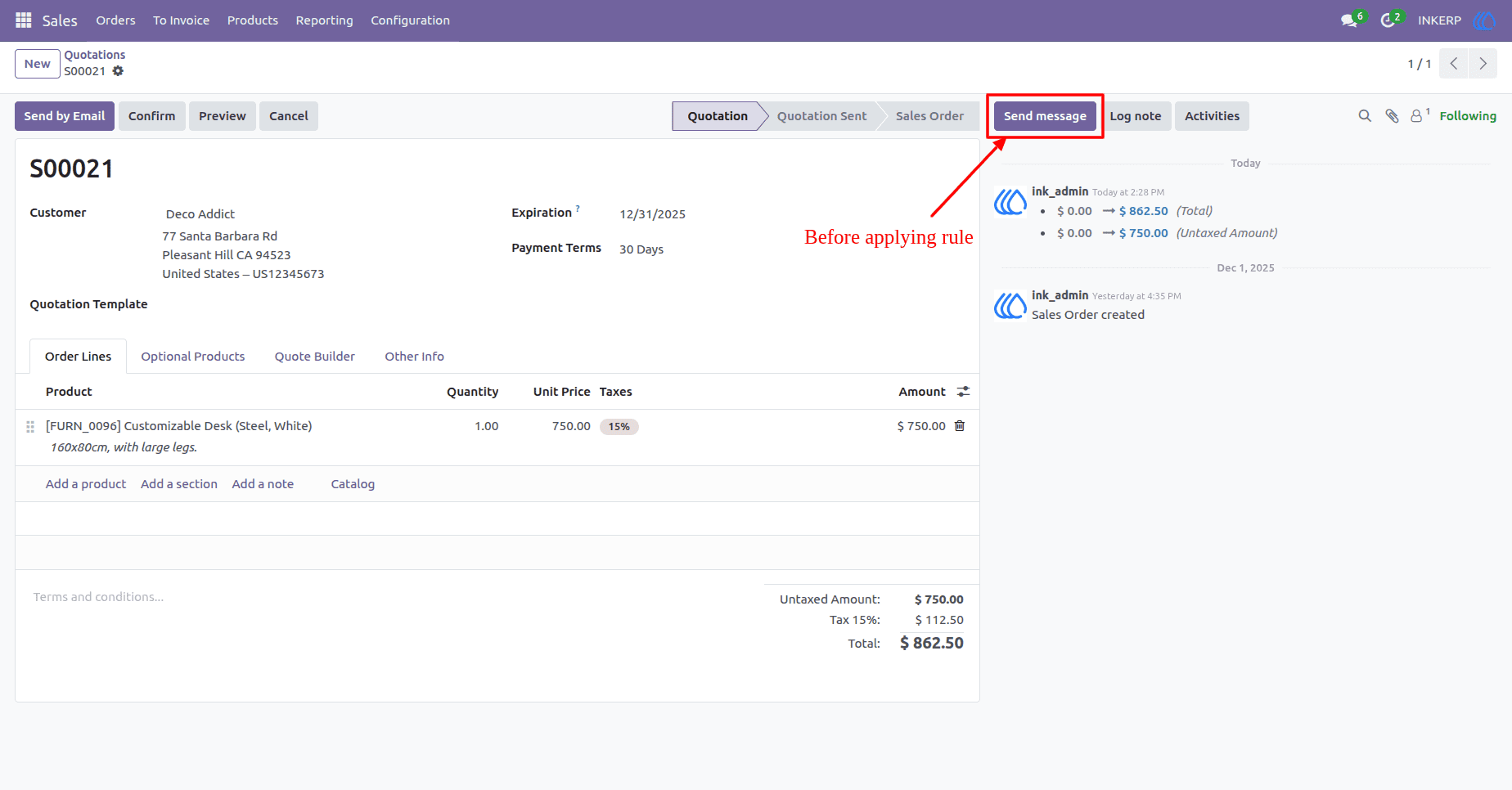
After Applying Hide Send Message Button Rule
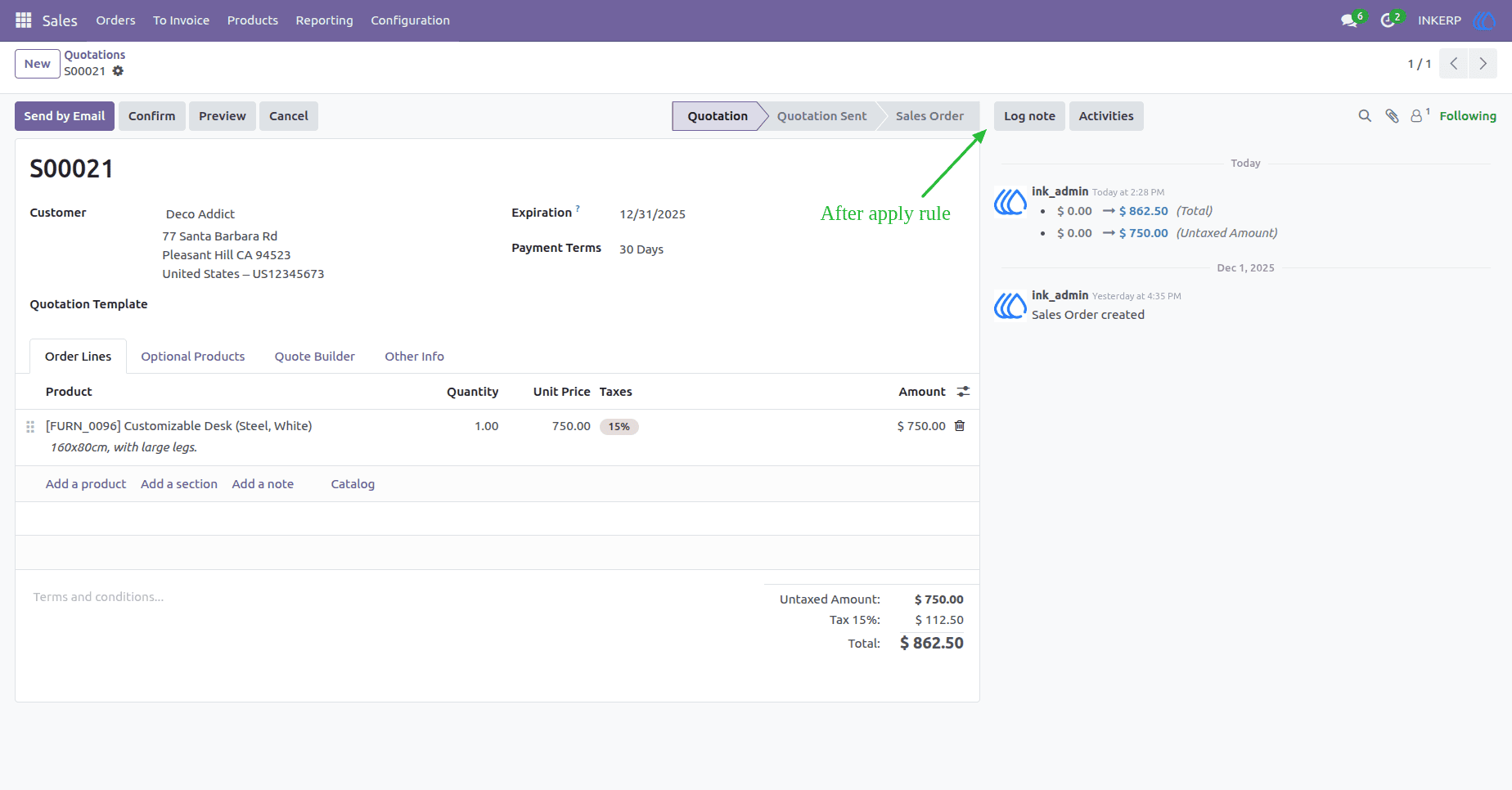
25) Hide Log Note Button In Chatter
Log Note Checkbox is used to specify show / hide log note button inside chatter.
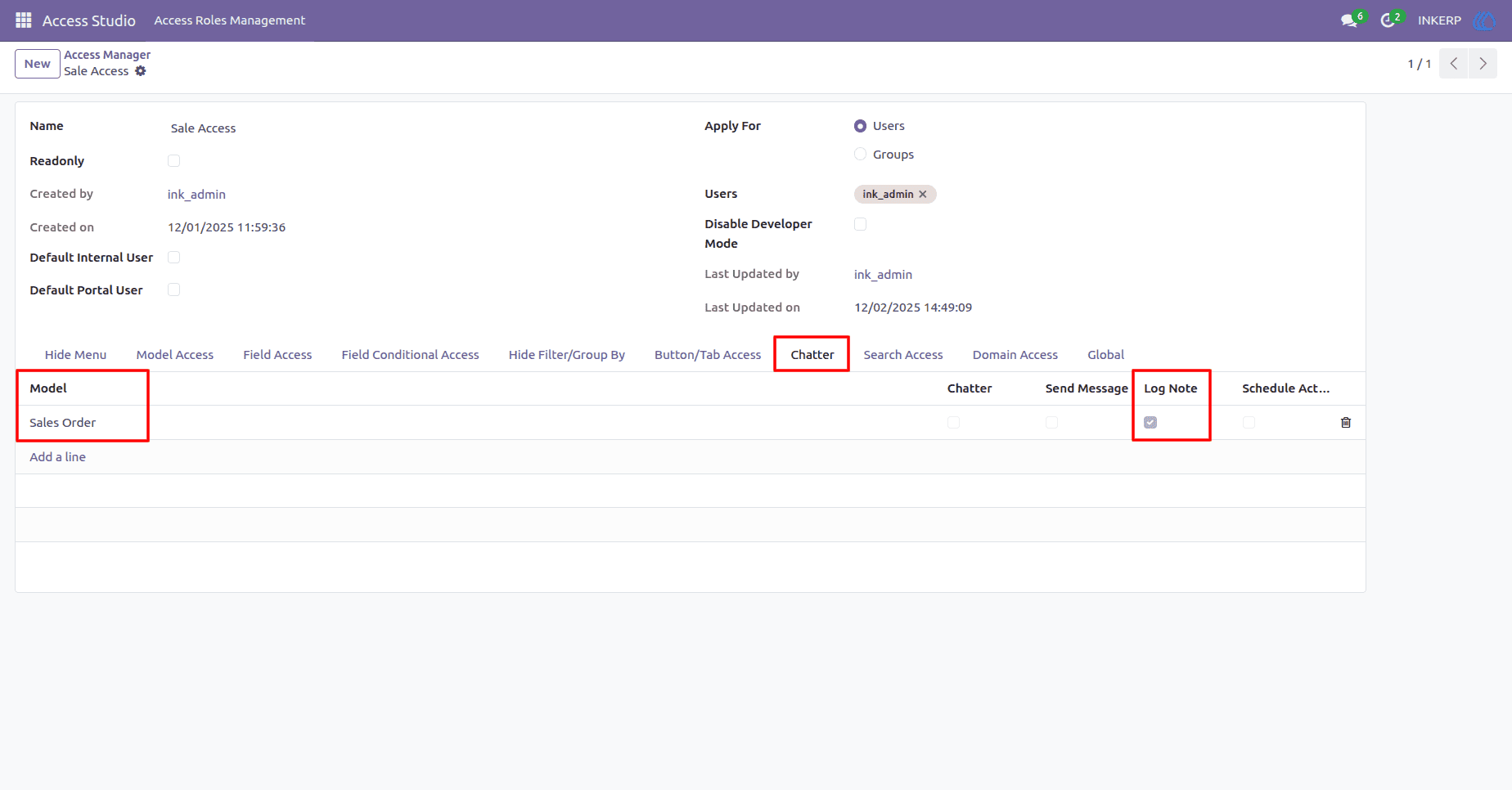
Before Applying Hide Log Note Button Rule
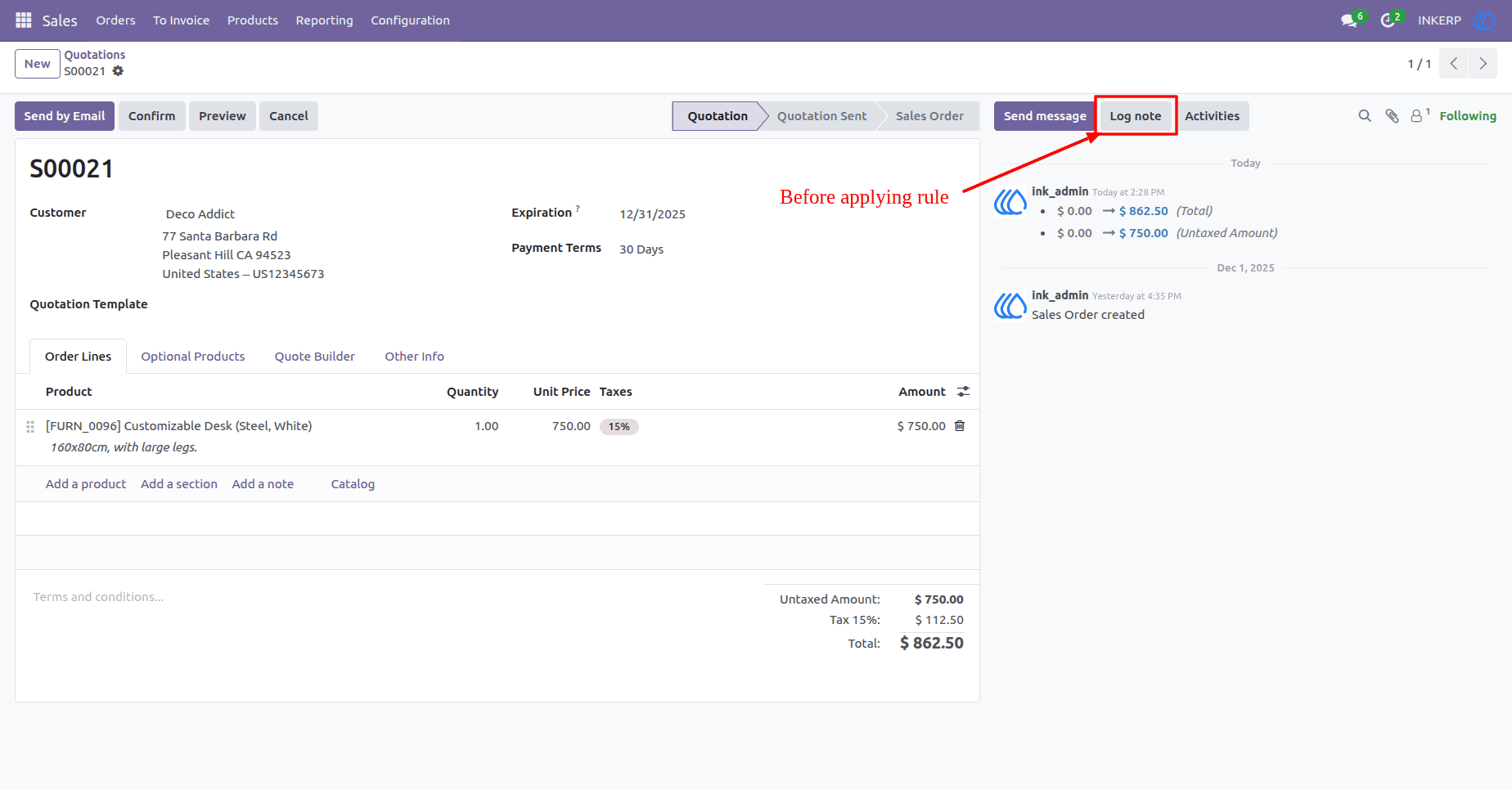
After Applying Hide Log Note Button Rule
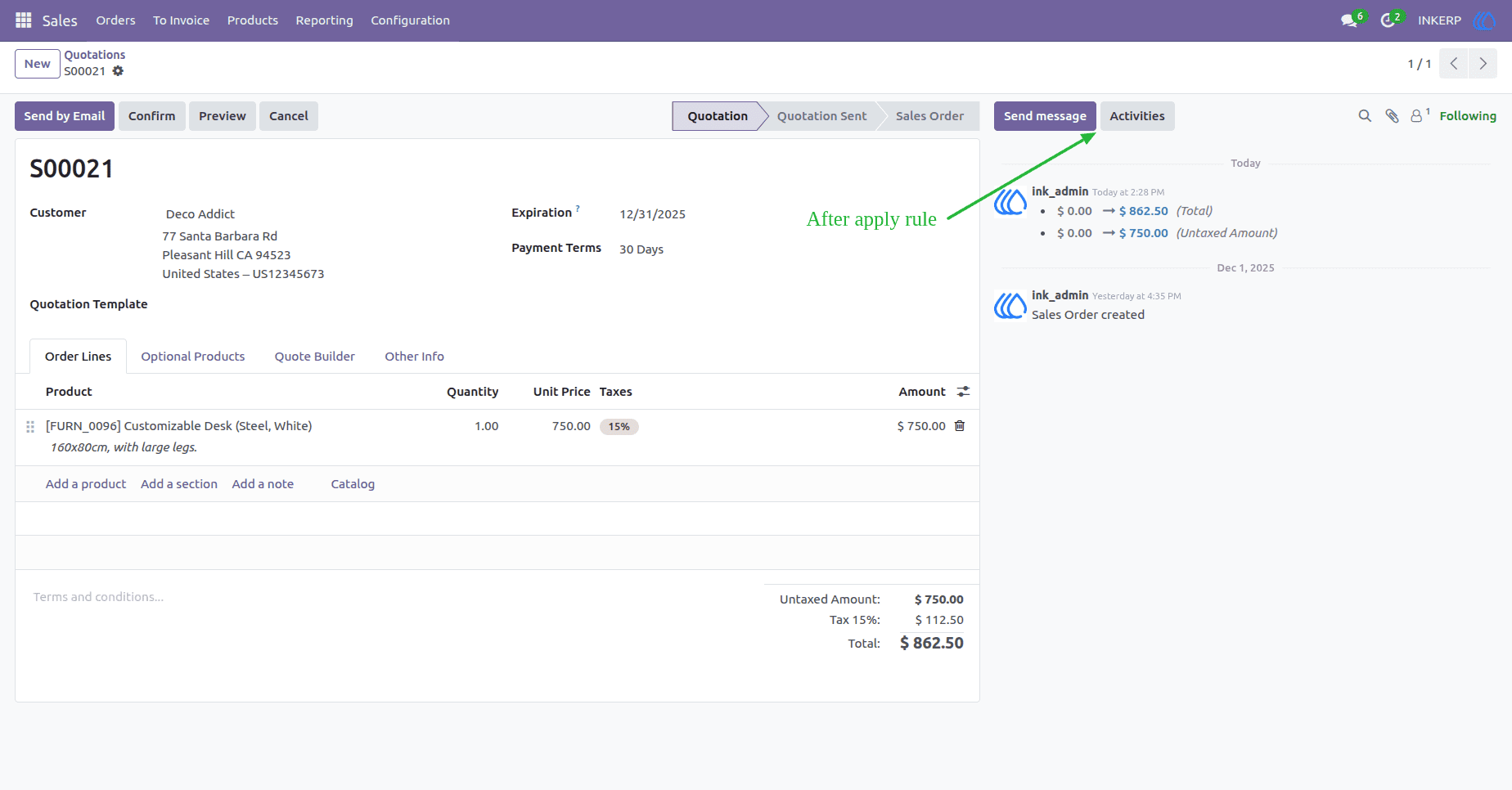
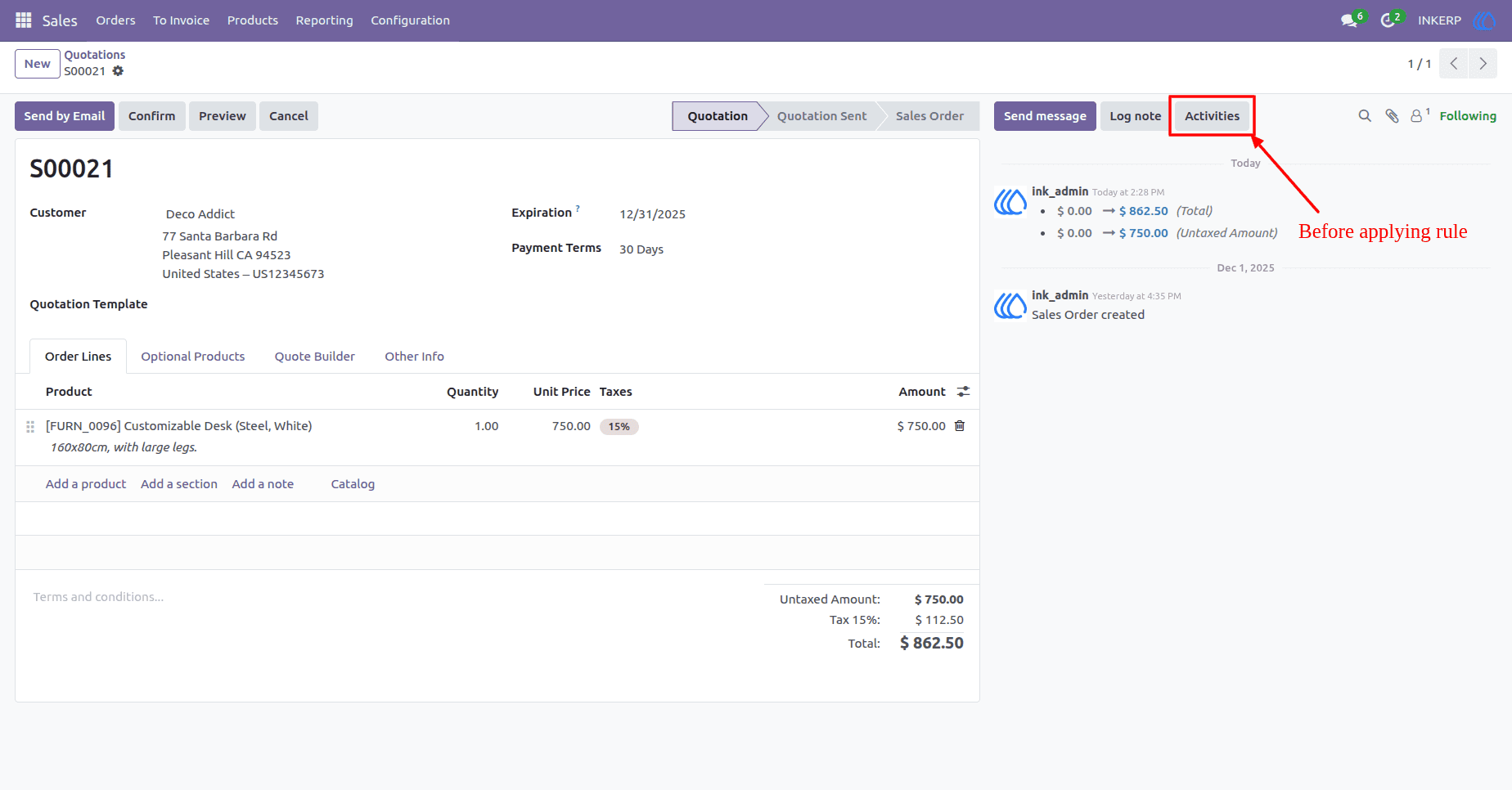
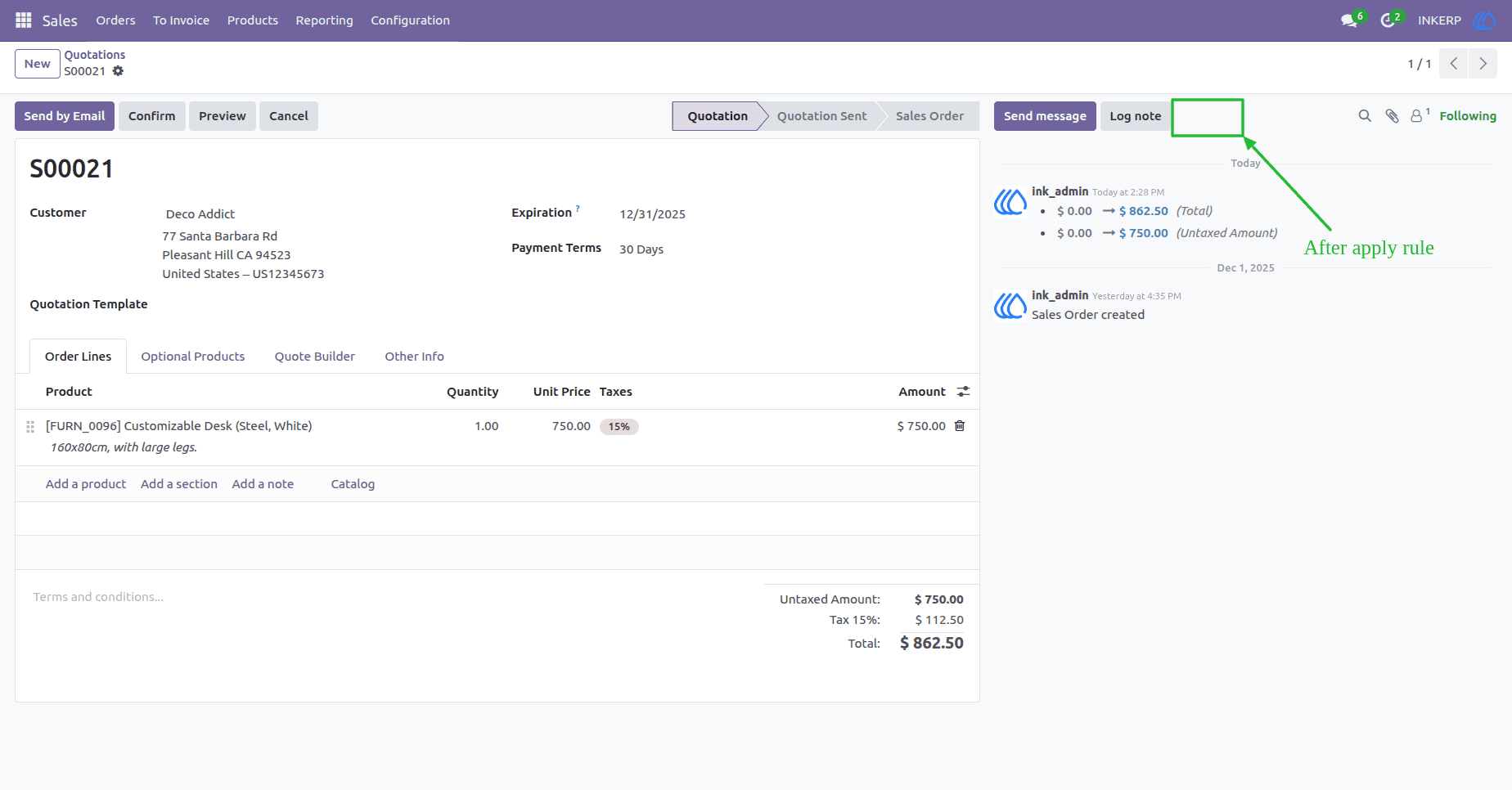
26) Hide Schedule Activity Button In Chatter
Schedule Activity Checkbox is used to specify show / hide Schedule activity inside chatter.
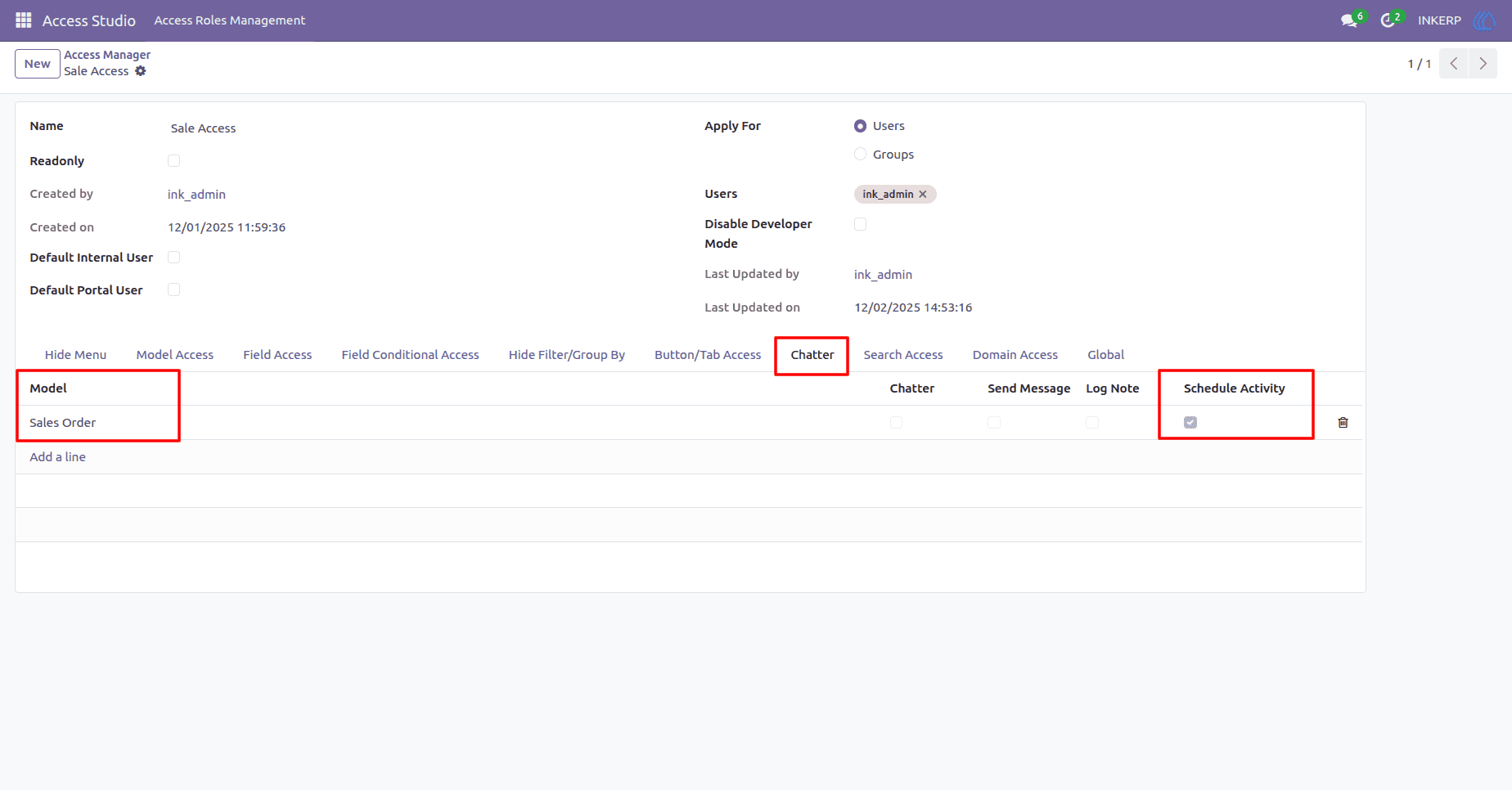
Before Applying Hide Schedule Activity Button Rule
After Applying Hide Schedule Activity Button Rule
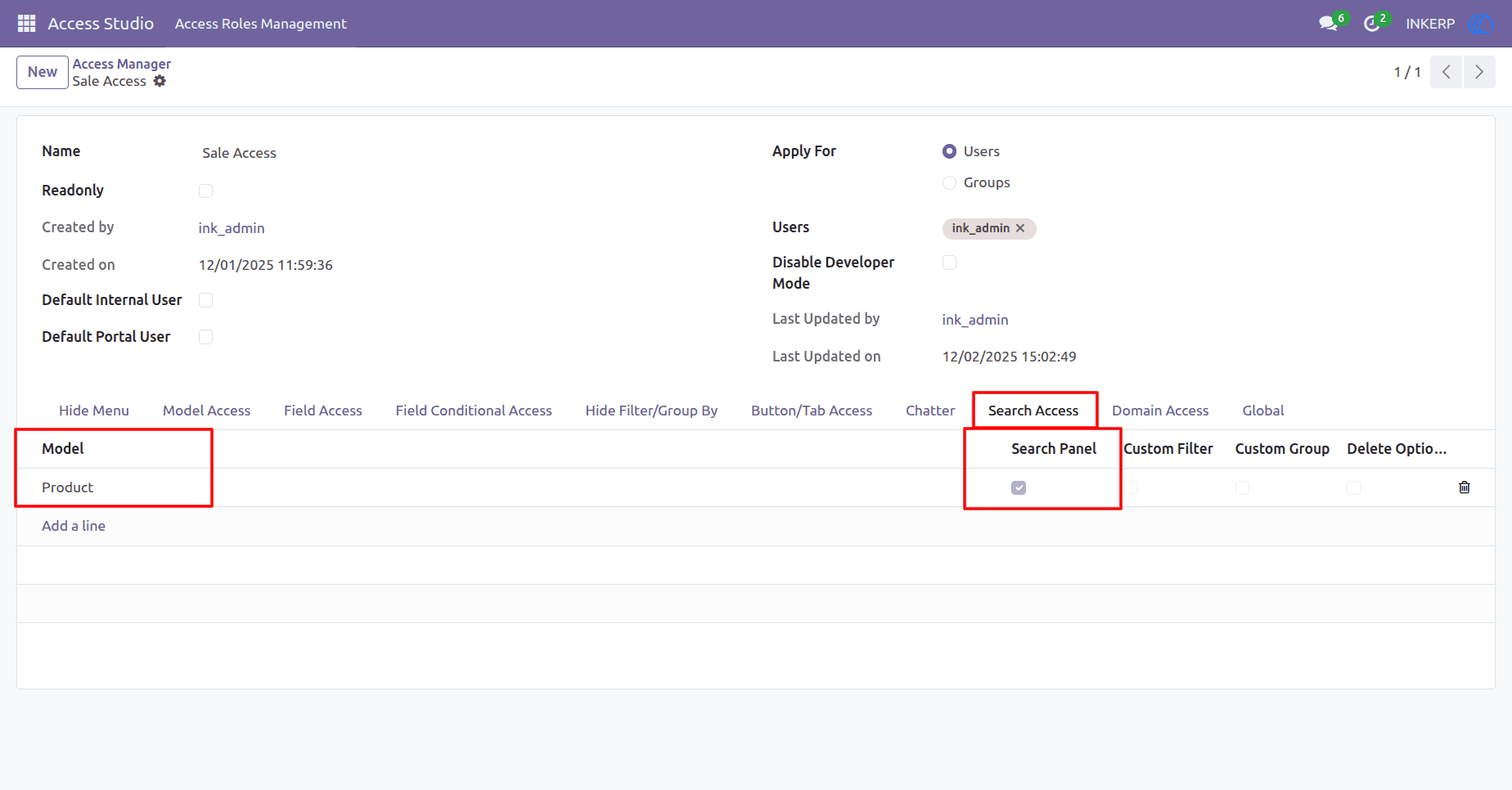
27) Search Panel Visibility
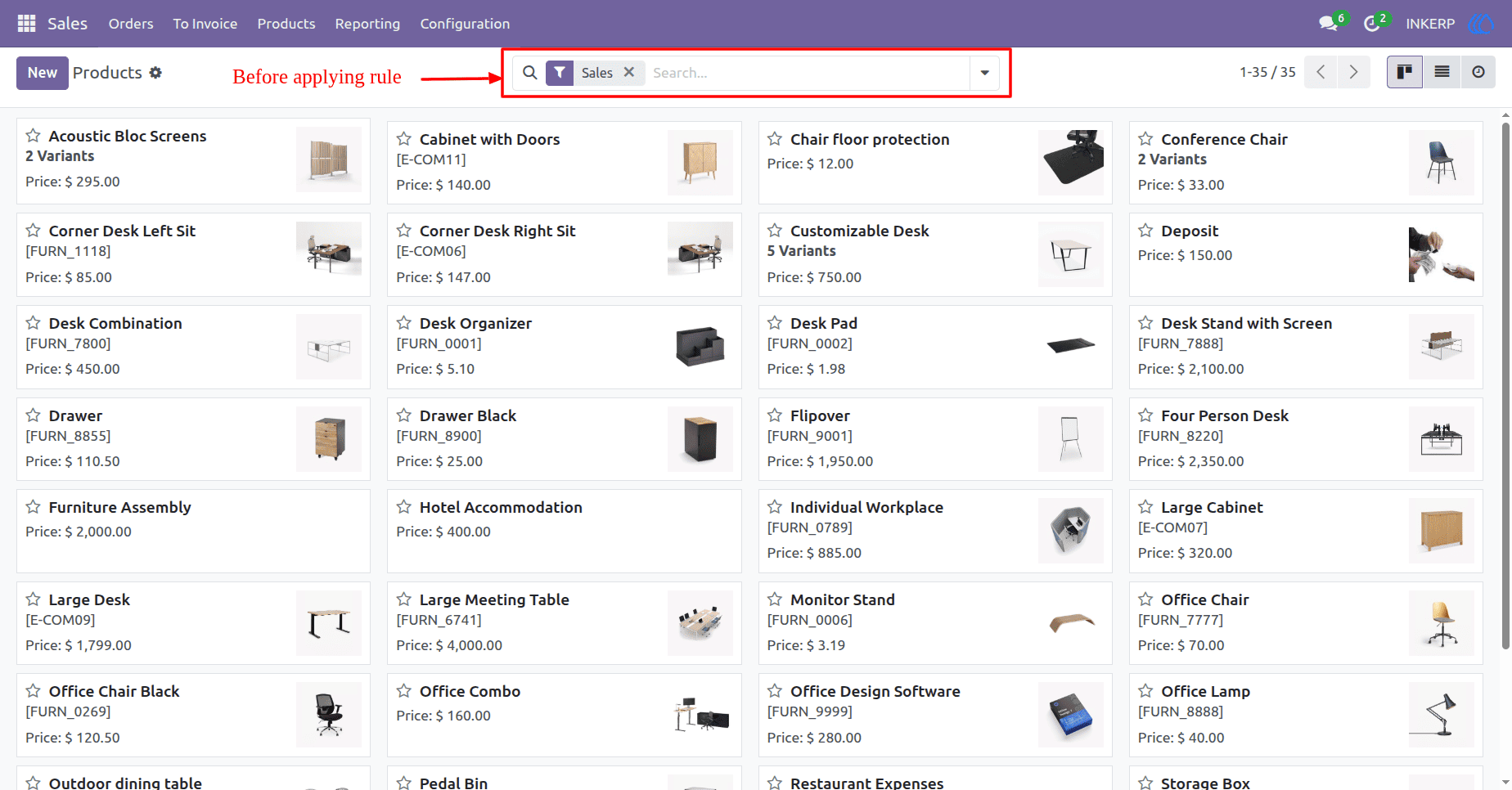
Enable or disable the search panel for specific models. In this case, the search panel is invisible for the Product model, restrict users to search records.
Before Applying Hide Search Panel Rule
After Applying Hide Search Panel Rule
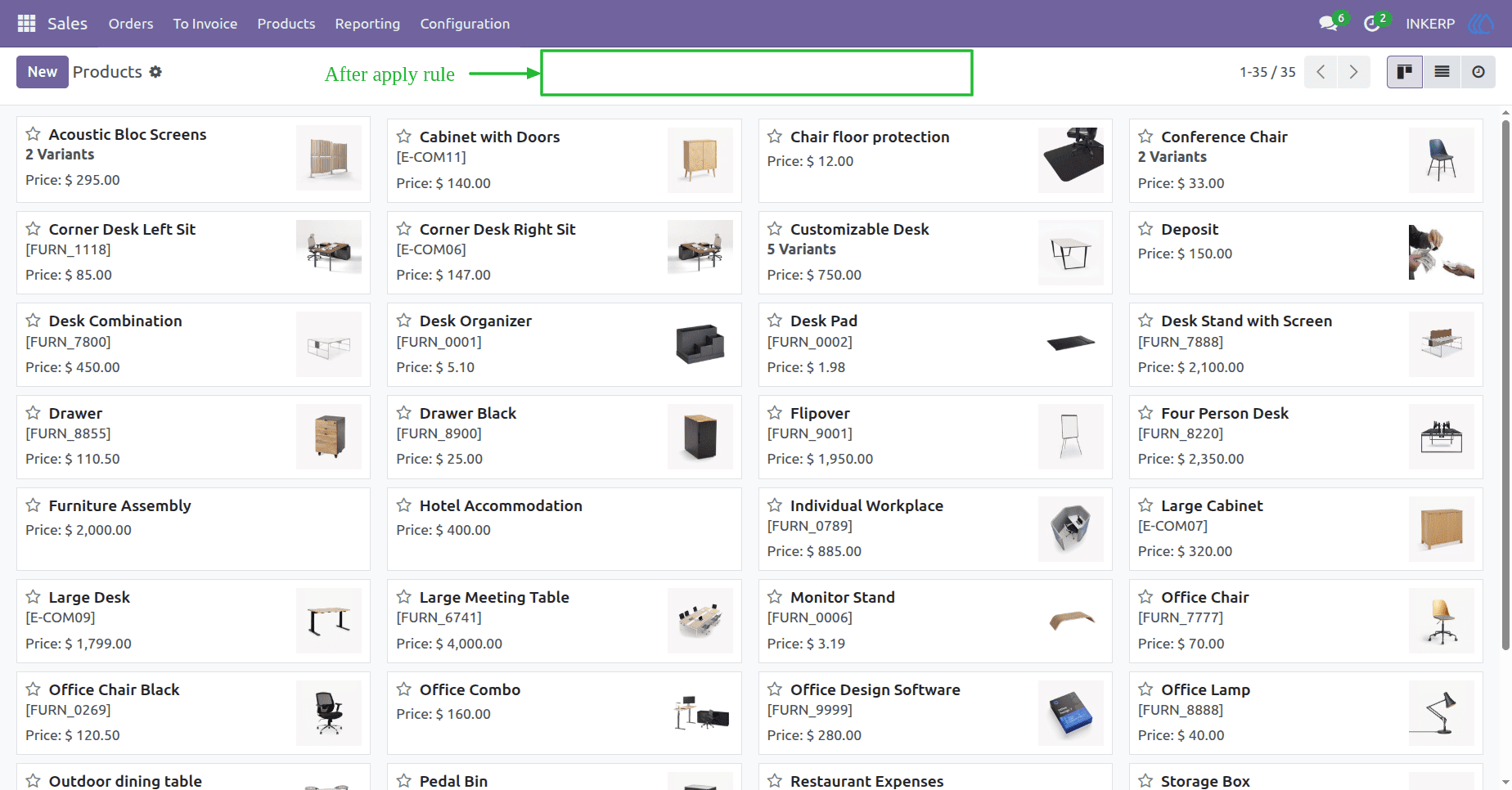
28) Hide add custom filters/groups/delete button in Search
Users cannot create new filters. Users cannot define new group by options. Users cannot remove saved filters from their favorites.
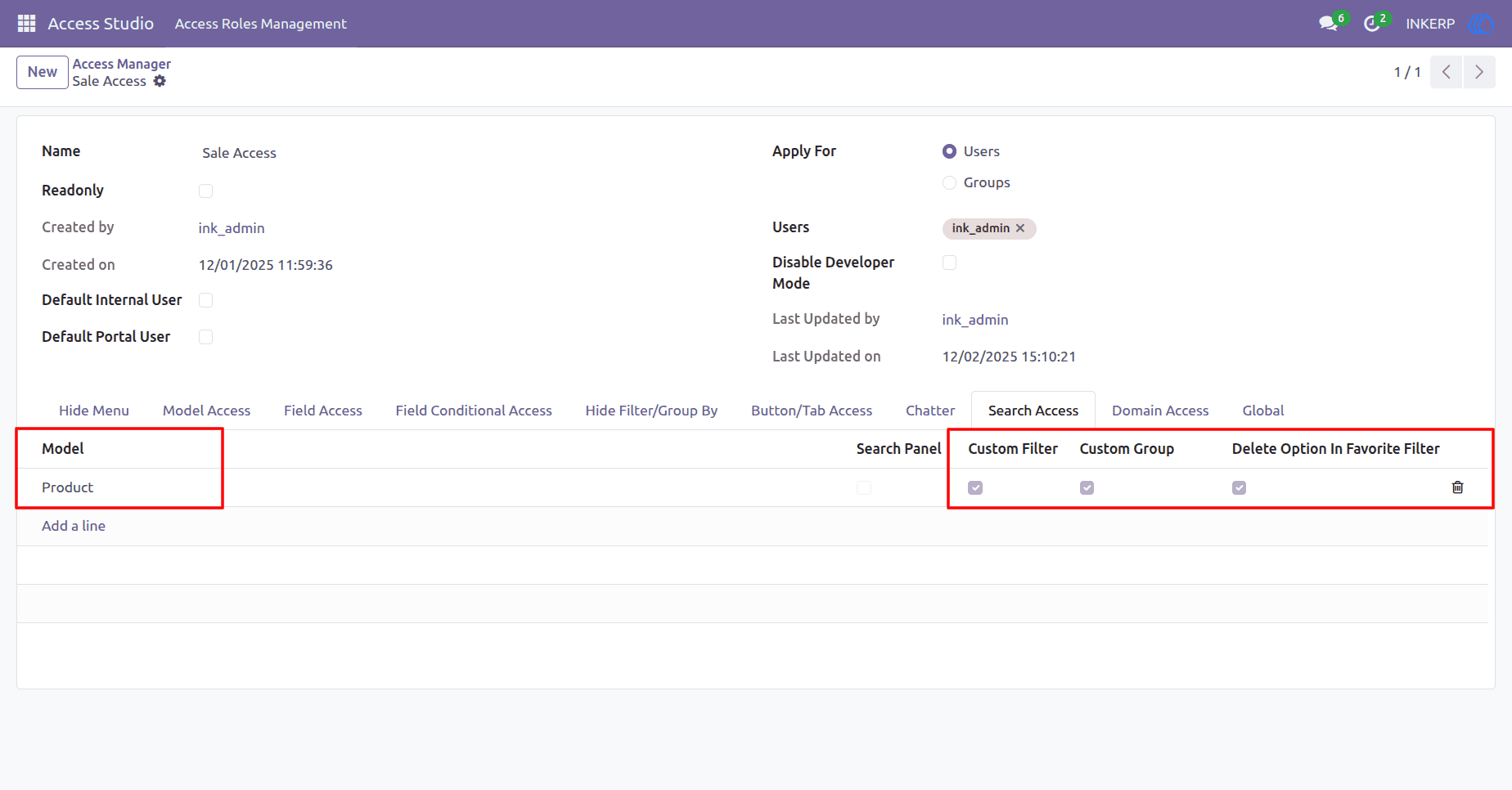
Before Applying Hide filters/groups/delete button Rule
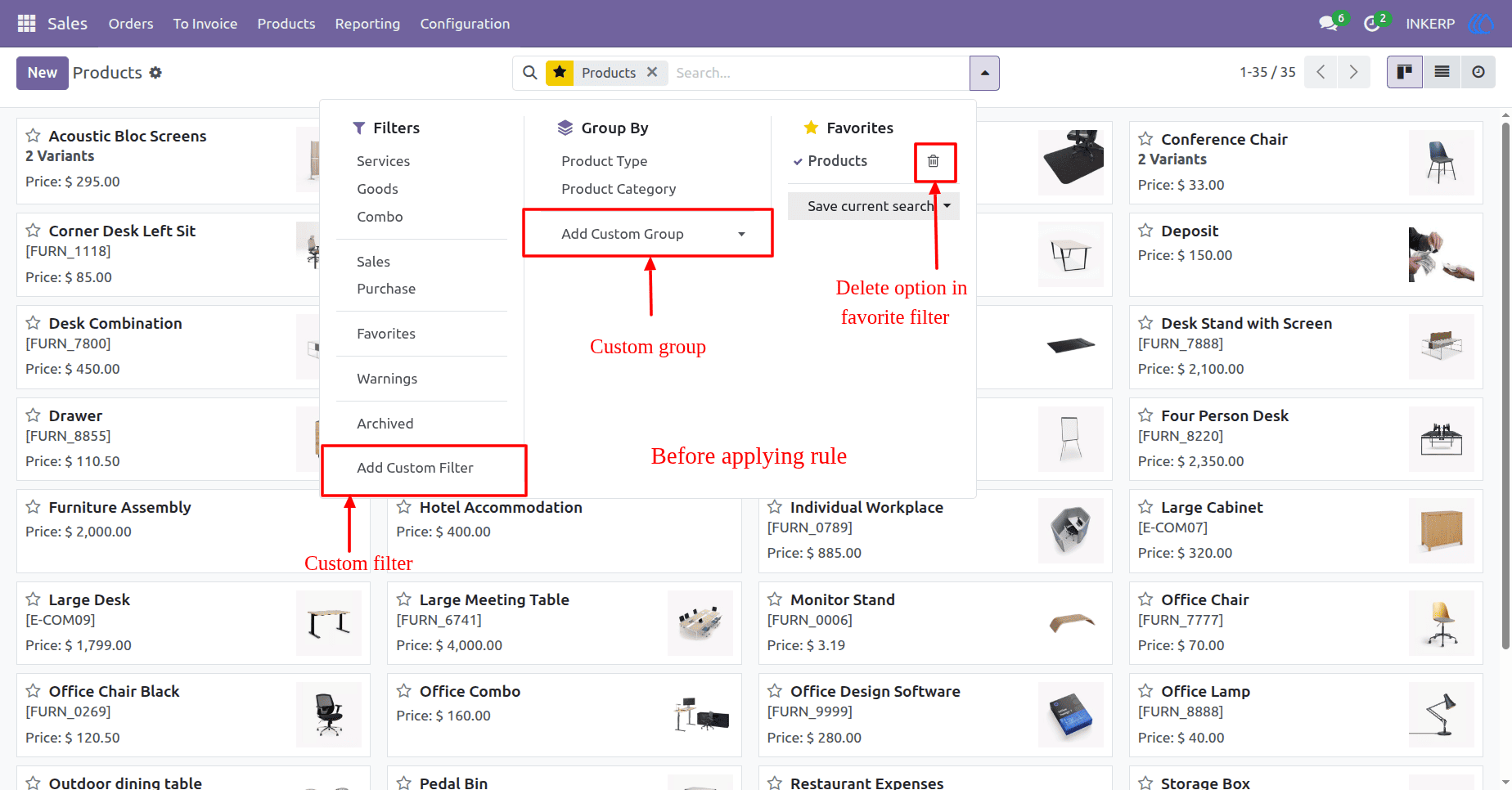
After Applying Hide filters/groups/delete button Rule
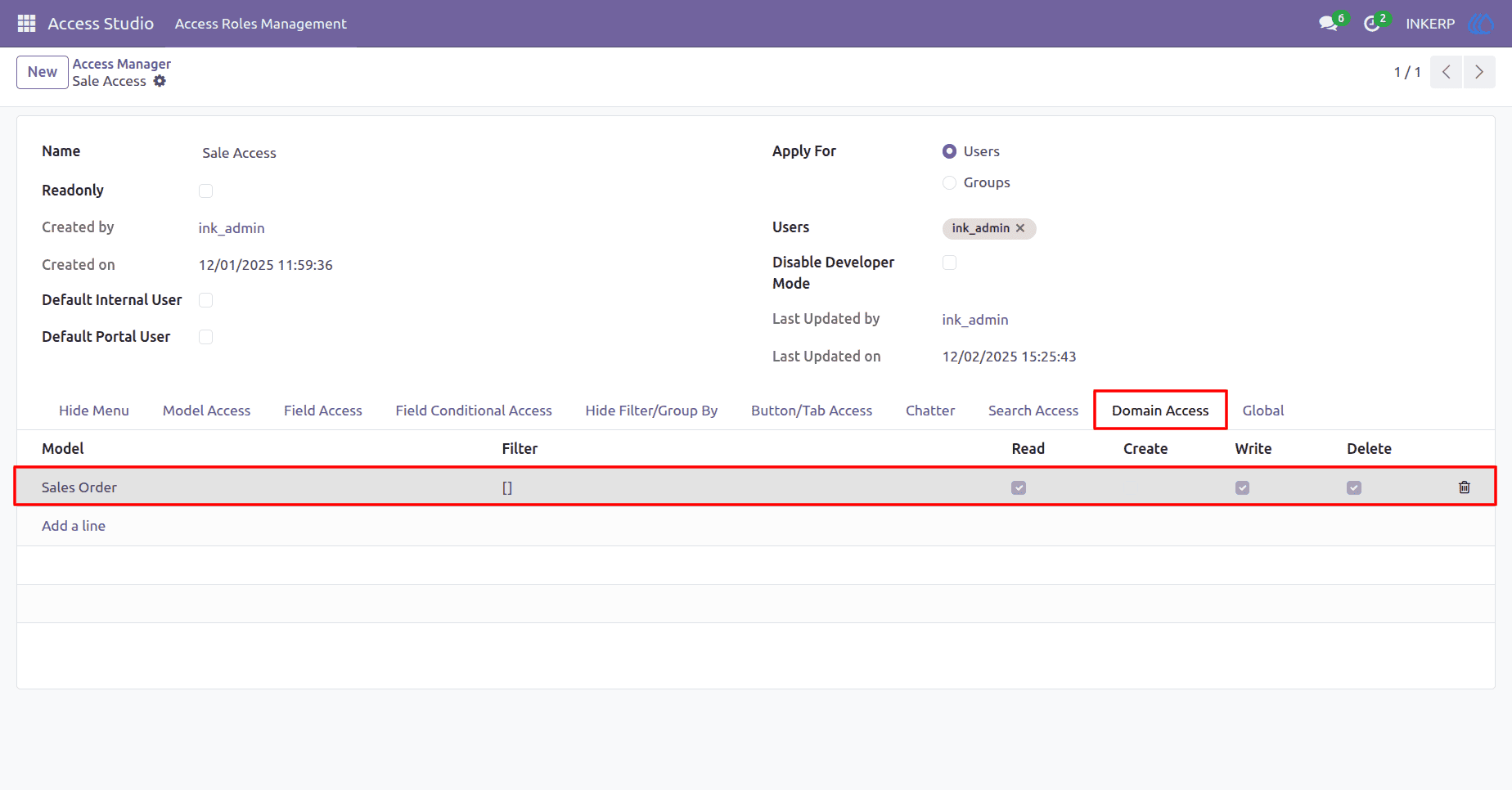
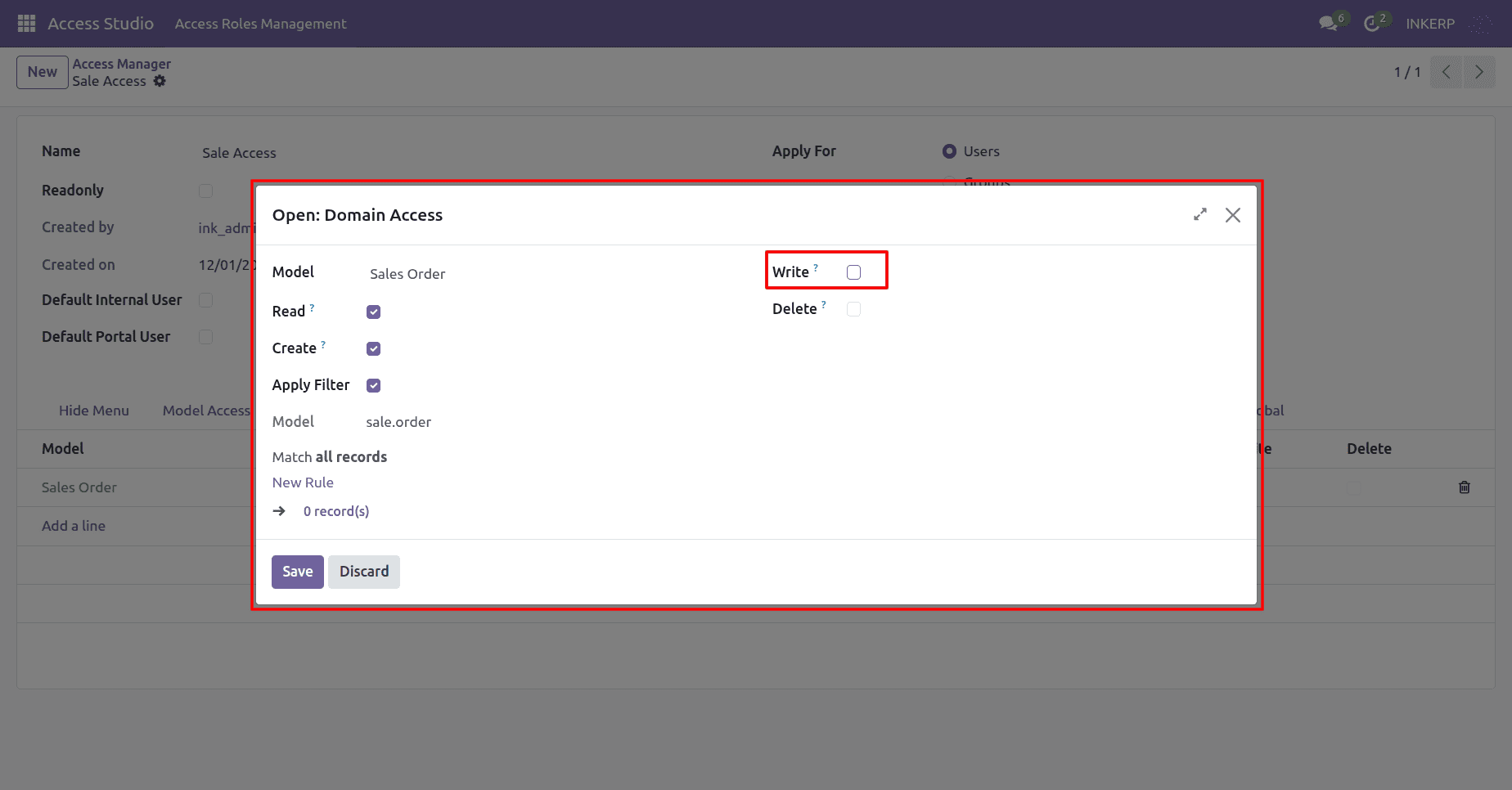
27) Domain Level CRUD Permissions
Grant or restrict access to records in a model based on domain filters and CRUD
Read: Allows viewing records.
Create: Allows creating new records.
Write: Allows editing existing records.
Delete: Allows deleting records.
If a checkbox is checked, the user has that permission.
If a checkbox is unchecked, the user is denied that permission.
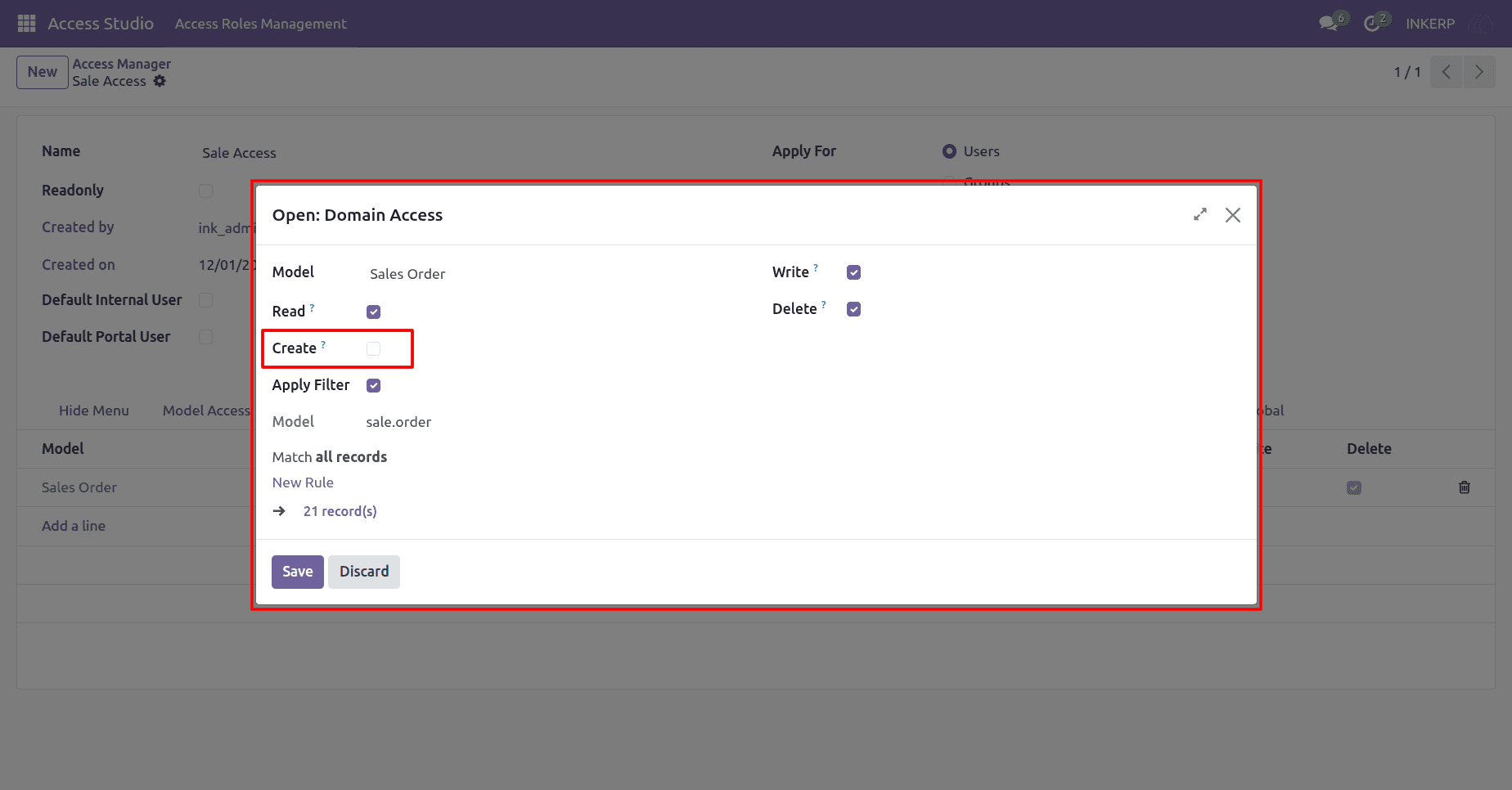
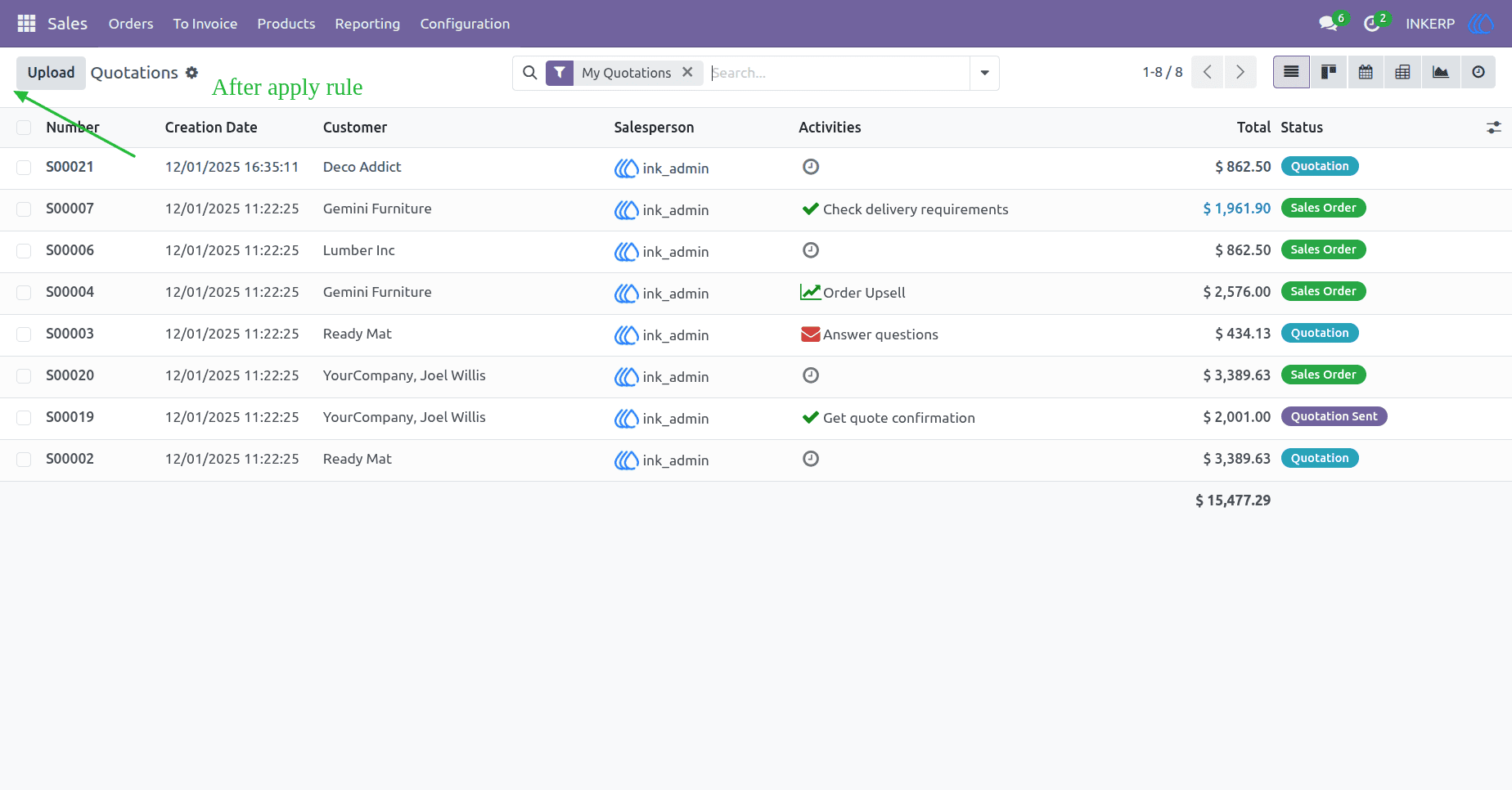
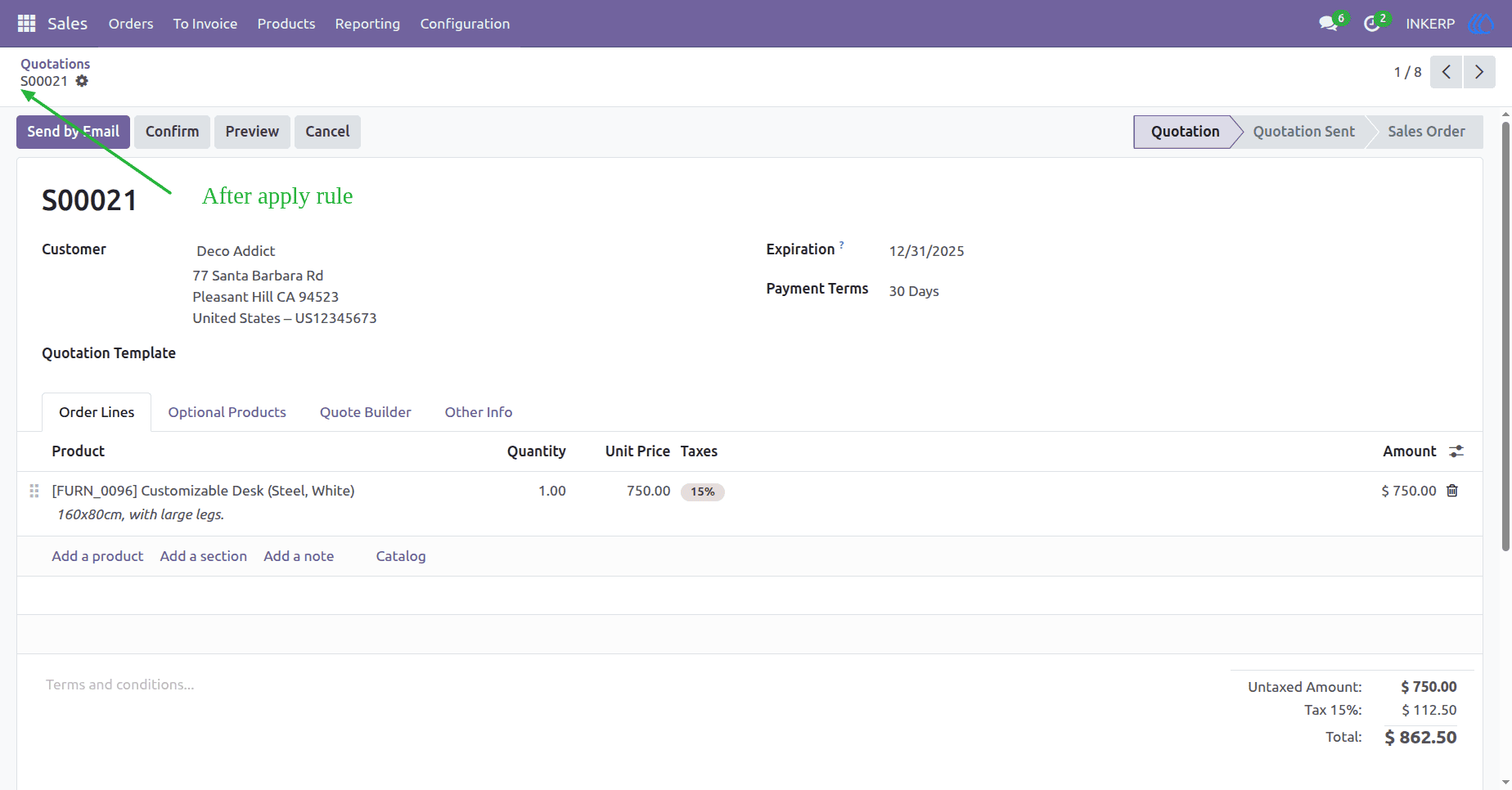
28) Domain-Based Create Record Access
Create is disabled the user cannot create new records.
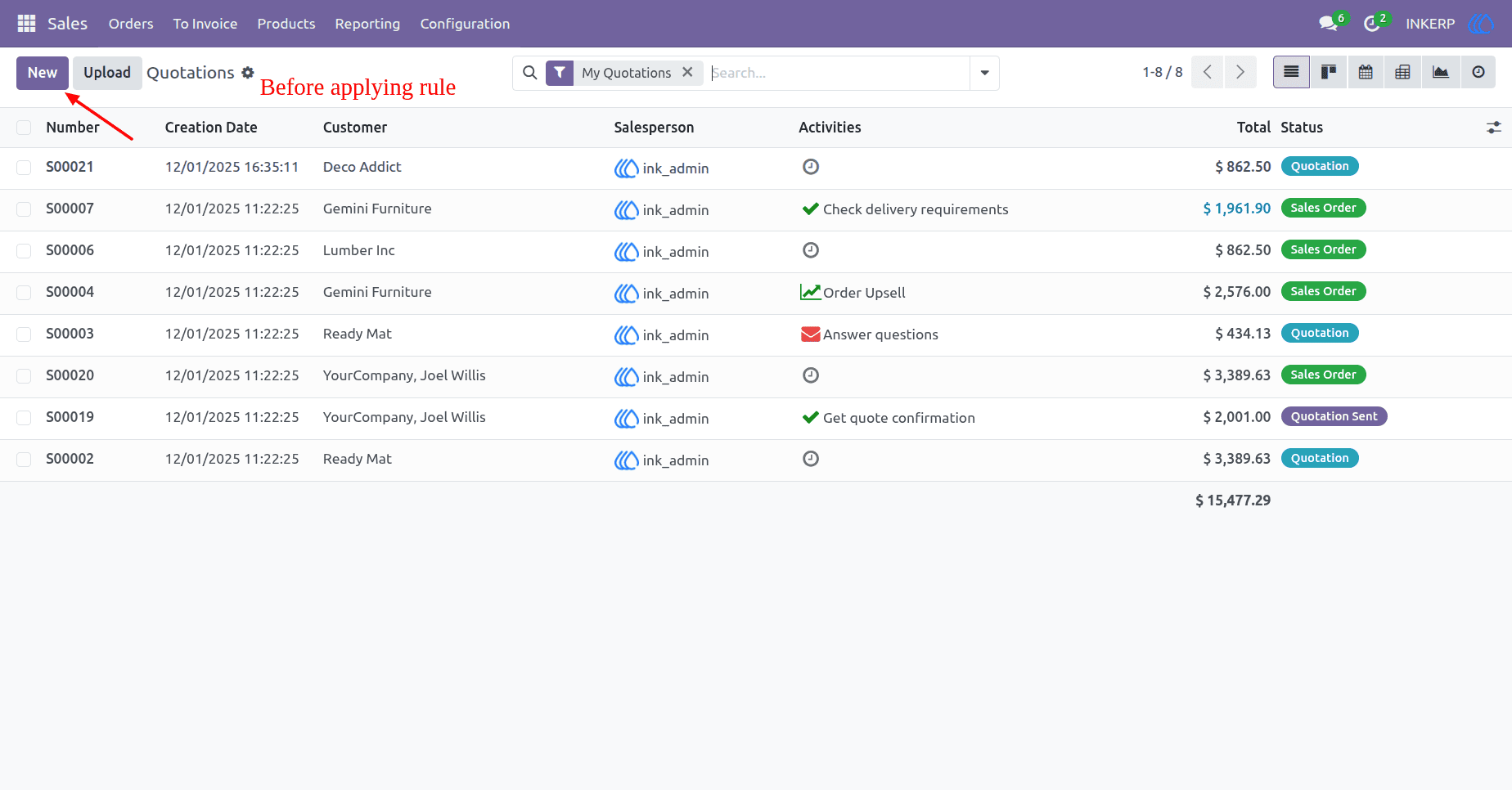
Before Applying Rescrict Create Rule ( List View )
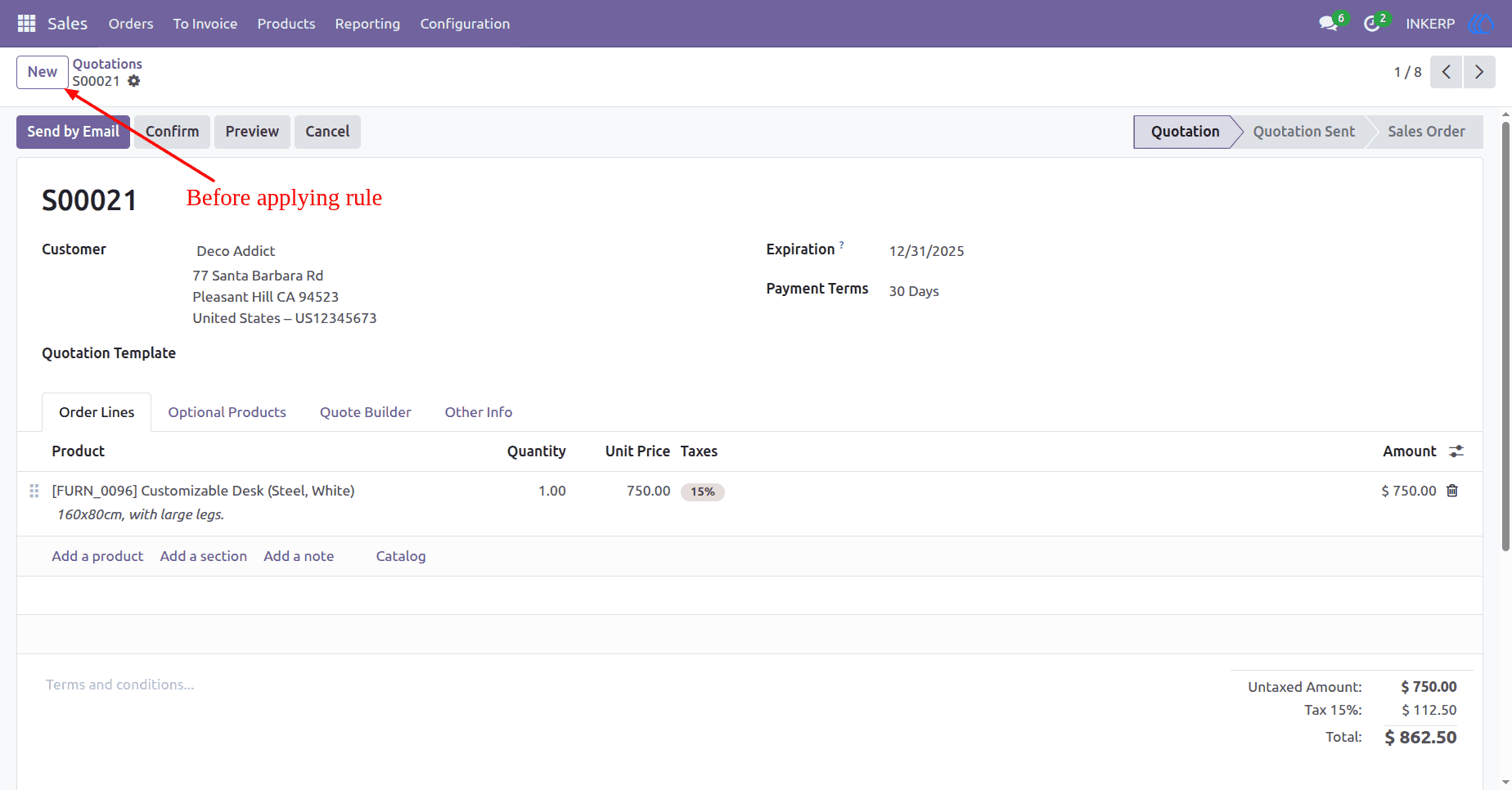
Before Applying Rescrict Create Rule ( Form View )
After Applying Rescrict Create Rule ( List View )
After Applying Rescrict Create Rule ( Form View )
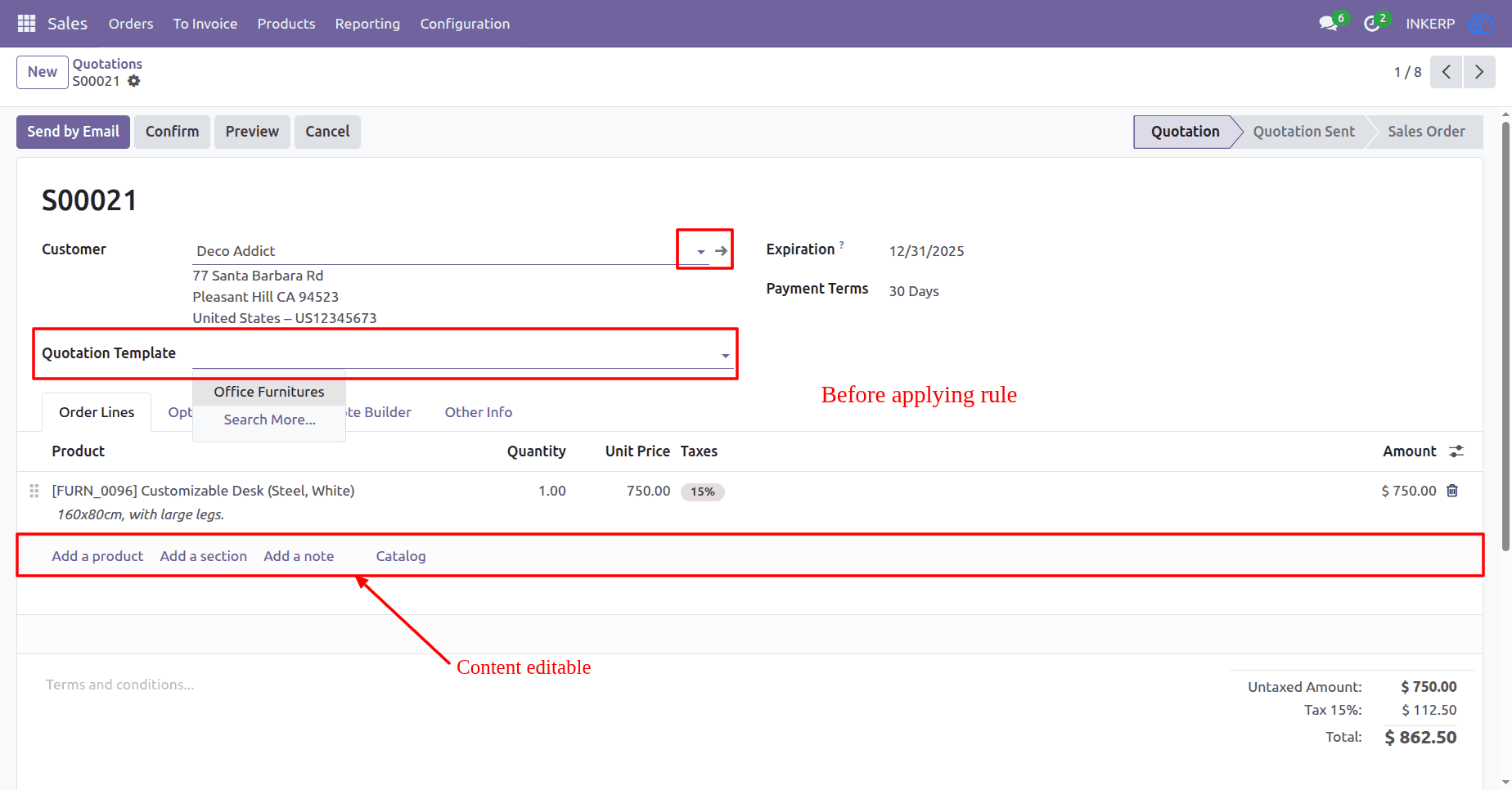
29) Domain-Based Edit Record Access
Edit is disabled the user cannot modify records.
Before Applying Rescrict Edit Rule
After Applying Rescrict Edit Rule
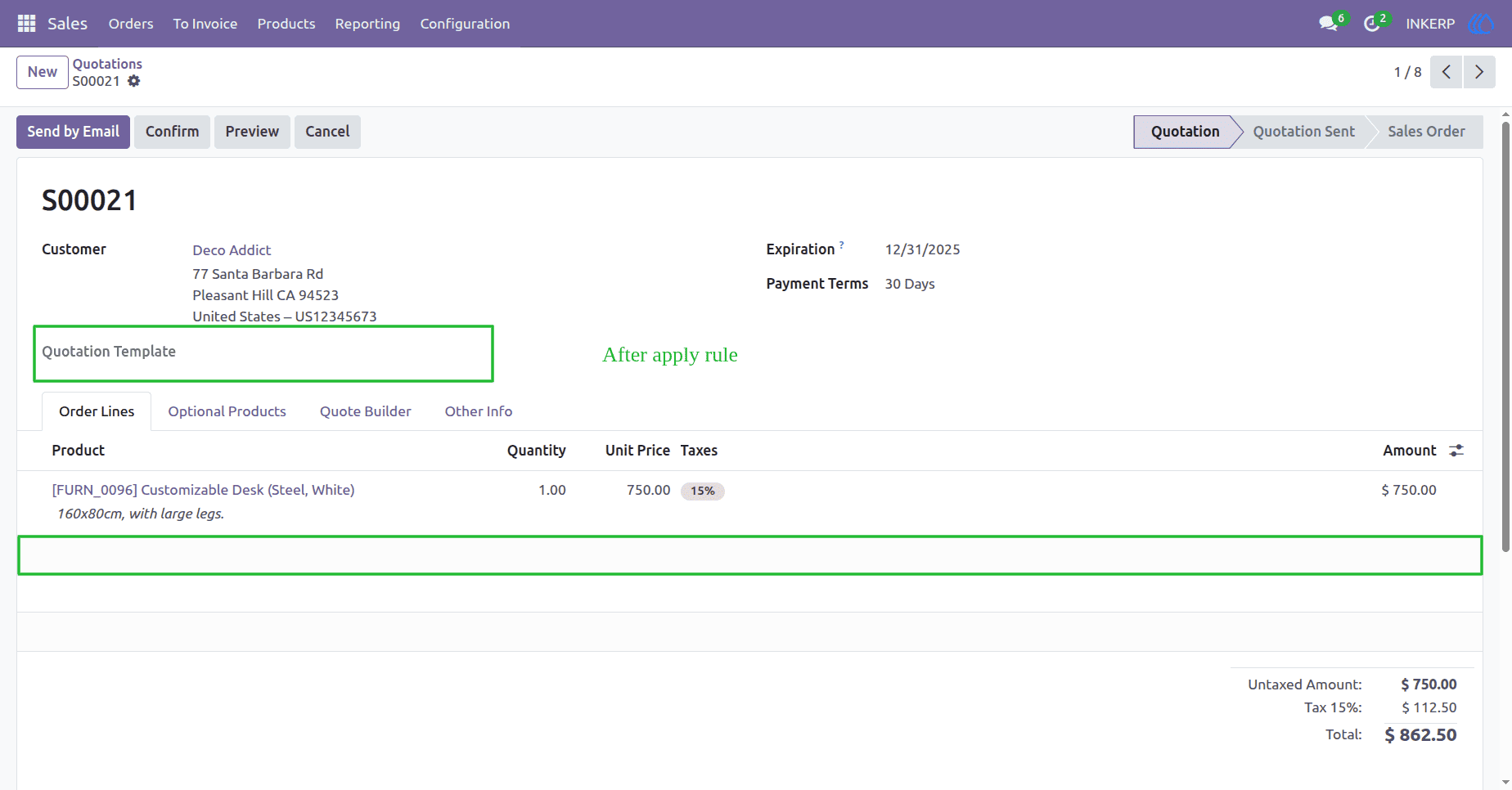
30) Domain-Based Delete Record Access
Delete is disabled the user cannot delete records.
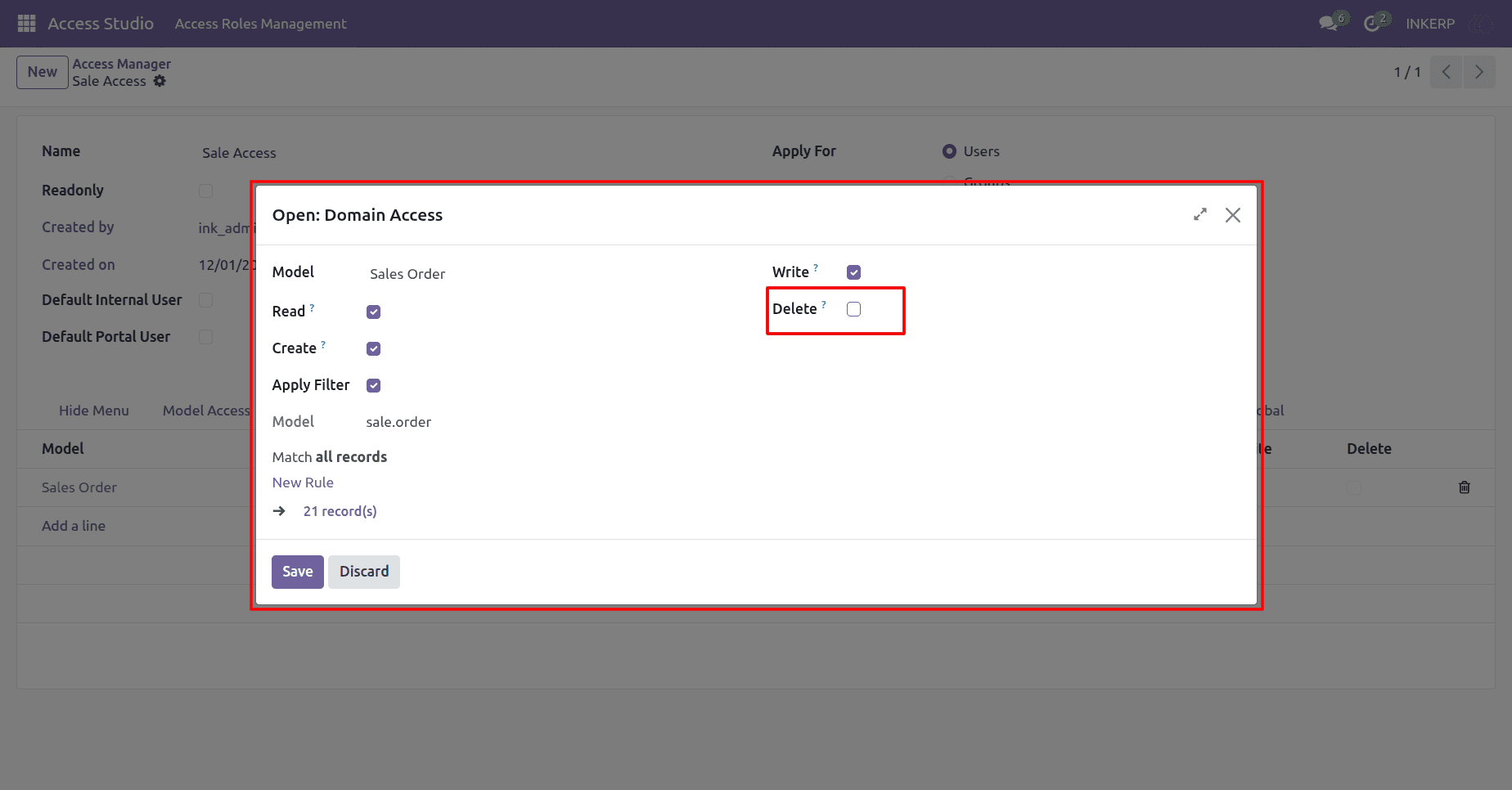
Before Applying Rescrict Delete Rule
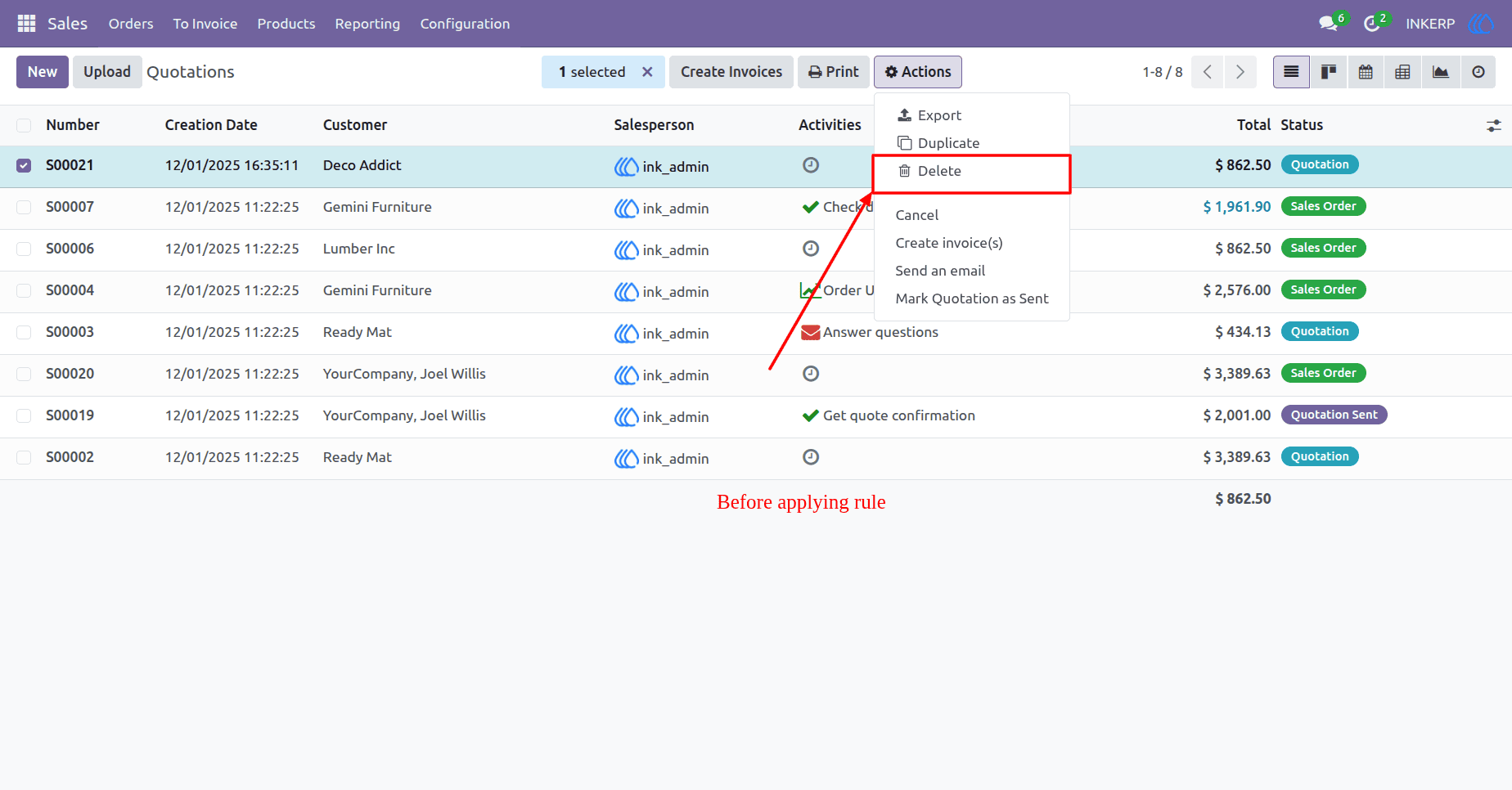
After Applying Rescrict Delete Rule
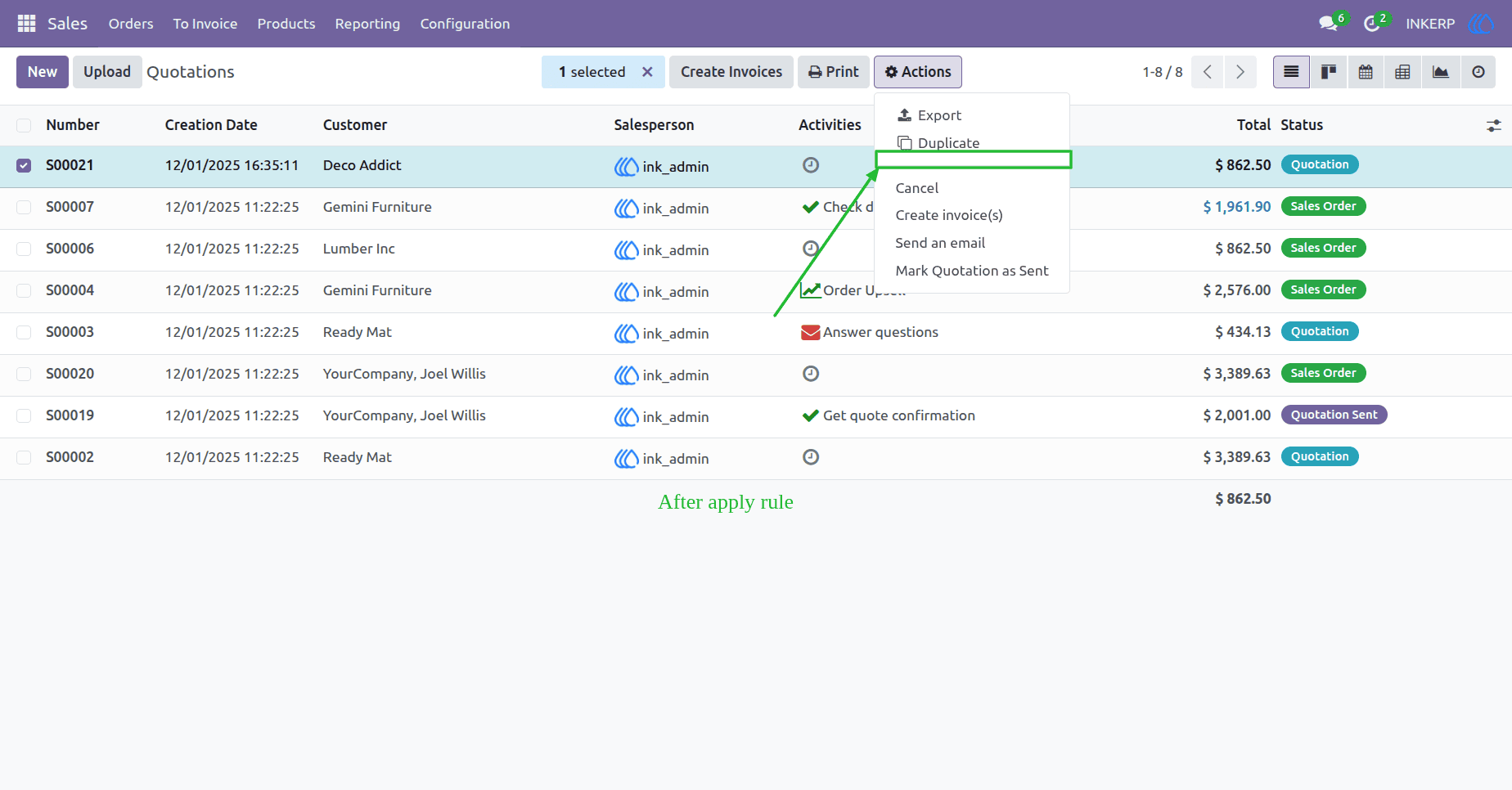
30) Domain-Based Read Record Access
Read is disabled the user cannot view records. Ensures users can only read data they are allowed to see.
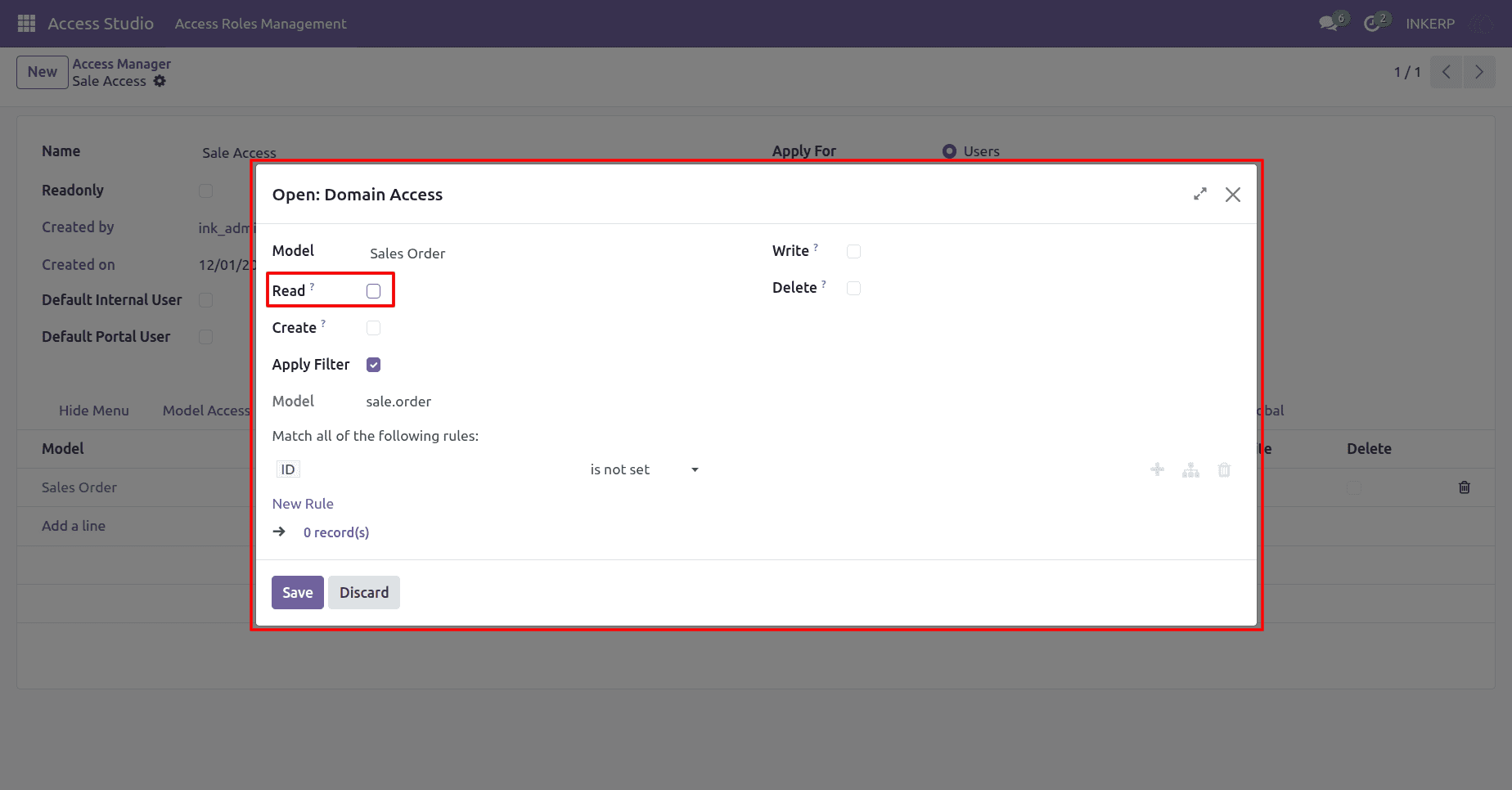
Before Applying Rescrict Read Rule
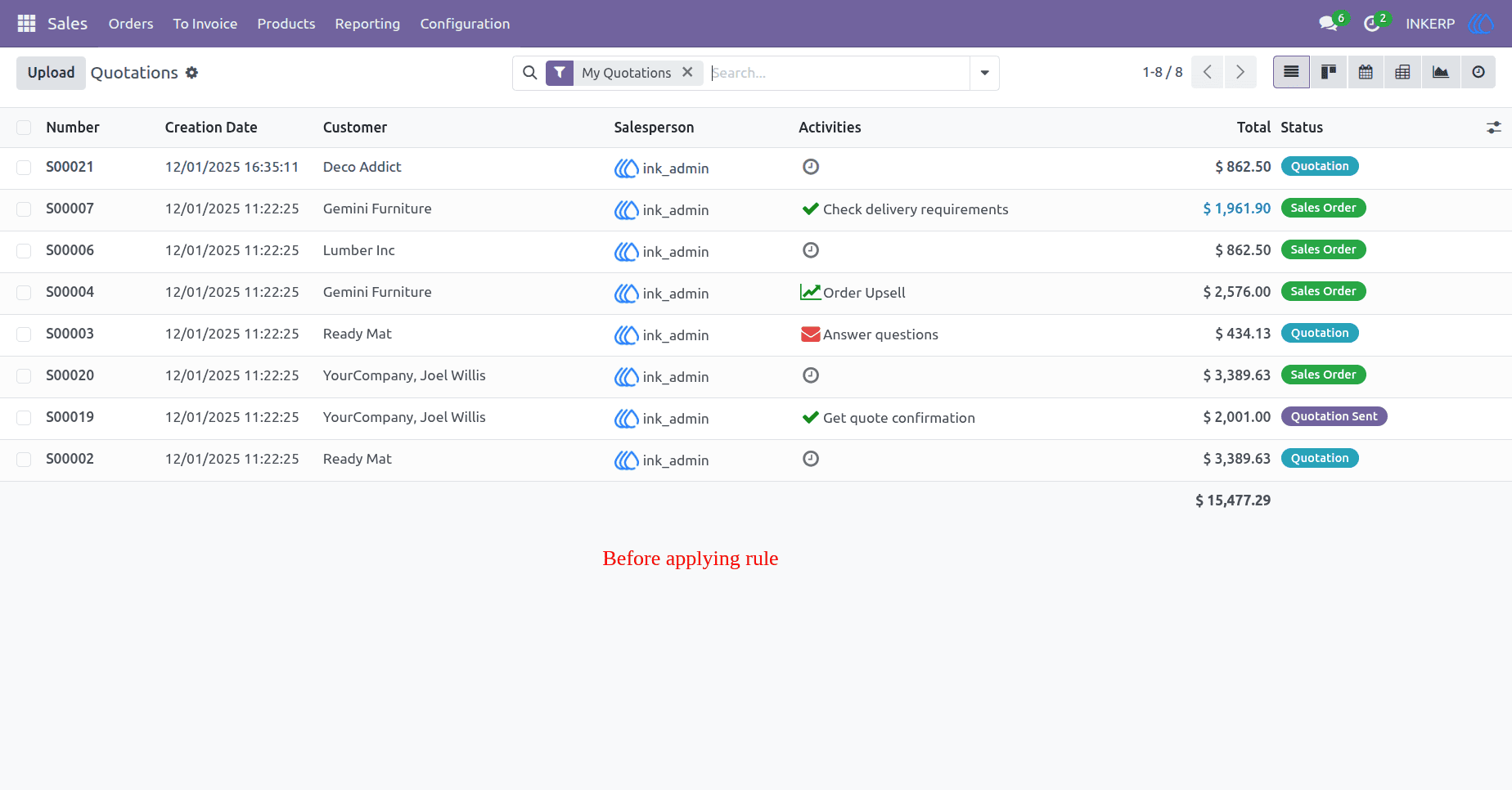
After Applying Rescrict Read Rule
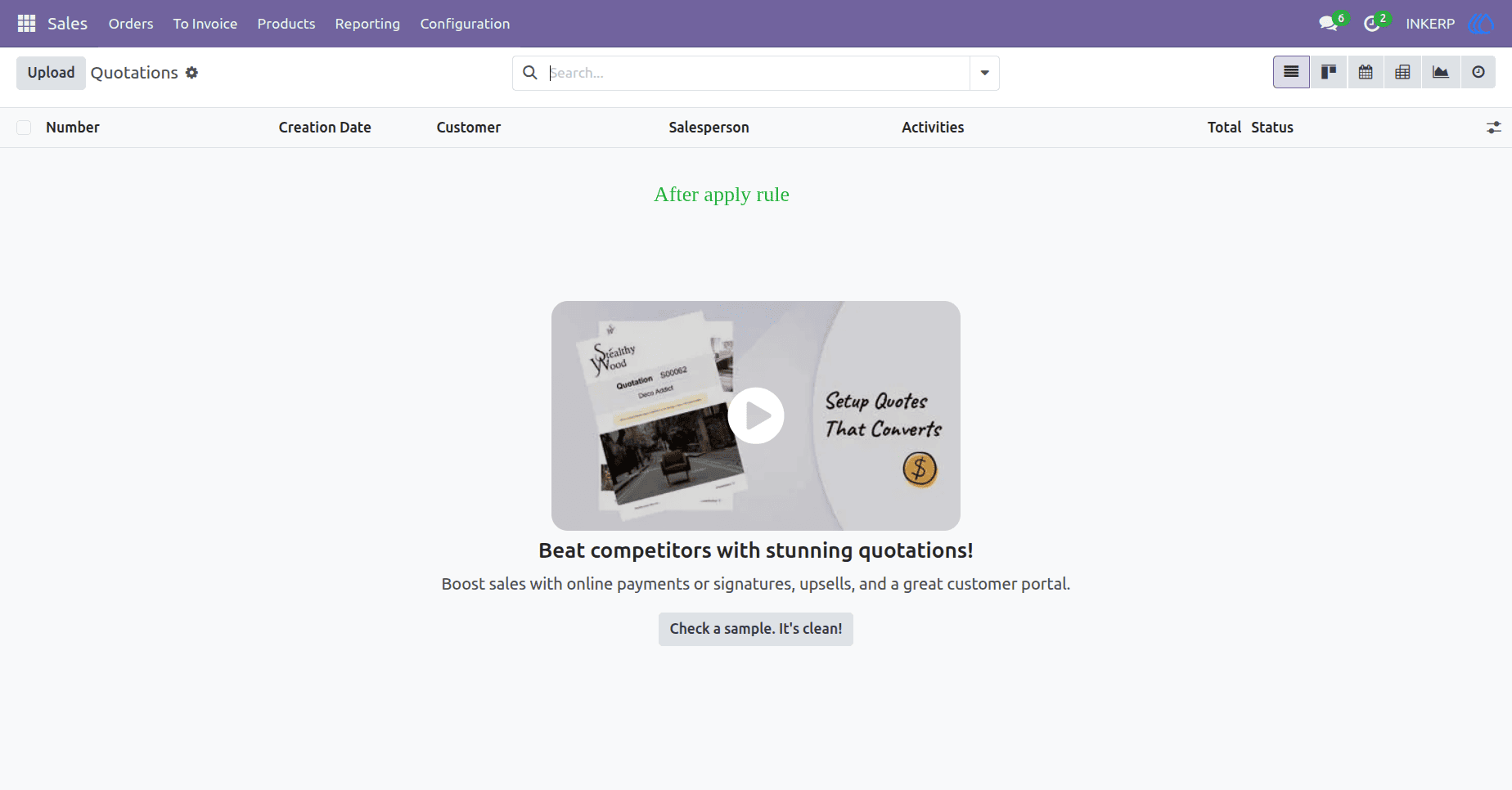
31) Global Chatter Restrictions
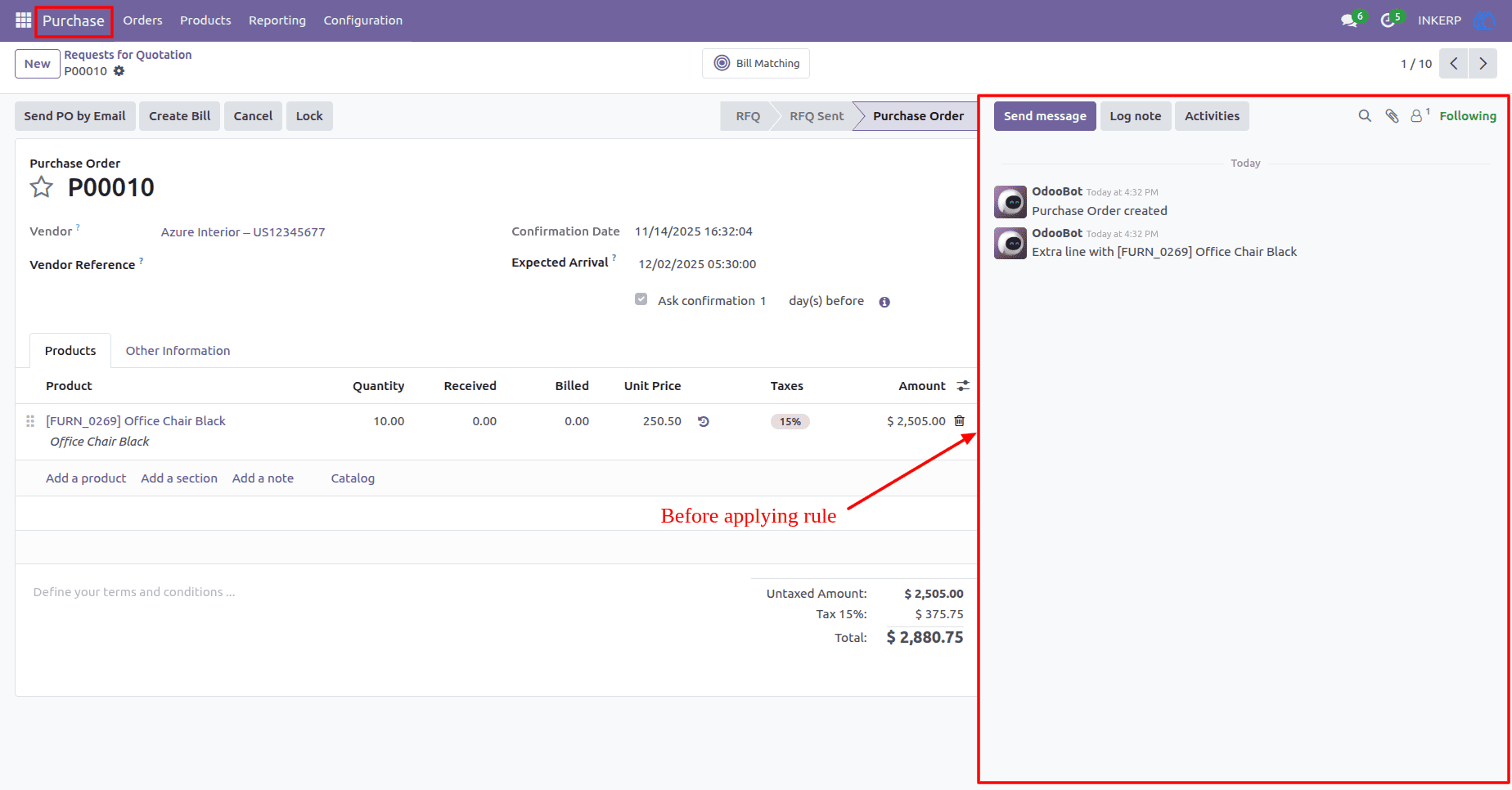
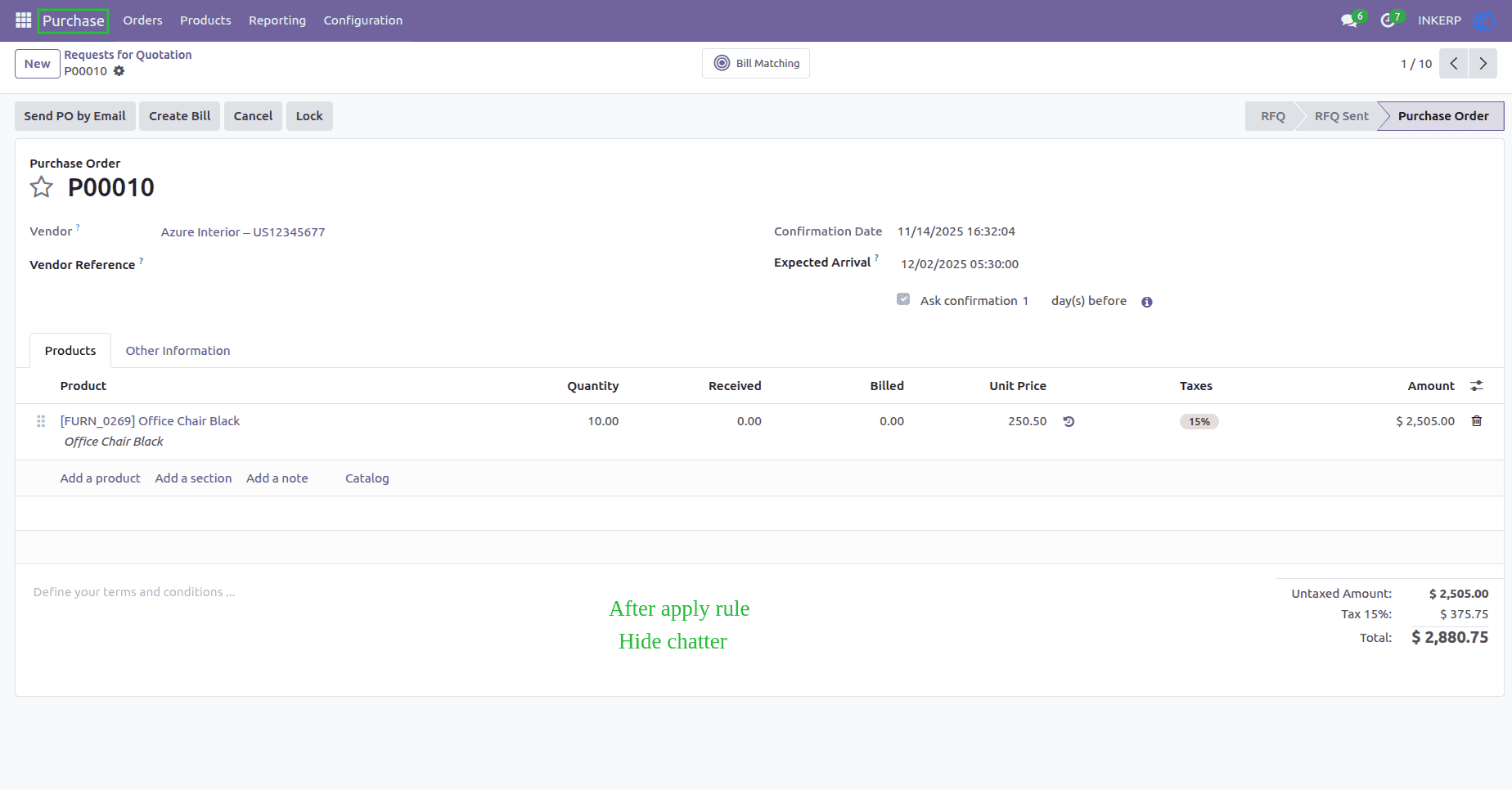
Hide Chatter is enabled the entire Chatter panel is invisible from every model form views, disabling messaging, notes, and activity tracking.
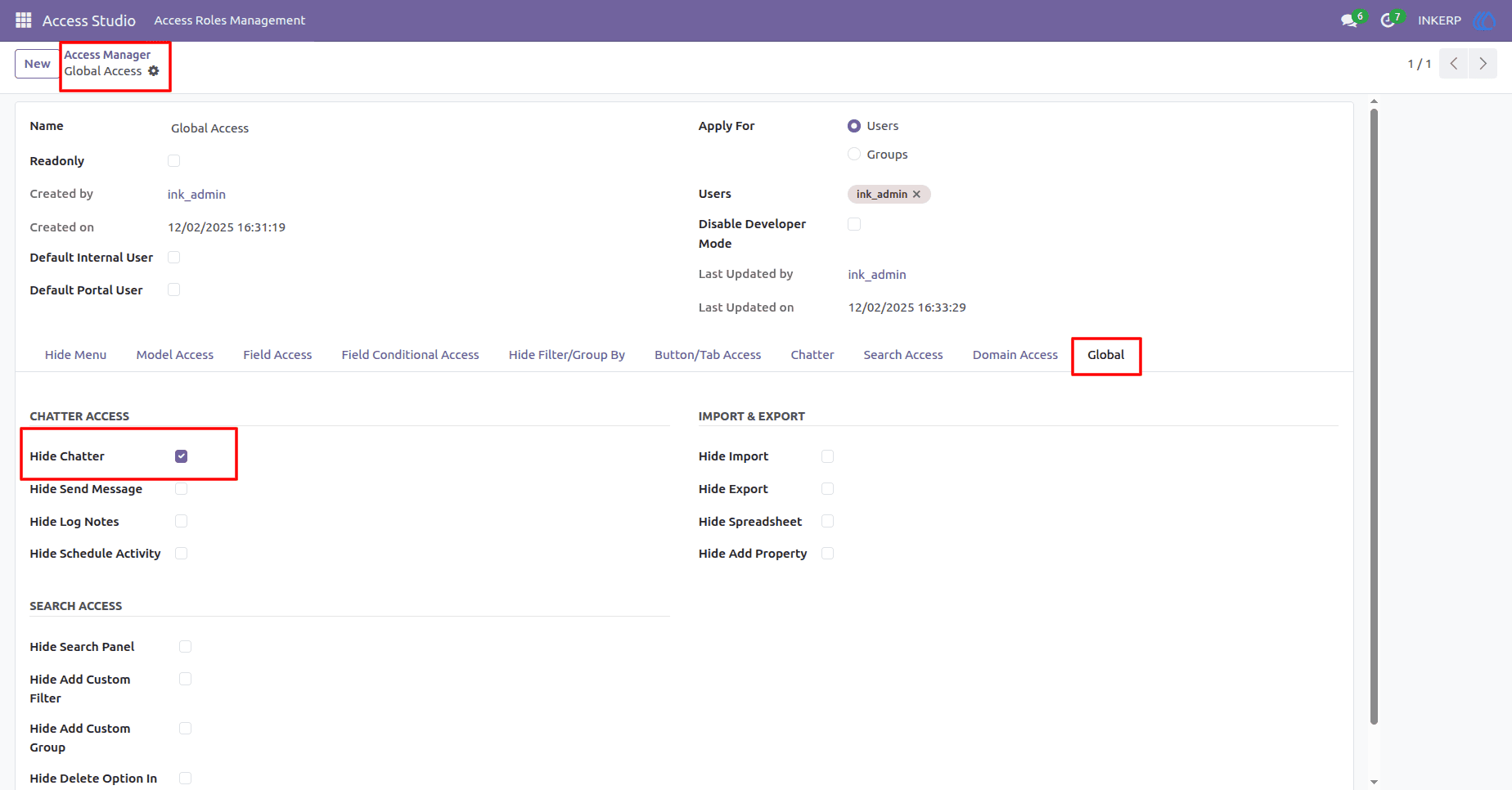
Before Applying Hide Chatter Global Rule
After Applying Hide Chatter Global Rule
32) Global Chatter Button Restrictions
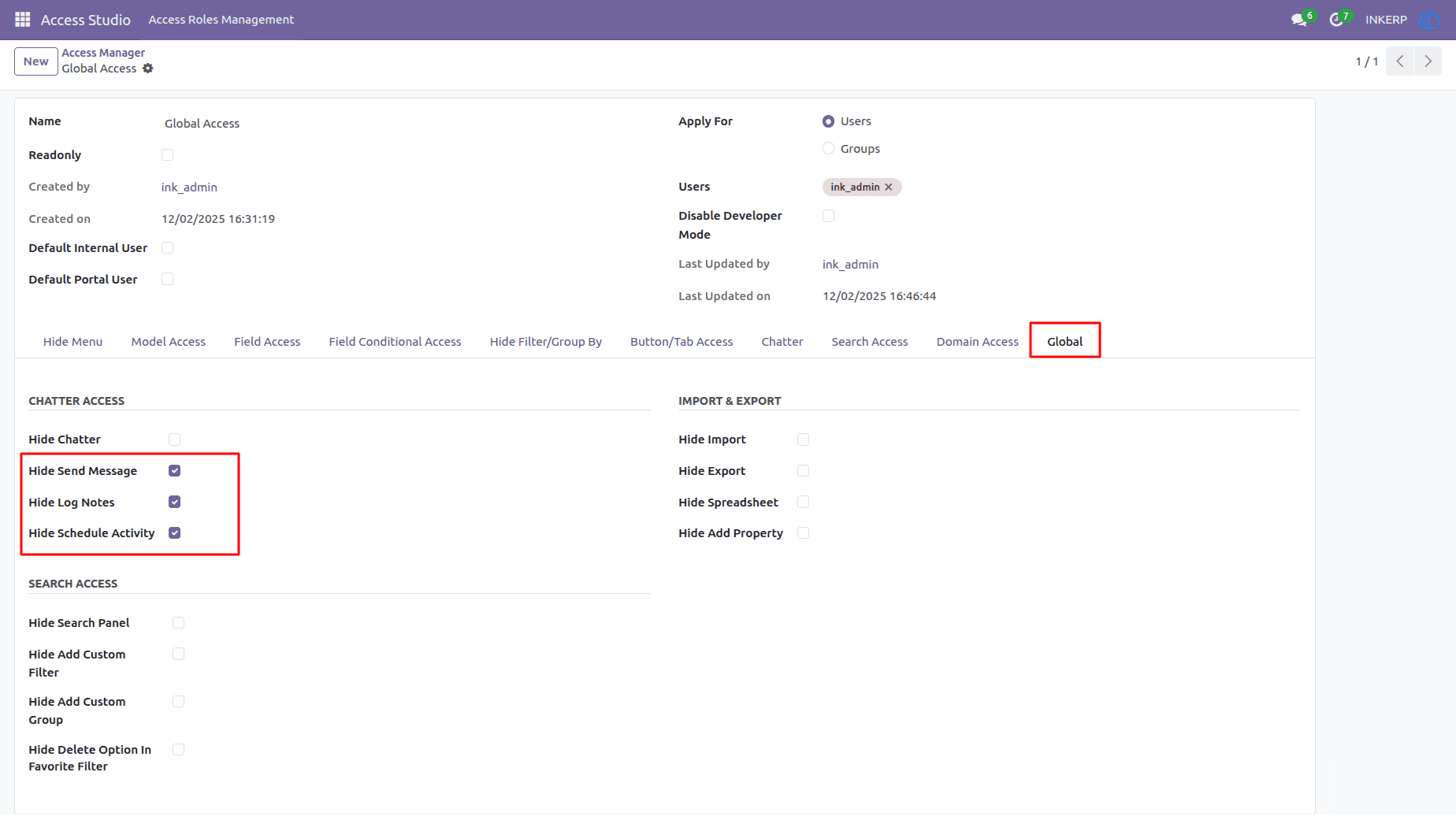
Selectively hide Chatter buttons across all models
Hide Send Message : Prevents users from sending messages.
Hide Log Notes : Blocks internal note logging.
Hide Schedule Activity : Disables task scheduling.
Before Applying Hide Chatter Buttons Global Rule
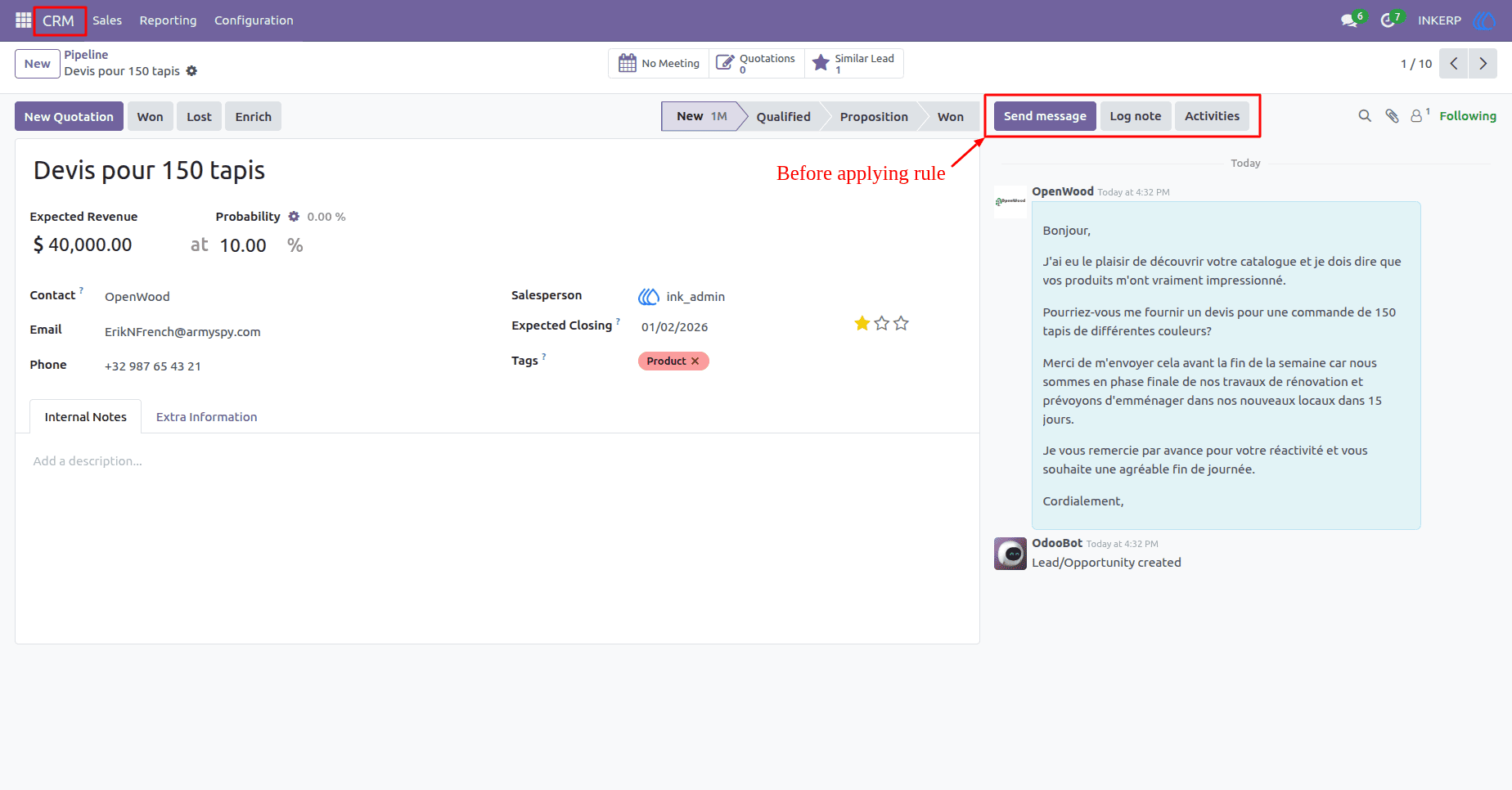
After Applying Hide Chatter Buttons Global Rule
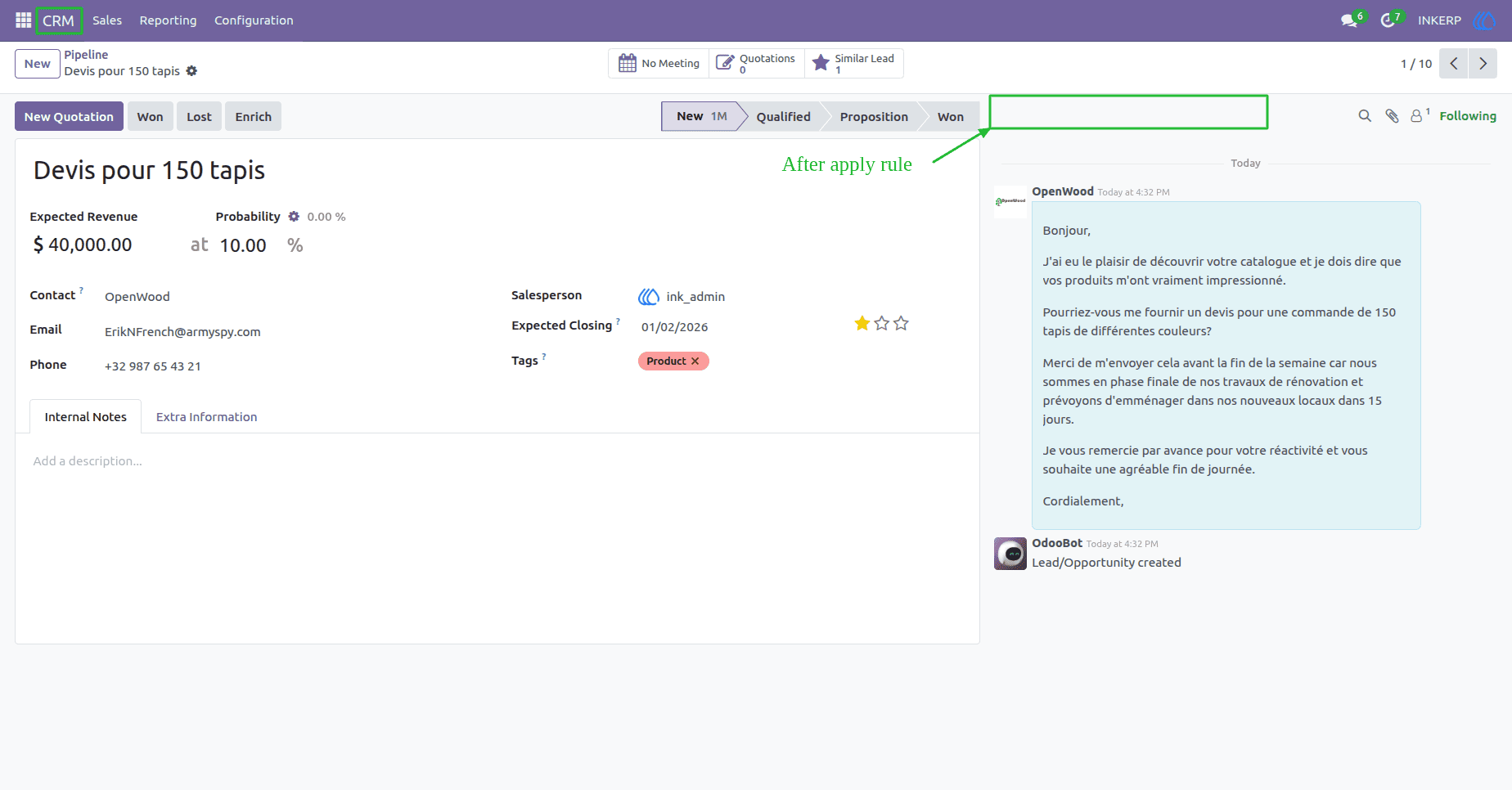
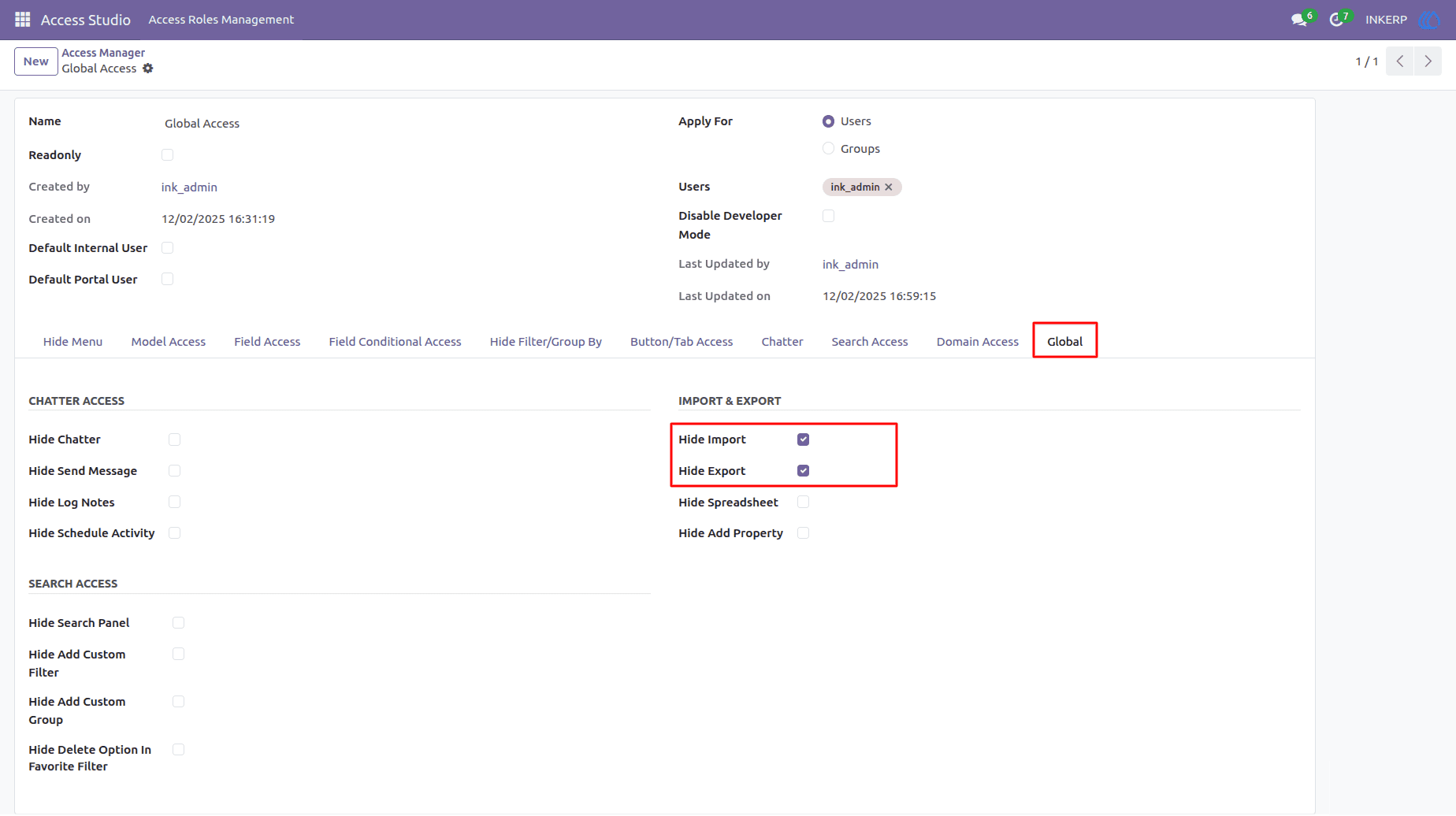
33) Restrict Import / Export Globally Operations
Control access to data import and export features across all models. In this case :
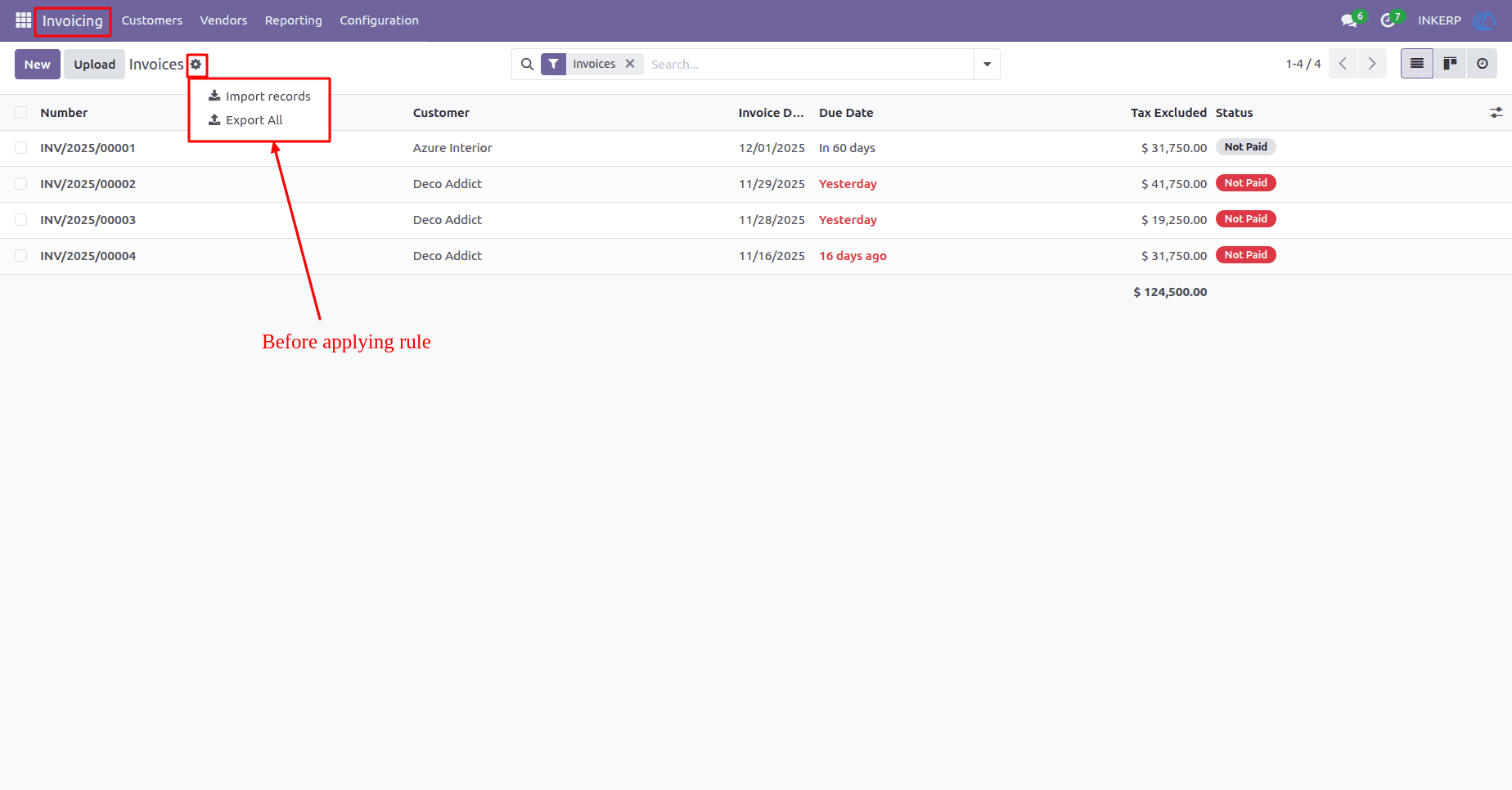
Hide Import : Hide import button in all model. Prevents users from uploading external data into the system.
Hide Export : Hide export button in all model. Blocks users from exporting records to external formats like Excel or CSV.
Before Applying Hide Import / Export Global Rule
After Applying Hide Import / Export Global Rule
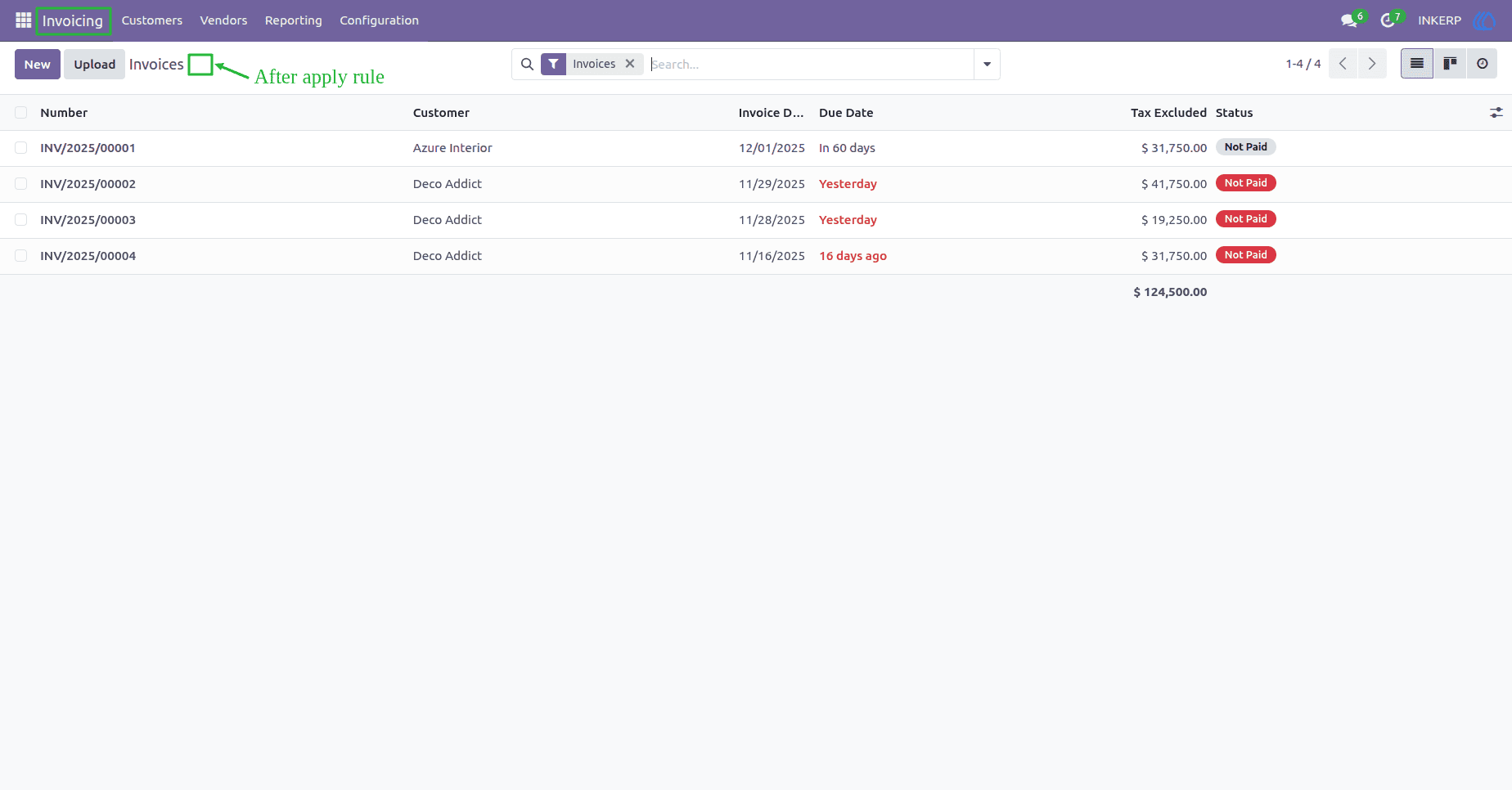
34) Restrict Property Field Extension Globally
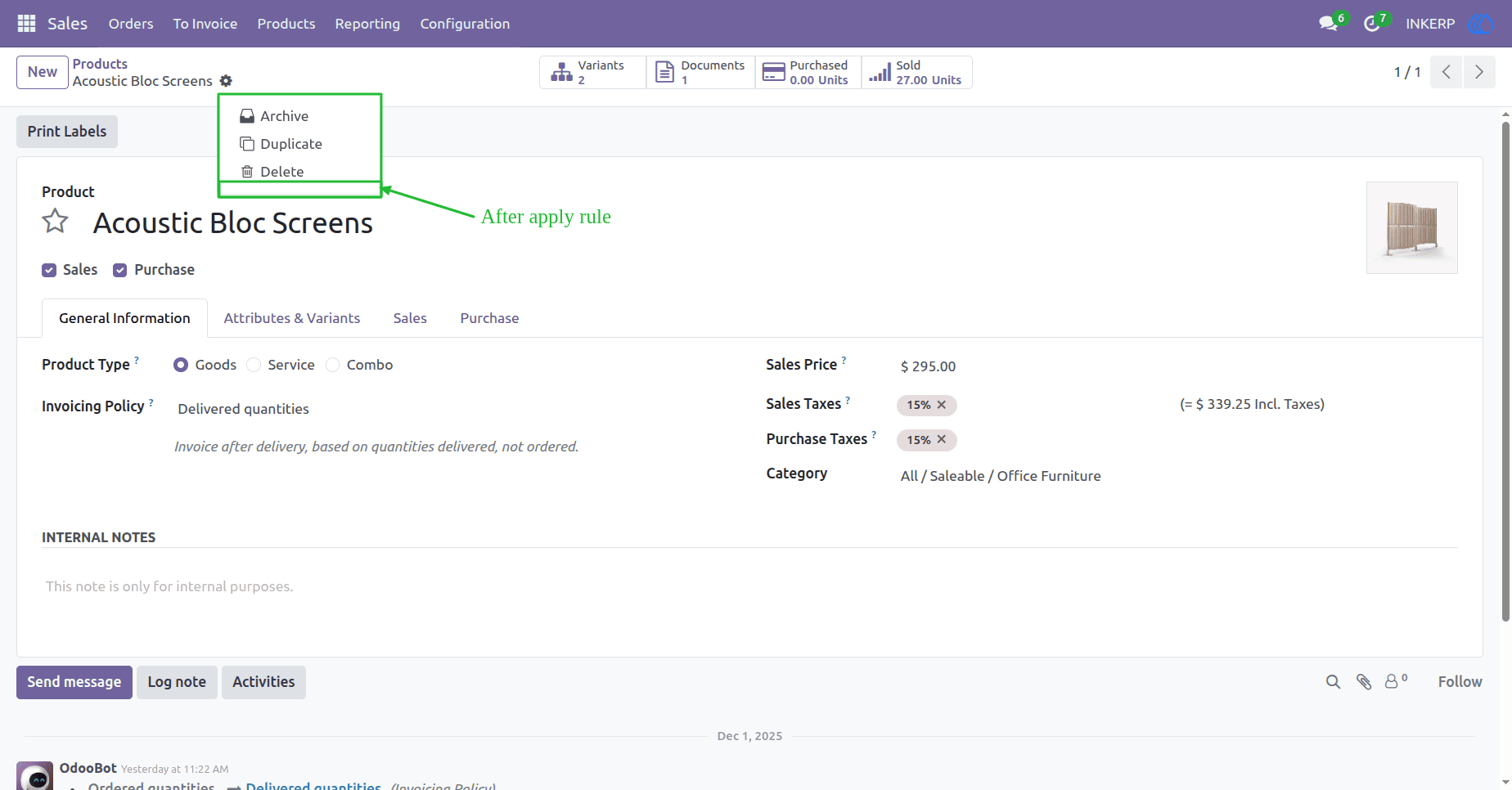
Prevent users from adding custom properties to fields across all models. With Hide Add Property enabled, the "Add Property" option is removed from form views, ensuring users cannot extend metadata or attach dynamic attributes.
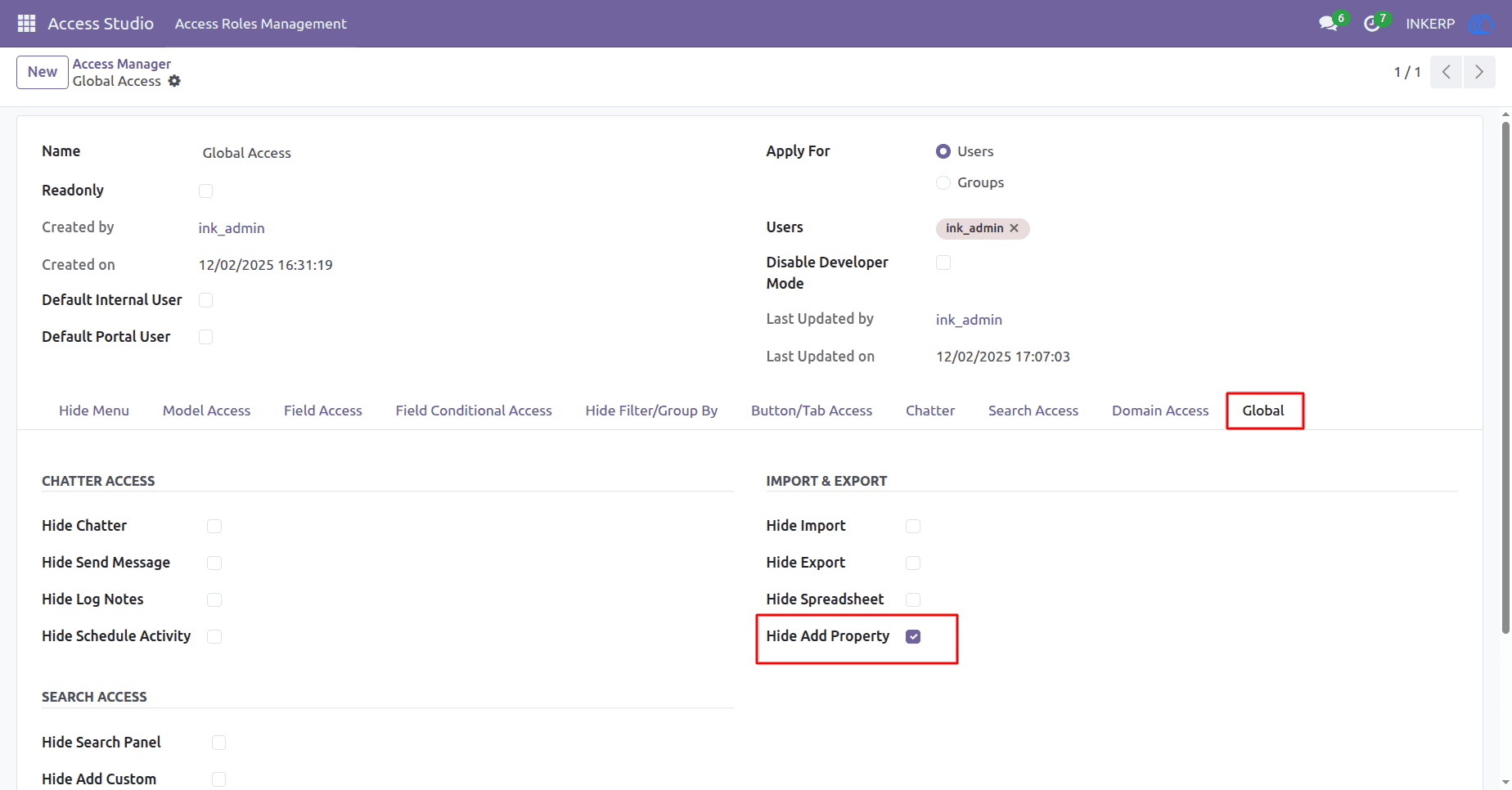
Before Applying Hide Add Property Button Global Rule
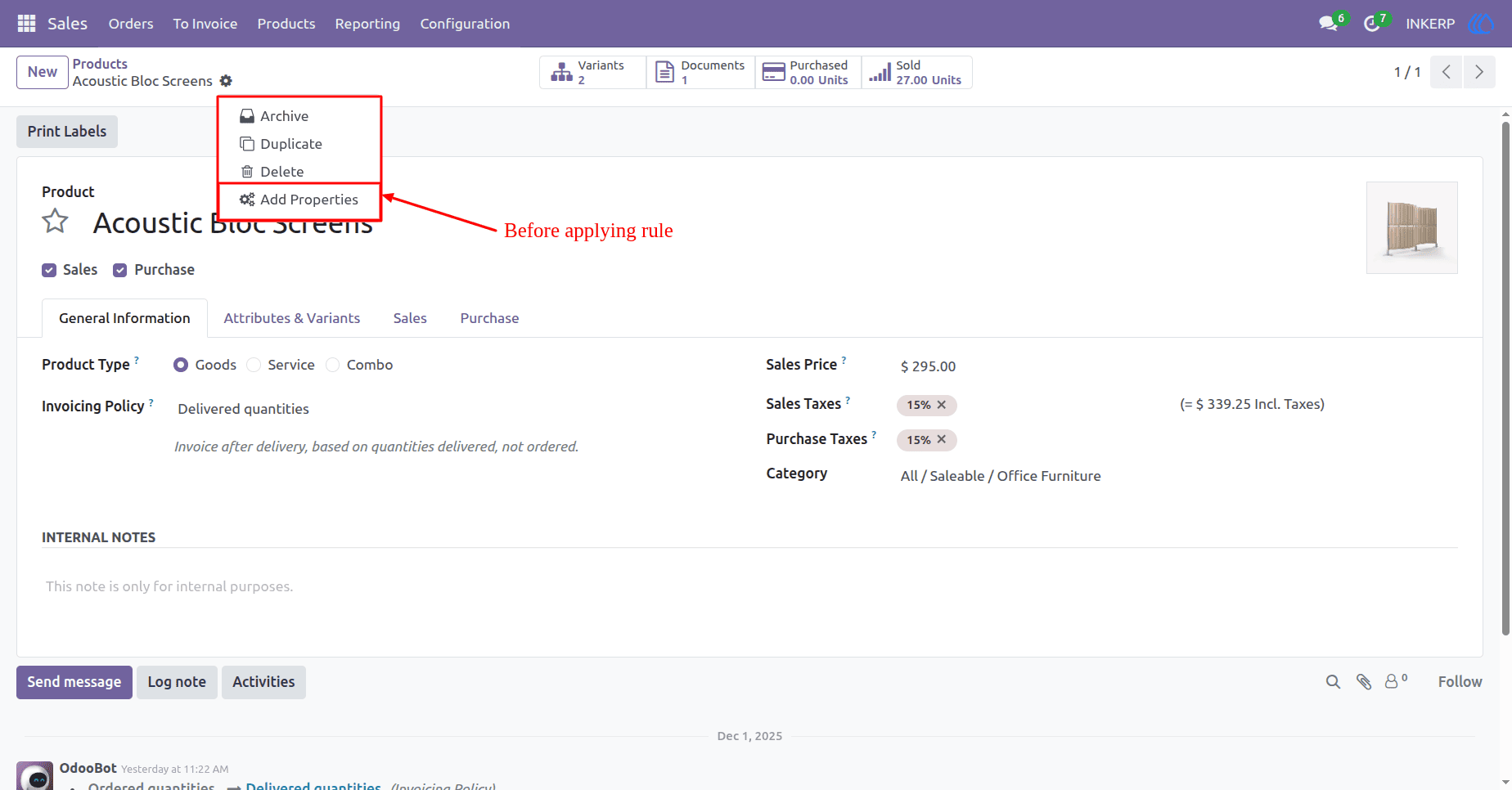
After Applying Hide Add Property Button Global Rule
35) Hide Search Panel Globally
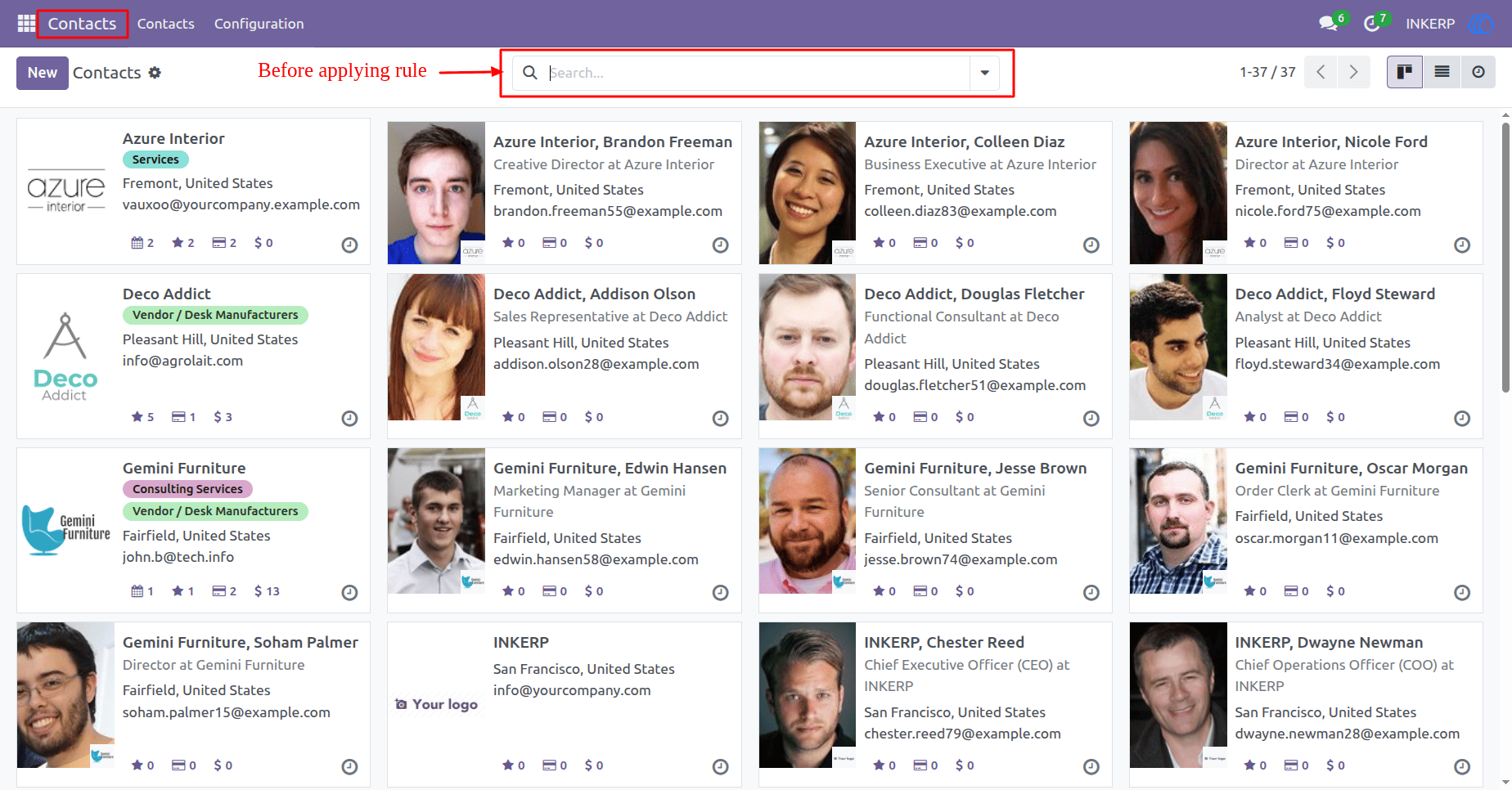
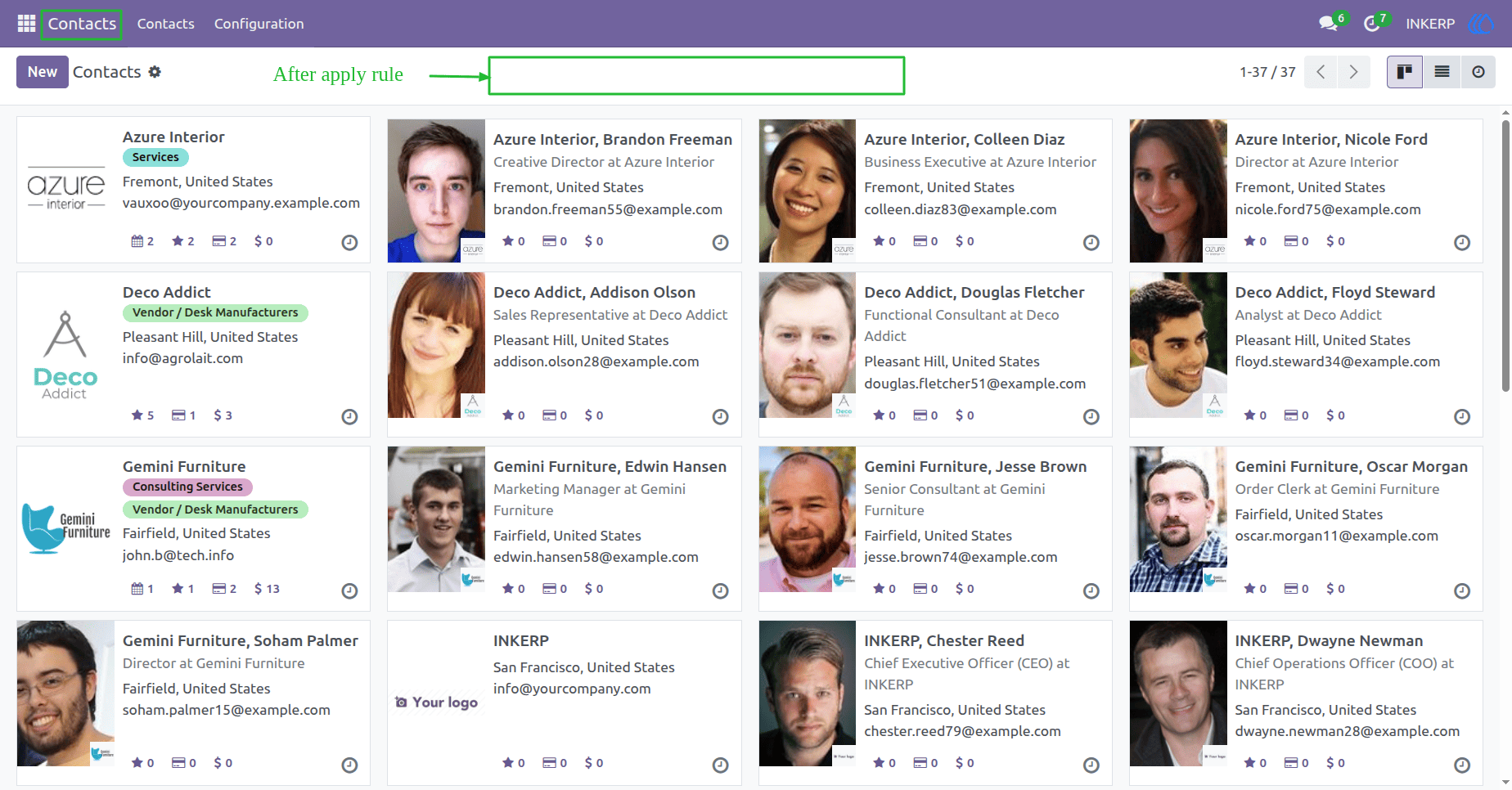
Removes the entire search panel from all views across all models. With Hide Search Panel enabled, users lose access to sidebar filters and group by options, streamlining the interface and preventing custom data segmentation.
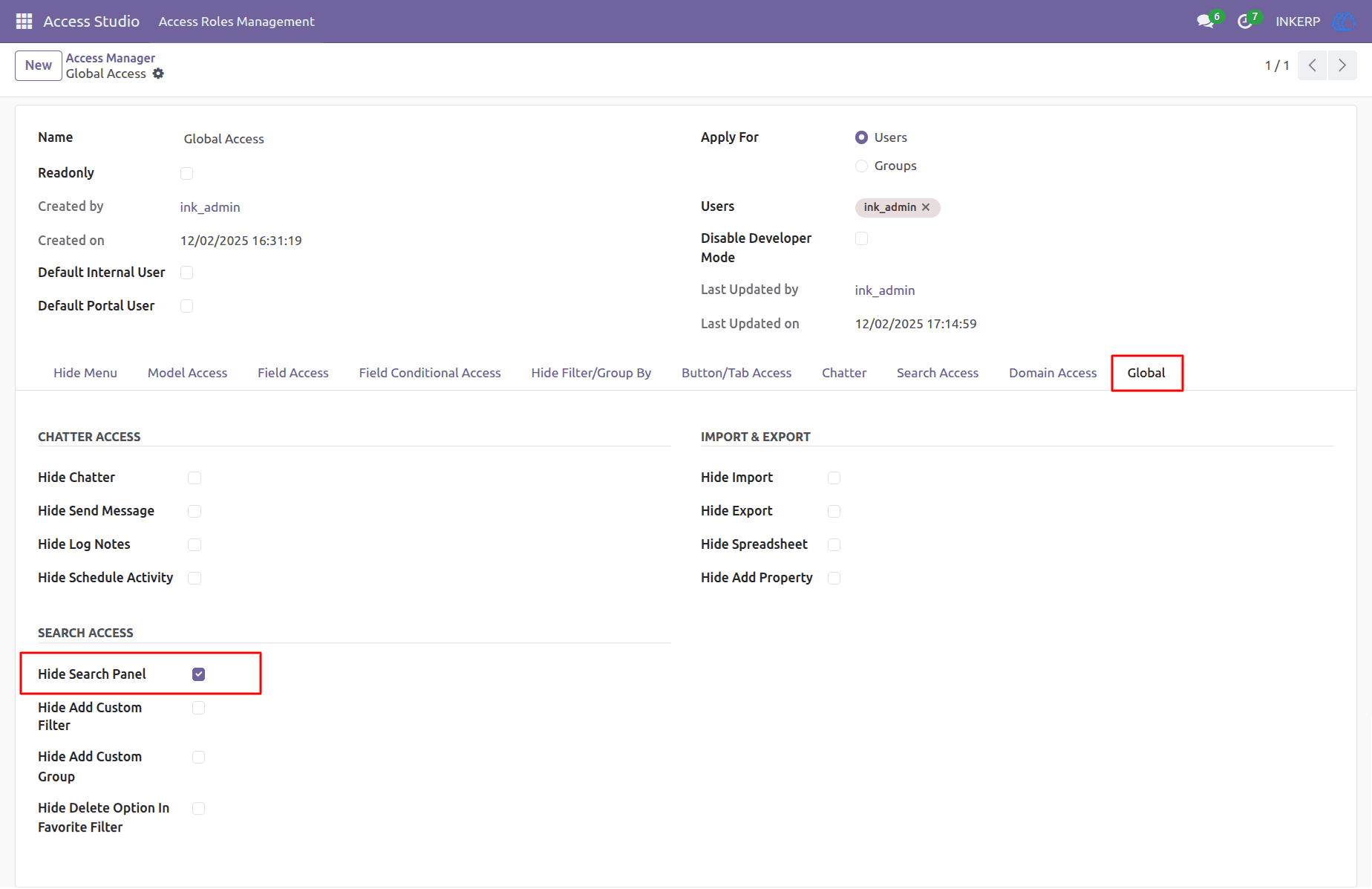
Before Applying Hide Search Panel Global Rule
After Applying Hide Search Panel Global Rule
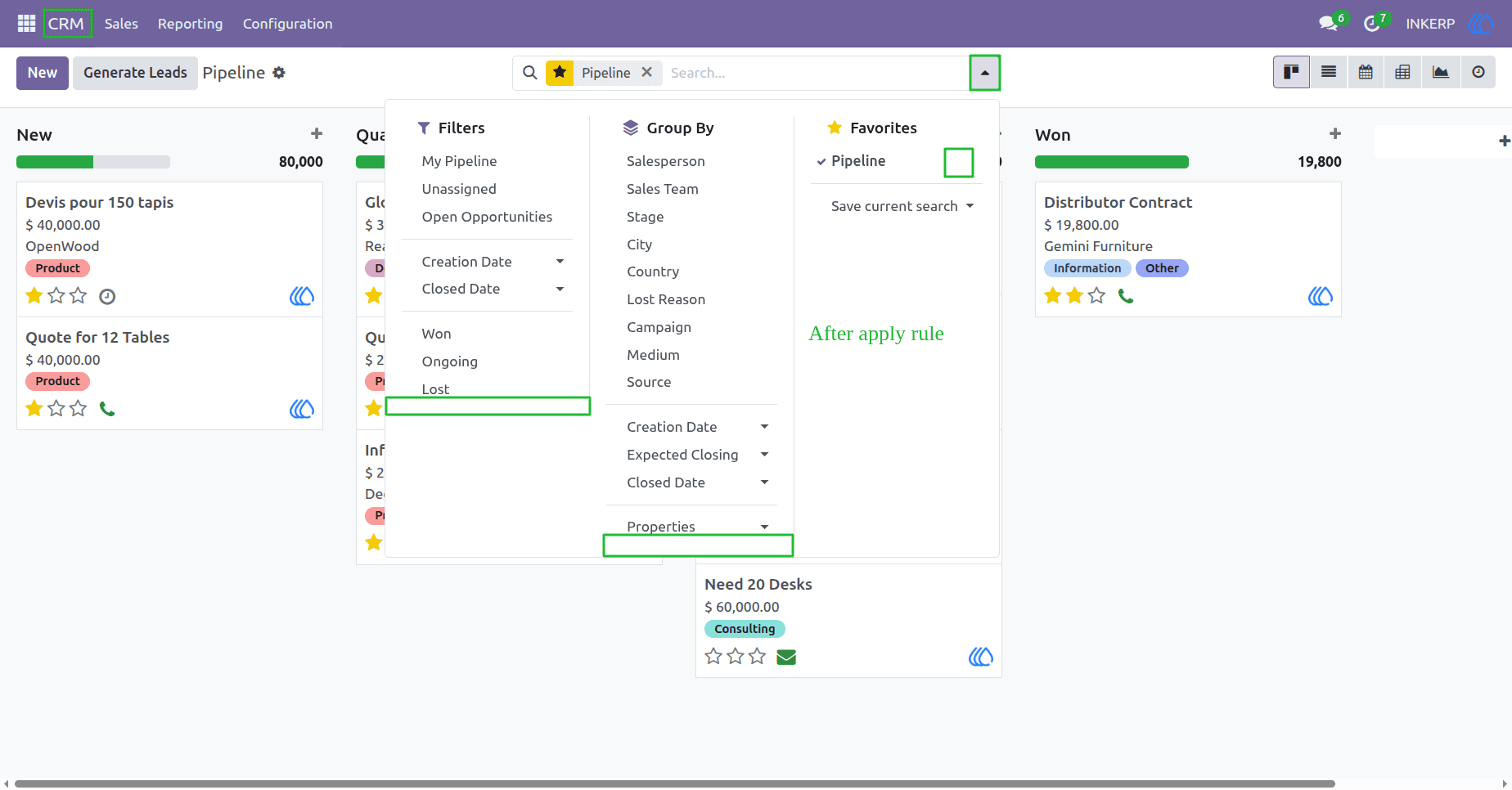
36) Restrict Search Panel Customization (Global)
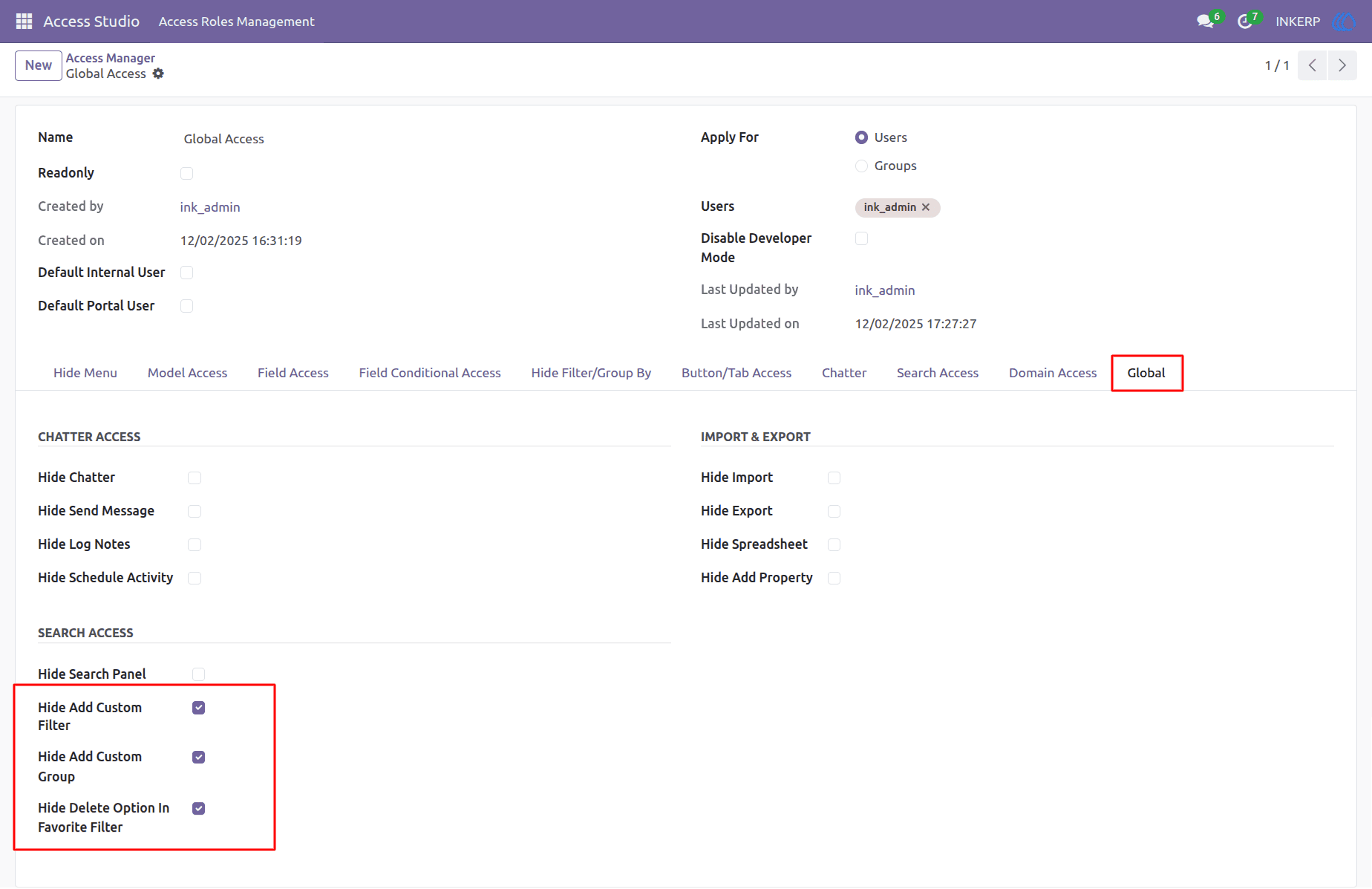
Prevent users from customizing the search panel across all models by enabling:
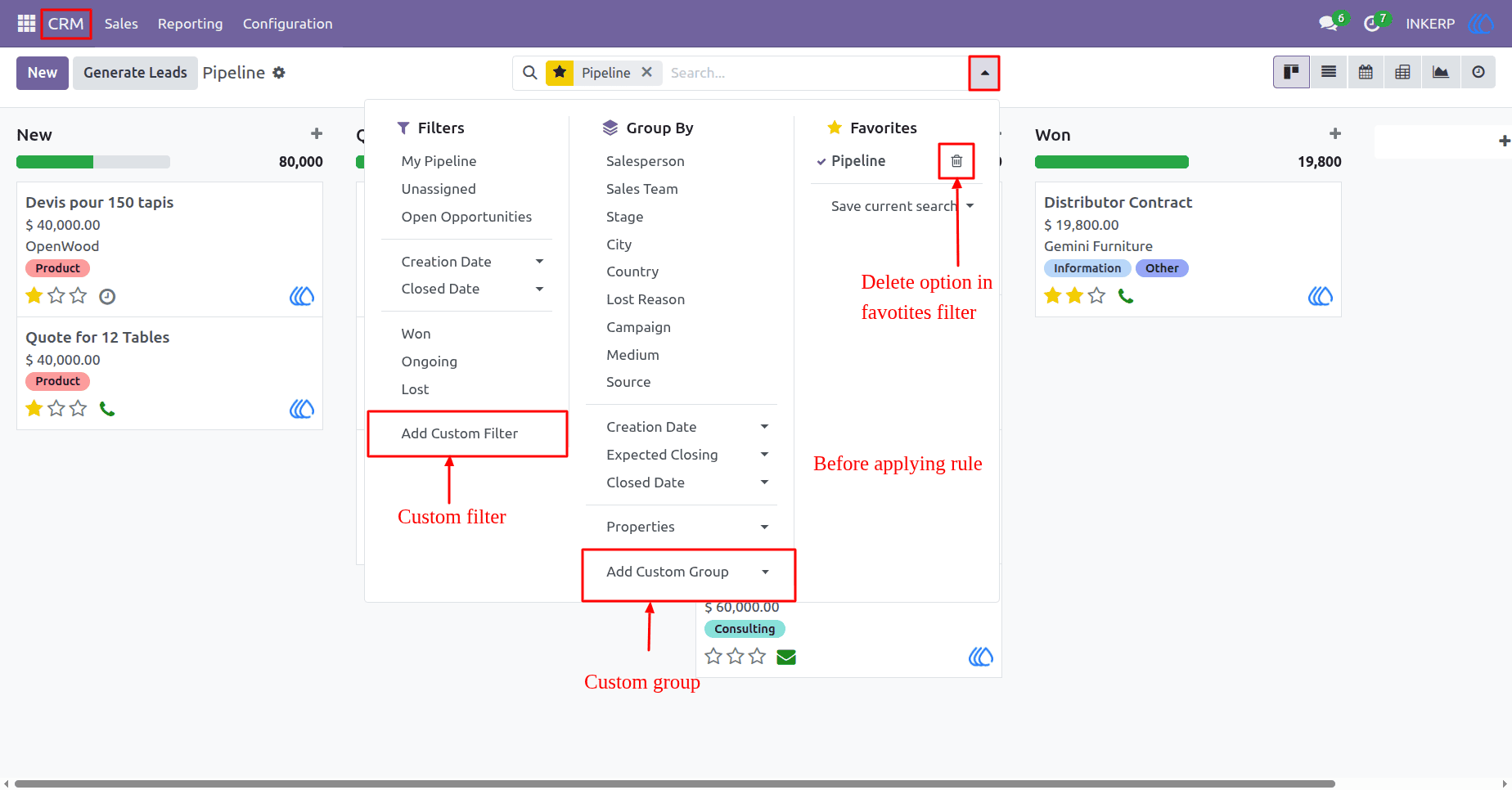
Hide Add Custom Filter : Blocks creation of new filters.
Hide Add Custom Group : Blocks creation of new group by options.
Hide Delete Option In Favorite Filter : Prevents removal of saved filters.
Before Hide Search Panel Buttons Global
After Hide Search Panel Buttons Global
User Guide